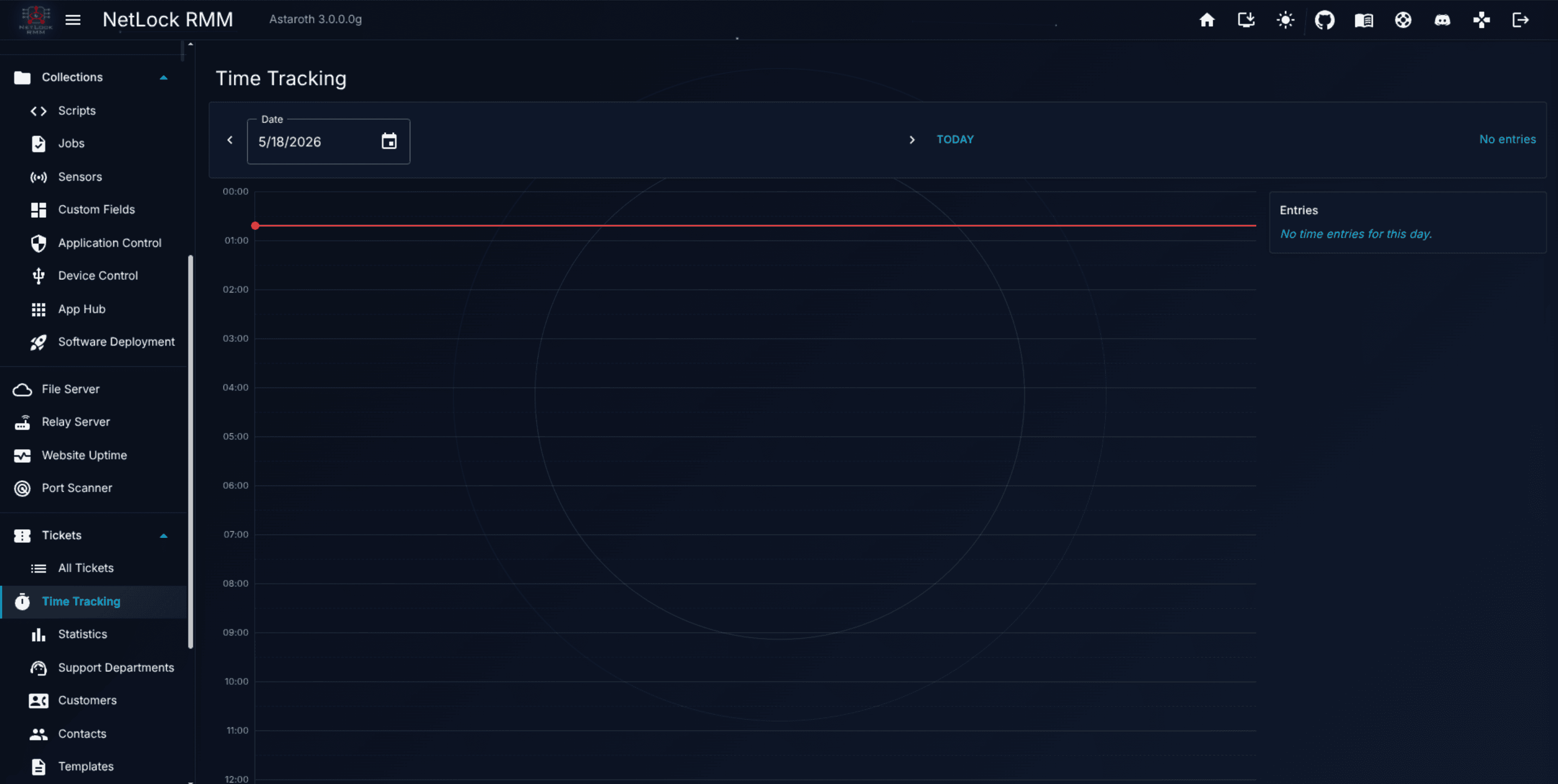
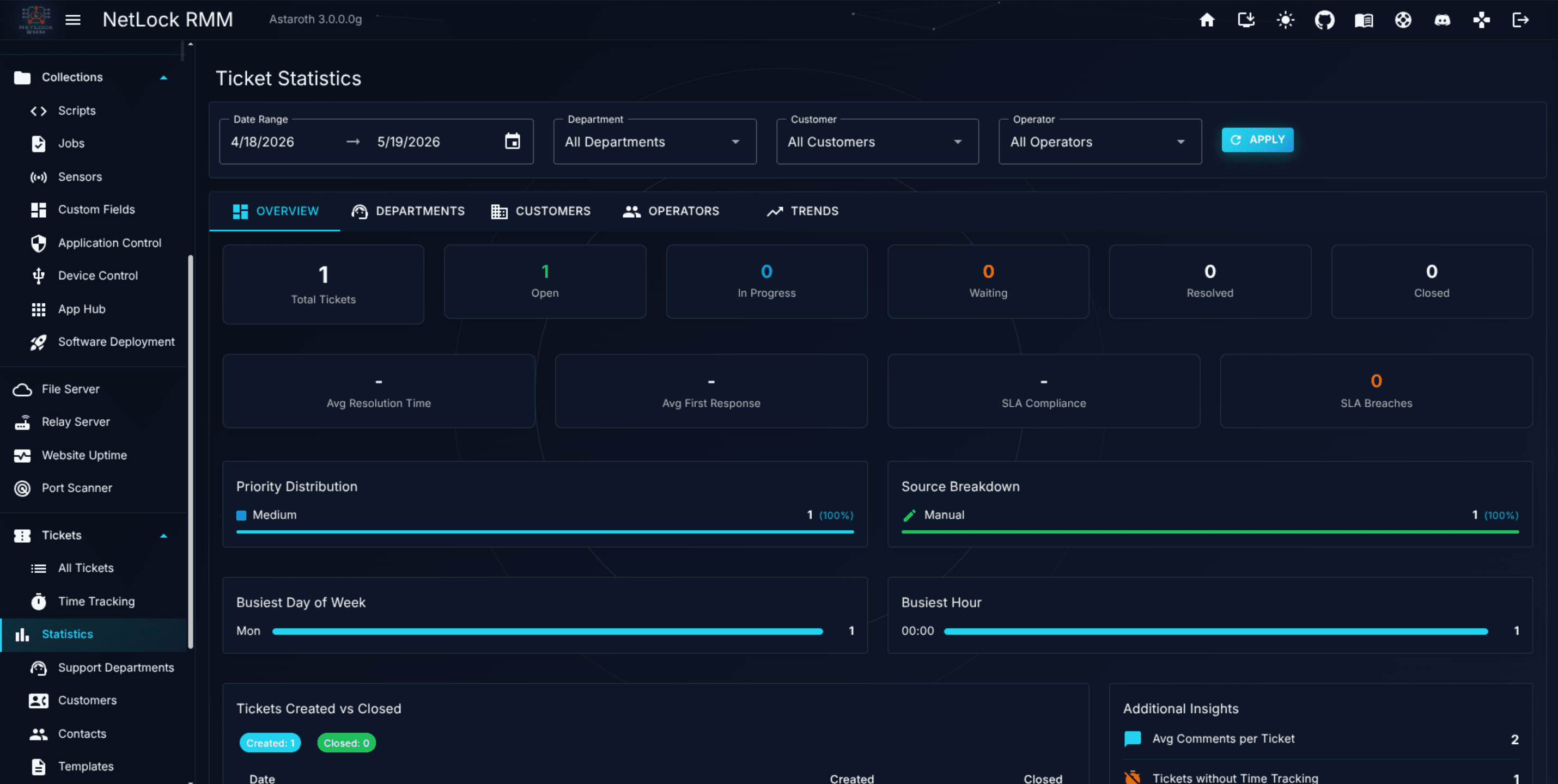
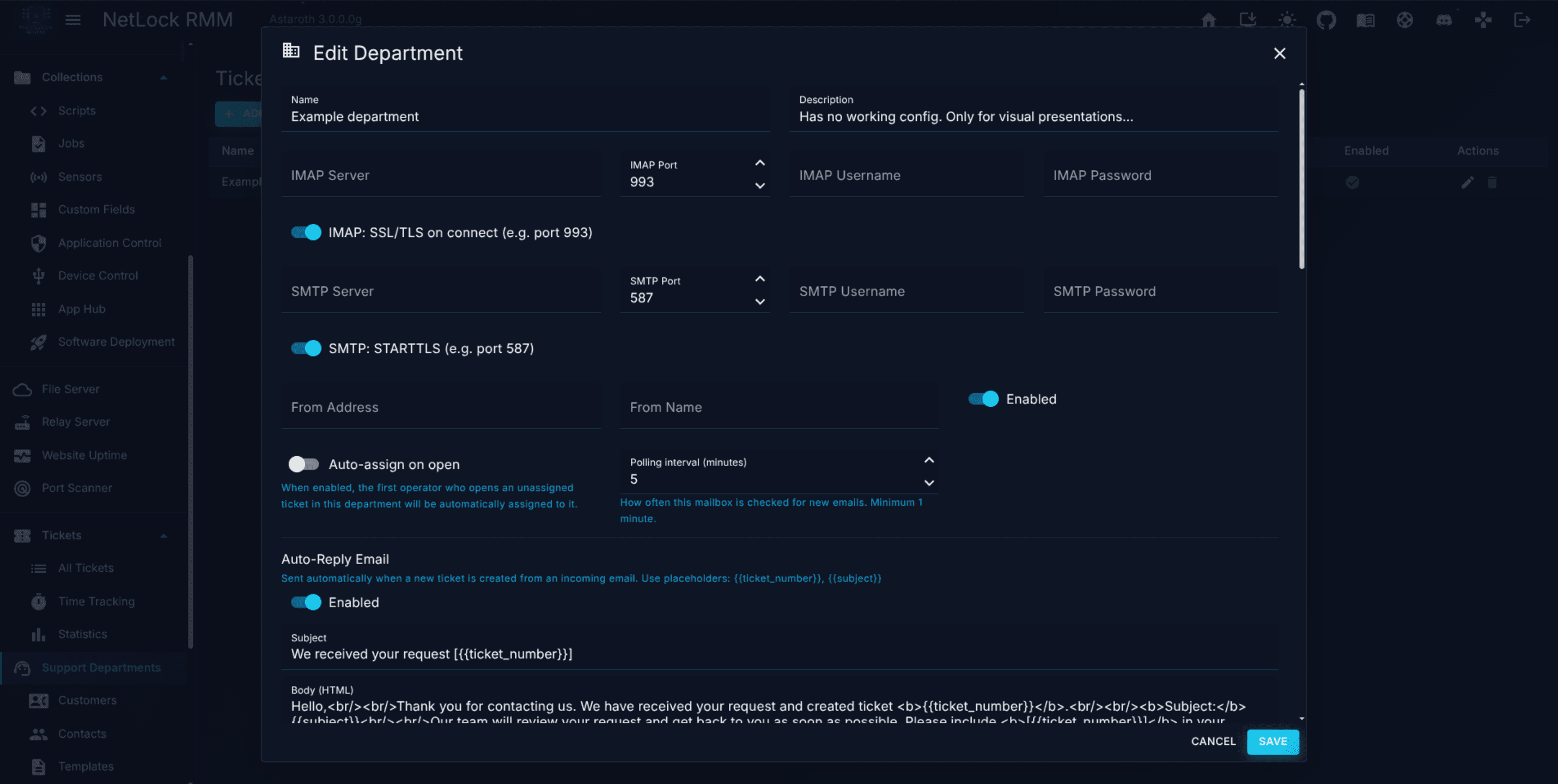
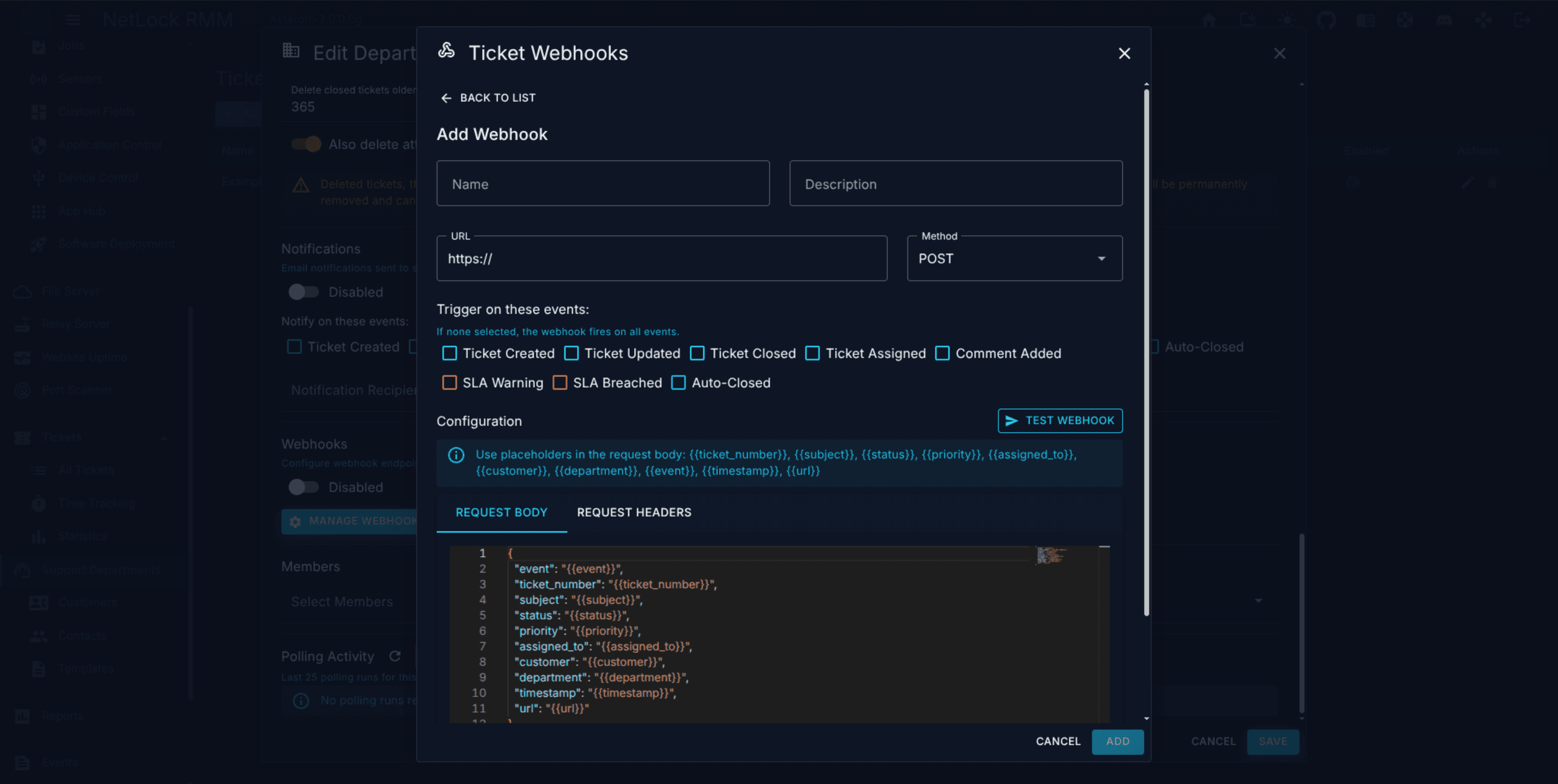
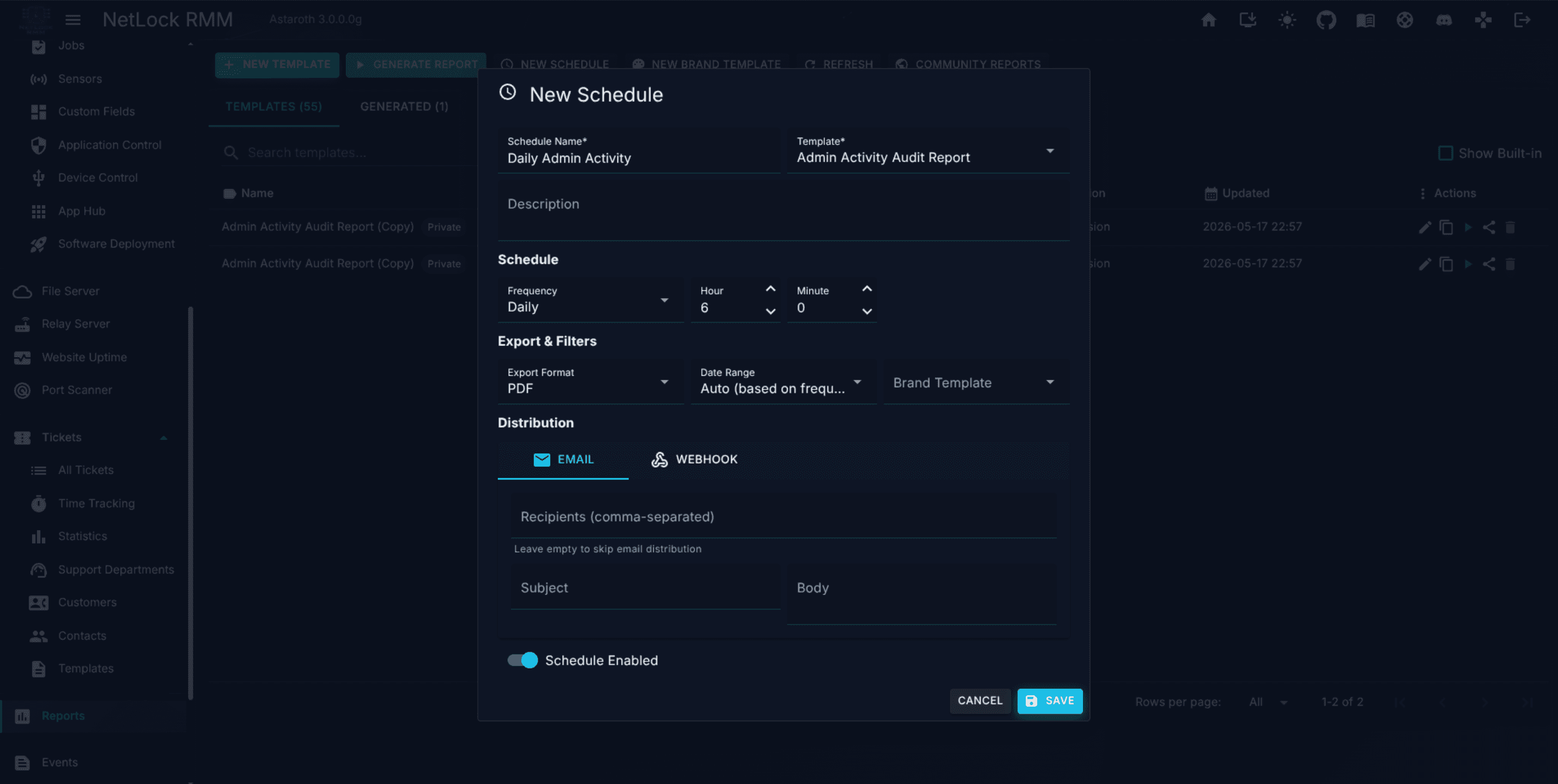
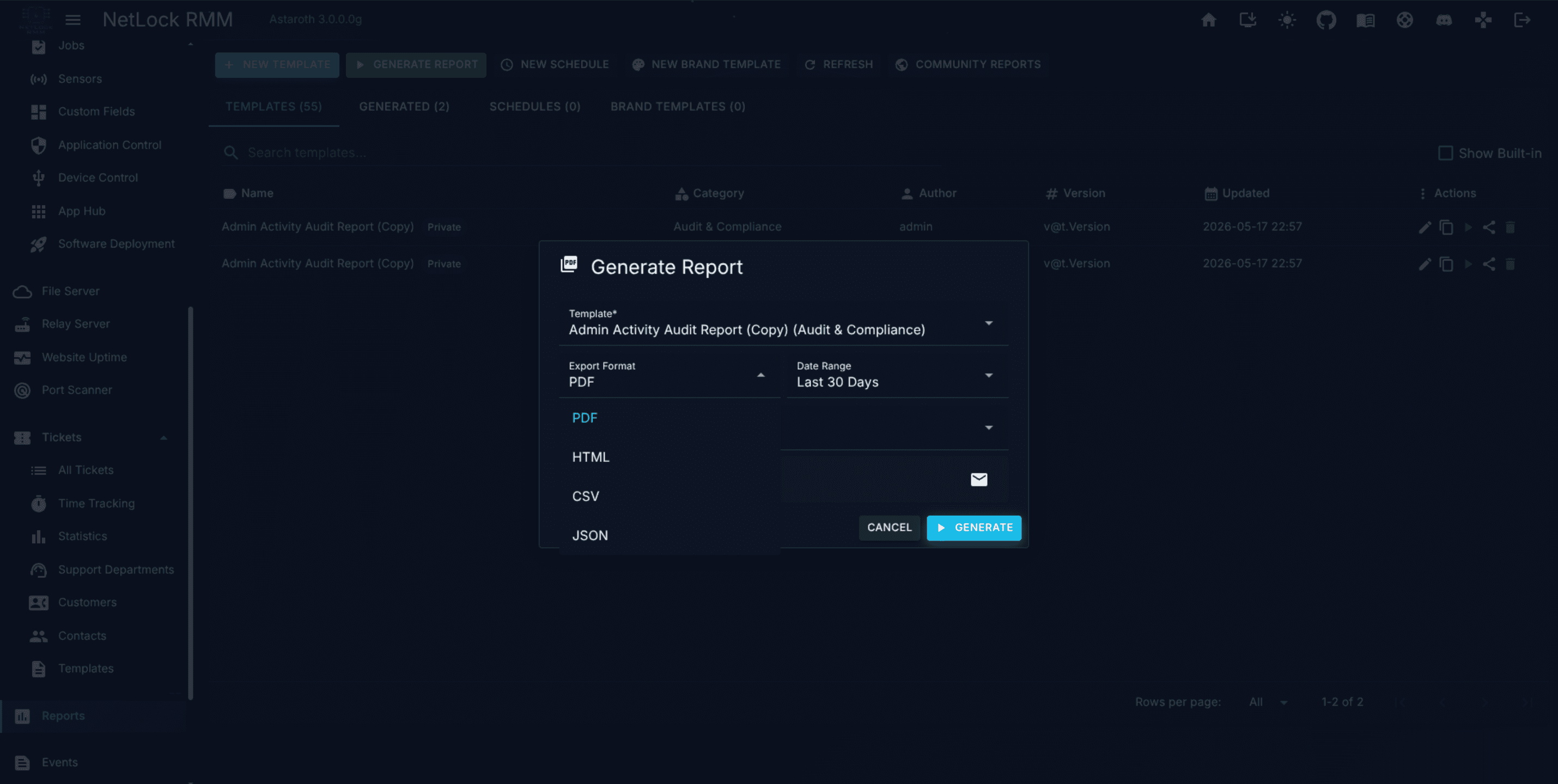
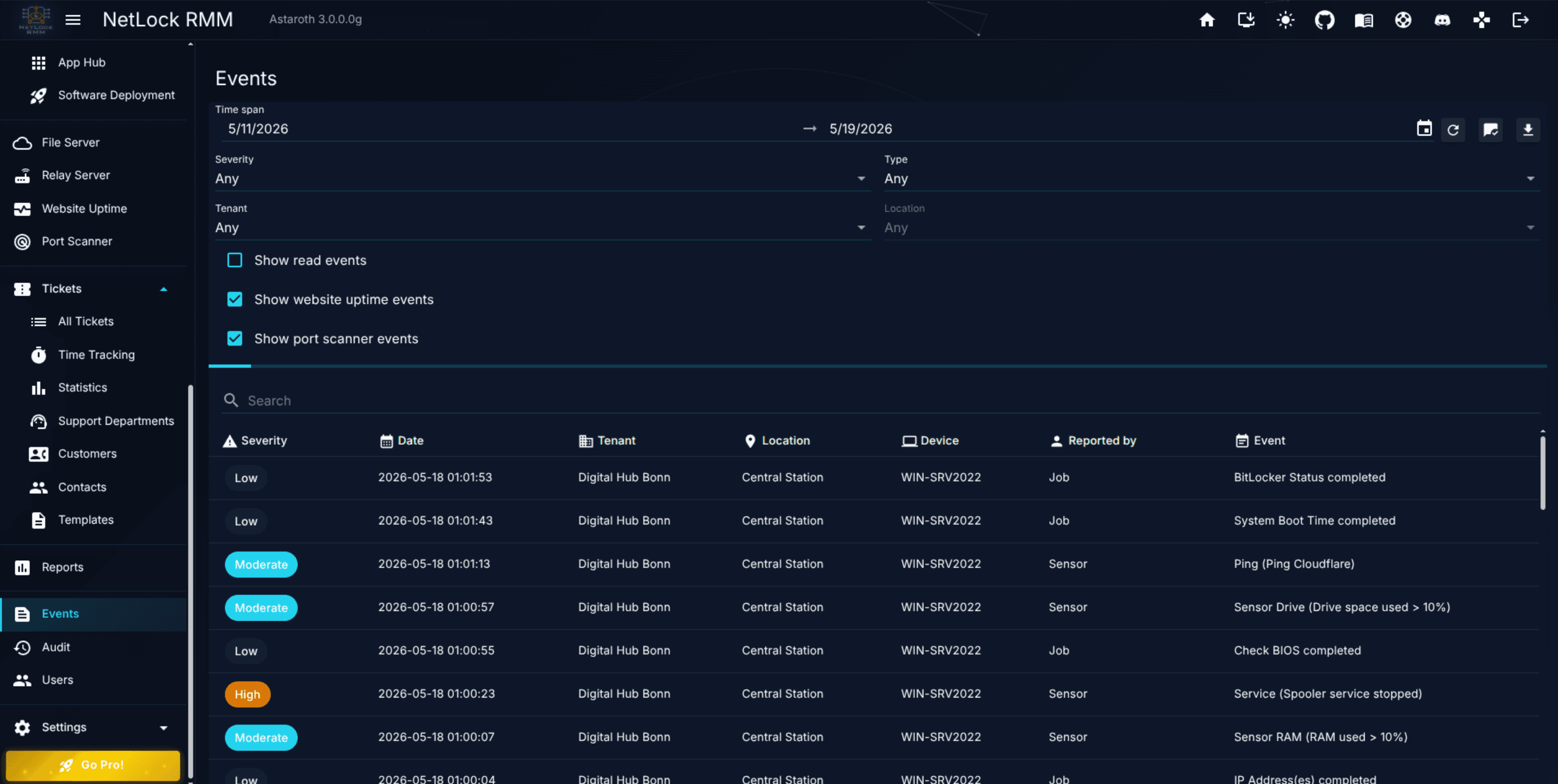
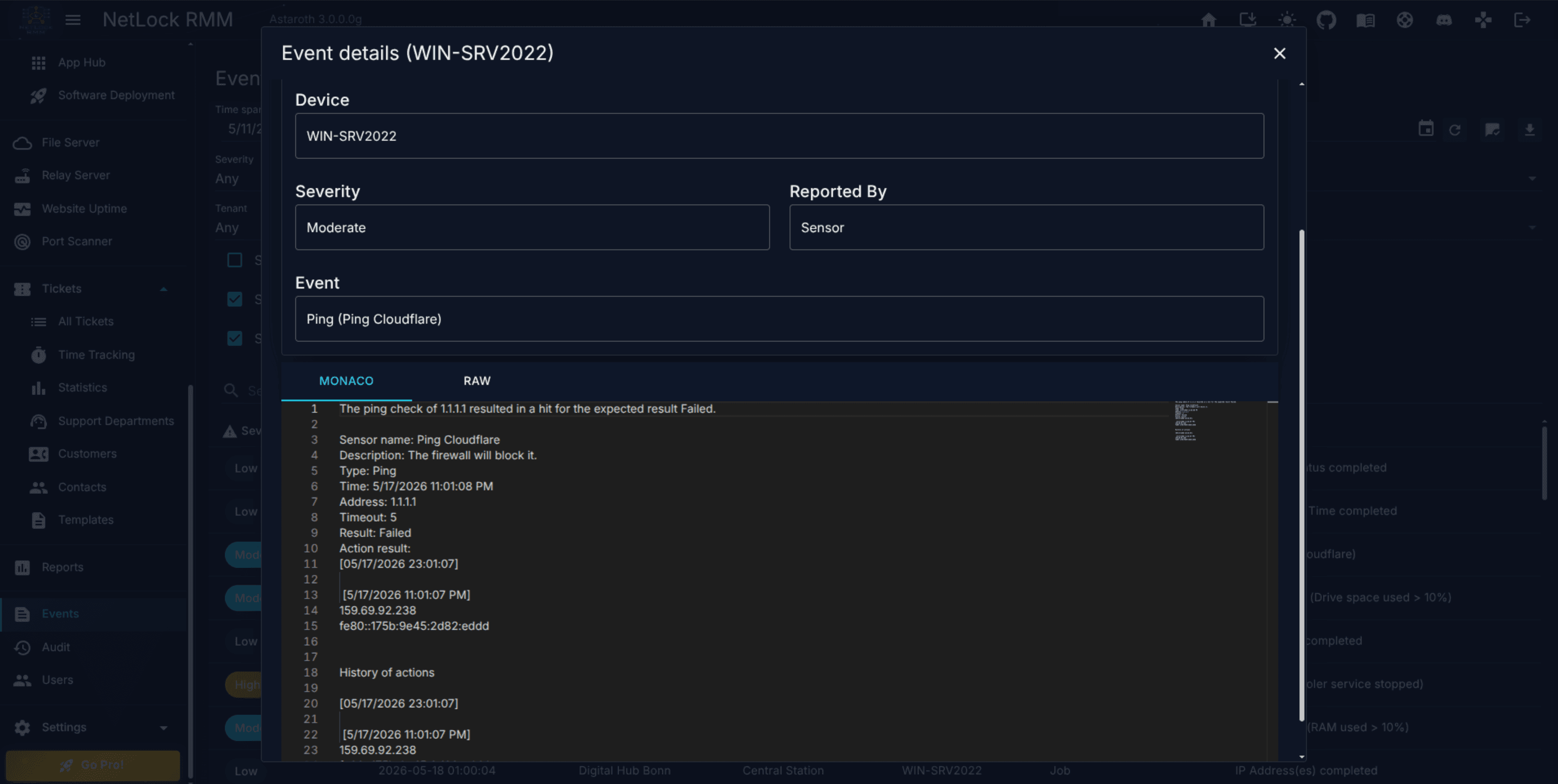
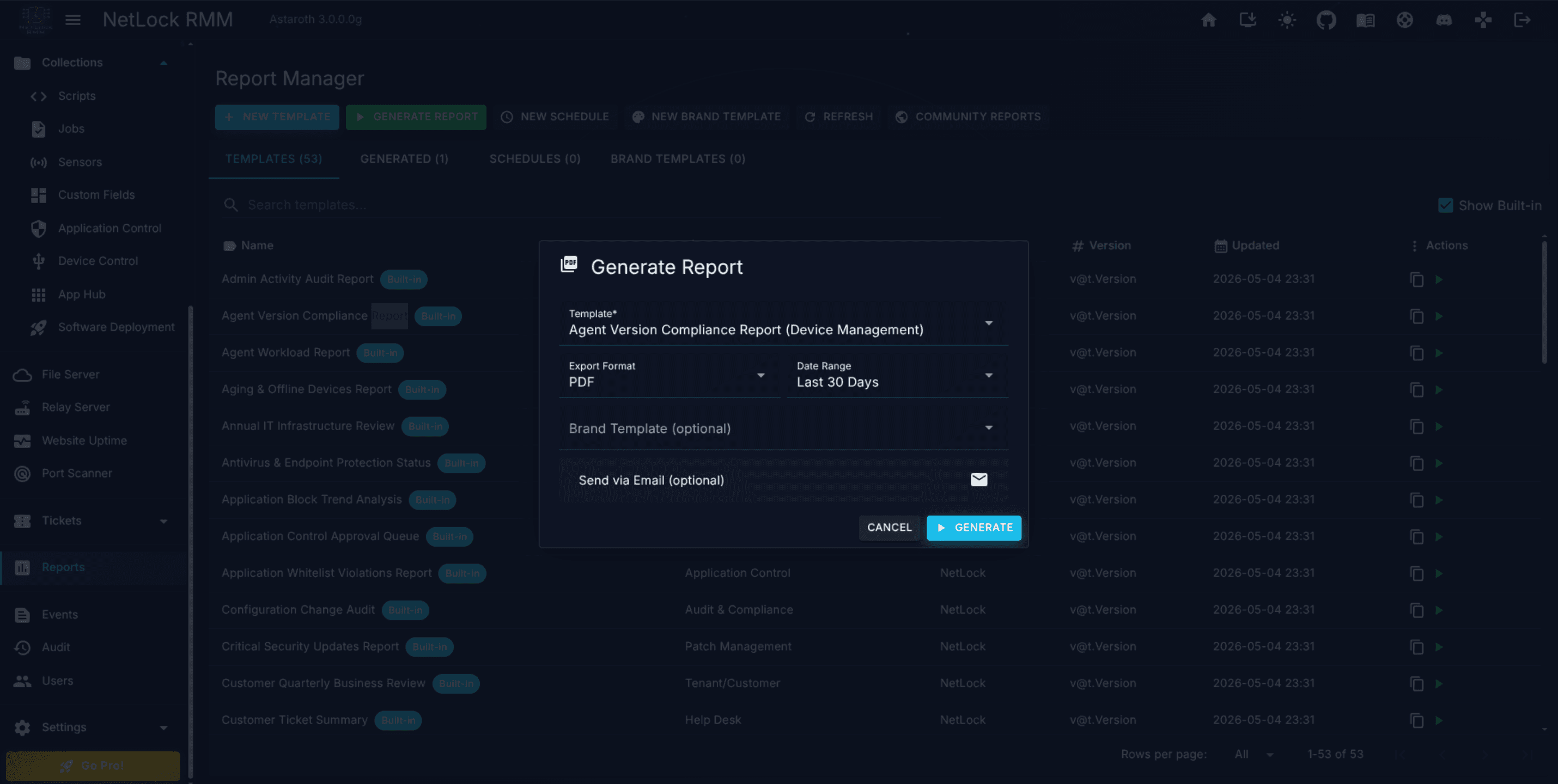
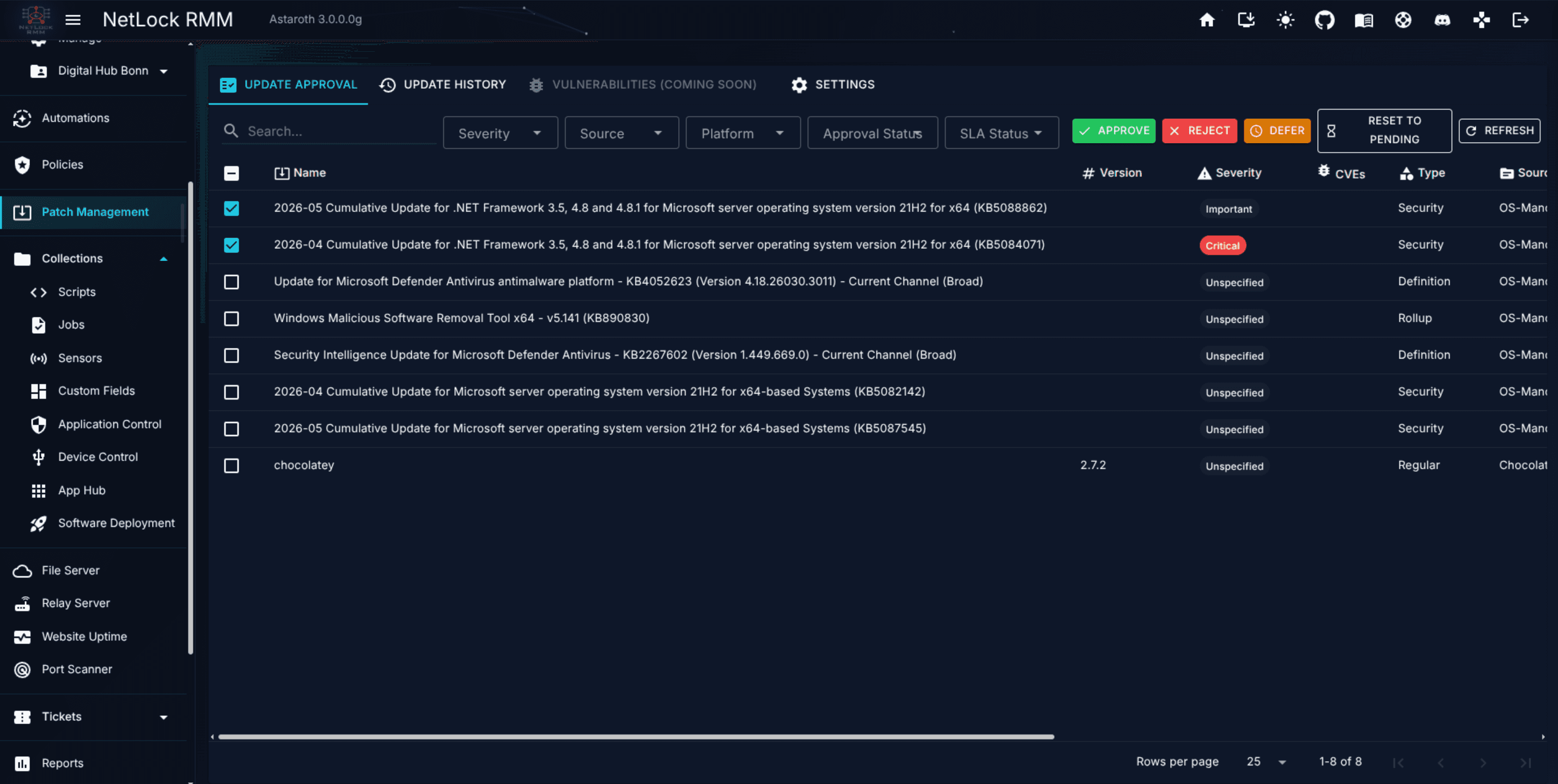
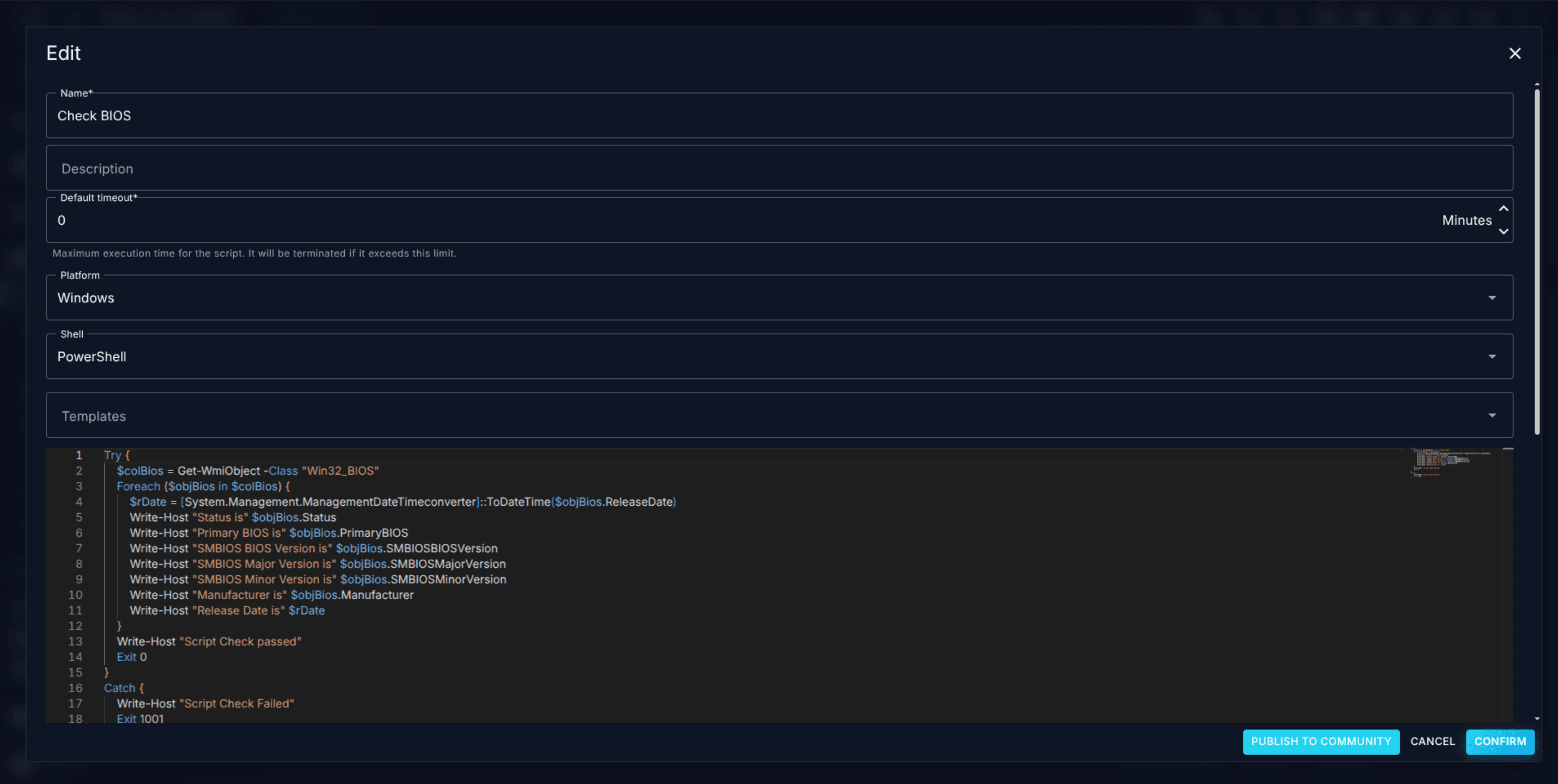
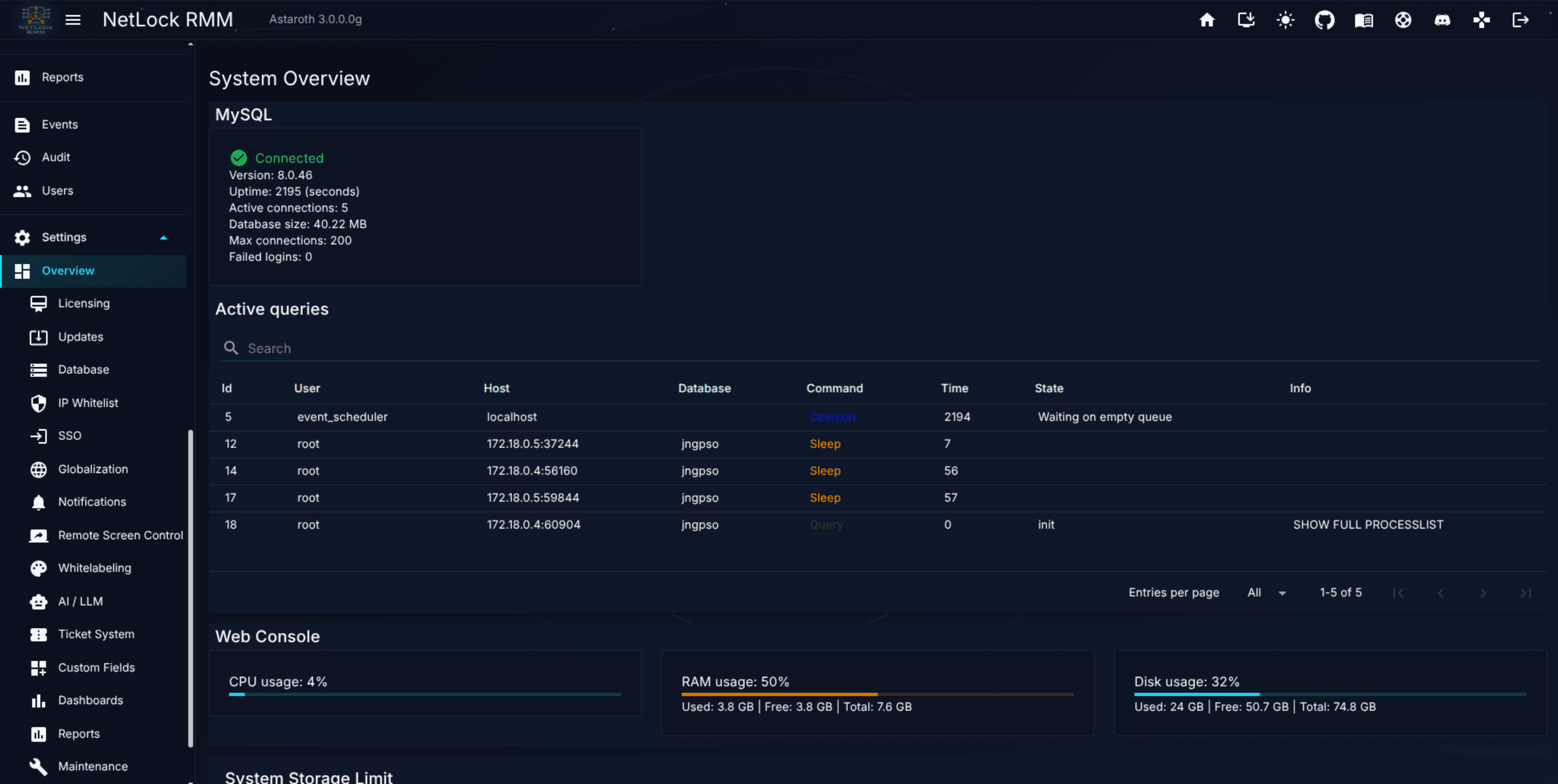
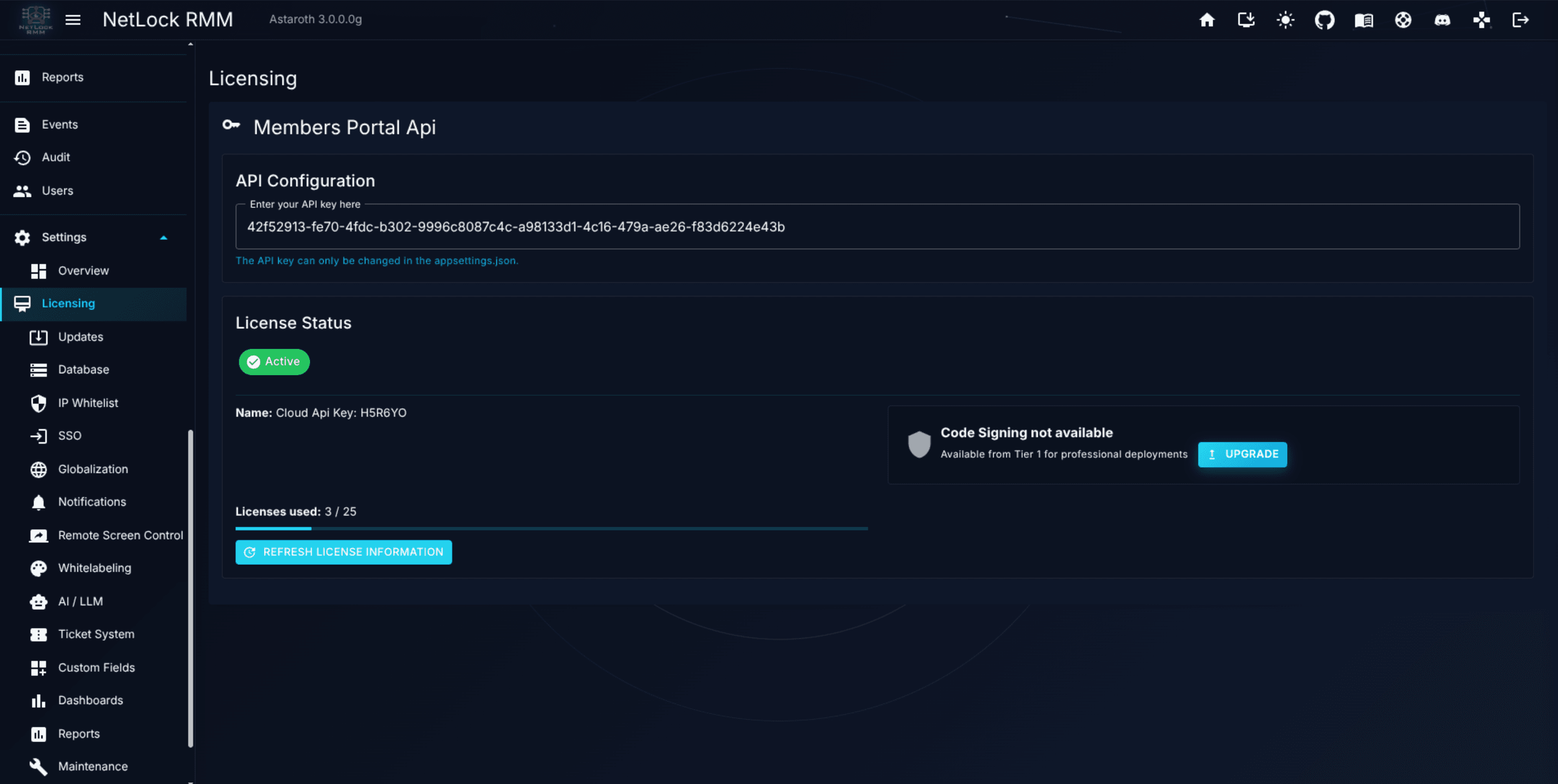
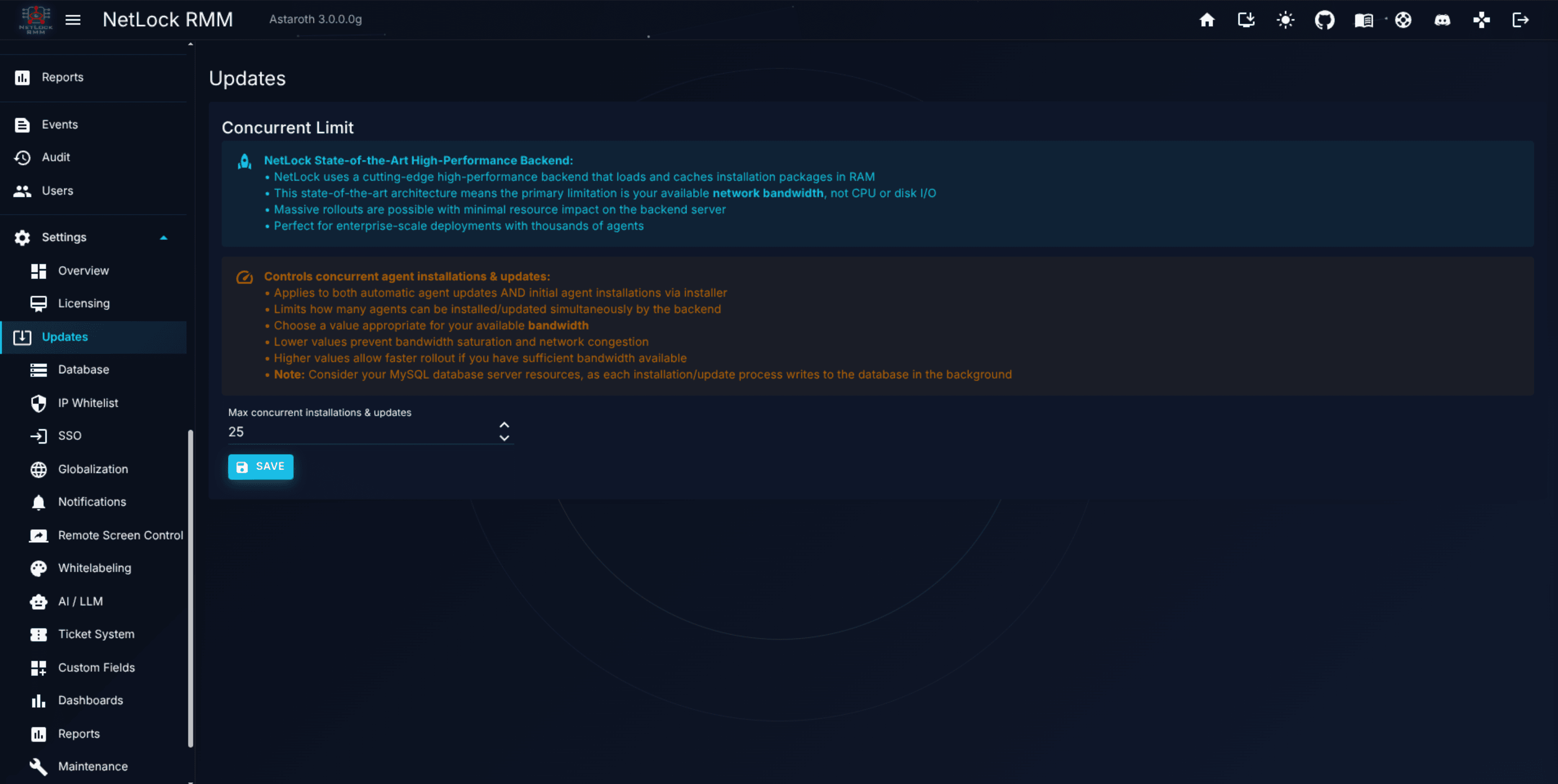
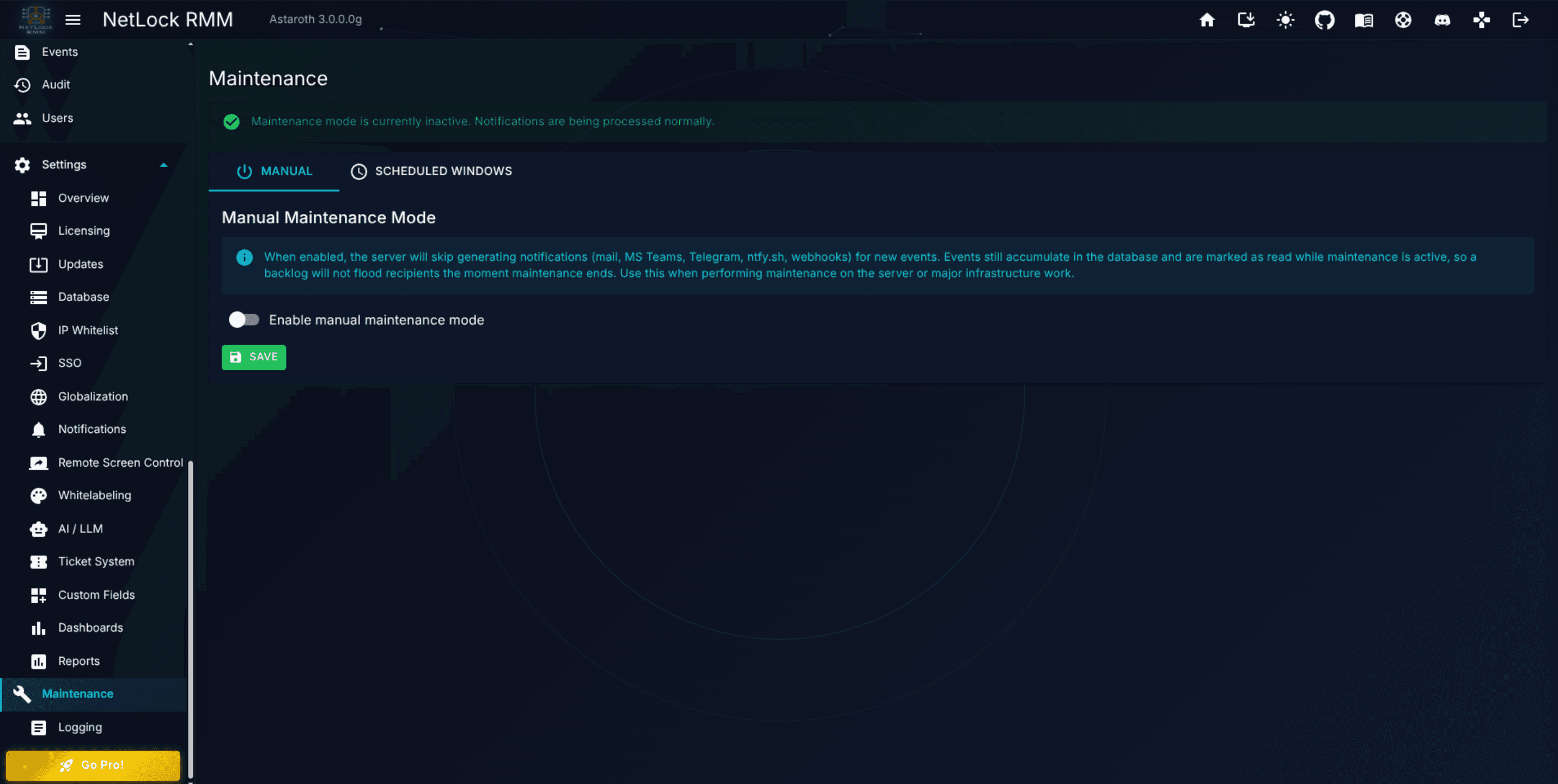
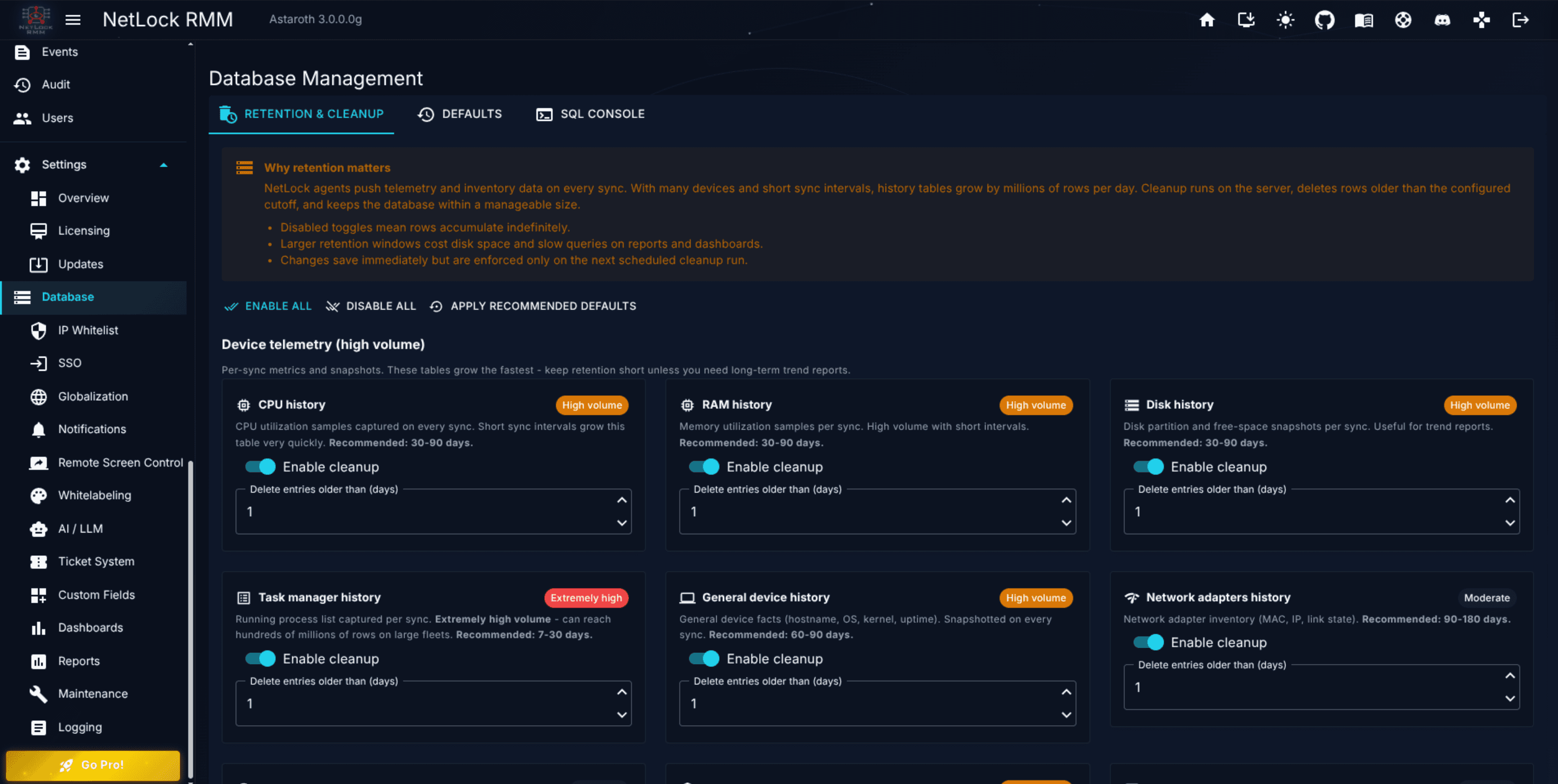
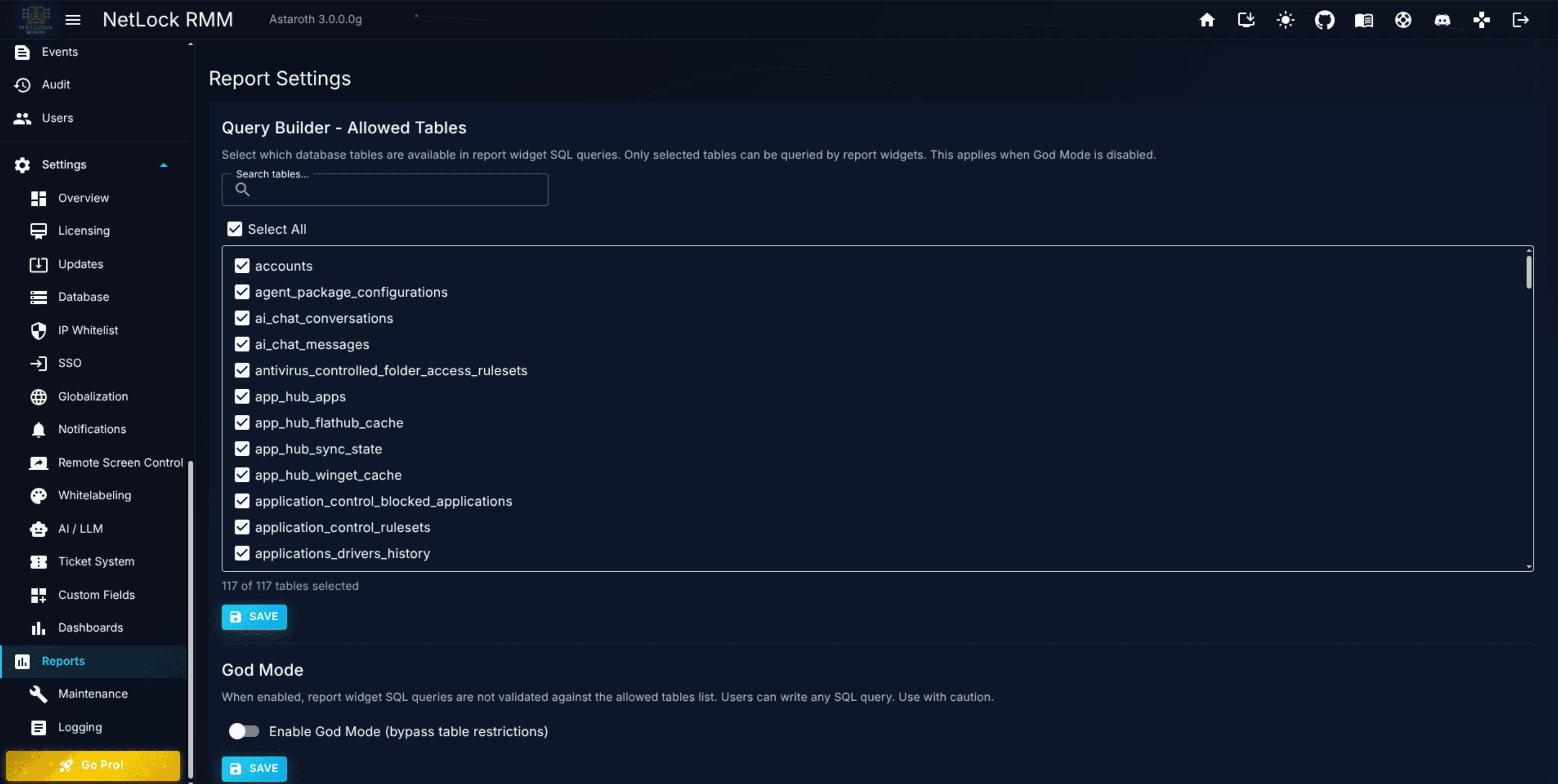
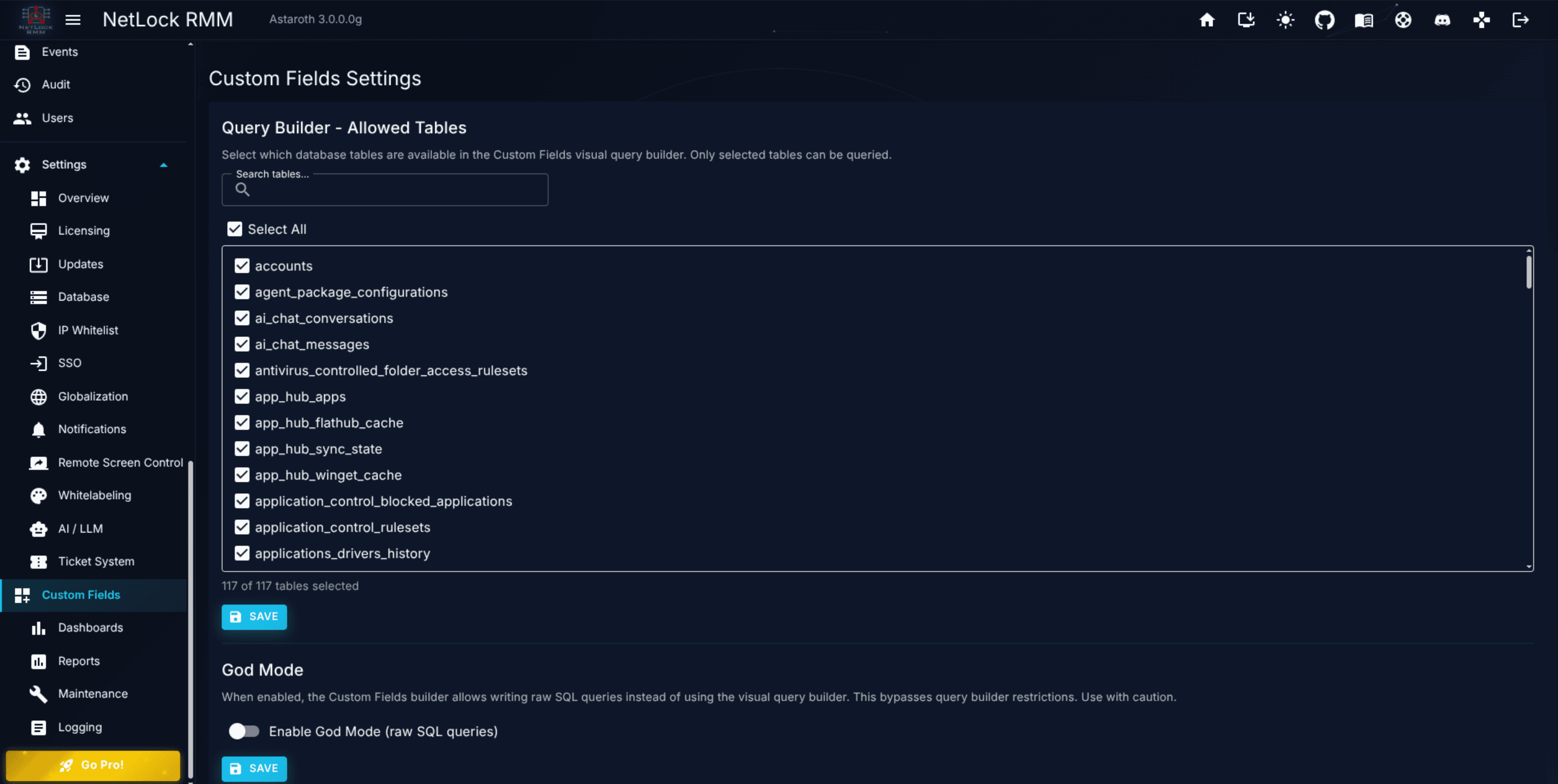
Welcome to the NetLock RMM user manual. This site covers everything an IT administrator or MSP technician needs to install, configure, and operate a fleet of devices with NetLock RMM, from the first login through advanced automation and reporting.
The manual is organised into five parts. Start with Part I if you are new to the product; jump directly to Part II or Part III if you already know the core concepts and want a specific feature or task.
Task-oriented recipes. Each guide is short, prescriptive, and links back into Part II for concept reference.
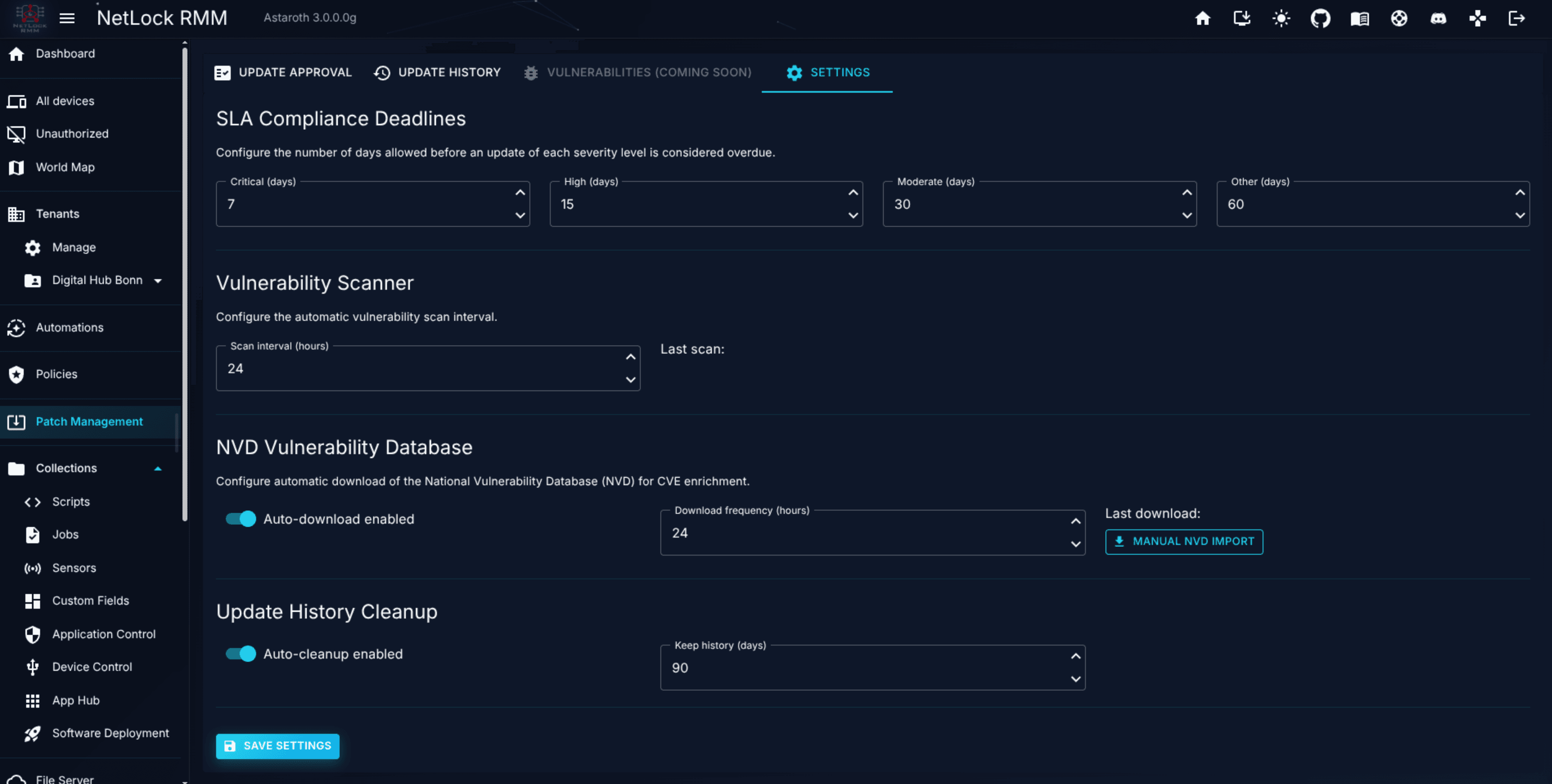
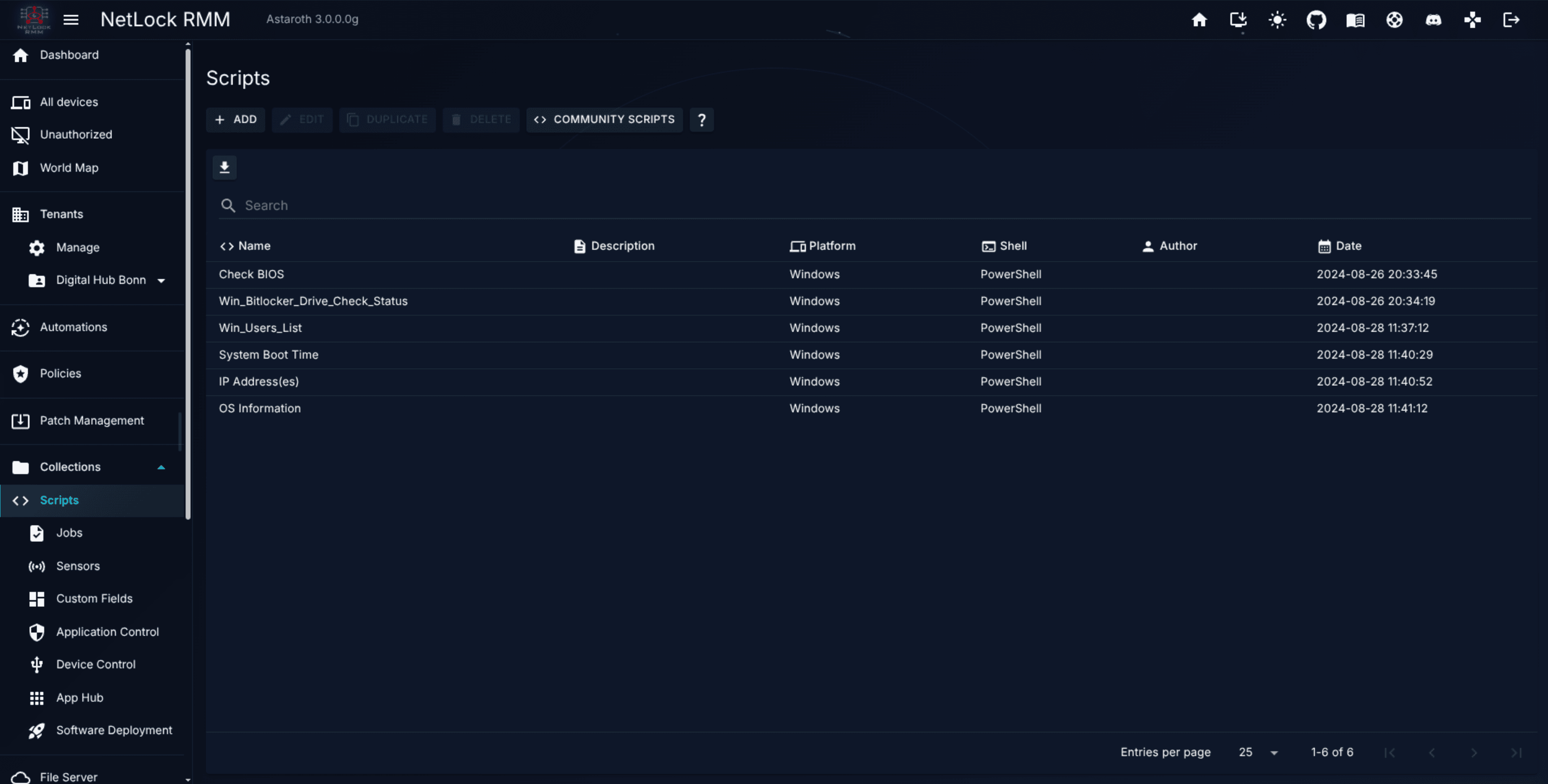
The guides cover deploying the first agent, building and applying a policy, configuring Windows Defender, setting up patching, writing a PowerShell script, deploying software with App Hub, restricting USB devices, configuring notifications, enabling SSO, branding the Console, running compliance reports, remote-controlling a device via relay, upgrading NetLock RMM, replacing the Members Portal API key, reloading licence information after a renewal, installing the server with Docker, monitoring a device with SNMP, debugging an agent with on-device logs, installing the web console as an app, using script variables and custom fields in scripts, and writing custom field values back from a script.
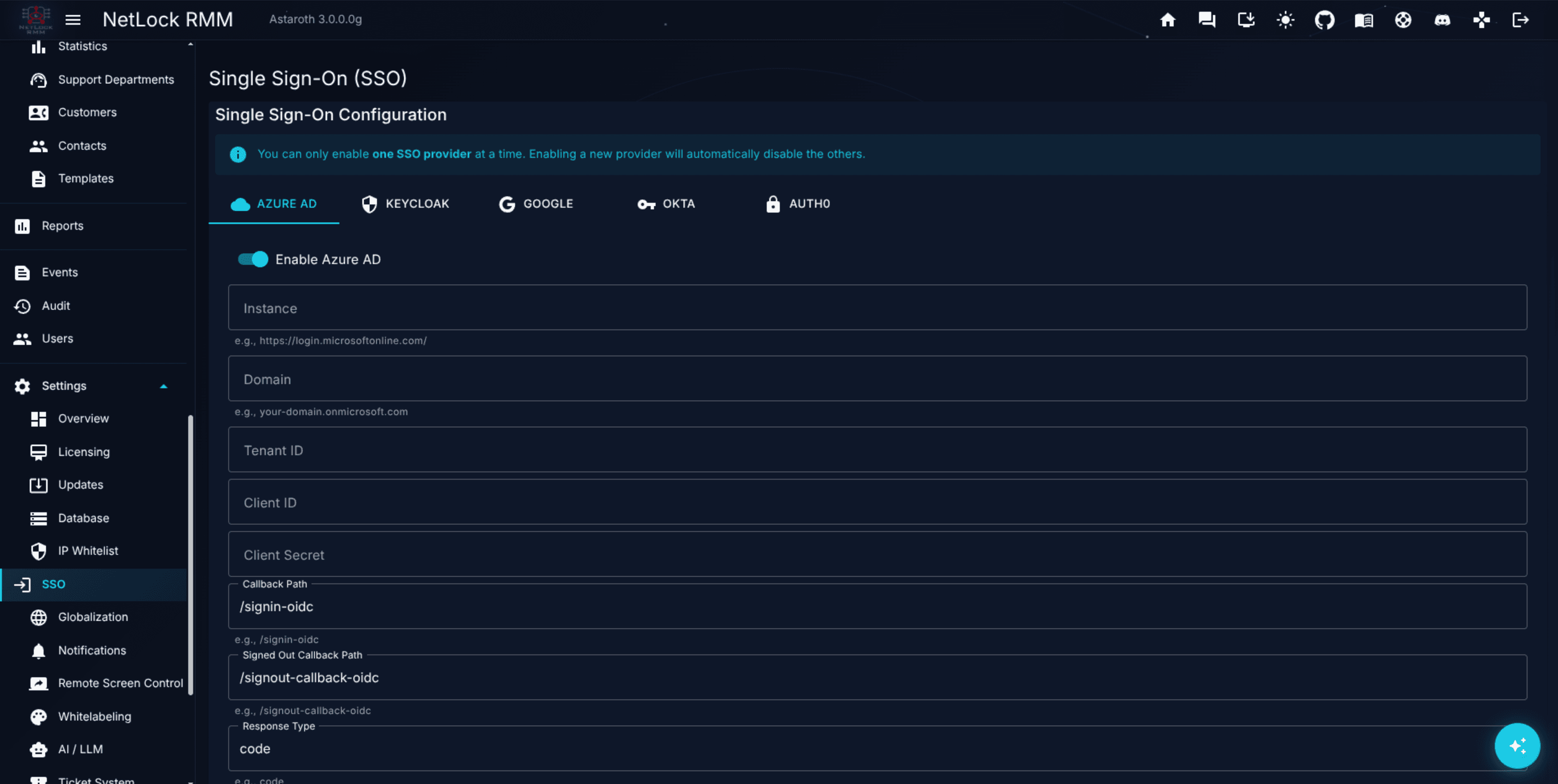
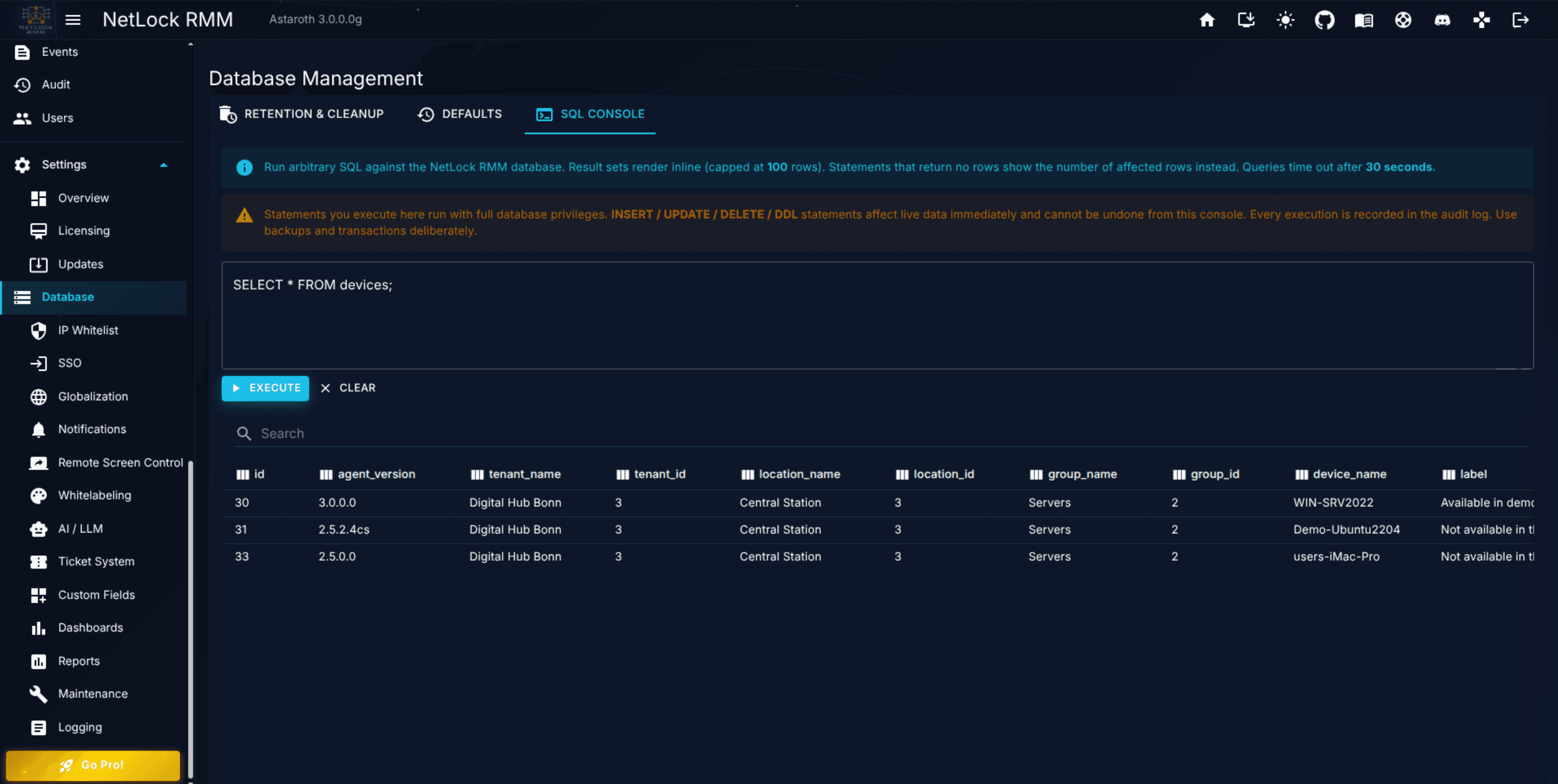
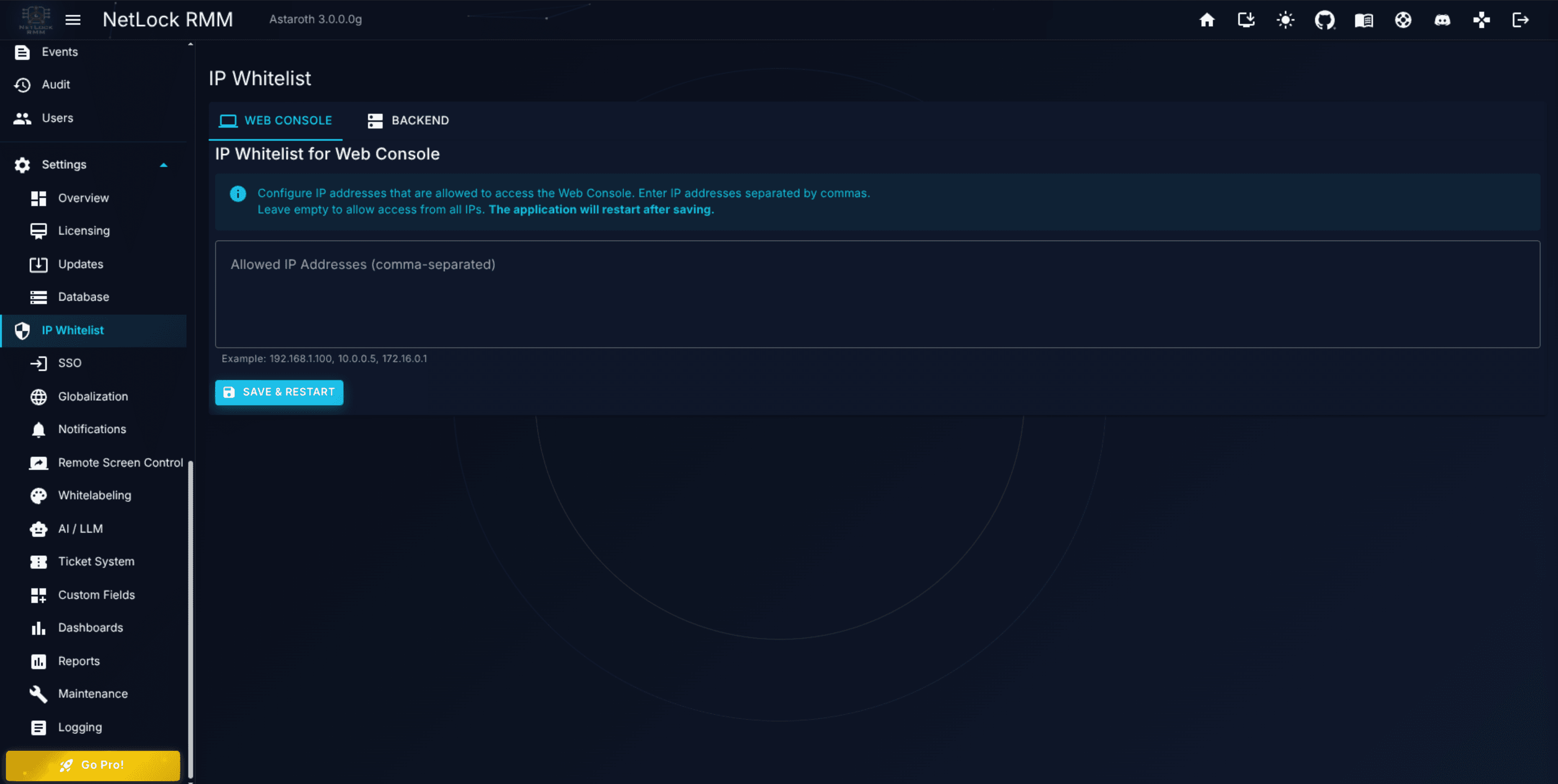
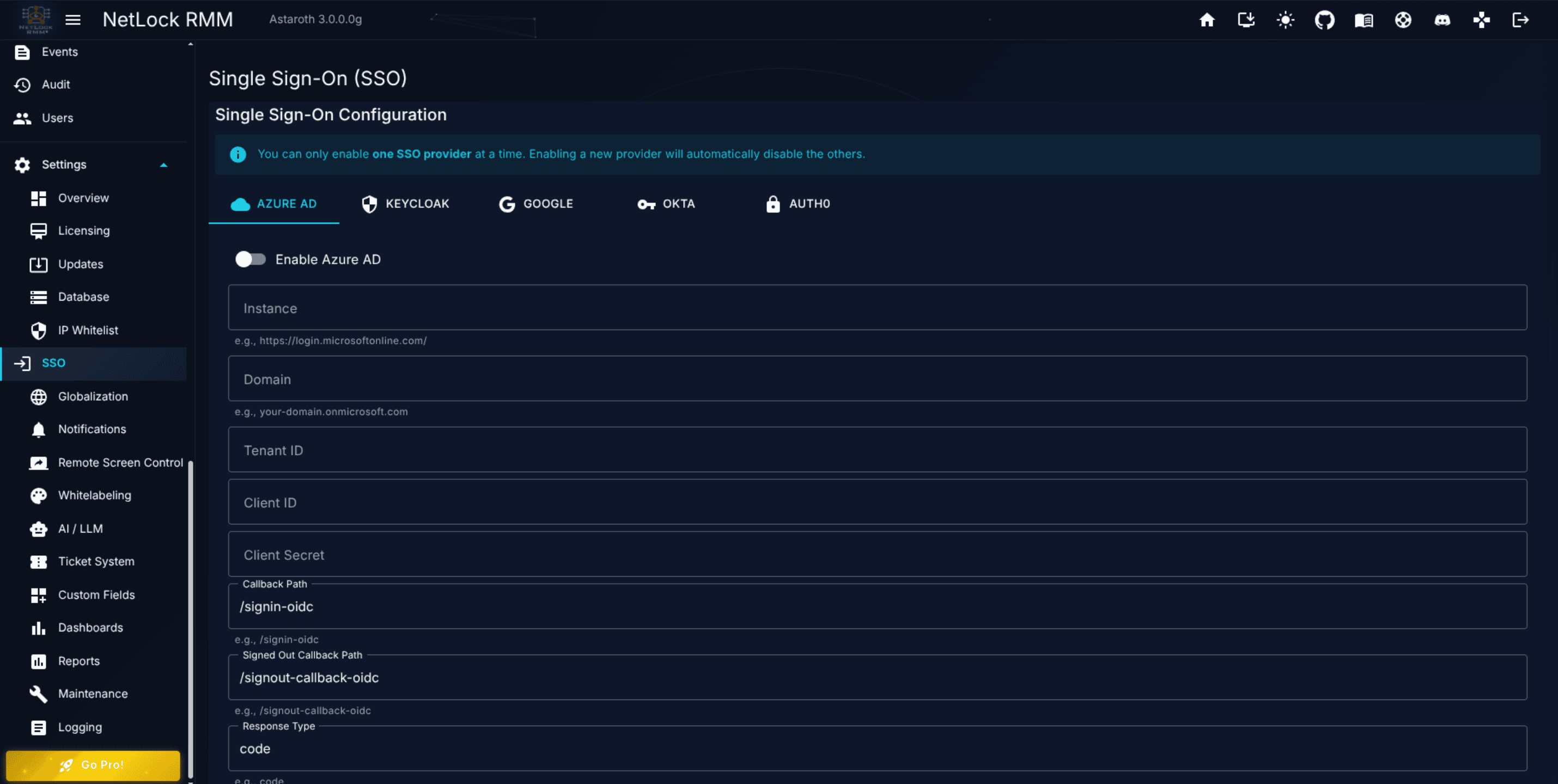
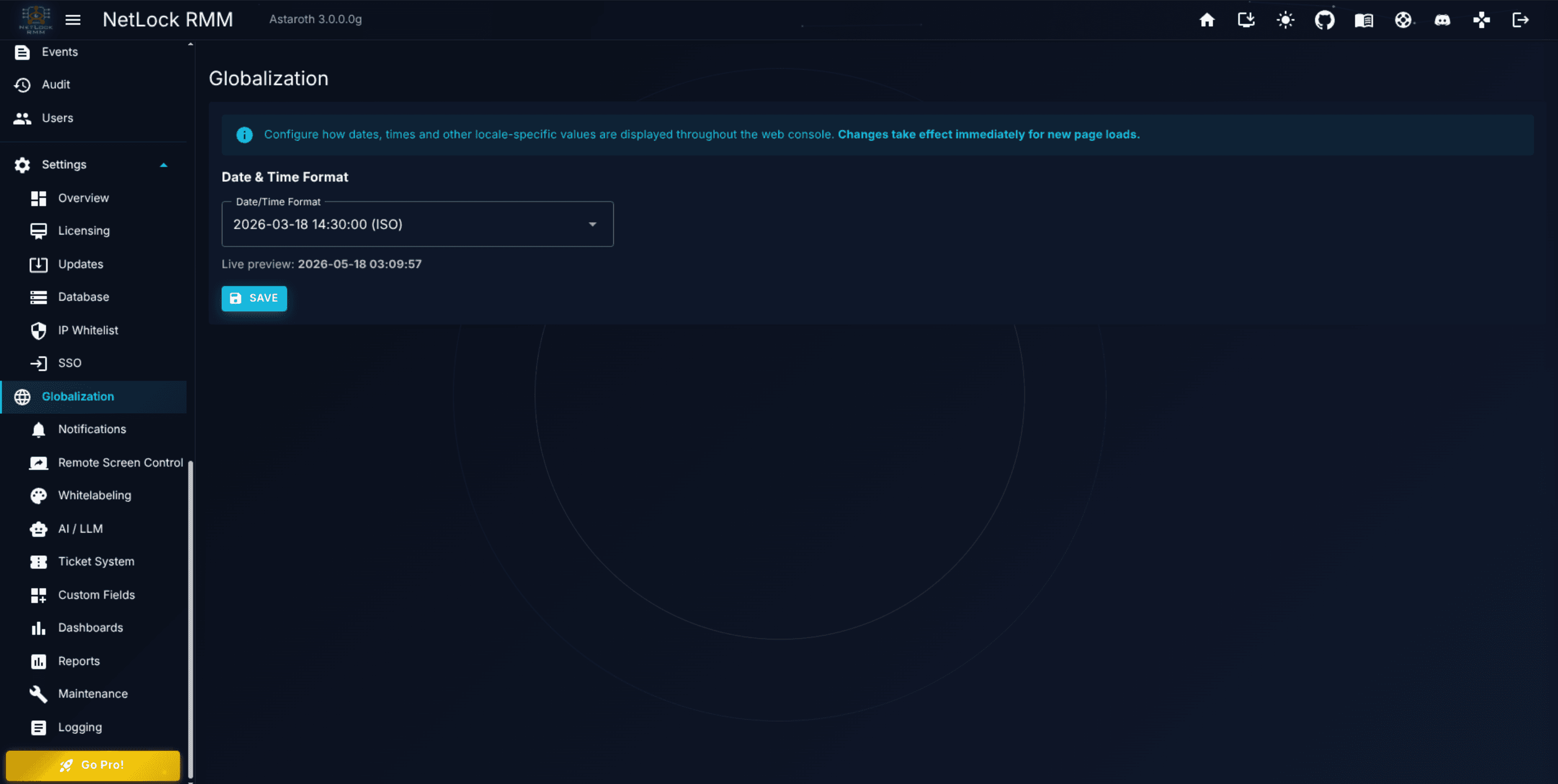
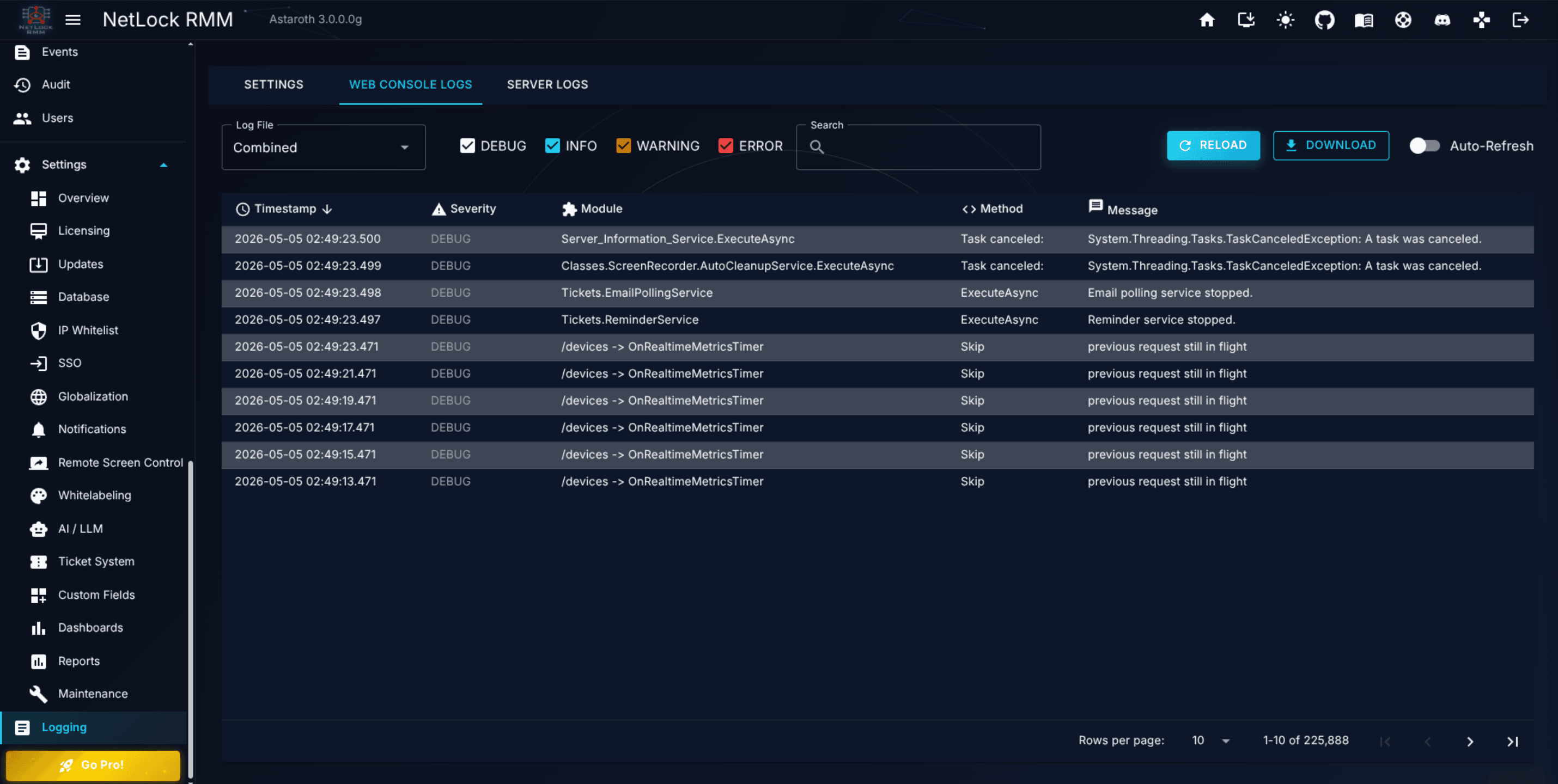
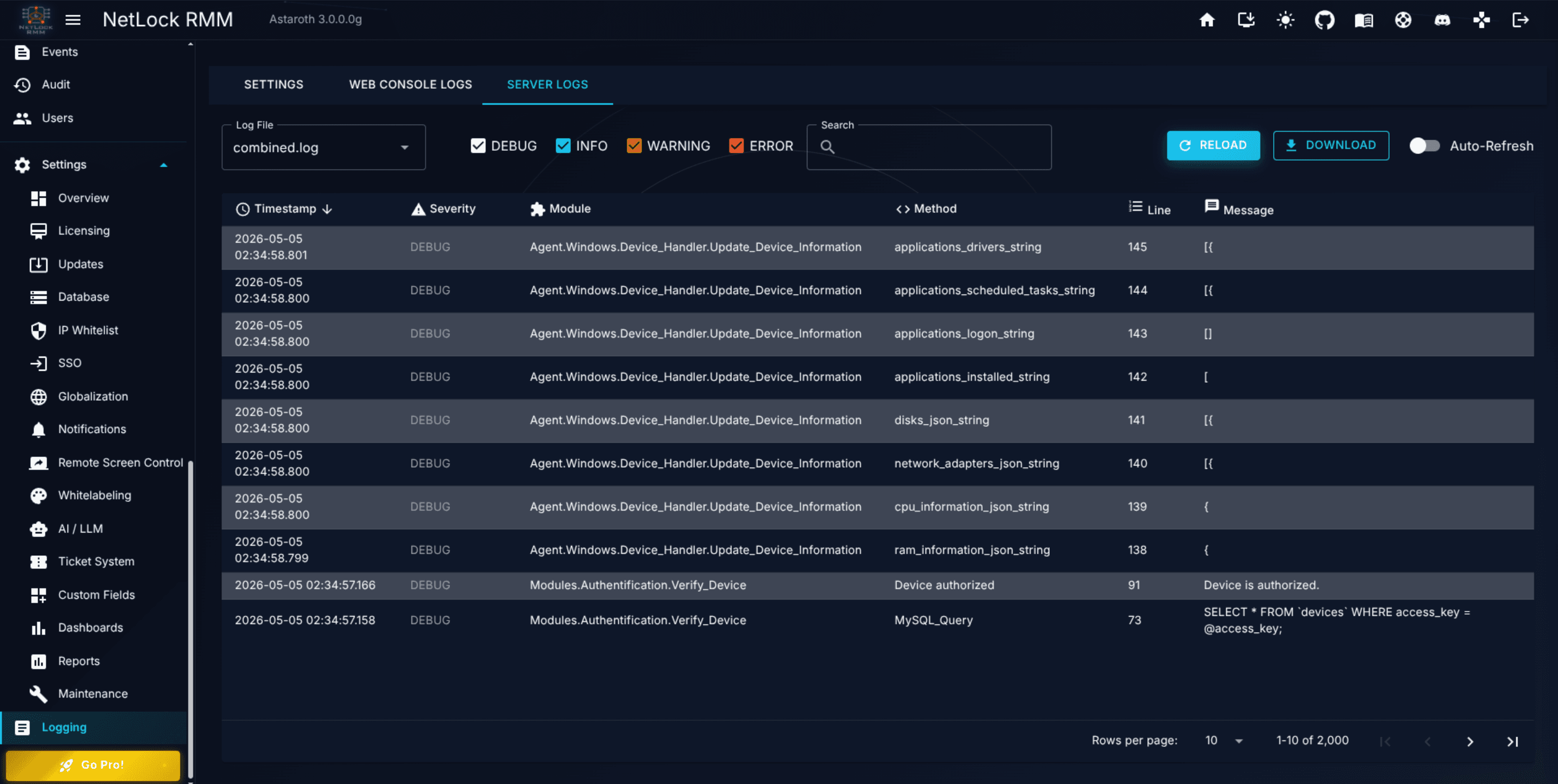
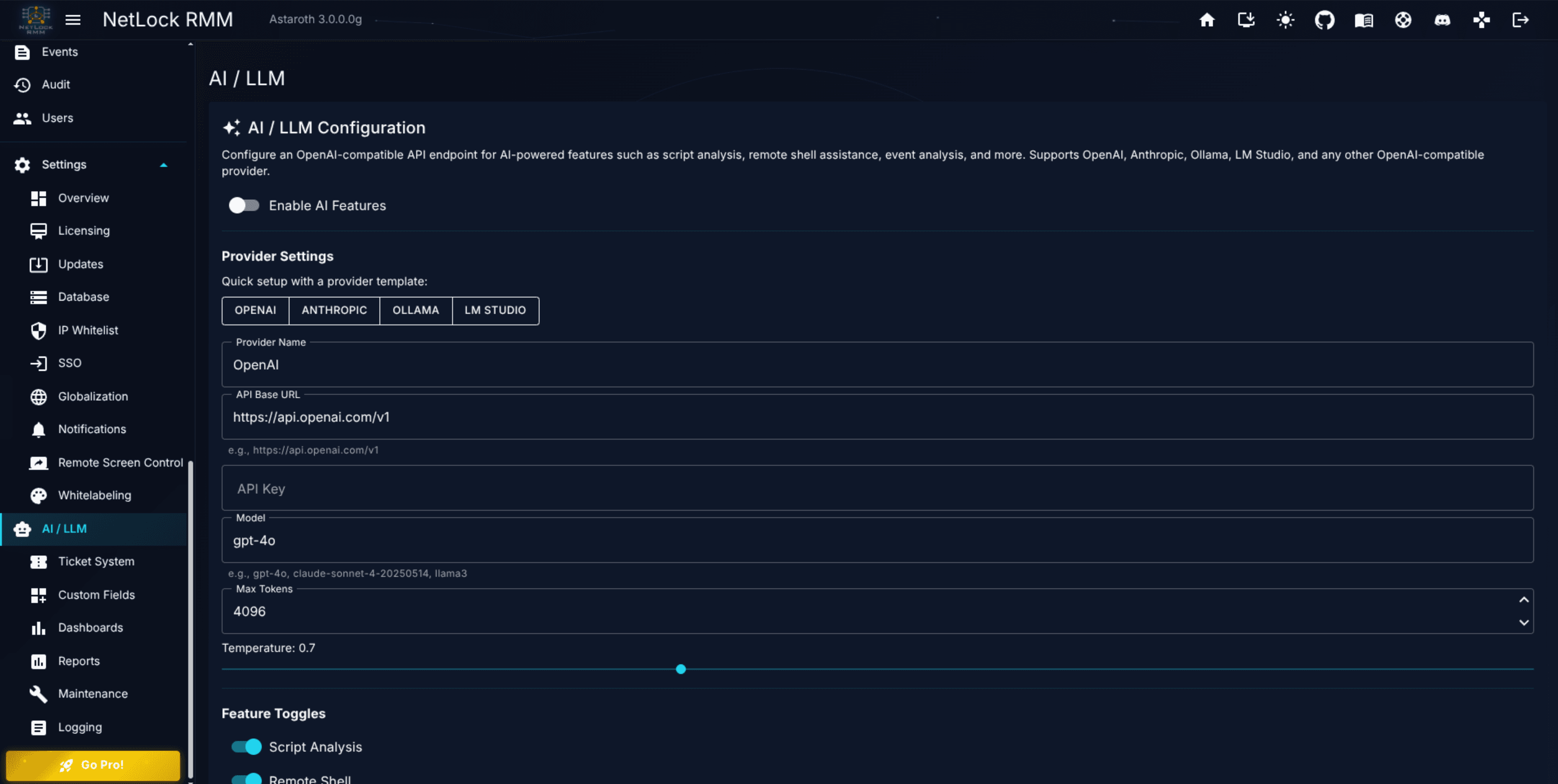
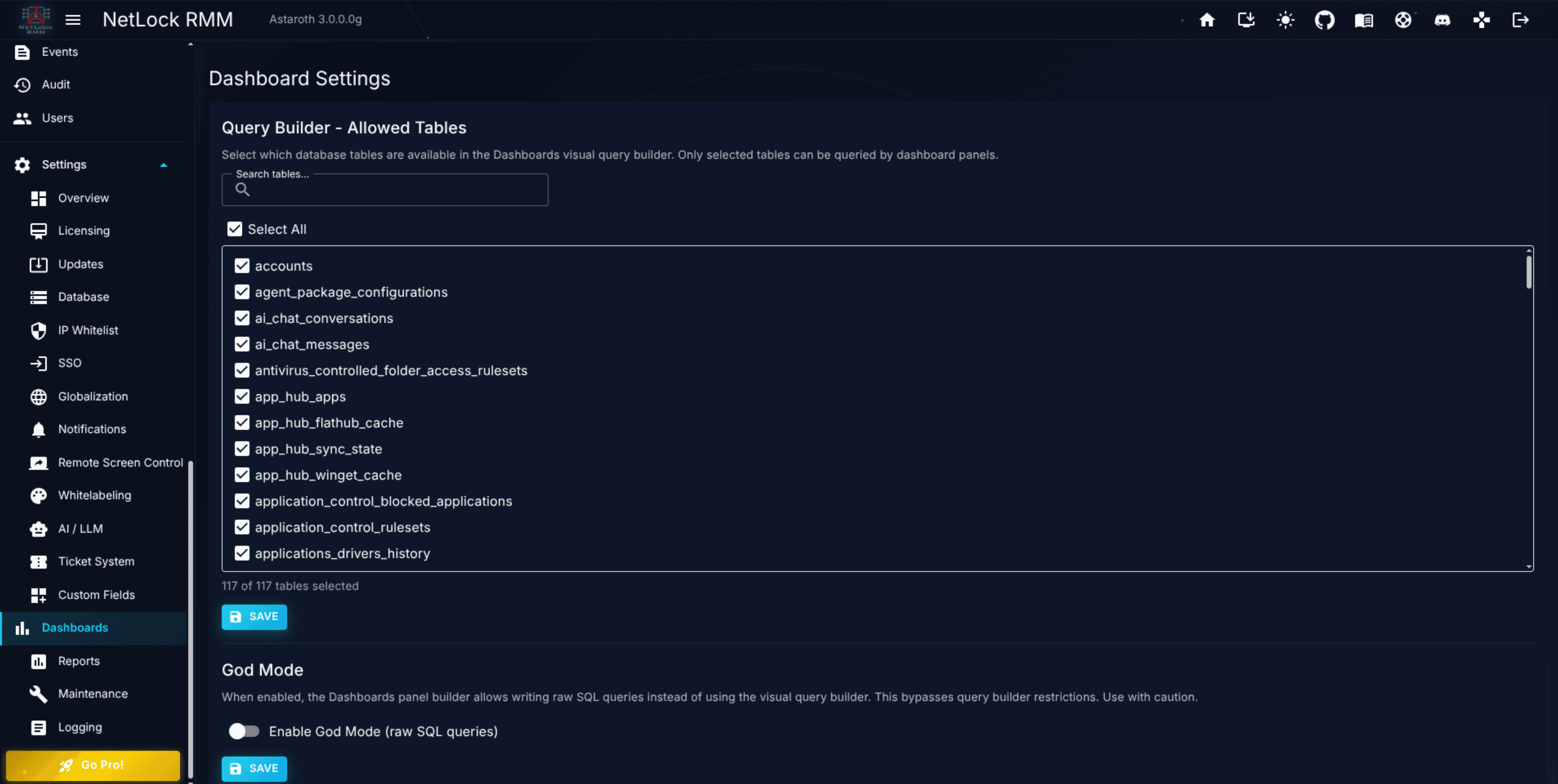
Deeper reference material for system operators. Covers licensing, updates, database management, security (SSO, IP whitelist, country restriction, rate limiting), globalization, whitelabeling, remote screen control, notification channels, logging, system settings, AI / LLM configuration, and content defaults.
UI labels, routes, and permission flags appear in backticks: Settings → SSO, collections_application_control_manage.
Navigation paths use → to separate menu levels.
Callouts flag important information:
Note: Informational aside worth reading.
Tip: Shortcut or recommendation.
Warning: Action you probably do not want to take by accident.
Optional module: Content only applies when a particular module is enabled.
Keyboard shortcuts use <kbd> tags, for example Ctrl + K.
NetLock RMM is a remote monitoring and management (RMM) platform for IT administrators and managed service providers (MSPs). You use it to deploy an agent to the devices you manage, see their status in real time, apply policies, schedule automations, push patches, run scripts, distribute software, hand out remote-control sessions, and keep an auditable record of everything that happens along the way.
The product is delivered as a web Console backed by a server and an agent you install on each managed device. All three components are covered in this manual; the Console is the main surface you interact with.
IT admins inside a single organisation. You manage a single fleet of workstations, laptops, and servers. You typically use one tenant, a small number of locations, and a handful of user accounts for your colleagues.
MSP technicians managing multiple customer organisations. You create one tenant per customer, organise their devices into locations and groups, apply policies that differ per customer, and scope user permissions so that technicians see only the tenants they are assigned to.
Both audiences use the same Console. The difference is scale — whether you work with one tenant or a hundred — not the feature set.
It is not a replacement for a dedicated SIEM. The Audit trail is auditable, but large-scale security event aggregation belongs in a SIEM you forward events into.
It is not an identity provider. You can sign in with SSO (OIDC / SAML), but NetLock RMM consumes identities; it does not issue them.
It is not a backup product. File Server distributes files to agents; it does not perform image-level backups of managed devices.
NetLock RMM is easier to learn if you read the vocabulary first. The product uses a small number of terms very consistently, and almost every chapter in Part II assumes you already understand the ones introduced here. Read this chapter end-to-end before jumping into feature documentation.
The agent is a small piece of software installed on every device you want to manage. It reports status, runs jobs you schedule, enforces policies, and provides the endpoint for remote shells and file transfers. Once installed it talks to the server on a regular schedule.
The server is the central component. It holds configuration, receives data from agents, runs the web Console, and mediates remote-access sessions. In cloud deployments the vendor runs it; in self-hosted deployments you run it.
The Console is the browser-based user interface you spend your day in. It reads and writes configuration to the server; it does not talk to agents directly.
Every feature in this manual ultimately reduces to "the Console tells the server what should happen, and the agent makes it so".
NetLock RMM organises managed devices into a three-level hierarchy. Every device belongs to exactly one group, which belongs to exactly one location, which belongs to exactly one tenant.
A tenant is the top-level container. For an in-house IT team this usually maps to "the company". For an MSP it maps to one customer organisation.
A location is a subdivision of a tenant, usually a physical site or office. A small tenant might have one location; a multi-site customer will have several.
A group is a subdivision of a location. Groups typically reflect how devices should be configured rather than where they physically are — for example Servers, Workstations, Kiosks.
The hierarchy is primarily an organisational structure for devices and for scoping what users can see. Unlike some RMMs, you do not attach policies directly to a tenant, location, or group. Instead, policies are routed to devices by Automations, which match devices by attributes such as their tenant, location, or group name.
See Chapter 4 for the full reference on managing this hierarchy.
Tip: Group devices by how they should be configured, not just where they live. "Every laptop, regardless of site" is a better group than "every device in the Berlin office" if your policies differ primarily by device type.
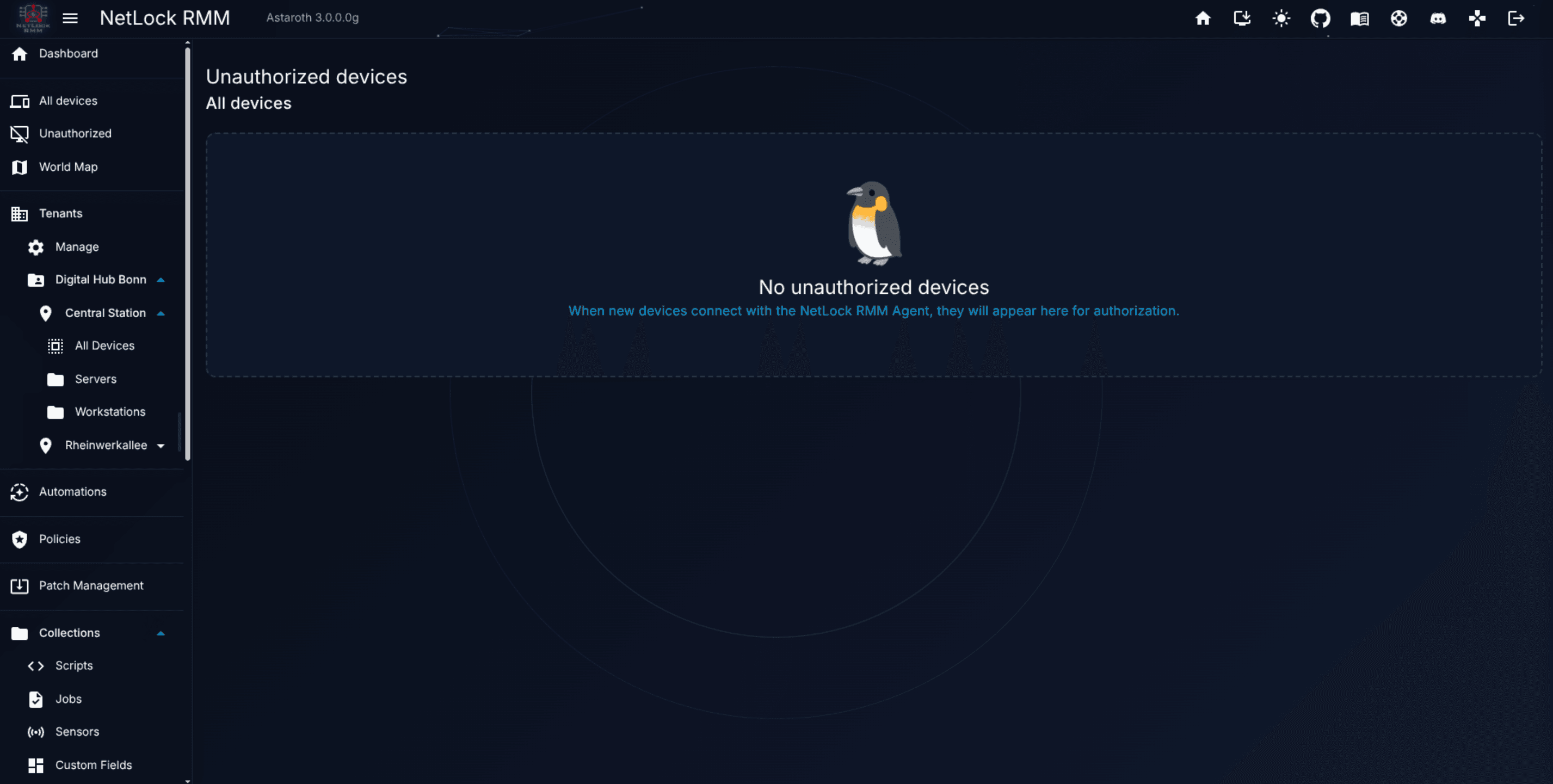
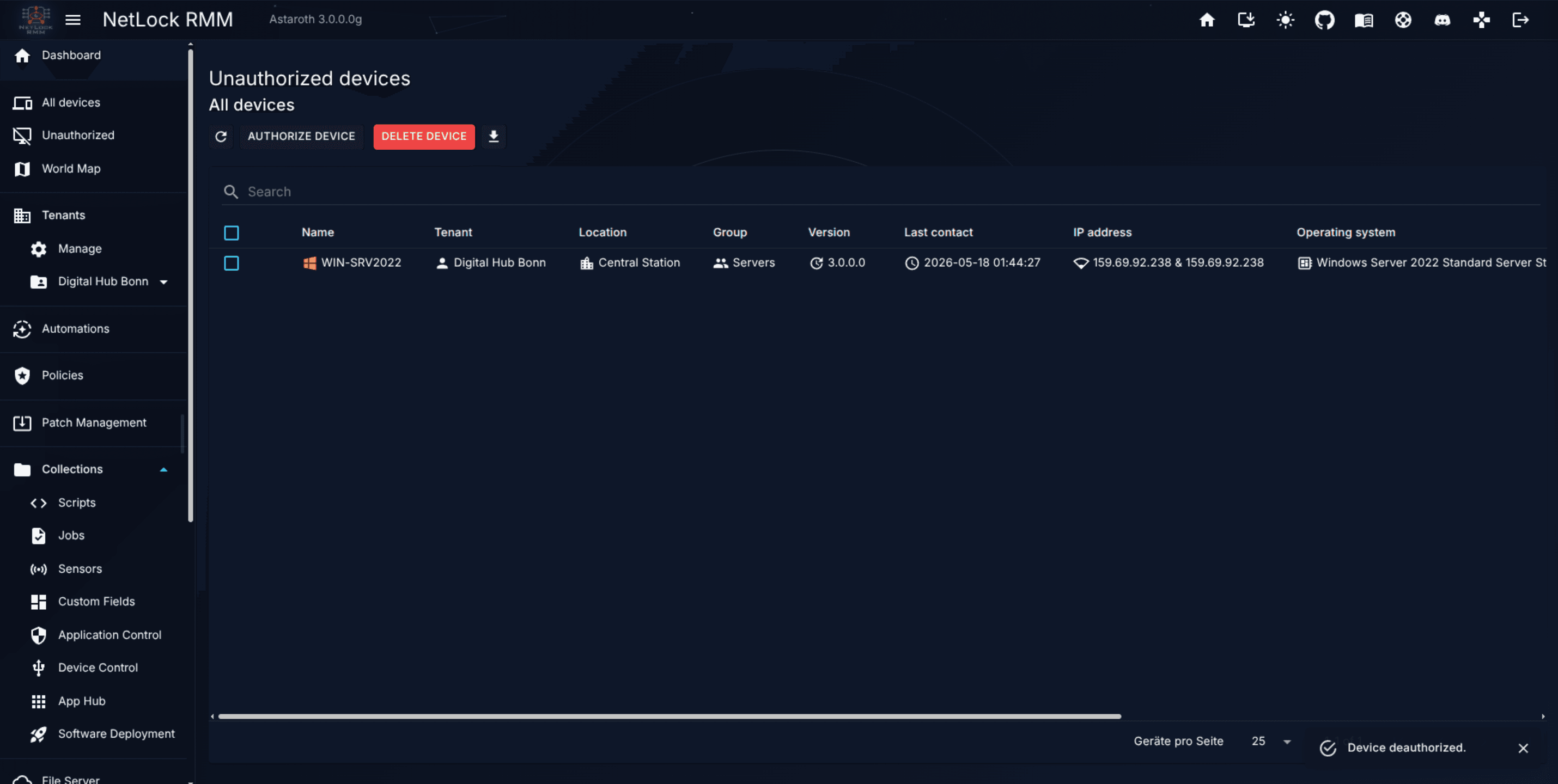
A device is a managed computer — a workstation, laptop, or server. When you install the agent on a new device, it contacts the server and registers itself as an unauthorized device: present on the network, but not yet accepted into a tenant. An administrator reviews unauthorized devices in Devices → Unauthorized, chooses the tenant, location, and group to assign them to, and approves them. From that moment the device is an authorized device and appears in the main device list.
Note: Agents that have never been approved are the most common source of "missing device" support tickets. The First-Run Walkthrough covers the approval flow in detail.
Devices also carry a label (a free-form human-readable name), custom fields defined at the Collections level, and any number of per-device settings. Chapter 3 is the canonical reference for everything device-related.
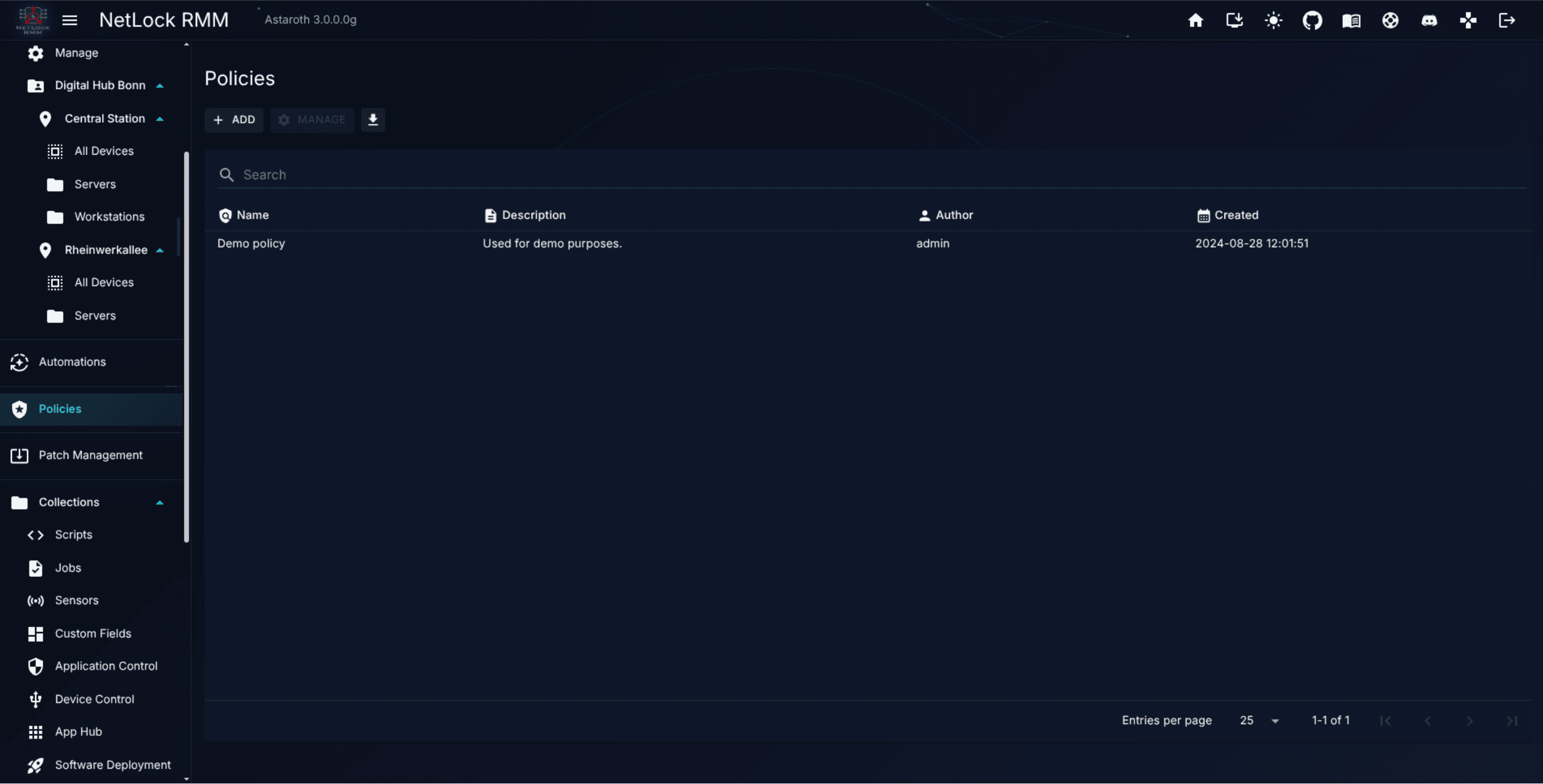
A policy is a named bundle of desired configuration for a device. Examples: "managed laptops — strict", "kiosk devices", "server baseline". A single policy can configure:
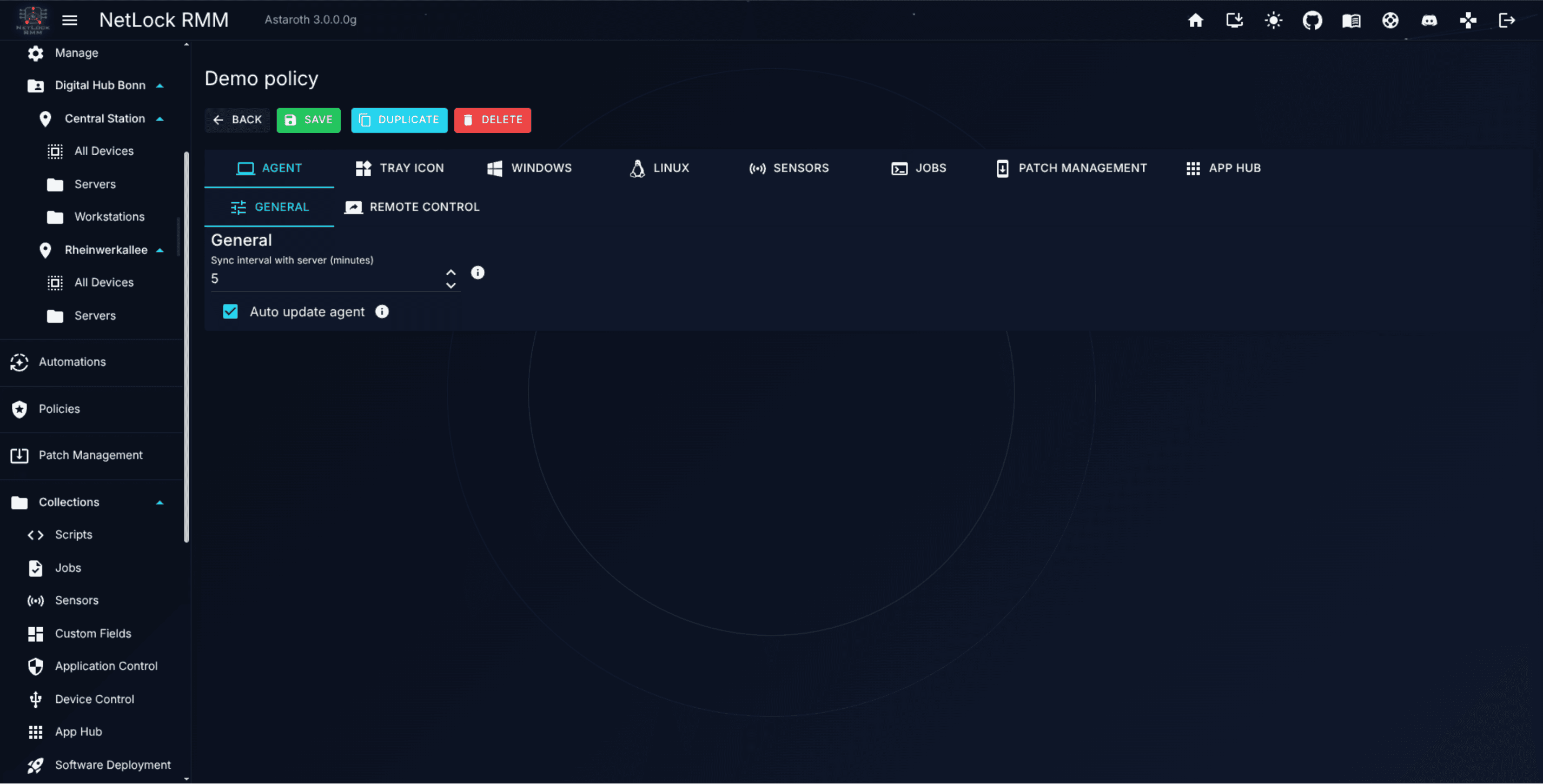
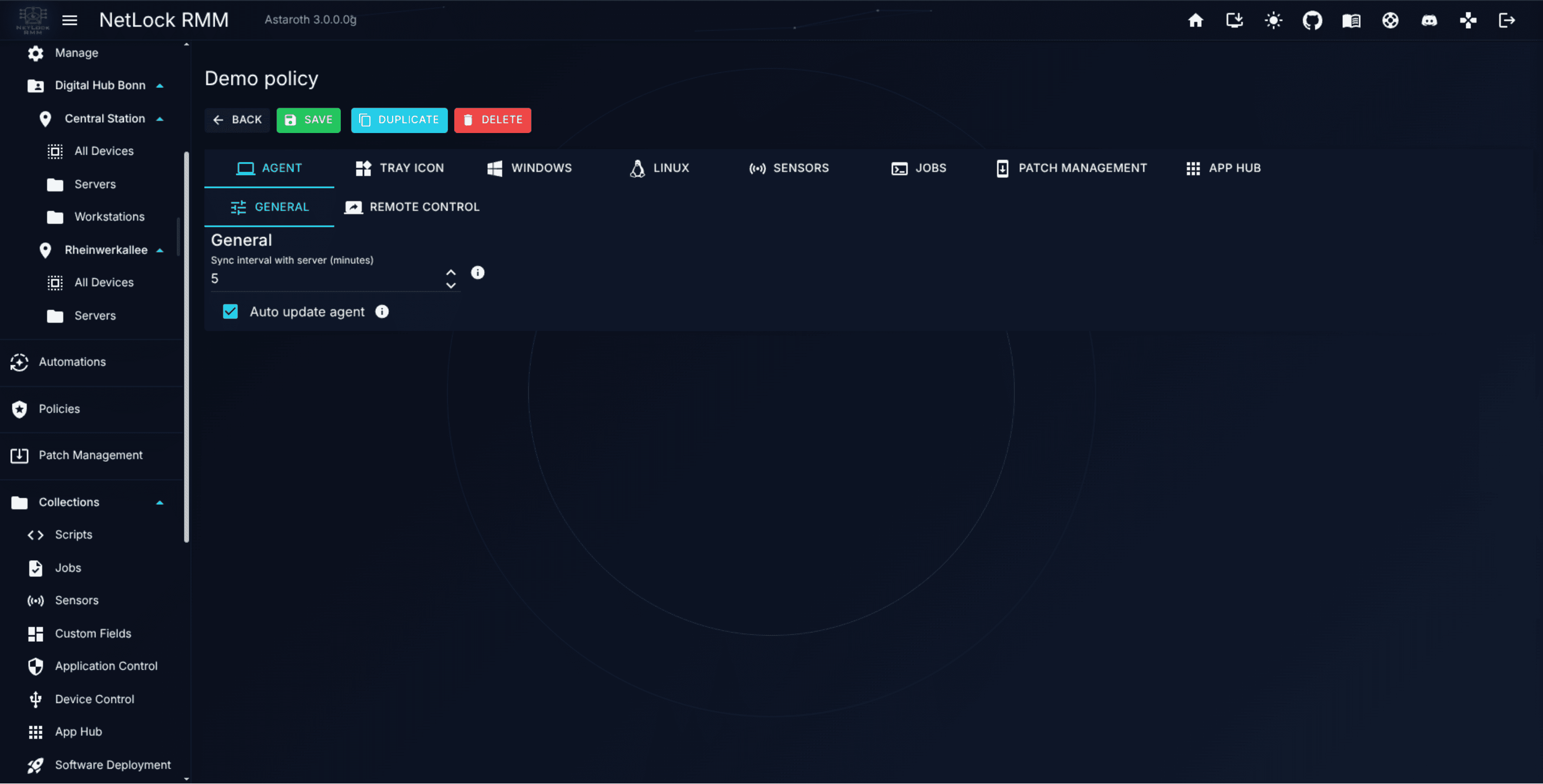
General agent behaviour (sync interval, auto-update).
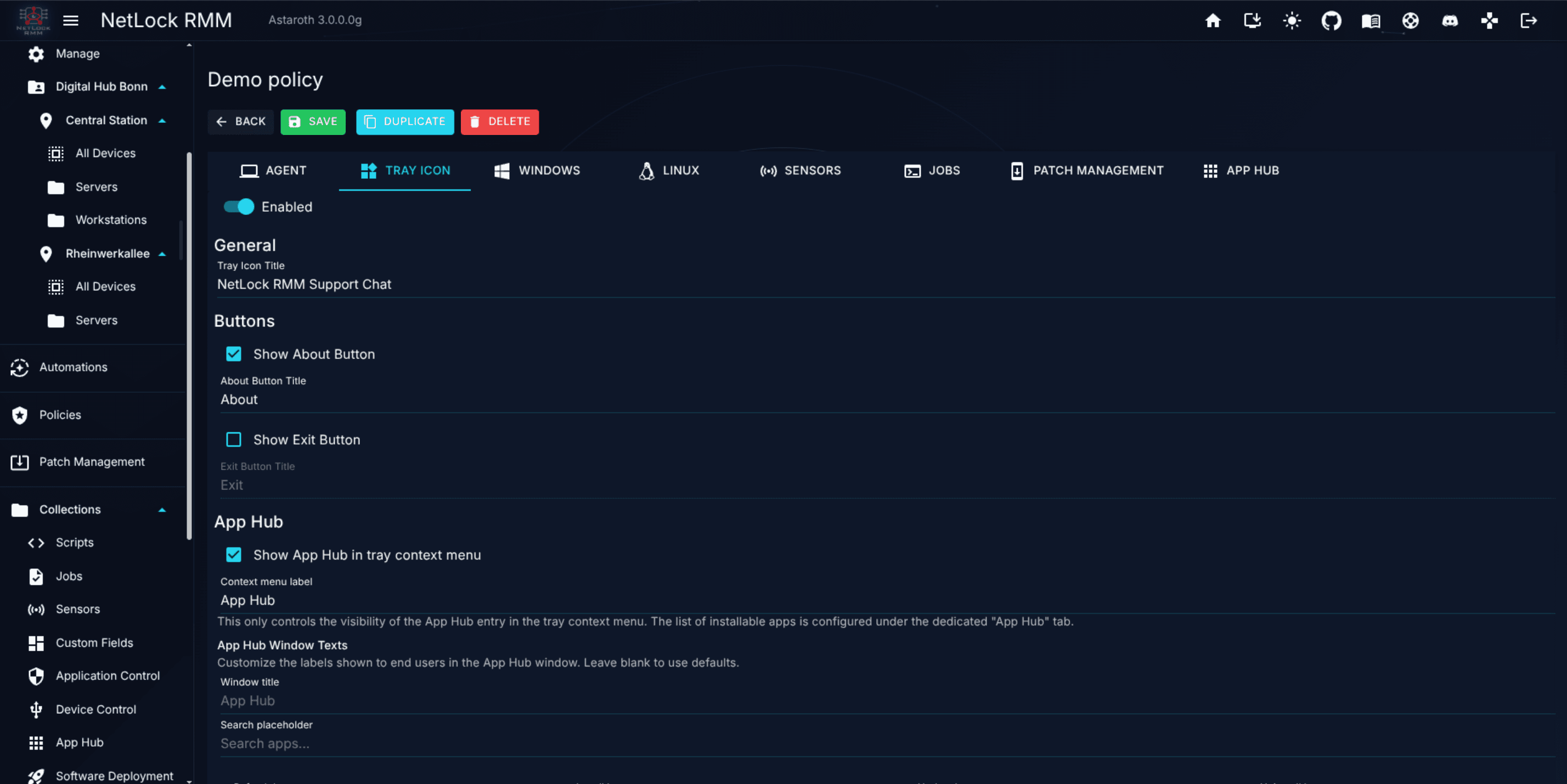
Tray Icon branding and visibility.
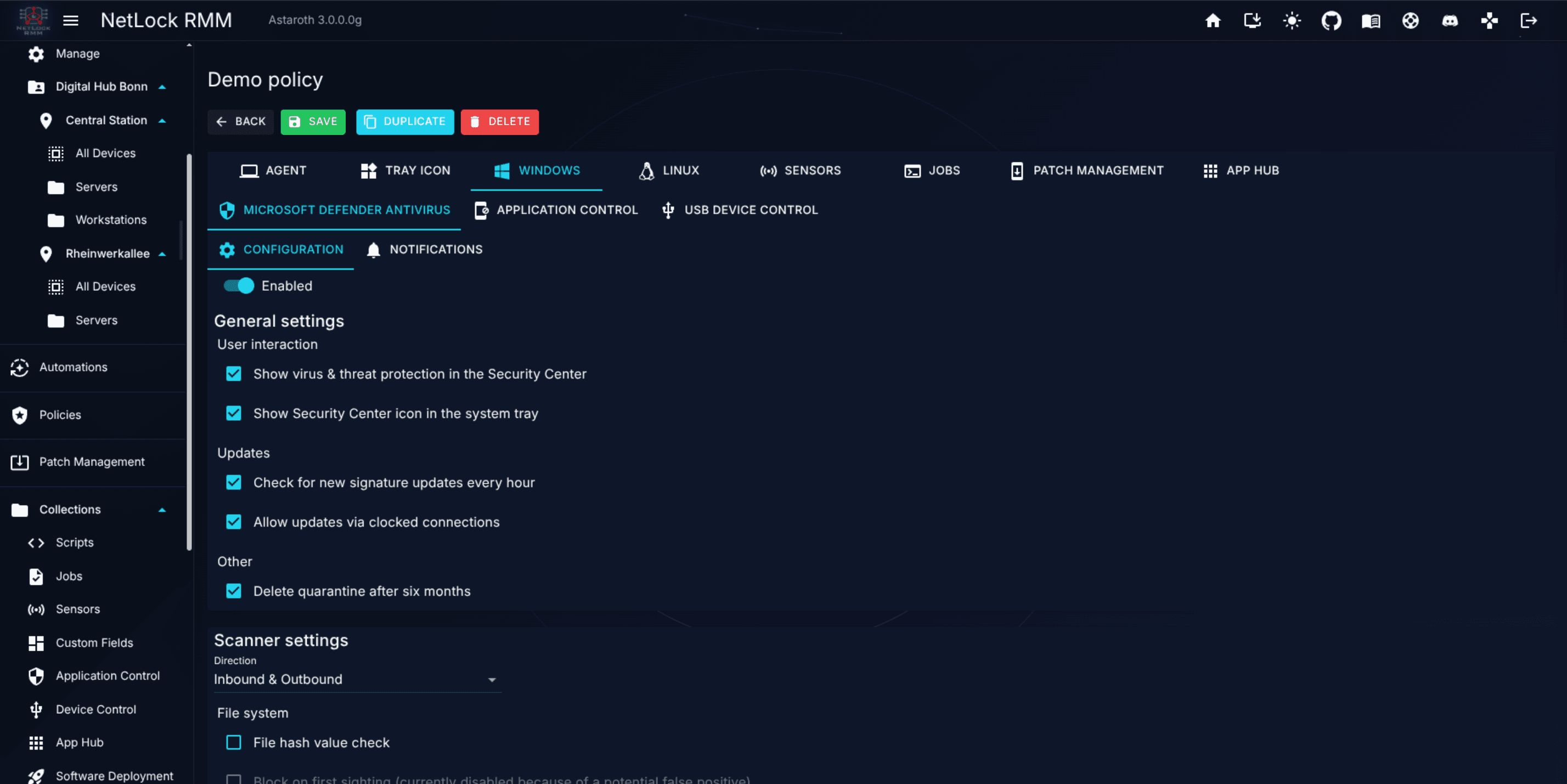
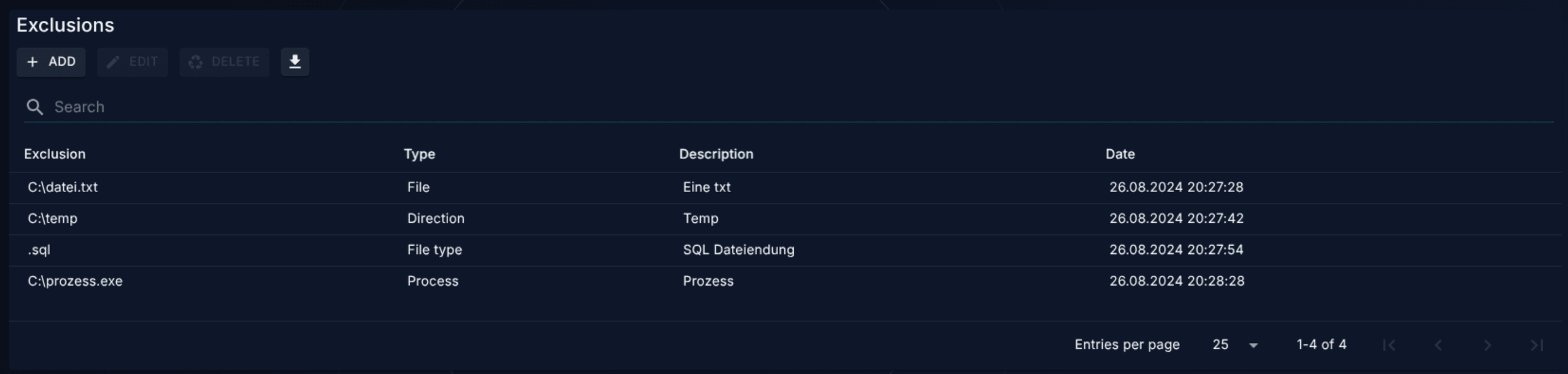
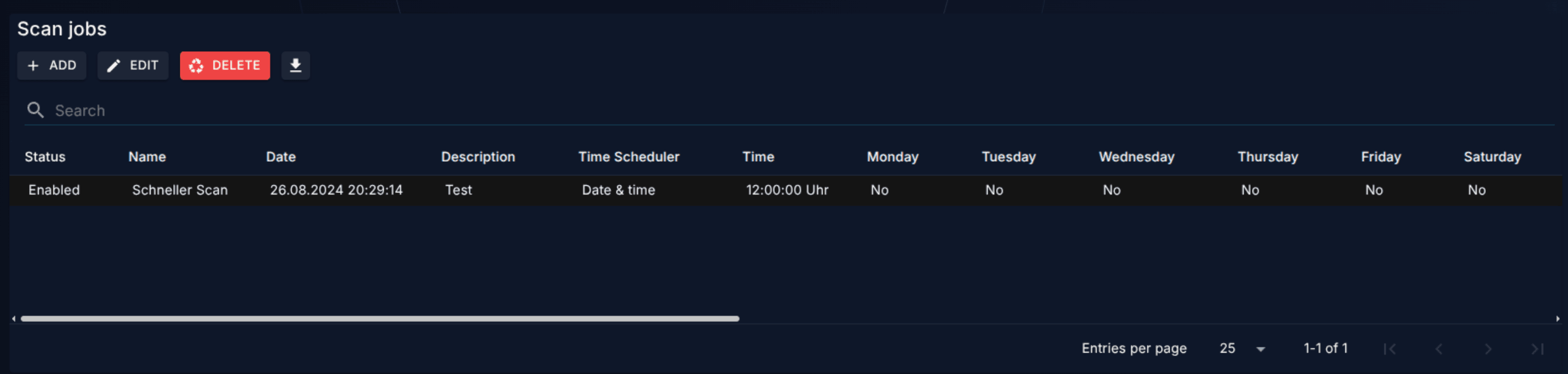
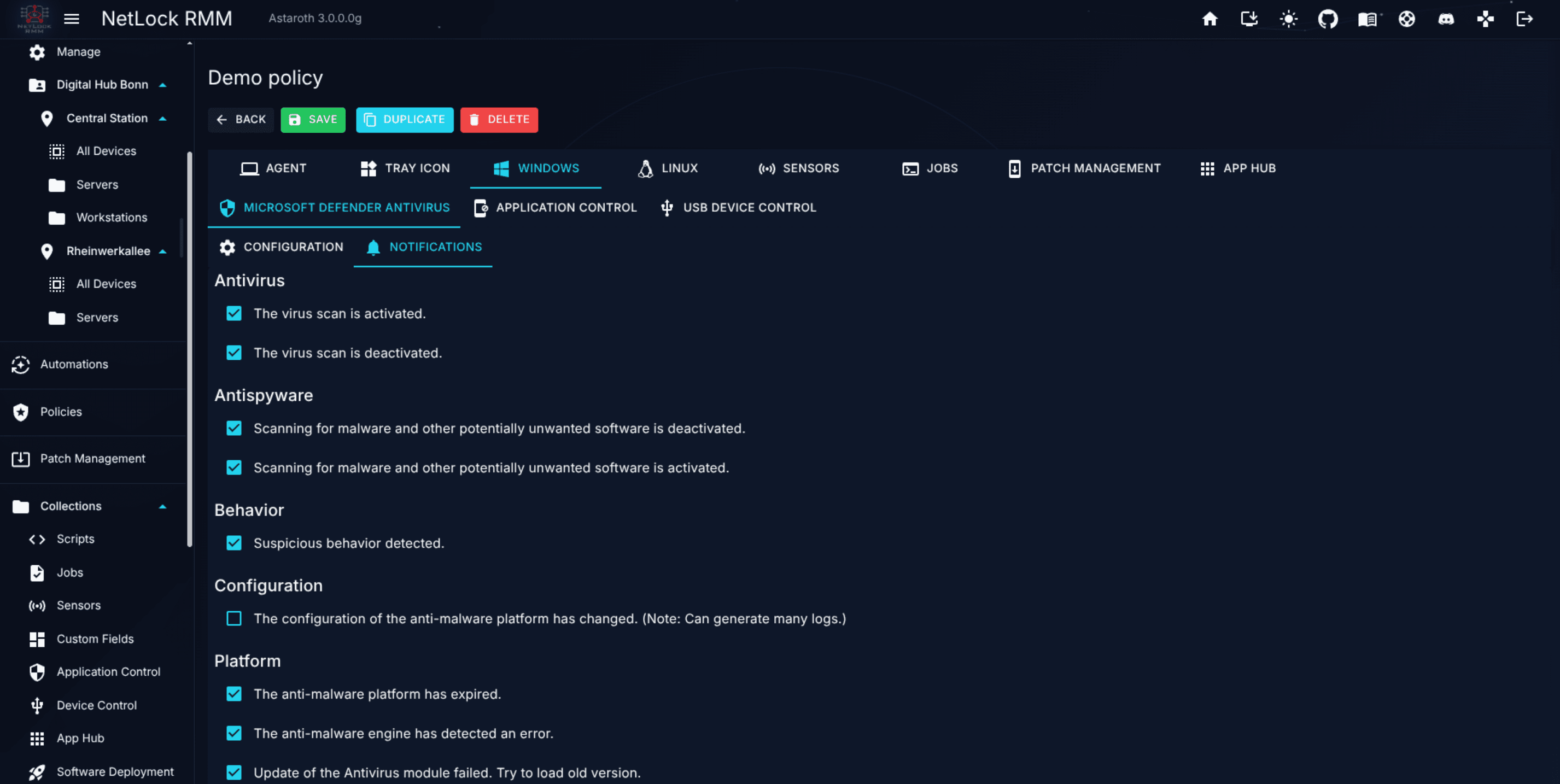
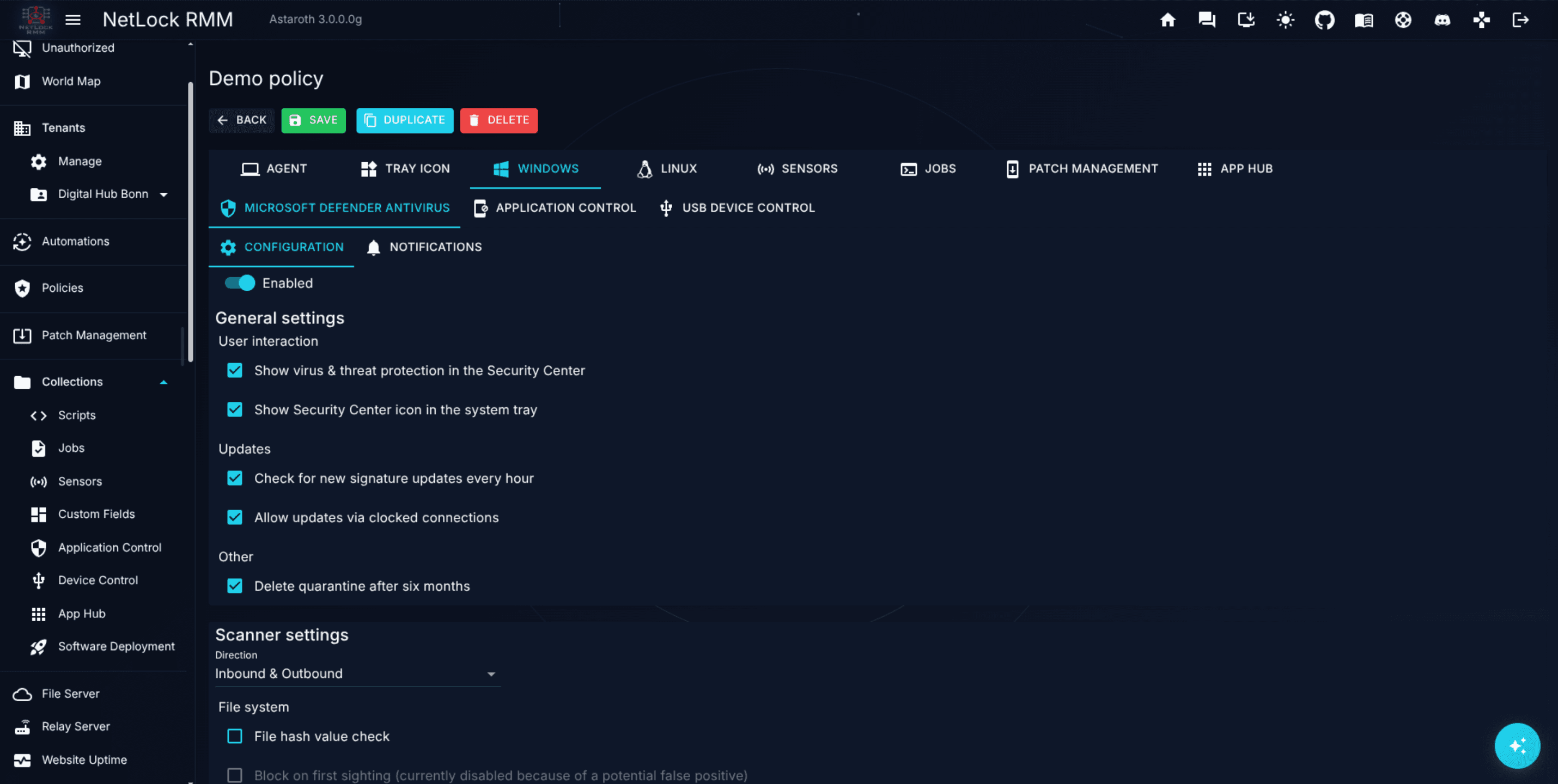
Windows Defender Antivirus — exclusions, scan jobs, notifications.
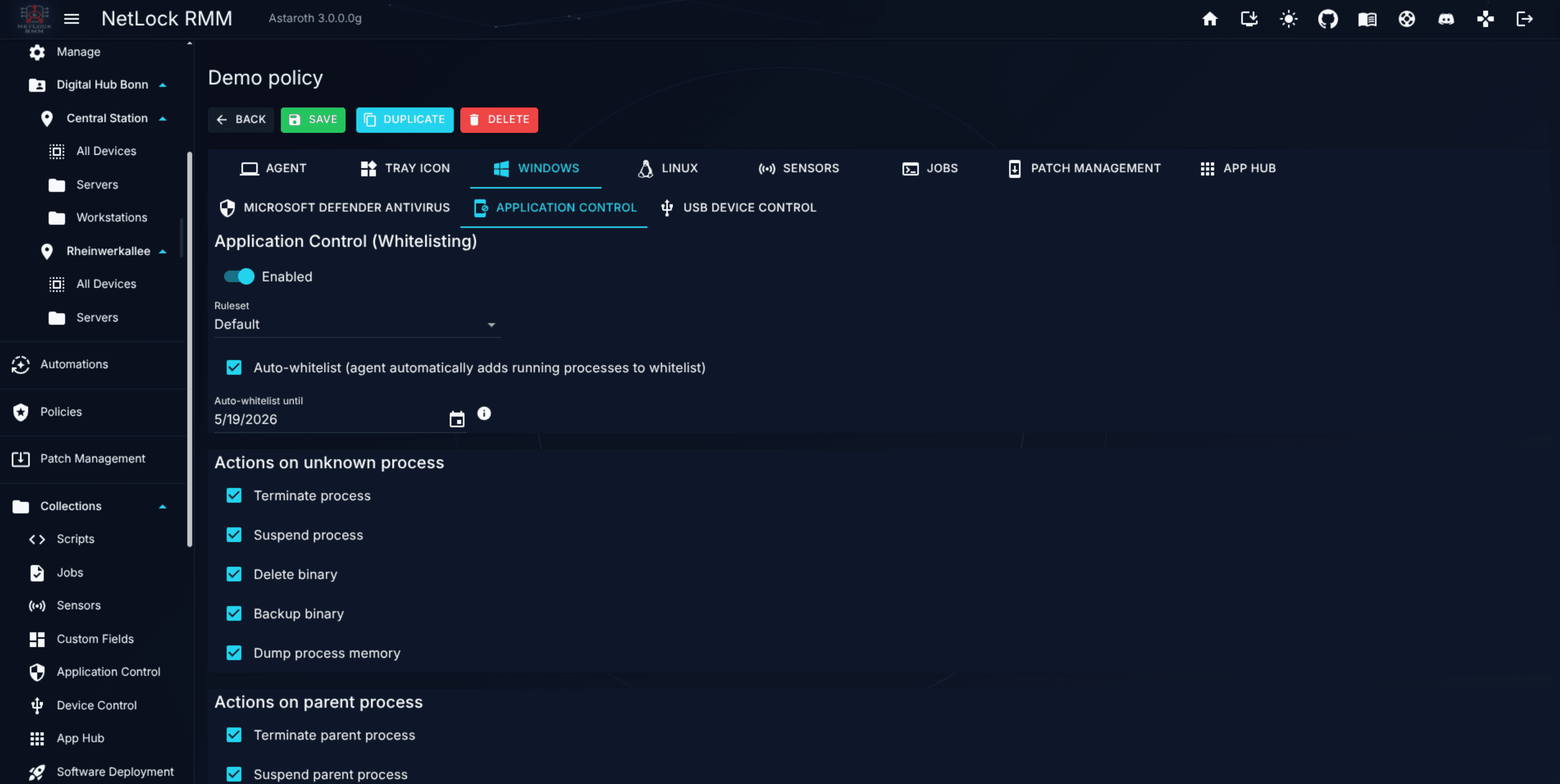
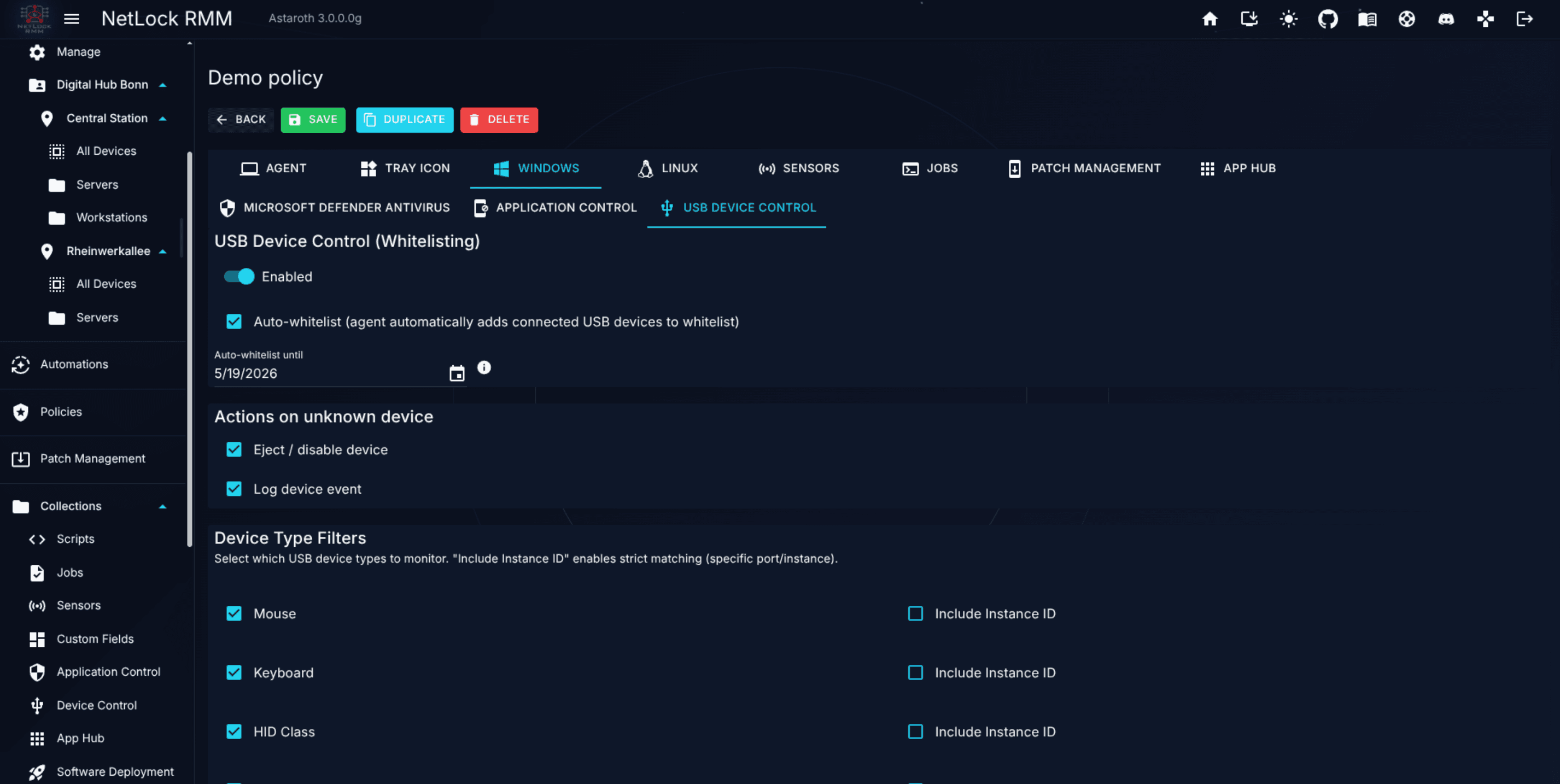
Windows Application Control and USB Device Control rulesets.
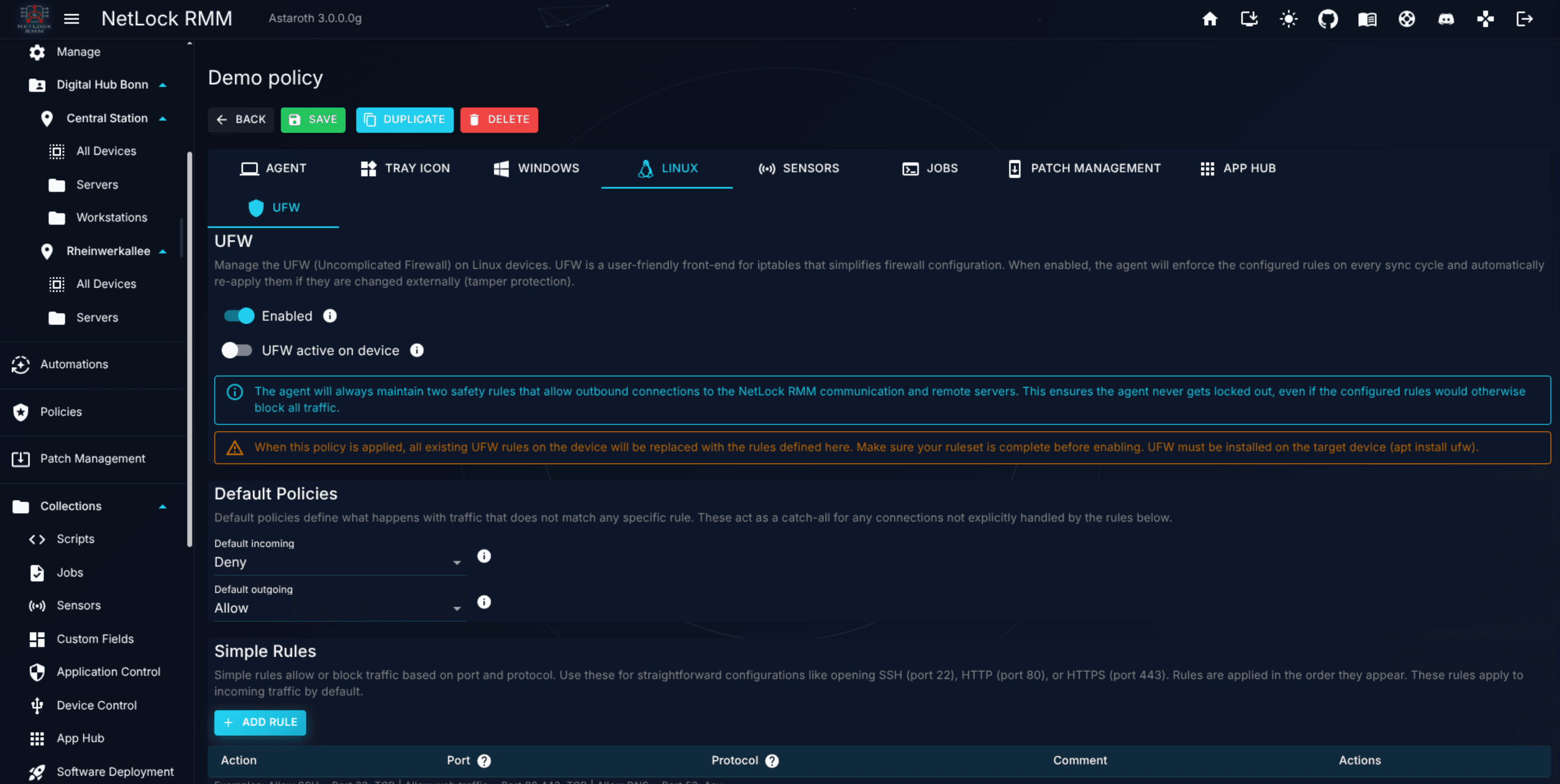
Linux UFW firewall.
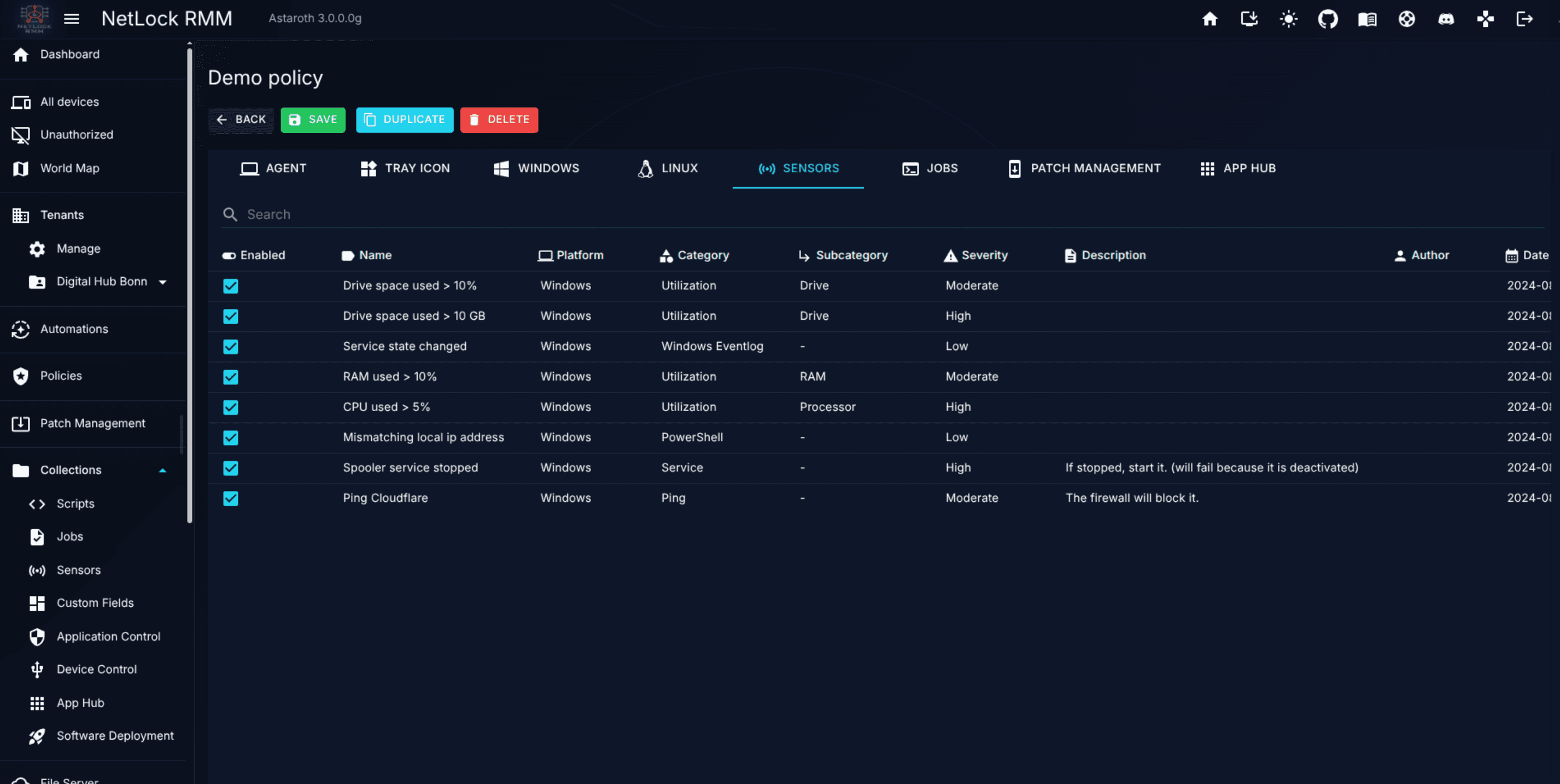
SNMP sensors to collect on devices.
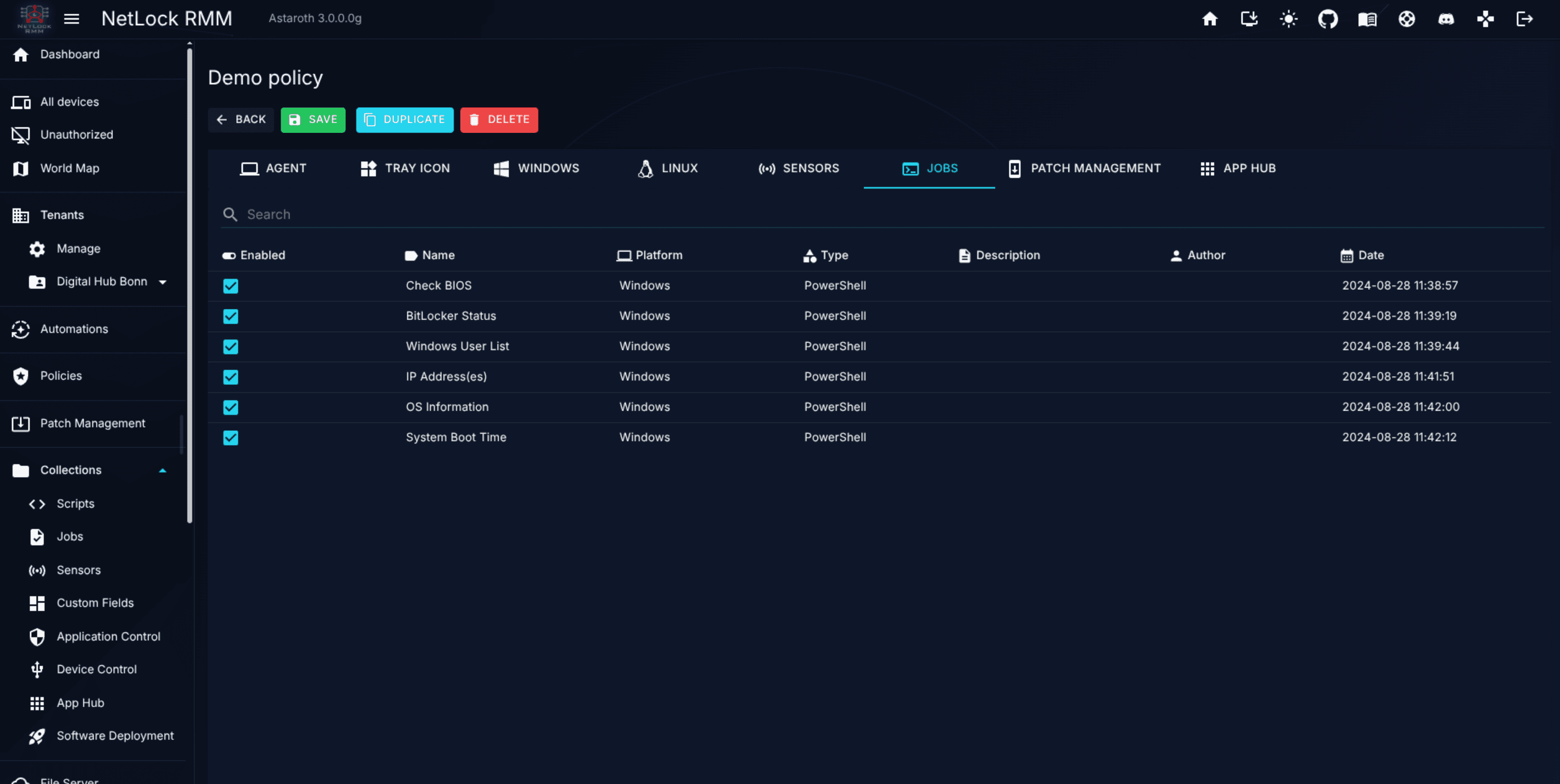
Scheduled Jobs to run on devices.
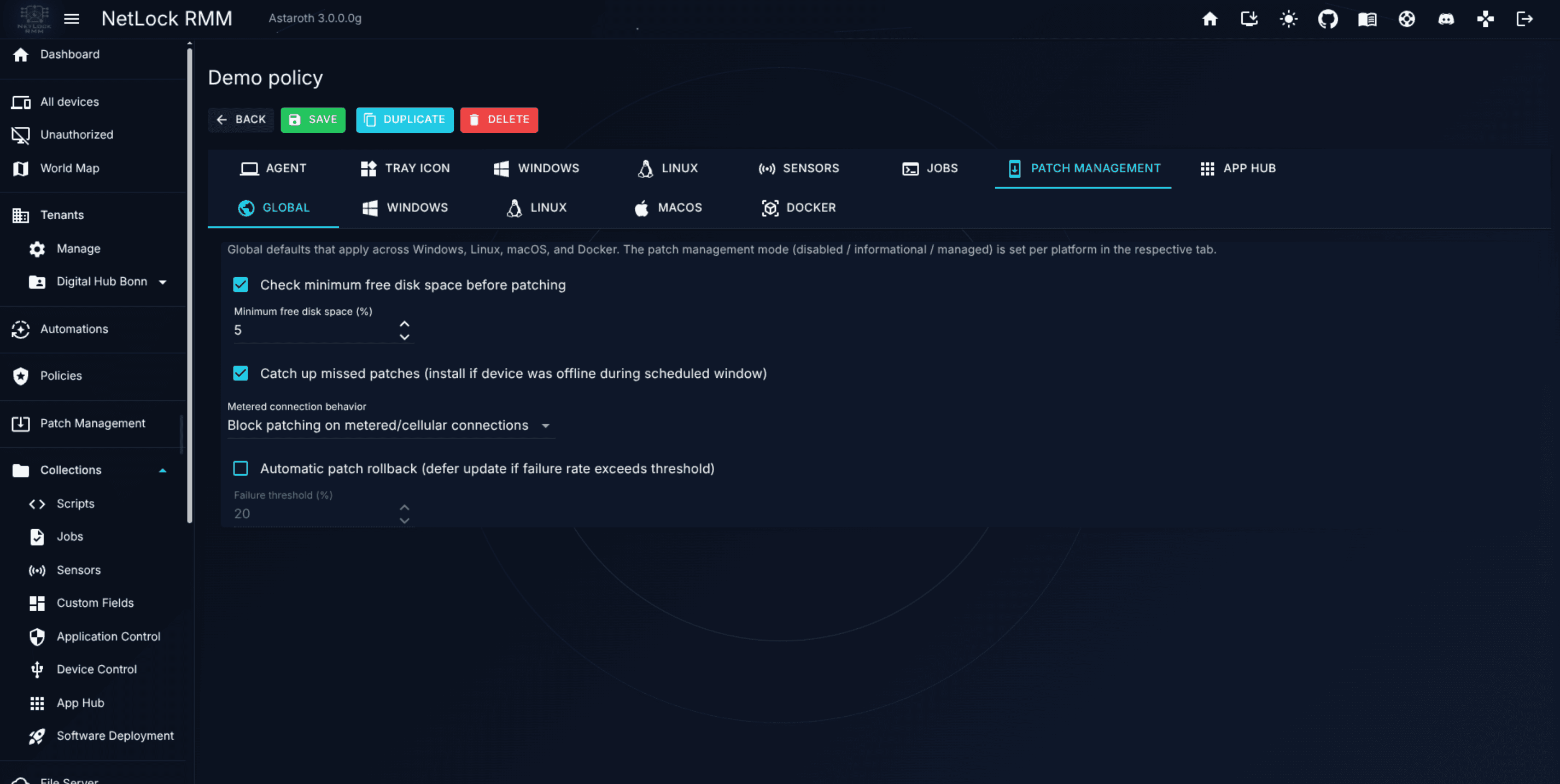
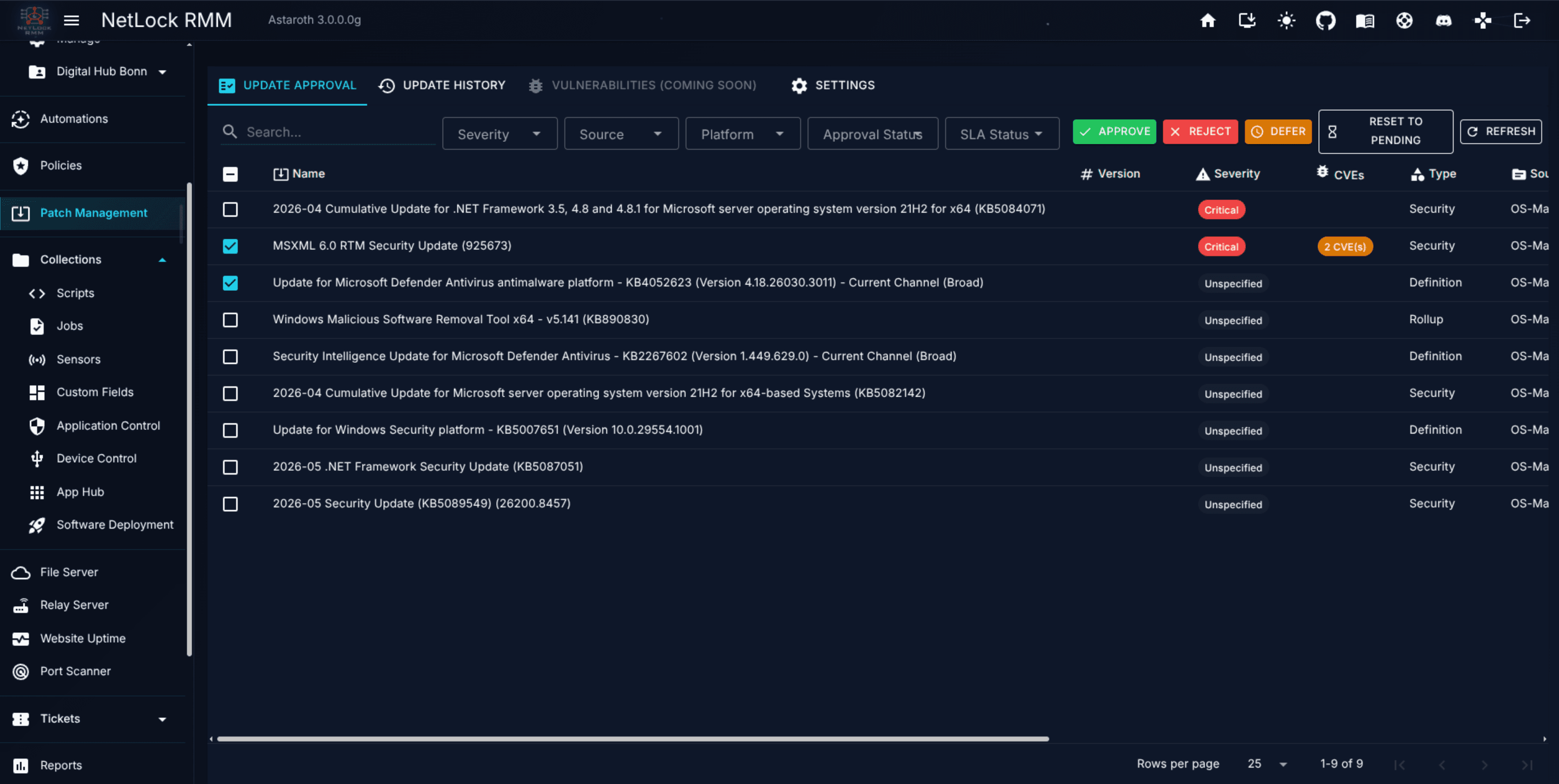
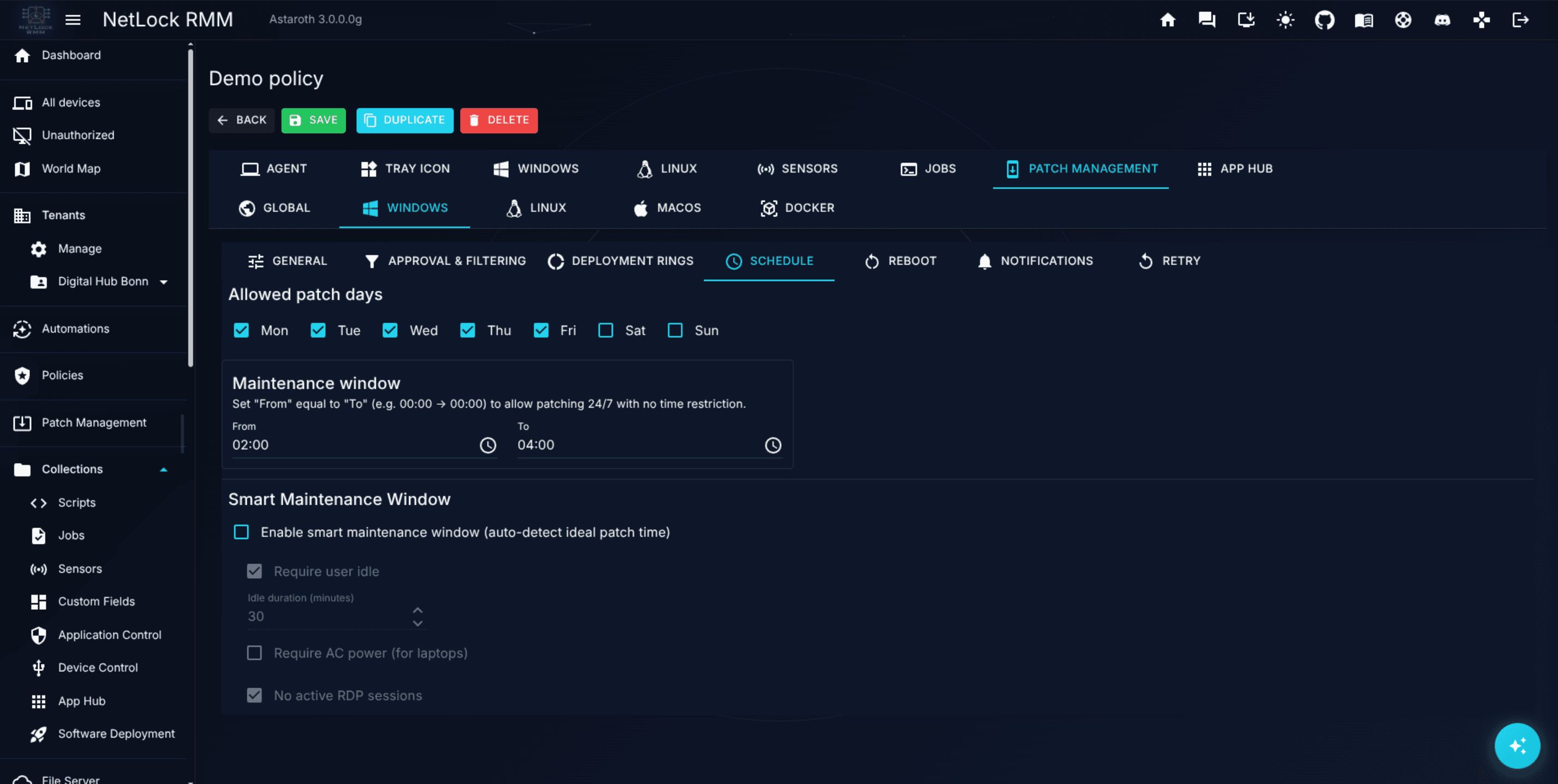
Patch Management rollout rules, per platform (Windows, Linux, macOS, Docker).
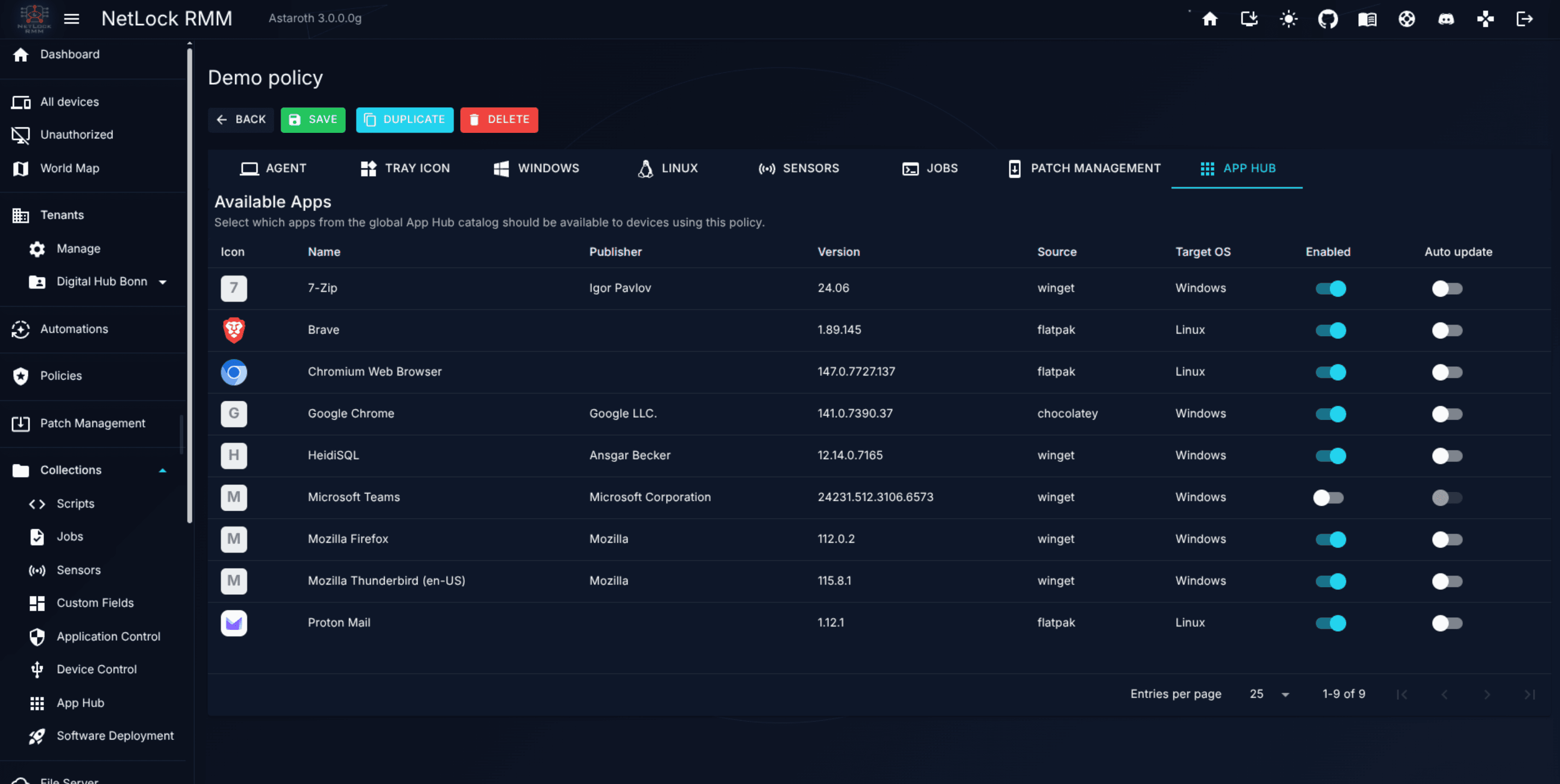
Which App Hub apps are exposed in the Tray Icon.
Policies are edited in the Policy Settings page and stored in the server database. The agent picks up changes on its next sync (5-1440 min, configurable per policy).
Important: NetLock RMM does not keep a policy version history and does not support rolling back to a previous policy state. Edits apply in place. If you need a safety net, clone a policy before making a risky change.
A device is assigned at most one policy at a time. Policies are not layered or merged.
An automation in NetLock RMM is narrower than the word implies in other products. It is a rule that decides which policy gets assigned to which device, and which sensors and jobs a device gets on top of that policy, based on a list of conditions:
IF all of these conditions hold for a device THEN assign policy <name> and/or add sensors and jobs
A condition compares one fact of the device: the device itself, its tenant, location or group, its internal IP address or domain, its platform, a device attribute such as the device name, the operating system or the label compared with an operator (equals, contains, starts with, wildcard pattern, regular expression), a service or an installed application of its inventory, or a custom field value. A rule has at least one condition, all of them have to hold, and any of them can be negated. Every rule has a priority number and an enabled switch.
There are no event triggers, no schedule triggers, no manual triggers, and no actions other than assigning a policy and adding sensors and jobs (see Chapter 5.6). Automations do not run scripts themselves, send notifications, create tickets, or chain steps. Their job is to route policies, sensors and jobs to devices.
When a device syncs, the server takes the enabled rules whose conditions all hold for the device, orders them by priority (the lower number wins), then by the number of conditions (more first), then by age (older first), and assigns the policy of the first one. If no rule matches, the device receives the default policy when one is marked on the Policies page; otherwise it has no policy. The dialog proposes a priority from the rule's most specific organisation condition (device 100, internal IP 200, domain 300, group 400, location 500, tenant 600, otherwise 700), so a rule for one device beats a rule for its group, which beats a rule for its tenant, unless you choose otherwise. Adding, editing, enabling, disabling, or deleting an automation forces the affected devices to re-evaluate immediately.
The practical consequence: to give devices a policy, you need both a Policy and at least one Automation whose condition matches those devices. A policy on its own is inert. The default policy is the one shortcut: marked on the Policies page, it covers every device that no automation reaches.
For event-driven work — "run a script when a disk fills up", "open a ticket when a sensor breaches a threshold" — NetLock RMM uses Sensors (with action scripts) and Jobs (scheduled scripts), not Automations. See Chapter 8 — Collections.
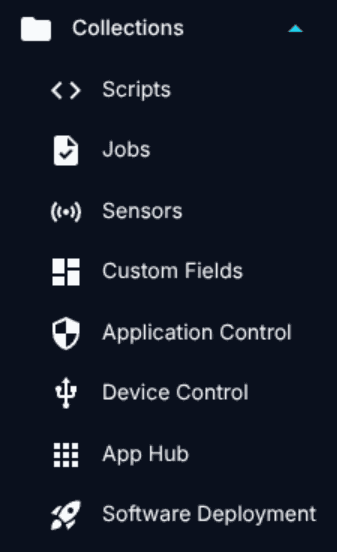
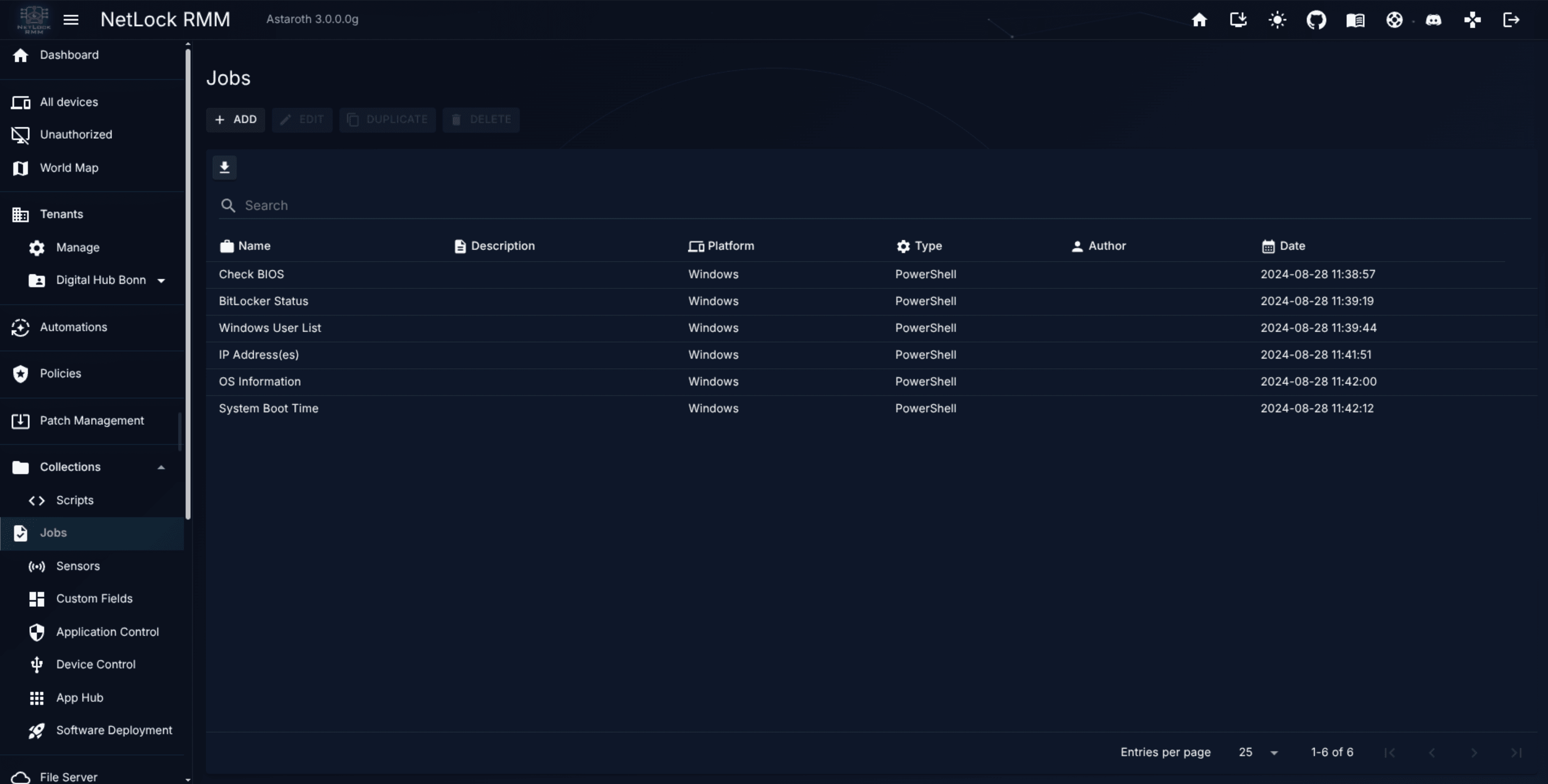
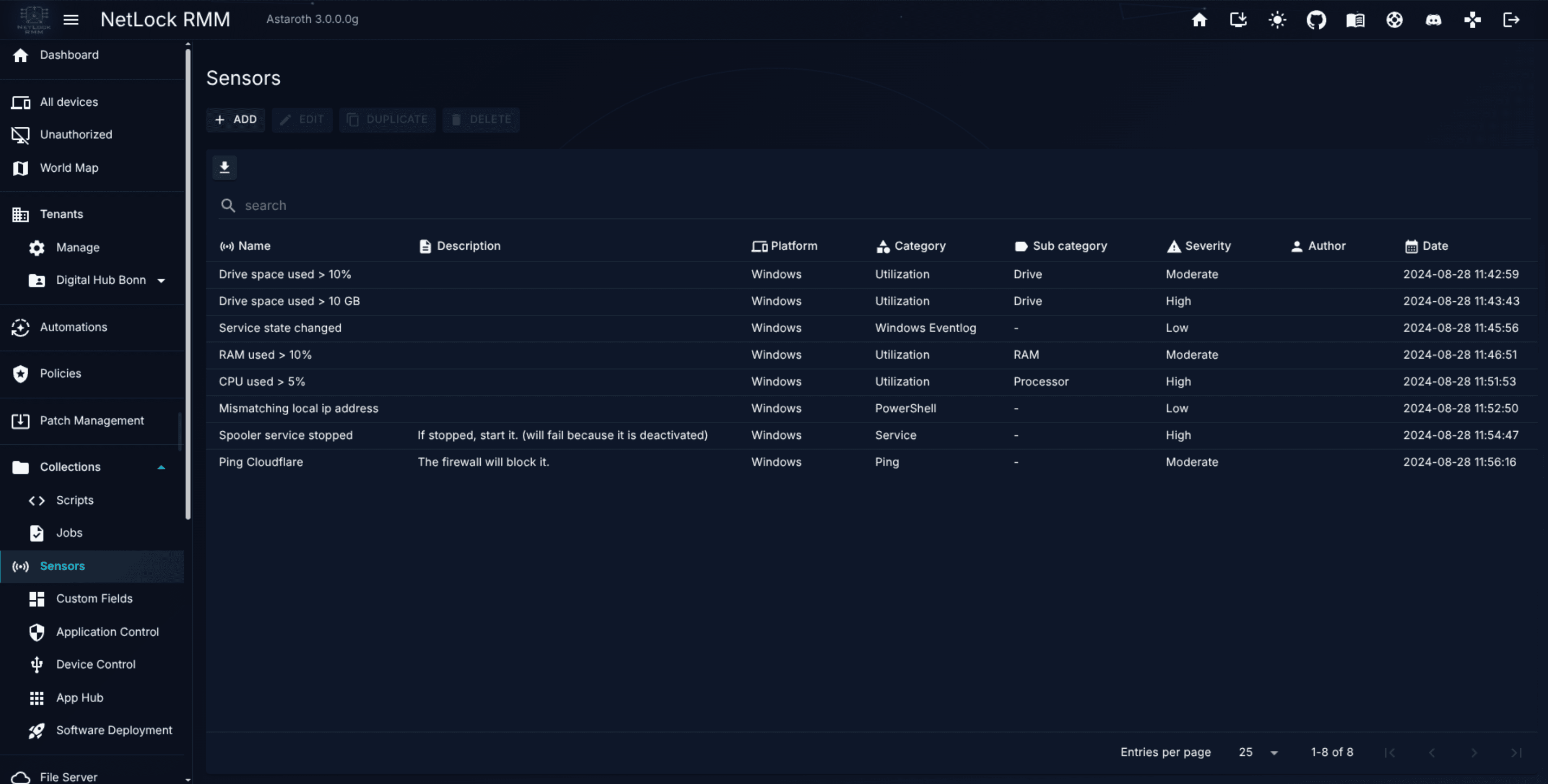
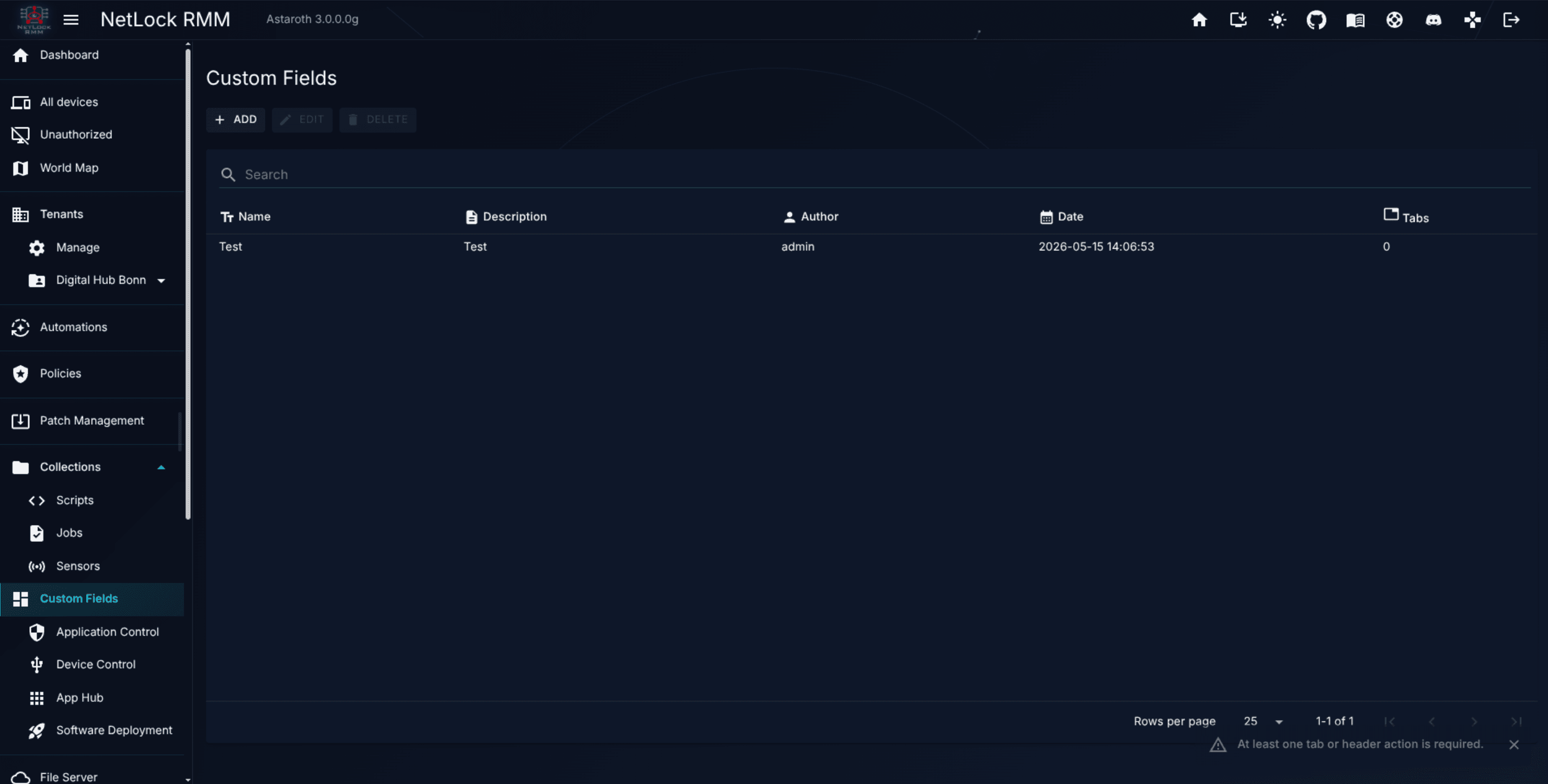
Collections is the umbrella term for reusable building blocks you create once and reference from many places. Eight kinds of Collection item exist:
Item
Purpose
Script
A PowerShell or Bash snippet you run on one or many devices.
Job
A scheduled background task that runs on the agent.
Sensor
A custom metric the agent reports back on an interval — CPU, memory, a specific application's health.
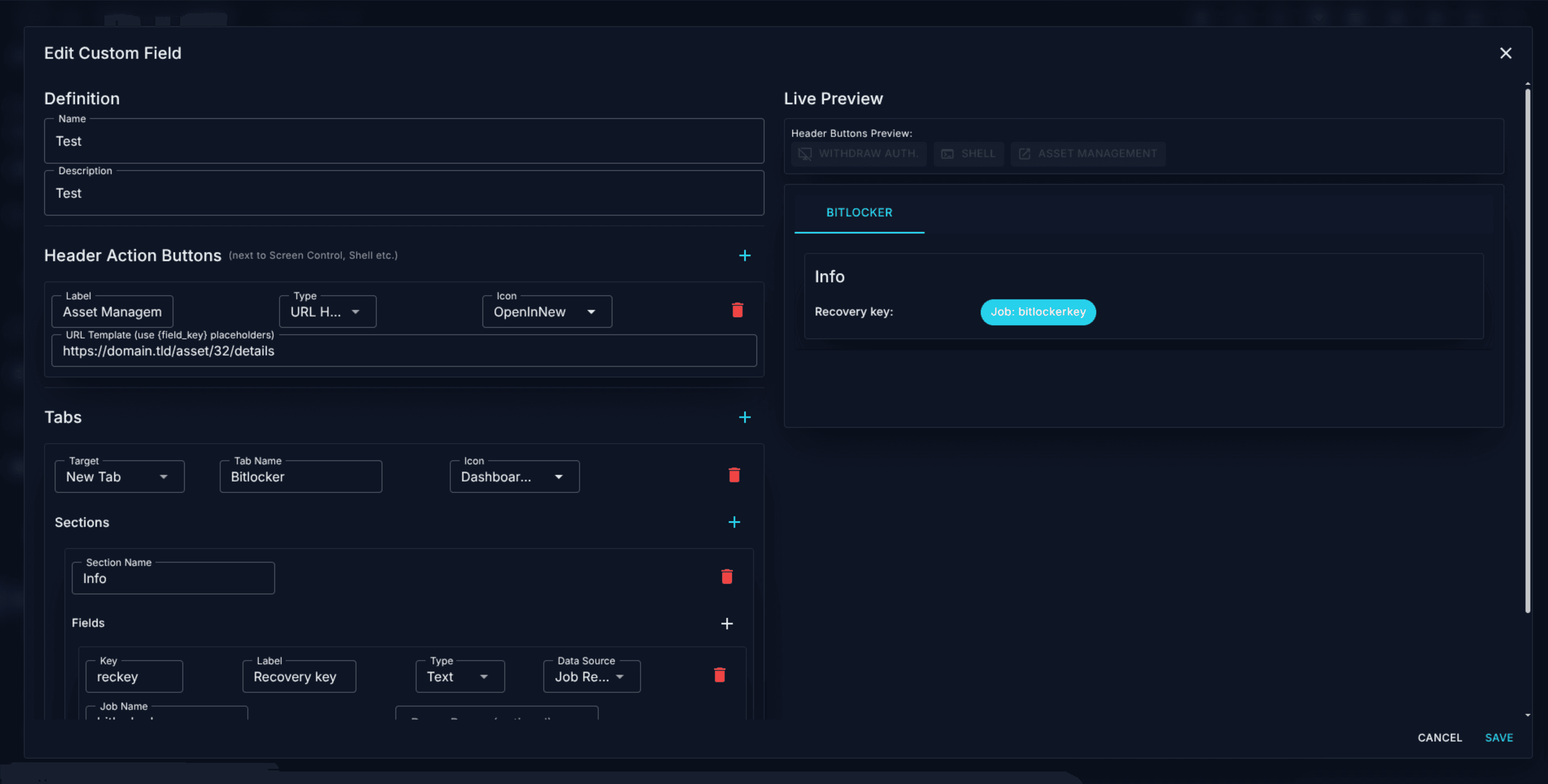
Custom Field
A per-device attribute (text, dropdown, date, checkbox) added to every device inventory.
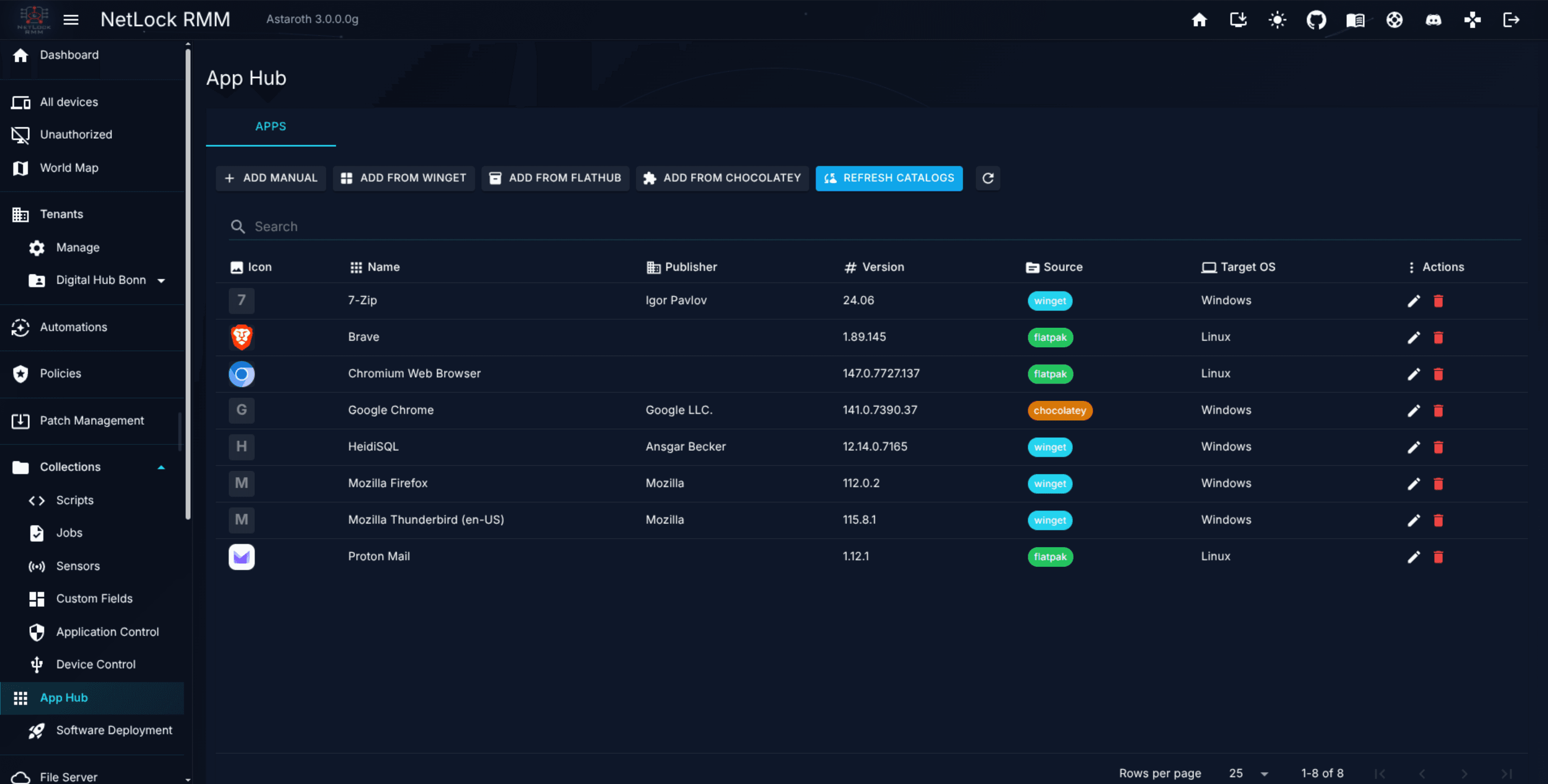
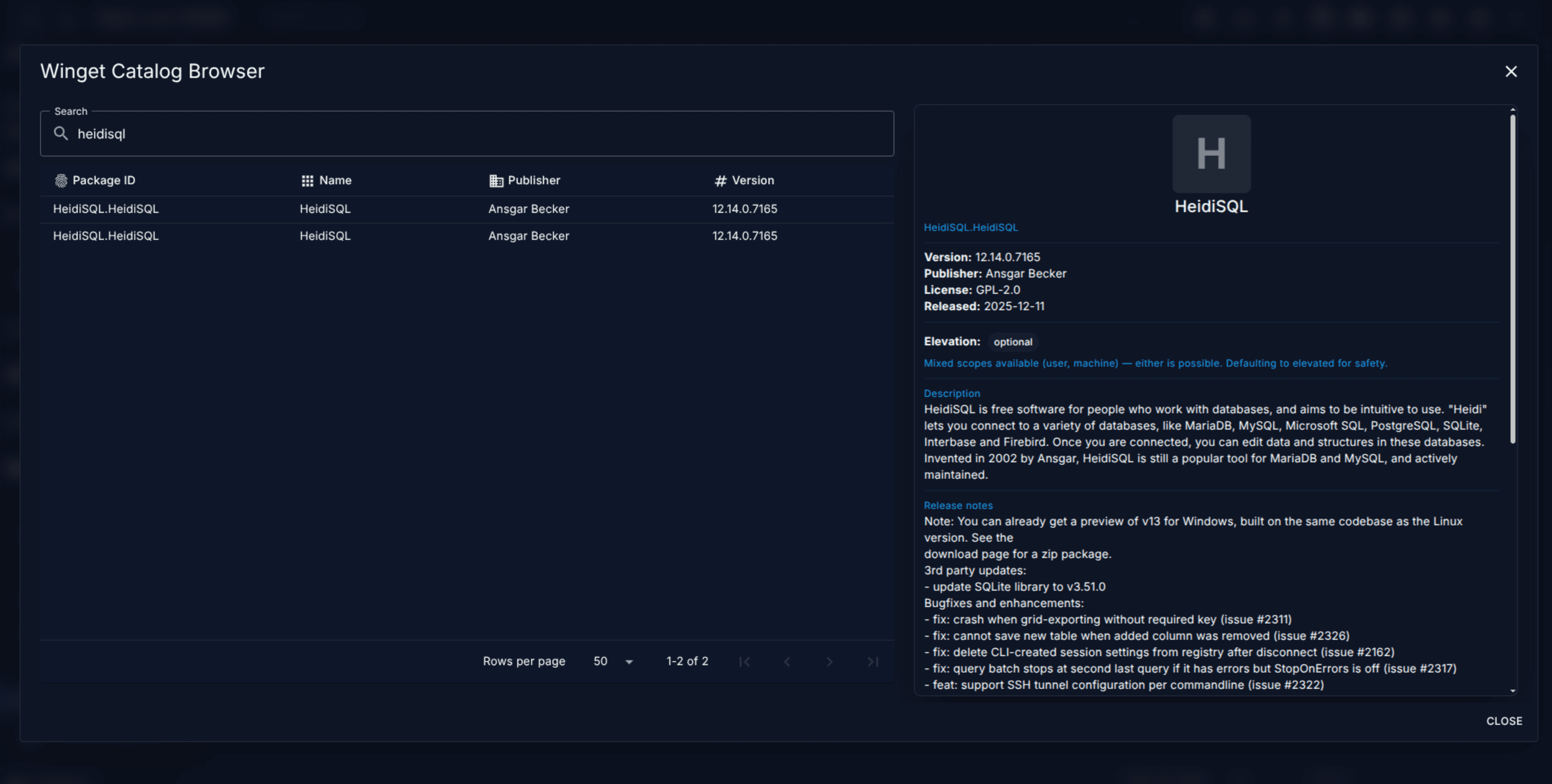
App Hub entry
A packaged application from Winget (Windows) or Flathub (Linux), or a manual package, available for deployment.
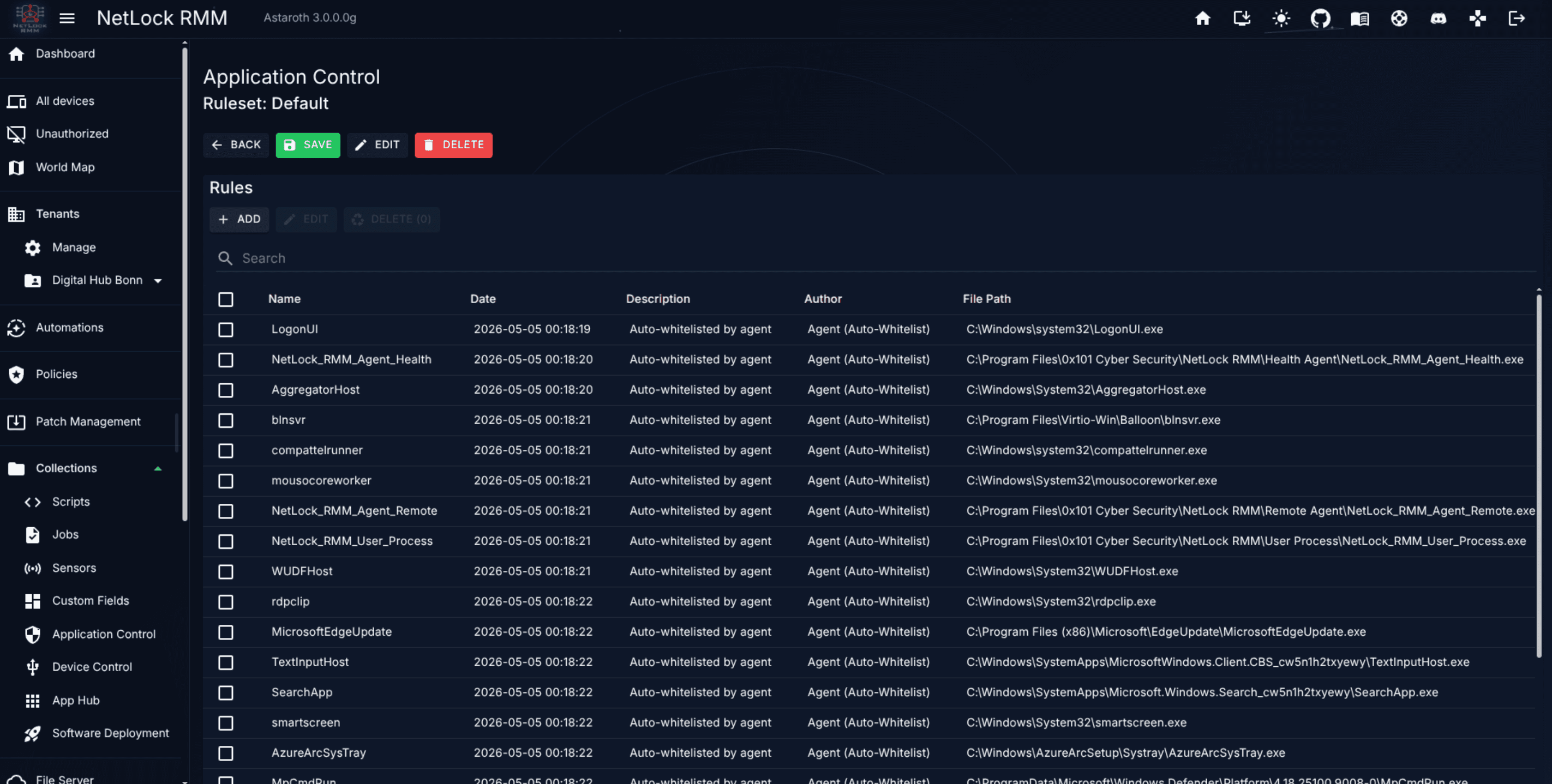
Application Control ruleset
Rules that whitelist applications by hash or path.
Device Control entry
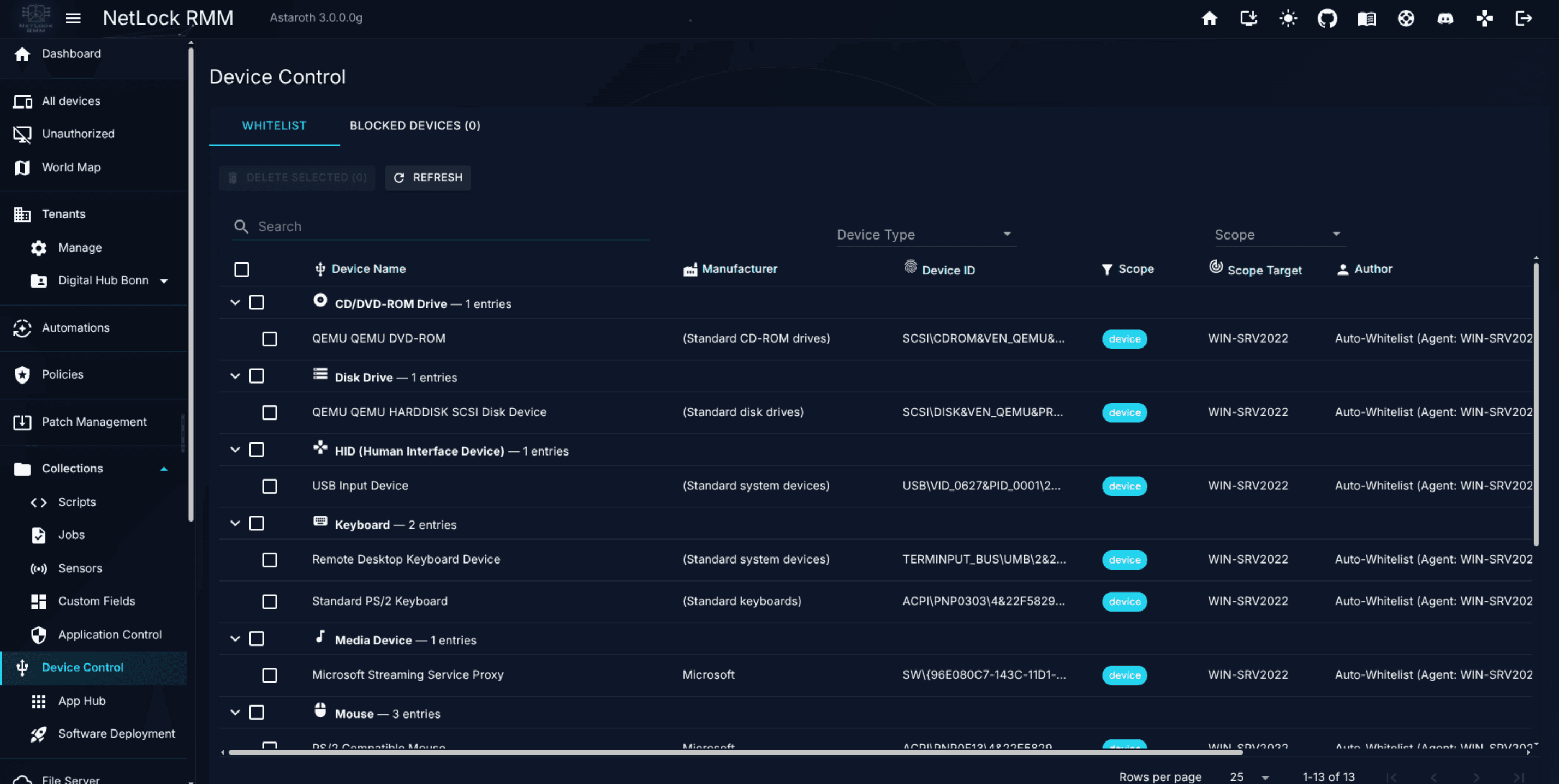
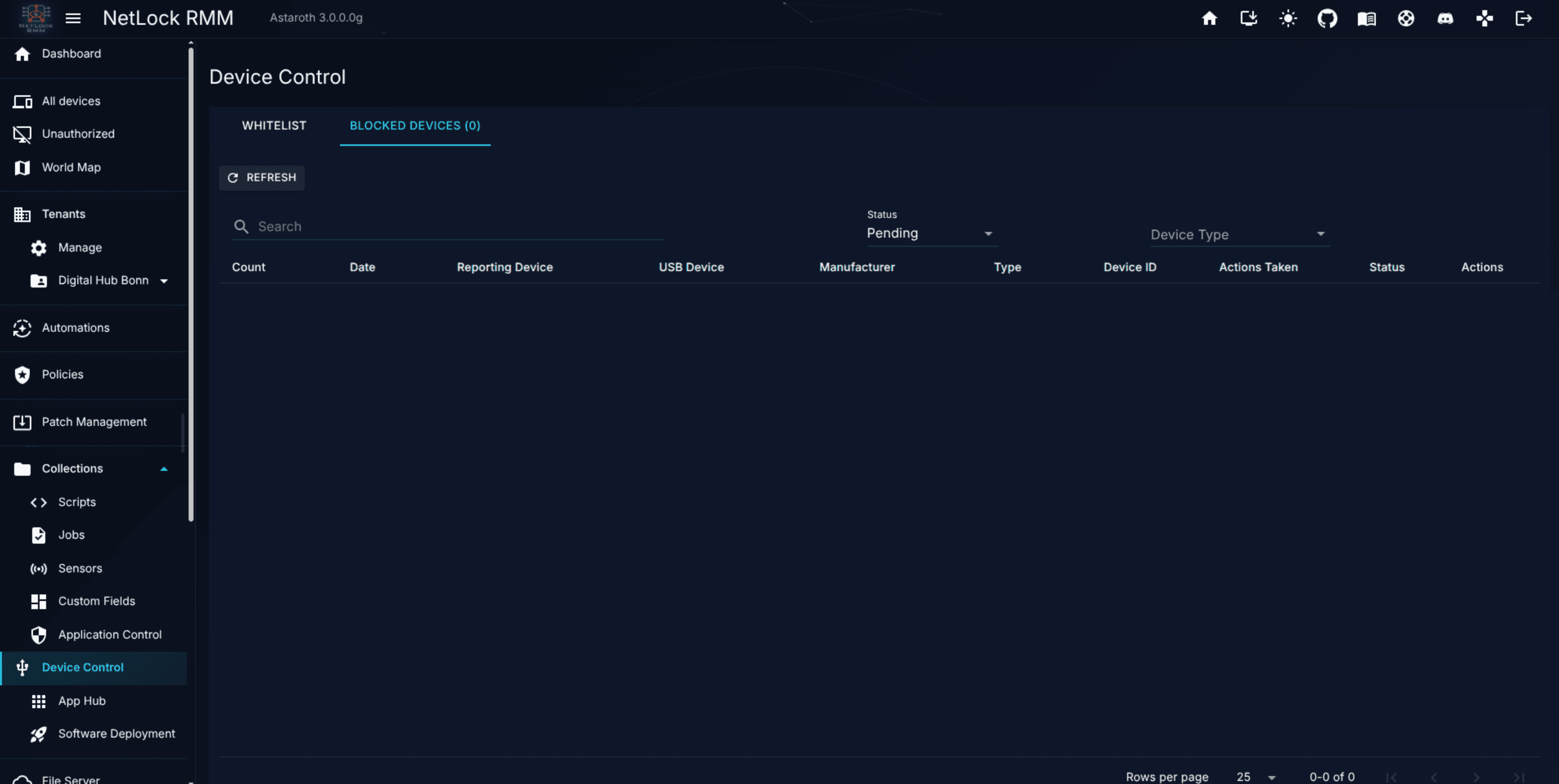
Rules that whitelist USB and peripheral devices.
Software Deployment
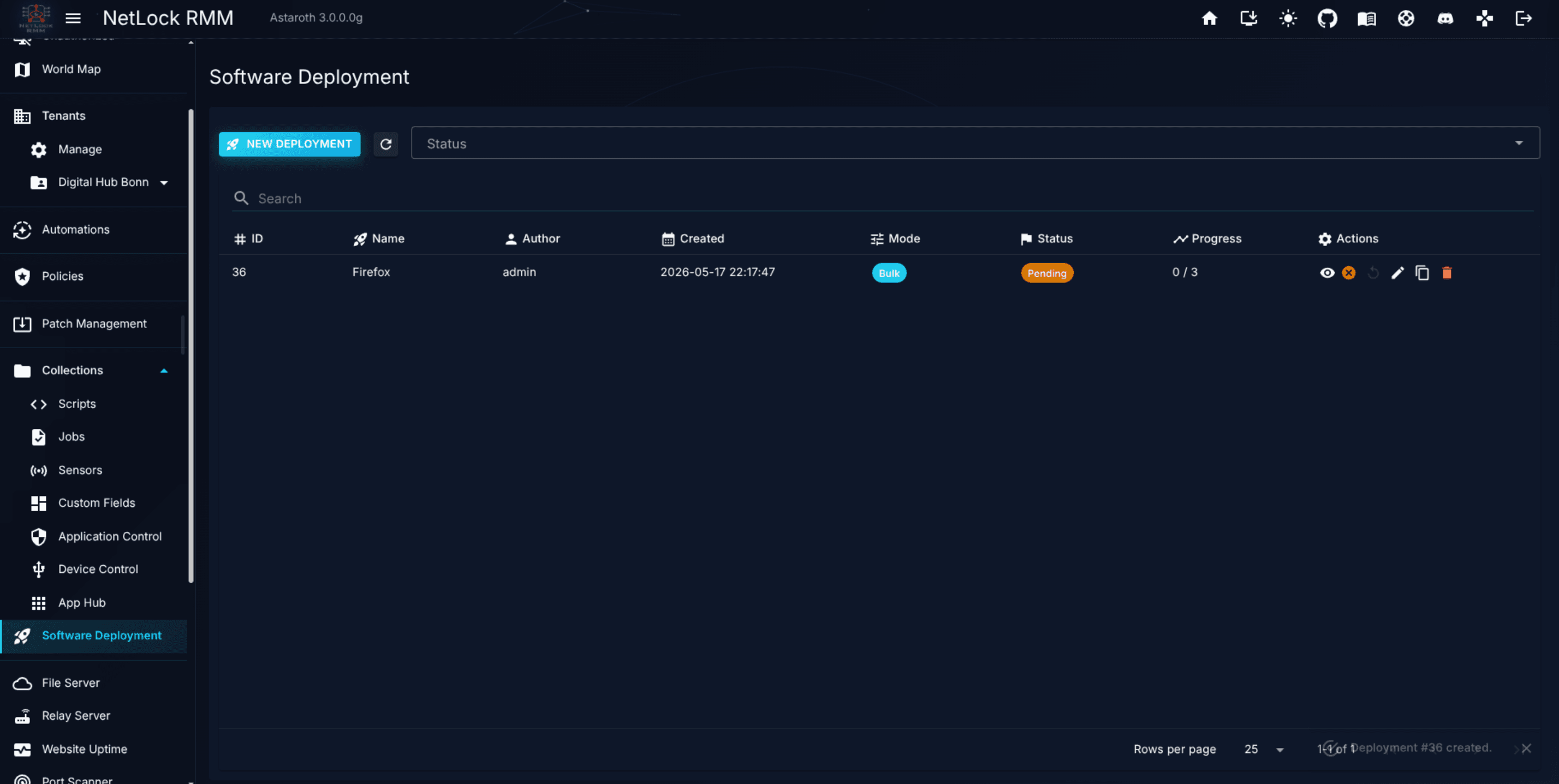
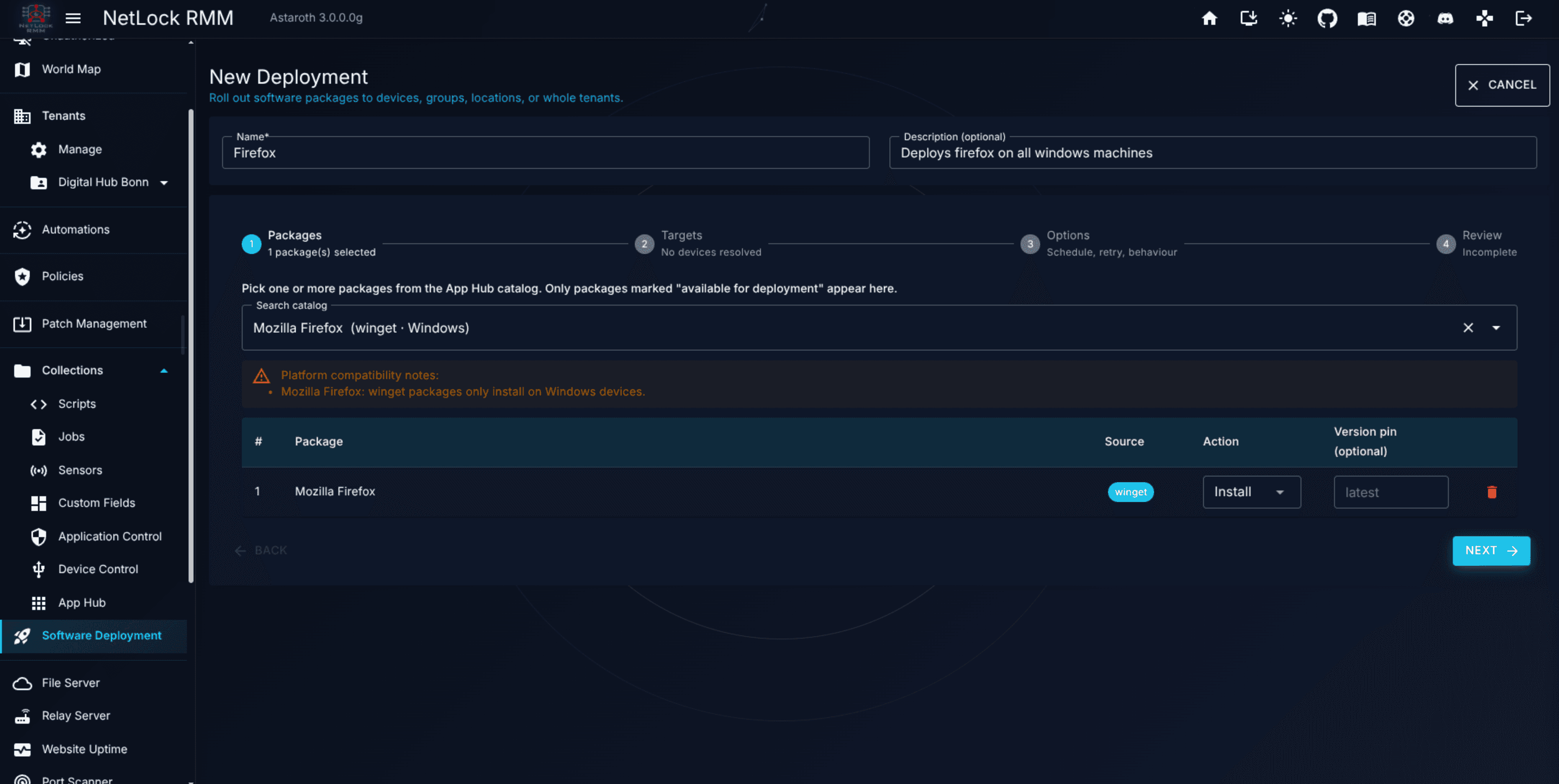
A packaged deployment of one or more App Hub entries or manual packages to a target set of devices.
Collections items are cross-referenced: an automation may invoke a script, a policy may include an Application Control ruleset, a software deployment may use App Hub entries. Chapter 8 documents each in detail.
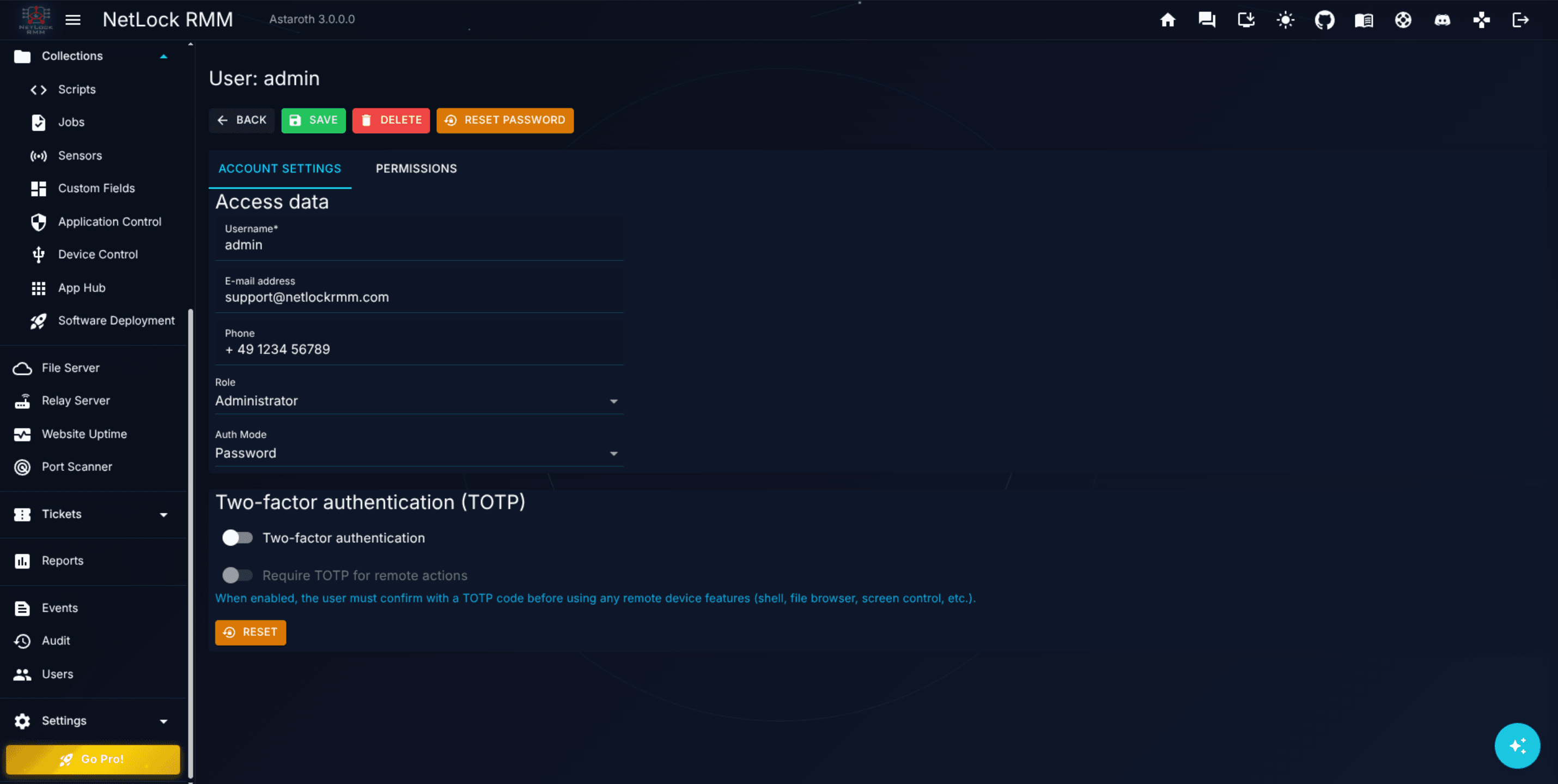
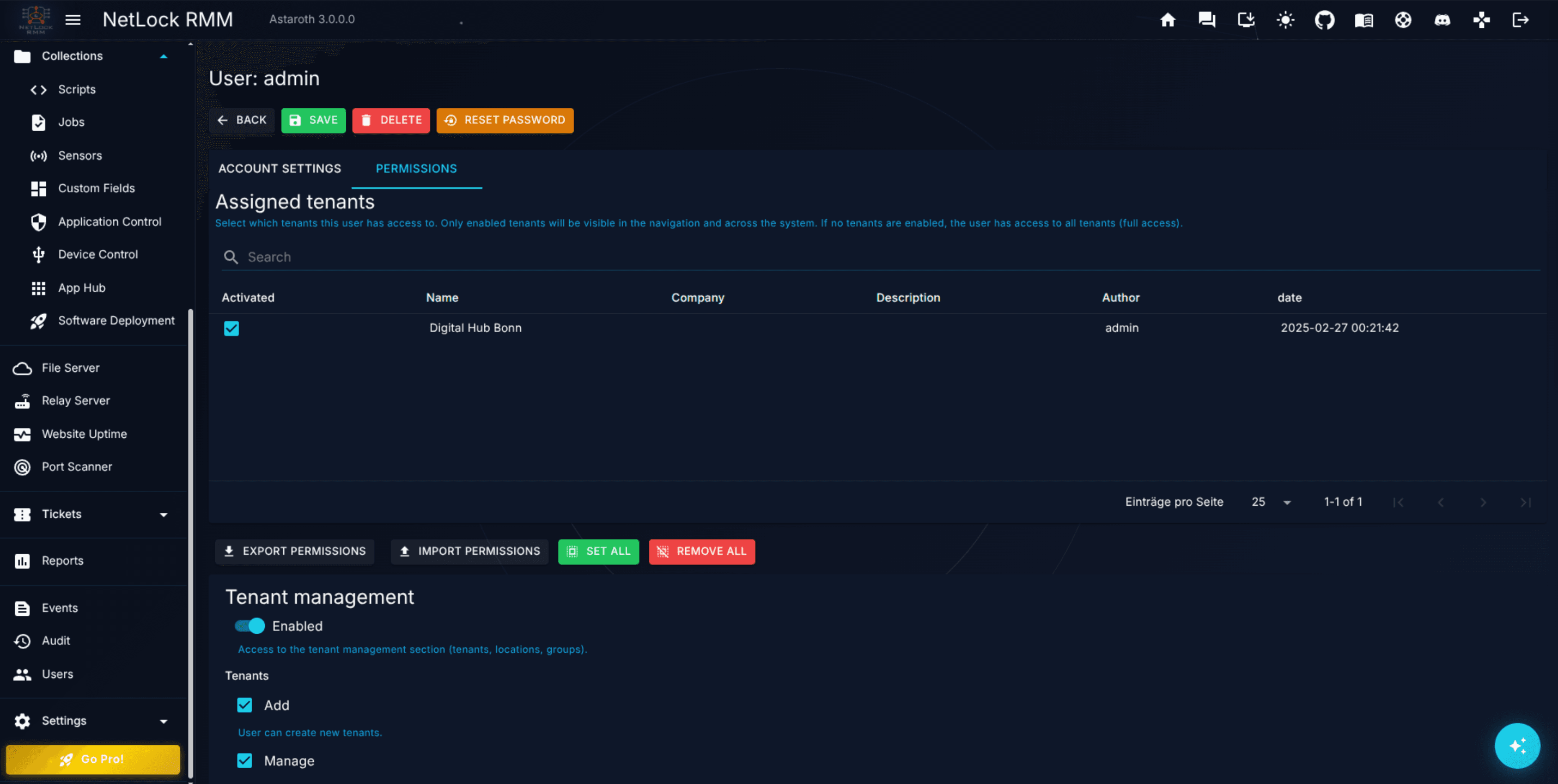
NetLock RMM uses a role-based permissions model. Each user holds a set of permission flags that gate access to Console features. Flags come in three shapes:
*_enabled — whether the user sees the feature at all (for example collections_enabled).
*_add — whether the user can create new items in the feature.
*_manage — whether the user can edit or delete existing items.
Permission flags control which items appear in the navigation menu on the left, which buttons are visible on a page. A user without dashboard_enabled will not see the Dashboard menu item; a user with collections_application_control_enabled but without collections_application_control_manage will see the Application Control page read-only.
Permission names appear throughout this manual in backticks, for example collections_application_control_manage. See Users & Roles for how to assemble permissions into roles, and the Permission reference appendix for a full list.
Several parts of the Console update in real time using a persistent connection to the server. Device status, script and job execution results, and policy deployment notifications all flow in without a page refresh.
This chapter takes you from your first login all the way to a managed device that is online, labelled, and has a policy applied. It assumes the server is already running (whether cloud or self-hosted).
Before you start, read Core Concepts if you have not already. Every step below uses terms introduced there.
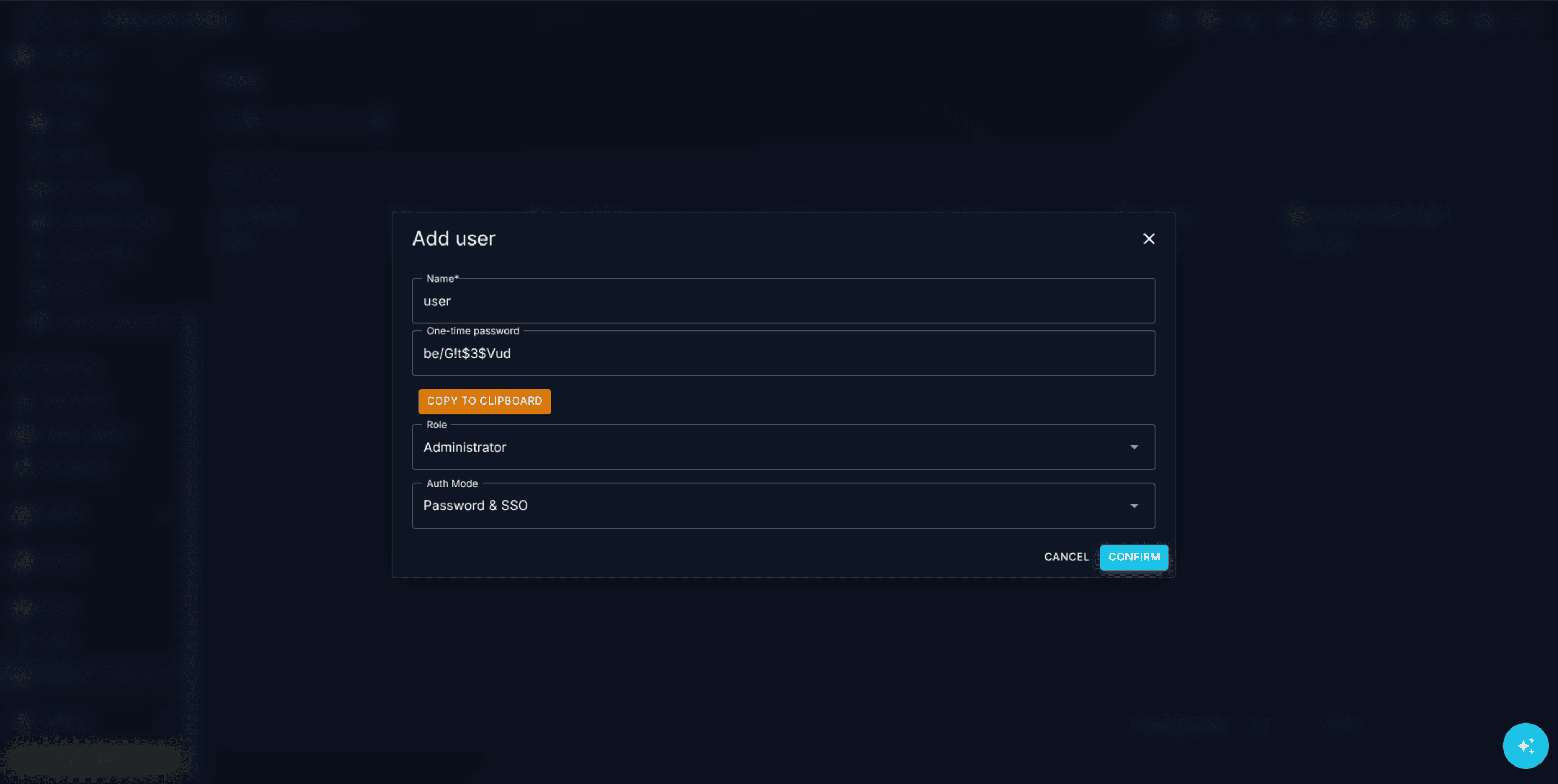
Open the Console in your browser. The login screen accepts your username and password, or a configured single-sign-on provider if your organisation has enabled SSO.
Enter your username in the Username field.
Enter your password in the Password field and sign in.
If your account has two-factor authentication enabled, enter the current code from your authenticator app on the next screen.
If your organisation uses SSO, click the SSO button on the login page instead and complete the provider's flow.
You land on /account/home, a small personal dashboard showing your profile information, navigation order menu and email signature configuration for the ticketing system.
Note: If you are the very first user on a self-hosted deployment, the initial administrator credentials were set during server installation. Default username is: "admin" and default password is "admin".
The first time an administrator visits the Dashboard page, the Setup Wizard opens automatically. It walks you through the minimum configuration needed to get the product useful:
Create a tenant (if none exists yet).
Create a location under that tenant.
Create a group under that location.
Optionally generate an agent installer for one of your supported platforms.
If you dismiss the wizard, the same steps are available manually from the Tenants menu and the Agent Download dialog. The wizard is simply a faster path.
Tip: Name your first tenant deliberately. It is common to use the company or customer name. You can rename it later, but external integrations (for example reports emailed to stakeholders) use the name you set here.
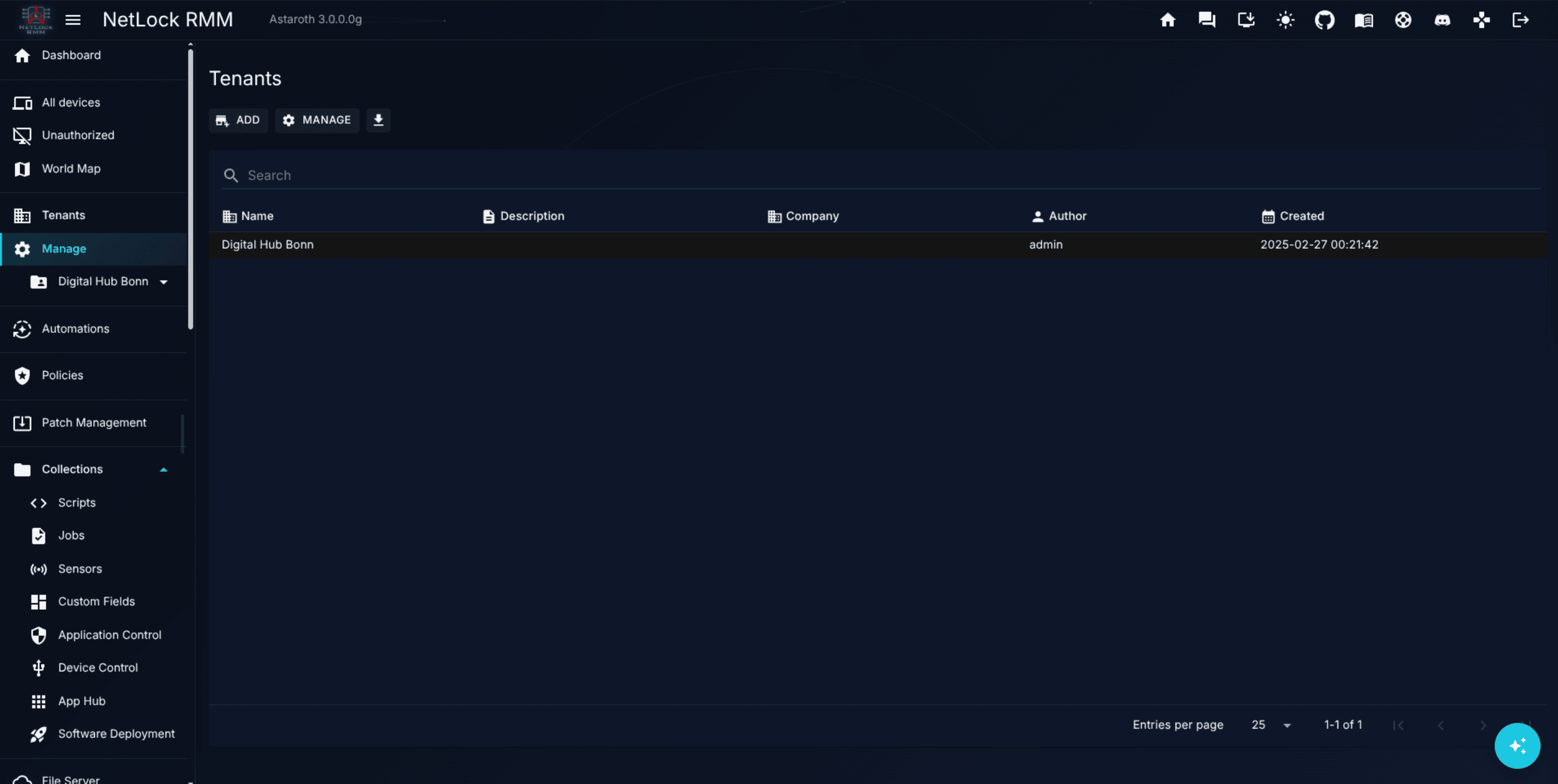
On the Manage Tenants page, click the add button and fill in the tenant name and basic details. Save.
Select the new tenant in the list to enter its detail view. The Console stores the selection so subsequent screens act on this tenant.
Open Location Settings and add a location — typically a physical site ("Berlin HQ", "Remote Workers").
Inside the location, add one or more groups. Groups should reflect how devices will be configured; a good starter set is Workstations, Laptops, and Servers.
See Chapter 4 for the full reference on the tenant page and its dialogs.
With a target group in place, you can generate an installer that pre-configures the agent to register into that specific tenant, location, and group. NetLock RMM ships the agent as a single self-contained executable per platform and architecture, with the server configuration embedded at build time.
Open the Agent Download dialog from the Setup Wizard or from the Devices page.
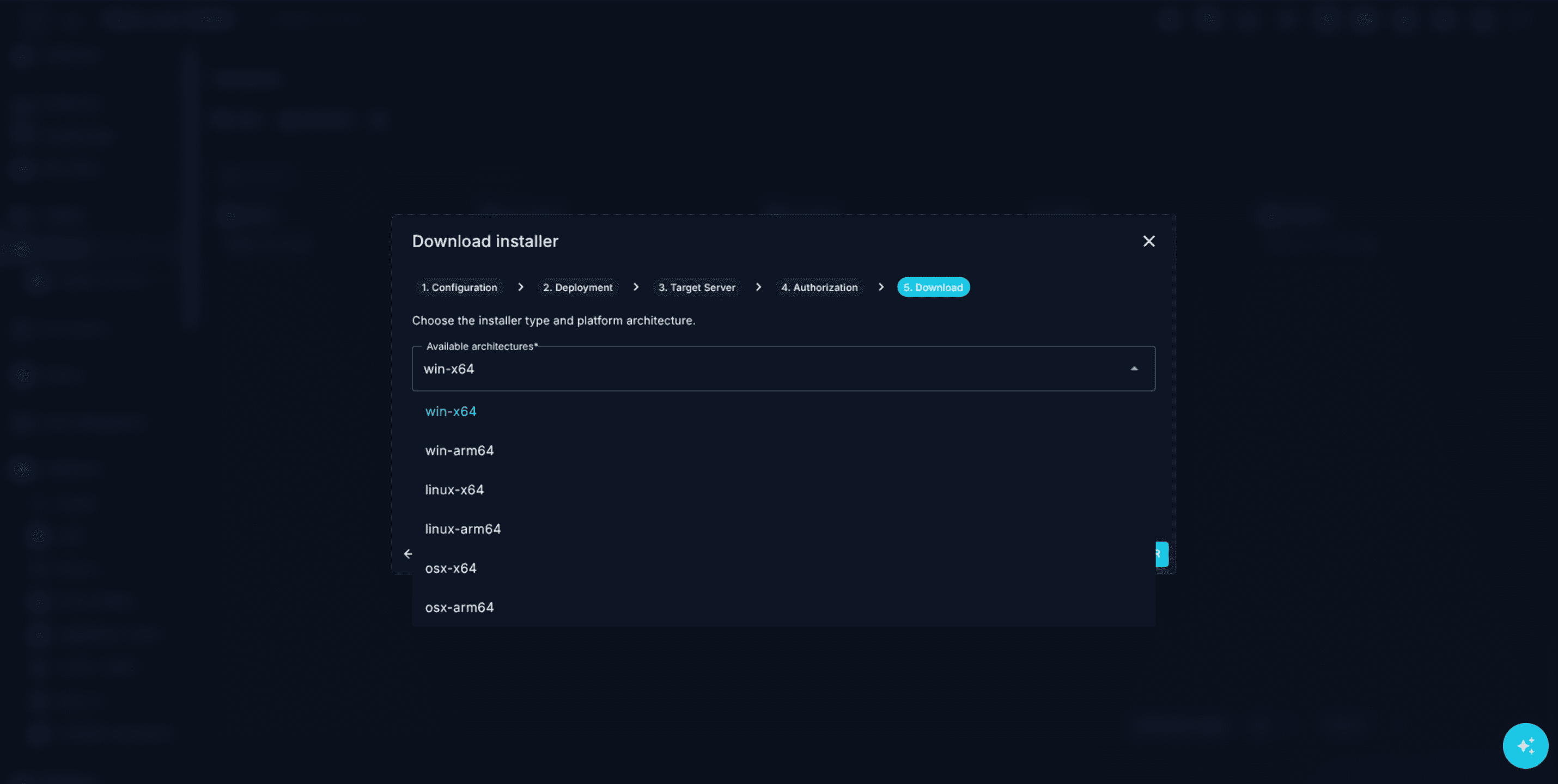
The dialog runs as a five-step wizard. Step through:
Configuration name — a label for this installer build.
Deployment method — select the target tenant, location, and group.
Target server — select the communication, remote, update, trust, file, and relay servers this agent will talk to.
Authorization — choose whether the agent is pre-authorized or registers as unauthorized pending admin approval.
Platform and architecture — choose one of win-x64, win-arm64, linux-x64, linux-arm64, osx-x64, osx-arm64. Also choose Standard Installer (console, silent-capable) or GUI Installer (graphical, with customisable window title, welcome message, and button labels).
Click the build action. The Console packages a binary with the embedded config into a .zip and returns a download link.
Optionally download an accompanying install script — Install-NetLockAgent.ps1 for Windows, Install-NetLockAgent.sh for Linux or macOS — that automates the download, extract, and run steps.
Warning: Treat agent installers like secrets. The server configuration is embedded inside the binary, so anyone with the installer can register a new device into the configured group, depending on your configuration settings. You can also set a installer to auto authorize until a certain date and all installations originating from the specific installer will first land under unauthorized devices.
With no arguments the installer uses its embedded config. For manual re-configuration or repair, the installer also accepts positional modes: clean "<path-to-server_config.json>" for a fresh install with an external config, fix "<path>" to repair while preserving the existing server config, and uninstall to remove the agent.
The installer registers the agent as a background service (Windows service, systemd on Linux, LaunchDaemon on macOS) and starts it. Within a minute or two the agent contacts the server.
Note: NetLock RMM does not ship native .msi, .deb, .rpm, or .pkg packages; a single binary is used across all distributions.
Back in the Console, the device does not appear in Devices yet — it appears in Unauthorized Devices instead, unless you chose pre-authorization in step 4's wizard. This is by design: an administrator must explicitly approve any agent that claims membership in a tenant, to prevent rogue or misconfigured agents from polluting your inventory.
With the device authorised, give it a policy. This takes two pieces in NetLock RMM: the policy itself (what should be enforced), and an automation rule that routes the policy to the right devices.
On Manage Policies, click Add. Enter a name and description — for example Starter Workstations. Save.
Click Manage on the new row to open Policy Settings.
The default settings enforce the agent configuration but do not yet configure Antivirus, Application Control, Patch Management, or any other opt-in feature. Feel free to set your first settings. On a later stage you can edit the policy again to activate specific sensors or jobs.
Under If …, leave the condition type at Group and pick the group you created in step 3, for example Workstations.
Under Then …, select the policy Starter Workstations.
Leave Priority at the value the dialog proposes (400 for a group rule).
Confirm.
The server immediately re-evaluates the devices of that group against the new automation and pushes the matching policy. Within the agent's next poll interval the policy lands on the device.
Note: When several automations match a device, the one with the lower priority number wins; at the same number the rule with more conditions, then the older one. The dialog proposes a priority from the rule's most specific condition, so a rule for one device beats a rule for its group, which beats a rule for its tenant. See Chapter 5.
See Chapter 6 for the full Policies reference, Chapter 5 for the Automations reference, and Guide H.4 for a step-by-step walk-through.
A tenant with one location and at least one group.
One managed device, labelled and approved.
A policy attached to the group.
That is the smallest meaningful deployment of NetLock RMM. Everything else — automations, patch management, scripts, reporting — layers on top of this foundation. The next chapter, Navigating the Console, describes the UI you will spend the rest of your time in.
The Console has a consistent layout across every page. Learning where the fixed elements live — the navigation menu, the tenant selector, the theme toggle, the help dialog — means you can find any feature in a few clicks. This chapter is the short tour.
The navigation menu on the left is built dynamically: the items you see depend on your permissions, the modules enabled on the deployment, and the order you chose to display them in. Two users with different permission sets on the same deployment will see different menus.
The default top-level groups, in their default order, are:
Dashboard
Devices Quick Access — with All Devices, Unauthorized Devices, Device World Map, and Device Topology sub-items.
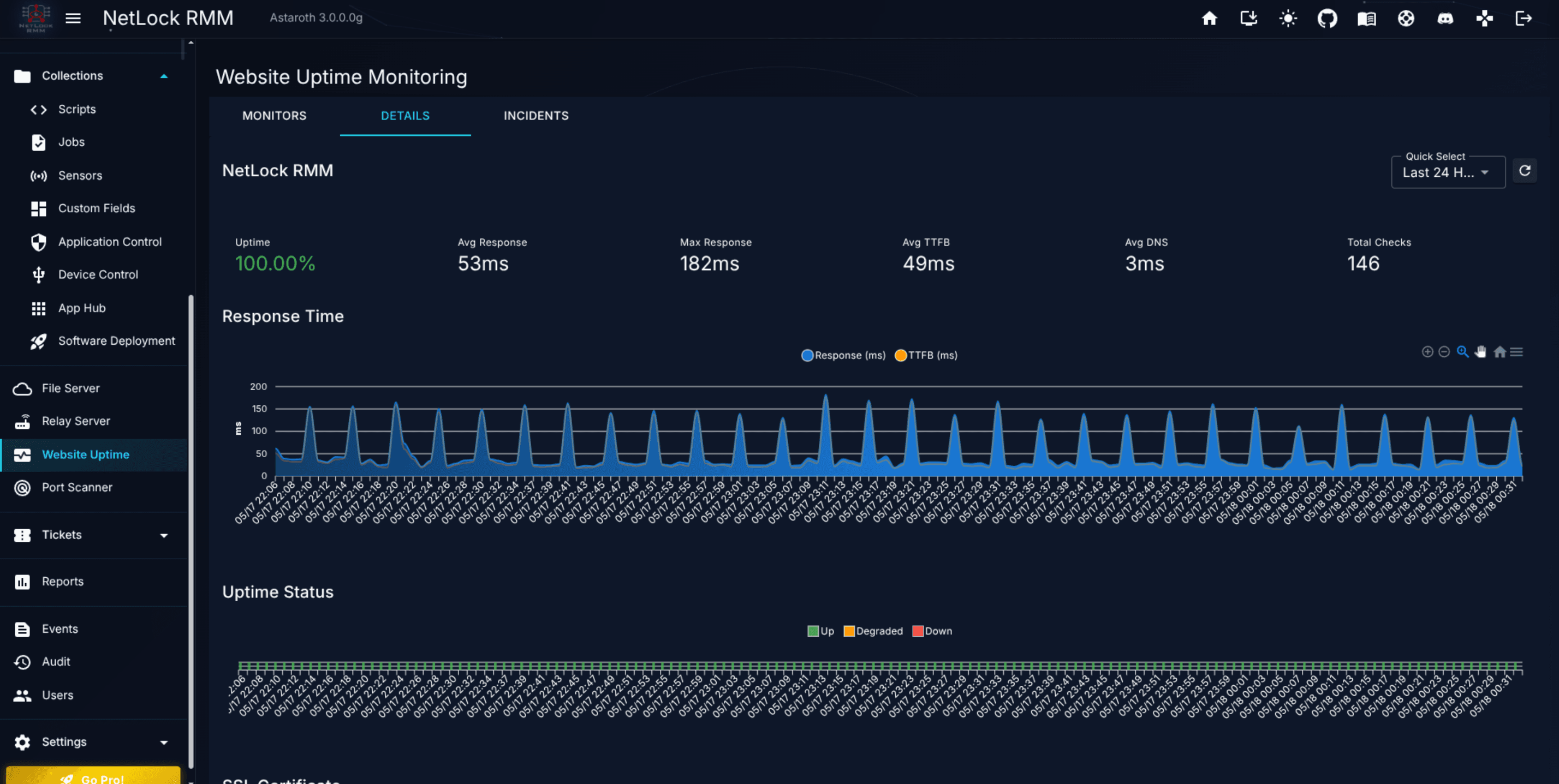
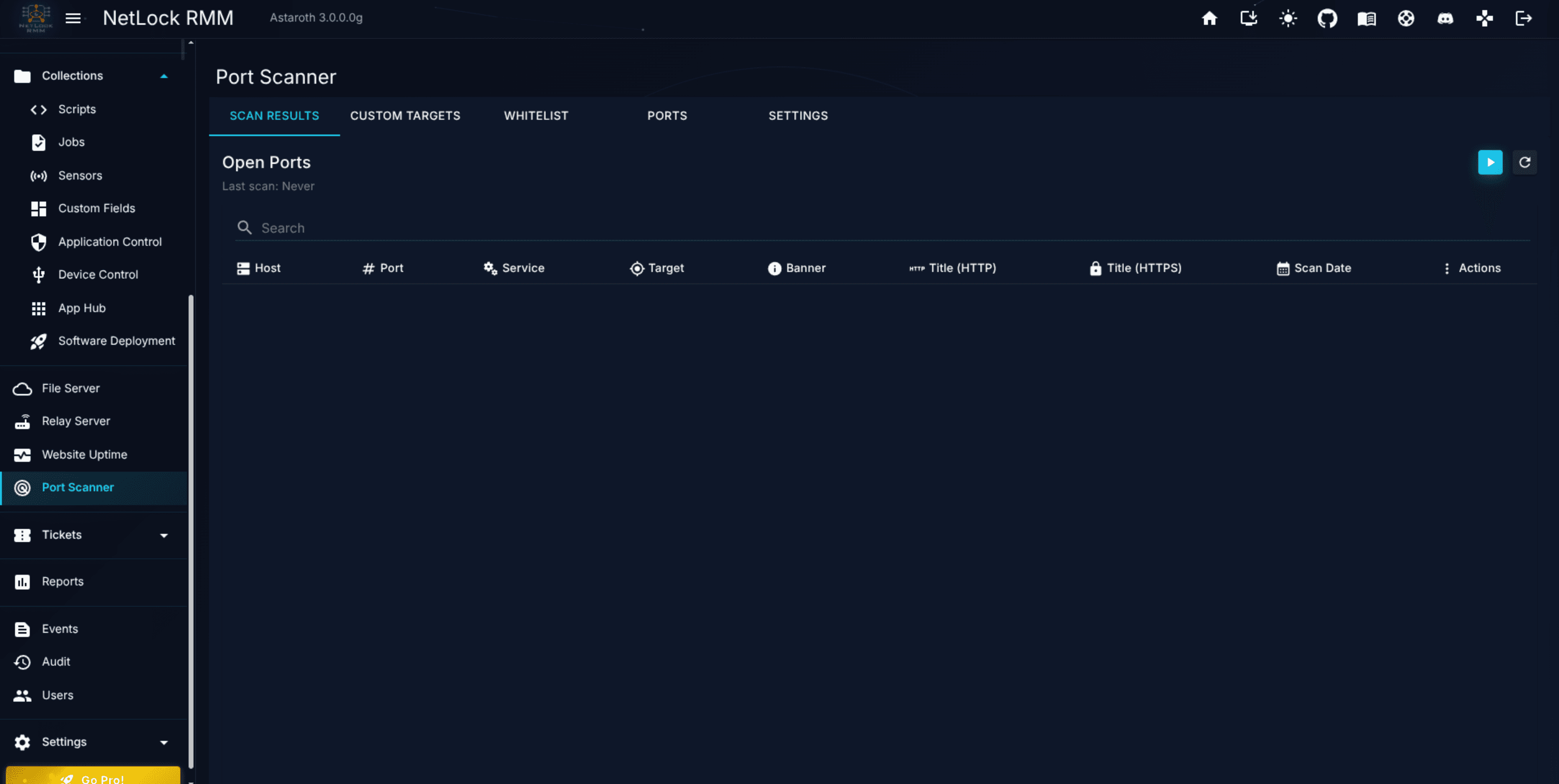
File Server & Monitoring — File Server, Relay Server, Website Uptime, Port Scanner.
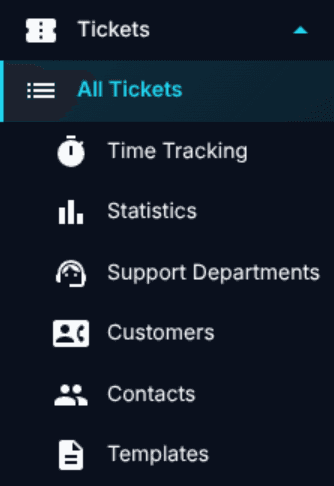
Tickets(only if the Ticket System is enabled)
Reports
Management — Events, Audit, Users.
Settings — 16 sub-pages covering administration.
Each group expands to reveal its sub-pages. Selecting a sub-page loads it into the main content area.
Note: Menu visibility is gated by roughly twenty permission flags at the top level, plus additional flags per sub-page. See the Permission reference appendix.
The Console stores a per-user menu order in your account — the default order is the one listed above, and the server loads your personal order on every login. You can edit the order under /home.
If the deployment is unlicensed, a gold Go Pro button appears prominently in the navigation. Clicking it opens the upgrade / licensing flow. Once the deployment is licensed, the button disappears.
Many pages — Tenant Settings, Location Settings, the Devices page, most Collections pages — act on a currently selected tenant, location, and group. The selector in the header is how you pick them.
Click the selector in the header to open a tenant / location / group picker.
Choose the tenant, then narrow to a specific location or group if desired.
The selection persists across the session and is used by every context-sensitive page you open afterwards.
A few pages also show the selected context inline near the top of the content area, so you always know what you are acting on.
Tip: If a page says "no tenant selected" or shows an empty state unexpectedly, open the header selector first and pick a tenant.
The header carries a search box (on phones, a magnifier icon that opens the results page). Press Ctrl+K (Cmd+K on macOS) or / on any Console page to jump into it. Type at least two characters and the suggestions appear grouped by category while you type; every group lists the first five matches and ends with a link to the full results, and the last row opens the results page for the whole term. Use ↑ and ↓ to move through the suggestions, Enter to open the highlighted one (or the results page when nothing is highlighted) and Esc to close the list. The suggestions appear after 1.5 seconds at the latest: a category whose search is still running is shown as still searching and fills in when it finishes; the results page always waits for every category.
Operators. A term can start with an operator, an English word followed by a colon, that narrows the search to one field or one category. The word is matched in any case, a space after the colon is allowed, and singular and plural are both accepted (ticket: and tickets:). A word that is not an operator stays part of the term, so http://example is searched as typed, and the remainder after the operator has to be at least two characters long. The help icon next to the search box lists the operators with an example each.
Operator
Searches
serial:ABC123
the serial number of devices
hwid:4C4C4544
the hardware ID of devices
ip:192.168.
the internal and external IP address of devices, and the IPv4 address of network adapters by prefix
mac:AA:BB
the MAC address of network adapters in any spelling, also for a short fragment such as mac:0a1b
country:DE, country:germany
the country of devices: a two-letter term is matched whole against the country code, anything else as part of the country name in English or in any console language, so country:deutschland finds the same devices
only that category, with the same columns as without the operator; software: is the installed software of the devices, app: the App Hub
An operator never widens what an account may see: a category the account may not search, or a field of such a category, returns no results.
Recent searches. While the search box is focused and empty it lists the last eight searches that were submitted or whose hit was opened in this browser; a row runs that search again, Clear empties the list, and the arrow keys move over the rows like over suggestions. The list is stored in the browser only, not on the server, and nothing is stored while typing.
What is searched:
Devices — name, label, serial number, internal and external IP address, the country of the external address (by its name in English or in any console language), operating system, domain, last active user, hardware ID, manufacturer, model, and the names of tenant, location and group. A suggestion shows the device, its tenant and location and, when the term was found somewhere other than the name, which field matched (for example Serial number: 5CD1234XYZ or Country: Germany).
Custom fields — the values stored in custom fields of devices, shown as Custom field <key>: <value>. Fields of type secret are never searched, whatever their value.
Software, Services, Drivers and Network adapters — the inventory of the devices, one suggestion per distinct entry (a software name with its version and vendor, a service with its service name and status, a driver with its version and status, an adapter with its MAC and IPv4 address) together with the number of your devices that hold it, for example Google Chrome · 128.0.6613.120 · Google LLC · on 37 devices. Names are matched by word, so chrome finds Google Chrome; a service name such as wuauserv matches by prefix. For adapters, a term that looks like a MAC address matches the stored address in any spelling (AA:BB:CC, aa-bb-cc and aabbcc all find AA:BB:CC:DD:EE:FF), and a term of digits and dots matches the IPv4 address by prefix (192.168.1). On the results page each entry expands to the list of devices that hold it (up to 50), each linking to the device. The server keeps a search index for these four categories that fills itself after the server update: a device appears with its next inventory sync, and a run at every server start indexes the devices that already have an inventory, so the categories are empty until the updated server has started once.
Tickets — number, title, contact name, contact e-mail and assignee, and on the results page the description as well; a suggestion shows the ticket number, the customer and the status and priority chips of the tickets list. Merged tickets are not listed, and only the departments you may see are searched.
Customers — company name, contact name, contact e-mail and phone of the ticket customers; a hit opens the customer details page.
Contacts — first and last name, e-mail, phone and position of the customer contacts; a hit opens the contact for editing.
Policies — name and author, and on the results page the description; the default policy carries a chip. A hit opens the settings page of the policy.
Scripts, Jobs and Sensors — name, description, label, author and platform, plus the shell of a script (and on the results page the script body itself, shown as an excerpt) and the type of a job; a sensor shows its category, a hidden job carries a chip. A hit opens the list with that entry and, for an account that may edit, its edit dialog.
Automations — name, description, author and trigger of the rules on the automations page, with an enabled or disabled chip. A hit opens the rule for editing; the dialog applies the tenant rules of the automations page.
App Hub apps — name, publisher, version, the winget, Flathub and Chocolatey package ids and the tags, and on the results page the description; the suggestion shows the source and the target operating system. A hit opens the app for editing when the account may manage apps, otherwise the list narrowed to the app.
Software deployments — name and author, and on the results page the description, with the status and mode chips of the deployments list; a hit opens the deployment. A deployment is found when at least one of its targets belongs to your tenants, as the deployments list shows it.
Tenants and Locations — name, description, company and contact persons of a tenant, name, description and author of a location (shown with its tenant); tenants marked for deletion are left out. A hit opens the settings page of the tenant or location.
Users — username, e-mail, first and last name and phone of the console accounts, shown with their role; a disabled account carries a chip. A hit opens the settings page of the account.
SNMP devices — name, IP address, system name, location, contact and device type, and on the results page the system description and the notes, with the status chip of the SNMP list. A hit opens the Devices page in its SNMP view with the device selected.
Unauthorized devices — name, internal and external IP address, country, domain, operating system and last active user of the devices waiting for authorization. A hit opens the unauthorized devices page listing every such device of your tenants, narrowed to that name; authorizing stays a deliberate click there.
Opening a device hit lands on the Devices page with that device selected and its detail panel open; a ticket hit opens the ticket dialog, a customer hit the customer details page and a contact hit the edit dialog of the contact. A hit of a management category opens the entry the same way its own page does: the settings page for policies, tenants, locations and users, the edit dialog (or the narrowed list, without the edit permission) for scripts, jobs, sensors, automations and App Hub apps, the detail page for a deployment. The results page at /search lists up to 50 matches per category, with a chip per category to narrow the list, and a note when a category holds more than that. Such a category shows 50+ until its chip is clicked; the exact number is then counted once and shown in the chip and in the card title, and the total of the All categories chip becomes exact once every such category has been counted. An inventory entry opened from a suggestion lands on the results page with its category selected and its device list already open.
Results follow the signed-in account: a category is only searched and shown when the account holds the permissions of the page it links to (the devices permission for devices and the four inventory categories, plus the custom fields permission for custom fields, the software permission for software, services and drivers, the general device permission for network adapters, the tickets permission for tickets, the customer management permission for customers and contacts, and for the management categories the permissions of the policies, scripts, jobs, sensors, automations, App Hub, software deployment, tenants, locations, users, SNMP and unauthorized devices pages). Device hits and the device counts of the inventory categories are limited to the tenants the account is assigned to, tickets to the departments it may see, and customers and contacts to its tenants, where an entry without a tenant is visible to everyone. Tenants, locations, SNMP devices and unauthorized devices are limited to the assigned tenants as well, and software deployments to those with a target in one of them; policies, scripts, jobs, sensors, automations, App Hub apps and users have no tenant and are listed for every account with the page permission. An account without any tenant sees the search box but gets no device hits. Nothing is revealed about entries outside that scope, so two users typing the same term can get different lists.
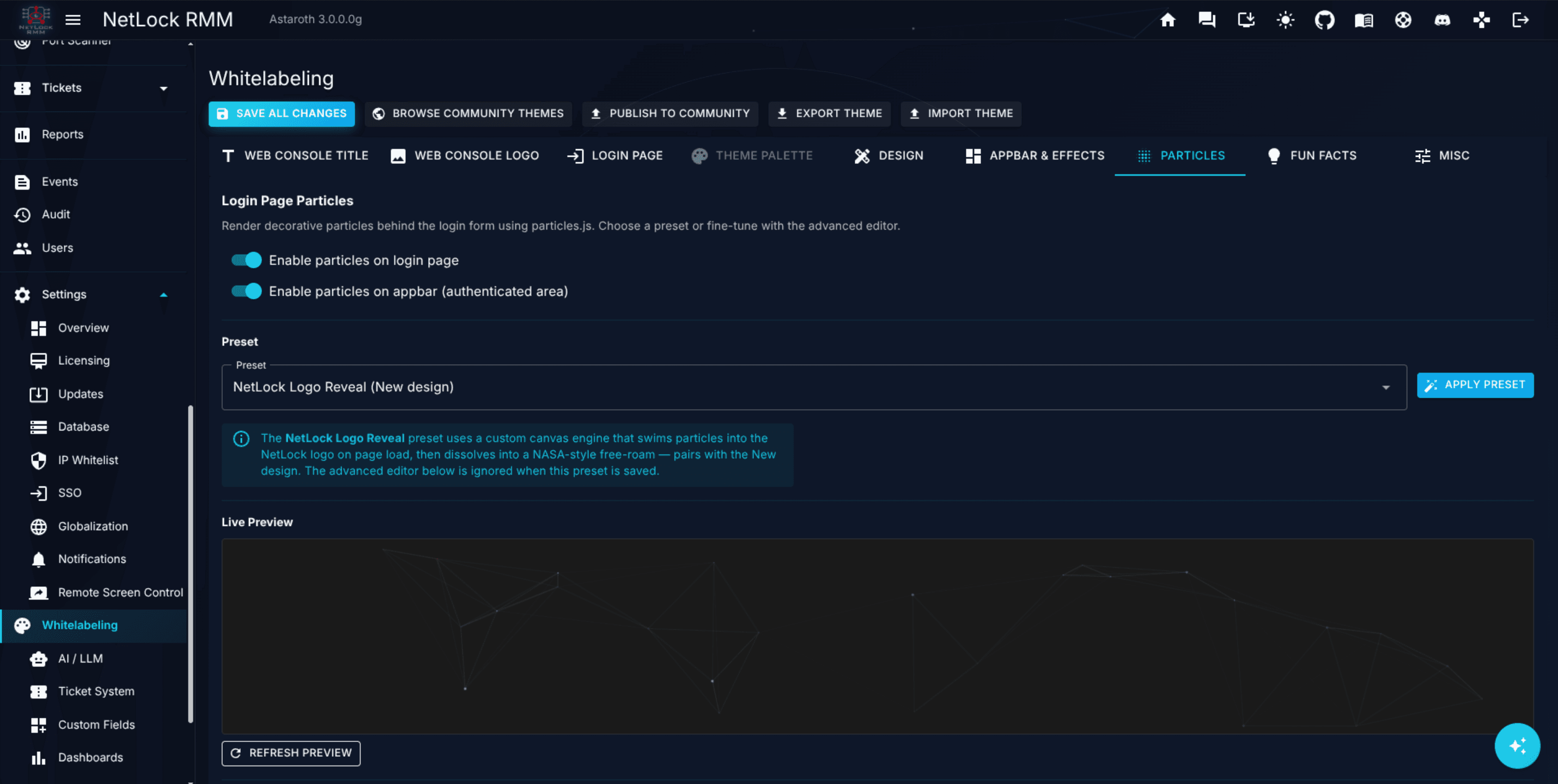
Deployment-wide, the box can be hidden from the header on the AppBar & Effects tab of the whitelabeling settings (Global search); the results page stays reachable at /search.
A theme toggle in the header switches between light and dark mode. Your preference is stored in your user account, so the theme is consistent across devices and sessions.
If the deployment has been whitelabeled (see A.6 Whitelabeling & themes), the brand colours apply in both modes. Custom community themes imported via the whitelabeling settings also respect the light/dark split.
Short-lived status messages appear as toast notifications in a corner of the screen — for example "Policy saved" after saving a policy, or an error after a failed bulk action. Toasts disappear after a few seconds; for historical records, check Events or Audit.
Real-time Console features (device status, script execution results, policy deployment feedback) use a persistent connection to the server. If toasts or status indicators stop updating, refresh the page to re-establish the connection.
The Console defines two global keyboard shortcuts: Ctrl+K (Cmd+K on macOS) and / focus the global search box in the header, or the box on the results page when that page is open. / is ignored while the cursor is in a text field, a script editor, a terminal or the ticket editor, and while a dialog is open, so a slash typed there arrives as usual. Inside the search box, the arrow keys, Enter and Esc work the suggestion list. There is no product-wide dark-mode toggle or save/close binding. Other keyboard handling is limited to page-local conveniences — for example, pressing Enter submits the login form, and the remote control window binds function keys relevant to that session. Each per-page shortcut is noted in the chapter that documents that page.
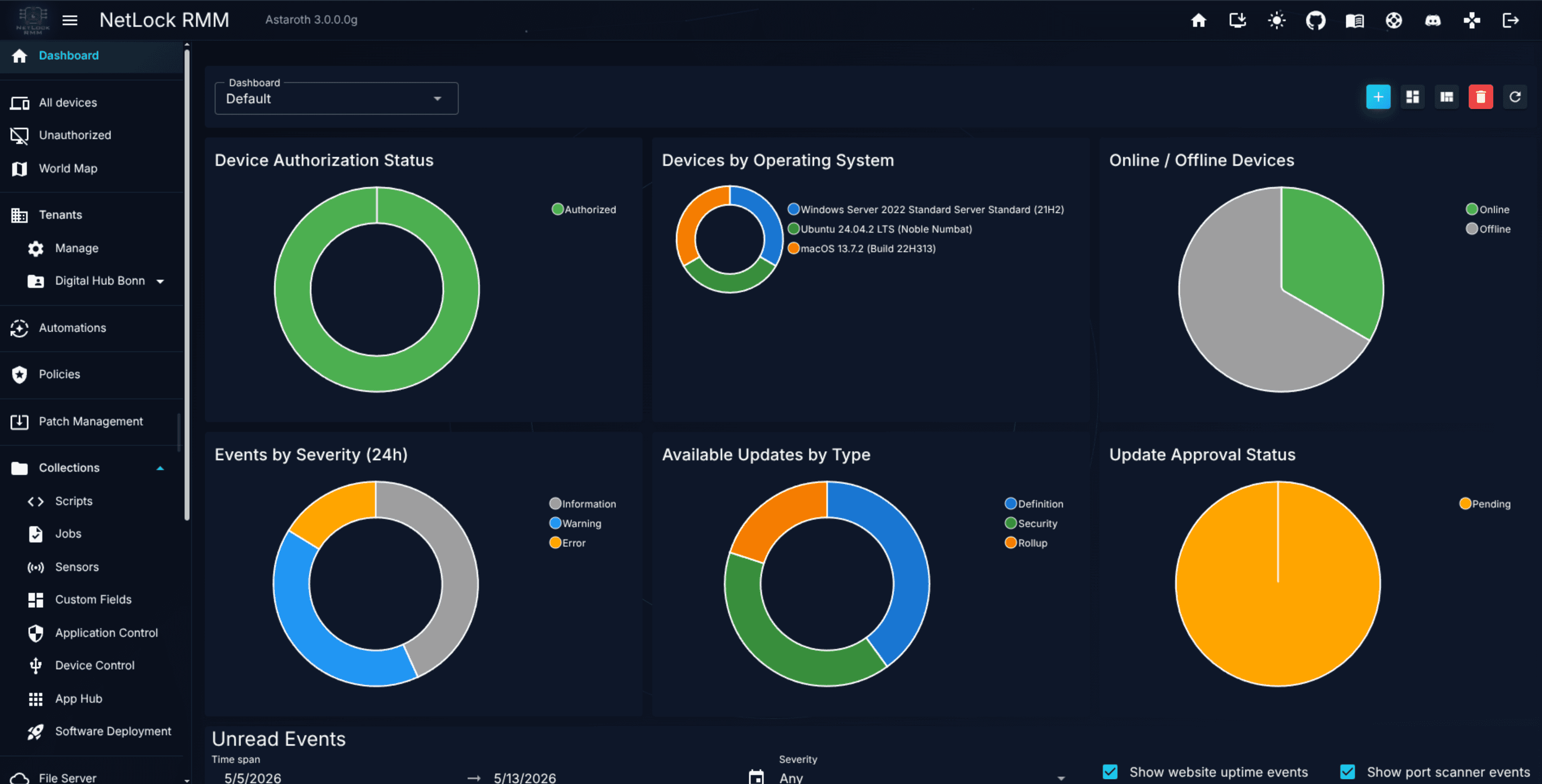
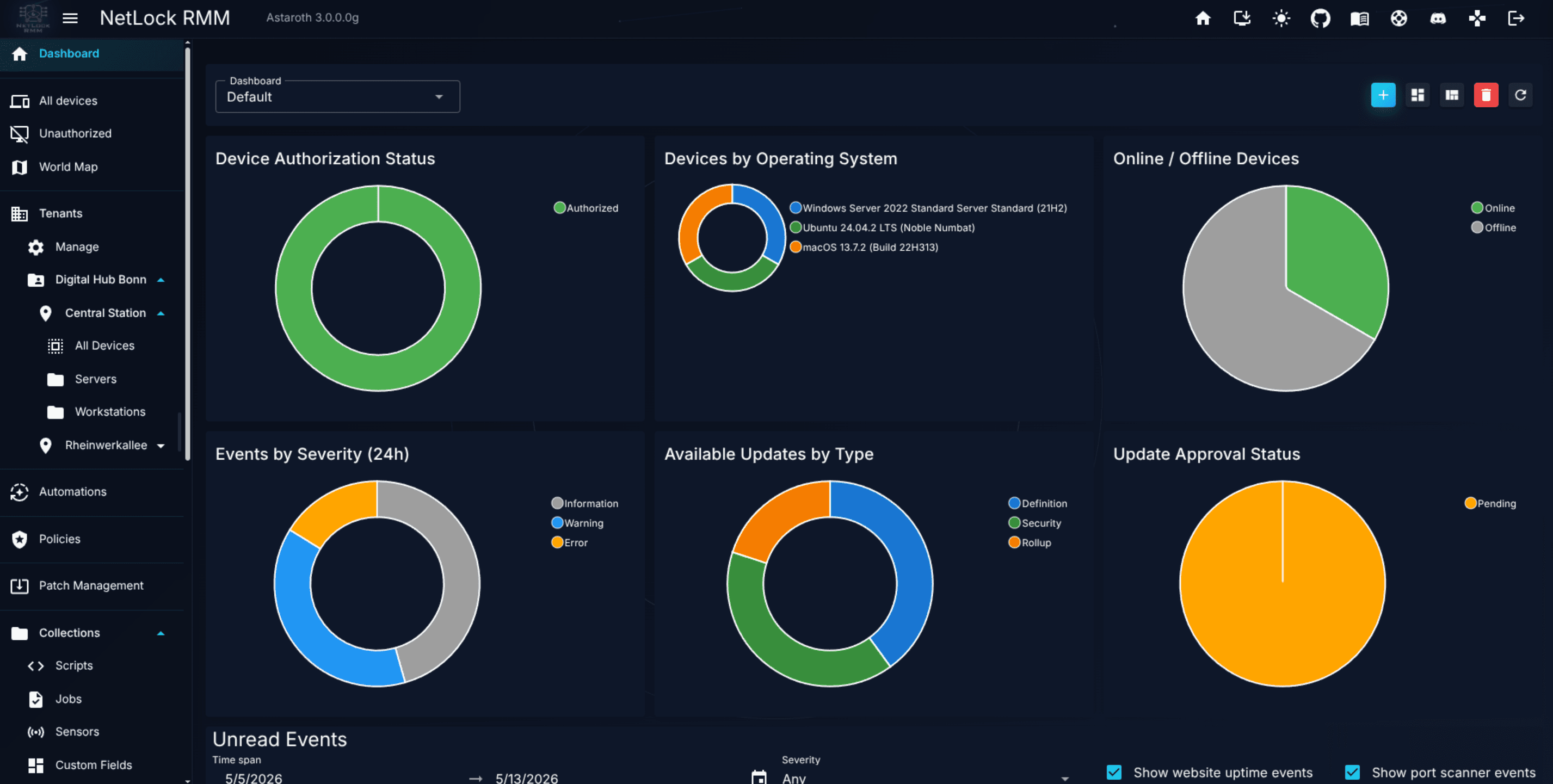
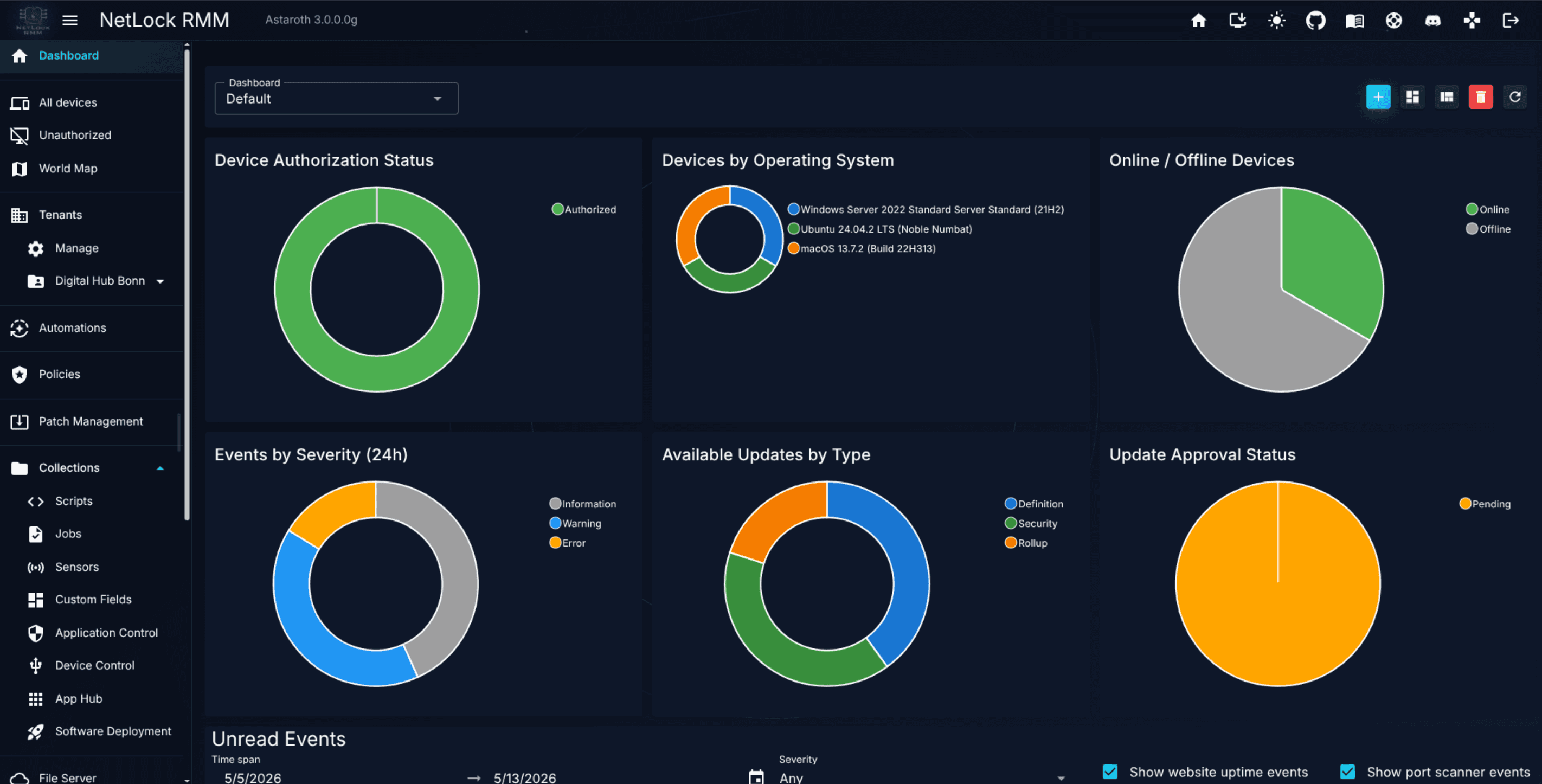
The Dashboard is the default landing page for most users. It is a grid of panels — configurable widgets — that display information from the Console's database: device counts, sensor values, event slices, and anything else you can express as a SQL query. Each user can create multiple dashboards, each with its own set of panels, and arrange them in an explicit layout mode.
Requires permission: the dashboard must be enabled for your user. A user without this permission does not see the Dashboard menu entry.
The Dashboard page sits at /dashboard. At the top is a bar of dashboards you have created; the active dashboard shows below it as a grid of panels. Dialogs handle creating and deleting dashboards and adding or configuring panels.
The first time a newly provisioned administrator opens the Dashboard, the Setup Wizard opens automatically. It walks through the minimum configuration needed to make the product useful — creating a first tenant, location, and group, and optionally downloading an agent installer. See First-Run Walkthrough for the full sequence.
You can close the wizard and reopen it from the help area later. If your environment is already set up, dismiss it and proceed directly to the empty dashboard.
A fresh user starts with one empty default dashboard. You can create more so that different roles or different periods of the day get their own view (for example a "morning triage" dashboard and a "server health" dashboard).
Click the add button in the dashboard bar to open the Add Dashboard dialog.
Enter a name in the dashboard bar.
Save. The new dashboard is active and empty, ready for panels.
Dashboards are per-user. Two users do not share each other's dashboards unless an administrator configures defaults (see A.12 Content defaults).
The Sensor status widget of the Monitoring category is a chart with the sensors of your devices that are OK, failing or offline. It is not part of the standard dashboard; add it to a dashboard of your own. When a dashboard carries it, the TV view shows its three counters in its header. The widget needs the sensors permission of the Collections area and counts only the devices of the tenants your account is assigned to.
The state comes from the events the sensors reported. A sensor is failing while an unread sensor event of its device names it and no newer "Sensor Resolved" event of that sensor exists. Reading the event on the Events page acknowledges the failure and the sensor returns to OK, and so does a resolved event the agent writes when the check passes again. Failed sensor runs ("... failed") count as failing as well. Sensors of offline devices are counted as offline, not as failing. The sensors a device is expected to run follow its policy, its automation rules and the SNMP devices it monitors, the same way the agent receives them. Updated agents report the id of the sensor with every sensor event, so renamed sensors and sensors of the same name are matched exactly. Events of older agents carry no id and are matched by name, so with such events two sensors of the same name on one device share a state. OK also means that no failure was reported at all.
Every dashboard can be shown full screen on a wall display or an office monitor. On the Dashboard page, select the dashboard and click Open TV view. The view opens in a window of its own without the menu, the app bar and the editing controls, refreshes its panels by itself and shows the time of the last refresh, a countdown to the next one and a clock in its header.
The address of the view is /dashboard/tv/<id>, where 0 is the standard dashboard and any other id is a dashboard you can see. The view is always dark, whatever theme the console uses. One optional query parameter adjusts it:
refresh=<seconds> sets how often panels without an interval of their own are counted anew. The default is 60 seconds, the minimum 15, the maximum 3600. A panel with its own refresh interval keeps that interval. Panels with an own SQL statement are never counted more often than every 300 seconds, the smallest interval the Panel Builder offers for them, whatever this parameter says.
The view follows the sharing of the dashboard and the permissions of the signed-in account. It needs the dashboard permission, a dashboard of another user is only shown while it is shared with the account or visible to everyone, and a widget the account may not see stays locked, as on the dashboard page. The panel definitions are read again once per refresh interval, so panels added, changed or removed on the dashboard page appear on the TV without a reload; a dashboard that is deleted or unshared while the view is open is replaced by a notice.
The TV view menu on the Dashboard page offers Open this dashboard, Open playlist and TV settings. The settings dialog holds the playlist of your account: the dashboards the rotating view shows in order (the standard dashboard can be one of them), how long each stays on screen (30 seconds to 5 minutes) and how often the panels are counted anew. The dialog also shows the address of the playlist view, /dashboard/tv, with a copy button, so it can be typed into the browser of the TV device. Every account has one playlist of its own.
The playlist view rotates through the entries, shows the position and the next dashboard in its header and reads the playlist again after every full round, so changes made in the dialog appear without a reload. An entry you may no longer see is skipped, and the view shows a notice when the playlist is empty. The refresh query parameter still wins over the stored setting.
Sign in with Remember me on the device that shows the view. The open view keeps the session from idling out, but every session ends when its absolute lifetime is reached; the view then shows a notice with a Sign in again link instead of redirecting on its own, so the screen never ends up on the sign-in page unattended. The sign-in page brings the account straight back to the TV address it came from, whether the sign-in is done with a password or through SSO; only a TV address is accepted for that return. The notices mean:
No permission - the account does not hold the dashboard permission.
Dashboard not available - the dashboard was deleted, or it is no longer shared with the account.
Session expired - the session has ended; sign in again and the view comes back on its own.
Playlist is empty - the playlist has no entry you may see; add dashboards in the TV settings.
The unread events list appears below the panels when the dashboard is set up to show it and the account may see events.
If a dashboard has grown unwieldy, the simplest path is to create a fresh one from scratch and delete the old one. Panels are cheap to recreate with the Panel Builder, and the fresh start forces you to keep only the panels you actually use.
Access to the Dashboard is gated by a user-level permission. Users without it do not see the page or the menu entry.
The panels you can add depend on the data you are permitted to see. For example, a user scoped to a single tenant will only see that tenant's devices in a device-count panel, regardless of how the panel is configured.
The Setup Wizard is only shown on the administrator's first visit to the Dashboard and can be dismissed.
The Devices section is where most day-to-day RMM work happens. It covers the inventory of managed devices, the queue of agents waiting to be approved, device detail views with status and events, bulk operations such as reboot or shell commands, remote desktop sessions, and a world map showing where your devices are located geographically.
The section is exposed as a top-level menu group with three sub-pages:
Page
Route
Purpose
Devices
/devices
Inventory of authorized devices.
Unauthorized Devices
/unauthorized_devices
Queue of agents pending approval.
Device World Map
/device-world-map
Geographic view of device locations.
All three pages respect the currently selected tenant, location, and group context from the header selector. See Navigating the Console for how the context works.
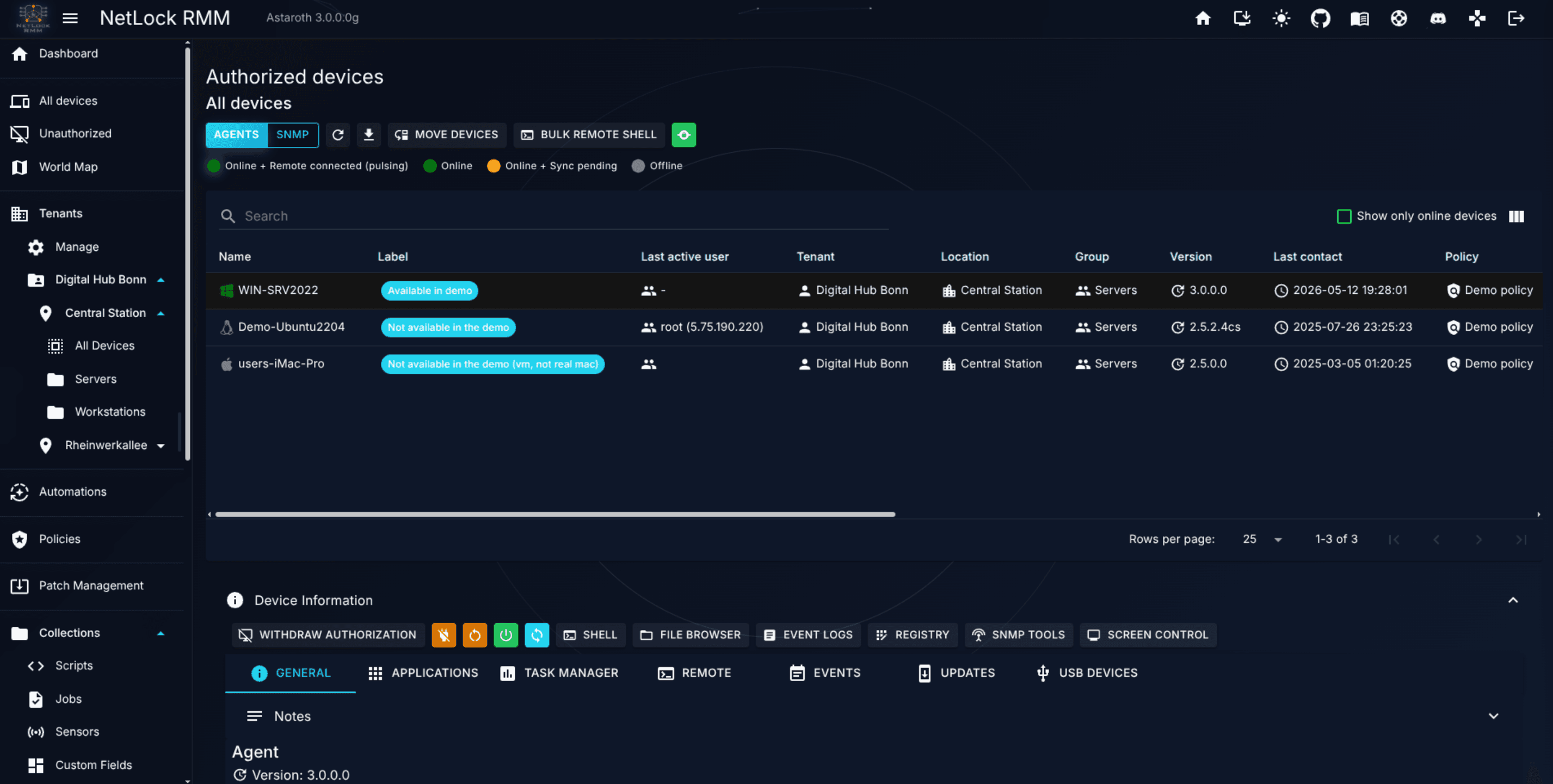
The Devices page lists every authorized device for the selected tenant / location / group. Each row shows status, identifying information, and quick-action affordances.
Online — the agent is currently connected to the server.
Online + Remote connected (pulsing) — the agent is currently connected to the server and has a remote connection established
Offline — the agent has not checked in within the expected interval.
Status changes appear without a page refresh (the page uses the Console's real-time update channel). If status updates stop arriving, a page reload re-establishes the connection.
A device that rate limiting on the server has blocked shows a red chip Blocked until <time> next to its name. Its requests are refused until that time, so the device goes Offline as well; the tooltip of the chip names the reason (for example Request rate above the limit for a sustained period) and the request class. With the permission settings_rate_limiting_enabled the chip is a link to the Rate limiting tab, where the block can be released. Blocks recorded in observe mode do not show a chip.
The Devices list offers two filter controls: a free-text search box and an online-only toggle.
The search box performs a case-insensitive contains match across 14 fields at once — enter any substring and rows where any of the following fields contains it remain visible:
device name and label
tenant, location, and group name
agent version and last-access timestamp
IP address, operating system, and domain
country, by its name in the language of your console (a two-letter term matches the country code whole)
antivirus solution and firewall status
last active user
The online-only toggle, when enabled, restricts the list to devices whose status is currently Online + Remote connected. Combined with a search term, it narrows the list to online devices matching the search text.
The Country column shows the flag and the name of the country the device's external IP address belongs to, in the language of your console. The list sorts by it, the search box matches the name (or the exact two-letter code), and the column is moved with the Column Order control like the others. The exports of the list (CSV, JSON, HTML) carry the country as country_code (ISO 3166-1 alpha-2) and country_name (the English name).
The country is determined by the server at every check-in, from the address the device connects from, against the GeoIP database bundled with the server; no lookup leaves the installation. After an update, an existing device shows its country as soon as it has synced with the updated server once. A device that reaches the server through a private address — on the LAN of an on-premises server, through a VPN into the server's network, or on a single-host Docker installation — has no country and shows an empty cell; a device that leaves through a VPN or a proxy shows the country of that exit. The same value feeds the global search (country: operator), the public API (geoCountryCode and geoCountryName, see X.9.8), the Devices by country tile of the country restriction tab and the country restriction of the server.
Every device belongs to exactly one group, in exactly one location, in exactly one tenant. To move a device between groups, use the group assignment affordance on the device. Moving a device may change which policy it receives, because policy assignment is driven by Automations that match on device attributes such as group name. Expect policy changes to land within the device's sync interval.
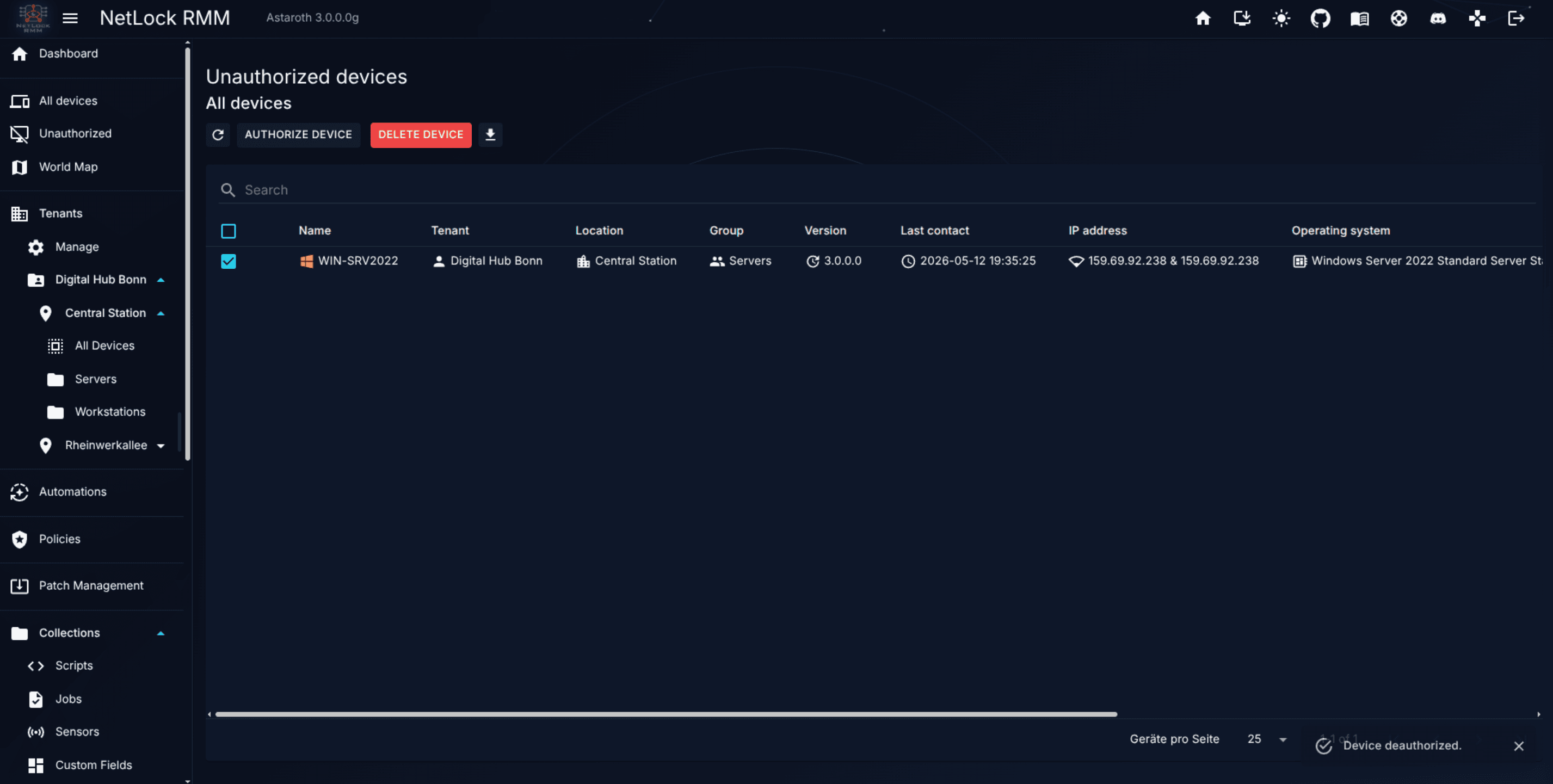
An agent that successfully contacts the server but has not yet been approved appears in Unauthorized Devices, not in the main Devices list. This intermediate state prevents rogue or misconfigured agents from silently polluting your inventory.
Next to the internal and external IP address of an entry, the queue shows the flag of the country the external address resolves to, so an agent that registers from an unexpected place stands out before it is approved; the country is resolved the same way as for authorized devices (see Country of a device).
The approval flow is:
The agent is installed on a device with configuration that targets a specific tenant / location / group.
The agent contacts the server and registers as unauthorized.
An administrator reviews the entry in /unauthorized_devices — confirm the hostname, operating system, and the target tenant / location / group are correct.
Adjust the target group if needed.
Approve the entry. The device is created in the authorized inventory and begins receiving policies and automations.
Optionally set a label immediately after approval using the Edit_Label dialog.
Rejecting an unauthorized device removes it from the queue; the agent will re-register on its next poll and reappear unless you block it at the network or agent level.
Selecting a device in the list opens its detail view. The detail view pulls everything the Console knows about the device into one place:
Identifying information — hostname, label, tenant / location / group assignment, operating system, last-seen timestamp, IP addresses reported by the agent.
Geo location — below the external IP address, the line Geo location shows the flag, the city, the region and the country of the external address. City and region are resolved against the GeoIP database of the Web Console when the device is opened; the country stored with the device is used when the database has no record. The line appears only for a public external address; a device behind a private address shows Geo location: Not available for a private address instead, and a device that leaves through a VPN shows the location of the VPN exit, as on the world map.
Status — current online / offline / error state, and the agent version.
Custom fields — values for every custom field defined in Collections, editable per device. Each field is one Label: value line like the other device details: a multiline value keeps its line breaks, a long value is shortened to four lines with Show more, an empty field shows -, and the copy button next to a value copies it. A manual field without a device value shows the value inherited from the group, location, tenant or global level greyed out, with an icon whose tooltip reads Inherited from …; a value written by a script or the public API has an icon with the tooltip Set by script on … or Set by API on …. On phones and touch devices these texts appear under the value instead. A Secret field shows a mask and a Reveal secret button for accounts with the reveal permission.
Events — recent operational events scoped to this device; a link into the full Events page is available.
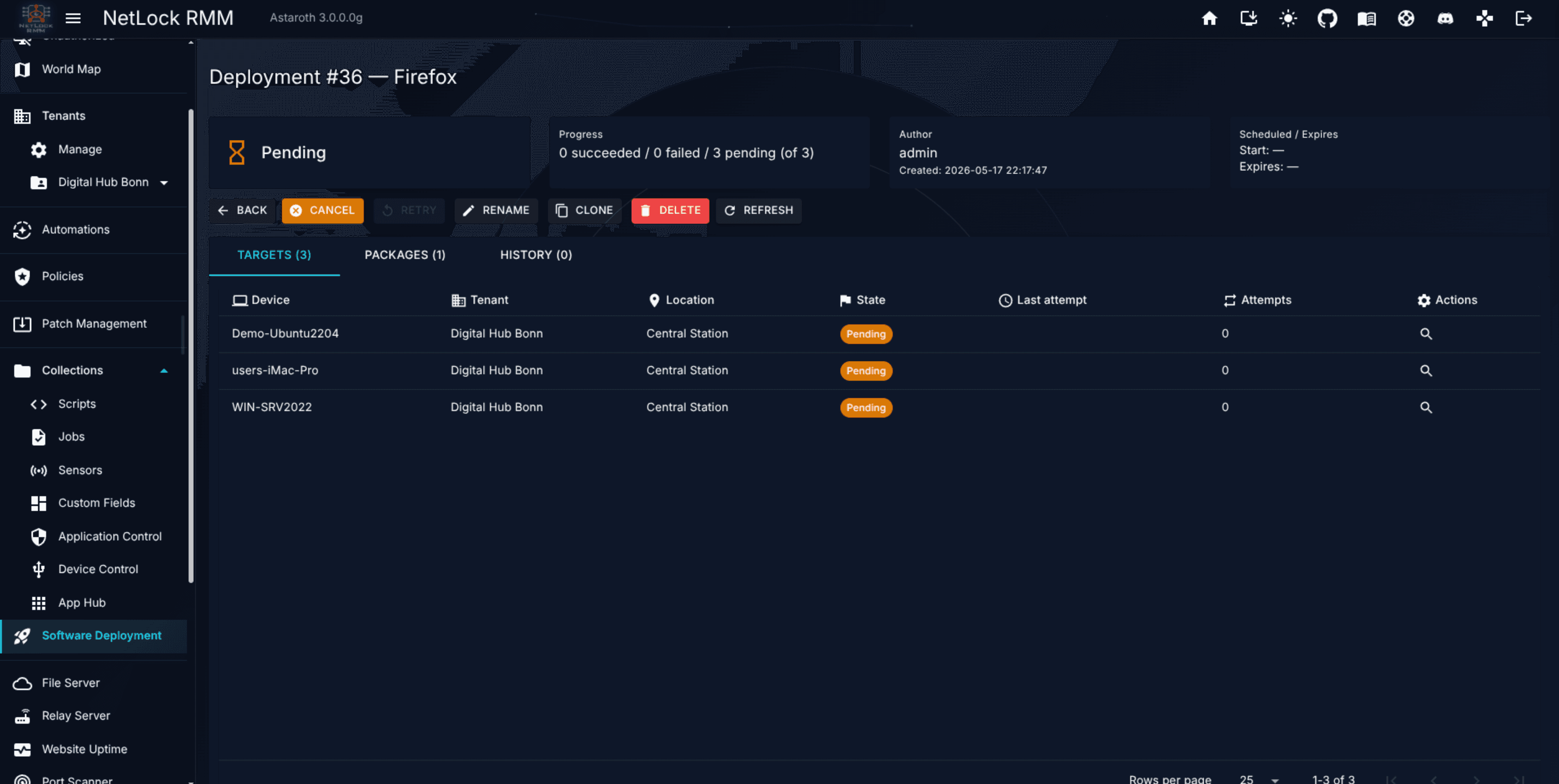
Policy — the single policy currently assigned to the device (or no_assigned_policy_found if no automation matched and no default policy is set). A policy that comes from the default policy is marked Default policy. A +N chip next to the policy in the list counts the sensors and jobs that automation rules add on top of it; its tooltip names them and the rule each comes from. The detail view lists them under Assigned policy as Additional sensors and Additional jobs, expandable to name and rule, and warns when rules would add items to a device that has no policy, because nothing is handed out then. Only items the device actually receives are shown: a sensor for the device's platform, a job for its platform or platform System. What the list and the detail show is the state the device last received from the server — the decision of its last evaluation — not a fresh evaluation of the rules; a device that has no stored state yet, while rules on services, applications or custom fields exist, shows - with an hourglass and the tooltip Evaluated at the device's next sync. See Chapter 5 — Automations for how assignment works, Chapter 5.2.2 for when a change shows up and Chapter 5.6 for the items.
Actions — per-device operations: remote control, remote shell, file browser, registry editor, event log viewer, service manager, wake-on-LAN, uninstall application, SNMP tools, and the bulk affordances covered in 3.4 and 3.5.
The per-device actions are implemented as the dialog set below. Each dialog targets the currently selected device (or the set selected for bulk actions):
Service Editor (Windows), Service Editor (Linux / macOS)
Diagnostics and tools
Event Details, SNMP Tools, Uninstall Application
Network
Wake on LAN
The exact availability of some dialogs depends on the device's operating system — for example the Registry Editor is Windows-only, and the Linux / macOS Service Editor applies only to Linux and macOS devices.
Open the device detail view and the tab or section the definition contributes.
Click the pencil next to the value. The field opens for editing on its line; a Secret value is typed into an empty password field.
Save with the check mark, or press Enter (Ctrl+Enter in a Multiline field). Escape or the cross discards the change. Leaving the field does not save it, and an empty value cannot be saved.
To let the device inherit the group, location, tenant or global value again, open the editor, click Remove device value and confirm. The device's own value is deleted and the inherited value appears greyed out with its Inherited from … icon; without an inherited value the field shows -.
Reveal secret next to a secret field shows the stored value. It requires collections_custom_fields_reveal_secrets and writes an audit entry each time.
Editing needs collections_custom_fields_edit; without it no pencil is shown and the fields are read-only. Only Manual fields can be edited; Job Result and SQL Select fields are read-only for every account. Every saved value marks the device for a policy re-sync, so scripts that use the value receive it at the next check-in. When an automation rule compares the field, the rules are evaluated for the device right away and the device is pushed when its assignment changed (see Chapter 5.2.2). Defining which custom fields exist, and setting values on tenant, location, group or global level, happens at the Collections level; see Chapter 8.4 — Custom Fields. Scripts read the values through variables and can write them back; see Script variables and custom fields in scripts and Write custom field values from a script.
The detail view shows a tailored slice of the Events feed: only events concerning this device. This is usually where you go first to diagnose why an action did not land — a policy deployment that silently failed, a script that did not run, a sensor that went silent.
Rather than operating on devices one at a time, the Devices page supports selecting many devices and issuing a single operation against all of them. Common bulk actions include:
Bulk remote shell — execute a command on every selected device and collect the results.
The bulk remote shell flow uses two dialogs:
Bulk Remote Shell — pick the command to run, confirm the target set, and launch.
Bulk Remote Shell Results — display per-device results as they arrive, including stdout, stderr, and exit status.
Warning: Bulk actions run on every selected device without further per-device confirmation. Double-check the selection before you launch a bulk reboot on a production fleet.
Tip: For repeatable work, save the command as a script in Collections and invoke the script rather than typing the command every time.
Individual devices support remote access via the Console:
Remote shell — an fire and forget shell session on the device (PowerShell on Windows, Bash or the default shell on Linux and macOS), opened from the Remote Shell dialog. Every completed classic remote shell command writes an event "Remote shell command executed." (type Remote Shell) on the device with the output; the command text itself is not stored.
Real-Time Remote shell — an interactive shell session on the device (PowerShell on Windows, Bash or the default shell on Linux and macOS), opened from the Remote Shell dialog.
Remote control — a graphical remote-control session to the device's desktop, opened from the Remote Control window.
NetLock RMM does not use VNC or RDP for remote control. Instead it streams the device's screen over its own protocol using one of two video encodings:
H.264 — hardware-accelerated on the device's GPU when available, with a CPU software encoder as fallback. H.264 is the default when the agent and relay can negotiate it.
JPEG polling — used when H.264 is not available (for example when the H.264 slot on the relay is already in use), and also the mode used by the legacy transport.
The Remote Control window exposes a connection-mode dropdown with two options:
Relay (Recommended - faster) — the session is routed through a dedicated Relay Endpoint that sits between the Console and the agent. This is the fast, modern path and is always preferred when the relay is configured.
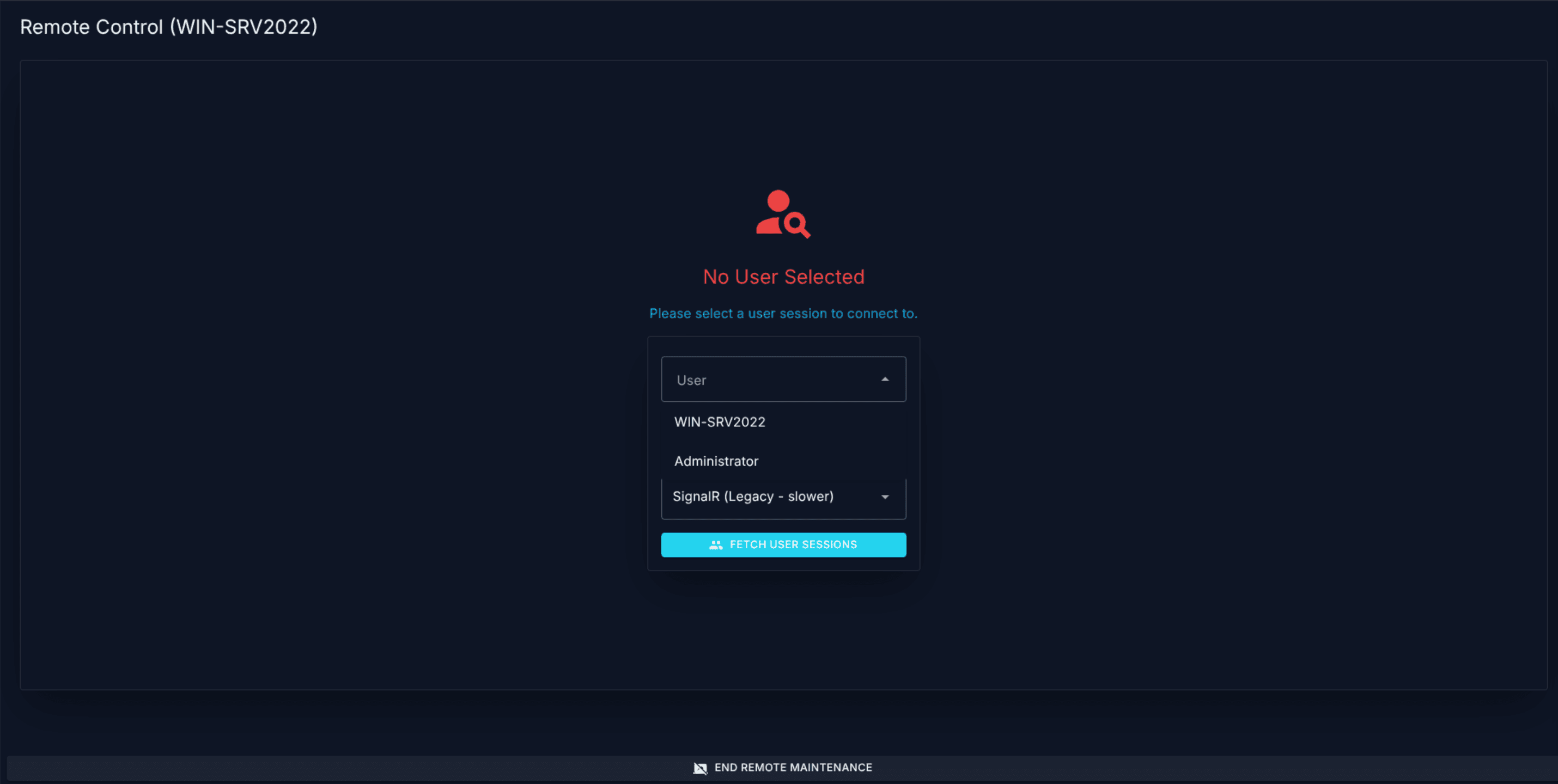
SignalR (Legacy - fallback) — the session is routed through the Console's own SignalR hub on the main server. This path is slower and always uses JPEG polling.
Selection is explicit: you pick the mode before starting the session. The Relay path auto-falls-back to JPEG if the relay's single H.264 slot is already occupied, and to SignalR + JPEG if the relay cannot be reached at all.
The picture of a session — colour, quality, frame rate and resolution — is chosen in the viewer with the stream mode; see A.7.5 Streaming modes.
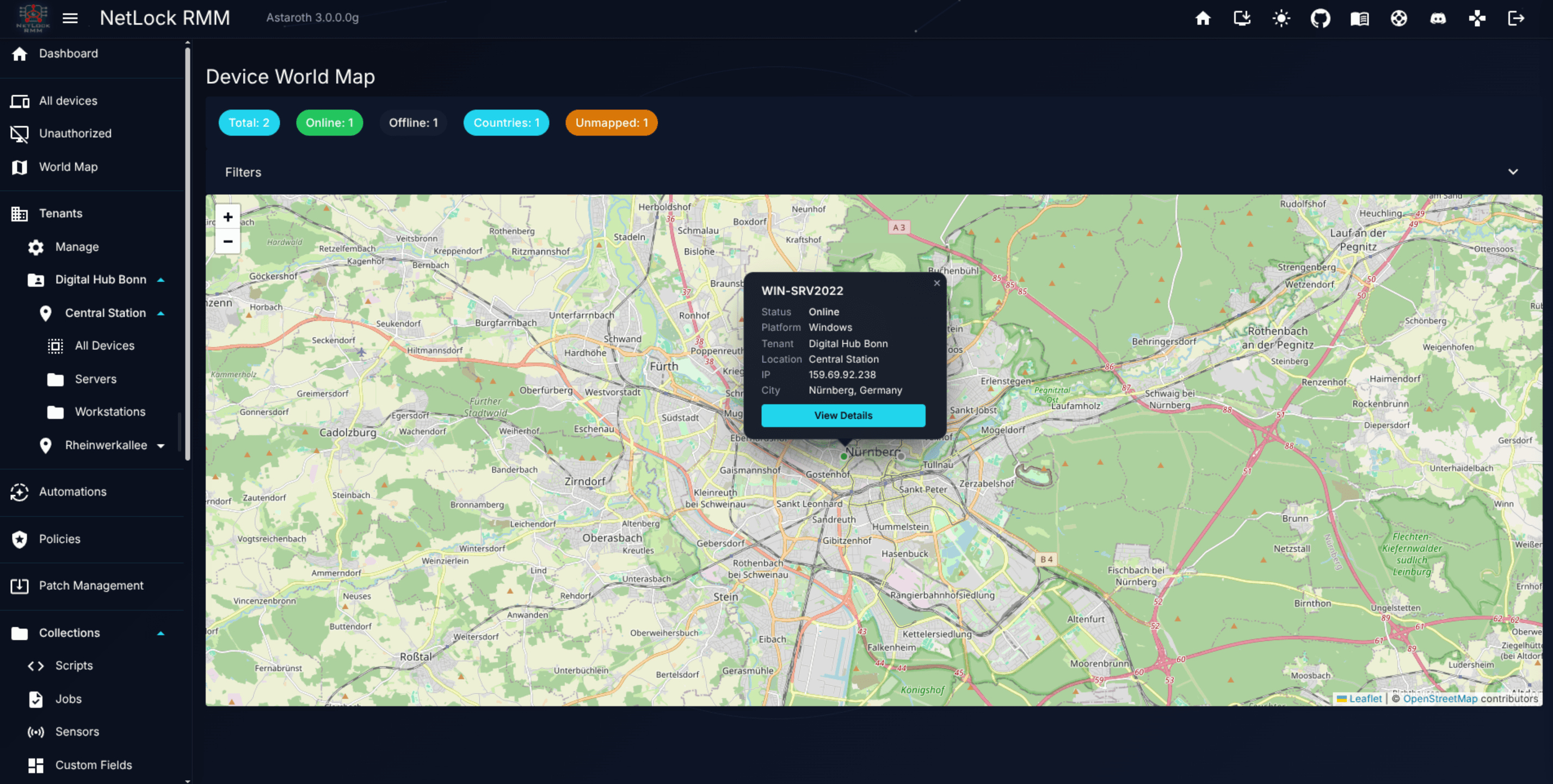
The Device_World_Map page at /device-world-map visualises your fleet geographically. Each device is plotted on a world map based on IP-geolocation data captured when it reports to the server.
Use cases include:
Confirming a device claims to be where you expect it to be (an unexpected pin in another country is a useful signal).
Assessing the impact of a regional issue — for example, how many devices are on a specific coast during a power event.
Communicating fleet spread to non-technical stakeholders in a single screenshot.
The map respects your tenant / location / group context: selecting a tenant in the header narrows the map to that tenant's devices only.
Note: Map accuracy depends entirely on the quality of IP geolocation for the device's external IP. Devices behind a VPN will appear at the VPN exit rather than the physical device location. The IP lookup happens locally on your NetLock RMM server. IP lookups are never communicated to the outside world. The details drawer of a marker shows the flag of the country next to the resolved place. The Country column of the devices list and the Geo location line of the device details use the same database (see Country of a device), and so does the country restriction of the Web Console and the server.
Many devices carry a web interface of their own: the management pages of a printer, a switch, a UPS, a NAS, or a web server running on the device itself. Web interface opens such a page in a browser window of its own, without a VPN and without a Relay App. The agent fetches the page and the NetLock server serves it to your browser through a temporary relay session, so the page appears under the address of your NetLock server.
For a device with an agent, the entry sits in two places:
Context menu — right-click the device row. The Web interface sub menu offers HTTPS (443), HTTP (80) and Custom…. The first two open the interface of the device itself straight away; Custom… opens the dialog.
Device details — the Web interface button in the action bar of the selected device opens the dialog.
The dialog asks for the target, the scheme and the port:
Web interface on this device — the interface the device serves itself (the agent connects to 127.0.0.1).
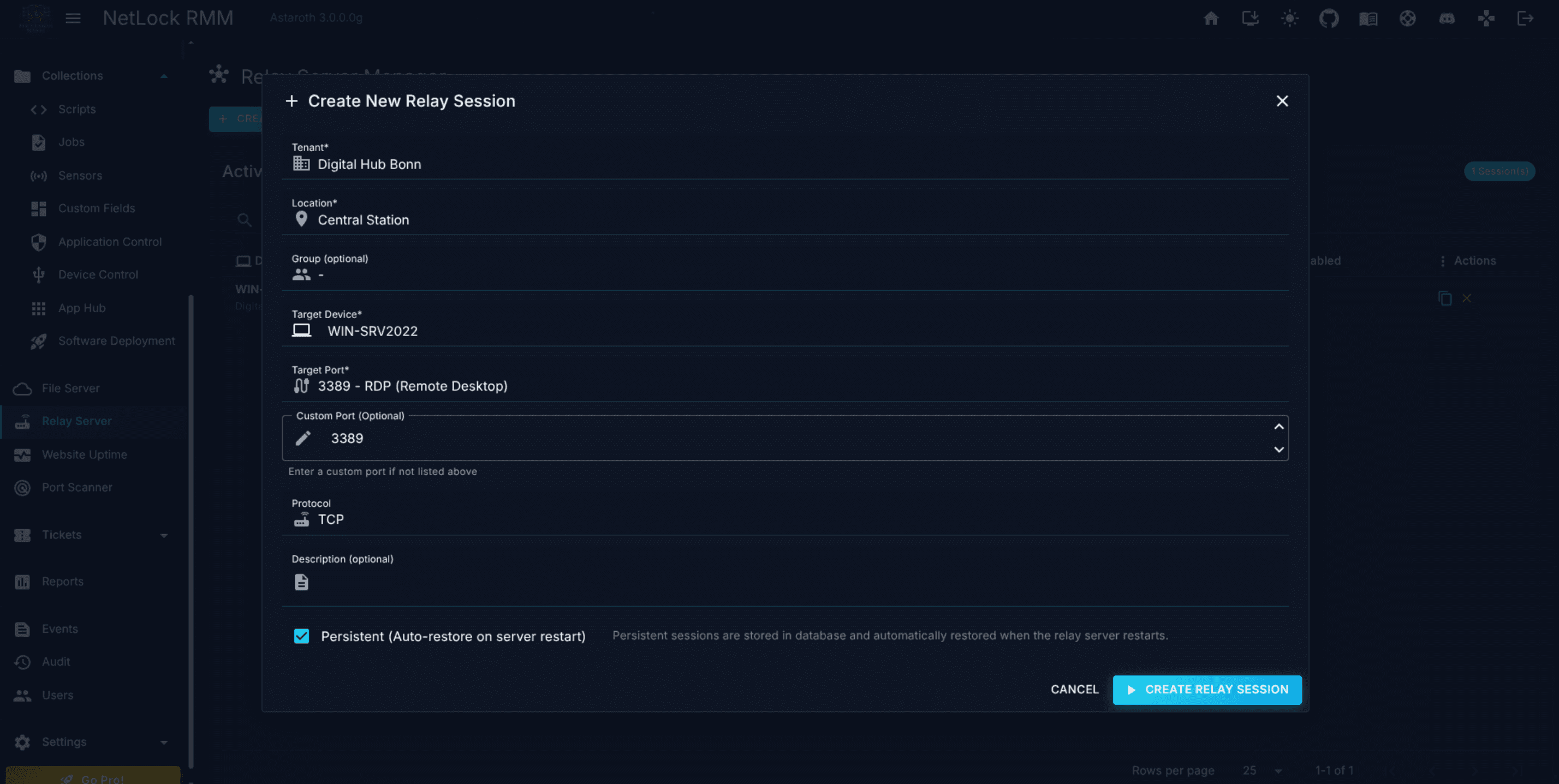
Remote host reachable from this device — a host on the device's network, given as hostname or IP address without scheme, path or port. The device acts as a jump host, as it does for a relay session.
HTTPS / HTTP — switching the scheme moves the port between 443 and 80 as long as the port is still one of the two defaults; a custom port stays.
Port — 1 to 65535.
Open opens a new browser window. The window checks your permissions and the device, asks the server for the session and then shows the device page. The first request can take up to 20 seconds while the agent opens the connection.
The SNMP list of the devices page offers the same action for printers, switches and other SNMP devices. The Actions column of the list and the Web interface button in the detail panel open the dialog with the address of the SNMP device filled in. Because an SNMP device has no agent, one of the agents that know the device carries the connection: the agent that monitors it, the agent that discovered it, or any agent that has reported it in a discovery scan. The dialog lists these agents, online agents first, with the monitoring agent preselected. An SNMP device that no agent monitors, discovered or reported has no agent to carry the connection; the action is shown disabled and the tooltip says why.
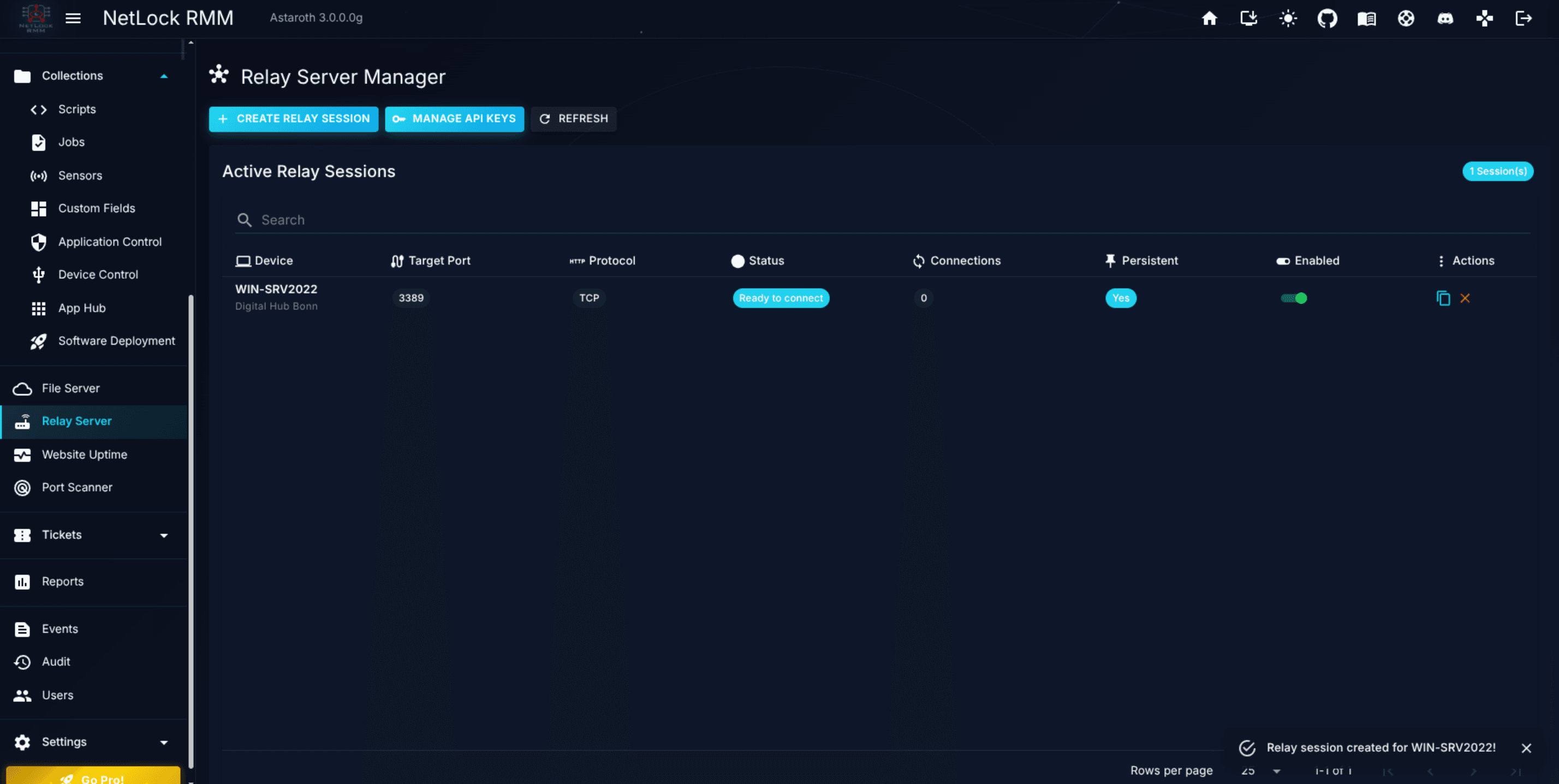
Every web interface opened this way is a web access session: a temporary relay session of kind "Web" that is listed on the Relay Server page and can be closed there (see Chapter 9.2 — Web access sessions). What to expect:
The session ends after 15 minutes without a request or WebSocket traffic, or after 8 hours at the latest, whichever comes first. Closing the browser tab does not end it; the idle timeout does. Opening the same target again while the session is alive reuses it.
Only the account that opened the session can use the window. The link the window follows works once and for 60 seconds; afterwards a browser cookie bound to the session is required, so the address cannot be handed to somebody else.
The certificate of the device is not checked, so appliances with self-signed certificates work. The connection between your browser and the NetLock server keeps its own certificate.
Downloads (logs, configuration backups) and uploads (firmware) are streamed. Behind your own reverse proxy make sure request bodies are not limited and read timeouts allow long uploads.
Pages that load their assets from absolute paths, redirect, set cookies, ask for a password (Basic or Digest authentication) or use WebSockets work. WebSockets are forwarded like any other request, also when the page opens them on an absolute root path (wss://<server>/api/...), which single-page interfaces of NAS systems, hypervisors and network controllers do. A page that only talks over its WebSocket after loading counts as active; the idle timeout starts once the socket is quiet.
Pages that declare a base address (<base href="/">, usual for Blazor, Angular and many other single-page interfaces) are delivered with the base address inside the session, so their links, scripts, sockets and client-side navigation stay in the session. Sign-in forms of such applications, including their protection cookies, work as well. Pages that set their base address from a script or build addresses from the server root keep using the redirect of absolute paths described above.
Two limits of WebSockets on absolute root paths: a socket whose handshake needs a cookie the device set works only when the page opens it under the session address (device cookies are scoped to the session; a socket on a root path carries none), and with two device pages open in the same browser such a socket goes to the page that was shown last.
Web app manifests (site.webmanifest) are fetched by browsers without cookies and therefore answered with 404 through the proxy; the page itself is not affected.
Two device pages in two tabs work; a page that suppresses the referrer can, in rare cases, load an asset from the session that was shown last.
Every opened interface is written to the audit trail with scheme, host, port and the device that carried the connection, and the step-up authentication of the remote tools applies.
The Web interface action needs relay_server_enabled and relay_web_access from the Relay Server group; for SNMP devices the sensors permission that shows the SNMP list as well.
Tenant-scoped users only see devices in tenants they have access to.
NetLock RMM organises every managed device into a three-level hierarchy: tenant, location, group. This chapter is the canonical reference for creating and managing that hierarchy. The hierarchy drives how policies, automations, and permissions are scoped, so getting it right early pays off for the life of the deployment.
A tenant is the top-level organisational container. For an in-house IT team this usually maps to the company; for an MSP it maps to a customer.
A location is a subdivision of a tenant — typically a physical site or office.
A group is a subdivision of a location — typically reflecting how devices should be configured (Workstations, Servers, Laptops) rather than where they physically sit.
Every device belongs to exactly one group. Configuration — policies, automations, scripts — can be applied at any level and flows down: a policy on a tenant applies to every device in every location and every group of that tenant.
Tip: Keep groups focused on configuration intent. If a single policy applies to every device regardless of site, one group per location is plenty. If policies differ by device type, create device-type groups inside each location.
The Manage Tenants page at /tenants is the entry point. It lists every tenant you have permission to see, along with summary information (device counts, last activity).
Select a tenant in the list to enter its detail view. From there you can rename it, change its contact information, or adjust tenant-wide settings (covered in 4.3). Editing a tenant does not affect its devices or their assignments; only the tenant metadata changes.
Deleting a tenant is rare but supported. Before deleting, confirm:
The tenant has no active devices you still care about.
No reports, scheduled deliveries, or automations reference the tenant.
You have archived any customer data you may need later — device inventory from the Devices page, events from Events & Audit, and any reports from Reports. (The tenant-list export at 4.5 only captures tenant metadata, not the data under the tenant.)
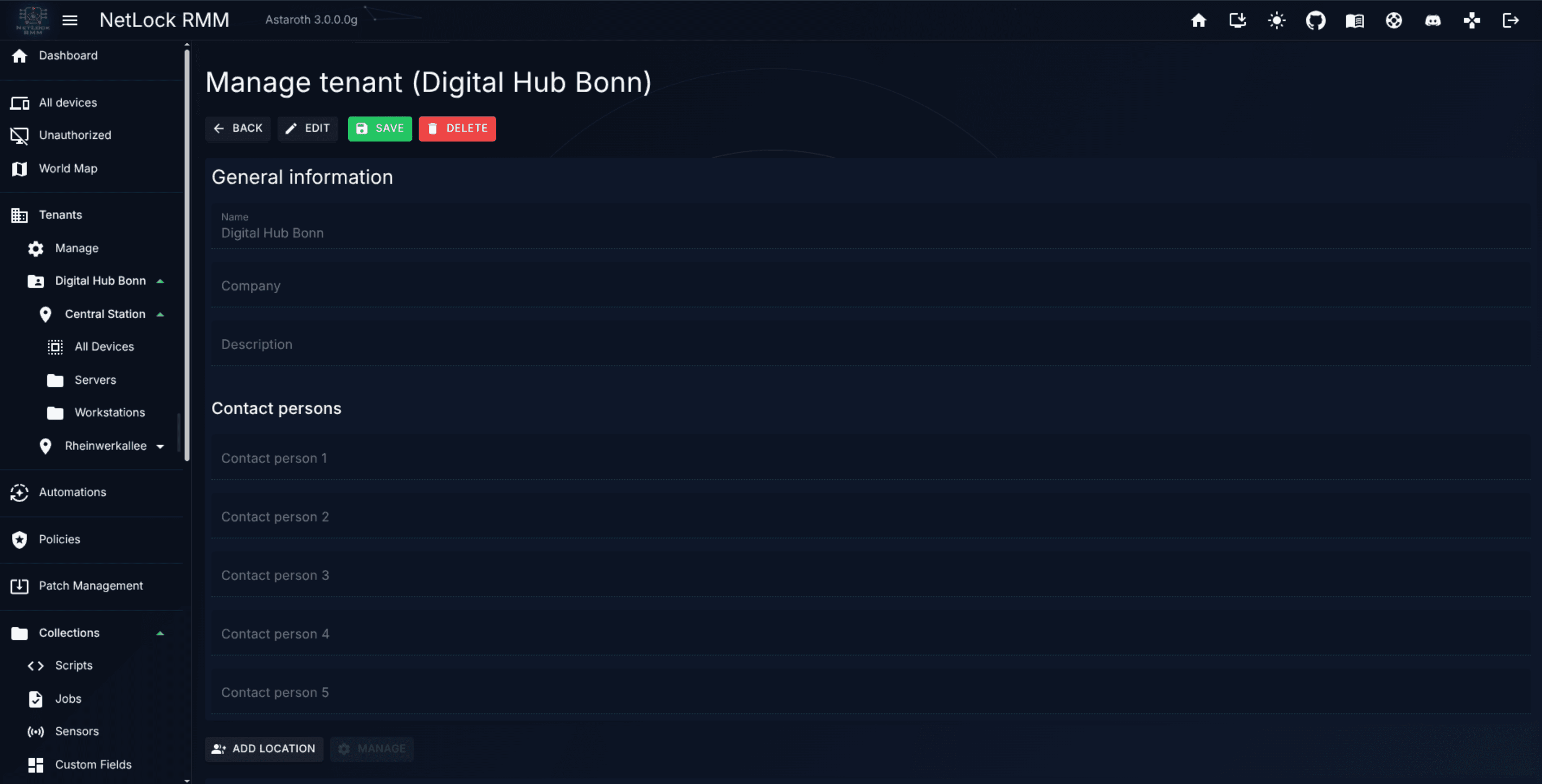
Tenant-level configuration lives on the Tenant Settings page at /tenant_settings. The page requires a tenant to be selected in the header context; if none is selected, choose one first.
The page has a flat layout with four sections:
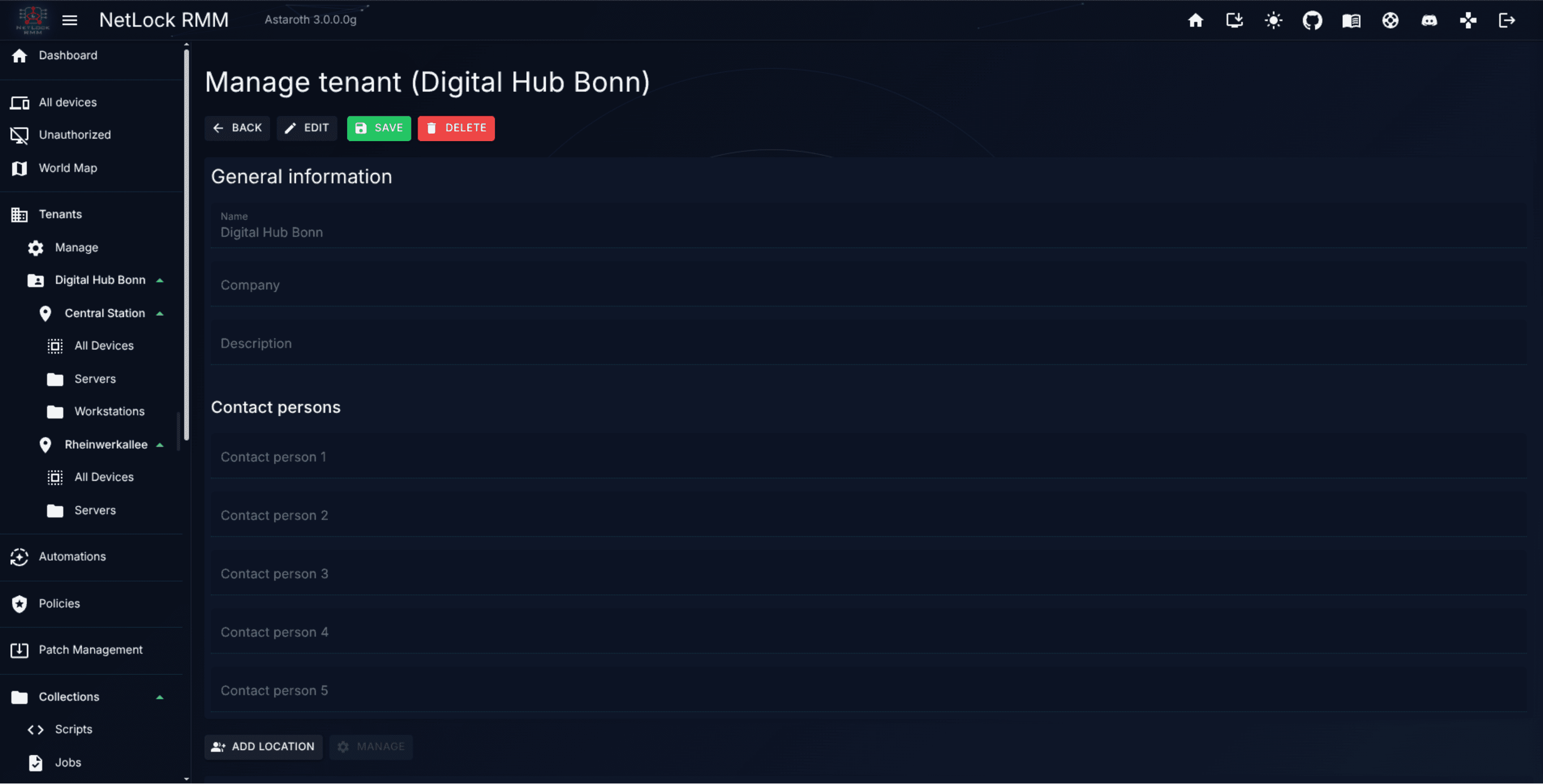
General Information — editable fields for the tenant's name, company, and description. This is the metadata the rest of the Console refers back to (the name shown in reports, in exports, in the navigation selector).
Contact Persons — five contact-person slots with editable details. These are used as recipients and fallback contacts for tenant-scoped notifications and reports.
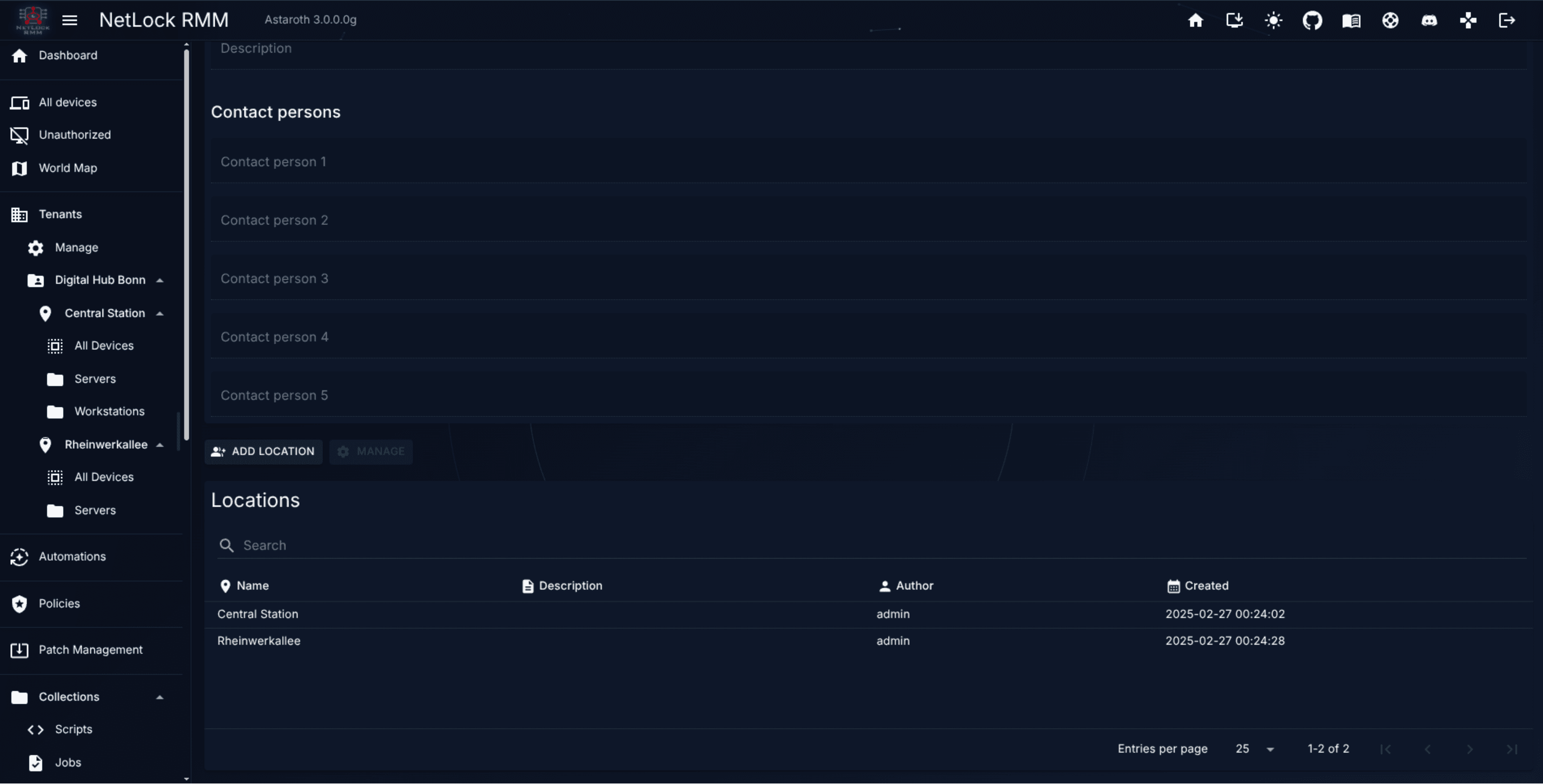
Locations — a searchable table listing every location under this tenant, with a Manage affordance on each row that opens the location's detail view (see 4.4). You can add a new location directly from this table.
Custom Fields — the values this tenant holds for inheritable custom fields, with the effective value per field. Devices of the tenant without a value of their own inherit them. See Chapter 8.4 — Scope and inheritance.
There are no separate tabs for branding, notifications, integrations, or agent configuration on the Tenant Settings page. Those concerns live elsewhere:
Tenant metadata and contact persons are isolated per tenant: editing them in one tenant has no effect on another. For system-wide defaults that populate new tenant records, see A.12 Content defaults.
Open the tenant and navigate to Location Settings (route /location_management/*/location_settings).
Use the add-location affordance.
Enter a location name that reflects the site — Berlin HQ, Remote Workers, Datacenter A.
Save.
Locations are freeform; use as many as the geography of your deployment warrants. An MSP managing a customer with three offices typically creates three locations.
Standard edit and delete affordances apply. Deleting a location removes its groups; any devices in those groups lose their group assignment and must be reassigned before configuration flows to them again.
Use the device-group assignment affordance on the device in the Devices page (see Chapter 3). The agent picks up the new assignment on its next poll and any policies attached to the new group take effect.
Note: Moving a device between groups does not trigger a device reboot or re-authorisation. The agent simply starts receiving a different policy set.
The Export Data dialog, opened from the Manage Tenants page, exports the list of tenants you are permitted to see. The scope and contents are narrow: it is not a full tenant archive.
What is exported. One row per tenant, with these fields: id, tenant_name, guid, date (creation date), author (who created the record), description, and company. Devices, policies, events, audit entries, custom-field values, and deployment histories are not part of this export — those live in their own chapters and are exported from there if needed.
Scope. Every tenant that matches your tenants permission list. If you are scoped to specific tenants, the export contains only those. There is no single-tenant-only mode; the dialog always exports the full visible list.
Formats. The dialog asks you to pick one output format:
JSON
XLSX (spreadsheet)
XML
HTML
Permissions. Any user with access to the Manage Tenants page can run the export. There is no separate export permission flag.
Steps:
Open Manage Tenants.
Click the export action to open the Export Data dialog.
Pick the output format and confirm. The file downloads to your browser immediately — the export runs synchronously, not as a background job.
If you need to archive more than the tenant list — for example a customer's full device inventory or audit trail before offboarding — run the relevant exports from Reports, Events & Audit, or use the export affordances on the specific pages for that data.
Tenant, location, and group operations are gated by a tenant-management permission group. In addition, tenant-scoped user accounts (see Chapter 14 — Users & Roles) only see the tenants they are explicitly permitted to access, which has the side effect of restricting every other feature area to those tenants as well.
Automations in NetLock RMM are a narrow, purpose-built feature. They are not a workflow engine, not a job scheduler, and not an event-action pipeline. Their one and only job is to decide which policy a device receives and which sensors and jobs it gets on top of that policy. If you have used other RMM products, set aside any expectation that "automation" means trigger-driven scripts, ticket creation, or multi-step workflows — in NetLock RMM those responsibilities live elsewhere, and this chapter explains where.
IF all of these conditions hold for a device THEN assign policy <name> and/or add sensors and jobs
A rule consists of:
a name and an optional description;
an enabled switch — a disabled rule is kept but never applies;
a priority — a number; when several rules match a device, the rule with the lower number wins (see §5.3);
a list of conditions — at least one; all of them have to hold (AND), and each condition can be negated (NOT);
the policy the rule assigns, and/or the sensors and jobs it adds to the device on top of that policy (see §5.6). A rule needs at least one of these actions.
There is no second step and no action chain: a rule sets the device's policy and adds items to it, nothing else.
Note: A policy on its own is inert. Devices only receive configuration when a rule matches them and names a policy, or when a default policy is set. If no rule matches a device, the device receives the default policy marked on the Manage Policies page, if any; otherwise it has no policy and the Console shows no_assigned_policy_found on its detail view.
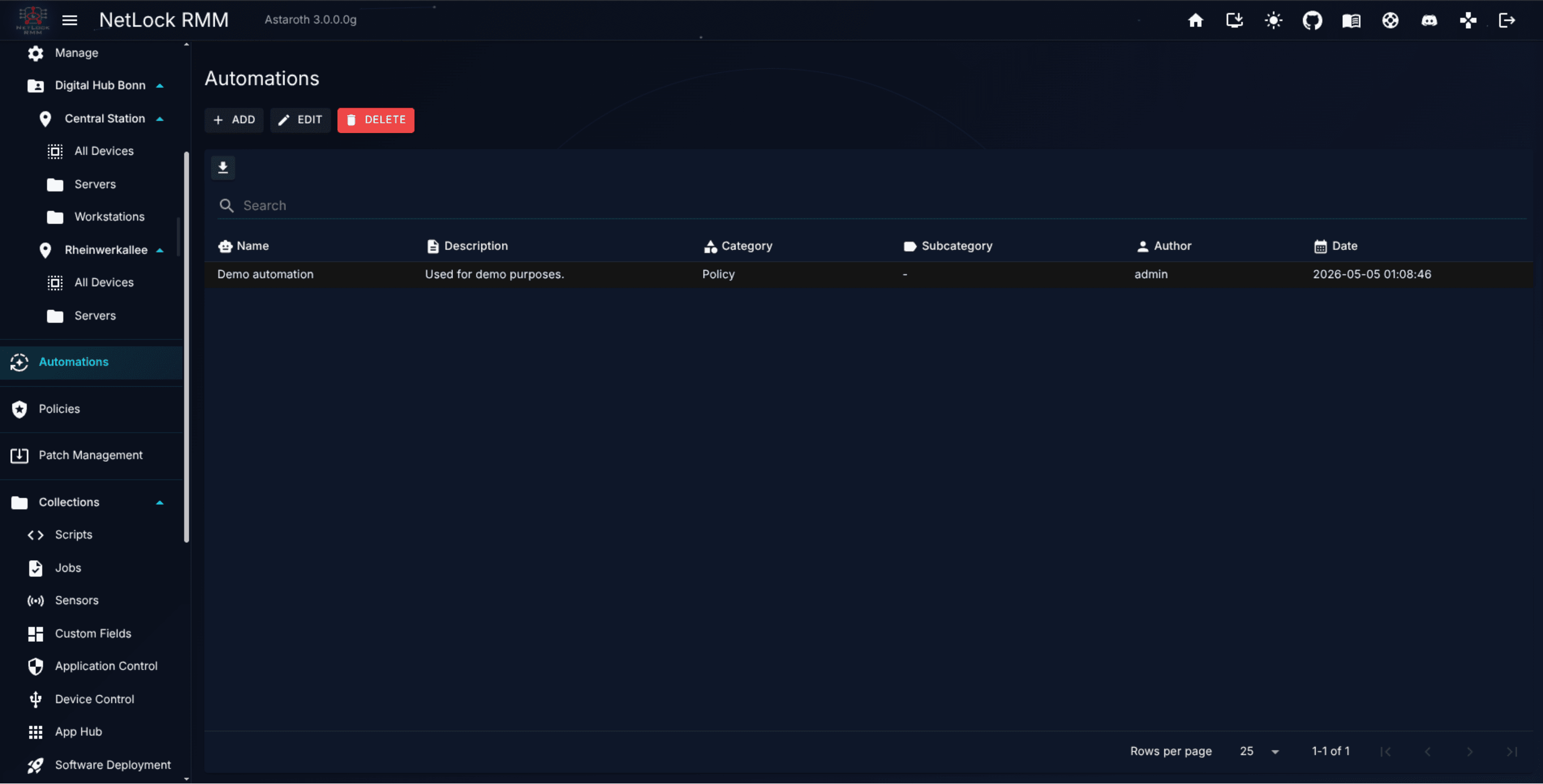
Automations are managed on the Manage Automations page at /automations.
A condition compares one fact of the device with what you configure. Eleven condition types exist. The first four target an entity you pick from a list (the rule stores the entity's identity, not its display name); the next four compare the device record against values you type or choose; the last three look at the device's inventory and its custom fields (see §5.2.1).
Condition
What you pick or type
Holds when
Device
A specific device from the device list.
The device is that device.
Tenant
A tenant from the tenant list.
The device belongs to that tenant.
Location
One or more locations of one tenant.
The device belongs to that location, or to one of the selected locations.
Group
One or more groups of one tenant.
The device belongs to that group, or to one of the selected groups.
Internal IP-Address
The device's reported LAN IP.
The reported internal address equals the value.
Domain
The Windows or DNS domain name.
The reported domain equals the value. A device that reports no domain never matches.
Platform
One or more of Windows, Linux, MacOS, Android, iOS.
The device's platform is one of the selected ones.
Device attribute
An attribute, an operator and a value.
The attribute compares as the operator says (below).
Service
A service name or display name, an operator, a value and a status.
A service of the device's inventory has that name and that status.
Application
An operator and a name, optionally a version comparison.
An application of that name, and version, is installed on the device.
Custom field
A field definition, an operator and a value.
The device's effective value of the field compares as the operator says.
Entity conditions (Device, Tenant, Location, Group) are immune to renaming. If you rename the tenant Acme to Acme Corp, every rule that targets it keeps working — the rule does not store the name. A rule may carry at most one non-negated condition per entity type (one tenant, one location, one group, one device); a negated one ("NOT group Servers") may be combined freely.
Several locations or groups in one condition. A Location or Group condition can name more than one entry — up to 500. It then reads "Group is one of: A, B, C" and holds when the device is in any of them; negated it reads "Group is none of: A, B, C" and holds when the device is in none of them. This is how one rule covers, for example, the "No print" group of each of thirty locations instead of thirty rules with the same policy. All entries of one condition have to belong to the same tenant, and they have to lie inside the tenant or location the rule names elsewhere (a group outside the rule's location could never match); the dialog and the public API refuse anything else. Such a rule belongs to that tenant: it is visible to, and changeable by, accounts with access to it, like a rule with a single group. A condition with one entry is stored exactly as before, so existing rules are not touched. Device and tenant conditions always name exactly one entry.
What happens when the picked entity is deleted is described in §5.6.
Internal IP-Address and Domain compare the device's reported value to the value you type, after both sides are trimmed of surrounding whitespace and lower-cased. For the Internal IP-Address condition, an ::ffff: IPv4-mapped IPv6 prefix is also stripped before comparison, so a device reporting ::ffff:10.0.0.5 matches a rule expecting 10.0.0.5. These two conditions are exact matches; there is no CIDR or range matching. For patterns, use a Device attribute condition.
Device attribute compares one of the following columns of the device record, as the agent reported it at its last sync: device name, operating system, label, serial number, device class (Computer or Mobile, offered as a choice), architecture, manufacturer, model, mainboard, CPU, GPU, agent version, last active user, time zone, antivirus solution. The operators are:
Operator
Meaning
equals
The attribute equals the value.
contains
The attribute contains the value.
starts with
The attribute begins with the value.
matches pattern
Wildcard pattern: * stands for any run of characters, ? for exactly one (SRV-*, WS-??-BER).
matches regex
A .NET regular expression, matched case-insensitively. A pattern that does not compile is refused when the rule is saved.
All attribute comparisons ignore case and surrounding whitespace. A hostname pattern is therefore Device attribute → Device name → matches pattern; an operating-system version is Device attribute → Operating system → starts with.
Tip:NOT turns a single condition around, not the whole rule. Tenant = Acme AND NOT Device name matches pattern SRV-* covers every Acme device except the servers. A negated entity condition does not narrow the rule to that entity's tenant — NOT Tenant = Acme reaches every other tenant, which matters for the tenant rule in §5.5.
These three types read what the agent reported in its last inventory upload and the custom field values of the device. They let a rule follow a role rather than an organisation: "every device running the SQL Server service gets the database sensors", "every device with 7-Zip below version 23 gets the update job", "every device whose site_code field is BER gets the Berlin policy".
Service. Pick whether the Name or the Display name of the service is compared, the operator (equals, contains, matches pattern), the value and the status the service has to be in: any status, running or stopped. Names are compared case-insensitively, and a Linux unit name matches with or without its .service suffix, on both sides — a rule for sshd matches the unit sshd.service and the other way round. The status is mapped per platform: Windows reports Running and Stopped; Linux reports running or active (counted as running) and dead, inactive, failed or exited (counted as stopped); macOS reports Running and Stopped. A state outside these, such as Paused or activating, is matched only by any status. The condition holds when at least one service with the name has the status.
Application. Pick the operator on the application name (equals, contains, matches pattern) and the name. Optionally add a version comparison: equals, at least, below or starts with a version you type. Versions are compared numerically on up to four dotted components — 23 is read as 23.0.0.0, so at least 23 matches 23.01 — and a version that is not numeric is compared as text.
Custom field. Pick a field definition (secret fields are not offered; a secret is never compared), the operator (equals, contains, matches regex, is empty) and, except for is empty, the value. The condition reads the device's effective value: its own value, or, for an inheritable field without one, the value of its group, location, tenant or the global value, in that order (see Chapter 8.4). is empty holds when no level provides a value.
A device that has not uploaded an inventory yet — a freshly enrolled device, a mobile device — matches no service or application condition; the rule does not apply to it until the first upload. A rule with an inventory condition is not refused for such devices, it just does not match.
The server evaluates every rule against the device record, the last inventory upload and the custom field values it has stored; the Console's Check matching devices reads the same data. Because the inventory lives on the server, an inventory change reaches the rules without a Console click:
After every inventory upload of a device, and after every custom field write that concerns it (on the device page, through a script, through the public API or on one of its levels), the server evaluates the rules for that device only. When the result — the policy, the sensors and the jobs — differs from what the device last received, the device is marked out of sync and pushed at once; the change lands within seconds on an online device, otherwise at its next check-in. When nothing changed, nothing happens.
Consequently a rule on a service or an application takes effect at the device's next inventory upload, which happens at its sync interval, not at the moment the rule is saved. A rule on a custom field takes effect when a value of that field is written, or at the device's next sync.
After the update that introduced this, the first inventory upload of every device triggers one evaluation and, when inventory or custom field rules exist, one sync for that device, so the stored state is built up. The syncs are spread over the devices' own intervals.
The devices page shows the state the device last received (see Chapter 3.3): the policy, its origin and the added sensors and jobs as the server decided them at the last evaluation. A device that has no stored state yet, while rules with inventory or custom field conditions exist, shows - with an hourglass and the tooltip Evaluated at the device's next sync; a device without such rules is evaluated live on its record as before.
When a device syncs with the server, the server evaluates the rules and assigns the policy of the winning one:
Only enabled rules are considered. A rule matches the device when all of its conditions hold (a negated condition holds when its comparison does not). A rule with no conditions never matches.
The matching rules are ordered by priority (lower number first), then by the number of conditions (more conditions first), then by age (the older rule first).
The first rule in that order that assigns a policy decides the policy. Matching rules without a policy do not stand in its way; they only contribute their sensors and jobs.
When no matching rule assigns a policy, the device receives the default policy marked on the Manage Policies page, if any. The devices list marks such an assignment with a globe icon next to the policy name, and the device detail names it as Default policy. Without a default policy the device has no policy.
The sensors and jobs of every matching rule are added to the device, each once — see §5.6.
The default policy never overrides a rule. Policies never layer or combine: a device runs exactly one policy at a time (see Chapter 6); sensors and jobs do add up.
The priority is a number on every rule; the lower number wins. When you create a rule, the dialog fills the priority in from the most specific organisation condition the rule carries and shows the value it chose:
Most specific organisation condition
Default priority
Device
100
Internal IP-Address
200
Domain
300
Group
400
Location
500
Tenant
600
none of these (only Platform, Device attribute)
700
The default keeps the natural ladder — a rule for one device beats a rule for its group, which beats a rule for its tenant — and puts rules without an organisation condition below every organisation rule, so Platform = Linux → Linux baseline applies only where no tenant, location or group rule sets a policy. A negated organisation condition does not count for the default.
You can type any number. To make a rule win over the organisation rules — "every device running the SQL Server service pattern gets the database policy, whatever its tenant says" — give it a smaller number, for example 50. The dialog keeps recomputing the default while you change the conditions until you edit the number yourself; Reset to default returns to the computed value. The Manage Automations page lists the rules in evaluation order and the Priority column is sortable.
Two matching rules with the same priority are separated by their number of conditions: the rule with more conditions is the more specific one and wins. Tenant = Acme AND Platform = Windows → Acme Windows (two conditions) beats Tenant = Acme → Acme fallback (one condition) at the same priority. With the same count, the older rule (the one created first) wins. A negated condition counts like any other.
Specific beats general by default. The default priorities reproduce the ladder device → internal IP → domain → group → location → tenant, so a setup that only uses one condition per rule behaves exactly as the defaults suggest.
The number is the order. There is no drag-and-drop and no "move up / move down". To promote a rule, lower its priority number; to demote it, raise it. Two rules that should be ranked explicitly get two different numbers.
Combine instead of stacking. Where you used to need several rules to express "Acme's Linux servers", one rule with three conditions (Tenant = Acme, Platform = Linux, Device name matches pattern SRV-*) does it, and its condition count makes it win over the plain tenant rule at the same priority.
Overlap is allowed but not merged. If two rules both match, only the first in the order applies.
A disabled rule is invisible to the evaluation. Use the switch on the list to take a rule out without deleting it.
No match is a valid outcome. A device that matches no rule receives the default policy if one is set; otherwise it runs without a policy.
Note: Rules that existed before this version were converted automatically: each keeps its one condition and received the default priority of its former tier (device 100, internal IP 200, domain 300, group 400, location 500, tenant 600). Because the former evaluation order equals that ladder, converted rules resolve exactly as they did before.
The page at /automations lists every rule the account can see, in evaluation order:
Column
Content
Name
The rule's name. An Inactive chip marks a rule the evaluation can never apply as it is: its target entity was deleted, it has no condition left, or it neither assigns a policy nor adds a sensor or job (see §5.7).
Enabled
A switch. Turning it off keeps the rule but takes it out of the evaluation; turning it on puts it back. Needs automation_edit.
Priority
The number; the list is sorted by it, ascending, by default.
If
The conditions in words, for example Tenant: Acme AND Platform: Linux AND NOT Device name matches pattern "SRV-*". Hover for the full text.
Then
The policy the rule assigns, or No policy, and one chip per item type (+2) for the sensors and jobs it adds; the tooltip names them.
Author, Date
Who created or last changed the rule, and when.
Actions
Edit, Duplicate and Delete (each behind its permission).
Double-clicking a row opens the edit dialog. The search box matches the name, the description, the condition text, the policy name and the names of the sensors and jobs. Export data writes the list as JSON, CSV or HTML with the columns above plus the sensor and job names. Duplicate creates a copy named <name> (Copy) with the same conditions, priority, policy, sensors, jobs and enabled state.
When AI is enabled in Settings → AI/LLM, the AI Assistant button on the page explains which policy a device gets and helps plan rule sets; it works on the rules, policies, tenants and devices the account can see and does not change anything.
Name, Description, Enabled and Priority at the top. The priority shows its default and a Reset to default link once you have changed it (see §5.3.1).
If … — the list of conditions. Every line has a condition type, the inputs for that type (a picker for entity conditions — for locations and groups a selection dialog, see below —, a text field for the address and the domain, a multi-select for platforms, attribute + operator + value for attribute conditions), a NOT checkbox and a remove button. Add condition appends a line. All conditions must hold; the dialog says so above the list. Problems — a missing target, an empty value, two non-negated conditions of the same entity type, entries of different tenants in one condition, a regular expression that does not compile — are shown under the line, and the rule cannot be saved while one exists.
Selecting locations and groups. The value field of a Location or Group line opens a selection dialog: a searchable list (name, tenant, location) with a checkbox per entry, Select all shown, and for groups a location filter with Select all groups of this location. Once an entry is selected the list shows only the entries of its tenant. The line then shows the selection (3 groups selected) and one chip per entry, which removes it with its close button. The list page names up to three entries of such a condition plus +n; the tooltip, the search and the export carry all of them.
Then … — the policy to assign, or Do not assign a policy; below it, for an account with the sensors or jobs permission of Collections, a multi-select of sensors and a multi-select of jobs the rule adds (name and platform). A rule needs at least one of the three. The dialog notes that items reach only devices with a policy, flags a job of platform System (handed out, never executed), and warns when a selected item runs on a platform the rule's platform condition excludes. See §5.6.
Check matching devices evaluates the conditions right now against the authorized devices within your tenants and lists the matches. For service, application and custom field conditions it reads the stored inventory and custom field values of every candidate on the click. It answers "does this rule match the device", not "would it win against the other rules" — the priority and the other rules decide that at sync time.
AI Assistant (when AI is enabled) proposes a rule from a natural-language description and fills the dialog with Apply Config. It only writes into the dialog's fields; you still review and save.
Tenant rule. Every tenant, location, group or device a condition names has to lie in your tenants. A rule without any tenant, location, group or device condition — only platform, attribute, address or domain conditions — reaches every tenant; only an account with access to every tenant can create, change, duplicate, enable or disable such a rule. Other accounts see it in the list and can open it read-only.
Delete removes the rule and its item assignments after a confirmation. The devices it covered fall back to whatever other rule matches them, or to the default policy, or to no policy, and lose the sensors and jobs only this rule added.
Note: Adding, editing, enabling, disabling, duplicating or deleting a rule marks every device out of sync and pushes a force-sync to the online devices the rule can affect. Devices do not wait for their next scheduled poll to re-evaluate their policy assignment — the change lands right away.
Note: Deleting a policy from the Policy Settings editor deletes every automation that only assigns it; an automation that also adds sensors or jobs keeps them and continues without a policy. The Delete Policy dialog shows both numbers before you confirm (see Chapter 6.3 and §5.7).
Besides — or instead of — a policy, a rule can add sensors and jobs from the Collections library to every device it matches. This is how one sensor reaches "all Linux servers of every tenant" or "every device running the SQL Server service pattern" without touching the policies of those devices.
Additive. The sensors and jobs of every matching rule are added, in evaluation order, each item once. They come on top of the sensors and jobs of the device's policy; an item that is both in the policy and in a rule runs once. Disabling or deleting a rule removes what only that rule added at the device's next sync; an item the policy also carries stays.
Only with a policy. Items are handed out only to a device that has a policy — from a rule or from the default policy. A device without a policy receives nothing, because the agent runs no sensors and jobs without a policy; the device detail says so when rules would add items to such a device.
Platform. A sensor is handed out only to devices of its platform; a job to devices of its platform or, for platform System, to every device — such a job is handed out but never executed. The dialog warns when a selected item can never reach a device because of the rule's platform condition.
Discovery sensors. Sensors the SNMP discovery manages are not offered; they belong to their discovery.
Permissions. The sensor picker appears with collections_enabled and collections_sensors_enabled, the job picker with collections_jobs_enabled. An account without the permission sees neither, and saving the rule leaves the stored items of that type untouched.
Where it shows. The Then column on /automations counts the items (+2) and names them in the tooltip. On /devices a +N chip next to the policy counts the items the server hands out to the device, and the detail view lists them under Assigned policy with the rule each one comes from (see Chapter 3.3).
Tip: A rule that only adds items needs no priority thought of its own: its number does not compete with the policy rules, because only rules that assign a policy take part in the policy decision. Leave it at the proposed value.
Rules follow the organisation and the library. When a tenant, location, group or device is deleted — in the Console, through the public API, or by the server's deferred tenant deletion — every rule that names it is adjusted:
The condition naming the deleted entity is removed from the rule. A Location or Group condition that names several entries only loses the deleted one and the rule stays enabled: the list gets shorter, so the rule reaches fewer devices, never more. When only one entry is left the condition is stored in its single-entry form again; when the last entry goes, the condition is removed as described below.
A negated condition is simply dropped: the devices it excluded are gone, so the rule means the same without it and stays enabled.
A non-negated condition was what narrowed the rule to that entity. Without it the remaining conditions would reach devices the rule was never meant for — Tenant = Acme AND Platform = Linux would turn into Platform = Linux for every tenant — so the rule is disabled as well and stays off until you have looked at it. A rule with no condition left is disabled too.
The affected devices are brought back in sync.
A rule that lost its only condition, or whose target no longer resolves, shows the Inactive chip on the list. Open it, give it the conditions it should have now, and enable it again.
When a sensor or a job is deleted, it is removed from every rule that adds it; a rule left with neither a policy nor an item is switched off and shows the Inactive chip. When a policy is deleted, the rules that only assign it are deleted with it, while the rules that also add sensors or jobs keep those and continue without a policy; the Delete Policy dialog shows both numbers before you confirm.
If you are coming from another RMM, the following list is important. None of these are supported by the Automations feature:
No event triggers. You cannot configure "when a disk fills up, run this".
No schedule triggers. You cannot configure "every Sunday at 02:00, do X".
No webhook or API triggers. External systems cannot kick off an automation (the public API can create and change rules, see X.9.5, but a rule still only assigns a policy and adds sensors or jobs).
No manual triggers. There is no "Run now" button on a rule.
No script action. Automations never execute a script themselves. They can add a scheduled job to a device, which the agent then runs on the job's own schedule.
No notification action. Automations never send an email, Teams message, Telegram message, or webhook.
No ticket action. Automations never open a ticket.
No chained steps and no OR between conditions. One rule has one list of conditions that all have to hold and one set of actions — the policy and/or the items. Two alternatives are two rules. The only "or" is inside a Location or Group condition that names several entries (§5.2).
No conditions on live state. A rule can look at the last inventory upload and at custom field values (§5.2.1), not at the online state, a running process, the current load or the time of day.
No execution log. There is no per-automation history view. Policy changes that result from rule evaluation are recorded in general Events (see Chapter 12) and reflected in the device detail panel's Assigned policy field; changes to the rules themselves are in the Audit log.
Because Automations only route policies, every other "when X happens, do Y" pattern is served by a different feature. The three you will reach for most often:
Sensors (see Chapter 8.3) are the right tool when you want the agent to watch a metric and react. A sensor samples its category on a schedule, raises a notification when the notification threshold is crossed, and runs an action script when the action threshold is crossed. This is how you express "when CPU exceeds 90% for five samples, run a cleanup script".
Jobs (see Chapter 8.2) are the right tool when you want a script to run on a device on a timetable. A job picks a script and assigns it one of the twelve supported schedules (boot, one-shot date, recurring interval, recurring on specific weekdays, and so on). This is how you express "every Friday at 18:00, rotate the backup script".
Patch Management handles the "install approved patches on a schedule" case without any automation glue — see Chapter 7 for the approval queue and Chapter 6.12 for the per-policy rollout rules.
Automations compose none of these. They do not call a sensor, run a job, or trigger a deployment. They decide the policy a device runs under — which in turn can include jobs, sensors, and patch rules — and can add further sensors and jobs from the library on top; what those sensors and jobs do is defined in Collections, not in the rule.
Consider an MSP managing three tenants, each with a small office and a mix of workstations and servers. A reasonable, minimal rule set, shown with the priorities the dialog assigns by default:
Priority
Conditions
Policy
100
Device = ACME-DC01
Acme Domain Controller
400
Group = Acme / Berlin / Servers
Acme Server Baseline
400
Group = Acme / Berlin / Workstations
Acme Workstation Baseline
400
Group = Globex / HQ / Servers
Globex Server Baseline
400
Group = Globex / HQ / Workstations
Globex Workstation Baseline
400
Group = Initech / Remote / Laptops
Initech Laptop Baseline
600
Tenant = Acme AND Platform = Linux
Acme Linux Baseline
600
Tenant = Acme
Acme Fallback
600
Tenant = Globex
Globex Fallback
600
Tenant = Initech
Initech Fallback
How this resolves in practice:
ACME-DC01 syncs. The device rule (100) and the Acme tenant rule (600) both match; the lower number wins and the device receives Acme Domain Controller.
A new workstation joins Acme / Berlin / Workstations. The group rule (400) and the tenant rule (600) match; the group rule wins and the device receives Acme Workstation Baseline.
A Linux box lands in tenant Acme in a group without a rule. Two rules at 600 match: Tenant = Acme AND Platform = Linux has two conditions, Tenant = Acme has one, so the Linux rule wins and the device receives Acme Linux Baseline. A Windows box in the same situation receives Acme Fallback.
A device outside all three tenants. No rule matches. Unless a default policy is set on the Manage Policies page, the device receives no policy and the Console shows no_assigned_policy_found. Adding a tenant rule, or a default policy, is the fix.
Tip: Keep the tenant fallback rules explicit. A tenant-level catchall is far easier to debug than a setup where some devices silently get no policy because no rule happened to match, and it makes the ladder (group 400 → tenant 600) visible in the list. The default policy on the Manage Policies page is the alternative catchall: it needs no rule, sits below every automation, and the devices list marks the devices that got their policy from it.
Tip: To pull one role out of the organisation ladder — "every device whose name starts with SQL- runs the database policy, in every tenant" — create Device name matches pattern SQL-* → Database Servers and give it a priority below 400, for example 50. Left at its default of 700 it would only apply to devices no organisation rule covers. If those servers should keep their organisation policy and only get a database sensor on top, create the same rule with Do not assign a policy and the sensor instead; the priority then does not matter.
Editing a policy changes what every device already assigned to it will receive at next sync. The set of devices is unchanged.
Editing an automation changes the set of devices a policy is routed to, or the sensors and jobs added to them. Every affected device re-evaluates its assignment immediately.
You will rarely need to touch automations once the routing is stable. Day-to-day configuration changes happen inside the policies themselves (Chapter 6).
automation_enabled — master flag. A user without this flag does not see the Automations navigation entry and cannot reach /automations.
automation_add — ability to create a new automation and to duplicate one.
automation_edit — ability to edit an existing automation and to switch it on or off.
automation_delete — ability to delete an automation.
A user with automation_enabled but neither _add, _edit, nor _delete has read-only access — they can inspect the ruleset without changing routing. On top of these flags, the tenant rule of §5.5 applies: rules are visible and editable within the account's tenants, and rules without an organisation condition can only be changed by an account with access to every tenant. The sensor and job pickers of the dialog need the Collections permissions collections_sensors_enabled and collections_jobs_enabled (see §5.6).
A policy is the central configuration unit in NetLock RMM. Almost every feature you can tune on a device — antivirus behaviour, firewall rules, remote-access capabilities, tray branding, patch rollout, scheduled jobs, monitoring sensors — lives inside a policy. This chapter is the reference for the policy object, the Policies list page, and every tab of the Policy Settings editor.
Windows-specific controls (Microsoft Defender Antivirus, Application Control, USB Device Control).
Linux-specific controls (UFW firewall).
Sensors and Jobs attached to the policy.
Patch Management rollout rules per platform.
Which App Hub apps the tray icon exposes on devices under the policy.
A few rules about policies are load-bearing across the whole product and worth stating up front:
A device is assigned at most one policy at a time. Policies do not layer, merge, or inherit. The agent runs the one policy assigned to it, or no policy at all.
Policies do not attach to tenants, locations, groups, or devices directly. Every assignment flows through an automation — see Chapter 5. There is no "apply to group" affordance on the Policies page, the Groups page, or the Devices page.
There are no policy templates. A new policy starts with the editor's default settings, also when it is created through the Public API. The only way to seed a new policy from an existing one is to duplicate.
There is no versioning, no change history, and no rollback. Edits apply in place. If you need a safety net, duplicate the policy first.
The Author column is informational, not an ACL. It records who created the policy. Edit and delete access are gated by the policies_edit and policies_delete permission flags, not by authorship — any user with those flags can edit or delete any policy. Visibility of the row is gated by policies_enabled.
Tip: Treat the duplicate-before-editing habit as a convention. Because there is no rollback, a duplicated copy is your only path back from a bad change — and duplication takes about two clicks.
The Manage Policies page at /policies lists every policy in the system. The table shows:
Column
Sortable
Notes
Name
Yes
The policy name used by automations to reference this policy. The default policy carries a Default policy chip next to its name.
Description
Yes
Free-text description set at creation.
Author
Yes
The user who created the policy.
Created
Yes
Creation timestamp.
Actions on the page (toolbar above the table):
Add opens the Add Policy dialog. Fields: Name, Description. Save creates a policy that starts with the editor's default settings — every tab is at its default state, the same as for a policy created through the Public API.
Manage navigates to the Policy Settings editor for the selected policy (/policy_settings). Duplicate and Delete actions live inside that editor, not on this list — see §6.3.
Set as default policy (star icon in the actions column, requires policies_edit) marks the policy as the default: every device that no automation assigns a policy to receives it, including the devices of tenants created later. At most one policy is the default; marking another one moves the mark. On the current default the icon becomes Remove default policy. Both directions ask for confirmation first, because they change the policy of potentially many devices, and then trigger a fleet-wide policy sync. A caption above the table states the rule.
Export (download icon) opens the export dialog. It exports the policy list — one row per policy, with the columns above — as JSON, XML, or HTML. This is a list export, not a full policy export; the contents of each policy's tabs are not included in the dump.
Note: The list page does not expose a Delete or Duplicate button. To delete or duplicate a policy you must open it via Manage first.
The Policy Settings editor at /policy_settings is a tabbed workspace. Eight top-level tabs cover the entire surface of what a policy can configure. Every tab is kept alive once opened, so you can switch between tabs and your in-progress edits are preserved until you save or navigate away.
Above the tab strip sits the editor toolbar:
Back returns to the Manage Policies list without saving.
Save (visible when policies_edit is granted) commits all in-progress edits across every tab in one go. Until you click Save, your changes are held in the editor's in-memory state and are lost on a hard reload.
Duplicate (also policies_edit) opens the Duplicate Policy dialog. The dialog pre-fills the new name as <original> (Copy), which you can override; it then clones the policy as a new row. Duplication is the only "starting point from an existing policy" mechanism. The copy is never the default policy, even when the source is.
Delete (requires policies_delete) opens the Delete Policy confirmation. Deletion cannot be undone. Every automation that only assigns the policy is deleted with it; an automation that also adds sensors or jobs keeps them and continues without a policy. The dialog shows both numbers before you confirm; the devices those automations routed fall through to the next matching rule or the default policy, or report no_assigned_policy_found when neither exists. If the policy is the default policy, the dialog says so as well; the default goes away with the row, and devices that no automation assigns a policy to have no policy afterwards.
Warning: Deleting a policy also deletes the automations that assign nothing but it, and the default policy mark disappears with the row. Check the numbers in the dialog before you confirm, and route the affected devices to a replacement policy afterwards if they should stay managed.
TODO: Engineering review — the Duplicate flow does not copy the device_control_settings, linux_firewall_settings, or app_hub_settings columns in the current release. Confirm whether this is intentional; if not, document the omission.
The eight tabs:
Agent. General agent behaviour and remote-control capability toggles. Every policy touches this tab.
Tray Icon. End-user tray behaviour and branding. Applies to every device under the policy.
Windows. Windows-only features, grouped into three sub-sections — Microsoft Defender Antivirus, Application Control, USB Device Control. Settings in this tab have no effect on Linux or macOS devices.
Linux. Linux-only features — currently UFW firewall configuration.
Sensors. SNMP sensor configuration attached to the policy.
Jobs. Scheduled job definitions attached to the policy.
Patch Management. Per-platform rollout rules — Windows, Linux, macOS, Docker — each with its own sub-tabs for general settings, approval filtering, deployment rings, schedule, reboot, notifications, and retry.
App Hub. Catalogue curation — which apps from the global App Hub appear in the tray icon for devices under this policy.
The Agent tab controls the behaviour of the agent process itself. It has two sub-tabs: General and Remote Control.
General. Two knobs:
Sync interval — how often the agent polls the server, in minutes. The allowed range is 5 to 1440 (one day). Short intervals keep the Console responsive to configuration changes; long intervals reduce server load for large fleets.
Auto-update agent — whether the agent installs new agent versions as soon as the server offers them. On by default. Agent updates are minimally invasive and have no impact on system stability; the only really valid reason to turn this off is a golden image, because older agents may become incompatible over time. Unchecking the option asks for confirmation (Keep enabled / Disable anyway), and while it is off a warning stays below the checkbox. How many agents update at the same time is set in Settings → Updates.
Remote Control. A master toggle and a set of per-capability switches:
Enable remote service — master switch for all remote operations on the device. Everything below is gated on this.
SNMP Tools — permits SNMP GET / Walk / Monitor operations from the Console.
Remote Screen Control — permits remote screen sessions. Exposes an Access mode dropdown with two values:
Attended (user confirmation required & tray icon needs to be enabled!) — the on-device user must approve each session, and the tray icon must be enabled in §6.5 for the approval prompt to render.
Unattended (no user confirmation required) — the session starts without user interaction.
Allow audio calls — lets operators with the Audio call permission call the signed-in user of a Windows device from the end user chat (see A.7.7). On by default; the switch is disabled while Remote Screen Control is off, because a call runs over the same tray icon path and the agent gates it on both settings. Calls are not recorded.
Note: Remote Screen Control uses H.264 or JPEG over Relay or SignalR; it is not VNC or RDP. See A.7 Remote screen control for the deployment-wide defaults.
Disable the individual capabilities for high-sensitivity devices where you want, for example, a remote shell but not file transfer.
The Tray Icon tab shapes what end users see on their device. Branding here is per-policy — a single deployment can present different branding to different customers.
A master Enabled switch at the top of the tab gates everything below — if it is off, the tray icon does not run on devices under this policy.
General. A single field:
Tray Icon Title — text shown in the tray window's title bar.
Buttons. Per-entry visibility for the built-in tray menu items. The user opens the tray menu with either mouse button on the tray icon; a second click on the icon closes it again:
Show About Button — surfaces the About entry. When on, the About Button Title field sets the menu label.
Show Exit Button — lets the user close the tray icon. When on, the Exit Button Title field sets the menu label. Hide the exit button for managed devices where the tray is mandatory.
App Hub. Controls whether the App Hub window is reachable from the tray, and customises the labels inside that window:
Show App Hub in tray context menu — master toggle for the App Hub entry. The Context menu label sets the label shown in the tray menu.
App Hub window text overrides (all leave-blank-for-default):
Note: This section only governs visibility and labels of the App Hub in the tray. The actual catalogue of apps offered to devices under this policy is curated in §6.13.
AI Chat. Controls the optional, end-to-end-encrypted end-user AI assistant reachable from the tray. The chat is off until you enable it here, and every user-facing string can be branded:
Show AI Chat in tray context menu — master toggle for the AI Chat entry, with a Context menu label.
Registration. A terms/privacy text the user must accept before entering credentials, the accept-checkbox label, a confirm-password label, and a customisable "forgot your password and your chats cannot be recovered" warning.
Identity. Whether the username must be an email address; when off, the tray prompts for a free-form Username instead.
Password rules. Minimum length and whether an uppercase letter, lowercase letter, number, and/or special character are required.
Default monthly token limit — the starting per-user limit applied to newly registered accounts (operators adjust it later in the Customer AI dialog).
Additional texts. Every remaining label, button, and status/error message in the tray chat can be overridden (all leave-blank-for-default).
The accounts themselves — activation, per-user and per-tenant token limits, auto-activation, and statistics — are managed in the Console's Customer AI dialog. See Chapter 13.6.
Support chat. Lets end users ask the administrators for a chat from the tray menu (entry Chat with support). Off until enabled here; it needs Remote Screen Control on the Agent tab (§6.4) — the editor warns while that is off, and the agent rejects every request without it:
Allow end users to start a chat — master toggle for the entry, with a Context menu label.
Let the user describe the problem — shows an optional message field (up to 500 characters); the text becomes the first message of the chat the administrator opens.
Request window texts. Window title, message placeholder, the request / cancel / retry buttons, the waiting text, the text once an administrator was notified, the accepted text ({0} is the administrator's name) and the text shown when nobody is available. Empty fields use the English defaults.
A request reaches every administrator who is signed in to the web console, holds the End user chat permission (devices_remote_chat), has access to the device's tenant and has not paused chat requests with the switch in the header of the console; the first who accepts gets the end user chat of the device with the user's session pre-selected, the others see who took it. Without such an administrator the user is told right away that nobody is available, and a request ends after 120 seconds without an answer. Every outcome is written as an event of type End user chat on the device and kept in the request history for 30 days.
Support tickets. Lets end users open a support ticket from the tray menu (entry Support) and follow it there. Off until enabled here. The tickets land in the console's ticket system (Chapter 10.2), which has to be switched on there for technicians to work with them:
Show support tickets in tray menu — master toggle for the entry, with a Context menu label.
Target department — the department the tickets are filed into. Only enabled departments are offered; without one the entry is shown but the window tells the user that requests are not available. A department that was deleted later leaves a warning here until another one is chosen.
Customer — Automatic files the ticket under the customer of the device's tenant: created when the tenant has none yet; with several, the one that already has a contact of this device, otherwise the oldest. A fixed customer overrides that.
Default priority, Let the user choose the priority, Offer "Critical" — the priority of a new ticket, and whether the window shows the four urgency choices at all.
Categories — one per line; leaves the category field out when empty.
Type is required — the types offered are the active types of the target department.
E-mail address is required — on by default, so the department's auto reply and the technicians' public replies reach the user by mail as well.
Allow attachments, Allow screenshots — up to three files per request (PNG, JPG, GIF, WebP, PDF, TXT, LOG, 5 MB each). A screenshot covers every monitor and is scaled to 1920 pixels. Attachments from devices are stored in the database.
Show "My tickets" — the list of the user's own tickets from this device with the public conversation of each. Off leaves only the form and the confirmation.
User may reply, User may mark a ticket as resolved — the reply box and the My problem is solved button in the ticket detail. A reply reopens a resolved or closed ticket like an e-mail reply would.
Notify the user about replies — a small notice on the device when a technician answers publicly or resolves the ticket, while the device is online; otherwise the tray icon picks the change up at its next check.
Window texts. Every label, button, status and message of the window (menu label, window title, the field labels, the four urgency texts, the confirmation with {0} for the ticket number, the not-available, saved-as-draft and rate-limited texts, the notice title, the five status words). Empty fields use the English defaults.
The user sees only the tickets created from this device under their own Windows account, and never internal notes. The server enforces every switch above; a request that arrives while the department is missing or the section is off is refused. Requests from one device are rate limited (5 tickets per hour and 20 per day, 30 replies per hour, 20 uploads or 20 MB per hour). What the ticket looks like on the console side is described in Chapter 10.6.
Logo & Icon. A single upload widget accepting PNG, ICO, or JPG up to 256 KB. The uploaded image replaces the default tray icon.
About Interface. Branding for the About window that opens from the tray's About button:
Enable — master switch for the About window.
Window Title, Title, Description — free-text fields shown to the user.
Show Version, Show Copyright — toggles for the standard footer lines.
Close Button Title — text on the dismiss button.
Chat interface. Branding for the end-user support chat window that the tray opens when an operator starts a chat from the device's remote tools (see Chapter 3.5) or accepts a chat request of the user. This is not the AI Chat above:
Input Field Placeholder — placeholder text in the user input box.
Enable Settings — exposes a settings menu inside the chat window, with sub-toggles Allow Export Chat History, Allow Copy Chat History, and Show About.
Remote Screen Control. Text shown to the on-device user when a remote screen session is requested or active:
Request Title, Request Message, Accept Button Title, Decline Button Title — the approval dialog shown for attended sessions (see §6.4).
Stop Button Title, Support Agent Connected Message — surfaced while a session is active so the user can end it.
Audio Call. Texts of the incoming call window the tray icon shows when an operator calls the signed-in user (see Allow audio calls on the Agent tab and A.7.7). All fields are leave-blank-for-default:
Title, Message — the incoming call window; {operator} in the message is replaced by the operator's name.
Accept Button Title, Decline Button Title — the two answers of the incoming call window.
Hang Up Button Title — the button of the call window while the call is on.
Buttons (custom). A managed table of custom tray-menu entries. Each row has Name, Description, Author, Date, Action, Action details. Use Add, Edit, Delete to maintain entries; each entry adds one item to the tray menu mapped to an action (script, URL, etc.).
Logos, icons, labels, and custom buttons are pushed to the agent at the next sync; they do not change mid-session for a user already logged in.
The Windows tab groups three Windows-only feature areas. The largest by far is Microsoft Defender Antivirus. This section walks through its two sub-tabs in full. The other two sub-sections are covered in 6.7 and 6.8.
At the top of the Configuration sub-tab sits the Manage Defender settings switch. When it is off, every field on the Configuration sub-tab renders disabled — the Console still stores your configuration but the agent does not apply any of it, runs none of the scan jobs and skips the hourly signature check. When it is on, the agent synchronises the settings below with Microsoft Defender on every sync interval. The switch covers the Configuration sub-tab only: Defender notifications have their own switch on the Notifications sub-tab (see 6.6.2) and work with or without Defender management.
The Configuration sub-tab is organised into four sections.
General Settings. Settings that do not fit the scanner-specific categories:
User Interaction — Show Windows Security Center icon, Show Windows Security Center tray icon. Control whether end users see Defender's own Security Center surface.
Updates — Check signatures hourly, Allow metered updates. The first forces hourly signature polling; the second lets signature downloads run over connections the operating system classifies as metered.
Other — Delete quarantine older than 6 months. A retention switch for the Defender quarantine.
Scanner Settings. Behaviour for real-time and on-access scanning:
Direction dropdown — Inbound & Outbound, Inbound, or Outbound. Scopes which traffic direction the network-aware parts of the scanner examine.
File System — Hash computing, Block at first seen (permanently disabled in the UI in the current release), Scan archives, Scan emails. These toggles control the deep-scan behaviours most often tuned for performance.
Network — Scan network files, Filter incoming connections, Datagram processing. Network-scanning knobs; most useful for servers.
Parser — per-protocol toggles for TLS, RDP, SSH, HTTP, DNS, and DNS over TCP. Enable or disable Defender's parsing of each protocol.
Exclusions. A managed list of paths and process patterns the scanner skips.
The table has columns Exclusion, Type, Description, Date. Actions on the toolbar:
Add opens the Add Exclusion dialog. Fields: Type (one of File, Directory, File Type (extension), or Process), the Exclusion value matching that type, and an optional Description.
Edit opens the Edit Exclusion dialog, pre-populated.
Delete removes the selected row.
Export exports the exclusion list.
Exclusion types in detail:
File — an exact file path.
Directory — a folder path; everything under it is excluded.
File Type (extension) — a file extension, for example .bak.
Process — a running process image; files accessed by that process are excluded.
Scan Jobs. Scheduled on-demand scans.
The table columns: Status, Name, Date, Description, Schedule Type, Time, Monday through Sunday day toggles, Scan Mode, CPU Usage %, Scan on Battery, Network Drives, Removable Disks, Update Signatures.
Actions:
Add opens the Add Scan Job dialog. You set: Enabled, Name, Description, schedule type, day-of-week toggles, time, scan mode, CPU-usage cap, and the battery / network / removable toggles.
Edit opens the Edit Scan Job dialog, pre-populated.
Delete removes the selected row.
Export exports the scan-job list.
Each scan job targets a list of directories. Use the Add Directory and Edit Directory dialogs from inside the scan-job editor to maintain the directory list.
The Notifications sub-tab decides which Defender events the Console surfaces as notifications. Its first element is the Enable notifications switch. It works independently of the Manage Defender settings switch on the Configuration sub-tab: with notifications on and management off, the agent only reads the Defender event log and reports the selected events — it changes no Defender setting. When the switch is off, every toggle on this sub-tab renders disabled and the agent reports none of these events. Below the switch, the sub-tab is organised into ten sections — nine Defender event categories plus the NetLock channel selector:
Antivirus
Antispyware
Behaviour
Configuration
Platform
Quarantine
Real-time Protection
Scan
Signatures
NetLock — channel selector for the events above. The five toggles (E-mail, Microsoft Teams, Telegram, NTFY.SH, Webhook) decide which deployment-wide channels carry this policy's Defender notifications. The channels themselves (server addresses, recipients, tokens) are configured globally in Settings → Notifications — see A.8 Notifications deep dive.
Each Defender category contains a list of per-event toggles — for example Antivirus enabled, Antivirus disabled, Behaviour detected, Quarantine cleared. Toggling an individual event controls whether that specific Defender event generates a notification through the Console's notification system. Policies saved before the Enable notifications switch existed start with the value of the Manage Defender settings switch, so their behaviour does not change until you edit them.
Note: Silencing a noisy event category here does not disable the underlying Defender behaviour on the endpoint. It only stops the Console from forwarding the event as a notification. Defender continues to act normally and log the event locally.
The Application Control sub-section of the Windows tab (on-screen heading Application Control (Whitelisting)) controls how a policy enforces application allowlisting on its devices. Ruleset content — the actual allow rules — lives in Chapter 8.6. This tab decides which ruleset to apply and how the agent reacts when an unknown process appears.
Top-level configuration:
Enabled — master switch for this policy.
Ruleset — single-select dropdown picking one ruleset (None is the default).
Auto-whitelist (agent automatically adds running processes to whitelist) with Auto-whitelist until date — during this window the agent records every running process into the whitelist; after the date passes, only the collected list is enforced.
Actions on unknown process. What the agent does when a process not matched by the ruleset is detected. Toggle any combination:
Terminate process
Suspend process
Delete binary
Backup binary
Dump process memory
Note:Terminate process and Suspend process complement each other: enable both so that a process which cannot be terminated is at least frozen. Delete binary, Backup binary and Dump process memory are meant for forensic follow-up, not for stopping the process.
Actions on parent process. The same five actions applied to the parent of the offending process — useful for chain-of-execution responses (for example, terminate a launcher that spawned the unknown child).
Matching Filters. Which attributes of a binary are compared against the ruleset. Twelve toggles:
The selected attributes decide how precisely a running process has to match a rule: a process is allowed as soon as one selected attribute matches a rule of the ruleset. Selecting only attributes that change with every update, such as File Version, File Product Version or the hashes, is strict: an updated legitimate application no longer matches and is blocked until it is approved again. File Company, File Product or Certificate Owner are more tolerant and survive updates.
Special Filters.
Auto-allow Microsoft signed applications — bypass the ruleset for any binary signed by Microsoft.
Tray icon notifications — show the on-device user a notification when something is blocked. When enabled, set Notification title and Notification message. The message supports the placeholders {process_name}, {process_path}, {actions}, and {count}.
Blocked launch attempts land on the Blocked Applications tab of the Application Control rulesets page in Collections, where an admin can approve them into a ruleset. To author rulesets, edit rules, or approve blocked entries, see Chapter 8.6.
The USB Device Control sub-section of the Windows tab (on-screen heading USB Device Control (Whitelisting)) controls how this policy enforces USB allowlisting on its devices. The whitelist itself — entries shared across all policies, scoped by device / tenant / location / group / global — lives in Chapter 8.7; this tab does not own whitelist entries.
Top-level configuration:
Enabled — master switch for this policy.
Auto-whitelist (agent automatically adds connected USB devices to whitelist) with Auto-whitelist until date — during this window the agent records every connected device into the whitelist; after the date passes, only the collected list is enforced.
Note: Device control is only enforced on a device once at least one whitelist entry applies to it (device, tenant, location, group or global scope) or the auto-whitelist period is active. With an empty rule set the agent keeps enforcement disabled for safety, because every device would otherwise be blocked, including keyboard and mouse. The policy page and the whitelist page show this note; on the whitelist page it becomes a warning while the list is empty.
Actions on unknown device. What the agent does when a device that does not match an approved whitelist entry is plugged in or found by the periodic check:
Eject / disable device — the agent disables the device in Windows, the same way Device Manager does. The disabled state is stored with the device, so it survives re-plugging and restarts, and the device is not removed and detected again in a loop. A device that is already disabled is left alone and not reported again. Bus and system devices (PCI, ACPI, root nodes, USB hubs and host controllers) are never disabled; network adapters keep their existing behaviour and can be disabled regardless of the bus.
Log device event — the detection is written as an event and reported to the Blocked Devices tab.
The Actions Taken value of the event and of the Blocked Devices row names the actual outcome:
Value
Meaning
disabled
The device was disabled and verified as stopped.
disabled_pending_reboot
The disabled state was written, but the device was in use (for example a drive held open in File Explorer) and could not be stopped. The agent dismounts the drive's volumes and retries once; if the device still cannot be stopped, it finishes disabling at the next restart and comes up disabled when re-plugged. The event names what held the device (veto type and name).
disable_failed
Windows refused the request or the device kept running. The error is in the event and in the agent's Error.txt; the agent tries again at the next check.
logged
The detection was recorded (Log device event).
The event details carry an Enforcement section with the result, the veto, the steps taken (for example dismounted volumes) and the Windows build.
Re-enabling. The agent remembers which devices it disabled and enables them again as soon as the policy no longer blocks them: when the device is approved into the whitelist, when its device type filter is turned off, or when device control is disabled for the policy. This happens at the next policy sync; re-plugging is not required. A device that was disabled while unplugged is enabled at the next periodic check after it is plugged in again. Each re-enable is reported as an info event (Device re-enabled). Devices disabled by the agent are also re-enabled when the agent is uninstalled.
Device Type Filters. Which classes of USB device this policy monitors. Each class has two toggles — the class itself, and an Include Instance ID toggle that switches to strict matching (specific port / instance) rather than vendor / product matching:
Class
Notes
Mouse
Classic computer mice.
Keyboard
Classic keyboards.
HID Class
Unspecific input devices such as drawing pens; also higher-end mice and keyboards, for example gaming peripherals.
USB
Unspecific USB devices such as docking stations and dongles.
Disk Drive
Classic USB sticks and USB hard drives.
WPD (Portable Devices)
Smartphones, and also newer USB sticks and USB hard drives that present themselves as portable devices.
CD-ROM
Optical drives (CD, DVD, Blu-ray).
Media
Headsets, microphones and other audio devices.
Network Adapter
External network adapters, but also VPN adapters.
Xbox Composite
Xbox controllers and compatible gamepads.
Caution with network adapters: a VPN adapter that is not whitelisted is disabled like any other device. The VPN connection then stops working until the adapter is whitelisted and the agent enables it again; some VPN clients need a repair or reinstall afterwards. Whitelist the VPN adapters of your VPN software before enabling the Network Adapter filter.
Other Settings.
Periodic check interval (minutes) — the agent reacts to newly connected devices in real time; the periodic check is a fallback that re-scans all connected devices at this interval (1–1440).
Tray icon notifications — show the on-device user a notification when a device is blocked. When enabled, set Notification title and Notification message. The message supports the placeholders {device_name}, {device_type}, {actions}, and {count}.
Blocked devices land on the Blocked Devices tab in Collections, where an admin can approve them at one of five whitelist scope levels (device, tenant, location, group, or global). See Chapter 8.7 for the scope model and approval flow.
The Linux tab currently covers one Linux-only feature: UFW, the Uncomplicated Firewall.
The UFW section has two master toggles, a default-policy block, and two separate rule tables.
Master toggles:
Enabled — enables UFW management by this policy.
UFW active on device — sets UFW's own active/inactive state on devices under this policy.
Default Policies:
Default incoming — Deny, Allow, or Reject.
Default outgoing — Allow, Deny, or Reject.
Simple Rules. Inline table for common port-based rules:
Column
What it holds
Action
Allow / Deny / Reject
Port
A single port, a range, or a comma-separated list
Protocol
TCP / UDP / Any
Comment
Free text
An Add Rule button above the table creates a new row. Editing is inline — there is no separate dialog.
Advanced Rules. Inline table for rules that need source / destination specifics:
Column
What it holds
Action
Allow / Deny / Reject
Direction
In / Out
Protocol
TCP / UDP / Any
Source IP
for example 10.0.0.0/8
Source Port
A single port
Dest IP
Destination address or any
Dest Port
A single port
Comment
Free text
Same Add Rule and inline-editing pattern as Simple Rules.
Enforcement model. On every sync cycle the agent rebuilds UFW from the rules defined here — any existing rule not in this policy is removed. The agent also monitors UFW for external changes and re-applies the policy rules on the next check (tamper protection). Two outbound safety rules for NetLock RMM communication and remote-control endpoints are always injected automatically, so a misconfigured ruleset cannot lock the agent out.
Caution: Enabling UFW with Default incoming = Deny and no matching simple rule will block every inbound connection except the agent's own safety paths. Build the ruleset first, then flip UFW active on device on.
Note: UFW must be installed on the target device (apt install ufw). Distributions that do not ship UFW are silently skipped by the agent.
Settings here have no effect on Windows or macOS devices.
The Sensors tab attaches sensors from the Sensors library to the policy. Server sensors (category Server) are evaluated by the server and are not offered here. Sensor mechanics — the sensor categories, severity levels, notification and action thresholds, and action-script hooks — are documented in Chapter 8.3.
Within this tab you pick from sensors already defined in Collections and toggle them on for the policy. Devices assigned the policy run the selected sensors on their schedule, evaluate thresholds on the agent, and report readings back to the Console for dashboards, events, and action-script execution. Sensor-specific configuration (category, thresholds, action script) lives in the sensor definition itself, not here.
A device can run sensors from two places: the policy's Sensors tab and the automation rules that match the device and add sensors on top (see Chapter 5.6). Both sets are merged on the server; a sensor listed in both runs once. The device detail on /devices shows which sensors came from a rule.
The Jobs tab attaches jobs from the Jobs library to the policy. Job mechanics — the twelve schedule types, hidden jobs, and the Script reference — are documented in Chapter 8.2.
You pick jobs that should run on devices under this policy. Each job carries its own schedule from the job definition; the policy is the attachment point that decides which devices receive which jobs. Jobs flagged hidden do not appear in the Events view and are typically used to collect data that populates Custom Fields — see Chapter 8.4.
Automation rules can add further jobs to the devices they match, on top of the policy's Jobs tab (see Chapter 5.6); a job listed in both runs once.
The Patch Management tab is where you configure how a policy's devices actually install approved patches. It complements the global approval queue in Chapter 7 — Chapter 7 answers "which patches may be installed at all?", this tab answers "when and how do these specific devices install the approved patches?".
The tab is laid out as five sub-tabs — Global, Windows, Linux, macOS, Docker. Global carries cross-platform defaults; the four platform sub-tabs configure their respective rollout behaviour and do not inherit from each other.
Check minimum free disk space before patching — if on, skip devices below the threshold.
Minimum free disk space (%) — numeric, 1–50.
Metered connection behavior — Block patching on metered/cellular connections or Allow patching on metered/cellular connections.
Automatic patch rollback (defer update if failure rate exceeds threshold) — pause rollout if too many devices fail a patch.
Failure threshold (%) — numeric, 1–100.
The patch-management mode (Disabled / Informational / Managed) is not in the Global sub-tab; it is set per platform under that platform's General sub-tab.
The four platform sub-tabs do not share a uniform sub-tab structure:
Platform
Sub-tabs
Windows
General, Approval & Filtering, Deployment Rings, Schedule, Reboot, Notifications, Retry
Linux
General, Approval & Filtering, Deployment Rings, Schedule, Reboot, Notifications, Retry
macOS
General, Approval & Filtering, Deployment Rings, Schedule, Reboot, Notifications, Retry
Docker
General, Behavior, Schedule, Registries
The common Windows / Linux / macOS sub-tabs configure:
General. Sets the patch-management mode for this platform:
Disabled — the agent does nothing.
Informational — the agent reports available patches but does not install them.
Managed — the agent installs patches per this policy's rules.
Plus per-platform source toggles: Windows exposes Install OS patches (Windows Update), Install application patches (Winget), Install application patches (Chocolatey), and a Disable Windows built-in automatic updates (take control via NetLock RMM) switch (forced on in Managed mode). Linux exposes Install OS packages (apt/dnf/yum). macOS exposes its own OS-source toggles.
Disable Windows built-in automatic updates locks Windows Update down on the device, so updates install only through NetLock RMM: Windows' own automatic updates are turned off (NoAutoUpdate), the controls of the Windows Update settings page are removed (SetDisableUXWUAccess; Windows then shows "Some settings are managed by your organization"), and the Windows Update icon in the notification area is hidden (TrayIconVisibility). The switch also takes effect in Informational mode when it is ticked there. The agent applies the settings at its patch management check every five minutes and records them as its own. Turning the switch off, assigning a policy without patch management settings, or uninstalling the agent removes them again; see Uninstall an agent. If a domain group policy configures the same Windows Update values, turning the switch off or uninstalling removes those as well, until the next group policy refresh writes them again.
Approval & Filtering.
Approval Gate — Only install patches that have been approved in Patch Management. When on, only Approved patches install; Pending, Rejected, and Deferred are skipped. This is the bridge to Chapter 7.
Allowed Update Types (Windows) — Security, Regular, Definition, Rollup, Service Pack, Feature, Driver, Other. Linux and macOS expose a Preferred Update Source selector (Auto-detect / APT / DNF / YUM on Linux; equivalent on macOS) instead.
Allow package removal (full upgrade) (Linux, apt only) — lets apt remove packages that block an upgrade (a renamed library, a replaced package), the same as apt full-upgrade / dist-upgrade. Off by default: apt then keeps such packages back and the patch job lists them as Skipped together with the packages a full upgrade would remove. Proxmox VE hosts need this on. Sits next to the Configuration file conflicts option and is shown when the package manager is apt or auto-detected; see Chapter 7.7.
Deployment Rings. Per-severity scheduling. For each of critical, high, medium, low, unspecified, informational, pick a Ring Type:
Immediate — no waiting time after the update's release. Immediate does not override the schedule: the allowed patch days, the maintenance window and the one-run-per-window rule still apply. Only Patch Now bypasses the schedule, the rings and the retry budget.
After N days — install N days after the patch becomes eligible (N from a paired numeric field).
Patch Tuesday + N days — install N days after the most recent second-Tuesday Microsoft release.
First weekend after Patch Tuesday.
Second weekend after Patch Tuesday.
Rings are per-severity within one policy, not per-device cohort.
Schedule.
Allowed patch days — seven day-of-week checkboxes, Monday to Friday by default. On an unticked day no scheduled run happens, not even as a catch-up run.
Maintenance window — From and To times (set them equal for a 24/7 window with no time restriction). The agent checks every five minutes; inside the window the run starts at the next check. One scheduled run per window occurrence: after a run the agent installs nothing more until the next window opens — once per day for a 24/7 window — whatever the outcome of that run was. The reason a run is waiting, and the next possible run, are shown in the Scheduled patching line of the device's detail view on /devices (agent 3.3.0.5 or later).
Catch up a missed maintenance window — on by default. With the checkbox on, the first check after the policy arrives on the device, or the first check after a missed maintenance window, starts the run right away even outside the window — on an allowed patch day only. With the checkbox off, a run starts inside the maintenance window only.
Smart Maintenance Window — Enable smart maintenance window (auto-detect ideal patch time). When on, optional sub-conditions: Require user idle + Idle duration (minutes) (15–480), Require AC power (for laptops), No active RDP sessions.
Reboot.Reboot behavior after patch installation with three values:
Automatic reboot — reboot without prompting.
Ask user (with maximum deferral) — prompt the user; Maximum deferral (hours) (1–168) caps the delay. If nobody is signed in decides what a device does when nobody is signed in and therefore nobody can answer the prompt: Do not reboot (wait for a user) (the default), Reboot in the maintenance window or Reboot immediately. Needs agent 3.3.0.4 or later.
With agent 3.3.0.5 or later two more fields control how often the user is asked:
Re-prompt interval (minutes) (5–1440, default 30) — a user who chose Later or did not answer is asked again after this time. One last reminder comes 15 minutes before the maximum deferral ends (or one interval before, if the interval is shorter).
Unanswered prompt counts as deferred after (minutes) (1–240, at most the re-prompt interval, default 10) — closing the restart window counts as Later right away; a minimized or ignored window counts as Later after this time.
Both fields, like Maximum deferral (hours), are disabled unless Ask user is selected. The maximum deferral counts from the first prompt that reached somebody — a connected tray icon, or on Windows a signed-in user — not from the first Later; a prompt that reached nobody waits until a tray icon connects and starts the clock then. When the maximum deferral ends, the device restarts at that moment, whether or not a reminder was due. The prompt, the deferrals and the deadline survive a restart of the agent service; a restart of the device, or a policy that no longer uses Ask user, ends the prompt. Older agents keep their built-in reminder steps and ignore both fields.
Do not reboot — leave reboot to the user / next maintenance cycle.
Plus Install all pending patches before rebooting. Chapter 7 does not surface reboot controls; what the user sees when a restart is due is configured on the Notifications sub-tab.
An outstanding restart is a gate for the next run. While a restart from an earlier update run is outstanding, a scheduled run on Windows installs nothing: the device's detail view shows Last patch run: … – nothing installed, restart pending and the Restart pending since … banner names this policy's restart behaviour, and the blocked run is recorded once as an event of type Patch management on the device. Patch Now still installs. With Do not reboot, or with Ask user on a device where nobody is signed in and If nobody is signed in left at its default, the restart has to happen another way — a user or the Console restarts the device, or you change the option — and scheduled runs keep installing nothing until then. The policy editor repeats this as a note under the restart behaviour on the Windows Reboot sub-tab only, because only Windows has the restart gate.
Notifications. End-user tray notifications during patch operations — these are not the deployment-wide notification channels in A.8 Notifications deep dive. The sub-tab has three independent blocks, each with its own switch, so the installing popup can be turned off while the restart prompt stays on (or the other way round):
Installation notification.Notify user when updates are being installed with Installing — title / Installing — message, Show update category to end user, Show individual update names and, on Windows, per-category suppression checkboxes (Security, Regular, Rollup, Feature, Driver, Service Pack, Other, Application (Winget)).
Restart notification.Notify user via Tray Icon when reboot is required plus the texts of the restart window: Restart required — title, Reboot required — message, Button — restart now, Button — later and Automatic restart — message. The prompt (title, message, both buttons) is what the user answers under Ask user; the automatic-restart message replaces the prompt message when the device restarts on its own — automatic reboot, forced reboot from the console, or maximum deferral reached (the restart is forced exactly when the maximum deferral ends) — and the window then shows a single OK button, the restart follows 60 seconds later. While the Reboot sub-tab is set to Ask user the switch is shown on and locked: the prompt is how the user accepts or defers the restart, so it is always sent in that mode; for the other cases the switch decides whether the notice appears.
Pre-warning.Show pre-warning notification before updates start, minutes before start, Pre-warning — title and the message template. Placeholders: {time} is the remaining time as text (for example "15 minutes"), {minutes} the number of minutes alone.
All of these texts are free text per policy and per platform, with English defaults; there is no built-in translation, so a German-speaking site enters its German wording here. The title, buttons, automatic-restart message and pre-warning title need agent 3.3.0.4 or later — an older agent keeps its built-in English wording for them and shows the policy message only.
Retry.Retry count for failed patches (0–10) and Retry delay (minutes) (10–1440).
The Docker sub-tab is structured differently. Docker patch management is supported on Linux hosts running Docker Engine only; Windows and macOS, including Docker Desktop and Docker in WSL, are not supported. Agents on those systems skip the Docker checks and do not call the Docker CLI.
General.Docker Mode: Disabled, Informational (inventory and update check only) or Managed (pull updated images and optionally recreate containers).
Behavior.
Auto-pull updated images — pull a newer image when the registry digest differs from the local one.
Auto-recreate containers after pull — replace running containers of that image with a new container on the pulled image. The new container is started with its name and image only, so the agent recreates only containers that carry no further configuration: no published ports, no volumes or bind mounts, no environment variables beyond those of the image, no custom command or entrypoint, no restart policy, no network other than the default bridge, no extra labels, not privileged and without devices or resource limits. Every other container is left untouched and logged as skipped; the image stays pulled and is used the next time the container is recreated by its owner (for example with docker compose up -d).
Skip compose-managed containers — never recreate containers that belong to a Docker Compose project.
Only update approved image digests — the approval gate; only images approved in Patch Management are pulled and recreated.
Schedule.Scan interval (hours), allowed patch days and a maintenance window. The day and window checks apply in Managed mode only.
Registries.Allowed registries — a comma-separated allow-list of image repository prefixes (for example ghcr.io/myorg/, registry.internal.lan/). When set, only images whose repository starts with one of the prefixes are pulled; leave it empty to allow any registry. The prefix is compared with the repository as docker image ls shows it, where Docker Hub images appear without docker.io/ (for example nginx). This field holds no registry credentials: the agent pulls with the credentials Docker Engine already has on the host (docker login).
Note: The per-platform structure lets you run a tight maintenance window on Windows servers and a looser one on Linux workstations from the same policy. There is no implicit inheritance between platforms — Linux patching uses the Linux platform's sub-tabs regardless of what Windows is configured to do.
Every sub-tab is self-contained; you do not have to fill in all of them before a policy is usable. A minimal patch configuration is often just General (mode = Managed, source toggles) plus Schedule (a maintenance window).
The App Hub tab curates which apps from the global App Hub catalogue are visible in the tray icon for devices under this policy.
For each app in the catalogue you can toggle:
Whether the app appears in the tray window for devices under this policy.
Whether the agent auto-updates the app when a new version is available in the catalogue.
This tab is a catalogue curation — it decides what the end user sees in the tray. It does not deploy apps. Deployment happens through Software Deployment in Chapter 8.8, which is independent of any policy.
The App Hub catalogue itself (manual app entries, catalogue browsers for Winget / Flathub / Chocolatey, Refresh catalogs sync) lives in Chapter 8.5.
The short answer to "how do I apply this policy to a device, group, or tenant?" is: you don't, directly.
Policies are routed to devices exclusively through Automations. To put this policy on a device you:
Identify the facts of the device that should select this policy — its tenant, location, group or the device itself, its platform, an attribute such as the name, a service or application of its inventory, or a custom field value.
Create an automation whose conditions match those facts and whose policy is this policy.
Check that no other matching rule has a lower priority number: the rule with the lowest number wins, and the dialog proposes the number from the rule's most specific organisation condition (see Chapter 5.3.1). Change the number to reorder.
That is the entire procedure. There is no "Apply Policy" button on the Policies page. There is no "Attach to group" affordance on the Groups page. There is no "Set policy" action on the Devices page. See Chapter 5 for the routing layer and a worked example.
The one exception is the default policy: Set as default policy on the Manage Policies page marks the policy that reaches every device that no automation assigns a policy to (see §6.2). It is a fallback below every automation, not a way to override one.
Tip: If you like to see what policy is being applied to what device, open the device overview. There is a column called policy that displays the current assigned policy. A globe icon next to the name marks a policy that comes from the default policy.
policies_enabled — master flag. A user without this flag does not see the Policies navigation entry and cannot reach /policies or /policy_settings.
policies_add — create a new policy from the Manage Policies page.
policies_manage — click Manage on a policy row to open Policy Settings for editing.
policies_edit — save changes in the Policy Settings editor.
policies_delete — delete a policy.
Permissions for features that live inside a policy (Antivirus, Application Control, Device Control, Patch Management, Sensors, Jobs, App Hub) are covered in their own Collections sections — see Chapter 8 — and in Chapter 14.
The Patch Management page is the Console's view of the fleet-wide patching pipeline. It answers two questions: which patches are approved to install anywhere in the estate? and what is my compliance posture against the patches that exist?. It deliberately does not answer "when does a specific policy's devices actually reboot?" — that configuration lives inside a policy.
Patch Management in NetLock RMM is split across two places on purpose:
The Patch Managementpage at /patch-management — the subject of this chapter — is global. It shows every patch the system knows about, holds the approval state for each, tracks compliance against SLA thresholds, displays known vulnerabilities, and configures deployment-wide patch defaults. It is a queue and an observatory, not a scheduler.
The Policy Settings → Patch Management tab — documented in Chapter 6.12 — is per-policy. It decides when and how the devices assigned to a given policy actually install the patches that have been approved on this page. That is where the per-platform rollout rules, deployment rings, maintenance windows, reboot behaviour, notifications, and retry configuration live.
Both chapters cross-link. Do not expect to find rollout scheduling or reboot controls on the page covered here.
Every patch in the Update Approval tab is in one of four states:
Pending — newly discovered; no admin decision yet.
Approved — eligible for installation anywhere the policy-level rules allow it.
Rejected — explicitly blocked fleet-wide; no device will install it.
Deferred — postponed. The default defer period is 7 days; after the timer expires the patch returns to Pending.
From the table toolbar you can act on one or many selected rows. Available actions:
Approve — set state to Approved.
Reject — set state to Rejected. A confirmation is shown ("Are you sure?") because rejection is a fleet-wide block.
Defer — postpone for N days (default 7).
Reset to Pending — revert from any other state.
Every state change triggers an immediate re-sync of every device. Devices do not wait for their next scheduled poll — the updated approval set lands on every agent as soon as the server can deliver it.
Important: Approval on this page is global. There is no per-device, per-group, per-location, or per-tenant approval on the Patch Management page. Narrowing a patch's rollout to a subset of the fleet is done with the Approval & Filtering and Deployment Rings sub-tabs inside a policy (see Chapter 6.12).
Each row in the Update Approval tab carries three compliance indicators in addition to its approval state:
Installed — count of devices that already have the patch installed.
Pending — count of devices where the patch is available but not yet installed.
SLA Status — one of Compliant, At Risk, Overdue.
SLA status is computed per row based on the patch's severity and how long it has been known. The threshold for each severity is the number of days after first discovery within which a device is expected to have installed the patch:
Severity
Default days
Setting key
Critical
7
patch_sla_critical_days
High
15
patch_sla_high_days
Moderate
30
patch_sla_moderate_days
Other / Low / Unspecified
60
patch_sla_other_days
SLA state transitions:
Compliant — within SLA. The deadline has not passed.
At Risk — three days or fewer to the deadline.
Overdue — the deadline has passed on at least one device.
Change the thresholds on the Settings tab if your environment operates to a different cadence.
The Vulnerabilities tab shows known CVEs that affect devices in your fleet. Data comes from two sources:
The National Vulnerability Database (NVD) — the authoritative public feed of CVE records.
The Console's own device inventory, which pairs each device's installed software with the CVE records that reference those products.
The tab is a cross-reference of the two: rows represent CVEs affecting devices you manage, with counts of how many devices are exposed and links through to those devices.
NVD data is refreshed on an interval controlled by the nvd_auto_download_enabled flag on the Settings tab. When the toggle is on, the server downloads NVD feeds automatically; when it is off, the existing data is still available but is not refreshed until you turn the toggle back on.
The Patch history tab lists what was installed or removed on the devices, and why a run installed nothing. It shows two kinds of entries in one list, newest first:
Jobs.Patch Now and uninstall jobs that an operator started. The Action column reads Install or Uninstall, and Triggered by names the operator.
Scheduled runs. The runs an agent started on its own from the patch schedule of its policy. The Action column reads Scheduled run, and Triggered by reads Schedule. Scheduled runs are reported by agents 3.3.0.5 and newer. Runs of older agents appear only as the Last patch run line on the device.
The same list exists for a single device as the Patch history tab next to Updates in the device's detail view on /devices.
The columns are Device, Tenant, Location, Action, Status, Triggered by, Created, Finished, Items and Actions. For a scheduled run, Created is the start of the run and Items shows how many updates were installed, failed and held back. A skipped run has no items.
The status of a scheduled run follows its result:
Status
Meaning
Completed
The run installed updates, or found updates and none of them failed.
Partially completed
Some updates were installed and some failed.
Failed
Updates failed and none was installed.
Nothing pending
The run found nothing to install.
Waiting for restart
An outstanding restart from an earlier run blocked the installation.
Skipped
No run started. The reason stands next to the chip, for example Insufficient disk space or Patch management is disabled in the policy of this device.
The toolbar filters the list:
Status accepts several statuses at once. With none selected every entry is listed, including Skipped. Select every other status to leave the skipped entries out.
Trigger switches between All entries, Patch Now & uninstall and Scheduled runs.
Action narrows the list to Install or Uninstall. Scheduled runs count as installations: Install lists them together with the Patch Now jobs, Uninstall hides them.
Period loads Last 7 days, Last 30 days, Last 90 days or All time. The default is Last 30 days.
The search box also matches the note of a run and its outcome text.
Double-click an entry or use View full details in the Actions column to open its details. A job opens Patch Job Details as before. A scheduled run opens Scheduled patch run, which shows:
The device, tenant and location.
Started on the clock of the instance, and underneath Device time: … on the device's own clock. Finished carries the duration of the run.
Maintenance window: Inside the maintenance window (…) or Catch-up of a missed maintenance window (…), followed by the window of the policy, or no time restriction when From equals To.
The status, the agent version, the note of the run and the counts of installed, failed and held-back updates, with Reboot required when the run left a restart outstanding.
A notice when Winget and Chocolatey updates were not checked because Windows updates wait for a restart, and when the agent reported only part of the updates of a very large run.
One row per update with Source, Name, Status, Reason and Details. The chips above the table filter the rows by All, Failed, Installed and Held back.
The status of an update is Installed, Installed, restart pending, Failed, Held back (held back on purpose) or Skipped (nothing to do). Details carries the error text, for Windows updates the error code Windows Update returned, and for Linux the package manager's message. The reason is one of:
Reason
Meaning
Installed / Failed / Skipped
The result of the installation.
Installed, waiting for restart
Windows installed the update; it takes effect after the next restart.
Blocked by severity filter
The severity filter of the policy excludes the update.
Blocked by update type filter
The update type filter of the policy excludes the update.
Not approved
The update is not approved for this device.
Deployment ring until …
The deployment ring of the device holds the update back until that time.
Retry after …
The update failed before and waits for the retry delay of the policy.
Needs user input
The update cannot install without someone at the device.
Deferred to a later run
The policy installs one update per run; this one follows in a later run.
Framework package, updated with its app
A Winget framework package that is updated together with the app that uses it.
No upgrade available
Winget had nothing to install for the package.
Already up to date
Chocolatey found the package current.
Replaced by another package
Linux: the upgrade replaced the package with another one.
Kept back by the package manager
Linux: apt keeps the package back, usually because the upgrade would remove another package.
On hold in the package manager
Linux: the package is on hold (apt-mark hold).
Dependencies cannot be resolved
Linux: the package manager cannot resolve the dependencies of the update.
The agent checks every five minutes whether a scheduled run may start. Not every check creates an entry:
A run that reached the installation always creates one entry, including runs with the result Nothing pending or Waiting for restart.
Insufficient disk space and informational mode create a Skipped entry at most once per day. Neither uses up the maintenance window.
Patch management disabled in the policy, no patch settings on the device yet and an incomplete maintenance window create a Skipped entry when the state changes, not at every check.
Waiting for an allowed patch day, waiting for the maintenance window and already ran in the current window never create an entry. The device's Scheduled patching line in the detail view shows these states with the next possible run.
A link to /patch-management?run=<id> opens the details of a scheduled run, and /patch-management?job=<id> the details of a job; both open the Patch history tab. /patch-management?tab=jobs opens the tab, and &status=Skipped or another status preselects the status filter. An entry outside the selected period still opens; the tenant scope of the account applies.
Scheduled runs are deleted after 90 days by default. The retention is set under Scheduled Patch Run History Cleanup on the Settings tab, separately from the update history. Jobs are not affected by it.
The Settings tab holds the page's configuration knobs. These are deployment-wide — they affect the whole Patch Management page, not a particular policy.
Setting
Default
Meaning
patch_sla_critical_days
7
SLA threshold for Critical-severity patches.
patch_sla_high_days
15
SLA threshold for High-severity patches.
patch_sla_moderate_days
30
SLA threshold for Moderate-severity patches.
patch_sla_other_days
60
SLA threshold for remaining severities.
Include software updates in patch compliance
off
When off, only operating system patches are scored: Winget and Chocolatey backlogs stay listed but no longer affect the health smileys, the fleet health rating or the compliance percentage. Failed Winget or Chocolatey items of a device's last Patch Now job then no longer affect its health rating either.
vulnerability_scan_interval_hours
—
How often the server re-evaluates device inventory against the CVE set.
nvd_auto_download_enabled
—
Whether NVD feeds are downloaded automatically.
cleanup_update_history_enabled
—
Whether update history entries are periodically cleaned up.
Scheduled Patch Run History Cleanup
on, 90 days
Deletes scheduled patch runs of the Patch history tab and their per-update results once they are older than the number of days set. Patch Now and uninstall jobs are not affected.
Changes to SLA thresholds apply immediately; the next render of the Update Approval tab uses the new values to compute SLA status.
The Update Approval tab filters by platform and by source. The platform dropdown supports:
Windows
Linux
MacOS
Docker
The source dropdown supports:
Source
Platform
Notes
OS-Mandatory
Windows, macOS
Native OS-provided updates.
Winget
Windows
Windows Package Manager updates.
Chocolatey
Windows
Chocolatey package updates.
Apt
Linux
Debian / Ubuntu package updates, and derivatives such as Proxmox VE.
Dnf
Linux
Fedora / modern RHEL package updates.
Yum
Linux
Older RHEL / CentOS package updates.
Docker
Docker
Container image updates on Linux hosts running Docker Engine.
MacOS
macOS
Native macOS updates.
Approval is per patch regardless of source. An Approved patch from Winget installs under the same rules as an Approved patch from OS-Mandatory — the per-policy Approval & Filtering sub-tab is where you gate which sources a particular policy's devices accept.
On Apt systems, a package update can ask what to do with a configuration file that was modified on the device. The agent answers this automatically according to the policy's Configuration file conflicts option (Linux tab, Approval & Filtering): by default the currently installed file is kept; alternatively the package maintainer's version is installed. Dnf and Yum never ask — rpm writes .rpmnew / .rpmsave files instead — so the option does not apply to them.
On Apt systems the agent also decides how the packages are handed to apt. When the run covers everything apt has pending - no severity, type, approval or deployment-ring filter drops a package - apt resolves the upgrade itself: apt-get upgrade --with-new-pkgs by default, which installs new dependencies but never removes a package, or apt-get dist-upgrade when the policy option Allow package removal (full upgrade) (Linux tab, Approval & Filtering, shown for apt) is on. With the option off, packages that apt can only upgrade by removing another one - a renamed library such as libzfs6linux to libzfs7linux on Proxmox VE - are kept back and listed in the job as Skipped, together with the packages a full upgrade would remove; Proxmox VE hosts need the option on. A filtered selection installs the named packages only (--no-remove unless removal is allowed) and, if apt rejects the set as a whole, is retried package by package. apt waits up to five minutes for a package lock held by another process. When apt fails, its E: lines are shown in the item details of the job, in the job note and in the agent's Error.txt. A kernel update marks the device as reboot-required as soon as a kernel newer than the running one is installed in /boot, so the reboot policy applies on Debian and Proxmox VE hosts as well.
On Dnf and Yum systems (Fedora, RHEL and its rebuilds such as Rocky Linux and AlmaLinux, CentOS) the agent refreshes the repository metadata with dnf makecache / yum makecache before it reads what is pending. Pending updates are listed once per package, with the exact version dnf offers, and once per advisory, with the advisory's type and severity and its packages in the description; a package an advisory covers appears in both. On Fedora 41 and later (dnf5) the advisories are read with dnf advisory list. When the run covers everything dnf has pending, dnf resolves the upgrade itself with dnf upgrade, which also handles obsoleted packages, kernels installed next to the running one and every advisory. A filtered selection installs exactly the approved package versions (name-version-release.arch) in one transaction and the approved advisories (--advisories= on dnf, --advisory on yum) in a second one. A package dnf cannot use - excluded by excludepkgs in dnf.conf, or a version the repository no longer offers - fails with dnf's own message (No match for argument, matches only excluded packages) and the other packages are installed in a second run; a transaction dnf rejects as a whole is retried update by update. After the run the agent asks rpm what is installed: a package item is Success only when the approved version is installed (in a full upgrade, also a newer one), an advisory item only when dnf no longer lists the advisory as pending. dnf's error lines are shown in the item details of the job, in the job note and in the agent's Error.txt.
Several controls that admins from other RMMs look for on a "patch management" page live elsewhere in NetLock RMM. Knowing where to find them saves time.
Per-device or per-group exclusion lists. Not here. A patch is Rejected fleet-wide or not at all. If you need to exclude a subset, use the Approval & Filtering sub-tab inside the relevant policy (Chapter 6.12) — or split those devices into a different policy with stricter filters.
Rollout scheduling — maintenance windows, allowed days, time ranges. Not here. Configure them on the Schedule sub-tab inside a policy's Patch Management tab.
Deployment rings. Not here. Configure them on the Deployment Rings sub-tab inside a policy's Patch Management tab.
Reboot behaviour and user prompts. Not here. Configure them on the Reboot sub-tab inside a policy's Patch Management tab.
Retry on failure. Not here. Configure it on the Retry sub-tab inside a policy's Patch Management tab.
Notifications. Not configured here. Per-event patch notifications are toggled on the Notifications sub-tab inside a policy's Patch Management tab; the channels and recipients those notifications are sent through live in A.8 Notifications deep dive.
The split is deliberate: one global decision ("may this patch install anywhere?") and many per-policy decisions ("how do these particular devices install the things that are allowed?").
Collections is the umbrella menu group for eight reusable libraries that feed the rest of the product. Scripts, Jobs, Sensors, and Custom Fields are the programmable building blocks — small units you assemble into larger behaviours. App Hub, Application Control, and Device Control are catalogues — curated lists of packages, application rules, and USB devices. Software Deployment is an execution engine that stitches App Hub entries into ad-hoc rollouts.
Five of the eight Collections sub-sections are also referenced from inside Policy Settings. That pairing is consistent: this chapter documents the library — how you author and manage the building blocks — while Chapter 6 documents attachment — how a policy picks from the library and which devices end up running or enforcing the result.
Scripts, Custom Fields, and Software Deployment have no policy-tab counterpart — they are either called from inside another Collections feature (Scripts by Jobs and Sensors) or stand alone (Custom Fields, Software Deployment).
The lists of Scripts, Jobs and Sensors share three list features:
Label. Every script, job and sensor can carry one free-text label of up to 64 characters, set in the add, edit and duplicate dialogs. The field suggests the labels already used in the same list; any other text becomes a new label, an empty field removes it. The label only organises the list: it is not part of what the agents receive, and changing only the label does not make the devices re-sync.
Grouping. As soon as one entry has a label, the list is grouped by label (case-insensitive, entries without a label last, each group collapsible). A Filter by label selector next to the search shows one label or only the entries without a label; the search also matches the label.
Selection. Accounts with the edit or the delete permission of the list see a checkbox per row, one in the header for all visible entries and one per label group. While entries are selected, the toolbar shows the number selected and Set label (edit permission; sets or, when left empty, removes the label of all selected entries), Delete selected (delete permission) and Deselect all. Only visible entries stay selected: changing the search or the label filter drops the hidden ones from the selection.
Delete selected asks once for all selected entries. For scripts the question also says how many jobs and sensors use them: those keep their settings but run no script until another one is set. Deleted jobs and sensors are removed from the automation rules that add them, exactly as with a single delete. Each entry is deleted on its own, so one that fails does not stop the others; the result message says how many of the selected entries were deleted.
Two dialogs handle the lifecycle — Add Script for a new script and Edit Script for an existing one. Both share the same field set:
Name — required.
Description — free text.
Default timeout — the script's default wall-clock timeout, in minutes (1 to 9999). The agent terminates the script if the timeout expires.
Platform — one of Windows, Linux, MacOS, or System.
Shell — gated on Platform.
Platform and Shell pair up exactly as follows; other combinations are not supported:
Platform
Allowed Shells
Windows
PowerShell, Python3
Linux
Bash, Python3
MacOS
Zsh, Python3
System
MySQL
The System platform runs server-side database operations — typically used by SQL-backed Custom Fields and certain reporting workflows — not endpoint scripts.
The body of each dialog is a Monaco code editor with language-specific syntax highlighting driven by the selected shell. Two helpers sit next to the editor:
Templates dropdown — starter examples for the current shell. Picking a template replaces the editor contents.
AI Assistant — shown only when AI is enabled in Settings → AI/LLM. Opens a chat panel that can draft or refactor the script in place.
Insert variable — a searchable menu of the device built-ins, the manual custom fields, their per-level forms and the write-back helper calls; a click inserts the token at the cursor. Disabled for the System platform.
Preview for device — in the button row of the dialog; renders the script for a chosen device and shows the resolved variables, the prelude line and the delivered text.
The Scripts library has a community-sharing surface. Five dialogs cover it:
Community Scripts browser — lists scripts published to the community repository. Filter by platform, shell, or keyword; preview the source; click Import to copy a script into your library.
Import from GitHub — imports directly from a GitHub URL when the script is not in the community repository.
Publish — pushes one of your own scripts to the community repository. Requires community permissions and the script must have a description.
Report — reports a community script as abusive or incorrect.
View — detailed metadata view for a community script before import.
Imports land as standard entries in your Scripts library — they are regular scripts from that moment on, editable like any other.
Tip: Set Default timeout conservatively. A runaway script that never terminates ties up an agent until it hits the limit; a five-minute default is safer than the maximum.
Jobs pick a Script as the thing to execute on a schedule. See 8.2.
Sensors reference a Script in two ways — as the monitoring source for the PowerShell / Python3 / Bash / Zsh categories, and as the action script to run when thresholds are breached. See 8.3.
Scripts are not called from Automations (Automations assign policies and add sensors and jobs, which in turn reference scripts — see Chapter 5) and are not used by Software Deployment (deployment jobs execute install scripts stored on the App Hub entry, not library Scripts).
Manage Jobs at /manage_jobs is the library of scheduled tasks. A Job wraps a Script with a schedule and a platform. The Script is the "what"; the Job is the "when".
List columns: Name, Description, Platform, Type, Author, Date, and a hidden-status icon column (shown only on hidden jobs, with tooltip "Hidden — not shown in Events").
The Add Job and Edit Job dialogs share these fields:
Name, Description.
Timeout — 1 to 9999 minutes. Independent of the underlying Script's default timeout; the Job's value wins.
Schedule — dropdown of 12 options (see below).
Platform — Windows, Linux, or MacOS.
Type — PowerShell, Bash, Zsh, or Python3; the dropdown is filtered to what the selected Platform supports.
Script — the Script to execute, populated from matching scripts in your library.
Hidden — toggle. Hidden jobs do not appear in the Events view. The standard use case is a background collection job that feeds a Custom Field — you do not want it cluttering operational events.
Jobs support twelve scheduling patterns. The same set is used by Sensors (see 8.3). Each is an entry in the Schedule dropdown:
System Boot — runs once per device on boot.
Date/Time — one-shot execution at a specific date and time.
Every X seconds — recurring interval in seconds.
Every X minutes — recurring interval in minutes.
Every X hours — recurring interval in hours.
Starting on Date, every X seconds — seconds-recurring interval that begins at a specified date.
Starting on Date, every X minutes — minutes-recurring interval that begins at a specified date.
Starting on Date, every X hours — hours-recurring interval that begins at a specified date.
On specific days at time — a single time plus Monday-through-Sunday checkboxes, so the job runs at the chosen time on each enabled weekday.
On specific days every X seconds — seconds-recurring on selected weekdays only.
On specific days every X minutes — minutes-recurring on selected weekdays only.
On specific days every X hours — hours-recurring on selected weekdays only.
Intervals in seconds exist for tight monitoring-style jobs; day-limited intervals are the usual choice for maintenance tasks that should only run during business hours.
A Script is a reusable piece of code. A Job is a scheduling wrapper that picks a Script. You can point many Jobs at the same Script with different schedules — for example a "hourly quick disk check" and a "daily deep disk audit" both running the same underlying script with different timeouts and cadences.
Jobs attach to policies via the Jobs tab of Policy Settings — see Chapter 6.11 — or to the devices an automation rule matches, on top of their policy — see Chapter 5.6. A job with neither attachment exists in the library but does not run anywhere. Deleting a job removes it from every policy and every automation rule that uses it; a rule left without any action is switched off.
Manage Sensors at /manage_sensors is the library of monitoring sensors. A Sensor samples a metric on a schedule, evaluates thresholds, and optionally runs an action Script when the breach is severe. Sensors of the category Server are the exception: the NetLock server evaluates them itself when something happens on the server side, and they never reach a device (see Server sensors below).
List columns: Name, Description, Platform, Category, Sub-Category, Severity, Author, Date. A server sensor shows Server as its platform and its kind as the sub-category.
Severity takes one of four values: Critical, High, Moderate, Low. Severity is assigned at the sensor and is the label surfaced on notifications and on the Dashboard.
The Add Sensor and Edit Sensor dialogs share the core fields — Name, Description, Platform, Severity, Schedule (the same twelve options Jobs use), Category. The dialog then renders a conditional Sub-Category and Rule block based on the chosen category.
Sensors come in eleven categories. The first ten run on the device; the eleventh, Server, is evaluated by the NetLock server:
Utilization — host-level metrics. Six sub-categories:
Processor — CPU usage threshold.
RAM — memory usage threshold.
Drive — disk space or IO threshold.
Process CPU Usage (%) — CPU percentage consumed by a named process.
Process RAM Usage (%) — memory percentage consumed by a named process.
Process RAM Usage (MB) — memory bytes consumed by a named process.
Rule configuration uses a threshold slider (5 to 100 percent, step 5) for the Processor / RAM / Drive variants, and a Process Name field for the Process-CPU / Process-RAM variants. The Notification Threshold Max value (0 to 9999) is not a usage limit but the number of consecutive hits after which the notification is sent, as described under Thresholds and actions below.
Windows Eventlog — match entries in the Windows event log against a query. Useful for specific event IDs that represent failures you care about.
PowerShell — the data source is a PowerShell script. The agent runs the script on schedule; the script's numeric output is the sample value.
Python3 — same model, Python3 as the language.
Bash — same model, Bash as the language.
Zsh — same model, Zsh as the language.
Service — the state of a Windows or Linux service. Breaches when the service is not in the expected state.
Ping — ICMP reachability of a host. Breaches on loss.
SNMP — SNMP GET, Walk, or Monitor operation against a network device. The sensor stores credentials and queries per-sensor.
Other — ready-made checks picked from a template catalogue, among them the file, directory and registry sensors described in the next section.
Server — events the NetLock server raises about devices: Unauthorized device and Device country. See Server sensors.
A server sensor is not run by an agent. The NetLock server evaluates it at the moment the event happens: when a device becomes unauthorized, or when a device connects from a country that the country restriction does not list. Server sensors have two kinds, Unauthorized device and Device country.
Creating one. In the Add Sensor dialog, choose the platform Server, or pick the template Unauthorized device (server) or Device country (server) from the template catalogue; the template appears whatever platform is selected. The dialog then shows the server sensor form:
Name, Description, Label, Severity and the notification channels, as for every sensor. Without a channel the event only appears on the Events page.
The kind.
Triggers: the situations the sensor reports. At least one is required.
The tenants the sensor covers, or All tenants (including tenants created later). Only accounts that are assigned to every existing tenant can select all tenants.
Schedule, thresholds, action script, suppression, the live test and the AI assistant do not apply and are not shown.
A server sensor is active as soon as it is saved; to stop it, delete it. A new or changed sensor takes effect within a minute. The kind of a saved server sensor cannot be changed, and a server sensor cannot be turned into an agent sensor or the other way round; duplicating one keeps its kind and triggers.
What every server sensor has in common.
It reports devices of the tenants it covers. A device without a tenant is never reported.
Each sensor that matches a device writes its own event with its own severity, notification channels and sensor id. Several matching sensors therefore write several events. Without a matching sensor, no event is written.
The events are delivered through the notification channels like any other sensor event.
Server sensors are never assigned to policies or automation rules and are never sent to agents. The Sensors tab of a policy does not offer them.
An account restricted to some tenants only selects tenants within its access. A server sensor that covers tenants outside the account's access shows a lock instead of its actions and cannot be edited or deleted by that account.
The public API lists server sensors read-only with serverSensor { allTenants, triggers }; they are created and changed in the web console (see X.9.9).
Writes an event of the type Device authorization when a device becomes unauthorized. The triggers, all selected for a new sensor:
New device awaiting authorization — a new device registered and waits in the unauthorized devices list (see Chapter 3.2).
Authorized device reinstalled (new access key) — a reinstalled agent took over an authorized device under a new access key.
Hardware ID changed — an authorized device reported a different hardware ID.
License limit reached — the license limit check took the authorization away.
A device that ends up authorized automatically is not reported, and neither is a device an administrator deauthorizes by hand. The event names the device, its tenant and where to approve it.
Reports devices by the country of the address they connect from. The measure is the server list of the country restriction under Settings → Security → Country restriction; the sensor has no country list of its own. The form shows the current server list read-only as flags, states whether the restriction for the server is on or off, and offers a link to the settings page to accounts that may open it. Addresses from private networks are never looked up and never count, for any trigger.
The triggers:
Device connects from a country outside the list (restriction off) — outside_countries. For the monitoring mode: the server list is maintained, but its switch is off. A device that checks in from a country outside the list keeps working, and an event is written. This shows which devices a restriction would cut off before it is turned on. An address the GeoIP database has no country for counts as outside only when Allow addresses the GeoIP database has no country for is off; the event then names the country as unknown.
Device refused by the country restriction (restriction on) — refused. The switch of the server list is on and the server refused a request because of its country. The server identifies the device from the refused request: its access key and hardware ID must match an authorized device. The request is answered with 403 at once; the identification runs in the background and covers at most 20 devices per address in ten minutes, with IPv6 addresses counted per /64 network, so that an office behind one address stays covered while a flood from one source does not load the database. A refusal event is only written while the restriction for the server is on. The event states that the device cannot sync until its country is added to the server list or the restriction is turned off. Requests without such an identity — browsers, the Relay App, the Console App, unknown or unauthorized devices — produce no event and remain visible in the log and in the connection statistics only. In particular, a device installed in a refused country for the first time has never registered with the server and cannot be reported.
Country of the device changed — country_changed. Independent of any list; see below.
A new sensor has the first two triggers selected; country_changed is added deliberately, because roaming laptops and phones report many changes. While the server list is empty, outside_countries and refused cannot fire and the form shows a warning; country_changed still reports.
Reporting once, not on every check-in. Each device is reported once per country and trigger: a device that stays outside the list is not reported again at every check-in. The report is re-armed when the device checks in from a listed country. Even then, the same country is reported again no earlier than 24 hours after the last event for it, so a laptop that switches its VPN back and forth is reported at most once a day. A move to another country outside the list is reported at once. When an administrator turns the restriction on for a device already reported as outside, the refusal is reported again, because the device now stops working.
Country changed. The server keeps the last known country of every device and compares each check-in with it; a refused request of an identified device is compared as well.
Only a country the GeoIP database resolves counts. A check-in from a private network or from an address without a country is not a change and leaves the last known country as it is, so Germany → (office LAN) → Germany reports nothing, and Germany → (VPN into the server network) → United States reports one change.
The first check-in with a known country after the update records the country without an event. A newly registered device and a reinstalled agent also only record their country.
A move back and forth between the same two countries is reported once per 24 hours: Germany → United States reports, United States → Germany and further moves between these two within 24 hours do not; after 24 hours the next move between them is reported once. Germany → United States → France reports both moves.
An update of the GeoIP database can assign an address to another country; affected devices then report one change.
A device that moves into a country outside the list, covered by a sensor with both country_changed and outside_countries (or refused), raises two separate events: the change from the old to the new country and the fact that the new country is not listed.
The state is kept per device, not per sensor. A sensor created after a device has been reported does not report that device again for the same country; the first sensor created reports devices that are already outside the list at their next check-in. Normal check-ins without a change cost the server no additional database statement.
The events have the type Device country and are reported by Device country. Their titles read, followed by the sensor name in brackets:
Device connected from a country outside the allowed list: United States (US).
Device refused by the country restriction: United States (US).
Device changed country: Germany (DE) → United States (US).
The description lists the reason, the sensor, the new and the previous country, the external IP address, the allowed countries and the state of the restriction (or the tenant and location for a country change), the platform, the operating system and the agent version. Device country events also appear on the device's Events tab.
The kind needs upgrade section 120 of the Web Console, which adds the state columns to the devices table. Update the Web Console before the server; until the upgrade has run, the server evaluates no device country sensor.
The path fields of the file and directory sensors in the Other category (File change, Directory change, File exists, File age, File size, Directory size, Directory files count, Directory permission drift, Equal folder, Last log keyword, Log directory keyword) accept two kinds of placeholders, and the key path of the Registry change watch sensor accepts a third one. All of them are resolved on the device by the agent when the sensor runs; the value stored in the sensor stays as you typed it.
Environment variables
%NAME% works on every platform, including names with parentheses such as %ProgramFiles(x86)%.
$env:NAME (PowerShell style) and ${NAME} work on every platform as well. A bare $NAME is not expanded, so a $ inside a file name is left alone.
Only the path fields are expanded. User names, passwords, patterns and keywords are taken literally.
A variable that is not set is left in the path unchanged; the sensor then reports the path as not existing, and the unresolved token is visible in the event text.
The agent runs as SYSTEM on Windows and as root on Linux and macOS. User-specific variables such as %APPDATA%, %USERPROFILE%, %LOCALAPPDATA% or ${HOME} therefore resolve to the system account, not to the user who is signed in. For per-user paths use the {user_profiles} placeholder below.
{user_profiles}
A path that starts with {user_profiles} is checked once for every local user profile on the device, with the rest of the path appended to each profile root:
Windows: the profiles listed under HKLM\SOFTWARE\Microsoft\Windows NT\CurrentVersion\ProfileList for real user accounts (S-1-5-21-…), typically C:\Users\<name>. Service and system profiles are not included.
Linux: the home directories of the accounts in /etc/passwd with a uid between 1000 and 65533.
macOS: the directories under /Users, without Shared, Guest and hidden or service entries.
Rules:
The placeholder must be the first segment of the path and may appear only once. {user_profiles} alone, {user_profiles}\<rest> and {user_profiles}/<rest> are valid; C:\{user_profiles}\x is rejected with an error event. It is not case-sensitive.
Environment variables in the remainder are expanded before the profile roots are joined.
Directory change, File change, File exists, File age and File size support the placeholder. Directory size, Directory files count, Directory permission drift, Equal folder, Last log keyword and Log directory keyword do not and report "The {user_profiles} placeholder is not supported by this sensor."
Directory change and File change keep a separate baseline per profile. A profile whose folder or file does not exist is skipped without an alarm and gets no baseline; a profile that appears later (a new user signs in) is baselined silently on the next run; a profile that disappears drops out of the baseline without an alarm. A folder or file that existed when the baseline was recorded and is gone on a later run raises an alarm once. With {user_profiles}, an empty folder is not an error (for a single path it still is). A change is reported for exactly the profile it happened in, with the usual added / removed / changed lists.
File exists with {user_profiles} alarms when any profile is in the unexpected state (file missing while it should exist, or present while it should be absent) and lists the affected profiles.
File age and File size evaluate the matches of all profiles together against the configured thresholds.
Editing the path, the pattern or the recursion of a Directory change or File change sensor records a fresh baseline on the next run instead of comparing the new location against the old baseline.
Unauthenticated UNC paths and the placeholder cannot be combined, because the placeholder has to be the first segment.
Example: watch all autostart entries
Two Directory change sensors cover the per-user and the all-users startup folders on Windows:
Path {user_profiles}\AppData\Roaming\Microsoft\Windows\Start Menu\Programs\Startup — one baseline per user; a shortcut dropped into one user's Startup folder raises an event naming that user.
Path %ProgramData%\Microsoft\Windows\Start Menu\Programs\Startup — the all-users startup folder.
On Linux the equivalent per-user location is {user_profiles}/.config/autostart.
{user_sids}
A key path of the Registry change watch sensor that starts with {user_sids} is watched once in every user hive that is currently loaded under HKEY_USERS, with the rest of the path appended to each SID:
Windows only. The hives of real user accounts are used: local and domain accounts (S-1-5-21-…) and Entra ID accounts (S-1-12-1-…).
The service hives (.DEFAULT, S-1-5-18, S-1-5-19, S-1-5-20), the per-user class stores (<SID>_Classes) and the .bak leftovers of a profile repair are not included.
Each SID is resolved to its account name (DOMAIN\user or MACHINE\user). When the account cannot be looked up - a deleted account or an unreachable domain controller - the profile folder name is shown instead, and if that is unavailable too the raw SID. The resolved name is remembered per sensor, so the lookup normally runs once per user.
Rules:
The placeholder must be the first segment of the key path and may appear only once. {user_sids}\<rest> is valid; SOFTWARE\{user_sids}\x is rejected with an error event. It is not case-sensitive.
The hive selection of the sensor is implied by the placeholder and ignored, because HKEY_USERS\<SID> is by definition the root of a user hive. The event body names the key that was actually watched.
Only hives that are currently loaded can be read. A user who is signed off has no hive under HKEY_USERS; those profiles are listed in the event as not evaluated, so it is visible who was left out. The agent never mounts a NTUSER.DAT of its own.
Each user keeps a separate baseline. A hive seen for the first time (a user signs in) is baselined silently; a hive that is no longer loaded (the user signs off) is reported for information and keeps its baseline for the next sign-in. Neither raises an alarm.
A change is reported for exactly the user it happened in, with the usual added / removed / modified lists. All users share one event.
The value limit applies per user hive, not to the run as a whole. A hive over the limit is reported on its own and the remaining hives are still evaluated.
Changing the hive, the key path, the recursion or the value limit of a Registry change watch sensor records a fresh baseline on the next run instead of comparing the new location against the old baseline. This applies to a single key as well as to {user_sids}.
Environment variables are not expanded in a registry key path.
An agent that is too old to know the placeholder reports The registry key was not found: <hive>\{user_sids}\…, so the unsupported construct is visible in the message.
Example: watch the autostart entries of every signed-in user
A Registry change watch sensor with the key path {user_sids}\Software\Microsoft\Windows\CurrentVersion\Run covers the per-user Run key of everyone who is signed in; an entry added for one user raises an event naming that user. The machine-wide counterpart is a second sensor with the hive HKEY_LOCAL_MACHINE and the key path SOFTWARE\Microsoft\Windows\CurrentVersion\Run.
Every sensor defines two thresholds. Neither is a value limit: both count how many times in a row the sensor's condition has to be met (a hit) before something happens.
Notification Threshold Max — the number of consecutive hits after which the event is raised and the notifications are sent. 0 or 1 means on the first hit, 3 means on the third consecutive hit.
Action Threshold Max — the number of consecutive hits after which the configured action Script runs, counted the same way and independently of the notification threshold.
A run in which the sensor does not trigger ends the streak and resets both counters to zero, so a threshold of 3 only fires after three consecutive runs with a hit; a hit, a miss and two further hits do not reach it. Windows Eventlog sensors count each matched event as one hit, so several matching events found in one run advance the counters by that number; the action script itself still runs at most once per run.
The action section exposes a Script dropdown, populated from Scripts that match the sensor's Platform and runtime. When the action threshold is reached, the agent executes the selected script on the device that reported the hits. This is the canonical pattern for "when disk hits 95%, run the cleanup script": the percentage is the sensor's own condition, the thresholds decide after how many consecutive breaches the script runs.
Sensor readings are one of the Dashboard's queryable data sources (see Chapter 2), and sensor breaches appear in Events (see Chapter 12).
Agent sensors attach to policies via the Sensors tab of Policy Settings — see Chapter 6.10 — or to the devices an automation rule matches, on top of their policy — see Chapter 5.6. Sensors the SNMP discovery manages cannot be added through a rule. Deleting a sensor removes it from every policy and every automation rule that uses it; a rule left without any action is switched off. Server sensors are not attached anywhere; they apply to the tenants they cover.
collections_enabled, collections_sensors_enabled, collections_sensors_add, collections_sensors_edit, collections_sensors_delete. Server sensors use the same permissions, limited to the tenants of the account as described under Server sensors.
Manage Custom Fields at /manage_custom_fields is the library of Custom Field definitions. Unlike a traditional RMM that exposes a handful of text inputs as "custom fields", NetLock RMM's Custom Fields compose entire tabs and sections of the device detail page, populated from multiple data sources.
List columns: Name, Description, Author, Date, Tabs (count of tabs this definition contributes).
A single dialog — the Custom Field Builder — handles both Add and Edit. The builder is a multi-panel visual editor, not a simple form; it designs an entire device-detail-page fragment in one place.
The builder has the following structure.
Definition panel (top).Name and Description of the Custom Field set.
Header Action Buttons. A list of buttons injected into the device detail header next to the standard controls (Screen Control, Shell, and so on). Each button has:
Label — what the button says.
Type — URL Handler or SQL Execute.
Icon — autocomplete over the icon set.
URL Handler buttons open a URL template. The template supports placeholder tokens {device_id} and {field_key}, which are substituted at click time. SQL Execute buttons run a SQL statement on the server; the statement supports the {device_id} placeholder and has a Require confirmation checkbox for destructive actions.
Tabs. The top-level containers on the device detail page that this definition contributes to. Each tab has:
Target — New Tab, Existing Tab, or Existing Section. New Tab creates a fresh tab; the other two inject into a tab or section that already exists elsewhere in the detail page.
Tab Name and Icon — shown for New Tab.
Sections. Inside each tab, one or more sections — each with a Section Name — appear as labelled blocks on the device page.
Fields. Inside each section, one or more fields. Every field has:
Key — the programmatic identifier used in placeholders and in scripts. A key starts with a lowercase letter and continues with lowercase letters, digits and underscores, at most 64 characters, and it must be unique across all definitions. The builder rejects a new or renamed key that breaks either rule. Keys created before this rule are kept and stay reachable in scripts through their environment name (NL_FIELD_ plus the key in upper case, with every other character turned into an underscore); the builder reports them when the definition is saved. When two definitions share a key, scripts read and write the definition that was created first.
Label — the human-readable name.
Type — one of Text, Multiline, Table, or Secret. Secret is available with the Manual data source only; see Secrets below.
Data Source — one of Manual, Job Result, or SQL Select.
Inheritable — a checkbox for Manual fields. An inheritable field can hold values on group, location, tenant and global level, and a device without a value of its own inherits the nearest one. See Scope and inheritance below.
Data sources in detail:
Manual — the field is free for users to edit on the device detail page. The value is stored per device.
Job Result — the value is auto-populated from a Job's output. The builder asks for a Job Name; if you need to pluck part of the output, supply a Parse Regex. Jobs used to feed Custom Fields are typically flagged Hidden to keep them out of the Events view (see 8.2). The result of agents that run with a German system language (they report a finished job as fertiggestellt) is parsed as well. For a value a script computes itself, the write-back helper is the more direct route; see Write custom field values from a script.
SQL Select — the value is the result of a SQL query. Two modes:
Visual Query Builder — pick a table, pick columns (with aggregates COUNT, SUM, AVG, MIN, MAX, DISTINCT), add joins (INNER, LEFT, RIGHT), add WHERE filters with device_id already available as a placeholder, set ORDER BY and LIMIT.
Raw SQL — gated by a "God Mode" toggle. Lets you enter SQL directly, with {device_id} as the available placeholder.
Section Action Buttons. Each section can carry its own buttons, with the same shape as Header Action Buttons but scoped to the section. Useful when an action is only meaningful in the context of the data shown in that section.
Values are stored per device: every device that lands under a Custom Field definition has its own value set, and the field metadata (keys, labels, types, queries) is shared.
A Manual field marked Inheritable can additionally hold one value per tenant, per location, per group, and one global value. A device reads the first value found in this order: its own value, then its group, its location, its tenant, and finally the global value. A field without the flag has device values only. The device page shows an inherited value greyed out, with an icon whose tooltip names the level it comes from. The same effective value, with its level, is what a script variable and the public API receive; see Script variables and custom fields in scripts and X.9 — Public API.
Removing a value deletes its row. On the device page, Remove device value in the editor of the field deletes the device's own row after a confirmation, so the device inherits again; Clear value in a level editor deletes that level's row.
Level values are edited where the level lives:
Tenant: the Custom Fields section on the Tenant Settings page (Tenants → tenant → Manage).
Location: the Custom Fields section on the Location Settings page of the location.
Group: the Custom Fields section in the group's edit dialog.
Global: Settings → Custom Fields, tab Global values.
Note: On the Location Settings page the section is shown only to accounts that hold tenants_locations_edit or tenants_locations_delete; the tenant page and the group dialog have no such condition.
All four places show the same editor: one row per inheritable manual field with the definition, the field, the key, the value on this level, the effective value with its source, who changed it last and when, and the row actions Set value, Reveal secret / Hide secret (secret fields only) and Clear value. A key that predates the naming rule is marked with the environment name scripts have to use.
Viewing a level needs collections_custom_fields_enabled and access to the tenant; changing a value needs collections_custom_fields_edit; the Global values tab needs settings_custom_fields_enabled in addition. Every change is written to the audit log with the level and the field, never with the value.
Changing a value on any level marks the affected devices for a policy re-sync, so jobs and sensors that use the value through a script variable pick it up at the next check-in: a device value marks that device, a level value the devices below it, a global value every device. When an automation rule compares the field (Chapter 5.2.1), the rules are evaluated again for the affected devices and the online ones are pushed at once; this applies to values written on the device page, on a level, by a script and through the public API. Deleting a tenant, a location, a group or a definition removes the values stored for it.
A field of type Secret holds a value that should not be readable in the console by default: an enrolment token, an API key, a password an install script needs. Secret fields are Manual fields only, and they can be inheritable like any other manual field.
Values are stored encrypted, on devices and on every level.
The device page, the level editors and the script preview show a mask. A new value is typed into an empty password field.
Reveal secret shows the stored value to accounts with collections_custom_fields_reveal_secrets. Every reveal writes an audit entry. The permission is granted under Users → account → Collections → Custom fields; administrator accounts receive it at the next start of the web console.
The public API never returns the value of a secret field (value: null, isSecret: true).
A script that refers to the field receives the plain text on the device; see the security notes.
Changing a field's type from Secret to Text keeps the stored values encrypted. Enter them again after such a change.
The device detail page renders every tab, section, and field a Custom Field Definition declares — see Chapter 3. A manual field shows where its value comes from: an icon with the tooltip Inherited from … for a level value, and one with Set by script on … or Set by API on … for a value written by a script or the public API.
The public API reads and writes device values and level values; see X.9 — Public API.
Dashboard panels can query the same underlying storage via the Panel Builder's SQL query builder, which lets you aggregate custom-field data across the fleet.
Reports do not expose custom-field values as a selectable data source in the Report Builder. Custom fields appear in Reports only as optional key-value entries on the cover-page footer of a brand template — a cosmetic integration, not a queryable one. To include custom-field data in a report, write a raw SQL query against the underlying storage in God Mode, if your role has it.
collections_custom_fields_edit also gates changing values on devices and on tenant, location and group level; settings_custom_fields_enabled is needed in addition for the Global values tab.
collections_custom_fields_reveal_secrets — reveal the stored value of a Secret field. Every reveal is written to the audit log.
Manage Apps at /app_hub_manage_apps is the catalogue — the library of installable packages the product knows about. The App Hub is explicitly not a deployment engine. Deploying one of these apps to devices happens through Software Deployment (see 8.8); this page is where the list of available apps is maintained.
List columns: Icon, Name, Publisher, Version, Source (colour-coded chip: winget, flatpak, chocolatey, script), Target OS, and per-row Edit and Delete actions. Only one tab — "Apps" — is visible.
Script — Install script, Update script, Uninstall script, Detection script, Detection window (seconds), and a Script Shell selector.
The Edit_App dialog presents the same fields pre-populated against an existing entry.
An install, update or uninstall script fails when it exits with a code other than 0, when its output starts with Error, or after 30 minutes — on Windows, Linux and macOS alike. Update and Uninstall are only offered for a script app that has the matching script.
The Detection script is optional and tells whether the app is installed: exit code 0 plus at least one line of output means installed, anything else not installed; the first output line should carry the installed version (for example 2.4.1). It runs before and after every install, update and uninstall, in the app's context (SYSTEM/root, or the signed-in user for apps without elevation on Windows) with a 5-minute timeout per run. Before the action, an install of an installed app and an update or uninstall of an app that is not installed are skipped (Skipped); a failing detection script lets the action run. After a successful action it is asked again (right away, after 5, 10, 20 and 30 seconds, then every 30 seconds) until it reports the expected state or the Detection window (default 300 seconds, 0 = no check after the action) ends; not confirmed means Failed, a detection that fails on every check means Detection error. The detected version drives Update available in the tray icon's App Hub and the auto-update of script apps, which only runs when the detected version is lower than the catalogue Version. See Deploy custom applications with scripts for a full walkthrough.
For Winget, Flathub, and Chocolatey there are dedicated browser dialogs — Winget_Catalog_Browser, Flathub_Catalog_Browser, and Chocolatey_Catalog_Browser. Each is a searchable table of the remote catalogue with a metadata preview pane. Select a row, click Add to Catalog, and the app is copied into your local App Hub with its identifiers pre-filled.
The page has a Refresh catalogs button that triggers an asynchronous sync of all three remote catalogues. Progress is shown in the page's status area; the button reports when the sync completes. Refreshing updates the versions and metadata of apps already in your catalogue and lets newly browsed apps pick up the latest remote data.
Every app entry has an available_for_deployment flag. Apps with this flag set are selectable inside the Software Deployment wizard (see 8.8). Apps without it are visible in the catalogue and in the policy-level App Hub tab, but cannot be picked as deployment targets.
The App Hub tab inside Policy Settings (see Chapter 6.13) decides which catalogue apps are visible to end users in the tray icon under a given policy. This is catalogue curation, not deployment. Selecting apps in the policy does not install anything — it decides what the tray exposes.
Application Control is an allowlist system for executables on Windows devices. Rulesets live at /application_control_manage_rulesets. The ruleset detail page is at /application_control_ruleset.
Add Ruleset — create a ruleset (Name, Description).
Edit Ruleset — rename or redescribe.
Delete Ruleset — delete.
Click a ruleset to open its detail page, which lists the rules inside it. The detail page has Back, Save, Edit, and Delete affordances at the top and Add, Edit, Delete actions on the rule list.
Each rule identifies one allowed executable by any combination of file and certificate attributes. The Add Rule and Edit Rule dialogs share these fields (Name is required; everything else is optional and combines with AND semantics when present):
File attributes:
File Path — absolute or pattern path to the executable.
File Product Version, File Version — Windows version-info numeric strings.
File SHA256, File SHA512 — cryptographic hashes of the executable.
Certificate attributes (for signed executables):
Certificate Owner, Certificate Issuer.
Certificate Begin, Certificate End — validity window.
Certificate Public Key, Certificate Serial Key.
Certificate SHA1.
A rule matches when every specified attribute matches the running executable. Any executable not matched by any rule in a ruleset attached to a device is blocked.
Tip: A SHA256 or SHA512 hash rule is the strongest form and does not need other fields. Path-only rules are the weakest — any file at that path matches, regardless of its contents.
When the agent blocks a launch attempt, the attempt is logged and surfaces on the Blocked Applications tab. List columns: Policy (the ruleset name), Count (instance count for this blocked entry), Date, Device, Process, Path, Company, Product.
From this tab you operate on selections with two actions:
Approve Selected — inserts the blocked entries as allowed rules into the associated ruleset. The server deduplicates by SHA512 so repeat approvals do not clutter the ruleset.
Delete Selected — removes the log entries without whitelisting.
Every entry carries a status: Pending approval, Approved, or Dismissed. Approving moves an entry to Approved and adds a rule; dismissing moves it to Dismissed without adding a rule.
Application Control rulesets attach to devices via the Windows → Application Control sub-section of Policy Settings — see Chapter 6.7. A ruleset with no policy attachment exists in the library but enforces nothing.
USB Device Control is an allowlist system for removable peripherals. The same page is reachable from two routes — /device-control/whitelist and /device-control/blocked — each opening with a different tab selected.
List columns: Device Name, Manufacturer, Device ID (truncated with a tooltip showing the full ID), Scope chip (device, tenant, location, group, or global), Scope Target, Author, Date, Status (enable/disable toggle), and a per-row Delete action.
The Device ID encodes vendor-id, product-id, and serial number — the three pieces of information that uniquely identify a specific USB device (or a specific model, depending on how you later choose to scope the entry).
When the agent blocks a USB device, the event lands on the Blocked Devices tab.
List columns: Count, Date, Reporting Device, USB Device, Manufacturer, Type (device class: Mouse, Keyboard, HID, USB, DiskDrive, WPD, CDROM, Media, Network, XboxComposite), Device ID, Actions Taken (disabled, disabled_pending_reboot, disable_failed, logged; their meaning is in Chapter 6.8), Status chip (Pending, Approved, Dismissed), and a context-menu actions column.
There is no standalone dialog for creating a whitelist entry. Entries are added exclusively by approving a pending row on the Blocked Devices tab. Click the row's menu icon and pick:
Approve for this device — the whitelist entry applies only to the specific device that reported the block.
Approve for tenant — applies to every device in the tenant.
Approve for location — applies to every device in the location.
Approve for group — applies to every device in the group.
Approve globally — applies to every device in the deployment.
Dismiss — records that the block was reviewed but should not be whitelisted.
Approving at any of the five scopes inserts a row into the whitelist with the corresponding scope type and scope target. Dismissing closes the event without adding a whitelist row.
A whitelist entry matches a USB device by vendor-id, product-id, and serial (encoded in Device ID), plus device class. Serial-level matching identifies one specific physical device; vendor-and-product-only matching accepts an entire model family. You choose this implicitly at approval time — the pending row carries the device's actual identifiers, and the resulting whitelist entry inherits them.
USB Device Control is enabled per policy through the Windows → USB Device Control sub-section of Policy Settings — see Chapter 6.8. Approving an entry or toggling its status forces an immediate re-sync so endpoints pick up the change.
collections_device_control_enabled — the sole permission gating the page in the current release. There are no separate add/edit/delete flags for USB Device Control.
Software Deployment is the execution engine that drives App Hub packages onto devices. Three routes make up the feature:
Manage_Deployments at /software_deployment — the list of deployment jobs.
New_Deployment at /software_deployment/new — the four-step creation wizard.
Deployment_Detail at /software_deployment/{id} — the detail view for a single deployment job.
Software Deployment is ad-hoc, not policy-driven. A deployment is created, run, and tracked as a discrete job; there is no tab in Policy Settings that composes deployments.
List columns: ID, Name, Author, Created, Mode (interactive or bulk), Status (pending, running, completed, completed_with_errors, cancelled), Progress (format succeeded/failed of target_count, with an error chip when failures exist), and Actions (View, Cancel, Retry, Rename, Clone, Delete).
Step 1 — Packages. Autocomplete-search the App Hub catalogue. Only apps flagged available_for_deployment = 1 are selectable. Each added package has an action dropdown — install, uninstall, or update; for a script app without an update or uninstall script that action is disabled. A single deployment may include multiple packages with mixed actions. When the deployment is saved, every package is read from its App Hub app: the script of the chosen action, the detection script and the detection window.
Step 2 — Targets. Choose the devices that should receive the deployment. You can add devices directly, or select groups, locations, or tenants; a dynamic-membership flag keeps a group target live as devices enter or leave the group.
Step 3 — Config. Per-deployment settings:
Mode — interactive (real-time feedback in the Console) or bulk (background).
Schedule start time — when execution may begin.
Expiry — when unstarted targets are abandoned.
retry_max — maximum retry attempts per target on failure.
retry_backoff_min — minimum minutes between retries.
Force reinstall — install even if the detection script reports the package as installed. Only the check before an install is skipped; the check after the install still runs.
Abort on first failure — stop the entire deployment when any target fails.
Step 4 — Review and Submit. A summary view of the chosen packages, targets, and configuration. Confirming creates the deployment. If Schedule start time is in the past or unset, the deployment begins running immediately.
The detail view shows four info cards across the top — Status, Progress, Author & Created, Scheduled / Expires — followed by a per-device results table. Action buttons at the top of the page: Back, Cancel (available while status is pending or running), Retry (available when any target has failed), Rename, Clone, Delete.
Each row in the per-device table is a target device; its inner data is an attempt history surfaced through the per-device results dialog.
The per-device results dialog shows every attempt the deployment made on one device. Per attempt it displays:
Job Item ID, Attempt number.
Outcome — Success, Failed, Skipped, Detection error, Timeout or Cancelled. Skipped means the detection before the action decided there was nothing to do (the app is already installed for an install, not installed for an update or uninstall); it counts as a success. Failed also covers a script that succeeded while the detection script did not confirm the result within the detection window. Timeout means the script ran longer than 30 minutes, or a step without elevation got no result from the tray icon in time.
The detection state next to the outcome — Detected, Not detected or Detection failed — when a detection script ran.
Exit code, Duration, Started and Finished timestamps.
Error summary — an alert block if the attempt raised a specific error.
stdout tail and stderr tail — trimmed output from the script. Lines starting with [detection] explain what the detection script decided before and after the action.
A step without elevation on Windows runs in the signed-in user's session through the tray icon; the deployment waits for its result and reports it like every other step.
This is the primary forensic view when a deployment has failures — exit codes and stderr tails tell you whether the failure is a package problem, a permissions problem, or a transient network issue.
The Retry button on the detail page re-queues every failed target in the deployment. Retries respect retry_max and retry_backoff_min from the original configuration and increment the attempt counter. Successful targets are not touched. This is the standard remediation workflow — fix whatever caused the failure, then press Retry.
The Deploy Software dialog is a compact single-device flavour of the wizard, launched from outside the main Software Deployment page (for example from a device detail view). It carries the selected device's identity along with a package autocomplete and an action dropdown. Run Now creates the job and starts it immediately without the full wizard.
App Hub is the catalogue of what can be installed; Software Deployment is how it gets installed. A deployment pulls metadata from App Hub (package identifiers per source, install / detection scripts, elevation requirement) and wraps it in a job with targets, scheduling, retry rules, and per-device tracking. The two features are intentionally separate.
This chapter covers four independent features that share a menu group in the navigation. They are not part of Collections, and they are not tied to Policies. Each feature stands alone and is documented in its own section.
File Server is a centralised storage hub for binaries, scripts, packages, and any other file you want agents or technicians to pull from a single known location.
Relay Server lets you reach a device's TCP service (Remote Desktop, SSH, a web admin UI, a database port) through a relay tunnel when a direct connection to the device is not possible.
Website Uptime Monitoring checks external URLs from the server on a schedule and raises events when availability, performance, SSL certificates, or content falls outside thresholds.
Port Scanner sweeps a manually-curated list of targets for open TCP ports and surfaces findings against an allowlist.
Manage Files at /manage_files is the product's file distribution hub. Use it to publish anything your agents, scripts, or technicians need to download from a predictable place — installers, configuration bundles, intermediate artefacts a script produces on one device and another consumes, or simple documentation you want a tray-icon-initiated URL to resolve to.
Uploads go through the Upload File action in the page toolbar. The action opens the native file picker, then streams the selected file to the File Server with a progress indicator. A single upload can carry up to 10 GB. Larger artefacts must be split before upload.
Downloads are initiated from a file's context menu. The resulting URL embeds the file's GUID, and, for private files, its Password. Public files do not require a password in the URL.
Delete is also on the context menu. Deleting a folder removes its contents; there is no separate recursive-delete confirmation beyond the standard delete prompt.
A folder named /netlock at the root is gated by a dedicated permission, file_server_netlock. Users without that permission see an empty view when they open it and cannot upload into it. Treat /netlock as the place for files you want kept out of the hands of technicians who otherwise have File Server access.
Every file shows its SHA512 hash in the list. When a script or an agent downloads the file, you can compare that value to the hash of the received bytes to confirm the content arrived intact and was not modified in transit. The hash is computed by the server on upload and does not change unless the file is replaced.
Agents and scripts. A PowerShell or Bash script on a device fetches a file by its download URL, checks the returned hash against the published SHA512, then acts on the content. This is the standard way to distribute a large binary that would be awkward to embed in a script.
Technicians. A private URL with a password lets you hand a customer one link to an installer or log bundle without giving them access to the rest of the File Server.
The Relay Server at /relay_server lists the relay sessions of the tenants you manage. A relay session forwards a single TCP port on a managed device, or on a host the device can reach, to a local port on your workstation, so you can open a Remote Desktop, SSH, web admin, or database connection to a machine that is not directly reachable from your network.
A session has three parties. The NetLock RMM Relay App runs on your workstation, signs in with a relay API key and opens a local port for each session it connects. The server holds the session and carries the tunnel. The agent on the target device opens the connection to the configured port — on the device itself, or on a remote host reachable from the device when the device acts as a jump host.
Everything in the tunnel is TCP. There is no UDP relaying, no multi-port session, and no protocol interpretation — the relay does not care whether the bytes are SSH, RDP, HTTP, or something else.
Every session is stored in the database and keeps its session ID for as long as it exists. It survives a server restart, and the Enabled switch turns it off and on again.
Name — the session name, with its description beneath. A session created before sessions had names shows the device name in grey until it is edited.
Device — device name, with the owning tenant name beneath.
Target — the port on the device, or host:port with "via device" for a jump-host session.
Protocol — TCP.
Status — one of the lifecycle states above.
Streams — connections currently carried through the tunnel, not the number of administrators. Click the count to see who is connected.
Enabled — switch. Turning a session off closes the connections that are open through it at once.
Actions — per-row controls.
The search above the table matches name, description, device, tenant, target host, port, protocol and status. Double-clicking a row opens the edit form.
Create relay session in the toolbar and Edit session on a row open the same form.
Fields, in order:
Target device — search by device name, tenant, location, group or internal IP. Only authorized Windows, Linux and macOS devices are offered.
Name — required, at most 255 characters. It is how the session appears on this page, in the Relay App and in the public API.
Description — optional, at most 500 characters.
Local port on target device or Remote host via target device (jump host) — whether the agent connects to a port on the device itself or to a host on the device's network.
Remote host — jump-host sessions only: a hostname or IP address reachable from the device, without scheme, path or port.
Target port — a list of common services (RDP, SSH, HTTP, HTTPS, VNC, MySQL, PostgreSQL, and others), or any port from 1 to 65535 in the field below it.
Protocol — TCP. No other protocol is supported.
Administrators allowed to connect — see below.
Enabled — edit only.
A new session is enabled. If the target device's agent is connected, it shows Ready to connect straight away; otherwise it shows Device offline until the agent connects.
Changing the route. Target device, local port or remote host, port and protocol make up the route of a session. When you save a change to any of them, every connection that is open through the session is closed, and the next connection goes to the new target. The session ID stays the same, so the Relay App keeps the local port and the auto-connect setting of the session. The connection tool it last opened the session with ("Open with") is kept too, so check it after moving a session to a different service, for example from RDP to SSH. Changing only the name, description or administrators leaves open connections running.
Changing the route needs relay_server_add in addition to relay_server_edit. Without it, the route fields are disabled and a note in the form says why; name, description, administrators and the enabled state can still be changed.
Tip: A jump-host session needs an agent that can forward to a remote host. With an older agent, the connection fails when you connect, not when you save.
Every session carries a list of accounts that may open a tunnel through it. The list only decides who may connect; who may see and change the session follows the relay_server_* permissions and the tenant scope. The picker offers the accounts that hold relay_server_enabled and are assigned to the tenant of the target device. When a session is moved to a device in another tenant, accounts that are not assigned to that tenant are removed from the list. A session with nobody on the list exists, but nobody can connect to it.
The Relay App lists the sessions your account may connect to. Each session is one line: its name (or the device name while it has none), the device, target, protocol and tenant beneath, the status, and a Connect or Disconnect button. Click the arrow or the name to expand an entry. It then shows the description, session ID, local endpoint, organization, throughput, Copy and Open with, and the settings for the local port, auto-connect and tool commands. Entries start collapsed, and the app remembers which ones you expanded. The search matches name, description, device, session ID, organization and port.
When a session is changed, turned off or closed in the console while you are connected, the Relay App disconnects and shows the reason.
The Relay App signs in with a relay API key. Manage API Keys on the Relay Server page lists the keys of your account, and Connection tools holds the command templates behind "Open with"; both need relay_server_manage.
A web access session is a temporary relay session the server opens when an operator uses Web interface on the devices page (see Chapter 3.7). Instead of a Relay App, the server itself is the client of the tunnel: it fetches the device's web pages through the agent and serves them to the operator's browser under https://<server>/relay/web/<session>/…. The session appears in the list with a Web chip next to its name, its target as https://host:port, and the account that opened it as its creator.
What is different from a regular session:
It is not created here and cannot be edited. The devices page decides device, host, scheme and port when it is opened.
The Enabled switch is off limits; the session ends by itself after 15 minutes without a request or WebSocket traffic, after 8 hours at the latest, or when it is closed here. Closing the browser tab does not end it.
Close session is offered to the account that opened it and to accounts with relay_server_delete. Closing ends the tunnel and removes the session.
The Streams count and the connections dialog show the server as the connected party, named after the account that opened the session and marked Web interface.
The Relay App never lists it, and it is not part of the public API's relay sessions.
Sessions do not survive a server restart; the tab then shows that the session has ended.
The server passes the device pages on unchanged, except for the base address a page declares (<base href="/">, common in Blazor, Angular and many single-page interfaces), which is moved into the session address; such pages then load their relative addresses and client-side routes directly inside the session. The certificate of the device is not checked; redirects, cookies, absolute paths, Basic or Digest authentication and WebSockets of the device page are handled. A WebSocket the page opens on an absolute root path (wss://<server>/api/...) is forwarded to the session as well: with several device pages open in one browser it goes to the session whose page was shown last, and a socket whose handshake relies on a cookie the device set works only under the session address. Traffic through an open WebSocket counts as activity, so a page that only uses its socket is not ended as idle while it is in use. Downloads and uploads are streamed without a size limit of their own.
Reverse proxy in front of the server. A web access session runs through the same public address as agents and the Relay App, so nothing has to be opened. Check these points on a reverse proxy of your own:
Requests to /relay/web/ and to any other path have to reach the server: device pages load their assets from absolute paths (/images/logo.gif), and the server redirects such requests into the session. A proxy that forwards only selected paths to the server breaks these pages.
Do not limit request bodies (nginx: client_max_body_size 0; proxy_request_buffering off;), or firmware and configuration uploads fail.
Allow long read timeouts for uploads (nginx: proxy_read_timeout 3600s;; Traefik: respondingTimeouts.readTimeout=24h on the entry points, as in the documented docker-compose). Traefik v3 stops reading a request after 60 seconds by default.
Pass X-Forwarded-Proto so the session cookie is marked Secure behind TLS termination. The documented Traefik setup does this already.
Allow WebSocket upgrades to the server. Traefik does this by default. nginx needs the Upgrade and Connection headers passed on the location that reaches the server (proxy_http_version 1.1; proxy_set_header Upgrade $http_upgrade; proxy_set_header Connection $connection_upgrade; with the usual map $http_upgrade $connection_upgrade block), and its proxy_read_timeout applies to a quiet socket as well.
Devices that only speak TLS 1.0 or 1.1, or old cipher suites, are accepted by the server; if the server image's OpenSSL policy refuses such a handshake, the tab shows "The device did not answer" with the TLS reason, and the OpenSSL security level of the server container has to be lowered for that device class.
Opening the Relay Server page. Together with relay_web_access, the Web interface action on the devices page.
relay_server_manage
Managing API keys and connection tools used by the Relay App.
relay_server_add
Creating a new relay session, and changing the target of an existing one.
relay_server_edit
Editing a session and turning it on or off. Changing its target device, remote host, port or protocol also needs relay_server_add.
relay_server_delete
Closing or deleting a session, web access sessions of other accounts included.
relay_web_access
The Web interface action on the devices page. The account that opened a web access session can always close it. Accounts holding relay_server_add received it with the upgrade.
Website Uptime Monitoring at /website-uptime-monitoring watches external URLs from the server side. The server fires HTTP requests at each configured target on an interval, evaluates the response against a set of rules, and raises events when thresholds are breached. This is the right feature for public-facing sites, customer portals, and any HTTP endpoint where you care about availability or performance as seen from outside the device fleet.
Checks run on the server. No agent is involved, which means a monitor sees the target from the network the server sits on — not from inside any particular customer's LAN. This matches how an external customer would reach the site, which is usually what you want for public endpoints. For internal-only URLs, consider a device-side sensor instead (see Chapter 8.3).
Monitors — the list of configured targets, their current status, and the affordances for add / edit / delete.
Details — historical timeline for a selected monitor: response time, DNS lookup time, SSL certificate, and content-check results over the chosen window.
Incidents — the chronological list of raised incidents across all monitors, with start time, duration, and the reason that triggered the incident.
Each monitor performs a single HTTP request per interval and evaluates the response on multiple axes:
HTTP status. A target has an Expected Status Code (default 200). Anything else is a failure.
SSL certificate. If SSL monitoring is enabled, the monitor inspects the certificate chain for valid-from and valid-to dates, the issuer, subject, and thumbprint. Expiry raises a warning at the configurable warning-threshold days and critical at the critical-threshold days.
Response time. The monitor records round-trip time, time-to-first-byte, and the DNS lookup time of the request in milliseconds. A configurable threshold raises a Degraded status when exceeded.
Content presence. With content monitoring enabled, the monitor checks the response body for a configured Keyword and for a configured CSS Selector. Either missing raises a content error.
Defacement detection. When enabled, the monitor stores a SHA hash of the response content and alerts when the hash changes unexpectedly.
The outcome of each check is written to the monitor's history and, where thresholds are breached, produces an event under the Uptime Monitoring type (see Chapter 12.2).
The monitor dialog is organised into seven sections:
General — Tenant, Name, URL, Enabled.
HTTP Settings — HTTP Method (GET, POST, HEAD, PUT) and Expected Status Code.
Intervals & Timeouts — Check Interval (default 300 s, range 30 to 86400 s), Timeout (default 30 s, range 1 to 120 s), and Retry Count (default 3, range 1 to 10).
Redirects — Follow Redirects and Max Redirects (default 5).
SSL Monitoring — enable, warning threshold days (default 30), critical threshold days (default 7).
Content Monitoring — enable, Keyword, CSS Selector, and the Defacement Detection hash toggle.
Performance Thresholds — Response Time Alert (default 2000 ms), Load Time Alert (default 5000 ms), and SLA Target (default 99.90%).
Notifications — per-channel checkboxes for Email, Microsoft Teams, Telegram, ntfy.sh, and Webhook. Each channel must be configured in Settings → Notifications first.
The same dialog covers add and edit; the title changes based on which action opened it.
The Incidents tab collates the consolidated timeline of raised incidents. An incident starts when the first failing check crosses its threshold and closes when the target recovers. Each row shows the triggering reason (for example Down, SSL Error, Degraded), the monitor, the duration, and the recovery time.
There are no granular add / edit / delete flags — access is all-or-nothing at the page level, with tenant scoping applied through the standard tenant-list permission.
Port Scanner at /port-scanner sweeps a manually-configured list of targets for open TCP ports and tracks the findings against an allowlist. Use it to catch drift on internet-facing hosts — a newly opened port that shouldn't be open, a forgotten staging service exposed to the internet, or an unexpected change to a web server's Server banner.
The Port Scanner scans only manually-configured custom targets. It does not enumerate the devices in your fleet and scan their external IPs. This behaviour is intentional and enforced: the Settings tab states that automatic scanning of device external IPs has been disabled for compliance reasons. If you want a host scanned, you must add it yourself as an explicit target.
Targets are added one at a time from the Custom Targets tab. Each target has a Tenant, Name, Host (hostname or IP address), and Description, plus an enabled/disabled toggle. The scanner only sweeps enabled targets.
The set of ports tested is global — not per-target. The Ports tab lets you add a port (1–65535), give it a Name (the service label shown against findings), and a Details field for notes. Each port can be enabled or disabled. A disabled port is skipped during scans but kept in the catalogue for later.
This design assumes you care about the same port numbers everywhere. If you need a different port set for a particular target, the current implementation is to maintain a single unified catalogue and filter findings by the target column of the results view.
The Whitelist tab is the allowlist. A whitelist entry has Tenant, Name, Host (or * for any host), Port (or 0 for any port), and Description. A finding that matches a whitelist entry is treated as expected and is not surfaced as a concern on the Scan Results tab.
Use * host plus a specific port for "this port is always OK to be open anywhere", and a specific host plus 0 for "any port being open on this host is OK".
The Ticket System turns NetLock RMM into a lightweight helpdesk. Tickets capture requests and incidents raised by end users or ingested from email, carry a status through to resolution, and record every action taken along the way. The module is self-contained: it has its own contact list, its own SLA engine, and its own audit log on each ticket rather than funnelling changes into the global Events or Audit streams.
Three operator surfaces make up the day-to-day experience: the Tickets list at /tickets, Time Tracking at /tickets/time-tracking, and Statistics at /tickets/statistics. Configuration sits under the same menu group (Departments, Customers, Contacts, Templates), with dialogs for Labels & Types, SLA, and per-department Webhooks. Global defaults live on Settings → Ticket System.
The module is off by default. Two things have to line up for an operator to see the Tickets menu: the module must be turned on globally, and the operator must hold the tickets_enabled permission.
The master toggle is at Settings → Ticket System on the General tab, labelled Ticket System Enabled. One other setting on the same tab applies deployment-wide:
Blocked File Extensions — a chip input with one file extension per chip. Attachments with these extensions are stripped from inbound email before the ticket is created, and an internal note on the ticket names the files that were blocked. Extensions are normalised to lowercase with a leading dot, so .EXE, exe, and .exe all match.
Ticket numbers are not configured here. They come from the prefix on the customer record when the ticket belongs to a customer that sets one (see 10.11), and otherwise from the built-in default numbering, which produces identifiers such as TKT-12345678.
The Settings page itself is gated by settings_system_enabled. The two extra tabs on the same page (Labels & Types and SLA) manage the same data as the dialogs reachable from inside a ticket.
Route: /tickets. The queue. It opens on the Open tab by default, refreshes every 60 seconds in the background, and raises a toast whenever a new inbound email or reply arrives on a ticket the current user can see.
The list carries nine columns: Ticket #, Subject, Contact, Status, Priority, Last Contact (direction badge plus a relative time), SLA (a colour-coded urgency chip), Updated, and Assigned To. Column order is user-configurable — drag the header to rearrange — and the chosen order is persisted in the browser's local storage, so it follows the operator across sessions on the same browser but is not shared between machines.
Six tabs sit above the table: All, Open, In Progress, Waiting, Resolved, Closed. Each tab shows a live count for the current filter set; switching tabs swaps the underlying query but preserves filters, search, and column order. Closed rows are dimmed so they don't visually compete with active work on the All view.
Five filter dropdowns narrow the query:
Department — All Departments or a named department. Users without tickets_view_all_departments see only their own department regardless of this control.
Priority — All, Critical, High, Medium, or Low.
Assigned To — All, Unassigned, or any operator by username.
Type — options drawn from Labels & Types (see 10.14).
Label — All or any colour-coded label.
Filter selections stack. A single search field sweeps Ticket #, Title, Contact Email, Contact Name, and the Assigned To username at once.
Selecting one or more rows reveals a toolbar with Close Selected, Delete Selected, and Deselect All. Close Selected moves every chosen ticket straight to Closed without prompting for a closing comment — use the detail dialog (see 10.4) when you need to record one. Delete Selected is gated by tickets_delete and is a hard delete; there is no recycle bin.
Clicking a row opens the ticket detail dialog. Its title shows the ticket number followed by a coloured chip for the current status. The body is a six-tab editor: Conversation, Details, Time Tracking, History, Attachments, and AI.
The Conversation tab is the primary working surface. A toggle at the top switches between Chat View — bubble layout with alternating alignment — and List View — a denser CRM-style stack. Both render the same messages in chronological order.
Every message carries a direction badge that also determines its styling:
Internal note — left-aligned, tinted for internal use, marked with a lock icon. Not sent to the customer.
Outbound — right-aligned, tinted blue, with an arrow-out icon. Delivered over the department's SMTP.
Inbound — left-aligned, tinted green, with an arrow-in icon. Ingested from the department's IMAP mailbox.
A composer sits at the bottom of the tab with three editor modes: Rich Text, HTML, and Plain Text. Regardless of mode, both a rich-text rendering and a plain-text fallback are persisted, so replies display correctly for recipients that strip HTML. A lock/globe icon toggles the outgoing message between Internal note and Outbound before sending, and a Template Picker button inserts a saved response (see 10.13) — the composer remains editable after insertion.
The Details tab exposes every metadata field on the ticket:
Title.
Status — Open, In Progress, Waiting, Resolved, or Closed.
Priority — Low, Medium, High, or Critical.
Assigned To Operator.
Support Department.
Contact Name — read-only when a contact is linked; edit the contact on the Contacts page to change it.
Contact Email — an autocomplete-searchable input when editable. If the entered email has no matching contact, a Create Contact action appears alongside so the operator can spawn one without leaving the dialog.
Type — a clearable dropdown.
Labels — multi-select with the colour of each label previewed inline.
Created / Source — captions rather than editors. Source reads Manual for tickets created from the UI and Email for tickets ingested from a department mailbox.
Edit rights split across two flags. Every field on this tab except Assigned To Operator is gated by tickets_edit; the assignee dropdown alone is gated by tickets_assign. A user who can reassign but not edit sees every other field disabled and the assignee dropdown live.
The per-ticket Time Tracking tab opens with an alert reporting the state of the auto-timer: when the department has automatic time tracking enabled (see 10.10), opening this ticket starts a timer, and the timer pauses after the department's configured idle timeout.
A collapsible Add Entry form books time manually with Date, Start Time, End Time (24-hour clock), and Notes; Duration is computed read-only. Below the form, a table lists every entry on the ticket — User, Date, Start, End, Duration, Rounded (reflecting the department's rounding step), Notes, and a Delete action — and a footer summarises raw and rounded totals.
The History tab is the ticket's own audit log. Every status change, assignee change, field edit, and comment addition appends an entry automatically. Each row captures the author, the date and time, the field that changed, and the old and new values. This tab is the authoritative record of activity on a ticket — ticket changes do not appear in /events or /audit; see 10.17.
The Attachments tab gathers every file attached to the ticket — whether it arrived on a comment, as an inbound email attachment, or via a direct upload — into a single table with File Name, Size, Type (MIME), Uploaded By, Date, and Actions.
Every attachment offers Download. A second action, View, appears for text-like types (.txt, .log, .json, .xml, .csv, and anything with a text/* MIME) and renders the file in an inline viewer so operators can read logs, JSON, or XML without leaving the dialog.
The AI tab is present only when the AI module is enabled globally (see Chapter 13). It offers Summarize Ticket, which produces a short summary of the conversation so far, and a free-form question field for chat-style Q&A scoped to this ticket. Output renders in paper-style cards. Both features use the provider and model configured in the AI & LLM settings.
A ticket moves through five statuses: Open, In Progress, Waiting, Resolved, and Closed. Any-to-any transitions are allowed — there is no state machine, so an operator can move a ticket from Closed back to Open in a single step.
Three routes lead to Closed: change Status to Closed on the Details tab and save; open the dedicated Close Ticket confirmation, which prompts for an optional Closing Comment persisted as an internal note on the ticket; or select rows on the list and use Close Selected in the bulk toolbar, which does not offer a closing-comment prompt.
Closing a ticket never deletes it. Closed tickets remain visible in the Closed tab and in All, dimmed slightly so they stand apart from live work. Reopening is a plain status change — set Status back to Open or In Progress and save. The Reopened Tickets metric on the Statistics page tracks how often that happens.
Tickets can also be closed automatically by a scheduled sweep; the per-department Cleanup settings control how long a ticket must be inactive before it's caught (10.10).
The New Ticket button on the list opens the create dialog. Creation is gated by tickets_create.
One field is required: Title. Submitting an empty title raises a Title is required validation error. Every other field is optional:
Department — falls back to the user's default department if left blank.
Priority — defaults to Medium.
Contact — autocomplete over existing contacts; typing searches name, email, and company.
Contact Email — can be entered directly without selecting a contact. A contact can be created later from the detail dialog using Create Contact on the Details tab.
Assigned To — the initial assignee.
Type.
Description — the opening message. If provided, it becomes the first comment on the ticket, styled as Outbound and authored by the creator.
Creating the ticket auto-fills the following:
Ticket # — generated from the customer's prefix plus a sequential number when the matched contact belongs to a customer that sets one, otherwise from the built-in default numbering.
Source — Manual (Email is reserved for tickets ingested from a mailbox).
Status — Open.
Created Date and Created By — set from the current session.
SLA — if the contact's email resolves to a customer with an SLA attached, the SLA's deadlines are computed and stored on the ticket.
The ticket_created webhook fires on save (see 10.16).
There is no device picker on this form. Tickets reach devices through the contact: a contact can have linked devices inside their tenant, and those devices surface on the Details tab once the ticket is saved. See Chapter 3 for the device side of that linkage.
End users can open a ticket from the tray icon of their device when the device's policy enables it (Policy Settings → Tray Icon → Support tickets, §6.5). The tray menu then carries a Support entry that opens a small window: the user describes the problem, optionally picks a category, a type and how urgent it is, gives a name and an e-mail address, adds a screenshot or a file and sends the request. The ticket number is shown right away. A request that cannot be sent (device offline, server unreachable) is kept as a draft on the device and sent again with the same request id, so a retry never files a second ticket.
Such a ticket is filed into the department chosen in the policy with Source = Tray and carries what the console would otherwise need entered by hand:
Requested from device and Windows user on the Details tab — the device (linked to its page for accounts that may open it) and the Windows account (DOMAIN\user) that filed the request. The account is determined by the agent on the device, not entered by the user.
Customer — the customer of the device's tenant, or the one fixed in the policy. A tenant without a customer gets one created, named after the tenant.
Contact — matched by the e-mail address inside that customer, otherwise by the device and the name, otherwise created; the contact is linked to the device.
Created By = Tray Icon, the opening message as the first comment (Inbound), the history entries created and requester.
Attachments uploaded from the device are stored in the database rather than on the console's file system; the Attachments tab shows them with a database icon and downloads them like any other.
The department's auto reply, notifications, webhooks, SLA and automation rules apply as for any other ticket; the auto reply is sent to the user's e-mail address by the console. In the tickets list a computer icon in front of the title marks a ticket from a device.
What the user sees on the device: only the tickets created from that device under their own Windows account, with the public conversation — internal notes never leave the console. Under My tickets the user reads the public replies, answers them (which reopens a resolved or closed ticket like an e-mail reply) and can mark the ticket as solved (Resolved, with a system comment). Resolved, closed and merged tickets stay visible on the device for 30 days. Which of these options the window offers, whether an e-mail address is required and every text of the window come from the policy.
A ticket's Assigned To Operator is manual by default — an operator with tickets_assign picks an assignee from the dropdown. There is no queue-based round-robin or weighted distribution.
The only automated path to an assignee is Auto-assign on open, a per-department switch on the Departments admin page. When enabled, the first operator in that department to open an unassigned ticket becomes its assignee; the handoff is passive, triggered by opening the detail dialog.
SLA-driven escalation is event-based, not action-based. Tickets under an SLA carry a deadline and the list shows the current urgency as a coloured chip. When the deadline crosses a warning threshold the department's Notifications fire sla_warning, and on breach they fire sla_breached. Those events drive email notifications and webhooks (10.16). The module does not reassign tickets automatically when an SLA is at risk — a human makes that call.
Route: /tickets/time-tracking. The page is a single-day calendar showing every time entry across every ticket the operator can see.
A vertical 24-hour timeline runs from midnight to midnight with half-hour gridlines. Entries are rendered as coloured rectangles positioned by their start and end times. The colour encodes origin: manual entries are blue, automatic entries — booked by the auto-timer — are green. On today's view, a red indicator tracks the current time.
A sidebar lists the same day's entries in chronological order with a delete button on each row. Navigation across days uses Previous, Next, a date picker, and a Today shortcut.
Each entry records Date, Start Time, End Time, Duration (computed), Rounded Duration, and Notes, plus an internal flag noting whether it was booked manually or automatically. The rounded duration applies the department's Rounding (minutes, 0 = exact) step; with 0 the rounded value equals the raw duration.
Automatic tracking is driven by three department settings:
Idle Timeout (minutes) — after this many minutes without activity on the ticket, the timer pauses. The next interaction resumes it as a new entry.
Confirm Timeout (minutes) — after this many minutes, the operator is prompted to confirm they're still working on the ticket. Without a confirmation the current entry stops.
Rounding (minutes, 0 = exact) — the increment the Rounded Duration snaps to.
The page has no export control of its own; aggregate figures live on the Statistics page.
Route: /tickets/statistics. The page is a tabbed dashboard covering activity over a chosen time window.
A filter row at the top controls scope for every tab: a date-range picker (defaulting to the last 30 days), plus Department, Customer, and Operator dropdowns, and an Apply button that re-runs the query.
Five tabs group the metrics by category:
Overview — volume and quality indicators across the whole scope: totals, per-status counts, average resolution and first-response times, SLA compliance, priority and source breakdowns, busiest day and hour, reopens, and so on.
Departments — one row per department with the key volume and SLA figures.
Customers — one row per customer with volumes, hours, and SLA compliance.
Operators — one row per operator with workload and outcome figures, plus an operator-by-customer hours matrix.
Trends — distributions across labels and types.
Individual metrics are not enumerated here — the tab layout and filter scope matter more for day-to-day use than the exact list, and the composition evolves with each release. The on-page labels name each metric clearly.
Route: /tickets/departments. Departments are the organisational and technical unit of the ticket system. They carry their own mailbox, their own notification recipients, their own time-tracking behaviour, their own webhooks, and their own membership list.
The list columns are Name, Description, IMAP Server, SMTP Server, Members, Enabled, and row-level actions.
The create and edit dialogs share the same field set, grouped into sections:
General — Name, Description, IMAP Server, IMAP Port, IMAP Username, IMAP Password, SMTP Server, SMTP Port, SMTP Username, SMTP Password, From Address, From Name, Enabled, and Auto-assign on open.
Auto-Reply Email — Subject, Body (HTML), and an enabled toggle. Two placeholders resolve at send time: {{ticket_number}} and {{subject}}. Fires once per new ticket created from inbound email.
Follow-Up Reminder Email — Send after X days without reply, Subject, Body (HTML), and an enabled toggle. Fires once per ticket when the customer has gone silent for the configured number of days.
Time Tracking — Idle Timeout (minutes), Confirm Timeout (minutes), Rounding (minutes, 0 = exact), and an enabled toggle. Drives the auto-timer described in 10.8.
Cleanup — Close tickets inactive for (days), Auto-close tickets with these statuses (checkboxes for Open, In Progress, and Waiting), Internal note added to auto-closed tickets, Delete closed tickets older than (days), and Also delete attachment files from disk.
Notifications — Notification Recipients (comma-separated email addresses) plus an event-checkbox list: Ticket Created, Ticket Updated, Ticket Closed, Ticket Assigned, Comment Added, SLA Warning, SLA Breached, and Auto-Closed. Each selected event sends a plain-text email to every listed recipient. These mails are sent through the global e-mail settings under Settings > Notifications > E-Mail, not through the department's mailbox; without global e-mail settings nothing is sent. Events raised through the public API are notified as well.
Webhooks — a Manage Webhooks button opens the webhook dialog scoped to this department. See 10.16.
Members — a multi-select of the operators in this department. Membership combines with tickets_view_all_departments to determine who sees which tickets.
Email ingestion is per department. Each department polls its own IMAP mailbox; inbound messages create tickets in that department, and outbound replies are sent through that department's SMTP. There is no single global mailbox — to accept mail for multiple addresses, run multiple departments. Deletions are hard deletes.
Every mail NetLock RMM sends carries the ticket number in square brackets in the subject, for example Re: Printer offline [ACME-000123]. That bracketed number is what turns an incoming mail into a comment on the existing ticket instead of a new ticket. Three rules decide the outcome:
The number has to be in square brackets. The part before the last hyphen is the prefix, the part after it has to be at least six digits — the length every generated number has. Numbers of the built-in default numbering (TKT-…) are recognised with or without brackets.
A prefix that belongs to a customer is tried before one that does not, and within each group the number closest to the end of the subject comes first. A prefix a customer has since renamed therefore still resolves, as long as the ticket itself is still there.
The ticket has to be reachable from the mailbox that received the mail: it belongs to the polling department, or the sender is the ticket's contact address, or the sender is a contact of the ticket's customer.
If the ticket was merged into another one, the mail lands on the ticket the conversation was merged into.
Anything else creates a new ticket — a rewritten subject, a deleted number, a number that names no ticket. Replies therefore keep threading as long as the subject is left intact, which is what every common mail client does when replying. With logging enabled, each mail that does not match writes one line to debug.log naming the reason.
Route: /tickets/customers. Customers are the company records the ticket system operates against. A detail page lives at /tickets/customers/details for editing one customer in depth.
List columns: Company, Tenant, SLA, Prefix, and a contacts count. Creating a customer uses the Add Company dialog with these fields:
Company Name.
Address.
Linked Tenant — the RMM tenant this customer maps to. The linkage scopes which devices can later be attached to the customer's contacts.
SLA — picks an entry from the SLA library; see 10.15.
Ticket Number Prefix — gives this customer's tickets their own numbering, PREFIX-000123. Left empty, the customer's tickets use the default TKT- numbering. Use something short and recognisable, such as ACME.
Notes.
The customer detail page lets an admin edit the same fields and also surfaces the company's departments, contacts, and tickets in one place, with device links attached to each contact visible inline.
Warning: Deleting a customer is a hard delete with cascade. All departments tied to that customer, all its contacts, and the device links on those contacts are removed permanently. Remove customers only when you are sure they are gone for good.
Route: /tickets/contacts. Contacts are the individual people tickets are tied to. Every ticket references a contact; the contact in turn belongs to a customer, which is how the customer's SLA and prefix reach the ticket.
List columns: Last Name, First Name, Email, Phone, Position, Company, Department, and a linked-devices count. Create and edit fields are First Name, Last Name, Email, Phone, Position / Role, Company, Department, Notes, and Linked Devices. Device linking is a multi-select that only becomes available once a company is chosen — the device list is scoped to the company's linked tenant, so you can only attach devices that live in that tenant.
Contacts are also maintained inside the customer detail page. The flat /tickets/contacts page is an alternative view of the same records, convenient when you are looking for one person without knowing which customer they belong to. Deletions are hard deletes.
Route: /tickets/templates. Templates are saved responses reusable across tickets. List columns: Name, Type (Email or Ticket), Subject, Author, Date, and an actions column.
Create and edit fields are Name, Type, Subject, and Body. The body editor offers the same three modes as the ticket composer — Rich Text, HTML, and Plain Text — and both a rich-text rendering and a plain-text fallback are persisted so the recipient sees something sensible regardless of their mail client.
The Type field reflects where the template is meant to be used: Email templates for outbound replies, Ticket templates for internal notes and descriptions on newly created tickets. Both types appear in the Template Picker; the distinction is organisational rather than enforced.
The Template Picker is available from the ticket composer and from the new-ticket dialog. Picking a template populates the subject and body of the composer and leaves both fully editable. Deletions are hard deletes.
Labels and Types are managed in two places: a Labels & Types dialog reachable from the ticket detail dialog and from the Settings area, and a Labels & Types tab on Settings → Ticket System. Both surfaces manage the same data.
Labels are colour-coded tags. Each label has a Label Name and a Color chosen from a hex picker. Multiple labels can be applied to the same ticket — the Details tab's label picker is multi-select. Labels are additive metadata: they don't affect routing or SLA behaviour, they just help you filter and categorise on the list.
Types are single-value categorisations. Each type has a Type Name and a Description. A ticket has at most one type.
Note: Types are user-defined. NetLock RMM does not ship a pre-configured list, and in particular does not provide the ITIL set (Incident, Service Request, Change, Problem) out of the box. Define whatever set fits your workflow.
Deletions are hard deletes with no confirmation prompt — double-check before clicking.
SLAs are managed from an SLA Management dialog and from the SLA tab on Settings → Ticket System. Both edit the same records.
List columns: Name, Response (h), Resolution (h), Priority Override, Description, and an actions column.
Each SLA carries:
Name.
Response Time (hours) — the deadline for the first outbound response to the customer.
Resolution Time (hours) — the deadline to reach a resolved status.
Priority Override — one of None, Low, Medium, High, or Critical. Acts as a minimum priority floor: tickets under this SLA cannot drop below the override.
Description — free text.
SLAs attach to customers on the Customers page (see 10.11). When a ticket is created from a contact of that customer, the SLA's response and resolution deadlines are computed from the creation time and stored on the ticket. The list view's SLA chip transitions through ok, warning, critical, and breached colours as the deadline approaches.
Note: SLA timers are wall-clock hours. There is no business-hours calendar — a 4-hour response time means four real hours, counted continuously including nights and weekends. Plan thresholds around that reality.
SLA timer transitions feed Notifications and Webhooks through the sla_warning and sla_breached events. Deletions are hard deletes.
Requires permission:tickets_manage_webhooks, granted through the department-edit context.
Webhooks are configured per department, not globally. From the department edit form, Manage Webhooks opens the webhook dialog, which lists the department's webhooks and offers create, edit, test, and delete actions.
Each webhook has the following fields:
Name — shown in the list.
Description — free text.
URL — required; the endpoint the request is sent to.
Method — one of GET, POST, PUT, DELETE, or PATCH.
Request Body — a JSON document edited in an embedded Monaco editor, with placeholder substitution at send time.
Request Headers — a JSON object edited in Monaco. Defaults to {"Content-Type": "application/json"}.
Events — zero or more trigger events. Selecting none means the webhook fires for every event.
Enabled — toggle.
The eight event triggers are ticket_created, ticket_updated, ticket_closed, ticket_assigned, comment_added, sla_warning, sla_breached, and auto_closed.
Ten placeholder tokens are substituted in the request body: {{ticket_number}}, {{subject}}, {{status}}, {{priority}}, {{assigned_to}}, {{customer}}, {{department}}, {{event}}, {{timestamp}}, and {{url}}.
The dialog pre-populates new webhooks with the following default body. Adjust it to the shape your integration expects.
A Test action sends a single request filled with sample placeholder values. Before sending, the dialog validates that the URL is well-formed and that the body and headers parse as JSON, so a misconfigured webhook fails at save time rather than at the next real event.
Three notification channels run in parallel for tickets:
Email — per department. The Notification Recipients list plus the Notify on these events checkboxes decide who is emailed and for which events. Sending uses the global e-mail settings (Settings > Notifications > E-Mail); the department's own SMTP settings are only used for replies to customers, auto-replies and follow-ups.
In-app toasts — a live notification service pushes toasts to the Console on new tickets, replies, and updates. Tickets and replies that arrive from the tray icon of a device are announced the same way as an inbound mail.
Device notice — for a ticket opened from the tray icon, a public reply or a change to Resolved or Closed is announced on the device within seconds while it is online (a small notice for the Windows user who filed it, if the policy allows it); otherwise the tray icon picks it up at its next check. Internal notes are never sent to the device.
Unread counter — the Tickets entry in the navigation carries a badge showing unread ticket activity for the current user.
Webhook delivery is a separate fourth channel, covered in 10.16.
Note: Ticket changes do not appear in /events and do not appear in /audit. The ticket's own History tab is the authoritative activity log for every change on a ticket. If you went looking for a ticket in the global Events or Audit streams and did not find it, this is why — open the ticket itself and read the History tab.
For wider context on how each notification channel is configured (SMTP, Teams, Telegram, Ntfy, webhooks), see Appendix A.8.
The ticket module uses a dedicated set of permission flags that gate every part of the experience. The global Settings → Ticket System page has its own flag as well, because it lives under Settings.
Flag
What it gates
tickets_enabled
Access to the Tickets menu and the /tickets page. Required for any other ticket permission to take effect.
tickets_create
The New Ticket button on the list and the create dialog.
tickets_edit
Editing the fields on the ticket detail dialog's Details tab (except the assignee).
tickets_delete
Deleting tickets from the list and from the detail dialog.
tickets_assign
Changing Assigned To Operator in the detail dialog.
tickets_view_time_tracking
The Time Tracking page at /tickets/time-tracking.
tickets_view_statistics
The Statistics page at /tickets/statistics.
tickets_view_all_departments
Visibility of tickets outside the user's own department. Without it, the list filters down to the user's department only.
tickets_manage_departments
The /tickets/departments admin page.
tickets_manage_templates
The /tickets/templates admin page.
tickets_manage_labels_types
The Labels & Types dialog and tab.
tickets_manage_customers
The Customers and Contacts admin pages.
tickets_manage_sla
The SLA Management dialog and tab.
tickets_manage_webhooks
The webhook dialog inside a department. The UI reaches it from the department edit form, so tickets_manage_departments is a practical prerequisite.
settings_system_enabled
The Settings → Ticket System page, including the master toggle, the global prefix, and the blocked-extensions list.
See Appendix X.2 for the full permission catalogue across the product.
Chapter 3 — Devices covers how devices are added to tenants. Contacts in this module link to those devices, which is how tickets reach the managed estate.
Appendix A.8 — Notifications deep dive documents each notification channel (SMTP, Teams, Telegram, Ntfy, webhooks) in detail. The department Notifications section chooses which events fire; A.8 covers how each channel is configured.
The Reports page at /reports is the console's reporting surface. It is used to build, schedule, and distribute reports about the fleet — anything from a device inventory to a patch-compliance summary to a custom SQL-backed breakdown of job outcomes. The page also hosts the community reports browser and the brand templates that give generated PDFs a consistent look.
The page is organised into four tabs, selected across the top:
Templates — the library of report templates, both built-in and user-created. This is where you pick a template to generate, edit, share, publish, or duplicate.
Generated — the list of already-produced reports, with filenames, timestamps, the template they came from, and download links for the output files.
Schedules — the list of recurring report runs. Each row is a schedule attached to a template.
Brands — brand templates that drive the cover page, colours, logo, and PDF footer of generated reports.
Templates drive everything. You start with a template; you generate or schedule from a template; you attach a brand to a template; you share or publish a template.
The Templates tab lists every report template you have access to. Two categories share the tab:
Built-in templates ship with the product and are flagged with a Built-in chip. A Show Built-in checkbox in the toolbar toggles their visibility so the list can be filtered down to your own templates when the built-in set is getting in the way.
Custom templates are created from the Templates tab's Create action, or by duplicating an existing template. They can be shared with other users via the Share Template dialog, published to the community via the Publish action, and imported from the community via the Community Reports browser.
Each template has an Author, a creation date, a description, and a list of widgets that define what the generated report contains. Templates are edited in the Report Builder (covered next).
Note: The set of templates marked built-in is defined in the product database, not hard-coded in the console. Which templates ship as Built-in depends on the database contents at installation.
The Report Builder at /reports/builder (and /reports/builder/{id} when editing an existing template) is where a template is authored. A template is a sequence of widgets; the Builder is the editor for that sequence.
Each widget is backed by a data source — a SQL query that produces the rows the widget visualises. The Builder exposes two modes for authoring that query, gated by the user's permission level.
The Visual Query Builder is the default mode and the one available to users who do not have admin-level report permissions. It exposes the query as a set of form controls:
Table — the table to select from, drawn from the administrator-configured list of allowed tables.
Columns — the columns to include in the result.
Fn — aggregate function applied to a column. The supported aggregates are COUNT, SUM, AVG, MIN, MAX, and DISTINCT.
Joins — a list of joins, each with a join type, a right-hand table, and an ON condition.
Where — the filter conditions, composed with AND / OR logic. Supported operators: =, !=, <, >, <=, >=, LIKE, IN, IS NULL, IS NOT NULL.
Logic — per-clause grouping between conditions.
Op, Value — the operator and right-hand side for each condition.
Order-by and limit controls round out the query.
The resulting SQL is composed by the Builder and stored on the widget.
A second mode, SQL Query (God Mode), is available when a deployment-wide setting enables it (reports_godmode in Settings). In God Mode the Widget Editor discards the visual controls and accepts raw SQL typed directly into the editor. The query runs against the full database schema — so this is the escape hatch when the visual builder cannot express what you need.
God Mode is a platform-level toggle, not a per-user permission. When the deployment has it off, no user — admin or otherwise — sees the God Mode field. When it is on, every user who can edit a report template can use it. Treat it as a deployment decision, made in Settings → Reports.
A companion AI SQL Assistant button drafts a query from a natural-language description. The AI only writes into the editor; you still review and run the query yourself.
Both modes store their output in the same widget field, so a template can mix widgets authored in either mode.
Tip: Start in the Visual Query Builder. Drop into God Mode only when you hit a real limitation — cross-schema joins, window functions, custom field values — because a Visual Query Builder query is easier to read, review, and hand off.
Each widget is authored and edited in the Widget Editor dialog. The dialog is divided between the widget's data source (handled via either the Visual Query Builder or God Mode SQL, as described in 11.3) and its presentation — the specific controls for the chosen widget type (axes, colours, column order, label text). The data source controls are shared across all widget types except Text, which is purely markdown and has no query.
Brand templates at the Brands tab let you define how a generated report looks — distinct from what it contains. A brand wraps the content of any template with a cover page and footer consistent with a specific customer, MSP unit, or product line.
The Brand Template dialog accepts:
Company info — company name, address, contact details.
Colours — primary and secondary colours used on the cover page and in section headers.
Logo — the image shown on the cover page and (scaled) in the footer.
Header text — the text line at the top of each generated page.
Footer text — the text line at the bottom of each page.
Custom fields — a list of key-value pairs rendered as cosmetic footer entries on the PDF cover page.
Show custom fields in footer — a switch that controls whether those custom fields are actually rendered.
Important: Custom Fields are not a queryable data source in the Report Builder. You cannot pick a Custom Field from a dropdown in the Visual Query Builder. Custom Fields appear in Reports in one place only: as cosmetic key-value pairs on brand template footers.
If you need Custom Field data in the body of a report — for example, a table of devices and their Asset Tag custom field — you must query the underlying tables directly in God Mode SQL. There is no visual-builder path to custom field values.
A brand template is attached to a report template via the Report Builder. One brand can back many templates; a template with no brand uses the default styling.
The Schedules tab lists scheduled runs; each row attaches a template to a cadence and a distribution method. Schedules are created from the Schedule dialog.
Scheduled runs deliver through one of two channels:
Email — the schedule carries a Recipients field (comma-separated addresses), a Subject, and a Body. The rendered report is attached to the message.
Webhook — the schedule carries a URL, an HTTP Method (GET, POST, PUT, DELETE, PATCH), Request Headers as JSON, Request Body as JSON, and an Attach File toggle. When Attach File is on, the rendered report is sent as a multipart attachment; when off, only the request body is sent.
The distribution choice is per-schedule, not per-template — the same template can back one email-delivered schedule and one webhook-delivered schedule.
Report templates have a community sharing surface analogous to the one on Scripts. Four affordances drive it:
Import — the Community Reports button opens the Community Reports browser. Filter, preview, and click to import a community template into your own library as a custom template.
Publish — the Publish to Community button on the Report Builder (visible when the template is yours) opens the Publish dialog. You provide a name, description, and metadata; the template JSON is posted to the Members Portal.
Report — flag a community template as abusive or incorrect.
View — open the detailed metadata view for a community template before deciding to import.
Imported templates are normal custom templates from that moment on — editable, schedulable, and deletable.
Chapter 8.4 — Custom Fields covers where Custom Fields live in the product and how to read their values via SQL when you need them inside a report body.
Audit answers "what happened in the console?" — who logged in, who changed a policy, who approved a patch, who deleted a user.
This split is deliberate. Events is operational; Audit is administrative. Events is filterable by severity and device; Audit is filterable by user and entity type. Events can be marked read or exported; Audit is append-only and cannot be pruned from the UI. Keep the two pages separate in your head and you will always be on the right one.
Events and Audit are not duplicates of each other. The following split is the single source of truth:
Source of the record
Logged in
Antivirus events from Microsoft Defender on a device
Events
Job execution outcomes on a device (scripts, deployments, policy pushes)
Events
Sensor threshold breaches from a device
Events
Website uptime-monitor checks
Events
Port Scanner findings
Events
Device online / offline transitions
Events
SNMP discovery results reported by a device
Events
Output of a completed classic remote shell command (the command text is not stored)
Events
Application Control / Device Control block attempts on a device
Events (also on dedicated Blocked tabs — see 12.5)
Login success, login failure, logout
Audit
Any create / update / delete through the console
Audit
Permission or role change on a user
Audit
Script executed from the console
Audit (+ Events from the device side when the script runs)
Export of a list to JSON or HTML
Audit
Authorizing or deauthorizing a pending device
Audit
Script execution is the classic case of a record landing in both logs. The Audit entry records that a console user initiated the run (action = execute, entity_type = script). The Events entry is emitted by the device after the script finishes (type = job), with the outcome and any output. Read one without the other and you are missing half the picture.
Application Control and Device Control blocks are surfaced in Events and on their own Blocked tabs — see 12.5.
critical, high, moderate, or low. Maps to DB values 3 / 2 / 1 / 0 but the UI shows the label.
Date
Timestamp of the event: the time the server received it. Events of the agents of release 3.3.0.6 and later also carry the time they were created on the device; the details dialog shows it as Occurred (device), and the export has it as its own column.
Tenant
The tenant the event's device belongs to.
Location
The location under the tenant.
Device
The device that produced the event.
Reported By
The source subsystem — antivirus, job, sensor, uptime monitor, port scanner, SNMP discovery, remote shell.
Events are categorised by type. The Type filter exposes eleven of them; one more exists but is not included in the dropdown:
UI label
Source
Notes
antivirus
Antivirus detections and signature updates from Microsoft Defender, plus Application Control and Device Control block events — all three share this type.
Distinguish the source by the Reported by field: Application Control [...] / Device Control [...] for block events.
Website uptime monitor state changes — Down, Recovered, Degraded.
Controlled by the Show website uptime events checkbox in addition to the filter dropdown.
Port Scanner
Open ports discovered by the Port Scanner.
Controlled by the Show port scanner events checkbox in addition to the filter dropdown.
SNMP Discovery
Results of an SNMP network discovery run, reported by the agent that ran it.
Also listed on the device's Events tab.
Remote Shell
The output of a completed classic remote shell command: Remote shell command executed. with author, source (web console or public API token), run-as user, shell and the output, cut at 64 K characters. The command text is not stored.
Written for commands from the Remote Shell dialog, the Bulk Remote Shell dialog and the public API run-command / run-script actions; the real-time shell writes no events. Not sent to notification targets. Also listed on the device's Events tab; an event retention rule of this type prunes it.
Patch management
Events the agent raises about its scheduled patch runs, for example a scheduled run held back by an outstanding restart.
Also listed on the device's Events tab.
Device authorization
A device became unauthorized: a new device awaiting authorization, a reinstalled agent, a changed hardware ID or the license limit. Written by the server for each matching server sensor of the kind Unauthorized device, with that sensor's severity and channels; Reported by reads Device authorization.
A device connected from a country outside the server list of the country restriction, was refused by it, or changed its country. Written by the server for each matching server sensor of the kind Device country, with that sensor's severity and channels; Reported by reads Device country.
A device or an address was blocked by rate limiting on the server, or would have been blocked in observe mode. Written by the server at every block start, with the device or address, the request class, the reason, the measured rate against the limit, the level and the duration; Reported by reads Rate limiting. Severity high for an enforced block, moderate for one recorded in observe mode.
Never sent to a notification channel or as a push. A device block is listed on the device's Events tab as well; an address block names no device and is shown only to accounts with access to every tenant. Throttling alone writes no event.
(no dropdown entry)
Device uptime — online / offline transitions.
Visible with the default filter; no dedicated checkbox.
The Show website uptime events and Show port scanner events checkboxes are independent of the Type dropdown. If you pick Uptime Monitoring from the Type dropdown, the events are shown regardless of the checkbox state — the dropdown wins when it names a type explicitly.
Jobs marked Hidden in their library entry (see Chapter 8.2) are excluded from the Events view at query time. There is no checkbox that brings them back — they are not visible on this page at all, regardless of filter state. Use hidden jobs for background work that feeds Custom Fields or other non-operational data flows; use non-hidden jobs when you want the outcome surfaced here.
Clicking a row opens the Event Details dialog and marks the event as read. Below Date, the line Occurred (device) shows when the event was created on the device, for events of the agents of release 3.3.0.6 and later; it is left out when the agent did not report a time, when the server wrote the event itself, or when the reported time lies more than 30 days before or more than 5 minutes after the receipt (a wrong device clock).
The dialog has two tabs:
Monaco — the event content rendered in a Monaco code editor with syntax highlighting. Best for output that is JSON, XML, or otherwise structured.
RAW — the plain-text form of the same content. Use this when Monaco's highlighter guesses wrong or when you want to copy content verbatim.
When AI is enabled in Settings → AI/LLM, a third control appears: the Analyze with AI button. Clicking it hands the event content to the AI chat with the event context pre-filled, so you can ask the model to explain the event without copying and pasting it by hand.
Refresh — re-queries the server for the current filter.
Mark all as read — marks every event currently visible as read.
Export — exports the currently-filtered list as JSON or HTML; the rows carry the Occurred (device) time as a column of their own where it is known.
There is no acknowledge affordance beyond mark-as-read and no delete affordance. Events remain on the server until retention rules (configured in Settings) remove them.
Tenant scoping is applied through the standard tenant-list permission, so a user with access to tenants A and B will see events from devices in those tenants only.
There is no delete affordance on the Audit page. You cannot remove individual entries, bulk-delete, or clear the log from the UI. The log is treated as append-only.
Viewing the Audit log is itself audited. When you open the page, an entry is written with action = view and entity_type = audit_log, recording which user accessed the log and from what IP. This means the auditors can be audited — you can see who has been reading the log.
Retention is not configurable on the Audit page. The date-range picker filters what you see; it does not delete anything. Retention is a global setting under Settings → Logging (see Appendix A.9).
Clicking a row opens the Audit Details dialog. It shows the full record: date, severity, user, source IP, action, entity type, entity ID, entity name, tenant scope, and the formatted details payload. If the details field contains valid JSON, it is pretty-printed; otherwise it is rendered as plain text. The dialog has a single Close button.
A single console action often produces records in both logs. The table below maps common operations to the records they write — use it when you are tracking a change across systems.
Action
Events record
Audit record
Automation causes a device to change policy
— (no event; see the device detail's Assigned policy field)
When the agent blocks an unknown application or USB device, the block is surfaced in two places at once.
On the Events page. Each block is logged as an event. It shares the antivirus type with Microsoft Defender events, so the Type filter dropdown has no separate Application Control or Device Control entry — selecting antivirus, or leaving the filter on its default, includes them. Identify them by the Reported by column, which reads Application Control [<mode>] or Device Control [<mode>].
On a dedicated Blocked tab. The same block also lands on a block-and-approve tab inside Collections:
Application Control blocks appear on the Blocked Applications tab of Manage Application Control Rulesets — see Chapter 8.6.
Device Control blocks appear on the Blocked Devices tab of Manage Device Control — see Chapter 8.7.
The two surfaces serve different purposes. The Events entry is the operational timeline — what happened, when, and on which device. The Blocked tab is the workflow surface — a blocked attempt is an input to the approval process, where you decide whether to whitelist it. Use Events to spot a block; use the Blocked tab to act on it.
If the policy has tray-icon notifications enabled, the on-device user additionally sees a notification at the moment of the block — configured per policy in Chapter 6.
Chapter 5 — Automations explains why automation-driven policy changes show up as update on policy rather than as events.
Chapter 6 — Policies covers what a policy edit actually changes, producing the update on policy audit entries referenced in 12.4.
Chapter 7 — Patch Management covers the approval workflow whose state changes surface as update on patch entries.
Chapter 8 — Collections documents the Collections features whose executions appear as job, sensor, and antivirus events, and whose block logs live in their own tabs rather than in Events.
Chapter 13 — AI Chat is where the Analyze with AI button on Event Details lands you.
The AI Chat page at /ai-chat is a general-purpose AI assistant embedded in the console. You open it, type a question, and get an answer — the same mental model as any chat-style assistant. It is useful for quick lookups, explaining log output, drafting wording for a customer email, or sanity-checking a configuration choice before making it.
The feature depends on three switches. Two are deployment-wide and live under Settings → AI/LLM, which also holds the model source and provider configuration: the Enable AI Features master toggle, and the AI Chat feature toggle that covers this page, the slide-in chat panel, and the chat button in the top bar. The third is ai_chat_page_enabled — a per-user permission for this page specifically. With AI switched off deployment-wide, the page shows the message "The AI provider has not been enabled. Ask your administrator to configure it under Settings → AI / LLM." and no conversation can be started. With ai_chat_page_enabled off, the page is not in the user's navigation menu.
The sidebar lists your past conversations. At the top:
New chat — starts a fresh conversation.
A search field with placeholder text Search conversations... that filters the list by title.
Below, conversations are grouped by recency:
Today
Yesterday
Last 7 days
Last 30 days
Older
Each conversation shows its title, the time of its last update, and an optional context badge when the conversation was started from another part of the console (for example, when you launched the chat from the Analyze with AI button on an event).
The Delete Conversation dialog asks for confirmation. Deletion is permanent — the conversation and all its messages are removed. Titled Delete conversation, the dialog is a one-click confirmation.
File types — text-based only. A whitelist of 40+ extensions covers the common cases: plain text, Markdown, source files across the major languages, YAML, JSON, XML, INI, CSV, logs, and configuration formats. Binary formats are not accepted.
File size — 10 MB maximum per file.
Files per message — up to 10 files can be attached to a single message.
When you send, the content of each attached file is prepended to your message with markers so the AI can tell where each file starts and ends:
--- Attached file: {name} ({size}) ---{file contents here}--- End of {name} ---
The full content is sent — there is no truncation within the 10 MB per-file limit. Very large prompts may run into the provider's own token limit; the response will surface an error if that happens.
Click an attachment chip in an existing message to open the Attachment View dialog, which shows the file name, a size label, and the full content as it was sent. Use this to verify exactly what was passed to the AI.
A few points that come up often enough to call out explicitly, so readers coming from related parts of the product don't spend time looking for things that aren't there.
The AI Assistant button inside the Scripts editor (see Chapter 8.1 — Scripts) is a separate integration. It lives inside the Add Script and Edit Script dialogs, has its own inline panel, and is wired to write directly into the script editor. It is not the AI Chat page opened in a side panel.
The AI Chat page does not have a "Save as Script", "Save as Job", or "Save as Sensor" button. It cannot push a conversation into the Collections library. If you want to save a script the AI drafted, copy its code from the conversation, open the Scripts library, and paste it into a new script manually.
The same applies to the AI Assistant buttons on the Automations dialogs, the Widget Editor's AI SQL Assistant, and the Analyze with AI button on event and audit details — each of these is a targeted integration at its page, not the AI Chat page.
The chat UI does not display the configured provider name, model name, or parameters to the end user. These live in Settings → AI/LLM (see Appendix A.11) and are only visible to users with access to that Settings page.
If you need to know which model is answering you, ask the administrator, or ask the model — it will usually tell you.
The AI Chat page is general-purpose. It does not know about your Scripts, Jobs, Sensors, Custom Fields, App Hub entries, Application Control rulesets, or Device Control entries. It cannot look up a device, assign a policy, or trigger a deployment. For those interactions, use the relevant console page directly.
Separate from the operator AI Chat page, NetLock RMM can give end users their own AI assistant directly from the agent's tray icon. It is opt-in per policy and is aimed at letting staff use AI sovereignly and under your control, rather than pasting company data into an external chatbot.
How it works:
Opened from the tray. When enabled in the tray-icon policy, users open the chat from the agent's system-tray icon — no separate app, browser, or portal.
End-to-end encrypted. Each user registers with a username (an email address by default) and a password. Conversations are encrypted on the device with a key derived from that password; the server stores only ciphertext it cannot read, and operators never see message content. A forgotten password makes that user's history permanently unrecoverable — by design (true zero-knowledge).
Relayed through the deployment's model source. Requests travel tray → agent → server → either the managed NetLock AI (server → Members Portal API → IONOS AI Hub) or the provider configured for your own model, and are streamed back the same path. Which of the two applies is the deployment-wide Settings → AI/LLM model selection; see A.11.2.
Account control. New accounts are created inactive and must be activated by an operator — or a tenant can be set to auto-activate new accounts. Password rules and a required terms/privacy-acceptance step are configured per policy.
Token limits. Each account has an optional monthly token limit, and each tenant has an optional monthly cap that applies on top: when the tenant cap is reached, all of that tenant's users are blocked until the monthly reset, even if an individual user still has budget. Usage is shown as a percentage and can be reset per account.
Operators manage these accounts from the Customer AI dialog, reached from the Tenants list (all accounts the operator may see) and from a tenant's detail page (that tenant only, where the per-tenant cap and auto-activation are set). The dialog shows email, tenant, active state, token usage/limit, reset date, and per-period statistics — never conversation content, which the server cannot decrypt. Access is gated by the enduser_ai_accounts permission and scoped to the operator's tenants.
The tray chat's title, labels, buttons, and messages — and the username/email requirement — are fully configurable per policy. See Chapter 6 — Policies for the tray-icon AI Chat settings.
Per-user access to the AI Chat page. Users without this flag do not see the page in their navigation. The deployment-wide Enable AI Features and AI Chat switches under Settings → AI/LLM apply on top of it; when either is off, the chat page shows the disabled message regardless of per-user flags.
enduser_ai_accounts
The Customer AI dialog for managing end-user AI chat accounts — activation, per-user and per-tenant token limits, auto-activation, and statistics. Tenant-scoped.
See Appendix X.2 for the full permission catalogue.
The Users page at /users is where console user accounts are created, edited, and deleted. User accounts are the identities that sign in to the console — not the agents, not the devices, not the customers. One account per technician.
NetLock RMM's access model is a permission set per account, scoped to tenants. The permission set is the matrix of flags described in 14.4. Where it comes from is decided per account: an account either follows a role — a named, reusable permission set managed under Users › Roles — or carries custom permissions of its own. A role is what an account may do; the tenant scope (14.5) is where it may do it, and that stays on the account.
The role the account follows. An account with its own permission set shows a Custom chip; its tooltip names the role it was detached from, if any.
Mail Address
The account's email, for notifications and password-reset delivery.
Phone
Optional contact number.
Last Login
Timestamp of the user's most recent successful login.
IP Address
Source IP of the most recent login.
2FA
Activated or Deactivated.
Toolbar actions include Add (14.2), Roles (opens the roles page, 14.4, shown to accounts that hold roles_enabled) and Export data to JSON, CSV or HTML. The actions column of a row opens the user's settings page — covered in 14.3.
Double-clicking a row, or using the Manage action, opens the user's settings page. The list can be narrowed to the members of one role or to the custom accounts: the member count on the roles page opens the list with a filter chip that is lifted with its close icon.
Name — required. This is the username the user will log in with.
Password — auto-generated, 12 characters, read-only in the dialog. The dialog also exposes a Copy to Clipboard button that copies both the username and password in one action, so you can paste them into your password manager or the credential-delivery workflow of your choice.
Role — required, without a preselection. The list holds every role of the instance (14.4) and Custom (set permissions later). With a role the new account starts with that role's permissions and follows it; with Custom it starts with no permissions at all and can sign in and see nothing until its permissions are set on the settings page.
Auth Mode — Password, SSO, or Password & SSO. Chooses how the user signs in.
Password — local password only.
SSO — single sign-on only; local password is unused.
Password & SSO — either mechanism works.
Submitting the dialog creates the account. The password is stored hashed (BCrypt) — never in plain text — and the new account is flagged for mandatory password change on first login. When the user first signs in, the console forces them to pick a new password before anything else.
Tip: Keep the dialog open until you have captured the generated password. Once the dialog closes, there is no way to retrieve that initial password from the UI. If you miss it, use the Reset Password flow (14.6) to generate a new one.
User Settings at /user_settings is the full editor for a single user. It is reached from the Users list via double-click or the Manage button.
The page is divided into sections:
Account details — username, email, phone, authentication mode and the enabled switch.
Tenant scope — the table described in 14.5, at the top of the permissions tab.
Role — the card described in 14.4 under Roles on the account page.
Permissions — the matrix described in 14.4.
2FA — the switches described in 14.6.
Actions — the Reset Password and Delete affordances described in 14.6 and 14.8.
A Save button at the top or bottom of the page commits every edit on the page in one step; unsaved changes are kept in the browser until you save or navigate away.
A role is a named permission set stored on the instance. The roles page at /users/roles (reached through the Roles button of the Users list) lists every role with its description, its type, the number of accounts that follow it, its author and when it was last changed.
One role is built in: Administrator. It always holds every permission the console knows, including permissions added by a later update, and it cannot be renamed, edited or deleted. It can be duplicated and exported like any other role. When an installation is updated to a release with roles, every account that held every permission is bound to Administrator; every other account keeps its permissions unchanged as custom permissions.
Add opens the Add Role dialog: a name (unique on the instance), a description and a Start from template that pre-fills the matrix. The templates are starting points, not fixed sets — a role created from one is an ordinary role afterwards:
Template
Contents
Empty
No permissions.
Administrator
Every permission, for "everything except ..." roles.
Technician
Devices, scripts, patching, remote tools and tickets in full; no user, role or instance settings, no tenant creation, no secrets.
Helpdesk
View devices, remote control and remote shell, restart, wake, sync, App Hub, tickets; no policies, scripts or deletions.
Read-only
Every page in view mode; no changes, no remote tools, no secrets.
Reporting
Dashboards, reports, events and audit in view mode.
Duplicate on a role opens the same dialog with Copy of <role> selected; the new role is then opened for fine-tuning.
The role page at /users/roles/{id} holds the name, the description, the number of accounts that follow the role (with a link to that list) and the permission matrix. A saved change applies to every account that follows the role at its next page load — nobody has to sign out. The built-in role is shown read-only.
Export writes the role as a JSON file (role_<name>_<timestamp>.json) with a format marker, the name, the description and the permission object. Import on the roles page reads such a file back as a new role: the dialog previews the name, the number of granted permissions and any keys it does not know (they are ignored), and proposes <name> (imported) when the name is taken. A permission template file exported from an account page of an earlier release, which is a plain permission object without a name, is imported the same way; the dialog asks for the name.
A role is deleted from its row or from its page after a confirmation. The built-in role cannot be deleted, and neither can a role that accounts still follow — reassign those accounts first (the member count links to them).
The permissions tab of User Settings carries a Role card between the tenant table and the matrix:
The Role select holds every role and Custom. While the account follows a role, the matrix shows that role's values read-only; picking another role previews its values the same way. The binding is written when the page is saved.
Customize permissions (shown while the account follows a role) detaches the account in the page: the matrix keeps the role's values and becomes editable, and the save writes them as the account's own permissions. The list then shows the account as Custom, with the former role in the tooltip.
Save as new role (shown for a custom account, needs roles_add) stores the current matrix as a new role and, by default, binds the account to it right away.
Reset to role (shown for a custom account that was detached from a role) puts that role back into the select.
Custom permissions are never changed by a role. A change to a role reaches only the accounts that follow it.
The console keeps at least one way in: the last enabled account that holds users_enabled, users_manage and users_edit cannot be disabled, deleted, bound to a role without those three permissions, or saved without them. The page shows the reason next to the affected controls, and the save refuses the change with the same message. There is no restriction on editing one's own account beyond that rule.
The permission matrix is a set of sections, each introduced by a parent switch. The parent switch turns the whole section on or off. Inside each section, a set of child checkboxes gives finer-grained control over the affordances within. When the parent switch is off, its child checkboxes are disabled — even if their values are set, they have no effect until the parent switch is back on.
This pattern is consistent across the matrix: a user who cannot open a page at all does not need the child checkboxes under that page enabled; but if you are later going to grant page access, the child values are preserved and come back to life when the parent switch flips on.
The top-level sections in the matrix, in the order they appear:
Devices — access to the Devices list, and per-tab / per-tool child checkboxes covering General, Software, Task Manager, Antivirus, Events, Updates, Remote Shell, Remote File Browser, Remote Control, Remote EventLog Viewer, Remote Registry Editor, SNMP Tools, Shutdown, Reboot, Wake On LAN, Force Sync, Deauthorize, and Move.
Tenants — create / manage / edit / delete for tenants, plus analogous children for Locations and Groups.
Automations — add / edit / delete for automation rules. See Chapter 5.
Policies — add / manage / edit / delete for policies. See Chapter 6.
Patch Management — access to the /patch-management page. See Chapter 7.
Collections — a section per sub-feature: Antivirus Controlled Folder Access, Application Control, Device Control, Sensors, Scripts, Jobs, Custom Fields, App Hub, Software Deployment, and File Server. Each has its own child checkboxes for add / edit / manage / delete as applicable. See Chapter 8.
Relay Server — access to the Relay Server page and the manage / add / edit / delete children.
Website Uptime Monitoring — page access.
Port Scanner — page access.
Events — page access.
Audit — page access.
Users — the Users list plus add / manage / edit / delete children, and the Roles block with the roles page switch plus add / edit / delete children.
Reports — page access plus Create, Edit, Delete, Generate, Schedules, and Brand Templates children.
Tickets — optional module; add / edit / delete / assign plus the manage-section children (departments, templates, SLAs, and so on).
Settings — sub-sections for every settings page. Notifications have per-channel children (Mail, Microsoft Teams, Telegram, ntfy.sh, Webhook, App) with add / test / edit / delete; Overview, Licensing, Maintenance, Updates, Database, Retention, API tokens, Remote Screen, IP Whitelist (the IP whitelist and country restriction tabs of the Security page), Rate limiting, SSO, Sessions, Whitelabeling, Globalization, Custom Fields, Dashboards, Reports, and AI/LLM all have their own section flags.
Every checkbox in the matrix corresponds to exactly one permission flag in the product. The flag names are the strings used throughout this documentation — devices_remote_shell, policies_edit, collections_scripts_add, reports_generate, and so on. See Appendix X.2 for the complete list.
A practical pattern: start from the template that comes closest (Read-only for an observer, Technician for a hands-on operator), save it as a role, and adjust the children the role needs. Accounts that share a job then follow that role; an account that needs one exception is detached with Customize permissions, or gets a role of its own saved from its matrix.
Below the permission matrix is the Tenants table. It lists every tenant you have access to, with one checkbox per row. Ticking a tenant grants this user access to the devices, policies, events, and everything else scoped under that tenant.
Columns on the Tenants table: Name, Description, Author, Date, and Company.
The selection is stored as a list of tenant identifiers on the user account. A user with tenants A and B ticked will see devices, events, policies, jobs, and so on belonging to A and B; everything in tenant C is invisible to that user, regardless of whether their permission matrix grants devices_authorized_enabled or similar page access.
Permissions and tenant scope compound. To see devices in tenant A, a user needs both the devices_authorized_enabled flag (permission to open the Devices page) and tenant A ticked in the scope table (permission to see anything in that tenant).
Two switches under the 2FA section of User Settings:
Two Factor Enabled — turns 2FA on for this user. With this switch on, the user is prompted for a second factor on every login.
Two Factor Remote Actions — a second, narrower switch that requires 2FA specifically for sensitive remote operations (remote shell, remote file browser, remote control, remote registry editor, and similar). Disabled when Two Factor Enabled is off — you cannot require 2FA on remote actions while the user has no second factor at all.
When Two Factor Enabled is first toggled on, the user is walked through 2FA enrolment on their next login.
A Reset Password button under the Actions section generates a one-time password for the user. The dialog shows the new password in a read-only field, with a Copy to Clipboard button for handoff, and sets the account back into mandatory-password-change state so the user must pick a fresh password on their next login.
Use this when a user has lost their credentials, or after the initial Add User dialog's generated password was not captured. If no account with users_edit can sign in on a self-hosted deployment, see Recover access to the Web Console.
Warning: The one-time password is visible on screen only once. Close the dialog and there is no way to retrieve it again — you would have to run Reset Password a second time.
Two commonly-expected features are not implemented in the current release. If you are looking for them, stop looking.
No impersonation. There is no "log in as this user" affordance. To test what another user sees, sign in as them directly (using a password you reset for that purpose) or set up a dedicated test account with the permission shape you want to evaluate.
No password policy configuration. The password length generated on account creation and on reset is fixed at 12 characters. There is no UI for minimum length, complexity rules, rotation interval, or password history.
If either of these gaps is important to your operational model, flag it to NetLock — they are product gaps, not configuration problems to be solved locally.
The Delete button on User Settings opens the Delete User confirmation dialog. Deletion is:
Hard — the account is removed from the accounts table, not soft-deleted or disabled. There is no recycle bin, no undo, no reactivate.
Cascading to AI Chat — the user's AI Chat conversations and their messages are also deleted.
Audited — an audit entry is written with action = delete and entity_type = user, including the deleted user's identifier and the admin who performed the deletion. See Chapter 12.3.
After deletion the console redirects back to the Users list.
Events, sessions, logins, and actions previously performed by the deleted user remain in the Audit log — the deletion removes the account, not the trail of what the account did.
Saving changes on a user's settings page, including its role.
users_delete
Deleting a user.
roles_enabled
Opening the roles page and the Roles button of the Users list.
roles_add
Creating, duplicating and importing roles, and Save as new role on an account.
roles_edit
Saving a role; the change applies to every account that follows it.
roles_delete
Deleting a role without members.
Access to the 2FA switches and the Reset Password button is gated by users_edit — they are edits on the user's record. Accounts that hold users_enabled, users_manage and users_edit receive the four roles_* permissions with the update that introduces roles.
The public API (see Appendix X.9) reflects the same model: an account's role is an object with id, name and builtIn, or null for custom permissions, next to roleOrigin; GET /v1/roles lists the roles; POST /v1/users accepts roleId, which needs the users:permissions:write scope because it grants permissions; PUT /v1/users/{id}/role binds or detaches an account; and PUT /v1/users/{id}/permissions detaches a bound account. In earlier releases role was a lower-case string; it is now an object or null.
See Appendix X.2 for the full permission catalogue, including the flags referenced in the matrix throughout 14.4.
Chapter 12.3 — Audit documents the audit trail written by every create / edit / delete on user accounts.
Chapter 13 — AI Chat covers the ai_chat_page_enabled flag that appears under the AI section of the matrix, and the effect of deleting a user on their AI Chat conversations.
Community is an integration layer rather than a place. It is not a standalone section in the Console navigation — there is no Community entry between Reports and Management, and no shared-intel dashboard. Instead, three feature areas each embed a small Community surface that talks to the same Members Portal: a Scripts catalogue, a Reports catalogue, and a Themes catalogue. This chapter is a short index of where each lives.
Each surface offers the same four actions against its own catalogue: browse, import into your local library, publish a local item back to the community, and report an abusive or broken entry.
Community features authenticate at the deployment level. The administrator stores a single Members Portal API key in the Console's settings, and every user of that deployment inherits that identity when they click a community action. End users do not sign into a separate Members Portal account, and there is no per-user community login. The Publish and Import buttons embedded in the Scripts, Reports, and Whitelabeling pages therefore work for any user who holds the parent feature's own permission flag — for example collections_scripts_enabled for Community Scripts — and become inert when the deployment has no API key configured.
The gamepad icon in the app bar opens the Arcade, a picker with three mini games. Virus Defense is a tower defence in which security tools hold malware back; Kernel Panic is a first-person game in which an administrator clears a data center floor by floor; Overclock Rally is a racing game with a season of its own, driven on twelve circuits named after the parts of a data center. On phones the same entry sits in the overflow menu behind the three dots.
They are an Easter egg, not a product feature: there is no permission check beyond being signed in, and no route of their own — all three open as dialogs on whatever page you are on. High scores are kept in the browser that played them, per browser and per device, and are never sent to the server. The same is true of the progress Overclock Rally saves: its career, credits and best lap times live in that one browser and are gone with its site data.
The Mini game checkbox under App bar icons in the whitelabel settings hides the gamepad icon and with it all three games; see Chapter A.6.
After an agent is installed it reports in to the Console but does not appear in the main Devices list. It sits in Unauthorized Devices until an administrator explicitly approves it. This guide covers the approval step and the follow-up of giving the device a readable label. The prerequisite is a successful agent install — if the agent has not yet reported in, see Guide H.1 first.
One or more agents have registered and are visible at /unauthorized_devices.
You know which tenant, location, and group the device should end up in.
Required permissions: devices_enabled plus the role flag that gates the approval action on the Unauthorized Devices page, and devices_edit_label (or the equivalent in your deployment) to rename the device afterwards.
In the Console, open Devices → Unauthorized Devices.
Find the new entry. Each row shows the device's hostname, operating system, and the tenant, location, and group the agent was configured against.
Confirm the row is correct. If the agent was configured for the wrong group, adjust the target group on the row before approving.
Select the row and click Approve Selected (or the single-row approve affordance). The entry disappears from the pending queue and the device appears in the main Devices list with status beginning to report in real time.
Find the new device in the Devices list. The default label matches the hostname (for example MARKETING-LAPTOP-01).
Open the Edit Label dialog for the device and replace the machine name with something meaningful — Anna's laptop, Warehouse POS 3, Reception desk. Save.
Tip: Labels appear everywhere in the Console — the event feed, reports, the world map, the dashboard. A minute spent labelling each device pays off every time someone reads a report.
The entry does not appear in Unauthorized Devices. The agent may not have reached the server yet — wait a minute and refresh. If it still does not appear, check the agent's service is running on the device and review Troubleshooting.
The entry reappears after approval. Another agent is registering against the same identity, or the same installer was run twice on the device. Inspect Events for the device to see each contact attempt.
Approved but no policy lands. Policy attachment runs through Automations, not through approval. Create or verify an automation whose condition matches the device's new group — see Guide H.4.
Whitelabeling lets you replace the NetLock RMM branding with your own. This guide walks through uploading a logo, tweaking a small set of palette colours, setting the browser-tab title, and optionally exporting the whole theme as a JSON file so you can reuse or share it.
Important product rules — read first.
Whitelabeling is deployment-wide, not per-tenant. All authenticated users see the same branding.
The logo is shared between light and dark modes — there is no separate dark-mode upload.
Colours have two palettes — 20 fields in light mode and 20 in dark mode, 40 fields total — and both are always defined.
Most changes apply immediately after saving; the login-page palette may need a hard refresh.
Scroll to the colour-palette section. Two identical blocks are present — one for light mode and one for dark mode, each with twenty fields.
Set at least these three in each palette for a coherent look:
Primary — the dominant brand colour.
AppBar Background — the top bar colour.
Text Primary — default body-text colour; make sure it contrasts well with Background.
Use the colour-picker widget next to each field, or paste a hex value directly (for example #FF0000).
Make the same three choices (or their dark-mode equivalents) in the dark-mode block.
Tip: If you only set light-mode values, users on dark mode see the stock dark palette. Both palettes are always defined; the mode toggle just picks which one renders.
Click the page's save action. An alert on the page states: Changes will be applied immediately after saving. The authenticated UI updates live. For colour changes the alert adds: The Login page may require a refresh to see the new colors. — reload the login page if you need to verify it there.
Click Export Theme. The Console produces a versioned JSON file (for example whitelabeling-theme.json) containing the title, the logo, login-page settings, both palettes, AppBar settings, and footer links.
Save the JSON somewhere safe — it is the only backup of your theme.
The page also exposes a Community Themes browser, which lets you filter themes by category (Light Theme, Dark Theme, Corporate, MSP, Seasonal, Holiday, Other), preview them, and import one. Importing a community theme auto-downloads the current theme as a backup first.
Logo upload rejected. Confirm the format is PNG or JPG and the size is ≤ 2 MB.
Login-page colours are stale. Browsers cache the login page aggressively. Clear the cache or hard-refresh.
Wrong brand in some views. Whitelabeling has no per-tenant scope. If you manage multiple customers as an MSP, the Console always shows your own brand to authenticated users; separate per-customer login portals are not available from this page.
Appendix A.6 — Whitelabeling & themes — full reference, including the import dialog, particle and fun-fact options, footer links, and community publish flow.
Applying configuration to a device in NetLock RMM is a two-stage task. First you build a policy that describes what should be enforced. Then you create an automation — a condition → policy rule — that routes the policy to the devices that should receive it. Policies are never attached to groups, locations, or devices directly; there is no "Apply Policy" button anywhere in the Console. The two stages are always distinct, and this guide walks through both.
At the end you will have one device running one policy, with evidence of the assignment in the device detail view and in Events.
At least one tenant, location, and group exists (see Guide H.3).
At least one authorised device is online in a group you intend to target (see Guide H.1 and Guide H.2).
Required permissions: policies_enabled, policies_add (or equivalent), automation_enabled, and automation_add.
Note: A device receives at most one policy at a time. Policies do not layer, merge, or inherit. If two automations match the same device, the rule with the lower priority number wins.
On Manage Policies, click Add. In the Add Policy dialog enter a Name (for example Starter Workstations) and an optional Description. Save.
Click Manage on the new row to open the Policy Settings editor.
Step through the tabs you care about and tune settings. For a first pass the defaults on the Agent tab are usually fine — they set the sync interval and remote-control capabilities. See the full tab reference in Chapter 6 for everything you can configure. What end users get from the tray icon — the App Hub, the AI Chat and the chat request to the administrators — is switched on per policy on the Tray Icon tab (§6.5).
Save.
Warning: Policies have no templates, no versioning, and no rollback. Edits apply in place. Before making risky changes to an in-use policy, duplicate it first from the Manage Policies page and edit the copy.
Under If … — keep the condition type Group for the simplest case and pick the group this policy should apply to (for example Workstations). Add further conditions only if the policy should reach part of the group, for example Platform = Windows.
Under Then … — pick the policy you created in stage 1.
Priority — leave the proposed value (400 for a group rule). Check matching devices shows which devices the conditions match right now.
Confirm.
The server immediately re-evaluates the affected devices against the updated automation list and pushes matching policies. You do not need to wait for the next scheduled poll.
Tip: When several automations match a device, the one with the lower priority number wins; at the same number the rule with more conditions, then the older one. The dialog proposes a priority from the rule's most specific condition (device 100, internal IP 200, domain 300, group 400, location 500, tenant 600, otherwise 700), so a rule for a single machine beats a group rule by default. To reorder rules, change their priority numbers on the Manage Automations page — there is no drag-and-drop.
Device shows no_assigned_policy_found. No enabled automation matched the device and no default policy is set. Open the rule and use Check matching devices to see whether its conditions match the device; every condition of the rule has to hold. Alternatively, mark a default policy on the Policies page; it applies to every device that no automation reaches.
Wrong policy is assigned. Another matching automation has a lower priority number, or the same number with more conditions or an older creation date. Raise its number, narrow it, or give the rule you want a smaller number — a Device rule for the single machine gets 100 by default.
Policy saved but no events appear. Confirm the device is online in Devices. A device that is offline picks up the policy on its next sync. For persistent offline devices, see Troubleshooting.
Notifications in NetLock RMM fan out from a single page — Settings → Notifications — to multiple channels. This guide walks through the two most common: email via SMTP and Microsoft Teams via a webhook created in the Workflows app. You will configure the global SMTP server, add one email recipient, create the Teams webhook and add it as a connector, and run the built-in test for each.
You have SMTP server credentials for your environment, and you can receive mail at a test address.
For Teams, you are allowed to add a workflow to the target channel — that is where the webhook URL comes from since Microsoft retired the classic connectors. The first Teams step below creates it.
Open Settings → Notifications (route /manage_notifications).
On the tab labelled E mail, click SMTP settings to open the SMTP settings dialog.
Fill in:
Server — SMTP hostname.
Port — SMTP port.
SSL/TLS — tick if the server requires TLS.
Username — SMTP authentication username. If this is not a valid email address, the dialog reveals extra fields.
Password — SMTP password.
From address — if shown, the sender address the server will accept.
To address — if shown, a test-recipient address.
Click Test. The Console sends a message with subject NetLock - Test Alert and body Test successful.. A snackbar reports Test successful. on pass or Test failed: <error> on failure.
Save. The dialog's save action is gated behind a successful test — you cannot persist a configuration that has not been tested.
Note: Only one SMTP configuration exists per deployment. Editing it replaces the previous configuration for every email recipient.
Microsoft retired the classic Office 365 connectors in May 2026. A channel's webhook URL comes from a Power Automate flow now, and the Workflows app inside Teams creates that flow for you.
In Teams, open the channel that should receive the alerts.
Open the channel's … menu and choose Workflows.
Pick the template built on the When a Teams webhook request is received trigger — Teams lists it as Post to a channel when a webhook request is received.
Confirm the connection Teams offers, click Next, check that the team and the channel are the ones you want, and add the workflow.
Copy the URL the dialog shows. That URL is what NetLock RMM needs; you can read it again later by opening the workflow and expanding its trigger.
Back in the Console on the Notifications page, switch to the Microsoft Teams tab.
Click Add to open the Add Microsoft Teams Notification dialog.
Fill in:
Connector Name — a recognisable name for this channel.
Connector-Webhook-URL — the URL you copied in step 1. The value is masked once saved.
Payload format — Adaptive Card (Workflows webhook) for a workflow created as above. Pick Adaptive Card without envelope if you edited the flow so that it passes the request body straight into its Post card in a chat or channel action, and Plain text (legacy connector) only when the URL points at something other than Teams. See A.8.3.
Description — optional free text.
Severity — same five options as email.
Uptime Monitoring — same behaviour as email.
Tenant scope — drag tenants into Selected tenants.
On the new row in the Microsoft Teams table, click the row's Test action.
The Console POSTs a test message in the connector's payload format. A snackbar reports Successfully sent on pass or Failed sending: <error> on failure.
Open the Teams channel the workflow posts into and confirm the test message arrived. The webhook answers before the flow runs, so a successful send is not on its own proof that the message was posted.
SMTP test fails with authentication errors. Re-check username, password, and whether your SMTP provider requires an app password or OAuth. For providers that allow only specific sender addresses, fill in From address to match.
Teams test succeeds but no message arrives. The webhook took the call and the flow failed afterwards. Open the workflow in Teams and read its run history: a failing Post card in a chat or channel step usually means Payload format does not match how the flow is built — switch between the two Adaptive Card options. A workflow that is turned off, or an archived channel, is quiet in the same way.
Teams test fails outright. The URL is wrong, or the workflow behind it was deleted. Create it again as in step 1 and paste the new URL over Connector-Webhook-URL. A URL on webhook.office.com belongs to a classic connector and no longer works at all.
Events do not trigger emails after setup. Severity filtering is on the recipient record. An event below the recipient's severity threshold is silently filtered; lower the threshold temporarily to verify.
No messages for a specific tenant. Tenant scope on the recipient record acts as a filter. Add the missing tenant to Selected tenants or leave the scope empty to receive events from all tenants.
Microsoft Defender Antivirus settings for managed Windows devices live inside a policy, under the Windows tab. This guide shows the shape of a minimal Defender setup: enable the feature, add one exclusion, and schedule a weekly scan. The Defender surface is much broader than these three steps — see Chapter 6.6 for the full reference including every scanner toggle, all eight notification categories, and the complete exclusion-type list.
On Manage Policies, click Manage on the policy you want to edit.
Open the Windows tab, then Microsoft Defender Antivirus, then Configuration.
Switch on Manage Defender settings at the top of the panel. Without this, none of the settings below are applied to devices. Notifications are switched on separately on the Notifications sub-tab and do not need this switch — with notifications on and management off, the agent only reads the Defender event log and changes no Defender setting.
Still on the Configuration sub-tab, scroll to the Scan Jobs section.
Click Add to open the Add Scan Job dialog.
Fill in:
Enabled — on.
Name and Description — for example Weekly full scan.
Schedule Type — pick a day-of-week schedule.
Day toggles — tick one day (for example Sunday).
Time — pick an off-hours time.
Scan Mode — pick the mode that fits (quick versus full).
Set the CPU Usage % cap, and the Scan on Battery, Network Drives, Removable Disks, and Update Signatures toggles to your preference.
Save. The scan-job row appears in the table.
Use the Add Scan Job Directory dialog from inside the scan-job editor to add the directory list the scan covers. Most deployments want the full system drive.
Save the policy. Devices that receive this policy through an automation apply the Defender configuration on their next sync. If no automation routes the policy yet, create one — see Guide H.4 stage 2.
On the policy's detail view, the Windows → Microsoft Defender Antivirus → Configuration sub-tab shows the Enabled checkbox ticked, the exclusion in the table, and the scan job in the schedule table.
In Events, filter by a targeted device and look for entries reflecting the Defender configuration push.
Locally on the device, Windows Security shows Defender active, the new exclusion listed under Virus & threat protection settings → Exclusions, and a scheduled task entry corresponding to the scan job.
No Defender changes on the device. Confirm the device is assigned the right policy (Devices → <device> → detail view → Assigned policy). If the field says no_assigned_policy_found, create or fix an automation.
Scan never runs. Open the scan job in the policy and confirm Enabled is on, the day toggle matches today's plan, and the time has not already passed for this week.
Exclusion is ignored. Defender exclusions are case-sensitive on some paths. Re-check the value in the exclusion row against the actual path on the device.
NetLock RMM organises every device into a three-level hierarchy: tenant → location → group. A device cannot be approved into the console without one of each. This guide walks through creating the hierarchy from scratch, either manually or through the first-run Setup Wizard. Once finished you will have an empty tree ready to receive an agent.
You are signed in to the Console as a user with permission to manage tenants.
Required permissions: tenants_enabled for the Manage Tenants page, plus the role flags that gate add-tenant, add-location, and add-group actions in your deployment.
Inside Location Settings, open the newly created location.
Use the add-group affordance.
Enter a group name aligned to how the devices inside it will be configured — Workstations, Laptops, Servers, POS Terminals. A good rule of thumb is "one group per intended policy".
Save.
Tip: If a single policy applies to every device at a location regardless of role, one group per location is plenty. Only split groups when different policies will apply. It is easier to add groups later than to consolidate them.
On a fresh deployment, the Setup Wizard dialog opens the first time an administrator visits the Dashboard and runs through the same three steps as a single flow. If the wizard is still on screen, follow its prompts instead of navigating manually; the result is identical.
Add affordances are disabled. Your user account is missing one of the management permissions. Ask an administrator to grant tenants_enabled and the relevant add flags.
The location or group fields reject a name. Names are typically unique per parent — a second Workstations group inside the same location is rejected. Rename or pick a different parent.
This guide turns on debug logging for the NetLock RMM agent services on a device, walks through reproducing a problem while logs are being written, and shows where to collect the log files from. By default the agents write no log files at all — not even errors — so an empty or missing Logs folder on a device is normal, not a fault. Debug logging is the on-device counterpart to the server-side Logging page described in A.9.
Each of the three agent services — Comm, Remote, and Health — checks once at process startup whether a file named debug.txt exists in its data directory. The file's content is ignored; an empty file is enough. Because the check runs only at startup, creating or deleting debug.txt takes effect only after the service restarts.
You have administrator or root access on the target device. The agent data directories are protected on every supported OS, so both creating debug.txt and restarting the services require elevation.
You know which agent you need to debug. Comm Agent handles the server connection, policies, jobs, and sensors; Remote Agent handles remote control sessions; Health Agent supervises the other two. When in doubt, enable debugging on all three.
Plan to turn debugging off again. Debug logs grow without rotation or a size limit — do not leave debug.txt in place on a production device after you have collected what you need.
The debug.txt file goes into the agent's data directory. The directory names contain spaces on every OS, so always quote the paths in a shell:
Windows — C:\ProgramData\0x101 Cyber Security\NetLock RMM\<Agent>\debug.txt
Linux — /var/0x101 Cyber Security/NetLock RMM/<Agent>/debug.txt
where <Agent> is Comm Agent, Remote Agent, or Health Agent.
Note: The Health agent checks the other services every 60 seconds and automatically starts a stopped Comm or Remote service. Always use a single restart command rather than stopping a service, waiting, and starting it again — otherwise the watchdog may race you.
Reproduce the problem. Trigger the failing action again — run the job, start the remote session, wait for the sync cycle — so the agents write log lines while the problem happens.
Collect the logs. Each agent writes JSON-lines .txt files into a Logs subfolder next to its debug.txt (for example C:\ProgramData\0x101 Cyber Security\NetLock RMM\Comm Agent\Logs\). The key files are Debug.txt and Error.txt, plus topic files such as Jobs.txt, Sensors.txt, and PowerShell.txt on the Comm agent or Remote_Control.txt on the Remote agent. Copy or zip the entire Logs folder per agent rather than picking individual files.
Tip: Independent of debug mode, the services' standard output is available too. On Linux, use journald: journalctl -u netlock-rmm-agent-comm (likewise for the remote and health units). On macOS, the LaunchDaemons log to /var/log/netlock_rmm_agent.comm.log and /var/log/netlock_rmm_agent.comm_error.log (likewise .remote / .health).
Disable debugging again. Delete debug.txt from each data directory and restart the services with the same commands as in step 2. Debug logs grow unbounded, so do not skip this on a production device. You can delete the collected Logs folders afterwards to reclaim disk space.
After step 2, the Logs subfolder appears in each agent's data directory and Debug.txt inside it grows as the agent works — the Comm agent writes lines on every sync cycle, so within a minute or two the file should have content.
After step 5, the services run without writing new lines — the timestamps on the files in Logs stop advancing.
No log output appears even though debug.txt exists. The services were not restarted after the file was created — the check runs only at process startup. Restart all three services as in step 2. On Windows, also check the file name: with hidden file extensions enabled, Explorer's New → Text Document silently creates debug.txt.txt, which the agent ignores. Create the file from PowerShell as shown above to be safe.
The agent is offline or cannot reach the server — is debugging pointless? No. The logs are written locally on the device, independent of the server connection, so connection problems are exactly what debug logging is for. Collect the Logs folders directly from the device (step 4) instead of expecting anything to show up in the Console.
The Remote agent's Error.txt shows INADEQUATE_SECURITY in Service.Setup_SignalR, but the device is online. The device runs Windows 8.1 / Server 2012 R2 or older behind a reverse proxy that enforces the HTTP/2 cipher-suite rules; agents from version 3.2.0.4 on are not affected. See X.3.4 — Remote control for the proxy-side workaround for older agents.
The device is behind an HTTP proxy — which proxy did the agent actually pick? With debug logging on, the Comm, Remote and Health agents write the decision to Debug.txt under Helper.Proxy_Resolver.Create_Proxy on every start: the mode (auto, manual, none), the proxy address, the authentication method and, if one is used, the user name. The password is never written. No such line means no proxy applies and the agent connects directly, which in auto mode is also what you see on a device that reaches the backend without one. The reachability check itself logs under Helper.Connectivity_Probe, including a proxy that answered 407. The settings the agent reads come from proxy.json next to server_config.json; see Devices behind an HTTP proxy.
A device turns up under Unauthorized Devices although nobody deauthorized it. The on-device logs cannot show the reason, because that decision is made on the server. Read the device's authentication log in the Console first — see the next section.
A device that suddenly waits under Devices → Unauthorized Devices although nobody deauthorized it is the one agent problem the on-device logs cannot explain, because the decision is made on the server. From version 3.2.0.4 on, the server writes every agent check-in that it did not accept as a plain success to a per-device authentication log, and the Console shows it in two places:
Devices → select the device → tab Authentication, for a device that is (again) authorized.
Devices → Unauthorized Devices → row action Authentication log, for a device that just lost its authorization.
Both require the permission "Authentication log" in the device information tabs group of the user settings; accounts that hold the "General" permission received it with the upgrade.
Each row names the endpoint the request hit, the remote address, the agent version, the hardware ID the agent sent next to the one that was stored for the device, and a reason. Repeats of the same state within ten minutes are folded into one row whose counter grows, so a device that polls every 30 seconds while it waits for approval produces one row per ten minutes rather than twenty. The moment authentication succeeds again is recorded as "Authentication succeeded again". Successful check-ins of an authorized device are not listed, so an empty tab means the device has authenticated without trouble.
Reason
What happened
What to do
Hardware ID changed: device deauthorized
The access key matched, but the hardware ID the agent sent differed from the stored one. The server stored the new ID and took the authorization away. The details say authorized_before=1.
Compare the two IDs in the row. A Windows agent derives its ID from the SMBIOS system UUID and the mainboard, BIOS and processor identifiers and keeps the result in hardware_id.json (see How the hardware ID is computed and stored), so a new ID means a mainboard replacement, a VM copied or moved with a new SMBIOS UUID, or an image restored on other hardware. Two devices sharing one access key (a cloned image) show alternating IDs from two remote addresses. Re-authorize the device. With the stored file the ID is not recomputed at boot, so a row that comes back after a reboot means the SMBIOS UUID changes between boots (check Get-CimInstance Win32_ComputerSystemProduct on the device) or a second machine uses the same access key.
Hardware ID changed again while waiting for approval
The same for a device that was already unauthorized (authorized_before=0).
As above. Several such rows in a short time point at an ID that flips between two values. Two IDs in the previous format (48 characters) that share their last 16 characters were computed from the same processor and differ in one of the hashed inputs, typically the first disk; update the agent, which ends the flipping after one re-authorization.
Hardware ID migrated to the new format
The access key matched, and one of the values the agent sent for the previous hardware ID format equalled the stored ID. The server replaced the stored ID with the new one in place, left the authorization as it was and remembered the previous value. The stored ID in the row is the previous value, the received ID the new one.
Nothing for an authorized device: the row appears once per device after the agent update. A device that was already unauthorized at that moment is migrated as well and needs one manual re-authorization, after which it stays stable.
Reinstall detected: new access key, waiting for approval
The request carried an unknown access key, but a device with the same name and hardware ID exists. The server moved that device to the new key and set it to unauthorized. The details name the prefix of the previous key.
Expected after a reinstall with a fresh installer. Approve the device.
New device created, waiting for approval
Nothing matched, so a new device row was created. Details tenant_id=0 mean the tenant or location GUID of the installer did not resolve; the device is then in no tenant view.
Approve the device. With tenant_id=0, check the installer package.
Auto-authorized by its agent package / New device auto-authorized by its agent package
The agent package has an auto-authorization window that was still open.
Nothing.
Auto-authorization failed
The window was open, but the authorization could not be written.
Check the server error log; approve the device manually.
Not authorized, waiting for approval
The device polls while it waits for approval.
Approve the device.
Identity incomplete: hardware ID or device name missing / Identity rejected
The request lacked a hardware ID or a device name, or the stored authorization state was unreadable.
Usually a hand-made or truncated request. A file browser download with an incomplete identity ends here as well, and so does a newly installed Windows agent that could not compute its hardware ID yet because WMI was unavailable at start; it retries on its own and registers once the ID is available.
Server error while checking the identity
The check failed with an exception; the details carry the message. The agent treats this answer as a no-op and retries.
Check the server error log and the database connection.
Hub connection rejected: …
The Remote agent's connection to the command hub was refused: unknown agent package, device not authorized, hardware ID mismatch, unknown access key or server error. The device row is not changed by the hub.
A hardware ID mismatch here while the HTTP check-ins pass means the Remote agent carries an older identity than the Comm agent; restart the Remote agent service.
Deauthorized by the license limit
The number of authorized devices exceeded the license, and the newest devices were deauthorized. The details name the limit and the count at that moment.
Raise the license or reduce the number of authorized devices, then re-authorize.
The log is written by the server, so agents need no update for it. Rows are kept for 90 days by default (Settings → Retention & cleanup). The server records nothing while the table does not exist yet and says so once in its log, which is why the web console is deployed before the server.
Next to the access key, every device identity carries a hardware ID. The server compares it with the stored one on every check-in and treats a difference as a reason to deauthorize (see the table above); it is also the value behind {{device.hwid}} in scripts. The access key remains the identifier to use when you refer to a device from outside.
Windows. From version 3.3.0.1 on, the Comm agent computes the ID from the SMBIOS system UUID (Win32_ComputerSystemProduct.UUID), the mainboard serial (Win32_BaseBoard.SerialNumber), the BIOS serial (Win32_BIOS.SerialNumber) and the processor IDs of all processors (Win32_Processor.ProcessorId, sorted). Placeholders that firmware ships instead of a serial — To be filled by O.E.M., Default string, System Serial Number, an empty value and similar — count as absent. When at least one of the UUID and the two serials is present, the ID is of tier hardware; a whitebox that has only placeholders gets tier os_bound, computed from the processor IDs and the Windows MachineGuid, which is unique per Windows installation and renewed by sysprep /generalize. Both tiers are a SHA-256 hash written as 64 hexadecimal characters; the previous format had 48 characters on x64 and 32 on arm64, so the two are easy to tell apart in the authentication log. Disks are no input any more, so a USB stick at boot, a docking station or a changed boot order no longer affect the ID.
The value is computed once and stored in hardware_id.json in the Comm agent data directory (C:\ProgramData\0x101 Cyber Security\NetLock RMM\Comm Agent\), protected in the same way as server_config.json next to it. On every later start the agent reads the file instead of querying WMI, so a WMI query that is slow or fails at boot cannot change the ID. The file also records the SMBIOS UUID the ID was computed with: when the UUID the machine reports differs from the recorded one — a VM copied with a new UUID, an image moved to other hardware, a replaced mainboard — the agent computes the ID afresh and overwrites the file, which is what keeps clones apart. A VM restored from a backup in place keeps its UUID and with it its identity.
Deleting the file makes the agent compute the value again on its next start. On unchanged hardware the result is the same ID and the server sees no change, so this is safe when you suspect a corrupted file.
A full uninstall removes the file together with the access key; an agent update or a repair with fix keeps it. After a reinstall with a fresh installer the agent arrives at the same ID, so the server matches the existing device row by name and hardware ID as described in the table above.
Golden images must not contain server_config.json or hardware_id.json. Clones that carry both share one access key; those whose hypervisor kept the UUID also share the ID and merge into one device row, those with a new UUID compute their own ID and show up as alternating IDs from several addresses. Uninstall the agent before you seal the image and install it on each clone after provisioning.
No ID yet. When WMI is unavailable at start and no file exists, the agent sends its identity without a hardware ID and retries in the background. A device that is already authorized stays authorized; a new device is created only once the ID could be computed.
Migration from the previous format. An updated agent sends the new ID together with the values the previous format could have produced on the machine. The server matches the new ID first; when instead one of the previous values equals the stored ID, it rewrites the stored ID in place, leaves the authorization untouched, remembers the previous value with the device, and writes the row "Hardware ID migrated to the new format", which shows the old and the new value side by side. A device that was already unauthorized because of a flipping ID is migrated the same way and needs one manual re-authorization, after which it stays stable. A stored value that none of the sent candidates reproduces — one computed with a disk that has since been removed, for example — takes the "Hardware ID changed" path once; re-authorize the device and it is stable from then on. Scripts that read {{device.hwid}} see the value change once at that moment.
Upgrade in the usual order — web console, then server, then agents. The web console adds the column in which the migration records the previous value, and an older agent against the new server behaves as before; a device is migrated the first time its updated agent checks in.
Linux, macOS and Android. Unchanged: the agents on these platforms keep the identity they had, send no migration data, and produce no authentication log rows because of this change.
Winget, Chocolatey, and Flathub cover the common catalogue apps, but plenty of software is not in any of them: an internal line-of-business tool, a vendor MSI behind a download URL, a .deb from a private repository, a macOS .pkg. For those, App Hub has a Script source: you write the install, update, uninstall and detection commands yourself, and Software Deployment runs them on the target devices.
This guide covers the whole flow: creating a script-based app in App Hub, writing scripts whose result is judged correctly, adding a detection script that tells NetLock RMM whether the app is installed and which version, deploying the app, and reading the per-device results.
Required permissions: collections_enabled, collections_app_hub_enabled to create the app; plus collections_software_deployment_enabled and collections_software_deployment_add for the deployment.
Target devices are online and assigned a policy.
You know the silent-install command line for your software (for example an MSI's /qn switches, an installer's /S, apt-get install -y, or installer -pkg).
With Requires Elevation on, every script runs as the agent — SYSTEM on Windows, root on Linux and macOS. There is no interactive user, so every command must be fully non-interactive.
Open Collections → App Hub (route /app_hub_manage_apps).
Click Add to open the Add Manual App dialog.
Fill in the shared metadata:
Name (required) — how the app appears in the catalogue and the deployment wizard.
Version — the version this catalogue entry installs, for example 2.4.1. It is compared with the version the detection script reports (see Versions and updates).
An icon upload (.png, .ico, .jpg/.jpeg, up to 256 KB).
Under Source, choose Script. (The other sources — Winget (Windows), Chocolatey (Windows), Flatpak (Linux) — are package-manager entries and do not take scripts.)
Pick the Script Shell that matches the platform you are targeting: PowerShell for Windows, Bash for Linux, Zsh for macOS. This sets the editor language. The agent always runs scripts in the platform's shell: PowerShell on Windows, Bash on Linux, Zsh on macOS.
Fill in the script editors:
Install Script (required) — the commands that install the software.
Update Script — run when a deployment item or the tray icon updates the app. Without it, Update is not offered for this app.
Uninstall Script — run when a deployment item or the tray icon uninstalls the app. Without it, Uninstall is not offered for this app.
Detection Script — reports whether the app is installed and which version; see The detection script.
Detection window (seconds) — how long the detection script keeps being asked after an action (0 to 3600, default 300; 0 turns the check after the action off).
Set Target OS to Windows, Linux, or macOS, consistent with the scripts.
Leave Requires Elevation on so the scripts run as SYSTEM/root. Turning it off runs them in the signed-in user's session on Windows; see Apps without elevation.
Optionally set Tags as a JSON array, e.g. ["dev","cli"].
Click Confirm. The app appears in the App Hub list with the script source chip.
The Edit App dialog exposes the same fields against an existing entry. A deployment reads the scripts from the app when it is saved; a deployment that is already running keeps what it was saved with.
The same rule applies to the install, update and uninstall script, on Windows, Linux and macOS:
The script failed when it exits with a code other than 0, when its output starts withError (case-insensitive), or when it runs longer than 30 minutes (it is then stopped and reported as Timeout).
Anything else is a success.
In practice: let the script end with the installer's exit code. An uncaught PowerShell exception, exit 1, or a failing command under set -e in Bash all mark the step as failed. Writing a line that starts with Error: still works as well.
A script is done when its process ends. Several installers return to the script before they have finished:
msiexec.exe and most setup.exe files are GUI programs; PowerShell starts them and continues immediately unless you wait.
Bootstrappers hand the actual installation to a second process, a service or a scheduled task and exit right away.
Start installers with Start-Process ... -Wait -PassThru and exit with their exit code. For installers that still return early, the detection window covers the rest: after the script, NetLock RMM keeps asking the detection script until the app shows up.
set -eapt-get install -y ./app.debecho "MyApp installed."
Write idempotent scripts. The same install script can run more than once on a device — for example without a detection script, or when a deployment uses Force reinstall. Check before you act, use installer switches that repair or upgrade in place, and avoid steps that fail when a previous run already completed them.
A detection script answers: is this application installed on the device, and which version? It is the same idea as an Intune detection rule, written as a script you control.
Exit code 0 and at least one non-whitespace character on stdout → installed. Any other result → not installed.
Print the installed version on the first line, for example 2.4.1 (a leading v is accepted). Up to four numeric parts are compared. A script that prints only installed still works; the version is then unknown.
It runs in the same context as the app's other scripts, with the platform shell, and has a 5-minute timeout per run.
A script that does not start, crashes or runs into the timeout counts as a detection error.
The detection script runs before and after every install, update and uninstall.
Action
Before the action
After a successful action
install
Installed → skipped (Skipped, detection state Detected)
must report installed
update
Not installed → skipped (Skipped, Not detected)
must report installed
uninstall
Not installed → skipped (Skipped, Not detected)
must report not installed
Before: a detection error lets the action run anyway (fail-open) and adds a [detection] note to the output. Force reinstall on a deployment skips only the check before an install; the check after it still runs.
After: the detection script is asked right away, after 5, 10, 20 and 30 seconds and then every 30 seconds until it reports the expected state or the detection window ends. Confirmed → Success with a [detection] Confirmed after N s line. Not confirmed within the window → Failed, even though the script itself succeeded. If every check fails with a detection error → Detection error.
A detection window of 0 turns the check after the action off. Without a detection script neither check runs.
With Requires Elevation on, the detection script runs as SYSTEM (Windows) or root:
The user's registry hive (HKCU) and profile folders (%APPDATA%, %LOCALAPPDATA%, ~/…) belong to the SYSTEM or root account, not to the signed-in user. An app installed per user is invisible there; detect it in the user's context (Requires Elevation off) or detect an installed file path that does not depend on the profile.
32-bit applications on 64-bit Windows register under HKLM:\Software\WOW6432Node\Microsoft\Windows\CurrentVersion\Uninstall. Query both uninstall keys, as in the example below.
Keep the script fast and local; avoid network calls.
A deployment item runs the script of its own action: update runs the Update Script, uninstall the Uninstall Script.
An app without an update script cannot be deployed with the update action, and an app without an uninstall script cannot be deployed with uninstall: the wizard disables the action and saving the deployment is refused.
An update or uninstall is skipped on devices where the detection script reports the app as not installed.
When the detection script prints a version, it is compared part by part with the app's catalogue Version:
Tray icon App Hub: the app shows Update available when the catalogue version is higher.
Auto-update: a policy's auto-update for a script app runs the update script only when the detection script reports a version lower than the catalogue version. An app without a detection script, without an update script, without a version on the detection output or without a catalogue version is not updated automatically.
After you publish a new release, raise the Version of the App Hub app and update its install and update scripts.
With Requires Elevation off, deployment steps on Windows run in the session of the signed-in user through the tray icon:
The tray icon runs the detection script before the step, the script, and the check after it, in the user's context. Per-user installs (HKCU, %LOCALAPPDATA%) are visible there.
The deployment waits for the tray icon's result (up to 35 minutes plus the detection window) and reports it like any other step, so Abort on first failure applies. Without a signed-in user the step fails right away.
On Linux and macOS, steps without elevation run in the agent's context and have to be script apps.
Script apps show their state in the tray icon's App Hub:
The detection script decides Installed (with the detected version), Not installed or Update available. Apps that require elevation are checked by the agent; apps without elevation are checked in the user's session. While the check runs the badge shows Checking….
Without a detection script, or when it fails, the state is Status unknown; hover the badge for the reason.
Update and Uninstall are shown only when the app has the matching script. Update is enabled when an update is available, when the app is installed but no version can be compared, or when the state is unknown. Uninstall is enabled when the app is installed or the state is unknown.
After an install, update or uninstall the tray shows the phase verifying while the detection window runs.
App Hub is only the catalogue — installing the app on devices happens through Software Deployment.
Open Collections → Software Deployment (route /software_deployment) and start a New Deployment.
Step 1 — Packages. Select your script app and choose the action. update and uninstall are disabled when the app has no script for them.
Step 2 — Targets. Pick the devices, groups, locations, or tenants that should receive it. Keep the Target step aligned with the app's Target OS — a Windows PowerShell app will fail on Linux devices.
Step 3 — Config. Set the schedule, retries, and flags. Leave Force reinstalloff to skip devices where the app is already detected; turn it on to install everywhere (the check after the install still runs).
Open the deployment's detail page. The History tab and the per-device results dialog show an outcome chip per attempt, and next to it what the detection script saw:
Success — the script succeeded and, with a detection script, the result was confirmed.
Failed — the script failed, or the detection script did not confirm the result within the detection window.
Skipped — the detection before the action decided there was nothing to do. Counts as a success.
Detection error — the script succeeded, but the detection script failed on every check after it.
Timeout — the script ran longer than 30 minutes, or the tray icon did not report a result in time.
Detection state: Detected, Not detected or Detection failed.
The per-device dialog shows the exit code, duration, timestamps, an error summary, and the stdout tail. Lines starting with [detection] explain every decision the detection script made, including how many seconds after the action the result was confirmed.
The step fails with "the detection script did not report the app as installed within N s". The script finished, but the app did not show up. Either the installer returned before it was done (start it with Start-Process -Wait -PassThru, or raise the detection window for bootstrappers that hand over to a service), or the detection script looks in the wrong place (per-user install seen from SYSTEM, 32-bit app under WOW6432Node, a different DisplayName). Run the detection script as SYSTEM on the device (for example with psexec -s) to check what it reports.
The deployment reports Failed with an exit code, but the app is installed. The installer returned a non-zero exit code that is not an error for it (for example 3010, restart required). Map such codes to exit 0 in the script.
The app always installs, even where it is already present. Detection reported "not installed". Check that the detection script exits 0and prints at least one line when the app is present. Also confirm Force reinstall is off.
The app is always skipped, even on clean devices. Your detection script exits 0 with output on machines that do not have the app. Tighten the check (a specific file path or a specific registry DisplayName).
Detection error. The detection script crashed or ran into its 5-minute timeout on every check after the action. Keep it fast and avoid network calls.
Update or Uninstall is not offered. The app has no update or uninstall script.
The tray shows Status unknown. The app has no detection script, the detection script failed, or the agent did not answer within 3 minutes. Hover the badge for the reason.
A script app is never auto-updated. The detection script prints no version on its first line, the catalogue Version is empty, or the installed version is not lower than the catalogue version.
A step without elevation times out. The tray icon did not report a result: no user was signed in, the tray icon was closed, or the script is still running. The step waits up to 35 minutes plus the detection window.
App Hub is a catalogue; it does not install software by itself. To actually roll an app out to devices you combine two Collections features: App Hub supplies the package definition, and Software Deployment wraps that definition in a deployment job with targets, scheduling, and per-device result tracking. This guide walks through picking a Winget app into App Hub and rolling it out to a small group with the Software Deployment wizard.
For Winget apps, target devices are Windows and have Winget available (Windows 10 1809+ or Windows 11).
Required permissions: collections_enabled, collections_app_hub_enabled and one of the browser flags (collections_app_hub_browse_winget for Winget); plus collections_software_deployment_enabled and collections_software_deployment_add for the deployment.
Open Collections → App Hub (route /app_hub_manage_apps).
Either click Refresh catalogs first to sync the remote catalogues, or use the Winget Catalog Browser directly.
Open the Winget Catalog Browser, search for the app you want (for example 7zip.7zip), select it, and click Add to Catalog. The app appears in the App Hub list with the winget source chip, publisher, and version.
Alternatively, click Add on App Hub to open the manual-entry dialog, pick Winget as the source, and paste the Winget Package ID and Winget Source directly.
Open Collections → Software Deployment (route /software_deployment).
Click the add affordance to open New Deployment — a four-step wizard.
Step 1 — Packages. Search for the app you added and select it. Choose install from the per-item action dropdown. Only apps flagged available_for_deployment are selectable.
Step 2 — Targets. Pick devices, groups, locations, or tenants. Enable the dynamic-membership option if you want devices added to the target group after submission to be picked up automatically.
Step 3 — Config. Choose a Mode:
interactive — the deployment runs in the foreground with real-time feedback.
bulk — the deployment runs as a background job.
Set the start time, expiry, retry settings (retry_max, retry_backoff_min), and the abort-on-first-failure and force-reinstall flags as needed.
Step 4 — Review. Confirm the summary and submit. The deployment is now on the Software Deployment list.
Note: Software Deployment is not policy-driven. A deployment targets devices directly through its own wizard. The App Hub tab inside the Policy Settings editor is unrelated — it only curates which apps appear in the tray icon.
App not selectable in the wizard. App entries must have available_for_deployment enabled. Edit the App Hub entry and confirm the flag.
Some devices fail. Open the deployment detail page and review the per-device result. The stderr tail and exit code usually identify the cause (Winget source unavailable, package ID incorrect, insufficient disk space).
Install fails with an elevation or permissions error. An installer runs in a specific user context, and whether it needs administrative elevation is declared by the package maintainer — not by NetLock RMM. The App Hub entry carries an elevation setting (whether the installer requires elevation) that reflects what the maintainer specified. Maintainers occasionally specify this incorrectly: an installer that actually needs elevation is marked as not requiring it, or the reverse. The installer then runs in the wrong context and reports installation failed. When the exit code or stderr points to a permissions or elevation problem, edit the App Hub entry and test the opposite elevation setting before assuming the package itself is broken.
Non-Windows devices reported failure. Winget is Windows-only. Narrow the Target step to Windows devices or use a Flatpak or Chocolatey app definition for other platforms.
Retry the failed devices. Click Retry on the deployment detail page. Retry respects retry_max and retry_backoff_min and increments the per-device attempt counter.
Deploy custom applications with scripts — package software not in Winget/Chocolatey/Flathub as a script-based App Hub app, with install and detection scripts.
This guide takes you from a clean device to a running NetLock RMM agent that has reported in for the first time. It covers only the installer build and the installation itself. The follow-up — approving the pending device and giving it a label — is in Guide H.2. For an end-to-end walk-through with tenant creation and policy assignment, see the First-Run Walkthrough.
A tenant, location, and group already exist to receive the agent. If they don't, do Guide H.3 first.
You have administrator or root access on the target device.
The target device can reach the Console's communication and remote servers over the network.
Required permission: devices_enabled, plus whatever your deployment uses to open the Agent Download dialog (typically exposed alongside the Devices menu).
In the Console, open Devices from the navigation and launch the Agent Download dialog. On a fresh deployment the same dialog is available from the Setup Wizard on the Dashboard.
Work through the five-step wizard:
Configuration name — a label for this installer build.
Deployment method — pick the target tenant, location, and group.
Target server — select the communication, remote, update, trust, file, and relay servers the agent will talk to.
Authorization — choose whether the agent is pre-authorized or lands in the pending queue for admin approval. For a first agent, pending approval is safer.
Platform and architecture — choose one of win-x64, win-arm64, linux-x64, linux-arm64, osx-x64, osx-arm64. Pick either the Standard Installer (console, silent-capable) or the GUI Installer (graphical).
Click the build action. The Console packages a binary with the embedded configuration into a .zip and returns a download link.
Optionally take one of the two things next to the link: the matching install script — Install-NetLockAgent.ps1 for Windows, Install-NetLockAgent.sh for Linux or macOS — or the one-line install command, which does the same without a file to copy. See Copy-and-paste install commands.
Copy the .zip to the target device and run the installer with the commands below.
With no arguments the installer uses its embedded configuration. For manual re-configuration or repair it also accepts positional modes: clean "<path-to-server_config.json>" runs a fresh install with an external config, fix "<path>" repairs an existing install while preserving its server config, and uninstall removes the agent.
Both places that hand out an installer also hand out the command that performs the whole installation in one line, so nothing has to be transferred to the device first. Use the Copy command button rather than typing it out: the command carries the package id of the selected tenant and location, and the proxy of that configuration where one is set.
Agent Installers — every installer row has a Copy command next to its download. On a Windows row it opens a short menu and you pick the shell you are going to paste into, PowerShell or Command Prompt; Linux and macOS rows have the shell form only and copy it straight away. The command downloads the ready-built installer package of that architecture, runs the installer inside it and removes the downloaded files again. That installer carries its configuration, so no parameters are passed.
Agent Download dialog, step 5 — the same command for the installer the wizard just built, plus a second block for the unmodified installer described in the next section.
Windows (Command Prompt, elevated) — the second entry of the menu. It uses curl.exe and tar, both of which Windows ships since Windows 10 1803 and Windows Server 2019.
Linux / macOS (root shell) — needs unzip, which most distributions install by default:
Where the agent package configuration has a proxy, the Console writes it into the download step of the command as well, because that download happens before the agent exists on the device. A proxy password is never written into an install command or an installation script — neither the ones shown on the page nor the .ps1 and .sh files offered for download. The placeholder <proxy-password> takes its place everywhere, so replace it before you run the command or the script. The one route that carries the real value is the downloadable server_config.json, which is why a site with an authenticating proxy is usually deployed with that file and clean.
The commands are as sensitive as the installer they fetch: the link and the ids in them enrol any device they are run on into that tenant and location, and they do not expire. Revoking the installers of a location rotates the package id and invalidates every command handed out before.
The Standard Installer also takes its whole configuration on the command line. This is the route for deployments that do not want to distribute a binary with an embedded configuration — the same executable is then used everywhere and only the parameters differ per tenant. --server switches the installer into this mode; the positional clean / fix modes are not used with it.
--server <host:port> — the backend address, without a protocol. All five server fields of the configuration (communication, remote, update, trust, file) are set to this address, which is what the Console does as well. A comma separated list is accepted.
--tenant-guid <id> — required.
--location-guid <id> — required.
--package-guid <id> — required. This is the agent package configuration the device is enrolled with.
--ssl true|false — optional, true by default.
--language <code> — optional, en-US by default.
The three GUIDs are the ones the Agent Download wizard uses for the same tenant, location, and package. The device is installed unauthorized and lands in the pending queue, exactly like a clean install.
The Console offers this route ready to run. On Agent Installers, the section below the installer table hands out the unmodified installer for the selected architecture together with the commands built from it; the Agent Download dialog shows the same block in step 5. All six architectures are served — win-x64, win-arm64, linux-x64, linux-arm64, osx-x64, osx-arm64. On Windows the executable keeps its Authenticode signature and the Console reports whether it carries one; the Linux and macOS builds have no such signature, and none is claimed for them.
The command passes one address to --server, which the installer writes into all five server fields. A configuration whose five fields point at different hosts therefore cannot be expressed this way; the Agent Download dialog says so instead of showing a command that would enrol the device against the wrong servers.
Devices whose only route to the internet is a forward proxy need to be told about it, because the installer checks that it can reach the update and trust server before it downloads anything, and the agents determine the server they talk to the same way.
By default the installer and the agents work in auto mode: a direct connection is tried first, and only when that fails is a proxy looked for — first the NETLOCK_PROXY environment variable, then HTTPS_PROXY / HTTP_PROXY, and on Windows finally the machine-wide WinHTTP configuration that netsh winhttp set proxy writes. A device that reaches the backend directly therefore never changes behaviour, even if a proxy is configured on it for other software.
The proxy belongs to the network a device sits in, which is what an agent package configuration already describes, so it is normally set once in the Console instead of per device:
Agent Installers — pick the tenant and location, then fill in the Forward proxy card. It writes the proxy into the managed configuration of that pair and rebuilds its six ready-to-use installers, because the proxy is built into them. The download links stay valid; the installers show as Generating until the rebuild is through.
Agent Download dialog, step 3 (Target server) — the same fields for a configuration you created yourself.
Both offer the three modes (Automatic, Manual, No proxy) and the authentication method, and both feed the generated installers, install commands and installation scripts.
There is no list of hosts that stay direct. A configuration points the agents at one backend address, so excluding that address from the proxy would be the same as No proxy. The machine itself and the usual private ranges (10.*, 172.16.*–172.31.*, 192.168.*, 169.254.*, *.local, loopback) are always reached directly, which is what lets a self-hosted backend on the local network be reached without the proxy while a proxy is configured.
One case is deliberately not built: a configuration that authenticates against the proxy with a user name and password. The configuration an installer carries is not encrypted (see the warning further down), so no installer is produced for it — the Agent Installers page states that instead of showing a download. Deploy those devices with the parameters below or with the downloadable configuration file.
Where that is not enough, pass the proxy explicitly:
--proxy <http://host:port> — the proxy for all traffic to the NetLock backend.
--proxy-auth none|default|basic — how to authenticate. none is an anonymous proxy, default authenticates as the machine account against an NTLM or Negotiate proxy (Windows only, stores no secret, and is the right choice in most Active Directory environments), basic sends an explicit user name and password. Without this parameter, basic is assumed as soon as --proxy-user is given and none otherwise.
--proxy-user <name> / --proxy-pass <password> — the credentials for --proxy-auth basic.
--no-proxy — no proxy at all, and no automatic detection either. Use it on the rare device where a detected proxy is the wrong one.
The settings are written to proxy.json next to server_config.json in the Comm and Health agent data directories, and the agents read them from there on every start. A self-update (fix) leaves the file untouched, so the proxy survives agent updates.
The same values can travel inside the server_config.json you hand to clean, as a proxy object next to the existing fields — this is the route for a scripted rollout that reuses one configuration file:
Warning: A proxy password given with --proxy-pass is stored in proxy.json with the same protection the agent uses for its own server configuration — a key that is compiled into the shipped binaries. That is obfuscation, not secrecy: anyone with local administrator rights on the device and a copy of the agent can recover it. A proxy service account is usually a domain credential, so prefer --proxy-auth default on domain-joined Windows devices, or an anonymous proxy rule for the backend address, and treat a stored proxy password as exposed to local administrators.
On Linux the agents run as systemd system units, which inherit neither /etc/environment nor a login shell. To set the proxy through environment variables there, put them in /etc/default/netlock-rmm — the generated units read that file if it exists — and restart the three services:
sudo tee /etc/default/netlock-rmm >/dev/null <<'EOF'HTTPS_PROXY=http://proxy.corp.local:3128NO_PROXY=localhost,127.0.0.1,.corp.localEOFsudo systemctl restart netlock-rmm-agent-comm netlock-rmm-agent-remote netlock-rmm-agent-health
The NetLock proxy applies to the requests the agents and the installer make themselves — the traffic to the communication, remote, update, trust and file server. It does not apply to the update mechanisms of the operating system, because those are separate components with their own configuration.
Windows. Patch Management drives the Windows Update Agent, and that component takes its proxy from the machine-wide WinHTTP configuration or from a WSUS — never from a NetLock setting. On a device whose only route out is a proxy, patch downloads therefore stay broken until one of the two is in place:
netsh winhttp set proxy proxy.corp.local:3128 "<local>"netsh winhttp show proxy
Point the device at a WSUS instead where you have one; the agent then reports and installs against that server and needs no internet route for updates at all. netsh winhttp set proxy is machine-wide and affects every WinHTTP client on the device, which is normally what you want in a proxy-only network. Note that it is also one of the sources the agent's own auto mode reads, so setting it can be enough to configure both at once.
Linux.apt and dnf read http_proxy / https_proxy from the environment of the process that runs them. The agents run as systemd units that read /etc/default/netlock-rmm (see above), and a patch job started by the agent inherits that environment, so the entries there cover the package managers as well. Where a package manager is also used outside the agent, configure it in its own place — /etc/apt/apt.conf.d/95proxy with Acquire::http::Proxy, or proxy= in /etc/dnf/dnf.conf — so a manual apt update behaves the same way.
macOS. Updates go through the system proxy configured in the network settings; NetLock does not change it.
Three limitations worth knowing before you plan a rollout:
The 1-click / GUI installer cannot be built for a configuration that stores a proxy user name and password, because the configuration it carries is not encrypted. Those sites use the Standard Installer with the parameters above, or the configuration-file route. An anonymous proxy and --proxy-auth default are built into the installers normally.
A device that is already offline because of the proxy cannot update itself into this. Every such device needs one manual re-install with a current installer.
PAC / WPAD auto-configuration is not supported. Point the agents at the proxy directly.
The installer aborts before it downloads anything when it cannot reach the update or trust server, and it exits with code 1 so a deployment tool sees the failure. --skip-connection-check bypasses that gate and takes the first configured address as the update and trust server. It is the escape hatch for a network the check cannot describe; on a device behind a proxy, configuring the proxy is the better answer, because the agents run into the same check afterwards.
Warning: Treat agent installers like secrets. The server configuration is embedded inside the binary, so anyone with the .zip can register a new device into the configured group. Rotate the installer if it leaves trusted hands.
Android phones and tablets use no installer. Install the NetLock RMM app from Google Play on the device. The Android card on Agent Installers offers the same store link and a Send download link button that mails it to the person setting up the device; the mail goes out through the SMTP server configured in the settings.
Once the app is on the device, enroll it with Mobile enrollment on Agent Installers or Devices: choose the tenant and location, then scan the QR code with the app or enter the enrollment code shown next to it. Both carry everything the app needs to reach this installation, so hand them only to the device that is being enrolled. The device then waits for approval like any other.
The installer reports success and exits without an error code.
The agent is registered as a Windows service, a systemd unit on Linux, or a LaunchDaemon on macOS, and is running.
Within a minute or two the device appears in the Console — in Unauthorized Devices (pending approval), or in Devices directly if you chose pre-authorization in step 4 of the wizard.
Device never appears. Confirm the target device can reach the configured communication server from its network. A curl or Test-NetConnection against the server address from the device is the fastest check. See Troubleshooting for deeper diagnostics.
Installer fails with permission errors. Re-run as Administrator (Windows) or sudo (Linux / macOS). The installer registers a service, which requires elevation on every supported OS.
The device appears in the wrong tenant or group. The Agent Download wizard embeds the targeting inside the binary. Rebuild the installer and re-run it with clean "<new-server_config.json>" to reconfigure in place.
Devices deployed from one image keep swapping between Devices and Unauthorized Devices. The image was sealed with the agent installed, so every clone carries the same server_config.json and hardware_id.json and shares one access key. Uninstall the agent before sealing an image and install it on each clone after provisioning; see How the hardware ID is computed and stored.
Installer aborts at the connectivity check on a device behind an HTTP proxy. The installer reports that the update or trust server connection failed and exits with code 1. In a proxy-only network there is no direct route for the check to take. Re-run the installer with --proxy http://host:port (plus --proxy-auth / --proxy-user / --proxy-pass when the proxy authenticates) as described in Devices behind an HTTP proxy. A message about the proxy answering with 407 means the proxy was reached but rejected the credentials. Do not reach for netsh winhttp set proxy alone on an older agent: agents before this feature ignore it entirely.
Installer fails on a Linux NAS or appliance distro. Some Linux distributions — notably those on NAS systems such as Synology — restrict or block execution from the default temporary directory. The installer cannot stage its files there and fails early. Re-run the installer with --temp <path> / -t <path> pointing at a directory the system permits execution from (a path on a regular data volume, for example), then retry.
NetLock RMM supports single sign-on via OpenID Connect. This guide covers the two most common providers — Azure AD (Microsoft Entra ID) and Google — as two short sub-flows on the same configuration page. Before you start, read the notes below: SSO is the only area in the product where saving a settings change restarts the Console, and there are a few product rules that differ from what other RMMs do.
NetLock RMM signs users in with OpenID Connect (OAuth 2.0) only. SAML 2.0 is not supported, so there is no SAML metadata file to download from the Console and none to upload to it.
This matters most on the Azure side, because Microsoft Entra ID presents SAML as the default path. Register NetLock RMM under Microsoft Entra ID → App registrations. Do not use Enterprise applications → Single sign-on → SAML — that is where the metadata file you are looking for lives, and an application configured there cannot be used for OpenID Connect sign-in.
The same applies to the other providers: create an OIDC — Web Application in Okta and a Regular Web Application in Auth0, not their SAML equivalents.
If your identity provider speaks SAML only, you need a federation layer that translates SAML to OIDC between it and NetLock RMM.
One provider at a time. Only one SSO provider can be enabled. Turning one on automatically turns the others off.
Users must be pre-provisioned. SSO login does not auto-create accounts. Every SSO user must already exist in Users with Auth Mode set to SSO or Password & SSO. The NetLock username must match the email claim the provider returns.
Saving restarts the Console. Confirming the save triggers an application restart and all active user sessions are terminated.
No paid plan required. SSO is available on every NetLock RMM deployment and is not reserved for a paid tier. Signing in via SSO does require the deployment's licence to be in a valid state — the same condition that applies to the Console as a whole — so a banned, expired or deactivated licence blocks SSO sign-in along with everything else.
Required permissions for this guide: settings_enabled, settings_sso_enabled.
For every user who should sign in via SSO, open or add their account.
In the Add / Edit User dialog, set Auth Mode to SSO (SSO only) or Password & SSO (either method). Make sure the username matches the email address the identity provider will return as the email claim. For testing you might want to set it to Password & SSO in case you have to troubleshoot the SSO login to prevent locking yourself out.
Save.
If you skip this step, every SSO sign-in attempt is rejected with User is not authorized for SSO login. Please contact your administrator..
Open the Microsoft Entra admin center and go to Microsoft Entra ID → App registrations → New registration. Do not use Enterprise applications → Single sign-on; see the SAML note above.
Give the registration a name, for example NetLock RMM.
Under Redirect URI, select the platform Web and enter https://<your-console-host>/signin-oidc. Replace <your-console-host> with the exact address your users open the Console at, including the port if you run on a non-standard one. /signin-oidc is the default Callback Path on the Azure AD tab — if you change it there, change it here too. The Azure AD tab shows this URI with a copy button.
Register the application, then open Authentication and add https://<your-console-host>/signout-callback-oidc as the Front-channel logout URL. This matches the default Signed Out Callback Path.
On the Overview page, record the Directory (tenant) ID and the Application (client) ID.
Go to Certificates & secrets → New client secret, create a secret and copy its Value. Copy the Value, not the Secret ID — the Value is shown only once and cannot be retrieved afterwards.
Toggle Enable Azure AD on. The info alert on the page reminds you that enabling one provider disables the others.
Fill in the required fields:
Instance — for example https://login.microsoftonline.com/.
Domain — for example your-domain.onmicrosoft.com.
Tenant ID — from the Azure portal.
Client ID — from the Azure portal.
Client Secret — from the Azure portal.
Callback Path — typically /signin-oidc.
Signed Out Callback Path — typically /signout-callback-oidc.
Response Type — typically code.
Save Tokens — optional, enable if downstream flows need the provider tokens.
Click Save.
A confirmation dialog warns: The web console will automatically restart after saving the SSO configuration. All active user sessions will be terminated. Do you want to continue?. Confirm.
The Console restarts. Wait a moment and sign back in — the SSO option should appear on the login page.
If the Console runs behind a reverse proxy that terminates HTTPS but does not forward the X-Forwarded-Proto header, also enable Force https in redirect URLs at the top of the SSO page before saving. Without it the redirect URL is built from the internal http scheme and Azure rejects it as a redirect URI mismatch.
In Google Cloud Console, create an OAuth 2.0 Client ID of type Web application. Add an authorised redirect URI constructed as https://<your-console-host>/<callback-path> — for Google the default Callback Path is /signin-google, giving https://<your-console-host>/signin-google.
Record:
Client ID.
Client Secret.
If you want to restrict sign-in to a Google Workspace domain, note the domain name too.
You cannot find a SAML metadata file. There is none. NetLock RMM uses OpenID Connect, not SAML. Register the application under Microsoft Entra ID → App registrations, not under Enterprise applications → Single sign-on → SAML.
The provider reports a redirect URI mismatch and the URI it received starts with http://. The Console sits behind a reverse proxy that terminates HTTPS without forwarding X-Forwarded-Proto. Enable Force https in redirect URLs at the top of the SSO page and save. The log line SSO | <Provider> challenge names the URI that was sent.
SSO sign-in is refused with a licence dialog. SSO itself needs no paid plan, but the deployment's licence has to be in a valid state. Check Settings → Licensing for a banned, expired or deactivated licence.
Red alert SSO Configuration Error! on the page. The configuration failed to load on startup and SSO is disabled. Re-check all required fields on the active provider tab and re-save.
User sees User is not authorized for SSO login. The account is missing, or its Auth Mode is Password only, or its username does not match the email claim. Fix in Users and have them try again.
Redirect URI mismatch at the provider. The callback path you entered in NetLock must match the redirect URI you registered at the provider — path for path, including the leading /.
SSO works at one Console address but not at the other. A cloud instance reached through a custom domain has two addresses, and the redirect URI is built from the one the user opened. Register the redirect URI of both addresses at the provider; the SSO page lists them per tab.
Optional module: This guide assumes the Ticket System is enabled. See Chapter 10 to enable it.
This guide walks through the full loop for a single ticket: create it, triage and assign it, post an internal note, reply to the customer, log time, and close it out. The same steps apply to tickets that arrived via inbound email — only the starting point differs.
Fill in Title (required), Department, Priority (defaults to Medium), Contact Email (the autocomplete searches existing contacts; new addresses are accepted), and an optional Description. If entered, the description becomes the first outbound comment in the Conversation tab.
Save. The ticket appears in the list with a generated ticket number and Status = Open.
In the list, click the new row. The detail dialog opens with six tabs: Conversation, Details, Time Tracking, History, Attachments, and — when AI is configured — AI.
Set Assigned To Operator to yourself or the owning operator. This field is gated by tickets_assign.
Optionally set a Type (for example Incident, Request) and add colour-coded Labels for reporting. Edits save in place and are logged in the History tab.
The customer never received the reply. Outbound replies use the department's SMTP settings, not the global notification SMTP. Verify the department's outbound SMTP configuration — see Chapter 10.
The ticket is stuck in Waiting. Any-to-any status transitions are allowed. Open the Details tab and change Status directly.
The web console can be installed as a progressive web app (PWA). Installed, it opens in its own window without browser tabs or an address bar, has its own icon on the desktop, in the Dock or on the home screen, and appears in the task switcher like any other application. Nothing is installed on the server for this: the console publishes a web app manifest, and the browser does the rest.
The app uses the whitelabeling settings of your installation: the app name is the web console title, the theme colour follows the active design, and the icon is either the bundled NetLock icon or an icon you upload. See Brand the Console for the rest of the whitelabeling options.
The web console must be reached over https with a certificate the device trusts. Browsers do not offer to install an app from a plain-http address or from a site with a certificate warning. The console itself still works over http; only the install option is missing.
Any user can install the console; no permission is involved. The install button in the app bar can be hidden deployment-wide under Settings > Whitelabeling > AppBar & Effects (checkbox Install app); the browser's own install option in its menu remains available.
An installed app is a shortcut to your server, not a copy of it. It needs a network connection to the server like the browser does, and there is no offline mode.
Click the Install app icon in the app bar (next to the agent download icon), or use the install icon at the right end of the address bar, or choose Install <title> from the browser menu.
Confirm the browser's prompt. The console opens in its own window and is added to the Start menu, the Applications folder or the app drawer.
On Android, Chrome may show Add to Home screen instead of an install prompt; both lead to the same result.
Chrome and Edge only offer the install once the manifest has been evaluated, which takes a moment after the page has loaded. If the Install app icon does not appear at all, check the address bar for a certificate warning and make sure you are not already running the installed app.
Tap the Share button, then Add to Home Screen, and confirm with Add.
The Install app icon in the app bar shows these steps as well, because Safari has no install prompt of its own. The console then opens from the home screen in full screen.
By default the installed app uses the bundled NetLock icon. To use your own:
Open Settings > Whitelabeling, tab Web Console Logo, section App icon.
Select a PNG of exactly 512 × 512 pixels (at most 1 MB). The console checks the file header and the pixel size and does not rescale; a file of another size is rejected with a message.
Click Save. The manifest and the icon endpoints switch to the new icon immediately; Revert to default restores the bundled icon.
Keep the important part of the artwork inside the inner 80 % of the square: Android and some desktop launchers mask the icon to a circle or a rounded square. For the home screen on iOS, use an opaque background — iOS renders transparent areas of the icon as black.
Devices that already have the app installed keep the icon they installed with. To pick up a new icon, remove the app and install it again. iOS in particular caches the home-screen icon aggressively.
Sign-in on every cold start. The console keeps the session inside the live connection, not in a cookie. Closing the app window and opening it again shows the sign-in page, exactly as a new browser tab would. Passkeys make this quick.
Reconnecting. If the connection to the server drops, the standard "Attempting to reconnect" overlay appears. When it cannot reconnect, reload the app (the overlay offers a reload); this leads to the sign-in page.
No back button. The standalone window has no browser toolbar. Navigate with the console's own menu; on Android the system back gesture still works.
External links such as the documentation, GitHub or a public file link open in the default browser, not inside the app window.
Updates. The app is the live console; a server upgrade is visible on the next reload. Nothing has to be reinstalled on the device.
Self-hosted only: This guide applies to self-hosted deployments. Cloud customers do not install the server — the hosted platform is run for them.
This guide covers installing the NetLock RMM server and Web Console with Docker. Both can run in the cloud or in an offline environment, depending on your requirements. Two methods are described: a guided installer that generates the setup for a standard server, and a manual Docker Compose setup for full control.
Agents only make outgoing connections, so no port forwarding is required on the managed machines. The Web Console renders content server-side and sends it to the administrator's browser, so a persistent connection between the Web Console and the administrator is required during operation.
The Web Console communicates either directly with the SQL server or, for real-time features such as the remote shell and file browser, with the NetLock Remote Server over SignalR. Make sure the Web Console can reach the NetLock Remote Server.
Warning: The Web Console should only be reachable from trusted networks.
NetLock RMM can be deployed in any environment with Docker support, including setups behind Cloudflare tunnels and similar. The guided script builder targets typical server installations.
For help deploying NetLock RMM in non-standard environments, contact the support team.
2 CPU cores — more may be needed depending on how many agents you monitor.
8 GB RAM.
Note: The 8 GB RAM requirement supports the high-performance, memory-optimised update delivery. With insufficient RAM the setup may fail, or NetLock RMM may run slowly because it falls back to swap space. The backend is efficient — 8 GB is sufficient for 2,000 or more devices.
The Docker images are published under the latest tag.
Warning: The database name, password, domains, time zone, and Members Portal API key in the templates below are examples. Replace every one of them with values for your own environment before deploying.
Adjust the values to match your environment. On the first start the key from ApiKeyOverride is stored in the database; to replace it later, use Settings → Licensing (see Replace the Members Portal API key). Likewise, the URL from PublicOverrideUrl is stored in the database on the first start; to change it later, use Settings → Overview (see Public backend URL).
Note: Traefik v3 stops reading a request after 60 seconds by default (respondingTimeouts.readTimeout). That cuts off large uploads from agents and through the web interface access before they finish. The two readTimeout=24h lines in the Traefik command: block above raise the limit to 24 hours. Existing installations add both lines to the Traefik command: in their docker-compose.yml and recreate the container with docker compose up -d traefik.
The NetLock RMM server runs in seven roles. Each is toggled in the server's appsettings.json under the Roles block; a single instance can run all of them, or they can be split across multiple instances.
Role
Purpose
Comm
Handles communication with the comm agent — device information, policy, and event synchronisation.
Update
Provides update packages for the agents — comm agent, health agent, remote agent, installer, and uninstaller.
Trust
Provides the hashes of all update packages. Agents contact the trust role to verify the hash of a downloaded package.
Remote
Handles real-time connections between agents and the Web Console, such as the remote shell and file browser.
Notification
Sends third-party notifications — email, Microsoft Teams, Telegram, and ntfy.sh.
File
Provides the file storage service for downloading and uploading files.
LLM
Provides the AI language-model integration for the intelligent features.
The Docker Compose setup above runs every component — the reverse proxy, MySQL, the Web Console, and the NetLock RMM server — on a single host. This is the recommended starting point and is sufficient for most deployments.
Note: If you replace Traefik with another reverse proxy, it must forward request headers unmodified. nginx drops header names containing underscores unless underscores_in_headers on; is set in the server block, which breaks Android app versions up to 3.1.0.8 — see Troubleshooting.
For larger fleets or specific infrastructure requirements, the three main components can instead run on separate servers: the MySQL database, the NetLock RMM server (the backend), and the Web Console.
The components communicate over the network, so nothing forces them onto the same machine. Each one is pointed at the others through its appsettings.json:
The Web Console's MySQL block addresses the database server, and its NetLock_Remote_Server and NetLock_File_Server blocks address the backend.
The server's MySQL block addresses the database server.
In the single-host Compose setup these settings use Docker container names (mysql-container, netlock-rmm-server) because every component shares one Docker network. In a distributed setup, you replace those with the hostnames or IP addresses of the separate servers.
Splitting the deployment this way lets you size and scale each component independently — for example, running MySQL on dedicated database infrastructure, or keeping the Web Console and the backend on separate hosts.
NetLock RMM can monitor an SNMP-capable device — a switch, firewall, NAS, UPS, printer, or access point — without installing an agent on it. Instead, an installed NetLock RMM agent on the same network polls the SNMP target on your behalf.
The chain has four parts: an SNMP device (the target definition — address and credentials), an SNMP sensor (what to poll and, optionally, when to alert), a policy the sensor is attached to, and an automation that routes that policy to the agent doing the polling.
Note: The SNMP target itself never runs NetLock RMM software. The polling is done by an ordinary managed device — a Windows, Linux, or macOS machine with the agent installed — that can reach the target on UDP port 161.
The sensor decides what to poll on the target. Open Collections → Sensors, choose Add, and set Category to SNMP. Then pick the SNMP Type — this is the most important choice:
SNMP Type
Purpose
SNMP GET (Alert)
Polls one OID and alerts when its value crosses a threshold.
SNMP Walk (Alert)
Walks an OID subtree and alerts if any returned value crosses a threshold.
SNMP Monitor (Data Collection)
Polls a list of OIDs and collects the readings for display. It does not alert.
For every type, select the SNMP Device you registered in Step 1 — the sensor takes the target's address and credentials from it.
For SNMP GET and SNMP Walk:
OID — the object identifier to query. The MIB Browser (the tree icon) helps you locate one.
OID name — an optional friendly label.
Condition and Threshold value — when the sensor should trigger (equals, greater than, less than, contains, regex match, and so on).
Max Walk Results — for Walk only, a cap on how many returned values are evaluated.
Notification and action thresholds, and an optional action script — these behave the same as for any other sensor (see Chapter 8.3).
For SNMP Monitor:
Add the OIDs to collect — each with a method (get or walk), the OID, and a display name. The preset buttons (System Info, Interfaces, Storage) add common OID sets in one click.
There are no thresholds or actions; Monitor sensors only gather data.
Set the sensor's Platform to match the agent that will do the polling, then save.
Note: A sensor copies the SNMP device's address and credentials when it is created. If you later change those details on the SNMP device, re-open and save each sensor that targets it so the change is picked up.
A sensor only runs when a policy carries it. Open the policy assigned to your polling agent, go to the Sensors tab, and enable the SNMP sensor. See Chapter 6 for the policy editor.
A policy only reaches a device through an automation. Make sure an automation routes the policy from Step 3 to the managed device that will poll the SNMP target. See Chapter 5 for the automation model.
Once the policy is assigned, the agent polls the SNMP target on the sensor's schedule.
For a GET or Walk sensor: when the condition is met, an event is raised and any configured notification or action runs — check Events (see Chapter 12).
For a Monitor sensor: the collected readings appear on the SNMP device's detail panel in the SNMP view of the Devices page, and the device's status and last-seen time update automatically.
Separate from sensors, SNMP Tools runs a one-off SNMP query through an agent — useful for testing an OID or confirming reachability before building a sensor. Open a managed device's detail view, choose SNMP Tools, and run a GET or Walk against any target IP.
SNMP Tools requires the devices_snmp_tools permission and the SNMP Tools toggle on the policy's Agent tab (which depends on remote service being enabled — see Chapter 6). It supports SNMP v1 and v2c only.
No data and no events. Confirm the polling agent can reach the target on UDP port 161 — a firewall between them is the most common cause. The SNMP Tools check above is the quickest way to test reachability.
Authentication failures. Re-check the community string (v1 / v2c) or the v3 username and auth / privacy settings. The target must also permit SNMP read access from the agent's IP.
The sensor never runs. Confirm the sensor is enabled on a policy and that an automation routes that policy to the polling agent — both are required.
Wrong OID. Use the MIB Browser when building the sensor, or SNMP Tools to walk the target, to confirm the OID returns the value you expect.
Self-hosted only: This guide applies to self-hosted deployments. On cloud, you have no host or database access — contact NetLock RMM support to regain access to your Console.
Use this guide when you forgot your Console password and no other account can reset it for you. You set the account's password to a known temporary value directly in the database and mark it for a forced password change. At the next sign-in, the Console asks you for a new password.
Tip: If another account with users_edit can still sign in, it can reset your password in the Console instead: Users → User Settings → Reset Password (see Reset Password). You do not need this guide then.
You need:
Shell access with sudo on the host that runs the NetLock RMM containers.
The username of the account. The Console signs you in by username, not by email address.
The database credentials. The Console's appsettings.json is stored encrypted, so read them from the Docker setup instead. Option A reads them from the container automatically. For Option B, print them with:
MYSQL_ROOT_PASSWORD is the password of the database user root, and MYSQL_DATABASE is the NetLock RMM database.
Note: The root password from the compose file only applies when the database is first created. If someone changed the root password later, use the current one. Installs from the guided installer also have a dedicated database user; its name and password are in /home/netlock/mysql/init/01_create_app_user.sql.
The temporary password hash used below is the BCrypt hash of the password admin:
If your container has a different name, list the names with sudo docker ps --format '{{.Names}}'.
List the accounts and note the username and state of yours:
SELECT id, username, mail, auth_mode, enabled, two_factor_enabled FROM accounts;
Set the temporary password and the forced reset. Replace your-username with the username from step 2:
UPDATE accounts SET password = '$2a$11$KIDo.90Gv0jaEOi8ZH.JYuQzrD3YXlptkL0hIKABtxB5UqcNZbNWy', reset_password = 1 WHERE username = 'your-username';EXIT;
Note: Type the statement at the MySQL prompt. Do not pass it on the command line with mysql -e "...": inside double quotes the shell replaces $2a and $11, and the stored hash no longer matches admin.
Use this option if you prefer a graphical database tool such as HeidiSQL. The steps use HeidiSQL; DBeaver or MySQL Workbench work the same way. The database port is published on the host's loopback address only, and you reach it through SSH.
Open the compose file:
sudo nano /home/netlock/docker-compose.yml
Under the mysql: service, add the following block, indented like volumes::
ports: - '127.0.0.1:3306:3306'
Warning: Bind the port to 127.0.0.1 only. A plain '3306:3306' publishes the database on every network interface, and Docker's published ports bypass host firewalls such as ufw. Your database would then be reachable from the internet.
Note: Installs set up with the installer's external MySQL access option already publish port 3306 under mysql:. In that case, skip this step, step 2 and step 5.
Restart the stack:
sudo docker compose -f /home/netlock/docker-compose.yml down && sudo docker compose -f /home/netlock/docker-compose.yml up -d
On hosts with the standalone binary, use docker-compose instead of docker compose.
Connect through SSH. In HeidiSQL, create a session with the network type MariaDB or MySQL (SSH tunnel):
On the SSH tunnel tab: the server address, your SSH user and your SSH key or password.
On the Settings tab: host 127.0.0.1, port 3306, user root and the MYSQL_ROOT_PASSWORD value.
For any other tool, open the tunnel yourself with ssh -L 3307:127.0.0.1:3306 your-ssh-user@your-server and connect the tool to 127.0.0.1, port 3307.
Open the NetLock RMM database (the MYSQL_DATABASE value), then the accounts table, and find the row with your username:
Warning: Until you finish this step, the account accepts the publicly known password admin. Sign in right after the database change, and do not choose admin or another weak password as the new one — the Console does not stop you.
Open the Console and sign in with your username and the password admin.
The Console shows Choose your new password. Enter a strong new password twice and confirm.
You are then signed in. All other sessions of the account end, and the Audit log records Password reset (forced).
The password reset does not change any other sign-in requirement. Check the SELECT output from Option A, or the account row in Option B, and run the matching statement the same way as the UPDATE above. Replace your-username with your username.
State
Effect
Fix
auth_mode is SSO
Password sign-in is refused with Incorrect user name or password.
UPDATE accounts SET auth_mode = 'Password & SSO' WHERE username = 'your-username';
enabled is 0
The account is suspended; sign-in is refused with the same message.
UPDATE accounts SET enabled = 1 WHERE username = 'your-username';
2FA is on and the authenticator is lost
The Console asks for the 2FA code before the password change.
UPDATE accounts SET two_factor_account_secret_key = '', two_factor_secret_encrypted = 0, two_factor_last_step = 0 WHERE username = 'your-username'; — 2FA stays on, and you enrol a new authenticator at the next sign-in.
The account has a passkey that is lost
The Console asks for the passkey after the password.
DELETE FROM account_passkeys WHERE account_id = 42; — replace 42 with the id of your account.
Too many failed attempts
Sign-in is blocked temporarily.
Wait 60 minutes, or restart the Web Console with sudo docker restart netlock-rmm-web-console. The Option B restart clears it as well.
Note: On older versions, some of these columns do not exist yet, and MySQL reports Unknown column. Skip that fix.
Self-hosted only: This guide applies to self-hosted deployments. On cloud, the hosted operations team manages licensing.
When a licence lapses — for example, it expired before a renewal went through — and you then renew it, the product can still report the licence as expired. The server and Web Console each cache the last licence information they loaded; until that cache is cleared, they keep showing the stale, expired state even though the Members Portal now holds a valid licence.
The fix is to delete the cached licence files and restart the services so they fetch fresh information. The API key does not change — this procedure only clears the cache.
Tip: For a routine re-query — after adding seats or upgrading a tier — use the Refresh License Information button on Settings → Licensing first (see A.1). Use the procedure below when the cached state is stuck and the button does not clear it.
NetLock RMM does not use VNC or RDP for remote control. Instead it streams the target device's screen over its own protocol with H.264 as the default encoding and JPEG polling as a fallback. This guide shows how to open a relay-mediated remote-control session from the device detail view.
Required permission: devices_enabled plus the role flag that gates remote control in your deployment (typically exposed alongside the Remote Control action on the device detail view).
The Relay App runs on the operator's machine — the technician who opens the session — not on the target device. Download it from https://netlockrmm.com/downloads, pick your OS and architecture, and unzip it. Then install the FFmpeg runtime it uses to decode the device's H.264 screen stream locally.
The Relay App ships with nine interface languages: English, German, Spanish, French, Italian, Dutch, Polish, Portuguese and Chinese (Simplified). On first start it follows the operating system's display language and falls back to English when that language is not among the nine. Change it in the dropdown on the login screen or in the header of the sessions window, next to the theme buttons; the choice applies immediately, without restarting the app, and is remembered on that machine. Date, time and number formats keep following the operating system's regional settings and are not affected by this setting.
The Relay App decodes H.264 through FFmpeg's avcodec, avutil, and swscale libraries via P/Invoke. FFmpeg is not bundled in the download, so the runtime libraries must be present on the operator's machine. The app locates the platform's version-suffixed FFmpeg libraries automatically, so no renaming or symlinking is required — just install FFmpeg for your OS.
On non-Debian distributions, install the distribution's FFmpeg package. Fedora needs the RPM Fusion repository; openSUSE provides FFmpeg through Packman. Treat apt as the authoritative example and the others as equivalents.
Install an FFmpeg shared build (the codec libraries ship as DLLs, not statically linked):
winget install Gyan.FFmpeg.Shared
Alternatively, download a *-shared zip from gyan.dev or BtbN and add its bin\ folder to your PATH (or copy the DLLs next to NetLock_RMM_Relay_App.exe). The app loads the version-suffixed DLLs (avcodec-*.dll, avutil-*.dll, swscale-*.dll) directly, so no renaming is needed.
Note: Windows on ARM64 has no readily available FFmpeg shared build. Without it, the relay falls back to slower JPEG polling instead of hardware-accelerated H.264 decoding.
Compute the SHA-512 hash of the zip and compare it to the checksum shown on the download page:
OS
Command
Linux
sha512sum <zip>
macOS
shasum -a 512 <zip>
Windows
CertUtil -hashfile <zip> SHA512
With the Relay App unzipped and FFmpeg in place, continue with the Steps below. For default behaviour, authentication, and deployment-wide settings, see Appendix A.7 — Remote screen control.
Open Devices from the navigation and find the target device.
Select the device to open its detail view.
Click Remote Control to open the Remote Control window.
In the connection-mode dropdown, pick Relay (Recommended - faster). This is the default for any device whose Relay App is online.
Start the session. The window negotiates with the Relay App and connects to the target's screen.
The relay path prefers H.264, which is hardware-accelerated on the device's GPU where available with a software encoder fallback. If the relay's single H.264 slot is already occupied by another session, the path auto-falls-back to JPEG polling for this session. If the Relay Connection cannot be reached at all, the Console falls back further to SignalR (Legacy - fallback) — always JPEG-polled and slower, but it still works for emergencies.
Note: There is no VNC, RDP, or third-party remote-desktop protocol in the stack. The stream is NetLock RMM's own protocol end to end.
The Remote Control window shows the device's desktop and responds to mouse and keyboard input.
The session appears in Relay Server (at /relay_server) as an Active row for the target device and the remote-control port, with Connections greater than zero for the duration of the session.
When you close the window, the relay row transitions through Disconnecting and returns to Ready to connect (if persistent) or disappears (if temporary).
Session connects but video is slow / blocky. The relay's H.264 slot may already be taken, forcing this session to JPEG polling. Close the other relay-mediated remote-control session on the same relay, or accept the reduced framerate.
Relay session shows Device offline in the Relay Server list. The Relay App is not currently registered. Check the Relay App service on the device network and its API key.
Input reaches the device but the screen is black. Some idle devices skip frame generation. Move the mouse, wake the display locally, or check whether the session is restricted to a specific monitor.
Self-hosted only: This guide applies to self-hosted deployments. On cloud, the hosted operations team manages licensing — there is no API key for you to change, and the Licensing page is not shown.
The Members Portal API key is the credential the server and the Web Console use to fetch your licence and the agent packages. You replace it on the Licensing page in the Console (see A.1). The Console checks the new key against the Members Portal and stores it encrypted in the database; the web console and the server start using it after they have been restarted.
A Console account with settings_enabled, settings_licensing_enabled and settings_licensing_manage (see X.2). Accounts that can manage user permissions receive settings_licensing_manage automatically.
Shell access to the host running the NetLock RMM containers, for the restart.
A short maintenance window: both services restart, and the server downloads the agent packages for the new key during its start.
In API Configuration, paste the key into New API key.
Click Replace API key and confirm.
The Console checks the key against the Members Portal before saving it. A key the Members Portal does not accept — unknown, or belonging to a banned, expired or inactive membership — is not saved, and the page shows the reason. If the Members Portal cannot be reached, the Console asks whether to save the key anyway. Only do so if you are sure the key is correct: with a wrong key the server cannot load its licence after the restart.
After saving, the page shows Restart required together with the last four characters of the new key. Until the restart, the web console and the server keep working with the current key.
Both services read the key from the database and write it into their own appsettings.json. Because the key has changed:
the server discards the licence and the agent packages of the previous key and downloads them again for the new key during the same start;
the web console discards its cached licence and fetches it again.
You no longer delete license_info.json or internal/packages by hand. The Members Portal has to be reachable during this start; without it the server cannot fetch a licence and stops, as it does with any invalid licence.
You can also set the key in the configuration files. Both files are stored encrypted, so you replace their entire content:
Stop the services: cd /home/netlock and sudo docker compose down.
Replace the entire content of /home/netlock/web_console/appsettings.json and /home/netlock/server/appsettings.json with your plain JSON configuration, with the new key in Members_Portal_Api → ApiKeyOverride.
Start the services: sudo docker compose up -d.
On start the files are encrypted again. A key entered into appsettings.json this way takes precedence over the key in the database: it is written to the database, and the licence and packages of the previous key are discarded in the same way as above.
If appsettings.json is mounted read-only, the services cannot write to it, and the key in the file wins on every start. In that setup, change the key in the file rather than on the Licensing page.
A service logs that the stored API key could not be decrypted. The key in the database is protected with Security:Local_Encryption_Key. When this value is set in only one of the two appsettings.json files, that service cannot read the stored key and runs with the key from its own file instead, without changing the database. Set the same value in both files.
If the new licence changes the code-signing entitlement — moving from a licence without code signing to one with it, or the reverse — the agents reinstall themselves automatically to match. The server rebuilds its agent packages under the new entitlement during the restart, and managed devices pick up the rebuilt agent on their next sync. No manual reinstall is needed.
USB access in NetLock RMM is an allowlist: anything not on the whitelist is blocked. There is no create-from-scratch dialog for whitelist entries — the only way to add one is through the approval flow on the Blocked Devices tab. In practice that means plugging in an intended USB device once so the agent reports it as blocked, then approving it with the chosen scope. This guide walks through that flow at group scope.
USB Device Control is enabled on the policy assigned to the target device: the policy's Windows → USB Device Control section has the whitelist enforcement on.
The policy routes to the target group via an automation (see Guide H.4).
You have the USB device in question and physical access to an affected Windows device in the group, or you can wait for a user to plug theirs in.
On an affected device, plug in the USB device. The agent detects the device, disables it and reports it to the Console.
In the Console, open Collections → Device Control and switch to the Blocked Devices tab (route /device-control/blocked).
Find the row for the USB device. The Blocked Devices table shows Count, Date, Reporting Device, the USB metadata (name and manufacturer), the device Type (Mouse / Keyboard / HID / USB / DiskDrive / and so on), the Device ID, the Actions Taken, and a Pending status chip.
Confirm this is the intended device. If more than one pending row looks similar, select the row and open its details to verify the vendor-id, product-id, and serial encoded in the Device ID.
Open the row's menu and pick one of the approval scopes:
Approve for this device
Approve for tenant
Approve for location
Approve for group — the choice for this guide.
Approve globally
Dismiss — if it was a mistake.
When the scope dialog asks, pick the target group. The server inserts the device into the whitelist scoped to that group, flips the row's status chip to Approved, and forces a resync so every device in the group picks up the updated whitelist.
Note: Scope is chosen once, at approval time. To widen or narrow a whitelist entry later, delete it from the Whitelist tab and re-approve the blocked-device entry with a different scope.
On the Whitelist tab (route /device-control/whitelist) a new row appears with the USB device's metadata, the group scope chip, and the target group as Scope Target. Status is on.
On any device in the approved group, the same USB device now connects successfully.
On devices outside the group, the USB device continues to be blocked.
USB device does not appear as blocked. Confirm the agent on the affected device enforces USB Device Control — the policy assigned to that device must have USB Device Control turned on in the Windows tab. If it does not, edit the policy and save. Also make sure at least one whitelist entry applies to the device or an auto-whitelist period is active: with an empty rule set the agent keeps enforcement off for safety, because every device would otherwise be blocked, including keyboard and mouse.
Approved but still blocked. Allow a sync cycle to pass — the whitelist push is immediate but the device must pick it up. Once it has, the agent enables the device again by itself; re-plugging is not required. If the device was disabled while it was unplugged, it is enabled at the next periodic check after it is plugged in again (5 minutes by default).
Multiple similar rows appear. Each failed enumeration is logged as a separate attempt; approve one and delete the others, or dismiss the stragglers.
The Reports module turns data already in your NetLock RMM deployment into shareable documents. This guide walks through two common tasks against the same template: produce a report now for immediate use, then wire up a recurring weekly PDF email to keep stakeholders informed without anyone having to remember to run it.
A report template already exists that matches your compliance scope. If the deployment ships pre-built templates you will see them on the Templates tab with a Built-in chip; tick Show Built-in if they are hidden. If no suitable template exists, build one with the Report Builder (see Chapter 11.3).
SMTP is configured if you want email delivery (see Guide H.10).
Required permissions: reports_enabled, reports_generate for on-demand generation, reports_schedules for the scheduled run.
On the Templates tab, find the compliance template you want to run.
Click the Generate action on the row to open the Generate Report dialog.
Fill in:
Format — pick PDF for a human-readable document, or HTML, CSV, or JSON for other use cases.
Date range — pick a preset (last_24h, last_7d, last_30d, last_quarter, last_year) or auto to use the template's configured default.
Email — optional. Fill in to email the result now; leave blank to just produce the file.
Submit. The generated file lands on the Generated tab (and arrives by email if you filled in an address).
Tip: PDF output honours the brand template attached to the source template; the other formats ignore it. If your compliance PDF needs a customer-specific cover page, attach a brand template first in Chapter 11.5.
Still on the Reports page, switch to the Schedules tab.
Open the Schedule dialog to create a new scheduled run.
Pick the same template you generated in step 1.
Fill in:
Frequency — Weekly, with a day-of-week picker. Choose the day and time that suit your stakeholders.
Hour (0–23) and Minute (0–59) — evaluated in the server's time zone.
Date range — for a weekly email, last_7d typically matches.
Export format — PDF.
Distribution — Email.
Recipients — one or more addresses, comma-separated.
Subject and Body — the message that accompanies the attached report.
Save.
Each week at the configured time the Console generates the report with the selected date range, renders it to PDF using the attached brand template, and emails it to every recipient as an attachment.
The Generated tab lists the on-demand run with the correct format and timestamp; you can re-download it from there.
The Schedules tab lists the new schedule with frequency, next-run time, recipients, and format.
After the first scheduled run fires, each recipient receives the PDF in an email with the subject and body you configured. Subsequent runs arrive on the weekly cadence.
No suitable template. Build one with the Report Builder. Non-admin users get the Visual Query Builder (Table, Fn, Columns, Joins, Where, Logic, Op, Value fields); admin users additionally get SQL Query (God Mode). See Chapter 11.3.
Scheduled email never arrives. Confirm SMTP is configured and tested (Guide H.10). Check the Generated tab — if the file is produced but not emailed, the failure is in delivery, not in generation.
PDF missing the brand cover. The source template has no brand template attached. Edit it in the Report Builder and attach one; PDF honours it, other formats do not.
Time zone mismatch. Scheduled times use the server's time zone, not the viewer's. Cross-check with the administrator who configured the server.
Patch management in NetLock RMM is split across two places that do different jobs, and getting both configured is what makes patching work. The /patch-management page is the global approval queue — "which patches are allowed on any device at all?" The Policy Settings editor's Patch Management tab is the per-policy rollout — "when and how do these particular devices install the approved patches?" This guide covers both, using a Windows group as the worked example.
A policy already exists and is routed to the target Windows group via an automation (see Guide H.4).
At least one Windows device is online in that group.
Patches have been detected and sit in the Pending state on the Patch Management page. If the list is empty, agents have not yet reported their update inventory — wait a sync cycle.
Required permissions: patch_management_enabled for the approval page, plus policies_enabled and the policy edit flag for the rollout configuration.
Open Patch Management from the navigation. The Update Approval tab is the default.
Filter by Windows and browse the Pending patches.
Select a manageable first set — critical security updates from the previous month are a safe start. Avoid bulk-approving every pending patch on day one.
Click Approve. The selected patches move into the Approved state. The server flags every device for a resync so agents pick up the updated approval list on their next poll.
Use the other actions as needed:
Reject — explicitly block a patch; devices never install it.
Defer — postpone a patch for a number of days (default 7).
Reset to Pending — revert any state decision back to pending for later review.
Approvals are global. There is no per-device or per-group target selector on this page — scoping happens in stage 2.
Open Policies from the navigation and click Manage on the policy that routes to your Windows group.
Open the Patch Management tab in the Policy Settings editor. The tab is split into Global and per-platform sub-tabs; pick Windows.
Under the Windows sub-tab, fill in at least these three sub-tabs for a minimal rollout:
General — enable patching for Windows and select which sources participate (at minimum OS-Mandatory, optionally Winget and Chocolatey).
Schedule — pick the allowed patch days (default Monday to Friday) and a maintenance window. Outside the window the agent will not start an install; the one exception is the catch-up run described in Chapter 6.12, which runs the first check after the policy arrives, or after a missed window, right away.
Reboot — decide whether the agent may reboot, whether it prompts the user, how long the prompt is visible, and what happens on a device where nobody is signed in. This is the only place in the product where reboot behaviour is configured.
Optionally fill in Approval & Filtering (narrow approved patches by severity or source), Deployment Rings (stage the rollout across Pilot → Early → Broad), Notifications, and Retry.
On the Patch Management page's Update Approval tab, the patches you approved show the Approved state and the Installed and Pending columns begin moving as devices pick up the change.
On a target device's detail view in Devices, the line Last patch run: <time> – <outcome> appears after the first scheduled run that reached the install stage, and the device's Updates tab shows per update whether it was installed or why the last scheduled run held it back. Scheduled runs do not create entries in Events; the only event a scheduled run writes is the Patch management event recorded once when an outstanding restart blocks the run.
The Patch history tab on the Patch Management page and on the device lists each scheduled run of an agent 3.3.0.5 or later next to the Patch Now jobs. Its details show per update whether it was installed, failed with the error Windows Update or the package manager reported, or was held back and why.
The Update History tab on the Patch Management page shows the install outcomes per patch per device.
Patches stay at 0 installed. Check that a policy with Patch Management → Windows → General enabled is actually assigned to the device. If the device's detail view shows no_assigned_policy_found, the automation is missing. On Linux, open the job or the scheduled run in Patch Management → Patch history: the item details and the note carry apt's E: lines or dnf's error lines (No match for argument, Error:, Problem:), as does the agent's Error.txt. A package that apt keeps back because the upgrade would remove another package is listed as Skipped with the packages a full upgrade would remove; enable Allow package removal (full upgrade) in the policy's Linux tab to install it. On Fedora and RHEL-based systems a package excluded by excludepkgs in dnf.conf, or a version the repository no longer offers, fails with dnf's message while the other approved packages are installed.
Patches approved but devices ignore them. Check the policy's Approval & Filtering sub-tab — a filter there can veto a globally approved patch.
My scheduled run never happens. First check where you are looking. With agent 3.3.0.5 or later, every scheduled run that reached the installation is an entry in the device's Patch history tab and on the Patch history tab of the Patch Management page, with the result of each update and the reason an update was held back or failed (see Chapter 7.6). Runs skipped for disk space, informational mode, a disabled policy, missing patch settings or an incomplete maintenance window are listed there as Skipped. Waiting for an allowed day or for the maintenance window creates no entry; the Scheduled patching line in the device's detail view on /devices shows it with the next possible run. Further traces are the Last patch run line, the chips on the device's Updates tab, and the Last scheduled run column on the Devices Not Up To Date tab; with an older agent they are the only ones. The agent decides every five minutes whether a scheduled run may start and checks the following stages in this order. Go through them from the top; the first stage that fails is the reason.
Patch settings on the device. The device has received the policy's patch settings. The detail view names the assigned policy (not no_assigned_policy_found) and, with a 3.3.0.5 agent, the Scheduled patching line does not say The device has not received its patch management settings yet. Until the agent has reported anything, the detail view shows the schedule facts of the device's policy — mode, allowed days, window, catch-up — so you can compare them with what you expect. If the policy is missing, fix the automation and wait for the next sync.
Platform mode is Managed.Informational only reports: Last patch run: … – informational mode, nothing installed. Disabled skips without a run; a 3.3.0.5 agent reports Patch management is disabled in the policy of this device in the Scheduled patching line. Check Patch Management → Windows → General in the policy.
Allowed patch day. The default is Monday to Friday. On an unticked day no scheduled run happens, not even as a catch-up run. A 3.3.0.5 agent reports Waiting for an allowed patch day with the next possible run; an older agent leaves no trace in the Console and Last patch run stays empty. Check Schedule → Allowed patch days. A policy saved on Friday evening and a check on Saturday morning is the classic case.
Maintenance window or catch-up. Inside the window the run starts at the agent's next check. Outside the window a run starts only as a catch-up: the first check after the policy arrives on the device, or the first check after a missed window, runs right away even outside the window (Catch up a missed maintenance window on the platform's Schedule sub-tab, on by default). From equal to To means no time restriction. A 3.3.0.5 agent reports Waiting for the maintenance window with the next possible run, or The maintenance window of the policy is incomplete, no run is scheduled when it cannot read the From/To pair — nothing runs until the window is corrected.
One run per window occurrence. After a run the agent installs nothing more until the next window opens — once per day for a 24/7 window — whatever the outcome of that run was. A 3.3.0.5 agent reports Already ran in the current maintenance window with the next possible run. If that run installed nothing, the reason is in one of the following stages.
Free disk space. With Check minimum free disk space before patching on, a device below the threshold is skipped: Last patch run: … – skipped, insufficient disk space. This skip does not use up the window; the agent tries again at its next check.
Windows: no outstanding restart. While a restart from an earlier update run is outstanding, a scheduled run installs nothing: Last patch run: … – nothing installed, restart pending. The device shows the Restart pending since … banner with the note that scheduled runs install nothing until the device has restarted, together with the restart behaviour of its policy, and the blocked run is recorded once as an event of type Patch management on the device. With Ask user a device where nobody is signed in asks nobody; the If nobody is signed in option on the Reboot sub-tab decides whether such a device restarts in the maintenance window, immediately, or not at all (the default). With the default the restart has to happen another way — a user or the Console restarts the device, or you change the option — and scheduled runs keep installing nothing until then. Patch Now still installs.
Windows Update query. The agent asks Windows Update for the available updates. When the query times out, fails or returns no result, the run is recorded as completed and its note — the tooltip of the Last patch run line — says that the query for available updates failed and no update was installed. Windows Update itself, not the policy, is the place to look then.
Per-update filters. The run happened (completed or nothing pending) but a specific update is still missing: open the device's Updates tab, where the chip on each update names the reason from the last scheduled run — Blocked by severity filter, Blocked by update type filter, Not approved, Deployment ring until …, Retry after …, Waiting for restart, Not offered in last run. nothing pending means Windows Update offered nothing that the policy's sources cover. A deployment ring set to Immediate only removes the waiting time after an update's release; the allowed days, the maintenance window and the one-run-per-window rule still apply. Only Patch Now bypasses the schedule, the rings and the retry budget.
On the device itself, a 3.3.0.5 agent writes every change of its schedule decision and every run outcome to Logs\Patch_Management.txt in the Comm Agent folder (C:\ProgramData\0x101 Cyber Security\NetLock RMM\Comm Agent\) without debug mode; state changes and outcomes only, so the file stays small. The full detail of every five-minute check needs debug mode: create an empty debug.txt in the Comm Agent folder and restart the service, as described in Guide — Debug an agent. The agent's run bookkeeping lives in patch_cycle_state.json under C:\ProgramData\NetLock RMM\Agent\ (Linux: /var/lib/netlock-rmm/); a missing or empty file means that no scheduled run has reached the install stage yet.
Reboots happen at unexpected times. Review Patch Management → Windows → Reboot and Schedule in the policy. Reboot prompts follow the schedule's maintenance window.
SLA chips show Overdue. Adjust the SLA thresholds on the Patch Management Settings tab if the defaults (7 / 15 / 30 / 60 days by severity) do not fit your environment.
This guide removes the NetLock RMM agent from a device and leaves it in a clean state — services deleted, processes stopped, install and data directories gone. It is the counterpart to Guide H.1. Uninstalling only affects the local device; the device record stays in the Console until you delete it there (see Verify it worked).
You have administrator or root access on the target device. The uninstaller deletes services and protected directories, so it requires elevation on every supported OS.
You have the matching agent installer binary for the device's platform and architecture. Any build removes the agent — the embedded server configuration is ignored in this mode — but it must match the OS and architecture (for example a win-x64 build to uninstall on 64-bit Windows). On Windows, use a build from version 3.3.0.6 on: older builds leave the Windows Update settings the agent applied in place (see What gets removed). If you no longer have the original .zip, rebuild one from the Agent Download wizard as described in Guide H.1.
The uninstaller is part of the Standard Installer (console). If you only kept the GUI Installer, download a Standard Installer build for the uninstall.
The uninstall mode performs a full cleanup, in order:
Stops the services — NetLock_RMM_Agent_Comm, NetLock_RMM_Agent_Remote, and NetLock_RMM_Agent_Health (plus the legacy 2.0.0.0 service names on Windows).
Terminates the processes — the three agent services, the user process, the UAC helper, and the tray icon.
Deletes the services — removes the Windows services, the Linux systemd units under /etc/systemd/system/, or the macOS LaunchDaemons under /Library/LaunchDaemons/, and unregisters the user-process and tray-icon Run entries on Windows.
Releases Windows Update (Windows) — removes the Windows Update settings the agent applied for Disable Windows built-in automatic updates (see Chapter 6 — Policies): NoAutoUpdate and SetDisableUXWUAccess under HKLM\SOFTWARE\Policies\Microsoft\Windows\WindowsUpdate, and TrayIconVisibility under HKLM\SOFTWARE\Microsoft\WindowsUpdate\UX\Settings. Only values the agent recorded as its own are removed; a WSUS configuration and values from your own group policies stay. Automatic updates resume, the Windows Update page shows its controls again without the "Some settings are managed by your organization" notice, and the Windows Update icon in the notification area is no longer hidden. The step also removes a NoAutoUpdate string value that agent versions before 3.2.0.0 wrote, the agent's registry key HKLM\SOFTWARE\WOW6432Node\NetLock RMM, and HKLM\SOFTWARE\0x101 Cyber Security once it is empty. No service is restarted.
Deletes the directories and logs — the install tree under Program Files and the data tree under ProgramData, plus the agent service logs on Linux and macOS.
After it finishes, no NetLock RMM service, process, or directory remains on the device, and Windows Update is back under Windows' control.
Note: A fresh installation over an existing agent (clean mode, the --server parameter mode, or the installer with its embedded configuration) runs the same cleanup first. On a device whose policy disables Windows' automatic updates, the agent applies the Windows Update settings again within a few minutes of its first policy sync. A repair (fix, also used by agent updates) keeps the settings.
Wait for the installer to print Uninstall complete. and exit with code 0.
Note:uninstall is one of the installer's positional modes, alongside clean "<path-to-server_config.json>" (fresh install with an external config) and fix "<path>" (repair while preserving the server config). See Guide H.1 for the install and repair modes.
The installer reports Uninstall complete. and exits without an error code.
The agent services are gone — Get-Service NetLock_RMM_Agent_* returns nothing on Windows, systemctl status netlock-rmm-agent-comm reports "not found" on Linux, and launchctl list | grep netlock is empty on macOS.
The install and data directories no longer exist:
Windows — C:\Program Files\0x101 Cyber Security and C:\ProgramData\0x101 Cyber Security.
Linux — /usr/0x101_Cyber_Security and /var/0x101 Cyber Security, and the logs under /var/log/netlock-rmm-agent-*.log.
macOS — /usr/local/bin/0x101_Cyber_Security and /Library/Application Support/0x101 Cyber Security.
Windows — the Windows Update settings are released. In an elevated command prompt:
The first command lists neither NoAutoUpdate nor SetDisableUXWUAccess (it may report that the key does not exist, or show WSUS and group policy values, which stay). The second reports that the value was not found, the third that the key does not exist. Reopen Settings › Windows Update: Check for updates is available again.
The device still shows in the Console — uninstalling does not delete the record. Remove it from Devices (or Unauthorized Devices) by hand once the agent stops reporting in. See Chapter 3 — Managing Devices.
"Failed to elevate" and the installer exits. The uninstaller needs administrative or root privileges to delete services and protected directories. Re-run from an elevated PowerShell prompt (Windows) or with sudo (Linux / macOS).
A service is "marked for deletion" or a directory is locked. A process still holds a handle. The uninstaller already waits for the service manager to release handles, but if it raced an open management console or a running agent process, reboot the device and run uninstall again — the second pass clears any leftovers.
The device keeps reappearing in the Console. That is the cached device record, not a live agent. Confirm the services are gone (above), then delete the record in Devices. If the device genuinely re-registers, an installer or deployment task is reinstalling it — check your GPO, Intune, or Ansible jobs.
Windows Update stays locked after the uninstall ("Some settings are managed by your organization", no Check for updates). Installer builds before 3.3.0.6 do not release the Windows Update settings. A remote uninstall from the Console downloads the installer from your server, so it releases them once the server provides the 3.3.0.6 agent packages. For a device that was already uninstalled with an older build, remove the values in an elevated command prompt:
These commands delete single values, never a whole key; a value that does not exist only produces an error message. Skip the first two if your own group policy sets NoAutoUpdate or SetDisableUXWUAccess. If the values come back after a while, a group policy writes them — check with gpresult /h report.html.
Uninstaller fails on a Linux NAS or appliance distro. Some distributions — notably Synology and similar NAS systems — block execution from the default temporary directory. Re-run with --temp <path> / -t <path> pointing at a directory the system permits execution from, then retry.
This guide upgrades a NetLock RMM deployment to the latest release: first the server and Web Console, then the agents. The server side applies only to self-hosted deployments — on cloud, the hosted operations team upgrades the platform for you, and you only need the agent steps.
For the server upgrade (self-hosted): shell access to the host running the NetLock RMM containers, and the path to the docker-compose.yml that defines your deployment.
For the agent upgrade: a Console account that can reach Settings → Updates and edit the policy your devices use — see A.2 and Chapter 6.
No database migration is required — see the note below.
Self-hosted only: This section does not apply to cloud deployments.
The server and Web Console ship as container images. Upgrading means pulling the latest images and recreating the containers. NetLock RMM deployments use a fixed compose-file path, so from the host this single command is all you need:
Note: The database structure updates automatically when the new server image starts — there are no manual migration steps. The agent installer packages the server distributes are refreshed at the same time.
To avoid pulling manually, you can run a container-update watcher such as Watchtower alongside the stack. The command below starts Watchtower with a 15-minute check interval:
Agents update themselves. Once the server offers a new agent version, every agent whose policy has Auto-update agent on installs it on its next sync.
The policy option. In the Policy Settings editor, on the Agent tab, Auto-update agent is on by default. Leave it on; the only really valid reason to turn it off is a golden image. See Chapter 6.
The concurrency limit.Max concurrent installations & updates in Settings → Updates caps how many agents update at the same time. See A.2 for what the value controls and how to size it.
Agent not updating. Check that Auto-update agent is on in the device's policy. If it is off, the agent stays on its current version.
Slow rollout. Raise Max concurrent installations & updates in Settings → Updates, within what your network bandwidth supports — see A.2.
An agent upgrade failed. A failed agent upgrade normally recovers on its own — the agent's self-healing brings it back, usually within about 15 minutes.
An update appears stuck on the server. Inspect the container logs with docker logs <container-id> to see what the service reported.
A NetLock RMM cloud instance is reachable at an address we generate for it, something like 8f3c…-…-….n2.cloud.netlockrmm.com. You can put a subdomain of your own in front of it — rmm.example.com, for instance — so your technicians open the Web Console at an address that belongs to you.
You set the domain in the Members Portal, create one DNS record, and the certificate is obtained and renewed for you. The original address keeps working the whole time; both addresses lead to the same Web Console.
This applies to cloud instances only. A self-hosted installation already runs on whatever address you gave it.
Use a subdomain, not the domain itself.rmm.example.com works; example.com does not. The record type needed here is a CNAME, and DNS does not allow a CNAME on the domain itself. Some providers offer "ALIAS" or "CNAME flattening" at the apex — those resolve to address records and are not accepted.
Switch the proxy off for this record. If your DNS provider puts traffic through its own network (Cloudflare calls this the orange cloud), the record cannot be verified and no certificate can be issued. Use "DNS only" (grey cloud) for this record.
Check your CAA records. If your domain has CAA records, they have to allow letsencrypt.org to issue certificates. No CAA records at all is fine — that is the common case.
International domains go in as Punycode. Enter xn--bcher-kva.example.com, not bücher.example.com.
One domain per instance, and a domain can only be used on one instance.
The record is not visible yet, or points somewhere else. The message below the status says what was actually seen, which is usually enough to spot a typo.
DNS record found
The record is correct. The routing is set up in the next few minutes.
Being set up
The routing is being written.
Issuing the certificate
Your domain is routed and the certificate is being obtained. Until it arrives, opening the domain shows a certificate warning — that is expected and passes.
Active
Done. The domain serves the Web Console with its own certificate.
Needs attention
The domain worked and something changed — usually the DNS record was removed or repointed. The Web Console keeps answering until the certificate expires; fix the record and the status returns to Active on its own.
Failed
Verification or certificate issuance did not succeed. The message says why. Try again starts over.
A new DNS record is usually visible within minutes; some providers take a few hours. Verification is given three days, after which the entry is marked as failed and you can start over.
Your users can now open the Web Console at either address. A few things are tied to the address they were set up with:
Passkeys. A passkey belongs to the address it was registered at. If your users sign in with passkeys, have them register one again at the new address.
Single sign-on. Add the redirect URI of the new address at your identity provider, in addition to the existing one. The Console shows both URIs under Settings → SSO. See Enable SSO with Azure AD / Google.
Bookmarks, the mobile app and QR codes. These keep pointing at the address they were created with. Both addresses work, so nothing breaks — but a QR code scanned before the change still enrols against the generated address.
Screen control. The new address registers itself the first time somebody signs in through it; no action needed.
Both are done from the same block on the cloud card.
Change: press Change domain and enter the new one. Create the CNAME record for the new domain as before. A domain can be changed once per hour and five times per week.
Remove: press Remove. The routing is taken off within a few minutes and the domain is free to be used again, on this instance or another one. The Web Console stays reachable at its generated address.
"No CNAME record was found for this domain." The record does not exist yet, has not propagated, or you created an A record instead of a CNAME. If the message mentions an address record, that is what happened — or you used the domain itself instead of a subdomain.
"The CNAME record points somewhere else." The message names the target that was seen. Compare it with the target in the dialog; a missing label or a copied trailing dot is the usual cause.
"The DNS record is not visible everywhere yet." Two independent resolvers are asked and they do not agree yet. Wait a few minutes and check again.
"A CAA record of your domain does not allow Let's Encrypt." Add a CAA record for letsencrypt.org, or remove the restricting one.
The browser shows a certificate warning. If the status is Issuing the certificate, wait — it is not there yet. If the status is Active and the warning persists, the browser is probably showing a cached page; reload without cache.
The status stays Needs attention. The DNS record was changed or removed after the domain went live. Put it back and the next check restores the status.
The block does not appear on the card at all. The feature needs a running cloud instance on a prepared server. If your instance is running and the block is missing, contact support.
NetLock RMM separates the Script (the code) from the Job (the schedule). A script lives in the Scripts library and can be reused; a job picks a script and defines when and how often it runs. This guide walks through authoring a trivial PowerShell script, saving it, and wrapping it in a job that runs once on a target device. See Chapter 8.1 and Chapter 8.2 for the full reference on both.
At least one Windows device is online and assigned a policy, so the agent is ready to execute a job.
Required permissions: collections_enabled, collections_scripts_enabled, collections_scripts_add for the script; collections_jobs_enabled, collections_jobs_add for the job.
In the navigation, open Collections → Scripts (route /manage_scripts).
Click Add to open the Add Script dialog.
Fill in the fields:
Name — for example Return current date.
Description — a one-liner so others know what it does.
Default timeout — accept the default for a small script.
Platform — Windows.
Shell — PowerShell.
Paste a trivial command into the editor:
Get-Date
Save. The script now appears in the Scripts list.
Tip: The shell dropdown offers supported Platform / Shell pairs: Windows → PowerShell or Python3; Linux → Bash or Python3; macOS → Zsh or Python3; and System → MySQL for SQL-only scripts that run against the Console's own database.
Tip: The one-shot job below exercises the full job-execution path, but it is slow to iterate on — every change means editing the script, waiting for the scheduled time, and waiting for the next agent sync. While you are still getting the script's logic right, test it faster through the Remote Shell: open the target device, start a Remote Shell session, and run the commands directly for immediate output with no sync delay. Remote Shell must be enabled in the device's policy (Agent tab → Remote Control) — see Chapter 6.4. Once the logic is correct, still run it once as a job to confirm it behaves the same under the agent's job runner — the two are different execution contexts.
In the navigation, open Collections → Jobs (route /manage_jobs).
Click Add to open the Add Job dialog.
Fill in:
Name — for example Return current date — one shot.
Description — optional.
Timeout — accept the default.
Schedule — pick Date/Time (a one-shot schedule) and set the time a few minutes in the future.
Platform — Windows.
Type — PowerShell.
Script — pick the script you just created.
Hidden — leave off, so you can find the result in Events afterwards.
Save.
Attach the job to a policy that routes to your test device: open Policies → Manage, pick the policy, open the Jobs tab, and enable the new job. Save the policy.
At the configured time the device's agent picks up the job, runs the script, and reports the result back.
To convert this into a recurring job, edit the job and change the Schedule field from Date/Time to a recurring option — for example On specific days at time with a day-of-week toggle, or Every X hours. Save. Devices already assigned the job start using the new schedule on their next sync.
Job never fires. Confirm the policy that carries the job is assigned to the device (Devices → detail → Assigned policy). If not, fix the automation.
Job runs but no result appears in Events. The job may be flagged Hidden — hidden jobs deliberately skip the Events view. Clear the flag for general-purpose scripts and reserve it for Custom-Field data collectors.
Script times out. Raise the Default timeout on the script, the Timeout on the job, or both. Script timeouts are enforced and the script is terminated when the limit is hit.
A script in the Scripts library can refer to data of the device it runs on and to custom field values. The values are filled in per device when the script is handed out, so one script serves hundreds of tenants without a copy per customer. A typical case is an antivirus installer that needs the customer's OU id: the id lives in a custom field on the tenant, the script reads it through a variable.
Note: Script variables need web console and server version 3.2.0.4 or newer. Reading variables needs no agent update. Custom field values on tenant, location, group and global level, and the Secret field type, are described in Chapter 8.4.
Required permissions: collections_scripts_enabled plus collections_scripts_add or collections_scripts_edit for the script; collections_custom_fields_enabled to see custom fields in the editor's variable menu and in the preview.
A custom field definition with at least one Manual field. A field that should be set once per tenant, location or group must be marked Inheritable in the builder.
A variable is written as a token with a namespace and a key:
{{namespace.key}}
Spaces inside the braces are allowed. The key may contain letters, digits, underscores and hyphens. The six namespaces:
Namespace
Reads
Example
device
A built-in property of the device (see the table below).
{{device.name}}
field
A custom field of the device, with inheritance from group, location, tenant and global level for inheritable fields.
{{field.av_ou_id}}
tenant
The value stored on the device's tenant, without inheritance.
{{tenant.av_ou_id}}
location
The value stored on the device's location, without inheritance.
{{location.av_ou_id}}
group
The value stored on the device's group, without inheritance.
{{group.av_ou_id}}
global
The global value, without inheritance.
{{global.av_ou_id}}
Fallback. A token may carry a default after a pipe: {{field.av_ou_id|ou-default}}. The fallback is used when the variable cannot be resolved and also when the resolved value is empty. When the same variable appears several times with different fallbacks, the first non-empty fallback is used. Without a fallback an unresolved or empty variable is an empty string.
Native names. Every variable also has an environment variable name of the form NL_<NAMESPACE>_<KEY>, for example NL_FIELD_AV_OU_ID or NL_DEVICE_NAME. A script may use that name directly in the shell's own syntax ($env:NL_FIELD_AV_OU_ID, ${NL_FIELD_AV_OU_ID}, os.environ['NL_FIELD_AV_OU_ID']) instead of a token. Both forms are resolved the same way and can be mixed. The name is derived from the key: the key is written in upper case and every character that is not a letter or a digit becomes an underscore, so the keys av_ou_id and AV-OU ID both map to NL_FIELD_AV_OU_ID.
What is not a variable. Only the six namespaces are recognised. Other double braces such as {{0}} in a PowerShell format string or a Python format escape are left untouched.
The device namespace needs no setup. The built-ins and their native names:
Token
Native name
Value
{{device.name}}
NL_DEVICE_NAME
Device name
{{device.id}}
NL_DEVICE_ID
Device id
{{device.tenant}}
NL_DEVICE_TENANT
Tenant name
{{device.location}}
NL_DEVICE_LOCATION
Location name
{{device.group}}
NL_DEVICE_GROUP
Group name
{{device.tenant_id}}
NL_DEVICE_TENANT_ID
Tenant id
{{device.location_id}}
NL_DEVICE_LOCATION_ID
Location id
{{device.group_id}}
NL_DEVICE_GROUP_ID
Group id, 0 without a group
{{device.platform}}
NL_DEVICE_PLATFORM
Windows, Linux or MacOS
{{device.os}}
NL_DEVICE_OS
Operating system as reported by the agent
{{device.domain}}
NL_DEVICE_DOMAIN
Domain or workgroup
{{device.ip_internal}}
NL_DEVICE_IP_INTERNAL
Internal IP address
{{device.ip_external}}
NL_DEVICE_IP_EXTERNAL
External IP address
{{device.serial}}
NL_DEVICE_SERIAL
Serial number
{{device.agent_version}}
NL_DEVICE_AGENT_VERSION
Installed agent version
{{device.hwid}}
NL_DEVICE_HWID
Hardware id
The device's access key is not available as a variable.
{{device.hwid}} changes once on a Windows device when its agent is updated to version 3.3.0.1 and the server migrates the device to the new hardware ID format; see How the hardware ID is computed and stored.
{{field.key}} names a custom field by its key. The key is the Key of the field in the custom field definition; the definition name is not part of the token.
Inheritance. The value is looked up in this order, and the first level that holds a value wins:
the device's own value,
the device's group,
the device's location,
the device's tenant,
the global value.
Levels 2 to 5 are only consulted for fields marked Inheritable in the definition. A field without the flag has device values only, as before. A level the device does not have (a device without a group) is skipped.
Explicit levels.{{tenant.key}}, {{location.key}}, {{group.key}} and {{global.key}} read exactly that level and nothing else, whether the field is inheritable or not. Use them when a script needs the tenant's value even though the device carries its own.
Which fields work. Fields with the data source Manual of type Text, Multiline or Secret. Only inheritable manual fields can hold level values; Job Result and SQL Select fields have no level values and are read from the device only.
Key rules and legacy keys. A key is a lowercase identifier: it starts with a letter and continues with lowercase letters, digits and underscores, at most 64 characters. Keys created before this rule keep working through their native name (AV-OU ID is reachable as NL_FIELD_AV_OU_ID); a key with a space cannot be written as a token. The Insert variable menu handles this for you and inserts the native reference for such a key. When two definitions share a key, scripts receive the value of the definition that was created first; the menu marks such keys.
Unknown keys. A token whose key no definition knows resolves to an empty string on every device. Saving a script with such a token shows a warning with the token names; the script is saved anyway. The server also writes a warning to its log each time the script is rendered.
Values are never pasted into the script text. The server defines every referenced variable as an environment variable in one prelude line and replaces each token by the shell's reference to that variable. A value therefore stays data whatever it contains; a script has to execute it on purpose (Invoke-Expression, eval) before it can act as code.
import os as _nl_os; _nl_os.environ['NL_FIELD_AV_OU_ID'] = 'ab\'c'
_nl_os.environ.get('NL_FIELD_AV_OU_ID', '')
Rules that follow from this:
Single quotes do not expand. In PowerShell, Bash and Zsh a token works bare ($ou = {{field.av_ou_id}}) and inside double quotes ("OU: {{field.av_ou_id}}"). Inside single quotes the shell keeps the reference literally, so '{{field.av_ou_id}}' does not give you the value.
In Python a token is an expression. Write ou = {{field.av_ou_id}} or print("Device: " + {{device.name}}). Inside a string literal the token is not evaluated.
The value is always a string.{{device.id}} in PowerShell is the string "42", not a number. Cast it when you need a number.
Values with line breaks and special characters are escaped so that the prelude stays a single line and the value arrives unchanged, including quotes, $, backticks and typographic quotation marks.
Where the prelude line goes. The line is not blindly line 1:
PowerShell: after leading comments, #Requires lines, <# ... #> blocks, using statements, attribute lines such as [CmdletBinding()] and the param(...) block, so param stays the first statement.
Bash and Zsh: after a shebang on line 1.
Python3: after a shebang, leading comments including an encoding comment, a module docstring and from __future__ imports.
Because the prelude is exactly one line, line numbers in error messages are shifted by one. The script's line ending style (CRLF or LF) is kept.
Scripts without variables are delivered byte for byte as before. A script that names no token and no native name is not touched. Existing scripts do not change their behaviour.
Warning: A PowerShell script that uses param(...) followed by named blocks (begin, process, end or dynamicparam) cannot take a statement between param and the first block. The prelude line would be placed there and the script fails to parse. Do not combine variables with that script layout.
Variables are resolved at the moment a script is handed to a device, always for exactly that device:
Path
Shell used for rendering
Jobs of a policy
Python3 when the job type is Python3, otherwise the platform default: PowerShell on Windows, Bash on Linux, Zsh on macOS
Script sensors of a policy (script)
PowerShell, Bash, Zsh or Python3 according to the sensor category
Action scripts of a sensor
The action script language when one is set; otherwise Python3 for Python sensors, otherwise the platform default
Remote shell, classic mode
The shell chosen in the dialog (platform default or Python3)
Remote shell, real-time terminal, template run as a script
The terminal's shell: PowerShell, Bash, Zsh or Python3. CMD is not rendered
Bulk remote shell
Per device, by the device's platform
Sensor live test (console and API)
As for the sensor
Public API run-command and run-script
The language of the request or the platform default; cmd is not rendered
Jobs and sensors are rendered when the server builds the device's policy; the script stored in the library, in the job and in the sensor keeps its tokens. Remote shell and API calls render at send time.
Not rendered: System scripts (MySQL), the CMD shell of the real-time terminal, Software Deployment and App Hub install scripts, patch management, and text fields that are not scripts (a sensor's expected result, job names, MOTD messages, webhooks).
When resolution fails. A database error while resolving is handled per path: a policy keeps the tokens in the script and the server logs an error with the job or sensor name; the remote shell and the live test refuse to send and show an error; the public API answers 500 (a bulk entry is marked dispatch_failed). An empty value because of an unknown key is not a failure; see above.
A field of type Secret is used in a script like any other field: {{field.av_token}}. The script does not see where the value comes from and receives the plain text. Keep these points in mind:
Whoever can run a script on a device can read every value that device receives. That includes secrets. The audit entry of a remote shell, bulk shell or live test dispatch lists the names of the referenced variables and, separately, the names of the referenced secret variables, never the values; the stored command text is the unrendered script. The public API likewise keeps the unrendered text in the action record.
Do not print a secret. Script output lands in events (including the Remote Shell event of a classic remote shell command) and in API results.
The preview masks secrets for everyone, also for accounts that hold the reveal permission.
The real-time terminal keeps the rendered script in a file while the session runs; see Write custom field values from a script. With a Remote Agent older than 3.2.0.3 a template is typed into the terminal line by line and echoed on screen, so the console refuses to send a template that refers to a secret field to such an agent and says why. Update the agent to 3.2.0.3 or newer for scripts that use secrets in the terminal.
A field type changed from Secret to Text keeps its stored values encrypted; scripts then receive the ciphertext. Enter the values again after such a change.
Sensor events no longer carry the script body. Server 3.2.0.4 removes it from the events of older agents as well, because a rendered sensor script contains the resolved values.
A device fetches its policy again only when it is marked for a re-sync. Every write path marks the affected devices:
a device value marks that device,
a group, location or tenant value marks the devices of that level,
a global value marks every device.
The next check-in of the device brings the policy with the new values; jobs and sensors use them from then on. A value written back by a script marks the device only when the value actually changed. The remote shell and the public API render at send time and always use the current values.
Each entry has a copy button for its native name. A key that does not follow the naming rule is marked and inserts the native reference in the syntax of the selected shell instead of a token. A key that also exists in an earlier definition is marked, with the name of the definition whose value scripts receive. For the System platform the menu is disabled, because MySQL scripts are not rendered.
Preview for device in the dialog's button row renders the current editor text for a device of the script's platform, online or not, and shows:
a table of the referenced variables with token, native name, value and source (Built-in, Device, Group, Location, Tenant, Global, or None when no level holds a value), with an Unknown key chip where no definition knows the key;
the prelude line;
the rendered script, with a copy button for both.
Secret values are masked. An account without collections_custom_fields_enabled sees the built-ins resolved and every field reference with an empty value and the source Hidden. For a script without any reference the preview says so and shows the text unchanged; for a MySQL script it says that scripts of this shell are delivered unchanged.
Saving. When the script names a key no definition knows, saving shows a warning listing the tokens. The script is saved.
The customer's OU id differs per tenant, the installer URL is the same for everyone.
In Collections → Custom Fields, add a definition with a section holding two fields, both of type Text with data source Manual and Inheritable enabled: key av_ou_id (label AV OU id) and key av_installer_url (label AV installer URL).
Open Settings → Custom Fields, tab Global values, and set av_installer_url to the download URL.
For each customer open the tenant's Tenant Settings page, section Custom Fields, and set av_ou_id to the customer's OU id.
Create a Windows / PowerShell script:
# Installs ExampleAV with the tenant's OU id when it is not installed yet.$ou = {{field.av_ou_id}}if ([string]::IsNullOrWhiteSpace($ou)) { Write-Output "No OU id configured for tenant {{device.tenant}}; nothing to do." exit 0}$installed = Get-ItemProperty 'HKLM:\SOFTWARE\Microsoft\Windows\CurrentVersion\Uninstall\*', 'HKLM:\SOFTWARE\WOW6432Node\Microsoft\Windows\CurrentVersion\Uninstall\*' -ErrorAction SilentlyContinue | Where-Object { $_.DisplayName -like 'ExampleAV*' }if ($installed) { Write-Output "ExampleAV is already installed on {{device.name}}." exit 0}$installer = Join-Path $env:TEMP 'exampleav.msi'Invoke-WebRequest -Uri {{global.av_installer_url}} -OutFile $installerStart-Process msiexec.exe -ArgumentList "/i `"$installer`" /qn OU_ID=`"$ou`"" -WaitWrite-Output "ExampleAV installed with OU $ou."
Click Preview for device, pick a device of the customer and check that av_ou_id shows the tenant's value with the source Tenant.
Delivered to a device of the tenant Contoso, the script starts like this:
# Installs ExampleAV with the tenant's OU id when it is not installed yet.$env:NL_FIELD_AV_OU_ID = 'ou-4711'; $env:NL_DEVICE_TENANT = 'Contoso'; $env:NL_DEVICE_NAME = 'PC-01'; $env:NL_GLOBAL_AV_INSTALLER_URL = 'https://downloads.example.com/exampleav.msi'$ou = ${env:NL_FIELD_AV_OU_ID}if ([string]::IsNullOrWhiteSpace($ou)) { Write-Output "No OU id configured for tenant ${env:NL_DEVICE_TENANT}; nothing to do." exit 0}
A device with its own av_ou_id value uses that value instead of the tenant's; a device in a tenant without a value skips the installation and says so in its job result.
The token appears literally in the output. The token is inside single quotes, or the script runs through a path that is not rendered (a CMD terminal, a System script, a deployment script).
The value is empty on every device. The key is unknown or misspelt. Open the script and save it: the warning names the tokens no definition knows. For a legacy key with spaces or upper-case letters, use the native name from the Insert variable menu.
The value is empty on some devices. Those devices, their groups, locations and tenants hold no value and there is no global value, or the field is not marked Inheritable. Check the effective value on the device page or with Preview for device.
A job still uses the old value. The device has not checked in since the value changed. Wait for the next check-in or force a sync from the device page.
A PowerShell script fails to parse after adding a variable. See the warning about param with begin/process/end blocks above.
A script can store values in custom fields of the device it runs on. This keeps inventory data that no built-in sensor covers, such as the LAPS status, the Entra ID join state or the BitLocker protector types, up to date from a recurring job. Reading values in a script is described in Script variables and custom fields in scripts.
Note: Write-back from jobs and sensors needs the Comm agent 3.2.0.4 or newer. Write-back from the remote shell (classic, bulk, real-time terminal) and from the public API works with any agent version, because the server evaluates the output itself. Deploy the web console first, then the server, then the agents.
A custom field definition with a Manual field of type Text, Multiline or Secret whose key the script will write, for example laps_status. The field does not need to be inheritable.
Call the helper with the field key and the value. The helper is defined in the prelude line of the script whenever the script mentions it; see What happens on the device.
The Insert variable menu of the script editor lists the three calls under Write back to custom fields and inserts them at the cursor. The Preview for device dialog marks a script that writes back and shows the helper in the prelude line.
A script that calls the helper and refers to no variable gets a prelude line with the helper only. A script that does neither is delivered unchanged.
The marker line. The helper prints one line per call to standard output:
NETLOCK_FIELD_SET:<key>:<base64 of the UTF-8 value>
You can print that line yourself, from any language, as long as it starts at the beginning of a line. The line is taken out of the output before the output is logged, matched or shown, so it never appears in an event or in an API result.
The server checks every value before it is stored:
Key. Letters, digits, underscores and hyphens, 1 to 255 characters. The key is matched to the field the same way a variable is resolved: written in upper case with every other character turned into an underscore, so a script may write AV_OU_ID for a legacy key AV-OU ID. The value is stored under the key as spelt in the definition. When two definitions share a key, the value goes to the definition that was created first, the one a script also reads from.
Field. A Manual field of type Text, Multiline or Secret. A Job Result field, a SQL Select field and a manual Table field are rejected.
Size. At most 64 KB per value and at most 50 values per run. Values beyond the limit are rejected.
Duplicates. When a run writes the same key several times, the last value wins.
A rejected value is reported back to the agent and logged with the key and the reason (unknown_key, not_manual, too_large, invalid_key, or invalid_base64 for a hand-written marker line); the value itself is never logged. Rejections are not shown in the console. Check the agent log (jobs and sensors) or the server log (remote shell) when a value does not arrive.
What is stored. The value lands on the device with the source script; the device page shows an icon next to the value whose tooltip reads Set by script on <date>, and the public API returns "source": "script". A Secret field is stored encrypted like a value entered in the console. A write-back sets the device's own value; it never writes to a group, location, tenant or global level.
Policy re-sync. The device is marked to fetch its policy again only when the stored value actually changed. A recurring job that writes the same value every hour updates the timestamp and the source, but does not trigger a re-sync.
Marker lines are removed before the job result is logged and put into the event. Hidden jobs write as well.
Script sensors and their action scripts
Comm agent
3.2.0.4 or newer
Marker lines are removed before the expected result is matched and before the action history and the event are written.
Sensor live test (console and POST /v1/sensors/{id}/test)
Comm agent
3.2.0.4 or newer
Nothing is written. The result lists Would set: <keys> under further information.
Remote shell, classic mode
Server
Any
Also for Run as user. The cleaned output goes to the dialog and the Remote Shell event.
Bulk remote shell
Server
Any
Per device.
Public API run-command and run-script
Server
Any
The action record and the Remote Shell event hold the cleaned output.
Real-time terminal
Server (and a current Remote Agent)
Any
See the limits below. CMD has no helper.
Older Comm agents. With an agent older than 3.2.0.4 the marker lines of a job or sensor stay in the output and are visible in the event; nothing is stored.
Timeout. A job or sensor script that runs into its timeout returns only the timeout message. Its output, and with it every value it wrote, is lost for that run. Keep write-back scripts well inside their timeout.
Expected result. The expected-result pattern of a script sensor is matched against the cleaned output. A pattern that looks for NETLOCK_FIELD_SET: never matches.
PowerShell scope.Set-NetLockField is a function in the script's scope. It is not visible inside ForEach-Object -Parallel, Start-Job or Invoke-Command (a different runspace). Collect the value in the main scope and call the helper there.
Captured output. The PowerShell helper writes through [Console]::Out, not through the pipeline, so $x = Set-NetLockField ... or Set-NetLockField ... | Out-Null do not swallow the marker line. The Bash and Python helpers print to standard output; do not redirect it away.
The real-time terminal streams the shell's output. The server watches the stream for marker lines, removes them and stores the values; a current Remote Agent removes them on the device already. Two limits follow from the terminal:
Long values on Windows. The Windows terminal can break a line that is longer than the terminal width into several lines. A marker line with a long value can then be torn: the value is rejected as invalid base64 and the remainder appears in the terminal. Keep values written from the terminal short (a status word, an id), or use the classic mode or a job for long values.
CMD has no helper. Write-back works in the PowerShell, Bash, Zsh and Python terminals only.
Two details worth knowing: a prompt that happens to end in the first letters of the marker is shown with the next output instead of immediately, and there is no timeout in the terminal, so a marker line without a line break stays back until more output follows or the session ends.
While a template runs as a script in the terminal, the rendered script, prelude line included, is staged as a file in the Remote Agent's program data under Scripts\RealTime on the device and removed when the session ends; leftovers of a crashed session are removed when the agent starts. The terminal always runs as SYSTEM or root, so a value written from it is the device's value.
Note: Do not write recovery passwords into custom fields. Recovery keys are escrowed by the BitLocker management of NetLock RMM and are readable only through its own, audited paths.
Each example runs as a recurring job (for example Every X hours) attached to the policy of the devices; see Write, test, and schedule a PowerShell script. Flag the job Hidden when its only purpose is to feed the field.
The marker line is visible in the job event. The Comm agent is older than 3.2.0.4. Update the agent.
The value does not arrive and the agent log says unknown_key. No definition has a manual field with that key, or the key is misspelt. not_manual means the field is a Job Result, SQL Select or Table field.
The value does not arrive after a run through the real-time terminal on Windows. The value was longer than the terminal line. Use the classic mode.
The device does not pick up a changed job. The value was the same as before; only a changed value marks the device for a re-sync.
Self-hosted only: This chapter is written for self-hosted deployments. On cloud, neither page is available: the hosted operations team runs the deployment and manages licensing, so both navigation entries are hidden and opening /settings/overview or /settings/licensing directly returns to the dashboard.
This chapter covers two administrative pages that share a common purpose — giving the deployment operator a view of how the system is performing and what the current licence allows. Both are predominantly observational: the System Overview page is read-only apart from two settings, the System Storage Limit and the public backend URL, and the Licensing page is read-only apart from replacing the Members Portal API key. Connection strings are never editable in the Console; they are changed outside it, in appsettings.json.
Settings → Overview at /settings/overview is the first port of call when you want to answer "is everything healthy?" at a glance. It is almost entirely a monitoring page — it shows the live state of the four subsystems a self-hosted NetLock RMM deployment depends on, using the same data the agents and backend services use to do their work. The two exceptions are the System Storage Limit panel and the Public backend URL panel, each of which carries a single editable setting; everything else on the page is read-only.
The database section answers two questions: is the database reachable, and is it under load. A status icon at the top of the section turns green when the Console has an active connection to MySQL and red when it does not. The panel reports:
Version — the MySQL server version string.
Uptime — elapsed seconds since the MySQL instance started.
Active connections — the number of sessions currently open against the server.
Database size — total size of the NetLock RMM database, in bytes.
Max connections — the configured upper limit for concurrent sessions.
Failed logins — a running count of authentication failures since the database started.
Below those counters, a searchable table lists every active query the database is currently executing. Columns are Id, User, Host, Database, Command, Time, State, and Info. This is the view to open first when the Console feels slow — a long-running query or a connection pile-up often shows up here before it shows up anywhere else.
Three cards summarise how much resource the machine hosting the Web Console is using right now:
CPU usage — a percentage with a progress bar.
RAM usage — a percentage with a progress bar, plus a Used / Free / Total breakdown in GB.
Disk usage — a percentage with a progress bar, plus a Used / Free / Total breakdown in GB.
The values are sampled from the Web Console host, not from any individual managed device. Use the section as an early warning when the Console itself is about to run out of headroom — a sustained high CPU number on this panel is a cue to scale the host, not the fleet.
The System Storage Limit panel is one of the two places on the Overview page that accept input. It caps how much data the NetLock RMM system is allowed to store on disk — the on-screen description states this covers the devices/ and internal/ folders together with the MySQL database size.
A usage card shows current consumption as <current> GB / <limit> GB with a progress bar that shifts from green to amber at 90% and to red at 100%, plus a line reporting how many GB remain.
A second card carries the editable control: a Storage limit (GB) numeric field (1 to 999999) and a Save button. Set the value and save it to change the cap.
When consumption crosses a threshold the Console raises a dialog automatically — a warning at 90%, and a limit-reached dialog at 100% that cannot be dismissed by clicking away until you free space or raise the limit.
Two smaller panels report the Console's ability to reach the other two backend services in a NetLock RMM deployment.
NetLock RMM File Server — shows Connected when the Console can talk to the File Server, Not connected otherwise. The File Server is responsible for agent downloads, script artefacts, and attachment storage.
NetLock RMM Remote Server — shows Connected when the Console can talk to the Remote Server, which handles remote control sessions and relay. A failed check here is accompanied by a PTR-mismatch warning when the probable cause is a reverse-DNS misconfiguration; the warning includes a link to the relevant documentation.
If either panel shows Not connected, use the Check again action at the top of the page to re-run the connectivity probe without reloading the entire page. The button is especially useful during an incident — rather than refreshing the entire Overview and losing any searches you have already typed into the MySQL active-queries table, Check again only retests the two service endpoints and updates their status chips.
A persistent Not connected state on either service is a signal to check the service's own host. For the File Server, confirm the service is running and that the Console host can reach it on its configured port; for the Remote Server, confirm the service is running and that the public DNS record resolves correctly — in particular, that the PTR record matches, because the warning message on the page exists precisely because PTR mismatches are the single most common cause of a failed Remote Server check.
The Public backend URL panel holds the address under which agents and browsers reach the installation from outside, for example https://rmm.example.com. The Console uses it for agent installer and download links, remote screen control, web access sessions and the links in ticket notifications; the server uses its host part over HTTPS for the same purposes. When no URL is set, the configured File Server and Remote Server addresses are used instead. The value is the same one that Webinterface:PublicOverrideUrl in the Console's appsettings.json carries; because that file is encrypted after the first start, this panel is the place to change it.
The first card shows the URL the running Console uses (Active URL, or Not configured). The second card, shown only to accounts with settings_overview_manage, takes a new URL. Accepted is a scheme, a host and an optional port — https://rmm.example.com or https://rmm.example.com:8443 — with no path, query or fragment; trailing slashes are removed, and the value is stored as typed otherwise, so a port such as :443 is kept. Save asks for confirmation and stores the URL; Clear URL (offered while a URL is stored) removes it after confirmation. Both actions write an audit entry with the previous and the new value.
A saved change does not take effect immediately. The running Console keeps its URL and the panel shows a Restart required notice with the change until the web console and the server have been restarted:
docker compose downdocker compose up -d
Without Docker, restart the NetLock RMM Web Console service and every NetLock RMM Server service.
On start, the Console compares the stored URL with the one in its appsettings.json. A file value the Console wrote itself yields to the stored value, so a URL saved or cleared on this page becomes the active one and is written back into the file. A URL entered into appsettings.json by hand wins and is written to the database — an empty file value never removes a stored URL; use Clear URL for that. The server reads the stored URL when it starts. A value saved on this page is already in the database when the stack restarts, so the start order does not matter; after a change made by hand in the file, the server picks the old value up if it starts before the Console has written the database — restart the server once more in that case.
If appsettings.json cannot be written (for example a read-only bind mount), the panel shows a notice and the URL in the file wins on every start until the file is writable again.
Apart from the System Storage Limit and the Public backend URL, the Overview page is observational. Its interactive controls are the Save buttons for the storage limit and the public backend URL, Clear URL, and the Check again button for the service connectivity probes. To change any of the monitored values — MySQL connection string, File Server URL, Remote Server URL — you edit appsettings.json on the Console host and restart the Console. There is no in-Console editor for connection strings by design: those values are part of deployment, not runtime configuration.
Settings → Licensing at /settings/licensing reports the status of your NetLock RMM licence against the Members Portal. Like Overview, this page is mostly read-only — besides refreshing the licence information, the one thing you can change here is the Members Portal API key.
The API Configuration section at the top of the page shows the key the Console currently runs with as Active API key, masked down to its last four characters, or No API key configured. The full key is never shown.
Accounts with settings_licensing_manage also see a New API key field and a Replace API key button:
The Console checks the new key against the Members Portal. A key the Members Portal does not accept — unknown, or belonging to a banned, expired or inactive membership — is not saved. If the Members Portal cannot be reached, the Console asks whether to save the key anyway.
The key is stored encrypted in the database. The audit log records the change with the last four characters of the previous and the new key.
The page shows Restart required with the masked new key, the Docker commands to restart the services, and a copy button. The web console and the server keep running with the current key until they are restarted; on start they adopt the new key and fetch the licence and the agent packages for it.
A status badge — Active (green) when the licence is in good standing, Expired (red) when it has lapsed.
The licence name, which reflects the tier you are subscribed to.
A code-signing row. When code signing is included in your tier, the line reads Code signing enabled. When it is not, the line reads Code Signing not available with the sub-text Available from Tier 1 for professional deployments. Code signing affects how agent installers are trusted on the managed devices; the absence of it is not a blocker for most deployments, but it is a meaningful signal for larger customers.
A licence-count row shown as X / Y with a progress bar, where X is the number of seats you are currently consuming and Y is the total you are licensed for. Seat consumption is driven by approved devices — unauthorised devices (see Chapter 3.2) do not count until they are approved.
Replace API key — in the API Configuration section, shown only with settings_licensing_manage. See Members Portal API key above.
Refresh License Information — re-fetches the licence record from the Members Portal. The button is disabled when no API key is configured. Use this after renewing a licence, adding seats, or upgrading a tier — the Console caches the licence state and does not automatically re-query.
Upgrade — shown only when code signing is not available for your current tier. The button opens https://www.netlockrmm.com/pricing in a new tab so you can compare plans. There is no in-product checkout flow; upgrades are handled on the pricing page and through your account manager.
There is no in-product billing view. If you need to change the plan you do so on the pricing page or through the Members Portal, then come back to the Licensing page and click Refresh License Information to pull the updated status. A replaced API key does not take effect before the web console and the server have been restarted.
Licensing settings are not accessible on cloud deployments — the cloud team handles billing and licensing centrally. The navigation entry is hidden and a direct call of the page returns to the dashboard; that is by design.
The listed flags must be set on a user's permission matrix (see Chapter 14) for the corresponding page to appear in the navigation, or for the action to be offered.
This chapter covers two small admin pages that often end up in the same maintenance-window conversation: the Updates page, which controls how aggressively the server rolls updates out to agents, and the Maintenance page, which lets you silence outbound notifications while you do planned work.
Be aware of the scope before you read on. The Updates page in the current release exposes one setting — concurrency. There is no product-update installer UI, no forced-update button, no update history, and no release-notes view inside the Console. Product updates of NetLock RMM itself are handled outside the Console. If you came to this chapter looking for a "check for updates" button, it does not exist in this release.
Max concurrent installations & updates is a numeric value that caps how many devices the server will process at the same time when installing new software packages or applying update approvals. Ranges differ by deployment:
Deployment
Minimum
Maximum
Cloud
1
50
Self-hosted
1
9999
The default is loaded from the database on page open.
Two information panels on the page spell out the rationale, and it is worth understanding so you pick a sensible value.
In-memory package delivery. The server loads each installation package into memory once and serves every download from that single cached copy. Holding more downloads open at the same time does not multiply that memory — the cached packages are a fixed cost, independent of the concurrency number. Because delivery is from RAM, neither disk I/O nor CPU is the constraint; the limiting factor is network bandwidth.
Bandwidth-limited rollout. Even on a fast network, the agents in any given location share egress. A concurrency ceiling keeps a mass rollout from saturating a branch uplink or degrading the Console for other users. Each in-progress update also writes to the MySQL database in the background, so the database host's capacity is a secondary consideration when setting a high value.
The cloud cap of 50 reflects the hosted platform's infrastructure envelope; on self-hosted deployments you can raise the number up to 9999, but the practical ceiling is almost always lower than the configured one and is determined by your available network bandwidth — and, to a lesser degree, by the MySQL database load that concurrent updates generate. Start conservative and measure before raising the number.
After editing the number, click Save. The new value takes effect on the next rollout cycle; no restart is required. The throttle affects the queues used for software deployment (Chapter 8.8) and patch approvals (Chapter 7), but does not affect one-off remote actions such as reboot, shutdown, or scripted jobs.
Settings → Maintenance at /settings/maintenance exists so you can switch notifications off while you work. It does not stop agents from running, does not stop scripts from executing, and does not stop events from being recorded — it only prevents outbound notifications leaving the server. When a planned maintenance window lifts, events that accumulated during the window are automatically marked as read rather than surfacing as a backlog of alerts.
A live status banner at the top of the page reflects the current state. When any trigger is active, it reads:
Maintenance mode is currently ACTIVE. Notifications are being suppressed (manual toggle | window '<name>' | …).
When nothing is active, it reads:
Maintenance mode is currently inactive. Notifications are being processed normally.
The banner lists which trigger is causing suppression, so if both a manual toggle and a scheduled window are active you will see both called out.
The page has two tabs: Manual and Scheduled Windows.
The Manual tab has a single toggle, Enable manual maintenance mode, and a Save button.
When the toggle is on, the server suppresses outbound notifications on every channel the deployment has configured:
Mail
Microsoft Teams
Telegram
ntfy.sh
Webhook
Events still accumulate in the Events log as they normally would, and during suppression they are automatically marked as read so you do not find yourself facing a wall of overnight alerts the moment you disable the toggle.
Use the manual toggle for unscheduled work — reboots you are doing now, network changes in progress, a firewall reconfiguration where the fleet will temporarily look offline. Turn it off when you are done; there is no auto-timeout.
The Scheduled Windows tab covers recurring windows — for example a weekly Sunday patching slot that you want to suppress every week without remembering to toggle anything. The tab's master toggle, Enable scheduled maintenance windows, switches evaluation on and off as a group; when it is off, none of the configured windows apply.
Underneath the master toggle is a table of windows with one row per window and the following columns: Name, Weekdays, From, To, Enabled, and Actions. Each row's Actions cell exposes Edit and Delete.
Click Add window to open the window editor. The editor fields are:
Name (optional) — a friendly label. The helper text suggests something like Weekly Sunday Patch Window. The field is optional; when blank the table shows a record number instead.
Weekday checkboxes for Monday through Sunday. At least one weekday must be selected. Weekdays are stored internally as ISO day numbers (1 = Monday, 7 = Sunday).
From — the window start time in 24-hour HH:mm format.
To — the window end time in 24-hour HH:mm format. When To is earlier than From, the window wraps past midnight — for example, From 22:00 and To 02:00 suppresses notifications from ten in the evening to two the next morning. The table row for such a window displays a +1d chip so there is no ambiguity.
Window enabled — per-window toggle. Disable a single window without deleting it when you want to keep its definition but skip it this month.
All windows are evaluated in the server's local time — not UTC, not the authenticated user's browser time. If your team is distributed across time zones, decide a single zone for your maintenance rota and stick to it.
Edit in the table actions reopens the editor with the existing values. Delete opens a small confirmation dialog titled Delete maintenance window with a body message of Delete window '<name or #id>'?. Confirm to remove the window permanently; there is no undo.
Viewing the page requires settings_maintenance_enabled. Making changes — toggling the manual switch, adding, editing, or deleting windows — requires settings_maintenance_manage. Without the manage flag, the page renders read-only: you can see the current state but none of the controls respond.
Self-hosted only: The Database Management page is hidden on cloud deployments. The hosted team manages retention, optimisation, and backup centrally; the page renders the same "Some settings that are available in the On-Premises version are not visible here" notice as Overview and Licensing. This entire chapter applies only when you run NetLock RMM on your own infrastructure.
Settings → Database at /settings/database is where the deployment operator controls how much history the database keeps, keeps MySQL tables healthy, and — for power users — runs ad-hoc SQL against the schema. The page is split into two tabs: Retention & Cleanup and SQL Console. The SQL Console tab is gated behind its own permission flag, so not every administrator with settings_database_enabled will see it.
Before going further, set expectations on what this page does not do. It is not a connection-config editor, not a backup or restore UI, and not a schema-upgrade tool. NetLock RMM does not ship with a migration system inside the Console; database schema changes are delivered as standalone SQL scripts that you run directly against MySQL outside the Console. The connection string itself is loaded from appsettings.json at startup and cannot be edited from the UI.
The first tab is the one most admins live in. It lets you set, per table, how long NetLock RMM keeps historical rows before the nightly cleanup job removes them.
The tab lists more than fifty tables — one row per table — covering every category of time-series data the product produces. You will find rows for events, audit, agent heartbeats, remote session recordings, script output, sensor samples, patch history, ticket activity, and so on. Each row has two controls:
Enable cleanup — a per-table toggle. When off, the cleanup job never touches this table, regardless of the day count. When on, the job removes rows older than the configured threshold.
Delete entries older than (days) — a numeric input in days. The value is interpreted relative to the row's own timestamp column; rows younger than the threshold are retained.
Cleanup runs automatically on a server-side schedule; you do not need to invoke it by hand. If a table is toggled on but has no value (or 0), cleanup does nothing for that table.
Enable all — turns Enable cleanup on for every row at once. Useful when you first set the page up and want to start from a blanket-on baseline before tuning individual tables.
Disable all — the inverse: turns cleanup off for every row. Useful for a temporary freeze when you want to preserve history for a forensic investigation.
Apply recommended defaults — loads the vendor's recommended retention values for each table. This is the starting point we recommend you use on a fresh deployment; adjust individual rows afterwards to match your compliance and storage budgets.
Save retention settings — commits every change on the tab. Edits are not applied until you save.
There is no single right answer; the correct value depends on your compliance posture and your disk budget. A few rules of thumb:
Operational tables (heartbeats, short-lived sensor samples) usually survive comfortably on 30 days.
Audit-adjacent tables (who did what, when) typically require longer — 180 days is a common floor, and regulated environments often push to 365 days or beyond.
Session recordings grow fastest on disk; if you have tight storage, a shorter retention here pays for itself quickly. The Remote Screen Control page (Chapter A.7) also exposes a separate Auto purge specifically for session recordings.
Start with Apply recommended defaults, monitor the database size from the Overview page (Chapter A.1.1), and narrow down from there.
The cleanup job runs on the server, not the Console, and uses the current retention settings each time it runs. Changing a value does not trigger an immediate cleanup pass — the new value takes effect on the next scheduled run. If you reduce a value substantially and want the space back sooner, you can run the Optimize database action (below) after the next cleanup pass completes to reclaim the freed space.
Alongside the retention controls, the Database Management page has an Optimize database action. Clicking it opens a confirmation dialog:
Optimize database tables?
This runs OPTIMIZE TABLE on all major tables. Tables may be briefly locked; running against a multi-GB database can take several minutes. Continue?
Choosing Optimize runs MySQL's OPTIMIZE TABLE sequentially across every major table in the NetLock RMM schema — more than fifty tables in total. The action reclaims disk space freed by deleted rows and rebuilds indexes, which can noticeably improve query performance after a large retention-cleanup pass or a long period of heavy writes.
Caution:OPTIMIZE TABLE briefly locks each table it processes. On a large NetLock RMM database the whole run can take several minutes, during which parts of the Console will feel sluggish. Run the action off-peak, ideally from within a maintenance window (see Chapter A.2.2) to prevent noisy notifications for the duration.
The second tab — SQL Console — gives administrators a free-form SQL editor against the NetLock RMM database. It is a power-user tool and is gated separately:
Requires permission:settings_system_mysql_console. Without this flag the tab does not appear at all.
The tab is deliberately simple: a multi-line Query textarea with placeholder text Enter SQL query..., and two buttons.
Execute runs the query against the current NetLock RMM database. The default query timeout is 30 seconds; long-running statements are cut off to prevent a runaway query from holding the connection pool.
Clear empties the editor.
Query results render as a standard table beneath the editor. Column headers come from the query's column list, and rows are paginated when results are large.
Clicking a cell opens the Cell Value dialog, which shows the full value without table-row truncation. The dialog includes:
The originating column name as its title.
The cell's length in characters.
A Copy button that places the value on the clipboard.
A Close button.
When the cell contains JSON — which is common for NetLock RMM fields that store structured configuration — the dialog pretty-prints the JSON with syntax-friendly indentation so it is readable. This is the fastest way to inspect a single policy's JSON blob or a theme palette entry without leaving the Console.
The SQL Console runs against the live production database under the Console's connection credentials. There is no preview mode and no read-only enforcement — an UPDATE, INSERT, or DELETE issued here commits straight through. Two principles keep this safe:
Only grant settings_system_mysql_console to deployment operators who need it. It is a dangerous flag to hand out casually.
Use the console for read queries by default. When you do need to mutate data, assume you will need to re-run the same statement against a backup; take a logical dump of the affected tables first.
The SQL Console is not a substitute for the regular admin pages. Prefer the dedicated UI for anything it can do — Retention & Cleanup, Users, Tenants, Policies — and reserve the SQL Console for diagnostics and the rare fix that no UI covers.
To save you searching, here is what the Database Management page does not do in the current release. Each item is handled elsewhere (or not in the Console at all):
Connection string editing.MySQL.Connection_String is read once from appsettings.json at startup. To change it, edit the file on the Console host and restart the Console.
Backup and restore. There is no backup or restore button in the Console. Backups are your responsibility at the host level; the recommended approach is mysqldump on a schedule outside NetLock RMM, with backups shipped to offsite storage.
Schema upgrades. Schema changes between NetLock RMM releases are delivered as standalone SQL scripts with the release. Run them directly against MySQL outside the Console; there is no in-product migration runner.
Per-tenant retention. Retention is global — applied to the table, not to the rows belonging to a specific tenant. If a particular tenant requires a different retention posture, that is achieved by filtering the reports you deliver them, not by database configuration.
Automatic backup on the optimise action.Optimize database does not take a backup before running; it assumes you have your own backup strategy in place. Take a backup out-of-band if you need a guaranteed rollback point.
Query history in the SQL Console. The SQL Console does not record a history of past queries. If you rely on a particular diagnostic statement repeatedly, keep it in your own notes or a script file rather than expecting the Console to remember it.
For a healthy operator cadence, the following rhythm covers most deployments:
On a fresh deployment, open the page, click Apply recommended defaults, and Save retention settings. This gives you a sensible starting point out of the box.
A few days later, review the database size in Settings → Overview (Chapter A.1.1). If growth is faster than expected, narrow down the retention on the noisiest tables (typically event tables, heartbeat tables, and script-output tables) and save again.
Once per quarter, run Optimize database during a maintenance window. Expect the run to take anywhere from under a minute on a small deployment to several minutes on a multi-gigabyte one.
Delegate the SQL Console permission (settings_system_mysql_console) only to the operators who regularly need it; revoke it for people who occasionally need one-off lookups but can have you run the query for them.
This light-touch workflow keeps the database healthy without turning it into a permanent source of admin work.
This chapter covers the security controls that most deployments configure early in their lifecycle: restricting which source IPs can reach the product, and replacing local passwords with single sign-on. The two features are unrelated mechanically, but they share an admin audience and a common theme — they determine who gets through the front door.
The page Settings → Security at /settings/security holds four tabs, each behind its own permission:
IP whitelist (?tab=ip-whitelist) — which source addresses may reach the Web Console, see A.4.1.
Country restriction (?tab=countries) — admits connections to the Web Console and to the NetLock server only from selected countries, see A.4.1a.
Sessions (?tab=sessions) — how long a sign-in to the Web Console stays valid, see A.4.1c.
Rate limiting (?tab=rate-limiting) — request limits and temporary blocks for the agent traffic of the NetLock server, see A.4.1b.
The first two tabs are shown to accounts with settings_ip_whitelist_enabled, Sessions to accounts with settings_sessions_enabled and Rate limiting to accounts with settings_rate_limiting_enabled; the menu entry Security appears for any of them. The page replaces the former pages IP Whitelist and Sessions; their old addresses /settings/ip-whitelist and /settings/sessions no longer answer. Single sign-on has a page of its own, Settings → SSO, see A.4.2.
All of these apply to cloud and self-hosted deployments. Changing the SSO configuration restarts the Web Console and disconnects every signed-in user, so plan that change for a maintenance window (see Chapter A.2.2). Changes to the IP whitelist and to the country restriction apply within a few seconds, changes to rate limiting within thirty, and none of them restarts anything.
The tab IP whitelist of Settings → Security (/settings/security?tab=ip-whitelist) controls which source IP addresses may reach the Web Console. Two mechanisms feed one whitelist:
a static list of addresses an administrator types on the page, and
dynamic entries that Relay App users add for their own current address for a limited time.
The Web Console re-reads the whitelist from the database every ten seconds and applies it in memory. Saving the static list, turning dynamic whitelisting on or off, revoking an entry, an entry expiring: each takes effect within that window, with no restart and without ending anyone's session.
The whitelist restricts the Web Console only. The agent, file server and relay endpoints of the NetLock server are not filtered by IP address: agents and Relay Apps connect from wherever the fleet and the administrators happen to be, and they authenticate with their own credentials. That is also what makes dynamic whitelisting possible: the Relay App can always reach the server, and the server can therefore whitelist the address it sees the Relay App connect from. To limit the server by the country of the source address, use the country restriction, which has a list of its own for the server.
The page opens with an informational alert and a five-line text area labelled Allowed IP Addresses (comma-separated) with the helper text Example: 192.168.1.100, 10.0.0.5, 172.16.0.1.
Enter one IP address per comma-separated item. Each entry is validated with standard IP-address parsing; an invalid value raises an inline error like Invalid IP address: <ip> and prevents the save. An empty field is a legitimate value that means allow all source IPs while dynamic whitelisting is off; this is the default state on a fresh deployment. Addresses are compared as addresses, not as text, so an IPv4 address written by a proxy in its IPv6-mapped form (::ffff:203.0.113.5) still matches its IPv4 entry. IPv6 addresses match exactly.
Save writes the list and applies it at once. If the list you are about to save is not empty and does not contain the address your own browser session comes from, the page asks for confirmation first, because your next request would be rejected. An address that is covered by an active dynamic entry counts as contained.
Caution: If you lock yourself out anyway, recovery is direct database access on the Console host. Run the statement below in MySQL; the Console picks it up within ten seconds:
UPDATE settings SET ip_whitelist_dynamic_enabled = 0, ip_whitelist_web_console = NULL;
On a cloud instance, use the Reset IP whitelist action in the members portal instead; it does the same and also removes all dynamic entries.
Administrators who work from a connection without a fixed address (home office, hotspot, a provider that rotates addresses) cannot be on a static list. The section Dynamic whitelisting via Relay App lets them keep the whitelist anyway: the Relay App, which they already run and which authenticates against the NetLock server with its relay identity, asks the server to whitelist the public address it connects from. The server records that address as a temporary entry; the Web Console admits it while the entry has not expired.
Three things have to be true for a Relay App to use this:
The switch Allow Relay App users to whitelist their address on this page is on (off by default; nothing changes for an existing installation until an administrator turns it on).
The account behind the relay identity holds the permission Whitelist own address for the web console (Relay App) in the Relay Server group of Users → <account> → Settings (relay_server_ip_whitelist), and Relay Server access itself is enabled for that account. Existing accounts start without the permission.
The account is enabled. A relay identity whose account is disabled or deleted is refused on every relay route, not only on this one.
Lifetime of an entry (hours) sets how long an entry lasts after it was added or last refreshed: 1 to 168 hours, default 24. The same lifetime applies to entries added with the button and to entries the Relay App refreshes automatically.
Enabling with an empty static list. When you turn the switch on while the static list is empty, the whitelist changes from "everyone" to "only dynamic entries". So that you keep access, the page asks for confirmation and then writes a seed entry for your own current address with the configured lifetime. The seed entry shows in the table with the source Seed and the relay identity Web console. Whitelist your own address from a Relay App, or add it to the static list, before the seed entry expires.
Active dynamic entries. The table lists every entry that has not expired: address, owning account, relay identity, source (Manual for the button, Auto for the timer, Seed for the row the console wrote), the machine name the Relay App reported, when the entry was created and last refreshed, and when it expires. Refresh reloads the list; the Revoke icon in the actions column deletes an entry after a confirmation, and the address is rejected with its next request. There is no way to block an identity from re-adding the address a minute later; to stop an identity, remove the permission from its account, delete the identity, or turn the switch off.
Automatic removal. Entries are deleted, and their addresses rejected at once, when the owning account is saved as disabled or without the permission, when the account is deleted, and when the relay identity that added them is deleted or has its hardware id reset. A password change does not affect entries.
Limits. An account may hold ten active entries and an instance five hundred; the Relay App reports limit reached beyond that, and an existing entry is always refreshed regardless of the limits. A refresh less than thirty seconds after the previous one is answered without a write. Ten rejected authentications per minute from one address are answered with 429 for the rest of the minute.
Audit. Creating an entry, removing it from the Relay App, revoking it here, and changing the switch or lifetime are recorded in the audit log under the entity ip_whitelist_dynamic; a refresh is not, so auto mode does not fill the log.
Once the server confirms the feature, the header button row of the Relay App shows Whitelist my IP, Remove my IP and the checkbox Auto-whitelist every minute. On a server that does not know the feature the controls stay hidden; while the switch on this page is off or the account lacks the permission they are shown disabled, with the reason as tooltip.
Whitelist my IP adds or refreshes the entry for the address the server sees. The status line at the bottom reports the address and the local time the entry lasts until, for example Address 203.0.113.5 whitelisted for the web console until 03.09.2026 14:22.
Auto-whitelist every minute refreshes the entry every sixty seconds while the app runs, including while it is locked. The setting is remembered across restarts. When the public address changes, the new address is whitelisted on the next tick; the previous address stays until its entry expires. A temporary failure (server unreachable, too many requests, console not yet updated) keeps the timer running and reports once in the status line. A hard failure (feature disabled in the console, permission removed, account disabled, limit reached, server without the feature) turns the checkbox off and explains why.
Remove my IP deletes the entry for the current address and turns auto mode off, because auto mode would add the address again within a minute.
The Relay App and the NetLock server are released in lockstep: this feature needs a Relay App build that knows it and a server that expects that build.
The Relay App whitelists the address the server sees it connect from; the browser has to reach the Web Console from that same address. Normally both leave through the same NAT and this holds. It does not hold when the browser and the Relay App take different routes: a VPN with split tunnelling, a browser proxy or PAC file, privacy tools that route the browser only, or a dual-stack mismatch where the Web Console host has an AAAA record and the server host does not (the browser then arrives over IPv6 while the Relay App whitelisted the IPv4 egress, or the reverse). The 403 page prints the rejected address and the Relay App shows the whitelisted one, so the mismatch is visible; the fix is on the client side.
For deployments behind a reverse proxy or load balancer, both the NetLock server and the Web Console have to trust the forwarded client address (X-Forwarded-For with the proxy configured as trusted). If the server sees only the proxy's address, that is what gets whitelisted; if the Web Console sees only the proxy's address, every request appears to come from the same source.
Allowlist semantics with an empty-equals-all escape hatch. An empty static list with dynamic whitelisting off means "allow all"; anything else means "allow only these".
Instance-wide. The list applies to all administrators equally; dynamic entries are bound to the account and relay identity that added them only for the purpose of listing, revoking and automatic removal.
No description field per static entry. If you need to remember why a specific IP is in the list, keep a separate note.
IP addresses only. Individual IPv4 and IPv6 addresses; no CIDR blocks, DNS names or wildcards.
Add your new address before removing the old one; the list is live at the moment of save.
After changing the static list, confirm you can still sign in as an unprivileged account as well as your admin account.
Review the static list annually and the active dynamic entries whenever an administrator leaves. Rotate the whitelist on the same day you disable the account; disabling the account already removes its dynamic entries.
If you rely on dynamic whitelisting alone, keep at least one administrator with the permission and a working Relay App, or a static entry for a fixed site, so the switch can always be reached.
IP whitelisting and SSO are complementary, not alternatives. When both are in effect, a request must pass the IP filter and satisfy an SSO-compatible identity before it gets in. In practice this means:
A user on a whitelisted IP with the wrong identity is still refused.
A user with a valid SSO identity but an unwhitelisted source IP never sees the SSO sign-in page — the IP filter runs first at the middleware layer.
If you operate a strict IP-restricted environment and also use SSO, verify that both gates are configured independently before rolling out. Missing one does not compromise the other, but it does create a misleading failure mode where users blame the identity provider for what is actually an IP filter rejection.
The country restriction limits who can reach the Web Console and the NetLock server by the country of the source address. It lives on the same page as the IP whitelist, Settings → Security, on the tab Country restriction (/settings/security?tab=countries), behind the same permissions (settings_enabled and settings_ip_whitelist_enabled). Unlike the whitelist it covers both applications: one list for the Web Console and one for the server.
The country of an address comes from the GeoIP database that already drives the device world map. The Web Console and the server both ship that database as geodb/geoip.mmdb next to their binaries (the server image is about 515 MB larger for it), read it locally and never ask an external service; there is nothing to configure, no key to obtain and no volume to mount. The same database fills the country of every device, see Country of a device.
Country restriction for the web console and Country restriction for the server each consist of a switch, a country picker and a Save button of their own:
Restrict web console access to the selected countries and Restrict server access to the selected countries turn the respective list on.
Allowed countries is a picker over the ISO 3166-1 countries (plus Kosovo): type a two-letter code or a name in the language of your console, pick the country, and it appears as a chip with its flag. The codes are stored; the names follow the console language.
Copy from web console list fills the server picker with the web console selection; it does not save.
A list is in effect only while its switch is on and it holds at least one country. Saving a list with the switch on and no country is refused (Select at least one country or turn the switch off.). After the update both switches are off and both lists are empty, so nothing changes until an administrator turns a list on.
A third block, Addresses without a country, holds one switch that applies to both lists: Allow addresses the GeoIP database has no country for, on by default. Turned off, an address the database has no record for is refused wherever a list is active.
Every request to the Web Console and every request to the server is checked before anything else handles it: page loads, the Blazor connection, static files and sign-in callbacks on the Web Console; agent check-ins, downloads, file operations, the SignalR hubs, relay routes and the public API on the server.
While no list is active, everything passes.
Addresses from private networks, the local machine and link-local ranges always pass: the RFC 1918 ranges, carrier-grade NAT (100.64.0.0/10), 169.254.0.0/16, fe80::/10, fc00::/7 and loopback. They are never looked up and never counted. On a single-host Docker installation the Web Console reaches the server through such an address, and so do the agents on the LAN of an on-premises server.
Requests from the Members Portal pass, on the server always and on the Web Console on cloud instances, as for the IP whitelist. /test from the local machine or the portal and the /management/* routes, which carry their own portal guard, are not filtered.
On the server, a request that carries the instance API key passes regardless of country. That is every call the Web Console makes to the server on behalf of a signed-in user: device status, file operations, relay administration, remote control and file tokens, installer creation, the connection test. The updated Web Console sends the key on every such call, so a Web Console on a host in another country keeps working. The exception does not cover what a browser or an app sends to the server directly (see the next section).
The country of the address is looked up in the database and cached in memory. A listed country passes; any other country is refused with 403.
An address the database has no country for follows the Addresses without a country switch.
While the database file is missing or cannot be opened, nothing is blocked. The failure is written to the log at start and once per hour afterwards, and the settings page shows a warning banner naming the path.
the Web Console re-reads the settings every ten seconds and the server every sixty, so a saved change is live within that window without a restart. A Blazor session that is already open is not cut; it ends at its next reconnect or page load.
A refused request receives status 403. The Web Console answers with a small page that reads Access denied — Connections from your region are not permitted by this installation. — Your address: 203.0.113.5 (US); the server answers with the same sentence as plain text: Access denied. Connections from your region are not permitted by this installation. Your address: 203.0.113.5 (US). The address and the two-letter country are named so that a legitimate administrator can tell the operator what to add; an address without a country shows (unknown). Agents in a country that is not listed receive that answer on every endpoint: they stop syncing, are reported as disconnected and trigger the disconnection notifications, which is the intended effect of the list.
A server sensor of the kind Device country turns the server list into events, with the severity and notification channels of the sensor:
Monitor before you enable. Maintain the server list but leave its switch off. The trigger outside_countries reports every device that checks in from a country outside the list, while the device keeps working. Together with the Connections by country tile below, this shows which devices a restriction would cut off before it is turned on.
Refused devices. With the switch on, the trigger refused reports an authorized device the server has refused because of its country. The device is identified by its access key and hardware ID in the refused request. Unknown devices, new installations in a refused country and browsers or apps produce no event; they appear in the log and the statistics only.
Country changes. The trigger country_changed reports a device whose country differs from its last known one, independent of the list.
Each device is reported once per country and trigger until it checks in from a listed country again, and the same country no earlier than 24 hours after the last event for it. A new or changed sensor takes effect within a minute. Below the server list, the page links to /manage_sensors for accounts with the sensor permission.
The API-key exception only covers calls the Web Console makes on the server side. Several things connect the browser of an administrator, or one of the apps, to the server directly, and the server list filters them like any other client:
remote screen control and audio calls (the browser connects to the screen hub of the server),
agent installer downloads, file downloads from the file browser and the installer links the console offers,
the Relay App, which connects to the tunnel hub for relay sessions and dynamic whitelisting,
the Console App, which checks its version against the server,
clients of the public API and the Swagger page.
So the server list must contain every country administrators and Relay App users work from, in addition to the countries of the fleet. The alert above the server list says so. The licence check against the Members Portal is an outgoing connection of the server and is not affected.
Each save checks the list you are about to save against your own current address, resolved with the same rules the check uses:
Web Console list. A list that does not contain your own country is not saved: Not saved: your current address 203.0.113.5 resolves to United States (US), which is not in the list. You would lose access to the web console with your next request. The same applies when your address has no country in the database and addresses without a country would be refused.
Server list. The same condition asks for confirmation instead of refusing, because it costs remote screen control, downloads and the Relay App from your address rather than the console itself: Your current address 203.0.113.5 resolves to United States (US), which is not in the server list. Remote screen control, downloads and the Relay App from your address will be refused by the server. Do you want to continue?
Addresses without a country switch. Turning it off is checked against both saved lists in the same way: refused for the Web Console list, confirmed for the server list.
Your own address is a private or local one (the console is reached over the LAN or through a VPN into its network): the list is saved and an info message reminds you that the rule never applies to your address and that the list should contain the countries administrators connect from.
Your address cannot be determined, or the database is not available: the page asks whether to save anyway.
The Status and lookup block shows what the page sees: Your current address 203.0.113.5 resolves to Germany (DE). (or that it is private, unknown to the database or not determinable), the counter Connections refused by the web console since start, and Look up an address, which resolves any address to its country, city and region against the bundled database. Use it to check how a customer site or a colleague's address will be treated before a list is turned on.
Caution: If you lock yourself out anyway — an administrator behind a VPN exit or on a roaming connection is the usual case — recovery works as for the IP whitelist. On a cloud instance, the Reset IP whitelist action in the members portal now also turns both country switches off. On a self-hosted instance, run the statement below in MySQL; the Web Console picks it up within ten seconds and the server within a minute, without a restart. The lists themselves are kept, so the restriction can be turned on again once the missing country has been added.
UPDATE settings SET geo_allowlist_web_console_enabled = 0, geo_allowlist_server_enabled = 0;
Two tiles below the lists show where connections come from, whether or not a list is active, so that the countries a fleet connects from are known before a restriction is turned on:
Connections by country counts, per day and country, the connections the Web Console and the server admitted and refused. One address counts at most once per ten minutes and country, so page assets and agent polling do not inflate the numbers; only the country and the counters are stored, never an address, and the rows are kept for 90 days. The table has a period selector (Today, Last 7 days, Last 30 days, All), the columns Web console allowed, Web console blocked, Server allowed, Server blocked and Last seen, a row Unknown for addresses without a country, and per row the actions Add to web console list and Add to server list, which put the country into the picker above (the list still has to be saved). Reset statistics deletes all counted rows of both applications after a confirmation and writes an audit entry. While the database file is not available nothing is counted.
Devices by country counts the authorized devices of the tenants you are assigned to by the country of their external address: the ten largest countries, a row … more countries for the rest and a row No country (private address or not synced yet).
A refused request is written to the log with severity WARNING, module Middleware, event Geo allowlist: Address 203.0.113.5 (US) refused for /downloads/…: Blocked. — at most one line per address every ten minutes, so a scanner cannot flood the log. In the Web Console the line lands in warning.log and combined.log (Settings → Logging → Web Console Logs), on the server in the files of the same name (Server Logs tab); see A.9. Both applications echo the database path, its build date and the state of the restriction at start-up.
Saving a list, changing the switch for addresses without a country and resetting the statistics are recorded in the audit log under the entities geo_allowlist_web_console, geo_allowlist_server, geo_allowlist_unknown_allowed and geo_allowlist_statistics, with the previous and the new value.
The country restriction arrives with upgrade section 119 of the Web Console, which adds the settings columns, the country columns of the devices table and the statistics table. Update the Web Console first, then the server:
Until the Web Console has run the upgrade, the section shows The settings columns of the country restriction are missing. Upgrade section 119 has not run on this database yet; restart the web console to apply it. and its controls are disabled.
A server that is older than the Web Console treats the server list as off, writes no device country and logs that once; everything else works as before.
A Web Console that is older than the server does not send the API key on every server call. On a split-host installation (Web Console and server on different hosts with public addresses), update the Web Console before turning the server list on; otherwise its relay pages, remote control tokens and hub connections would be refused as soon as the country of the console host is not listed. On a single-host installation the private-address rule covers those calls anyway.
Rate limiting restricts how many requests each agent may send to the NetLock server and blocks, for a limited time, devices and addresses that keep exceeding their limits. It lives on the tab Rate limiting of Settings → Security (/settings/security?tab=rate-limiting), behind settings_enabled and settings_rate_limiting_enabled. It covers the agent-facing side of the server only: check-ins, events, reports, the tray ticket and end-user chat endpoints, hub connections of the agents, device file transfers and installer downloads. The Web Console, the Relay App, the public API and the Members Portal are not subject to it; they keep the limits they had before.
The purpose is to keep one misbehaving device — a compromised agent, a reinstall loop, a script that floods the event queue — from taking the server down for the rest of the fleet, and to keep floods of requests without a valid identity away from the database. Legitimate traffic, including the backlog a device delivers after a week offline and a large SNMP collector, stays far below the limits; the values are circuit breakers, not quotas.
Mode has three values; the server applies a change within thirty seconds.
Off — nothing is counted or limited.
Observe — everything is counted, requests that would have been refused and blocks that would have been imposed are recorded, but no request is refused. This is the mode every installation is in after the update, on a new installation and on cloud instances.
Enforce — requests above a limit are answered with 429, and a device or address that keeps exceeding its limit is blocked for a while.
Run in Observe first. The tab shows an info banner while it is on, the KPI tiles Would be refused (24 h) and Would be blocked (24 h) fill up, and a block that would have been imposed appears in the Blocks table with the chip Observed and writes an event whose title reads … would be blocked by rate limiting (observe mode; …). After seven days in observe mode without such a block the banner changes to No block has been recorded for 7 days; rate limiting can be enforced. Switching to Enforce asks for confirmation and names how many devices and addresses would have been blocked in the last 24 hours.
Blocks recorded in observe mode never refuse anything, also not after the switch to Enforce; the levels of the two modes are counted separately, so the first enforced block of a device starts at level 1.
The limits are derived from two settings, so there are no individual values to tune:
Device count.Counted devices is the number of devices the instance knows, pending ones included, refreshed every minute. Expected devices is optional and only ever raises that number, for a planned rollout. The effective count is N = max(counted, expected, 50); a value that is too low can never tighten the limits.
Sensitivity.Relaxed doubles the limits and blocks after 8 violation minutes out of 10, Normal (the default) keeps the limits and blocks after 5 of 10, Strict halves the limits and blocks after 3 of 10.
A third setting, Daily data volume per device (MB), is a budget of its own: how many bytes of request bodies a device may send per day, counted after decompression, across check-ins and inventory uploads, events, reports and the interactive endpoints. Default 1024 MB, allowed 64 to 102,400. The budget starts full and refills continuously over the day (a 1 GB budget refills at about 12 KB per second); there is no reset at midnight. File transfers between the device and the file server, the screen, tunnel and command hubs, and downloads are not counted. A typical device uses well under 100 MB per day. An SNMP collector needs roughly hosts × runs per day × 2 KB; 2,048 hosts polled every 15 minutes come to about 0.4 GB per day. Raise the budget or add an exemption for a collector beyond that.
Derived limits (an expandable table under the settings) shows the values that follow from the current inputs, before you save them.
Every request that reaches an agent endpoint is assigned to a class and to a subject:
A request from a known device — its access key is in the device table, pending devices included — is charged to that device. The identity is read from the request itself (the hub header, the query of the file endpoints, the first kilobytes of the JSON body of the other endpoints); no database access is needed. Known devices are never limited or blocked by their address, so a site with hundreds of devices behind one NAT address needs no special treatment.
A request without a known identity — no identity, an invalid one, or an access key the instance does not know — is charged to the source address (IPv4 addresses individually, IPv6 addresses as their /64 network). Installer and update downloads are charged to the address as well. Two instance-wide buckets sit above the per-address ones.
Not limited at all: calls the Web Console makes with the instance API key, the public API (which has its own limiter), the Members Portal, and Relay App and browser connections to the hubs.
Per-device limits do not depend on the device count; an agent sends the same amount whether the fleet is small or large. At sensitivity Normal:
Class
What it covers
Rate per minute
Burst
Can block
Sync
Check-in, version check, policy download, inventory upload, deployment and uninstall pulls; check-in and sync of mobile devices
20
60
yes
Events
Delivery of events from the agent queue
120
300, plus the offline credit below
yes; also more than 3 event requests in flight at once
Telemetry and reports
SNMP results and discovery, application and device control reports, patch, BitLocker and custom field reports, deployment and uninstall acknowledgements
600
3,000
yes
Interactive
Tray tickets and the end-user AI chat
60
120
yes
Hub connections
Connection set-up of the command hub and the screen hub
30
60
yes; also more than 4 WebSocket connections to one of the two hubs at once
Tunnel connections
Connection set-up of the tunnel hub — one per NetMesh link or relay session
60
300
yes
Device files
Uploads to and downloads from the device through the file server, counted as requests only, never by size
300
1,500
only on a clear flood
Data volume
The daily budget above
budget per day
budget
yes
Hub messages
Calls on an open command hub connection
1,200
3,000
no; observed only
Rate is what a device may send continuously, Burst how many requests it may send at once on top of that (a token bucket: the bucket holds Burst tokens and refills at Rate per minute). The offline credit of the events class keeps a backlog from looking like a flood: a device earns 60 events for every hour it was not in contact with the server (from 15 minutes of silence on, at most 10,080, that is seven days), the credit is spent only after the burst is used up and expires 24 hours after it was last earned. A device that is in constant contact earns nothing. After a server restart the credit is derived from each device's last check-in.
The limits per address and per instance grow with the device count, because a larger fleet has larger sites and larger rollouts. n is the number of known devices whose last external address is the address in question:
Rule
Rate per minute; burst
N = 50
500
5,000
25,000
Unknown identity, per address
max(60, 2 % of N, 0.5 · n); burst 5×
60; 300
60; 300
100; 500
500; 2,500
Failed authentication, per address — requests without a known identity that the endpoint refused
max(20, 0.4 % of N); burst 2×
20; 40
20; 40
20; 40
100; 200
Downloads, per address
max(30, 2 % of N, 2 · n); burst 4×
30; 120
30; 120
100; 400
500; 2,000
Unknown identity, all addresses of the instance
max(120, 5 % of N); burst 5×
120; 600
120; 600
250; 1,250
1,250; 6,250
Hub handshakes, per instance
max(1,200, 2 · N); burst max(1,000, 10 % of N)
1,200; 1,000
1,200; 1,000
10,000; 1,000
50,000; 2,500
All agent requests, per instance
max(6,000, 10 · N); burst max(10,000, 6 · N)
6,000; 10,000
6,000; 10,000
50,000; 30,000
250,000; 150,000
The sensitivity factor applies to the per-device rules, the three per-address rules and the instance-wide unknown-identity rule. The last two rows are capacity rules: they are not scaled, they answer with 503 instead of 429, and they never count against a device or an address.
The answer is sent before the request reaches the database, in plain text, with Cache-Control: no-store:
Above a limit:429 with body rate_limited and a Retry-After header that says after how many seconds the next request fits.
Daily volume spent:429 with body volume_exceeded; Retry-After is the time until one percent of the budget has refilled, about 14 minutes at 1 GB.
Blocked:429 with body blocked; Retry-After is the remaining time of the block.
Instance overloaded (hub handshakes or all agent requests): 503 with body overloaded and a Retry-After of 5 to 30 seconds. This spreads a herd of reconnecting agents after a server restart; it is never a violation.
Request body too large:413 with body payload_too_large. The limits are 64 MB for the inventory upload, 4 MB for events and 16 MB for every other agent request, measured after decompression; the tray ticket endpoints keep their own 512 KB (8 MB for attachments). In observe mode only the ticket limits are applied and an oversized body is counted; in enforce mode an oversized body is refused and counts as a violation. Device file transfers have no size limit.
Nothing is discarded. An event that was refused stays in the queue of the agent and is delivered later; a refused check-in is repeated at the next interval.
A violation minute of a class is a minute in which at least max(10, 10 % of the class rate) requests of a subject were refused — or, in observe mode, would have been refused. For device files the threshold is 30 refusals, for the data volume a single one. When a subject collects the number of violation minutes its sensitivity sets (8, 5 or 3) within the last ten minutes, it is blocked. Three signals count as a violation minute at once: more than three event requests of a device in flight at the same time, more than four WebSocket connections of a device to the command hub or to the screen hub, and an oversized request body.
Device blocks last 5 minutes at level 1, 15 at level 2 and 60 from level 3 on; the level falls back to 1 after 24 hours without a block. While a device is blocked every request of it is answered with blocked, its open command hub and screen hub connections are ended (on other server instances within thirty seconds), and it shows the chip Blocked until <time> next to its name in the devices list. A block does not extend itself: the polling of a blocked agent is not a violation, and after the block ends the device needs a fresh set of violation minutes for the next one. The 60-minute cap means a false positive heals itself within the hour.
Address blocks follow floods of requests with an unknown identity or repeated failed authentication from one address; they last 15, 60 and 240 minutes. A blocked address is refused for requests without a known identity and for downloads; known devices behind the same address keep working. Private, loopback and link-local addresses are throttled but never blocked, so a reverse proxy that hides the client addresses cannot be blocked as a whole. Downloads alone never block an address.
Every block start writes an event of the type Rate limiting — in enforce mode with severity High, in observe mode with Moderate — that names the device or address, the class, the reason, the measured rate against the limit, the violation minutes, the level, the duration and the instance that decided it. Reported by reads Rate limiting. These events go to no notification channel and to no push; they are visible on /events, on the device's Events tab and in the event widgets. Address blocks have no device and are shown only to accounts with access to every tenant. Throttling alone writes no event; the statistics on the tab cover it. See Chapter 12.2.
Unblocking.Unblock on a row and Unblock all above the table release blocks after a confirmation; the server picks the release up within thirty seconds and then grants the subject fifteen minutes of grace in which it can be throttled but not blocked again. Both are written to the audit log. Expired blocks and manual releases stay in the History filter of the table for 90 days, with Released by naming the account or Expired. Export data writes the current filter as JSON, CSV or HTML.
Exemptions. A device, or an address or CIDR range, on the Exemptions table is still counted but never throttled, blocked or shed. An exempt address also covers the known devices behind it. Use it for a collector that outgrows the volume budget or a site whose NAT address keeps producing unknown-identity floods you have accounted for. Address exemptions can be added by accounts with access to every tenant; device exemptions by anyone who may see the device. Adding and deleting an exemption is audited.
Above the settings a KPI row shows the blocked devices (with a caption for blocks recorded in observe mode), the blocked addresses (accounts with access to every tenant only), and the refused, would-be refused and would-be blocked counts of the last 24 hours. Below the Blocks table, Top subjects (24 h) lists the fifty devices and addresses with the most refused and would-be refused requests per class, with the peak per minute and the last contact, and Top data volume lists per device the largest daily volume of the last seven days, summed over all server instances, as a share of the budget. Both refresh with their Refresh button; the statistics behind them are written by the server once a minute.
The mode, the device count, the sensitivity and the daily volume are instance-wide. The tables follow the tenant scope of the account: device rows of the tenants you are assigned to; address rows, the Blocked addresses tile and address exemptions only with access to every tenant.
Saving the settings, releasing a block, adding or deleting an exemption and exporting the blocks are recorded in the audit log under system_setting (entity name agent_protection, with the previous and the new values), agent_protection_block and agent_protection_exemption.
On NetLock cloud instances rate limiting always runs in Enforce with sensitivity Normal and the default daily volume of 1,024 MB per device, and Expected devices is the device limit of your license, so the limits follow the licensed device count rather than only the devices enrolled so far. These values cannot be changed, so the tab does not show the settings. The KPIs, the blocks, the top lists and the statistics work as described above, and Unblock, Unblock all and the Exemptions table stay available.
The budgets are kept in the memory of each server instance and each role counts only its own endpoints: with two communication instances behind a load balancer a device effectively has twice the budget, which is acceptable for circuit breakers. Blocks, releases, exemptions and the settings are shared through the database: the instance that decides a block writes it at once, every other instance picks it up within thirty seconds and ends the hub connections of the device as well. The list of known devices is re-read every minute; a device that was just authorized is known to the instance that authorized it immediately.
A restart never causes a block: until the instance has loaded its first list of known devices it only counts, the counters and violation minutes start empty, active blocks come from the database, and the 503 answers of the capacity rules are never violations. The offline credit of the events class is derived from the last check-in of each device, so a backlog that piled up during the downtime is delivered without a violation.
The server logs its state at start ([Rate limiting] observe, preset normal, 512 devices counted, N = 512, volume 1024 MB per device and day, 0 active block(s), 0 exemption(s)), every block as a warning with the class, the reason and the measured rate, and the hub connections it ended. Statistics and top subjects are kept for 30 and 7 days, daily volumes for 30 days, released blocks for 90 days; the server deletes older rows once a day.
The tab Sessions of Settings → Security (/settings/security?tab=sessions) sets how long a sign-in to the Web Console stays valid. It needs settings_enabled and settings_sessions_enabled.
Idle timeout (minutes) — a session without an open Console tab ends after this time (5 to 43200, default 720). A lowered value also applies to existing sessions from their next activity.
Maximum lifetime (hours) — a session ends after this time even while it is in use (1 to 8760, default 168). It applies to sessions created from now on; existing sessions keep the lifetime they got at sign-in.
Offer "Stay signed in" on the sign-in page — when on (default), users can stay signed in across browser restarts. Turning it off removes the option; existing sessions keep their lifetime.
"Stay signed in" lifetime (days) — a session created with Stay signed in ends after this many days, regardless of activity (1 to 365, default 30).
Saving writes an entry to the audit log. Nothing restarts.
Settings → SSO at /settings/sso configures OpenID Connect for the Web Console. Once SSO is enabled and a user account's authentication mode allows SSO, that user signs in through their identity provider instead of (or in addition to) a local password.
Five providers are supported, each on its own tab:
Azure AD
Keycloak
Google (Workspace / Identity)
Okta
Auth0
All five are OpenID Connect. SAML 2.0 is not supported in the current release. There is no SAML metadata file to export from the Console or import into it. If your identity provider is reached through SAML only, you will need a bridge (such as a federation layer that translates SAML to OIDC) between it and NetLock RMM.
This is the single most common source of confusion during setup, because several identity providers present SAML as their default path. Register NetLock RMM as an OpenID Connect client instead: App registrations in Microsoft Entra ID (not Enterprise applications → Single sign-on → SAML), an OIDC — Web Application in Okta, and a Regular Web Application in Auth0.
Only one SSO provider can be active at any given time. Each provider tab has its own Enable <Provider> switch; turning one on automatically turns the others off. The page shows an informational alert calling this out, so you do not accidentally leave two providers enabled on different tabs.
A licence in a valid state. SSO is available on every deployment and is not reserved for a paid tier — configuring and saving it is not gated on the licence plan. SSO sign-in is refused while the deployment's licence is banned, expired or deactivated, which is the same condition that blocks the Console as a whole.
Pre-provisioned user accounts. NetLock RMM does not auto-create accounts on first SSO sign-in. Every user who will sign in via SSO must already exist in Users with their Auth Mode set to SSO or Password & SSO, and the username on the NetLock account must match the email claim the provider returns. See Chapter 14.2 for how to create users with the correct auth mode.
A registered application on the identity provider. The identity provider needs a client registration pointing back at your Console. The redirect URI is https://<public-host>/<callback-path> — see the section on callback paths below.
Each provider tab asks for a Callback Path (and its signed-out counterpart) as a path, not a full URI. The Console constructs the full redirect URI at runtime by combining the public host of the Console with the path. When you register the application at the identity provider, you assemble the full URI manually:
https://<public-host>/<callback-path>
For example, with a Console at https://console.example.com and the default Azure AD callback path of /signin-oidc, the redirect URI you register at Azure AD is https://console.example.com/signin-oidc.
If you leave the callback path field blank, the Console falls back to the per-provider default listed in the helper text on each field (/signin-oidc for Azure AD, /signin-keycloak for Keycloak, and so on). The defaults work; use them unless you have a reason not to.
Each provider tab shows the resulting sign-in and post-logout redirect URI below the path fields, with a copy button. The values follow the address the page is opened with and the Force https in redirect URLs switch as it will apply after saving.
SSO login does not create NetLock accounts on demand. When a user signs in via SSO, the Console extracts the email address from the identity provider's token and looks for an account with a matching username that has an SSO-compatible authentication mode. In plain English: the account must already exist, and its Auth Mode must be either SSO or Password & SSO.
If the account does not exist, or if it exists but its Auth Mode is Password only, the Console rejects the sign-in with:
User is not authorized for SSO login. Please contact your administrator.
When a new technician joins your team, provision their NetLock account first (see Chapter 14.2), set their Auth Mode to SSO or Password & SSO, and make sure the username exactly matches the email address they will authenticate with at the identity provider. Only then point them at the Console's login page.
When you create a user, you pick one of three auth modes (also covered in Chapter 14.2):
Password — local password only. Cannot sign in via SSO.
SSO — SSO only. The local password slot is disabled.
Password & SSO — either mechanism. Useful during migrations, where you want to keep password fallback available until every user has successfully used SSO at least once.
The SSO Settings page has a single Save button. There is no in-Console Test button and no round-trip test pass — you validate by signing out and attempting an SSO sign-in yourself.
One gate stands between Save and the commit — a confirmation dialog:
The web console will automatically restart after saving the SSO configuration. All active user sessions will be terminated. Do you want to continue?
Confirming writes the configuration and restarts the Console. Every signed-in user is booted to the login page, including you.
If the stored SSO configuration fails to load at application startup — for example because a provider secret was rotated without the Console being updated — the page shows a red banner on next open:
SSO Configuration Error! The SSO configuration could not be loaded during application startup and SSO is currently DISABLED.
When you see that banner, fix the misconfiguration, save again, and restart.
Pilot with a single power user first. Flip one user's Auth Mode to Password & SSO, confirm they can sign in either way, then roll out across the team.
Keep at least one break-glass local account with Auth Mode set to Password. If the identity provider is unavailable, that account is your only route back into the Console.
Rotate provider secrets in the identity provider and the NetLock SSO page on the same day, and save with a small team warned — the restart is unavoidable.
Document the provider's redirect URI and the NetLock account's Auth Mode setting in your onboarding runbook. Most SSO support tickets arrive because one of those two was missed, not because the provider is actually misconfigured.
A handful of failure modes account for nearly every SSO incident. Recognising them early shortens the investigation:
"User is not authorized for SSO login." — The account either does not exist with the expected username, or its Auth Mode is Password. Confirm the username on the NetLock account exactly matches the email claim the provider issues, and confirm Auth Mode is SSO or Password & SSO.
Callback URI mismatch reported by the provider. — The redirect URI registered on the provider side does not match what the Console constructs. Re-derive the URI from https://<public-host>/<callback-path> and register exactly that value at the identity provider, with no trailing slash differences.
Post-restart red banner on the SSO page. — The saved configuration could not be loaded at startup. A typical cause is a secret that was rotated at the provider but not updated in the NetLock SSO page, or an Authority / Instance URL that contains a typo. Fix the stored value and save again to retry the startup load.
Everything works except sign-out. — The Signed Out Callback Path is either missing or not registered at the identity provider. Add it in both places.
The provider reports a redirect URI mismatch and the URI it received begins with http://. — The Console is behind a reverse proxy that terminates HTTPS without forwarding X-Forwarded-Proto, so the redirect URL is built from the internal scheme. Enable Force https in redirect URLs at the top of the SSO page and save. The log line SSO | <Provider> challenge names the URI that was sent.
The log shows Message contains error: 'invalid_request', error_description: 'Invalid parameter: redirect_uri'. — Keycloak rejected the redirect URI at its pushed authorization endpoint, before the browser was redirected; the sign-in returns to the login page with the SSO error message. The Console writes the URI it sent to its log (SSO | Keycloak challenge), and the Keycloak tab on the SSO page shows the URI to register. The entries under Valid redirect URIs must match it character for character. If the log line contains forwarded_headers_applied=False, the reverse proxy is not listed in Kestrel:KnownProxies of the Console's appsettings.json (the install template lists 172.18.0.2).
If the failure does not fit one of these, confirm the licence is still in a valid state (Settings → Licensing, Chapter A.1.2). SSO sign-in is refused while the licence is banned, expired or deactivated, even though the stored configuration itself remains intact.
Chapter 8.3 — Server sensors — the Device country sensor, which reports devices outside the server list, refused by it or with a changed country.
Chapter 12.2 — Events — the event type Rate limiting and the Occurred (device) time of an event.
Chapter A.2.2 — Maintenance. Use a window to silence notifications during an IP or SSO change.
Chapter X.3 — Troubleshooting — covers common SSO callback and IP filter failure modes, a device blocked by rate limiting and a failed download from a device.
Settings → Globalisation at /settings/globalization configures how NetLock RMM formats dates and times across the Console. In the current release that is the only thing the page does — there is no language selector, no timezone selector, no number-format picker, and no first-day-of-week option. If you came here looking for one of those, skim this short chapter to confirm, then stop hunting.
Date/Time Format is a dropdown with seven presets. A live preview renders directly beneath the dropdown, updating as you change the selection, so you can see the chosen format applied to the current date and time before saving.
Preset label
Example
ISO
2026-03-18 14:30:00
EU
18.03.2026 14:30:00
UK
18/03/2026 14:30:00
US
03/18/2026 02:30:00 PM
Textual month
18 Mar 2026 14:30:00
Slash ISO
2026/03/18 14:30:00
Dashed day-first
18-03-2026 14:30:00
Pick the preset that matches your team's convention and click Save. The change is applied Console-wide immediately; a browser refresh is not required.
The selection is deployment-wide. There is no per-user date-format override and no per-tenant override, so choose a format your entire admin team is comfortable reading.
To save readers hunting for controls that are not here in the current release, the following are not configurable on this page:
Language / UI locale. The Console's UI strings are not switchable from this page. Content displayed in the Console uses the language the build ships with.
Timezone. Timestamps are presented in the Console host's local time. If your Console host is on UTC, timestamps are in UTC; if it is on a regional timezone, timestamps are in that zone. There is no override in this page.
Number format. The Console uses the application's default numeric formatting; there is no thousands-separator or decimal-separator selector.
First day of the week. Week-start conventions are not configurable.
Currency. Currency formatting for reports and invoicing is not configured here.
If a deployment requires tighter control over any of these areas, that requirement is not met by the current release of the Console.
Settings → Whitelabeling at /settings/whitelabeling is where you replace the NetLock RMM default look with your own brand. The page controls the Console's logo, the login-page background, a forty-field colour palette split across light and dark modes, the browser-tab title, a welcome string on the login page, custom footer links, and the import / export of the whole theme as JSON. A separate Community Themes browser lets you pull in a pre-built theme or publish yours back to the community.
Whitelabeling applies to the whole deployment. There is no per-tenant branding. All administrators and all tenants see the same logo, the same colours, the same login page, and the same footer links. If you run NetLock RMM as an MSP and your customers sign into the Console directly, they all sign into the same branded Console.
If you operate as an MSP and need per-tenant customer-facing branding (a customer seeing their own logo when they sign in), that is not supported by this page in the current release. PDF report branding is managed separately in the Reports module (Chapter 11), and email notification branding is managed in the Notifications configuration (Chapter A.8).
The Web Console Logo slot replaces the default NetLock RMM wordmark in the Console's top-left corner once you are signed in.
Accepted formats: PNG or JPG.
Maximum size: 2 MB.
Recommended dimensions: 200 × 50 pixels.
Upload: drag and drop onto the slot, or click to open a file picker.
A single logo is used across light and dark modes. There is no separate dark-mode logo upload. If your full-colour logo does not render well on a dark background, the practical workaround is to supply a version that works on both — for example, a white-on-transparent PNG with enough contrast in both modes — rather than maintaining two files. There is also no favicon upload on this page; the favicon is part of the build.
The Login Page Background slot replaces the background imagery on the Console's unauthenticated sign-in page.
Accepted formats: WEBP, PNG, JPEG, GIF, or MP4.
Maximum size: 20 MB.
Behaviour for video: an uploaded MP4 auto-plays, is muted by default, and loops continuously.
The background runs full-bleed behind the sign-in form, so pick imagery with enough contrast margin around the centre that the sign-in form remains legible. The larger size allowance reflects the fact that a good quality image or short loop can be several megabytes.
The central portion of the page is the colour palette. NetLock RMM exposes 40 colour fields — twenty for light mode and twenty for dark mode, as mirrored pairs. Each field is a text input for a hex value (such as #1976D2) paired with a spectrum colour-picker widget, so you can pick visually or paste a hex value from your brand guide.
A short instruction sits above the fields:
Customize the color palette for both light and dark modes. Use hex color codes (e.g., #FF0000 for red).
The twenty fields per mode cover the following categories. Rather than listing every individual field, think of them as groups:
Brand accent colours:Primary, Secondary, Tertiary and their Contrast Text counterparts. Use these for calls to action, selected states, and interactive accents.
Surfaces:Background, Background Gray, Surface. Base page, panel, and card surfaces.
Semantic colours:Info, Success, Warning, Error with their Contrast Text pairs. These drive alert banners, confirmation snackbars, validation errors, and similar feedback surfaces.
Text colours:Text Primary, Text Secondary, Text Disabled.
Action colours:Action Default, Action Disabled. Default icon and control tint in the neutral state.
Chrome colours:Drawer Background, Drawer Text, AppBar Background, AppBar Text. The navigation rail and top bar.
The same categories appear in the dark-mode section with different values. You cannot have one palette apply to both modes; every mode carries its own set of twenty. That is usually what you want — a brand colour that looks good on a white surface rarely looks good on a near-black surface.
Do not leave Contrast Text fields at defaults unless the default genuinely reads cleanly on your chosen brand colour. Low-contrast text is the most common failure mode of a fresh whitelabel.
Keep Background and Surface subtly different rather than identical, so cards read as cards.
Semantic colours (Success, Warning, Error) should remain recognisable as their semantics. A green brand colour re-used as Warning confuses users.
Web Console Title is a plain text field. Its value appears in the browser tab and in the authenticated header. The default is NetLock RMM; replace it with your service name (for example, Acme MSP Console) to brand the browser tab and screenshots.
Welcome Text is the greeting string on the login page. Use it for a short welcome or a compliance notice — for example, Welcome to the Acme MSP Console. Authorised use only. Keep it short; the login page is not the place for a wall of text.
The login-page footer is a configurable list of name-and-URL pairs. Each entry has:
Label — the text the user sees.
URL (optional) — where the link points. If you leave this empty, the label renders as plain text rather than as a link — useful for small disclaimer strings in the footer area.
Two built-in toggles control whether NetLock RMM's own footer links appear:
Show built-in 'Support' link
Show built-in 'Documentation' link
Turn these off if your whitelabel replaces them with your own support and documentation URLs, on if you want users to reach the default NetLock RMM destinations.
The AppBar & Effects tab holds one checkbox per icon in the top bar: logo, AI chat, global search, agent download, GitHub, documentation, support, Discord, Mini game, version number and install app. Clear a box and the icon disappears for every user of the deployment; the same entry disappears from the overflow menu of the phone layout. Clearing Global search hides the search box and the phone icon that opens it; the results page at /search remains reachable by its address. The settings are deployment-wide and take effect on the next page load.
Mini game controls the gamepad icon that opens the Arcade. Clearing it hides the Arcade and all three games it lists, Virus Defense, Kernel Panic and Overclock Rally. Clear it if a games icon does not belong in your branded console; see Chapter 15.4.
Clicking Import Theme opens the Import Whitelabeling Theme dialog. Pick a previously exported .json file. The dialog shows a preview of what is about to be applied:
The console title from the file.
A checklist of included components (logo, background, palette, appbar, particles, fun facts, footer links).
Palette swatches so you can see the colours before you commit.
The dialog automatically downloads a backup of your current theme before applying the imported one:
Your current theme will automatically be downloaded as a backup before the import.
If the imported file is missing a component your current theme has, the missing component is skipped gracefully rather than overwriting your current value with blank. This means you can safely import a palette-only theme without losing your logo.
The Community Themes button opens a browser for pre-built themes shared by other NetLock RMM administrators, and is also the entry point for publishing yours back to the community.
The browse dialog supports a free-text search across name, description, and category, and a category filter with seven values:
Light Theme
Dark Theme
Corporate
MSP
Seasonal
Holiday
Other
Theme cards show a preview screenshot, the theme name, its category, its maintainer, and an Official badge when the theme has been curated by NetLock RMM. If a video preview is provided, the card exposes a link to it.
Clicking a card opens the theme detail view. The detail view includes the full description, the creator's contact and homepage URLs, the video preview, the screenshot gallery, palette swatches, and a checklist of which components are included. The detail view's Import button runs the same auto-backup flow as a local JSON import — your current theme is downloaded first, then the community theme is applied on top.
The Publish to Community button opens a dialog for submitting your current theme to the community catalogue. The submission fields are:
Field
Limit / note
Theme Name
Required, up to 255 characters.
Description
Up to 8000 characters.
Category
Required; dropdown of the seven categories listed above.
Contact
Optional, up to 255 characters.
Homepage URL
Optional, up to 512 characters.
Video Preview URL
Optional, up to 512 characters.
Screenshots
Up to three, 2 MB each.
Beneath the metadata you pick which components are included in the publication:
Logo — defaulted on if you have one set.
Login Background — defaulted on if you have one set.
Particles configuration — defaulted off.
Fun Facts — defaulted off for privacy.
Footer Links — defaulted off for privacy.
A note inside the dialog sets the non-negotiables:
Color palette and AppBar settings are always included. Iframe-embedding is never shared.
The palette is the substance of any theme, so it always ships; iframe-embedding settings are never shared because they are deployment-specific security configuration that should never travel between environments.
Published themes can be reported by other community members for moderation, and the Community Themes section follows the same moderation model as Community Scripts (Chapter 8.1) and Community Reports (Chapter 11).
Two mode selectors sit separately from the palette fields, because the palette defines the colours for both modes regardless of which mode is currently rendered.
Login Page Theme — system, light, or dark. Controls the login page's colour mode.
Global Theme Mode — system, light, or dark. Controls the authenticated Console's colour mode.
When either is set to system, NetLock RMM follows the operating system's light / dark preference on the viewer's device. Setting one or both to an explicit light or dark overrides the system preference.
Community themes always ship both palettes — light and dark — so importing one never leaves you with a half-configured theme.
For colour palette changes specifically, a slightly different message appears:
Changes will be applied immediately after saving. The Login page may require a refresh to see the new colors.
In practice, the authenticated UI updates immediately after save for every signed-in administrator — a dedicated theme-update service pushes the new colours and assets to every connected session. The login page is cached more aggressively and may need a hard refresh (Ctrl + Shift + R, or Cmd + Shift + R on macOS) to pick up palette changes.
No Console restart is needed for any whitelabeling change. This is a rare page in the admin area that can be iterated on safely in the middle of the day without disrupting anyone.
A predictable first-pass flow keeps the exercise short:
Gather your brand inputs first. Have the logo file, the background image or video, the six or so brand hex values, and the footer-link URLs to hand before you open the page. Iterating between this page and your brand assets folder is where most time goes.
Upload the logo and background first. Get the top-of-page sections done and saved, so you have a visual frame to judge colours against.
Start with the light-mode palette. Set Primary and Secondary from your brand guide, then work through the remaining light-mode fields. Do not leave contrast-text fields on their defaults — pick them explicitly.
Mirror the dark-mode palette. Do not simply copy the light values across; dark backgrounds typically need slightly lighter, more desaturated brand colours to read cleanly. Use the mode toggle (see A.6.7) to flip the Console into dark mode while you tune.
Set the text fields. Console title, welcome text, footer links. Decide whether the built-in Support and Documentation links stay on.
Export the theme as JSON. Keep the file as your brand backup. When you later want to propagate the theme to a second deployment (staging to production, or one tenant-of-yours to another of your deployments), you import the file rather than re-entering every value by hand.
Save. Confirm that every signed-in admin sees the new look within a few seconds. Hard-refresh the login page in a private-browsing window to confirm the login colours also landed.
A first whitelabel pass done this way typically takes an hour; subsequent adjustments are a few minutes at a time.
The Remote Screen Control page at /settings/remote-screen is where a deployment operator decides whether remote control sessions are recorded, how long those recordings live on disk, and — when something needs reviewing — where those recordings are watched, downloaded, or deleted. It is an audit-and-compliance page, not a connection page. The exceptions in this chapter are A.7.5 and A.7.6, which cover the stream mode and the clipboard an operator sets inside a running session — viewer settings, not server settings.
Session transport itself — H.264 versus JPEG, relay versus SignalR, agent authentication — is covered in Chapter 3.5. Nothing on this admin page changes how sessions connect; it only controls what the server does with a recording once a session has ended.
Two controls drive the recording behaviour for the whole deployment.
Force session recording — a single toggle at the top of the page. When on, the Remote Server records every remote control session that any operator starts against any device. Recording cannot be declined by the operator and is not surfaced as a per-session option; the policy is deployment-wide. When off, no server-side recording is performed. The field description on the page reads "When enabled, all remote screen control sessions will be recorded by the server."
Save — the toolbar action that persists the toggle. Changes do not apply to sessions already in progress; a recording started under the old setting continues to behave as it did when it began.
Note: The recording is produced by the Remote Server, not by the operator's browser. You do not need any client-side capture software, and the session being recorded does not reveal itself to the remote user any differently from an unrecorded session. Treat the toggle as a compliance decision: once it is on, every session is evidence, and every operator should be told so.
Recording indefinitely is rarely what compliance wants. Two fields manage lifetime:
Auto purge — a checkbox that enables automatic cleanup on a rolling window. When off, recordings are kept until an operator deletes them from the session browser.
Older than X days — the retention window, in days. Recordings older than the chosen value are removed on the next purge cycle. Valid range on self-hosted deployments is 1 to 9999 days.
Cloud only: On cloud deployments, the retention window is fixed at seven days and the numeric field is hidden. The page shows the text "Your recordings will be kept for seven days." instead. To keep recordings longer on cloud, download the ZIP before the seven-day window elapses (see A.7.3).
Self-hosted operators have the whole range at their disposal, but two ends deserve a thought. Setting Auto purge with a value of 1 day is effectively "keep recordings only long enough to review them the same day they happen". A value of 9999 is effectively "forever" — at that point, budget disk space the same way you would for any long-lived evidence store, and review capacity periodically. The auto-purge loop walks the recording directories on the Remote Server and deletes any session folder whose age exceeds the threshold; nothing outside those directories is touched.
The lower half of the page is a table of recorded sessions. It is not populated on page load — rebuilding the list on every render would scan every recording directory on every page visit, and those directories can be large. Instead the toolbar carries a Load Sessions action that triggers a one-time scan and fills the table.
Each row represents one recorded session, with three row actions:
View — opens the Recording Session Viewer, an in-Console playback dialog. Use this for quick review without copying the recording off the server.
Download ZIP — packages the session's files into a zip archive and triggers a browser download. Use this when evidence has to leave the server — for an external auditor, a ticket attachment, or a long-term archive outside the retention window.
Delete — opens a confirmation dialog and, on confirm, deletes the session directory. Deletion is immediate and not undoable. The auto-purge setting does not replace the button; operators still need manual delete for sessions they want gone sooner than the window allows.
If a session row is missing from the table after Load Sessions, check whether the session actually fell into the current retention window — auto-purge may already have removed it.
Connection transport. Chapter 3.5 documents the H.264 / JPEG and relay / SignalR choices. Neither affects whether a session is recorded; the Force session recording toggle applies to sessions reached over any transport.
Maintenance mode. Maintenance mode suppresses notifications but does not suspend recording. A session started during maintenance is still recorded if the toggle is on. See A.2 for maintenance-mode semantics.
Per-operator opt-out. None exists. Session recording is enforced at the server, not at the operator's workstation, so no client-side setting can bypass it.
Every remote control session streams the device's screen as JPEG frames. How sharp, how smooth and how large that stream is, is decided in the viewer with the Stream mode selector — per session, by the operator, with no server-side setting involved. This section lists the modes, where the selector sits, what the statistics overlay shows, what an older agent does, and how the screen is captured on the device.
Quality keeps the full colour resolution (4:4:4), so small text and colour edges show no fringes, and streams the screen at its native size. Pick it for reading, detail work and screenshots; the frames are large.
Balanced is the default for every new viewer. The device adjusts the JPEG quality within a middle range to the amount of change on the screen.
Performance favours motion: up to 60 frames per second, a lower quality range and a resolution ceiling of 1600 px. Pick it for video, animations and fast interaction.
Auto starts with the Balanced settings and then steps the frame rate, the resolution ceiling and the quality up or down while the session runs. It reacts to four signals, measured once per second in the viewer: the frame rate actually received against the requested one, the round-trip time to the agent, the time the viewer needs to decode a frame, and frames that were superseded by a newer one before they could be shown. Under congestion it steps down at most once every two seconds; after several seconds of headroom it steps back up, one step at a time. Colour stays 4:2:0 in Auto — 4:4:4 is only available in Quality and Custom.
Custom uses exactly the values of the advanced panel: frame rate (5, 10, 15, 20, 30, 45 or 60 fps), quality (Auto — adaptive — or the fixed levels High, Medium and Low), chroma (4:2:0 or 4:4:4) and resolution (Auto fits the viewer window, Full is the native size, Saver caps the longest edge at 1600 px). Touching any of these values while a preset is selected switches the mode to Custom automatically. Custom applies no mode ceiling, so Full reaches the native resolution.
The resolution is a ceiling, not a target: a frame is never larger than the screen, and in Auto resolution never larger than what the viewer window can show. The mode is per session and stays selected across monitor switches.
Web Console. The Stream mode select sits in the viewer toolbar directly after Zoom. The advanced panel is the Streaming settings popover (tune icon) further right in the same row; the statistics overlay is toggled with the Statistics button next to it.
Relay App. The Mode picker is in the second toolbar row of the viewer window, next to the resolution picker. Advanced reveals a third row with FPS, Quality and Chroma; it opens on its own when Custom is selected. Stats toggles the statistics panel.
Changes apply to the running stream at once. Nothing reconnects, the session is not interrupted and a recording in progress continues. On a screen where nothing moves, the new settings show with the next periodic refresh, within four seconds.
The overlay is the place to judge a mode and to see what the connection is doing. Its values:
Mode — the selected mode.
FPS — two numbers: frames shown in the viewer per second, and frames received from the agent per second (shown / received in the Web Console, shown / sent in the Relay App). A gap between the two means the viewer cannot keep up.
Bandwidth — the received stream in kbit/s, smoothed over the last seconds. A static screen sits near zero.
Frame size (Relay App: Avg Frame) — the average size of a frame in KB.
Decode — the time the viewer needs to decode one frame, in milliseconds.
Encode — the time the device needs to compress one frame, in milliseconds, as reported by the agent.
Round-trip time (Relay App: RTT) — the round trip between the viewer and the agent, measured with a probe every two seconds.
Resolution — the size of the streamed frame and, after the @, the frame rate the device actually achieves.
Capture method (Relay App: Capture) — dxgi when the screen is captured with the Desktop Duplication API, gdi when the classic capture is in use (see Capture on the device).
Quality and Chroma — the JPEG quality and colour subsampling of the last frames.
Dropped frames (Relay App: Dropped) — frames that arrived but were superseded by a newer one before they were shown. A steadily rising count means the connection or the viewer is behind; Auto reacts to it.
Adaptive step (Relay App: Adaptive) — in Auto, the current step of the adaptive controller: 0 is the Balanced baseline, positive steps reduce the load, negative steps raise the frame rate.
The Relay App additionally lists the codec, the total data received and the number of frames.
Web Console: in the browser's local storage — mode, chroma, frame rate, quality, resolution mode and whether the overlay is visible. The choice is per browser and per Console address; another browser or a private window starts with Balanced again. Nothing is stored on the server or per account.
Relay App: in the app's own settings store (session_settings.dat in its application data directory), so the choice applies to every session opened from that installation of the app.
Stream modes need an agent of version 3.3.0.1 or newer on the device. With an older agent the session still works: the stream runs with the settings that agent supports, the viewer shows a hint next to the mode selector, and a mode change is translated into the closest frame rate and quality the old agent understands — at most 30 fps and always 4:2:0. Update the agent to get 60 fps, 4:4:4 and the adaptive quality ranges.
On Windows the screen is captured with the Desktop Duplication API and falls back to the classic GDI capture automatically wherever duplication is not available — headless devices, RDP sessions, the lock screen and UAC prompts, devices running on the Microsoft Basic Display Adapter. The fallback is decided per screen and per frame; the device retries Desktop Duplication on its own, and the overlay's Capture method shows which one is active. Every mode works on both paths; only the CPU cost differs.
A screen where nothing changes costs almost nothing: the device sends a small "unchanged" reply instead of a frame, and re-sends the full picture every four seconds so that a viewer joining late, or a monitor switch, always gets an image.
Performance mode on a weak endpoint does not run the device dry: when capture and compression together take more than 80 % of the frame interval, the device halves the effective frame rate on its own and raises it again when there is headroom. The overlay's Resolution row shows the frame rate the device actually achieves.
Note: On Linux (experimental, Wayland — see X.8.5) the frame-rate cap and the resolution ceiling of a mode apply; quality and chroma are decided by the capture tools on the device and are not changed by the mode.
Recording works in every mode. The Remote Server samples the frames as they are streamed, so a recording carries the resolution and quality of the mode that was active; the Force session recording toggle in A.7.1 applies regardless of the mode.
Text travels in both directions of a remote control session. Which directions are active is decided in the viewer with the Clipboard switch — per operator and per session, the same kind of setting as the stream mode in A.7.5. There is no policy behind it and no server setting: a second operator in the same session has their own switch, and the device is told about it for as long as that viewer's session lasts.
Ctrl+V in the viewer reads the operator's own clipboard in the browser and sends the text with the keystroke, so the paste lands in the application that has the focus on the device. The clipboard is read inside the keystroke's own order, so a key pressed while the read runs cannot overtake the paste.
Sending a file to the device is a separate action — the Send file to device button of the viewer — and is not part of the clipboard.
Ctrl+C in the viewer is forwarded to the device, which injects the copy into the focused application and then waits for the clipboard to actually change before it answers. Where the platform has a change counter — Windows and macOS — that counter decides; elsewhere the clipboard is compared against the value it held before the injection. The wait ends as soon as the copy has landed and gives up after roughly half a second, so a copy that takes a moment is delivered instead of being missed, and a fast one is not waited out.
A clipboard that did not change within that budget is answered as empty. The operator's clipboard then keeps what it holds instead of receiving the value the copy was meant to replace, and the viewer says so.
While the switch is on, the device reports every change of its own clipboard, however the end user produced it — the context menu's Copy, an application's own copy button, a shortcut pressed at the device itself. Nothing has to be pressed in the viewer, and the text lands on the operator's clipboard as it arrives.
What the device applies before it reports a change:
An empty clipboard is never reported; it would clear the operator's clipboard.
Content that is not text is skipped.
Text the operator has just pasted into the session is not handed straight back to them.
Changes that fall close together are coalesced: at most one report every 250 ms, carrying the value the clipboard holds by then.
The clipboard as it stands when the first viewer subscribes is a baseline, not a change. Reporting starts with the first copy after that.
Reporting runs only while at least one viewer of the session asked for it and stops with the last one. It is not session activity, so a session in which nothing else happens still reaches its inactivity timeout.
The View remote clipboard button next to the switch opens a dialog showing what the remote session's clipboard holds at that moment. It is a read and nothing else:
No copy is injected on the device. The end user's selection and the end user's clipboard stay exactly as they were. That is what separates the dialog from Ctrl+C, which necessarily copies whatever is selected in the focused application.
The operator's own clipboard is not touched either. The text reaches it only when the operator presses Copy to my clipboard in the dialog.
Refresh asks again; the character count of the answer is shown below the text. Where there is nothing to show, the dialog says why, inline instead of as a toast: the clipboard is empty, it holds something that is not text, the content is too large, it could not be read, or the device did not answer within eight seconds. The last two offer a retry.
The dialog earns its place next to the automatic sync in three situations: with the switch off, when you want to see what the end user has without taking it; at the start of a session, because the automatic sync only reports changes from the moment it begins and is blind to what was already on the clipboard; and where the sync is not available on the device at all.
The switch governs both directions at once — a paste into the session, and the device reporting its own clipboard changes. It is on by default.
Web Console.Clipboard in the viewer toolbar. The choice is remembered per browser, next to the stream settings; another browser or a private window starts with it on again. Nothing is stored on the server or per account.
Relay App. The Clipboard checkbox of the viewer window, on by default.
Console App. The clipboard setting in the viewer's overflow menu.
The device is told the state of the switch once the session is streaming and again on every change. Turning it off stops the reporting at the device, not just in the viewer.
Reporting also follows the session's access state. While the session is not granted — the end user has not accepted, or the grant has lapsed — the device does not report clipboard changes and does not answer a request for its clipboard, even if the switch is on. That is re-evaluated for the running stream, not only when the switch is touched.
Automatic sync works on Windows, macOS and Linux. How a change is noticed differs per platform, everything above it is the same:
Platform
How a change is noticed
Windows
The clipboard sequence number, polled every 400 ms. The clipboard itself is only read once the number has changed.
macOS
The change counter of the general pasteboard, polled every 400 ms. Where the pasteboard cannot be reached, the clipboard is read back every 1.5 s instead.
Linux — Wayland with wl-clipboard
wl-paste --watch reports every change on its own; nothing is polled. The watcher exists only while a session asks for clipboard changes and ends with the last one, with the process, and when the connection to it closes.
Linux — otherwise, with xclip or xsel
The clipboard is read back every 1.5 s and compared. This runs only while a session with the switch on is open.
Linux — none of these tools installed
No automatic sync, and no clipboard at all.
A Linux session with none of wl-clipboard, xclip or xsel cannot reach its clipboard in either direction. Ctrl+C and the view dialog are answered with "The clipboard of the remote device cannot be accessed in this session" rather than staying silent, and no copy is injected for a request that cannot be answered. Install one of the tools — wl-clipboard on Wayland, xclip or xsel on X11 — to enable it; see X.8.5.
Text only. Files, pictures and rich text are never transferred in either direction:
On the automatic sync, a copied file or picture is skipped silently. This is normal use — a viewer would otherwise get a message every time the end user copies a file — so nothing is shown in the viewer.
In the view dialog, where the operator asked for the result, the device distinguishes the two cases on Windows and reports "The clipboard of the remote device holds content that is not text" instead of claiming an empty clipboard. On macOS and Linux the clipboard is read through tools that hand out text only, so both cases arrive as an empty clipboard.
To move a file to the device, use Send file to device.
At most 1 MiB. Content larger than 1 MiB of UTF-8 text is not transferred, and it is not shortened either — a silently truncated clipboard is worse than none. The operator is told ("The clipboard content of the remote device is too large to transfer"), once per copy rather than on every poll.
Writing to the operator's clipboard is done by the browser, under the browser's own rules.
A secure context. Serve the Console over HTTPS (localhost also counts). Without it the browser's clipboard interface is unavailable and the Console falls back to a legacy copy, which is less reliable.
A focused tab. Text arriving from the device is a server push, not a click, and that is the state in which browsers refuse a clipboard write — most visibly when the viewer sits on a second monitor, the developer tools have the focus, or the tab is in the background. The Console therefore retries the write once on the operator's next click or keypress and says so meanwhile: "Clipboard received. Click into the session to apply it." Click into the session and the text is on the clipboard. Only the newest text is held, and the retry expires after 30 seconds.
The view dialog is not affected by this: its Copy to my clipboard happens inside the operator's own click.
The automatic sync and the view dialog need an agent of version 3.3.0.1 or newer on the device; they are advertised separately, because reading the clipboard on request works wherever the clipboard can be read at all, while reporting changes depends on the platform. With an older agent the session still works and pasting into it is unaffected:
The viewer shows a hint next to the Clipboard switch ("This agent version does not sync the clipboard automatically") and falls back to what has always worked — Ctrl+C in the viewer.
The View remote clipboard button is present but disabled, with a tooltip that says why. A request the device cannot answer is never sent, and a request that does go unanswered leaves the dialog after eight seconds with a retry rather than spinning.
The Relay App and the Console App carry the switch and the device's messages, but not the view dialog; that one is in the Web Console.
Clipboard transfers are not recorded in the audit trail. Neither direction is logged: not a paste into the session, not the answer to Ctrl+C, not an automatic report, and not a look with the view dialog. Nothing of the transferred content is written to the audit trail, the server logs or the device's logs — the device's own log records the outcome and the length of a transfer, never the text.
The start and the end of the remote control session itself are recorded as before (see A.9), and session recording under A.7.1 captures the screen, so a paste that becomes visible on the device appears in the recording like anything else on screen.
Since 3.3.0.5 the end user chat can be turned into a voice call. An operator calls the signed-in user of a Windows device from two places: the phone icon in the title row of the end user chat popup (which rings the session the chat talks to) and the phone icon in the title row of the remote screen control dialog, which opens the chat popup and places the call as soon as the session picker has settled. The audio travels as Opus packets through the NetLock server over the same hub that carries remote control sessions; no additional port and no direct connection between the browser and the device are needed.
The tray icon of the device shows an incoming call window with the operator's name and picture, plays a ring tone and waits 45 seconds for Accept or Decline; without an answer the call times out and the operator is told so. After accepting, the user's default microphone and playback device are in use; the call window on the device lets the user change both devices, mute the microphone, switch echo suppression and hang up, and it shows the level of both sides and the duration. The operator has the same controls in the console: a call bar under the title row of the chat popup with the state (calling, ringing, connected with the user's name), the duration, mute, the microphone and playback device pickers, level meters and Hang up. Either side can end the call; closing the chat popup or switching the user during a call asks the operator for confirmation first.
Permission. The account needs devices_remote_audio_call ("Audio call" in the permission editor, directly under Remote Control). Members of the built-in Administrator role hold it automatically; every other account or role has to be granted it. Without the permission the phone icons are not rendered and the server refuses the call.
Policy. On the Agent tab of the policy, Allow audio calls sits in the Remote Control block below Remote Screen Control (see §6.4). It is on by default and only takes effect while remote screen control is enabled in the same policy; a policy with remote screen control off cannot carry calls. The texts of the incoming call window — title, message ({operator} is replaced by the operator's name), the Accept, Decline and Hang up buttons — are edited in the Audio Call block of the Tray Icon tab (§6.5); empty fields use the English defaults. A change of the policy reaches the server's check within about 30 seconds.
Device. Windows only in this release, with the tray icon of the updated agent (3.3.0.5 agent set) running in the user's session. A device with an older agent answers "agent update required"; a device without a signed-in user, without a running tray icon, or a Linux or macOS device shows no phone icon or reports the call as not supported. Mobile devices cannot be called.
Browser. The operator's browser needs WebCodecs with the Opus codec, an AudioWorklet and microphone access: Chrome and Edge, Firefox 130 or later, Safari 26 or later. A browser without this support shows a toast and nothing else. The console asks for the microphone permission of the site on the first call; a refused permission is reported as a toast, and the call is not placed. The playback device picker is hidden in browsers that cannot route audio to a chosen output (no setSinkId).
The operator's browser applies its own echo cancellation, noise suppression and automatic gain control to the microphone. On the user's side there is no acoustic echo canceller: a user on speakers is heard back by the operator with a delay unless echo suppression is on, which lowers the playback while the user speaks. A headset on the user's side avoids the effect altogether, and the call bar in the console says so.
Calls are not recorded. Session recording (A.7.1), including forced recording, applies to screen sessions only; an audio call never produces a recording. Each call is kept as an entry of the remote control session history (remote_control_sessions_audit, session_kind = audio) with the time of the call, the accepted time as its start, the duration and how it ended — declined, not answered, hung up by the operator or the user, connection lost, or not supported with the reason. The console audit log records "Audio call started" and "Audio call ended" with the reason for the operator's account. The audio itself is never stored.
One call per device session at a time: a second operator who calls the same user while a call is on is told that the user is already in a call, and a repeated call to the same device within a few seconds is asked to wait.
settings_enabled — access to the Settings group at all.
settings_remote_screen_enabled — access to this page's toggles and session browser.
devices_remote_audio_call — starting an audio call with the signed-in user of a Windows device (A.7.7); granted to the built-in Administrator role automatically.
The Notifications page at /manage_notifications is where every outbound alert leaves NetLock RMM. Five channels share the page as tabs — E mail, Microsoft Teams, Telegram, Ntfy.sh, and Webhook — and they all draw from the same event stream on the backend. This chapter documents each channel in depth, including the fields that differ between them, the test action, and the permissions that gate add, edit, delete, and test per channel.
Each channel manages its own list of recipients. There is no global "recipients" list that a channel subscribes to — an email address you add on the Email tab does nothing on the Telegram tab, and vice versa. Add the same inbox to every channel you want it to receive alerts on.
Every recipient record on every channel carries a Severity dropdown with five options: Any, Critical, High, Moderate, and Low. The match is exact — it is not a threshold and does not escalate. A recipient set to High receives High events only; it does not also receive Critical. The one value that crosses severities is Any, which delivers events of every severity. To send two specific severities — but not all — to the same destination, add that recipient once per severity, or use Any. Filtering happens on send, so a setting change affects future events only — events already dispatched are not re-evaluated.
Every recipient record has two side-by-side lists — Tenants on the left, Selected tenants on the right — and a drag-drop control between them. Drag a tenant into Selected tenants to scope the recipient to that tenant. Leave Selected tenants empty to receive events from every tenant.
An operator only ever works with tenants they can see. If your role is restricted to one tenant, the Tenants list shows that one tenant and that is the only scope you can assign; administrators with wider access see every tenant and can drag any combination across.
Every channel has a toggle labelled Uptime Monitoring on every recipient record. The tooltip reads "If 'Disconnection Alert' is enabled in the device overview, the event is forwarded." That is the full behaviour: if the per-device Disconnection Alert flag (see Chapter 3.3) is on, device-uptime events will reach this recipient when the toggle here is also on. With the toggle off, uptime events bypass this recipient even if disconnection alerts are enabled on the device.
No "event → channel" routing matrix. Which event types a recipient receives is determined by the recipient's exact severity filter and its tenant scope, not by a per-event-type switch.
No "all channels at once" bulk editor. Each channel is edited independently.
No deduplication across channels. If the same person receives an event by email and by Teams, they get two notifications.
With the shared model clear, the five tabs follow.
The E mail tab is the first tab on the page. Two things live here: a single global SMTP configuration for the entire deployment, and a list of per-recipient email records.
Click SMTP settings on the Email tab toolbar to open the SMTP settings dialog. Exactly one SMTP configuration exists per deployment; editing it replaces the previous configuration for every email recipient.
Fields in the dialog:
Server — SMTP hostname.
Port — SMTP port.
SSL/TLS — checkbox. Tick if the server requires TLS.
Username — SMTP authentication username. Some providers accept an email address here; others accept a distinct mailbox name.
Password — SMTP password, with a visibility toggle next to the input.
From address — sender address. This field is shown only when Username is not itself a valid email address — some providers require an explicit From because the login name is not a mailbox.
To address — test-recipient address. Shown alongside From address under the same condition, and used only by the Test action.
Test — button that runs a live send. The Console sends a message with subject NetLock - Test Alert and body Test successful. to the To address (or to the first email recipient if the conditional fields are not shown). A snackbar reports Test successful. on pass or Test failed: <error> on failure.
The dialog's Confirm action is gated behind a successful test: you cannot save a configuration until Test has passed at least once in this dialog session. This is intentional — an untested SMTP record silently breaks every email recipient on the deployment.
Tip: For providers that require app-specific passwords (Microsoft 365 with security defaults, Google Workspace with 2-Step Verification, some business ISPs), generate the app password first, paste it into Password, and leave Username as the full email address. The From address and To address extra fields should stay hidden for these providers.
The recipient table on the Email tab is where individuals and mailing lists get added. Add, Edit, and Delete row actions manage entries; the dialogs behind them all share the same fields:
E mail — recipient address.
Description — free text. Useful for listing a role ("On-call NOC engineer") rather than a person, so the row survives personnel changes.
Severity — one of Any, Critical, High, Moderate, Low.
Multiple recipients are supported. There is no cap in the UI; the practical limit is how many addresses your SMTP provider is willing to accept before rate-limiting you.
The per-recipient Test action is on the row itself. It reuses the global SMTP configuration to send the same NetLock - Test Alert message but to the recipient's address rather than to the To address field. Use this after adding a new recipient to confirm delivery reaches them specifically.
The Microsoft Teams tab hosts a list of webhook connectors. Unlike SMTP, there is no global configuration dialog — each Teams channel you want to post to is its own connector row.
Microsoft retired the classic Office 365 connectors in May 2026. A Teams channel no longer offers a connector configuration, and the webhook.office.com URLs it used to issue are dead. A channel takes webhook posts through the Workflows app instead: a Power Automate flow that starts with a webhook trigger and posts what it receives into the channel. H.10 walks through creating one.
Fields per connector:
Connector Name — identifying name. Shown in test payloads and on notifications so recipients can tell which connector fired. Pick a name that describes the audience (NOC channel, Finance alerts) rather than the technology.
Connector-Webhook-URL — the URL the webhook trigger issued. The value is masked in the table view once saved, and revealable only in the Edit dialog. The URL carries the binding to the flow along with its own signature, so regenerating it in Teams breaks the connector until the new URL is pasted over the old one.
Payload format — the shape of the body that is POSTed to that URL. Three options, described below.
A Workflows webhook and a classic connector do not read the same body, and two flows built on the same trigger can disagree about what they expect. Payload format decides which body NetLock RMM sends:
Plain text (legacy connector) — {"text": "…"}, the body the classic connector read. Teams no longer accepts it, but plenty of other services do: Mattermost, Rocket.Chat, Google Chat and receivers of your own take a webhook URL and read a single text field.
Adaptive Card (Workflows webhook) — the message envelope a webhook trigger expects: an object of type message whose attachments array holds one Adaptive Card. This is what a webhook created from the Workflows template needs, and the normal choice for a Teams channel.
Adaptive Card without envelope — the card on its own, starting at "type": "AdaptiveCard". A flow that hands the request body straight to its Post card in a chat or channel action needs this one, because that action accepts a bare card only.
The enveloped body has this shape; the body array carries the lines of the alert, and Adaptive Card without envelope sends the content object alone:
A connector that predates the dropdown keeps Plain text (legacy connector), the body it was already sending. A new connector opens with Adaptive Card (Workflows webhook) preselected.
Which option a Teams connector needs follows from how the flow behind the URL is built:
The flow behind the URL
Payload format
The Workflows template unchanged: it posts the card it finds in the request's attachments.
Adaptive Card (Workflows webhook)
A flow that passes the request body itself into Post card in a chat or channel.
Adaptive Card without envelope
No flow at all — the URL belongs to a service that reads a text field.
Plain text (legacy connector)
Over the Public API the field is payloadFormat, with the values legacyText, adaptiveCard, and adaptiveCardBare.
Note: A Workflows webhook posts as Flow bot. The display name and icon a classic connector could carry have no counterpart in Workflows, so every connector pointed at the same channel arrives under the same sender. That is Microsoft's design, not a limit of this channel — where it matters, let the Connector Name inside the message carry the distinction, or give each connector its own channel.
The row Test action sends a test message in the connector's Payload format and names the connector in it. A snackbar reports Successfully sent on pass or Failed sending: <error> on failure.
A pass means the webhook accepted the call, which is not the same as the message reaching the channel. The webhook answers before the flow runs, so a flow that is turned off, or one whose post action cannot read the body it was handed, still produces a successful test. Open the Teams channel and confirm the message is there; if it is not, the flow's run history in Teams names the step that failed.
The Telegram tab configures one or more bot-to-chat pairings. Each row represents a single Telegram bot posting into a single chat or group.
Fields per bot:
Bot Name — display name for this bot configuration. Used in test messages and snackbar feedback; does not have to match the name you gave the bot in BotFather.
Bot-Token — the Telegram Bot API token issued by BotFather. Password-masked in the table view; the dialog exposes a visibility toggle.
Chat-ID — target chat or group ID. Private chats have a numeric positive ID; groups have a negative ID; channels have a -100… ID. Password-masked.
Description — free text.
Severity — Any, Critical, High, Moderate, Low.
Uptime Monitoring — toggle.
Tenants / Selected tenants — drag-drop scope.
Multiple bots are supported. It is common to run one bot per region or per severity tier and wire each to a different chat.
The row Test action sends the text NetLock RMM Alert: Test.\nBot Name: <bot_name> to the configured Chat-ID using the configured Bot-Token. A snackbar reports Successfully sent on pass or Failed sending: <error> on failure.
Tip: The most common cause of a failed Telegram test is that the bot has not been invited to the target group. Telegram bots cannot post into a group they are not a member of, even with a valid token and chat ID. Invite the bot first, then test.
The Ntfy.sh tab targets topics on ntfy.sh (or a self-hosted ntfy instance). Each row is one topic.
Fields per topic:
Topic Name — identifier / display name. Used in test messages and snackbar feedback.
Topic URL — the full ntfy URL for the topic. The public default looks like https://ntfy.sh/<topic>, but any ntfy-compatible URL works, including self-hosted instances. Password-masked in the table view.
Access Token — optional. When the topic requires authentication, paste a Bearer token here. The Console sends it as Authorization: Bearer <token> on every outgoing request. Leave blank for public topics. Password-masked.
Description — free text.
Severity — Any, Critical, High, Moderate, Low.
Uptime Monitoring — toggle.
Tenants / Selected tenants — drag-drop scope.
Multiple topics are supported. The usual pattern is one topic per on-call team or one topic per severity tier.
The row Test action POSTs the plain-text body NetLock RMM Alert: Test.\nTopic Name: <topic_name> to the Topic URL. A snackbar reports success or failure. Subscribers who have the ntfy app open with a subscription to the topic see the test notification arrive live.
Note: ntfy.sh is a push service, not a store. A notification sent before a subscriber opens the app on a fresh device is normally not replayed. For audit, rely on Events in the Console (see Chapter 12) rather than on ntfy history.
The Webhook tab is the most flexible channel. Each row configures one outgoing HTTP call, with a freely-edited request body and header set.
Fields per webhook:
Name — identifier. Shown in the recipients table and in snackbar feedback.
Description — free text.
Severity — Any, Critical, High, Moderate, Low.
Url — the target URL. Unlike the other password-style fields on this page, the URL is shown in the dialog in clear text so it can be reviewed and corrected without toggling visibility.
Methode — HTTP verb. Dropdown with GET, POST, PUT, DELETE, PATCH. The label uses German-style spelling (Methode); it is the HTTP method field.
Request Body — JSON template. Edited in a Monaco editor with syntax highlighting. Runtime substitution replaces placeholder tokens with event data just before the call is sent.
Request Headers — JSON object. Defaults to {"Content-Type": "application/json"}. Edited in a Monaco editor. Keys and values are sent as HTTP headers on every call.
Seven tokens are substituted into Request Body at send time:
Token
Replaced with
$netlock_tenant_name
Name of the tenant the event belongs to.
$netlock_location_name
Name of the location the event belongs to.
$netlock_device_name
Name of the device that produced the event.
$netlock_date
Timestamp of the event, formatted per the deployment's date/time format (see A.5).
$netlock_reported_by
Identifier of the subsystem or user that raised the event.
$netlock_event
Short event type label.
$netlock_description
Human-readable description of what happened.
Tokens are substituted literally. If your downstream system expects one of them to be wrapped in quotes for JSON validity, write the quotes into the template — "tenant": "$netlock_tenant_name" rather than "tenant": $netlock_tenant_name.
The Add / Edit dialog has a Test Webhook button; the row in the table also has a Test action. Both actions parse the stored JSON, validate the URL, and — if both are well-formed — send the call with the configured method, headers, and body. Validation failures surface as Invalid webhook URL. or Invalid JSON in Request Body.. A successful HTTP call produces a snackbar Webhook test successful! Status: <code>; a failed call produces Webhook test failed. Status: <code>. "Successful" here means the HTTP call completed and the server responded — a 4xx response still counts as a failed test from NetLock RMM's point of view.
When maintenance mode is active on a tenant (see A.2), none of the five channels fire for that tenant's events. The events still accumulate — they are written to the event stream and are automatically marked as read once maintenance mode ends — so nothing is lost from the Console's history. What is suppressed is the outbound delivery. This applies uniformly to Email, Teams, Telegram, ntfy.sh, and Webhook; there is no per-channel maintenance-mode bypass.
Use this deliberately. A scheduled patch window with maintenance mode turned on for the affected tenant is quiet for operators and does not drown on-call channels in expected reboots. The trade-off is that a genuine incident that happens to coincide with the maintenance window is also suppressed, so keep maintenance windows tight.
Pick the one that matches the event source. A request for "send every ticket update to Slack" is a ticket webhook; a request for "alert us when a device has been offline for ten minutes" is a notification webhook on this page.
Every channel carries its own block of flags. A user without settings_enabled sees nothing in Settings; a user without settings_notifications_enabled sees no Notifications page at all; beyond that, each channel has independent add / test / edit / delete flags.
Flag
Gates
settings_enabled
Access to the Settings group.
settings_notifications_enabled
Access to /manage_notifications and its tabs.
settings_notifications_mail_enabled
Visibility of the E mail tab.
settings_notifications_mail_smtp
Access to the SMTP settings dialog (Email-only sub-flag).
settings_notifications_mail_add
Add a mail recipient.
settings_notifications_mail_test
Test a mail recipient.
settings_notifications_mail_edit
Edit a mail recipient.
settings_notifications_mail_delete
Delete a mail recipient.
settings_notifications_microsoft_teams_enabled
Visibility of the Microsoft Teams tab.
settings_notifications_microsoft_teams_add
Add a Teams connector.
settings_notifications_microsoft_teams_test
Test a Teams connector.
settings_notifications_microsoft_teams_edit
Edit a Teams connector.
settings_notifications_microsoft_teams_delete
Delete a Teams connector.
settings_notifications_telegram_enabled
Visibility of the Telegram tab.
settings_notifications_telegram_add
Add a Telegram bot.
settings_notifications_telegram_test
Test a Telegram bot.
settings_notifications_telegram_edit
Edit a Telegram bot.
settings_notifications_telegram_delete
Delete a Telegram bot.
settings_notifications_ntfysh_enabled
Visibility of the Ntfy.sh tab.
settings_notifications_ntfysh_add
Add a ntfy.sh topic.
settings_notifications_ntfysh_test
Test a ntfy.sh topic.
settings_notifications_ntfysh_edit
Edit a ntfy.sh topic.
settings_notifications_ntfysh_delete
Delete a ntfy.sh topic.
settings_notifications_webhook_enabled
Visibility of the Webhook tab.
settings_notifications_webhook_add
Add a webhook.
settings_notifications_webhook_test
Test a webhook.
settings_notifications_webhook_edit
Edit a webhook.
settings_notifications_webhook_delete
Delete a webhook.
The _smtp sub-flag on Email has no counterpart on the other channels — it exists because Email is the only channel with a single shared global configuration separate from the per-recipient records.
Payload format has no flag of its own either. It is a field on the connector record and follows the channel's add and edit flags like every other field in the dialog.
Self-hosted only: The Logging page renders a standard "cloud team manages these" notice on cloud deployments and none of the three tabs below are shown. If you operate on cloud, your hosted operations team owns log retention, rotation, and review. The rest of this chapter describes the self-hosted experience.
The Logging page gives a self-hosted operator two things: a runtime switch to turn logging on or off for the Web Console and the Remote Server without a restart, and a built-in viewer for both log streams so you rarely need to SSH into a box just to tail a file. It is the triage surface for "something went wrong five minutes ago, where do I look?"
Two practical notes before the field-level reference.
The page lives at /logging, not at /settings/logging. It is administrative in nature but it is not grouped under Settings in the URL hierarchy — you reach it from Navigation → Logging in the main nav, not from inside Settings.
The permission flag that gates this page is settings_protocols_enabled, not settings_logging_enabled. The UI label is "Logging" but the flag name is "Protocols" for historical reasons. When granting access in the role editor, look for settings_protocols_enabled in the Settings sub-tree. The mismatch is listed in the Permission reference (X.2) so operators can find it when building roles.
The first tab carries two independent runtime toggles. Both take effect immediately — no Console restart, no service restart.
Web Console logging — Enabled / Disabled toggle. Controls log emission for the Console itself. A status chip reads Active or Inactive. The description under the toggle reads "Toggle logging for the web console at runtime. Changes take effect immediately without restart." Turning this off silences Console logs from that moment forward; previously-written log files are untouched.
Server logging — Enabled / Disabled toggle. Controls log emission for the Remote Server. The Console talks to the Remote Server's admin endpoint to query and flip this value: the current state is fetched from /admin/logging/status and toggles are POSTed to /admin/logging/toggle. The description reads "Toggle logging for the NetLock RMM Server at runtime. Requires a valid connection to the server." If the Console cannot reach the Remote Server, the toggle is replaced by an error alert and the second toggle remains unusable until the connection is restored.
The two toggles are independent. It is common to turn Server logging on for a short window during agent-side troubleshooting while leaving Console logging at its normal state, and vice versa.
Note: Runtime toggles are convenience. The underlying services still honour the startup configuration on first launch — if a service starts with logging disabled in its config, it boots quiet until an operator flips it on from this page. The toggle state does not persist across service restarts unless your deployment's configuration file reflects it.
The second tab is a live viewer for the Console's own log stream. It is the quickest place to look when a user reports a Console error — filter by severity, search by module or method, watch auto-refresh fill rows in real time.
Log File — dropdown listing the five log files the Console maintains. Select one to view it:
combined.log — every severity mixed together.
debug.log — debug-only entries.
info.log — informational entries.
warning.log — warnings only.
error.log — errors only.
Severity filters — four checkboxes labelled DEBUG, INFO, WARNING, and ERROR. All default to on; untick a level to hide it. The severity filter is applied after the file is loaded, so it stays useful on combined.log even when the file is noisy.
Search — a text input that filters the visible rows. The search covers every column: timestamp, severity, module, method, and message. Empty the input to show everything.
Auto-Refresh — a toggle. When on, the viewer polls for new rows every three seconds and appends them to the bottom of the table.
Reload — re-reads the selected file immediately. Use this after turning off Auto-Refresh or when you want to jump back to the top of the file.
Download — downloads the selected log file. The download carries the raw file as the browser sees it, so debug.log on disk becomes debug.log locally.
Columns: Timestamp, Severity, Module, Method, Message. Severity is colour-coded so ERROR stands out against a crowded combined.log. Double-clicking a row opens the Log Entry Details dialog (see A.9.4), which shows the same fields plus the full untruncated message.
The third tab is the Remote Server's counterpart to the Web Console Logs tab. Layout and controls are identical; three things differ.
The log file dropdown is dynamic. Unlike the Console's fixed list of five files, the server's file list is fetched from the Remote Server on load, so whatever files the server currently maintains appear here. If the server introduces a new log file in a future release, it shows up automatically.
The table has an extra Line column. Server log entries carry the source line number; Console log entries do not. The column appears between Method and Message.
The search covers the extra column. Search queries match against Timestamp, Severity, Source, Module, Method, Line, and Message.
A live connection to the Remote Server is required. If the server is unreachable, the tab replaces the viewer with an error alert, and both Reload and Auto-Refresh are unusable until the connection is restored. The Console does not cache server logs locally — closing and reopening the tab re-fetches — so a reachability issue means you see nothing rather than stale data.
Double-clicking any row in either log-viewer tab opens Log Entry Details, a read-only modal. Fields:
Timestamp
Severity
Source (Remote Server entries only; blank for Web Console entries)
Module
Method
Line (Remote Server entries only)
Message — rendered in a wrapped code-style block so long stack traces and multi-line messages stay readable.
The dialog is read-only. Copying text out of it is the primary action; there is no edit, annotate, or forward affordance. Use the browser's copy shortcuts to pull the message into a ticket or a chat.
Triage a user-reported Console error. Open Logging → Web Console Logs, select error.log, set the search to whatever identifier the user gave you (username, route, time), and read the top match. If nothing matches error.log, retry on combined.log with the same search — some errors surface as WARNING first.
Trace a failing agent operation. Turn on Server logging from the Settings tab, reproduce the failure, then open Logging → Server Logs and filter by the affected device's name or hostname. Remember to switch logging back off when done to keep disk use down.
Collect logs for a support ticket. Use Download on each relevant file in both tabs. Include the time window in the ticket so the reviewer knows what to look at.
Inspect a specific error. Double-click the row and copy the full message from the Log Entry Details dialog — the table view truncates long messages.
No retention configuration. Log rotation and on-disk retention are handled by the hosting services' own configuration files, not by this page. See A.2 for maintenance-task coverage of log rotation.
No log export to external SIEM. The page's only export action is Download. For SIEM forwarding, wire a collector to the log directories directly on each host.
No remote-device logs. This page covers the Web Console and the Remote Server only. Agent-side logs are captured in each device's detail view (see Chapter 3.3).
Restrict Console access by IP address or country, set how long Console sign-ins stay valid, limit the request rate of the agents and block misbehaving devices
/settings/security (tabs IP whitelist, Country restriction, Sessions, Rate limiting)
If the setting you want does not appear in this table or under Settings in the navigation, it is probably not Console-configurable in the current release. Two cases to be aware of:
Connection strings (MySQL, File Server, Remote Server URLs). Configured in appsettings.json on the Console host. See A.1 for the read-only view.
Session timeout, password expiry, MFA enforcement policy. Not centralised. See Chapter 14 — Users & Roles for the authentication controls that do exist.
The redirect target — /settings/overview — is gated by settings_enabled and settings_overview_enabled. A user who lacks settings_overview_enabled sees an access-denied response instead of landing on Overview.
The AI / LLM Settings page at /settings/ai is where a deployment operator turns AI on, decides where inference happens, and controls which parts of the product the AI surfaces in.
Two model sources are available, and the choice between them is made on this page: the NetLock RMM-managed AI, which is reached through the Members Portal, or an OpenAI-compatible provider you run or subscribe to yourself. The second option speaks the OpenAI chat-completions API shape, which means every provider that exposes that shape — OpenAI itself, Anthropic via its OpenAI-compatible endpoint, Ollama, LM Studio, LocalAI, and others — works from the same fields.
Enable AI Features sits at the top of the page. It is the single switch that decides whether any AI-driven surface in the product is active.
When off, every AI affordance across NetLock RMM is disabled. The AI Chat page is unavailable, AI buttons inside Scripts and Remote Shell are hidden, the Analyze with AI button on Event Details is gone, the AI Assistants inside the Add / Edit Sensor and Add / Edit Job dialogs are suppressed, and the end-user chat in the agent tray is refused by the server. Everything else in the product keeps working as normal.
When on, the specific AI surfaces that are active depend on the per-feature toggles below (see A.11.4).
Save persists the change. Toggling the master switch does not interrupt the model selection or provider configuration below; turning AI off and back on later restores whatever you saved last.
Tip: If you are not sure whether AI is the right fit for your deployment, turn the master toggle on, decide on a model source, and leave every per-feature toggle at its default. Individual operators can then explore AI Chat (Chapter 13) before you broaden the exposure to the in-line buttons.
The Model Selection block is a two-option radio group directly below the master toggle. It decides where every AI request from this deployment is processed, so it is the setting a compliance review cares about most.
The default for a new deployment. Requests do not go to a provider of yours: the Web Console — and, for the end-user tray chat, the server — sends them to the Members Portal API, which forwards them to NetLock's AI provider, the IONOS AI Hub, and streams the answer back along the same path. Authentication is the deployment's Members Portal API key (the same key the Licensing page holds); no provider credentials of your own are involved, and the provider fields described in A.11.3 are hidden because they do not apply.
In this mode the service fixes the request parameters. The model is the one the managed service runs and cannot be chosen here; the sampling temperature is always 0; and the completion length is capped at 4 096 tokens, clamped further to whatever is left of the deployment's token budget.
Consumption counts against the token budget included with your membership. The page shows it as NetLock AI Usage — a progress bar with <used> / <max> tokens (<remaining> remaining) — and the same figure appears on the NetLock AI card under Settings → Licensing (A.1). If the membership does not include managed AI, the block reads "NetLock AI is not enabled for your membership." and no request can be sent in this mode.
Every request goes directly from the Web Console — and, for the end-user tray chat, from the server — to the provider you configure in A.11.3. Nothing is sent to the Members Portal, and NetLock has no visibility of the content. Model, token ceiling, and temperature are taken from your fields and sent verbatim.
This is the only mode that keeps AI content inside your own infrastructure. If your compliance posture requires that prompts, script bodies, event data, shell output, or ticket content never leave your network, select Use my own model and point it at a model you host yourself.
Note: Switching between the two modes does not clear anything. The provider fields keep their saved values while the managed mode is selected, and the managed mode is available again after you switch away from your own model.
These fields appear when Use my own model is selected, and every AI call the deployment makes in that mode uses them.
Provider Name — a free-text label for your own overview. It is not rendered on any other page and is not sent to the provider. To confirm which endpoint is actually in use, read the active-endpoint line on this page rather than this field.
API Base URL — the root URL the request path is appended to. NetLock RMM appends /chat/completions and sends the result exactly as it stands; it never adds, removes, or corrects a path segment. Enter the OpenAI-compatible root including the /v1 segment where the provider uses one — for Ollama that is http://<host>:11434/v1, not http://<host>:11434/. The provider templates below fill this in correctly; a hand-typed URL is yours to get right. The helper text on the field reads e.g., https://api.openai.com/v1.
API Key — the secret sent in the Authorization: Bearer header. Password-masked input. Leave it empty for a local provider that does not require authentication: with an empty field no Authorization header is sent at all, which is what Ollama, LM Studio, and comparable runtimes expect. On versions up to and including 3.2.0.2, an empty key was treated as an unconfigured provider and the request was sent to the managed AI instead — on those versions a placeholder value in this field was required to reach a local model.
Model — the model identifier the provider expects in the chat-completions call. The helper text reads e.g., gpt-4o, claude-sonnet-4-20250514, llama3. If you configure an identifier the provider does not recognise, Test Connection surfaces the provider's error directly.
Max Tokens — the ceiling on the response length. Numeric input, range 256 to 128000. The value should match what your chosen model and provider accept — a local model with a 4 000-token context window will not honour a 128000 setting. The default produced by the provider templates is 4096.
Send temperature — toggle. When on, a Temperature slider appears with range 0.0 to 2.0 in steps of 0.1 and the value is sent with every request. Lower values produce more deterministic output (0.0 is effectively greedy decoding); higher values produce more varied output. 0.7 is a reasonable default for script analysis and event commentary, which is what the provider templates set. Turn the toggle off for models that reject requests carrying a temperature — the parameter is then omitted entirely.
Four one-click templates populate the fields with sensible defaults. Clicking a template overwrites Provider Name, API Base URL, and Model, resets Max Tokens to 4096 and Temperature to 0.7 with Send temperature on, and leaves API Key untouched — deliberately, because a local runtime does not need one.
Template
API Base URL
Model
OpenAI
https://api.openai.com/v1
gpt-4o
Anthropic
https://api.anthropic.com/v1
claude-sonnet-4-20250514
Ollama
http://localhost:11434/v1
llama3
LM Studio
http://localhost:1234/v1
local-model
A provider that is not listed above — for example, LocalAI or a self-hosted vLLM — works by entering its API Base URL and Model manually. There is no separate "Custom" template because every configuration is custom at heart; the four named templates are just prefilled field sets.
Note: For Ollama and LM Studio, the template URL uses localhost. That resolves to the host running the Console — not the host running your workstation, and not the host running the agent. If you run a local model on a different machine, replace localhost with the reachable hostname or IP. If you run the Console in a container, make sure the container can reach the host's loopback if that is where the model lives.
The Test Connection button sends a minimal probe with the current field values. A spinner labelled Testing... displays during the call; the result is rendered inline below the button as either a success alert or an error alert with the provider's error text quoted.
Use Test Connection every time you change API Base URL, API Key, or Model. A saved configuration that has never tested successfully is a saved configuration that will silently fail every AI action in the product until you notice the first one fail.
Ten toggles decide which AI surfaces are active in the rest of the product. Each defaults on, and each only ever narrows what the master toggle allows — a feature toggle set on has no effect while Enable AI Features is off.
Toggle
Where the surface appears
Script Analysis
The AI Assistant in the Add / Edit Script dialogs. See Chapter 8.1.
Remote Shell
The AI actions inside the Remote Shell dialog and inside Bulk Remote Shell. See Chapter 3.5.
Event Analysis
The Analyze with AI button on the Event Details dialog, both on the device Events tab and on the Events page. See Chapter 12.2.
Sensor & Job Creation
The AI Assistants inside the Add / Edit Sensor dialog and the Add Job dialog. See Chapter 8.2 and Chapter 8.3.
Event Log Analysis
The AI buttons in the Remote Event Log viewer and on an event-log entry's details. See Chapter 3.3.
Ticket Analysis
The AI actions in the ticket detail dialog. See Chapter 10.
Audit Analysis
The AI analyze action on the Audit page. See Chapter 12.3.
Automations Assistant
The AI Assistant on the Automations page and in the Add / Edit Automation dialogs. See Chapter 5.
AI Chat
The operator AI Chat page, the slide-in chat panel, and the chat button in the top bar. See Chapter 13.
End-user Chat
The end-user AI chat in the agent's tray icon. This one is enforced on the server: with the toggle off the tray's requests are refused and the menu entry disappears on the tray's next sign-in. The tray entry additionally depends on the AI chat switch in the tray-icon policy, which stays an independent second switch. See Chapter 13.6.
Turning a toggle off hides the surface wherever it appears; it does not break the feature the surface belongs to. Turning Script Analysis off still leaves the Scripts editor fully functional — you just do not see the AI Assistant affordance on it.
The toggles are deployment-wide, not per user, and they are the right lever for a data-governance decision: they answer "which of our data may reach the model at all", which the per-user permissions cannot, because those describe who a person is rather than what the model sees. A common rollout pattern is to leave AI Chat on for all operators (it is the cheapest surface to evaluate), enable Script Analysis and Event Analysis once the team is comfortable, and keep Ticket Analysis and End-user Chat off until the content those surfaces send has been reviewed.
AI conversations started from the AI Chat page (see Chapter 13) are stored in the database. Two fields control how long they are retained.
Auto-cleanup chat history — toggle. When on, conversations older than the retention window are deleted on a rolling schedule. When off, conversations are kept until manually deleted from the AI Chat page.
Keep chat history for X days — numeric, range 1 to 9999. Disabled when the auto-cleanup toggle is off.
The auto-cleanup loop respects the toggle at runtime: turning the toggle off immediately stops the sweep; turning it on resumes on the next schedule tick. Clearing the retention window does not reset conversations that were already deleted — they are not recoverable.
Warning: Chat history can contain sensitive information operators pasted into the chat (credentials, internal hostnames, PII). If your compliance posture requires it, set a short retention window (7 or 14 days) from day one. Longer windows are defensible when there is a training or coaching use for older conversations.
Read the active-endpoint line on the page. It names the resolved mode and the target URL as saved, which is the authoritative answer to "where does this deployment send its prompts".
On Use my own model, run Test Connection. An inline success alert is the only confirmation the provider is actually reachable and the URL, key, and model all work together. On Use NetLock AI (managed), check that NetLock AI Usage shows a budget rather than the "not enabled for your membership" notice.
Open AI Chat (Chapter 13) and ask a one-line question. Confirm a reply arrives within a sensible time for the model source you chose.
Visit one of the in-line surfaces whose toggle you enabled — the Scripts editor for Script Analysis, Event Details for Event Analysis — and confirm the AI button appears and produces output.
If step 2 passes but step 3 fails, the endpoint is reachable but the Chat-specific prompt is not being answered; on your own model, check Max Tokens against the model's context window. If step 2 passes but step 4 fails, the per-feature toggle is off or the operator's role lacks the relevant feature-area permission.
Three admin pages in the Settings group share a single purpose: deciding which parts of the MySQL schema are reachable from the Console's three SQL-aware content builders. The pages are Dashboard Settings, Report Settings, and Custom Fields Settings. They all look the same and do the same thing — they just apply to three different feature surfaces.
Because the pattern is identical across all three, this chapter describes the pattern once and then points at each page with the small details that differ (wording, storage, and which feature it governs). A separate fourth page — Ticket System Settings — is sometimes grouped with these by convention; it is a different kind of page and is cross-referenced at the end.
A searchable checkbox list populated with every table in the NetLock RMM database. Two conveniences sit above it:
A Search tables... input that filters the list by name — useful when the schema runs to hundreds of tables.
A Select All checkbox that selects every table currently matching the search filter. Clearing the search after Select All leaves only the previously-filtered tables ticked, which is worth knowing if you intended to select every table in the schema.
The selected set drives the Visual Query Builder that the feature surface offers its end users. When a surface's query builder lists tables for the user to drag onto a canvas, this page is the authoritative list of which tables are offered. Tables that are not ticked here are not reachable from the Visual Query Builder at all; the user cannot browse, query, or join them.
A single toggle below the table list flips the same feature surface from "pick from allowed tables" to "write any SQL". When God Mode is on, the feature surface exposes a raw-SQL editor in addition to (or sometimes in place of) the Visual Query Builder; the allowed-tables list becomes advisory rather than enforced. When God Mode is off, the query path honours the table list as a hard boundary.
The toggle label and help text differ slightly between the three pages — two call it "Enable God Mode (raw SQL queries)", one calls it "Enable God Mode (bypass table restrictions)" — but the behaviour is consistent: raw SQL with no table restriction.
Warning: God Mode lets users author queries against every table in the schema, including tables that hold credentials, secrets, and audit trails. Only enable it for features whose users you trust to write queries against the whole schema. Leaving the allowed-tables list in place and turning God Mode off is the safer default for most deployments.
Visual Query Builder only, limited to the ticked tables.
Tables selected, God Mode on
Visual Query Builder (limited to the ticked tables) plus a raw SQL editor (unrestricted).
No tables selected, God Mode off
Visual Query Builder shows no tables — the feature surface is effectively read-only for most users.
No tables selected, God Mode on
Visual Query Builder empty; raw SQL editor is the only path and is unrestricted.
The "no tables, God Mode on" configuration is legitimate for deployments that only ever want raw SQL; the "no tables, God Mode off" configuration is rarely intentional — it usually means someone forgot to tick Select All after setting up the page for the first time.
Purpose: Controls which tables appear in the Dashboard panel builder's Visual Query Builder. Panels on the Dashboard page pull data from SQL queries; this page decides which tables those queries can touch.
Info text at the top:"Select which database tables are available in the Dashboards visual query builder. Only selected tables can be queried by dashboard panels."
God Mode label:Enable God Mode (raw SQL queries).
God Mode help text:"When enabled, the Dashboards panel builder allows writing raw SQL queries instead of using the visual query builder. This bypasses query builder restrictions. Use with caution."
When a dashboard author opens the Panel Builder (see Chapter 2), the table picker inside the Visual Query Builder is populated from the set you tick here. Turning God Mode on adds a raw-SQL editor tab to the Panel Builder so authors who need one-off queries across the whole schema can write them.
Purpose: Controls which tables appear in the report widget SQL editor. Report widgets (see Chapter 11) pull data from SQL queries the widget author writes; this page decides which tables those queries can touch.
Info text:"Select which database tables are available in report widget SQL queries. Only selected tables can be queried by report widgets. This applies when God Mode is disabled."
God Mode label:Enable God Mode (bypass table restrictions) — slightly different wording from the other two pages.
God Mode help text:"When enabled, report widget SQL queries are not validated against the allowed tables list. Users can write any SQL query. Use with caution."
Reports have a stronger case for strict table restrictions than dashboards: reports are commonly scheduled and mailed out to a wide audience, so a query that accidentally pulls in a sensitive table can leak further than a one-off dashboard view would. Err on the side of a narrow allowed-tables list and turn God Mode on only for the users who author reports for senior technical audiences.
Purpose: Controls which tables appear in the Custom Field Builder's Visual Query Builder. Custom Field data sources include "SQL Select" (see Chapter 8.4); this page decides which tables those selects can touch.
Info text:"Select which database tables are available in the Custom Fields visual query builder. Only selected tables can be queried."
God Mode label:Enable God Mode (raw SQL queries).
God Mode help text:"When enabled, the Custom Fields builder allows writing raw SQL queries instead of using the visual query builder. This bypasses query builder restrictions. Use with caution."
Custom Fields are the page to tune most narrowly. Custom Field queries run on every matching device's detail page, often many times per day, and they surface in the UI with no "show me the query" affordance for end users. Keeping the allowed list limited to tables that are genuinely useful for device context — devices, events, jobs, sensors, custom-field data — is a good default; tables that hold tenant-wide or server-wide data rarely belong in a device-context Custom Field.
The Ticket System has its own settings page at /settings/ticket-system with a different shape — module toggle, ticket number prefix, blocked file extensions, and Labels / Types / SLA tabs — and is documented with the rest of the ticket module in Chapter 10.2 and the sub-sections that follow. It does not fit the allowed-tables + God Mode pattern above, and it is not described again here to avoid drift between the two chapters.
If you are setting up a fresh deployment and working through the Settings menu top to bottom, visit Chapter 10 when you reach Ticket System. If you are only looking to enable the module, the single switch you need is Ticket System Enabled on the General tab at /settings/ticket-system.
Changes take effect immediately for new queries. Queries already saved on existing dashboards, reports, and Custom Fields do not re-validate against a tightened allowed-tables list until they are re-edited. If you want to enforce a narrowed list retroactively, review the existing artefacts manually.
Disabling a table does not disable existing data. A dashboard panel or Custom Field that queries a now-forbidden table continues to run until its next edit. Remove the offending panels or Custom Fields if that matters for your rollout.
The three pages are independent. Ticking events on Dashboards does nothing for Reports or Custom Fields. Make the same set of choices across all three only if that is what you want.
Alphabetical reference for terms that carry a specific NetLock RMM meaning. When a term is ambiguous in general IT usage, this glossary reflects what the product does, not what the word means elsewhere. Every entry points to the chapter that owns the subject in full.
Agent. The software installed on every managed device. It reports status, runs scheduled Jobs and Sensors, enforces the assigned Policy, and terminates remote-access sessions on the device side. Supported on Windows, Linux, and macOS. See Chapter 2 — Core Concepts and Chapter 3 — Devices.
AI Chat. The conversational surface at /ai-chat that operators use to ask an LLM about devices, events, or scripts, and optionally save generated scripts back into Collections. Off by default; configured under Settings → AI / LLM. See Chapter 13 and A.11.
App Hub. The software catalogue under Collections. Entries come from Winget (Windows), Flathub (Linux), Chocolatey, or manual scripted packages. The App Hub itself is a catalogue, not a deployment engine — actual installation runs through Software Deployment. See Chapter 8.5.
Application Control. The allowlisting feature under Collections. Rulesets define which applications may execute on Windows devices, matched by path, metadata, hash, or code-signing certificate. Rulesets attach to devices through Policy Settings → Windows → Application Control. See Chapter 8.6.
Audit. The immutable administrative trail at /audit. Every configuration change — user created, policy saved, automation edited — is recorded with the acting user, source IP, and timestamp. Distinct from Events. See Chapter 12.
Authorized device. A device that has been approved from the Unauthorized queue and now appears in the main inventory. Contrast with Unauthorized device. See Chapter 3.2.
Automation. A rule with a list of conditions that all have to hold (organisation, device attributes, inventory or custom fields, each one negatable), an explicit priority (lower wins) and an action: assign one named Policy and/or add Sensors and Jobs from the library. Among the matching rules the lowest priority that assigns a policy decides the policy; the items of every matching rule are added. No event triggers, no schedules, no other actions. See Chapter 5.
Brand template. A reusable cover-page, colour, logo, and PDF-footer bundle applied to generated Reports. Managed on the Brands tab of the Reports page. See Chapter 11.
Collection. The umbrella for eight reusable libraries — Scripts, Jobs, Sensors, Custom Fields, App Hub, Application Control rulesets, Device Control entries, and Software Deployments. You build library items once and reference them from Policies, Automations, or standalone actions. See Chapter 8.
Community. The integration layer that connects a deployment to the shared NetLock RMM catalogues of Scripts, Reports, and Whitelabeling themes. Not a standalone page — each community surface lives inside its parent feature. Authentication is deployment-level through a Members Portal API key. See Chapter 15.
Custom field. A device attribute defined in Collections. Field types are Text, Multiline, Table, and Secret. Data sources can be Manual entry, a parsed Job result, or a SQL query. A manual field marked inheritable can also hold values on group, location, tenant and global level, which a device without a value of its own inherits. Custom fields render as tabs and sections on the device detail page; scripts read them through variables and can write them back. See Chapter 8.4.
Dashboard panel. A widget on a Dashboard, backed by a SQL query. Panels are composed in the Panel Builder and constrained by the allowed-tables list in Settings → Dashboards. See Chapter 2 and A.12.
Department. In the Ticket System, a team-level container holding its own mailbox, operators, SLA defaults, templates, and webhooks. Every ticket lives in exactly one department. See Chapter 10.9.
Device. A managed computer — workstation, laptop, or server — that runs the Agent. Devices carry a hostname, a human-readable label, one Policy at a time, and any Custom Fields defined for the deployment. See Chapter 3.
Device Control. The USB-peripheral allowlisting feature under Collections. Entries match by vendor id, product id, serial, or device class, and scope to a device, tenant, location, group, or globally. New entries are created through the approval flow on the Blocked Devices tab, not a create dialog. See Chapter 8.7.
Events. The operational activity stream at /events. Events record things that happened on or to devices — script results, sensor breaches, policy deployments, antivirus detections. Contrast with Audit, which records configuration changes. See Chapter 12.
God Mode. A deployment-wide toggle that unlocks a raw-SQL editor inside a content surface. Three feature areas expose their own God Mode switches — Dashboards, Reports, and Custom Fields — each under its Settings sub-page. God Mode is a platform decision, not a per-user permission: when on, every user who can edit the feature can write unrestricted SQL. See A.12.
Group. The innermost level of the tenant hierarchy. A group belongs to exactly one location, which belongs to exactly one tenant. Groups are typically used to reflect device role or configuration rather than physical location. See Chapter 4.
Job. A Scripts-plus-schedule binding under Collections. A Job says "run this Script on the device on this trigger" — System Boot, a fixed Date/Time, a recurring interval, or recurring on named weekdays. A Job may be marked hidden, in which case it is excluded from Events and typically drives a Custom Field. Not to be confused with an operating-system scheduled task. See Chapter 8.2.
Label. A free-text display name for a device, editable per-device. The label replaces the hostname in Console lists, event feeds, reports, and audit entries. See Chapter 3.1.
Location. The middle level of the tenant hierarchy. A location belongs to exactly one tenant and contains one or more groups. Typically maps to a physical site. See Chapter 4.
Members Portal. The external identity and catalogue service that NetLock RMM uses for community features (Scripts, Reports, Themes). Authentication is deployment-level via a single API key stored in the Console settings. Individual operators do not sign in to the Members Portal. See Chapter 15.
Policy. A named bundle of desired device configuration — agent behaviour, tray icon, Windows Defender, Application Control, Device Control, Linux UFW, Sensors, Jobs, per-platform patch rollout, and App Hub exposure. A device is assigned at most one Policy at a time. No layering, no merging, no versioning, no rollback. See Chapter 6.
Public API. The REST API under /v1 of the server, used by external systems with a Bearer token created under Settings → API tokens. A token is bound to a console account and carries scopes, a tenant scope and a rate limit; the server serves its own Swagger reference at /docs. See X.9.
Relay. A server-side tunnelling service that lets the Console reach a device's TCP port through a relay connection when a direct connection is not possible. Used for Remote Control and for ad-hoc TCP forwarding. See Chapter 9.2.
Remote Control. The live screen-and-input session surfaced from the Console, delivered as H.264 video over the Relay when available and falling back to JPEG frames over SignalR when the Relay cannot carry the session. The product does not use VNC or RDP. See Chapter 3.5 and A.7.
Requester. The Windows account (DOMAIN\user) that opened a ticket from the tray icon of a device. The agent on the device determines it from the process that sent the request, so it is not typed in by the user. Together with the device it decides which tickets the tray icon shows: only the requester's own tickets from that device, and never internal notes. Shown on the Details tab of such a ticket as Windows user. See Chapter 10.6 and §6.5.
Ruleset. In Application Control, a named list of rules that together form an allowlist for a set of devices. A ruleset is attached to devices through Policy Settings → Windows → Application Control. See Chapter 8.6.
Script. A snippet of PowerShell, Bash, Zsh, Python3, or MySQL stored in the Scripts library under Collections. Scripts run ad-hoc from the device detail page, on a schedule via Jobs, as the action of a Sensor breach, or from a remote shell. See Chapter 8.1.
Script variable. A token of the form {{namespace.key}} in a script, resolved per device when the script is handed out: device for built-ins such as the device name, field for a custom field with inheritance, and tenant, location, group and global for one level. Each variable also has a native environment name such as NL_FIELD_AV_OU_ID. See Script variables and custom fields in scripts.
Secret field. A custom field of type Secret. Its values are stored encrypted, shown masked in the console and never returned by the public API; revealing one needs collections_custom_fields_reveal_secrets and is audited. See Chapter 8.4.
Sensor. A per-policy metric collected by the Agent on an interval — CPU, memory, disk, an event log matcher, a ping, an SNMP probe, or the output of a script. Sensors carry severity-based thresholds for notification and for triggering an action Script. See Chapter 8.3.
Server. The central service the Console reads from and Agents report to. In a cloud deployment the vendor runs it; in a self-hosted deployment the customer runs it. See Chapter 1 — Core Concepts.
SLA. In the Ticket System, a response-and-resolution clock attached to a ticket through its priority and department. SLA states are Compliant, At Risk, and Overdue; thresholds are configured per priority. The Patch Management page uses the same three states against default thresholds (7 / 15 / 30 / 60 days by severity) for patch compliance. See Chapter 10.15 for tickets and Chapter 7.4 for patches.
Software Deployment. The packaged-deployment feature under Collections. A four-step wizard composes a target set and a sequence of App Hub entries to install, and the deployment tracks per-device attempt outcomes. The only direct path from the App Hub catalogue to installation on devices. See Chapter 8.8.
SSO. Single sign-on via OpenID Connect. Five providers are supported — Azure AD, Keycloak, Google, Okta, Auth0 — and exactly one can be active at a time. SAML 2.0 is not supported in the current release. See A.4.
Tenant. The top-level organisational container. For an in-house IT team it typically maps to the company itself; for an MSP it maps to one customer organisation. Tenants contain Locations, which contain Groups. See Chapter 4.
Ticket. The optional helpdesk unit of work. A ticket has a status, a priority, a department, a contact, an SLA clock, a conversation, a time-tracking log, and an audit trail. See Chapter 10.
Tray Icon. The small application the Agent exposes on Windows, Linux, and macOS devices to end users. Branding and visibility are controlled per-policy; the apps exposed in the tray menu are drawn from the App Hub selections on the policy. See Chapter 6.3.
Unauthorized device. A device whose Agent has contacted the Server but not yet been approved. Unauthorized devices sit at /unauthorized_devices until an operator authorises or rejects them. They do not appear in the main inventory. See Chapter 3.2.
Whitelist(Device Control). In Device Control, the allowlist of USB and peripheral devices permitted to attach to in-scope devices. The only creation path is the approval flow from the Blocked Devices tab. See Chapter 8.7.
Whitelabeling. The branding feature at Settings → Whitelabeling that replaces logos, colours, and accent text across the Console. Whitelabeling also hosts the Community Themes browser, which imports or publishes full themes. See A.6.
Write-back. Setting a custom field value from a script with Set-NetLockField, nl_field_set or a hand-written NETLOCK_FIELD_SET: marker line. The value is stored on the device the script runs on with the source script. See Write custom field values from a script.
This appendix is the canonical catalogue of every permission flag NetLock RMM exposes to role configuration. Use it as a lookup when the User Settings matrix is too dense to navigate, when you are auditing an existing user's rights, or when you are designing a new role and need to see everything the product can gate.
NetLock RMM has a flat, per-user permission model. Three things are worth internalising before you start assigning flags.
No role templates. The Role column on the Users list is a free-text label — cosmetic metadata that appears in the list and in audit entries but grants no permissions by itself. Two users with the same Role label can hold completely different flag sets. There is no Administrator template that implies a permission set. Set flags one user at a time, or duplicate an existing user's flags by hand.
Permissions are boolean flags. Each flag is either granted or not granted. Access control is exercised through the matrix on User Settings, where section-level switches enable a block and child checkboxes gate finer-grained actions within the block. Turning a parent switch off disables every child regardless of the child's stored value.
Tenant scoping is layered on top. Independent of flags, every user record holds a list of tenants they may act on. A user with every flag enabled but only tenant Acme selected sees and acts on devices, tickets, and events scoped to Acme alone. Global pages (Settings, Events, Audit, Users, Reports library) are not tenant-scoped; feature pages that operate on devices are.
Four specific facts shape how the flags below behave:
tickets_view_all_departments is a scope flag, not a feature flag. Users without it still see the Tickets page, create tickets, reply, and close tickets — but only on the department(s) they are assigned to. The flag widens their view across every department; it does not gate the ticket surface itself.
settings_system_mysql_console is a sub-permission. The System settings group is unlocked by settings_system_enabled, but the MySQL console that lives inside it takes a separate, narrower flag. Keep it off unless the user truly needs raw query access.
ai_enabled is not evaluated. The flag is present in the matrix and stored on the user, but no surface in the current release reads it; it is reserved for a later use. What decides whether AI is available is deployment-wide: the Enable AI Features master switch and the ten per-feature toggles under Settings → AI / LLM. The one AI flag that is enforced per user is ai_chat_page_enabled. See A.11.
reports_godmode is not a user permission. Raw-SQL access in the Report Builder is a deployment-wide setting, managed under Settings → Reports. The same applies to God Mode for Dashboards and Custom Fields, each of which is configured on its own settings page and applies to every eligible user on the deployment. See A.12.
Remote Control — H.264 over Relay, JPEG over SignalR fallback.
devices_remote_chat
End user chat: the chat with the signed-in user of a device from the device page and the remote control dialog, and the chat requests end users start from the tray icon (badge and list in the header of the console). Accounts and roles that held devices_remote_control before 3.3.0.5 received it with the upgrade.
devices_remote_audio_call
Audio call: the voice call with the signed-in user of a Windows device from the end user chat and the remote control dialog (A.7.7). Members of the built-in Administrator role hold it automatically; other accounts and roles start without it.
devices_remote_eventlog_viewer
The Remote Event Log viewer (Windows only).
devices_remote_registry_editor
The Registry Editor (Windows only).
devices_snmp_tools
The SNMP Tools dialog.
devices_shutdown
The Shutdown command.
devices_reboot
The Reboot command.
devices_wake_on_lan
Wake on LAN.
devices_force_sync
The Force Sync action.
devices_deauthorize
The Deauthorize action — removes the device and returns its Agent to the Unauthorized queue.
devices_move
Move a device between tenants, locations, or groups.
devices_unauthorized_enabled
The Unauthorized Devices list at /unauthorized_devices.
devices_unauthorized_authorize
The action that authorises a pending device.
devices_world_map_enabled
The Device World Map.
devices_topology_enabled
The Device Topology map at /device-topology: tenants, locations, inferred subnets and the devices attached to them. Each user keeps their own node arrangement.
The whitelist and blocked-devices pages under /device-control.
collections_device_control_manage
View the whitelist and the blocked-devices tab.
collections_device_control_delete
Delete a whitelist entry.
There is no _add flag — the only creation path is the approval flow on Blocked Devices, which is gated by the _manage flag plus the ability to act on the specific scope. See Chapter 8.7.
Reveal the stored value of a Secret custom field on a device or on tenant, location, group or global level. Every reveal is written to the audit log. Not granted by default; administrator accounts receive it at the next start of the web console.
collections_custom_fields_edit also gates changing values on devices and on tenant, location and group level; the global level needs settings_custom_fields_enabled in addition. See Chapter 8.4.
Create a relay session, and change the target of an existing one.
relay_server_edit
Edit a relay session and turn it on or off. Changing its target device, remote host, port or protocol also needs relay_server_add.
relay_server_delete
Close or delete a session.
relay_web_access
The Web interface action on the Devices page: open the web interface of a device, or of a host the device can reach, in a browser tab through a temporary relay session. Accounts holding relay_server_add received it with the upgrade.
The two are deliberately independent. Most operators need events_enabled; audit_enabled is usually reserved for security and compliance roles. See Chapter 12 — Events & Audit.
The roles page (Users › Roles) and the Roles button of the Users list.
roles_add
Create, duplicate and import roles; Save as new role on an account.
roles_edit
Save a role; the change applies to every account that follows it.
roles_delete
Delete a role that no account follows.
A user who holds users_edit can edit every other user's permission flags and role, including their own. Treat this flag the way you would treat a root bit on Unix. The one limit the console enforces is that the last enabled account holding users_enabled, users_manage and users_edit keeps them and stays enabled. Binding an account to a role is a users_edit action; changing the role itself, which reaches every account that follows it, is roles_edit. See Chapter 14 — Users & Roles.
reports_godmode is not listed here — it is a deployment-wide toggle under Settings → Reports, not a user permission. See Chapter 11 — Reports and A.12.
Every flag below gates a specific Settings sub-page. The top-level Settings nav group requires settings_enabled; each sub-page requires its own flag in addition.
Change the storage limit and the public backend URL on the Overview page. A new URL becomes active after the web console and the server have been restarted.
settings_licensing_enabled
The Licensing page.
settings_licensing_manage
Replace the Members Portal API key on the Licensing page. The new key becomes active after the web console and the server have been restarted.
The tabs IP whitelist and Country restriction of the Security page, i.e. the IP whitelist of the web console and the country restriction of the web console and the server (see A.4.1a).
settings_sessions_enabled
The tab Sessions of the Security page: idle timeout, maximum lifetime and Stay signed in of Web Console sign-ins (see A.4.1c).
settings_rate_limiting_enabled
The tab Rate limiting of the Security page: mode, limits, blocks, exemptions (see A.4.1b). Upgrade section 125 grants it to every account and role that holds settings_ip_whitelist_enabled; the Technician template does not include it.
The Custom Fields settings page (allowed tables and God Mode for Custom Fields) and its Global values tab; also required for the global custom field values in the public API.
The Notifications page has one master flag and five per-channel flag groups. Every channel follows the same pattern, with Email adding one extra flag for SMTP.
The deployment-wide SMTP configuration dialog. Separate from mail_edit — a user can manage recipients without being granted the ability to change the global SMTP server.
Reserved — stored on the user but not evaluated anywhere in the current release. AI availability is decided deployment-wide under Settings → AI / LLM; see A.11.1.
ai_chat_page_enabled
The AI Chat page at /ai-chat.
enduser_ai_accounts
The Customer AI dialog for managing end-user AI chat accounts — activation, per-user and per-tenant token limits, auto-activation, and statistics. Opened from the Tenants list and from tenant detail; scoped to the operator's tenants. See Chapter 13.6.
The individual AI surfaces — script analysis, remote shell, event analysis, sensor and job creation, event-log analysis, ticket analysis, audit analysis, the Automations assistant, the operator AI Chat, and the end-user tray chat — are switched on at the deployment level under Settings → AI / LLM, not per user. The AI Chat page is the one surface gated on both sides: the deployment toggle decides whether it exists at all, ai_chat_page_enabled decides who may open it. See Chapter 13 and A.11.4.
Roles are stored objects since 3.3.0.5 — see Chapter 14.4 for the roles page and the Start from templates (Technician, Helpdesk, Read-only, Reporting). The templates cover the common cases; the profiles below describe what such a role typically holds and where a deployment usually adds to or takes from a template:
Level-2 engineer — L1 plus the policies_* flags, automation_*, most of the collections_*_add / _edit flags, patch_management_enabled, and audit_enabled for incident review.
Deployment operator — L2 plus settings_*_enabled for the settings sub-pages they own, users_enabled / _add / _manage / _edit if they onboard staff, and deliberately notsettings_system_mysql_console or users_delete unless strictly required.
Treat these as a sketch, not a policy. The shipped product has no saved role templates, so every deployment ends up writing its own catalogue.
This appendix lists the failure modes that generate the largest share of support traffic on NetLock RMM, with a short cause-and-fix for each. It is organised by surface rather than by error code — start from the area your symptom lives in.
Most entries below assume a working baseline: you can sign in to the Console, the server process is running, and the database is reachable. When any of those are in doubt, check the Logging page first (see A.9) — almost every deeper problem surfaces there before it surfaces in the UI.
Symptom. You installed the agent on a device, the installer reported success, but the device is not in the Devices list.
Likely cause. The agent is waiting in the Unauthorized queue. Unapproved devices do not appear in the main inventory by design.
Fix. Open Devices → Unauthorized Devices at /unauthorized_devices. Confirm the hostname, operating system, and the target tenant / location / group. Approve the entry. If the device is not in the Unauthorized queue either, see the next entry.
Symptom. Installation completed but the device never reaches the Console — no entry in Devices, no entry in Unauthorized Devices.
Likely cause. The agent cannot reach the server. The three common reasons are a wrong server URL in the installer configuration, a network or firewall block between the device and the server, and TLS validation failure against the server certificate.
Fix. On the device, confirm the agent service is running (NetLock_RMM_Agent_Comm on Windows; the netlock-rmm-agent-comm systemd unit on Linux). From the device, verify TCP reachability to the server URL and port — but note that a device whose only route to the internet is a forward proxy has no direct TCP route by design, so a failing test there does not mean the device is misconfigured; see the next entry. Check the server's own logs on the /logging page for rejected connection attempts — the source IP on the rejection is the device's apparent source IP, which is useful when a NAT or reverse proxy is in the path. For a detailed on-device view, enable debug logging on the agent and collect its log files — see Debug an agent.
Symptom. The device has no direct route to the internet and reaches everything through a forward proxy. The installer aborts at the connectivity check, or the installation succeeded but the device stays offline: the Comm agent works in offline mode, the Remote agent never connects to the command hub, and remote control, remote shell and tunnels are unavailable.
Likely cause. The agents determine the server address they talk to from a reachability check. Without a proxy configuration that check has no route to take, so the address stays empty and nothing downstream can connect. Ambient settings do not help by themselves: the three services run as LocalSystem on Windows and therefore see no per-user internet settings, and on Linux a systemd system unit inherits neither /etc/environment nor a login shell.
Fix. Install the agent with the proxy parameters of the Standard Installer, or with a proxy object inside the server_config.json you hand to clean; both are described in Devices behind an HTTP proxy. On Windows the machine-wide WinHTTP proxy written by netsh winhttp set proxy is picked up automatically as a fallback when no direct connection works, and on Linux the same is true for HTTPS_PROXY / HTTP_PROXY / NETLOCK_PROXY placed in /etc/default/netlock-rmm.
An authenticating proxy that answers with 407 is called out separately by the installer. It means the network path is fine and only the credentials were refused — check --proxy-user / --proxy-pass, or use --proxy-auth default on a domain-joined machine.
A device that is already offline because of the proxy cannot update itself into a version that supports this. Such devices need one manual re-install with a current installer.
Once the device is online, patch downloads are a separate matter: Patch Management drives the Windows Update Agent, which takes its proxy from the machine-wide WinHTTP configuration or from a WSUS and not from the NetLock proxy setting. A device that reports patches but never downloads them needs netsh winhttp set proxy or a WSUS as well — see What the proxy setting does not cover.
Symptom. A device that was authorized and working appears in Devices → Unauthorized Devices again, sometimes repeatedly, and the audit log holds no matching deauthorize entry.
Likely cause. The server deauthorizes a device on its own in three cases: the hardware ID the agent sends no longer matches the stored one (a mainboard replacement, a VM copied or moved with a new SMBIOS UUID, an image restored on other hardware, a cloned image sharing one access key — and, on Windows agents before version 3.3.0.1, a WMI query that failed at boot or a different first disk, because those agents computed the ID from the disk serial on every start instead of keeping it in hardware_id.json), a reinstall with a new access key matched the device by name and hardware ID, or the license limit was exceeded and the newest devices were deauthorized. A device that was already unauthorized when its agent was updated to 3.3.0.1 is migrated to the new hardware ID format in place and needs one manual re-authorization, after which it stays stable.
Fix. Use the Authentication log row action on the device's row in Unauthorized Devices (permission "Authentication log"). The rows name the reason, the endpoint, the remote address and both hardware IDs, so the case is visible at a glance; the reasons and what to do about each are listed in Debug an agent, and the inputs of the hardware ID and the file it is kept in are described in How the hardware ID is computed and stored. Re-authorize the device afterwards.
Symptom. The NetLock RMM Android app shows Cannot reach the server / Server nicht erreichbar right after an enrollment that looked successful. Windows, Linux and macOS agents on the same server work normally. The device never appears in the Console, or appears once and stays unauthorized. With server logging enabled, Debug.txt shows requests to /Agent/Mobile/Verify_Device being answered 401; from server version 3.2.0.4 on, Warning.txt names the endpoint and says the package guid was not sent.
Likely cause. The server sits behind a reverse proxy that removes HTTP header names containing underscores. nginx does this by default (underscores_in_headers off), and some WAFs and load balancers normalise the same way. Android app versions up to 3.1.0.8 send the package guid as Package_Guid, so on such a proxy the header never reaches the server and every mobile request is refused before the device is looked at. The desktop agents send Package-Guid with a hyphen and are unaffected, which is why only the phones fail. Traefik, as configured in the Docker install guide, forwards both spellings unchanged.
Fix. Update the Android app to 3.1.0.9 or later — it sends Package-Guid. The app is distributed through Google Play and receives the update through the store like any other app.
To fix it immediately, or for devices that cannot be updated yet, allow underscored header names on the proxy. With nginx, add underscores_in_headers on; to the server block for the NetLock host and reload:
nginx -t && systemctl reload nginx
The phones reconnect on their next sync, within 15 minutes. On other proxies the equivalent setting is HttpProtocolOptions / RequestHeader handling on Apache (mod_proxy forwards underscored names by default, but mod_security and similar filters may not), preserveHostHeader plus the absence of a header filter on HAProxy (http-request rules), and the WAF's header-normalisation rule set on a cloud load balancer or CDN. Traefik needs no setting.
A NetLock RMM server from version 3.2.0.4 on additionally reads the package guid from the request body when neither header arrives, so upgrading the server repairs affected devices without any proxy change and without an app update.
Symptom. The device shows Offline in the Console, but the agent service is running on-device.
Likely cause. The sync interval on the device's policy is longer than you expected, the agent is running but unable to reach the server (intermittent network), or the agent crashed silently and did not restart. A device that shows a red Blocked until … chip next to its name is refused by rate limiting on the server; see the next entry.
Fix. Check the Agent tab on the device's assigned policy for the configured sync interval — valid values are 5 to 1440 minutes. Increase it only if you accept longer detection windows. Restart the agent service on the device; when the agent comes back up it emits a fresh check-in that moves the Console to Online. If the problem recurs, look at the agent logs on the device and at the server-side /logging page for the device's identifier around the transition window.
Symptom. A device goes Offline although the agent is running and the network is fine. The devices list shows a red chip Blocked until <time> next to its name, the agent log on the device shows answers with status 429 and the body blocked or rate_limited, and /events has an event of the type Rate limiting for the device.
Likely cause. The device exceeded one of the request limits of rate limiting for several minutes in a row and rate limiting is in Enforce mode. Typical triggers are a reinstall or restart loop of the agent, a script or sensor that produces events at a high rate, a collector that outgrew the daily data volume, or a second agent that shares the device's identity. In Observe mode nothing is refused; a Blocked until chip only appears for enforced blocks.
Fix. Open Settings → Security → Rate limiting. The Blocks table names the class, the reason and the measured rate of the block, and the event of the type Rate limiting on /events carries the same details; Top subjects (24 h) shows whether the device is still over a limit. Unblock releases the block; the server applies it within thirty seconds and does not block the device again for fifteen minutes. A device block ends by itself after at most 60 minutes. Then remove the cause on the device — the agent logs show which endpoint was refused — or, when the traffic is legitimate (a large SNMP collector, for example), raise the daily volume, choose the sensitivity Relaxed or add the device to the Exemptions. If many devices behind one site are affected and the Rate limiting tab warns that most devices share one private address, the reverse proxy in front of the server does not pass the client addresses on; fix Kestrel:ForwardedHeaders before you keep the protection in Enforce mode.
Symptom.Download in the file browser of a device, or the public API action POST /v1/devices/{id}/files/actions/collect, fails. The file browser shows The agent on this device needs to be updated before files can be downloaded from it.; uploads to the device work.
Likely cause. The server accepts a file from a device only with the one-time upload token it issues for each download, and the Remote agent on the device predates that token (release 3.3.0.6). Its upload is answered with 403 and nothing is stored. Devices whose policy has the automatic agent update turned off keep the old agent until they are updated by hand.
Fix. Update the agent on the device — through the automatic agent update, or by installing the current agent package — and repeat the download. See A.4.1b, section Upload token for files collected from a device.
Symptom. The device detail view shows no_assigned_policy_found in the policy field.
Likely cause. No automation's condition matches the device and no default policy is set, so no policy has been selected for it. Policies do not attach to devices, locations, or groups directly — they route through Automations, with the default policy as the only fallback.
Fix. Open Automations and review the list for an enabled rule whose conditions all hold for this device (device, tenant, location, group, internal IP, domain, platform or a device attribute); Check matching devices in the rule's dialog shows whether it matches. Create a new automation if none exists. Remember that among the matching rules the one with the lower priority number wins — if the wrong automation is winning, raise its number, narrow it, or give the rule you want a smaller number (a Device rule for the single machine gets 100 by default). Automation changes force an immediate re-evaluation on the affected devices. See Chapter 5 — Automations. Or mark a default policy on the Policies page (Set as default policy in the actions column); it applies to every device that no automation reaches (see Chapter 6.2).
Symptom. You edited a policy, saved, and the device has not picked up the change.
Likely cause. The device has not synced since you saved. Policy changes apply on the agent's next sync cycle.
Fix. If the delay is unacceptable, use the Force Sync action on the device detail page (requires devices_force_sync). Check the Events page for a deployment record — each policy deployment is logged and tells you which revision the device is on. If the device syncs but the change is still not visible on-device, duplicate the policy and re-assign through the automation; a corrupted stored policy is rare but not impossible.
Symptom. Events that should trigger email stay silent; nothing arrives in the recipient's inbox.
Likely cause. The global SMTP configuration has not been saved with a passing test, a maintenance window is suppressing sends, or the recipient's severity threshold is filtering the events out.
Fix. Open Notifications → E mail → SMTP settings and re-run Test. The dialog's Confirm action is gated behind a passing test — a configuration that has never tested successfully silently breaks every email recipient on the deployment. Verify the recipient's Severity dropdown is set appropriately (Any delivers everything; Low delivers Low and above). Confirm no maintenance window is currently suppressing notifications. See A.8.2.
Symptom. Teams channel is silent, or ntfy.sh topic shows no messages.
Likely cause. The webhook URL or topic URL is wrong, the workflow behind a Teams webhook is turned off or fails on the body it receives, or the recipient's tenant scope does not include the tenant the event belongs to.
Fix. Open the channel tab and run Test on the suspect recipient. For Teams, check that the URL still belongs to a live workflow — a URL on webhook.office.com is a classic Office 365 connector, which Microsoft retired in May 2026; create the workflow as described in H.10 and paste the new URL over the old one. A Teams test that passes while the channel stays empty points at the workflow rather than at the connector: its run history names the failing step, and a post step that cannot read the body it was handed means Payload format does not match how the flow is built. For ntfy.sh, verify the topic URL is still current on the receiving side. Check that the recipient's Tenants / Selected tenants scope includes the relevant tenant — an empty Selected tenants list means "all tenants", but a single selected tenant excludes events from others. See A.8.
Symptom. Sign-in fails with Incorrect user name or password., and no other account that can manage users is able to reset your password.
Likely cause. The password is wrong or forgotten. The same message also appears when the account is set to SSO-only or is suspended, so the login screen does not show which of these applies.
Fix. If another account with users_edit can sign in, reset the password from Users (see Chapter 14). Otherwise, on a self-hosted deployment, set a temporary password in the database and change it at the next sign-in. See Recover access to the Web Console. On cloud, contact NetLock RMM support.
Symptom. A user completes the identity provider's sign-in flow but the Console rejects them with an authorization error.
Likely cause. The user has not been pre-provisioned in Users, their Auth Mode does not include SSO, or the email the identity provider returns does not match the username on the NetLock account.
Fix. NetLock RMM does not auto-provision accounts on first SSO sign-in. Open Users, create the account, set Auth Mode to SSO or Password & SSO, and make sure the Name field matches the email claim your provider returns exactly. Save. Ask the user to try again. See A.4.2.
Symptom. You toggled SSO settings and saved, and the Console immediately restarted, booting every signed-in user.
Likely cause. This is expected. SSO configuration changes restart the Web Console so the new identity configuration loads cleanly.
Fix. No fix needed. Plan SSO changes during a maintenance window if the session churn is a concern, and confirm you can still sign in via the old method from a separate browser before you make the change, so you are not locked out if the configuration is wrong. See A.4.2.
Symptom. The SSO tile does not appear on the sign-in page even though you configured a provider.
Likely cause. No provider is currently enabled, or the saved configuration failed to load at startup. The SSO tile is not gated on the licence plan — SSO is available on every deployment.
Fix. Re-open Settings → SSO, confirm exactly one provider tab has its Enable switch on, and save. Only one provider can be active at a time — switching one on turns the others off. If the page shows the red SSO Configuration Error! banner, the stored configuration could not be loaded at startup; correct the provider fields and save again.
Symptom. Clicking the SSO button returns to the login page with the SSO error message (older releases showed the generic error page), and the Web Console log contains Message contains error: 'invalid_request', error_description: 'Invalid parameter: redirect_uri'.
Likely cause. Keycloak rejected the redirect URI the Console sent. It checks the URI when the Console pushes the authorization request to it, before the browser is redirected, and uses the same message for any mismatch in scheme, host, port or path. Either the client's Valid redirect URIs do not match the Console's public address and callback path, or the Console builds the URI from the internal scheme or host because the reverse proxy is not trusted.
Fix. Open Settings → SSO; the Keycloak tab shows the sign-in and post-logout redirect URI to register. Compare them with the log line SSO | Keycloak challenge, which names the URI that was actually sent, and with the client's Valid redirect URIs, then register the exact value. If the log line shows forwarded_headers_applied=False, add the reverse proxy address to Kestrel:KnownProxies in the Console's appsettings.json, or enable Force https in redirect URLs and save. See A.4.2.
Symptom. A relay session you initiated stays in an offline state indefinitely.
Likely cause. The device is genuinely offline, or the on-device Relay App is not running.
Fix. Confirm the device status on the Devices page first. If the device is online, the Relay App may be off or stuck — trigger a Force Sync on the device to reset its side of the relay connection. Check the Relay Server page for the session's state and for errors. See Chapter 9.2.
Symptom. The remote control window shows lower-quality frames than usual, and the session indicator mentions SignalR rather than H.264.
Likely cause. The Relay's H.264 slots are all in use, or the Relay is unreachable — either case triggers the legacy fallback path that delivers JPEG frames over the Console's SignalR channel.
Fix. This is expected behaviour, not an error. If the lower quality is painful, wait for another session to end or free a slot by closing idle sessions on the Relay Server page. See A.7.
Symptom. The H.264 session connects, runs for a minute, and drops. JPEG fallback also drops.
Likely cause. A middlebox — firewall, proxy, or deep-packet-inspection appliance — is terminating long-lived WebSocket connections or the relay stream.
Fix. Verify the device can maintain persistent outbound connections to the server and relay. Review the middlebox's session-timeout policy for WebSocket traffic. If you control the relay, log into the relay host and check its own logs for the dropped session.
Symptom. Remote control, screen sessions and tunnels are unavailable on a device, but the device shows as online in the Console and syncs normally. The Remote agent's Logs\Error.txt (see Debug an agent) contains entries from Service.Setup_SignalR with Failed to start SignalR and a message containing HTTP/2 error code 'INADEQUATE_SECURITY'.
Likely cause. The device runs Windows 8.1, Windows Server 2012 R2 or older, and the server is reached through a reverse proxy that enforces the HTTP/2 cipher-suite rules — Traefik in the setup from the Docker install guide, Caddy, or Apache with mod_http2. These Windows releases have no cipher suite that such a proxy accepts for HTTP/2, so the proxy refuses the HTTP/2 connection the Remote agent opened for its SignalR connection setup. The Comm agent uses plain HTTP/1.1 requests and is not affected, which is why the device still reports online.
Fix. Update the agent. Agents from version 3.2.0.4 on use HTTP/1.1 for the SignalR connection setup and are not affected; the rest of this entry is only needed for devices that are still on an older agent.
For agents that cannot be updated yet, tell the proxy to offer only HTTP/1.1 on the server host name. With Traefik this is a TLS option, and TLS options cannot be defined through Docker labels — they need Traefik's file provider. Against the documented compose file:
Run docker compose up -d and check that the Remote agent connects — Error.txt stops growing and the device becomes remote-capable in the Console.
Naming the option default instead of http11only applies it to every TLS router of that Traefik instance without a router label; this is broader than needed, because it also switches the web console to HTTP/1.1. Traefik selects the TLS option by the host name of the request, so with separate host names for server and console the label on rmmserver affects only the agent endpoint.
Note: Only the ALPN / HTTP-version negotiation changes. Certificates, TLS versions and cipher suites stay exactly as they are; nothing about the encryption of the connection changes. The option can be removed once all agents are updated.
Note: Restricting the proxy to AEAD-only cipher suites (cipherSuites: in the TLS option) is not a fix. Windows 8.1 and Server 2012 R2 have none of them, and the device could then not open a TLS connection to the server at all.
Symptom. A custom field renders but its value is blank or stale.
Likely cause. The Job that feeds the field failed on the device, or the Job has not run since the field was created.
Fix. Identify the Job feeding the field on Manage Custom Fields. Review its last execution on the device. If the Job is marked Hidden, its outcomes do not surface in the Events page — run it manually from the device detail page's Job list or from the Jobs management page to surface the failure. Fix the Job's Script or parse regex, then let it run again. See Chapter 8.4.
Symptom. A user launched an application that is not whitelisted in any attached ruleset, and Application Control did not stop the launch.
Likely cause. The ruleset is not attached to the device's policy, the policy has not synced since the ruleset was attached, or Application Control itself is disabled on the policy.
Fix. Open Policy Settings → Windows → Application Control on the device's policy. Confirm the ruleset is attached and the master switch is on. Force-sync the device. If Application Control is attached and synced, check the Blocked Applications tab on the ruleset for the launch attempt — if the attempt is not recorded there either, the ruleset is probably not in enforce mode.
Symptom. The Winget, Flathub, or Chocolatey browser is empty.
Likely cause. The catalogue has not been refreshed yet on this deployment, or the server cannot reach the upstream service.
Fix. Click Refresh catalogs on the App Hub page. The refresh runs server-side and pulls the catalogue to the local database. Check /logging for network failures against the upstream catalogue. See Chapter 8.5.
Symptom. Customers reply to a department mailbox but no new tickets or replies appear.
Likely cause. The department's IMAP credentials are wrong, the mailbox is unreachable, or the Ticket System is disabled globally.
Fix. Open Tickets → Departments and review the department's mailbox configuration. Run the Test action. Check that Settings → Ticket System → General → Ticket System Enabled is on. Confirm the mailbox is reachable from the server. Note that Blocked File Extensions strips attachments during ingestion — it does not prevent the ticket from being created. If attachments are being stripped but the ticket still does not appear, the issue is not the blocklist.
Symptom. New replies arrive by email but the list lags behind.
Likely cause. The background refresh is on a 60-second cadence by design; the real-time toasts are a courtesy, not a replacement for the refresh.
Fix. Click Refresh on the page, or reload the page. If toasts are not arriving either, the Console's persistent connection has dropped — reload to re-establish it. See Chapter 10.3.
Symptom. The panel renders but the value area is empty or shows zero.
Likely cause. The panel's SQL query returns no rows, the Visual Query Builder references a table that is not in the allowed-tables list, or God Mode is off and the panel relies on raw SQL that is now restricted.
Fix. Open the panel in the Panel Builder and check the underlying query. Open Settings → Dashboards and verify the referenced tables are ticked. If the panel needs unrestricted SQL, enable God Mode on the same page — but understand that God Mode is a deployment-wide switch that lets every eligible user write queries against the whole schema. See A.12.2.
Symptom. Generating a report returns an error mentioning an unknown table or column.
Likely cause. Someone tightened the allowed-tables list in Settings → Reports after the template was written, or the schema changed between releases.
Fix. Add the missing table back to the allowed list on Settings → Reports, or edit the template to use only tables that are currently allowed. If the schema changed, duplicate the template and rewrite the query against the current columns. See A.12.3.
Two Console surfaces cover almost every deeper diagnostic.
Logging at /logging — the live viewer for Console and Server logs. Filter by severity, search by module, and watch lines appear as events happen. Self-hosted only. See A.9.
Audit at /audit — the immutable record of configuration changes, including who changed what, from which IP, and when. When something used to work and now does not, the Audit log usually names the change that broke it. See Chapter 12.
Between them, they answer most of the "what changed and when" questions that otherwise turn into a hunt across multiple chapters.
There is no product-wide keyboard binding to open a command palette, jump between pages, or focus the tenant selector. <kbd>Ctrl</kbd> + <kbd>K</kbd> does nothing. <kbd>Ctrl</kbd> + <kbd>P</kbd> triggers the browser's print dialog as usual — the Console does not intercept it.
The theme toggle is on the Console header. Flip it there. The Console does not listen for a keyboard shortcut on dark mode, and does not honour a browser-level shortcut for it either. The preference you set in the header persists per user across sessions.
Dialogs close with the Cancel or Close button. Some dialogs also respect the browser's standard <kbd>Esc</kbd> behaviour when focus is on a clearly dismissible element — but this is browser behaviour, not a Console feature, and it is not guaranteed across every dialog in the product. If a dialog refuses to close on <kbd>Esc</kbd>, use the button.
Keyboard support is limited to page-local conveniences where a text field or form is the focus of the screen.
Login page.<kbd>Enter</kbd> submits the sign-in form when focus is on the password field.
Search fields. On pages with a search bar — Devices, Events, Tickets, Manage Files, others — typing filters the list on the fly as each character is entered. <kbd>Esc</kbd> in the search field clears the filter.
Table search inputs. On the content-defaults pages (Settings → Dashboards, Reports, Custom Fields), the Search tables... input filters the checkbox list as you type.
Monaco editor. The script editor on the Scripts page is an embedded Monaco instance. It inherits Monaco's own keyboard bindings for code navigation, find (<kbd>Ctrl</kbd> + <kbd>F</kbd>), replace (<kbd>Ctrl</kbd> + <kbd>H</kbd>), and multi-cursor editing. None of these are a product-defined binding — they come with the embedded editor.
Remote control window. The remote control surface binds keys so that modifier and function keys pressed in the window are forwarded to the remote machine rather than intercepted by the browser or the host OS. This is session-local and specific to that window.
Remote shell window. Standard terminal keyboard behaviour, including <kbd>Ctrl</kbd> + <kbd>C</kbd> for interrupt and <kbd>Tab</kbd> for completion, works inside the embedded terminal.
Web applications that expose rich keyboard navigation usually do so through a command-palette pattern or a published shortcut map. NetLock RMM has neither in the current release. The Console is built to be operated with a pointer and the occasional typing shortcut on text fields — which matches how most operators use it in practice.
If the lack of shortcuts is a blocker for accessibility or productivity, raise it as a feature request. The underlying UI framework supports programmatic focus and keyboard hooks, but no deployment-wide bindings are wired up in the current release.
NetLock RMM is designed to fit into an existing operations stack rather than replace it. This appendix lists every external system the product talks to, what the integration is for, and where in the Console it is configured. Use it as a firewall-review checklist and as a quick index when you need to find "where do I plug in the X credentials?".
Every row points to the chapter where the integration is documented in depth. The configuration column names the Console page that owns the credentials.
Each App Hub catalogue is server-side — the refresh runs on the server, not in the operator's browser. Outbound network reachability to the relevant catalogue is therefore a server firewall concern, not a workstation one.
Five channels on the Notifications page reach outbound destinations. Every channel is independently configurable and every recipient carries a severity filter and a tenant scope.
Endpoint / Service
Purpose
Configuration home
SMTP (any provider)
Email notifications. Global SMTP configuration plus per-recipient addresses.
Each channel has its own Test action that sends a probe. A configuration that has never passed its test is a configuration that silently drops every event until the first failure is noticed — run the test on every channel immediately after setup.
Ticket webhooks follow the same URL + secret + events shape as the notifications webhook but draw from a different event stream. They also require the tickets_manage_webhooks flag.
One SSO provider can be active at a time. All are OpenID Connect — SAML 2.0 is not supported in the current release. The same configuration page hosts tabs for each.
Where AI requests go depends on the model source selected on the AI / LLM Settings page. The two paths below are mutually exclusive — a deployment uses one or the other, never both. See A.11.2 — Model selection.
Selected with Use NetLock AI (managed), and the default for a new deployment.
Endpoint / Service
Purpose
Configuration home
Members Portal API (https://api.members.netlockrmm.com)
The only host the deployment itself contacts in this mode. The Web Console posts chat completions to it; the server does the same for the end-user tray chat. Authentication is the deployment's Members Portal API key.
NetLock's upstream inference provider. The Members Portal API forwards the request to it and streams the answer back. The deployment never connects to it directly, so it is not a firewall entry — but it is where prompt content is processed, which is what a data-protection review needs to know.
Selected with Use my own model. The configuration speaks the OpenAI chat-completions shape, so any provider that exposes that shape works. Requests go straight from the Web Console — and, for the end-user tray chat, from the server — to the host you enter; nothing passes through the Members Portal.
LocalAI, vLLM, self-hosted OpenAI-compatible gateways. Enter the provider's API Base URL and Model manually; API Key stays empty when the provider needs no authentication.
localhost in the local-model templates resolves to the host running the Console — not the host running the operator's workstation, and not a device running the agent. Adjust the base URL when the model runs on a different machine. The base URL is used exactly as entered with /chat/completions appended, so it has to carry the /v1 segment where the provider uses one.
Two infrastructure endpoints that underpin community features and patch management.
Endpoint / Service
Purpose
Configuration home
Members Portal API (https://api.members.netlockrmm.com)
Deployment-level authentication and distribution for community features — Community Scripts, Community Reports, Community Themes — and for licence information. The same host carries the managed AI path described in X.5.5. A single API key is stored on the deployment; every operator inherits it.
For a self-hosted deployment, the server needs outbound HTTPS to every endpoint above that the deployment actually uses. A starter checklist:
api.members.netlockrmm.com — for any community feature, for licence information, and for the managed NetLock AI.
services.nvd.nist.gov (and its redirects) — for NVD downloads.
The catalogue hosts for Winget, Flathub, and Chocolatey — only for App Hub refreshes.
The identity provider's OIDC discovery and token endpoints — only for SSO.
Each notification destination — SMTP gateway, the host in the Teams webhook URL, Telegram API, ntfy.sh (or your self-hosted ntfy), and whatever your generic webhooks target.
The LLM provider's base URL — only when AI features are enabled and the deployment uses its own model. With the managed NetLock AI there is no separate AI destination; that traffic goes to api.members.netlockrmm.com.
Cloud deployments delegate this connectivity to the hosted operations team; only the notifications and LLM endpoints remain the customer's firewall concern.
The list above covers the server. Every managed device additionally needs outbound access to the deployment's own backend address — the host and port the Agent Download wizard put into the installer, 443 in a standard deployment. That single address carries all five agent roles (communication, remote, update, trust, file server) plus the SignalR command, screen and tunnel hubs, so one rule is enough. There is no UDP side channel and no STUN / TURN traffic.
Where the devices have no direct egress, that traffic can go through a forward proxy. Point the agents at it with the installer's proxy parameters, described in Devices behind an HTTP proxy. Two things matter when the firewall rules are written:
Only the backend traffic uses the proxy. LAN sensor probes, network and SNMP discovery, Wake-on-LAN and the jump-host end of a tunnel keep connecting directly and must keep their direct path to the local network.
The proxy has to allow the CONNECT method to the backend host on 443 for the WebSocket transport of the hubs. A proxy that refuses it is not fatal — the connection falls back to server-sent events and then to long polling — but remote control and screen sharing are noticeably slower on the fallback.
The Console ships with a Changelog entry in the header's help menu. Opening it surfaces a dialog that lists recent changes per release — new features, noteworthy fixes, and any migration notes that apply in place. It is the fastest way to answer "what changed in the version I am running?" without leaving the Console.
When a newer Console or server version is available, an Update available item appears alongside the Changelog entry in the same header menu. Clicking it opens a short summary and a link into the update flow. On self-hosted deployments the operator drives the update; on cloud deployments the hosted team applies updates centrally.
See A.2 — Updates & maintenance for the self-hosted update procedure, including pre-update checks and rollback considerations.
The authoritative, searchable changelog for published releases lives on the NetLock RMM website. If the in-app Changelog has been truncated, or if you need to trace the history of a feature across several releases, consult the website version. The website also lists release notes for versions older than those cached in the in-app dialog.
When in doubt, treat the website changelog as the canonical source and the in-app dialog as a convenience.
This manual describes the current release of NetLock RMM. Where a feature is known to have changed behaviour in a recent version, the chapter documenting it carries a short note. When a feature referenced in this manual is missing from your Console, check the Changelog — the most likely explanation is that you are on an older release where the feature had not yet shipped.
This appendix is a single-page index of what NetLock RMM does. It groups every feature into Console, server, and agent areas, records platform support where it varies, and links to the chapter that documents the feature in full. Use it to answer "does the product do X, and where do I read about it?" — not as a configuration reference. For mechanics, follow the cross-links.
Three conventions apply throughout:
Yes / No in a platform column means the feature is or is not available on that operating system.
A dash (—) means the feature does not apply to that platform.
Where a column names a tool or shell instead of Yes (for example PowerShell), that is the platform-specific implementation.
Note: This matrix summarises shipped behaviour. When a feature area carries deployment-specific or licensing-specific limits, the linked chapter is authoritative.
The web Console is the single operator surface. The features below are available regardless of agent platform; they are properties of the Console itself.
Feature
Summary
Documented in
Multi-tenancy
Tenant, location, and group hierarchy for organising devices.
Operator-defined device-detail tabs, sections, and fields; values per device or inherited from group, location, tenant and global level; secret fields with an audited reveal.
Draws tenants, locations, subnets and devices as a network map inferred from the adapters the agents report; nodes can be dragged and the arrangement is kept per user.
Optional module: The Ticket System applies only when it is enabled in Settings → Ticket System. See Chapter 10.
The AI features are optional. They run either on the managed NetLock AI reached through the Members Portal, or on an OpenAI-compatible provider the deployment configures and hosts itself — the choice is made under Settings → AI / LLM (see A.11.2). Two kinds exist: the general-purpose AI Chat page, and targeted per-feature assistants. The targeted integrations are the AI Assistant in the Scripts editor (which writes directly into a script), the AI Assistant on the Automations dialogs, the AI SQL Assistant in the Widget Editor, and the Analyze with AI action on event and audit details (which opens AI Chat with the entry pre-filled). See Chapter 13.
A separate, optional Customer AI feature extends AI to end users: when enabled in the tray-icon policy, staff open an AI chat directly from the agent's tray icon. Conversations are end-to-end encrypted on the device — the server stores only ciphertext and operators never see message content. Accounts self-register and are activated by an operator (or auto-activated per tenant), and usage is bounded by per-user and per-tenant monthly token limits. Operators manage these accounts from the Customer AI dialog on the Tenants pages, gated by the enduser_ai_accounts permission. See Chapter 13.6.
Self-hosted only: Server architecture and role splitting apply to self-hosted deployments. Cloud deployments delegate server operation to the hosted operations team.
Remote Screen Control streams the device's screen as JPEG frames from the agent through the NetLock server to the viewer — the web Console or the Relay App. The picture is tuned per session with a stream mode: Quality (4:4:4 colour, native resolution, up to 20 fps), Balanced (the default, up to 30 fps), Performance (up to 60 fps), Auto (adapts to the connection) and Custom; a statistics overlay shows frame rate, bandwidth, latency and the capture method in use. The product does not use VNC or RDP. Full detail, including session switching, recording, and unattended access, is in Chapter 3 and A.7; the modes are described in A.7.5. On Linux a mode sets the frame-rate cap and the resolution ceiling only. Linux support is experimental and runs on the device's Wayland session; its prerequisites, the desktop support matrix, and how unattended access works on Wayland are covered in X.8.5.
The Relay Server provides end-to-end-encrypted TCP tunnels and jump-host access for network devices without an agent. See Chapter 9.
Allowlist rulesets matched by path, metadata, hash, or signing certificate.
USB Device Control
Yes
No
No
Allowlist with device, tenant, location, group, and global scope.
Antivirus management covers Microsoft Defender only; third-party antivirus products are not managed. Application Control and Device Control are library features under Collections — see Chapter 8.6 and Chapter 8.7. A ruleset or whitelist reaches devices only through a policy; see Chapter 6.
The App Hub is a catalogue you pick from; installation runs through Software Deployment. See Chapter 8.5 and Chapter 8.8.
Patch Management is split across two surfaces. The /patch-management page is a global approval queue with a vulnerability view and SLA tracking; per-policy rollout rules — schedule, deployment rings, reboot, retry, notifications — live inside the policy editor. See Chapter 7 for the page and Chapter 6 for per-policy rollout.
One policy per device; agent behaviour, security, patching, App Hub.
Automations
Yes
Yes
Yes
Routes one policy to devices by a device-attribute condition.
Jobs
Yes
Yes
Yes
Scheduled script execution with twelve schedule types.
Sensors
Yes
Yes
Yes
Utilization, event log, script, service, ping, and SNMP sensors.
Device uptime monitoring
Yes
Yes
Yes
Connection and disconnection alerts per device.
Website uptime monitoring
Yes
Yes
Yes
HTTP status, SSL expiry, response time, content checks.
Port Scanner
Yes
Yes
Yes
TCP scans of operator-defined targets with banner grabbing.
An automation is a conditions → policy and/or items rule, not a workflow engine: there are no event triggers, no schedules, and no actions other than assigning one policy and adding sensors and jobs from the library. Every rule has a priority; among the rules whose conditions all hold for a device, the one with the lowest number that assigns a policy decides the policy, and the sensors and jobs of every matching rule are added on top. Automations cannot run scripts themselves or send notifications. See Chapter 5 for the resolution model and Chapter 6 for what a policy contains.
Note: A device is assigned at most one policy at a time. Policies do not attach to tenants, locations, groups, or devices directly — attachment is routed exclusively through Automations.
Sensors not only alert but can run an action script on a threshold breach. Sensor and Job mechanics live in Chapter 8.2 and Chapter 8.3. Website uptime monitoring and the Port Scanner are documented in Chapter 9.
The agent exposes an optional tray application to end users on all three platforms. Its branding, button set, App Hub window labels, AI Chat and the chat request to the administrators are configured per policy.
Feature
Win
Linux
macOS
User tray icon
Yes
Yes
Yes
Custom tray branding
Yes
Yes
Yes
App Hub window
Yes
Yes
Yes
AI Chat (end user)
Yes
Yes
Yes
Chat request to the administrators (end user)
Yes
Yes
Yes
Incoming audio call window (end user)
Yes
—
—
The tray AI Chat is optional and end-to-end encrypted: conversations are encrypted on the device and the server stores only ciphertext. It is enabled and fully labelled per policy and managed from the Console's Customer AI dialog; see Chapter 13.6.
When the policy allows it, an end user can ask the administrators for a chat from the tray menu: the request is offered to the administrators who are signed in to the web console, hold the End user chat permission and have access to the device's tenant, and the first who accepts gets the end user chat of the device with the user's session pre-selected; without such an administrator the user is told right away that nobody is available. See §6.5.
An operator can also call the signed-in user of a Windows device from the end user chat: the tray icon shows an incoming call window with the operator's name and picture, and after accepting the user talks through the default microphone and playback device, with device pickers, mute, echo suppression and hang up in the same window. The call needs the Audio call permission (devices_remote_audio_call), the Allow audio calls switch of the policy and a browser with WebCodecs (Chrome, Edge, Firefox 130+, Safari 26+); calls are not recorded. See A.7.7.
The supported operating systems and architectures — together with additional community-confirmed platforms and the Linux prerequisites for Remote Screen Control on Wayland — are documented on their own page: Platform Support.
The agent runs on x64 and arm64 architectures and needs no third-party runtime dependencies. The server is distributed as a container image and is installed with Docker.
The operating systems below are officially supported. Where the notes state that troubleshooting support has ended, the agent still runs on that version but issues specific to it are no longer investigated.
For where each feature is available per platform, see the Feature Matrix.
All updates must be installed. No troubleshooting support.
Windows 8.1
All updates must be installed. No troubleshooting support.
Windows 7
All updates must be installed. No troubleshooting support.
The audio call from the end user chat (A.7.7) is available for Windows devices only: the tray icon of the 3.3.0.5 agent captures and plays the audio through WASAPI in the user's session. Linux and macOS devices show no call button in the console and answer a call as not supported.
The platforms below have been confirmed to run the agent reliably, both through community reports and our own testing. They are not officially supported by us: they are not part of the formally supported set and are not covered by troubleshooting support.
Remote Screen Control on Linux is experimental and supported only on Wayland sessions. Unlike Windows — where capture, input, and H.264 encoding are built in — the Linux agent relies on the Wayland desktop portal and a few host tools. Install the packages below on the controlled device (the one running the agent's user process), not on the operator's machine. Full feature detail is in A.7.
To confirm the device is running a Wayland session, run:
This prints Type=wayland for the active graphical seat session.
Under the hood there are two independent layers — screen capture and input injection — and each tries a preferred path first, dropping to a fallback only when the preferred path is unavailable. The agent decides this automatically at runtime; you do not configure which path is used. What you install simply determines which paths are possible.
Capture falls back if the portal/PipeWire prerequisites are missing, or if the preferred capture keeps returning no frame for a few seconds (e.g. the portal backend is absent).
Input falls back if no portal input session is active (portal not running, permission not granted, or a session that only provides capture).
Whether Remote Screen Control works is decided by the display server and the desktop's portal backend, not by the distribution itself. The table below is derived from the implementation and from each desktop's standard portal support (it is a reasoned assessment, not a per-distro test result; the experimental status still applies).
Wayland desktop
Capture
Input
Result
GNOME
ScreenCast portal
RemoteDesktop portal
Full
KDE Plasma
ScreenCast portal
RemoteDesktop portal
Full
wlroots (Sway, Hyprland)
grim
ydotool (wlroots has no RemoteDesktop portal)
Works — mixed path
No portal backend
—
ydotool
Not supported (no capture)
On GNOME and KDE Wayland the portal path is effectively the only one that works — the command-line capture fallbacks do not apply there (grim needs wlroots; scrot only sees XWayland windows). So on those desktops the portal bridge packages below are required, not optional.
Applies to graphical desktops only. Remote Screen Control needs a screen to control. Headless server and cloud installs — common for RHEL/CentOS Server, SUSE Linux Enterprise Server, Alpine, Azure Linux, and Ubuntu Server — have no display server, so the feature does not apply there even though the agent itself runs.
The package names below are for Debian and Ubuntu (apt). Other distribution families ship the same tools under their own package managers (dnf, zypper, apk).
The preferred path is the desktop portal: org.freedesktop.portal.ScreenCast provides the screen and org.freedesktop.portal.RemoteDesktop injects input — no ydotool and no uinput access needed. The agent drives the portal through a small Python helper and bridges the PipeWire video stream with GStreamer.
Install the full portal path on the controlled device. On Debian and Ubuntu:
On KDE, install xdg-desktop-portal-kde instead of xdg-desktop-portal-gnome. A standard GNOME or KDE desktop already ships pipewire, xdg-desktop-portal, and its portal backend; the packages that are usually still missing are the GStreamer plugins (gstreamer1.0-plugins-base and gstreamer1.0-plugins-good, which provide the videoconvert / videoscale / videorate and jpegenc / multifilesink elements the capture pipeline uses) and the GStreamer↔PipeWire bridge with the Python bindings the helper uses.
Other distribution families ship the same tools under their own package managers. The non-apt columns are equivalent package names — verify per distribution; only the apt column is authoritative.
Clipboard sync needs one of the clipboard tools of the session. On Wayland wl-clipboard is preferred and is the only tool that reports a clipboard change on its own, without polling; xclip (which works through XWayland) and xsel are the alternatives and the X11 path. Without any of them the device cannot reach its clipboard at all, and the viewer reports that instead of staying silent — see A.7.6.
The Wayland portal is built around user consent, which shapes how unattended access behaves:
First connection to a device shows a one-time screen-sharing dialog that must be accepted on the controlled device. The agent requests a persistent grant (persist_mode = 2).
Every connection after that is silent. The agent stores the restore token the portal returns — per user, under ~/.config/netlock/pipewire_restore_token — and replays it on later connections, so the grant is restored without a prompt. This survives reboots: the grant persists until it is explicitly revoked.
Re-approval is only needed if the user revokes the grant (GNOME Settings → Sharing / Privacy → Screen Sharing, or the equivalent on KDE), a different user or application identity is used, or — rarely — a desktop update invalidates the token. If a stored token ever fails to restore, the agent discards it and automatically falls back to a fresh prompt, so a stale token cannot get the device stuck.
Limitation — the login screen is not covered. Because the portal lives inside the user's session, unattended capture covers a logged-in user (including after a reboot, once that user's session is back). It does not cover the login screen (GDM) or a state with no logged-in user. To guarantee a session always exists for unattended access, enable autologin on the device.
If the portal cannot be used — for example a session with no portal backend, or a locked-down/headless-style setup — the agent falls back to ydotool for input and CLI tools (grim, scrot) for capture. Install these only if you need that fallback to work:
sudo apt install -y ydotool grim scrot
ydotool injects at the kernel level through /dev/uinput, which needs two extra steps:
Step
Command
Enable and start the daemon
sudo systemctl enable --now ydotool
Grant access to uinput
sudo usermod -aG input "$USER" — then sign out and back in
The server exposes a REST API under /v1 for external systems: a PSA, a CMDB, a documentation tool, an automation pipeline. This appendix explains how access works and documents the custom field endpoints and the automation rules in detail, because they carry rules the generated reference does not spell out. Every other endpoint is documented in the Swagger reference served by the server itself.
Switches.Settings → API tokens (route /settings/api-tokens) holds two deployment-wide switches: Public API enabled and Public API documentation enabled. The server re-reads the API switch about once a minute; no restart is needed. The documentation switch covers only /docs and the OpenAPI document.
Reference. With the documentation enabled, the server serves a Swagger UI at https://<server>/docs and the OpenAPI document at https://<server>/openapi/v1.json. Every route carries a summary and a description with its body shape, its scope and the permissions it needs. That page is the authoritative reference for request and response shapes.
Tokens. A token is created on the same page and shown once. It has the form nlk_<key id>_<secret> and is sent as a Bearer token:
Authorization: Bearer nlk_0123456789ab_...
A token is bound to a console account and carries:
Scopes such as customfields:read or devices:actions:script. Only scopes whose underlying permissions the bound account holds are offered, and the account's permissions are checked again on every request. A token never has more rights than its account.
Tenants: the tenants selected for the token plus the tenants the token created itself through the API, limited to what its account holds. With the option All tenants of the account they are the tenants of the account, evaluated on every request. A token can additionally be narrowed to a list of locations. A device, tenant, location or group outside that scope answers 404. See X.9.11.
A rate limit in requests per minute (default 600). Requests above it answer 429 with a Retry-After header. Independent of the token, one IP address is capped at 1200 requests per minute and at 20 failed authentications per minute.
An expiry date, or none. Tokens can be rotated and revoked from the same page.
Errors. Errors are JSON problem documents with a code, for example insufficient_scope (the token lacks the scope), insufficient_permission (the bound account lacks a permission), location_restricted (the token is limited to locations), invalid_parameter, not_found and rate_limited.
Audit. Writes through the API are written to the audit log with the token name.
The API covers the organization (tenants, locations, groups); devices with their inventory, enrolment, antivirus state, processes, event logs, files and registry; device actions (power, sync, commands and scripts, agent uninstall); mobile devices; events and notification results; custom fields; patch management and vulnerabilities; sensors, SNMP, uptime monitoring and the port scanner; software deployments and App Hub; scripts and jobs; policies, automations and maintenance windows; notification targets; the file server; tickets and time tracking; users and permissions; the audit log; reports and dashboards; relay sessions; outbound webhooks; application control, device control and controlled folder access; BitLocker; agent packages and installer links; and the platform's own health and licence state. See the Swagger reference for each of them.
Scope customfields:read for the reads and customfields:write for the writes. Every write in addition needs the permission collections_custom_fields_edit on the bound account; the global level needs settings_custom_fields_enabled for reads and writes. For the concepts (levels, inheritance, secrets) see Chapter 8.4.
GET /v1/custom-fields returns the definition catalogue, paginated: id, name, description, author, createdAt and the definition document with its tabs, sections and fields. Definitions are global and not tenant scoped. Definitions cannot be created or changed over the API.
source names who wrote the device value last: manual (console), script (write-back from a script) or api.
isSecret is true for a Secret field; its value is always null.
A field the device has no row for is not listed. A value cleared in the console has no row either.
GET /v1/devices/{id}/custom-fields?effective=true returns one item per manual field of every definition with the value the device effectively reads, resolved the way a script variable is resolved: the device's own value first, then, for an inheritable field, the group, location, tenant and global value in that order.
The key of each entry is <definitionId>:<fieldKey>. null clears the value; the row is deleted, so the device inherits again. A value for a Secret field is stored encrypted. Stored values get source: api, the device is marked for a policy re-sync, and when an automation rule compares one of the fields, the rules are evaluated for the device and it is pushed at once if its assignment changed. The definition must exist; the key is not checked against the definition's fields. The answer is the device read back in the shape of the GET. The same values can be sent as customFields in PATCH /v1/devices/{id}.
stale is true when the field is no longer an inheritable manual field of its definition, or the definition is gone. The row is listed anyway so it can be cleared.
PUT takes the same body as the device endpoint, { "values": { "<definitionId>:<fieldKey>": value | null } }, and answers with the level read back:
Only inheritable Manual fields of type Text, Multiline or Secret are accepted, and a value may not exceed 64 KB. Any other entry answers 400 invalid_parameter with the reason, and nothing of the request is written.
null clears the row, also a stale one.
A token limited to locations cannot write tenant or global values (403 location_restricted). A token without any tenant cannot write global values.
updatedBy is the token name. One audit entry per request names the level and the counts, never the values.
Every write marks the devices of the level for a policy re-sync; a global write marks every device. When an automation rule compares one of the fields, the online devices of the level are pushed at once.
POST /v1/devices/{id}/actions/run-script (body { "scriptId" } or { "scriptName" }, optional runAsUser; scope devices:actions:script) and POST /v1/devices/{id}/actions/run-command (body { "command", "language", "runAsUser", "timeoutMinutes" }; scope devices:actions:shell) render script variables for the target device before the command is sent, in the shell named by language or the device's platform default. cmd is not rendered. The action record and GET /v1/device-actions/{id} keep the unrendered text, so a resolved secret never appears in an API answer. The result is the output with write-back marker lines removed; their values are stored on the device. Every completed command also writes an event Remote shell command executed. (type Remote Shell) on the device that names the token, the action, the run-as user and the shell and carries the output; the command text is not part of it. GET /v1/device-actions/{id} reads the shell output from the action record; result and output hold the same text for shell actions. Both actions exist as /v1/devices/bulk/actions/run-script and /v1/devices/bulk/actions/run-command as well.
POST /v1/sensors/{id}/test renders the sensor's scripts for the target device in the same way. Values the scripts would write back are listed as Would set: <keys> in the additional details and are not stored.
POST /v1/devices/{id}/files/actions/collect (scope devices:remote-files:read) issues a one-time upload token together with the command it sends to the device: the server accepts the collected file only with that token, which is bound to the device and the file name and valid for fifteen minutes. This is transparent for API clients — the call and its action record are unchanged, and the token never appears in an API answer — but it needs the Remote agent of release 3.3.0.6 on the device; with an older agent the action ends with a failed result (see A.4.1b).
Scope automations:read for the reads and automations:write for the writes. For the model — conditions, negation, priority, the enabled switch, how the server picks a device's policy and how sensors and jobs are added — see Chapter 5.
GET /v1/automations lists the rules, ordered by priority then id unless sorted otherwise (sort=priority, sort=-priority, sort=name, …), with the filters tenantId, deviceId, enabled (true/false), sensorId, jobId (rules that add that sensor or job) and search. GET /v1/automations/{id} returns one rule. Both return:
conditions is the rule's condition list as stored. Every entry has type and negate; an entity condition carries its id (deviceId, tenantId, locationId or groupId) and the entity's name; internal_ip and domain carry value; platform carries values; device_attribute carries field, op and value.
A location or group condition additionally carries locationIds / groupIds and names in the same order (null for an entity that is gone or outside the token's tenants). It may name several entities ("is one of"); then locationId / groupId and name are null and only the lists carry the entries: { "type": "group", "negate": false, "groupId": null, "name": null, "groupIds": [12, 17, 23], "names": ["No print", "No print", "No print"] }. For a single entity both forms are filled.
policyName is null for a rule that assigns no policy. sensorIds and jobIds are the sensors and jobs the rule adds to every matching device on top of its policy.
deviceId, tenantId, locationId and groupId on the rule itself mirror the non-negated entity conditions that name one entity; a rule whose location or group condition names several carries the tenant of those entities in tenantId; effectiveTenantId is the tenant the rule belongs to, or null for a rule without an entity condition. Such a rule is instance wide and is returned to every token holding the scope.
A rule is returned only when the tenant it resolves to is inside the token's tenant scope.
The fields condition, expectedResult, actions, trigger, category and subCategory of the first API version are no longer returned; trigger is policyName now.
POST /v1/automations creates a rule, POST /v1/policies/{id}/assign creates a rule for the policy named by the route, PATCH /v1/automations/{id} changes one, DELETE /v1/automations/{id} removes one. The create body:
conditions needs at least one entry; all have to hold. Types and fields: device { deviceId }, tenant { tenantId }, location { locationId }, group { groupId }, internal_ip { value }, domain { value }, platform { values[] } with Windows, Linux, MacOS, Android, iOS, device_attribute { field, op, value } with field one of device_name, operating_system, label, serial_number, device_class, architecture, manufacturer, model, mainboard, cpu, gpu, agent_version, last_active_user, timezone, antivirus_solution and op one of eq, contains, starts_with, wildcard, regex; service { field, op, value, status } with fieldname or display_name, opeq, contains or wildcard and statusany, running or stopped (a Linux unit matches with or without .service); application { op, value, versionOp?, version? } with versionOpeq, gte, lt or starts_with; custom_field { key, op, value? } with key the field key of a custom field definition and opeq, contains, regex or is_empty. Each entry may carry negate: true. At most one non-negated condition per entity type. A location or group condition may send locationIds[] / groupIds[] (up to 500) instead of locationId / groupId — the condition holds when the device is in any of them, negated when it is in none of them. Send either the single id or the list; both answer 400, and so do deviceIds and tenantIds. A list with one id is stored as the single id. Every id has to be inside the token's tenant scope (otherwise 404), all ids of one condition have to belong to the same tenant and lie inside the tenant or location the rule names elsewhere (otherwise 400). A pattern that does not compile, an unknown platform, field, operator or status, a missing value or version, a key no definition carries or a secret field answers 400 invalid_parameter with the entry named. Service, application and custom field conditions are evaluated on the server against the device's last inventory upload (see Chapter 5.2.2).
A rule needs at least one action: policyName (an existing policy; on /v1/policies/{id}/assign the route names it), sensorIds or jobIds; a body with none of them answers 400. sensorIds and jobIds are lists of existing ids; an unknown id, or a sensor the SNMP discovery manages, answers 400 invalid_parameter naming the field. The items are added to every matching device on top of its policy and are handed out only to devices that have a policy. enabled defaults to true. priority defaults to the most specific organisation condition — device 100, internal IP 200, domain 300, group 400, location 500, tenant 600, otherwise 700 — and may be any number from 0.
Every entity a condition names has to be inside the token's tenant scope; one outside answers 404, as reading it would. A rule with no non-negated entity condition matches in every tenant and is accepted only when the token's scope covers every tenant of the instance.
PATCH has merge-patch semantics on name, description, policyName, enabled, priority, conditions, sensorIds and jobIds: a field left out stays as it is; conditions, sensorIds and jobIds each replace their whole list ([] empties it). policyName: null removes the policy; it is refused when the rule would be left without any action.
The answer of a create or change is { id, created | updated, policyName, sensorIds[], jobIds[], enabled, priority, conditions[] } with the conditions in the read shape (entity names resolved). A create answers 201; send an Idempotency-Key header to make a retry safe.
Every write marks the affected devices out of sync and queues an acceleration request, so online devices re-sync right away.
The single-condition body of the first version is still accepted.{ "condition": "tenant" | "location" | "group" | "device" | "internal-ip" | "domain", "tenantId" | "locationId" | "groupId" | "deviceId" | "value": … } is translated into one condition and stored in the list form; the answer is the list form. A request that sends both conditions and the single-condition fields answers 400. On PATCH, the single-condition fields replace the whole condition list with that one condition — a PATCH { "tenantId": 7 } on a rule with three conditions leaves it with the one tenant condition; send conditions to change one entry of a list.
Policies.POST /v1/policies creates a policy with the same default settings the console's policy editor starts with; the answer is { id, created, defaultsApplied }. defaultsApplied is false when the web console has not published its defaults yet — the policy is then created without settings. On PUT /v1/policies/{id}/settings, a section that is left out or null takes the default setting instead of being cleared; the answer lists those sections in sectionsDefaulted (field names, like sectionsSet). Only if the web console has not published its defaults yet does such a section stay unset; sectionsCleared counts those.
DELETE /v1/policies/{id} deletes the rules that only assign the policy and keeps the rules that also add sensors or jobs, without the policy; it answers { id, deleted, assignmentsDeleted, assignmentsKept }. DELETE /v1/sensors/{id} and DELETE /v1/jobs/{id} remove the item from every rule that adds it; a rule left without any action is switched off.
GET /v1/devices/{id}/sensors lists the sensors the device receives: those of its policy and those the matching automation rules add, the latter only when the device has a policy and only for the device's platform. Every entry carries source, policy or automation.
GET /v1/devices/{id} carries automationState: the decision of the device's last evaluation as { policyName, policySource, automationId, sensorIds, jobIds, matchedAutomationIds, evaluatedAt, handedOutAt }, or null before the first evaluation. policySource is automation, default or none; evaluatedAt is updated by every evaluation, handedOutAt only when the device fetched its policy. The field is left out of list rows and honours ?fields=.
Example: give every Windows device of tenant 5 the policy Windows base, ahead of the tenant's other rules.
curl -X POST "https://server.example.com/v1/automations" \ -H "Authorization: Bearer nlk_..." \ -H "Content-Type: application/json" \ -d '{"name":"Windows in ACME","policyName":"Windows base","priority":550,"conditions":[{"type":"tenant","tenantId":5},{"type":"platform","values":["Windows"]}]}'
Scripts, jobs and sensors carry a free-text label (up to 64 characters, null when none is set), which the console groups its lists by.
GET /v1/scripts, /v1/jobs and /v1/sensors, the single reads and GET /v1/devices/{id}/sensors return label; it honours ?fields=.
The lists filter with ?label= (exact, case-insensitive), and ?search= also matches the label. Scripts and jobs sort with sort=label.
POST /v1/scripts, /v1/jobs and /v1/sensors accept label. On PATCH, a body without label leaves it unchanged; "" or null removes it. A longer value or a value that is not a string answers 400 invalid_parameter.
The label is not part of the document the agents receive: a PATCH that changes only the label does not mark any device out of sync.
Console accounts either follow a role (a named permission set, see Chapter 14.4) or carry custom permissions.
GET /v1/users and GET /v1/users/{id} (users:read) return role as { "id": 3, "name": "Technician", "builtIn": false }, or null for custom permissions, and roleOrigin with the name of the role a custom account was detached from (null when it never followed one). The list filters with ?role=<name>, ?role=custom and ?roleId=<int>, and sort=role sorts by the role name. Both fields honour ?fields=.
GET /v1/roles and GET /v1/roles/{id} (users:read) list the roles with id, name, description, builtIn, memberCount, createdAt and updatedAt; the single read also carries permissions, the same object shape as GET /v1/users/{id}/permissions. The list filters with ?builtIn= and ?search=.
POST /v1/users takes roleId instead of the former role value. With roleId the account starts with that role's permissions and follows it; because that grants permissions, the token needs users:permissions:write in addition to users:write, and a role that holds a permission the bound account does not answers 409 permission_escalation_forbidden. Without roleId the account has custom permissions and none of them, as before. The response carries role and roleOrigin.
PUT /v1/users/{id}/role (users:permissions:write) with { "roleId": 3 } binds the account: its permissions become the role's permission object at once and every later change of the role applies to it. { "roleId": null } detaches the account; it keeps its permissions as custom permissions and roleOrigin names the role. An unknown roleId answers 404; the self-edit and escalation refusals of the permissions write apply.
PUT /v1/users/{id}/permissions detaches an account that follows a role: the permissions written become its own, role is null afterwards and roleOrigin names the role.
PATCH /v1/users/{id} no longer accepts role. Disabling, deleting or demoting the last enabled account that holds users_enabled, users_manage and users_edit — through PATCH with enabled: false, DELETE, the permissions write or a role without those three keys — answers 409 last_user_manager.
Breaking change for older clients: role was a lower-case string and is now an object or null; POST and PATCH reject the old role field as unknown.
The server resolves the country of a device's external address (ipAddressExternal) at every check-in against its bundled GeoIP database and stores it with the device (see Chapter 3.1 — Country of a device). No lookup leaves the installation.
GET /v1/devices, GET /v1/devices/{id}, GET /v1/mobile-devices, GET /v1/mobile-devices/{id} and GET /v1/enrollment/pending return geoCountryCode (ISO 3166-1 alpha-2, upper case) and geoCountryName (the English name from the database). Both are null for a device that connects through a private address, for an address the database has no country for, and for a device that has not checked in since the server was updated. On the device and mobile device reads they honour ?fields=.
GET /v1/devices filters with ?geoCountryCode=DE (exact, one code) and sorts with sort=geoCountryCode or sort=-geoCountryCode.
The fields are read-only; the country cannot be set through the API.
The columns come with upgrade section 119 of the Web Console. Until the Web Console has run it, the device reads of an updated server answer with an error, so update the Web Console before the server.
When the country restriction of the server is active, API clients are admitted by the country of their address like every other client; the token does not exempt them.
GET /v1/sensors and GET /v1/sensors/{id} return them with serverSensor { allTenants, triggers }; for every other sensor serverSensor is null. The triggers depend on the sub-category:
The tenants a server sensor covers are not returned; allTenants tells whether it covers every tenant, including tenants created later.
Server sensors are read-only through the API: POST, PUT and PATCH do not create or change them, DELETE /v1/sensors/{id} removes one. Create and change them in the Web Console.
GET /v1/events filters with ?type= on the numeric event type: 0 antivirus, 1 job, 2 sensor, 4 device uptime, 5 website uptime, 6 port scanner, 7 SNMP discovery, 8 remote shell, 10 patch management, 11 device authorization (written by server sensors of the kind Unauthorized device), 12 device country (written by server sensors of the kind Device country), 13 rate limiting (written by the server when it blocks a device, or records in observe mode that it would; see A.4.1b). Events of server sensors carry the id of the sensor that wrote them in sensorId. Address blocks of rate limiting name no device and are not returned by the API, and the event.created webhook does not deliver them.
Every event carries date, the time the server received it, and since release 3.3.0.6 also occurredAt, the time it was created on the device as reported by the agent, as UTC ISO 8601. occurredAt is null for events of older agents, for events the server wrote itself and when the reported time lies more than 30 days before or more than 5 minutes after the receipt. date keeps its meaning in /v1/events, /v1/events/{id}, /v1/devices/{id}/events, in ?fields= and in the webhooks; sorting, retention and notifications follow date as before.
The API reads both kinds of entries of the Patch history tab (see Chapter 7.6). All routes need the scope patch:read. An entry whose device is outside the tenants or locations of the token answers 404.
Patch jobs.GET /v1/patch-jobs, GET /v1/patch-jobs/{id} and GET /v1/patch-jobs/{id}/items return the jobs an operator started by hand (Patch Now and uninstall) with their items. The list filters with ?deviceId=, ?status= and ?action=. Scheduled runs are not part of it.
Scheduled patch runs. The runs an agent started on its own from the patch schedule of its policy. Agents 3.3.0.5 and newer report them.
GET /v1/patch-runs lists them newest first, paginated with ?page= and ?pageSize= (default 50, at most 500). The answer carries items, page, pageSize, total, totalPages and hasMore.
Filters: ?deviceId=, ?kind=, ?outcome=, and ?from= and ?to= as RFC 3339 timestamps with an offset, compared against runAt. A timestamp without an offset answers 400.
GET /v1/patch-runs/{id} returns one run. id is the numeric run id used by all /patch-runs routes.
GET /v1/patch-runs/{id}/items returns { "runId": <id>, "items": [...] } with every update the run looked at. A skipped run has no items.
A run carries:
Field
Meaning
id
The numeric run id.
agentRunId
The GUID the agent generated for the run.
deviceId, deviceName
The device.
kind
run when the run reached the installation, skip when no run started.
outcome
For run: ran, nothing_pending or reboot_pending. For skip: disk_space, informational, disabled, no_settings or window_invalid.
note
The agent's note on the run, in English.
runAt, finishedAt
Start and end of the run in UTC.
runAtLocal
The start on the device's own clock, as text.
inWindow, catchUp
Whether the run started inside the maintenance window, or as a catch-up of a missed one.
windowStart, windowEnd
The maintenance window of the policy in device time (HH:mm).
Winget and Chocolatey were not checked because Windows updates wait for a restart.
itemsTruncated
The agent reported only part of the updates; failed updates come first.
durationSeconds, agentVersion, receivedAt
Duration, agent version and the time the server received the run.
An item carries id, updateId, updateSource (OS-Mandatory, Winget, Chocolatey, Apt, Dnf, Yum or MacOS), name, status, reason and detail. status is installed, failed, restart_pending, held_back or skipped. reason is the code behind the reason column of the console, for example not_approved, severity_filter, type_filter, ring_until, retry_wait, user_input, deferred, framework_package, no_upgrade, not_outdated, replaced, kept_back, held or unresolvable. detail holds the error text, including the Windows Update error code, or for ring_until and retry_wait the UTC time the update becomes due.
Runs are deleted by the retention of the Patch history (90 days by default). The tables come with upgrade section 121 of the Web Console, so update the Web Console before the server.
Which tenants a token has.Settings → API tokens offers two ways to set the tenants of a token:
With the switch All tenants of the account off, the token uses the tenants selected in its dialog and, in addition, every tenant it created itself through POST /v1/tenants. Tenants the account gets later are not included.
With the switch on, the token uses every tenant its account is assigned to, including tenants assigned or created later. The selection in the dialog is then not an input.
In both cases the account is the upper limit: a tenant that is taken from the account is gone for its tokens as well, and a tenant that no longer exists is not part of any token. Changes made in the console reach the API within five seconds.
GET /v1/me shows the result: tenantIds are the tenants the token can use right now, tenantScope is account with the switch on and selected otherwise, and createdTenantIds lists the tenants among tenantIds that the token created itself.
Tenants a token created.POST /v1/tenants assigns the new tenant to the account the token is bound to and records the token with the tenant. The same token can use the tenant from its next request on. This applies to tenants created after the update; a tenant created earlier is used by a token only when it is selected for it or when the token uses all tenants of its account.
The edit dialog of the token marks these tenants as created by this token and preselects them. Deselecting one and saving withdraws the access; selecting it again grants it like any other tenant of the account.
Rotating a token keeps the access, because the token stays the same entry. A newly issued token does not inherit it; select the tenants for the new token.
Other tokens of the same account do not get the tenant automatically. They see it when it is selected for them or when they use all tenants of the account.
Webhook subscriptions, notification targets and reports that copy the token's tenants when they are created keep that list; they do not grow with the token.
A token that is narrowed to locations stays narrowed: it does not see a location it creates in a new tenant.
Provisioning with one token. A tenant, its locations and groups can be created and existing devices moved into them by the same token, one request after the other:
POST /v1/tenants with { "name": "..." } returns the id of the tenant.
POST /v1/locations with { "tenantId": <id>, "name": "..." }.
POST /v1/groups with { "tenantId": <id>, "locationId": <id>, "name": "..." }.
POST /v1/devices/bulk/move with { "ids": [...], "locationId": <id>, "groupId": <id> }, see X.9.12.
The token needs the scopes organization:write and devices:write, and organization:read and devices:read to read back what it wrote. The bound account needs tenants_enabled, tenants_manage, tenants_add, tenants_locations_add, tenants_groups_add, devices_general and devices_move. The tenant the devices come from has to be one of the token's tenants as well: the device and the target of a move both have to be inside the token's scope. For an automation, bind the token to an account of its own that holds only these permissions and tenants.
The two columns behind this come with upgrade section 127 of the Web Console, so update the Web Console before the server. A server that runs before the Web Console has been updated evaluates tokens as before, and a tenant created through the API in that time is not recorded with its token; the server picks the columns up within a minute after the Web Console has been updated, without a restart.
Text filters.GET /v1/devices filters by deviceName, label, operatingSystem, domain, lastActiveUser, ipAddressInternal, serialNumber and agentVersion:
A value without a wildcard has to match the whole field. Case and accents are ignored.
* stands for any number of characters and ? for exactly one: deviceName=web-* (starts with), deviceName=*-prod (ends with), deviceName=*web* (contains), deviceName=web-???? (four characters after the prefix).
\*, \? and \\ stand for the character itself. % and _ have no special meaning.
A value may be at most 255 characters long and contain at most four *; anything else answers 400 invalid_parameter and names the parameter.
All filters combine with AND, also with the existing ones. platform, deviceClass and geoCountryCode are compared exactly and take no wildcards. search looks for its text anywhere in deviceName, label, serialNumber or ipAddressInternal and takes no wildcards either.
GET /v1/mobile-devices has the text filters deviceName and label. GET /v1/tenants, GET /v1/locations and GET /v1/groups have the text filter name, for example to look a tenant up before creating it.
Sorting.GET /v1/devices sorts by id, deviceName, label, lastAccess, platform, tenantName, locationName, groupName, operatingSystem, serialNumber, agentVersion, cpuUsage, ramUsage and geoCountryCode; a leading - sorts descending, several fields are separated by commas. id follows the order in which the devices were first registered — there is no first-seen timestamp — so sort=-id returns the most recently registered device first. Devices with equal sort values keep a fixed order, so consecutive pages neither repeat nor skip a device.
The highest name with a prefix, without reading the list:
GET /v1/devices?deviceName=web-*&sort=-deviceName&pageSize=1&fields=id,deviceName
total in the answer is the number of devices that match.
Moving devices.PATCH /v1/devices/{id} and POST /v1/devices/bulk/move move a device with locationId, groupId or both. A move needs the permission devices_move on the bound account.
locationId moves the device to that location and to the tenant the location belongs to. A location of another tenant therefore moves the device into that tenant. The group of the device is cleared, unless the device is already in that location.
groupId moves the device into that group and with it into the group's location and tenant. Sent together with locationId, the group has to belong to that location; otherwise the answer is 400 invalid_parameter.
PATCH with "groupId": null takes the device out of its group and leaves the rest as it is.
The bulk form accepts tenantId as well. It is optional and has to be the tenant of the target location.
The device and the target both have to be inside the token's scope. A target outside it answers 400 invalid_parameter, a device outside it 404 (in the bulk form: not_found for that item).
A target in a tenant that is being deleted answers 409 conflict. An id that is not an integer answers 400 invalid_parameter.
The agent keeps its assignment after a move; it does not move the device back at its next check-in.