 NetLock RMM Docs
First-Run Walkthrough
From first login to one device under management with a policy applied.
First-Run Walkthrough
This chapter takes you from your first login all the way to a managed device that is online, labelled, and has a policy applied. It assumes the server is already running (whether cloud or self-hosted).
Before you start, read Core Concepts if you have not already. Every step below uses terms introduced there.
Step 1 — Sign in
Open the Console in your browser. The login screen accepts your username and password, or a configured single-sign-on provider if your organisation has enabled SSO.
- Enter your username in the
Usernamefield. - Enter your password in the
Passwordfield and sign in. - If your account has two-factor authentication enabled, enter the current code from your authenticator app on the next screen.
- If your organisation uses SSO, click the SSO button on the login page instead and complete the provider's flow.
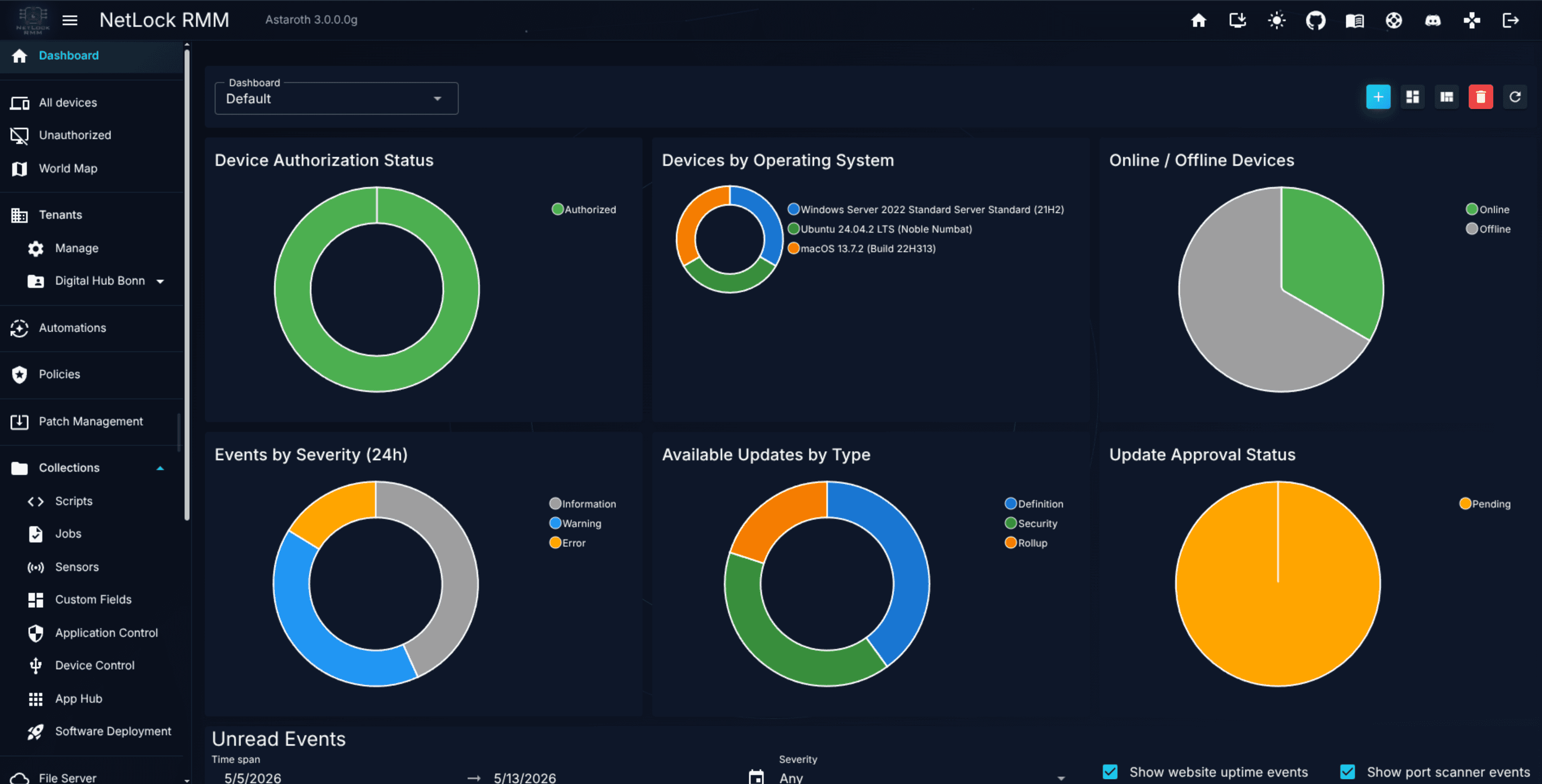
You land on /account/home, a small personal dashboard showing your profile information, navigation order menu and email signature configuration for the ticketing system.
Note: If you are the very first user on a self-hosted deployment, the initial administrator credentials were set during server installation. Default username is: "admin" and default password is "admin".
Step 2 — Complete the Setup Wizard
The first time an administrator visits the Dashboard page, the Setup Wizard opens automatically. It walks you through the minimum configuration needed to get the product useful:
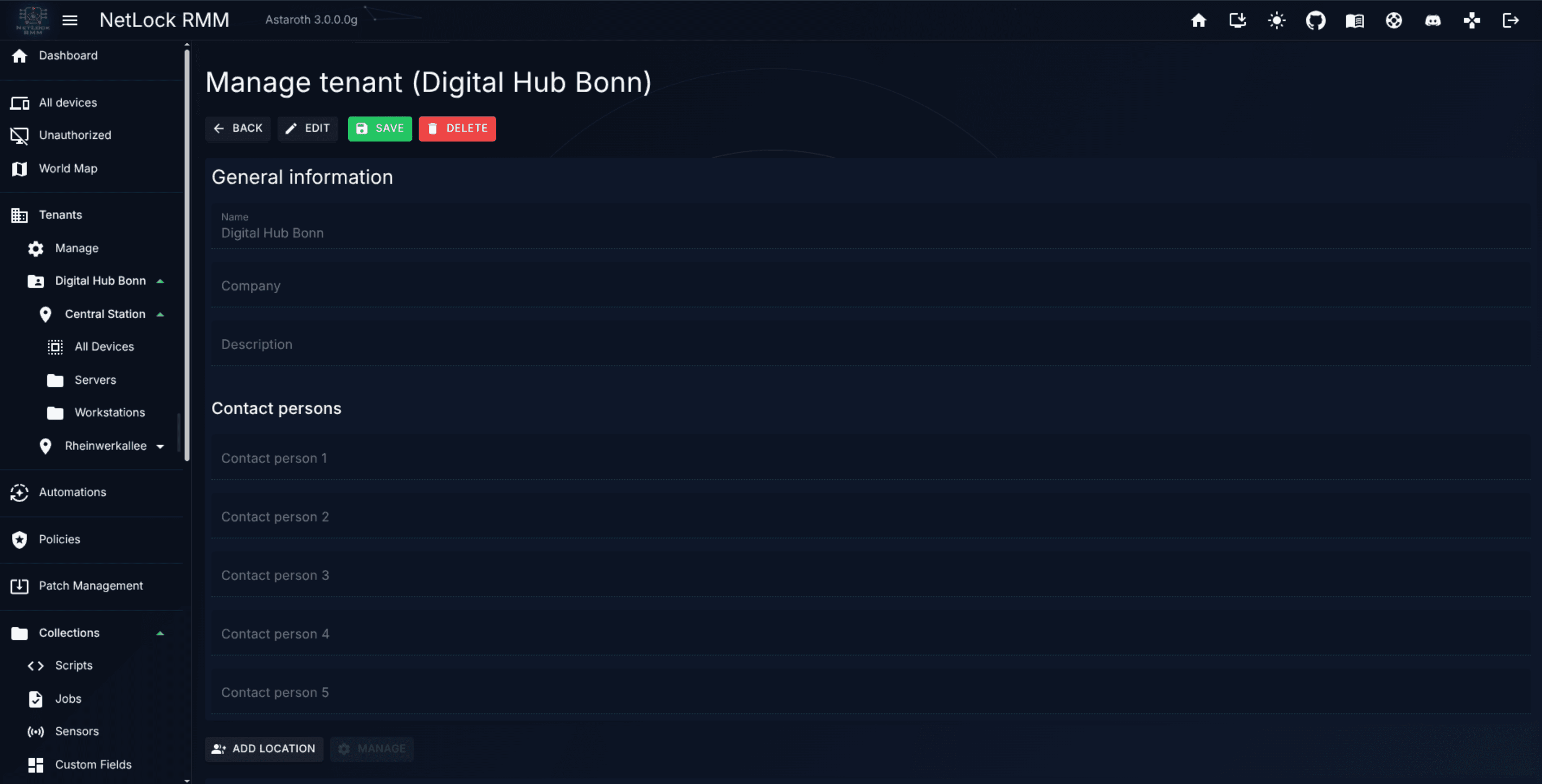
- Create a tenant (if none exists yet).
- Create a location under that tenant.
- Create a group under that location.
- Optionally generate an agent installer for one of your supported platforms.
If you dismiss the wizard, the same steps are available manually from the Tenants menu and the Agent Download dialog. The wizard is simply a faster path.
Tip: Name your first tenant deliberately. It is common to use the company or customer name. You can rename it later, but external integrations (for example reports emailed to stakeholders) use the name you set here.
Step 3 — Create a tenant, location, and group
If you skipped the wizard, do this manually:
- In the left-hand navigation, open
Tenants. - On the
Manage Tenantspage, click the add button and fill in the tenant name and basic details. Save. - Select the new tenant in the list to enter its detail view. The Console stores the selection so subsequent screens act on this tenant.
- Open
Location Settingsand add a location — typically a physical site ("Berlin HQ", "Remote Workers"). - Inside the location, add one or more groups. Groups should reflect how devices will be configured; a good starter set is
Workstations,Laptops, andServers.
See Chapter 4 for the full reference on the tenant page and its dialogs.
Step 4 — Generate an agent installer
With a target group in place, you can generate an installer that pre-configures the agent to register into that specific tenant, location, and group. NetLock RMM ships the agent as a single self-contained executable per platform and architecture, with the server configuration embedded at build time.
- Open the Agent Download dialog from the Setup Wizard or from the
Devicespage. - The dialog runs as a five-step wizard. Step through:
- Configuration name — a label for this installer build.
- Deployment method — select the target tenant, location, and group.
- Target server — select the communication, remote, update, trust, file, and relay servers this agent will talk to.
- Authorization — choose whether the agent is pre-authorized or registers as unauthorized pending admin approval.
- Platform and architecture — choose one of
win-x64,win-arm64,linux-x64,linux-arm64,osx-x64,osx-arm64. Also choose Standard Installer (console, silent-capable) or GUI Installer (graphical, with customisable window title, welcome message, and button labels).
- Click the build action. The Console packages a binary with the embedded config into a
.zipand returns a download link. - Optionally download an accompanying install script —
Install-NetLockAgent.ps1for Windows,Install-NetLockAgent.shfor Linux or macOS — that automates the download, extract, and run steps.
Warning: Treat agent installers like secrets. The server configuration is embedded inside the binary, so anyone with the
installercan register a new device into the configured group, depending on your configuration settings. You can also set a installer to auto authorize until a certain date and all installations originating from the specific installer will first land underunauthorized devices.
Step 5 — Install the agent on a device
On the target device, copy the .zip, extract it, and run the binary with administrator or root privileges.
Windows (PowerShell, elevated):
Expand-Archive .\NetLockAgent.zip -DestinationPath .\NetLockAgent
.\NetLockAgent\NetLock_RMM_Agent_Installer.exe
For silent, unattended deployment via GPO, Intune, or Ansible, add flags:
.\NetLock_RMM_Agent_Installer.exe --hidden --no-log--hidden/-h— hide the console window (Windows only).--no-log/--nolog— delete installer logs after completion.--temp <path>/-t <path>— use a custom temporary directory.
Linux / macOS (Bash, with sudo):
unzip NetLockAgent.zip -d NetLockAgent
chmod +x NetLockAgent/NetLock_RMM_Agent_Installer
sudo ./NetLockAgent/NetLock_RMM_Agent_Installer
With no arguments the installer uses its embedded config. For manual re-configuration or repair, the installer also accepts positional modes: clean "<path-to-server_config.json>" for a fresh install with an external config, fix "<path>" to repair while preserving the existing server config, and uninstall to remove the agent.
The installer registers the agent as a background service (Windows service, systemd on Linux, LaunchDaemon on macOS) and starts it. Within a minute or two the agent contacts the server.
Note: NetLock RMM does not ship native
.msi,.deb,.rpm, or.pkgpackages; a single binary is used across all distributions.
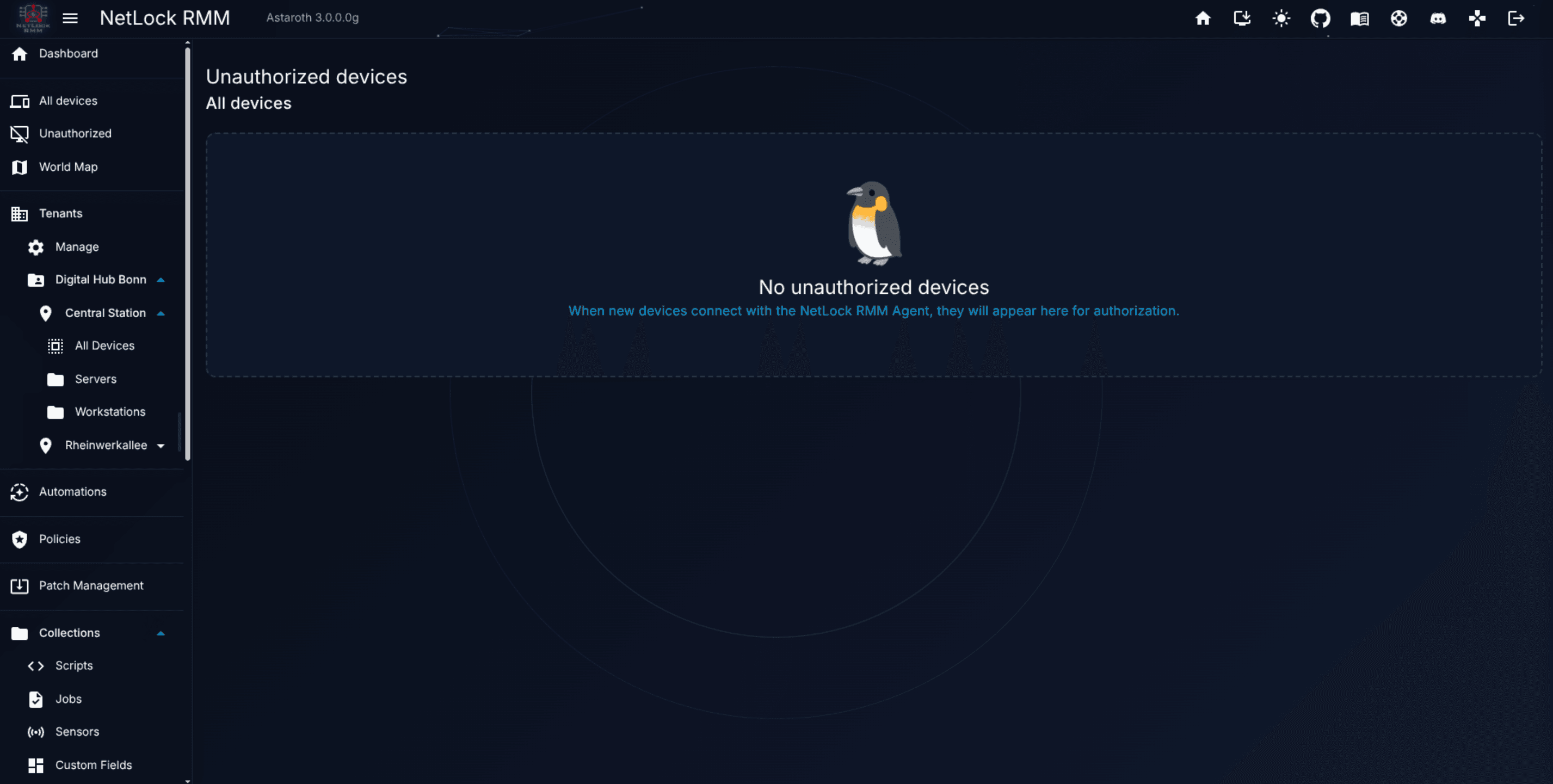
Back in the Console, the device does not appear in Devices yet — it appears in Unauthorized Devices instead, unless you chose pre-authorization in step 4's wizard. This is by design: an administrator must explicitly approve any agent that claims membership in a tenant, to prevent rogue or misconfigured agents from polluting your inventory.
Step 6 — Approve the unauthorized device
- In the navigation, open
Devices → Unauthorized Devices. - Locate the new entry. It shows the device's hostname, operating system, and the tenant / location / group the agent was configured for.
- Select the entry and approve it. Optionally adjust the target group before approval if the agent was configured against the wrong one.
- Give the new device a human-readable label using the Edit Label dialog — for example
MARKETING-LAPTOP-01becomesAnna's laptop.
The device now appears in the main Devices list and reports status in real time. See Chapter 3 for the full Devices reference.
Step 7 — Create a policy and route it with an automation
With the device authorised, give it a policy. This takes two pieces in NetLock RMM: the policy itself (what should be enforced), and an automation rule that routes the policy to the right devices.
7a — Create the policy
- Open
Policiesfrom the navigation. - On
Manage Policies, click Add. Enter a name and description — for exampleStarter Workstations. Save. - Click Manage on the new row to open
Policy Settings. - The default settings enforce the agent configuration but do not yet configure Antivirus, Application Control, Patch Management, or any other opt-in feature. Feel free to set your first settings. On a later stage you can edit the policy again to activate specific sensors or jobs.
- Save.
7b — Route the policy with an automation
- Open
Automationsfrom the navigation. - Click Add. Fill in:
NameandDescription.- Under
If …, leave the condition type atGroupand pick the group you created in step 3, for exampleWorkstations. - Under
Then …, select the policyStarter Workstations. - Leave
Priorityat the value the dialog proposes (400 for a group rule).
- Confirm.
The server immediately re-evaluates the devices of that group against the new automation and pushes the matching policy. Within the agent's next poll interval the policy lands on the device.
Note: When several automations match a device, the one with the lower priority number wins; at the same number the rule with more conditions, then the older one. The dialog proposes a priority from the rule's most specific condition, so a rule for one device beats a rule for its group, which beats a rule for its tenant. See Chapter 5.
See Chapter 6 for the full Policies reference, Chapter 5 for the Automations reference, and Guide H.4 for a step-by-step walk-through.
Step 8 — Verify the policy arrived
Finally, confirm the pipeline worked:
- Open
Devices -> Authorizedfrom the navigation. - The column called
Policyindicates what policy is currently assigned to the device.
If the expected policy is not displayed there, check on Automations which rules match the device and which one has the lowest priority number.
Or see Troubleshooting for deeper diagnostics.
What you have now
At the end of this walkthrough you have:
- A tenant with one location and at least one group.
- One managed device, labelled and approved.
- A policy attached to the group.
That is the smallest meaningful deployment of NetLock RMM. Everything else — automations, patch management, scripts, reporting — layers on top of this foundation. The next chapter, Navigating the Console, describes the UI you will spend the rest of your time in.