 NetLock RMM Docs
Deploy software with App Hub (Winget)
Add a Winget app to the catalogue, then install it on a target device set via Software Deployment.
Deploy software with App Hub (Winget)
App Hub is a catalogue; it does not install software by itself. To actually roll an app out to devices you combine two Collections features: App Hub supplies the package definition, and Software Deployment wraps that definition in a deployment job with targets, scheduling, and per-device result tracking. This guide walks through picking a Winget app into App Hub and rolling it out to a small group with the Software Deployment wizard.
Before you start
- Target devices are online and assigned a policy.
- For Winget apps, target devices are Windows and have Winget available (Windows 10 1809+ or Windows 11).
- Required permissions:
collections_enabled,collections_app_hub_enabledand one of the browser flags (collections_app_hub_browse_wingetfor Winget); pluscollections_software_deployment_enabledandcollections_software_deployment_addfor the deployment.
Steps
Add a Winget app to App Hub
- Open
Collections → App Hub(route/app_hub_manage_apps). - Either click
Refresh catalogsfirst to sync the remote catalogues, or use the Winget Catalog Browser directly. - Open the Winget Catalog Browser, search for the app you want (for example
7zip.7zip), select it, and clickAdd to Catalog. The app appears in the App Hub list with thewingetsource chip, publisher, and version.
Alternatively, click Add on App Hub to open the manual-entry dialog, pick Winget as the source, and paste the Winget Package ID and Winget Source directly.
Create a deployment
-
Open
Collections → Software Deployment(route/software_deployment). -
Click the add affordance to open
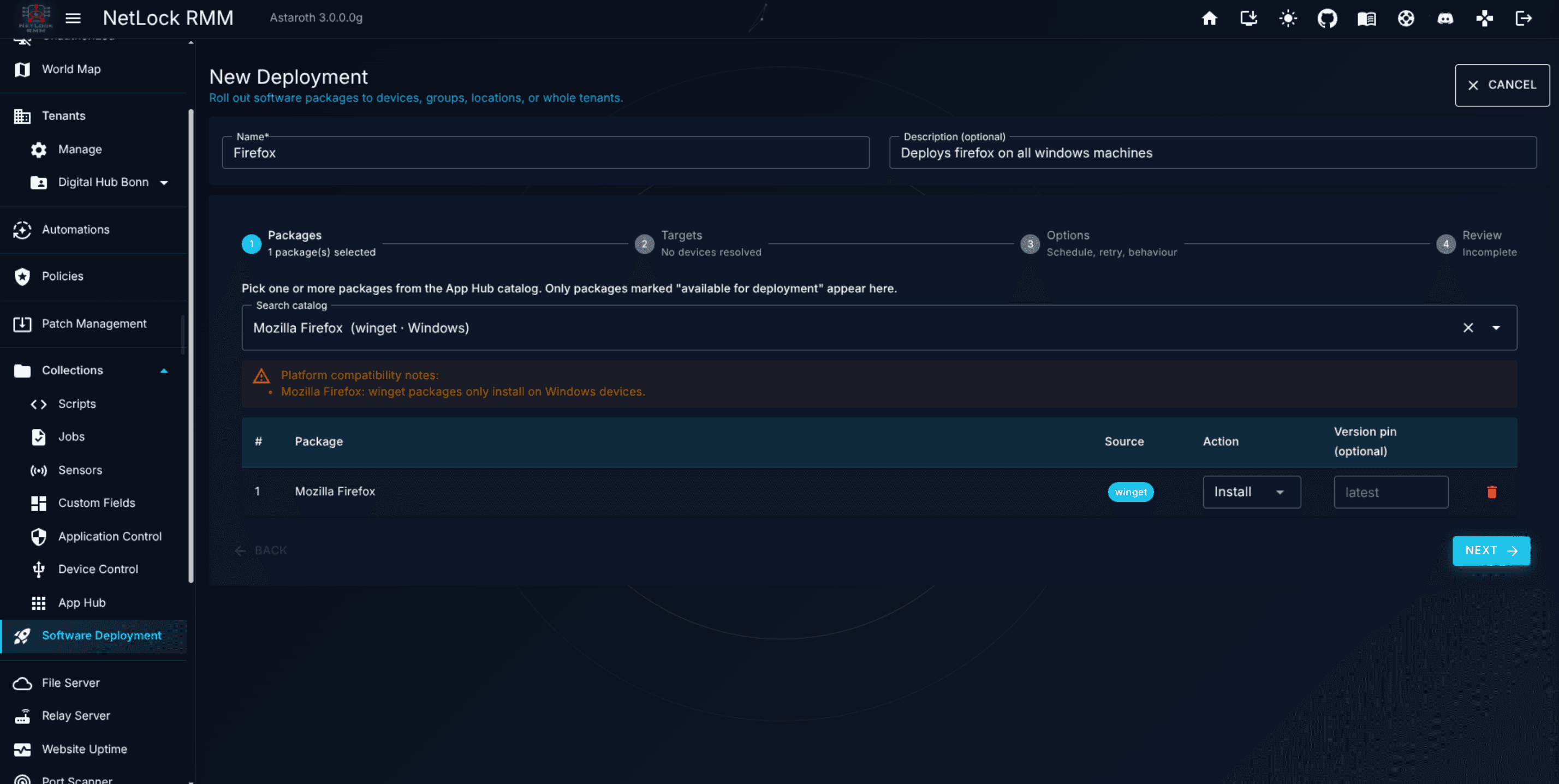
New Deployment— a four-step wizard. -
Step 1 — Packages. Search for the app you added and select it. Choose
installfrom the per-item action dropdown. Only apps flaggedavailable_for_deploymentare selectable. -
Step 2 — Targets. Pick devices, groups, locations, or tenants. Enable the dynamic-membership option if you want devices added to the target group after submission to be picked up automatically.
-
Step 3 — Config. Choose a
Mode:interactive— the deployment runs in the foreground with real-time feedback.bulk— the deployment runs as a background job.
Set the start time, expiry, retry settings (
retry_max,retry_backoff_min), and the abort-on-first-failure and force-reinstall flags as needed. -
Step 4 — Review. Confirm the summary and submit. The deployment is now on the Software Deployment list.
Note: Software Deployment is not policy-driven. A deployment targets devices directly through its own wizard. The App Hub tab inside the Policy Settings editor is unrelated — it only curates which apps appear in the tray icon.
Verify it worked
- The deployment shows on
/software_deploymentwith a progress indicator (succeeded/failed of target_count) that ticks up as devices report results. - The deployment's detail page shows four info cards (Status, Progress, Author & Created, Scheduled / Expires) and a per-device result table.
- Clicking into a device on the detail page opens the per-attempt details: exit code, duration, stdout / stderr tails, and any error summary.
- On a successfully targeted device, the application is installed and reported under the device's inventory.
Troubleshooting
- App not selectable in the wizard. App entries must have
available_for_deploymentenabled. Edit the App Hub entry and confirm the flag. - Some devices fail. Open the deployment detail page and review the per-device result. The stderr tail and exit code usually identify the cause (Winget source unavailable, package ID incorrect, insufficient disk space).
- Install fails with an elevation or permissions error. An installer runs in a specific user context, and whether it needs administrative elevation is declared by the package maintainer — not by NetLock RMM. The App Hub entry carries an elevation setting (whether the installer requires elevation) that reflects what the maintainer specified. Maintainers occasionally specify this incorrectly: an installer that actually needs elevation is marked as not requiring it, or the reverse. The installer then runs in the wrong context and reports
installation failed. When the exit code or stderr points to a permissions or elevation problem, edit the App Hub entry and test the opposite elevation setting before assuming the package itself is broken. - Non-Windows devices reported failure. Winget is Windows-only. Narrow the Target step to Windows devices or use a Flatpak or Chocolatey app definition for other platforms.
- Retry the failed devices. Click
Retryon the deployment detail page. Retry respectsretry_maxandretry_backoff_minand increments the per-device attempt counter.
Related
- Chapter 8.5 — App Hub — the catalogue, manual and browser-based entries, and
Refresh catalogs. - Chapter 8.8 — Software Deployment — the full deployment reference, including the detail page and ad-hoc single-device deployments.
- Deploy custom applications with scripts — package software not in Winget/Chocolatey/Flathub as a script-based App Hub app, with install and detection scripts.
- Guide H.7 — Write, test, and schedule a PowerShell script — an alternative for manual install scripts.
Write, test, and schedule a PowerShell script
Create a script in Collections, run it on one device, and schedule it to recur as a job.
Deploy custom applications with scripts
Create a script-based App Hub app — install, update, uninstall and detection scripts — and roll it out with Software Deployment.