 NetLock RMM Docs
Tickets
The optional helpdesk module: ticket list and detail view, lifecycle, time tracking, statistics, and the admin areas for departments, customers, contacts, templates, labels, SLAs, and webhooks.
Tickets
10.1 Overview
The Ticket System turns NetLock RMM into a lightweight helpdesk. Tickets capture requests and incidents raised by end users or ingested from email, carry a status through to resolution, and record every action taken along the way. The module is self-contained: it has its own contact list, its own SLA engine, and its own audit log on each ticket rather than funnelling changes into the global Events or Audit streams.
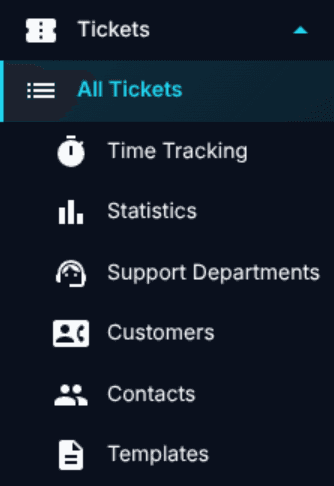
Three operator surfaces make up the day-to-day experience: the Tickets list at /tickets, Time Tracking at /tickets/time-tracking, and Statistics at /tickets/statistics. Configuration sits under the same menu group (Departments, Customers, Contacts, Templates), with dialogs for Labels & Types, SLA, and per-department Webhooks. Global defaults live on Settings → Ticket System.
10.2 Enabling the ticket system
The module is off by default. Two things have to line up for an operator to see the Tickets menu: the module must be turned on globally, and the operator must hold the tickets_enabled permission.
The master toggle is at Settings → Ticket System on the General tab, labelled Ticket System Enabled. One other setting on the same tab applies deployment-wide:
Blocked File Extensions— a chip input with one file extension per chip. Attachments with these extensions are stripped from inbound email before the ticket is created, and an internal note on the ticket names the files that were blocked. Extensions are normalised to lowercase with a leading dot, so.EXE,exe, and.exeall match.
Ticket numbers are not configured here. They come from the prefix on the customer record when the ticket belongs to a customer that sets one (see 10.11), and otherwise from the built-in default numbering, which produces identifiers such as TKT-12345678.
The Settings page itself is gated by settings_system_enabled. The two extra tabs on the same page (Labels & Types and SLA) manage the same data as the dialogs reachable from inside a ticket.
10.3 The tickets list page
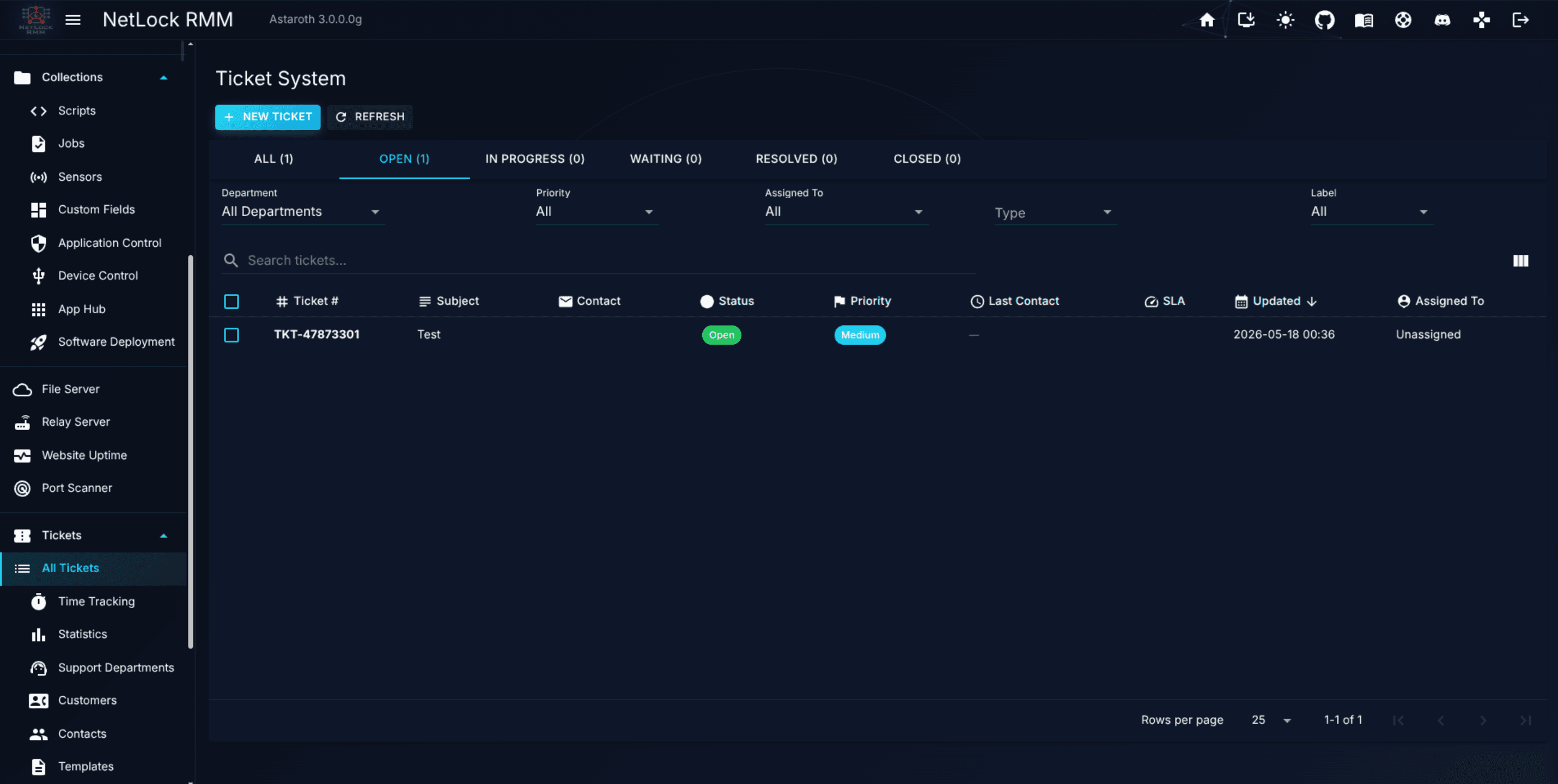
Route: /tickets. The queue. It opens on the Open tab by default, refreshes every 60 seconds in the background, and raises a toast whenever a new inbound email or reply arrives on a ticket the current user can see.
Columns
The list carries nine columns: Ticket #, Subject, Contact, Status, Priority, Last Contact (direction badge plus a relative time), SLA (a colour-coded urgency chip), Updated, and Assigned To. Column order is user-configurable — drag the header to rearrange — and the chosen order is persisted in the browser's local storage, so it follows the operator across sessions on the same browser but is not shared between machines.
Status tabs, filters, and search
Six tabs sit above the table: All, Open, In Progress, Waiting, Resolved, Closed. Each tab shows a live count for the current filter set; switching tabs swaps the underlying query but preserves filters, search, and column order. Closed rows are dimmed so they don't visually compete with active work on the All view.
Five filter dropdowns narrow the query:
Department—All Departmentsor a named department. Users withouttickets_view_all_departmentssee only their own department regardless of this control.Priority—All,Critical,High,Medium, orLow.Assigned To—All,Unassigned, or any operator by username.Type— options drawn fromLabels & Types(see 10.14).Label—Allor any colour-coded label.
Filter selections stack. A single search field sweeps Ticket #, Title, Contact Email, Contact Name, and the Assigned To username at once.
Bulk toolbar
Selecting one or more rows reveals a toolbar with Close Selected, Delete Selected, and Deselect All. Close Selected moves every chosen ticket straight to Closed without prompting for a closing comment — use the detail dialog (see 10.4) when you need to record one. Delete Selected is gated by tickets_delete and is a hard delete; there is no recycle bin.
10.4 The ticket detail view
Clicking a row opens the ticket detail dialog. Its title shows the ticket number followed by a coloured chip for the current status. The body is a six-tab editor: Conversation, Details, Time Tracking, History, Attachments, and AI.
Conversation
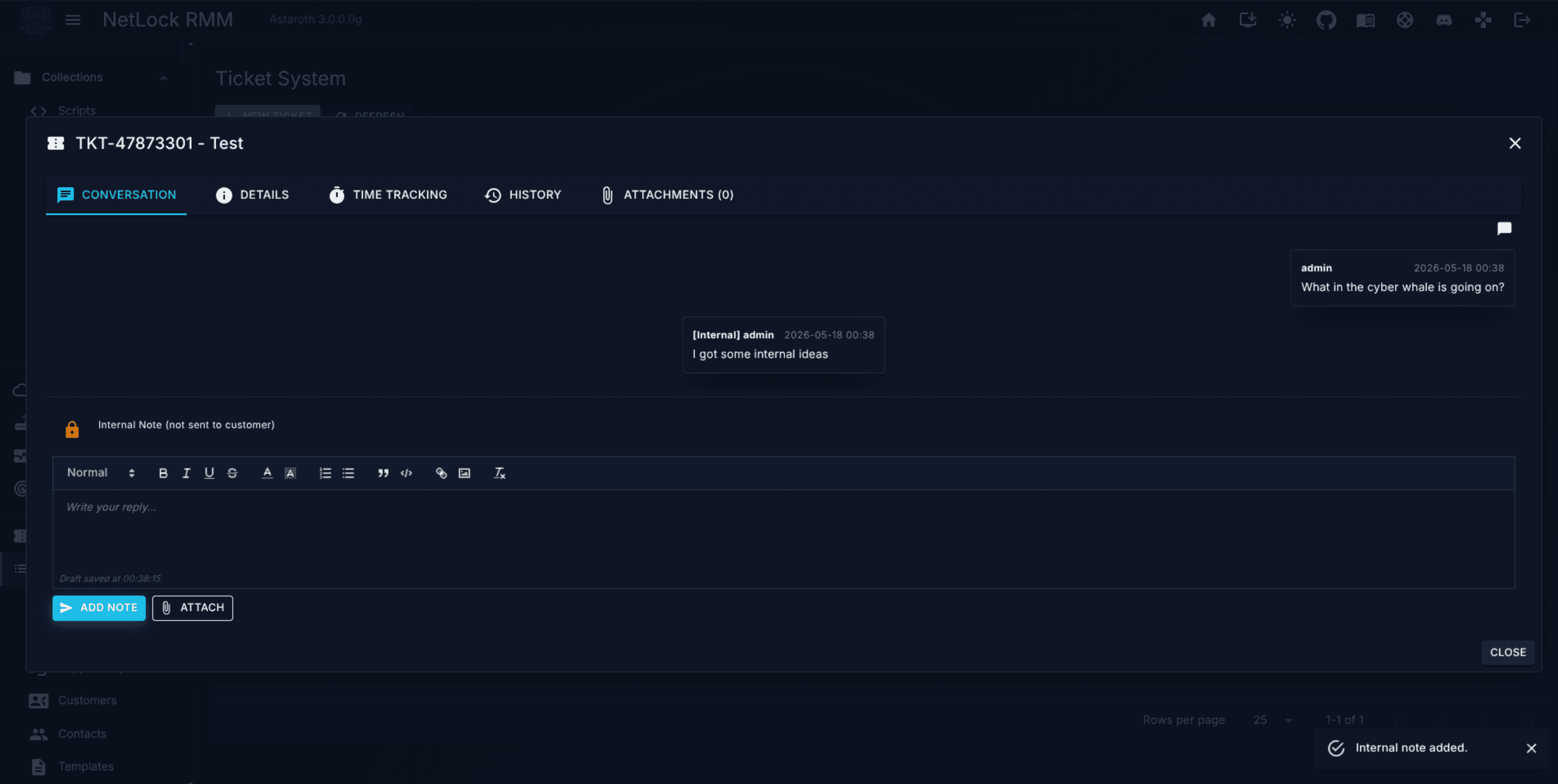
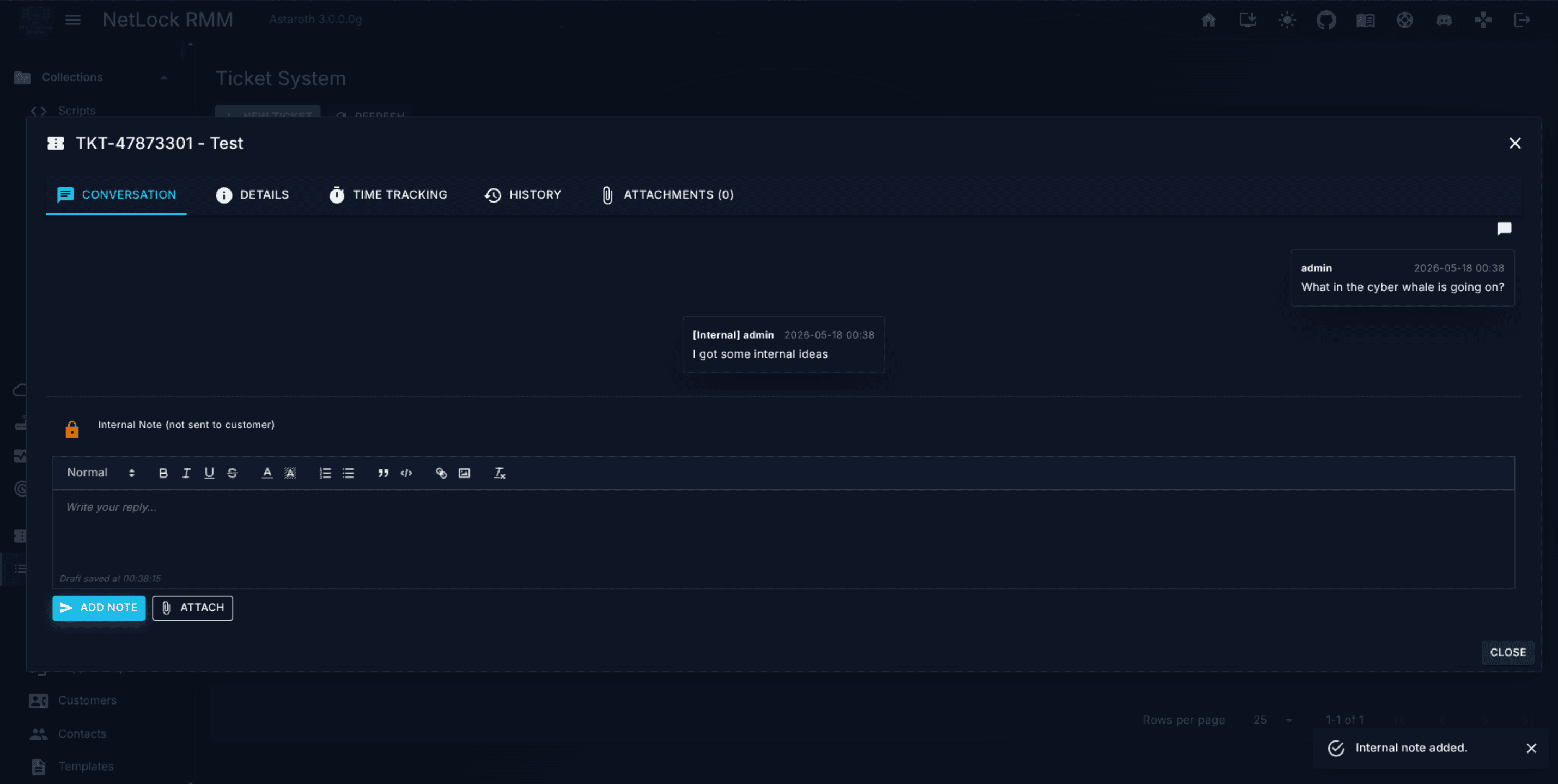
The Conversation tab is the primary working surface. A toggle at the top switches between Chat View — bubble layout with alternating alignment — and List View — a denser CRM-style stack. Both render the same messages in chronological order.
Every message carries a direction badge that also determines its styling:
Internal note— left-aligned, tinted for internal use, marked with a lock icon. Not sent to the customer.Outbound— right-aligned, tinted blue, with an arrow-out icon. Delivered over the department's SMTP.Inbound— left-aligned, tinted green, with an arrow-in icon. Ingested from the department's IMAP mailbox.
A composer sits at the bottom of the tab with three editor modes: Rich Text, HTML, and Plain Text. Regardless of mode, both a rich-text rendering and a plain-text fallback are persisted, so replies display correctly for recipients that strip HTML. A lock/globe icon toggles the outgoing message between Internal note and Outbound before sending, and a Template Picker button inserts a saved response (see 10.13) — the composer remains editable after insertion.
Details
The Details tab exposes every metadata field on the ticket:
Title.Status—Open,In Progress,Waiting,Resolved, orClosed.Priority—Low,Medium,High, orCritical.Assigned To Operator.Support Department.Contact Name— read-only when a contact is linked; edit the contact on the Contacts page to change it.Contact Email— an autocomplete-searchable input when editable. If the entered email has no matching contact, aCreate Contactaction appears alongside so the operator can spawn one without leaving the dialog.Type— a clearable dropdown.Labels— multi-select with the colour of each label previewed inline.Created / Source— captions rather than editors.SourcereadsManualfor tickets created from the UI andEmailfor tickets ingested from a department mailbox.
Edit rights split across two flags. Every field on this tab except Assigned To Operator is gated by tickets_edit; the assignee dropdown alone is gated by tickets_assign. A user who can reassign but not edit sees every other field disabled and the assignee dropdown live.
Time Tracking
The per-ticket Time Tracking tab opens with an alert reporting the state of the auto-timer: when the department has automatic time tracking enabled (see 10.10), opening this ticket starts a timer, and the timer pauses after the department's configured idle timeout.
A collapsible Add Entry form books time manually with Date, Start Time, End Time (24-hour clock), and Notes; Duration is computed read-only. Below the form, a table lists every entry on the ticket — User, Date, Start, End, Duration, Rounded (reflecting the department's rounding step), Notes, and a Delete action — and a footer summarises raw and rounded totals.
History
The History tab is the ticket's own audit log. Every status change, assignee change, field edit, and comment addition appends an entry automatically. Each row captures the author, the date and time, the field that changed, and the old and new values. This tab is the authoritative record of activity on a ticket — ticket changes do not appear in /events or /audit; see 10.17.
Attachments
The Attachments tab gathers every file attached to the ticket — whether it arrived on a comment, as an inbound email attachment, or via a direct upload — into a single table with File Name, Size, Type (MIME), Uploaded By, Date, and Actions.
Every attachment offers Download. A second action, View, appears for text-like types (.txt, .log, .json, .xml, .csv, and anything with a text/* MIME) and renders the file in an inline viewer so operators can read logs, JSON, or XML without leaving the dialog.
AI
The AI tab is present only when the AI module is enabled globally (see Chapter 13). It offers Summarize Ticket, which produces a short summary of the conversation so far, and a free-form question field for chat-style Q&A scoped to this ticket. Output renders in paper-style cards. Both features use the provider and model configured in the AI & LLM settings.
10.5 Ticket lifecycle
A ticket moves through five statuses: Open, In Progress, Waiting, Resolved, and Closed. Any-to-any transitions are allowed — there is no state machine, so an operator can move a ticket from Closed back to Open in a single step.
Three routes lead to Closed: change Status to Closed on the Details tab and save; open the dedicated Close Ticket confirmation, which prompts for an optional Closing Comment persisted as an internal note on the ticket; or select rows on the list and use Close Selected in the bulk toolbar, which does not offer a closing-comment prompt.
Closing a ticket never deletes it. Closed tickets remain visible in the Closed tab and in All, dimmed slightly so they stand apart from live work. Reopening is a plain status change — set Status back to Open or In Progress and save. The Reopened Tickets metric on the Statistics page tracks how often that happens.
Tickets can also be closed automatically by a scheduled sweep; the per-department Cleanup settings control how long a ticket must be inactive before it's caught (10.10).
10.6 Creating a ticket
The New Ticket button on the list opens the create dialog. Creation is gated by tickets_create.
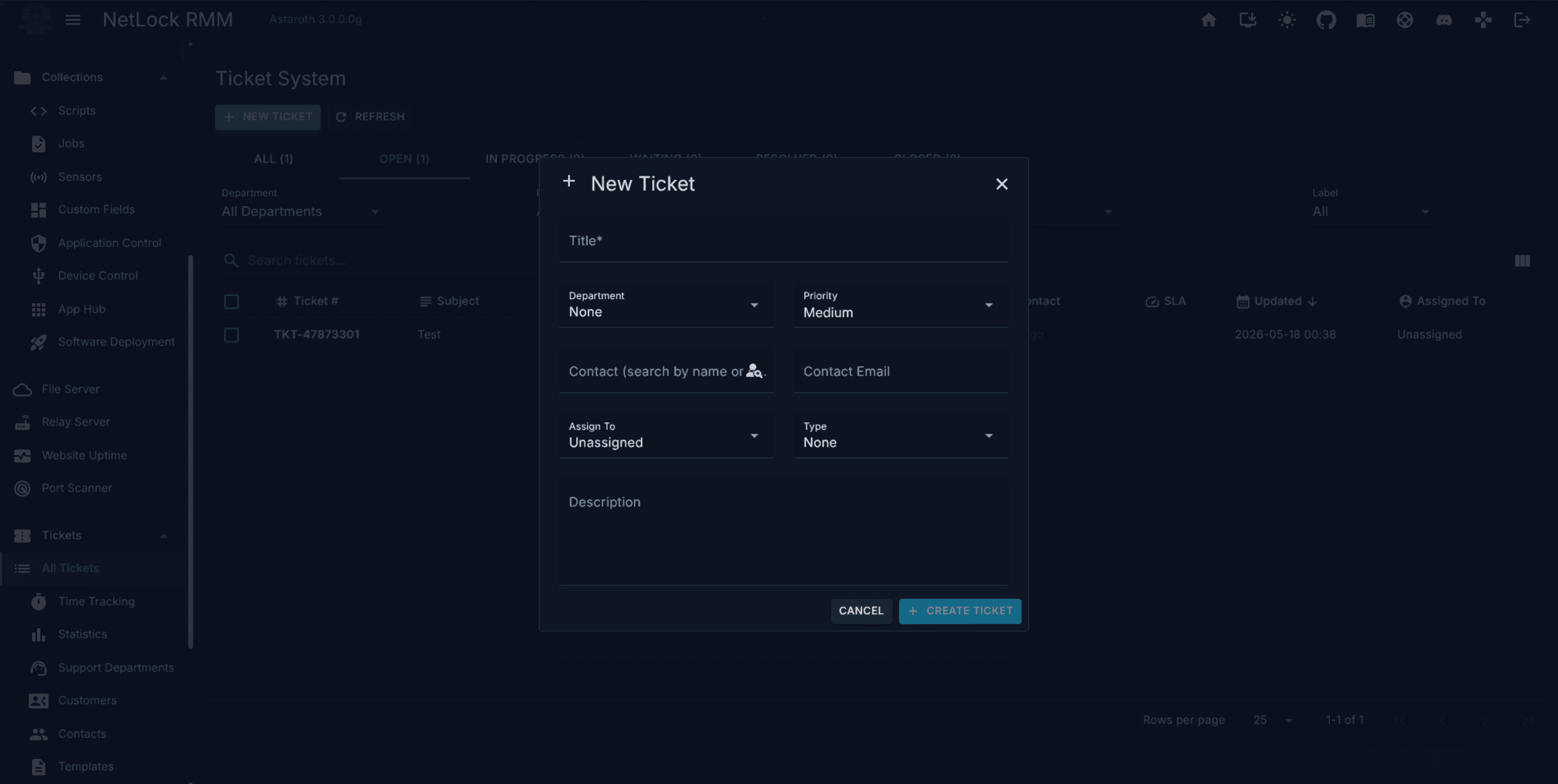
One field is required: Title. Submitting an empty title raises a Title is required validation error. Every other field is optional:
Department— falls back to the user's default department if left blank.Priority— defaults toMedium.Contact— autocomplete over existing contacts; typing searches name, email, and company.Contact Email— can be entered directly without selecting a contact. A contact can be created later from the detail dialog usingCreate Contacton theDetailstab.Assigned To— the initial assignee.Type.Description— the opening message. If provided, it becomes the first comment on the ticket, styled asOutboundand authored by the creator.
Creating the ticket auto-fills the following:
Ticket #— generated from the customer's prefix plus a sequential number when the matched contact belongs to a customer that sets one, otherwise from the built-in default numbering.Source—Manual(Emailis reserved for tickets ingested from a mailbox).Status—Open.Created DateandCreated By— set from the current session.SLA— if the contact's email resolves to a customer with an SLA attached, the SLA's deadlines are computed and stored on the ticket.
The ticket_created webhook fires on save (see 10.16).
There is no device picker on this form. Tickets reach devices through the contact: a contact can have linked devices inside their tenant, and those devices surface on the Details tab once the ticket is saved. See Chapter 3 for the device side of that linkage.
From the tray icon
End users can open a ticket from the tray icon of their device when the device's policy enables it (Policy Settings → Tray Icon → Support tickets, §6.5). The tray menu then carries a Support entry that opens a small window: the user describes the problem, optionally picks a category, a type and how urgent it is, gives a name and an e-mail address, adds a screenshot or a file and sends the request. The ticket number is shown right away. A request that cannot be sent (device offline, server unreachable) is kept as a draft on the device and sent again with the same request id, so a retry never files a second ticket.
Such a ticket is filed into the department chosen in the policy with Source = Tray and carries what the console would otherwise need entered by hand:
Requested from deviceandWindows useron theDetailstab — the device (linked to its page for accounts that may open it) and the Windows account (DOMAIN\user) that filed the request. The account is determined by the agent on the device, not entered by the user.Customer— the customer of the device's tenant, or the one fixed in the policy. A tenant without a customer gets one created, named after the tenant.Contact— matched by the e-mail address inside that customer, otherwise by the device and the name, otherwise created; the contact is linked to the device.Created By=Tray Icon, the opening message as the first comment (Inbound), the history entriescreatedandrequester.- Attachments uploaded from the device are stored in the database rather than on the console's file system; the
Attachmentstab shows them with a database icon and downloads them like any other.
The department's auto reply, notifications, webhooks, SLA and automation rules apply as for any other ticket; the auto reply is sent to the user's e-mail address by the console. In the tickets list a computer icon in front of the title marks a ticket from a device.
What the user sees on the device: only the tickets created from that device under their own Windows account, with the public conversation — internal notes never leave the console. Under My tickets the user reads the public replies, answers them (which reopens a resolved or closed ticket like an e-mail reply) and can mark the ticket as solved (Resolved, with a system comment). Resolved, closed and merged tickets stay visible on the device for 30 days. Which of these options the window offers, whether an e-mail address is required and every text of the window come from the policy.
10.7 Assignment and escalation
A ticket's Assigned To Operator is manual by default — an operator with tickets_assign picks an assignee from the dropdown. There is no queue-based round-robin or weighted distribution.
The only automated path to an assignee is Auto-assign on open, a per-department switch on the Departments admin page. When enabled, the first operator in that department to open an unassigned ticket becomes its assignee; the handoff is passive, triggered by opening the detail dialog.
SLA-driven escalation is event-based, not action-based. Tickets under an SLA carry a deadline and the list shows the current urgency as a coloured chip. When the deadline crosses a warning threshold the department's Notifications fire sla_warning, and on breach they fire sla_breached. Those events drive email notifications and webhooks (10.16). The module does not reassign tickets automatically when an SLA is at risk — a human makes that call.
10.8 Time tracking
Requires permission:
tickets_view_time_tracking.
Route: /tickets/time-tracking. The page is a single-day calendar showing every time entry across every ticket the operator can see.
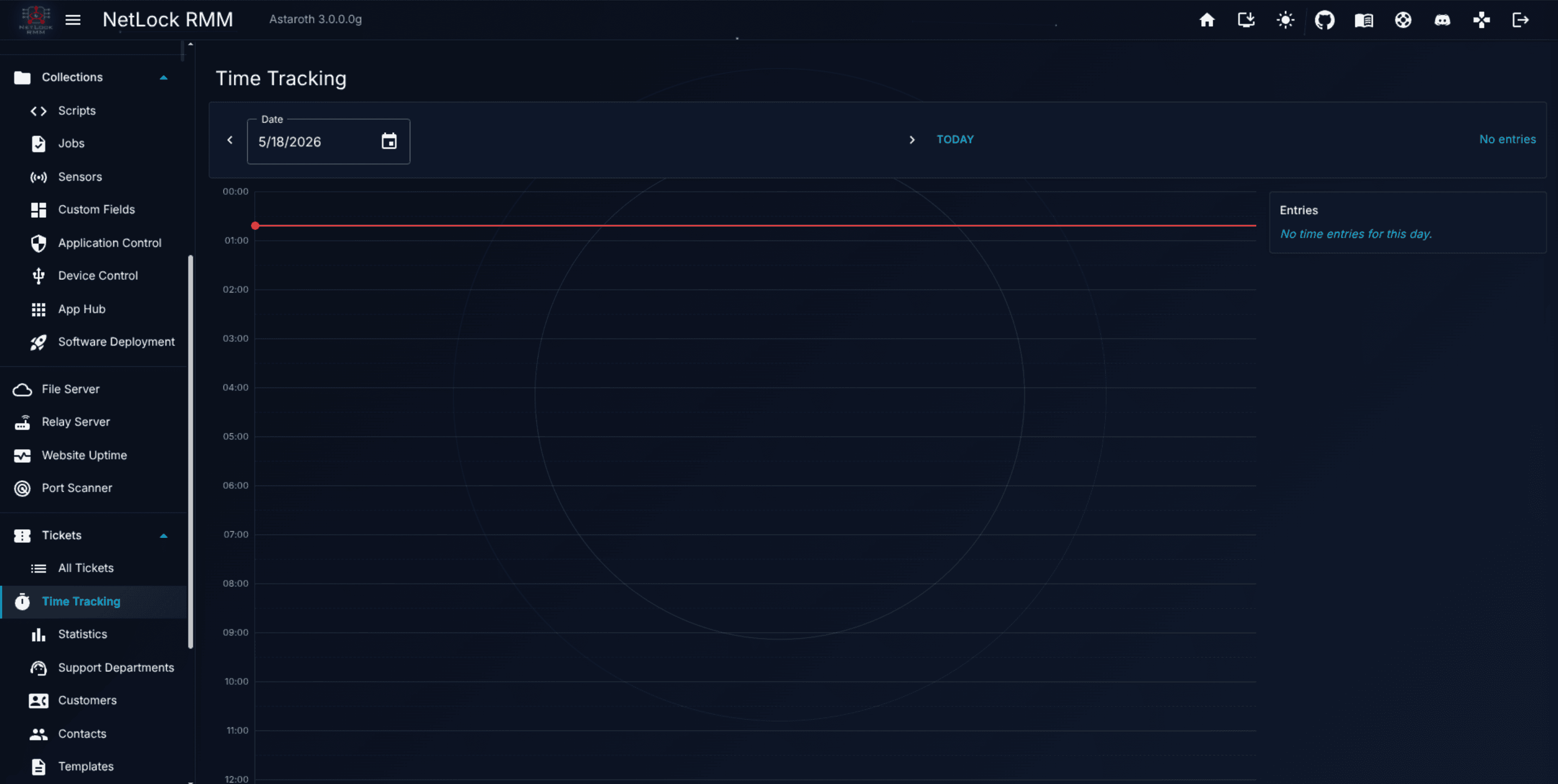
A vertical 24-hour timeline runs from midnight to midnight with half-hour gridlines. Entries are rendered as coloured rectangles positioned by their start and end times. The colour encodes origin: manual entries are blue, automatic entries — booked by the auto-timer — are green. On today's view, a red indicator tracks the current time.
A sidebar lists the same day's entries in chronological order with a delete button on each row. Navigation across days uses Previous, Next, a date picker, and a Today shortcut.
Each entry records Date, Start Time, End Time, Duration (computed), Rounded Duration, and Notes, plus an internal flag noting whether it was booked manually or automatically. The rounded duration applies the department's Rounding (minutes, 0 = exact) step; with 0 the rounded value equals the raw duration.
Automatic tracking is driven by three department settings:
Idle Timeout (minutes)— after this many minutes without activity on the ticket, the timer pauses. The next interaction resumes it as a new entry.Confirm Timeout (minutes)— after this many minutes, the operator is prompted to confirm they're still working on the ticket. Without a confirmation the current entry stops.Rounding (minutes, 0 = exact)— the increment theRounded Durationsnaps to.
The page has no export control of its own; aggregate figures live on the Statistics page.
10.9 Statistics
Requires permission:
tickets_view_statistics.
Route: /tickets/statistics. The page is a tabbed dashboard covering activity over a chosen time window.
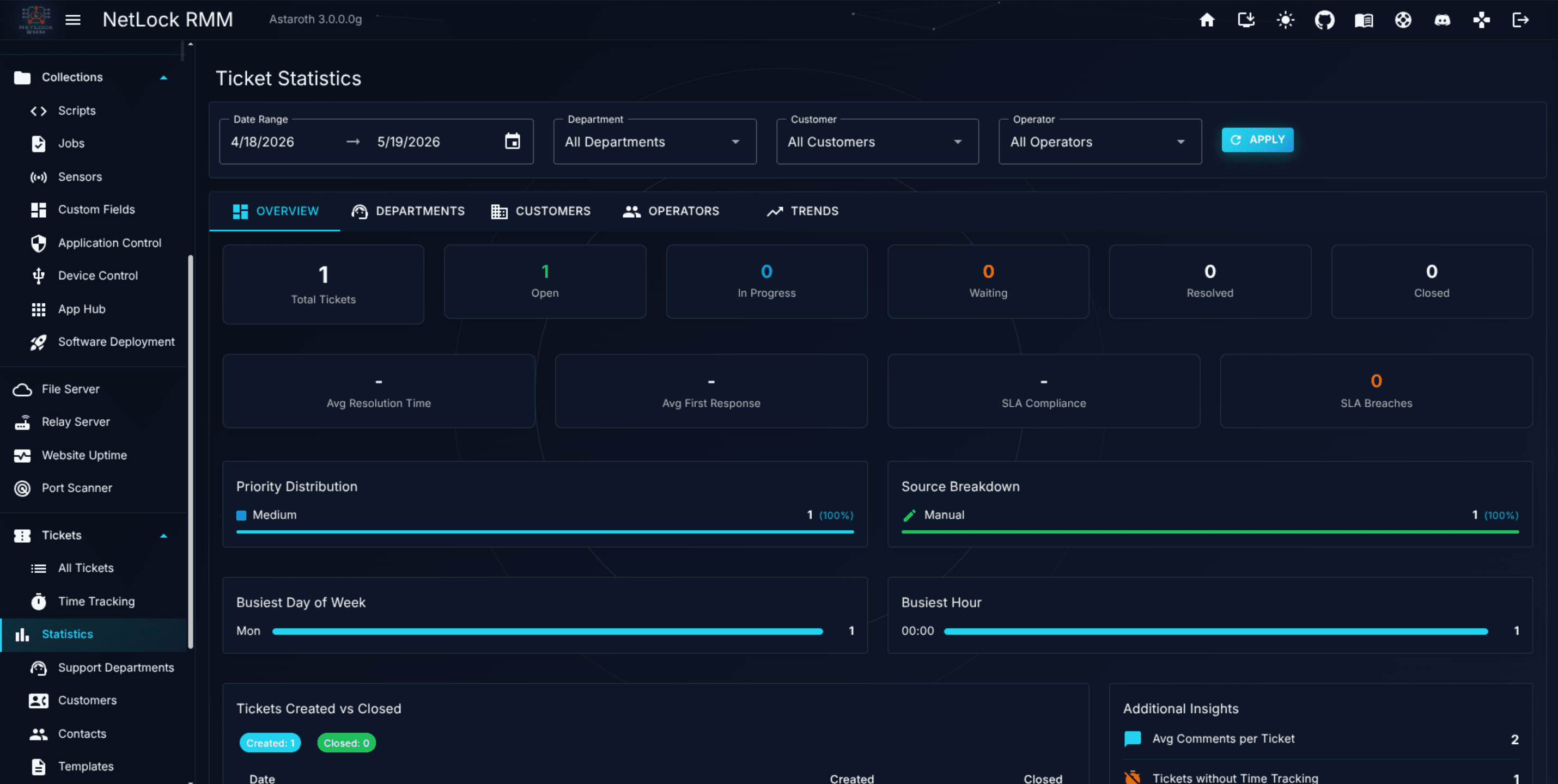
A filter row at the top controls scope for every tab: a date-range picker (defaulting to the last 30 days), plus Department, Customer, and Operator dropdowns, and an Apply button that re-runs the query.
Five tabs group the metrics by category:
Overview— volume and quality indicators across the whole scope: totals, per-status counts, average resolution and first-response times, SLA compliance, priority and source breakdowns, busiest day and hour, reopens, and so on.Departments— one row per department with the key volume and SLA figures.Customers— one row per customer with volumes, hours, and SLA compliance.Operators— one row per operator with workload and outcome figures, plus an operator-by-customer hours matrix.Trends— distributions across labels and types.
Individual metrics are not enumerated here — the tab layout and filter scope matter more for day-to-day use than the exact list, and the composition evolves with each release. The on-page labels name each metric clearly.
10.10 Departments
Requires permission:
tickets_manage_departments.
Route: /tickets/departments. Departments are the organisational and technical unit of the ticket system. They carry their own mailbox, their own notification recipients, their own time-tracking behaviour, their own webhooks, and their own membership list.
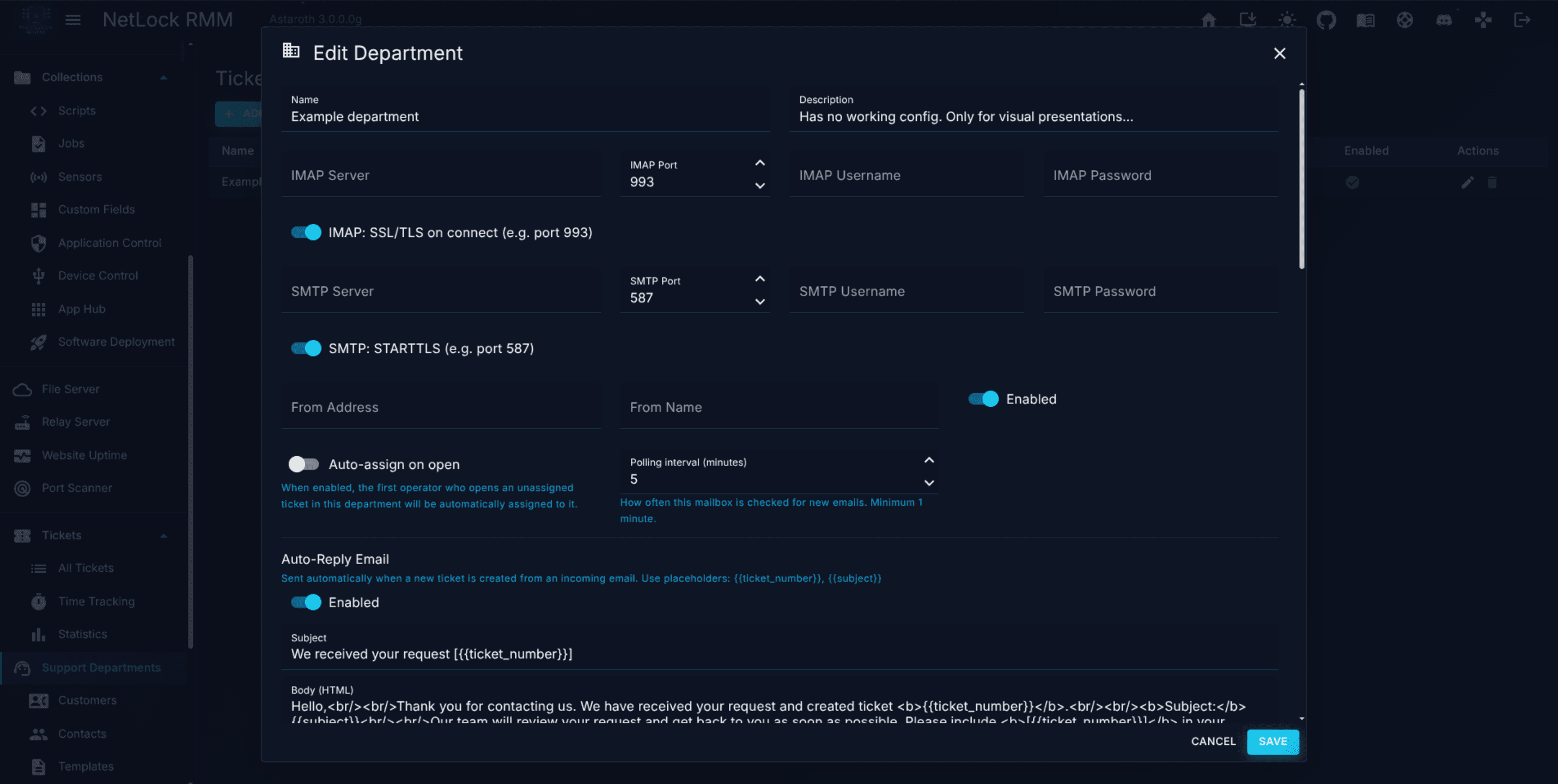
The list columns are Name, Description, IMAP Server, SMTP Server, Members, Enabled, and row-level actions.
The create and edit dialogs share the same field set, grouped into sections:
- General —
Name,Description,IMAP Server,IMAP Port,IMAP Username,IMAP Password,SMTP Server,SMTP Port,SMTP Username,SMTP Password,From Address,From Name,Enabled, andAuto-assign on open. - Auto-Reply Email —
Subject,Body (HTML), and an enabled toggle. Two placeholders resolve at send time:{{ticket_number}}and{{subject}}. Fires once per new ticket created from inbound email. - Follow-Up Reminder Email —
Send after X days without reply,Subject,Body (HTML), and an enabled toggle. Fires once per ticket when the customer has gone silent for the configured number of days. - Time Tracking —
Idle Timeout (minutes),Confirm Timeout (minutes),Rounding (minutes, 0 = exact), and an enabled toggle. Drives the auto-timer described in 10.8. - Cleanup —
Close tickets inactive for (days),Auto-close tickets with these statuses(checkboxes forOpen,In Progress, andWaiting),Internal note added to auto-closed tickets,Delete closed tickets older than (days), andAlso delete attachment files from disk. - Notifications —
Notification Recipients(comma-separated email addresses) plus an event-checkbox list:Ticket Created,Ticket Updated,Ticket Closed,Ticket Assigned,Comment Added,SLA Warning,SLA Breached, andAuto-Closed. Each selected event sends a plain-text email to every listed recipient. These mails are sent through the global e-mail settings under Settings > Notifications > E-Mail, not through the department's mailbox; without global e-mail settings nothing is sent. Events raised through the public API are notified as well. - Webhooks — a
Manage Webhooksbutton opens the webhook dialog scoped to this department. See 10.16. - Members — a multi-select of the operators in this department. Membership combines with
tickets_view_all_departmentsto determine who sees which tickets.
Email ingestion is per department. Each department polls its own IMAP mailbox; inbound messages create tickets in that department, and outbound replies are sent through that department's SMTP. There is no single global mailbox — to accept mail for multiple addresses, run multiple departments. Deletions are hard deletes.
How an inbound mail is matched to an existing ticket
Every mail NetLock RMM sends carries the ticket number in square brackets in the subject, for example Re: Printer offline [ACME-000123]. That bracketed number is what turns an incoming mail into a comment on the existing ticket instead of a new ticket. Three rules decide the outcome:
- The number has to be in square brackets. The part before the last hyphen is the prefix, the part after it has to be at least six digits — the length every generated number has. Numbers of the built-in default numbering (
TKT-…) are recognised with or without brackets. - A prefix that belongs to a customer is tried before one that does not, and within each group the number closest to the end of the subject comes first. A prefix a customer has since renamed therefore still resolves, as long as the ticket itself is still there.
- The ticket has to be reachable from the mailbox that received the mail: it belongs to the polling department, or the sender is the ticket's contact address, or the sender is a contact of the ticket's customer.
- If the ticket was merged into another one, the mail lands on the ticket the conversation was merged into.
Anything else creates a new ticket — a rewritten subject, a deleted number, a number that names no ticket. Replies therefore keep threading as long as the subject is left intact, which is what every common mail client does when replying. With logging enabled, each mail that does not match writes one line to debug.log naming the reason.
10.11 Customers
Requires permission:
tickets_manage_customers.
Route: /tickets/customers. Customers are the company records the ticket system operates against. A detail page lives at /tickets/customers/details for editing one customer in depth.
List columns: Company, Tenant, SLA, Prefix, and a contacts count. Creating a customer uses the Add Company dialog with these fields:
Company Name.Address.Linked Tenant— the RMM tenant this customer maps to. The linkage scopes which devices can later be attached to the customer's contacts.SLA— picks an entry from the SLA library; see 10.15.Ticket Number Prefix— gives this customer's tickets their own numbering,PREFIX-000123. Left empty, the customer's tickets use the defaultTKT-numbering. Use something short and recognisable, such asACME.Notes.
The customer detail page lets an admin edit the same fields and also surfaces the company's departments, contacts, and tickets in one place, with device links attached to each contact visible inline.
Warning: Deleting a customer is a hard delete with cascade. All departments tied to that customer, all its contacts, and the device links on those contacts are removed permanently. Remove customers only when you are sure they are gone for good.
10.12 Contacts
Requires permission:
tickets_manage_customers.
Route: /tickets/contacts. Contacts are the individual people tickets are tied to. Every ticket references a contact; the contact in turn belongs to a customer, which is how the customer's SLA and prefix reach the ticket.
List columns: Last Name, First Name, Email, Phone, Position, Company, Department, and a linked-devices count. Create and edit fields are First Name, Last Name, Email, Phone, Position / Role, Company, Department, Notes, and Linked Devices. Device linking is a multi-select that only becomes available once a company is chosen — the device list is scoped to the company's linked tenant, so you can only attach devices that live in that tenant.
Contacts are also maintained inside the customer detail page. The flat /tickets/contacts page is an alternative view of the same records, convenient when you are looking for one person without knowing which customer they belong to. Deletions are hard deletes.
10.13 Templates
Requires permission:
tickets_manage_templates.
Route: /tickets/templates. Templates are saved responses reusable across tickets. List columns: Name, Type (Email or Ticket), Subject, Author, Date, and an actions column.
Create and edit fields are Name, Type, Subject, and Body. The body editor offers the same three modes as the ticket composer — Rich Text, HTML, and Plain Text — and both a rich-text rendering and a plain-text fallback are persisted so the recipient sees something sensible regardless of their mail client.
The Type field reflects where the template is meant to be used: Email templates for outbound replies, Ticket templates for internal notes and descriptions on newly created tickets. Both types appear in the Template Picker; the distinction is organisational rather than enforced.
The Template Picker is available from the ticket composer and from the new-ticket dialog. Picking a template populates the subject and body of the composer and leaves both fully editable. Deletions are hard deletes.
10.14 Labels and Types
Requires permission:
tickets_manage_labels_types.
Labels and Types are managed in two places: a Labels & Types dialog reachable from the ticket detail dialog and from the Settings area, and a Labels & Types tab on Settings → Ticket System. Both surfaces manage the same data.
Labels are colour-coded tags. Each label has a Label Name and a Color chosen from a hex picker. Multiple labels can be applied to the same ticket — the Details tab's label picker is multi-select. Labels are additive metadata: they don't affect routing or SLA behaviour, they just help you filter and categorise on the list.
Types are single-value categorisations. Each type has a Type Name and a Description. A ticket has at most one type.
Note: Types are user-defined. NetLock RMM does not ship a pre-configured list, and in particular does not provide the ITIL set (
Incident,Service Request,Change,Problem) out of the box. Define whatever set fits your workflow.
Deletions are hard deletes with no confirmation prompt — double-check before clicking.
10.15 SLA
Requires permission:
tickets_manage_sla.
SLAs are managed from an SLA Management dialog and from the SLA tab on Settings → Ticket System. Both edit the same records.
List columns: Name, Response (h), Resolution (h), Priority Override, Description, and an actions column.
Each SLA carries:
Name.Response Time (hours)— the deadline for the first outbound response to the customer.Resolution Time (hours)— the deadline to reach a resolved status.Priority Override— one ofNone,Low,Medium,High, orCritical. Acts as a minimum priority floor: tickets under this SLA cannot drop below the override.Description— free text.
SLAs attach to customers on the Customers page (see 10.11). When a ticket is created from a contact of that customer, the SLA's response and resolution deadlines are computed from the creation time and stored on the ticket. The list view's SLA chip transitions through ok, warning, critical, and breached colours as the deadline approaches.
Note: SLA timers are wall-clock hours. There is no business-hours calendar — a 4-hour response time means four real hours, counted continuously including nights and weekends. Plan thresholds around that reality.
SLA timer transitions feed Notifications and Webhooks through the sla_warning and sla_breached events. Deletions are hard deletes.
10.16 Webhooks
Requires permission:
tickets_manage_webhooks, granted through the department-edit context.
Webhooks are configured per department, not globally. From the department edit form, Manage Webhooks opens the webhook dialog, which lists the department's webhooks and offers create, edit, test, and delete actions.
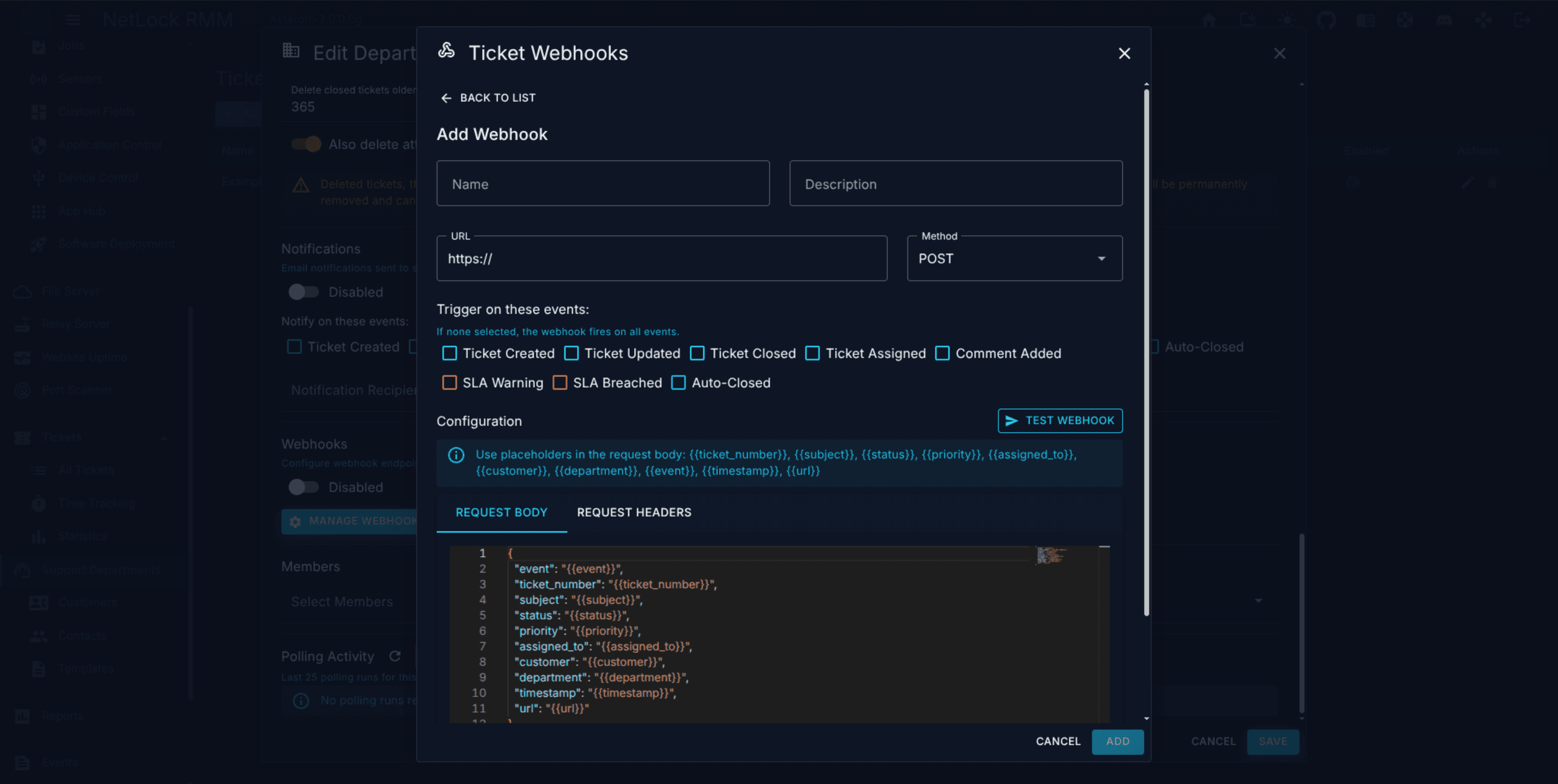
Each webhook has the following fields:
Name— shown in the list.Description— free text.URL— required; the endpoint the request is sent to.Method— one ofGET,POST,PUT,DELETE, orPATCH.Request Body— a JSON document edited in an embedded Monaco editor, with placeholder substitution at send time.Request Headers— a JSON object edited in Monaco. Defaults to{"Content-Type": "application/json"}.Events— zero or more trigger events. Selecting none means the webhook fires for every event.Enabled— toggle.
The eight event triggers are ticket_created, ticket_updated, ticket_closed, ticket_assigned, comment_added, sla_warning, sla_breached, and auto_closed.
Ten placeholder tokens are substituted in the request body: {{ticket_number}}, {{subject}}, {{status}}, {{priority}}, {{assigned_to}}, {{customer}}, {{department}}, {{event}}, {{timestamp}}, and {{url}}.
The dialog pre-populates new webhooks with the following default body. Adjust it to the shape your integration expects.
{
  "event": "{{event}}",
  "ticket_number": "{{ticket_number}}",
  "subject": "{{subject}}",
  "status": "{{status}}",
  "priority": "{{priority}}",
  "assigned_to": "{{assigned_to}}",
  "customer": "{{customer}}",
  "department": "{{department}}",
  "timestamp": "{{timestamp}}",
  "url": "{{url}}"
}
A Test action sends a single request filled with sample placeholder values. Before sending, the dialog validates that the URL is well-formed and that the body and headers parse as JSON, so a misconfigured webhook fails at save time rather than at the next real event.
10.17 Notifications and Events integration
Three notification channels run in parallel for tickets:
- Email — per department. The
Notification Recipientslist plus theNotify on these eventscheckboxes decide who is emailed and for which events. Sending uses the global e-mail settings (Settings > Notifications > E-Mail); the department's own SMTP settings are only used for replies to customers, auto-replies and follow-ups. - In-app toasts — a live notification service pushes toasts to the Console on new tickets, replies, and updates. Tickets and replies that arrive from the tray icon of a device are announced the same way as an inbound mail.
- Device notice — for a ticket opened from the tray icon, a public reply or a change to
ResolvedorClosedis announced on the device within seconds while it is online (a small notice for the Windows user who filed it, if the policy allows it); otherwise the tray icon picks it up at its next check. Internal notes are never sent to the device. - Unread counter — the
Ticketsentry in the navigation carries a badge showing unread ticket activity for the current user.
Webhook delivery is a separate fourth channel, covered in 10.16.
Note: Ticket changes do not appear in
/eventsand do not appear in/audit. The ticket's ownHistorytab is the authoritative activity log for every change on a ticket. If you went looking for a ticket in the global Events or Audit streams and did not find it, this is why — open the ticket itself and read theHistorytab.
For wider context on how each notification channel is configured (SMTP, Teams, Telegram, Ntfy, webhooks), see Appendix A.8.
10.18 Permissions
The ticket module uses a dedicated set of permission flags that gate every part of the experience. The global Settings → Ticket System page has its own flag as well, because it lives under Settings.
| Flag | What it gates |
|---|---|
tickets_enabled | Access to the Tickets menu and the /tickets page. Required for any other ticket permission to take effect. |
tickets_create | The New Ticket button on the list and the create dialog. |
tickets_edit | Editing the fields on the ticket detail dialog's Details tab (except the assignee). |
tickets_delete | Deleting tickets from the list and from the detail dialog. |
tickets_assign | Changing Assigned To Operator in the detail dialog. |
tickets_view_time_tracking | The Time Tracking page at /tickets/time-tracking. |
tickets_view_statistics | The Statistics page at /tickets/statistics. |
tickets_view_all_departments | Visibility of tickets outside the user's own department. Without it, the list filters down to the user's department only. |
tickets_manage_departments | The /tickets/departments admin page. |
tickets_manage_templates | The /tickets/templates admin page. |
tickets_manage_labels_types | The Labels & Types dialog and tab. |
tickets_manage_customers | The Customers and Contacts admin pages. |
tickets_manage_sla | The SLA Management dialog and tab. |
tickets_manage_webhooks | The webhook dialog inside a department. The UI reaches it from the department edit form, so tickets_manage_departments is a practical prerequisite. |
settings_system_enabled | The Settings → Ticket System page, including the master toggle, the global prefix, and the blocked-extensions list. |
See Appendix X.2 for the full permission catalogue across the product.
10.19 Related chapters
- Chapter 3 — Devices covers how devices are added to tenants. Contacts in this module link to those devices, which is how tickets reach the managed estate.
- Appendix A.8 — Notifications deep dive documents each notification channel (SMTP, Teams, Telegram, Ntfy, webhooks) in detail. The department
Notificationssection chooses which events fire; A.8 covers how each channel is configured. - How to handle a ticket from open to resolved is a task-focused walkthrough that puts the list, the detail dialog, time tracking, and closing into a single end-to-end example.
- Appendix X.2 — Permission reference collects every permission flag in the product, including the
tickets_*set used in this chapter.