 NetLock RMM Docs
Build and apply a policy
Create a policy, then route it to devices with an automation.
Build and apply a policy
Applying configuration to a device in NetLock RMM is a two-stage task. First you build a policy that describes what should be enforced. Then you create an automation — a condition → policy rule — that routes the policy to the devices that should receive it. Policies are never attached to groups, locations, or devices directly; there is no "Apply Policy" button anywhere in the Console. The two stages are always distinct, and this guide walks through both.
At the end you will have one device running one policy, with evidence of the assignment in the device detail view and in Events.
Before you start
- At least one tenant, location, and group exists (see Guide H.3).
- At least one authorised device is online in a group you intend to target (see Guide H.1 and Guide H.2).
- Required permissions:
policies_enabled,policies_add(or equivalent),automation_enabled, andautomation_add.
Note: A device receives at most one policy at a time. Policies do not layer, merge, or inherit. If two automations match the same device, the rule with the lower priority number wins.
Stage 1 — Build the policy
- Open
Policiesfrom the navigation. - On
Manage Policies, clickAdd. In the Add Policy dialog enter aName(for exampleStarter Workstations) and an optionalDescription. Save. - Click
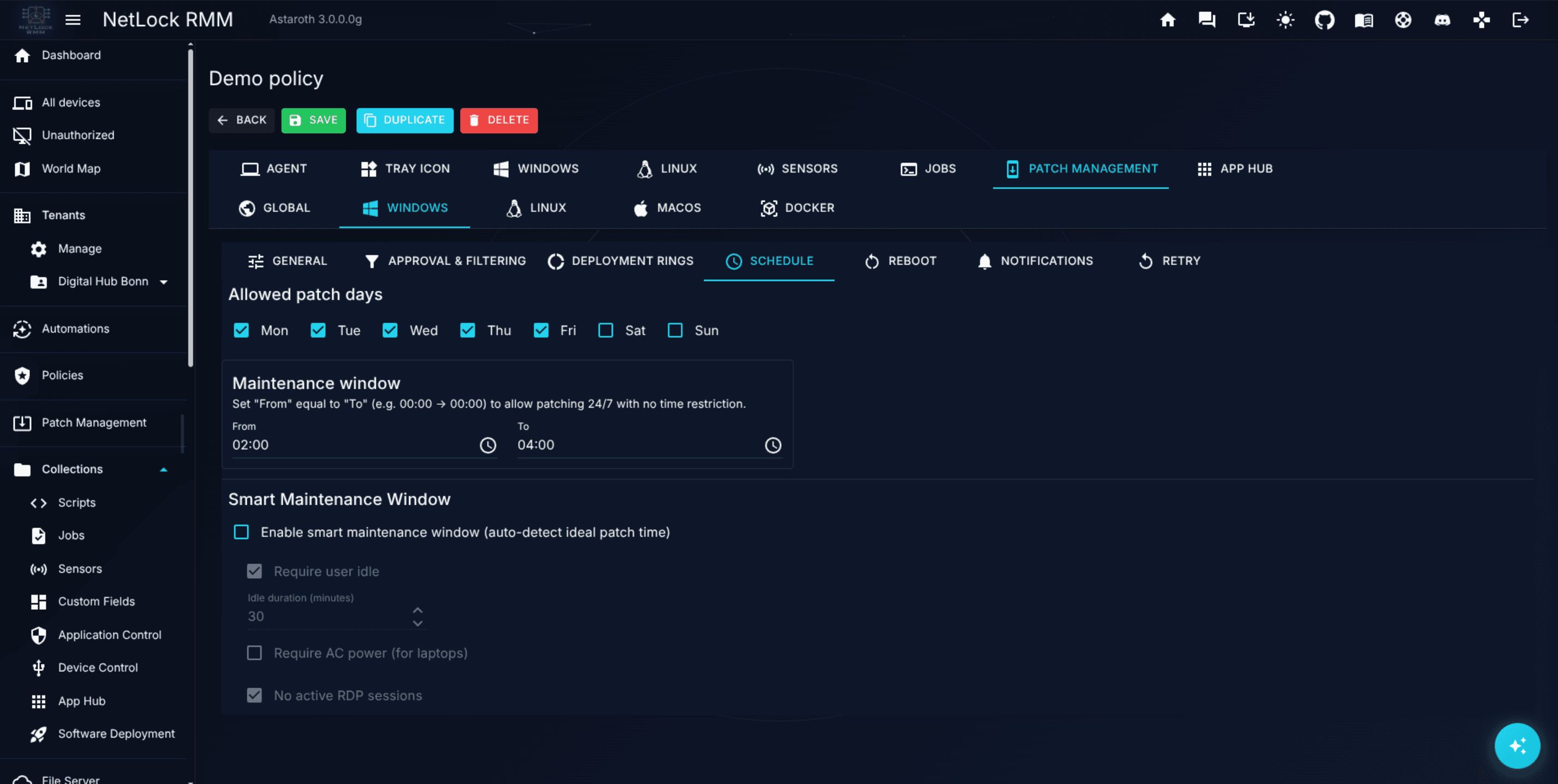
Manageon the new row to open the Policy Settings editor. - Step through the tabs you care about and tune settings. For a first pass the defaults on the
Agenttab are usually fine — they set the sync interval and remote-control capabilities. See the full tab reference in Chapter 6 for everything you can configure. What end users get from the tray icon — the App Hub, the AI Chat and the chat request to the administrators — is switched on per policy on theTray Icontab (§6.5). - Save.
Warning: Policies have no templates, no versioning, and no rollback. Edits apply in place. Before making risky changes to an in-use policy, duplicate it first from the
Manage Policiespage and edit the copy.
Stage 2 — Route the policy with an automation
- Open
Automationsfrom the navigation. - Click
Add. In the automation dialog fill in:NameandDescription.- Under
If …— keep the condition typeGroupfor the simplest case and pick the group this policy should apply to (for exampleWorkstations). Add further conditions only if the policy should reach part of the group, for examplePlatform = Windows. - Under
Then …— pick the policy you created in stage 1. Priority— leave the proposed value (400 for a group rule).Check matching devicesshows which devices the conditions match right now.
- Confirm.
The server immediately re-evaluates the affected devices against the updated automation list and pushes matching policies. You do not need to wait for the next scheduled poll.
Tip: When several automations match a device, the one with the lower priority number wins; at the same number the rule with more conditions, then the older one. The dialog proposes a priority from the rule's most specific condition (device 100, internal IP 200, domain 300, group 400, location 500, tenant 600, otherwise 700), so a rule for a single machine beats a group rule by default. To reorder rules, change their priority numbers on the
Manage Automationspage — there is no drag-and-drop.
Verify it worked
- Open
Devicesand select a device in the target group. Its detail view showsAssigned policy: <your policy name>. - Open
Eventsand filter by the device. Look for entries that mark the policy deployment and any follow-on actions triggered by the policy. - Optionally open
Auditfor an immutable record of when and by whom the policy was created and the automation added.
Troubleshooting
- Device shows
no_assigned_policy_found. No enabled automation matched the device and no default policy is set. Open the rule and useCheck matching devicesto see whether its conditions match the device; every condition of the rule has to hold. Alternatively, mark a default policy on thePoliciespage; it applies to every device that no automation reaches. - Wrong policy is assigned. Another matching automation has a lower priority number, or the same number with more conditions or an older creation date. Raise its number, narrow it, or give the rule you want a smaller number — a
Devicerule for the single machine gets 100 by default. - Policy saved but no events appear. Confirm the device is online in
Devices. A device that is offline picks up the policy on its next sync. For persistent offline devices, see Troubleshooting.
Related
- Chapter 5 — Automations — the policy-routing layer, the condition types, and priority resolution.
- Chapter 6 — Policies — complete reference for every tab in the Policy Settings editor.
- Guide H.5 — Configure Windows Defender via policy — a worked example of tuning the Windows tab.