 NetLock RMM Docs
Events & Audit
Operational events from devices and the immutable administrative audit trail.
Events & Audit
NetLock RMM keeps two separate logs, each answering a different question.
- Events answers "what happened on the devices?" — antivirus detections, job outcomes, sensor breaches, uptime-monitor failures, port-scan findings, device online/offline transitions.
- Audit answers "what happened in the console?" — who logged in, who changed a policy, who approved a patch, who deleted a user.
This split is deliberate. Events is operational; Audit is administrative. Events is filterable by severity and device; Audit is filterable by user and entity type. Events can be marked read or exported; Audit is append-only and cannot be pruned from the UI. Keep the two pages separate in your head and you will always be on the right one.
12.1 Scope split
Events and Audit are not duplicates of each other. The following split is the single source of truth:
| Source of the record | Logged in |
|---|---|
| Antivirus events from Microsoft Defender on a device | Events |
| Job execution outcomes on a device (scripts, deployments, policy pushes) | Events |
| Sensor threshold breaches from a device | Events |
| Website uptime-monitor checks | Events |
| Port Scanner findings | Events |
| Device online / offline transitions | Events |
| SNMP discovery results reported by a device | Events |
| Output of a completed classic remote shell command (the command text is not stored) | Events |
| Application Control / Device Control block attempts on a device | Events (also on dedicated Blocked tabs — see 12.5) |
| Login success, login failure, logout | Audit |
| Any create / update / delete through the console | Audit |
| Permission or role change on a user | Audit |
| Script executed from the console | Audit (+ Events from the device side when the script runs) |
| Export of a list to JSON or HTML | Audit |
| Authorizing or deauthorizing a pending device | Audit |
Script execution is the classic case of a record landing in both logs. The Audit entry records that a console user initiated the run (action = execute, entity_type = script). The Events entry is emitted by the device after the script finishes (type = job), with the outcome and any output. Read one without the other and you are missing half the picture.
Application Control and Device Control blocks are surfaced in Events and on their own Blocked tabs — see 12.5.
12.2 Events
Manage Events at /events is the operational log.
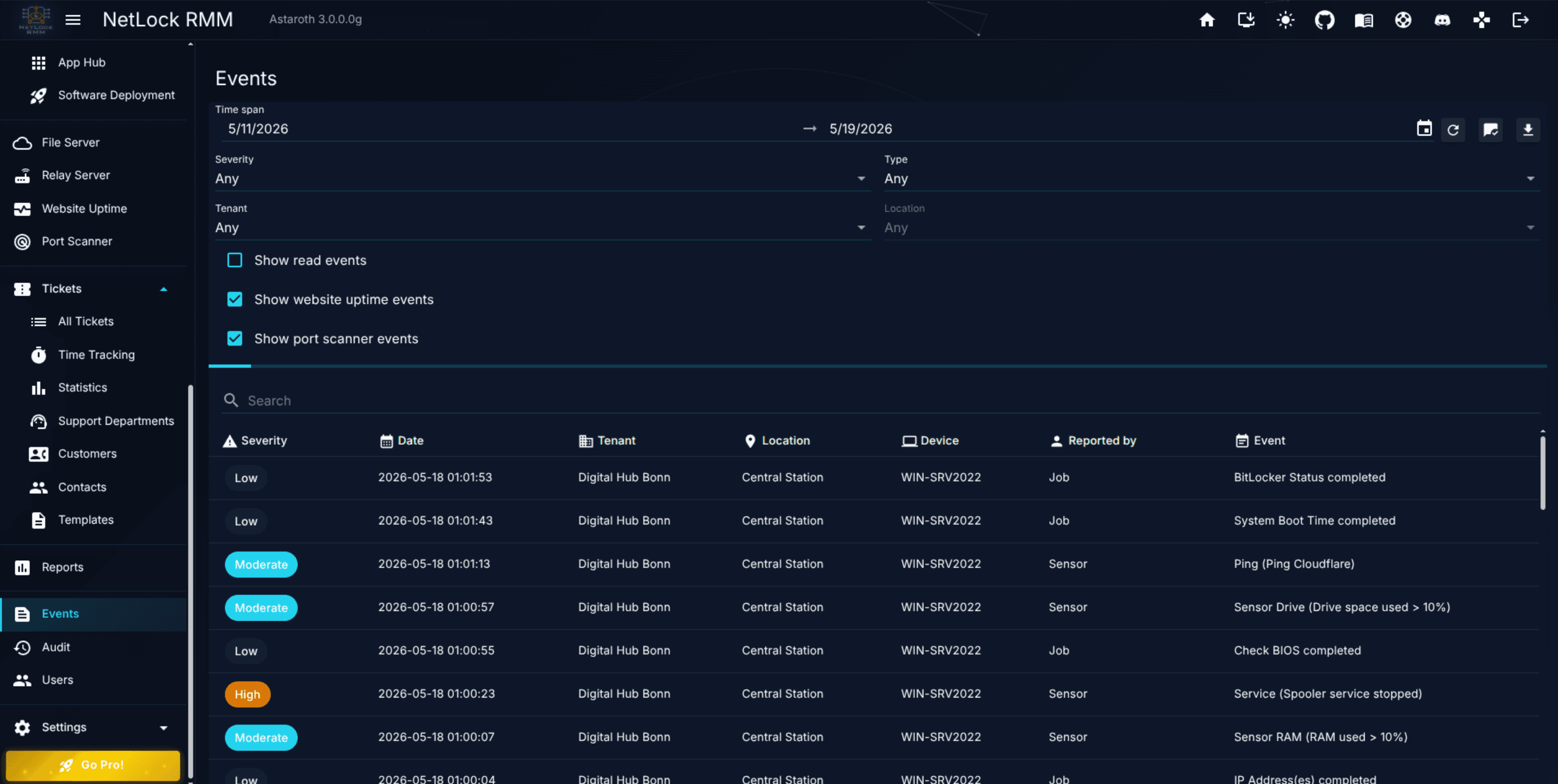
List columns
The list shows:
| Column | Meaning |
|---|---|
Severity | critical, high, moderate, or low. Maps to DB values 3 / 2 / 1 / 0 but the UI shows the label. |
Date | Timestamp of the event: the time the server received it. Events of the agents of release 3.3.0.6 and later also carry the time they were created on the device; the details dialog shows it as Occurred (device), and the export has it as its own column. |
Tenant | The tenant the event's device belongs to. |
Location | The location under the tenant. |
Device | The device that produced the event. |
Reported By | The source subsystem — antivirus, job, sensor, uptime monitor, port scanner, SNMP discovery, remote shell. |
Event | The event message. |
Filter controls
A filter bar across the top of the page narrows the view:
Time span— start and end date. Defaults to the last 7 days.Severity—Any,critical,high,moderate, orlow.Type—Any,antivirus,job,sensor,Uptime Monitoring,Port Scanner,SNMP Discovery, orRemote Shell.Tenant— dynamically populated from the tenants you have access to.Location— dynamically populated from the selected tenant.Show read events— checkbox, off by default. When off, events you have already opened are hidden.Show website uptime events— checkbox, on by default.Show port scanner events— checkbox, on by default.
The event types
Events are categorised by type. The Type filter exposes eleven of them; one more exists but is not included in the dropdown:
| UI label | Source | Notes |
|---|---|---|
antivirus | Antivirus detections and signature updates from Microsoft Defender, plus Application Control and Device Control block events — all three share this type. | Distinguish the source by the Reported by field: Application Control [...] / Device Control [...] for block events. |
job | Job execution outcomes — success, failure, retry. Covers scheduled jobs, policy pushes, and deployment jobs. | Hidden jobs do not appear here (see next subsection). |
sensor | Sensor threshold breaches — notification threshold crossed, action threshold crossed. | Includes threshold-recovery events. |
Uptime Monitoring | Website uptime monitor state changes — Down, Recovered, Degraded. | Controlled by the Show website uptime events checkbox in addition to the filter dropdown. |
Port Scanner | Open ports discovered by the Port Scanner. | Controlled by the Show port scanner events checkbox in addition to the filter dropdown. |
SNMP Discovery | Results of an SNMP network discovery run, reported by the agent that ran it. | Also listed on the device's Events tab. |
Remote Shell | The output of a completed classic remote shell command: Remote shell command executed. with author, source (web console or public API token), run-as user, shell and the output, cut at 64 K characters. The command text is not stored. | Written for commands from the Remote Shell dialog, the Bulk Remote Shell dialog and the public API run-command / run-script actions; the real-time shell writes no events. Not sent to notification targets. Also listed on the device's Events tab; an event retention rule of this type prunes it. |
Patch management | Events the agent raises about its scheduled patch runs, for example a scheduled run held back by an outstanding restart. | Also listed on the device's Events tab. |
Device authorization | A device became unauthorized: a new device awaiting authorization, a reinstalled agent, a changed hardware ID or the license limit. Written by the server for each matching server sensor of the kind Unauthorized device, with that sensor's severity and channels; Reported by reads Device authorization. | Without such a sensor no event is written. See Chapter 8.3 — Server sensors. |
Device country | A device connected from a country outside the server list of the country restriction, was refused by it, or changed its country. Written by the server for each matching server sensor of the kind Device country, with that sensor's severity and channels; Reported by reads Device country. | Always names a known device, and is also listed on the device's Events tab. See Chapter 8.3 — Server sensors. |
Rate limiting | A device or an address was blocked by rate limiting on the server, or would have been blocked in observe mode. Written by the server at every block start, with the device or address, the request class, the reason, the measured rate against the limit, the level and the duration; Reported by reads Rate limiting. Severity high for an enforced block, moderate for one recorded in observe mode. | Never sent to a notification channel or as a push. A device block is listed on the device's Events tab as well; an address block names no device and is shown only to accounts with access to every tenant. Throttling alone writes no event. |
| (no dropdown entry) | Device uptime — online / offline transitions. | Visible with the default filter; no dedicated checkbox. |
The Show website uptime events and Show port scanner events checkboxes are independent of the Type dropdown. If you pick Uptime Monitoring from the Type dropdown, the events are shown regardless of the checkbox state — the dropdown wins when it names a type explicitly.
Hidden jobs are excluded
Jobs marked Hidden in their library entry (see Chapter 8.2) are excluded from the Events view at query time. There is no checkbox that brings them back — they are not visible on this page at all, regardless of filter state. Use hidden jobs for background work that feeds Custom Fields or other non-operational data flows; use non-hidden jobs when you want the outcome surfaced here.
Event Details dialog
Clicking a row opens the Event Details dialog and marks the event as read. Below Date, the line Occurred (device) shows when the event was created on the device, for events of the agents of release 3.3.0.6 and later; it is left out when the agent did not report a time, when the server wrote the event itself, or when the reported time lies more than 30 days before or more than 5 minutes after the receipt (a wrong device clock).
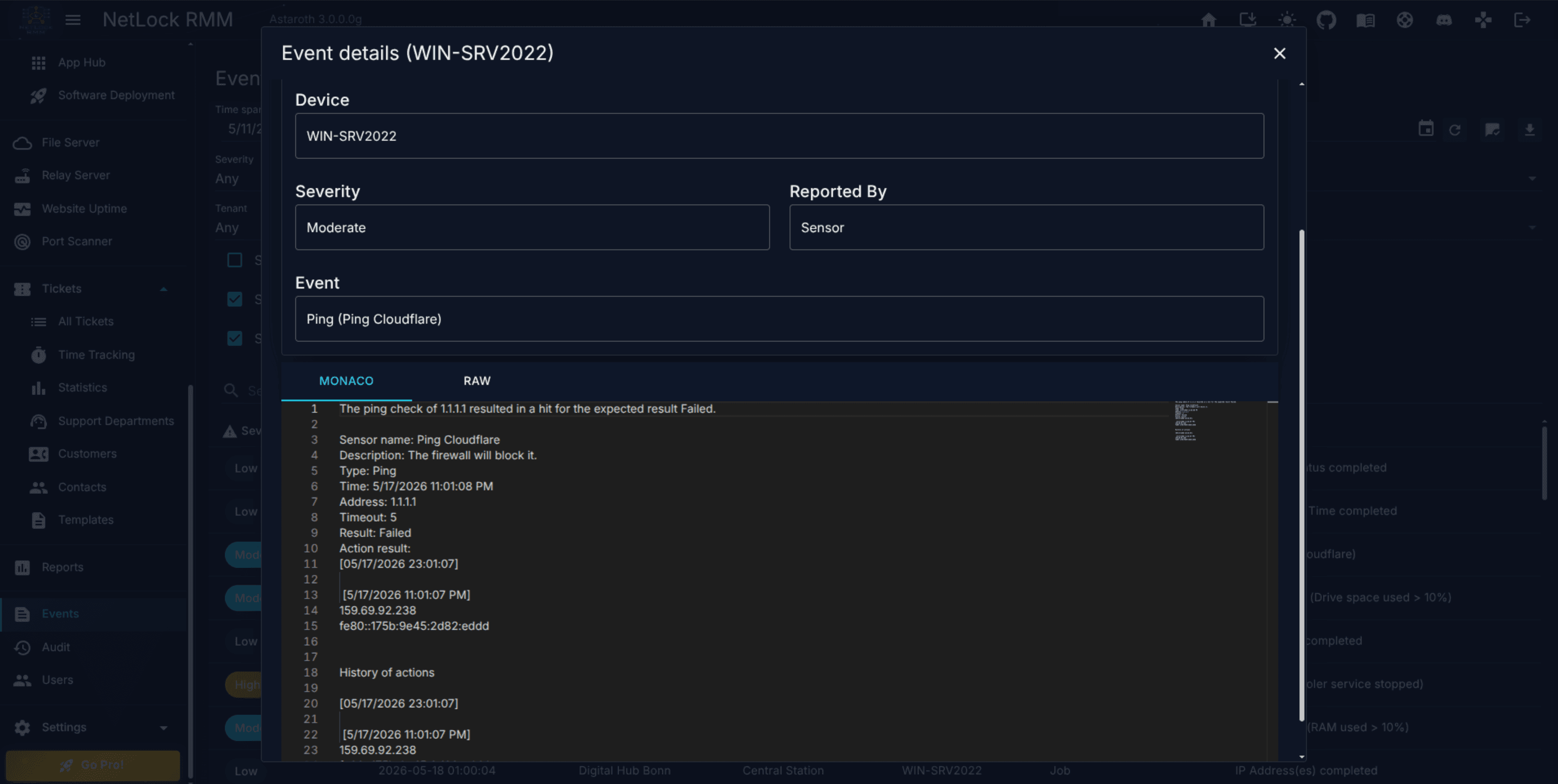
The dialog has two tabs:
- Monaco — the event content rendered in a Monaco code editor with syntax highlighting. Best for output that is JSON, XML, or otherwise structured.
- RAW — the plain-text form of the same content. Use this when Monaco's highlighter guesses wrong or when you want to copy content verbatim.
When AI is enabled in Settings → AI/LLM, a third control appears: the Analyze with AI button. Clicking it hands the event content to the AI chat with the event context pre-filled, so you can ask the model to explain the event without copying and pasting it by hand.
Toolbar actions
The Events toolbar exposes:
Refresh— re-queries the server for the current filter.Mark all as read— marks every event currently visible as read.Export— exports the currently-filtered list asJSONorHTML; the rows carry theOccurred (device)time as a column of their own where it is known.
There is no acknowledge affordance beyond mark-as-read and no delete affordance. Events remain on the server until retention rules (configured in Settings) remove them.
Permissions
| Flag | Gates |
|---|---|
events_enabled | Opening the Events page. |
Tenant scoping is applied through the standard tenant-list permission, so a user with access to tenants A and B will see events from devices in those tenants only.
12.3 Audit
Audit at /audit is the administrative log.
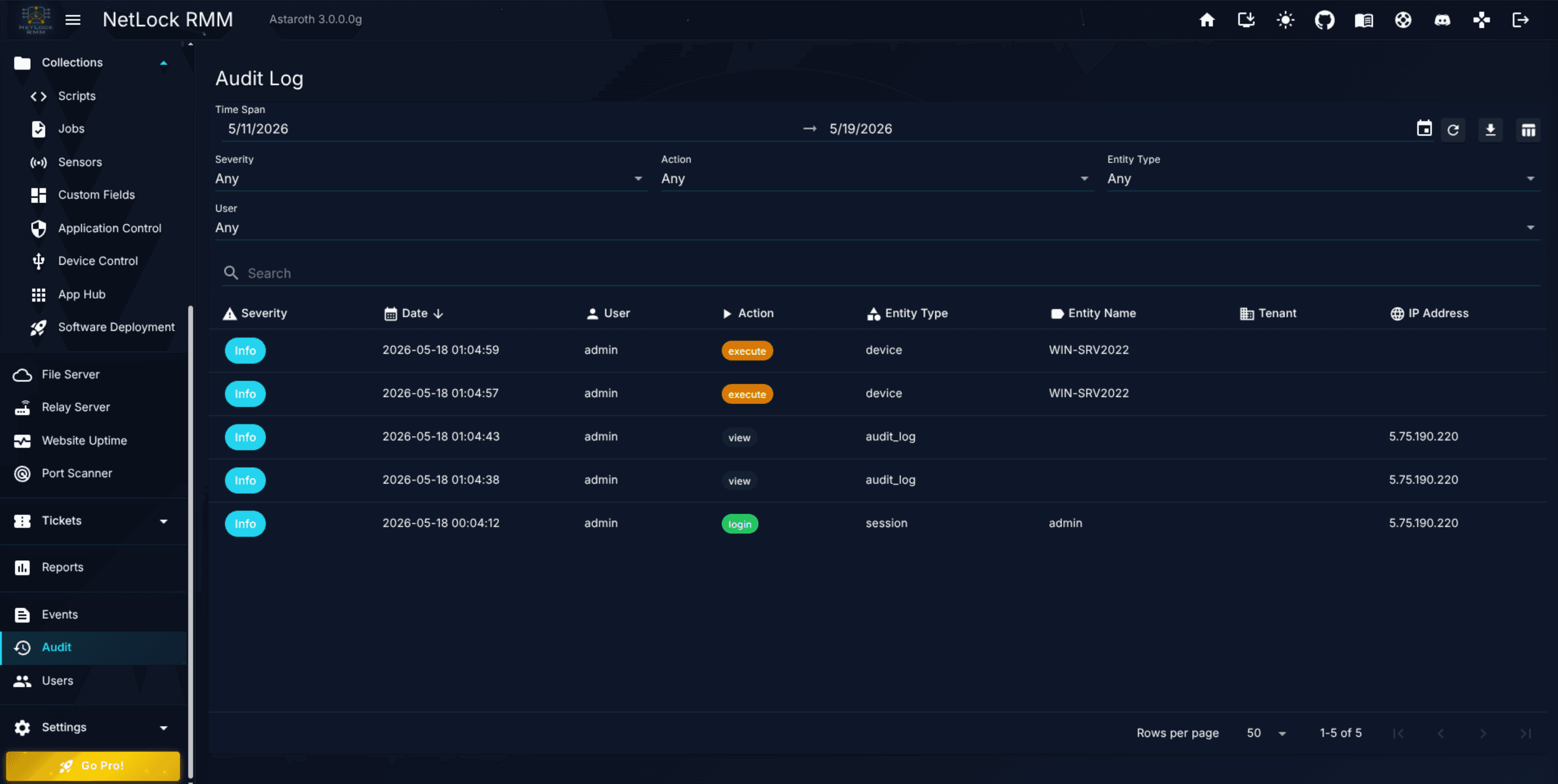
List columns
The list shows:
| Column | Meaning |
|---|---|
Severity | Info, Warning, or Critical. Maps to DB values 0 / 1 / 2. |
Date | Timestamp of the administrative action. |
User | The console user who performed the action. |
Action | One of the ten action categories (see below). |
Entity Type | One of the 18 entity types (see below). |
Entity Name | The specific entity the action applied to. |
Tenant | The tenant scope, if the entity is tenant-scoped. |
IP Address | The source IP of the user's session. |
Filter controls
Time span— default last 7 days.Severity—Any,Info,Warning, orCritical.Action—Anyplus the ten action categories.Entity Type—Anyplus the 18 entity types.User— drawn from the accounts that have ever produced an audit entry.
Action categories
Every audit entry has one of these ten actions:
| Action | When it fires |
|---|---|
create | A new entity is created (tenant, policy, script, job, and so on). |
update | An existing entity is edited. |
delete | An entity is deleted. |
login | A user successfully logs in. |
login_failed | A login attempt fails. |
logout | A user logs out. |
execute | A user triggers an execution, typically a script or deployment. |
export | A user exports a list to JSON or HTML. |
authorize | A user approves a pending device. |
deauthorize | A user deauthorises an authorised device. |
Entity types
Every audit entry has one of these 18 entity types:
| Entity Type | Scope |
|---|---|
session | Login / logout sessions. |
user | User accounts. |
user_permissions | A user's permission flags. |
tenant | Tenant records. |
location | Locations under a tenant. |
group | Groups under a location. |
device | Device records. |
policy | Policy definitions. |
script | Script library entries. |
job | Job library entries. |
sensor | Sensor definitions. |
custom_field | Custom field definitions. |
file | File Server entries. |
notification | Notification channel configurations. |
automation | Automation rules. |
system_setting | System-wide settings. |
patch | Patch approval records. |
audit_log | The Audit log itself (see Immutability below). |
Immutability
There is no delete affordance on the Audit page. You cannot remove individual entries, bulk-delete, or clear the log from the UI. The log is treated as append-only.
Viewing the Audit log is itself audited. When you open the page, an entry is written with action = view and entity_type = audit_log, recording which user accessed the log and from what IP. This means the auditors can be audited — you can see who has been reading the log.
Retention
Retention is not configurable on the Audit page. The date-range picker filters what you see; it does not delete anything. Retention is a global setting under Settings → Logging (see Appendix A.9).
Audit Details dialog
Clicking a row opens the Audit Details dialog. It shows the full record: date, severity, user, source IP, action, entity type, entity ID, entity name, tenant scope, and the formatted details payload. If the details field contains valid JSON, it is pretty-printed; otherwise it is rendered as plain text. The dialog has a single Close button.
Permissions
| Flag | Gates |
|---|---|
audit_enabled | Opening the Audit page. |
12.4 Cross-reference: which Phase-2 feature lands where
A single console action often produces records in both logs. The table below maps common operations to the records they write — use it when you are tracking a change across systems.
| Action | Events record | Audit record |
|---|---|---|
| Automation causes a device to change policy | — (no event; see the device detail's Assigned policy field) | update on policy — see Chapter 5 |
| Patch approval state change (Pending → Approved) | — | update on patch — see Chapter 7 |
| Policy edit saved | — | update on policy — see Chapter 6 |
| Software deployment executed | One job event per device with the install outcome | execute on job |
| Script run from the console | One job event per device with the run output | execute on script — see Chapter 8.1 |
| Permission flag or role changed on a user | — | update on user_permissions |
| Login success | — | login on session |
| Login failure | — | login_failed on session |
| Automation created | — | create on automation |
| Automation edited | — | update on automation |
| System setting changed | — | update on system_setting |
| Device authorised from the Unauthorized Devices page | — | authorize on device |
| Device deauthorised | — | deauthorize on device |
| Antivirus detection on a device | One antivirus event | — |
| Application Control or Device Control blocks an item on a device | One event under the antivirus type, Reported by = Application Control [...] / Device Control [...] (also on the Blocked tab — see 12.5) | — |
| Sensor threshold breached | One sensor event | — |
| Website uptime monitor fails / recovers | One Uptime Monitoring event | — |
| Port scan discovers a new open port | One Port Scanner event | — |
| Device comes online or goes offline | One uptime event (not in the Type dropdown) | — |
| Rate limiting blocks a device or an address, or records that it would have | One Rate limiting event per block start (see A.4.1b) | — |
| Rate limiting settings saved (mode, device count, sensitivity, daily volume) | — | update on system_setting, entity name agent_protection, with the previous and the new values |
Block released from the Rate limiting tab (Unblock, Unblock all) | — | delete on agent_protection_block |
| Rate limiting exemption added or deleted | — | create / delete on agent_protection_exemption |
| Rate limiting blocks exported | — | export on agent_protection_block |
12.5 Application Control and Device Control blocks
When the agent blocks an unknown application or USB device, the block is surfaced in two places at once.
On the Events page. Each block is logged as an event. It shares the antivirus type with Microsoft Defender events, so the Type filter dropdown has no separate Application Control or Device Control entry — selecting antivirus, or leaving the filter on its default, includes them. Identify them by the Reported by column, which reads Application Control [<mode>] or Device Control [<mode>].
On a dedicated Blocked tab. The same block also lands on a block-and-approve tab inside Collections:
- Application Control blocks appear on the
Blocked Applicationstab ofManage Application Control Rulesets— see Chapter 8.6. - Device Control blocks appear on the
Blocked Devicestab ofManage Device Control— see Chapter 8.7.
The two surfaces serve different purposes. The Events entry is the operational timeline — what happened, when, and on which device. The Blocked tab is the workflow surface — a blocked attempt is an input to the approval process, where you decide whether to whitelist it. Use Events to spot a block; use the Blocked tab to act on it.
If the policy has tray-icon notifications enabled, the on-device user additionally sees a notification at the moment of the block — configured per policy in Chapter 6.
Permissions
| Flag | Gates |
|---|---|
events_enabled | Events page. |
audit_enabled | Audit page. |
See Appendix X.2 for the full permission catalogue.
Related chapters
- Chapter 5 — Automations explains why automation-driven policy changes show up as
updateonpolicyrather than as events. - Chapter 6 — Policies covers what a policy edit actually changes, producing the
updateonpolicyaudit entries referenced in 12.4. - Chapter 7 — Patch Management covers the approval workflow whose state changes surface as
updateonpatchentries. - Chapter 8 — Collections documents the Collections features whose executions appear as
job,sensor, andantivirusevents, and whose block logs live in their own tabs rather than in Events. - Chapter 13 — AI Chat is where the
Analyze with AIbutton on Event Details lands you. - Appendix A.9 — Logging & protocols covers the retention controls that determine how long events and audit entries are kept.