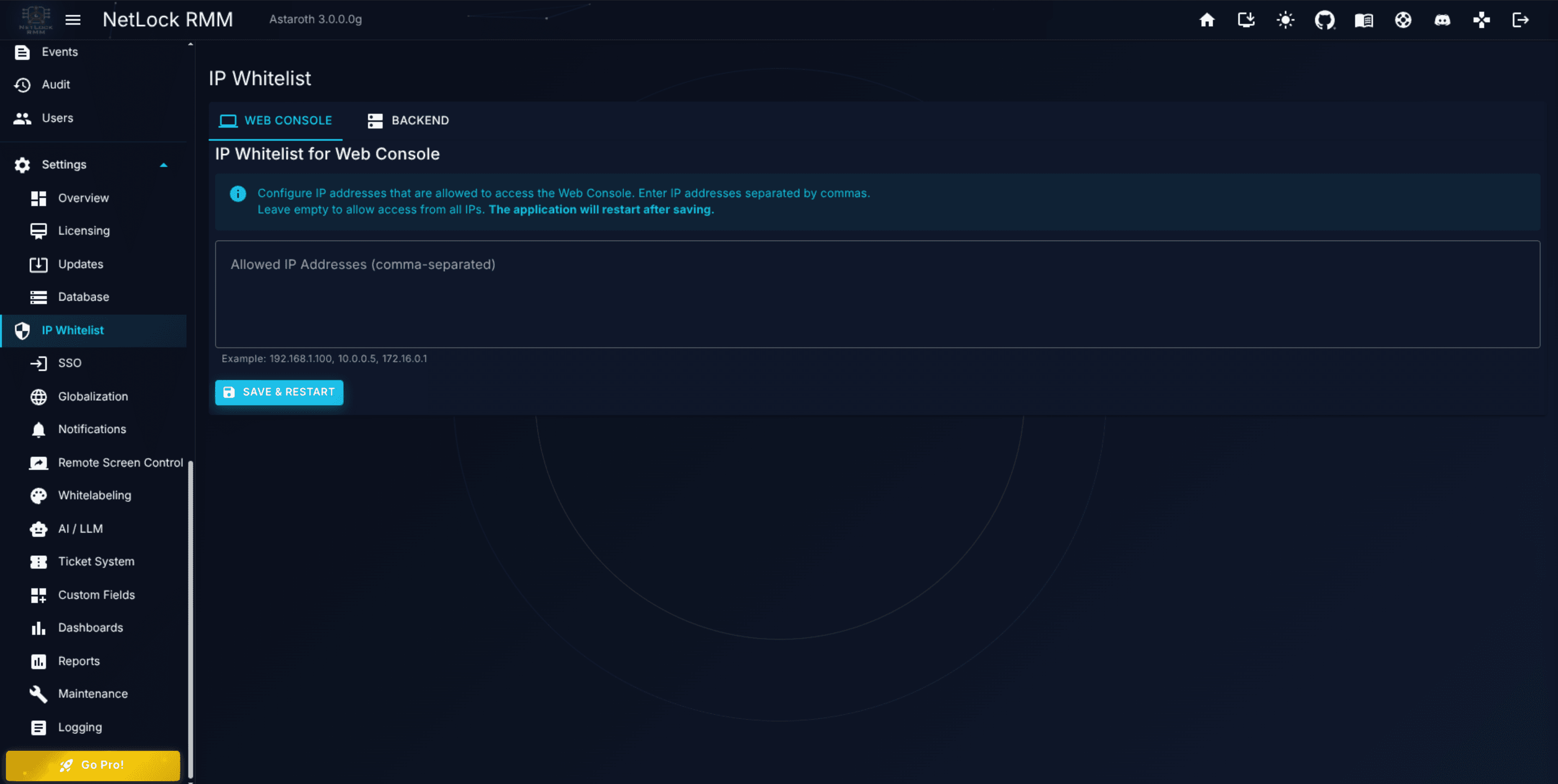
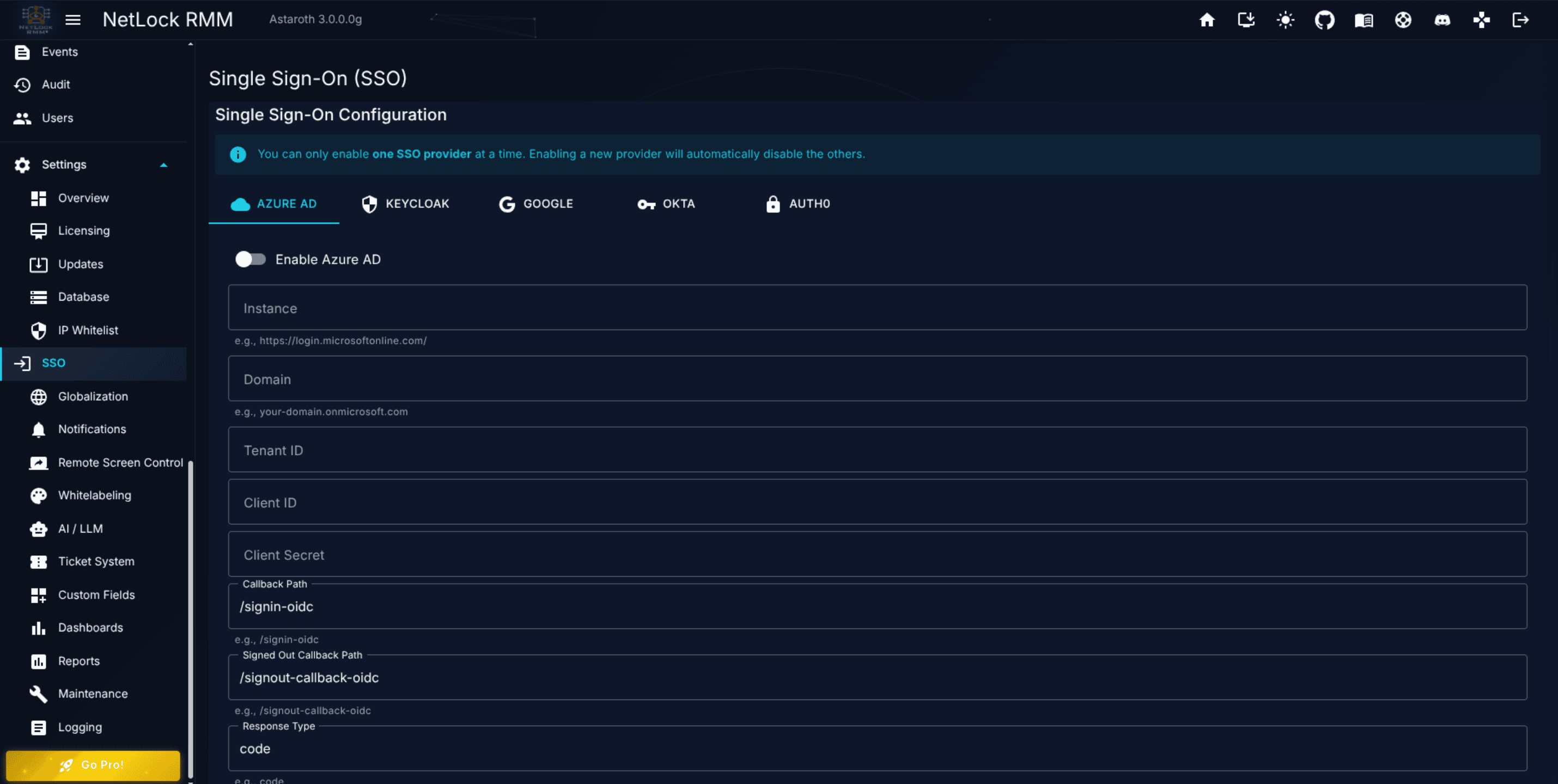
The Security page of the Console: IP allowlisting for the Console, country restrictions for the Console and the server, rate limiting (request limits and temporary blocks for agent traffic on the server), and OpenID Connect single sign-on with Azure AD, Keycloak, Google, Okta, and Auth0.
This chapter covers the security controls that most deployments configure early in their lifecycle: restricting which source IPs can reach the product, and replacing local passwords with single sign-on. The two features are unrelated mechanically, but they share an admin audience and a common theme — they determine who gets through the front door.
The page Settings → Security at /settings/security holds four tabs, each behind its own permission:
IP whitelist (?tab=ip-whitelist) — which source addresses may reach the Web Console, see A.4.1.
Country restriction (?tab=countries) — admits connections to the Web Console and to the NetLock server only from selected countries, see A.4.1a.
Sessions (?tab=sessions) — how long a sign-in to the Web Console stays valid, see A.4.1c.
Rate limiting (?tab=rate-limiting) — request limits and temporary blocks for the agent traffic of the NetLock server, see A.4.1b.
The first two tabs are shown to accounts with settings_ip_whitelist_enabled, Sessions to accounts with settings_sessions_enabled and Rate limiting to accounts with settings_rate_limiting_enabled; the menu entry Security appears for any of them. The page replaces the former pages IP Whitelist and Sessions; their old addresses /settings/ip-whitelist and /settings/sessions no longer answer. Single sign-on has a page of its own, Settings → SSO, see A.4.2.
All of these apply to cloud and self-hosted deployments. Changing the SSO configuration restarts the Web Console and disconnects every signed-in user, so plan that change for a maintenance window (see Chapter A.2.2). Changes to the IP whitelist and to the country restriction apply within a few seconds, changes to rate limiting within thirty, and none of them restarts anything.
The tab IP whitelist of Settings → Security (/settings/security?tab=ip-whitelist) controls which source IP addresses may reach the Web Console. Two mechanisms feed one whitelist:
a static list of addresses an administrator types on the page, and
dynamic entries that Relay App users add for their own current address for a limited time.
The Web Console re-reads the whitelist from the database every ten seconds and applies it in memory. Saving the static list, turning dynamic whitelisting on or off, revoking an entry, an entry expiring: each takes effect within that window, with no restart and without ending anyone's session.
The whitelist restricts the Web Console only. The agent, file server and relay endpoints of the NetLock server are not filtered by IP address: agents and Relay Apps connect from wherever the fleet and the administrators happen to be, and they authenticate with their own credentials. That is also what makes dynamic whitelisting possible: the Relay App can always reach the server, and the server can therefore whitelist the address it sees the Relay App connect from. To limit the server by the country of the source address, use the country restriction, which has a list of its own for the server.
The page opens with an informational alert and a five-line text area labelled Allowed IP Addresses (comma-separated) with the helper text Example: 192.168.1.100, 10.0.0.5, 172.16.0.1.
Enter one IP address per comma-separated item. Each entry is validated with standard IP-address parsing; an invalid value raises an inline error like Invalid IP address: <ip> and prevents the save. An empty field is a legitimate value that means allow all source IPs while dynamic whitelisting is off; this is the default state on a fresh deployment. Addresses are compared as addresses, not as text, so an IPv4 address written by a proxy in its IPv6-mapped form (::ffff:203.0.113.5) still matches its IPv4 entry. IPv6 addresses match exactly.
Save writes the list and applies it at once. If the list you are about to save is not empty and does not contain the address your own browser session comes from, the page asks for confirmation first, because your next request would be rejected. An address that is covered by an active dynamic entry counts as contained.
Caution: If you lock yourself out anyway, recovery is direct database access on the Console host. Run the statement below in MySQL; the Console picks it up within ten seconds:
UPDATE settings SET ip_whitelist_dynamic_enabled = 0, ip_whitelist_web_console = NULL;
On a cloud instance, use the Reset IP whitelist action in the members portal instead; it does the same and also removes all dynamic entries.
Administrators who work from a connection without a fixed address (home office, hotspot, a provider that rotates addresses) cannot be on a static list. The section Dynamic whitelisting via Relay App lets them keep the whitelist anyway: the Relay App, which they already run and which authenticates against the NetLock server with its relay identity, asks the server to whitelist the public address it connects from. The server records that address as a temporary entry; the Web Console admits it while the entry has not expired.
Three things have to be true for a Relay App to use this:
The switch Allow Relay App users to whitelist their address on this page is on (off by default; nothing changes for an existing installation until an administrator turns it on).
The account behind the relay identity holds the permission Whitelist own address for the web console (Relay App) in the Relay Server group of Users → <account> → Settings (relay_server_ip_whitelist), and Relay Server access itself is enabled for that account. Existing accounts start without the permission.
The account is enabled. A relay identity whose account is disabled or deleted is refused on every relay route, not only on this one.
Lifetime of an entry (hours) sets how long an entry lasts after it was added or last refreshed: 1 to 168 hours, default 24. The same lifetime applies to entries added with the button and to entries the Relay App refreshes automatically.
Enabling with an empty static list. When you turn the switch on while the static list is empty, the whitelist changes from "everyone" to "only dynamic entries". So that you keep access, the page asks for confirmation and then writes a seed entry for your own current address with the configured lifetime. The seed entry shows in the table with the source Seed and the relay identity Web console. Whitelist your own address from a Relay App, or add it to the static list, before the seed entry expires.
Active dynamic entries. The table lists every entry that has not expired: address, owning account, relay identity, source (Manual for the button, Auto for the timer, Seed for the row the console wrote), the machine name the Relay App reported, when the entry was created and last refreshed, and when it expires. Refresh reloads the list; the Revoke icon in the actions column deletes an entry after a confirmation, and the address is rejected with its next request. There is no way to block an identity from re-adding the address a minute later; to stop an identity, remove the permission from its account, delete the identity, or turn the switch off.
Automatic removal. Entries are deleted, and their addresses rejected at once, when the owning account is saved as disabled or without the permission, when the account is deleted, and when the relay identity that added them is deleted or has its hardware id reset. A password change does not affect entries.
Limits. An account may hold ten active entries and an instance five hundred; the Relay App reports limit reached beyond that, and an existing entry is always refreshed regardless of the limits. A refresh less than thirty seconds after the previous one is answered without a write. Ten rejected authentications per minute from one address are answered with 429 for the rest of the minute.
Audit. Creating an entry, removing it from the Relay App, revoking it here, and changing the switch or lifetime are recorded in the audit log under the entity ip_whitelist_dynamic; a refresh is not, so auto mode does not fill the log.
Once the server confirms the feature, the header button row of the Relay App shows Whitelist my IP, Remove my IP and the checkbox Auto-whitelist every minute. On a server that does not know the feature the controls stay hidden; while the switch on this page is off or the account lacks the permission they are shown disabled, with the reason as tooltip.
Whitelist my IP adds or refreshes the entry for the address the server sees. The status line at the bottom reports the address and the local time the entry lasts until, for example Address 203.0.113.5 whitelisted for the web console until 03.09.2026 14:22.
Auto-whitelist every minute refreshes the entry every sixty seconds while the app runs, including while it is locked. The setting is remembered across restarts. When the public address changes, the new address is whitelisted on the next tick; the previous address stays until its entry expires. A temporary failure (server unreachable, too many requests, console not yet updated) keeps the timer running and reports once in the status line. A hard failure (feature disabled in the console, permission removed, account disabled, limit reached, server without the feature) turns the checkbox off and explains why.
Remove my IP deletes the entry for the current address and turns auto mode off, because auto mode would add the address again within a minute.
The Relay App and the NetLock server are released in lockstep: this feature needs a Relay App build that knows it and a server that expects that build.
The Relay App whitelists the address the server sees it connect from; the browser has to reach the Web Console from that same address. Normally both leave through the same NAT and this holds. It does not hold when the browser and the Relay App take different routes: a VPN with split tunnelling, a browser proxy or PAC file, privacy tools that route the browser only, or a dual-stack mismatch where the Web Console host has an AAAA record and the server host does not (the browser then arrives over IPv6 while the Relay App whitelisted the IPv4 egress, or the reverse). The 403 page prints the rejected address and the Relay App shows the whitelisted one, so the mismatch is visible; the fix is on the client side.
For deployments behind a reverse proxy or load balancer, both the NetLock server and the Web Console have to trust the forwarded client address (X-Forwarded-For with the proxy configured as trusted). If the server sees only the proxy's address, that is what gets whitelisted; if the Web Console sees only the proxy's address, every request appears to come from the same source.
Allowlist semantics with an empty-equals-all escape hatch. An empty static list with dynamic whitelisting off means "allow all"; anything else means "allow only these".
Instance-wide. The list applies to all administrators equally; dynamic entries are bound to the account and relay identity that added them only for the purpose of listing, revoking and automatic removal.
No description field per static entry. If you need to remember why a specific IP is in the list, keep a separate note.
IP addresses only. Individual IPv4 and IPv6 addresses; no CIDR blocks, DNS names or wildcards.
Add your new address before removing the old one; the list is live at the moment of save.
After changing the static list, confirm you can still sign in as an unprivileged account as well as your admin account.
Review the static list annually and the active dynamic entries whenever an administrator leaves. Rotate the whitelist on the same day you disable the account; disabling the account already removes its dynamic entries.
If you rely on dynamic whitelisting alone, keep at least one administrator with the permission and a working Relay App, or a static entry for a fixed site, so the switch can always be reached.
IP whitelisting and SSO are complementary, not alternatives. When both are in effect, a request must pass the IP filter and satisfy an SSO-compatible identity before it gets in. In practice this means:
A user on a whitelisted IP with the wrong identity is still refused.
A user with a valid SSO identity but an unwhitelisted source IP never sees the SSO sign-in page — the IP filter runs first at the middleware layer.
If you operate a strict IP-restricted environment and also use SSO, verify that both gates are configured independently before rolling out. Missing one does not compromise the other, but it does create a misleading failure mode where users blame the identity provider for what is actually an IP filter rejection.
The country restriction limits who can reach the Web Console and the NetLock server by the country of the source address. It lives on the same page as the IP whitelist, Settings → Security, on the tab Country restriction (/settings/security?tab=countries), behind the same permissions (settings_enabled and settings_ip_whitelist_enabled). Unlike the whitelist it covers both applications: one list for the Web Console and one for the server.
The country of an address comes from the GeoIP database that already drives the device world map. The Web Console and the server both ship that database as geodb/geoip.mmdb next to their binaries (the server image is about 515 MB larger for it), read it locally and never ask an external service; there is nothing to configure, no key to obtain and no volume to mount. The same database fills the country of every device, see Country of a device.
Country restriction for the web console and Country restriction for the server each consist of a switch, a country picker and a Save button of their own:
Restrict web console access to the selected countries and Restrict server access to the selected countries turn the respective list on.
Allowed countries is a picker over the ISO 3166-1 countries (plus Kosovo): type a two-letter code or a name in the language of your console, pick the country, and it appears as a chip with its flag. The codes are stored; the names follow the console language.
Copy from web console list fills the server picker with the web console selection; it does not save.
A list is in effect only while its switch is on and it holds at least one country. Saving a list with the switch on and no country is refused (Select at least one country or turn the switch off.). After the update both switches are off and both lists are empty, so nothing changes until an administrator turns a list on.
A third block, Addresses without a country, holds one switch that applies to both lists: Allow addresses the GeoIP database has no country for, on by default. Turned off, an address the database has no record for is refused wherever a list is active.
Every request to the Web Console and every request to the server is checked before anything else handles it: page loads, the Blazor connection, static files and sign-in callbacks on the Web Console; agent check-ins, downloads, file operations, the SignalR hubs, relay routes and the public API on the server.
While no list is active, everything passes.
Addresses from private networks, the local machine and link-local ranges always pass: the RFC 1918 ranges, carrier-grade NAT (100.64.0.0/10), 169.254.0.0/16, fe80::/10, fc00::/7 and loopback. They are never looked up and never counted. On a single-host Docker installation the Web Console reaches the server through such an address, and so do the agents on the LAN of an on-premises server.
Requests from the Members Portal pass, on the server always and on the Web Console on cloud instances, as for the IP whitelist. /test from the local machine or the portal and the /management/* routes, which carry their own portal guard, are not filtered.
On the server, a request that carries the instance API key passes regardless of country. That is every call the Web Console makes to the server on behalf of a signed-in user: device status, file operations, relay administration, remote control and file tokens, installer creation, the connection test. The updated Web Console sends the key on every such call, so a Web Console on a host in another country keeps working. The exception does not cover what a browser or an app sends to the server directly (see the next section).
The country of the address is looked up in the database and cached in memory. A listed country passes; any other country is refused with 403.
An address the database has no country for follows the Addresses without a country switch.
While the database file is missing or cannot be opened, nothing is blocked. The failure is written to the log at start and once per hour afterwards, and the settings page shows a warning banner naming the path.
the Web Console re-reads the settings every ten seconds and the server every sixty, so a saved change is live within that window without a restart. A Blazor session that is already open is not cut; it ends at its next reconnect or page load.
A refused request receives status 403. The Web Console answers with a small page that reads Access denied — Connections from your region are not permitted by this installation. — Your address: 203.0.113.5 (US); the server answers with the same sentence as plain text: Access denied. Connections from your region are not permitted by this installation. Your address: 203.0.113.5 (US). The address and the two-letter country are named so that a legitimate administrator can tell the operator what to add; an address without a country shows (unknown). Agents in a country that is not listed receive that answer on every endpoint: they stop syncing, are reported as disconnected and trigger the disconnection notifications, which is the intended effect of the list.
A server sensor of the kind Device country turns the server list into events, with the severity and notification channels of the sensor:
Monitor before you enable. Maintain the server list but leave its switch off. The trigger outside_countries reports every device that checks in from a country outside the list, while the device keeps working. Together with the Connections by country tile below, this shows which devices a restriction would cut off before it is turned on.
Refused devices. With the switch on, the trigger refused reports an authorized device the server has refused because of its country. The device is identified by its access key and hardware ID in the refused request. Unknown devices, new installations in a refused country and browsers or apps produce no event; they appear in the log and the statistics only.
Country changes. The trigger country_changed reports a device whose country differs from its last known one, independent of the list.
Each device is reported once per country and trigger until it checks in from a listed country again, and the same country no earlier than 24 hours after the last event for it. A new or changed sensor takes effect within a minute. Below the server list, the page links to /manage_sensors for accounts with the sensor permission.
The API-key exception only covers calls the Web Console makes on the server side. Several things connect the browser of an administrator, or one of the apps, to the server directly, and the server list filters them like any other client:
remote screen control and audio calls (the browser connects to the screen hub of the server),
agent installer downloads, file downloads from the file browser and the installer links the console offers,
the Relay App, which connects to the tunnel hub for relay sessions and dynamic whitelisting,
the Console App, which checks its version against the server,
clients of the public API and the Swagger page.
So the server list must contain every country administrators and Relay App users work from, in addition to the countries of the fleet. The alert above the server list says so. The licence check against the Members Portal is an outgoing connection of the server and is not affected.
Each save checks the list you are about to save against your own current address, resolved with the same rules the check uses:
Web Console list. A list that does not contain your own country is not saved: Not saved: your current address 203.0.113.5 resolves to United States (US), which is not in the list. You would lose access to the web console with your next request. The same applies when your address has no country in the database and addresses without a country would be refused.
Server list. The same condition asks for confirmation instead of refusing, because it costs remote screen control, downloads and the Relay App from your address rather than the console itself: Your current address 203.0.113.5 resolves to United States (US), which is not in the server list. Remote screen control, downloads and the Relay App from your address will be refused by the server. Do you want to continue?
Addresses without a country switch. Turning it off is checked against both saved lists in the same way: refused for the Web Console list, confirmed for the server list.
Your own address is a private or local one (the console is reached over the LAN or through a VPN into its network): the list is saved and an info message reminds you that the rule never applies to your address and that the list should contain the countries administrators connect from.
Your address cannot be determined, or the database is not available: the page asks whether to save anyway.
The Status and lookup block shows what the page sees: Your current address 203.0.113.5 resolves to Germany (DE). (or that it is private, unknown to the database or not determinable), the counter Connections refused by the web console since start, and Look up an address, which resolves any address to its country, city and region against the bundled database. Use it to check how a customer site or a colleague's address will be treated before a list is turned on.
Caution: If you lock yourself out anyway — an administrator behind a VPN exit or on a roaming connection is the usual case — recovery works as for the IP whitelist. On a cloud instance, the Reset IP whitelist action in the members portal now also turns both country switches off. On a self-hosted instance, run the statement below in MySQL; the Web Console picks it up within ten seconds and the server within a minute, without a restart. The lists themselves are kept, so the restriction can be turned on again once the missing country has been added.
UPDATE settings SET geo_allowlist_web_console_enabled = 0, geo_allowlist_server_enabled = 0;
Two tiles below the lists show where connections come from, whether or not a list is active, so that the countries a fleet connects from are known before a restriction is turned on:
Connections by country counts, per day and country, the connections the Web Console and the server admitted and refused. One address counts at most once per ten minutes and country, so page assets and agent polling do not inflate the numbers; only the country and the counters are stored, never an address, and the rows are kept for 90 days. The table has a period selector (Today, Last 7 days, Last 30 days, All), the columns Web console allowed, Web console blocked, Server allowed, Server blocked and Last seen, a row Unknown for addresses without a country, and per row the actions Add to web console list and Add to server list, which put the country into the picker above (the list still has to be saved). Reset statistics deletes all counted rows of both applications after a confirmation and writes an audit entry. While the database file is not available nothing is counted.
Devices by country counts the authorized devices of the tenants you are assigned to by the country of their external address: the ten largest countries, a row … more countries for the rest and a row No country (private address or not synced yet).
A refused request is written to the log with severity WARNING, module Middleware, event Geo allowlist: Address 203.0.113.5 (US) refused for /downloads/…: Blocked. — at most one line per address every ten minutes, so a scanner cannot flood the log. In the Web Console the line lands in warning.log and combined.log (Settings → Logging → Web Console Logs), on the server in the files of the same name (Server Logs tab); see A.9. Both applications echo the database path, its build date and the state of the restriction at start-up.
Saving a list, changing the switch for addresses without a country and resetting the statistics are recorded in the audit log under the entities geo_allowlist_web_console, geo_allowlist_server, geo_allowlist_unknown_allowed and geo_allowlist_statistics, with the previous and the new value.
The country restriction arrives with upgrade section 119 of the Web Console, which adds the settings columns, the country columns of the devices table and the statistics table. Update the Web Console first, then the server:
Until the Web Console has run the upgrade, the section shows The settings columns of the country restriction are missing. Upgrade section 119 has not run on this database yet; restart the web console to apply it. and its controls are disabled.
A server that is older than the Web Console treats the server list as off, writes no device country and logs that once; everything else works as before.
A Web Console that is older than the server does not send the API key on every server call. On a split-host installation (Web Console and server on different hosts with public addresses), update the Web Console before turning the server list on; otherwise its relay pages, remote control tokens and hub connections would be refused as soon as the country of the console host is not listed. On a single-host installation the private-address rule covers those calls anyway.
Rate limiting restricts how many requests each agent may send to the NetLock server and blocks, for a limited time, devices and addresses that keep exceeding their limits. It lives on the tab Rate limiting of Settings → Security (/settings/security?tab=rate-limiting), behind settings_enabled and settings_rate_limiting_enabled. It covers the agent-facing side of the server only: check-ins, events, reports, the tray ticket and end-user chat endpoints, hub connections of the agents, device file transfers and installer downloads. The Web Console, the Relay App, the public API and the Members Portal are not subject to it; they keep the limits they had before.
The purpose is to keep one misbehaving device — a compromised agent, a reinstall loop, a script that floods the event queue — from taking the server down for the rest of the fleet, and to keep floods of requests without a valid identity away from the database. Legitimate traffic, including the backlog a device delivers after a week offline and a large SNMP collector, stays far below the limits; the values are circuit breakers, not quotas.
Mode has three values; the server applies a change within thirty seconds.
Off — nothing is counted or limited.
Observe — everything is counted, requests that would have been refused and blocks that would have been imposed are recorded, but no request is refused. This is the mode every installation is in after the update, on a new installation and on cloud instances.
Enforce — requests above a limit are answered with 429, and a device or address that keeps exceeding its limit is blocked for a while.
Run in Observe first. The tab shows an info banner while it is on, the KPI tiles Would be refused (24 h) and Would be blocked (24 h) fill up, and a block that would have been imposed appears in the Blocks table with the chip Observed and writes an event whose title reads … would be blocked by rate limiting (observe mode; …). After seven days in observe mode without such a block the banner changes to No block has been recorded for 7 days; rate limiting can be enforced. Switching to Enforce asks for confirmation and names how many devices and addresses would have been blocked in the last 24 hours.
Blocks recorded in observe mode never refuse anything, also not after the switch to Enforce; the levels of the two modes are counted separately, so the first enforced block of a device starts at level 1.
The limits are derived from two settings, so there are no individual values to tune:
Device count.Counted devices is the number of devices the instance knows, pending ones included, refreshed every minute. Expected devices is optional and only ever raises that number, for a planned rollout. The effective count is N = max(counted, expected, 50); a value that is too low can never tighten the limits.
Sensitivity.Relaxed doubles the limits and blocks after 8 violation minutes out of 10, Normal (the default) keeps the limits and blocks after 5 of 10, Strict halves the limits and blocks after 3 of 10.
A third setting, Daily data volume per device (MB), is a budget of its own: how many bytes of request bodies a device may send per day, counted after decompression, across check-ins and inventory uploads, events, reports and the interactive endpoints. Default 1024 MB, allowed 64 to 102,400. The budget starts full and refills continuously over the day (a 1 GB budget refills at about 12 KB per second); there is no reset at midnight. File transfers between the device and the file server, the screen, tunnel and command hubs, and downloads are not counted. A typical device uses well under 100 MB per day. An SNMP collector needs roughly hosts × runs per day × 2 KB; 2,048 hosts polled every 15 minutes come to about 0.4 GB per day. Raise the budget or add an exemption for a collector beyond that.
Derived limits (an expandable table under the settings) shows the values that follow from the current inputs, before you save them.
Every request that reaches an agent endpoint is assigned to a class and to a subject:
A request from a known device — its access key is in the device table, pending devices included — is charged to that device. The identity is read from the request itself (the hub header, the query of the file endpoints, the first kilobytes of the JSON body of the other endpoints); no database access is needed. Known devices are never limited or blocked by their address, so a site with hundreds of devices behind one NAT address needs no special treatment.
A request without a known identity — no identity, an invalid one, or an access key the instance does not know — is charged to the source address (IPv4 addresses individually, IPv6 addresses as their /64 network). Installer and update downloads are charged to the address as well. Two instance-wide buckets sit above the per-address ones.
Not limited at all: calls the Web Console makes with the instance API key, the public API (which has its own limiter), the Members Portal, and Relay App and browser connections to the hubs.
Per-device limits do not depend on the device count; an agent sends the same amount whether the fleet is small or large. At sensitivity Normal:
Class
What it covers
Rate per minute
Burst
Can block
Sync
Check-in, version check, policy download, inventory upload, deployment and uninstall pulls; check-in and sync of mobile devices
20
60
yes
Events
Delivery of events from the agent queue
120
300, plus the offline credit below
yes; also more than 3 event requests in flight at once
Telemetry and reports
SNMP results and discovery, application and device control reports, patch, BitLocker and custom field reports, deployment and uninstall acknowledgements
600
3,000
yes
Interactive
Tray tickets and the end-user AI chat
60
120
yes
Hub connections
Connection set-up of the command hub and the screen hub
30
60
yes; also more than 4 WebSocket connections to one of the two hubs at once
Tunnel connections
Connection set-up of the tunnel hub — one per NetMesh link or relay session
60
300
yes
Device files
Uploads to and downloads from the device through the file server, counted as requests only, never by size
300
1,500
only on a clear flood
Data volume
The daily budget above
budget per day
budget
yes
Hub messages
Calls on an open command hub connection
1,200
3,000
no; observed only
Rate is what a device may send continuously, Burst how many requests it may send at once on top of that (a token bucket: the bucket holds Burst tokens and refills at Rate per minute). The offline credit of the events class keeps a backlog from looking like a flood: a device earns 60 events for every hour it was not in contact with the server (from 15 minutes of silence on, at most 10,080, that is seven days), the credit is spent only after the burst is used up and expires 24 hours after it was last earned. A device that is in constant contact earns nothing. After a server restart the credit is derived from each device's last check-in.
The limits per address and per instance grow with the device count, because a larger fleet has larger sites and larger rollouts. n is the number of known devices whose last external address is the address in question:
Rule
Rate per minute; burst
N = 50
500
5,000
25,000
Unknown identity, per address
max(60, 2 % of N, 0.5 · n); burst 5×
60; 300
60; 300
100; 500
500; 2,500
Failed authentication, per address — requests without a known identity that the endpoint refused
max(20, 0.4 % of N); burst 2×
20; 40
20; 40
20; 40
100; 200
Downloads, per address
max(30, 2 % of N, 2 · n); burst 4×
30; 120
30; 120
100; 400
500; 2,000
Unknown identity, all addresses of the instance
max(120, 5 % of N); burst 5×
120; 600
120; 600
250; 1,250
1,250; 6,250
Hub handshakes, per instance
max(1,200, 2 · N); burst max(1,000, 10 % of N)
1,200; 1,000
1,200; 1,000
10,000; 1,000
50,000; 2,500
All agent requests, per instance
max(6,000, 10 · N); burst max(10,000, 6 · N)
6,000; 10,000
6,000; 10,000
50,000; 30,000
250,000; 150,000
The sensitivity factor applies to the per-device rules, the three per-address rules and the instance-wide unknown-identity rule. The last two rows are capacity rules: they are not scaled, they answer with 503 instead of 429, and they never count against a device or an address.
The answer is sent before the request reaches the database, in plain text, with Cache-Control: no-store:
Above a limit:429 with body rate_limited and a Retry-After header that says after how many seconds the next request fits.
Daily volume spent:429 with body volume_exceeded; Retry-After is the time until one percent of the budget has refilled, about 14 minutes at 1 GB.
Blocked:429 with body blocked; Retry-After is the remaining time of the block.
Instance overloaded (hub handshakes or all agent requests): 503 with body overloaded and a Retry-After of 5 to 30 seconds. This spreads a herd of reconnecting agents after a server restart; it is never a violation.
Request body too large:413 with body payload_too_large. The limits are 64 MB for the inventory upload, 4 MB for events and 16 MB for every other agent request, measured after decompression; the tray ticket endpoints keep their own 512 KB (8 MB for attachments). In observe mode only the ticket limits are applied and an oversized body is counted; in enforce mode an oversized body is refused and counts as a violation. Device file transfers have no size limit.
Nothing is discarded. An event that was refused stays in the queue of the agent and is delivered later; a refused check-in is repeated at the next interval.
A violation minute of a class is a minute in which at least max(10, 10 % of the class rate) requests of a subject were refused — or, in observe mode, would have been refused. For device files the threshold is 30 refusals, for the data volume a single one. When a subject collects the number of violation minutes its sensitivity sets (8, 5 or 3) within the last ten minutes, it is blocked. Three signals count as a violation minute at once: more than three event requests of a device in flight at the same time, more than four WebSocket connections of a device to the command hub or to the screen hub, and an oversized request body.
Device blocks last 5 minutes at level 1, 15 at level 2 and 60 from level 3 on; the level falls back to 1 after 24 hours without a block. While a device is blocked every request of it is answered with blocked, its open command hub and screen hub connections are ended (on other server instances within thirty seconds), and it shows the chip Blocked until <time> next to its name in the devices list. A block does not extend itself: the polling of a blocked agent is not a violation, and after the block ends the device needs a fresh set of violation minutes for the next one. The 60-minute cap means a false positive heals itself within the hour.
Address blocks follow floods of requests with an unknown identity or repeated failed authentication from one address; they last 15, 60 and 240 minutes. A blocked address is refused for requests without a known identity and for downloads; known devices behind the same address keep working. Private, loopback and link-local addresses are throttled but never blocked, so a reverse proxy that hides the client addresses cannot be blocked as a whole. Downloads alone never block an address.
Every block start writes an event of the type Rate limiting — in enforce mode with severity High, in observe mode with Moderate — that names the device or address, the class, the reason, the measured rate against the limit, the violation minutes, the level, the duration and the instance that decided it. Reported by reads Rate limiting. These events go to no notification channel and to no push; they are visible on /events, on the device's Events tab and in the event widgets. Address blocks have no device and are shown only to accounts with access to every tenant. Throttling alone writes no event; the statistics on the tab cover it. See Chapter 12.2.
Unblocking.Unblock on a row and Unblock all above the table release blocks after a confirmation; the server picks the release up within thirty seconds and then grants the subject fifteen minutes of grace in which it can be throttled but not blocked again. Both are written to the audit log. Expired blocks and manual releases stay in the History filter of the table for 90 days, with Released by naming the account or Expired. Export data writes the current filter as JSON, CSV or HTML.
Exemptions. A device, or an address or CIDR range, on the Exemptions table is still counted but never throttled, blocked or shed. An exempt address also covers the known devices behind it. Use it for a collector that outgrows the volume budget or a site whose NAT address keeps producing unknown-identity floods you have accounted for. Address exemptions can be added by accounts with access to every tenant; device exemptions by anyone who may see the device. Adding and deleting an exemption is audited.
Above the settings a KPI row shows the blocked devices (with a caption for blocks recorded in observe mode), the blocked addresses (accounts with access to every tenant only), and the refused, would-be refused and would-be blocked counts of the last 24 hours. Below the Blocks table, Top subjects (24 h) lists the fifty devices and addresses with the most refused and would-be refused requests per class, with the peak per minute and the last contact, and Top data volume lists per device the largest daily volume of the last seven days, summed over all server instances, as a share of the budget. Both refresh with their Refresh button; the statistics behind them are written by the server once a minute.
The mode, the device count, the sensitivity and the daily volume are instance-wide. The tables follow the tenant scope of the account: device rows of the tenants you are assigned to; address rows, the Blocked addresses tile and address exemptions only with access to every tenant.
Saving the settings, releasing a block, adding or deleting an exemption and exporting the blocks are recorded in the audit log under system_setting (entity name agent_protection, with the previous and the new values), agent_protection_block and agent_protection_exemption.
On NetLock cloud instances rate limiting always runs in Enforce with sensitivity Normal and the default daily volume of 1,024 MB per device, and Expected devices is the device limit of your license, so the limits follow the licensed device count rather than only the devices enrolled so far. These values cannot be changed, so the tab does not show the settings. The KPIs, the blocks, the top lists and the statistics work as described above, and Unblock, Unblock all and the Exemptions table stay available.
The budgets are kept in the memory of each server instance and each role counts only its own endpoints: with two communication instances behind a load balancer a device effectively has twice the budget, which is acceptable for circuit breakers. Blocks, releases, exemptions and the settings are shared through the database: the instance that decides a block writes it at once, every other instance picks it up within thirty seconds and ends the hub connections of the device as well. The list of known devices is re-read every minute; a device that was just authorized is known to the instance that authorized it immediately.
A restart never causes a block: until the instance has loaded its first list of known devices it only counts, the counters and violation minutes start empty, active blocks come from the database, and the 503 answers of the capacity rules are never violations. The offline credit of the events class is derived from the last check-in of each device, so a backlog that piled up during the downtime is delivered without a violation.
The server logs its state at start ([Rate limiting] observe, preset normal, 512 devices counted, N = 512, volume 1024 MB per device and day, 0 active block(s), 0 exemption(s)), every block as a warning with the class, the reason and the measured rate, and the hub connections it ended. Statistics and top subjects are kept for 30 and 7 days, daily volumes for 30 days, released blocks for 90 days; the server deletes older rows once a day.
The tab Sessions of Settings → Security (/settings/security?tab=sessions) sets how long a sign-in to the Web Console stays valid. It needs settings_enabled and settings_sessions_enabled.
Idle timeout (minutes) — a session without an open Console tab ends after this time (5 to 43200, default 720). A lowered value also applies to existing sessions from their next activity.
Maximum lifetime (hours) — a session ends after this time even while it is in use (1 to 8760, default 168). It applies to sessions created from now on; existing sessions keep the lifetime they got at sign-in.
Offer "Stay signed in" on the sign-in page — when on (default), users can stay signed in across browser restarts. Turning it off removes the option; existing sessions keep their lifetime.
"Stay signed in" lifetime (days) — a session created with Stay signed in ends after this many days, regardless of activity (1 to 365, default 30).
Saving writes an entry to the audit log. Nothing restarts.
Settings → SSO at /settings/sso configures OpenID Connect for the Web Console. Once SSO is enabled and a user account's authentication mode allows SSO, that user signs in through their identity provider instead of (or in addition to) a local password.
Five providers are supported, each on its own tab:
Azure AD
Keycloak
Google (Workspace / Identity)
Okta
Auth0
All five are OpenID Connect. SAML 2.0 is not supported in the current release. There is no SAML metadata file to export from the Console or import into it. If your identity provider is reached through SAML only, you will need a bridge (such as a federation layer that translates SAML to OIDC) between it and NetLock RMM.
This is the single most common source of confusion during setup, because several identity providers present SAML as their default path. Register NetLock RMM as an OpenID Connect client instead: App registrations in Microsoft Entra ID (not Enterprise applications → Single sign-on → SAML), an OIDC — Web Application in Okta, and a Regular Web Application in Auth0.
Only one SSO provider can be active at any given time. Each provider tab has its own Enable <Provider> switch; turning one on automatically turns the others off. The page shows an informational alert calling this out, so you do not accidentally leave two providers enabled on different tabs.
A licence in a valid state. SSO is available on every deployment and is not reserved for a paid tier — configuring and saving it is not gated on the licence plan. SSO sign-in is refused while the deployment's licence is banned, expired or deactivated, which is the same condition that blocks the Console as a whole.
Pre-provisioned user accounts. NetLock RMM does not auto-create accounts on first SSO sign-in. Every user who will sign in via SSO must already exist in Users with their Auth Mode set to SSO or Password & SSO, and the username on the NetLock account must match the email claim the provider returns. See Chapter 14.2 for how to create users with the correct auth mode.
A registered application on the identity provider. The identity provider needs a client registration pointing back at your Console. The redirect URI is https://<public-host>/<callback-path> — see the section on callback paths below.
Each provider tab asks for a Callback Path (and its signed-out counterpart) as a path, not a full URI. The Console constructs the full redirect URI at runtime by combining the public host of the Console with the path. When you register the application at the identity provider, you assemble the full URI manually:
https://<public-host>/<callback-path>
For example, with a Console at https://console.example.com and the default Azure AD callback path of /signin-oidc, the redirect URI you register at Azure AD is https://console.example.com/signin-oidc.
If you leave the callback path field blank, the Console falls back to the per-provider default listed in the helper text on each field (/signin-oidc for Azure AD, /signin-keycloak for Keycloak, and so on). The defaults work; use them unless you have a reason not to.
Each provider tab shows the resulting sign-in and post-logout redirect URI below the path fields, with a copy button. The values follow the address the page is opened with and the Force https in redirect URLs switch as it will apply after saving.
SSO login does not create NetLock accounts on demand. When a user signs in via SSO, the Console extracts the email address from the identity provider's token and looks for an account with a matching username that has an SSO-compatible authentication mode. In plain English: the account must already exist, and its Auth Mode must be either SSO or Password & SSO.
If the account does not exist, or if it exists but its Auth Mode is Password only, the Console rejects the sign-in with:
User is not authorized for SSO login. Please contact your administrator.
When a new technician joins your team, provision their NetLock account first (see Chapter 14.2), set their Auth Mode to SSO or Password & SSO, and make sure the username exactly matches the email address they will authenticate with at the identity provider. Only then point them at the Console's login page.
When you create a user, you pick one of three auth modes (also covered in Chapter 14.2):
Password — local password only. Cannot sign in via SSO.
SSO — SSO only. The local password slot is disabled.
Password & SSO — either mechanism. Useful during migrations, where you want to keep password fallback available until every user has successfully used SSO at least once.
The SSO Settings page has a single Save button. There is no in-Console Test button and no round-trip test pass — you validate by signing out and attempting an SSO sign-in yourself.
One gate stands between Save and the commit — a confirmation dialog:
The web console will automatically restart after saving the SSO configuration. All active user sessions will be terminated. Do you want to continue?
Confirming writes the configuration and restarts the Console. Every signed-in user is booted to the login page, including you.
If the stored SSO configuration fails to load at application startup — for example because a provider secret was rotated without the Console being updated — the page shows a red banner on next open:
SSO Configuration Error! The SSO configuration could not be loaded during application startup and SSO is currently DISABLED.
When you see that banner, fix the misconfiguration, save again, and restart.
Pilot with a single power user first. Flip one user's Auth Mode to Password & SSO, confirm they can sign in either way, then roll out across the team.
Keep at least one break-glass local account with Auth Mode set to Password. If the identity provider is unavailable, that account is your only route back into the Console.
Rotate provider secrets in the identity provider and the NetLock SSO page on the same day, and save with a small team warned — the restart is unavoidable.
Document the provider's redirect URI and the NetLock account's Auth Mode setting in your onboarding runbook. Most SSO support tickets arrive because one of those two was missed, not because the provider is actually misconfigured.
A handful of failure modes account for nearly every SSO incident. Recognising them early shortens the investigation:
"User is not authorized for SSO login." — The account either does not exist with the expected username, or its Auth Mode is Password. Confirm the username on the NetLock account exactly matches the email claim the provider issues, and confirm Auth Mode is SSO or Password & SSO.
Callback URI mismatch reported by the provider. — The redirect URI registered on the provider side does not match what the Console constructs. Re-derive the URI from https://<public-host>/<callback-path> and register exactly that value at the identity provider, with no trailing slash differences.
Post-restart red banner on the SSO page. — The saved configuration could not be loaded at startup. A typical cause is a secret that was rotated at the provider but not updated in the NetLock SSO page, or an Authority / Instance URL that contains a typo. Fix the stored value and save again to retry the startup load.
Everything works except sign-out. — The Signed Out Callback Path is either missing or not registered at the identity provider. Add it in both places.
The provider reports a redirect URI mismatch and the URI it received begins with http://. — The Console is behind a reverse proxy that terminates HTTPS without forwarding X-Forwarded-Proto, so the redirect URL is built from the internal scheme. Enable Force https in redirect URLs at the top of the SSO page and save. The log line SSO | <Provider> challenge names the URI that was sent.
The log shows Message contains error: 'invalid_request', error_description: 'Invalid parameter: redirect_uri'. — Keycloak rejected the redirect URI at its pushed authorization endpoint, before the browser was redirected; the sign-in returns to the login page with the SSO error message. The Console writes the URI it sent to its log (SSO | Keycloak challenge), and the Keycloak tab on the SSO page shows the URI to register. The entries under Valid redirect URIs must match it character for character. If the log line contains forwarded_headers_applied=False, the reverse proxy is not listed in Kestrel:KnownProxies of the Console's appsettings.json (the install template lists 172.18.0.2).
If the failure does not fit one of these, confirm the licence is still in a valid state (Settings → Licensing, Chapter A.1.2). SSO sign-in is refused while the licence is banned, expired or deactivated, even though the stored configuration itself remains intact.
Chapter 8.3 — Server sensors — the Device country sensor, which reports devices outside the server list, refused by it or with a changed country.
Chapter 12.2 — Events — the event type Rate limiting and the Occurred (device) time of an event.
Chapter A.2.2 — Maintenance. Use a window to silence notifications during an IP or SSO change.
Chapter X.3 — Troubleshooting — covers common SSO callback and IP filter failure modes, a device blocked by rate limiting and a failed download from a device.
 NetLock RMM Docs