 NetLock RMM Docs
Remote screen control
Server-side session recording for remote control — force recording, retention, auto-purge, the recorded-session browser — the streaming modes and clipboard an operator sets inside a session, and the audio call to the signed-in user.
Remote screen control
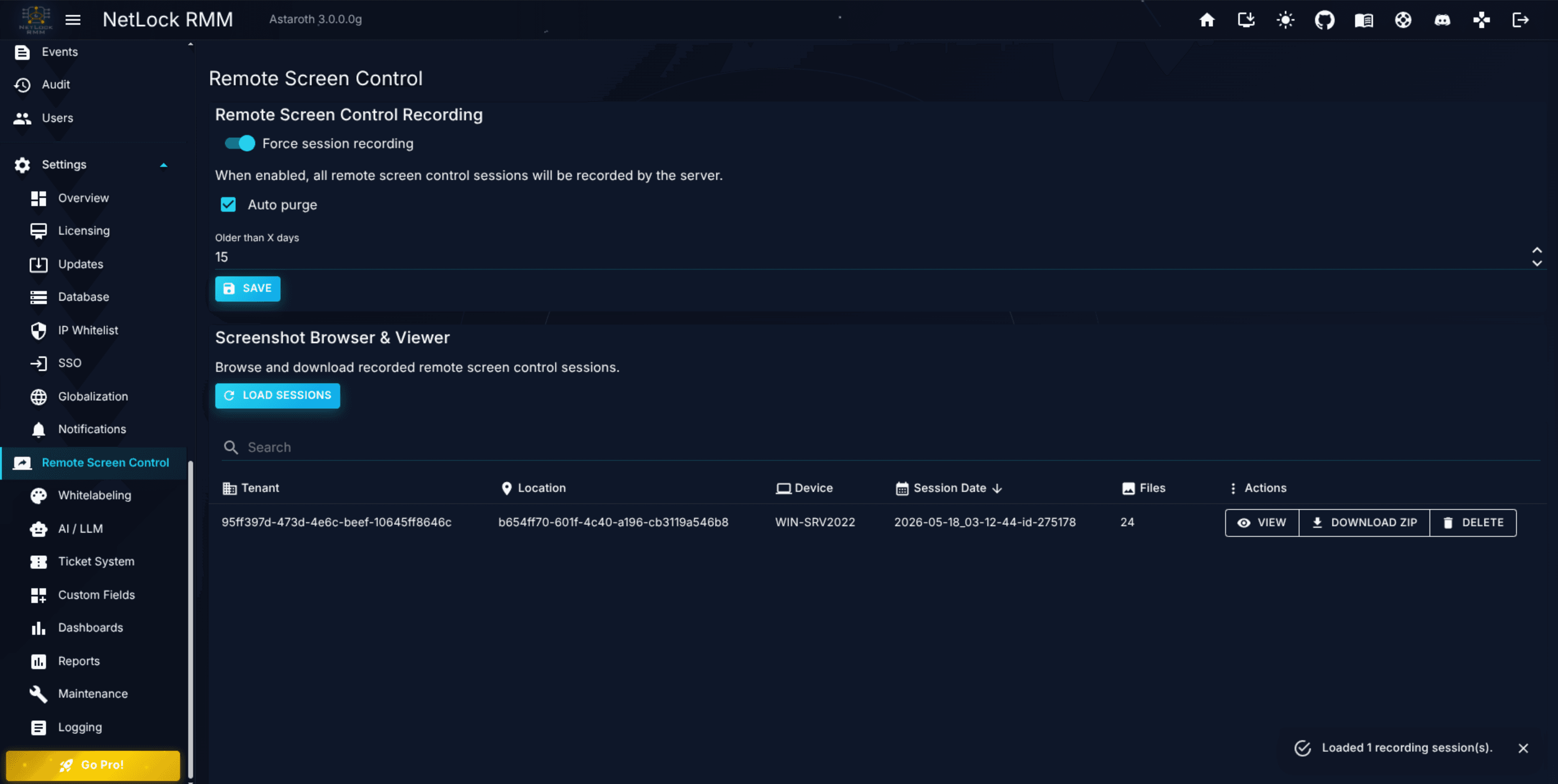
The Remote Screen Control page at /settings/remote-screen is where a deployment operator decides whether remote control sessions are recorded, how long those recordings live on disk, and — when something needs reviewing — where those recordings are watched, downloaded, or deleted. It is an audit-and-compliance page, not a connection page. The exceptions in this chapter are A.7.5 and A.7.6, which cover the stream mode and the clipboard an operator sets inside a running session — viewer settings, not server settings.
Session transport itself — H.264 versus JPEG, relay versus SignalR, agent authentication — is covered in Chapter 3.5. Nothing on this admin page changes how sessions connect; it only controls what the server does with a recording once a session has ended.
A.7.1 Recording behaviour
Two controls drive the recording behaviour for the whole deployment.
Force session recording— a single toggle at the top of the page. When on, the Remote Server records every remote control session that any operator starts against any device. Recording cannot be declined by the operator and is not surfaced as a per-session option; the policy is deployment-wide. When off, no server-side recording is performed. The field description on the page reads "When enabled, all remote screen control sessions will be recorded by the server."Save— the toolbar action that persists the toggle. Changes do not apply to sessions already in progress; a recording started under the old setting continues to behave as it did when it began.
Note: The recording is produced by the Remote Server, not by the operator's browser. You do not need any client-side capture software, and the session being recorded does not reveal itself to the remote user any differently from an unrecorded session. Treat the toggle as a compliance decision: once it is on, every session is evidence, and every operator should be told so.
A.7.2 Retention and auto-purge
Recording indefinitely is rarely what compliance wants. Two fields manage lifetime:
Auto purge— a checkbox that enables automatic cleanup on a rolling window. When off, recordings are kept until an operator deletes them from the session browser.Older than X days— the retention window, in days. Recordings older than the chosen value are removed on the next purge cycle. Valid range on self-hosted deployments is1to9999days.
Cloud only: On cloud deployments, the retention window is fixed at seven days and the numeric field is hidden. The page shows the text "Your recordings will be kept for seven days." instead. To keep recordings longer on cloud, download the ZIP before the seven-day window elapses (see A.7.3).
Self-hosted operators have the whole range at their disposal, but two ends deserve a thought. Setting Auto purge with a value of 1 day is effectively "keep recordings only long enough to review them the same day they happen". A value of 9999 is effectively "forever" — at that point, budget disk space the same way you would for any long-lived evidence store, and review capacity periodically. The auto-purge loop walks the recording directories on the Remote Server and deletes any session folder whose age exceeds the threshold; nothing outside those directories is touched.
A.7.3 The recorded-session browser
The lower half of the page is a table of recorded sessions. It is not populated on page load — rebuilding the list on every render would scan every recording directory on every page visit, and those directories can be large. Instead the toolbar carries a Load Sessions action that triggers a one-time scan and fills the table.
Each row represents one recorded session, with three row actions:
View— opens the Recording Session Viewer, an in-Console playback dialog. Use this for quick review without copying the recording off the server.Download ZIP— packages the session's files into a zip archive and triggers a browser download. Use this when evidence has to leave the server — for an external auditor, a ticket attachment, or a long-term archive outside the retention window.Delete— opens a confirmation dialog and, on confirm, deletes the session directory. Deletion is immediate and not undoable. The auto-purge setting does not replace the button; operators still need manual delete for sessions they want gone sooner than the window allows.
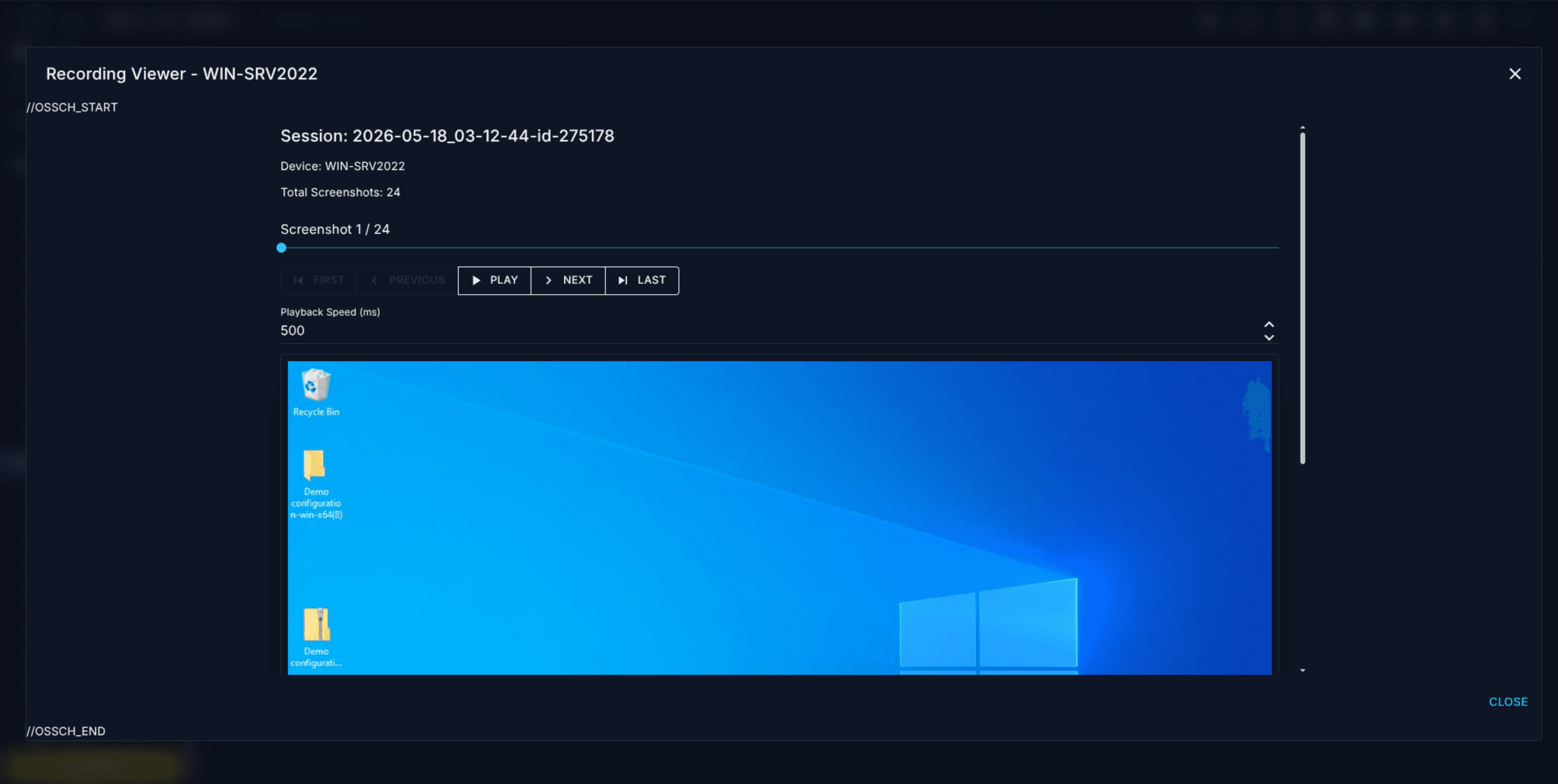
If a session row is missing from the table after Load Sessions, check whether the session actually fell into the current retention window — auto-purge may already have removed it.
A.7.4 Interactions with other settings
- Connection transport. Chapter 3.5 documents the H.264 / JPEG and relay / SignalR choices. Neither affects whether a session is recorded; the
Force session recordingtoggle applies to sessions reached over any transport. - Maintenance mode. Maintenance mode suppresses notifications but does not suspend recording. A session started during maintenance is still recorded if the toggle is on. See A.2 for maintenance-mode semantics.
- Per-operator opt-out. None exists. Session recording is enforced at the server, not at the operator's workstation, so no client-side setting can bypass it.
A.7.5 Streaming modes
Every remote control session streams the device's screen as JPEG frames. How sharp, how smooth and how large that stream is, is decided in the viewer with the Stream mode selector — per session, by the operator, with no server-side setting involved. This section lists the modes, where the selector sits, what the statistics overlay shows, what an older agent does, and how the screen is captured on the device.
The five modes
| Mode | Colour | JPEG quality | Frame rate | Resolution (longest edge) |
|---|---|---|---|---|
Quality | 4:4:4 | high, fixed | up to 20 fps | native |
Balanced (default) | 4:2:0 | adaptive | up to 30 fps | up to 2560 px |
Performance | 4:2:0 | adaptive, lower range | up to 60 fps | up to 1600 px |
Auto | 4:2:0 | adaptive, stepped down under congestion | 15 to 60 fps | 1280 to 2560 px |
Custom | as set in the advanced panel |
Qualitykeeps the full colour resolution (4:4:4), so small text and colour edges show no fringes, and streams the screen at its native size. Pick it for reading, detail work and screenshots; the frames are large.Balancedis the default for every new viewer. The device adjusts the JPEG quality within a middle range to the amount of change on the screen.Performancefavours motion: up to 60 frames per second, a lower quality range and a resolution ceiling of 1600 px. Pick it for video, animations and fast interaction.Autostarts with the Balanced settings and then steps the frame rate, the resolution ceiling and the quality up or down while the session runs. It reacts to four signals, measured once per second in the viewer: the frame rate actually received against the requested one, the round-trip time to the agent, the time the viewer needs to decode a frame, and frames that were superseded by a newer one before they could be shown. Under congestion it steps down at most once every two seconds; after several seconds of headroom it steps back up, one step at a time. Colour stays 4:2:0 inAuto— 4:4:4 is only available inQualityandCustom.Customuses exactly the values of the advanced panel: frame rate (5, 10, 15, 20, 30, 45 or 60 fps), quality (Auto— adaptive — or the fixed levelsHigh,MediumandLow), chroma (4:2:0or4:4:4) and resolution (Autofits the viewer window,Fullis the native size,Savercaps the longest edge at 1600 px). Touching any of these values while a preset is selected switches the mode toCustomautomatically.Customapplies no mode ceiling, soFullreaches the native resolution.
The resolution is a ceiling, not a target: a frame is never larger than the screen, and in Auto resolution never larger than what the viewer window can show. The mode is per session and stays selected across monitor switches.
Where the selector is
- Web Console. The
Stream modeselect sits in the viewer toolbar directly afterZoom. The advanced panel is theStreaming settingspopover (tune icon) further right in the same row; the statistics overlay is toggled with theStatisticsbutton next to it. - Relay App. The
Modepicker is in the second toolbar row of the viewer window, next to the resolution picker.Advancedreveals a third row withFPS,QualityandChroma; it opens on its own whenCustomis selected.Statstoggles the statistics panel.
Changes apply to the running stream at once. Nothing reconnects, the session is not interrupted and a recording in progress continues. On a screen where nothing moves, the new settings show with the next periodic refresh, within four seconds.
The statistics overlay
The overlay is the place to judge a mode and to see what the connection is doing. Its values:
Mode— the selected mode.FPS— two numbers: frames shown in the viewer per second, and frames received from the agent per second (shown / receivedin the Web Console,shown / sentin the Relay App). A gap between the two means the viewer cannot keep up.Bandwidth— the received stream in kbit/s, smoothed over the last seconds. A static screen sits near zero.Frame size(Relay App:Avg Frame) — the average size of a frame in KB.Decode— the time the viewer needs to decode one frame, in milliseconds.Encode— the time the device needs to compress one frame, in milliseconds, as reported by the agent.Round-trip time(Relay App:RTT) — the round trip between the viewer and the agent, measured with a probe every two seconds.Resolution— the size of the streamed frame and, after the@, the frame rate the device actually achieves.Capture method(Relay App:Capture) —dxgiwhen the screen is captured with the Desktop Duplication API,gdiwhen the classic capture is in use (see Capture on the device).QualityandChroma— the JPEG quality and colour subsampling of the last frames.Dropped frames(Relay App:Dropped) — frames that arrived but were superseded by a newer one before they were shown. A steadily rising count means the connection or the viewer is behind;Autoreacts to it.Adaptive step(Relay App:Adaptive) — inAuto, the current step of the adaptive controller: 0 is the Balanced baseline, positive steps reduce the load, negative steps raise the frame rate.
The Relay App additionally lists the codec, the total data received and the number of frames.
Where the choice is stored
- Web Console: in the browser's local storage — mode, chroma, frame rate, quality, resolution mode and whether the overlay is visible. The choice is per browser and per Console address; another browser or a private window starts with
Balancedagain. Nothing is stored on the server or per account. - Relay App: in the app's own settings store (
session_settings.datin its application data directory), so the choice applies to every session opened from that installation of the app.
Agent requirement
Stream modes need an agent of version 3.3.0.1 or newer on the device. With an older agent the session still works: the stream runs with the settings that agent supports, the viewer shows a hint next to the mode selector, and a mode change is translated into the closest frame rate and quality the old agent understands — at most 30 fps and always 4:2:0. Update the agent to get 60 fps, 4:4:4 and the adaptive quality ranges.
Capture on the device
On Windows the screen is captured with the Desktop Duplication API and falls back to the classic GDI capture automatically wherever duplication is not available — headless devices, RDP sessions, the lock screen and UAC prompts, devices running on the Microsoft Basic Display Adapter. The fallback is decided per screen and per frame; the device retries Desktop Duplication on its own, and the overlay's Capture method shows which one is active. Every mode works on both paths; only the CPU cost differs.
A screen where nothing changes costs almost nothing: the device sends a small "unchanged" reply instead of a frame, and re-sends the full picture every four seconds so that a viewer joining late, or a monitor switch, always gets an image.
Performance mode on a weak endpoint does not run the device dry: when capture and compression together take more than 80 % of the frame interval, the device halves the effective frame rate on its own and raises it again when there is headroom. The overlay's Resolution row shows the frame rate the device actually achieves.
Note: On Linux (experimental, Wayland — see X.8.5) the frame-rate cap and the resolution ceiling of a mode apply; quality and chroma are decided by the capture tools on the device and are not changed by the mode.
Recording
Recording works in every mode. The Remote Server samples the frames as they are streamed, so a recording carries the resolution and quality of the mode that was active; the Force session recording toggle in A.7.1 applies regardless of the mode.
A.7.6 Clipboard
Text travels in both directions of a remote control session. Which directions are active is decided in the viewer with the Clipboard switch — per operator and per session, the same kind of setting as the stream mode in A.7.5. There is no policy behind it and no server setting: a second operator in the same session has their own switch, and the device is told about it for as long as that viewer's session lasts.
Only text is transferred; see What is transferred.
Pasting into the session
Ctrl+V in the viewer reads the operator's own clipboard in the browser and sends the text with the keystroke, so the paste lands in the application that has the focus on the device. The clipboard is read inside the keystroke's own order, so a key pressed while the read runs cannot overtake the paste.
Sending a file to the device is a separate action — the Send file to device button of the viewer — and is not part of the clipboard.
Taking the remote clipboard with Ctrl+C
Ctrl+C in the viewer is forwarded to the device, which injects the copy into the focused application and then waits for the clipboard to actually change before it answers. Where the platform has a change counter — Windows and macOS — that counter decides; elsewhere the clipboard is compared against the value it held before the injection. The wait ends as soon as the copy has landed and gives up after roughly half a second, so a copy that takes a moment is delivered instead of being missed, and a fast one is not waited out.
A clipboard that did not change within that budget is answered as empty. The operator's clipboard then keeps what it holds instead of receiving the value the copy was meant to replace, and the viewer says so.
Automatic sync of what the end user copies
While the switch is on, the device reports every change of its own clipboard, however the end user produced it — the context menu's Copy, an application's own copy button, a shortcut pressed at the device itself. Nothing has to be pressed in the viewer, and the text lands on the operator's clipboard as it arrives.
What the device applies before it reports a change:
- An empty clipboard is never reported; it would clear the operator's clipboard.
- Content that is not text is skipped.
- Text the operator has just pasted into the session is not handed straight back to them.
- Changes that fall close together are coalesced: at most one report every 250 ms, carrying the value the clipboard holds by then.
- The clipboard as it stands when the first viewer subscribes is a baseline, not a change. Reporting starts with the first copy after that.
Reporting runs only while at least one viewer of the session asked for it and stops with the last one. It is not session activity, so a session in which nothing else happens still reaches its inactivity timeout.
Looking at the remote clipboard without taking it
The View remote clipboard button next to the switch opens a dialog showing what the remote session's clipboard holds at that moment. It is a read and nothing else:
- No copy is injected on the device. The end user's selection and the end user's clipboard stay exactly as they were. That is what separates the dialog from
Ctrl+C, which necessarily copies whatever is selected in the focused application. - The operator's own clipboard is not touched either. The text reaches it only when the operator presses
Copy to my clipboardin the dialog.
Refresh asks again; the character count of the answer is shown below the text. Where there is nothing to show, the dialog says why, inline instead of as a toast: the clipboard is empty, it holds something that is not text, the content is too large, it could not be read, or the device did not answer within eight seconds. The last two offer a retry.
The dialog earns its place next to the automatic sync in three situations: with the switch off, when you want to see what the end user has without taking it; at the start of a session, because the automatic sync only reports changes from the moment it begins and is blind to what was already on the clipboard; and where the sync is not available on the device at all.
The clipboard switch
The switch governs both directions at once — a paste into the session, and the device reporting its own clipboard changes. It is on by default.
- Web Console.
Clipboardin the viewer toolbar. The choice is remembered per browser, next to the stream settings; another browser or a private window starts with it on again. Nothing is stored on the server or per account. - Relay App. The
Clipboardcheckbox of the viewer window, on by default. - Console App. The clipboard setting in the viewer's overflow menu.
The device is told the state of the switch once the session is streaming and again on every change. Turning it off stops the reporting at the device, not just in the viewer.
Reporting also follows the session's access state. While the session is not granted — the end user has not accepted, or the grant has lapsed — the device does not report clipboard changes and does not answer a request for its clipboard, even if the switch is on. That is re-evaluated for the running stream, not only when the switch is touched.
Platform coverage
Automatic sync works on Windows, macOS and Linux. How a change is noticed differs per platform, everything above it is the same:
| Platform | How a change is noticed |
|---|---|
| Windows | The clipboard sequence number, polled every 400 ms. The clipboard itself is only read once the number has changed. |
| macOS | The change counter of the general pasteboard, polled every 400 ms. Where the pasteboard cannot be reached, the clipboard is read back every 1.5 s instead. |
Linux — Wayland with wl-clipboard | wl-paste --watch reports every change on its own; nothing is polled. The watcher exists only while a session asks for clipboard changes and ends with the last one, with the process, and when the connection to it closes. |
Linux — otherwise, with xclip or xsel | The clipboard is read back every 1.5 s and compared. This runs only while a session with the switch on is open. |
| Linux — none of these tools installed | No automatic sync, and no clipboard at all. |
A Linux session with none of wl-clipboard, xclip or xsel cannot reach its clipboard in either direction. Ctrl+C and the view dialog are answered with "The clipboard of the remote device cannot be accessed in this session" rather than staying silent, and no copy is injected for a request that cannot be answered. Install one of the tools — wl-clipboard on Wayland, xclip or xsel on X11 — to enable it; see X.8.5.
What is transferred
Text only. Files, pictures and rich text are never transferred in either direction:
- On the automatic sync, a copied file or picture is skipped silently. This is normal use — a viewer would otherwise get a message every time the end user copies a file — so nothing is shown in the viewer.
- In the view dialog, where the operator asked for the result, the device distinguishes the two cases on Windows and reports "The clipboard of the remote device holds content that is not text" instead of claiming an empty clipboard. On macOS and Linux the clipboard is read through tools that hand out text only, so both cases arrive as an empty clipboard.
- To move a file to the device, use
Send file to device.
At most 1 MiB. Content larger than 1 MiB of UTF-8 text is not transferred, and it is not shortened either — a silently truncated clipboard is worse than none. The operator is told ("The clipboard content of the remote device is too large to transfer"), once per copy rather than on every poll.
Browser prerequisites (Web Console)
Writing to the operator's clipboard is done by the browser, under the browser's own rules.
- A secure context. Serve the Console over HTTPS (
localhostalso counts). Without it the browser's clipboard interface is unavailable and the Console falls back to a legacy copy, which is less reliable. - A focused tab. Text arriving from the device is a server push, not a click, and that is the state in which browsers refuse a clipboard write — most visibly when the viewer sits on a second monitor, the developer tools have the focus, or the tab is in the background. The Console therefore retries the write once on the operator's next click or keypress and says so meanwhile: "Clipboard received. Click into the session to apply it." Click into the session and the text is on the clipboard. Only the newest text is held, and the retry expires after 30 seconds.
The view dialog is not affected by this: its Copy to my clipboard happens inside the operator's own click.
Agent requirement
The automatic sync and the view dialog need an agent of version 3.3.0.1 or newer on the device; they are advertised separately, because reading the clipboard on request works wherever the clipboard can be read at all, while reporting changes depends on the platform. With an older agent the session still works and pasting into it is unaffected:
- The viewer shows a hint next to the
Clipboardswitch ("This agent version does not sync the clipboard automatically") and falls back to what has always worked —Ctrl+Cin the viewer. - The
View remote clipboardbutton is present but disabled, with a tooltip that says why. A request the device cannot answer is never sent, and a request that does go unanswered leaves the dialog after eight seconds with a retry rather than spinning.
The Relay App and the Console App carry the switch and the device's messages, but not the view dialog; that one is in the Web Console.
Audit
Clipboard transfers are not recorded in the audit trail. Neither direction is logged: not a paste into the session, not the answer to Ctrl+C, not an automatic report, and not a look with the view dialog. Nothing of the transferred content is written to the audit trail, the server logs or the device's logs — the device's own log records the outcome and the length of a transfer, never the text.
The start and the end of the remote control session itself are recorded as before (see A.9), and session recording under A.7.1 captures the screen, so a paste that becomes visible on the device appears in the recording like anything else on screen.
A.7.7 Audio call
Since 3.3.0.5 the end user chat can be turned into a voice call. An operator calls the signed-in user of a Windows device from two places: the phone icon in the title row of the end user chat popup (which rings the session the chat talks to) and the phone icon in the title row of the remote screen control dialog, which opens the chat popup and places the call as soon as the session picker has settled. The audio travels as Opus packets through the NetLock server over the same hub that carries remote control sessions; no additional port and no direct connection between the browser and the device are needed.
What the user sees
The tray icon of the device shows an incoming call window with the operator's name and picture, plays a ring tone and waits 45 seconds for Accept or Decline; without an answer the call times out and the operator is told so. After accepting, the user's default microphone and playback device are in use; the call window on the device lets the user change both devices, mute the microphone, switch echo suppression and hang up, and it shows the level of both sides and the duration. The operator has the same controls in the console: a call bar under the title row of the chat popup with the state (calling, ringing, connected with the user's name), the duration, mute, the microphone and playback device pickers, level meters and Hang up. Either side can end the call; closing the chat popup or switching the user during a call asks the operator for confirmation first.
Requirements
- Permission. The account needs
devices_remote_audio_call("Audio call" in the permission editor, directly under Remote Control). Members of the built-in Administrator role hold it automatically; every other account or role has to be granted it. Without the permission the phone icons are not rendered and the server refuses the call. - Policy. On the Agent tab of the policy,
Allow audio callssits in the Remote Control block belowRemote Screen Control(see §6.4). It is on by default and only takes effect while remote screen control is enabled in the same policy; a policy with remote screen control off cannot carry calls. The texts of the incoming call window — title, message ({operator}is replaced by the operator's name), the Accept, Decline and Hang up buttons — are edited in theAudio Callblock of the Tray Icon tab (§6.5); empty fields use the English defaults. A change of the policy reaches the server's check within about 30 seconds. - Device. Windows only in this release, with the tray icon of the updated agent (3.3.0.5 agent set) running in the user's session. A device with an older agent answers "agent update required"; a device without a signed-in user, without a running tray icon, or a Linux or macOS device shows no phone icon or reports the call as not supported. Mobile devices cannot be called.
- Browser. The operator's browser needs WebCodecs with the Opus codec, an AudioWorklet and microphone access: Chrome and Edge, Firefox 130 or later, Safari 26 or later. A browser without this support shows a toast and nothing else. The console asks for the microphone permission of the site on the first call; a refused permission is reported as a toast, and the call is not placed. The playback device picker is hidden in browsers that cannot route audio to a chosen output (no
setSinkId).
Headset and echo
The operator's browser applies its own echo cancellation, noise suppression and automatic gain control to the microphone. On the user's side there is no acoustic echo canceller: a user on speakers is heard back by the operator with a delay unless echo suppression is on, which lowers the playback while the user speaks. A headset on the user's side avoids the effect altogether, and the call bar in the console says so.
What is recorded
Calls are not recorded. Session recording (A.7.1), including forced recording, applies to screen sessions only; an audio call never produces a recording. Each call is kept as an entry of the remote control session history (remote_control_sessions_audit, session_kind = audio) with the time of the call, the accepted time as its start, the duration and how it ended — declined, not answered, hung up by the operator or the user, connection lost, or not supported with the reason. The console audit log records "Audio call started" and "Audio call ended" with the reason for the operator's account. The audio itself is never stored.
One call per device session at a time: a second operator who calls the same user while a call is on is told that the user is already in a call, and a repeated call to the same device within a few seconds is asked to wait.
Permissions
settings_enabled— access to theSettingsgroup at all.settings_remote_screen_enabled— access to this page's toggles and session browser.devices_remote_audio_call— starting an audio call with the signed-in user of a Windows device (A.7.7); granted to the built-in Administrator role automatically.
Related chapters
- Chapter 3.5 — Remote control — how remote control sessions are established and what transports are available.
- A.2 — Updates & maintenance — maintenance windows and notification suppression.
- A.9 — Logging & protocols — for server-side logs that record the start and stop of each remote control session.
- A.12 — Content defaults — related Settings sub-pages in Part IV.
Whitelabeling & themes
Deployment-wide brand assets, a 40-field light-and-dark colour palette, theme import and export, and the Community Themes browser.
Notifications deep dive
Full reference for the five notification channels on the Notifications page: Email (SMTP), Microsoft Teams, Telegram, ntfy.sh, and Webhook.