 NetLock RMM Docs
Navigating the Console
Layout, navigation menu, tenant selector, global search, dark mode, and help.
Navigating the Console
The Console has a consistent layout across every page. Learning where the fixed elements live — the navigation menu, the tenant selector, the theme toggle, the help dialog — means you can find any feature in a few clicks. This chapter is the short tour.
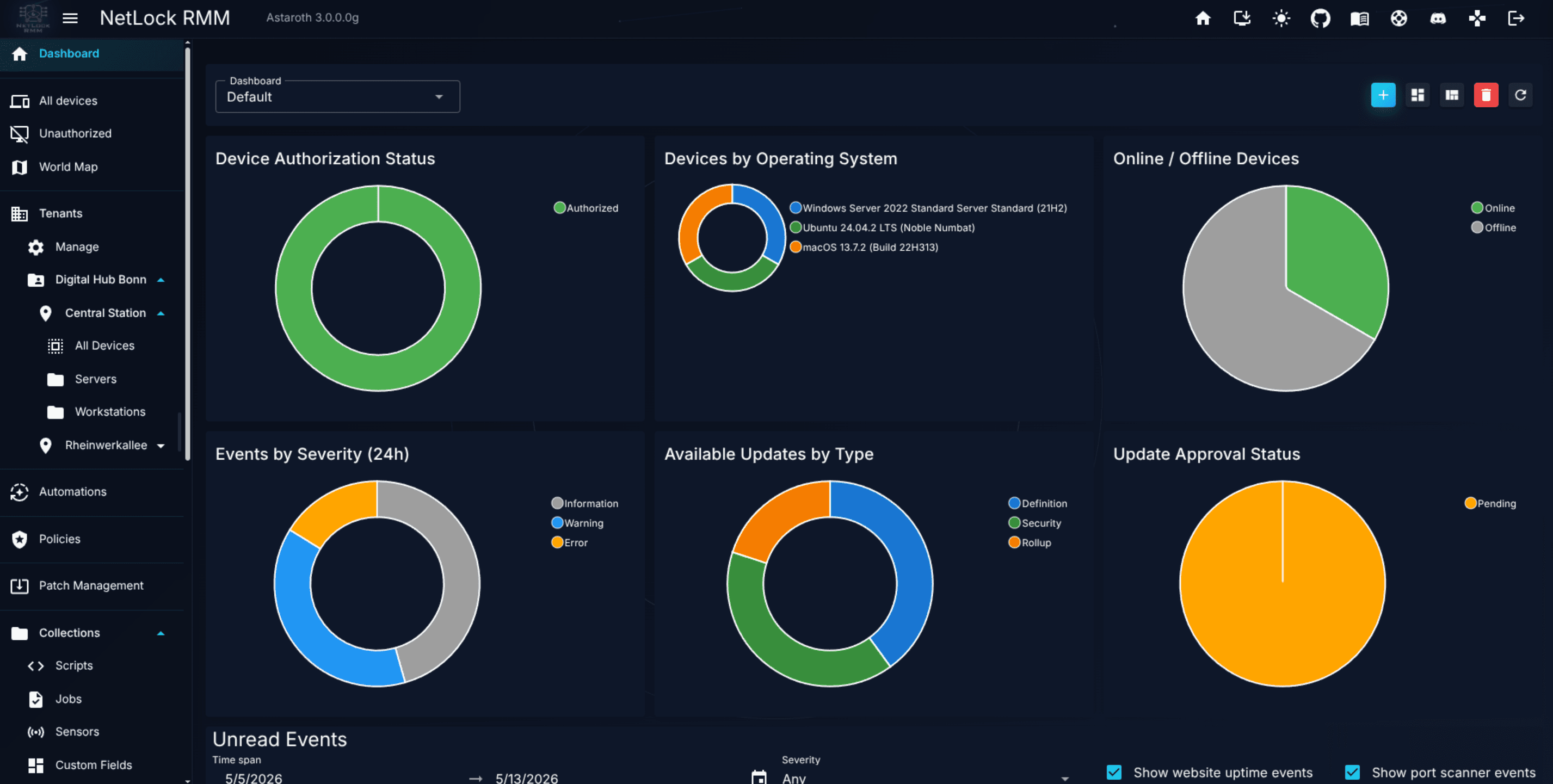
The overall layout
Every page shares the same shell:
- A header along the top with the product logo, the tenant / location / group selector, the theme toggle, and access to your profile and help.
- A left-hand navigation menu grouping every feature area the product exposes.
- A main content area to the right, where the currently opened page renders.
- A footer with product and build information.
You can resize the navigation, and the Console remembers your preference. The header remains visible on every page.
The navigation menu
The navigation menu on the left is built dynamically: the items you see depend on your permissions, the modules enabled on the deployment, and the order you chose to display them in. Two users with different permission sets on the same deployment will see different menus.
The default top-level groups, in their default order, are:
DashboardDevices Quick Access— withAll Devices,Unauthorized Devices,Device World Map, andDevice Topologysub-items.TenantsAutomationsPoliciesPatch ManagementCollections— Scripts, Jobs, Sensors, Custom Fields, App Hub, Application Control, Device Control, Software Deployment.File Server & Monitoring— File Server, Relay Server, Website Uptime, Port Scanner.Tickets(only if the Ticket System is enabled)ReportsManagement— Events, Audit, Users.Settings— 16 sub-pages covering administration.
Each group expands to reveal its sub-pages. Selecting a sub-page loads it into the main content area.
Note: Menu visibility is gated by roughly twenty permission flags at the top level, plus additional flags per sub-page. See the Permission reference appendix.
Customising menu order
The Console stores a per-user menu order in your account — the default order is the one listed above, and the server loads your personal order on every login. You can edit the order under /home.
The "Go Pro" upgrade button
If the deployment is unlicensed, a gold Go Pro button appears prominently in the navigation. Clicking it opens the upgrade / licensing flow. Once the deployment is licensed, the button disappears.
The tenant selector
Many pages — Tenant Settings, Location Settings, the Devices page, most Collections pages — act on a currently selected tenant, location, and group. The selector in the header is how you pick them.
- Click the selector in the header to open a tenant / location / group picker.
- Choose the tenant, then narrow to a specific location or group if desired.
- The selection persists across the session and is used by every context-sensitive page you open afterwards.
A few pages also show the selected context inline near the top of the content area, so you always know what you are acting on.
Tip: If a page says "no tenant selected" or shows an empty state unexpectedly, open the header selector first and pick a tenant.
Global search
The header carries a search box (on phones, a magnifier icon that opens the results page). Press Ctrl+K (Cmd+K on macOS) or / on any Console page to jump into it. Type at least two characters and the suggestions appear grouped by category while you type; every group lists the first five matches and ends with a link to the full results, and the last row opens the results page for the whole term. Use ↑ and ↓ to move through the suggestions, Enter to open the highlighted one (or the results page when nothing is highlighted) and Esc to close the list. The suggestions appear after 1.5 seconds at the latest: a category whose search is still running is shown as still searching and fills in when it finishes; the results page always waits for every category.
Operators. A term can start with an operator, an English word followed by a colon, that narrows the search to one field or one category. The word is matched in any case, a space after the colon is allowed, and singular and plural are both accepted (ticket: and tickets:). A word that is not an operator stays part of the term, so http://example is searched as typed, and the remainder after the operator has to be at least two characters long. The help icon next to the search box lists the operators with an example each.
| Operator | Searches |
|---|---|
serial:ABC123 | the serial number of devices |
hwid:4C4C4544 | the hardware ID of devices |
ip:192.168. | the internal and external IP address of devices, and the IPv4 address of network adapters by prefix |
mac:AA:BB | the MAC address of network adapters in any spelling, also for a short fragment such as mac:0a1b |
country:DE, country:germany | the country of devices: a two-letter term is matched whole against the country code, anything else as part of the country name in English or in any console language, so country:deutschland finds the same devices |
device:, field:, software:, service:, driver:, network: (or adapter:), ticket:, customer:, contact:, policy:, script:, job:, sensor:, automation:, app:, deployment:, tenant:, location:, user:, snmp:, unauthorized: | only that category, with the same columns as without the operator; software: is the installed software of the devices, app: the App Hub |
An operator never widens what an account may see: a category the account may not search, or a field of such a category, returns no results.
Recent searches. While the search box is focused and empty it lists the last eight searches that were submitted or whose hit was opened in this browser; a row runs that search again, Clear empties the list, and the arrow keys move over the rows like over suggestions. The list is stored in the browser only, not on the server, and nothing is stored while typing.
What is searched:
- Devices — name, label, serial number, internal and external IP address, the country of the external address (by its name in English or in any console language), operating system, domain, last active user, hardware ID, manufacturer, model, and the names of tenant, location and group. A suggestion shows the device, its tenant and location and, when the term was found somewhere other than the name, which field matched (for example
Serial number: 5CD1234XYZorCountry: Germany). - Custom fields — the values stored in custom fields of devices, shown as
Custom field <key>: <value>. Fields of type secret are never searched, whatever their value. - Software, Services, Drivers and Network adapters — the inventory of the devices, one suggestion per distinct entry (a software name with its version and vendor, a service with its service name and status, a driver with its version and status, an adapter with its MAC and IPv4 address) together with the number of your devices that hold it, for example
Google Chrome · 128.0.6613.120 · Google LLC · on 37 devices. Names are matched by word, sochromefindsGoogle Chrome; a service name such aswuauservmatches by prefix. For adapters, a term that looks like a MAC address matches the stored address in any spelling (AA:BB:CC,aa-bb-ccandaabbccall findAA:BB:CC:DD:EE:FF), and a term of digits and dots matches the IPv4 address by prefix (192.168.1). On the results page each entry expands to the list of devices that hold it (up to 50), each linking to the device. The server keeps a search index for these four categories that fills itself after the server update: a device appears with its next inventory sync, and a run at every server start indexes the devices that already have an inventory, so the categories are empty until the updated server has started once. - Tickets — number, title, contact name, contact e-mail and assignee, and on the results page the description as well; a suggestion shows the ticket number, the customer and the status and priority chips of the tickets list. Merged tickets are not listed, and only the departments you may see are searched.
- Customers — company name, contact name, contact e-mail and phone of the ticket customers; a hit opens the customer details page.
- Contacts — first and last name, e-mail, phone and position of the customer contacts; a hit opens the contact for editing.
- Policies — name and author, and on the results page the description; the default policy carries a chip. A hit opens the settings page of the policy.
- Scripts, Jobs and Sensors — name, description, label, author and platform, plus the shell of a script (and on the results page the script body itself, shown as an excerpt) and the type of a job; a sensor shows its category, a hidden job carries a chip. A hit opens the list with that entry and, for an account that may edit, its edit dialog.
- Automations — name, description, author and trigger of the rules on the automations page, with an enabled or disabled chip. A hit opens the rule for editing; the dialog applies the tenant rules of the automations page.
- App Hub apps — name, publisher, version, the winget, Flathub and Chocolatey package ids and the tags, and on the results page the description; the suggestion shows the source and the target operating system. A hit opens the app for editing when the account may manage apps, otherwise the list narrowed to the app.
- Software deployments — name and author, and on the results page the description, with the status and mode chips of the deployments list; a hit opens the deployment. A deployment is found when at least one of its targets belongs to your tenants, as the deployments list shows it.
- Tenants and Locations — name, description, company and contact persons of a tenant, name, description and author of a location (shown with its tenant); tenants marked for deletion are left out. A hit opens the settings page of the tenant or location.
- Users — username, e-mail, first and last name and phone of the console accounts, shown with their role; a disabled account carries a chip. A hit opens the settings page of the account.
- SNMP devices — name, IP address, system name, location, contact and device type, and on the results page the system description and the notes, with the status chip of the SNMP list. A hit opens the
Devicespage in its SNMP view with the device selected. - Unauthorized devices — name, internal and external IP address, country, domain, operating system and last active user of the devices waiting for authorization. A hit opens the unauthorized devices page listing every such device of your tenants, narrowed to that name; authorizing stays a deliberate click there.
Opening a device hit lands on the Devices page with that device selected and its detail panel open; a ticket hit opens the ticket dialog, a customer hit the customer details page and a contact hit the edit dialog of the contact. A hit of a management category opens the entry the same way its own page does: the settings page for policies, tenants, locations and users, the edit dialog (or the narrowed list, without the edit permission) for scripts, jobs, sensors, automations and App Hub apps, the detail page for a deployment. The results page at /search lists up to 50 matches per category, with a chip per category to narrow the list, and a note when a category holds more than that. Such a category shows 50+ until its chip is clicked; the exact number is then counted once and shown in the chip and in the card title, and the total of the All categories chip becomes exact once every such category has been counted. An inventory entry opened from a suggestion lands on the results page with its category selected and its device list already open.
Results follow the signed-in account: a category is only searched and shown when the account holds the permissions of the page it links to (the devices permission for devices and the four inventory categories, plus the custom fields permission for custom fields, the software permission for software, services and drivers, the general device permission for network adapters, the tickets permission for tickets, the customer management permission for customers and contacts, and for the management categories the permissions of the policies, scripts, jobs, sensors, automations, App Hub, software deployment, tenants, locations, users, SNMP and unauthorized devices pages). Device hits and the device counts of the inventory categories are limited to the tenants the account is assigned to, tickets to the departments it may see, and customers and contacts to its tenants, where an entry without a tenant is visible to everyone. Tenants, locations, SNMP devices and unauthorized devices are limited to the assigned tenants as well, and software deployments to those with a target in one of them; policies, scripts, jobs, sensors, automations, App Hub apps and users have no tenant and are listed for every account with the page permission. An account without any tenant sees the search box but gets no device hits. Nothing is revealed about entries outside that scope, so two users typing the same term can get different lists.
Deployment-wide, the box can be hidden from the header on the AppBar & Effects tab of the whitelabeling settings (Global search); the results page stays reachable at /search.
Dark mode
A theme toggle in the header switches between light and dark mode. Your preference is stored in your user account, so the theme is consistent across devices and sessions.
If the deployment has been whitelabeled (see A.6 Whitelabeling & themes), the brand colours apply in both modes. Custom community themes imported via the whitelabeling settings also respect the light/dark split.
Help and support
Help is available from the header via the in-app support dialog.
- Contact support — an in-app form for contacting our support team.
- Update available — appears when a new Console or server version is available, with a short summary and a link to the update flow.
- Subscription reminder — surfaces subscription renewal information on deployments that require it.
For deeper issues, the Troubleshooting appendix enumerates the common failure modes with diagnostics.
Notifications and toasts
Short-lived status messages appear as toast notifications in a corner of the screen — for example "Policy saved" after saving a policy, or an error after a failed bulk action. Toasts disappear after a few seconds; for historical records, check Events or Audit.
Real-time Console features (device status, script execution results, policy deployment feedback) use a persistent connection to the server. If toasts or status indicators stop updating, refresh the page to re-establish the connection.
Keyboard shortcuts
The Console defines two global keyboard shortcuts: Ctrl+K (Cmd+K on macOS) and / focus the global search box in the header, or the box on the results page when that page is open. / is ignored while the cursor is in a text field, a script editor, a terminal or the ticket editor, and while a dialog is open, so a slash typed there arrives as usual. Inside the search box, the arrow keys, Enter and Esc work the suggestion list. There is no product-wide dark-mode toggle or save/close binding. Other keyboard handling is limited to page-local conveniences — for example, pressing Enter submits the login form, and the remote control window binds function keys relevant to that session. Each per-page shortcut is noted in the chapter that documents that page.
Where to go next
You now know the shell of the Console. From here, jump to whichever feature area matters most:
- Chapter 2 — Dashboard — the default landing page for most users.
- Chapter 3 — Devices — inventory, approvals, remote access.
- Chapter 4 — Tenants, Locations & Groups — managing the hierarchy.
- Part III — How-To Guides — task-oriented walkthroughs.