 NetLock RMM Docs
Write, test, and schedule a PowerShell script
Create a script in Collections, run it on one device, and schedule it to recur as a job.
Write, test, and schedule a PowerShell script
NetLock RMM separates the Script (the code) from the Job (the schedule). A script lives in the Scripts library and can be reused; a job picks a script and defines when and how often it runs. This guide walks through authoring a trivial PowerShell script, saving it, and wrapping it in a job that runs once on a target device. See Chapter 8.1 and Chapter 8.2 for the full reference on both.
Before you start
- At least one Windows device is online and assigned a policy, so the agent is ready to execute a job.
- Required permissions:
collections_enabled,collections_scripts_enabled,collections_scripts_addfor the script;collections_jobs_enabled,collections_jobs_addfor the job.
Steps
Create the script
-
In the navigation, open
Collections → Scripts(route/manage_scripts). -
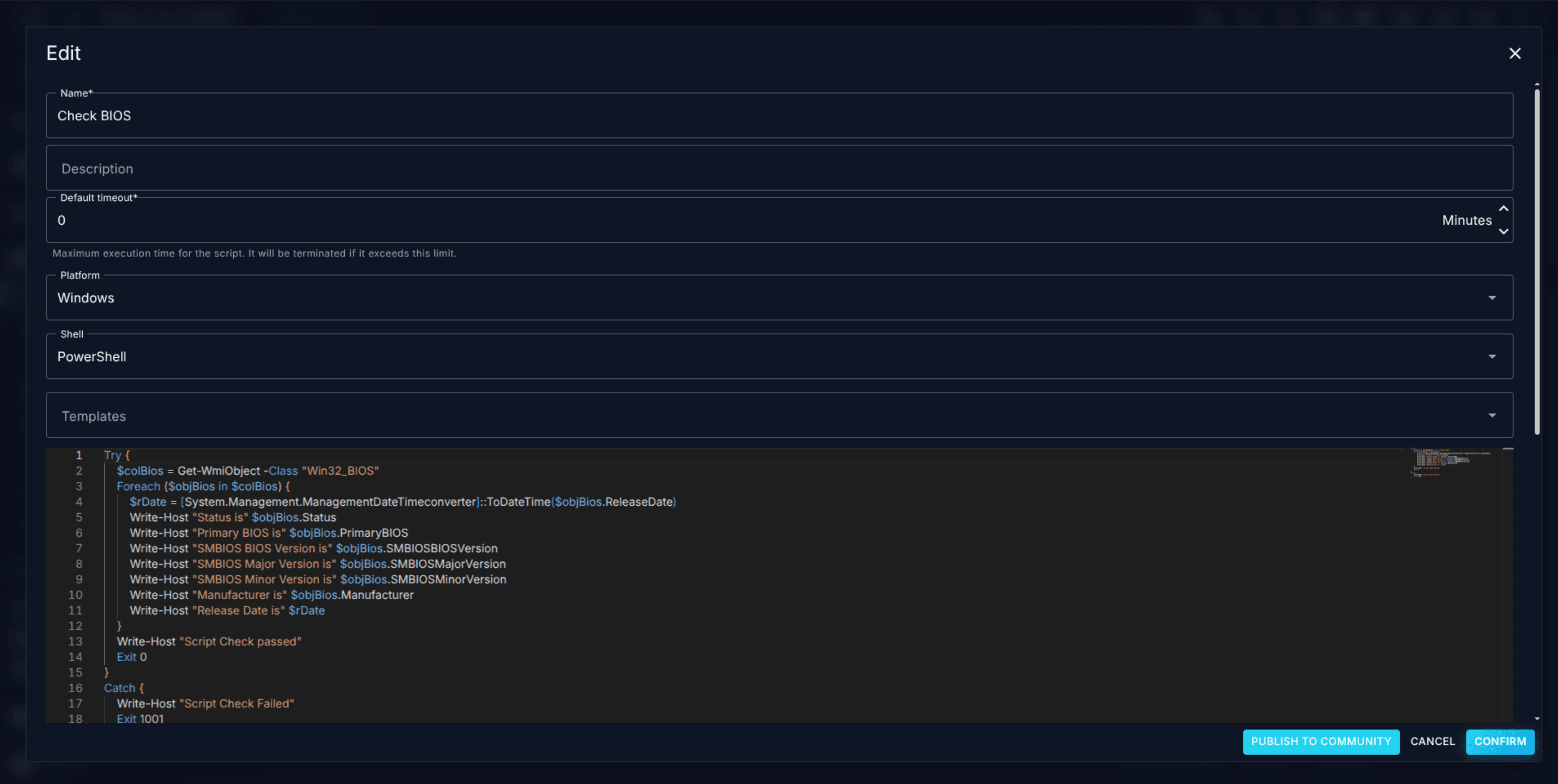
Click
Addto open the Add Script dialog. -
Fill in the fields:
Name— for exampleReturn current date.Description— a one-liner so others know what it does.Default timeout— accept the default for a small script.Platform—Windows.Shell—PowerShell.
-
Paste a trivial command into the editor:
Get-Date -
Save. The script now appears in the Scripts list.
Tip: The shell dropdown offers supported Platform / Shell pairs: Windows → PowerShell or Python3; Linux → Bash or Python3; macOS → Zsh or Python3; and System → MySQL for SQL-only scripts that run against the Console's own database.
Test the script with a one-shot job
Tip: The one-shot job below exercises the full job-execution path, but it is slow to iterate on — every change means editing the script, waiting for the scheduled time, and waiting for the next agent sync. While you are still getting the script's logic right, test it faster through the Remote Shell: open the target device, start a Remote Shell session, and run the commands directly for immediate output with no sync delay. Remote Shell must be enabled in the device's policy (
Agenttab →Remote Control) — see Chapter 6.4. Once the logic is correct, still run it once as a job to confirm it behaves the same under the agent's job runner — the two are different execution contexts.
- In the navigation, open
Collections → Jobs(route/manage_jobs). - Click
Addto open the Add Job dialog. - Fill in:
Name— for exampleReturn current date — one shot.Description— optional.Timeout— accept the default.Schedule— pickDate/Time(a one-shot schedule) and set the time a few minutes in the future.Platform—Windows.Type—PowerShell.Script— pick the script you just created.Hidden— leave off, so you can find the result in Events afterwards.
- Save.
- Attach the job to a policy that routes to your test device: open
Policies → Manage, pick the policy, open theJobstab, and enable the new job. Save the policy.
At the configured time the device's agent picks up the job, runs the script, and reports the result back.
Schedule it to recur
To convert this into a recurring job, edit the job and change the Schedule field from Date/Time to a recurring option — for example On specific days at time with a day-of-week toggle, or Every X hours. Save. Devices already assigned the job start using the new schedule on their next sync.
Verify it worked
- The Scripts list shows the new script with your platform, shell, and name.
- The Jobs list shows the job with the schedule summary you chose.
- In
Events, filter by the target device. An entry for the job execution should appear at the scheduled time withstdoutcontaining the current date. - Running the script as a non-hidden job also surfaces it in the device's detail view.
Troubleshooting
- Job never fires. Confirm the policy that carries the job is assigned to the device (
Devices → detail → Assigned policy). If not, fix the automation. - Job runs but no result appears in Events. The job may be flagged
Hidden— hidden jobs deliberately skip the Events view. Clear the flag for general-purpose scripts and reserve it for Custom-Field data collectors. - Script times out. Raise the
Default timeouton the script, theTimeouton the job, or both. Script timeouts are enforced and the script is terminated when the limit is hit.
Related
- Chapter 8.1 — Scripts — full Scripts reference including templates, Monaco editor, Community Scripts, and supported languages.
- Chapter 8.2 — Jobs — full Jobs reference including the twelve schedule types and the Hidden flag.
- Chapter 6.11 — Jobs tab — how a policy attaches jobs to devices.