 NetLock RMM Docs
Brand the Console (logo, colours, theme)
Upload a logo, adjust the colour palette, set the Console title, and optionally export the theme.
Brand the Console (logo, colours, theme)
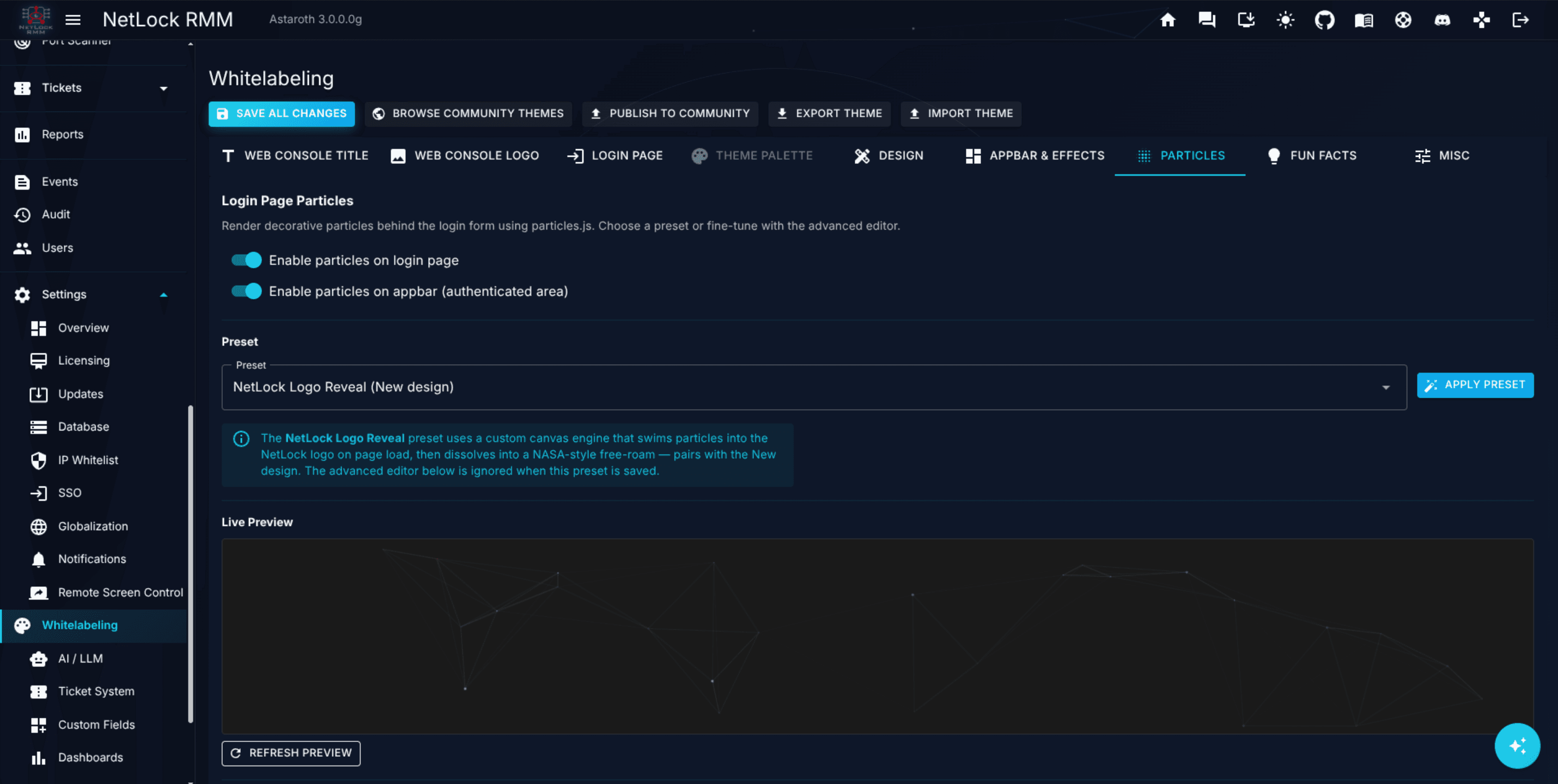
Whitelabeling lets you replace the NetLock RMM branding with your own. This guide walks through uploading a logo, tweaking a small set of palette colours, setting the browser-tab title, and optionally exporting the whole theme as a JSON file so you can reuse or share it.
Important product rules — read first.
- Whitelabeling is deployment-wide, not per-tenant. All authenticated users see the same branding.
- The logo is shared between light and dark modes — there is no separate dark-mode upload.
- Colours have two palettes — 20 fields in light mode and 20 in dark mode, 40 fields total — and both are always defined.
- Most changes apply immediately after saving; the login-page palette may need a hard refresh.
Before you start
- A logo file in PNG or JPG, recommended 200 × 50 px, no larger than 2 MB.
- The hex values you want for at least the
Primary,Secondary, andAppBar Backgroundcolours. - Required permissions:
settings_enabled,settings_whitelabeling_enabled.
Steps
1. Upload the logo
- Open
Settings → Whitelabeling(route/settings/whitelabeling). - Scroll to
Web Console Logo. - Drag and drop your logo file onto the uploader, or use the file picker. Accepted formats: PNG, JPG. Max: 2 MB.
- The preview updates in place. The same logo is used in both light and dark modes.
2. Set the Web Console Title
- Find the
Web Console Titletext input. - Replace
NetLock RMMwith your own title. The value appears in the browser tab and in the authenticated header.
3. Pick two or three palette colours
- Scroll to the colour-palette section. Two identical blocks are present — one for light mode and one for dark mode, each with twenty fields.
- Set at least these three in each palette for a coherent look:
Primary— the dominant brand colour.AppBar Background— the top bar colour.Text Primary— default body-text colour; make sure it contrasts well withBackground.
- Use the colour-picker widget next to each field, or paste a hex value directly (for example
#FF0000). - Make the same three choices (or their dark-mode equivalents) in the dark-mode block.
Tip: If you only set light-mode values, users on dark mode see the stock dark palette. Both palettes are always defined; the mode toggle just picks which one renders.
4. Save
Click the page's save action. An alert on the page states: Changes will be applied immediately after saving. The authenticated UI updates live. For colour changes the alert adds: The Login page may require a refresh to see the new colors. — reload the login page if you need to verify it there.
5. Optional — export the theme
- Click
Export Theme. The Console produces a versioned JSON file (for examplewhitelabeling-theme.json) containing the title, the logo, login-page settings, both palettes, AppBar settings, and footer links. - Save the JSON somewhere safe — it is the only backup of your theme.
Optional — community themes
The page also exposes a Community Themes browser, which lets you filter themes by category (Light Theme, Dark Theme, Corporate, MSP, Seasonal, Holiday, Other), preview them, and import one. Importing a community theme auto-downloads the current theme as a backup first.
Verify it worked
- The new logo is visible in the authenticated header of the Console.
- The new title is in the browser tab.
- The
Primary,AppBar Background, andText Primarycolours reflect on the UI in the current mode. - Toggling between light and dark in the theme mode selector applies each palette independently.
- The login page shows the new palette after a hard refresh (Ctrl+F5).
Troubleshooting
- Logo upload rejected. Confirm the format is PNG or JPG and the size is ≤ 2 MB.
- Login-page colours are stale. Browsers cache the login page aggressively. Clear the cache or hard-refresh.
- Wrong brand in some views. Whitelabeling has no per-tenant scope. If you manage multiple customers as an MSP, the Console always shows your own brand to authenticated users; separate per-customer login portals are not available from this page.
Related
- Appendix A.6 — Whitelabeling & themes — full reference, including the import dialog, particle and fun-fact options, footer links, and community publish flow.
Use your own domain for the cloud Web Console
Point a subdomain of your own at the Web Console of your NetLock RMM cloud instance with a CNAME record, and understand what changes once a second address exists.
Run a compliance report and schedule email delivery
Generate a report from a template on demand, then set up a weekly PDF email schedule.