 NetLock RMM Docs
III — How-To Guides
Configure Windows Defender via policy
Turn on Microsoft Defender, add an exclusion, and schedule a scan — all from a policy.
Configure Windows Defender via policy
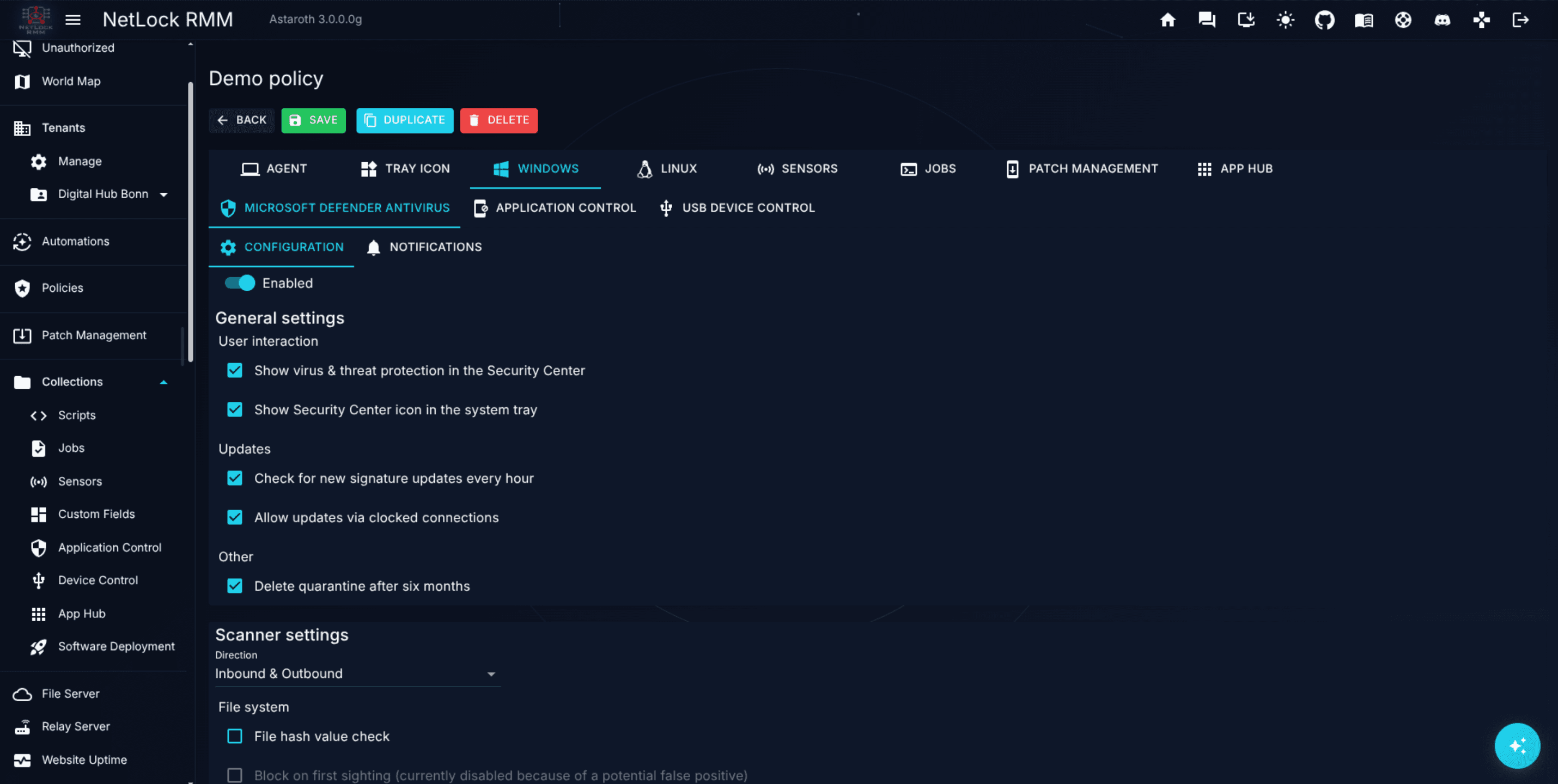
Microsoft Defender Antivirus settings for managed Windows devices live inside a policy, under the Windows tab. This guide shows the shape of a minimal Defender setup: enable the feature, add one exclusion, and schedule a weekly scan. The Defender surface is much broader than these three steps — see Chapter 6.6 for the full reference including every scanner toggle, all eight notification categories, and the complete exclusion-type list.
Before you start
- A policy already exists (see Guide H.4).
- An automation already routes the policy to at least one Windows device, or you will add one after saving.
- Required permission:
policies_enabledand the role flag that gates policy editing in your deployment.
Steps
Enable Defender on the policy
- Open
Policiesfrom the navigation. - On
Manage Policies, clickManageon the policy you want to edit. - Open the
Windowstab, thenMicrosoft Defender Antivirus, thenConfiguration. - Switch on
Manage Defender settingsat the top of the panel. Without this, none of the settings below are applied to devices. Notifications are switched on separately on theNotificationssub-tab and do not need this switch — with notifications on and management off, the agent only reads the Defender event log and changes no Defender setting.
Add an exclusion
- In the Configuration sub-tab, scroll to the
Exclusionssection. - Click
Addto open the Add Exclusion dialog. - Pick a
Type— one ofFile,Directory,File Type (extension), orProcess. - Enter the
Exclusionvalue for that type (for example a directory path likeC:\Program Files\VendorApp). - Add an optional
Descriptionso future admins know why the exclusion exists. - Save. The new entry appears in the Exclusions table.
Schedule a weekly scan
- Still on the Configuration sub-tab, scroll to the
Scan Jobssection. - Click
Addto open the Add Scan Job dialog. - Fill in:
Enabled— on.NameandDescription— for exampleWeekly full scan.Schedule Type— pick a day-of-week schedule.- Day toggles — tick one day (for example Sunday).
Time— pick an off-hours time.Scan Mode— pick the mode that fits (quick versus full).- Set the
CPU Usage %cap, and theScan on Battery,Network Drives,Removable Disks, andUpdate Signaturestoggles to your preference.
- Save. The scan-job row appears in the table.
- Use the Add Scan Job Directory dialog from inside the scan-job editor to add the directory list the scan covers. Most deployments want the full system drive.
Save and let the automation route it
Save the policy. Devices that receive this policy through an automation apply the Defender configuration on their next sync. If no automation routes the policy yet, create one — see Guide H.4 stage 2.
Verify it worked
- On the policy's detail view, the
Windows → Microsoft Defender Antivirus → Configurationsub-tab shows theEnabledcheckbox ticked, the exclusion in the table, and the scan job in the schedule table. - In
Events, filter by a targeted device and look for entries reflecting the Defender configuration push. - Locally on the device, Windows Security shows Defender active, the new exclusion listed under
Virus & threat protection settings → Exclusions, and a scheduled task entry corresponding to the scan job.
Troubleshooting
- No Defender changes on the device. Confirm the device is assigned the right policy (
Devices → <device> → detail view → Assigned policy). If the field saysno_assigned_policy_found, create or fix an automation. - Scan never runs. Open the scan job in the policy and confirm
Enabledis on, the day toggle matches today's plan, and the time has not already passed for this week. - Exclusion is ignored. Defender exclusions are case-sensitive on some paths. Re-check the value in the exclusion row against the actual path on the device.
Related
- Chapter 6.6 — Microsoft Defender Antivirus — the complete reference for the Defender sub-section.
- Guide H.4 — Build and apply a policy — how to route this policy to the right devices.
- Chapter 5 — Automations — the policy-routing layer.