 NetLock RMM Docs
Collections
Scripts, Jobs, Sensors, Custom Fields, App Hub, Application Control, Device Control, and Software Deployment.
Collections
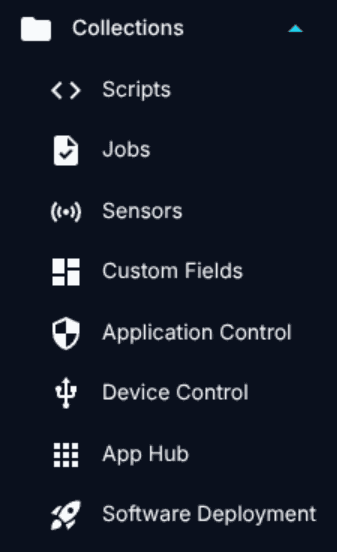
Collections is the umbrella menu group for eight reusable libraries that feed the rest of the product. Scripts, Jobs, Sensors, and Custom Fields are the programmable building blocks — small units you assemble into larger behaviours. App Hub, Application Control, and Device Control are catalogues — curated lists of packages, application rules, and USB devices. Software Deployment is an execution engine that stitches App Hub entries into ad-hoc rollouts.
8.0 How Collections relates to Policies
Five of the eight Collections sub-sections are also referenced from inside Policy Settings. That pairing is consistent: this chapter documents the library — how you author and manage the building blocks — while Chapter 6 documents attachment — how a policy picks from the library and which devices end up running or enforcing the result.
| Collections subsection | Related policy tab |
|---|---|
| Jobs | Jobs tab — Chapter 6.11 |
| Sensors | Sensors tab — Chapter 6.10 |
| App Hub | App Hub tab — Chapter 6.13 |
| Application Control | Windows → Application Control — Chapter 6.7 |
| Device Control | Windows → USB Device Control — Chapter 6.8 |
Scripts, Custom Fields, and Software Deployment have no policy-tab counterpart — they are either called from inside another Collections feature (Scripts by Jobs and Sensors) or stand alone (Custom Fields, Software Deployment).
Labels, selection and bulk delete (Scripts, Jobs, Sensors)
The lists of Scripts, Jobs and Sensors share three list features:
- Label. Every script, job and sensor can carry one free-text label of up to 64 characters, set in the add, edit and duplicate dialogs. The field suggests the labels already used in the same list; any other text becomes a new label, an empty field removes it. The label only organises the list: it is not part of what the agents receive, and changing only the label does not make the devices re-sync.
- Grouping. As soon as one entry has a label, the list is grouped by label (case-insensitive, entries without a label last, each group collapsible). A
Filter by labelselector next to the search shows one label or only the entries without a label; the search also matches the label. - Selection. Accounts with the edit or the delete permission of the list see a checkbox per row, one in the header for all visible entries and one per label group. While entries are selected, the toolbar shows the number selected and
Set label(edit permission; sets or, when left empty, removes the label of all selected entries),Delete selected(delete permission) andDeselect all. Only visible entries stay selected: changing the search or the label filter drops the hidden ones from the selection.
Delete selected asks once for all selected entries. For scripts the question also says how many jobs and sensors use them: those keep their settings but run no script until another one is set. Deleted jobs and sensors are removed from the automation rules that add them, exactly as with a single delete. Each entry is deleted on its own, so one that fails does not stop the others; the result message says how many of the selected entries were deleted.
8.1 Scripts
Manage Scripts at /manage_scripts is the library of code snippets that Jobs, Sensors, and Custom Fields draw on.
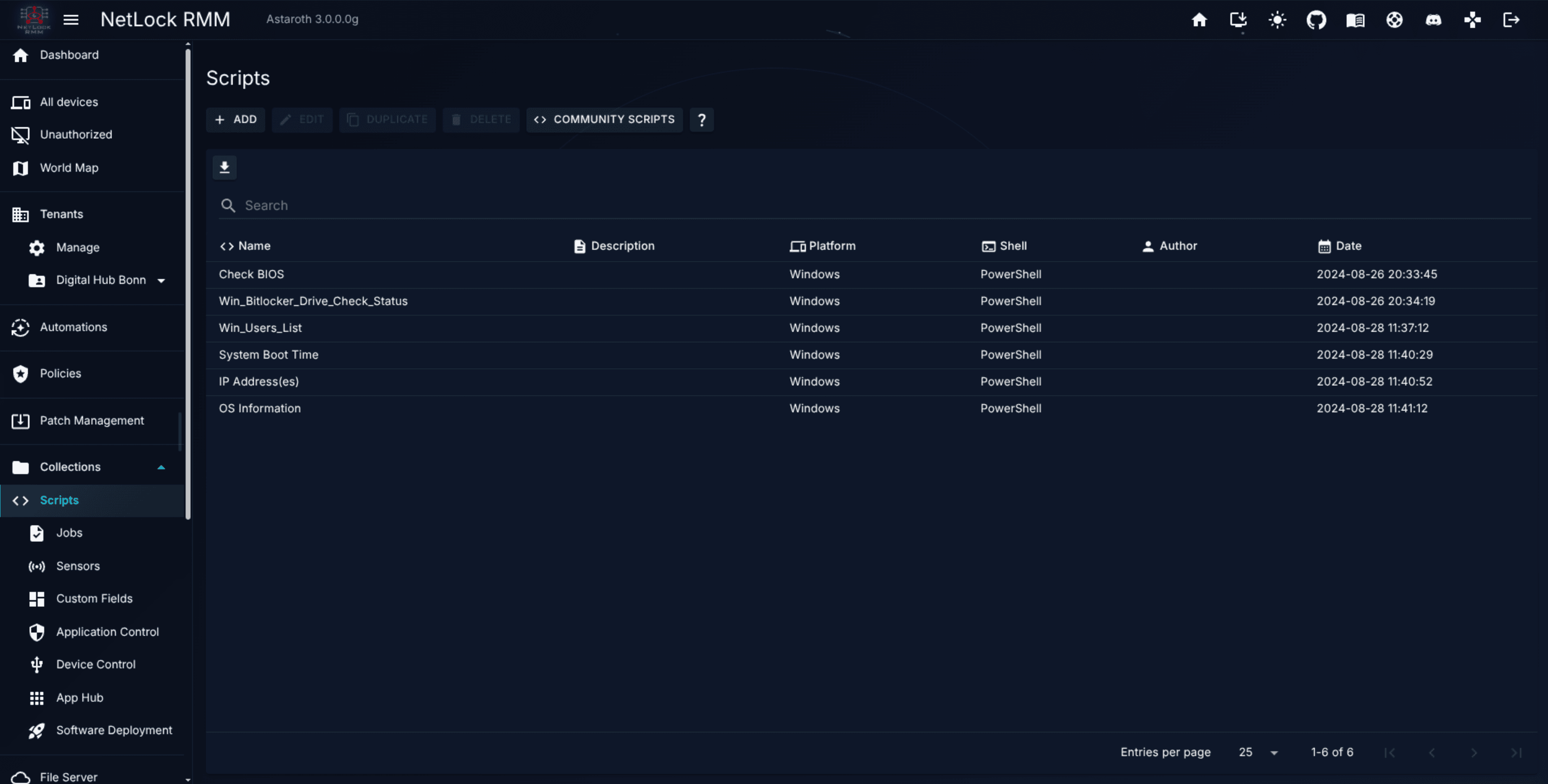
The list columns: Name, Description, Platform, Shell, Author, Date.
Create and edit a script
Two dialogs handle the lifecycle — Add Script for a new script and Edit Script for an existing one. Both share the same field set:
Name— required.Description— free text.Default timeout— the script's default wall-clock timeout, in minutes (1 to 9999). The agent terminates the script if the timeout expires.Platform— one ofWindows,Linux,MacOS, orSystem.Shell— gated on Platform.
Platform and Shell pair up exactly as follows; other combinations are not supported:
| Platform | Allowed Shells |
|---|---|
Windows | PowerShell, Python3 |
Linux | Bash, Python3 |
MacOS | Zsh, Python3 |
System | MySQL |
The System platform runs server-side database operations — typically used by SQL-backed Custom Fields and certain reporting workflows — not endpoint scripts.
The editor
The body of each dialog is a Monaco code editor with language-specific syntax highlighting driven by the selected shell. Two helpers sit next to the editor:
Templatesdropdown — starter examples for the current shell. Picking a template replaces the editor contents.AI Assistant— shown only when AI is enabled inSettings → AI/LLM. Opens a chat panel that can draft or refactor the script in place.Insert variable— a searchable menu of the device built-ins, the manual custom fields, their per-level forms and the write-back helper calls; a click inserts the token at the cursor. Disabled for theSystemplatform.Preview for device— in the button row of the dialog; renders the script for a chosen device and shows the resolved variables, the prelude line and the delivered text.
Variables are written as {{namespace.key}} and are resolved per device when the script is handed out. See Script variables and custom fields in scripts.
Community Scripts
The Scripts library has a community-sharing surface. Five dialogs cover it:
- Community Scripts browser — lists scripts published to the community repository. Filter by platform, shell, or keyword; preview the source; click
Importto copy a script into your library. - Import from GitHub — imports directly from a GitHub URL when the script is not in the community repository.
- Publish — pushes one of your own scripts to the community repository. Requires community permissions and the script must have a description.
- Report — reports a community script as abusive or incorrect.
- View — detailed metadata view for a community script before import.
Imports land as standard entries in your Scripts library — they are regular scripts from that moment on, editable like any other.
Tip: Set
Default timeoutconservatively. A runaway script that never terminates ties up an agent until it hits the limit; a five-minute default is safer than the maximum.
How Scripts are used
- Jobs pick a Script as the thing to execute on a schedule. See 8.2.
- Sensors reference a Script in two ways — as the monitoring source for the PowerShell / Python3 / Bash / Zsh categories, and as the action script to run when thresholds are breached. See 8.3.
- Custom Fields reference a Script indirectly, via the Job whose output the field parses. See 8.4. A script can also read custom field values through variables and write values back with
Set-NetLockField/nl_field_set; see Script variables and custom fields in scripts and Write custom field values from a script.
Scripts are not called from Automations (Automations assign policies and add sensors and jobs, which in turn reference scripts — see Chapter 5) and are not used by Software Deployment (deployment jobs execute install scripts stored on the App Hub entry, not library Scripts).
Permissions (Scripts)
collections_enabled— master Collections flag.collections_scripts_enabled— see the Scripts page.collections_scripts_add— create a script.collections_scripts_edit— edit an existing script.collections_scripts_delete— delete a script.
8.2 Jobs
Manage Jobs at /manage_jobs is the library of scheduled tasks. A Job wraps a Script with a schedule and a platform. The Script is the "what"; the Job is the "when".
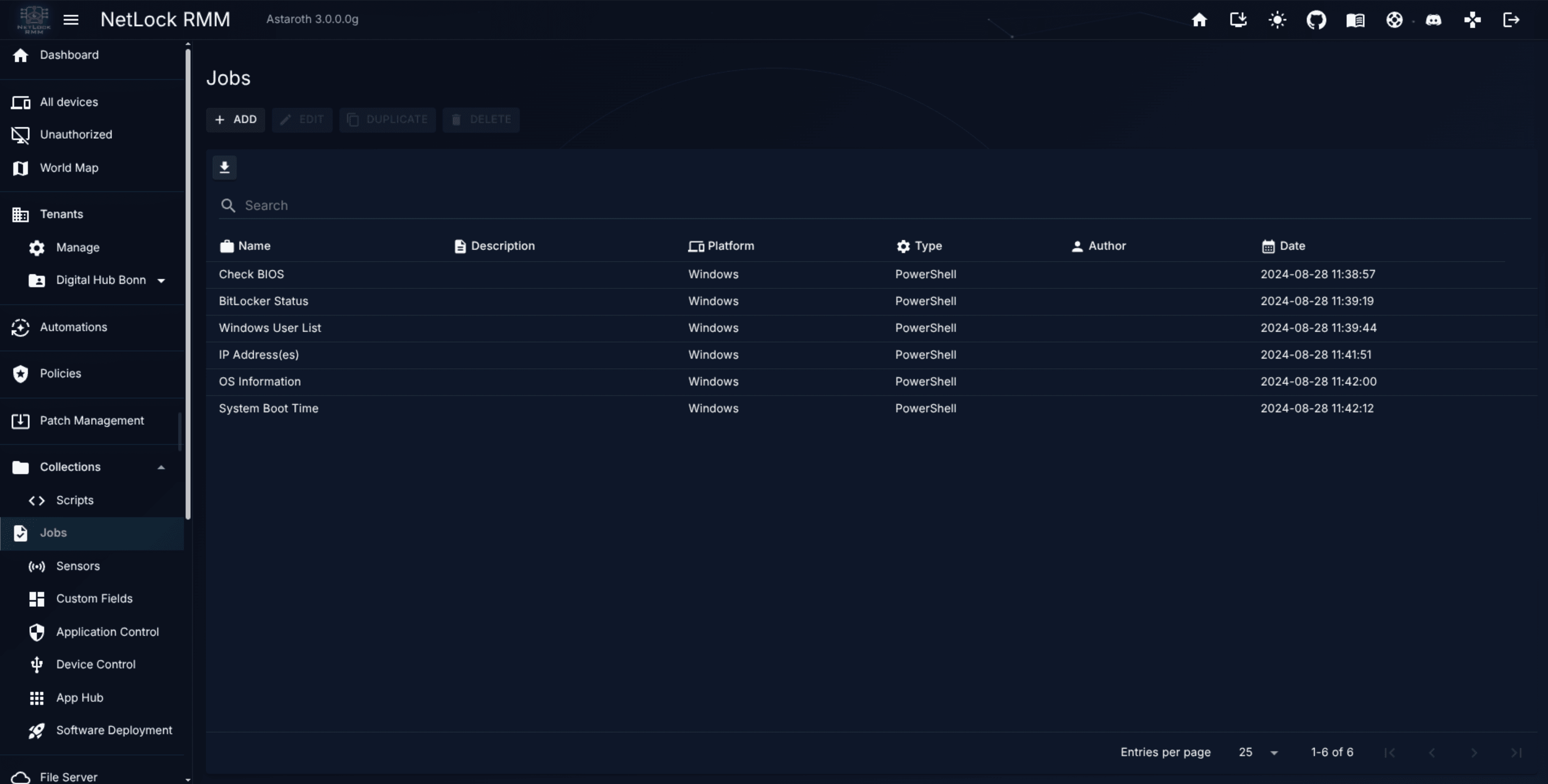
List columns: Name, Description, Platform, Type, Author, Date, and a hidden-status icon column (shown only on hidden jobs, with tooltip "Hidden — not shown in Events").
Create and edit a job
The Add Job and Edit Job dialogs share these fields:
Name,Description.Timeout— 1 to 9999 minutes. Independent of the underlying Script's default timeout; the Job's value wins.Schedule— dropdown of 12 options (see below).Platform—Windows,Linux, orMacOS.Type—PowerShell,Bash,Zsh, orPython3; the dropdown is filtered to what the selected Platform supports.Script— the Script to execute, populated from matching scripts in your library.Hidden— toggle. Hidden jobs do not appear in the Events view. The standard use case is a background collection job that feeds a Custom Field — you do not want it cluttering operational events.
The twelve schedule types
Jobs support twelve scheduling patterns. The same set is used by Sensors (see 8.3). Each is an entry in the Schedule dropdown:
System Boot— runs once per device on boot.Date/Time— one-shot execution at a specific date and time.Every X seconds— recurring interval in seconds.Every X minutes— recurring interval in minutes.Every X hours— recurring interval in hours.Starting on Date, every X seconds— seconds-recurring interval that begins at a specified date.Starting on Date, every X minutes— minutes-recurring interval that begins at a specified date.Starting on Date, every X hours— hours-recurring interval that begins at a specified date.On specific days at time— a single time plus Monday-through-Sunday checkboxes, so the job runs at the chosen time on each enabled weekday.On specific days every X seconds— seconds-recurring on selected weekdays only.On specific days every X minutes— minutes-recurring on selected weekdays only.On specific days every X hours— hours-recurring on selected weekdays only.
Intervals in seconds exist for tight monitoring-style jobs; day-limited intervals are the usual choice for maintenance tasks that should only run during business hours.
Jobs vs Scripts
A Script is a reusable piece of code. A Job is a scheduling wrapper that picks a Script. You can point many Jobs at the same Script with different schedules — for example a "hourly quick disk check" and a "daily deep disk audit" both running the same underlying script with different timeouts and cadences.
Attachment
Jobs attach to policies via the Jobs tab of Policy Settings — see Chapter 6.11 — or to the devices an automation rule matches, on top of their policy — see Chapter 5.6. A job with neither attachment exists in the library but does not run anywhere. Deleting a job removes it from every policy and every automation rule that uses it; a rule left without any action is switched off.
Permissions (Jobs)
collections_enabled,collections_jobs_enabled,collections_jobs_add,collections_jobs_edit,collections_jobs_delete.
8.3 Sensors
Manage Sensors at /manage_sensors is the library of monitoring sensors. A Sensor samples a metric on a schedule, evaluates thresholds, and optionally runs an action Script when the breach is severe. Sensors of the category Server are the exception: the NetLock server evaluates them itself when something happens on the server side, and they never reach a device (see Server sensors below).
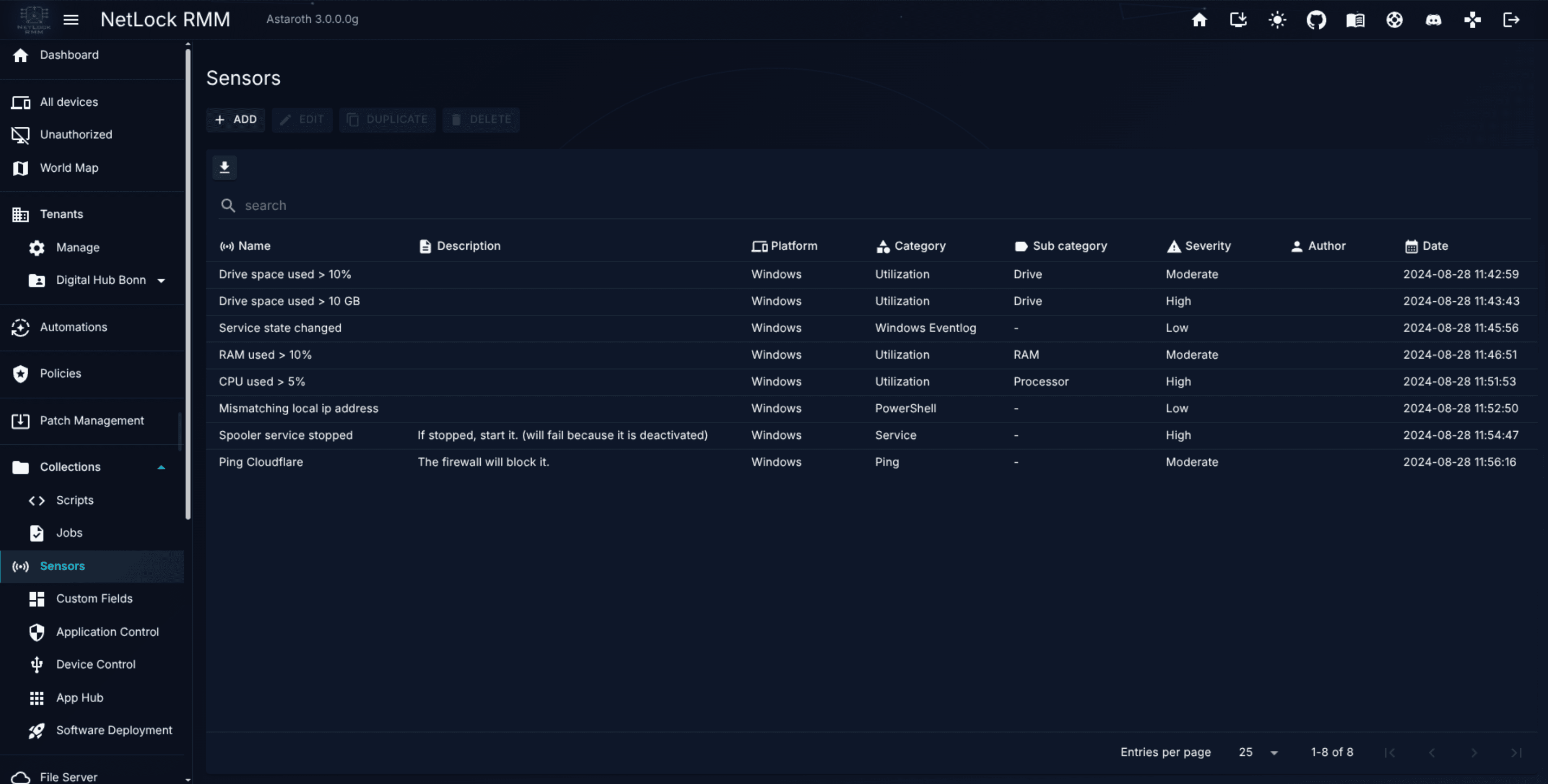
List columns: Name, Description, Platform, Category, Sub-Category, Severity, Author, Date. A server sensor shows Server as its platform and its kind as the sub-category.
Severity takes one of four values: Critical, High, Moderate, Low. Severity is assigned at the sensor and is the label surfaced on notifications and on the Dashboard.
Create and edit a sensor
The Add Sensor and Edit Sensor dialogs share the core fields — Name, Description, Platform, Severity, Schedule (the same twelve options Jobs use), Category. The dialog then renders a conditional Sub-Category and Rule block based on the chosen category.
The categories
Sensors come in eleven categories. The first ten run on the device; the eleventh, Server, is evaluated by the NetLock server:
-
Utilization — host-level metrics. Six sub-categories:
Processor— CPU usage threshold.RAM— memory usage threshold.Drive— disk space or IO threshold.Process CPU Usage (%)— CPU percentage consumed by a named process.Process RAM Usage (%)— memory percentage consumed by a named process.Process RAM Usage (MB)— memory bytes consumed by a named process.
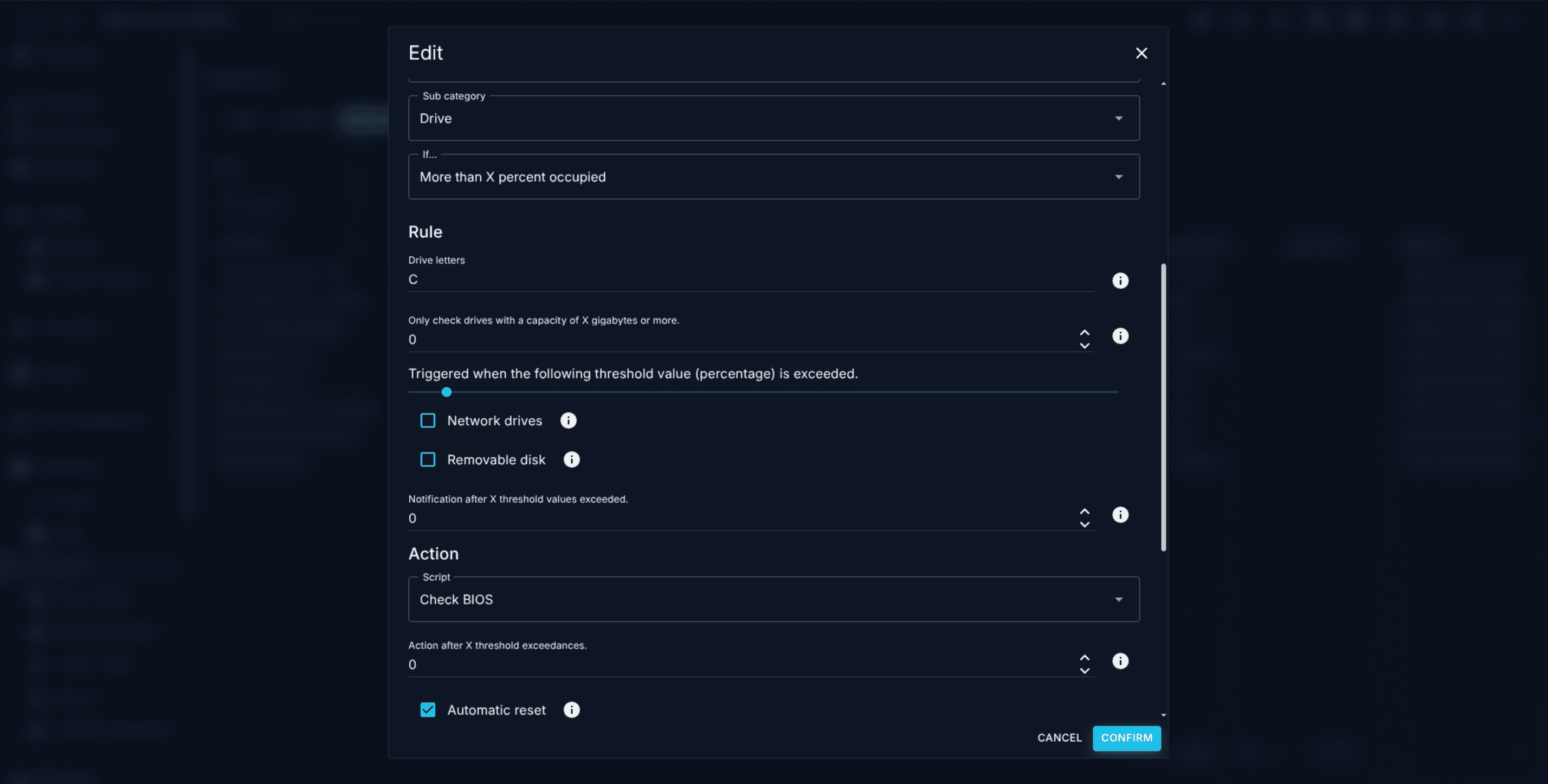
Rule configuration uses a threshold slider (5 to 100 percent, step 5) for the Processor / RAM / Drive variants, and a
Process Namefield for the Process-CPU / Process-RAM variants. TheNotification Threshold Maxvalue (0 to 9999) is not a usage limit but the number of consecutive hits after which the notification is sent, as described under Thresholds and actions below. -
Windows Eventlog — match entries in the Windows event log against a query. Useful for specific event IDs that represent failures you care about.
-
PowerShell — the data source is a PowerShell script. The agent runs the script on schedule; the script's numeric output is the sample value.
-
Python3 — same model, Python3 as the language.
-
Bash — same model, Bash as the language.
-
Zsh — same model, Zsh as the language.
-
Service — the state of a Windows or Linux service. Breaches when the service is not in the expected state.
-
Ping — ICMP reachability of a host. Breaches on loss.
-
SNMP — SNMP GET, Walk, or Monitor operation against a network device. The sensor stores credentials and queries per-sensor.
-
Other — ready-made checks picked from a template catalogue, among them the file, directory and registry sensors described in the next section.
-
Server — events the NetLock server raises about devices:
Unauthorized deviceandDevice country. See Server sensors.
Server sensors
A server sensor is not run by an agent. The NetLock server evaluates it at the moment the event happens: when a device becomes unauthorized, or when a device connects from a country that the country restriction does not list. Server sensors have two kinds, Unauthorized device and Device country.
Creating one. In the Add Sensor dialog, choose the platform Server, or pick the template Unauthorized device (server) or Device country (server) from the template catalogue; the template appears whatever platform is selected. The dialog then shows the server sensor form:
Name,Description,Label,Severityand the notification channels, as for every sensor. Without a channel the event only appears on the Events page.- The kind.
Triggers: the situations the sensor reports. At least one is required.- The tenants the sensor covers, or
All tenants (including tenants created later). Only accounts that are assigned to every existing tenant can select all tenants. - Schedule, thresholds, action script, suppression, the live test and the AI assistant do not apply and are not shown.
A server sensor is active as soon as it is saved; to stop it, delete it. A new or changed sensor takes effect within a minute. The kind of a saved server sensor cannot be changed, and a server sensor cannot be turned into an agent sensor or the other way round; duplicating one keeps its kind and triggers.
What every server sensor has in common.
- It reports devices of the tenants it covers. A device without a tenant is never reported.
- Each sensor that matches a device writes its own event with its own severity, notification channels and sensor id. Several matching sensors therefore write several events. Without a matching sensor, no event is written.
- The events are delivered through the notification channels like any other sensor event.
- Server sensors are never assigned to policies or automation rules and are never sent to agents. The
Sensorstab of a policy does not offer them. - An account restricted to some tenants only selects tenants within its access. A server sensor that covers tenants outside the account's access shows a lock instead of its actions and cannot be edited or deleted by that account.
- The public API lists server sensors read-only with
serverSensor { allTenants, triggers }; they are created and changed in the web console (see X.9.9).
Unauthorized device
Writes an event of the type Device authorization when a device becomes unauthorized. The triggers, all selected for a new sensor:
New device awaiting authorization— a new device registered and waits in the unauthorized devices list (see Chapter 3.2).Authorized device reinstalled (new access key)— a reinstalled agent took over an authorized device under a new access key.Hardware ID changed— an authorized device reported a different hardware ID.License limit reached— the license limit check took the authorization away.
A device that ends up authorized automatically is not reported, and neither is a device an administrator deauthorizes by hand. The event names the device, its tenant and where to approve it.
Device country
Reports devices by the country of the address they connect from. The measure is the server list of the country restriction under Settings → Security → Country restriction; the sensor has no country list of its own. The form shows the current server list read-only as flags, states whether the restriction for the server is on or off, and offers a link to the settings page to accounts that may open it. Addresses from private networks are never looked up and never count, for any trigger.
The triggers:
Device connects from a country outside the list (restriction off)—outside_countries. For the monitoring mode: the server list is maintained, but its switch is off. A device that checks in from a country outside the list keeps working, and an event is written. This shows which devices a restriction would cut off before it is turned on. An address the GeoIP database has no country for counts as outside only whenAllow addresses the GeoIP database has no country foris off; the event then names the country as unknown.Device refused by the country restriction (restriction on)—refused. The switch of the server list is on and the server refused a request because of its country. The server identifies the device from the refused request: its access key and hardware ID must match an authorized device. The request is answered with403at once; the identification runs in the background and covers at most 20 devices per address in ten minutes, with IPv6 addresses counted per /64 network, so that an office behind one address stays covered while a flood from one source does not load the database. A refusal event is only written while the restriction for the server is on. The event states that the device cannot sync until its country is added to the server list or the restriction is turned off. Requests without such an identity — browsers, the Relay App, the Console App, unknown or unauthorized devices — produce no event and remain visible in the log and in the connection statistics only. In particular, a device installed in a refused country for the first time has never registered with the server and cannot be reported.Country of the device changed—country_changed. Independent of any list; see below.
A new sensor has the first two triggers selected; country_changed is added deliberately, because roaming laptops and phones report many changes. While the server list is empty, outside_countries and refused cannot fire and the form shows a warning; country_changed still reports.
Reporting once, not on every check-in. Each device is reported once per country and trigger: a device that stays outside the list is not reported again at every check-in. The report is re-armed when the device checks in from a listed country. Even then, the same country is reported again no earlier than 24 hours after the last event for it, so a laptop that switches its VPN back and forth is reported at most once a day. A move to another country outside the list is reported at once. When an administrator turns the restriction on for a device already reported as outside, the refusal is reported again, because the device now stops working.
Country changed. The server keeps the last known country of every device and compares each check-in with it; a refused request of an identified device is compared as well.
- Only a country the GeoIP database resolves counts. A check-in from a private network or from an address without a country is not a change and leaves the last known country as it is, so Germany → (office LAN) → Germany reports nothing, and Germany → (VPN into the server network) → United States reports one change.
- The first check-in with a known country after the update records the country without an event. A newly registered device and a reinstalled agent also only record their country.
- A move back and forth between the same two countries is reported once per 24 hours: Germany → United States reports, United States → Germany and further moves between these two within 24 hours do not; after 24 hours the next move between them is reported once. Germany → United States → France reports both moves.
- An update of the GeoIP database can assign an address to another country; affected devices then report one change.
A device that moves into a country outside the list, covered by a sensor with both country_changed and outside_countries (or refused), raises two separate events: the change from the old to the new country and the fact that the new country is not listed.
The state is kept per device, not per sensor. A sensor created after a device has been reported does not report that device again for the same country; the first sensor created reports devices that are already outside the list at their next check-in. Normal check-ins without a change cost the server no additional database statement.
The events have the type Device country and are reported by Device country. Their titles read, followed by the sensor name in brackets:
Device connected from a country outside the allowed list: United States (US).Device refused by the country restriction: United States (US).Device changed country: Germany (DE) → United States (US).
The description lists the reason, the sensor, the new and the previous country, the external IP address, the allowed countries and the state of the restriction (or the tenant and location for a country change), the platform, the operating system and the agent version. Device country events also appear on the device's Events tab.
The kind needs upgrade section 120 of the Web Console, which adds the state columns to the devices table. Update the Web Console before the server; until the upgrade has run, the server evaluates no device country sensor.
Path placeholders in file, directory and registry sensors
The path fields of the file and directory sensors in the Other category (File change, Directory change, File exists, File age, File size, Directory size, Directory files count, Directory permission drift, Equal folder, Last log keyword, Log directory keyword) accept two kinds of placeholders, and the key path of the Registry change watch sensor accepts a third one. All of them are resolved on the device by the agent when the sensor runs; the value stored in the sensor stays as you typed it.
Environment variables
%NAME%works on every platform, including names with parentheses such as%ProgramFiles(x86)%.$env:NAME(PowerShell style) and${NAME}work on every platform as well. A bare$NAMEis not expanded, so a$inside a file name is left alone.- Only the path fields are expanded. User names, passwords, patterns and keywords are taken literally.
- A variable that is not set is left in the path unchanged; the sensor then reports the path as not existing, and the unresolved token is visible in the event text.
- The agent runs as
SYSTEMon Windows and asrooton Linux and macOS. User-specific variables such as%APPDATA%,%USERPROFILE%,%LOCALAPPDATA%or${HOME}therefore resolve to the system account, not to the user who is signed in. For per-user paths use the{user_profiles}placeholder below.
{user_profiles}
A path that starts with {user_profiles} is checked once for every local user profile on the device, with the rest of the path appended to each profile root:
- Windows: the profiles listed under
HKLM\SOFTWARE\Microsoft\Windows NT\CurrentVersion\ProfileListfor real user accounts (S-1-5-21-…), typicallyC:\Users\<name>. Service and system profiles are not included. - Linux: the home directories of the accounts in
/etc/passwdwith a uid between 1000 and 65533. - macOS: the directories under
/Users, withoutShared,Guestand hidden or service entries.
Rules:
- The placeholder must be the first segment of the path and may appear only once.
{user_profiles}alone,{user_profiles}\<rest>and{user_profiles}/<rest>are valid;C:\{user_profiles}\xis rejected with an error event. It is not case-sensitive. - Environment variables in the remainder are expanded before the profile roots are joined.
- Directory change, File change, File exists, File age and File size support the placeholder. Directory size, Directory files count, Directory permission drift, Equal folder, Last log keyword and Log directory keyword do not and report "The {user_profiles} placeholder is not supported by this sensor."
- Directory change and File change keep a separate baseline per profile. A profile whose folder or file does not exist is skipped without an alarm and gets no baseline; a profile that appears later (a new user signs in) is baselined silently on the next run; a profile that disappears drops out of the baseline without an alarm. A folder or file that existed when the baseline was recorded and is gone on a later run raises an alarm once. With
{user_profiles}, an empty folder is not an error (for a single path it still is). A change is reported for exactly the profile it happened in, with the usual added / removed / changed lists. - File exists with
{user_profiles}alarms when any profile is in the unexpected state (file missing while it should exist, or present while it should be absent) and lists the affected profiles. - File age and File size evaluate the matches of all profiles together against the configured thresholds.
- Editing the path, the pattern or the recursion of a Directory change or File change sensor records a fresh baseline on the next run instead of comparing the new location against the old baseline.
- Unauthenticated UNC paths and the placeholder cannot be combined, because the placeholder has to be the first segment.
Example: watch all autostart entries
Two Directory change sensors cover the per-user and the all-users startup folders on Windows:
- Path
{user_profiles}\AppData\Roaming\Microsoft\Windows\Start Menu\Programs\Startup— one baseline per user; a shortcut dropped into one user's Startup folder raises an event naming that user. - Path
%ProgramData%\Microsoft\Windows\Start Menu\Programs\Startup— the all-users startup folder.
On Linux the equivalent per-user location is {user_profiles}/.config/autostart.
{user_sids}
A key path of the Registry change watch sensor that starts with {user_sids} is watched once in every user hive that is currently loaded under HKEY_USERS, with the rest of the path appended to each SID:
- Windows only. The hives of real user accounts are used: local and domain accounts (
S-1-5-21-…) and Entra ID accounts (S-1-12-1-…). - The service hives (
.DEFAULT,S-1-5-18,S-1-5-19,S-1-5-20), the per-user class stores (<SID>_Classes) and the.bakleftovers of a profile repair are not included. - Each SID is resolved to its account name (
DOMAIN\userorMACHINE\user). When the account cannot be looked up - a deleted account or an unreachable domain controller - the profile folder name is shown instead, and if that is unavailable too the raw SID. The resolved name is remembered per sensor, so the lookup normally runs once per user.
Rules:
- The placeholder must be the first segment of the key path and may appear only once.
{user_sids}\<rest>is valid;SOFTWARE\{user_sids}\xis rejected with an error event. It is not case-sensitive. - The hive selection of the sensor is implied by the placeholder and ignored, because
HKEY_USERS\<SID>is by definition the root of a user hive. The event body names the key that was actually watched. - Only hives that are currently loaded can be read. A user who is signed off has no hive under
HKEY_USERS; those profiles are listed in the event as not evaluated, so it is visible who was left out. The agent never mounts aNTUSER.DATof its own. - Each user keeps a separate baseline. A hive seen for the first time (a user signs in) is baselined silently; a hive that is no longer loaded (the user signs off) is reported for information and keeps its baseline for the next sign-in. Neither raises an alarm.
- A change is reported for exactly the user it happened in, with the usual added / removed / modified lists. All users share one event.
- The value limit applies per user hive, not to the run as a whole. A hive over the limit is reported on its own and the remaining hives are still evaluated.
- Changing the hive, the key path, the recursion or the value limit of a Registry change watch sensor records a fresh baseline on the next run instead of comparing the new location against the old baseline. This applies to a single key as well as to
{user_sids}. - Environment variables are not expanded in a registry key path.
- An agent that is too old to know the placeholder reports
The registry key was not found: <hive>\{user_sids}\…, so the unsupported construct is visible in the message.
Example: watch the autostart entries of every signed-in user
A Registry change watch sensor with the key path {user_sids}\Software\Microsoft\Windows\CurrentVersion\Run covers the per-user Run key of everyone who is signed in; an entry added for one user raises an event naming that user. The machine-wide counterpart is a second sensor with the hive HKEY_LOCAL_MACHINE and the key path SOFTWARE\Microsoft\Windows\CurrentVersion\Run.
Thresholds and actions
Every sensor defines two thresholds. Neither is a value limit: both count how many times in a row the sensor's condition has to be met (a hit) before something happens.
Notification Threshold Max— the number of consecutive hits after which the event is raised and the notifications are sent.0or1means on the first hit,3means on the third consecutive hit.Action Threshold Max— the number of consecutive hits after which the configured action Script runs, counted the same way and independently of the notification threshold.
A run in which the sensor does not trigger ends the streak and resets both counters to zero, so a threshold of 3 only fires after three consecutive runs with a hit; a hit, a miss and two further hits do not reach it. Windows Eventlog sensors count each matched event as one hit, so several matching events found in one run advance the counters by that number; the action script itself still runs at most once per run.
The action section exposes a Script dropdown, populated from Scripts that match the sensor's Platform and runtime. When the action threshold is reached, the agent executes the selected script on the device that reported the hits. This is the canonical pattern for "when disk hits 95%, run the cleanup script": the percentage is the sensor's own condition, the thresholds decide after how many consecutive breaches the script runs.
Sensor readings are one of the Dashboard's queryable data sources (see Chapter 2), and sensor breaches appear in Events (see Chapter 12).
Attachment
Agent sensors attach to policies via the Sensors tab of Policy Settings — see Chapter 6.10 — or to the devices an automation rule matches, on top of their policy — see Chapter 5.6. Sensors the SNMP discovery manages cannot be added through a rule. Deleting a sensor removes it from every policy and every automation rule that uses it; a rule left without any action is switched off. Server sensors are not attached anywhere; they apply to the tenants they cover.
Permissions (Sensors)
collections_enabled,collections_sensors_enabled,collections_sensors_add,collections_sensors_edit,collections_sensors_delete. Server sensors use the same permissions, limited to the tenants of the account as described under Server sensors.
8.4 Custom Fields
Manage Custom Fields at /manage_custom_fields is the library of Custom Field definitions. Unlike a traditional RMM that exposes a handful of text inputs as "custom fields", NetLock RMM's Custom Fields compose entire tabs and sections of the device detail page, populated from multiple data sources.
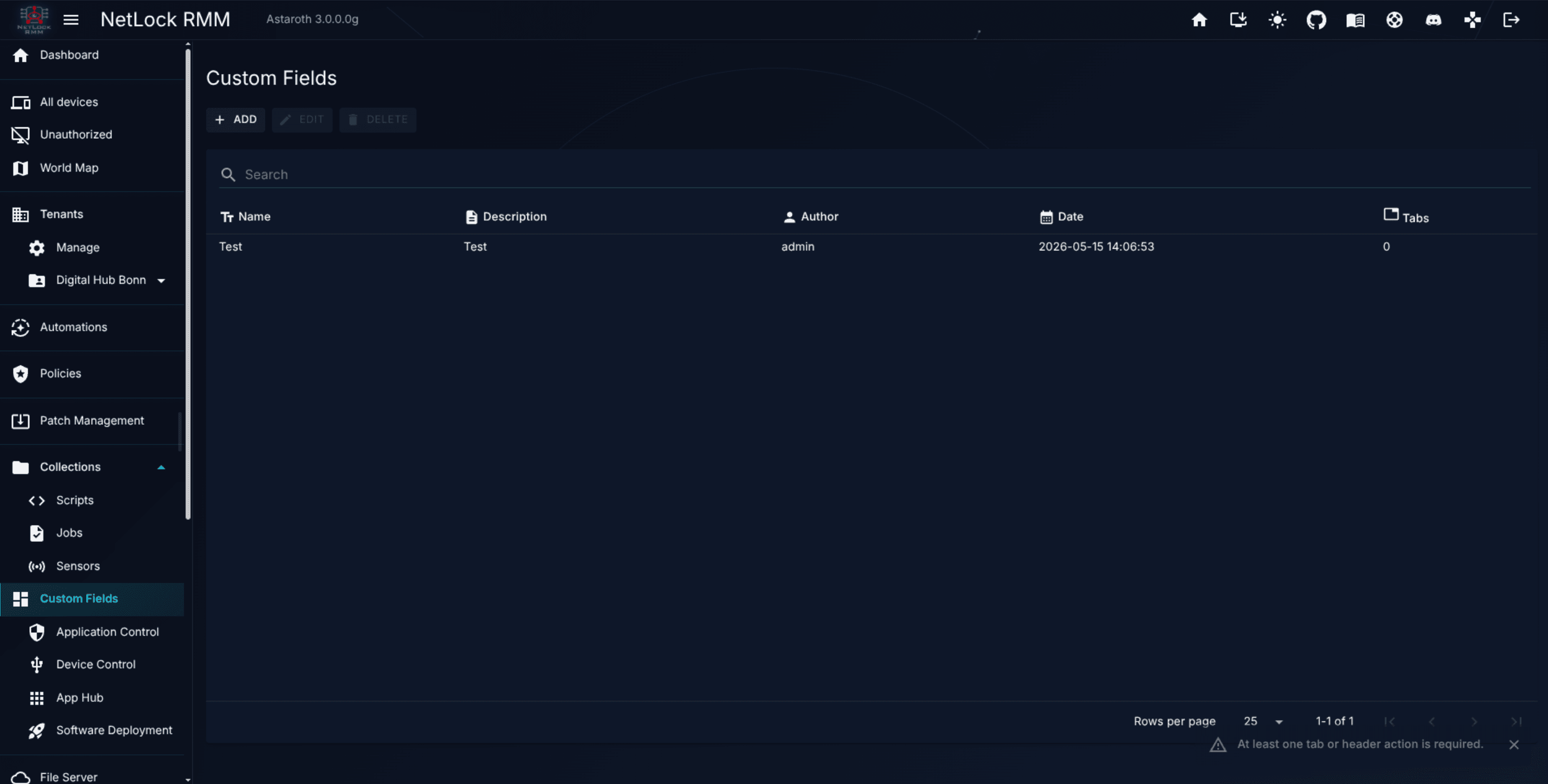
List columns: Name, Description, Author, Date, Tabs (count of tabs this definition contributes).
The builder dialog
A single dialog — the Custom Field Builder — handles both Add and Edit. The builder is a multi-panel visual editor, not a simple form; it designs an entire device-detail-page fragment in one place.
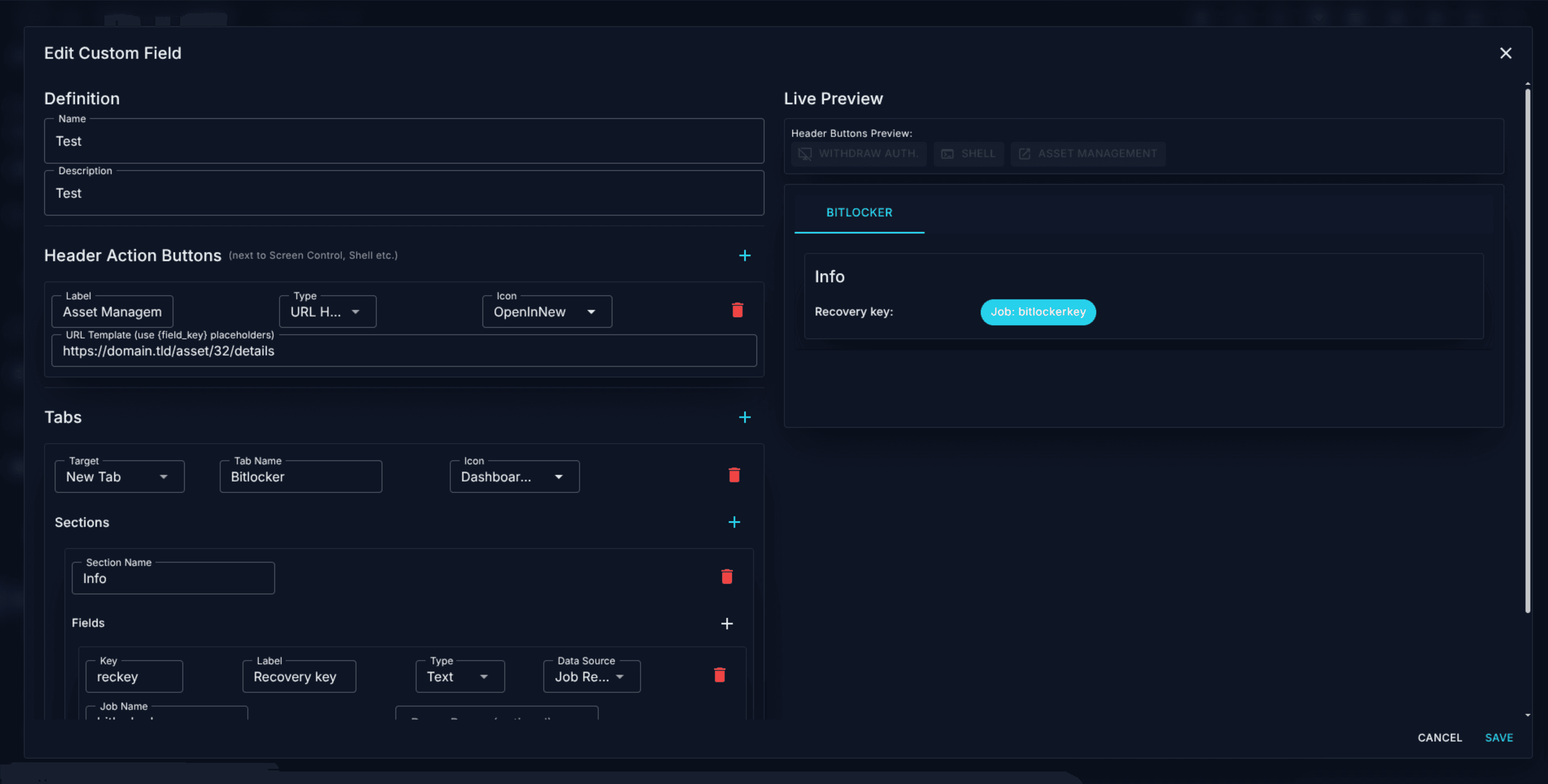
The builder has the following structure.
Definition panel (top). Name and Description of the Custom Field set.
Header Action Buttons. A list of buttons injected into the device detail header next to the standard controls (Screen Control, Shell, and so on). Each button has:
Label— what the button says.Type—URL HandlerorSQL Execute.Icon— autocomplete over the icon set.
URL Handler buttons open a URL template. The template supports placeholder tokens {device_id} and {field_key}, which are substituted at click time. SQL Execute buttons run a SQL statement on the server; the statement supports the {device_id} placeholder and has a Require confirmation checkbox for destructive actions.
Tabs. The top-level containers on the device detail page that this definition contributes to. Each tab has:
Target—New Tab,Existing Tab, orExisting Section.New Tabcreates a fresh tab; the other two inject into a tab or section that already exists elsewhere in the detail page.Tab NameandIcon— shown forNew Tab.
Sections. Inside each tab, one or more sections — each with a Section Name — appear as labelled blocks on the device page.
Fields. Inside each section, one or more fields. Every field has:
Key— the programmatic identifier used in placeholders and in scripts. A key starts with a lowercase letter and continues with lowercase letters, digits and underscores, at most 64 characters, and it must be unique across all definitions. The builder rejects a new or renamed key that breaks either rule. Keys created before this rule are kept and stay reachable in scripts through their environment name (NL_FIELD_plus the key in upper case, with every other character turned into an underscore); the builder reports them when the definition is saved. When two definitions share a key, scripts read and write the definition that was created first.Label— the human-readable name.Type— one ofText,Multiline,Table, orSecret.Secretis available with theManualdata source only; see Secrets below.Data Source— one ofManual,Job Result, orSQL Select.Inheritable— a checkbox forManualfields. An inheritable field can hold values on group, location, tenant and global level, and a device without a value of its own inherits the nearest one. See Scope and inheritance below.
Data sources in detail:
Manual— the field is free for users to edit on the device detail page. The value is stored per device.Job Result— the value is auto-populated from a Job's output. The builder asks for aJob Name; if you need to pluck part of the output, supply aParse Regex. Jobs used to feed Custom Fields are typically flaggedHiddento keep them out of the Events view (see 8.2). The result of agents that run with a German system language (they report a finished job asfertiggestellt) is parsed as well. For a value a script computes itself, the write-back helper is the more direct route; see Write custom field values from a script.SQL Select— the value is the result of a SQL query. Two modes:- Visual Query Builder — pick a table, pick columns (with aggregates
COUNT,SUM,AVG,MIN,MAX,DISTINCT), add joins (INNER,LEFT,RIGHT), add WHERE filters withdevice_idalready available as a placeholder, setORDER BYandLIMIT. - Raw SQL — gated by a "God Mode" toggle. Lets you enter SQL directly, with
{device_id}as the available placeholder.
- Visual Query Builder — pick a table, pick columns (with aggregates
Section Action Buttons. Each section can carry its own buttons, with the same shape as Header Action Buttons but scoped to the section. Useful when an action is only meaningful in the context of the data shown in that section.
Scope and inheritance
Values are stored per device: every device that lands under a Custom Field definition has its own value set, and the field metadata (keys, labels, types, queries) is shared.
A Manual field marked Inheritable can additionally hold one value per tenant, per location, per group, and one global value. A device reads the first value found in this order: its own value, then its group, its location, its tenant, and finally the global value. A field without the flag has device values only. The device page shows an inherited value greyed out, with an icon whose tooltip names the level it comes from. The same effective value, with its level, is what a script variable and the public API receive; see Script variables and custom fields in scripts and X.9 — Public API.
Removing a value deletes its row. On the device page, Remove device value in the editor of the field deletes the device's own row after a confirmation, so the device inherits again; Clear value in a level editor deletes that level's row.
Level values are edited where the level lives:
- Tenant: the
Custom Fieldssection on theTenant Settingspage (Tenants → tenant → Manage). - Location: the
Custom Fieldssection on theLocation Settingspage of the location. - Group: the
Custom Fieldssection in the group's edit dialog. - Global:
Settings → Custom Fields, tabGlobal values.
Note: On the
Location Settingspage the section is shown only to accounts that holdtenants_locations_editortenants_locations_delete; the tenant page and the group dialog have no such condition.
All four places show the same editor: one row per inheritable manual field with the definition, the field, the key, the value on this level, the effective value with its source, who changed it last and when, and the row actions Set value, Reveal secret / Hide secret (secret fields only) and Clear value. A key that predates the naming rule is marked with the environment name scripts have to use.
Viewing a level needs collections_custom_fields_enabled and access to the tenant; changing a value needs collections_custom_fields_edit; the Global values tab needs settings_custom_fields_enabled in addition. Every change is written to the audit log with the level and the field, never with the value.
Changing a value on any level marks the affected devices for a policy re-sync, so jobs and sensors that use the value through a script variable pick it up at the next check-in: a device value marks that device, a level value the devices below it, a global value every device. When an automation rule compares the field (Chapter 5.2.1), the rules are evaluated again for the affected devices and the online ones are pushed at once; this applies to values written on the device page, on a level, by a script and through the public API. Deleting a tenant, a location, a group or a definition removes the values stored for it.
Secrets
A field of type Secret holds a value that should not be readable in the console by default: an enrolment token, an API key, a password an install script needs. Secret fields are Manual fields only, and they can be inheritable like any other manual field.
- Values are stored encrypted, on devices and on every level.
- The device page, the level editors and the script preview show a mask. A new value is typed into an empty password field.
Reveal secretshows the stored value to accounts withcollections_custom_fields_reveal_secrets. Every reveal writes an audit entry. The permission is granted underUsers → account → Collections → Custom fields; administrator accounts receive it at the next start of the web console.- The public API never returns the value of a secret field (
value: null,isSecret: true). - A script that refers to the field receives the plain text on the device; see the security notes.
- Changing a field's type from
SecrettoTextkeeps the stored values encrypted. Enter them again after such a change.
Consumption
- The device detail page renders every tab, section, and field a Custom Field Definition declares — see Chapter 3. A manual field shows where its value comes from: an icon with the tooltip
Inherited from …for a level value, and one withSet by script on …orSet by API on …for a value written by a script or the public API. - Scripts read values through variables such as
{{field.av_ou_id}}and can write values back withSet-NetLockField/nl_field_set. See Script variables and custom fields in scripts and Write custom field values from a script. - The public API reads and writes device values and level values; see X.9 — Public API.
- Dashboard panels can query the same underlying storage via the Panel Builder's SQL query builder, which lets you aggregate custom-field data across the fleet.
- Reports do not expose custom-field values as a selectable data source in the Report Builder. Custom fields appear in Reports only as optional key-value entries on the cover-page footer of a brand template — a cosmetic integration, not a queryable one. To include custom-field data in a report, write a raw SQL query against the underlying storage in God Mode, if your role has it.
Permissions (Custom Fields)
collections_enabled,collections_custom_fields_enabled,collections_custom_fields_add,collections_custom_fields_edit,collections_custom_fields_delete.collections_custom_fields_editalso gates changing values on devices and on tenant, location and group level;settings_custom_fields_enabledis needed in addition for theGlobal valuestab.collections_custom_fields_reveal_secrets— reveal the stored value of aSecretfield. Every reveal is written to the audit log.
8.5 App Hub
Manage Apps at /app_hub_manage_apps is the catalogue — the library of installable packages the product knows about. The App Hub is explicitly not a deployment engine. Deploying one of these apps to devices happens through Software Deployment (see 8.8); this page is where the list of available apps is maintained.
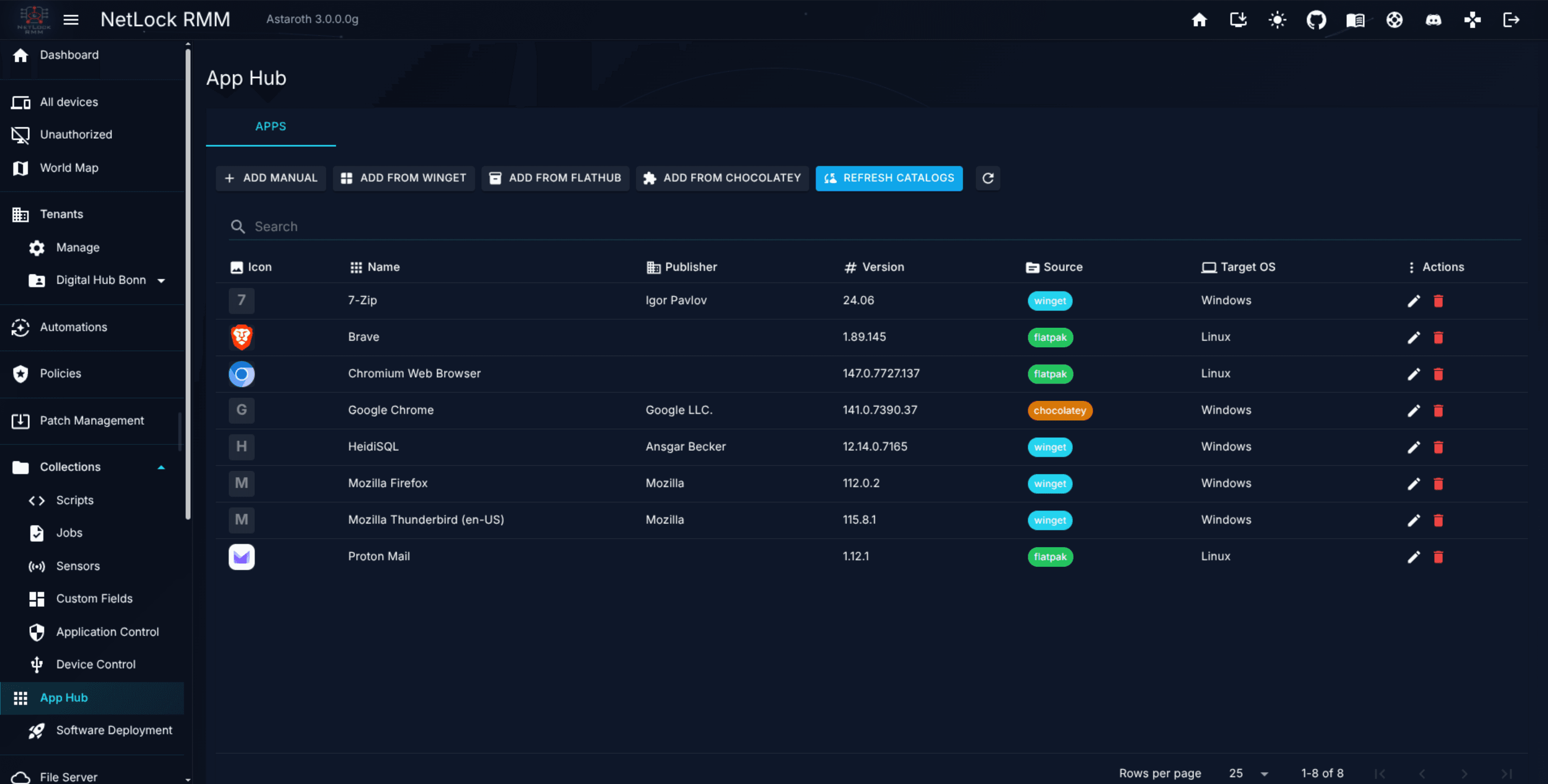
List columns: Icon, Name, Publisher, Version, Source (colour-coded chip: winget, flatpak, chocolatey, script), Target OS, and per-row Edit and Delete actions. Only one tab — "Apps" — is visible.
The three sources plus manual entries
Four catalogues feed the page:
- Winget — Windows Package Manager feeds, used for Windows apps.
- Flathub — the Flatpak catalogue, used for Linux apps.
- Chocolatey — Chocolatey feeds, used for Windows apps.
- Script — manual entries backed by install / update / uninstall / detection scripts you write.
Adding an app — manual entry
The Add_Manual_App dialog creates a catalogue entry by hand. Fields common to all sources:
Name(required),Description,Version,Publisher,Author,License,Homepage,Target OS, and an icon upload.
Source-specific fields appear based on the source picker:
Winget—Winget Package ID,Winget Source.Chocolatey—Chocolatey Package ID,Chocolatey Source.Flatpak—Flatpak App ID.Script—Install script,Update script,Uninstall script,Detection script,Detection window (seconds), and aScript Shellselector.
The Edit_App dialog presents the same fields pre-populated against an existing entry.
An install, update or uninstall script fails when it exits with a code other than 0, when its output starts with Error, or after 30 minutes — on Windows, Linux and macOS alike. Update and Uninstall are only offered for a script app that has the matching script.
The Detection script is optional and tells whether the app is installed: exit code 0 plus at least one line of output means installed, anything else not installed; the first output line should carry the installed version (for example 2.4.1). It runs before and after every install, update and uninstall, in the app's context (SYSTEM/root, or the signed-in user for apps without elevation on Windows) with a 5-minute timeout per run. Before the action, an install of an installed app and an update or uninstall of an app that is not installed are skipped (Skipped); a failing detection script lets the action run. After a successful action it is asked again (right away, after 5, 10, 20 and 30 seconds, then every 30 seconds) until it reports the expected state or the Detection window (default 300 seconds, 0 = no check after the action) ends; not confirmed means Failed, a detection that fails on every check means Detection error. The detected version drives Update available in the tray icon's App Hub and the auto-update of script apps, which only runs when the detected version is lower than the catalogue Version. See Deploy custom applications with scripts for a full walkthrough.
Adding an app — catalogue browsers
For Winget, Flathub, and Chocolatey there are dedicated browser dialogs — Winget_Catalog_Browser, Flathub_Catalog_Browser, and Chocolatey_Catalog_Browser. Each is a searchable table of the remote catalogue with a metadata preview pane. Select a row, click Add to Catalog, and the app is copied into your local App Hub with its identifiers pre-filled.
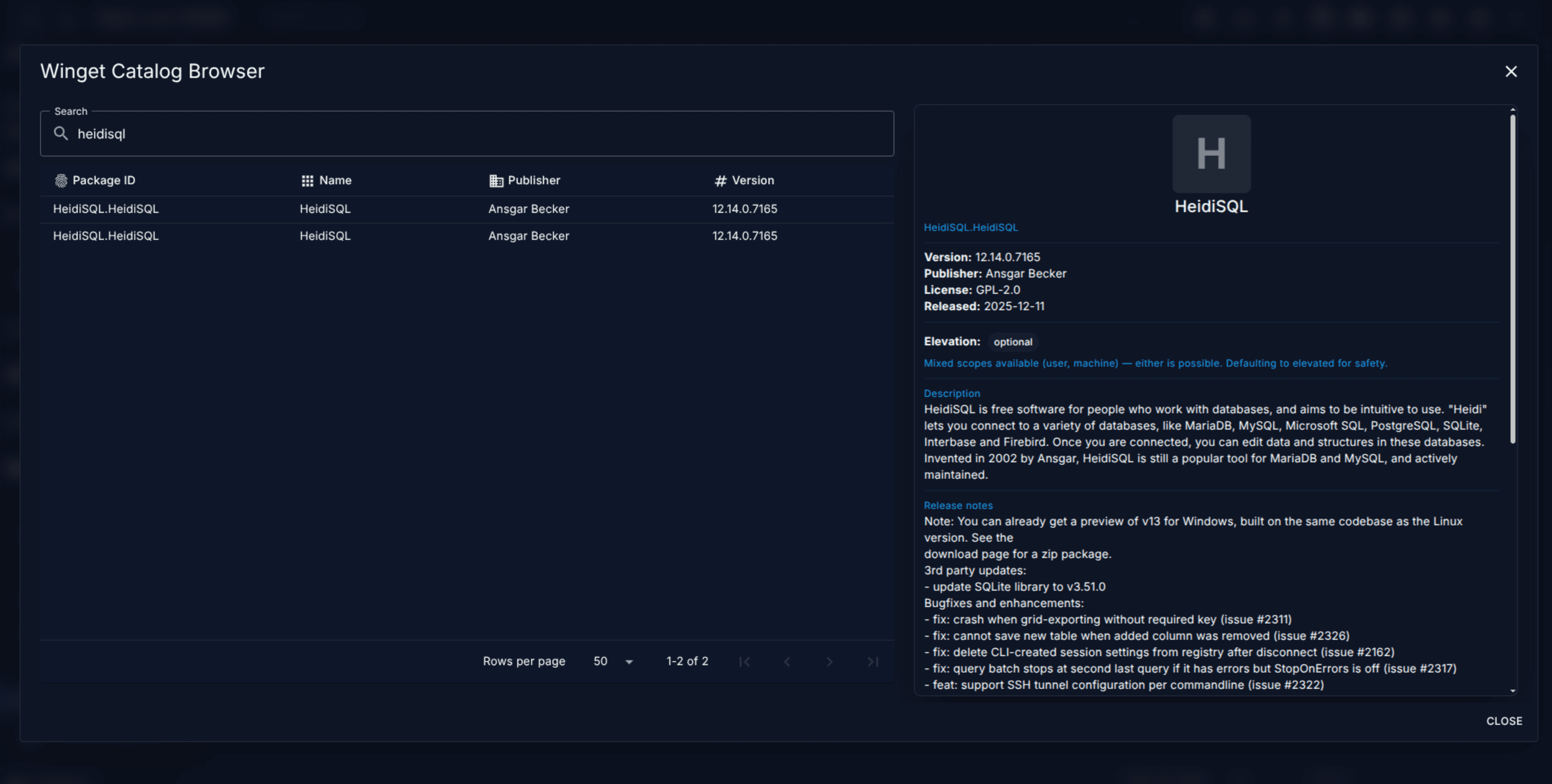
Refreshing the catalogues
The page has a Refresh catalogs button that triggers an asynchronous sync of all three remote catalogues. Progress is shown in the page's status area; the button reports when the sync completes. Refreshing updates the versions and metadata of apps already in your catalogue and lets newly browsed apps pick up the latest remote data.
The available_for_deployment flag
Every app entry has an available_for_deployment flag. Apps with this flag set are selectable inside the Software Deployment wizard (see 8.8). Apps without it are visible in the catalogue and in the policy-level App Hub tab, but cannot be picked as deployment targets.
How policies use App Hub
The App Hub tab inside Policy Settings (see Chapter 6.13) decides which catalogue apps are visible to end users in the tray icon under a given policy. This is catalogue curation, not deployment. Selecting apps in the policy does not install anything — it decides what the tray exposes.
Permissions (App Hub)
collections_app_hub_enabled— see the App Hub page.collections_app_hub_add— add a manual app.collections_app_hub_browse_winget,collections_app_hub_browse_flathub,collections_app_hub_browse_chocolatey— use the respective catalogue browsers.collections_app_hub_manage— edit, delete, and refresh catalogues.
8.6 Application Control
Application Control is an allowlist system for executables on Windows devices. Rulesets live at /application_control_manage_rulesets. The ruleset detail page is at /application_control_ruleset.
The page has two tabs.
Rulesets tab
List columns: Name, Description, Author, Date.
Actions:
- Add Ruleset — create a ruleset (
Name,Description). - Edit Ruleset — rename or redescribe.
- Delete Ruleset — delete.
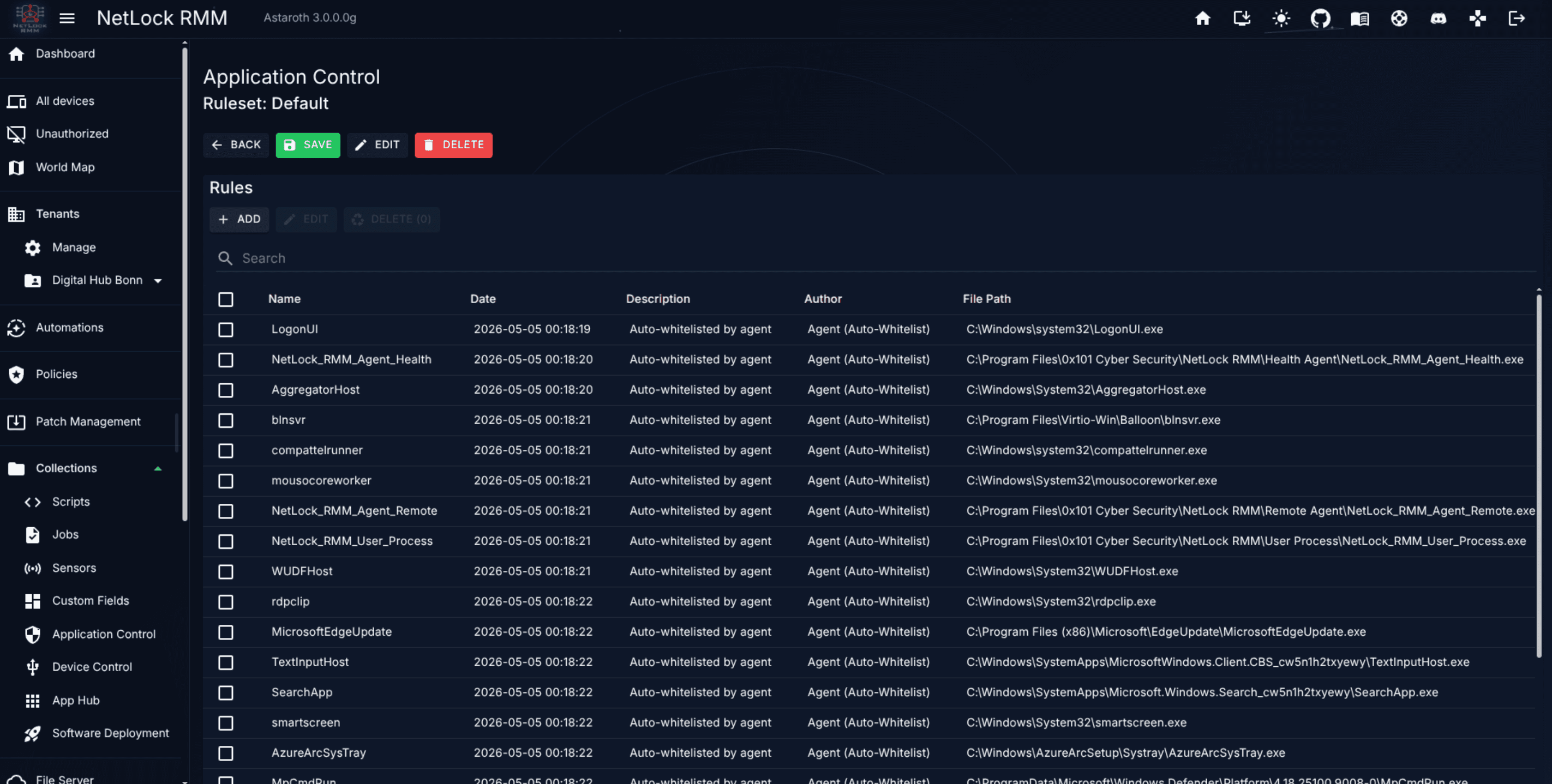
Click a ruleset to open its detail page, which lists the rules inside it. The detail page has Back, Save, Edit, and Delete affordances at the top and Add, Edit, Delete actions on the rule list.
Rules inside a ruleset
Each rule identifies one allowed executable by any combination of file and certificate attributes. The Add Rule and Edit Rule dialogs share these fields (Name is required; everything else is optional and combines with AND semantics when present):
File attributes:
File Path— absolute or pattern path to the executable.File Company,File Product,File Copyright,File Brand— Windows version-info strings.File Product Version,File Version— Windows version-info numeric strings.File SHA256,File SHA512— cryptographic hashes of the executable.
Certificate attributes (for signed executables):
Certificate Owner,Certificate Issuer.Certificate Begin,Certificate End— validity window.Certificate Public Key,Certificate Serial Key.Certificate SHA1.
A rule matches when every specified attribute matches the running executable. Any executable not matched by any rule in a ruleset attached to a device is blocked.
Tip: A SHA256 or SHA512 hash rule is the strongest form and does not need other fields. Path-only rules are the weakest — any file at that path matches, regardless of its contents.
Blocked Applications tab
When the agent blocks a launch attempt, the attempt is logged and surfaces on the Blocked Applications tab. List columns: Policy (the ruleset name), Count (instance count for this blocked entry), Date, Device, Process, Path, Company, Product.
From this tab you operate on selections with two actions:
- Approve Selected — inserts the blocked entries as allowed rules into the associated ruleset. The server deduplicates by SHA512 so repeat approvals do not clutter the ruleset.
- Delete Selected — removes the log entries without whitelisting.
Every entry carries a status: Pending approval, Approved, or Dismissed. Approving moves an entry to Approved and adds a rule; dismissing moves it to Dismissed without adding a rule.
Attachment
Application Control rulesets attach to devices via the Windows → Application Control sub-section of Policy Settings — see Chapter 6.7. A ruleset with no policy attachment exists in the library but enforces nothing.
Permissions (Application Control)
collections_application_control_enabled— see the page.collections_application_control_add,collections_application_control_edit,collections_application_control_delete— ruleset-level lifecycle.collections_application_control_manage— manage rulesets broadly (Approve Selected and similar).collections_application_control_rules_add,collections_application_control_rules_edit,collections_application_control_rules_delete— rule-level edits inside a ruleset.
8.7 Device Control
USB Device Control is an allowlist system for removable peripherals. The same page is reachable from two routes — /device-control/whitelist and /device-control/blocked — each opening with a different tab selected.
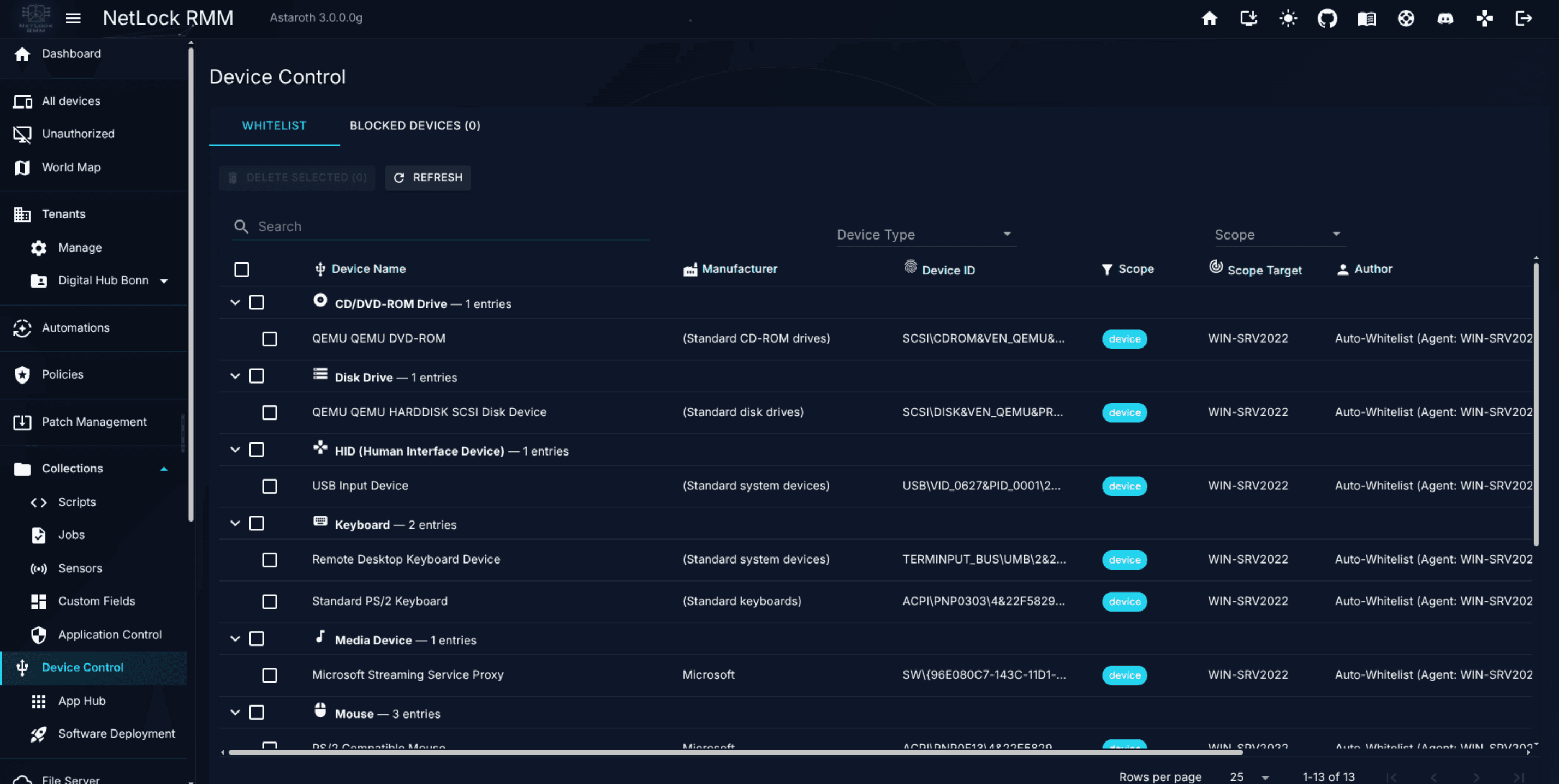
Whitelist tab
List columns: Device Name, Manufacturer, Device ID (truncated with a tooltip showing the full ID), Scope chip (device, tenant, location, group, or global), Scope Target, Author, Date, Status (enable/disable toggle), and a per-row Delete action.
The Device ID encodes vendor-id, product-id, and serial number — the three pieces of information that uniquely identify a specific USB device (or a specific model, depending on how you later choose to scope the entry).
Blocked Devices tab
When the agent blocks a USB device, the event lands on the Blocked Devices tab.
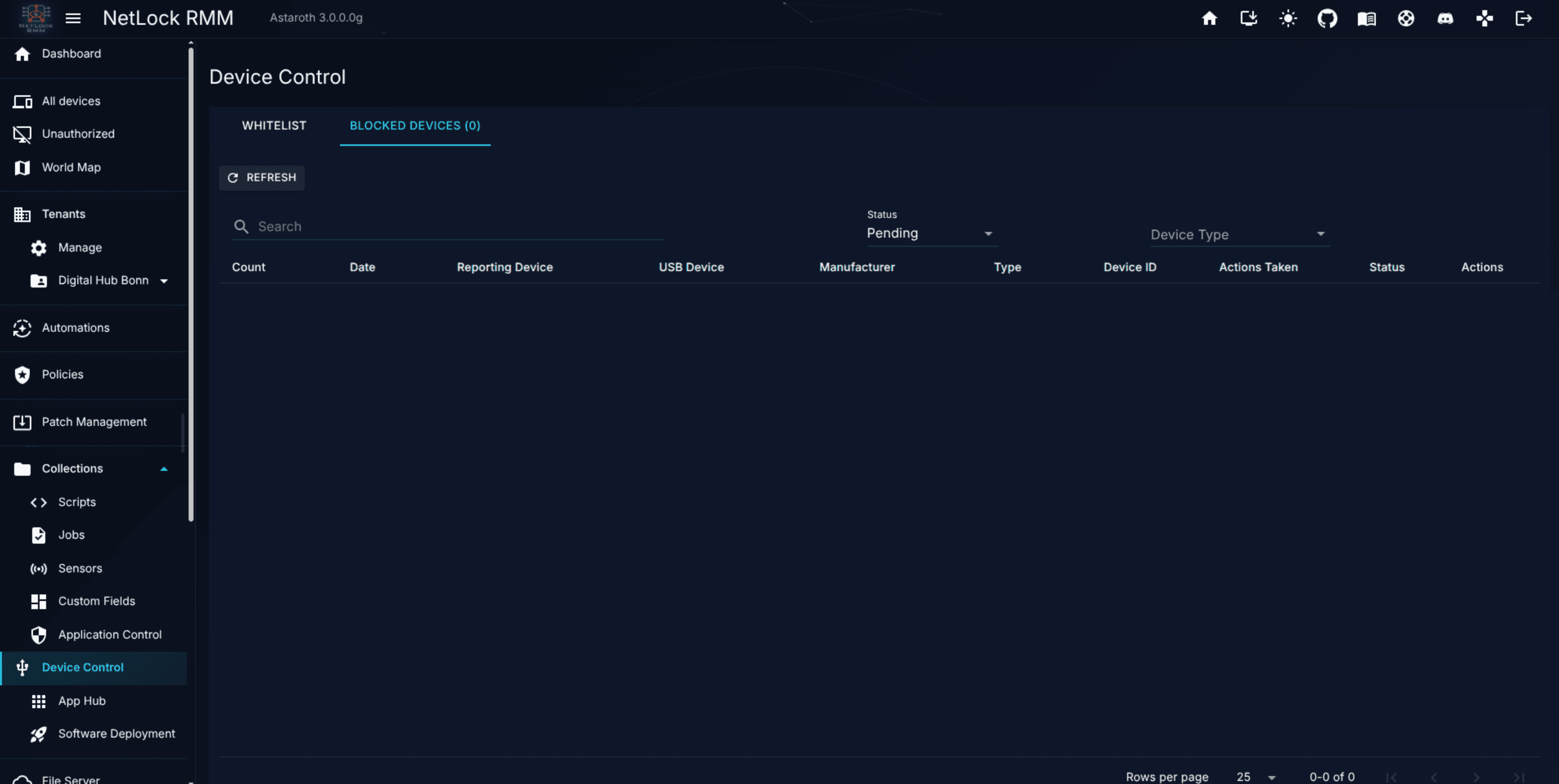
List columns: Count, Date, Reporting Device, USB Device, Manufacturer, Type (device class: Mouse, Keyboard, HID, USB, DiskDrive, WPD, CDROM, Media, Network, XboxComposite), Device ID, Actions Taken (disabled, disabled_pending_reboot, disable_failed, logged; their meaning is in Chapter 6.8), Status chip (Pending, Approved, Dismissed), and a context-menu actions column.
Approving a device (the only way to add a whitelist entry)
There is no standalone dialog for creating a whitelist entry. Entries are added exclusively by approving a pending row on the Blocked Devices tab. Click the row's menu icon and pick:
Approve for this device— the whitelist entry applies only to the specific device that reported the block.Approve for tenant— applies to every device in the tenant.Approve for location— applies to every device in the location.Approve for group— applies to every device in the group.Approve globally— applies to every device in the deployment.Dismiss— records that the block was reviewed but should not be whitelisted.
Approving at any of the five scopes inserts a row into the whitelist with the corresponding scope type and scope target. Dismissing closes the event without adding a whitelist row.
Matching granularity
A whitelist entry matches a USB device by vendor-id, product-id, and serial (encoded in Device ID), plus device class. Serial-level matching identifies one specific physical device; vendor-and-product-only matching accepts an entire model family. You choose this implicitly at approval time — the pending row carries the device's actual identifiers, and the resulting whitelist entry inherits them.
Attachment
USB Device Control is enabled per policy through the Windows → USB Device Control sub-section of Policy Settings — see Chapter 6.8. Approving an entry or toggling its status forces an immediate re-sync so endpoints pick up the change.
Permissions (Device Control)
collections_device_control_enabled— the sole permission gating the page in the current release. There are no separate add/edit/delete flags for USB Device Control.
8.8 Software Deployment
Software Deployment is the execution engine that drives App Hub packages onto devices. Three routes make up the feature:
Manage_Deploymentsat/software_deployment— the list of deployment jobs.New_Deploymentat/software_deployment/new— the four-step creation wizard.Deployment_Detailat/software_deployment/{id}— the detail view for a single deployment job.
Software Deployment is ad-hoc, not policy-driven. A deployment is created, run, and tracked as a discrete job; there is no tab in Policy Settings that composes deployments.
The deployment list
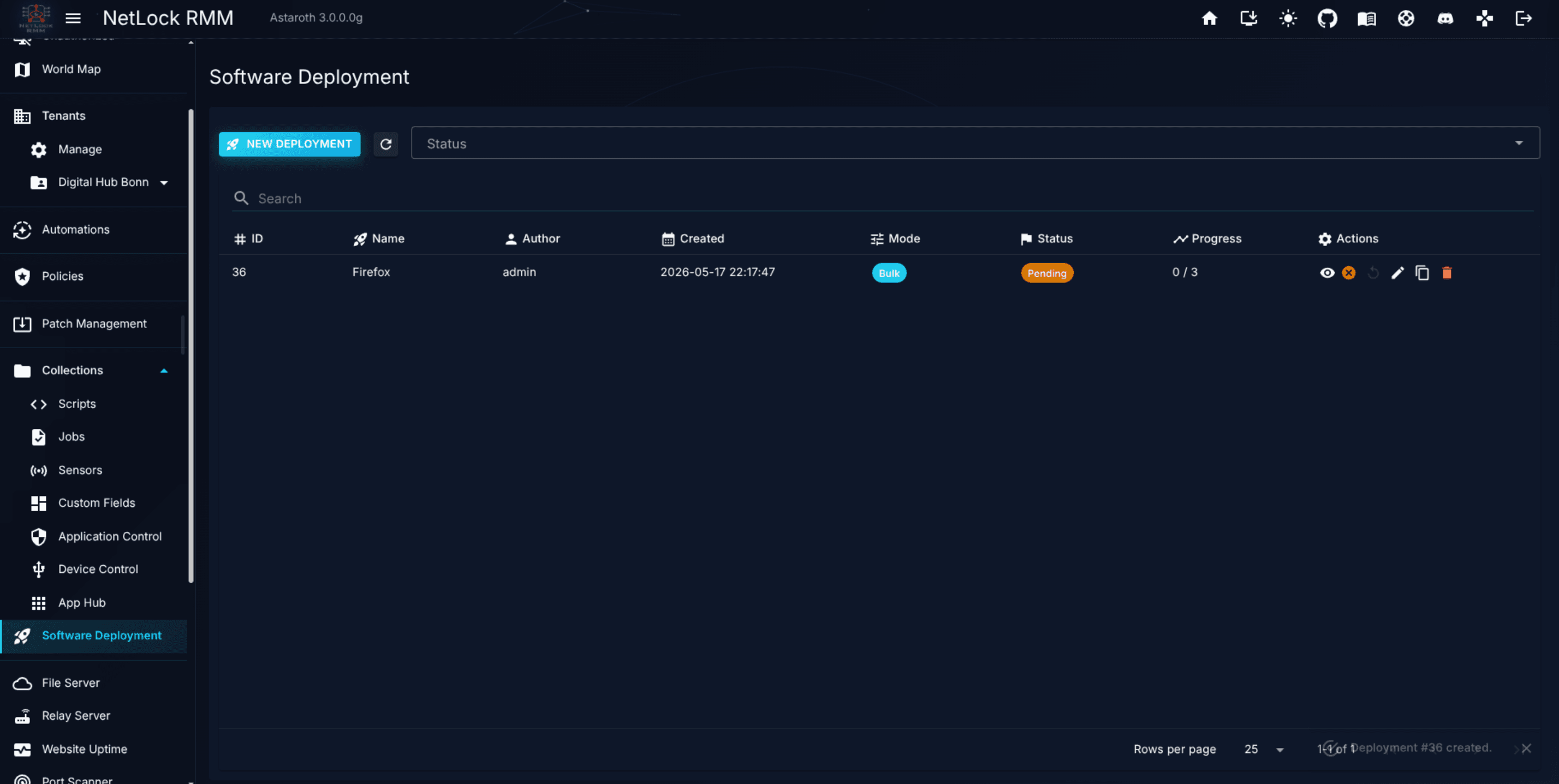
List columns: ID, Name, Author, Created, Mode (interactive or bulk), Status (pending, running, completed, completed_with_errors, cancelled), Progress (format succeeded/failed of target_count, with an error chip when failures exist), and Actions (View, Cancel, Retry, Rename, Clone, Delete).
The New Deployment wizard
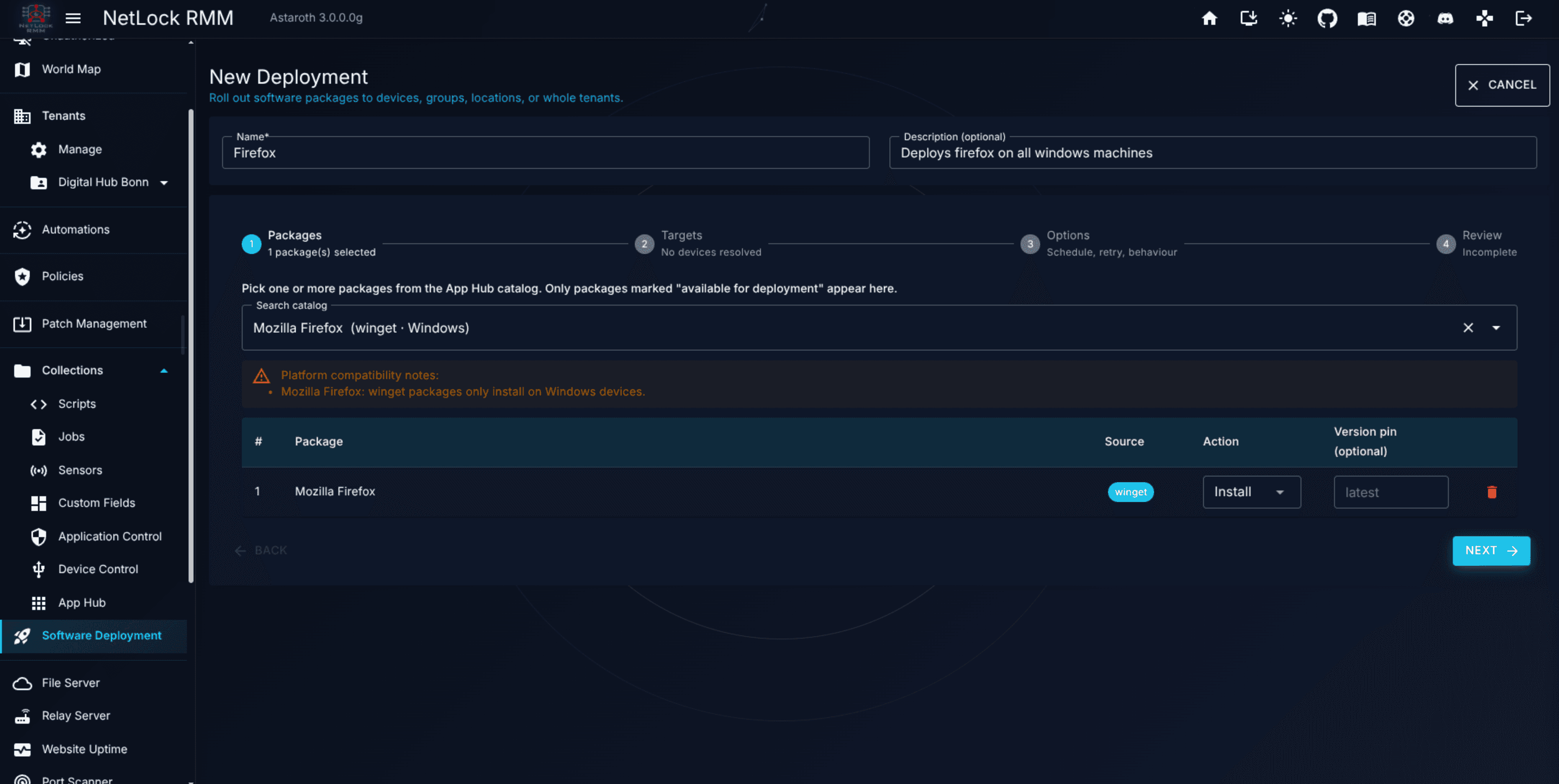
The wizard has four steps.
Step 1 — Packages. Autocomplete-search the App Hub catalogue. Only apps flagged available_for_deployment = 1 are selectable. Each added package has an action dropdown — install, uninstall, or update; for a script app without an update or uninstall script that action is disabled. A single deployment may include multiple packages with mixed actions. When the deployment is saved, every package is read from its App Hub app: the script of the chosen action, the detection script and the detection window.
Step 2 — Targets. Choose the devices that should receive the deployment. You can add devices directly, or select groups, locations, or tenants; a dynamic-membership flag keeps a group target live as devices enter or leave the group.
Step 3 — Config. Per-deployment settings:
Mode—interactive(real-time feedback in the Console) orbulk(background).Schedule start time— when execution may begin.Expiry— when unstarted targets are abandoned.retry_max— maximum retry attempts per target on failure.retry_backoff_min— minimum minutes between retries.Force reinstall— install even if the detection script reports the package as installed. Only the check before an install is skipped; the check after the install still runs.Abort on first failure— stop the entire deployment when any target fails.
Step 4 — Review and Submit. A summary view of the chosen packages, targets, and configuration. Confirming creates the deployment. If Schedule start time is in the past or unset, the deployment begins running immediately.
The detail page
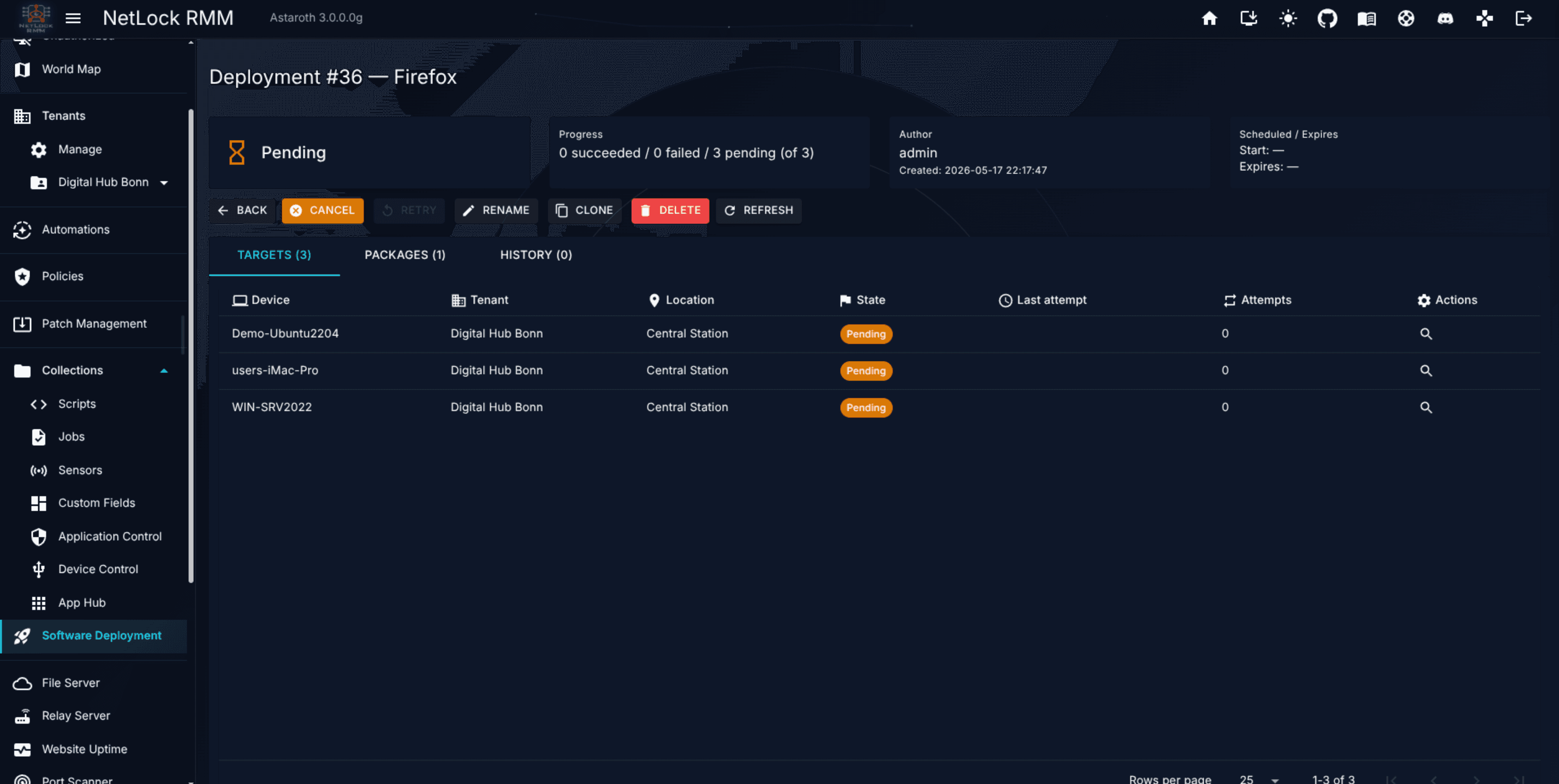
The detail view shows four info cards across the top — Status, Progress, Author & Created, Scheduled / Expires — followed by a per-device results table. Action buttons at the top of the page: Back, Cancel (available while status is pending or running), Retry (available when any target has failed), Rename, Clone, Delete.
Each row in the per-device table is a target device; its inner data is an attempt history surfaced through the per-device results dialog.
Per-device result detail
The per-device results dialog shows every attempt the deployment made on one device. Per attempt it displays:
Job Item ID,Attemptnumber.Outcome—Success,Failed,Skipped,Detection error,TimeoutorCancelled.Skippedmeans the detection before the action decided there was nothing to do (the app is already installed for an install, not installed for an update or uninstall); it counts as a success.Failedalso covers a script that succeeded while the detection script did not confirm the result within the detection window.Timeoutmeans the script ran longer than 30 minutes, or a step without elevation got no result from the tray icon in time.- The detection state next to the outcome —
Detected,Not detectedorDetection failed— when a detection script ran. Exit code,Duration,StartedandFinishedtimestamps.Error summary— an alert block if the attempt raised a specific error.stdout tailandstderr tail— trimmed output from the script. Lines starting with[detection]explain what the detection script decided before and after the action.
A step without elevation on Windows runs in the signed-in user's session through the tray icon; the deployment waits for its result and reports it like every other step.
This is the primary forensic view when a deployment has failures — exit codes and stderr tails tell you whether the failure is a package problem, a permissions problem, or a transient network issue.
Retry and the Retry button
The Retry button on the detail page re-queues every failed target in the deployment. Retries respect retry_max and retry_backoff_min from the original configuration and increment the attempt counter. Successful targets are not touched. This is the standard remediation workflow — fix whatever caused the failure, then press Retry.
Ad-hoc single-device deployment
The Deploy Software dialog is a compact single-device flavour of the wizard, launched from outside the main Software Deployment page (for example from a device detail view). It carries the selected device's identity along with a package autocomplete and an action dropdown. Run Now creates the job and starts it immediately without the full wizard.
Relationship to App Hub
App Hub is the catalogue of what can be installed; Software Deployment is how it gets installed. A deployment pulls metadata from App Hub (package identifiers per source, install / detection scripts, elevation requirement) and wraps it in a job with targets, scheduling, retry rules, and per-device tracking. The two features are intentionally separate.
Permissions (Software Deployment)
collections_software_deployment_enabled— see the Software Deployment pages.collections_software_deployment_view— view deployment lists and detail pages.collections_software_deployment_add— create a new deployment.collections_software_deployment_manage— cancel, retry, rename, clone, and delete deployments.
Related chapters
- Core Concepts — Collections as reusable building blocks.
- Chapter 5 — Automations — the policy routing layer; event-driven reactions live with Sensors, scheduled work with Jobs.
- Chapter 6 — Policies — attachment points for Jobs, Sensors, App Hub, Application Control, and Device Control.
- Chapter 7 — Patch Management — the approval queue for OS and package updates, separate from Software Deployment.
- Chapter 12 — Events & Audit — where script, job, sensor, and deployment outcomes surface.
- Chapter 13 — AI Chat — generating scripts for the Scripts library with AI assistance.
- Chapter 15 — Community — the community repository the Scripts library publishes to and imports from.