 NetLock RMM Docs
III — How-To Guides
Approve and label a new device
Move a pending agent into the authorised inventory and give it a meaningful label.
Approve and label a new device
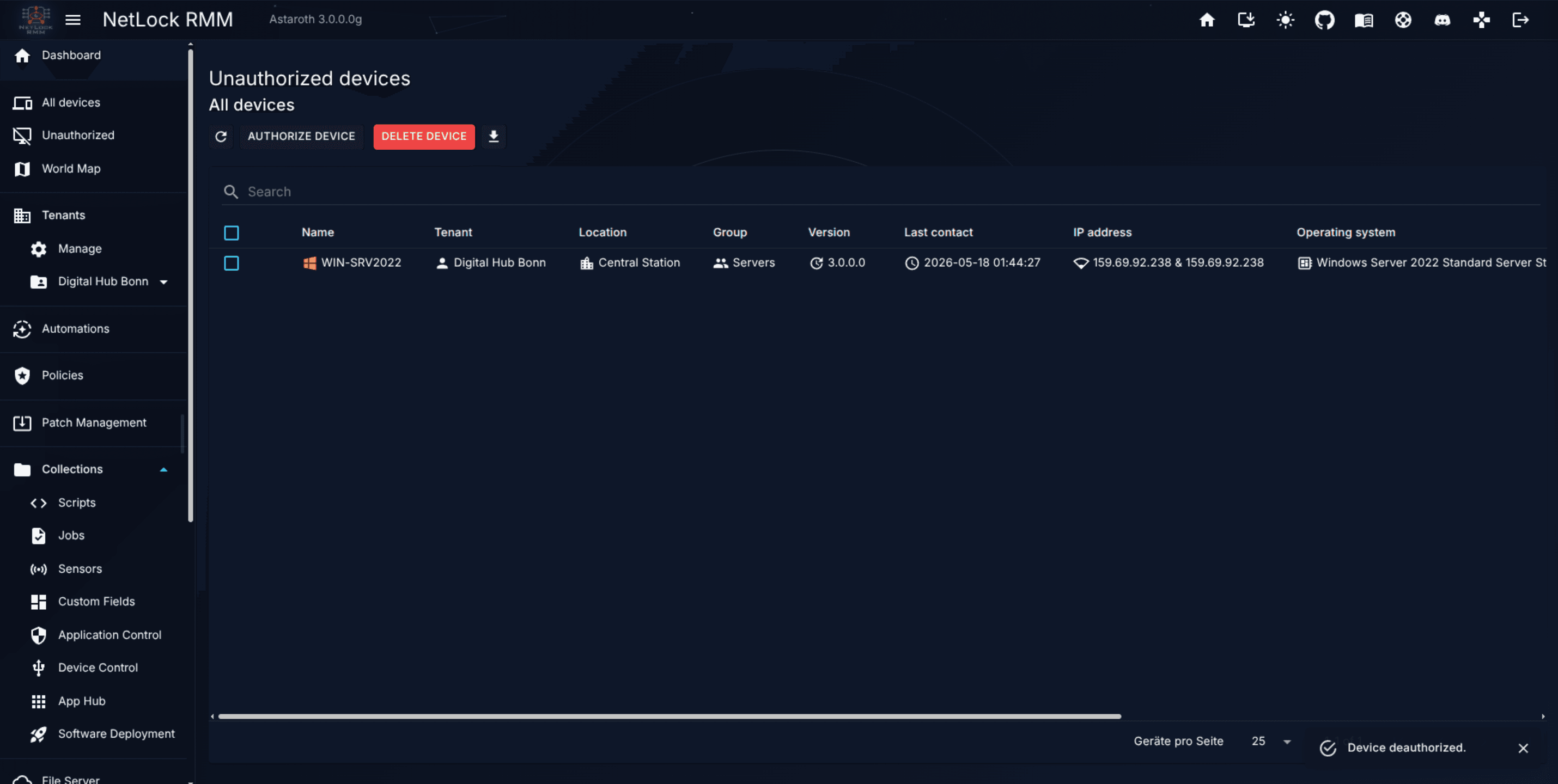
After an agent is installed it reports in to the Console but does not appear in the main Devices list. It sits in Unauthorized Devices until an administrator explicitly approves it. This guide covers the approval step and the follow-up of giving the device a readable label. The prerequisite is a successful agent install — if the agent has not yet reported in, see Guide H.1 first.
Before you start
- One or more agents have registered and are visible at
/unauthorized_devices. - You know which tenant, location, and group the device should end up in.
- Required permissions:
devices_enabledplus the role flag that gates the approval action on theUnauthorized Devicespage, anddevices_edit_label(or the equivalent in your deployment) to rename the device afterwards.
Steps
- In the Console, open
Devices → Unauthorized Devices. - Find the new entry. Each row shows the device's hostname, operating system, and the tenant, location, and group the agent was configured against.
- Confirm the row is correct. If the agent was configured for the wrong group, adjust the target group on the row before approving.
- Select the row and click
Approve Selected(or the single-row approve affordance). The entry disappears from the pending queue and the device appears in the mainDeviceslist with status beginning to report in real time. - Find the new device in the
Deviceslist. The default label matches the hostname (for exampleMARKETING-LAPTOP-01). - Open the Edit Label dialog for the device and replace the machine name with something meaningful —
Anna's laptop,Warehouse POS 3,Reception desk. Save.
Tip: Labels appear everywhere in the Console — the event feed, reports, the world map, the dashboard. A minute spent labelling each device pays off every time someone reads a report.
Verify it worked
- The device is no longer in
Unauthorized Devices. - The device appears in
Deviceswith an online status indicator. - The device's detail view shows the new label in the header and the correct tenant / location / group assignment.
- If an automation already routes a policy to the device's group, the detail view shows
Assigned policy: <name>within the device's next sync interval.
Troubleshooting
- The entry does not appear in
Unauthorized Devices. The agent may not have reached the server yet — wait a minute and refresh. If it still does not appear, check the agent's service is running on the device and review Troubleshooting. - The entry reappears after approval. Another agent is registering against the same identity, or the same installer was run twice on the device. Inspect
Eventsfor the device to see each contact attempt. - Approved but no policy lands. Policy attachment runs through Automations, not through approval. Create or verify an automation whose condition matches the device's new group — see Guide H.4.
Related
- Chapter 3 — Managing Devices — full device inventory and approval-flow reference.
- Guide H.1 — Deploy your first agent — the prerequisite step.
- Guide H.4 — Build and apply a policy — the follow-up to get configuration flowing.