 NetLock RMM Docs
Reports
Built-in and custom report templates, the Report Builder, widgets, brand templates, scheduled delivery, and Community Reports.
Reports
The Reports page at /reports is the console's reporting surface. It is used to build, schedule, and distribute reports about the fleet — anything from a device inventory to a patch-compliance summary to a custom SQL-backed breakdown of job outcomes. The page also hosts the community reports browser and the brand templates that give generated PDFs a consistent look.
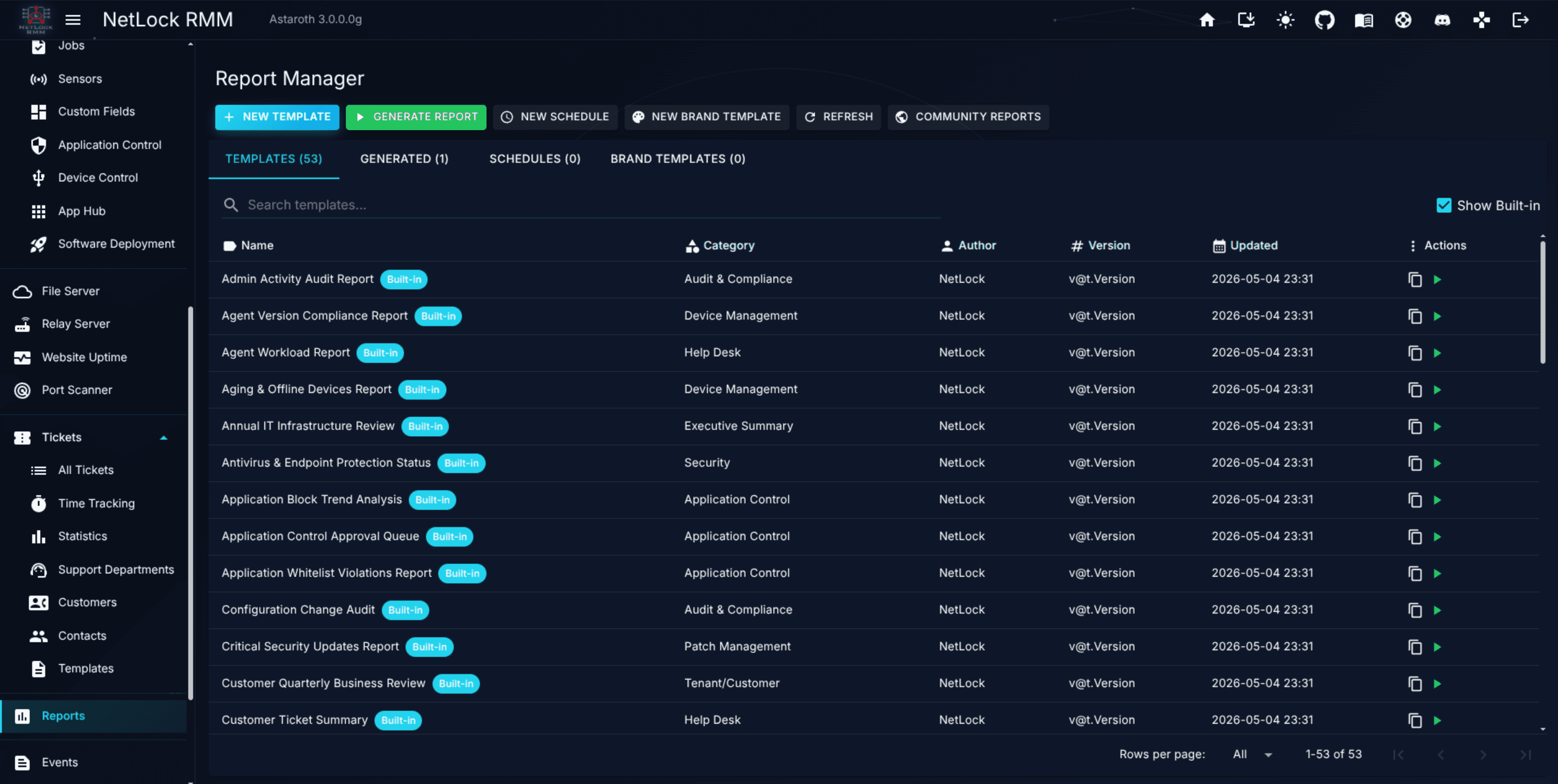
11.1 The four tabs
The page is organised into four tabs, selected across the top:
Templates— the library of report templates, both built-in and user-created. This is where you pick a template to generate, edit, share, publish, or duplicate.Generated— the list of already-produced reports, with filenames, timestamps, the template they came from, and download links for the output files.Schedules— the list of recurring report runs. Each row is a schedule attached to a template.Brands— brand templates that drive the cover page, colours, logo, and PDF footer of generated reports.
Templates drive everything. You start with a template; you generate or schedule from a template; you attach a brand to a template; you share or publish a template.
11.2 Templates
The Templates tab lists every report template you have access to. Two categories share the tab:
- Built-in templates ship with the product and are flagged with a
Built-inchip. AShow Built-incheckbox in the toolbar toggles their visibility so the list can be filtered down to your own templates when the built-in set is getting in the way. - Custom templates are created from the Templates tab's
Createaction, or by duplicating an existing template. They can be shared with other users via the Share Template dialog, published to the community via the Publish action, and imported from the community via the Community Reports browser.
Each template has an Author, a creation date, a description, and a list of widgets that define what the generated report contains. Templates are edited in the Report Builder (covered next).
Note: The set of templates marked built-in is defined in the product database, not hard-coded in the console. Which templates ship as
Built-independs on the database contents at installation.
Template actions
Row actions on a template include:
- Generate — open the Generate Report dialog for a one-off run (see 11.6).
- Schedule — open the Schedule dialog to attach a recurring run.
- Edit — open the template in the Report Builder.
- Duplicate — create a copy in your library, useful for editing a built-in without modifying the original.
- Delete — remove the template. Built-in templates cannot be deleted.
- Share — open the Share Template dialog to grant access to other users.
- Publish to Community — publish a template you own to the community repository.
11.3 The Report Builder
The Report Builder at /reports/builder (and /reports/builder/{id} when editing an existing template) is where a template is authored. A template is a sequence of widgets; the Builder is the editor for that sequence.
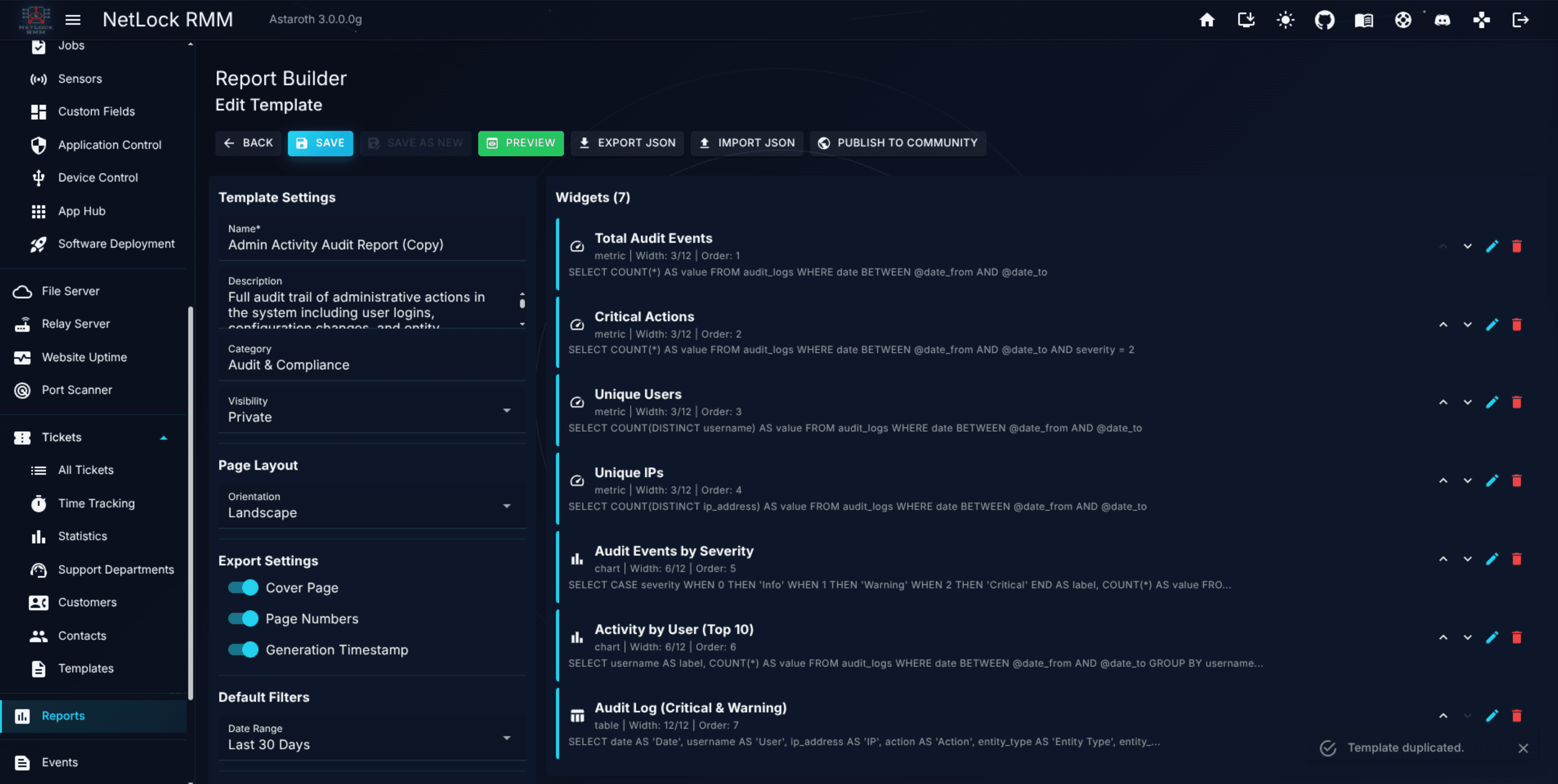
Each widget is backed by a data source — a SQL query that produces the rows the widget visualises. The Builder exposes two modes for authoring that query, gated by the user's permission level.
Visual Query Builder
The Visual Query Builder is the default mode and the one available to users who do not have admin-level report permissions. It exposes the query as a set of form controls:
Table— the table to select from, drawn from the administrator-configured list of allowed tables.Columns— the columns to include in the result.Fn— aggregate function applied to a column. The supported aggregates areCOUNT,SUM,AVG,MIN,MAX, andDISTINCT.Joins— a list of joins, each with a join type, a right-hand table, and anONcondition.Where— the filter conditions, composed withAND/ORlogic. Supported operators:=,!=,<,>,<=,>=,LIKE,IN,IS NULL,IS NOT NULL.Logic— per-clause grouping between conditions.Op,Value— the operator and right-hand side for each condition.- Order-by and limit controls round out the query.
The resulting SQL is composed by the Builder and stored on the widget.
God Mode SQL
A second mode, SQL Query (God Mode), is available when a deployment-wide setting enables it (reports_godmode in Settings). In God Mode the Widget Editor discards the visual controls and accepts raw SQL typed directly into the editor. The query runs against the full database schema — so this is the escape hatch when the visual builder cannot express what you need.
God Mode is a platform-level toggle, not a per-user permission. When the deployment has it off, no user — admin or otherwise — sees the God Mode field. When it is on, every user who can edit a report template can use it. Treat it as a deployment decision, made in Settings → Reports.
A companion AI SQL Assistant button drafts a query from a natural-language description. The AI only writes into the editor; you still review and run the query yourself.
Both modes store their output in the same widget field, so a template can mix widgets authored in either mode.
Tip: Start in the Visual Query Builder. Drop into God Mode only when you hit a real limitation — cross-schema joins, window functions, custom field values — because a Visual Query Builder query is easier to read, review, and hand off.
11.4 Widgets
A report is a sequence of widgets. Each widget is one of four types:
- Metric — a single number with a label. Use for headline figures: total devices, open incidents, unpatched criticals.
- Chart — a plotted series. Bar, line, and pie presentations are available depending on the widget configuration.
- Table — a tabular display of the rows the data source returns. The workhorse widget for inventory-style reports.
- Text — static markdown content, rendered in place. Use for narrative explanations, section headers within a report, or preamble paragraphs.
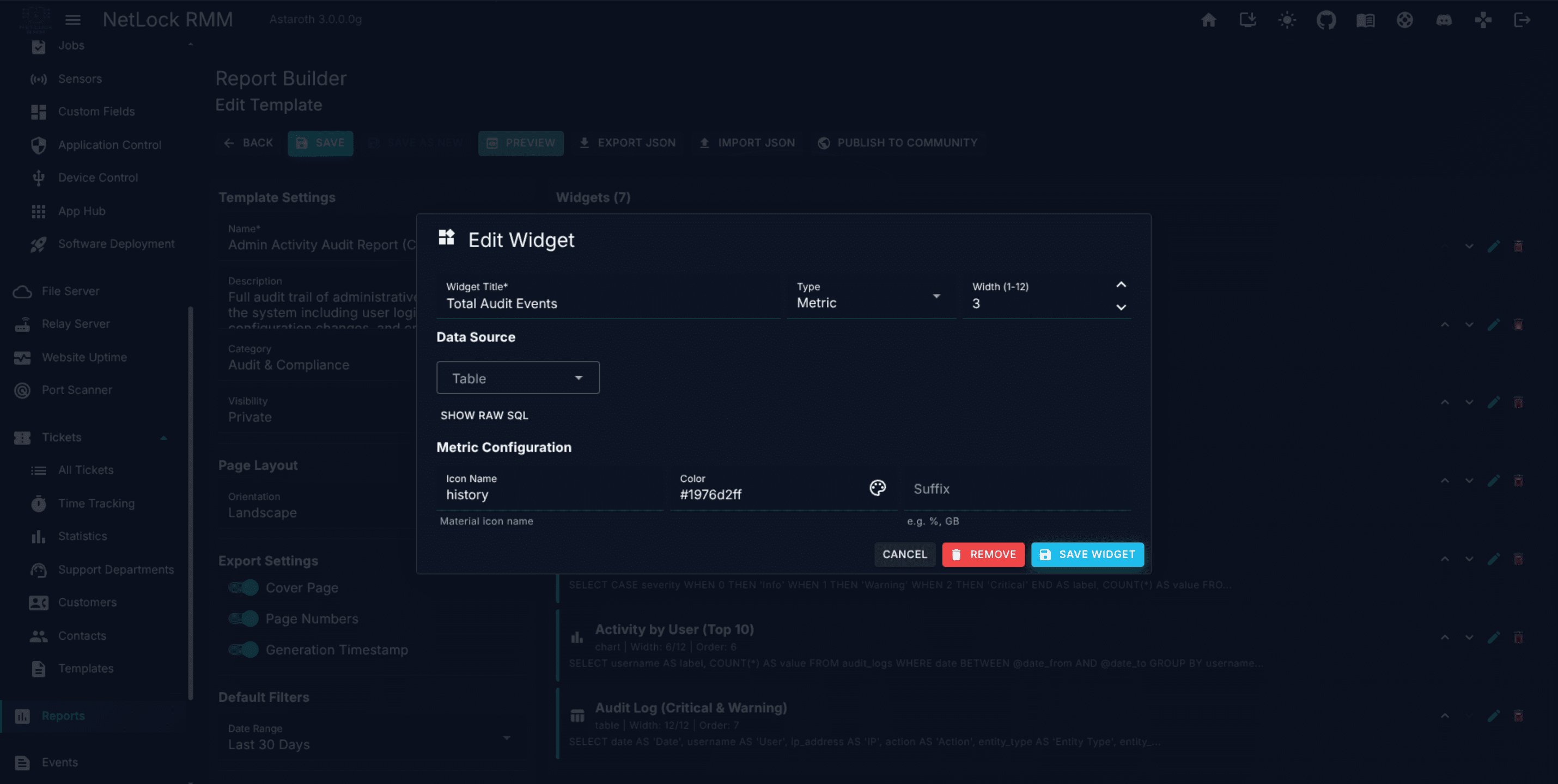
The Widget Editor
Each widget is authored and edited in the Widget Editor dialog. The dialog is divided between the widget's data source (handled via either the Visual Query Builder or God Mode SQL, as described in 11.3) and its presentation — the specific controls for the chosen widget type (axes, colours, column order, label text). The data source controls are shared across all widget types except Text, which is purely markdown and has no query.
11.5 Brand templates
Brand templates at the Brands tab let you define how a generated report looks — distinct from what it contains. A brand wraps the content of any template with a cover page and footer consistent with a specific customer, MSP unit, or product line.
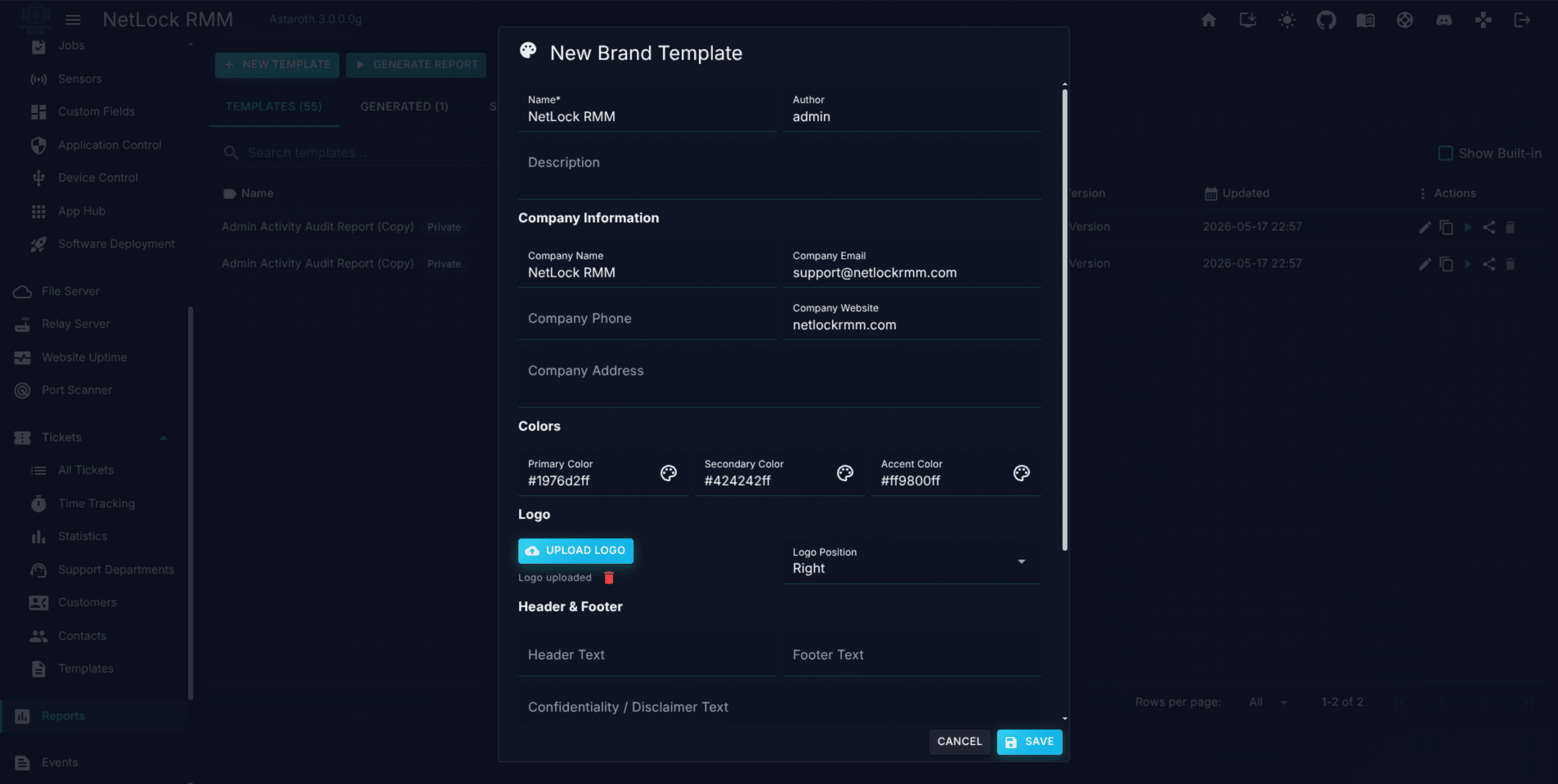
The Brand Template dialog accepts:
- Company info — company name, address, contact details.
- Colours — primary and secondary colours used on the cover page and in section headers.
- Logo — the image shown on the cover page and (scaled) in the footer.
- Header text — the text line at the top of each generated page.
- Footer text — the text line at the bottom of each page.
- Custom fields — a list of key-value pairs rendered as cosmetic footer entries on the PDF cover page.
- Show custom fields in footer — a switch that controls whether those custom fields are actually rendered.
Custom Fields in reports — what they are and are not
Important: Custom Fields are not a queryable data source in the Report Builder. You cannot pick a Custom Field from a dropdown in the Visual Query Builder. Custom Fields appear in Reports in one place only: as cosmetic key-value pairs on brand template footers.
If you need Custom Field data in the body of a report — for example, a table of devices and their
Asset Tagcustom field — you must query the underlying tables directly inGod Mode SQL. There is no visual-builder path to custom field values.
A brand template is attached to a report template via the Report Builder. One brand can back many templates; a template with no brand uses the default styling.
11.6 Scheduled delivery
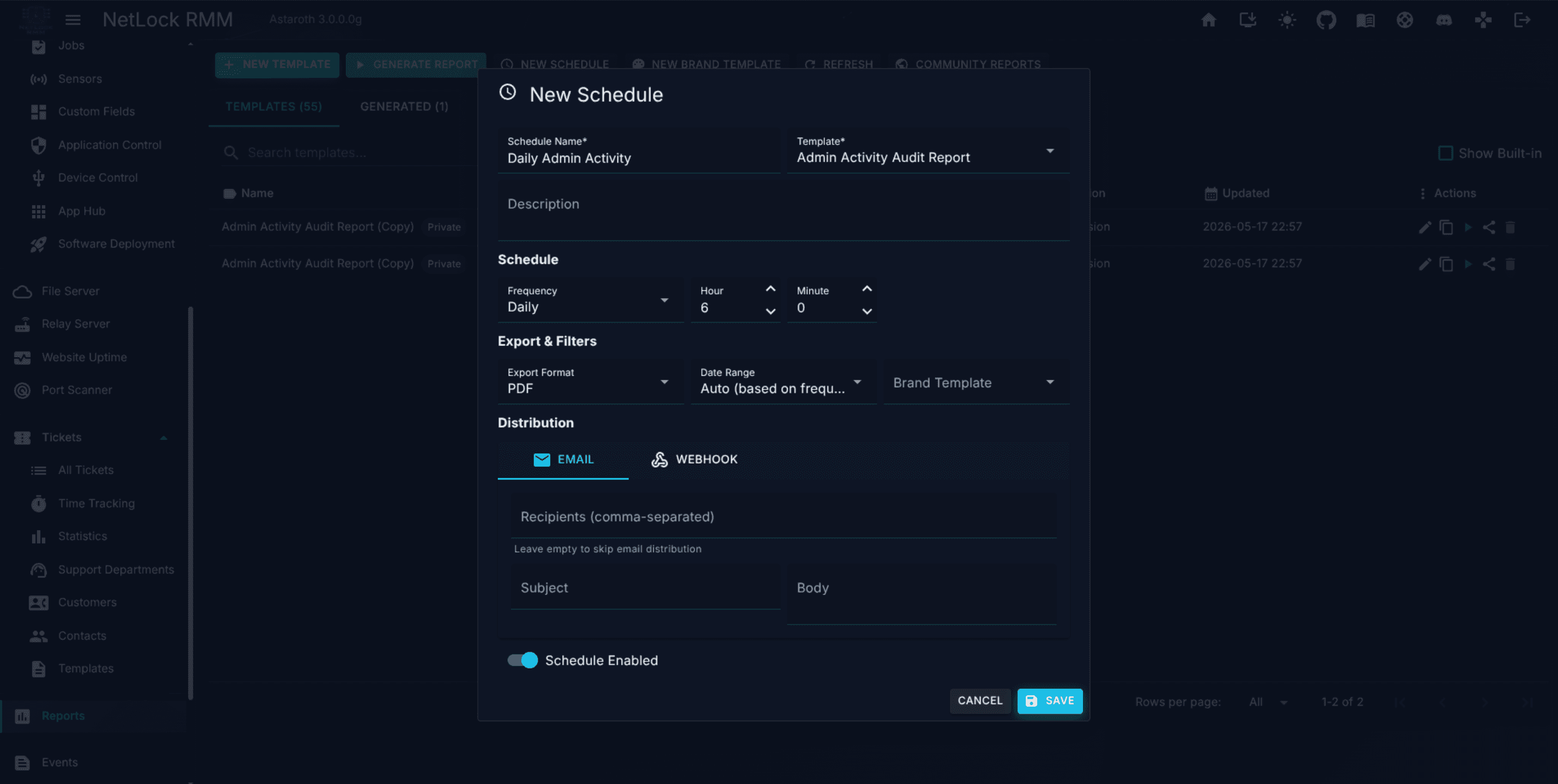
The Schedules tab lists scheduled runs; each row attaches a template to a cadence and a distribution method. Schedules are created from the Schedule dialog.
Frequency
The frequency selector offers:
HourlyDailyWeekly— with a day-of-week picker (Sunday through Saturday).Monthly— with a day-of-month picker (1 through 28).Quarterly— with a day-of-month picker.Annually— with a day-of-month picker.
Day-of-month is capped at 28 so scheduled runs always fire; there is no "last day of month" option.
Time
Time is expressed as Hour (0–23) and Minute (0–59), evaluated in the server's configured time zone.
Date range
The Date range selector controls the window of data the generated report covers:
auto— driven by the report template's own configuration.last_24hlast_7dlast_30dlast_quarterlast_year
Output format
The Export format control selects how the generated report is rendered:
PDF— paginated with the brand template applied.HTML— single-file HTML, handy for embedding in a customer portal or emailing inline.CSV— raw row data; suitable for further processing.JSON— structured form; suitable for downstream automation.
Distribution
Scheduled runs deliver through one of two channels:
- Email — the schedule carries a
Recipientsfield (comma-separated addresses), aSubject, and aBody. The rendered report is attached to the message. - Webhook — the schedule carries a
URL, an HTTPMethod(GET,POST,PUT,DELETE,PATCH),Request Headersas JSON,Request Bodyas JSON, and anAttach Filetoggle. WhenAttach Fileis on, the rendered report is sent as a multipart attachment; when off, only the request body is sent.
The distribution choice is per-schedule, not per-template — the same template can back one email-delivered schedule and one webhook-delivered schedule.
11.7 Output formats
Whether triggered from the Generate Report dialog or from a schedule, the output format is selected at run time:
| Format | Use |
|---|---|
PDF | Human-readable report with the brand template applied. The default for customer-facing output. |
HTML | Single-file HTML; renders in any browser and embeds in email bodies. |
CSV | Raw row data from each table widget. Strips charts and formatting. |
JSON | Structured representation of the report's data. Intended for downstream automation. |
PDF honours the brand template attached to the source template; the other formats ignore it.
11.8 Generating a report on demand
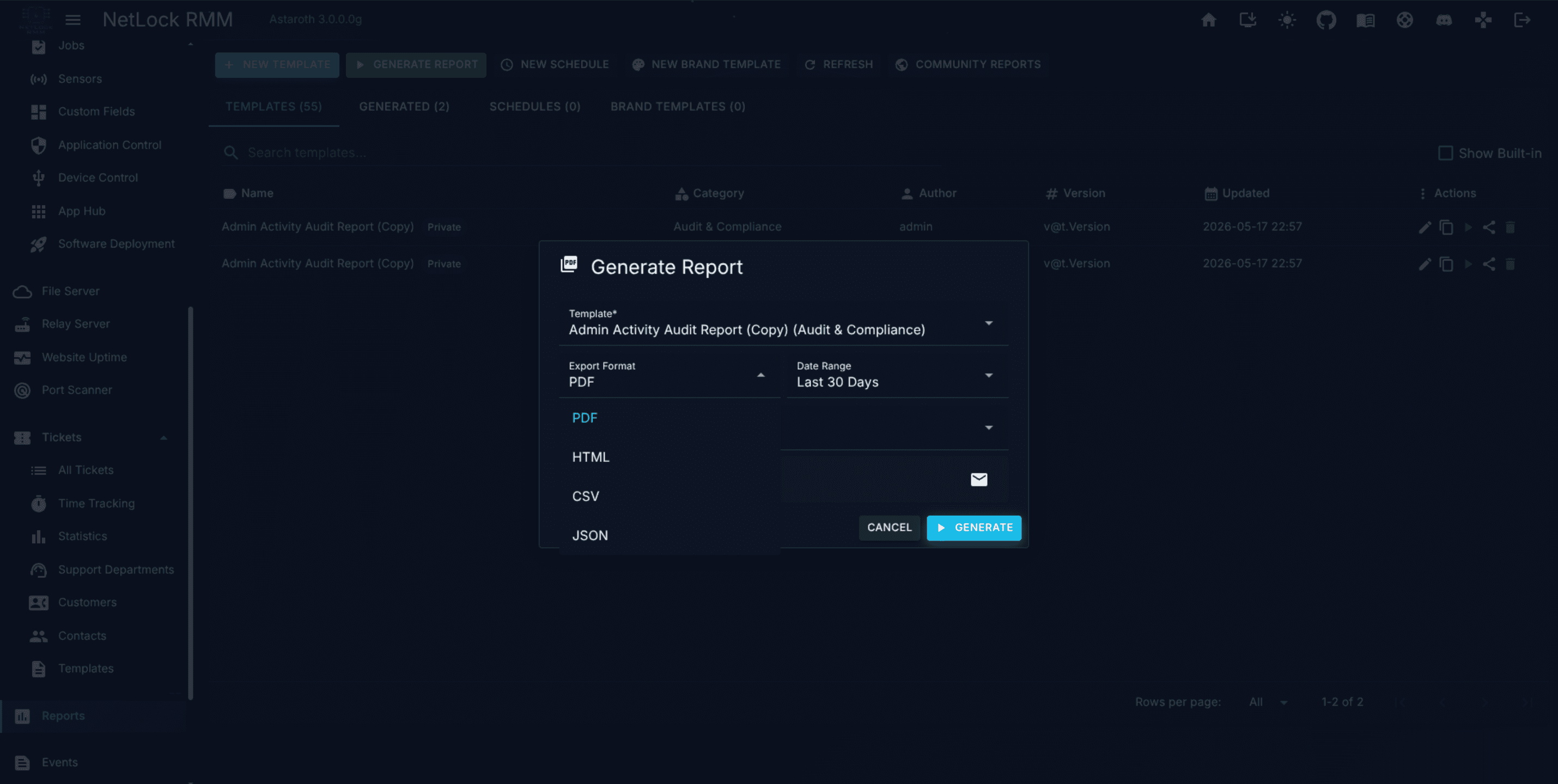
The Generate action on any template opens the Generate Report dialog — a one-off run.
Fields:
Template— pre-filled from the row you clicked.Format—PDF,HTML,CSV, orJSON.Date range— the same options as scheduled delivery.Email— optional; if filled, the generated file is emailed to that address. Leave blank to only produce the file (it lands on theGeneratedtab).
11.9 Community Reports
Report templates have a community sharing surface analogous to the one on Scripts. Four affordances drive it:
- Import — the
Community Reportsbutton opens the Community Reports browser. Filter, preview, and click to import a community template into your own library as a custom template. - Publish — the
Publish to Communitybutton on the Report Builder (visible when the template is yours) opens the Publish dialog. You provide a name, description, and metadata; the template JSON is posted to the Members Portal. - Report — flag a community template as abusive or incorrect.
- View — open the detailed metadata view for a community template before deciding to import.
Imported templates are normal custom templates from that moment on — editable, schedulable, and deletable.
11.10 Dialogs
The Reports page and its Builder share a set of dialogs:
| Dialog | Purpose |
|---|---|
| Generate Report | Run a template once, with format and date range. |
| Schedule | Create or edit a recurring run with distribution settings. |
| Widget Editor | Add or edit a single widget (metric, chart, table, or text). |
| Share Template | Grant other users access to a template. |
| Brand Template | Create or edit a brand (cover, colours, logo, footer). |
| Community Reports | Browse and import community templates. |
| Publish | Publish a template you own to the community. |
| Report | Flag a community template. |
| View | Preview a community template's metadata. |
| Delete Confirm | Confirm deletion of a template, schedule, or brand. |
Permissions
| Flag | Gates |
|---|---|
reports_enabled | Opening the Reports page. |
reports_create | Creating a template. |
reports_edit | Editing a template. |
reports_delete | Deleting a template. |
reports_generate | Running the Generate Report dialog. |
reports_schedules | Creating or managing schedules. |
reports_brand_templates | Managing brand templates. |
God Mode SQL is controlled separately by the deployment-wide reports_godmode toggle in Settings → Reports, not by a per-user permission.
See Appendix X.2 for the full permission catalogue.
Related chapters
- Chapter 8.4 — Custom Fields covers where Custom Fields live in the product and how to read their values via SQL when you need them inside a report body.
- Chapter 12 — Events & Audit is the source for generating event-oriented reports.
- Part III — How-To Guides includes a step-by-step for running a compliance report and scheduling email delivery.
- Appendix A.12 — Content defaults covers the system-wide report defaults configured in Settings.