 NetLock RMM Docs
Users & Roles
Creating console users, roles as reusable permission sets, per-user permissions, scoping access to tenants, and managing two-factor authentication.
Users & Roles
The Users page at /users is where console user accounts are created, edited, and deleted. User accounts are the identities that sign in to the console — not the agents, not the devices, not the customers. One account per technician.
NetLock RMM's access model is a permission set per account, scoped to tenants. The permission set is the matrix of flags described in 14.4. Where it comes from is decided per account: an account either follows a role — a named, reusable permission set managed under Users › Roles — or carries custom permissions of its own. A role is what an account may do; the tenant scope (14.5) is where it may do it, and that stays on the account.
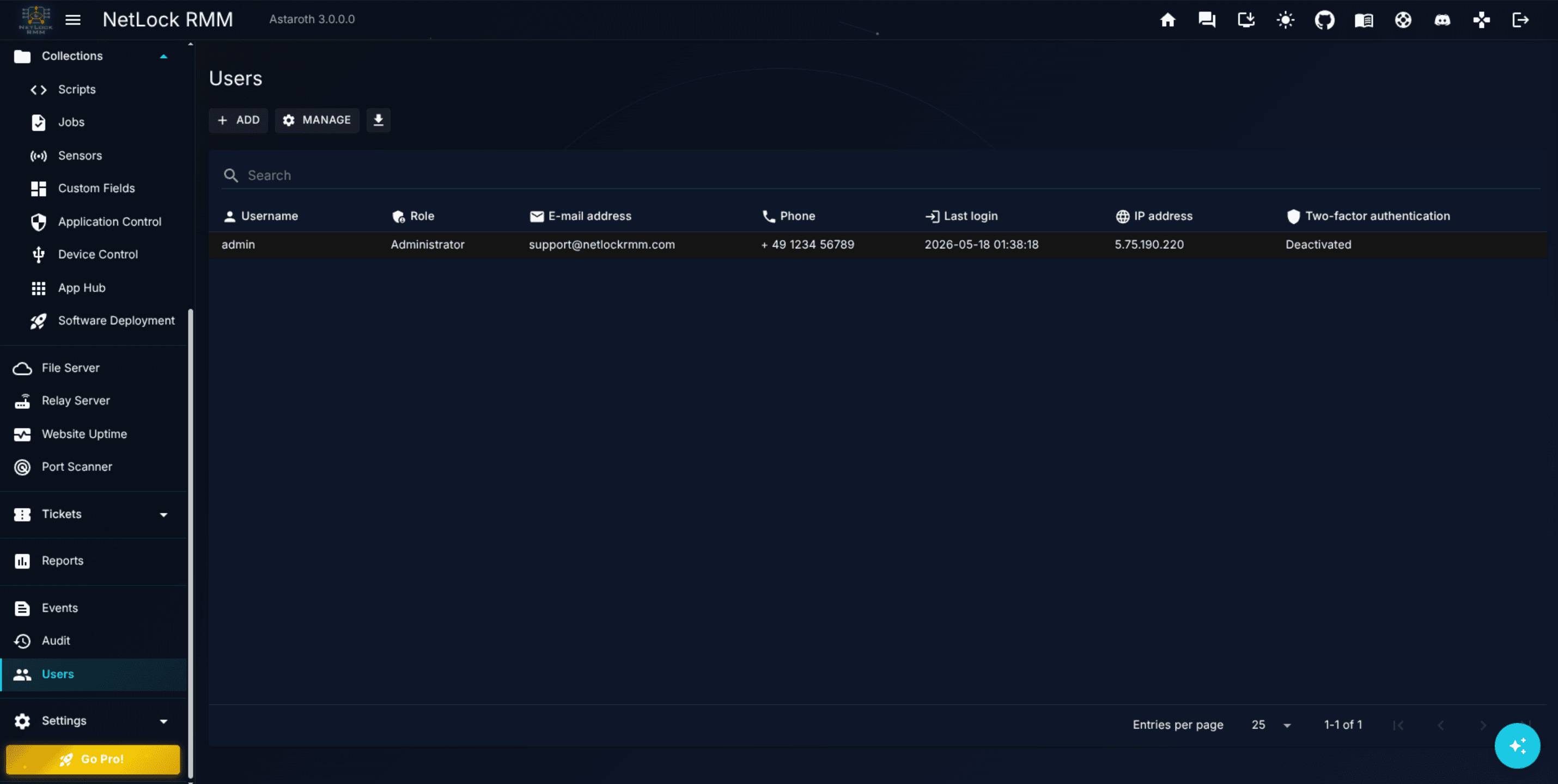
14.1 The Users list
The Users list shows one row per user account.
| Column | Meaning |
|---|---|
Username | The account's login identifier. |
Role | The role the account follows. An account with its own permission set shows a Custom chip; its tooltip names the role it was detached from, if any. |
Mail Address | The account's email, for notifications and password-reset delivery. |
Phone | Optional contact number. |
Last Login | Timestamp of the user's most recent successful login. |
IP Address | Source IP of the most recent login. |
2FA | Activated or Deactivated. |
Toolbar actions include Add (14.2), Roles (opens the roles page, 14.4, shown to accounts that hold roles_enabled) and Export data to JSON, CSV or HTML. The actions column of a row opens the user's settings page — covered in 14.3.
Double-clicking a row, or using the Manage action, opens the user's settings page. The list can be narrowed to the members of one role or to the custom accounts: the member count on the roles page opens the list with a filter chip that is lifted with its close icon.
14.2 Creating a user
Add User opens the Add User dialog.
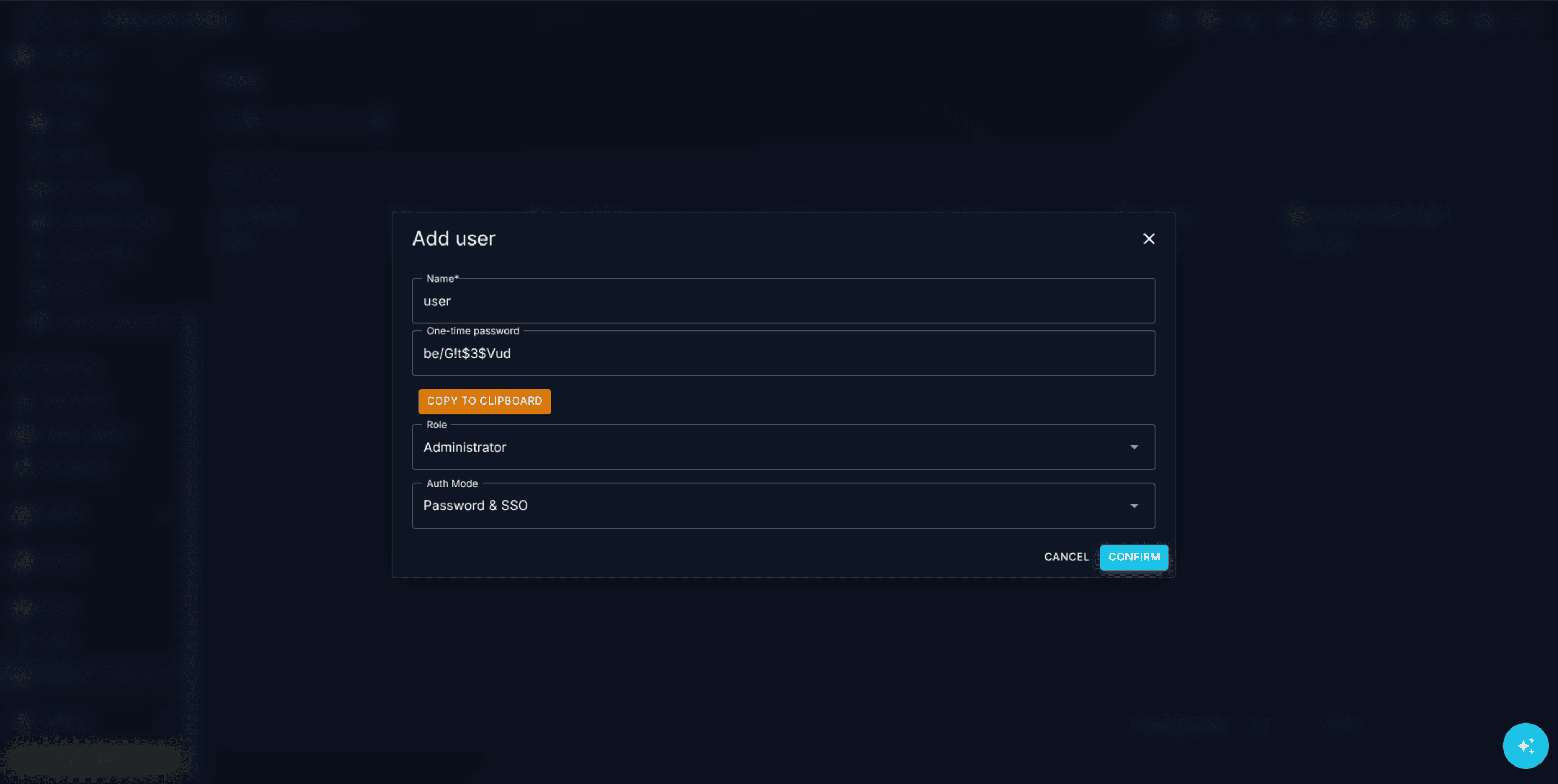
Fields:
Name— required. This is the username the user will log in with.Password— auto-generated, 12 characters, read-only in the dialog. The dialog also exposes aCopy to Clipboardbutton that copies both the username and password in one action, so you can paste them into your password manager or the credential-delivery workflow of your choice.Role— required, without a preselection. The list holds every role of the instance (14.4) andCustom (set permissions later). With a role the new account starts with that role's permissions and follows it; withCustomit starts with no permissions at all and can sign in and see nothing until its permissions are set on the settings page.Auth Mode—Password,SSO, orPassword & SSO. Chooses how the user signs in.Password— local password only.SSO— single sign-on only; local password is unused.Password & SSO— either mechanism works.
Submitting the dialog creates the account. The password is stored hashed (BCrypt) — never in plain text — and the new account is flagged for mandatory password change on first login. When the user first signs in, the console forces them to pick a new password before anything else.
Tip: Keep the dialog open until you have captured the generated password. Once the dialog closes, there is no way to retrieve that initial password from the UI. If you miss it, use the Reset Password flow (14.6) to generate a new one.
14.3 The user settings page
User Settings at /user_settings is the full editor for a single user. It is reached from the Users list via double-click or the Manage button.
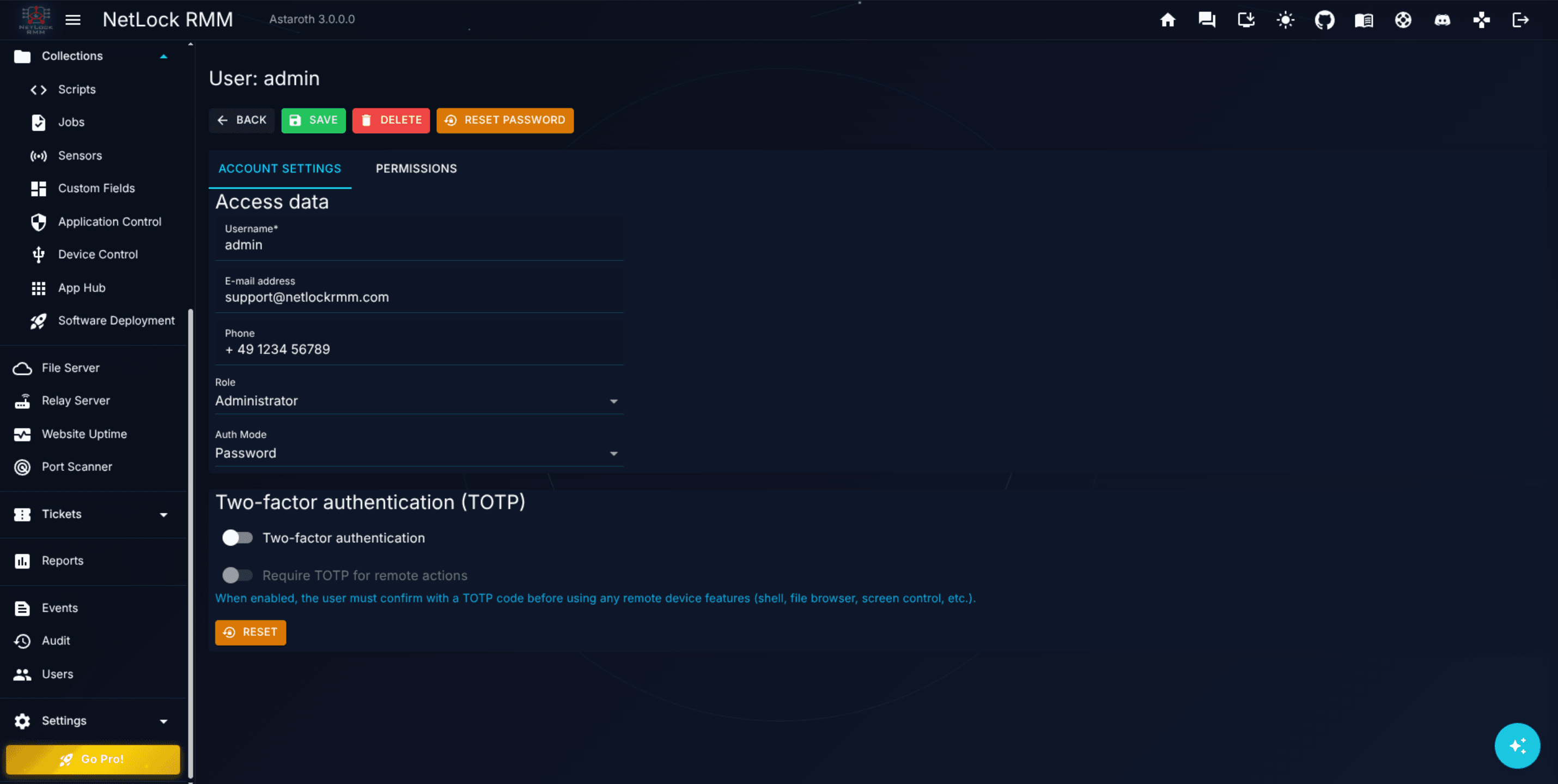
The page is divided into sections:
- Account details — username, email, phone, authentication mode and the enabled switch.
- Tenant scope — the table described in 14.5, at the top of the permissions tab.
- Role — the card described in 14.4 under Roles on the account page.
- Permissions — the matrix described in 14.4.
- 2FA — the switches described in 14.6.
- Actions — the
Reset PasswordandDeleteaffordances described in 14.6 and 14.8.
A Save button at the top or bottom of the page commits every edit on the page in one step; unsaved changes are kept in the browser until you save or navigate away.
14.4 Roles and permissions
A role is a named permission set stored on the instance. The roles page at /users/roles (reached through the Roles button of the Users list) lists every role with its description, its type, the number of accounts that follow it, its author and when it was last changed.
The built-in Administrator role
One role is built in: Administrator. It always holds every permission the console knows, including permissions added by a later update, and it cannot be renamed, edited or deleted. It can be duplicated and exported like any other role. When an installation is updated to a release with roles, every account that held every permission is bound to Administrator; every other account keeps its permissions unchanged as custom permissions.
Creating roles
Add opens the Add Role dialog: a name (unique on the instance), a description and a Start from template that pre-fills the matrix. The templates are starting points, not fixed sets — a role created from one is an ordinary role afterwards:
| Template | Contents |
|---|---|
Empty | No permissions. |
Administrator | Every permission, for "everything except ..." roles. |
Technician | Devices, scripts, patching, remote tools and tickets in full; no user, role or instance settings, no tenant creation, no secrets. |
Helpdesk | View devices, remote control and remote shell, restart, wake, sync, App Hub, tickets; no policies, scripts or deletions. |
Read-only | Every page in view mode; no changes, no remote tools, no secrets. |
Reporting | Dashboards, reports, events and audit in view mode. |
Duplicate on a role opens the same dialog with Copy of <role> selected; the new role is then opened for fine-tuning.
Editing a role
The role page at /users/roles/{id} holds the name, the description, the number of accounts that follow the role (with a link to that list) and the permission matrix. A saved change applies to every account that follows the role at its next page load — nobody has to sign out. The built-in role is shown read-only.
Export and import
Export writes the role as a JSON file (role_<name>_<timestamp>.json) with a format marker, the name, the description and the permission object. Import on the roles page reads such a file back as a new role: the dialog previews the name, the number of granted permissions and any keys it does not know (they are ignored), and proposes <name> (imported) when the name is taken. A permission template file exported from an account page of an earlier release, which is a plain permission object without a name, is imported the same way; the dialog asks for the name.
Deleting a role
A role is deleted from its row or from its page after a confirmation. The built-in role cannot be deleted, and neither can a role that accounts still follow — reassign those accounts first (the member count links to them).
Roles on the account page
The permissions tab of User Settings carries a Role card between the tenant table and the matrix:
- The
Roleselect holds every role andCustom. While the account follows a role, the matrix shows that role's values read-only; picking another role previews its values the same way. The binding is written when the page is saved. Customize permissions(shown while the account follows a role) detaches the account in the page: the matrix keeps the role's values and becomes editable, and the save writes them as the account's own permissions. The list then shows the account asCustom, with the former role in the tooltip.Save as new role(shown for a custom account, needsroles_add) stores the current matrix as a new role and, by default, binds the account to it right away.Reset to role(shown for a custom account that was detached from a role) puts that role back into the select.
Custom permissions are never changed by a role. A change to a role reaches only the accounts that follow it.
The last account that can manage users
The console keeps at least one way in: the last enabled account that holds users_enabled, users_manage and users_edit cannot be disabled, deleted, bound to a role without those three permissions, or saved without them. The page shows the reason next to the affected controls, and the save refuses the change with the same message. There is no restriction on editing one's own account beyond that rule.
The switch-plus-checkbox pattern
The permission matrix is a set of sections, each introduced by a parent switch. The parent switch turns the whole section on or off. Inside each section, a set of child checkboxes gives finer-grained control over the affordances within. When the parent switch is off, its child checkboxes are disabled — even if their values are set, they have no effect until the parent switch is back on.
This pattern is consistent across the matrix: a user who cannot open a page at all does not need the child checkboxes under that page enabled; but if you are later going to grant page access, the child values are preserved and come back to life when the parent switch flips on.
The sections
The top-level sections in the matrix, in the order they appear:
- Devices — access to the Devices list, and per-tab / per-tool child checkboxes covering
General,Software,Task Manager,Antivirus,Events,Updates,Remote Shell,Remote File Browser,Remote Control,Remote EventLog Viewer,Remote Registry Editor,SNMP Tools,Shutdown,Reboot,Wake On LAN,Force Sync,Deauthorize, andMove. - Tenants — create / manage / edit / delete for tenants, plus analogous children for Locations and Groups.
- Automations — add / edit / delete for automation rules. See Chapter 5.
- Policies — add / manage / edit / delete for policies. See Chapter 6.
- Patch Management — access to the
/patch-managementpage. See Chapter 7. - Collections — a section per sub-feature:
Antivirus Controlled Folder Access,Application Control,Device Control,Sensors,Scripts,Jobs,Custom Fields,App Hub,Software Deployment, andFile Server. Each has its own child checkboxes for add / edit / manage / delete as applicable. See Chapter 8. - Relay Server — access to the Relay Server page and the manage / add / edit / delete children.
- Website Uptime Monitoring — page access.
- Port Scanner — page access.
- Events — page access.
- Audit — page access.
- Users — the Users list plus add / manage / edit / delete children, and the
Rolesblock with the roles page switch plus add / edit / delete children. - Reports — page access plus
Create,Edit,Delete,Generate,Schedules, andBrand Templateschildren. - Tickets — optional module; add / edit / delete / assign plus the manage-section children (departments, templates, SLAs, and so on).
- AI —
AI Chatpage access. See Chapter 13. - Settings — sub-sections for every settings page. Notifications have per-channel children (Mail, Microsoft Teams, Telegram, ntfy.sh, Webhook, App) with add / test / edit / delete; Overview, Licensing, Maintenance, Updates, Database, Retention, API tokens, Remote Screen, IP Whitelist (the IP whitelist and country restriction tabs of the Security page), Rate limiting, SSO, Sessions, Whitelabeling, Globalization, Custom Fields, Dashboards, Reports, and AI/LLM all have their own section flags.
Every checkbox in the matrix corresponds to exactly one permission flag in the product. The flag names are the strings used throughout this documentation — devices_remote_shell, policies_edit, collections_scripts_add, reports_generate, and so on. See Appendix X.2 for the complete list.
How to approach the matrix
A practical pattern: start from the template that comes closest (Read-only for an observer, Technician for a hands-on operator), save it as a role, and adjust the children the role needs. Accounts that share a job then follow that role; an account that needs one exception is detached with Customize permissions, or gets a role of its own saved from its matrix.
14.5 Tenant scoping
Below the permission matrix is the Tenants table. It lists every tenant you have access to, with one checkbox per row. Ticking a tenant grants this user access to the devices, policies, events, and everything else scoped under that tenant.
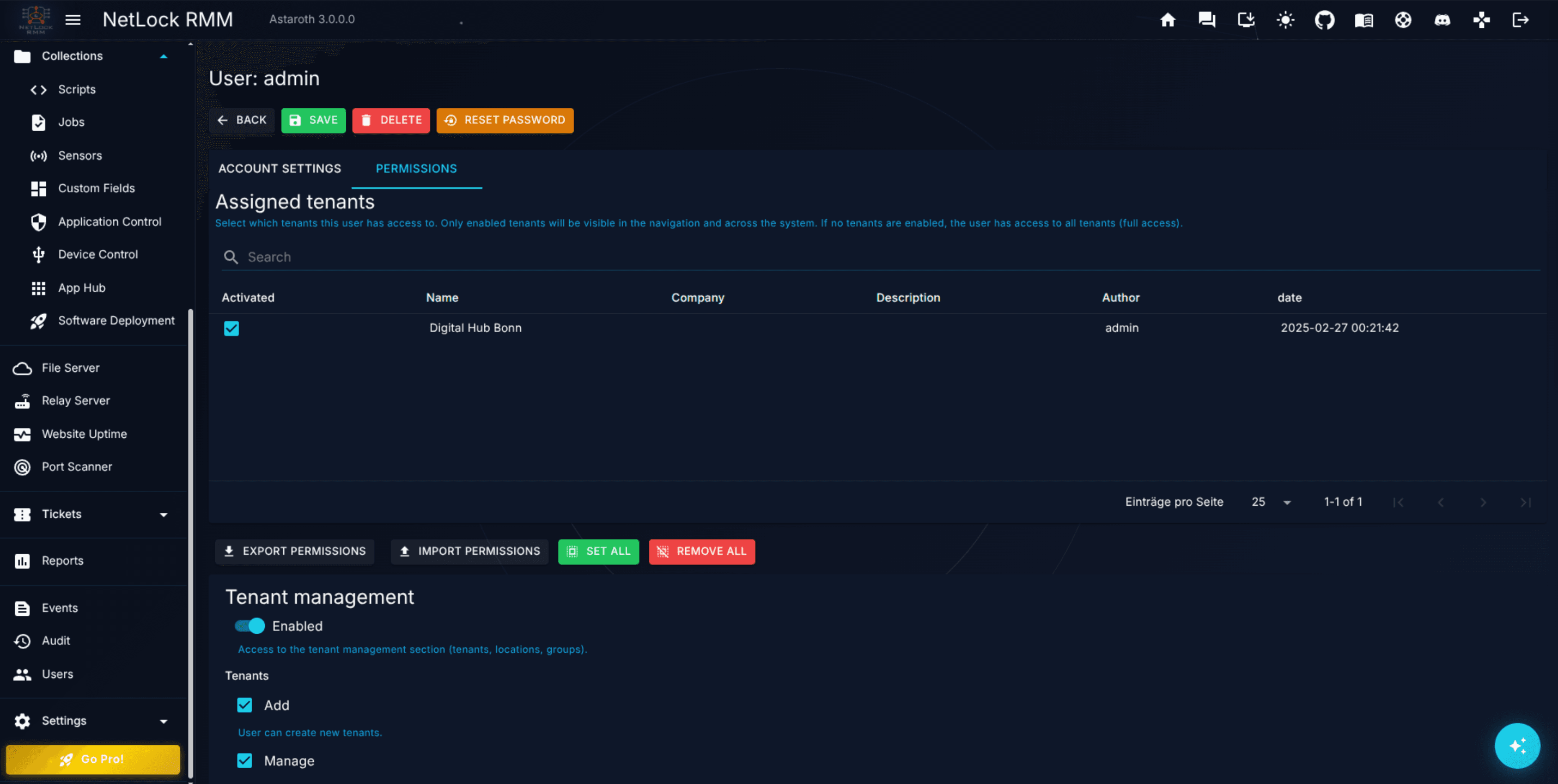
Columns on the Tenants table: Name, Description, Author, Date, and Company.
The selection is stored as a list of tenant identifiers on the user account. A user with tenants A and B ticked will see devices, events, policies, jobs, and so on belonging to A and B; everything in tenant C is invisible to that user, regardless of whether their permission matrix grants devices_authorized_enabled or similar page access.
Permissions and tenant scope compound. To see devices in tenant A, a user needs both the devices_authorized_enabled flag (permission to open the Devices page) and tenant A ticked in the scope table (permission to see anything in that tenant).
14.6 Two-factor authentication and password reset
2FA switches
Two switches under the 2FA section of User Settings:
Two Factor Enabled— turns 2FA on for this user. With this switch on, the user is prompted for a second factor on every login.Two Factor Remote Actions— a second, narrower switch that requires 2FA specifically for sensitive remote operations (remote shell, remote file browser, remote control, remote registry editor, and similar). Disabled whenTwo Factor Enabledis off — you cannot require 2FA on remote actions while the user has no second factor at all.
When Two Factor Enabled is first toggled on, the user is walked through 2FA enrolment on their next login.
Reset Password
A Reset Password button under the Actions section generates a one-time password for the user. The dialog shows the new password in a read-only field, with a Copy to Clipboard button for handoff, and sets the account back into mandatory-password-change state so the user must pick a fresh password on their next login.
Use this when a user has lost their credentials, or after the initial Add User dialog's generated password was not captured. If no account with users_edit can sign in on a self-hosted deployment, see Recover access to the Web Console.
Warning: The one-time password is visible on screen only once. Close the dialog and there is no way to retrieve it again — you would have to run Reset Password a second time.
14.7 What the Users page does not do
Two commonly-expected features are not implemented in the current release. If you are looking for them, stop looking.
- No impersonation. There is no "log in as this user" affordance. To test what another user sees, sign in as them directly (using a password you reset for that purpose) or set up a dedicated test account with the permission shape you want to evaluate.
- No password policy configuration. The password length generated on account creation and on reset is fixed at 12 characters. There is no UI for minimum length, complexity rules, rotation interval, or password history.
If either of these gaps is important to your operational model, flag it to NetLock — they are product gaps, not configuration problems to be solved locally.
14.8 Deleting a user
The Delete button on User Settings opens the Delete User confirmation dialog. Deletion is:
- Hard — the account is removed from the accounts table, not soft-deleted or disabled. There is no recycle bin, no undo, no reactivate.
- Cascading to AI Chat — the user's AI Chat conversations and their messages are also deleted.
- Audited — an audit entry is written with
action = deleteandentity_type = user, including the deleted user's identifier and the admin who performed the deletion. See Chapter 12.3.
After deletion the console redirects back to the Users list.
Events, sessions, logins, and actions previously performed by the deleted user remain in the Audit log — the deletion removes the account, not the trail of what the account did.
14.9 Dialogs
| Dialog | Purpose |
|---|---|
| Add User | Create a new user account with an auto-generated password and its role. |
| Add Role | Create a role from a template, as a copy of a role, or from the matrix of an account. |
| Import Role | Create a role from an exported role file or an older permission template file. |
| Reset Password | Generate a one-time password for an existing user. |
| Delete User | Confirm hard deletion of a user account. |
| Export Data | Export the Users list or the roles list to JSON, CSV or HTML. |
Permissions
| Flag | Gates |
|---|---|
users_enabled | Opening the Users page. |
users_add | The Add User dialog. |
users_manage | Opening a user's settings page. |
users_edit | Saving changes on a user's settings page, including its role. |
users_delete | Deleting a user. |
roles_enabled | Opening the roles page and the Roles button of the Users list. |
roles_add | Creating, duplicating and importing roles, and Save as new role on an account. |
roles_edit | Saving a role; the change applies to every account that follows it. |
roles_delete | Deleting a role without members. |
Access to the 2FA switches and the Reset Password button is gated by users_edit — they are edits on the user's record. Accounts that hold users_enabled, users_manage and users_edit receive the four roles_* permissions with the update that introduces roles.
14.10 Roles in the public API
The public API (see Appendix X.9) reflects the same model: an account's role is an object with id, name and builtIn, or null for custom permissions, next to roleOrigin; GET /v1/roles lists the roles; POST /v1/users accepts roleId, which needs the users:permissions:write scope because it grants permissions; PUT /v1/users/{id}/role binds or detaches an account; and PUT /v1/users/{id}/permissions detaches a bound account. In earlier releases role was a lower-case string; it is now an object or null.
See Appendix X.2 for the full permission catalogue, including the flags referenced in the matrix throughout 14.4.
Related chapters
- Chapter 5 — Automations, Chapter 6 — Policies, and Chapter 8 — Collections cover the per-feature permission flags that appear under their respective sections in the matrix.
- Chapter 12.3 — Audit documents the audit trail written by every create / edit / delete on user accounts.
- Chapter 13 — AI Chat covers the
ai_chat_page_enabledflag that appears under the AI section of the matrix, and the effect of deleting a user on their AI Chat conversations. - Appendix A.4 — Security: IP whitelist, rate limiting & SSO covers the SSO configuration that the
Auth Modefield on Add User depends on. - Appendix X.2 — Permission reference is the complete catalogue of the flags exposed in the permission matrix.