 NetLock RMM Docs
Deploy your first agent
Generate an installer and install the agent on a Windows, Linux, or macOS device.
Deploy your first agent
This guide takes you from a clean device to a running NetLock RMM agent that has reported in for the first time. It covers only the installer build and the installation itself. The follow-up — approving the pending device and giving it a label — is in Guide H.2. For an end-to-end walk-through with tenant creation and policy assignment, see the First-Run Walkthrough.
Before you start
- A tenant, location, and group already exist to receive the agent. If they don't, do Guide H.3 first.
- You have administrator or root access on the target device.
- The target device can reach the Console's communication and remote servers over the network.
- Required permission:
devices_enabled, plus whatever your deployment uses to open the Agent Download dialog (typically exposed alongside theDevicesmenu).
Steps
- In the Console, open
Devicesfrom the navigation and launch the Agent Download dialog. On a fresh deployment the same dialog is available from the Setup Wizard on the Dashboard. - Work through the five-step wizard:
- Configuration name — a label for this installer build.
- Deployment method — pick the target tenant, location, and group.
- Target server — select the communication, remote, update, trust, file, and relay servers the agent will talk to.
- Authorization — choose whether the agent is pre-authorized or lands in the pending queue for admin approval. For a first agent, pending approval is safer.
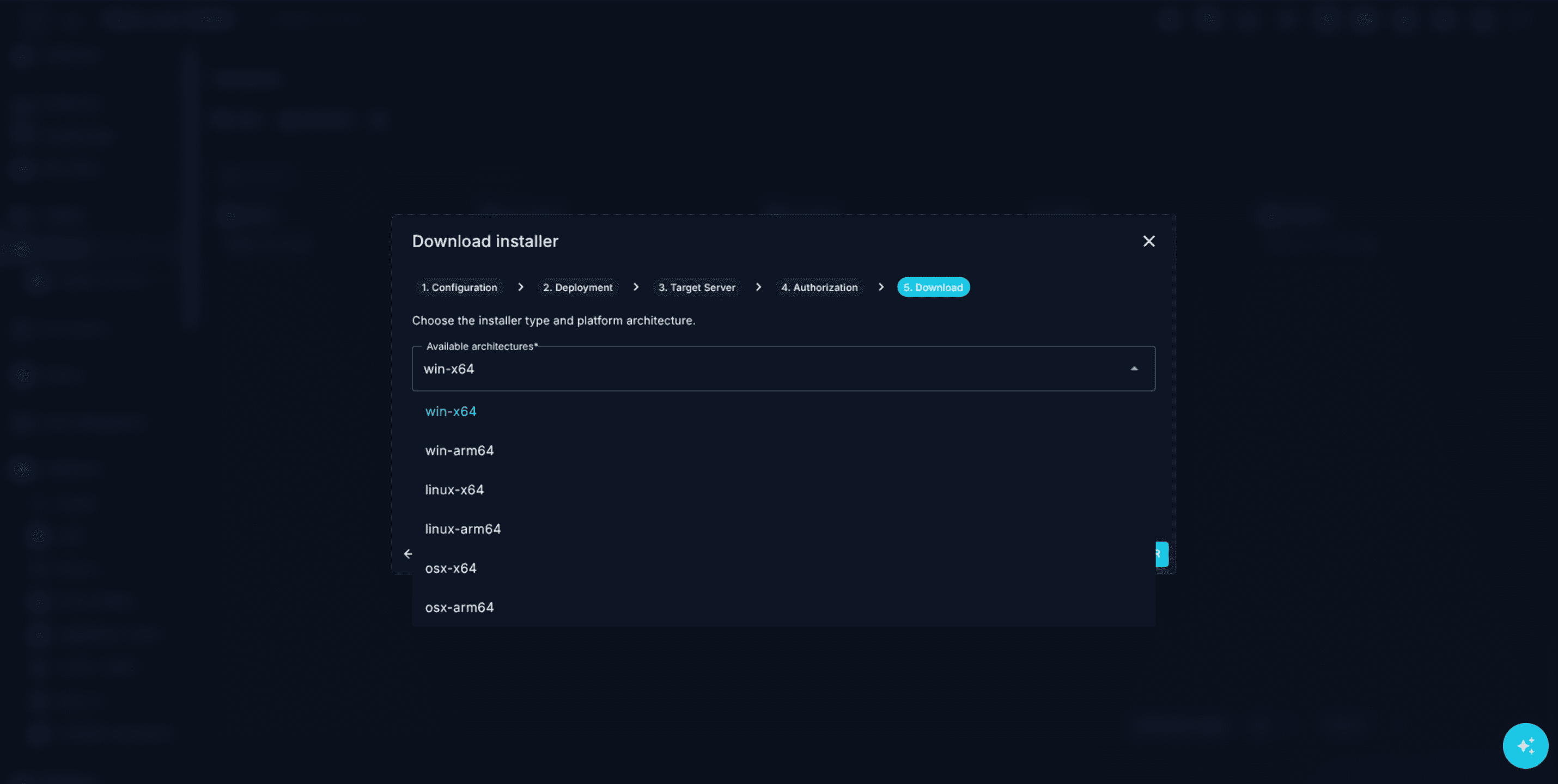
- Platform and architecture — choose one of
win-x64,win-arm64,linux-x64,linux-arm64,osx-x64,osx-arm64. Pick either theStandard Installer(console, silent-capable) or theGUI Installer(graphical).
- Click the build action. The Console packages a binary with the embedded configuration into a
.zipand returns a download link. - Optionally take one of the two things next to the link: the matching install script —
Install-NetLockAgent.ps1for Windows,Install-NetLockAgent.shfor Linux or macOS — or the one-line install command, which does the same without a file to copy. See Copy-and-paste install commands. - Copy the
.zipto the target device and run the installer with the commands below.
Windows (PowerShell, elevated):
Expand-Archive .\NetLockAgent.zip -DestinationPath .\NetLockAgent
.\NetLockAgent\NetLock_RMM_Agent_Installer.exe
For silent deployment via GPO, Intune, or Ansible, add flags:
.\NetLock_RMM_Agent_Installer.exe --hidden --no-log--hidden/-h— hide the console window (Windows only).--no-log/--nolog— delete installer logs after completion.--temp <path>/-t <path>— use a custom temporary directory for the install.--skip-connection-check— install without the reachability check against the update and trust server. See Installing without the reachability check.
Linux / macOS (Bash, with sudo):
unzip NetLockAgent.zip -d NetLockAgent
chmod +x NetLockAgent/NetLock_RMM_Agent_Installer
sudo ./NetLockAgent/NetLock_RMM_Agent_Installer
With no arguments the installer uses its embedded configuration. For manual re-configuration or repair it also accepts positional modes: clean "<path-to-server_config.json>" runs a fresh install with an external config, fix "<path>" repairs an existing install while preserving its server config, and uninstall removes the agent.
Copy-and-paste install commands
Both places that hand out an installer also hand out the command that performs the whole installation in one line, so nothing has to be transferred to the device first. Use the Copy command button rather than typing it out: the command carries the package id of the selected tenant and location, and the proxy of that configuration where one is set.
- Agent Installers — every installer row has a Copy command next to its download. On a Windows row it opens a short menu and you pick the shell you are going to paste into, PowerShell or Command Prompt; Linux and macOS rows have the shell form only and copy it straight away. The command downloads the ready-built installer package of that architecture, runs the installer inside it and removes the downloaded files again. That installer carries its configuration, so no parameters are passed.
- Agent Download dialog, step 5 — the same command for the installer the wizard just built, plus a second block for the unmodified installer described in the next section.
The shapes are the same everywhere.
Windows (PowerShell, elevated):
$z="$env:TEMP\NetLock_RMM_Agent_Package.zip"; $d="$env:TEMP\NetLock_RMM_Agent_Package"; Invoke-WebRequest -Uri "<link from the Console>" -OutFile $z -UseBasicParsing; Expand-Archive -Path $z -DestinationPath $d -Force; Start-Process -FilePath "$d\NetLock_RMM_Agent_Installer.exe" -Wait -NoNewWindow; Remove-Item $z,$d -Recurse -ForceWindows (Command Prompt, elevated) — the second entry of the menu. It uses curl.exe and tar, both of which Windows ships since Windows 10 1803 and Windows Server 2019.
Linux / macOS (root shell) — needs unzip, which most distributions install by default:
d=/tmp/netlock_rmm_agent_package; rm -rf "$d" && mkdir -p "$d" && curl -fsSL -o "$d/package.zip" "<link from the Console>" && unzip -oq "$d/package.zip" -d "$d" && chmod +x "$d/NetLock_RMM_Agent_Installer" && "$d/NetLock_RMM_Agent_Installer"; rm -rf "$d"Where the agent package configuration has a proxy, the Console writes it into the download step of the command as well, because that download happens before the agent exists on the device. A proxy password is never written into an install command or an installation script — neither the ones shown on the page nor the .ps1 and .sh files offered for download. The placeholder <proxy-password> takes its place everywhere, so replace it before you run the command or the script. The one route that carries the real value is the downloadable server_config.json, which is why a site with an authenticating proxy is usually deployed with that file and clean.
The commands are as sensitive as the installer they fetch: the link and the ids in them enrol any device they are run on into that tenant and location, and they do not expire. Revoking the installers of a location rotates the package id and invalidates every command handed out before.
Installing without a pre-built installer
The Standard Installer also takes its whole configuration on the command line. This is the route for deployments that do not want to distribute a binary with an embedded configuration — the same executable is then used everywhere and only the parameters differ per tenant. --server switches the installer into this mode; the positional clean / fix modes are not used with it.
.\NetLock_RMM_Agent_Installer.exe `
  --server nl-backend.example.com:443 `
  --tenant-guid 6f0f2a4c-1f3e-4a2b-9a1c-0e3f5d7b8c90 `
  --location-guid 2b8d5e17-9c44-4f0a-b6d3-77a1e2c4f501 `
  --package-guid 91c7a0de-3b26-4d58-8f14-5ac9e6b20d73
--server <host:port>— the backend address, without a protocol. All five server fields of the configuration (communication, remote, update, trust, file) are set to this address, which is what the Console does as well. A comma separated list is accepted.--tenant-guid <id>— required.--location-guid <id>— required.--package-guid <id>— required. This is the agent package configuration the device is enrolled with.--ssl true|false— optional,trueby default.--language <code>— optional,en-USby default.
The three GUIDs are the ones the Agent Download wizard uses for the same tenant, location, and package. The device is installed unauthorized and lands in the pending queue, exactly like a clean install.
The Console offers this route ready to run. On Agent Installers, the section below the installer table hands out the unmodified installer for the selected architecture together with the commands built from it; the Agent Download dialog shows the same block in step 5. All six architectures are served — win-x64, win-arm64, linux-x64, linux-arm64, osx-x64, osx-arm64. On Windows the executable keeps its Authenticode signature and the Console reports whether it carries one; the Linux and macOS builds have no such signature, and none is claimed for them.
Windows (PowerShell, elevated):
$f="$env:TEMP\NetLock_RMM_Agent_Installer.exe"; Invoke-WebRequest -Uri "<link from the Console>" -OutFile $f -UseBasicParsing; & $f --server nl-backend.example.com:443 --ssl true --tenant-guid <id> --location-guid <id> --package-guid <id> --language en-US; Remove-Item $f -ForceLinux / macOS (root shell):
f="/tmp/NetLock_RMM_Agent_Installer"; curl -fsSL -o "$f" "<link from the Console>" && chmod +x "$f" && "$f" --server nl-backend.example.com:443 --ssl true --tenant-guid <id> --location-guid <id> --package-guid <id> --language en-US; rm -f "$f"The command passes one address to --server, which the installer writes into all five server fields. A configuration whose five fields point at different hosts therefore cannot be expressed this way; the Agent Download dialog says so instead of showing a command that would enrol the device against the wrong servers.
Devices behind an HTTP proxy
Devices whose only route to the internet is a forward proxy need to be told about it, because the installer checks that it can reach the update and trust server before it downloads anything, and the agents determine the server they talk to the same way.
By default the installer and the agents work in auto mode: a direct connection is tried first, and only when that fails is a proxy looked for — first the NETLOCK_PROXY environment variable, then HTTPS_PROXY / HTTP_PROXY, and on Windows finally the machine-wide WinHTTP configuration that netsh winhttp set proxy writes. A device that reaches the backend directly therefore never changes behaviour, even if a proxy is configured on it for other software.
Setting the proxy in the Console
The proxy belongs to the network a device sits in, which is what an agent package configuration already describes, so it is normally set once in the Console instead of per device:
- Agent Installers — pick the tenant and location, then fill in the Forward proxy card. It writes the proxy into the managed configuration of that pair and rebuilds its six ready-to-use installers, because the proxy is built into them. The download links stay valid; the installers show as Generating until the rebuild is through.
- Agent Download dialog, step 3 (Target server) — the same fields for a configuration you created yourself.
Both offer the three modes (Automatic, Manual, No proxy) and the authentication method, and both feed the generated installers, install commands and installation scripts.
There is no list of hosts that stay direct. A configuration points the agents at one backend address, so excluding that address from the proxy would be the same as No proxy. The machine itself and the usual private ranges (10.*, 172.16.*–172.31.*, 192.168.*, 169.254.*, *.local, loopback) are always reached directly, which is what lets a self-hosted backend on the local network be reached without the proxy while a proxy is configured.
One case is deliberately not built: a configuration that authenticates against the proxy with a user name and password. The configuration an installer carries is not encrypted (see the warning further down), so no installer is produced for it — the Agent Installers page states that instead of showing a download. Deploy those devices with the parameters below or with the downloadable configuration file.
Where that is not enough, pass the proxy explicitly:
.\NetLock_RMM_Agent_Installer.exe `
  --server nl-backend.example.com:443 `
  --tenant-guid <id> --location-guid <id> --package-guid <id> `
  --proxy http://proxy.corp.local:3128
--proxy <http://host:port>— the proxy for all traffic to the NetLock backend.--proxy-auth none|default|basic— how to authenticate.noneis an anonymous proxy,defaultauthenticates as the machine account against an NTLM or Negotiate proxy (Windows only, stores no secret, and is the right choice in most Active Directory environments),basicsends an explicit user name and password. Without this parameter,basicis assumed as soon as--proxy-useris given andnoneotherwise.--proxy-user <name>/--proxy-pass <password>— the credentials for--proxy-auth basic.--no-proxy— no proxy at all, and no automatic detection either. Use it on the rare device where a detected proxy is the wrong one.
The settings are written to proxy.json next to server_config.json in the Comm and Health agent data directories, and the agents read them from there on every start. A self-update (fix) leaves the file untouched, so the proxy survives agent updates.
The same values can travel inside the server_config.json you hand to clean, as a proxy object next to the existing fields — this is the route for a scripted rollout that reuses one configuration file:
{
  "ssl": true,
  "communication_servers": "nl-backend.example.com:443",
  "proxy": {
    "mode": "manual",
    "url": "http://proxy.corp.local:3128",
    "auth": "none"
  }
}
Warning: A proxy password given with
--proxy-passis stored inproxy.jsonwith the same protection the agent uses for its own server configuration — a key that is compiled into the shipped binaries. That is obfuscation, not secrecy: anyone with local administrator rights on the device and a copy of the agent can recover it. A proxy service account is usually a domain credential, so prefer--proxy-auth defaulton domain-joined Windows devices, or an anonymous proxy rule for the backend address, and treat a stored proxy password as exposed to local administrators.
On Linux the agents run as systemd system units, which inherit neither /etc/environment nor a login shell. To set the proxy through environment variables there, put them in /etc/default/netlock-rmm — the generated units read that file if it exists — and restart the three services:
sudo tee /etc/default/netlock-rmm >/dev/null <<'EOF'
HTTPS_PROXY=http://proxy.corp.local:3128
NO_PROXY=localhost,127.0.0.1,.corp.local
EOF
sudo systemctl restart netlock-rmm-agent-comm netlock-rmm-agent-remote netlock-rmm-agent-health
What the proxy setting does not cover
The NetLock proxy applies to the requests the agents and the installer make themselves — the traffic to the communication, remote, update, trust and file server. It does not apply to the update mechanisms of the operating system, because those are separate components with their own configuration.
Windows. Patch Management drives the Windows Update Agent, and that component takes its proxy from the machine-wide WinHTTP configuration or from a WSUS — never from a NetLock setting. On a device whose only route out is a proxy, patch downloads therefore stay broken until one of the two is in place:
netsh winhttp set proxy proxy.corp.local:3128 "<local>"
netsh winhttp show proxy
Point the device at a WSUS instead where you have one; the agent then reports and installs against that server and needs no internet route for updates at all. netsh winhttp set proxy is machine-wide and affects every WinHTTP client on the device, which is normally what you want in a proxy-only network. Note that it is also one of the sources the agent's own auto mode reads, so setting it can be enough to configure both at once.
Linux. apt and dnf read http_proxy / https_proxy from the environment of the process that runs them. The agents run as systemd units that read /etc/default/netlock-rmm (see above), and a patch job started by the agent inherits that environment, so the entries there cover the package managers as well. Where a package manager is also used outside the agent, configure it in its own place — /etc/apt/apt.conf.d/95proxy with Acquire::http::Proxy, or proxy= in /etc/dnf/dnf.conf — so a manual apt update behaves the same way.
macOS. Updates go through the system proxy configured in the network settings; NetLock does not change it.
Three limitations worth knowing before you plan a rollout:
- The 1-click / GUI installer cannot be built for a configuration that stores a proxy user name and password, because the configuration it carries is not encrypted. Those sites use the Standard Installer with the parameters above, or the configuration-file route. An anonymous proxy and
--proxy-auth defaultare built into the installers normally. - A device that is already offline because of the proxy cannot update itself into this. Every such device needs one manual re-install with a current installer.
- PAC / WPAD auto-configuration is not supported. Point the agents at the proxy directly.
Installing without the reachability check
The installer aborts before it downloads anything when it cannot reach the update or trust server, and it exits with code 1 so a deployment tool sees the failure. --skip-connection-check bypasses that gate and takes the first configured address as the update and trust server. It is the escape hatch for a network the check cannot describe; on a device behind a proxy, configuring the proxy is the better answer, because the agents run into the same check afterwards.
Warning: Treat agent installers like secrets. The server configuration is embedded inside the binary, so anyone with the
.zipcan register a new device into the configured group. Rotate the installer if it leaves trusted hands.
Android devices
Android phones and tablets use no installer. Install the NetLock RMM app from Google Play on the device. The Android card on Agent Installers offers the same store link and a Send download link button that mails it to the person setting up the device; the mail goes out through the SMTP server configured in the settings.
Once the app is on the device, enroll it with Mobile enrollment on Agent Installers or Devices: choose the tenant and location, then scan the QR code with the app or enter the enrollment code shown next to it. Both carry everything the app needs to reach this installation, so hand them only to the device that is being enrolled. The device then waits for approval like any other.
Verify it worked
- The installer reports success and exits without an error code.
- The agent is registered as a Windows service, a systemd unit on Linux, or a LaunchDaemon on macOS, and is running.
- Within a minute or two the device appears in the Console — in
Unauthorized Devices(pending approval), or inDevicesdirectly if you chose pre-authorization in step 4 of the wizard.
Troubleshooting
- Device never appears. Confirm the target device can reach the configured communication server from its network. A
curlorTest-NetConnectionagainst the server address from the device is the fastest check. See Troubleshooting for deeper diagnostics. - Installer fails with permission errors. Re-run as Administrator (Windows) or
sudo(Linux / macOS). The installer registers a service, which requires elevation on every supported OS. - The device appears in the wrong tenant or group. The Agent Download wizard embeds the targeting inside the binary. Rebuild the installer and re-run it with
clean "<new-server_config.json>"to reconfigure in place. - Devices deployed from one image keep swapping between
DevicesandUnauthorized Devices. The image was sealed with the agent installed, so every clone carries the sameserver_config.jsonandhardware_id.jsonand shares one access key. Uninstall the agent before sealing an image and install it on each clone after provisioning; see How the hardware ID is computed and stored. - Installer aborts at the connectivity check on a device behind an HTTP proxy. The installer reports that the update or trust server connection failed and exits with code
1. In a proxy-only network there is no direct route for the check to take. Re-run the installer with--proxy http://host:port(plus--proxy-auth/--proxy-user/--proxy-passwhen the proxy authenticates) as described in Devices behind an HTTP proxy. A message about the proxy answering with407means the proxy was reached but rejected the credentials. Do not reach fornetsh winhttp set proxyalone on an older agent: agents before this feature ignore it entirely. - Installer fails on a Linux NAS or appliance distro. Some Linux distributions — notably those on NAS systems such as Synology — restrict or block execution from the default temporary directory. The installer cannot stage its files there and fails early. Re-run the installer with
--temp <path>/-t <path>pointing at a directory the system permits execution from (a path on a regular data volume, for example), then retry.
Related
- Guide H.2 — Approve and label a new device — the next step after the agent reports in.
- Uninstall an agent — cleanly remove the agent from a device when you're done.
- Chapter 3 — Managing Devices — full device inventory reference.
- X.3.1 — Agents and devices — what to check when an enrolled Android device cannot reach the server.
- First-Run Walkthrough — end-to-end tour that includes this guide.