 NetLock RMM Docs
Database management
Per-table retention and cleanup, table optimisation, and the ad-hoc SQL console on self-hosted deployments.
Database management
Self-hosted only: The Database Management page is hidden on cloud deployments. The hosted team manages retention, optimisation, and backup centrally; the page renders the same "Some settings that are available in the On-Premises version are not visible here" notice as Overview and Licensing. This entire chapter applies only when you run NetLock RMM on your own infrastructure.
Settings → Database at /settings/database is where the deployment operator controls how much history the database keeps, keeps MySQL tables healthy, and — for power users — runs ad-hoc SQL against the schema. The page is split into two tabs: Retention & Cleanup and SQL Console. The SQL Console tab is gated behind its own permission flag, so not every administrator with settings_database_enabled will see it.
Before going further, set expectations on what this page does not do. It is not a connection-config editor, not a backup or restore UI, and not a schema-upgrade tool. NetLock RMM does not ship with a migration system inside the Console; database schema changes are delivered as standalone SQL scripts that you run directly against MySQL outside the Console. The connection string itself is loaded from appsettings.json at startup and cannot be edited from the UI.
A.3.1 The Retention & Cleanup tab
The first tab is the one most admins live in. It lets you set, per table, how long NetLock RMM keeps historical rows before the nightly cleanup job removes them.
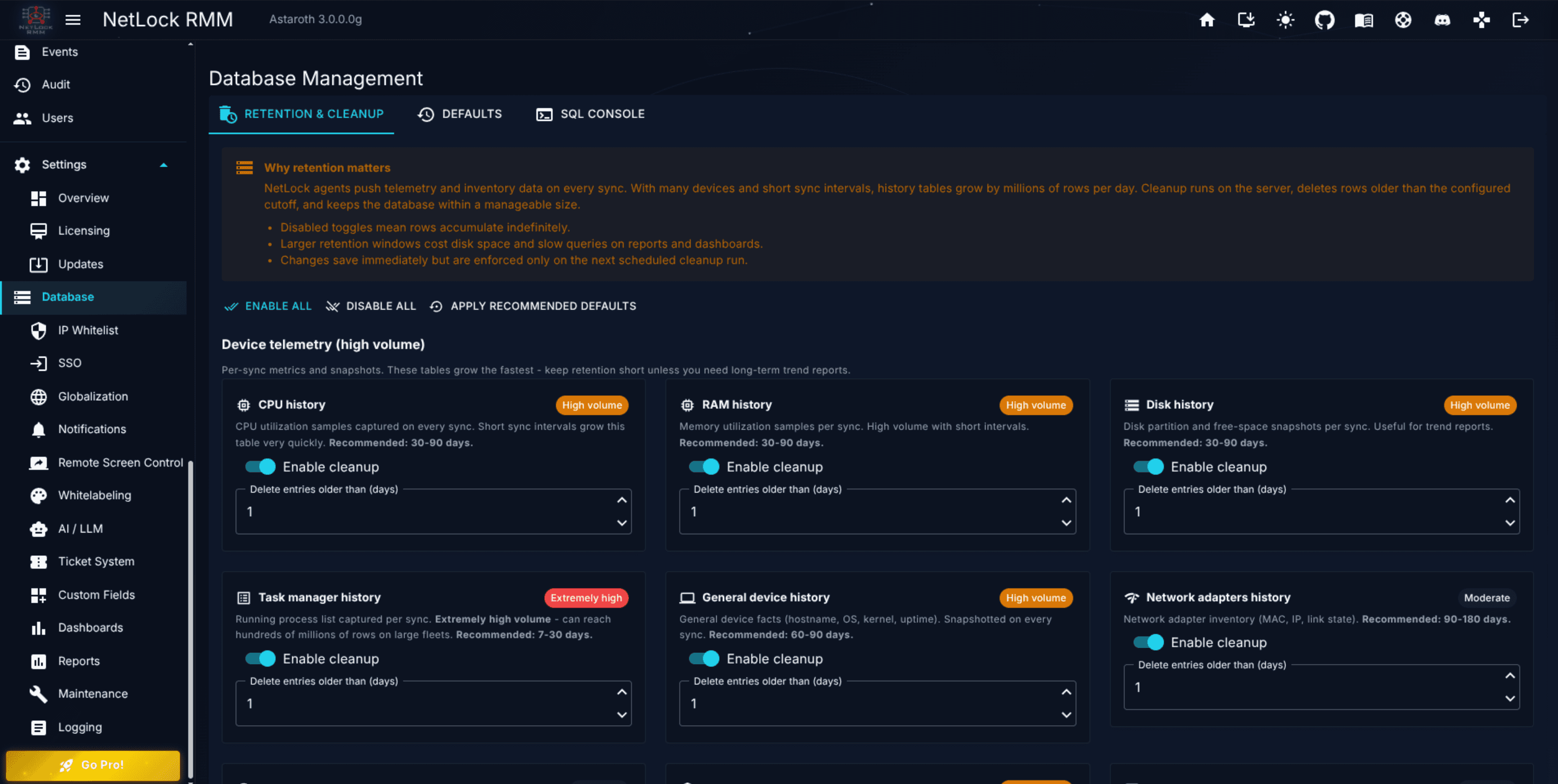
How the grid works
The tab lists more than fifty tables — one row per table — covering every category of time-series data the product produces. You will find rows for events, audit, agent heartbeats, remote session recordings, script output, sensor samples, patch history, ticket activity, and so on. Each row has two controls:
Enable cleanup— a per-table toggle. When off, the cleanup job never touches this table, regardless of the day count. When on, the job removes rows older than the configured threshold.Delete entries older than (days)— a numeric input in days. The value is interpreted relative to the row's own timestamp column; rows younger than the threshold are retained.
Cleanup runs automatically on a server-side schedule; you do not need to invoke it by hand. If a table is toggled on but has no value (or 0), cleanup does nothing for that table.
The toolbar
Four buttons sit at the top of the tab:
Enable all— turnsEnable cleanupon for every row at once. Useful when you first set the page up and want to start from a blanket-on baseline before tuning individual tables.Disable all— the inverse: turns cleanup off for every row. Useful for a temporary freeze when you want to preserve history for a forensic investigation.Apply recommended defaults— loads the vendor's recommended retention values for each table. This is the starting point we recommend you use on a fresh deployment; adjust individual rows afterwards to match your compliance and storage budgets.Save retention settings— commits every change on the tab. Edits are not applied until you save.
Choosing retention values
There is no single right answer; the correct value depends on your compliance posture and your disk budget. A few rules of thumb:
- Operational tables (heartbeats, short-lived sensor samples) usually survive comfortably on 30 days.
- Audit-adjacent tables (who did what, when) typically require longer — 180 days is a common floor, and regulated environments often push to 365 days or beyond.
- Session recordings grow fastest on disk; if you have tight storage, a shorter retention here pays for itself quickly. The Remote Screen Control page (Chapter A.7) also exposes a separate
Auto purgespecifically for session recordings.
Start with Apply recommended defaults, monitor the database size from the Overview page (Chapter A.1.1), and narrow down from there.
Cleanup behaviour
The cleanup job runs on the server, not the Console, and uses the current retention settings each time it runs. Changing a value does not trigger an immediate cleanup pass — the new value takes effect on the next scheduled run. If you reduce a value substantially and want the space back sooner, you can run the Optimize database action (below) after the next cleanup pass completes to reclaim the freed space.
A.3.2 Optimising database tables
Alongside the retention controls, the Database Management page has an Optimize database action. Clicking it opens a confirmation dialog:
Optimize database tables?
This runs OPTIMIZE TABLE on all major tables. Tables may be briefly locked; running against a multi-GB database can take several minutes. Continue?
Choosing Optimize runs MySQL's OPTIMIZE TABLE sequentially across every major table in the NetLock RMM schema — more than fifty tables in total. The action reclaims disk space freed by deleted rows and rebuilds indexes, which can noticeably improve query performance after a large retention-cleanup pass or a long period of heavy writes.
Caution:
OPTIMIZE TABLEbriefly locks each table it processes. On a large NetLock RMM database the whole run can take several minutes, during which parts of the Console will feel sluggish. Run the action off-peak, ideally from within a maintenance window (see Chapter A.2.2) to prevent noisy notifications for the duration.
When to run it
There is no automatic schedule — the action is manual on purpose. Reasonable triggers for running it include:
- Immediately after a first-time
Apply recommended defaultssave, once the cleanup job has had a chance to run. - After a deliberately short-retention pass where you expect to have freed substantial space.
- On a quarterly or semi-annual cadence for a large, long-running deployment.
There is rarely a need to run Optimize database more often than once a month.
A.3.3 The SQL Console tab
The second tab — SQL Console — gives administrators a free-form SQL editor against the NetLock RMM database. It is a power-user tool and is gated separately:
Requires permission:
settings_system_mysql_console. Without this flag the tab does not appear at all.
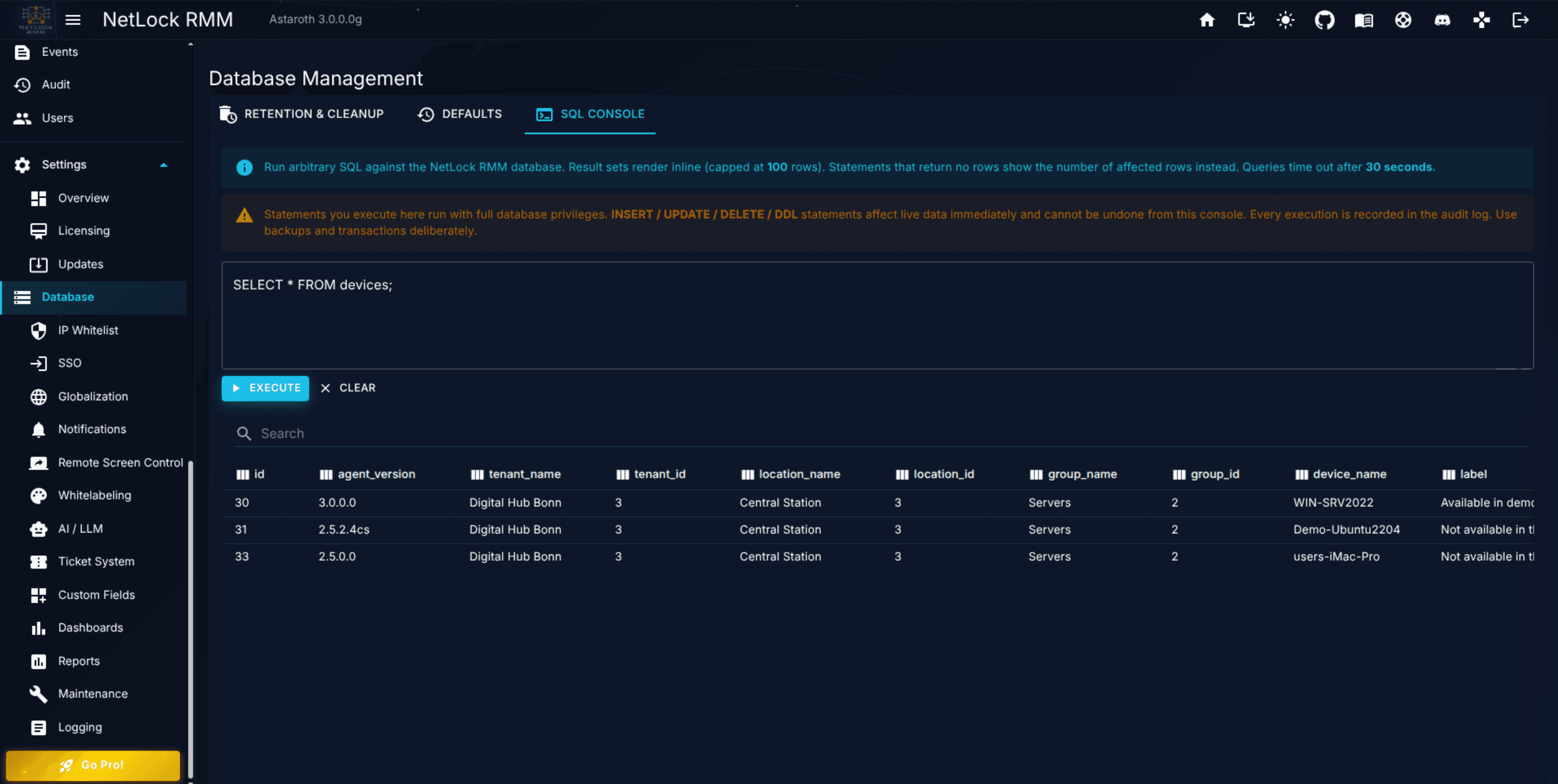
The editor
The tab is deliberately simple: a multi-line Query textarea with placeholder text Enter SQL query..., and two buttons.
Executeruns the query against the current NetLock RMM database. The default query timeout is 30 seconds; long-running statements are cut off to prevent a runaway query from holding the connection pool.Clearempties the editor.
Query results render as a standard table beneath the editor. Column headers come from the query's column list, and rows are paginated when results are large.
The Cell Value dialog
Clicking a cell opens the Cell Value dialog, which shows the full value without table-row truncation. The dialog includes:
- The originating column name as its title.
- The cell's length in characters.
- A
Copybutton that places the value on the clipboard. - A
Closebutton.
When the cell contains JSON — which is common for NetLock RMM fields that store structured configuration — the dialog pretty-prints the JSON with syntax-friendly indentation so it is readable. This is the fastest way to inspect a single policy's JSON blob or a theme palette entry without leaving the Console.
Guardrails and responsibility
The SQL Console runs against the live production database under the Console's connection credentials. There is no preview mode and no read-only enforcement — an UPDATE, INSERT, or DELETE issued here commits straight through. Two principles keep this safe:
- Only grant
settings_system_mysql_consoleto deployment operators who need it. It is a dangerous flag to hand out casually. - Use the console for read queries by default. When you do need to mutate data, assume you will need to re-run the same statement against a backup; take a logical dump of the affected tables first.
The SQL Console is not a substitute for the regular admin pages. Prefer the dedicated UI for anything it can do — Retention & Cleanup, Users, Tenants, Policies — and reserve the SQL Console for diagnostics and the rare fix that no UI covers.
What the SQL Console cannot do
- It cannot switch databases; the connection is fixed to the one configured in
appsettings.json. - It cannot source multi-statement scripts; run one statement at a time.
- It cannot stream large result sets — practical result size is limited by the page's ability to render rows.
A.3.4 What this page does not cover
To save you searching, here is what the Database Management page does not do in the current release. Each item is handled elsewhere (or not in the Console at all):
- Connection string editing.
MySQL.Connection_Stringis read once fromappsettings.jsonat startup. To change it, edit the file on the Console host and restart the Console. - Backup and restore. There is no backup or restore button in the Console. Backups are your responsibility at the host level; the recommended approach is
mysqldumpon a schedule outside NetLock RMM, with backups shipped to offsite storage. - Schema upgrades. Schema changes between NetLock RMM releases are delivered as standalone SQL scripts with the release. Run them directly against MySQL outside the Console; there is no in-product migration runner.
- Per-tenant retention. Retention is global — applied to the table, not to the rows belonging to a specific tenant. If a particular tenant requires a different retention posture, that is achieved by filtering the reports you deliver them, not by database configuration.
- Automatic backup on the optimise action.
Optimize databasedoes not take a backup before running; it assumes you have your own backup strategy in place. Take a backup out-of-band if you need a guaranteed rollback point. - Query history in the SQL Console. The SQL Console does not record a history of past queries. If you rely on a particular diagnostic statement repeatedly, keep it in your own notes or a script file rather than expecting the Console to remember it.
Suggested operator workflow
For a healthy operator cadence, the following rhythm covers most deployments:
- On a fresh deployment, open the page, click
Apply recommended defaults, andSave retention settings. This gives you a sensible starting point out of the box. - A few days later, review the database size in
Settings → Overview(Chapter A.1.1). If growth is faster than expected, narrow down the retention on the noisiest tables (typically event tables, heartbeat tables, and script-output tables) and save again. - Once per quarter, run
Optimize databaseduring a maintenance window. Expect the run to take anywhere from under a minute on a small deployment to several minutes on a multi-gigabyte one. - Delegate the SQL Console permission (
settings_system_mysql_console) only to the operators who regularly need it; revoke it for people who occasionally need one-off lookups but can have you run the query for them.
This light-touch workflow keeps the database healthy without turning it into a permanent source of admin work.
Permissions
| Capability | Required flags |
|---|---|
| View the page | settings_enabled, settings_database_enabled |
| See the SQL Console tab | settings_enabled, settings_database_enabled, settings_system_mysql_console |
Related chapters
- Chapter A.1 — System overview & licensing. The Overview page reports live MySQL health and active queries.
- Chapter A.2 — Updates & maintenance. Use a maintenance window to cover a large optimise run.
- Chapter A.7 — Remote screen control. Session recordings have their own retention control that sits alongside this page's.
- Chapter 12 — Events & Audit. Event and audit retention are driven from this page's grid.
Updates & maintenance
Concurrent-install throttling for agent updates, and maintenance-window controls that suppress notifications.
Security: IP whitelist, rate limiting & SSO
The Security page of the Console: IP allowlisting for the Console, country restrictions for the Console and the server, rate limiting (request limits and temporary blocks for agent traffic on the server), and OpenID Connect single sign-on with Azure AD, Keycloak, Google, Okta, and Auth0.