 NetLock RMM Docs
Run a compliance report and schedule email delivery
Generate a report from a template on demand, then set up a weekly PDF email schedule.
Run a compliance report and schedule email delivery
The Reports module turns data already in your NetLock RMM deployment into shareable documents. This guide walks through two common tasks against the same template: produce a report now for immediate use, then wire up a recurring weekly PDF email to keep stakeholders informed without anyone having to remember to run it.
Before you start
- A report template already exists that matches your compliance scope. If the deployment ships pre-built templates you will see them on the
Templatestab with aBuilt-inchip; tickShow Built-inif they are hidden. If no suitable template exists, build one with the Report Builder (see Chapter 11.3). - SMTP is configured if you want email delivery (see Guide H.10).
- Required permissions:
reports_enabled,reports_generatefor on-demand generation,reports_schedulesfor the scheduled run.
Steps
1. Generate the report on demand
- Open
Reportsfrom the navigation. - On the
Templatestab, find the compliance template you want to run. - Click the
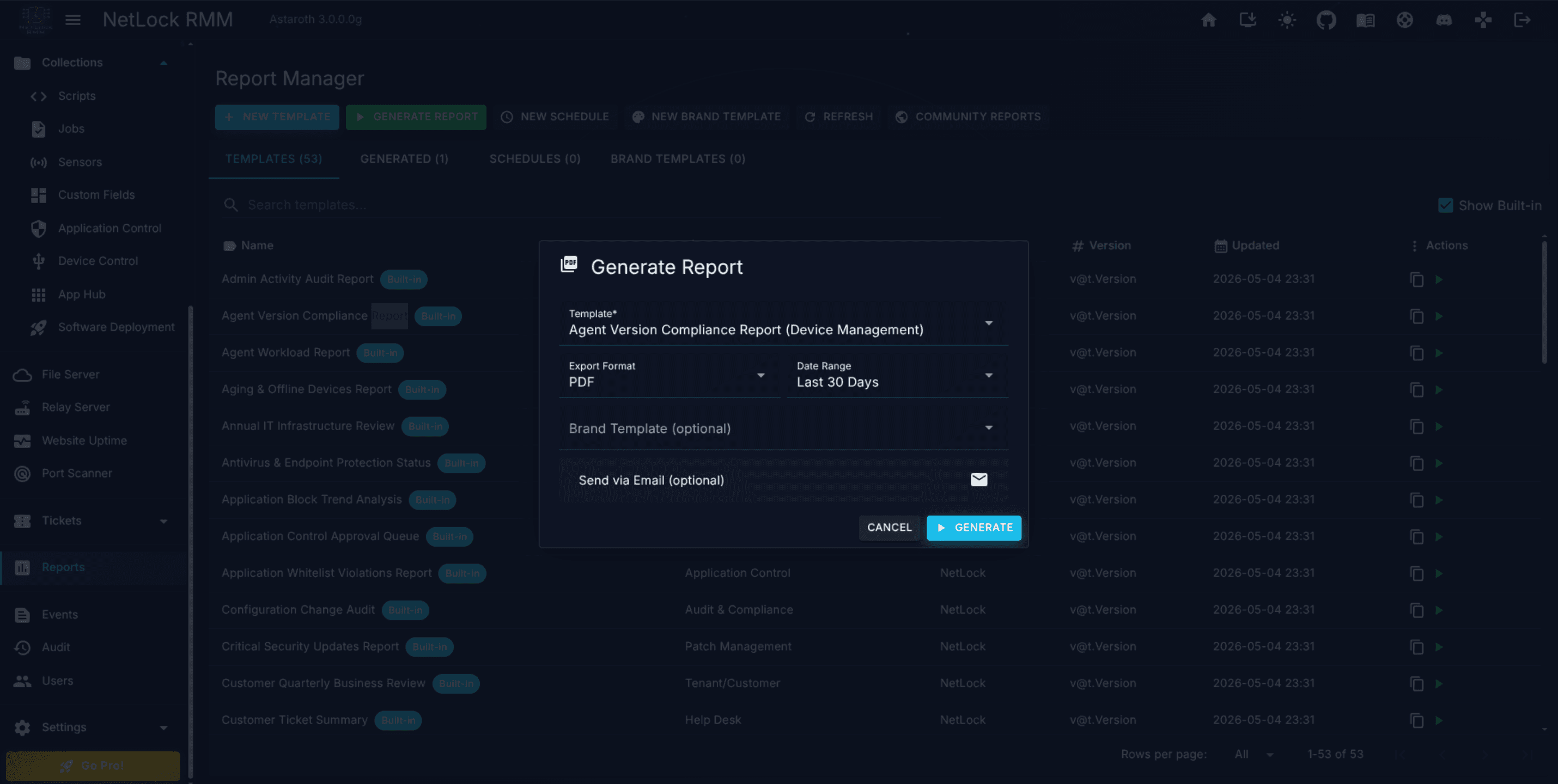
Generateaction on the row to open the Generate Report dialog. - Fill in:
Format— pickPDFfor a human-readable document, orHTML,CSV, orJSONfor other use cases.Date range— pick a preset (last_24h,last_7d,last_30d,last_quarter,last_year) orautoto use the template's configured default.Email— optional. Fill in to email the result now; leave blank to just produce the file.
- Submit. The generated file lands on the
Generatedtab (and arrives by email if you filled in an address).
Tip: PDF output honours the brand template attached to the source template; the other formats ignore it. If your compliance PDF needs a customer-specific cover page, attach a brand template first in Chapter 11.5.
2. Schedule weekly email delivery
- Still on the Reports page, switch to the
Schedulestab. - Open the Schedule dialog to create a new scheduled run.
- Pick the same template you generated in step 1.
- Fill in:
Frequency—Weekly, with a day-of-week picker. Choose the day and time that suit your stakeholders.Hour(0–23) andMinute(0–59) — evaluated in the server's time zone.Date range— for a weekly email,last_7dtypically matches.Export format—PDF.Distribution—Email.Recipients— one or more addresses, comma-separated.SubjectandBody— the message that accompanies the attached report.
- Save.
Each week at the configured time the Console generates the report with the selected date range, renders it to PDF using the attached brand template, and emails it to every recipient as an attachment.
Verify it worked
- The
Generatedtab lists the on-demand run with the correct format and timestamp; you can re-download it from there. - The
Schedulestab lists the new schedule with frequency, next-run time, recipients, and format. - After the first scheduled run fires, each recipient receives the PDF in an email with the subject and body you configured. Subsequent runs arrive on the weekly cadence.
Troubleshooting
- No suitable template. Build one with the Report Builder. Non-admin users get the Visual Query Builder (
Table,Fn,Columns,Joins,Where,Logic,Op,Valuefields); admin users additionally getSQL Query (God Mode). See Chapter 11.3. - Scheduled email never arrives. Confirm SMTP is configured and tested (Guide H.10). Check the
Generatedtab — if the file is produced but not emailed, the failure is in delivery, not in generation. - PDF missing the brand cover. The source template has no brand template attached. Edit it in the Report Builder and attach one; PDF honours it, other formats do not.
- Time zone mismatch. Scheduled times use the server's time zone, not the viewer's. Cross-check with the administrator who configured the server.
Related
- Chapter 11 — Reports — full reference for templates, the Report Builder, widgets, brand templates, scheduled delivery, and community reports.
- Guide H.10 — Configure email and Microsoft Teams notifications — SMTP prerequisite for scheduled email delivery.