 NetLock RMM Docs
Dashboard
Widgets, creating and deleting dashboards, the Panel Builder, and the first-run Setup Wizard.
Dashboard
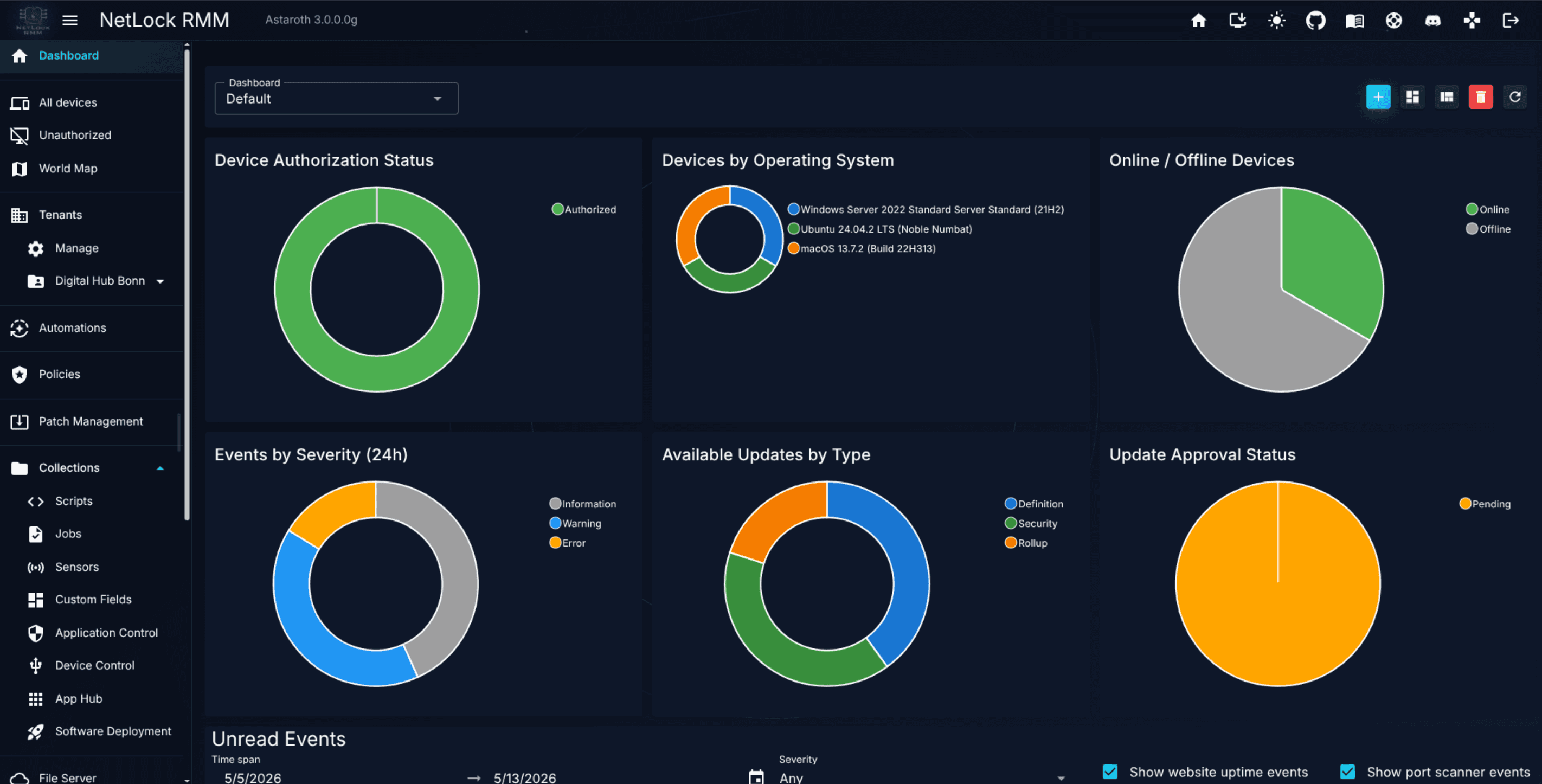
The Dashboard is the default landing page for most users. It is a grid of panels — configurable widgets — that display information from the Console's database: device counts, sensor values, event slices, and anything else you can express as a SQL query. Each user can create multiple dashboards, each with its own set of panels, and arrange them in an explicit layout mode.
Requires permission: the dashboard must be enabled for your user. A user without this permission does not see the
Dashboardmenu entry.
Overview
The Dashboard page sits at /dashboard. At the top is a bar of dashboards you have created; the active dashboard shows below it as a grid of panels. Dialogs handle creating and deleting dashboards and adding or configuring panels.
The first-run Setup Wizard
The first time a newly provisioned administrator opens the Dashboard, the Setup Wizard opens automatically. It walks through the minimum configuration needed to make the product useful — creating a first tenant, location, and group, and optionally downloading an agent installer. See First-Run Walkthrough for the full sequence.
You can close the wizard and reopen it from the help area later. If your environment is already set up, dismiss it and proceed directly to the empty dashboard.
Creating a dashboard
A fresh user starts with one empty default dashboard. You can create more so that different roles or different periods of the day get their own view (for example a "morning triage" dashboard and a "server health" dashboard).
- Click the add button in the dashboard bar to open the Add Dashboard dialog.
- Enter a name in the dashboard bar.
- Save. The new dashboard is active and empty, ready for panels.
Dashboards are per-user. Two users do not share each other's dashboards unless an administrator configures defaults (see A.12 Content defaults).
Deleting a dashboard
- Open the dashboard you want to remove.
- Use the delete action to open the Delete Dashboard confirmation.
- Confirm. The dashboard is removed immediately along with all panels it contains.
Warning: Deleting a dashboard cannot be undone. The panels you configured are lost. Recreate them from the Panel Builder if necessary.
Adding and configuring panels
Panels are the individual widgets that make up a dashboard. Use the Panel Builder to add or reconfigure them.
- On the active dashboard, click the add-panel affordance.
- The Panel Builder opens.
- Choose a panel type:
chartortable. Forchart, also pick a chart sub-type:bar,line,area,pie,doughnut, orradar. - Build the data query. The Panel Builder exposes a SQL query builder with:
- aggregate functions
COUNT,SUM,AVG,MIN,MAX, andDISTINCT; - filter operators
=,!=,<,>,<=,>=,LIKE,NOT LIKE,IS NULL,IS NOT NULL; - joins
INNER JOIN,LEFT JOIN,RIGHT JOIN; ORDER BYdirectionASCorDESC.
- aggregate functions
- For chart panels, configure the label column and value column that map the query rows onto the chart axes or slices.
- Configure display settings — colours, legend position, legend visibility, axis labels, fill (area / line), line tension (line / area).
- Configure the panel size in the dashboard grid:
Widthin grid columns (1-12) andHeightin pixels (200-1200). - Save. The panel appears on the dashboard and renders from its query.
Panel types at a glance
| Type | Sub-type | Best for | Data shape |
|---|---|---|---|
| chart | bar | Ranked counts across categories | label + value |
| chart | line | Trend over time | label (time) + value |
| chart | area | Trend over time with emphasised volume | label (time) + value |
| chart | pie | Proportional breakdown | label + value |
| chart | doughnut | Proportional breakdown, ring style | label + value |
| chart | radar | Multi-axis comparison | label + value |
| table | — | Raw rows with many columns | any |
Sensor status widget
The Sensor status widget of the Monitoring category is a chart with the sensors of your devices that are OK, failing or offline. It is not part of the standard dashboard; add it to a dashboard of your own. When a dashboard carries it, the TV view shows its three counters in its header. The widget needs the sensors permission of the Collections area and counts only the devices of the tenants your account is assigned to.
The state comes from the events the sensors reported. A sensor is failing while an unread sensor event of its device names it and no newer "Sensor Resolved" event of that sensor exists. Reading the event on the Events page acknowledges the failure and the sensor returns to OK, and so does a resolved event the agent writes when the check passes again. Failed sensor runs ("... failed") count as failing as well. Sensors of offline devices are counted as offline, not as failing. The sensors a device is expected to run follow its policy, its automation rules and the SNMP devices it monitors, the same way the agent receives them. Updated agents report the id of the sensor with every sensor event, so renamed sensors and sensors of the same name are matched exactly. Events of older agents carry no id and are matched by name, so with such events two sensors of the same name on one device share a state. OK also means that no failure was reported at all.
Rearranging panels
Panels are laid out in a responsive grid. To reposition or resize them:
- Click
Edit Layoutin the dashboard header to enter layout mode. - Adjust each panel's width (1-12 columns) and height (200-1200 pixels) using the inline numeric fields that appear on every panel.
- Click
Exit Layout Modeto save the layout.
Layout is stored per-user per-dashboard; your layout does not change what other users see on their own dashboards.
TV view
Every dashboard can be shown full screen on a wall display or an office monitor. On the Dashboard page, select the dashboard and click Open TV view. The view opens in a window of its own without the menu, the app bar and the editing controls, refreshes its panels by itself and shows the time of the last refresh, a countdown to the next one and a clock in its header.
The address of the view is /dashboard/tv/<id>, where 0 is the standard dashboard and any other id is a dashboard you can see. The view is always dark, whatever theme the console uses. One optional query parameter adjusts it:
refresh=<seconds>sets how often panels without an interval of their own are counted anew. The default is 60 seconds, the minimum 15, the maximum 3600. A panel with its own refresh interval keeps that interval. Panels with an own SQL statement are never counted more often than every 300 seconds, the smallest interval the Panel Builder offers for them, whatever this parameter says.
Example: https://console.example.com/dashboard/tv/12?refresh=120
The view follows the sharing of the dashboard and the permissions of the signed-in account. It needs the dashboard permission, a dashboard of another user is only shown while it is shared with the account or visible to everyone, and a widget the account may not see stays locked, as on the dashboard page. The panel definitions are read again once per refresh interval, so panels added, changed or removed on the dashboard page appear on the TV without a reload; a dashboard that is deleted or unshared while the view is open is replaced by a notice.
TV playlist and TV settings
The TV view menu on the Dashboard page offers Open this dashboard, Open playlist and TV settings. The settings dialog holds the playlist of your account: the dashboards the rotating view shows in order (the standard dashboard can be one of them), how long each stays on screen (30 seconds to 5 minutes) and how often the panels are counted anew. The dialog also shows the address of the playlist view, /dashboard/tv, with a copy button, so it can be typed into the browser of the TV device. Every account has one playlist of its own.
The playlist view rotates through the entries, shows the position and the next dashboard in its header and reads the playlist again after every full round, so changes made in the dialog appear without a reload. An entry you may no longer see is skipped, and the view shows a notice when the playlist is empty. The refresh query parameter still wins over the stored setting.
Sign in with Remember me on the device that shows the view. The open view keeps the session from idling out, but every session ends when its absolute lifetime is reached; the view then shows a notice with a Sign in again link instead of redirecting on its own, so the screen never ends up on the sign-in page unattended. The sign-in page brings the account straight back to the TV address it came from, whether the sign-in is done with a password or through SSO; only a TV address is accepted for that return. The notices mean:
- No permission - the account does not hold the dashboard permission.
- Dashboard not available - the dashboard was deleted, or it is no longer shared with the account.
- Session expired - the session has ended; sign in again and the view comes back on its own.
- Playlist is empty - the playlist has no entry you may see; add dashboards in the TV settings.
The unread events list appears below the panels when the dashboard is set up to show it and the account may see events.
Common tasks
Set up a tenant-overview dashboard for an MSP
- Create a new dashboard named after the tenant.
- Add a device-count panel scoped to that tenant.
- Add an event feed panel filtered to that tenant's devices.
- Optionally add sensor panels for critical devices (a file server's disk usage, a domain controller's CPU).
- Switch between per-tenant dashboards via the dashboard bar as you move through your queue.
Build a quiet "watch list" dashboard
- Create a dashboard named
Watch list. - Add quick-access panels that link to the specific devices you are currently watching after a policy rollout or software deployment.
- Add an event feed filtered to the same devices.
- Remove the dashboard when the watch window ends.
Reset a cluttered dashboard
If a dashboard has grown unwieldy, the simplest path is to create a fresh one from scratch and delete the old one. Panels are cheap to recreate with the Panel Builder, and the fresh start forces you to keep only the panels you actually use.
Permissions and conditional behaviour
- Access to the Dashboard is gated by a user-level permission. Users without it do not see the page or the menu entry.
- The panels you can add depend on the data you are permitted to see. For example, a user scoped to a single tenant will only see that tenant's devices in a device-count panel, regardless of how the panel is configured.
- The Setup Wizard is only shown on the administrator's first visit to the Dashboard and can be dismissed.
Related chapters
- Devices — what device-count and device-list panels reference.
- Sensors under Collections — the source of sensor panels.
- Events & Audit — the source of event feed panels.
- A.12 Content defaults — configure system-wide default dashboards.