 NetLock RMM Docs
Managing Devices
Inventory, approvals, bulk actions, remote access, and the device world map.
Managing Devices
The Devices section is where most day-to-day RMM work happens. It covers the inventory of managed devices, the queue of agents waiting to be approved, device detail views with status and events, bulk operations such as reboot or shell commands, remote desktop sessions, and a world map showing where your devices are located geographically.
The section is exposed as a top-level menu group with three sub-pages:
| Page | Route | Purpose |
|---|---|---|
Devices | /devices | Inventory of authorized devices. |
Unauthorized Devices | /unauthorized_devices | Queue of agents pending approval. |
Device World Map | /device-world-map | Geographic view of device locations. |
All three pages respect the currently selected tenant, location, and group context from the header selector. See Navigating the Console for how the context works.
3.1 Device inventory, filters, and labels
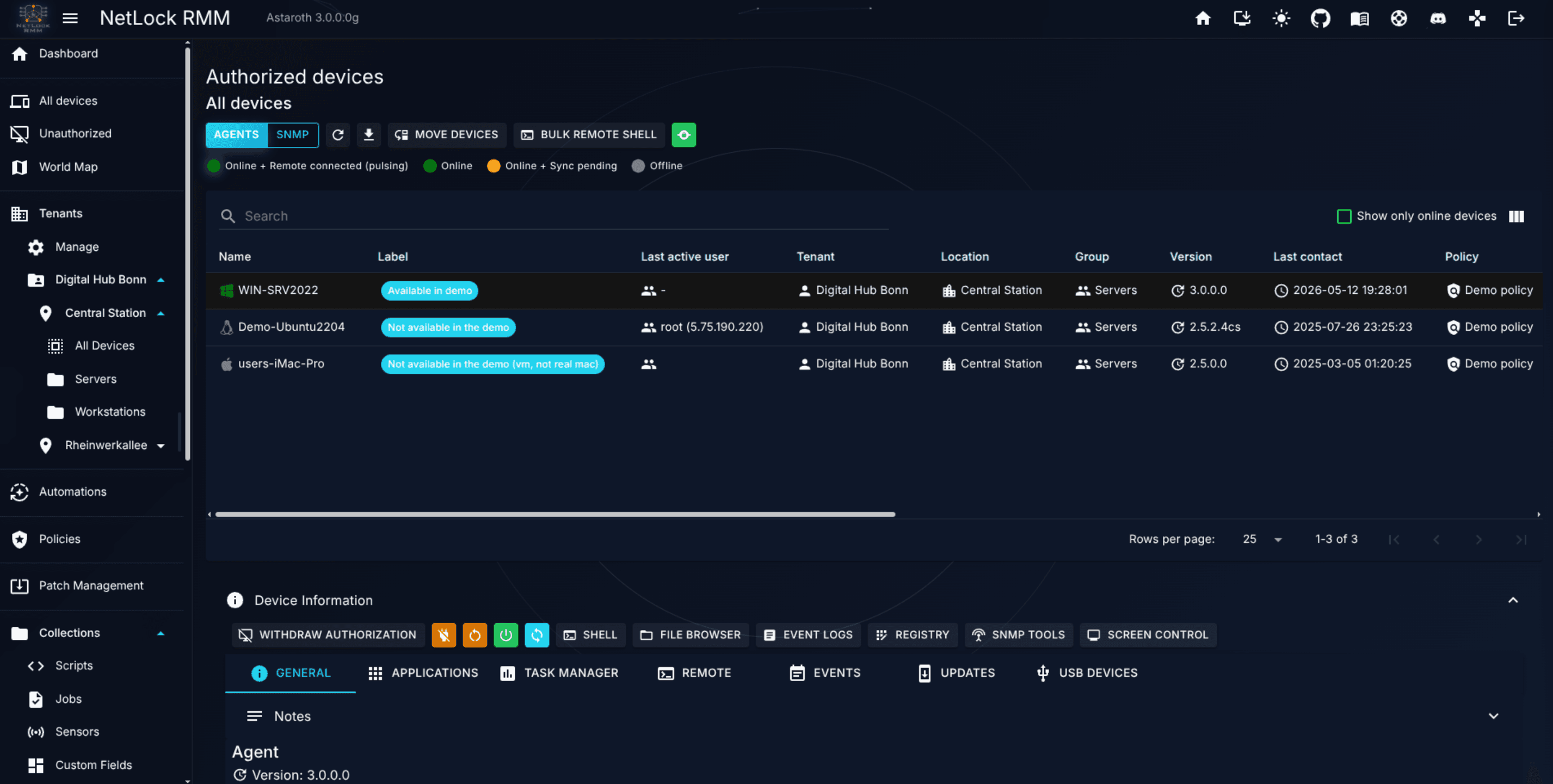
The Devices page lists every authorized device for the selected tenant / location / group. Each row shows status, identifying information, and quick-action affordances.
Status indicators
Each device reports status in real time:
- Online — the agent is currently connected to the server.
- Online + Remote connected (pulsing) — the agent is currently connected to the server and has a remote connection established
- Offline — the agent has not checked in within the expected interval.
Status changes appear without a page refresh (the page uses the Console's real-time update channel). If status updates stop arriving, a page reload re-establishes the connection.
A device that rate limiting on the server has blocked shows a red chip Blocked until <time> next to its name. Its requests are refused until that time, so the device goes Offline as well; the tooltip of the chip names the reason (for example Request rate above the limit for a sustained period) and the request class. With the permission settings_rate_limiting_enabled the chip is a link to the Rate limiting tab, where the block can be released. Blocks recorded in observe mode do not show a chip.
Filtering and searching
The Devices list offers two filter controls: a free-text search box and an online-only toggle.
The search box performs a case-insensitive contains match across 14 fields at once — enter any substring and rows where any of the following fields contains it remain visible:
- device name and label
- tenant, location, and group name
- agent version and last-access timestamp
- IP address, operating system, and domain
- country, by its name in the language of your console (a two-letter term matches the country code whole)
- antivirus solution and firewall status
- last active user
The online-only toggle, when enabled, restricts the list to devices whose status is currently Online + Remote connected. Combined with a search term, it narrows the list to online devices matching the search text.
Country of a device
The Country column shows the flag and the name of the country the device's external IP address belongs to, in the language of your console. The list sorts by it, the search box matches the name (or the exact two-letter code), and the column is moved with the Column Order control like the others. The exports of the list (CSV, JSON, HTML) carry the country as country_code (ISO 3166-1 alpha-2) and country_name (the English name).
The country is determined by the server at every check-in, from the address the device connects from, against the GeoIP database bundled with the server; no lookup leaves the installation. After an update, an existing device shows its country as soon as it has synced with the updated server once. A device that reaches the server through a private address — on the LAN of an on-premises server, through a VPN into the server's network, or on a single-host Docker installation — has no country and shows an empty cell; a device that leaves through a VPN or a proxy shows the country of that exit. The same value feeds the global search (country: operator), the public API (geoCountryCode and geoCountryName, see X.9.8), the Devices by country tile of the country restriction tab and the country restriction of the server.
Labels
Every device can carry a human-readable label. Rename it to something meaningful (Anna's laptop, Warehouse POS 3) using the Edit_Label dialog.
- Select the device in the list.
- Right click the label and open
Edit_Label. - Enter the new label and save.
Tenant / location / group assignment
Every device belongs to exactly one group, in exactly one location, in exactly one tenant. To move a device between groups, use the group assignment affordance on the device. Moving a device may change which policy it receives, because policy assignment is driven by Automations that match on device attributes such as group name. Expect policy changes to land within the device's sync interval.
3.2 Unauthorized devices and the approval flow
An agent that successfully contacts the server but has not yet been approved appears in Unauthorized Devices, not in the main Devices list. This intermediate state prevents rogue or misconfigured agents from silently polluting your inventory.
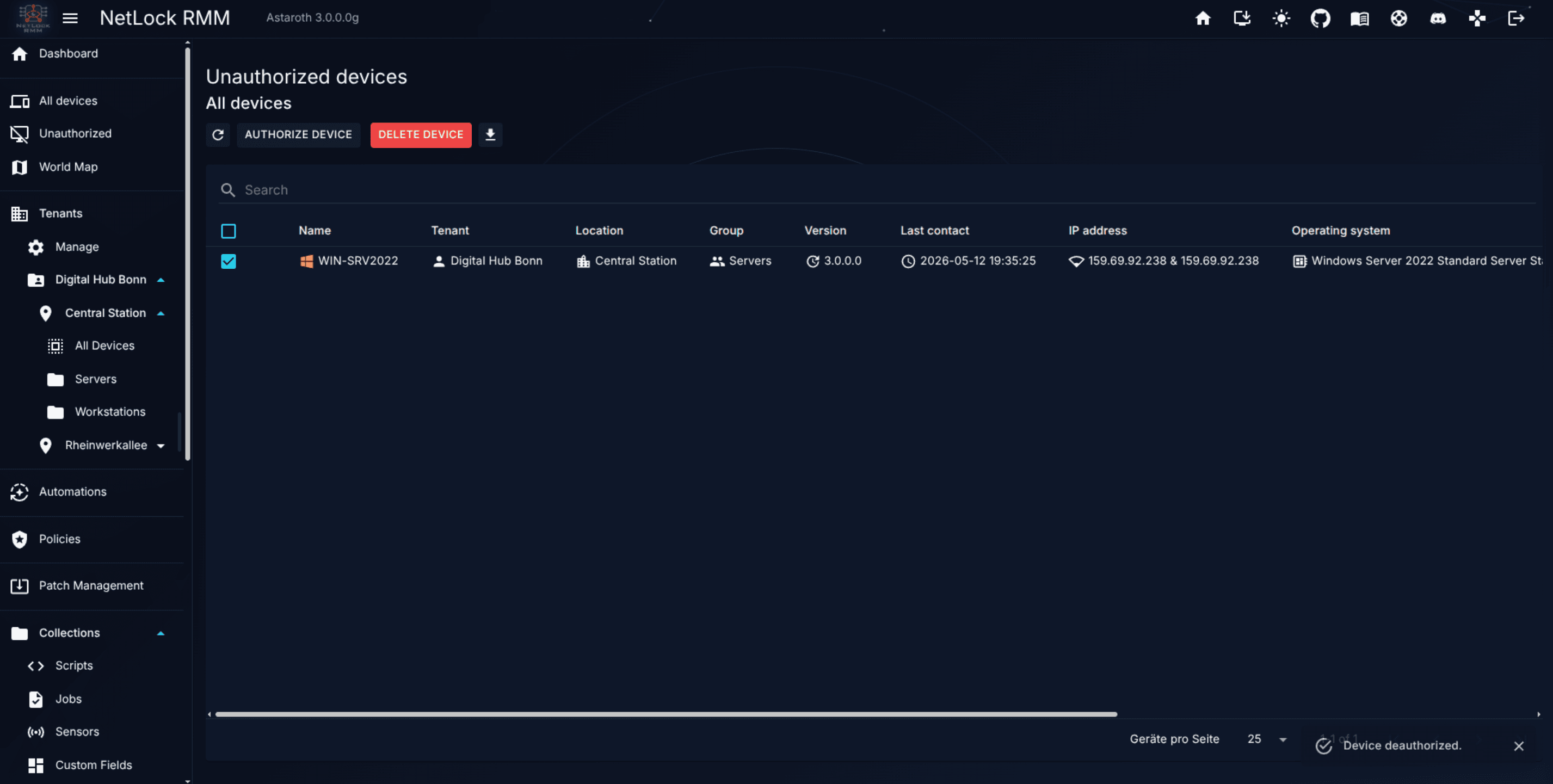
Next to the internal and external IP address of an entry, the queue shows the flag of the country the external address resolves to, so an agent that registers from an unexpected place stands out before it is approved; the country is resolved the same way as for authorized devices (see Country of a device).
The approval flow is:
- The agent is installed on a device with configuration that targets a specific tenant / location / group.
- The agent contacts the server and registers as unauthorized.
- An administrator reviews the entry in
/unauthorized_devices— confirm the hostname, operating system, and the target tenant / location / group are correct. - Adjust the target group if needed.
- Approve the entry. The device is created in the authorized inventory and begins receiving policies and automations.
- Optionally set a label immediately after approval using the
Edit_Labeldialog.
Rejecting an unauthorized device removes it from the queue; the agent will re-register on its next poll and reappear unless you block it at the network or agent level.
See the First-Run Walkthrough for a full end-to-end example, and Guide H.2 for a task-focused recipe.
3.3 Device detail view
Selecting a device in the list opens its detail view. The detail view pulls everything the Console knows about the device into one place:
- Identifying information — hostname, label, tenant / location / group assignment, operating system, last-seen timestamp, IP addresses reported by the agent.
- Geo location — below the external IP address, the line
Geo locationshows the flag, the city, the region and the country of the external address. City and region are resolved against the GeoIP database of the Web Console when the device is opened; the country stored with the device is used when the database has no record. The line appears only for a public external address; a device behind a private address showsGeo location: Not available for a private addressinstead, and a device that leaves through a VPN shows the location of the VPN exit, as on the world map. - Status — current online / offline / error state, and the agent version.
- Custom fields — values for every custom field defined in Collections, editable per device. Each field is one
Label: valueline like the other device details: a multiline value keeps its line breaks, a long value is shortened to four lines withShow more, an empty field shows-, and the copy button next to a value copies it. A manual field without a device value shows the value inherited from the group, location, tenant or global level greyed out, with an icon whose tooltip readsInherited from …; a value written by a script or the public API has an icon with the tooltipSet by script on …orSet by API on …. On phones and touch devices these texts appear under the value instead. ASecretfield shows a mask and aReveal secretbutton for accounts with the reveal permission. - Events — recent operational events scoped to this device; a link into the full Events page is available.
- Policy — the single policy currently assigned to the device (or
no_assigned_policy_foundif no automation matched and no default policy is set). A policy that comes from the default policy is markedDefault policy. A+Nchip next to the policy in the list counts the sensors and jobs that automation rules add on top of it; its tooltip names them and the rule each comes from. The detail view lists them underAssigned policyasAdditional sensorsandAdditional jobs, expandable to name and rule, and warns when rules would add items to a device that has no policy, because nothing is handed out then. Only items the device actually receives are shown: a sensor for the device's platform, a job for its platform or platformSystem. What the list and the detail show is the state the device last received from the server — the decision of its last evaluation — not a fresh evaluation of the rules; a device that has no stored state yet, while rules on services, applications or custom fields exist, shows-with an hourglass and the tooltipEvaluated at the device's next sync. See Chapter 5 — Automations for how assignment works, Chapter 5.2.2 for when a change shows up and Chapter 5.6 for the items. - Actions — per-device operations: remote control, remote shell, file browser, registry editor, event log viewer, service manager, wake-on-LAN, uninstall application, SNMP tools, and the bulk affordances covered in 3.4 and 3.5.
The per-device actions are implemented as the dialog set below. Each dialog targets the currently selected device (or the set selected for bulk actions):
| Category | Dialogs |
|---|---|
| Lifecycle and assignment | Edit Label, Move Device, Move Devices (bulk), Remote Authentication |
| Remote control | Remote Control |
| Remote shell | Remote Shell, Bulk Remote Shell, Bulk Remote Shell Results |
| Remote file browser | File Browser, Create File, Create Directory, Rename File, Rename Directory, Move File, Move Directory, View File, operation results |
| Remote registry editor (Windows) | Registry Editor, Create Key, Create Value, Edit Value |
| Remote event log (Windows) | Event Log viewer, Event Details, Event Log Statistics |
| Services management | Service Editor (Windows), Service Editor (Linux / macOS) |
| Diagnostics and tools | Event Details, SNMP Tools, Uninstall Application |
| Network | Wake on LAN |
The exact availability of some dialogs depends on the device's operating system — for example the Registry Editor is Windows-only, and the Linux / macOS Service Editor applies only to Linux and macOS devices.
Editing custom fields on a device
- Open the device detail view and the tab or section the definition contributes.
- Click the pencil next to the value. The field opens for editing on its line; a
Secretvalue is typed into an empty password field. - Save with the check mark, or press Enter (Ctrl+Enter in a
Multilinefield). Escape or the cross discards the change. Leaving the field does not save it, and an empty value cannot be saved. - To let the device inherit the group, location, tenant or global value again, open the editor, click
Remove device valueand confirm. The device's own value is deleted and the inherited value appears greyed out with itsInherited from …icon; without an inherited value the field shows-. Reveal secretnext to a secret field shows the stored value. It requirescollections_custom_fields_reveal_secretsand writes an audit entry each time.
Editing needs collections_custom_fields_edit; without it no pencil is shown and the fields are read-only. Only Manual fields can be edited; Job Result and SQL Select fields are read-only for every account. Every saved value marks the device for a policy re-sync, so scripts that use the value receive it at the next check-in. When an automation rule compares the field, the rules are evaluated for the device right away and the device is pushed when its assignment changed (see Chapter 5.2.2). Defining which custom fields exist, and setting values on tenant, location, group or global level, happens at the Collections level; see Chapter 8.4 — Custom Fields. Scripts read the values through variables and can write them back; see Script variables and custom fields in scripts and Write custom field values from a script.
Viewing per-device events
The detail view shows a tailored slice of the Events feed: only events concerning this device. This is usually where you go first to diagnose why an action did not land — a policy deployment that silently failed, a script that did not run, a sensor that went silent.
For the full events reference, see Chapter 12.
3.4 Bulk actions
Rather than operating on devices one at a time, the Devices page supports selecting many devices and issuing a single operation against all of them. Common bulk actions include:
- Bulk remote shell — execute a command on every selected device and collect the results.
The bulk remote shell flow uses two dialogs:
- Bulk Remote Shell — pick the command to run, confirm the target set, and launch.
- Bulk Remote Shell Results — display per-device results as they arrive, including stdout, stderr, and exit status.
Warning: Bulk actions run on every selected device without further per-device confirmation. Double-check the selection before you launch a bulk reboot on a production fleet.
Tip: For repeatable work, save the command as a script in Collections and invoke the script rather than typing the command every time.
3.5 Remote control and remote shell
Individual devices support remote access via the Console:
- Remote shell — an fire and forget shell session on the device (PowerShell on Windows, Bash or the default shell on Linux and macOS), opened from the Remote Shell dialog. Every completed classic remote shell command writes an event "Remote shell command executed." (type Remote Shell) on the device with the output; the command text itself is not stored.
- Real-Time Remote shell — an interactive shell session on the device (PowerShell on Windows, Bash or the default shell on Linux and macOS), opened from the Remote Shell dialog.
- Remote control — a graphical remote-control session to the device's desktop, opened from the Remote Control window.
How remote control works
NetLock RMM does not use VNC or RDP for remote control. Instead it streams the device's screen over its own protocol using one of two video encodings:
- H.264 — hardware-accelerated on the device's GPU when available, with a CPU software encoder as fallback. H.264 is the default when the agent and relay can negotiate it.
- JPEG polling — used when H.264 is not available (for example when the H.264 slot on the relay is already in use), and also the mode used by the legacy transport.
The Remote Control window exposes a connection-mode dropdown with two options:
Relay (Recommended - faster)— the session is routed through a dedicated Relay Endpoint that sits between the Console and the agent. This is the fast, modern path and is always preferred when the relay is configured.SignalR (Legacy - fallback)— the session is routed through the Console's own SignalR hub on the main server. This path is slower and always uses JPEG polling.
Selection is explicit: you pick the mode before starting the session. The Relay path auto-falls-back to JPEG if the relay's single H.264 slot is already occupied, and to SignalR + JPEG if the relay cannot be reached at all.
The picture of a session — colour, quality, frame rate and resolution — is chosen in the viewer with the stream mode; see A.7.5 Streaming modes.
See Chapter 9 — Relay Server for how to deploy and manage the Relay App, and A.7 Remote screen control for authentication and default-settings reference.
3.6 The Device World Map
The Device_World_Map page at /device-world-map visualises your fleet geographically. Each device is plotted on a world map based on IP-geolocation data captured when it reports to the server.
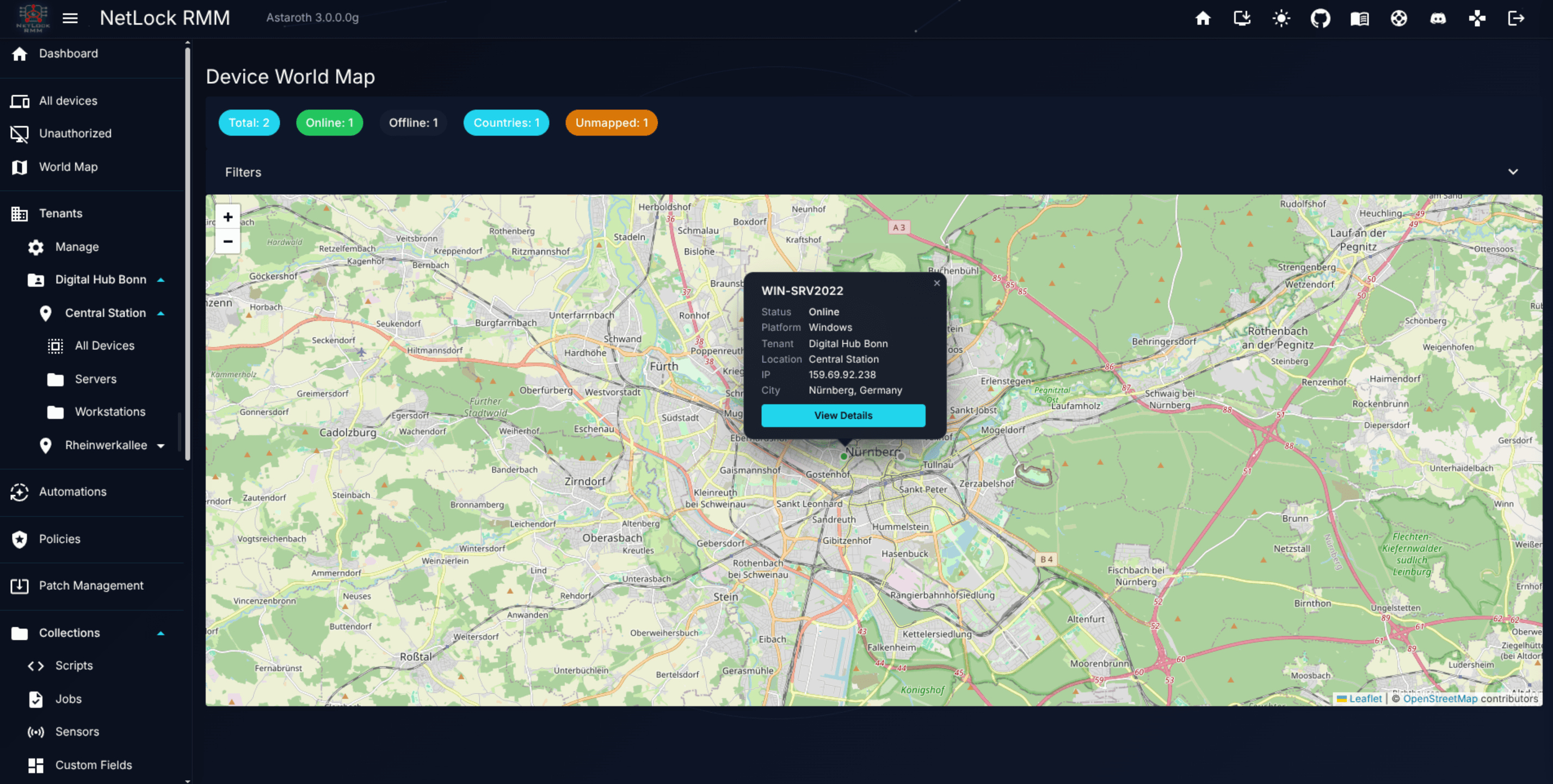
Use cases include:
- Confirming a device claims to be where you expect it to be (an unexpected pin in another country is a useful signal).
- Assessing the impact of a regional issue — for example, how many devices are on a specific coast during a power event.
- Communicating fleet spread to non-technical stakeholders in a single screenshot.
The map respects your tenant / location / group context: selecting a tenant in the header narrows the map to that tenant's devices only.
Note: Map accuracy depends entirely on the quality of IP geolocation for the device's external IP. Devices behind a VPN will appear at the VPN exit rather than the physical device location. The IP lookup happens locally on your NetLock RMM server. IP lookups are never communicated to the outside world. The details drawer of a marker shows the flag of the country next to the resolved place. The
Countrycolumn of the devices list and theGeo locationline of the device details use the same database (see Country of a device), and so does the country restriction of the Web Console and the server.
3.7 Web interface
Many devices carry a web interface of their own: the management pages of a printer, a switch, a UPS, a NAS, or a web server running on the device itself. Web interface opens such a page in a browser window of its own, without a VPN and without a Relay App. The agent fetches the page and the NetLock server serves it to your browser through a temporary relay session, so the page appears under the address of your NetLock server.
Agent devices
For a device with an agent, the entry sits in two places:
- Context menu — right-click the device row. The
Web interfacesub menu offersHTTPS (443),HTTP (80)andCustom…. The first two open the interface of the device itself straight away;Custom…opens the dialog. - Device details — the
Web interfacebutton in the action bar of the selected device opens the dialog.
The dialog asks for the target, the scheme and the port:
Web interface on this device— the interface the device serves itself (the agent connects to127.0.0.1).Remote host reachable from this device— a host on the device's network, given as hostname or IP address without scheme, path or port. The device acts as a jump host, as it does for a relay session.HTTPS/HTTP— switching the scheme moves the port between 443 and 80 as long as the port is still one of the two defaults; a custom port stays.Port— 1 to 65535.
Open opens a new browser window. The window checks your permissions and the device, asks the server for the session and then shows the device page. The first request can take up to 20 seconds while the agent opens the connection.
SNMP devices
The SNMP list of the devices page offers the same action for printers, switches and other SNMP devices. The Actions column of the list and the Web interface button in the detail panel open the dialog with the address of the SNMP device filled in. Because an SNMP device has no agent, one of the agents that know the device carries the connection: the agent that monitors it, the agent that discovered it, or any agent that has reported it in a discovery scan. The dialog lists these agents, online agents first, with the monitoring agent preselected. An SNMP device that no agent monitors, discovered or reported has no agent to carry the connection; the action is shown disabled and the tooltip says why.
Sessions and limits
Every web interface opened this way is a web access session: a temporary relay session of kind "Web" that is listed on the Relay Server page and can be closed there (see Chapter 9.2 — Web access sessions). What to expect:
- The session ends after 15 minutes without a request or WebSocket traffic, or after 8 hours at the latest, whichever comes first. Closing the browser tab does not end it; the idle timeout does. Opening the same target again while the session is alive reuses it.
- Only the account that opened the session can use the window. The link the window follows works once and for 60 seconds; afterwards a browser cookie bound to the session is required, so the address cannot be handed to somebody else.
- The certificate of the device is not checked, so appliances with self-signed certificates work. The connection between your browser and the NetLock server keeps its own certificate.
- Downloads (logs, configuration backups) and uploads (firmware) are streamed. Behind your own reverse proxy make sure request bodies are not limited and read timeouts allow long uploads.
- Pages that load their assets from absolute paths, redirect, set cookies, ask for a password (Basic or Digest authentication) or use WebSockets work. WebSockets are forwarded like any other request, also when the page opens them on an absolute root path (
wss://<server>/api/...), which single-page interfaces of NAS systems, hypervisors and network controllers do. A page that only talks over its WebSocket after loading counts as active; the idle timeout starts once the socket is quiet. - Pages that declare a base address (
<base href="/">, usual for Blazor, Angular and many other single-page interfaces) are delivered with the base address inside the session, so their links, scripts, sockets and client-side navigation stay in the session. Sign-in forms of such applications, including their protection cookies, work as well. Pages that set their base address from a script or build addresses from the server root keep using the redirect of absolute paths described above. - Two limits of WebSockets on absolute root paths: a socket whose handshake needs a cookie the device set works only when the page opens it under the session address (device cookies are scoped to the session; a socket on a root path carries none), and with two device pages open in the same browser such a socket goes to the page that was shown last.
- Web app manifests (
site.webmanifest) are fetched by browsers without cookies and therefore answered with 404 through the proxy; the page itself is not affected. - Two device pages in two tabs work; a page that suppresses the referrer can, in rare cases, load an asset from the session that was shown last.
Every opened interface is written to the audit trail with scheme, host, port and the device that carried the connection, and the step-up authentication of the remote tools applies.
Permissions
Device-related permissions follow the standard pattern:
- A top-level permission enables the Devices section.
- Per-action permissions gate bulk actions, remote shell, remote desktop, approvals, and label editing.
- The
Web interfaceaction needsrelay_server_enabledandrelay_web_accessfrom the Relay Server group; for SNMP devices the sensors permission that shows the SNMP list as well. - Tenant-scoped users only see devices in tenants they have access to.
See the Permission reference for the full list.
Related chapters
- Chapter 4 — Tenants, Locations & Groups — the hierarchy devices live in.
- Chapter 6 — Policies — how policies flow to devices.
- Chapter 8 — Collections — scripts, sensors, and custom fields that extend what a device exposes.
- Chapter 9 — File Server & Monitoring — relay-mediated remote access.
- Chapter 12 — Events & Audit — per-device event and audit records.
- A.4.1a — Country restriction — limiting the Web Console and the server to selected countries, fed by the same GeoIP database as the country column.
- A.4.1b — Rate limiting — the request limits behind the
Blocked untilchip, and the upload token that file downloads from a device need.