 NetLock RMM Docs
Content defaults
Allowed-tables and God Mode settings for Dashboards, Reports, and Custom Fields — plus a pointer to Ticket System defaults.
Content defaults
Three admin pages in the Settings group share a single purpose: deciding which parts of the MySQL schema are reachable from the Console's three SQL-aware content builders. The pages are Dashboard Settings, Report Settings, and Custom Fields Settings. They all look the same and do the same thing — they just apply to three different feature surfaces.
Because the pattern is identical across all three, this chapter describes the pattern once and then points at each page with the small details that differ (wording, storage, and which feature it governs). A separate fourth page — Ticket System Settings — is sometimes grouped with these by convention; it is a different kind of page and is cross-referenced at the end.
A.12.1 The common pattern
Every operator can tell what a content-defaults page does by looking at its two controls: a multi-select table list and a God Mode toggle.
The allowed tables list
A searchable checkbox list populated with every table in the NetLock RMM database. Two conveniences sit above it:
- A
Search tables...input that filters the list by name — useful when the schema runs to hundreds of tables. - A
Select Allcheckbox that selects every table currently matching the search filter. Clearing the search afterSelect Allleaves only the previously-filtered tables ticked, which is worth knowing if you intended to select every table in the schema.
The selected set drives the Visual Query Builder that the feature surface offers its end users. When a surface's query builder lists tables for the user to drag onto a canvas, this page is the authoritative list of which tables are offered. Tables that are not ticked here are not reachable from the Visual Query Builder at all; the user cannot browse, query, or join them.
The God Mode toggle
A single toggle below the table list flips the same feature surface from "pick from allowed tables" to "write any SQL". When God Mode is on, the feature surface exposes a raw-SQL editor in addition to (or sometimes in place of) the Visual Query Builder; the allowed-tables list becomes advisory rather than enforced. When God Mode is off, the query path honours the table list as a hard boundary.
The toggle label and help text differ slightly between the three pages — two call it "Enable God Mode (raw SQL queries)", one calls it "Enable God Mode (bypass table restrictions)" — but the behaviour is consistent: raw SQL with no table restriction.
Warning: God Mode lets users author queries against every table in the schema, including tables that hold credentials, secrets, and audit trails. Only enable it for features whose users you trust to write queries against the whole schema. Leaving the allowed-tables list in place and turning God Mode off is the safer default for most deployments.
How the two controls relate
| State | What the feature surface offers |
|---|---|
Tables selected, God Mode off | Visual Query Builder only, limited to the ticked tables. |
Tables selected, God Mode on | Visual Query Builder (limited to the ticked tables) plus a raw SQL editor (unrestricted). |
No tables selected, God Mode off | Visual Query Builder shows no tables — the feature surface is effectively read-only for most users. |
No tables selected, God Mode on | Visual Query Builder empty; raw SQL editor is the only path and is unrestricted. |
The "no tables, God Mode on" configuration is legitimate for deployments that only ever want raw SQL; the "no tables, God Mode off" configuration is rarely intentional — it usually means someone forgot to tick Select All after setting up the page for the first time.
A.12.2 Dashboards
Route: /settings/dashboards.
Purpose: Controls which tables appear in the Dashboard panel builder's Visual Query Builder. Panels on the Dashboard page pull data from SQL queries; this page decides which tables those queries can touch.
Info text at the top: "Select which database tables are available in the Dashboards visual query builder. Only selected tables can be queried by dashboard panels."
God Mode label: Enable God Mode (raw SQL queries).
God Mode help text: "When enabled, the Dashboards panel builder allows writing raw SQL queries instead of using the visual query builder. This bypasses query builder restrictions. Use with caution."
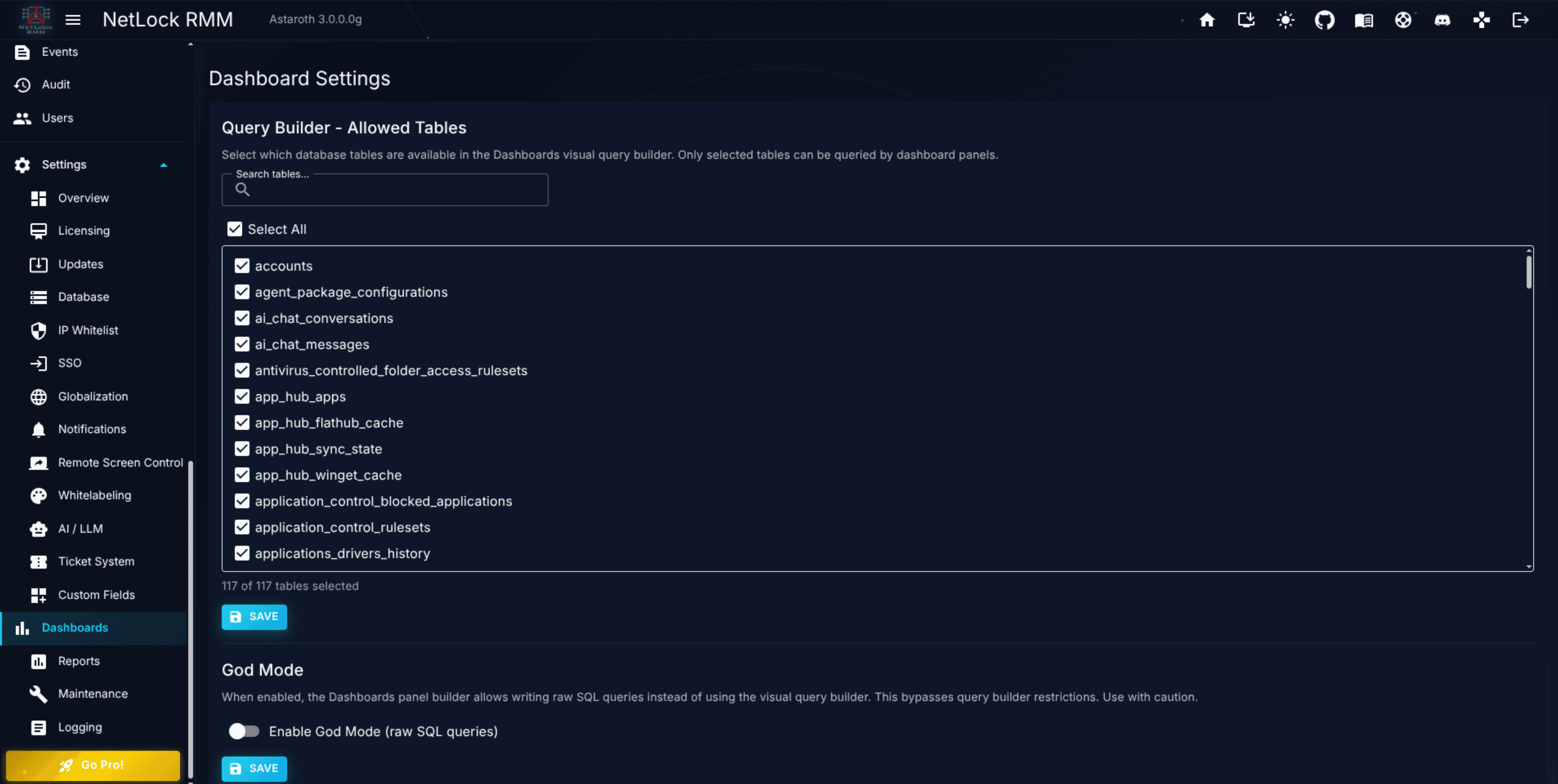
When a dashboard author opens the Panel Builder (see Chapter 2), the table picker inside the Visual Query Builder is populated from the set you tick here. Turning God Mode on adds a raw-SQL editor tab to the Panel Builder so authors who need one-off queries across the whole schema can write them.
Permissions: settings_enabled, settings_dashboards_enabled.
A.12.3 Reports
Route: /settings/reports.
Purpose: Controls which tables appear in the report widget SQL editor. Report widgets (see Chapter 11) pull data from SQL queries the widget author writes; this page decides which tables those queries can touch.
Info text: "Select which database tables are available in report widget SQL queries. Only selected tables can be queried by report widgets. This applies when God Mode is disabled."
God Mode label: Enable God Mode (bypass table restrictions) — slightly different wording from the other two pages.
God Mode help text: "When enabled, report widget SQL queries are not validated against the allowed tables list. Users can write any SQL query. Use with caution."
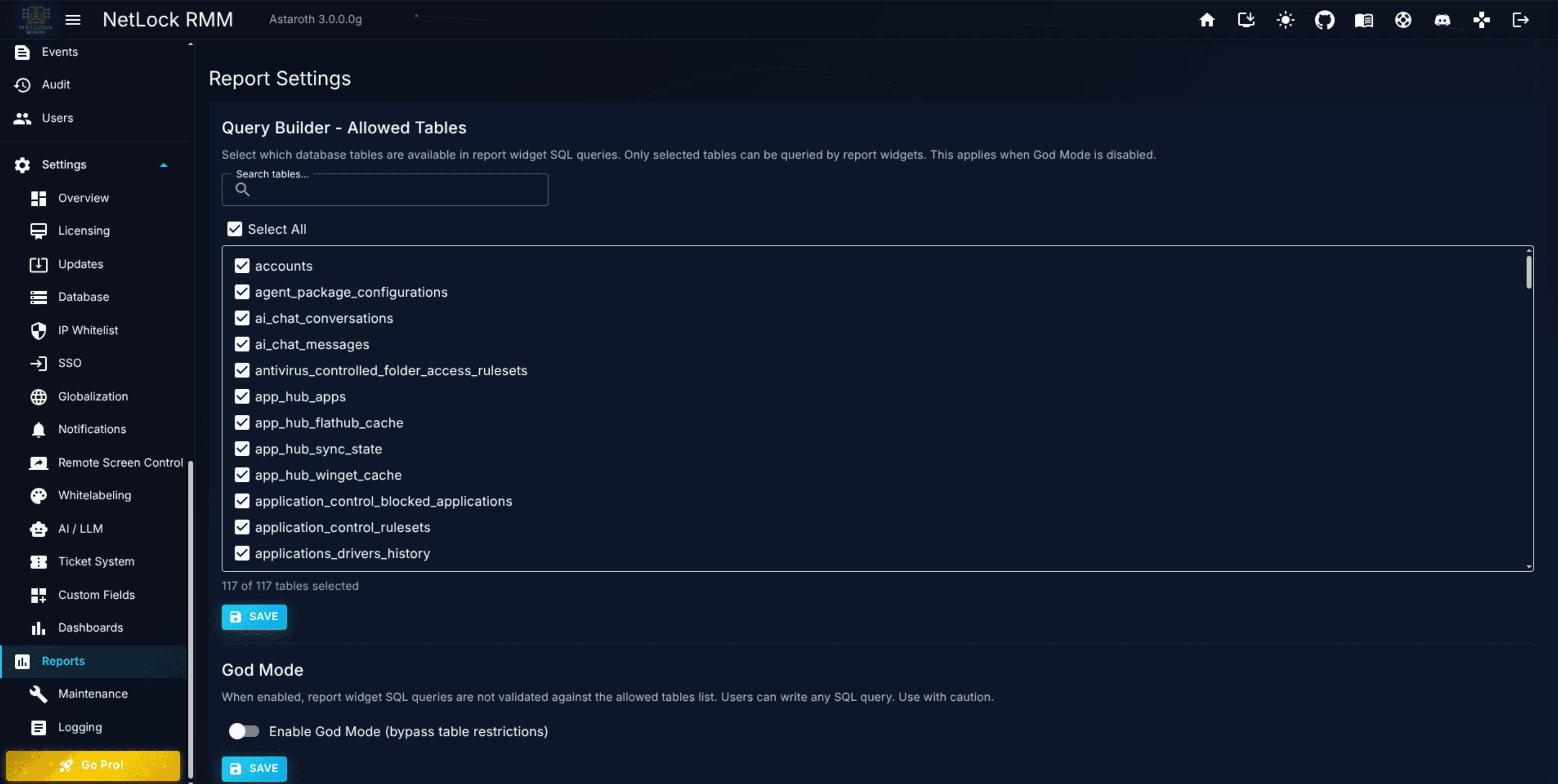
Reports have a stronger case for strict table restrictions than dashboards: reports are commonly scheduled and mailed out to a wide audience, so a query that accidentally pulls in a sensitive table can leak further than a one-off dashboard view would. Err on the side of a narrow allowed-tables list and turn God Mode on only for the users who author reports for senior technical audiences.
Permissions: settings_enabled, settings_reports_enabled.
A.12.4 Custom Fields
Route: /settings/custom-fields.
Purpose: Controls which tables appear in the Custom Field Builder's Visual Query Builder. Custom Field data sources include "SQL Select" (see Chapter 8.4); this page decides which tables those selects can touch.
Info text: "Select which database tables are available in the Custom Fields visual query builder. Only selected tables can be queried."
God Mode label: Enable God Mode (raw SQL queries).
God Mode help text: "When enabled, the Custom Fields builder allows writing raw SQL queries instead of using the visual query builder. This bypasses query builder restrictions. Use with caution."
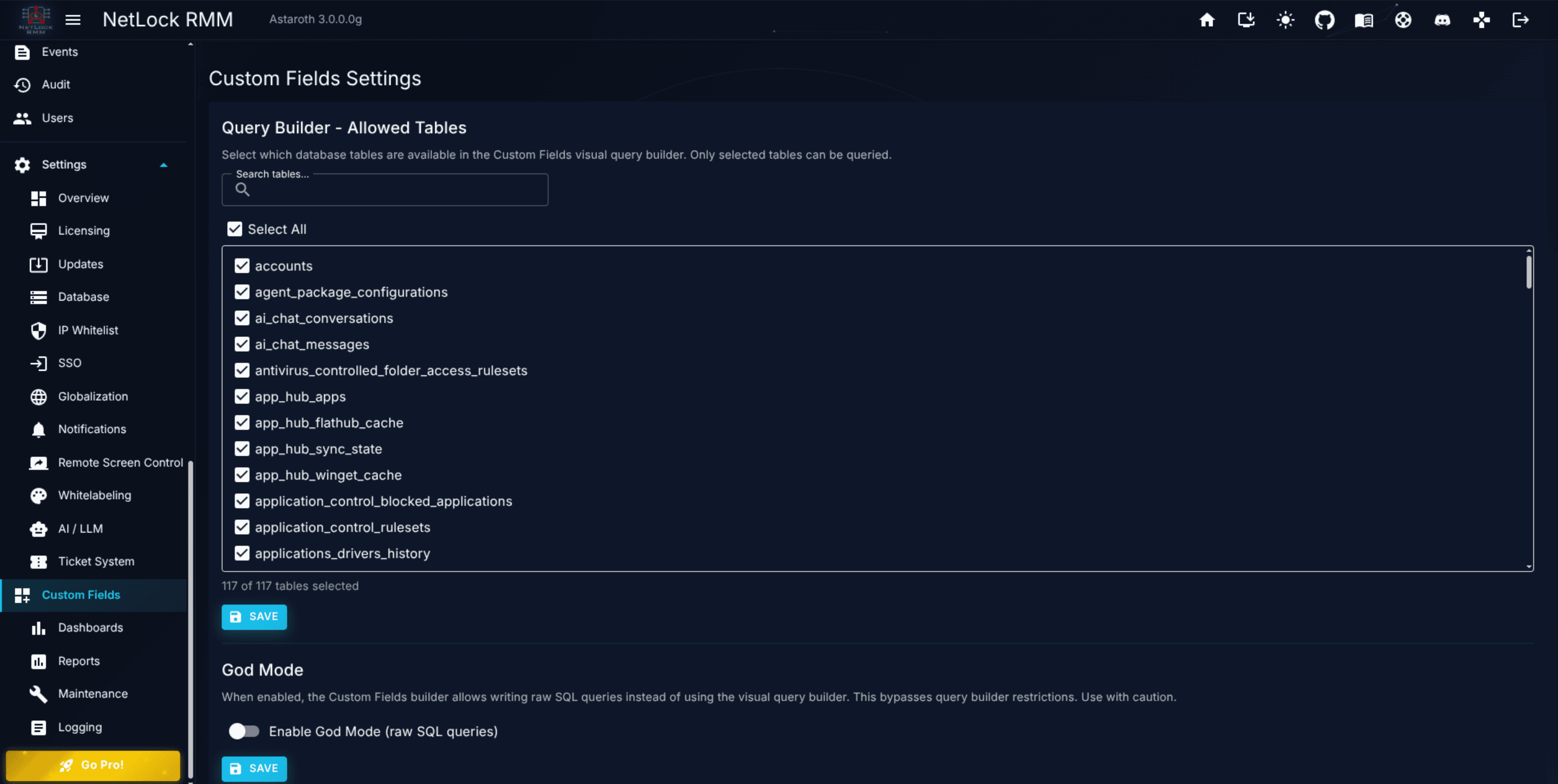
Custom Fields are the page to tune most narrowly. Custom Field queries run on every matching device's detail page, often many times per day, and they surface in the UI with no "show me the query" affordance for end users. Keeping the allowed list limited to tables that are genuinely useful for device context — devices, events, jobs, sensors, custom-field data — is a good default; tables that hold tenant-wide or server-wide data rarely belong in a device-context Custom Field.
Permissions: settings_enabled, settings_custom_fields_enabled.
A.12.5 Ticket System defaults
The Ticket System has its own settings page at /settings/ticket-system with a different shape — module toggle, ticket number prefix, blocked file extensions, and Labels / Types / SLA tabs — and is documented with the rest of the ticket module in Chapter 10.2 and the sub-sections that follow. It does not fit the allowed-tables + God Mode pattern above, and it is not described again here to avoid drift between the two chapters.
If you are setting up a fresh deployment and working through the Settings menu top to bottom, visit Chapter 10 when you reach Ticket System. If you are only looking to enable the module, the single switch you need is Ticket System Enabled on the General tab at /settings/ticket-system.
A.12.6 Operational notes
A few cross-cutting reminders worth stating once:
- Changes take effect immediately for new queries. Queries already saved on existing dashboards, reports, and Custom Fields do not re-validate against a tightened allowed-tables list until they are re-edited. If you want to enforce a narrowed list retroactively, review the existing artefacts manually.
- Disabling a table does not disable existing data. A dashboard panel or Custom Field that queries a now-forbidden table continues to run until its next edit. Remove the offending panels or Custom Fields if that matters for your rollout.
- The three pages are independent. Ticking
eventson Dashboards does nothing for Reports or Custom Fields. Make the same set of choices across all three only if that is what you want.
Permissions
| Page | Flags |
|---|---|
| Dashboard Settings | settings_enabled, settings_dashboards_enabled |
| Report Settings | settings_enabled, settings_reports_enabled |
| Custom Fields Settings | settings_enabled, settings_custom_fields_enabled |
Related chapters
- Chapter 2 — Dashboard — the feature surface that Dashboard Settings governs.
- Chapter 11 — Reports — the feature surface that Report Settings governs.
- Chapter 8.4 — Custom Fields — the feature surface that Custom Fields Settings governs.
- Chapter 10.2 — Enabling the ticket system — the Ticket System settings page, which follows a different pattern.
- A.10 — System settings — routing guide for other
Settingsadmin pages.