 NetLock RMM Docs
Policies
The policy model, the eight-tab Policy Settings editor, per-platform patch rollout, and the features that live inside a policy.
Policies
A policy is the central configuration unit in NetLock RMM. Almost every feature you can tune on a device — antivirus behaviour, firewall rules, remote-access capabilities, tray branding, patch rollout, scheduled jobs, monitoring sensors — lives inside a policy. This chapter is the reference for the policy object, the Policies list page, and every tab of the Policy Settings editor.
6.1 What a policy is
A policy is a named bundle of device configuration. The single bundle covers:
- Agent behaviour (sync interval, auto-update, remote-control capabilities).
- Tray icon branding and visibility.
- Windows-specific controls (Microsoft Defender Antivirus, Application Control, USB Device Control).
- Linux-specific controls (UFW firewall).
- Sensors and Jobs attached to the policy.
- Patch Management rollout rules per platform.
- Which App Hub apps the tray icon exposes on devices under the policy.
A few rules about policies are load-bearing across the whole product and worth stating up front:
- A device is assigned at most one policy at a time. Policies do not layer, merge, or inherit. The agent runs the one policy assigned to it, or no policy at all.
- Policies do not attach to tenants, locations, groups, or devices directly. Every assignment flows through an automation — see Chapter 5. There is no "apply to group" affordance on the Policies page, the Groups page, or the Devices page.
- There are no policy templates. A new policy starts with the editor's default settings, also when it is created through the Public API. The only way to seed a new policy from an existing one is to duplicate.
- There is no versioning, no change history, and no rollback. Edits apply in place. If you need a safety net, duplicate the policy first.
- The
Authorcolumn is informational, not an ACL. It records who created the policy. Edit and delete access are gated by thepolicies_editandpolicies_deletepermission flags, not by authorship — any user with those flags can edit or delete any policy. Visibility of the row is gated bypolicies_enabled.
Tip: Treat the duplicate-before-editing habit as a convention. Because there is no rollback, a duplicated copy is your only path back from a bad change — and duplication takes about two clicks.
6.2 The Policies list page
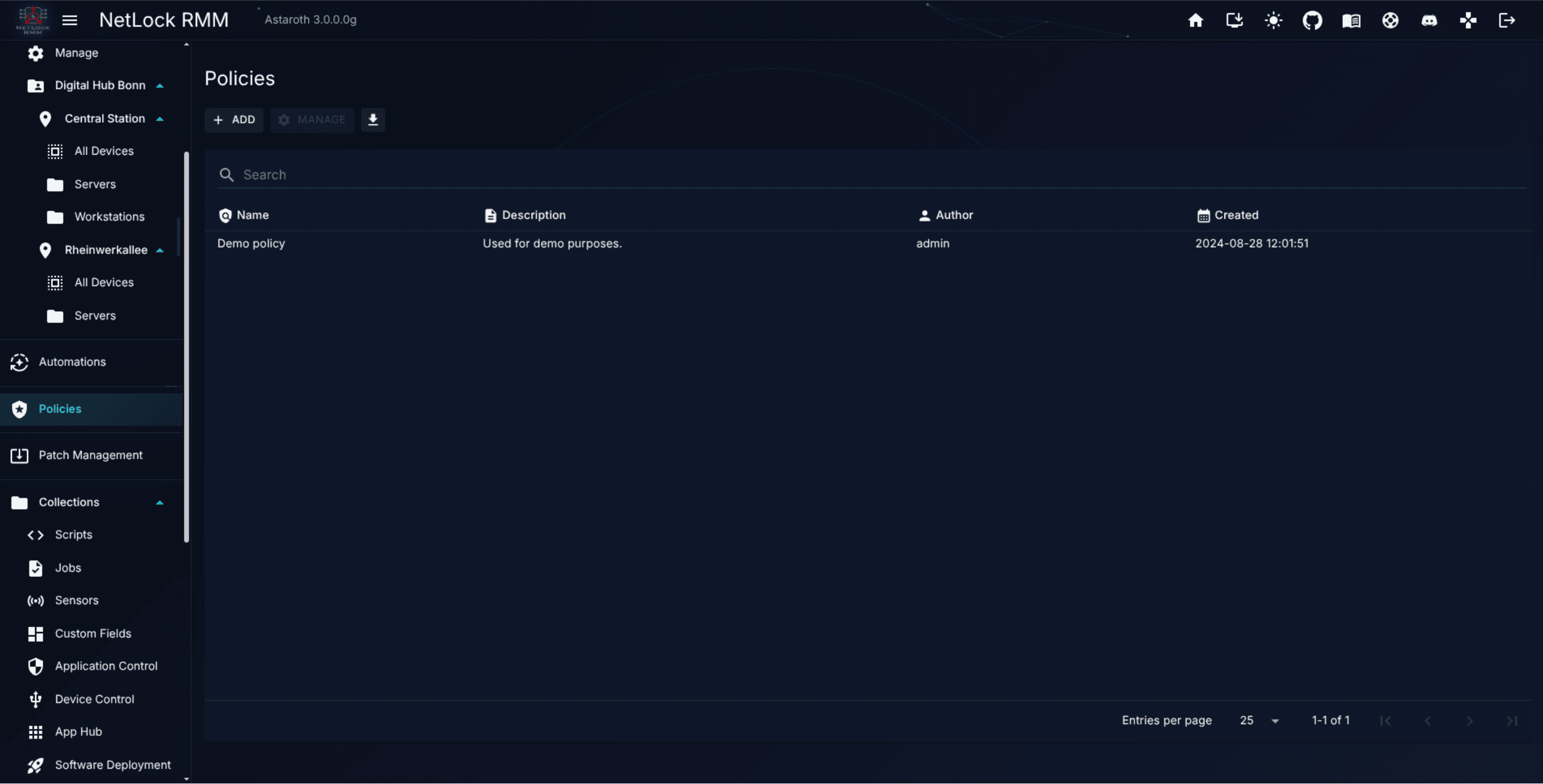
The Manage Policies page at /policies lists every policy in the system. The table shows:
| Column | Sortable | Notes |
|---|---|---|
Name | Yes | The policy name used by automations to reference this policy. The default policy carries a Default policy chip next to its name. |
Description | Yes | Free-text description set at creation. |
Author | Yes | The user who created the policy. |
Created | Yes | Creation timestamp. |
Actions on the page (toolbar above the table):
- Add opens the Add Policy dialog. Fields:
Name,Description. Save creates a policy that starts with the editor's default settings — every tab is at its default state, the same as for a policy created through the Public API. - Manage navigates to the
Policy Settingseditor for the selected policy (/policy_settings). Duplicate and Delete actions live inside that editor, not on this list — see §6.3. - Set as default policy (star icon in the actions column, requires
policies_edit) marks the policy as the default: every device that no automation assigns a policy to receives it, including the devices of tenants created later. At most one policy is the default; marking another one moves the mark. On the current default the icon becomes Remove default policy. Both directions ask for confirmation first, because they change the policy of potentially many devices, and then trigger a fleet-wide policy sync. A caption above the table states the rule. - Export (download icon) opens the export dialog. It exports the policy list — one row per policy, with the columns above — as JSON, XML, or HTML. This is a list export, not a full policy export; the contents of each policy's tabs are not included in the dump.
Note: The list page does not expose a Delete or Duplicate button. To delete or duplicate a policy you must open it via
Managefirst.
6.3 A tour of the Policy Settings editor
The Policy Settings editor at /policy_settings is a tabbed workspace. Eight top-level tabs cover the entire surface of what a policy can configure. Every tab is kept alive once opened, so you can switch between tabs and your in-progress edits are preserved until you save or navigate away.
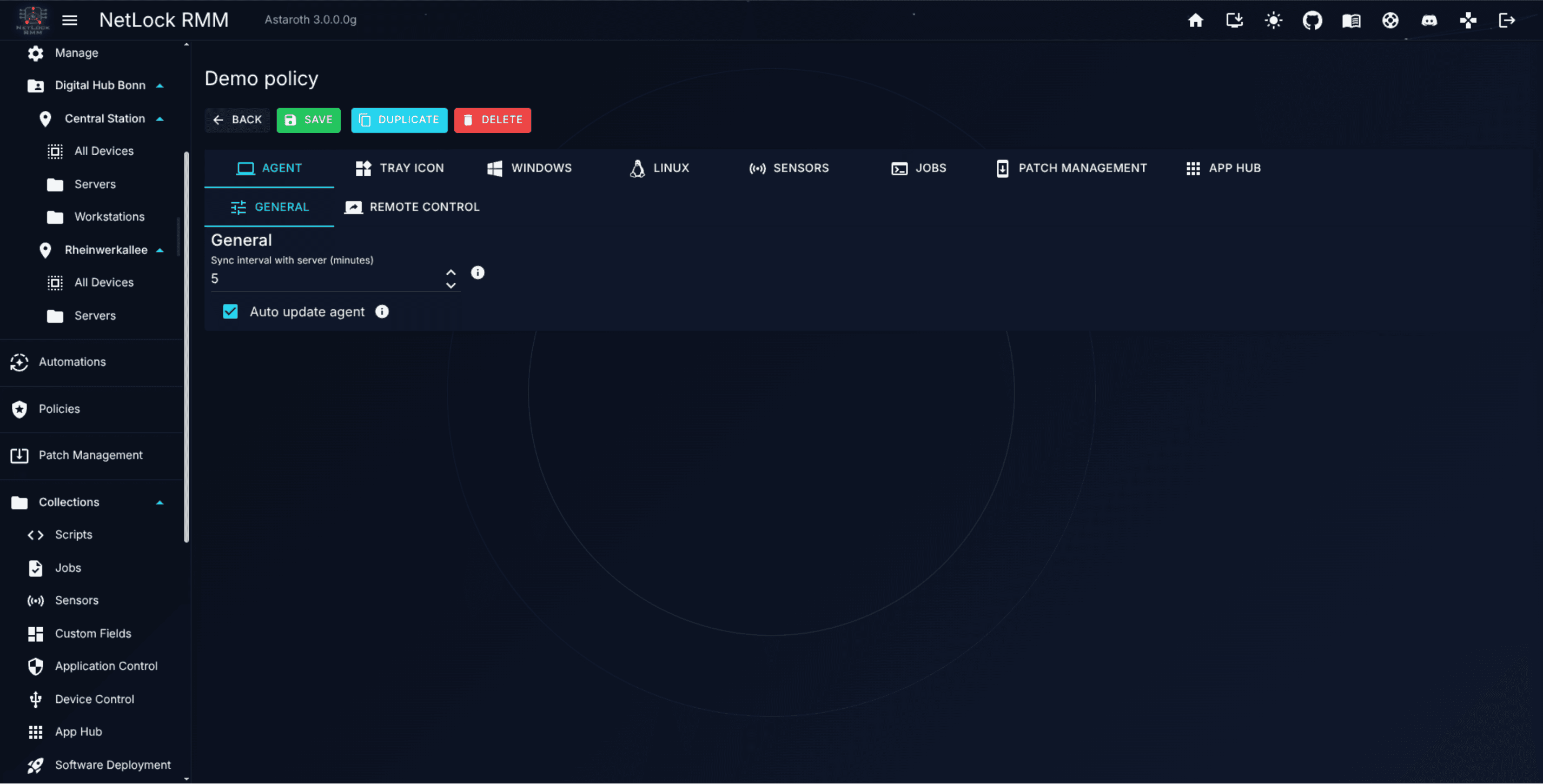
Above the tab strip sits the editor toolbar:
- Back returns to the
Manage Policieslist without saving. - Save (visible when
policies_editis granted) commits all in-progress edits across every tab in one go. Until you click Save, your changes are held in the editor's in-memory state and are lost on a hard reload. - Duplicate (also
policies_edit) opens the Duplicate Policy dialog. The dialog pre-fills the new name as<original> (Copy), which you can override; it then clones the policy as a new row. Duplication is the only "starting point from an existing policy" mechanism. The copy is never the default policy, even when the source is. - Delete (requires
policies_delete) opens the Delete Policy confirmation. Deletion cannot be undone. Every automation that only assigns the policy is deleted with it; an automation that also adds sensors or jobs keeps them and continues without a policy. The dialog shows both numbers before you confirm; the devices those automations routed fall through to the next matching rule or the default policy, or reportno_assigned_policy_foundwhen neither exists. If the policy is the default policy, the dialog says so as well; the default goes away with the row, and devices that no automation assigns a policy to have no policy afterwards.
Warning: Deleting a policy also deletes the automations that assign nothing but it, and the default policy mark disappears with the row. Check the numbers in the dialog before you confirm, and route the affected devices to a replacement policy afterwards if they should stay managed.
TODO: Engineering review — the Duplicate flow does not copy the
device_control_settings,linux_firewall_settings, orapp_hub_settingscolumns in the current release. Confirm whether this is intentional; if not, document the omission.
The eight tabs:
- Agent. General agent behaviour and remote-control capability toggles. Every policy touches this tab.
- Tray Icon. End-user tray behaviour and branding. Applies to every device under the policy.
- Windows. Windows-only features, grouped into three sub-sections — Microsoft Defender Antivirus, Application Control, USB Device Control. Settings in this tab have no effect on Linux or macOS devices.
- Linux. Linux-only features — currently UFW firewall configuration.
- Sensors. SNMP sensor configuration attached to the policy.
- Jobs. Scheduled job definitions attached to the policy.
- Patch Management. Per-platform rollout rules — Windows, Linux, macOS, Docker — each with its own sub-tabs for general settings, approval filtering, deployment rings, schedule, reboot, notifications, and retry.
- App Hub. Catalogue curation — which apps from the global App Hub appear in the tray icon for devices under this policy.
Each tab is documented in its own section below.
6.4 Agent tab
The Agent tab controls the behaviour of the agent process itself. It has two sub-tabs: General and Remote Control.
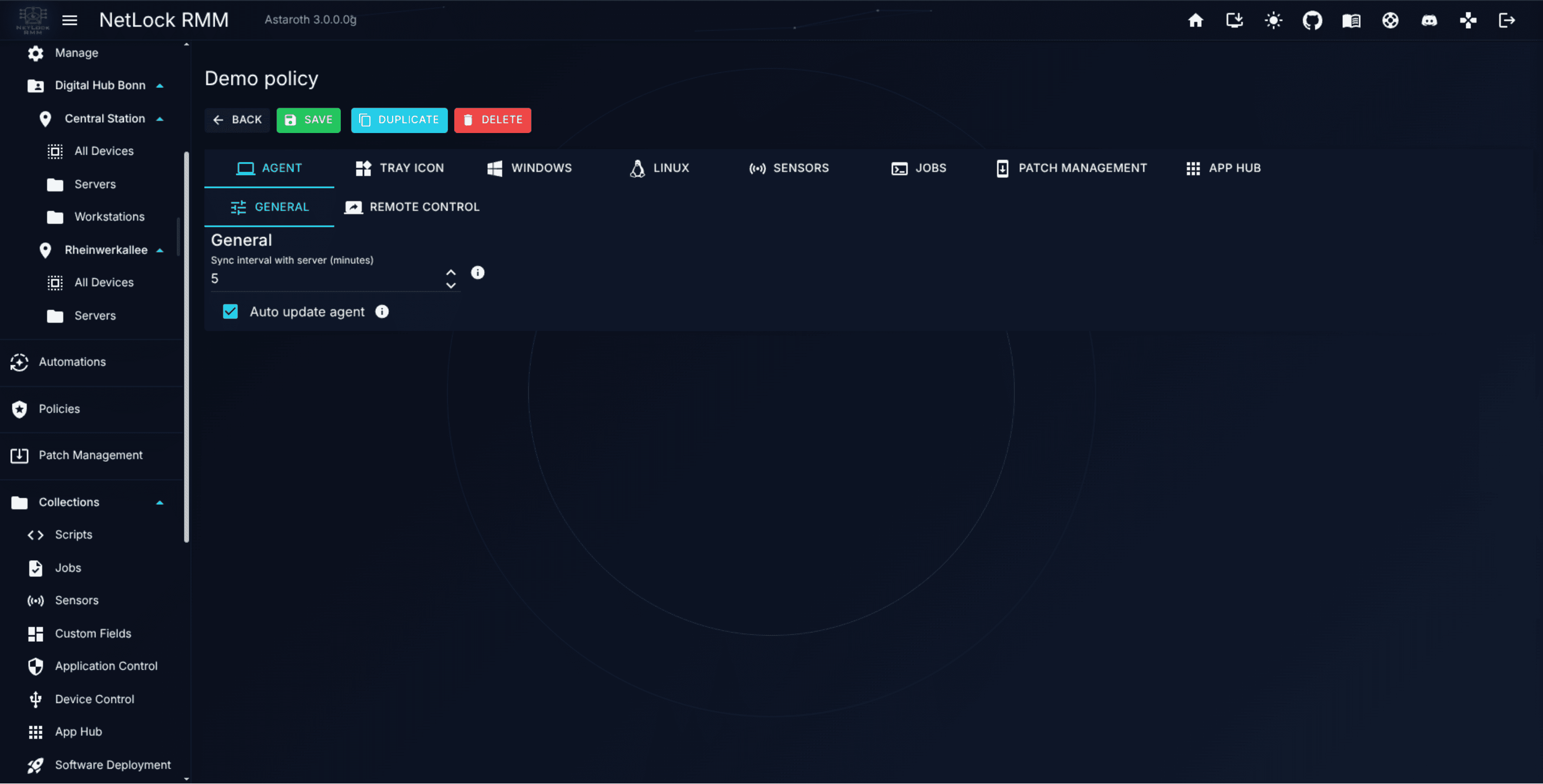
General. Two knobs:
Sync interval— how often the agent polls the server, in minutes. The allowed range is 5 to 1440 (one day). Short intervals keep the Console responsive to configuration changes; long intervals reduce server load for large fleets.Auto-update agent— whether the agent installs new agent versions as soon as the server offers them. On by default. Agent updates are minimally invasive and have no impact on system stability; the only really valid reason to turn this off is a golden image, because older agents may become incompatible over time. Unchecking the option asks for confirmation (Keep enabled/Disable anyway), and while it is off a warning stays below the checkbox. How many agents update at the same time is set inSettings → Updates.
Remote Control. A master toggle and a set of per-capability switches:
Enable remote service— master switch for all remote operations on the device. Everything below is gated on this.Remote Shell— permits interactive shell sessions.File Browser— permits remote file transfer.Task Manager— permits remote process management.Service Manager— permits remote service start/stop/restart.Registry Editor (Windows only)— permits remote Windows registry editing.Event Log Viewer (Windows only)— permits remote Windows event log viewing.SNMP Tools— permits SNMP GET / Walk / Monitor operations from the Console.Remote Screen Control— permits remote screen sessions. Exposes anAccess modedropdown with two values:Attended (user confirmation required & tray icon needs to be enabled!)— the on-device user must approve each session, and the tray icon must be enabled in §6.5 for the approval prompt to render.Unattended (no user confirmation required)— the session starts without user interaction.
Allow audio calls— lets operators with theAudio callpermission call the signed-in user of a Windows device from the end user chat (see A.7.7). On by default; the switch is disabled whileRemote Screen Controlis off, because a call runs over the same tray icon path and the agent gates it on both settings. Calls are not recorded.
Note: Remote Screen Control uses H.264 or JPEG over Relay or SignalR; it is not VNC or RDP. See A.7 Remote screen control for the deployment-wide defaults.
Disable the individual capabilities for high-sensitivity devices where you want, for example, a remote shell but not file transfer.
6.5 Tray Icon tab
The Tray Icon tab shapes what end users see on their device. Branding here is per-policy — a single deployment can present different branding to different customers.
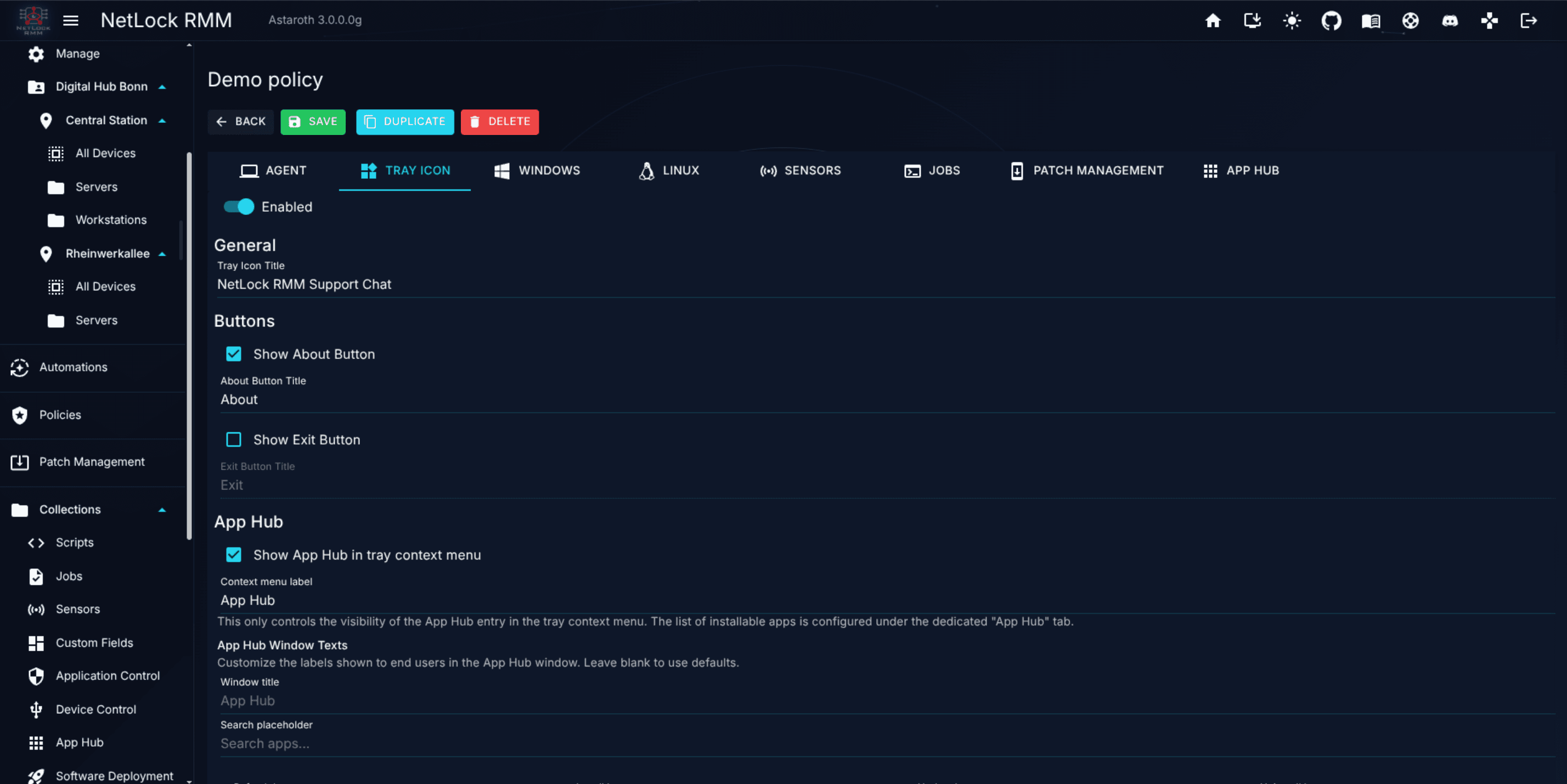
A master Enabled switch at the top of the tab gates everything below — if it is off, the tray icon does not run on devices under this policy.
General. A single field:
Tray Icon Title— text shown in the tray window's title bar.
Buttons. Per-entry visibility for the built-in tray menu items. The user opens the tray menu with either mouse button on the tray icon; a second click on the icon closes it again:
Show About Button— surfaces the About entry. When on, theAbout Button Titlefield sets the menu label.Show Exit Button— lets the user close the tray icon. When on, theExit Button Titlefield sets the menu label. Hide the exit button for managed devices where the tray is mandatory.
App Hub. Controls whether the App Hub window is reachable from the tray, and customises the labels inside that window:
Show App Hub in tray context menu— master toggle for the App Hub entry. TheContext menu labelsets the label shown in the tray menu.- App Hub window text overrides (all leave-blank-for-default):
Window title,Search placeholder,Refresh button,Install button,Update button,Uninstall button.
Note: This section only governs visibility and labels of the App Hub in the tray. The actual catalogue of apps offered to devices under this policy is curated in §6.13.
AI Chat. Controls the optional, end-to-end-encrypted end-user AI assistant reachable from the tray. The chat is off until you enable it here, and every user-facing string can be branded:
Show AI Chat in tray context menu— master toggle for the AI Chat entry, with aContext menu label.- Registration. A terms/privacy text the user must accept before entering credentials, the accept-checkbox label, a confirm-password label, and a customisable "forgot your password and your chats cannot be recovered" warning.
- Identity. Whether the username must be an email address; when off, the tray prompts for a free-form
Usernameinstead. - Password rules. Minimum length and whether an uppercase letter, lowercase letter, number, and/or special character are required.
Default monthly token limit— the starting per-user limit applied to newly registered accounts (operators adjust it later in theCustomer AIdialog).- Additional texts. Every remaining label, button, and status/error message in the tray chat can be overridden (all leave-blank-for-default).
The accounts themselves — activation, per-user and per-tenant token limits, auto-activation, and statistics — are managed in the Console's Customer AI dialog. See Chapter 13.6.
Support chat. Lets end users ask the administrators for a chat from the tray menu (entry Chat with support). Off until enabled here; it needs Remote Screen Control on the Agent tab (§6.4) — the editor warns while that is off, and the agent rejects every request without it:
Allow end users to start a chat— master toggle for the entry, with aContext menu label.Let the user describe the problem— shows an optional message field (up to 500 characters); the text becomes the first message of the chat the administrator opens.- Request window texts. Window title, message placeholder, the request / cancel / retry buttons, the waiting text, the text once an administrator was notified, the accepted text (
{0}is the administrator's name) and the text shown when nobody is available. Empty fields use the English defaults.
A request reaches every administrator who is signed in to the web console, holds the End user chat permission (devices_remote_chat), has access to the device's tenant and has not paused chat requests with the switch in the header of the console; the first who accepts gets the end user chat of the device with the user's session pre-selected, the others see who took it. Without such an administrator the user is told right away that nobody is available, and a request ends after 120 seconds without an answer. Every outcome is written as an event of type End user chat on the device and kept in the request history for 30 days.
Support tickets. Lets end users open a support ticket from the tray menu (entry Support) and follow it there. Off until enabled here. The tickets land in the console's ticket system (Chapter 10.2), which has to be switched on there for technicians to work with them:
Show support tickets in tray menu— master toggle for the entry, with aContext menu label.Target department— the department the tickets are filed into. Only enabled departments are offered; without one the entry is shown but the window tells the user that requests are not available. A department that was deleted later leaves a warning here until another one is chosen.Customer—Automaticfiles the ticket under the customer of the device's tenant: created when the tenant has none yet; with several, the one that already has a contact of this device, otherwise the oldest. A fixed customer overrides that.Default priority,Let the user choose the priority,Offer "Critical"— the priority of a new ticket, and whether the window shows the four urgency choices at all.Categories— one per line; leaves the category field out when empty.Type is required— the types offered are the active types of the target department.E-mail address is required— on by default, so the department's auto reply and the technicians' public replies reach the user by mail as well.Allow attachments,Allow screenshots— up to three files per request (PNG, JPG, GIF, WebP, PDF, TXT, LOG, 5 MB each). A screenshot covers every monitor and is scaled to 1920 pixels. Attachments from devices are stored in the database.Show "My tickets"— the list of the user's own tickets from this device with the public conversation of each. Off leaves only the form and the confirmation.User may reply,User may mark a ticket as resolved— the reply box and theMy problem is solvedbutton in the ticket detail. A reply reopens a resolved or closed ticket like an e-mail reply would.Notify the user about replies— a small notice on the device when a technician answers publicly or resolves the ticket, while the device is online; otherwise the tray icon picks the change up at its next check.- Window texts. Every label, button, status and message of the window (menu label, window title, the field labels, the four urgency texts, the confirmation with
{0}for the ticket number, the not-available, saved-as-draft and rate-limited texts, the notice title, the five status words). Empty fields use the English defaults.
The user sees only the tickets created from this device under their own Windows account, and never internal notes. The server enforces every switch above; a request that arrives while the department is missing or the section is off is refused. Requests from one device are rate limited (5 tickets per hour and 20 per day, 30 replies per hour, 20 uploads or 20 MB per hour). What the ticket looks like on the console side is described in Chapter 10.6.
Logo & Icon. A single upload widget accepting PNG, ICO, or JPG up to 256 KB. The uploaded image replaces the default tray icon.
About Interface. Branding for the About window that opens from the tray's About button:
Enable— master switch for the About window.Window Title,Title,Description— free-text fields shown to the user.Show Version,Show Copyright— toggles for the standard footer lines.Close Button Title— text on the dismiss button.
Chat interface. Branding for the end-user support chat window that the tray opens when an operator starts a chat from the device's remote tools (see Chapter 3.5) or accepts a chat request of the user. This is not the AI Chat above:
Loading Message,Window Title,Subtitle— top-of-window text.Input Field Placeholder— placeholder text in the user input box.Enable Settings— exposes a settings menu inside the chat window, with sub-togglesAllow Export Chat History,Allow Copy Chat History, andShow About.
Remote Screen Control. Text shown to the on-device user when a remote screen session is requested or active:
Request Title,Request Message,Accept Button Title,Decline Button Title— the approval dialog shown for attended sessions (see §6.4).Stop Button Title,Support Agent Connected Message— surfaced while a session is active so the user can end it.
Audio Call. Texts of the incoming call window the tray icon shows when an operator calls the signed-in user (see Allow audio calls on the Agent tab and A.7.7). All fields are leave-blank-for-default:
Title,Message— the incoming call window;{operator}in the message is replaced by the operator's name.Accept Button Title,Decline Button Title— the two answers of the incoming call window.Hang Up Button Title— the button of the call window while the call is on.
Buttons (custom). A managed table of custom tray-menu entries. Each row has Name, Description, Author, Date, Action, Action details. Use Add, Edit, Delete to maintain entries; each entry adds one item to the tray menu mapped to an action (script, URL, etc.).
Logos, icons, labels, and custom buttons are pushed to the agent at the next sync; they do not change mid-session for a user already logged in.
6.6 Windows tab — Microsoft Defender Antivirus
The Windows tab groups three Windows-only feature areas. The largest by far is Microsoft Defender Antivirus. This section walks through its two sub-tabs in full. The other two sub-sections are covered in 6.7 and 6.8.
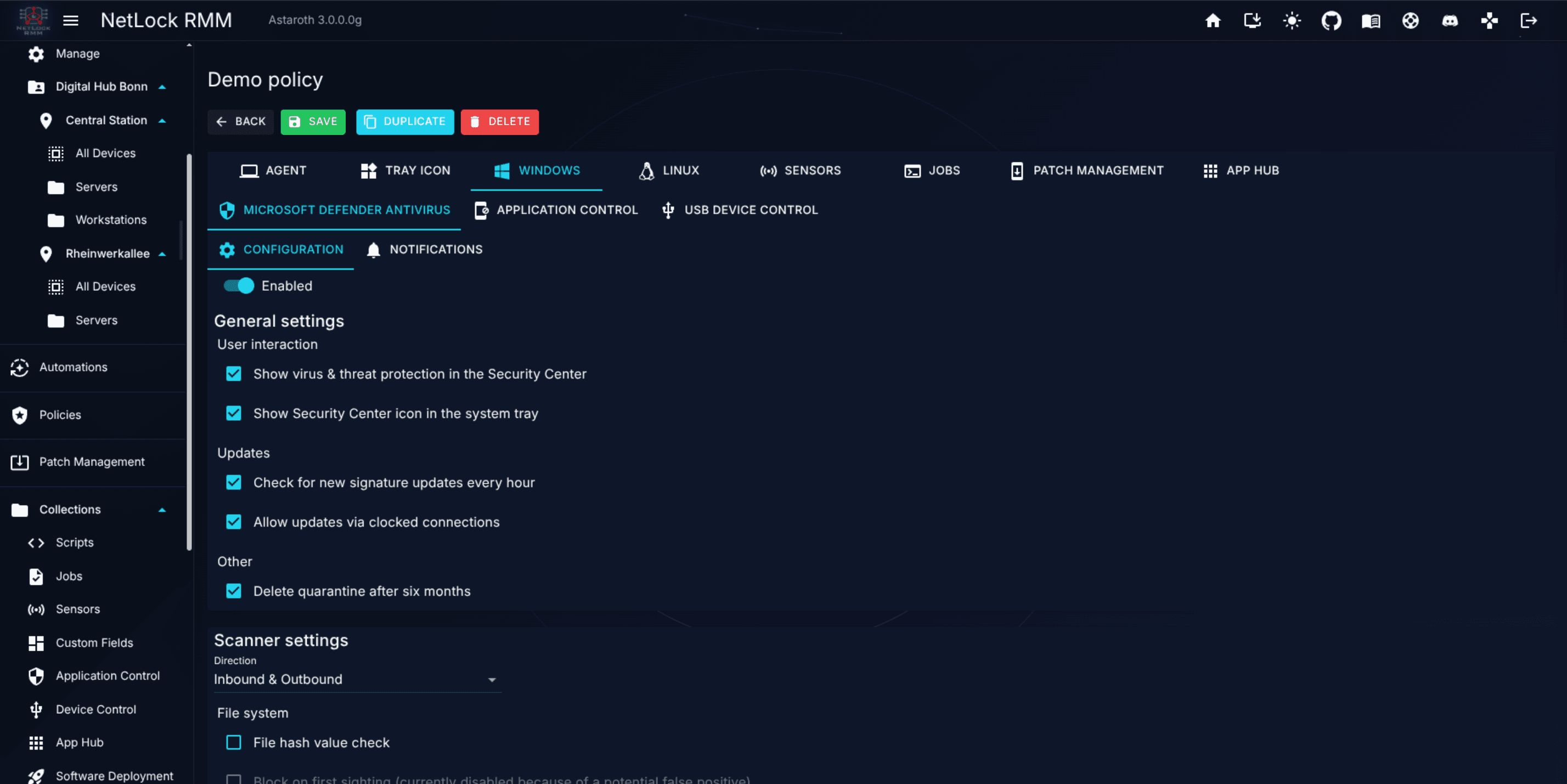
At the top of the Configuration sub-tab sits the Manage Defender settings switch. When it is off, every field on the Configuration sub-tab renders disabled — the Console still stores your configuration but the agent does not apply any of it, runs none of the scan jobs and skips the hourly signature check. When it is on, the agent synchronises the settings below with Microsoft Defender on every sync interval. The switch covers the Configuration sub-tab only: Defender notifications have their own switch on the Notifications sub-tab (see 6.6.2) and work with or without Defender management.
6.6.1 Configuration sub-tab
The Configuration sub-tab is organised into four sections.
General Settings. Settings that do not fit the scanner-specific categories:
- User Interaction —
Show Windows Security Center icon,Show Windows Security Center tray icon. Control whether end users see Defender's own Security Center surface. - Updates —
Check signatures hourly,Allow metered updates. The first forces hourly signature polling; the second lets signature downloads run over connections the operating system classifies as metered. - Other —
Delete quarantine older than 6 months. A retention switch for the Defender quarantine.
Scanner Settings. Behaviour for real-time and on-access scanning:
Directiondropdown —Inbound & Outbound,Inbound, orOutbound. Scopes which traffic direction the network-aware parts of the scanner examine.- File System —
Hash computing,Block at first seen(permanently disabled in the UI in the current release),Scan archives,Scan emails. These toggles control the deep-scan behaviours most often tuned for performance. - Network —
Scan network files,Filter incoming connections,Datagram processing. Network-scanning knobs; most useful for servers. - Parser — per-protocol toggles for
TLS,RDP,SSH,HTTP,DNS, andDNS over TCP. Enable or disable Defender's parsing of each protocol.
Exclusions. A managed list of paths and process patterns the scanner skips.
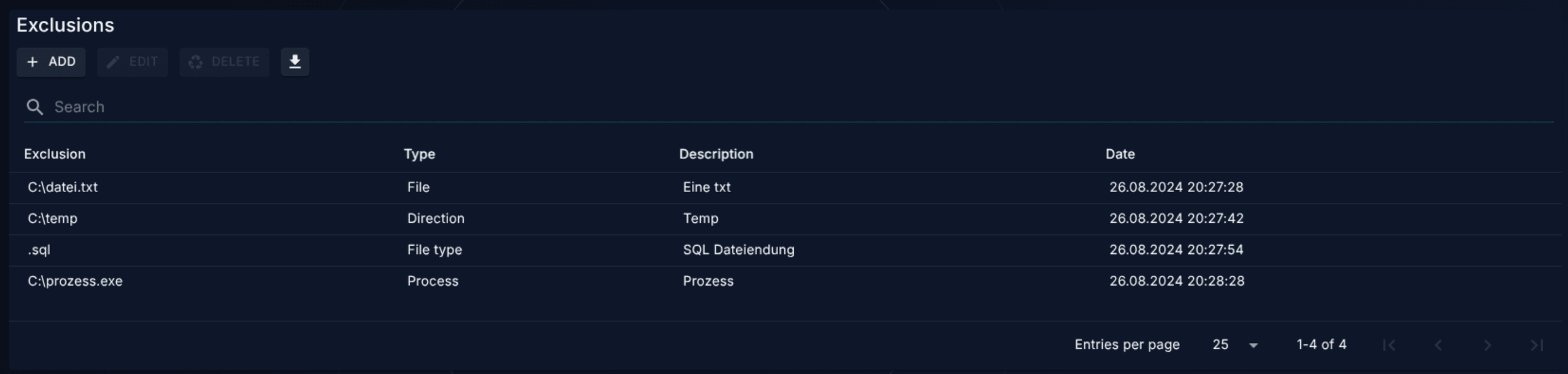
The table has columns Exclusion, Type, Description, Date. Actions on the toolbar:
- Add opens the Add Exclusion dialog. Fields:
Type(one ofFile,Directory,File Type (extension), orProcess), theExclusionvalue matching that type, and an optionalDescription. - Edit opens the Edit Exclusion dialog, pre-populated.
- Delete removes the selected row.
- Export exports the exclusion list.
Exclusion types in detail:
File— an exact file path.Directory— a folder path; everything under it is excluded.File Type (extension)— a file extension, for example.bak.Process— a running process image; files accessed by that process are excluded.
Scan Jobs. Scheduled on-demand scans.
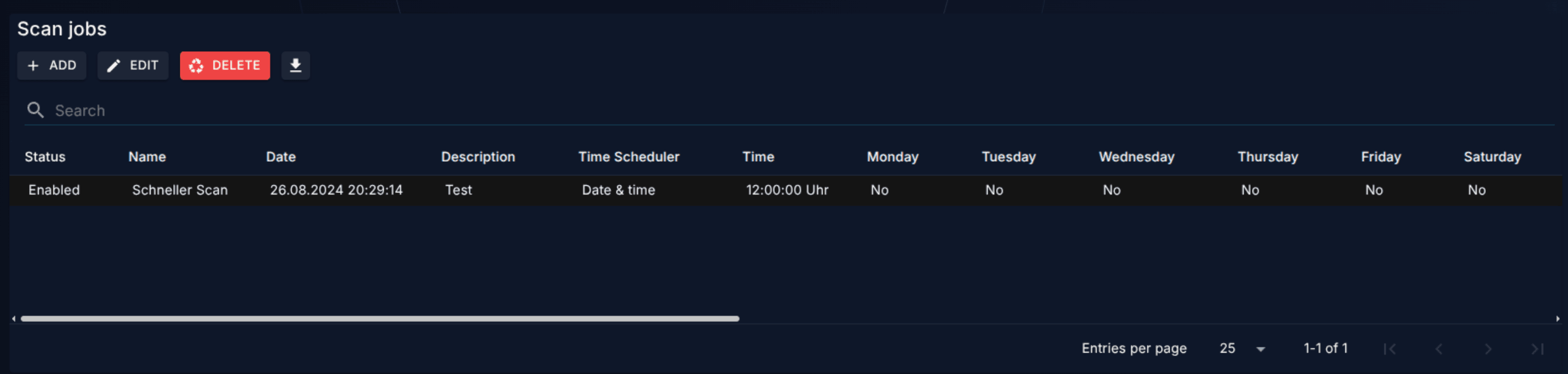
The table columns: Status, Name, Date, Description, Schedule Type, Time, Monday through Sunday day toggles, Scan Mode, CPU Usage %, Scan on Battery, Network Drives, Removable Disks, Update Signatures.
Actions:
- Add opens the Add Scan Job dialog. You set:
Enabled,Name,Description, schedule type, day-of-week toggles, time, scan mode, CPU-usage cap, and the battery / network / removable toggles. - Edit opens the Edit Scan Job dialog, pre-populated.
- Delete removes the selected row.
- Export exports the scan-job list.
Each scan job targets a list of directories. Use the Add Directory and Edit Directory dialogs from inside the scan-job editor to maintain the directory list.
6.6.2 Notifications sub-tab
The Notifications sub-tab decides which Defender events the Console surfaces as notifications. Its first element is the Enable notifications switch. It works independently of the Manage Defender settings switch on the Configuration sub-tab: with notifications on and management off, the agent only reads the Defender event log and reports the selected events — it changes no Defender setting. When the switch is off, every toggle on this sub-tab renders disabled and the agent reports none of these events. Below the switch, the sub-tab is organised into ten sections — nine Defender event categories plus the NetLock channel selector:
AntivirusAntispywareBehaviourConfigurationPlatformQuarantineReal-time ProtectionScanSignaturesNetLock— channel selector for the events above. The five toggles (E-mail,Microsoft Teams,Telegram,NTFY.SH,Webhook) decide which deployment-wide channels carry this policy's Defender notifications. The channels themselves (server addresses, recipients, tokens) are configured globally inSettings → Notifications— see A.8 Notifications deep dive.
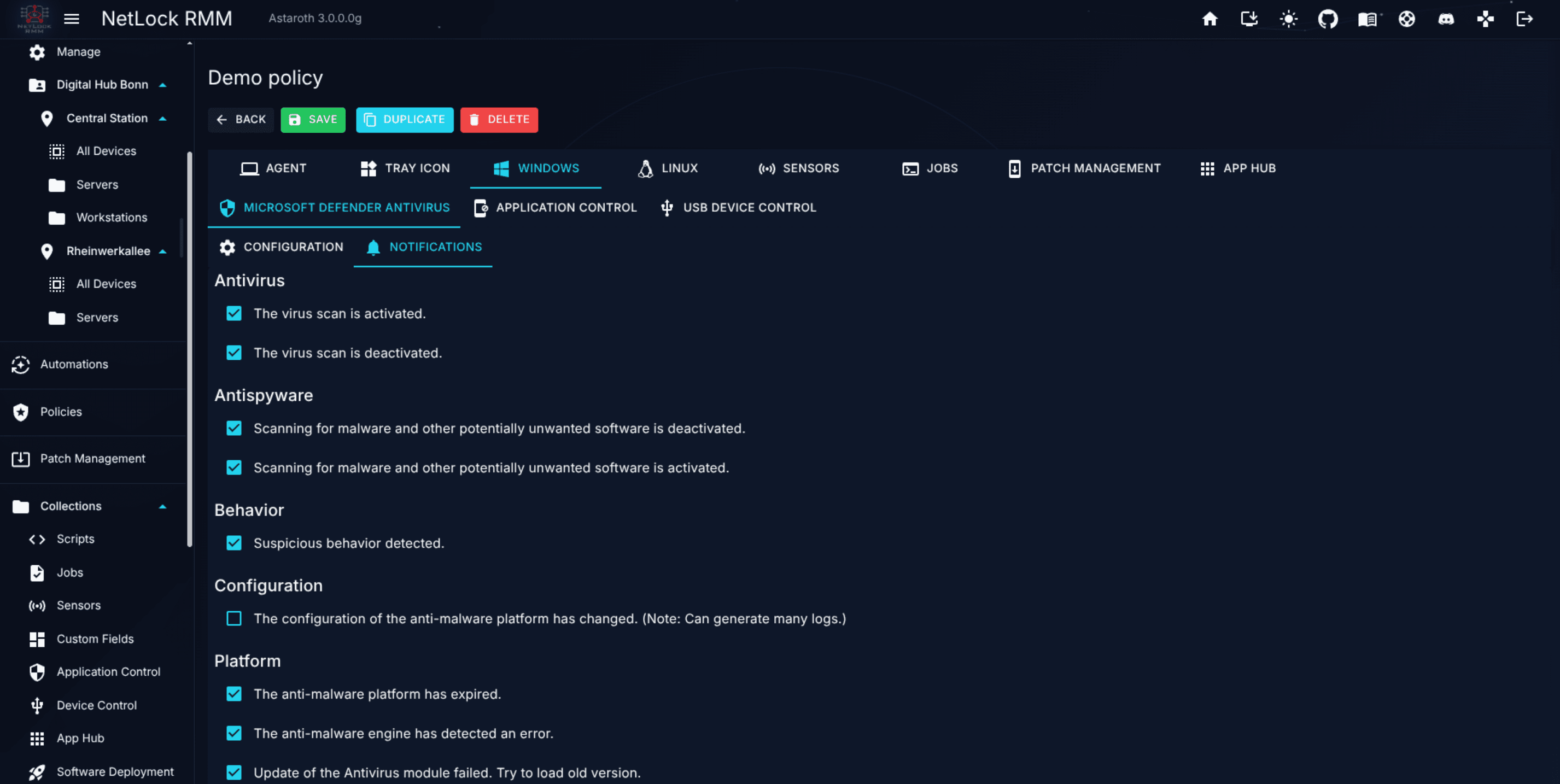
Each Defender category contains a list of per-event toggles — for example Antivirus enabled, Antivirus disabled, Behaviour detected, Quarantine cleared. Toggling an individual event controls whether that specific Defender event generates a notification through the Console's notification system. Policies saved before the Enable notifications switch existed start with the value of the Manage Defender settings switch, so their behaviour does not change until you edit them.
Note: Silencing a noisy event category here does not disable the underlying Defender behaviour on the endpoint. It only stops the Console from forwarding the event as a notification. Defender continues to act normally and log the event locally.
6.7 Windows tab — Application Control
The Application Control sub-section of the Windows tab (on-screen heading Application Control (Whitelisting)) controls how a policy enforces application allowlisting on its devices. Ruleset content — the actual allow rules — lives in Chapter 8.6. This tab decides which ruleset to apply and how the agent reacts when an unknown process appears.
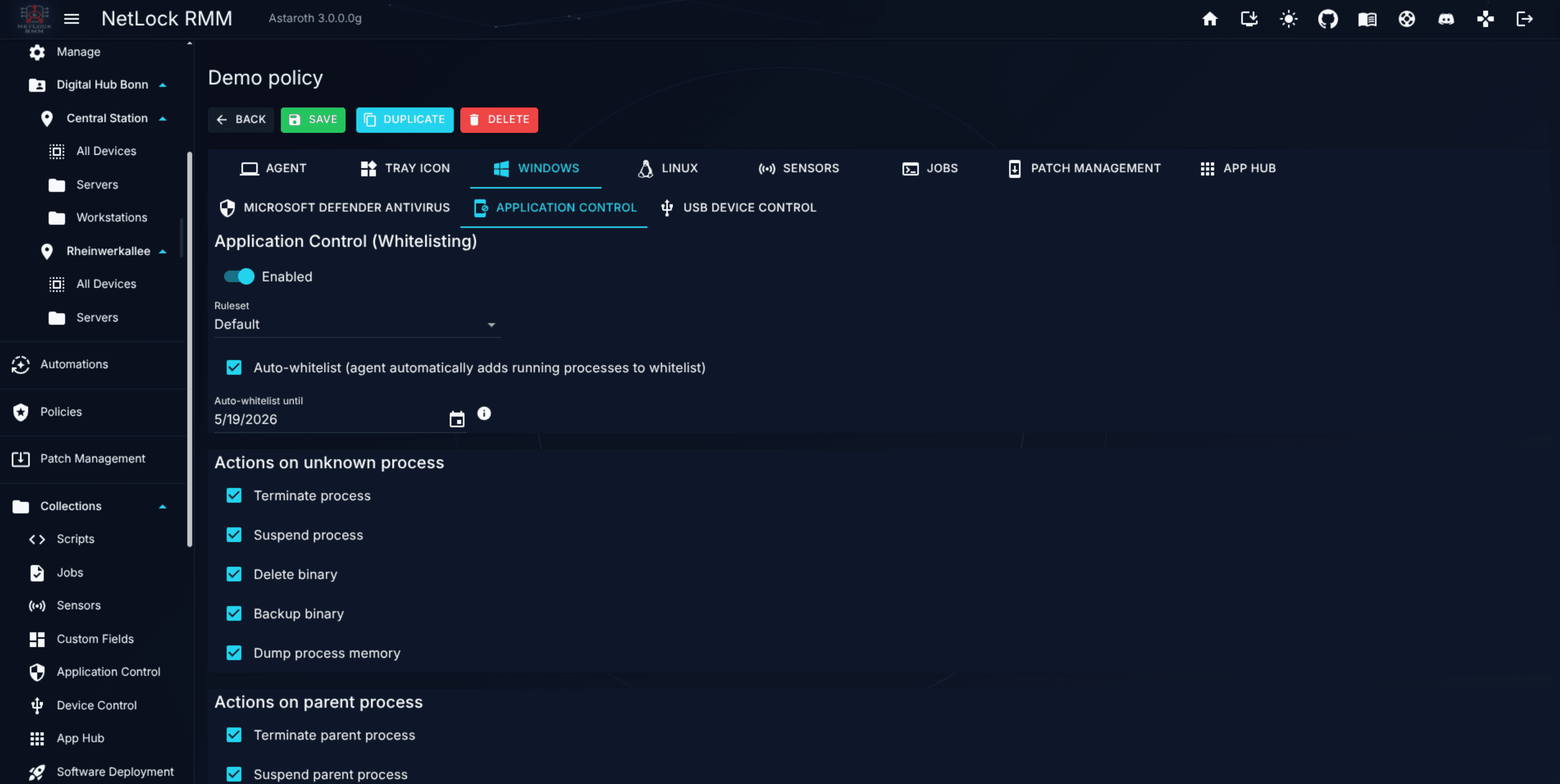
Top-level configuration:
Enabled— master switch for this policy.Ruleset— single-select dropdown picking one ruleset (Noneis the default).Auto-whitelist (agent automatically adds running processes to whitelist)withAuto-whitelist untildate — during this window the agent records every running process into the whitelist; after the date passes, only the collected list is enforced.
Actions on unknown process. What the agent does when a process not matched by the ruleset is detected. Toggle any combination:
Terminate processSuspend processDelete binaryBackup binaryDump process memory
Note:
Terminate processandSuspend processcomplement each other: enable both so that a process which cannot be terminated is at least frozen.Delete binary,Backup binaryandDump process memoryare meant for forensic follow-up, not for stopping the process.
Actions on parent process. The same five actions applied to the parent of the offending process — useful for chain-of-execution responses (for example, terminate a launcher that spawned the unknown child).
Matching Filters. Which attributes of a binary are compared against the ruleset. Twelve toggles:
- File:
File Path,File Company,File Product,File Copyright,File Brand,File Product Version,File Version,File SHA256,File SHA512. - Certificate:
Certificate Owner,Certificate Issuer,Certificate SHA1.
The selected attributes decide how precisely a running process has to match a rule: a process is allowed as soon as one selected attribute matches a rule of the ruleset. Selecting only attributes that change with every update, such as File Version, File Product Version or the hashes, is strict: an updated legitimate application no longer matches and is blocked until it is approved again. File Company, File Product or Certificate Owner are more tolerant and survive updates.
Special Filters.
Auto-allow Microsoft signed applications— bypass the ruleset for any binary signed by Microsoft.
Other Settings.
Periodic check interval (minutes)— agent recheck cadence (5–1440).Tray icon notifications— show the on-device user a notification when something is blocked. When enabled, setNotification titleandNotification message. The message supports the placeholders{process_name},{process_path},{actions}, and{count}.
Blocked launch attempts land on the Blocked Applications tab of the Application Control rulesets page in Collections, where an admin can approve them into a ruleset. To author rulesets, edit rules, or approve blocked entries, see Chapter 8.6.
6.8 Windows tab — USB Device Control
The USB Device Control sub-section of the Windows tab (on-screen heading USB Device Control (Whitelisting)) controls how this policy enforces USB allowlisting on its devices. The whitelist itself — entries shared across all policies, scoped by device / tenant / location / group / global — lives in Chapter 8.7; this tab does not own whitelist entries.
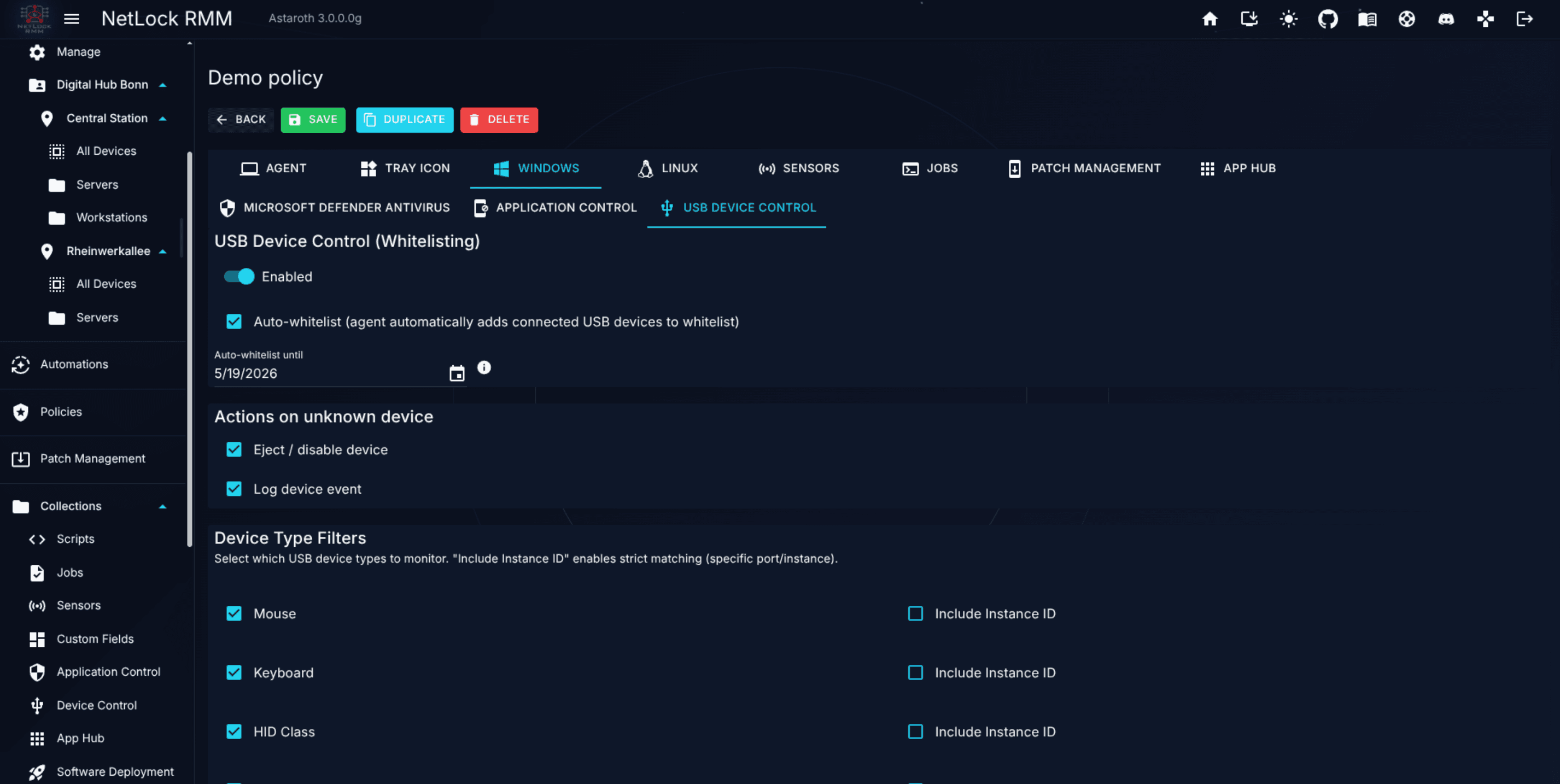
Top-level configuration:
Enabled— master switch for this policy.Auto-whitelist (agent automatically adds connected USB devices to whitelist)withAuto-whitelist untildate — during this window the agent records every connected device into the whitelist; after the date passes, only the collected list is enforced.
Note: Device control is only enforced on a device once at least one whitelist entry applies to it (device, tenant, location, group or global scope) or the auto-whitelist period is active. With an empty rule set the agent keeps enforcement disabled for safety, because every device would otherwise be blocked, including keyboard and mouse. The policy page and the whitelist page show this note; on the whitelist page it becomes a warning while the list is empty.
Actions on unknown device. What the agent does when a device that does not match an approved whitelist entry is plugged in or found by the periodic check:
Eject / disable device— the agent disables the device in Windows, the same way Device Manager does. The disabled state is stored with the device, so it survives re-plugging and restarts, and the device is not removed and detected again in a loop. A device that is already disabled is left alone and not reported again. Bus and system devices (PCI, ACPI, root nodes, USB hubs and host controllers) are never disabled; network adapters keep their existing behaviour and can be disabled regardless of the bus.Log device event— the detection is written as an event and reported to the Blocked Devices tab.
The Actions Taken value of the event and of the Blocked Devices row names the actual outcome:
| Value | Meaning |
|---|---|
disabled | The device was disabled and verified as stopped. |
disabled_pending_reboot | The disabled state was written, but the device was in use (for example a drive held open in File Explorer) and could not be stopped. The agent dismounts the drive's volumes and retries once; if the device still cannot be stopped, it finishes disabling at the next restart and comes up disabled when re-plugged. The event names what held the device (veto type and name). |
disable_failed | Windows refused the request or the device kept running. The error is in the event and in the agent's Error.txt; the agent tries again at the next check. |
logged | The detection was recorded (Log device event). |
The event details carry an Enforcement section with the result, the veto, the steps taken (for example dismounted volumes) and the Windows build.
Re-enabling. The agent remembers which devices it disabled and enables them again as soon as the policy no longer blocks them: when the device is approved into the whitelist, when its device type filter is turned off, or when device control is disabled for the policy. This happens at the next policy sync; re-plugging is not required. A device that was disabled while unplugged is enabled at the next periodic check after it is plugged in again. Each re-enable is reported as an info event (Device re-enabled). Devices disabled by the agent are also re-enabled when the agent is uninstalled.
Device Type Filters. Which classes of USB device this policy monitors. Each class has two toggles — the class itself, and an Include Instance ID toggle that switches to strict matching (specific port / instance) rather than vendor / product matching:
| Class | Notes |
|---|---|
Mouse | Classic computer mice. |
Keyboard | Classic keyboards. |
HID Class | Unspecific input devices such as drawing pens; also higher-end mice and keyboards, for example gaming peripherals. |
USB | Unspecific USB devices such as docking stations and dongles. |
Disk Drive | Classic USB sticks and USB hard drives. |
WPD (Portable Devices) | Smartphones, and also newer USB sticks and USB hard drives that present themselves as portable devices. |
CD-ROM | Optical drives (CD, DVD, Blu-ray). |
Media | Headsets, microphones and other audio devices. |
Network Adapter | External network adapters, but also VPN adapters. |
Xbox Composite | Xbox controllers and compatible gamepads. |
Caution with network adapters: a VPN adapter that is not whitelisted is disabled like any other device. The VPN connection then stops working until the adapter is whitelisted and the agent enables it again; some VPN clients need a repair or reinstall afterwards. Whitelist the VPN adapters of your VPN software before enabling the
Network Adapterfilter.
Other Settings.
Periodic check interval (minutes)— the agent reacts to newly connected devices in real time; the periodic check is a fallback that re-scans all connected devices at this interval (1–1440).Tray icon notifications— show the on-device user a notification when a device is blocked. When enabled, setNotification titleandNotification message. The message supports the placeholders{device_name},{device_type},{actions}, and{count}.
Blocked devices land on the Blocked Devices tab in Collections, where an admin can approve them at one of five whitelist scope levels (device, tenant, location, group, or global). See Chapter 8.7 for the scope model and approval flow.
6.9 Linux tab — UFW firewall
The Linux tab currently covers one Linux-only feature: UFW, the Uncomplicated Firewall.
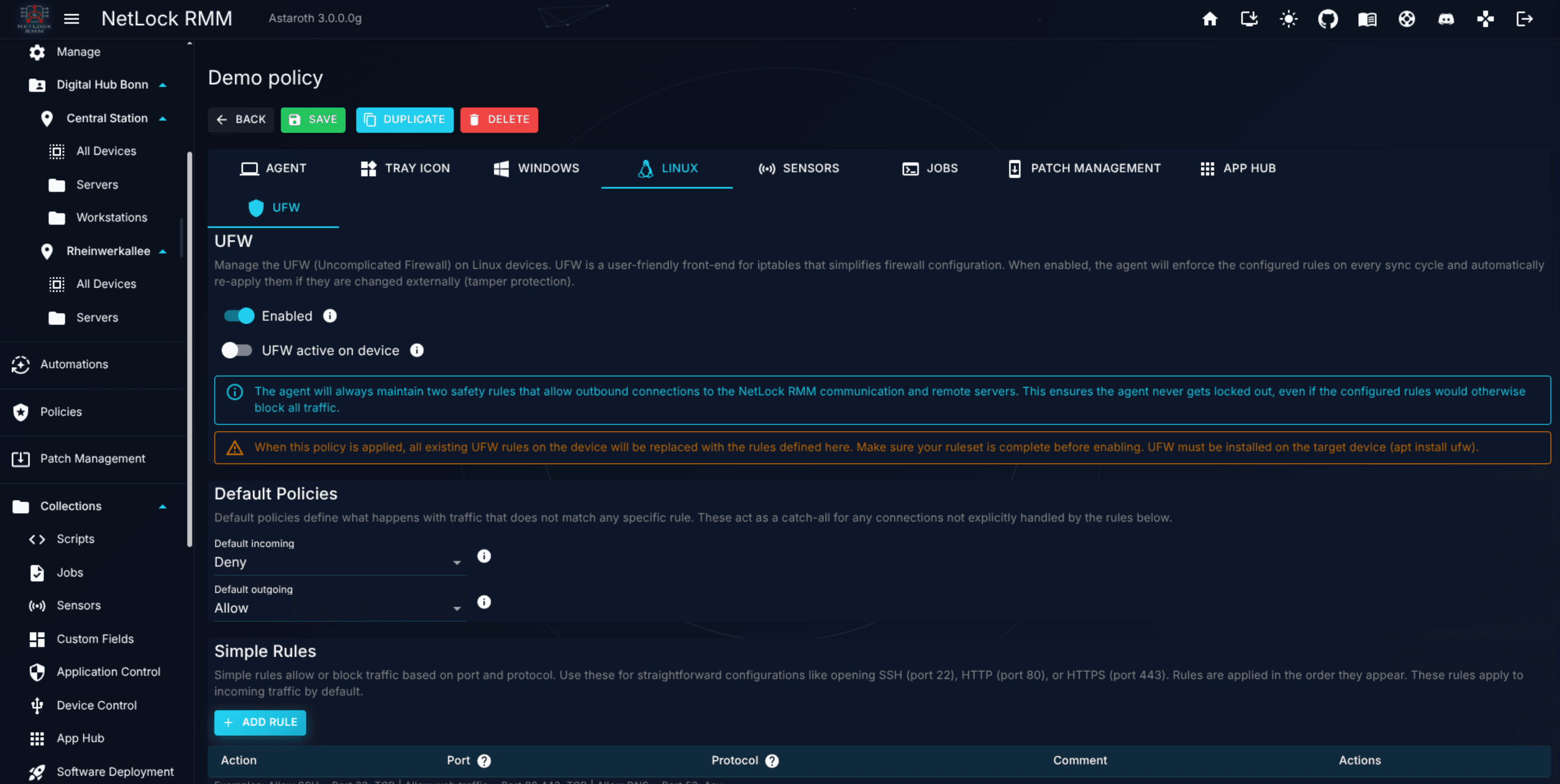
The UFW section has two master toggles, a default-policy block, and two separate rule tables.
Master toggles:
Enabled— enables UFW management by this policy.UFW active on device— sets UFW's own active/inactive state on devices under this policy.
Default Policies:
Default incoming—Deny,Allow, orReject.Default outgoing—Allow,Deny, orReject.
Simple Rules. Inline table for common port-based rules:
| Column | What it holds |
|---|---|
Action | Allow / Deny / Reject |
Port | A single port, a range, or a comma-separated list |
Protocol | TCP / UDP / Any |
Comment | Free text |
An Add Rule button above the table creates a new row. Editing is inline — there is no separate dialog.
Advanced Rules. Inline table for rules that need source / destination specifics:
| Column | What it holds |
|---|---|
Action | Allow / Deny / Reject |
Direction | In / Out |
Protocol | TCP / UDP / Any |
Source IP | for example 10.0.0.0/8 |
Source Port | A single port |
Dest IP | Destination address or any |
Dest Port | A single port |
Comment | Free text |
Same Add Rule and inline-editing pattern as Simple Rules.
Enforcement model. On every sync cycle the agent rebuilds UFW from the rules defined here — any existing rule not in this policy is removed. The agent also monitors UFW for external changes and re-applies the policy rules on the next check (tamper protection). Two outbound safety rules for NetLock RMM communication and remote-control endpoints are always injected automatically, so a misconfigured ruleset cannot lock the agent out.
Caution: Enabling UFW with
Default incoming = Denyand no matching simple rule will block every inbound connection except the agent's own safety paths. Build the ruleset first, then flipUFW active on deviceon.
Note: UFW must be installed on the target device (
apt install ufw). Distributions that do not ship UFW are silently skipped by the agent.
Settings here have no effect on Windows or macOS devices.
6.10 Sensors tab
The Sensors tab attaches sensors from the Sensors library to the policy. Server sensors (category Server) are evaluated by the server and are not offered here. Sensor mechanics — the sensor categories, severity levels, notification and action thresholds, and action-script hooks — are documented in Chapter 8.3.
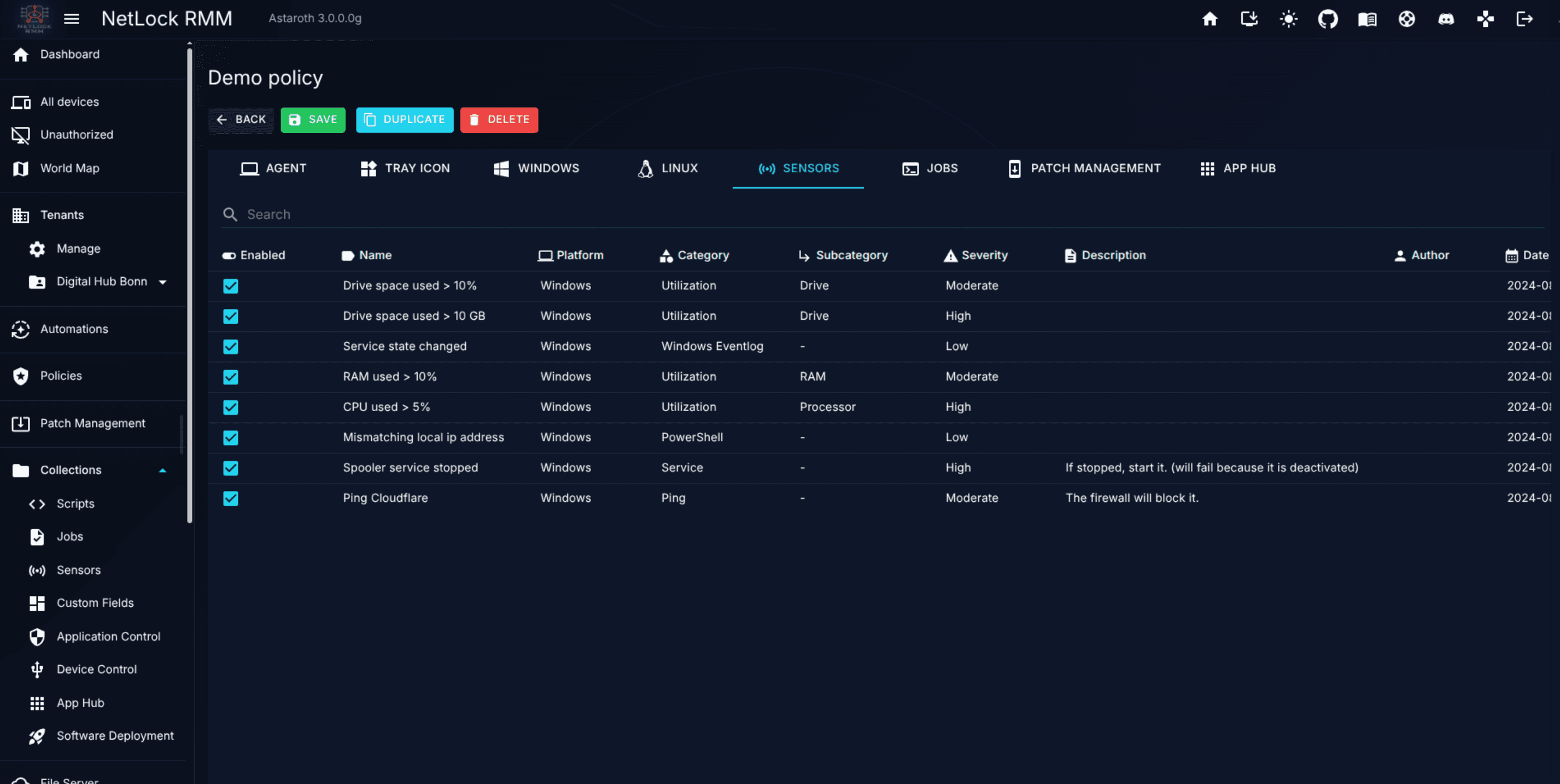
Within this tab you pick from sensors already defined in Collections and toggle them on for the policy. Devices assigned the policy run the selected sensors on their schedule, evaluate thresholds on the agent, and report readings back to the Console for dashboards, events, and action-script execution. Sensor-specific configuration (category, thresholds, action script) lives in the sensor definition itself, not here.
A device can run sensors from two places: the policy's Sensors tab and the automation rules that match the device and add sensors on top (see Chapter 5.6). Both sets are merged on the server; a sensor listed in both runs once. The device detail on /devices shows which sensors came from a rule.
6.11 Jobs tab
The Jobs tab attaches jobs from the Jobs library to the policy. Job mechanics — the twelve schedule types, hidden jobs, and the Script reference — are documented in Chapter 8.2.
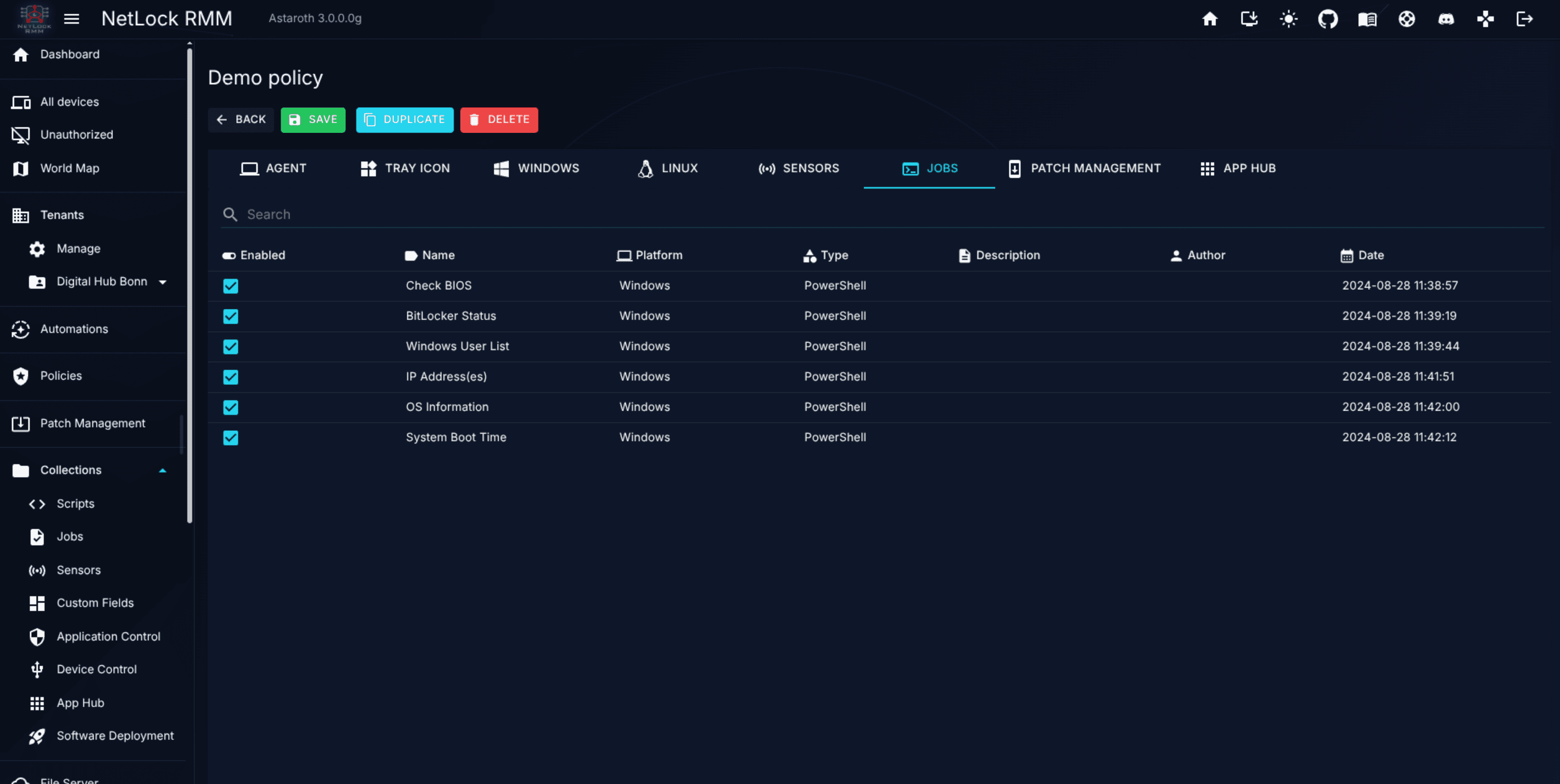
You pick jobs that should run on devices under this policy. Each job carries its own schedule from the job definition; the policy is the attachment point that decides which devices receive which jobs. Jobs flagged hidden do not appear in the Events view and are typically used to collect data that populates Custom Fields — see Chapter 8.4.
Automation rules can add further jobs to the devices they match, on top of the policy's Jobs tab (see Chapter 5.6); a job listed in both runs once.
6.12 Patch Management tab
The Patch Management tab is where you configure how a policy's devices actually install approved patches. It complements the global approval queue in Chapter 7 — Chapter 7 answers "which patches may be installed at all?", this tab answers "when and how do these specific devices install the approved patches?".
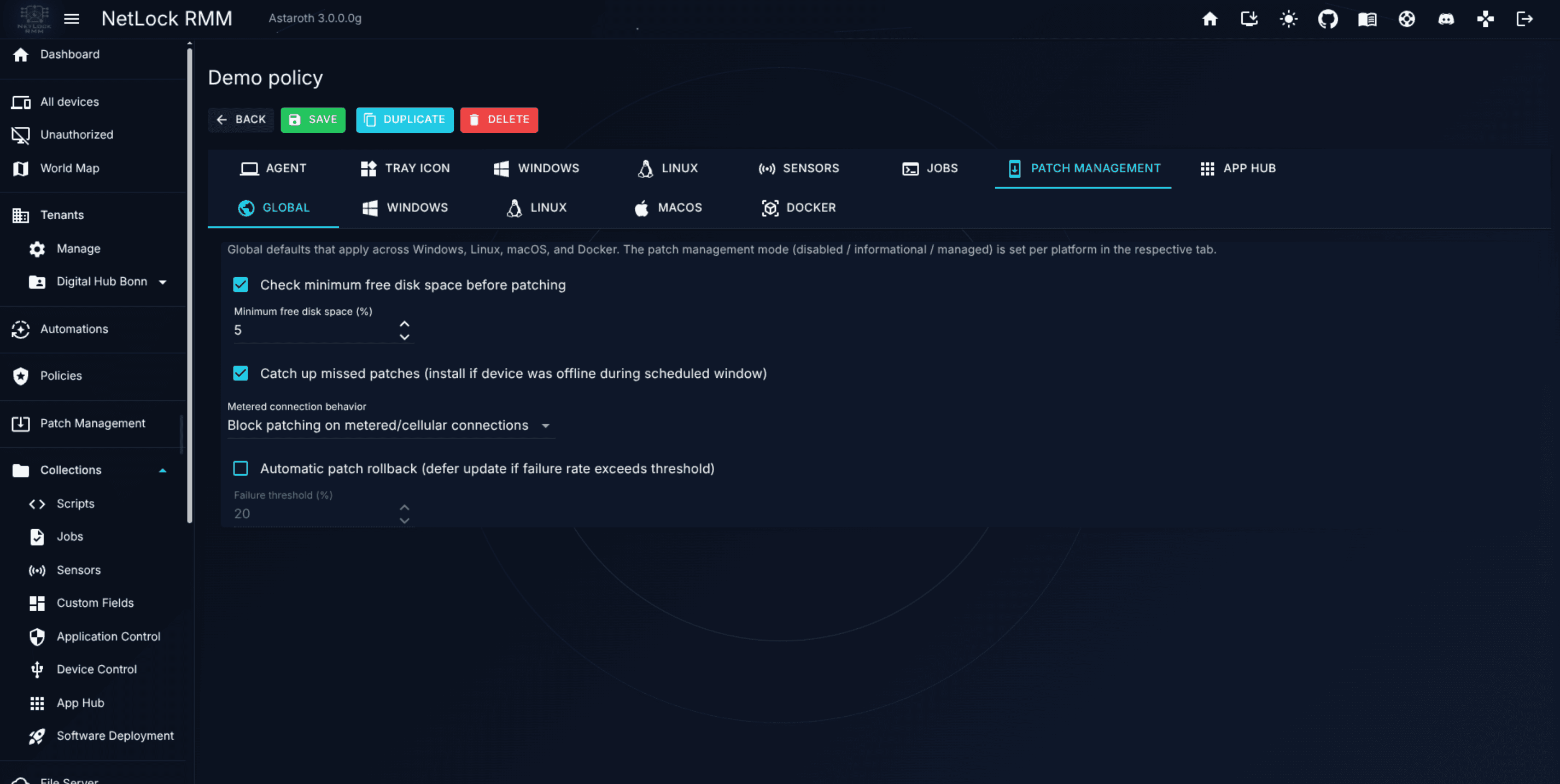
The tab is laid out as five sub-tabs — Global, Windows, Linux, macOS, Docker. Global carries cross-platform defaults; the four platform sub-tabs configure their respective rollout behaviour and do not inherit from each other.
Global sub-tab
Defaults applied across all four platforms:
Check minimum free disk space before patching— if on, skip devices below the threshold.Minimum free disk space (%)— numeric, 1–50.Metered connection behavior—Block patching on metered/cellular connectionsorAllow patching on metered/cellular connections.Automatic patch rollback (defer update if failure rate exceeds threshold)— pause rollout if too many devices fail a patch.Failure threshold (%)— numeric, 1–100.
The patch-management mode (Disabled / Informational / Managed) is not in the Global sub-tab; it is set per platform under that platform's General sub-tab.
Platform sub-tabs
The four platform sub-tabs do not share a uniform sub-tab structure:
| Platform | Sub-tabs |
|---|---|
Windows | General, Approval & Filtering, Deployment Rings, Schedule, Reboot, Notifications, Retry |
Linux | General, Approval & Filtering, Deployment Rings, Schedule, Reboot, Notifications, Retry |
macOS | General, Approval & Filtering, Deployment Rings, Schedule, Reboot, Notifications, Retry |
Docker | General, Behavior, Schedule, Registries |
The common Windows / Linux / macOS sub-tabs configure:
-
General. Sets the patch-management mode for this platform:
Disabled— the agent does nothing.Informational— the agent reports available patches but does not install them.Managed— the agent installs patches per this policy's rules.
Plus per-platform source toggles: Windows exposes
Install OS patches (Windows Update),Install application patches (Winget),Install application patches (Chocolatey), and aDisable Windows built-in automatic updates (take control via NetLock RMM)switch (forced on inManagedmode). Linux exposesInstall OS packages (apt/dnf/yum). macOS exposes its own OS-source toggles.Disable Windows built-in automatic updateslocks Windows Update down on the device, so updates install only through NetLock RMM: Windows' own automatic updates are turned off (NoAutoUpdate), the controls of the Windows Update settings page are removed (SetDisableUXWUAccess; Windows then shows "Some settings are managed by your organization"), and the Windows Update icon in the notification area is hidden (TrayIconVisibility). The switch also takes effect inInformationalmode when it is ticked there. The agent applies the settings at its patch management check every five minutes and records them as its own. Turning the switch off, assigning a policy without patch management settings, or uninstalling the agent removes them again; see Uninstall an agent. If a domain group policy configures the same Windows Update values, turning the switch off or uninstalling removes those as well, until the next group policy refresh writes them again. -
Approval & Filtering.
- Approval Gate —
Only install patches that have been approved in Patch Management. When on, onlyApprovedpatches install;Pending,Rejected, andDeferredare skipped. This is the bridge to Chapter 7. - Allowed Severities — explicit checkboxes for
Critical,High,Medium,Low,Unspecified,Informational. - Allowed Update Types (Windows) —
Security,Regular,Definition,Rollup,Service Pack,Feature,Driver,Other. Linux and macOS expose aPreferred Update Sourceselector (Auto-detect / APT / DNF / YUM on Linux; equivalent on macOS) instead. - Allow package removal (full upgrade) (Linux, apt only) — lets apt remove packages that block an upgrade (a renamed library, a replaced package), the same as
apt full-upgrade/dist-upgrade. Off by default: apt then keeps such packages back and the patch job lists them asSkippedtogether with the packages a full upgrade would remove. Proxmox VE hosts need this on. Sits next to theConfiguration file conflictsoption and is shown when the package manager is apt or auto-detected; see Chapter 7.7.
- Approval Gate —
-
Deployment Rings. Per-severity scheduling. For each of
critical,high,medium,low,unspecified,informational, pick aRing Type:Immediate— no waiting time after the update's release.Immediatedoes not override the schedule: the allowed patch days, the maintenance window and the one-run-per-window rule still apply. OnlyPatch Nowbypasses the schedule, the rings and the retry budget.After N days— install N days after the patch becomes eligible (N from a paired numeric field).Patch Tuesday + N days— install N days after the most recent second-Tuesday Microsoft release.First weekend after Patch Tuesday.Second weekend after Patch Tuesday.
Rings are per-severity within one policy, not per-device cohort.
-
Schedule.
Allowed patch days— seven day-of-week checkboxes, Monday to Friday by default. On an unticked day no scheduled run happens, not even as a catch-up run.Maintenance window—FromandTotimes (set them equal for a 24/7 window with no time restriction). The agent checks every five minutes; inside the window the run starts at the next check. One scheduled run per window occurrence: after a run the agent installs nothing more until the next window opens — once per day for a 24/7 window — whatever the outcome of that run was. The reason a run is waiting, and the next possible run, are shown in theScheduled patchingline of the device's detail view on/devices(agent 3.3.0.5 or later).Catch up a missed maintenance window— on by default. With the checkbox on, the first check after the policy arrives on the device, or the first check after a missed maintenance window, starts the run right away even outside the window — on an allowed patch day only. With the checkbox off, a run starts inside the maintenance window only.- Smart Maintenance Window —
Enable smart maintenance window (auto-detect ideal patch time). When on, optional sub-conditions:Require user idle+Idle duration (minutes)(15–480),Require AC power (for laptops),No active RDP sessions.
-
Reboot.
Reboot behavior after patch installationwith three values:-
Automatic reboot— reboot without prompting. -
Ask user (with maximum deferral)— prompt the user;Maximum deferral (hours)(1–168) caps the delay.If nobody is signed indecides what a device does when nobody is signed in and therefore nobody can answer the prompt:Do not reboot (wait for a user)(the default),Reboot in the maintenance windoworReboot immediately. Needs agent 3.3.0.4 or later.With agent 3.3.0.5 or later two more fields control how often the user is asked:
Re-prompt interval (minutes)(5–1440, default 30) — a user who choseLateror did not answer is asked again after this time. One last reminder comes 15 minutes before the maximum deferral ends (or one interval before, if the interval is shorter).Unanswered prompt counts as deferred after (minutes)(1–240, at most the re-prompt interval, default 10) — closing the restart window counts asLaterright away; a minimized or ignored window counts asLaterafter this time.
Both fields, like
Maximum deferral (hours), are disabled unlessAsk useris selected. The maximum deferral counts from the first prompt that reached somebody — a connected tray icon, or on Windows a signed-in user — not from the firstLater; a prompt that reached nobody waits until a tray icon connects and starts the clock then. When the maximum deferral ends, the device restarts at that moment, whether or not a reminder was due. The prompt, the deferrals and the deadline survive a restart of the agent service; a restart of the device, or a policy that no longer usesAsk user, ends the prompt. Older agents keep their built-in reminder steps and ignore both fields. -
Do not reboot— leave reboot to the user / next maintenance cycle.
Plus
Install all pending patches before rebooting. Chapter 7 does not surface reboot controls; what the user sees when a restart is due is configured on the Notifications sub-tab.An outstanding restart is a gate for the next run. While a restart from an earlier update run is outstanding, a scheduled run on Windows installs nothing: the device's detail view shows
Last patch run: … – nothing installed, restart pendingand theRestart pending since …banner names this policy's restart behaviour, and the blocked run is recorded once as an event of typePatch managementon the device.Patch Nowstill installs. WithDo not reboot, or withAsk useron a device where nobody is signed in andIf nobody is signed inleft at its default, the restart has to happen another way — a user or the Console restarts the device, or you change the option — and scheduled runs keep installing nothing until then. The policy editor repeats this as a note under the restart behaviour on the WindowsRebootsub-tab only, because only Windows has the restart gate. -
-
Notifications. End-user tray notifications during patch operations — these are not the deployment-wide notification channels in A.8 Notifications deep dive. The sub-tab has three independent blocks, each with its own switch, so the installing popup can be turned off while the restart prompt stays on (or the other way round):
- Installation notification.
Notify user when updates are being installedwithInstalling — title/Installing — message,Show update category to end user,Show individual update namesand, on Windows, per-category suppression checkboxes (Security, Regular, Rollup, Feature, Driver, Service Pack, Other, Application (Winget)). - Restart notification.
Notify user via Tray Icon when reboot is requiredplus the texts of the restart window:Restart required — title,Reboot required — message,Button — restart now,Button — laterandAutomatic restart — message. The prompt (title, message, both buttons) is what the user answers underAsk user; the automatic-restart message replaces the prompt message when the device restarts on its own — automatic reboot, forced reboot from the console, or maximum deferral reached (the restart is forced exactly when the maximum deferral ends) — and the window then shows a single OK button, the restart follows 60 seconds later. While the Reboot sub-tab is set toAsk userthe switch is shown on and locked: the prompt is how the user accepts or defers the restart, so it is always sent in that mode; for the other cases the switch decides whether the notice appears. - Pre-warning.
Show pre-warning notification before updates start, minutes before start,Pre-warning — titleand the message template. Placeholders:{time}is the remaining time as text (for example "15 minutes"),{minutes}the number of minutes alone.
All of these texts are free text per policy and per platform, with English defaults; there is no built-in translation, so a German-speaking site enters its German wording here. The title, buttons, automatic-restart message and pre-warning title need agent 3.3.0.4 or later — an older agent keeps its built-in English wording for them and shows the policy message only.
- Installation notification.
-
Retry.
Retry count for failed patches(0–10) andRetry delay (minutes)(10–1440).
The Docker sub-tab is structured differently. Docker patch management is supported on Linux hosts running Docker Engine only; Windows and macOS, including Docker Desktop and Docker in WSL, are not supported. Agents on those systems skip the Docker checks and do not call the Docker CLI.
- General.
Docker Mode:Disabled,Informational(inventory and update check only) orManaged(pull updated images and optionally recreate containers). - Behavior.
Auto-pull updated images— pull a newer image when the registry digest differs from the local one.Auto-recreate containers after pull— replace running containers of that image with a new container on the pulled image. The new container is started with its name and image only, so the agent recreates only containers that carry no further configuration: no published ports, no volumes or bind mounts, no environment variables beyond those of the image, no custom command or entrypoint, no restart policy, no network other than the defaultbridge, no extra labels, not privileged and without devices or resource limits. Every other container is left untouched and logged as skipped; the image stays pulled and is used the next time the container is recreated by its owner (for example withdocker compose up -d).Skip compose-managed containers— never recreate containers that belong to a Docker Compose project.Only update approved image digests— the approval gate; only images approved in Patch Management are pulled and recreated.
- Schedule.
Scan interval (hours), allowed patch days and a maintenance window. The day and window checks apply inManagedmode only. - Registries.
Allowed registries— a comma-separated allow-list of image repository prefixes (for exampleghcr.io/myorg/, registry.internal.lan/). When set, only images whose repository starts with one of the prefixes are pulled; leave it empty to allow any registry. The prefix is compared with the repository asdocker image lsshows it, where Docker Hub images appear withoutdocker.io/(for examplenginx). This field holds no registry credentials: the agent pulls with the credentials Docker Engine already has on the host (docker login).
Note: The per-platform structure lets you run a tight maintenance window on Windows servers and a looser one on Linux workstations from the same policy. There is no implicit inheritance between platforms — Linux patching uses the Linux platform's sub-tabs regardless of what Windows is configured to do.
Every sub-tab is self-contained; you do not have to fill in all of them before a policy is usable. A minimal patch configuration is often just General (mode = Managed, source toggles) plus Schedule (a maintenance window).
6.13 App Hub tab
The App Hub tab curates which apps from the global App Hub catalogue are visible in the tray icon for devices under this policy.
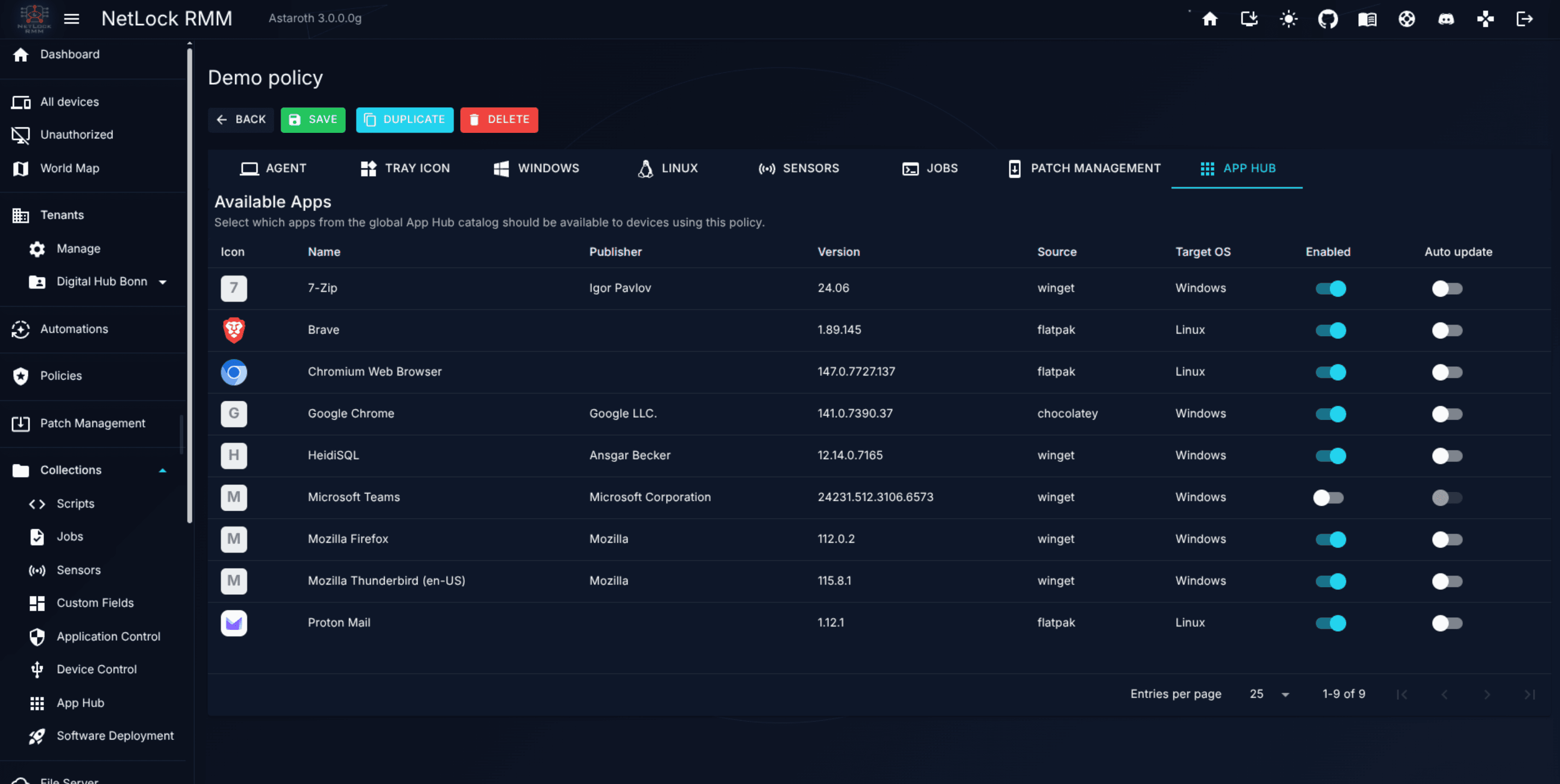
For each app in the catalogue you can toggle:
- Whether the app appears in the tray window for devices under this policy.
- Whether the agent auto-updates the app when a new version is available in the catalogue.
This tab is a catalogue curation — it decides what the end user sees in the tray. It does not deploy apps. Deployment happens through Software Deployment in Chapter 8.8, which is independent of any policy.
The App Hub catalogue itself (manual app entries, catalogue browsers for Winget / Flathub / Chocolatey, Refresh catalogs sync) lives in Chapter 8.5.
6.14 Applying a policy
The short answer to "how do I apply this policy to a device, group, or tenant?" is: you don't, directly.
Policies are routed to devices exclusively through Automations. To put this policy on a device you:
- Identify the facts of the device that should select this policy — its tenant, location, group or the device itself, its platform, an attribute such as the name, a service or application of its inventory, or a custom field value.
- Create an automation whose conditions match those facts and whose policy is this policy.
- Check that no other matching rule has a lower priority number: the rule with the lowest number wins, and the dialog proposes the number from the rule's most specific organisation condition (see Chapter 5.3.1). Change the number to reorder.
That is the entire procedure. There is no "Apply Policy" button on the Policies page. There is no "Attach to group" affordance on the Groups page. There is no "Set policy" action on the Devices page. See Chapter 5 for the routing layer and a worked example.
The one exception is the default policy: Set as default policy on the Manage Policies page marks the policy that reaches every device that no automation assigns a policy to (see §6.2). It is a fallback below every automation, not a way to override one.
Tip: If you like to see what policy is being applied to what device, open the device overview. There is a column called policy that displays the current assigned policy. A globe icon next to the name marks a policy that comes from the default policy.
Permissions
Policies are gated by five permission flags:
policies_enabled— master flag. A user without this flag does not see thePoliciesnavigation entry and cannot reach/policiesor/policy_settings.policies_add— create a new policy from theManage Policiespage.policies_manage— clickManageon a policy row to openPolicy Settingsfor editing.policies_edit— save changes in thePolicy Settingseditor.policies_delete— delete a policy.
Permissions for features that live inside a policy (Antivirus, Application Control, Device Control, Patch Management, Sensors, Jobs, App Hub) are covered in their own Collections sections — see Chapter 8 — and in Chapter 14.
Related chapters
- Core Concepts — the one-policy-per-device rule in context.
- Chapter 4 — Tenants, Locations & Groups — the attributes policies are routed against.
- Chapter 5 — Automations — the only way to assign a policy to a device.
- Chapter 7 — Patch Management — the global approval queue that the per-policy rollout rules draw from.
- Chapter 8 — Collections — Scripts, Jobs, Sensors, Custom Fields, App Hub, Application Control, Device Control, Software Deployment.
- A.7 Remote screen control — deployment-wide remote-control defaults.
- A.8 Notifications deep dive — channels and recipients for Antivirus, Patch, and other notifications emitted by policy rules.
Automations
The policy-routing layer — how condition-based rules on organisation, device facts, inventory and custom fields decide which policy each device receives and which sensors and jobs it gets on top.
Patch Management
The global approval queue, vulnerability view, update history, and SLA settings.