 NetLock RMM Docs
Logging & protocols
The Logging page: runtime log toggles, the Web Console log viewer, and the Remote Server log viewer — plus a note on the settings_protocols_enabled permission flag.
Logging & protocols
Self-hosted only: The Logging page renders a standard "cloud team manages these" notice on cloud deployments and none of the three tabs below are shown. If you operate on cloud, your hosted operations team owns log retention, rotation, and review. The rest of this chapter describes the self-hosted experience.
The Logging page gives a self-hosted operator two things: a runtime switch to turn logging on or off for the Web Console and the Remote Server without a restart, and a built-in viewer for both log streams so you rarely need to SSH into a box just to tail a file. It is the triage surface for "something went wrong five minutes ago, where do I look?"
Two practical notes before the field-level reference.
- The page lives at
/logging, not at/settings/logging. It is administrative in nature but it is not grouped underSettingsin the URL hierarchy — you reach it fromNavigation → Loggingin the main nav, not from insideSettings. - The permission flag that gates this page is
settings_protocols_enabled, notsettings_logging_enabled. The UI label is "Logging" but the flag name is "Protocols" for historical reasons. When granting access in the role editor, look forsettings_protocols_enabledin theSettingssub-tree. The mismatch is listed in the Permission reference (X.2) so operators can find it when building roles.
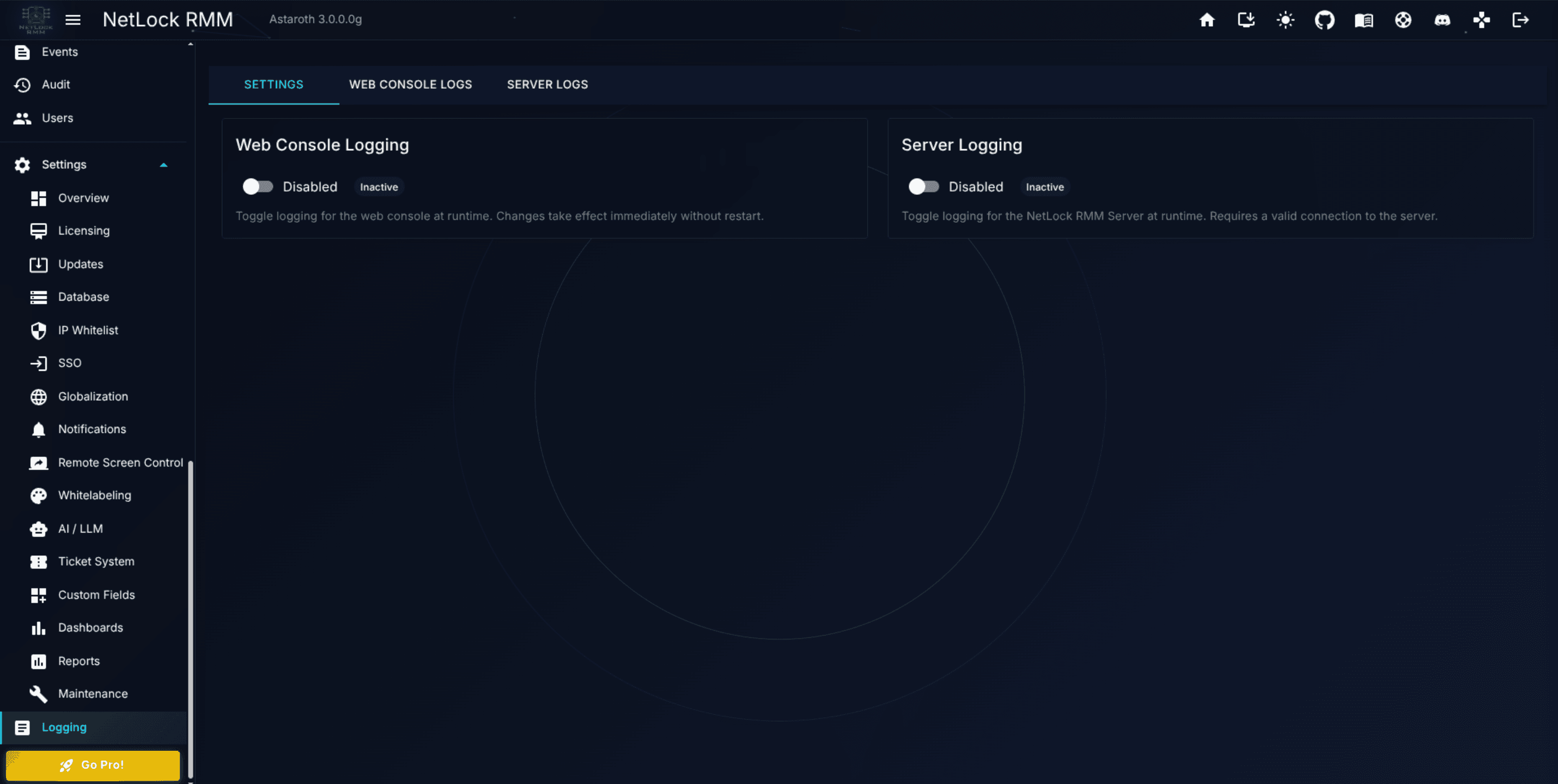
A.9.1 The Settings tab
The first tab carries two independent runtime toggles. Both take effect immediately — no Console restart, no service restart.
- Web Console logging —
Enabled/Disabledtoggle. Controls log emission for the Console itself. A status chip readsActiveorInactive. The description under the toggle reads "Toggle logging for the web console at runtime. Changes take effect immediately without restart." Turning this off silences Console logs from that moment forward; previously-written log files are untouched. - Server logging —
Enabled/Disabledtoggle. Controls log emission for the Remote Server. The Console talks to the Remote Server's admin endpoint to query and flip this value: the current state is fetched from/admin/logging/statusand toggles are POSTed to/admin/logging/toggle. The description reads "Toggle logging for the NetLock RMM Server at runtime. Requires a valid connection to the server." If the Console cannot reach the Remote Server, the toggle is replaced by an error alert and the second toggle remains unusable until the connection is restored.
The two toggles are independent. It is common to turn Server logging on for a short window during agent-side troubleshooting while leaving Console logging at its normal state, and vice versa.
Note: Runtime toggles are convenience. The underlying services still honour the startup configuration on first launch — if a service starts with logging disabled in its config, it boots quiet until an operator flips it on from this page. The toggle state does not persist across service restarts unless your deployment's configuration file reflects it.
A.9.2 The Web Console Logs tab
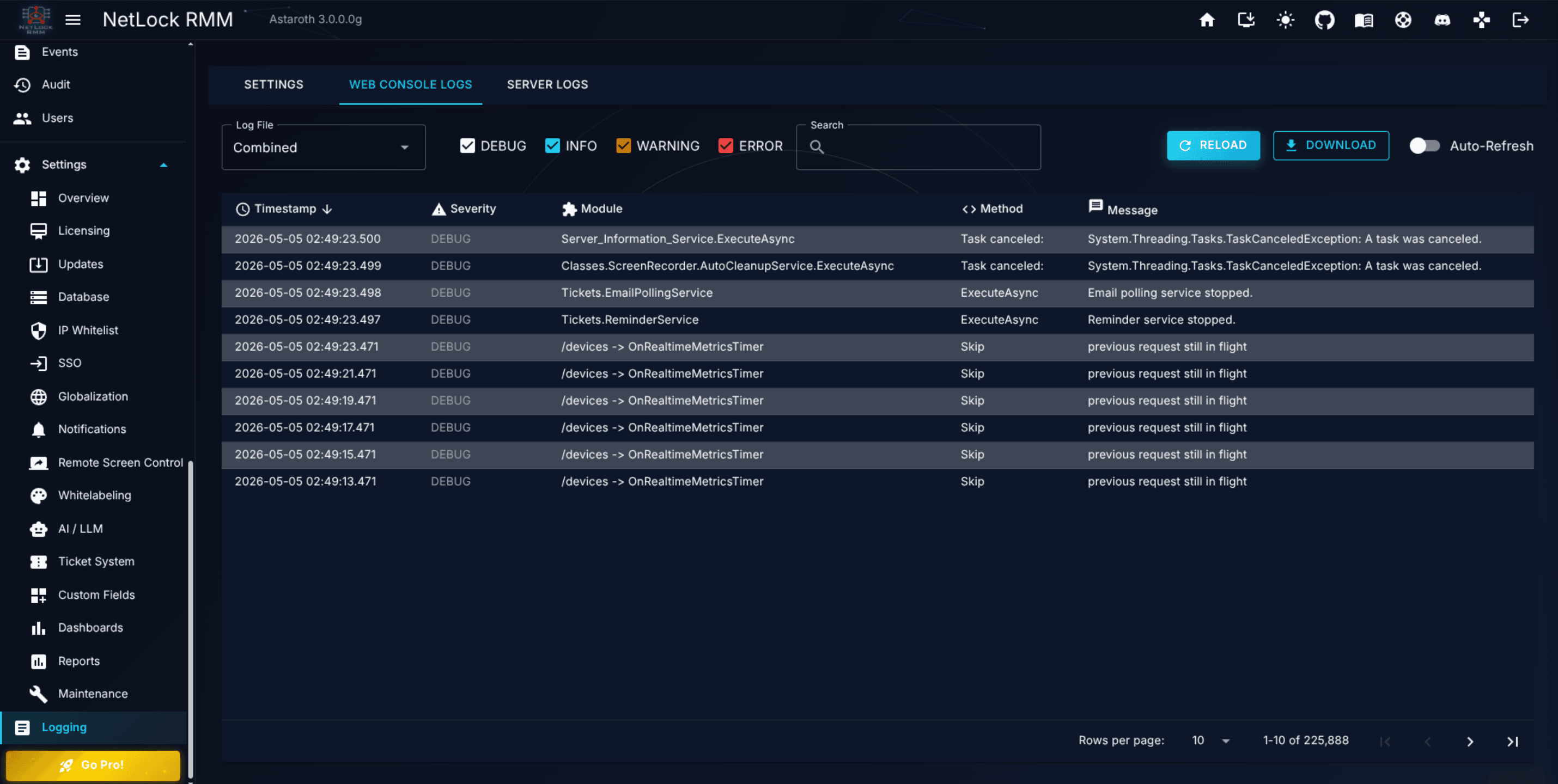
The second tab is a live viewer for the Console's own log stream. It is the quickest place to look when a user reports a Console error — filter by severity, search by module or method, watch auto-refresh fill rows in real time.
The toolbar
A row of controls sits above the log table.
Log File— dropdown listing the five log files the Console maintains. Select one to view it:combined.log— every severity mixed together.debug.log— debug-only entries.info.log— informational entries.warning.log— warnings only.error.log— errors only.
- Severity filters — four checkboxes labelled
DEBUG,INFO,WARNING, andERROR. All default to on; untick a level to hide it. The severity filter is applied after the file is loaded, so it stays useful oncombined.logeven when the file is noisy. Search— a text input that filters the visible rows. The search covers every column: timestamp, severity, module, method, and message. Empty the input to show everything.Auto-Refresh— a toggle. When on, the viewer polls for new rows every three seconds and appends them to the bottom of the table.Reload— re-reads the selected file immediately. Use this after turning offAuto-Refreshor when you want to jump back to the top of the file.Download— downloads the selected log file. The download carries the raw file as the browser sees it, sodebug.logon disk becomesdebug.loglocally.
The table
Columns: Timestamp, Severity, Module, Method, Message. Severity is colour-coded so ERROR stands out against a crowded combined.log. Double-clicking a row opens the Log Entry Details dialog (see A.9.4), which shows the same fields plus the full untruncated message.
A.9.3 The Server Logs tab
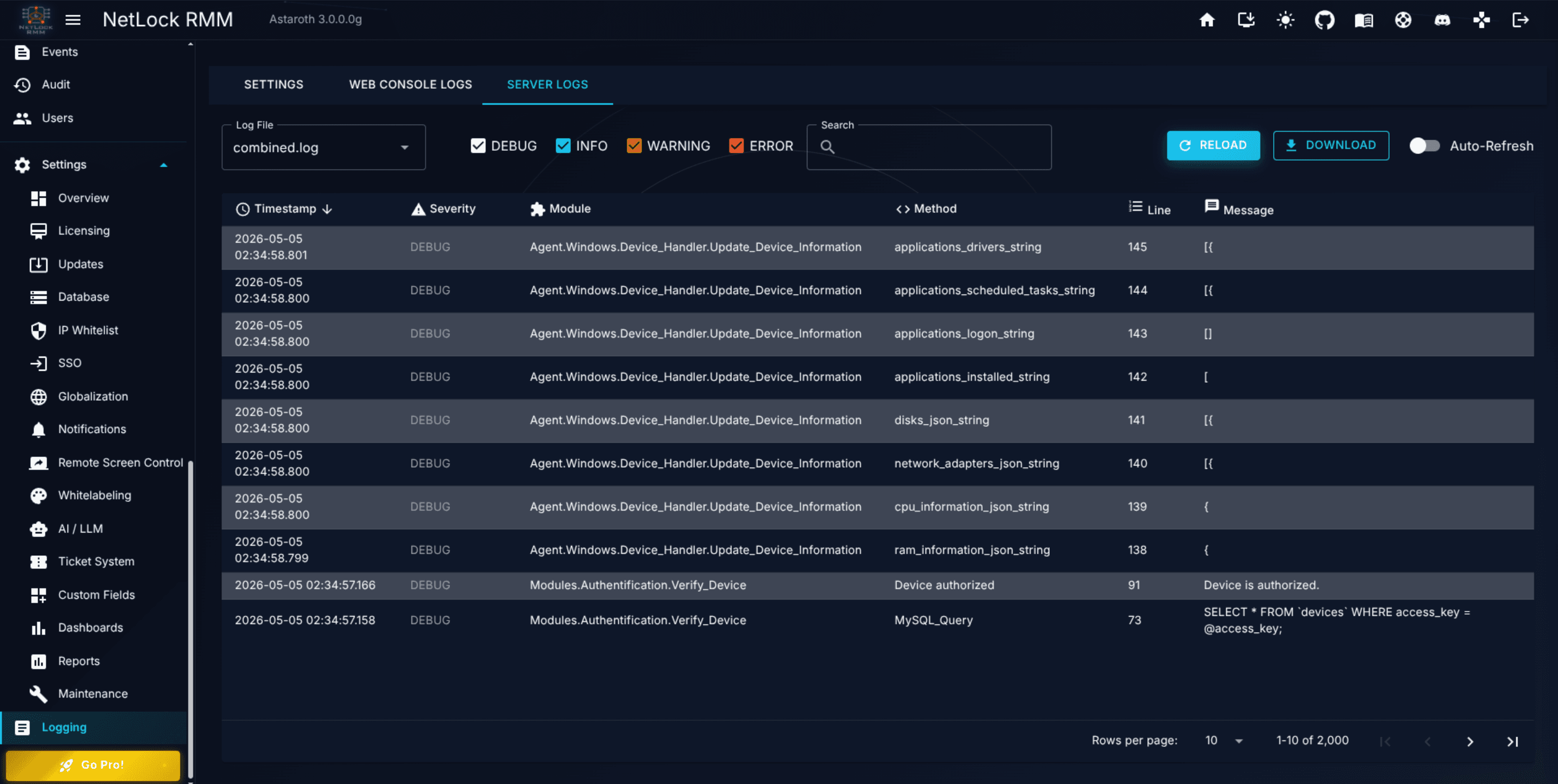
The third tab is the Remote Server's counterpart to the Web Console Logs tab. Layout and controls are identical; three things differ.
- The log file dropdown is dynamic. Unlike the Console's fixed list of five files, the server's file list is fetched from the Remote Server on load, so whatever files the server currently maintains appear here. If the server introduces a new log file in a future release, it shows up automatically.
- The table has an extra
Linecolumn. Server log entries carry the source line number; Console log entries do not. The column appears betweenMethodandMessage. - The search covers the extra column. Search queries match against
Timestamp,Severity,Source,Module,Method,Line, andMessage.
A live connection to the Remote Server is required. If the server is unreachable, the tab replaces the viewer with an error alert, and both Reload and Auto-Refresh are unusable until the connection is restored. The Console does not cache server logs locally — closing and reopening the tab re-fetches — so a reachability issue means you see nothing rather than stale data.
A.9.4 The Log Entry Details dialog
Double-clicking any row in either log-viewer tab opens Log Entry Details, a read-only modal. Fields:
TimestampSeveritySource(Remote Server entries only; blank for Web Console entries)ModuleMethodLine(Remote Server entries only)Message— rendered in a wrapped code-style block so long stack traces and multi-line messages stay readable.
The dialog is read-only. Copying text out of it is the primary action; there is no edit, annotate, or forward affordance. Use the browser's copy shortcuts to pull the message into a ticket or a chat.
A.9.5 Routine operations
A short field guide for the most common tasks.
- Triage a user-reported Console error. Open
Logging → Web Console Logs, selecterror.log, set the search to whatever identifier the user gave you (username, route, time), and read the top match. If nothing matcheserror.log, retry oncombined.logwith the same search — some errors surface asWARNINGfirst. - Trace a failing agent operation. Turn on Server logging from the Settings tab, reproduce the failure, then open
Logging → Server Logsand filter by the affected device's name or hostname. Remember to switch logging back off when done to keep disk use down. - Collect logs for a support ticket. Use
Downloadon each relevant file in both tabs. Include the time window in the ticket so the reviewer knows what to look at. - Inspect a specific error. Double-click the row and copy the full message from the
Log Entry Detailsdialog — the table view truncates long messages.
A.9.6 What this page does not do
- No retention configuration. Log rotation and on-disk retention are handled by the hosting services' own configuration files, not by this page. See A.2 for maintenance-task coverage of log rotation.
- No log export to external SIEM. The page's only export action is
Download. For SIEM forwarding, wire a collector to the log directories directly on each host. - No remote-device logs. This page covers the Web Console and the Remote Server only. Agent-side logs are captured in each device's detail view (see Chapter 3.3).
Permissions
settings_enabled— access to theSettingspermission group (the page is underSettingsin the permission tree even though its URL is/logging).settings_protocols_enabled— access to the Logging page itself. Note the naming mismatch: the page is labelledLogging, the flag is namedProtocols.
Related chapters
- A.2 — Updates & maintenance — log rotation and maintenance tasks that touch log files.
- Chapter 3.3 — Device details view — agent-side logs, which are out of scope for this page.
- Chapter 12 — Events & Audit — event stream and immutable admin audit trail, distinct from the technical log files covered here.
- X.2 — Permission reference — full list of
settings_*flags, including thesettings_protocols_enablednaming note.
Notifications deep dive
Full reference for the five notification channels on the Notifications page: Email (SMTP), Microsoft Teams, Telegram, ntfy.sh, and Webhook.
System settings
The /system route is a redirect stub: there is no dedicated System Settings page. This chapter lists where real configuration lives.