 NetLock RMM Docs
Remote-control a device via relay
Open a graphical remote session through the Relay App, with H.264 preferred and JPEG fallback.
Remote-control a device via relay
NetLock RMM does not use VNC or RDP for remote control. Instead it streams the target device's screen over its own protocol with H.264 as the default encoding and JPEG polling as a fallback. This guide shows how to open a relay-mediated remote-control session from the device detail view.
Before you start
- The target device is online in the
Deviceslist. - Required permission:
devices_enabledplus the role flag that gates remote control in your deployment (typically exposed alongside the Remote Control action on the device detail view).
Install the Relay App (operator machine)
The Relay App runs on the operator's machine — the technician who opens the session — not on the target device. Download it from https://netlockrmm.com/downloads, pick your OS and architecture, and unzip it. Then install the FFmpeg runtime it uses to decode the device's H.264 screen stream locally.
Interface language
The Relay App ships with nine interface languages: English, German, Spanish, French, Italian, Dutch, Polish, Portuguese and Chinese (Simplified). On first start it follows the operating system's display language and falls back to English when that language is not among the nine. Change it in the dropdown on the login screen or in the header of the sessions window, next to the theme buttons; the choice applies immediately, without restarting the app, and is remembered on that machine. Date, time and number formats keep following the operating system's regional settings and are not affected by this setting.
FFmpeg runtime prerequisite
The Relay App decodes H.264 through FFmpeg's avcodec, avutil, and swscale libraries via P/Invoke. FFmpeg is not bundled in the download, so the runtime libraries must be present on the operator's machine. The app locates the platform's version-suffixed FFmpeg libraries automatically, so no renaming or symlinking is required — just install FFmpeg for your OS.
Linux
Install FFmpeg. On Debian and Ubuntu:
sudo apt install ffmpegOn non-Debian distributions, install the distribution's FFmpeg package. Fedora needs the RPM Fusion repository; openSUSE provides FFmpeg through Packman. Treat apt as the authoritative example and the others as equivalents.
macOS
Install Homebrew if it is not already present, then:
brew install ffmpegThis works on both Intel and Apple Silicon Macs — the app probes Homebrew's library directories (/opt/homebrew/lib and /usr/local/lib) automatically.
Windows
Install an FFmpeg shared build (the codec libraries ship as DLLs, not statically linked):
winget install Gyan.FFmpeg.SharedAlternatively, download a *-shared zip from gyan.dev or BtbN and add its bin\ folder to your PATH (or copy the DLLs next to NetLock_RMM_Relay_App.exe). The app loads the version-suffixed DLLs (avcodec-*.dll, avutil-*.dll, swscale-*.dll) directly, so no renaming is needed.
Note: Windows on ARM64 has no readily available FFmpeg shared build. Without it, the relay falls back to slower JPEG polling instead of hardware-accelerated H.264 decoding.
Verify the download
Compute the SHA-512 hash of the zip and compare it to the checksum shown on the download page:
| OS | Command |
|---|---|
| Linux | sha512sum <zip> |
| macOS | shasum -a 512 <zip> |
| Windows | CertUtil -hashfile <zip> SHA512 |
With the Relay App unzipped and FFmpeg in place, continue with the Steps below. For default behaviour, authentication, and deployment-wide settings, see Appendix A.7 — Remote screen control.
Steps
- Open
Devicesfrom the navigation and find the target device. - Select the device to open its detail view.
- Click
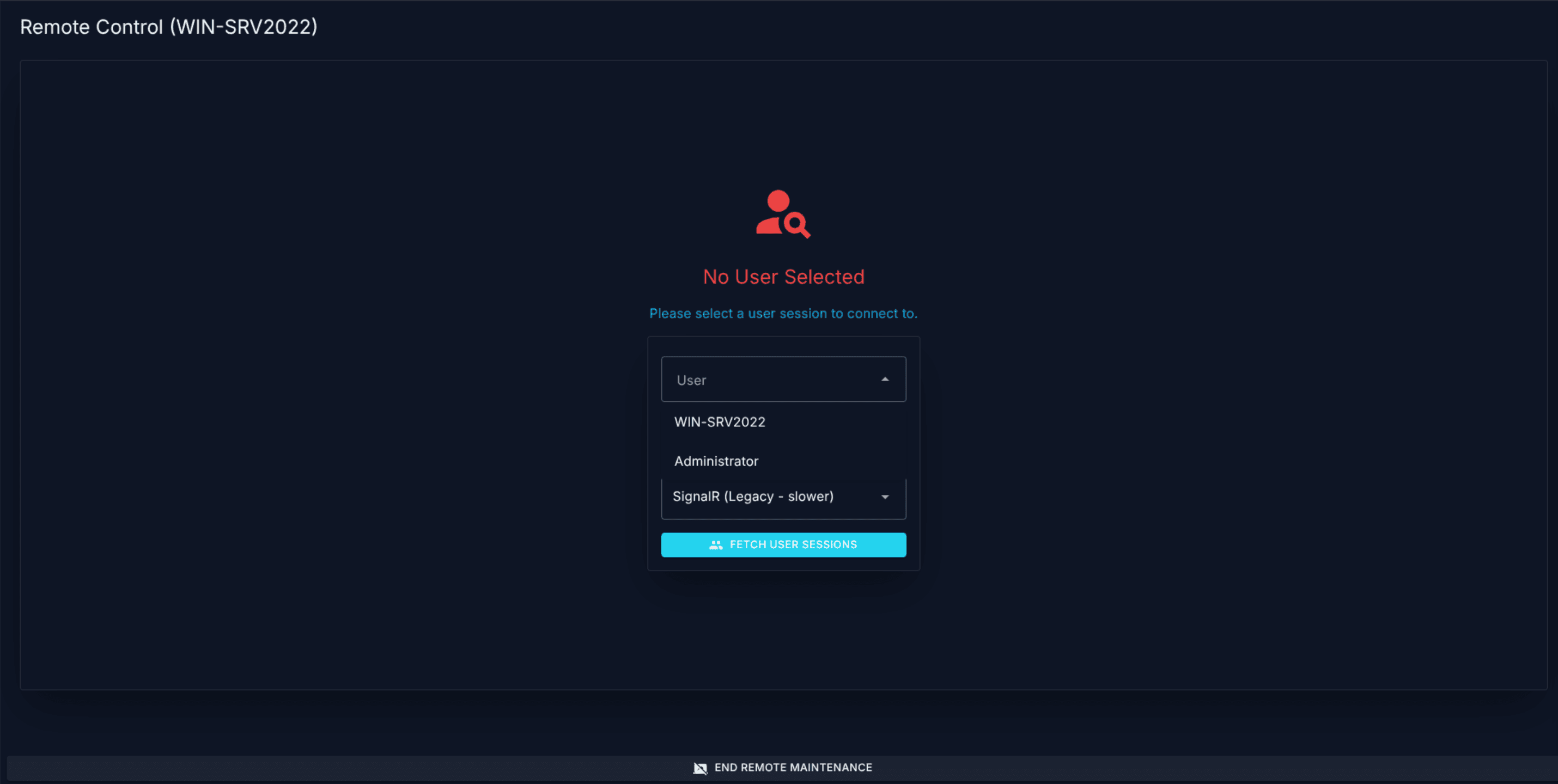
Remote Controlto open the Remote Control window. - In the connection-mode dropdown, pick
Relay (Recommended - faster). This is the default for any device whose Relay App is online. - Start the session. The window negotiates with the Relay App and connects to the target's screen.
The relay path prefers H.264, which is hardware-accelerated on the device's GPU where available with a software encoder fallback. If the relay's single H.264 slot is already occupied by another session, the path auto-falls-back to JPEG polling for this session. If the Relay Connection cannot be reached at all, the Console falls back further to SignalR (Legacy - fallback) — always JPEG-polled and slower, but it still works for emergencies.
Note: There is no VNC, RDP, or third-party remote-desktop protocol in the stack. The stream is NetLock RMM's own protocol end to end.
Verify it worked
- The Remote Control window shows the device's desktop and responds to mouse and keyboard input.
- The session appears in
Relay Server(at/relay_server) as anActiverow for the target device and the remote-control port, withConnectionsgreater than zero for the duration of the session. - When you close the window, the relay row transitions through
Disconnectingand returns toReady to connect(if persistent) or disappears (if temporary).
Troubleshooting
- Session connects but video is slow / blocky. The relay's H.264 slot may already be taken, forcing this session to JPEG polling. Close the other relay-mediated remote-control session on the same relay, or accept the reduced framerate.
- Relay session shows
Device offlinein the Relay Server list. The Relay App is not currently registered. Check the Relay App service on the device network and its API key. - Input reaches the device but the screen is black. Some idle devices skip frame generation. Move the mouse, wake the display locally, or check whether the session is restricted to a specific monitor.
Related
- Chapter 3.5 — Remote control and remote shell — the connection-mode picker, H.264 / JPEG trade-offs, and fallback chain.
- Chapter 9.2 — Relay Server — persistent and temporary relay sessions, lifecycle states, and how the Relay App registers.
- Appendix A.7 — Remote screen control — default behaviour, authentication, and deployment-wide settings.