 NetLock RMM Docs
Tenants, Locations & Groups
The tenant → location → group hierarchy: create, configure, organise, and export.
Tenants, Locations & Groups
NetLock RMM organises every managed device into a three-level hierarchy: tenant, location, group. This chapter is the canonical reference for creating and managing that hierarchy. The hierarchy drives how policies, automations, and permissions are scoped, so getting it right early pays off for the life of the deployment.
4.1 The hierarchy, in brief
A quick refresher from Core Concepts:
- A tenant is the top-level organisational container. For an in-house IT team this usually maps to the company; for an MSP it maps to a customer.
- A location is a subdivision of a tenant — typically a physical site or office.
- A group is a subdivision of a location — typically reflecting how devices should be configured (
Workstations,Servers,Laptops) rather than where they physically sit.
Every device belongs to exactly one group. Configuration — policies, automations, scripts — can be applied at any level and flows down: a policy on a tenant applies to every device in every location and every group of that tenant.
Tip: Keep groups focused on configuration intent. If a single policy applies to every device regardless of site, one group per location is plenty. If policies differ by device type, create device-type groups inside each location.
4.2 Managing tenants
The Manage Tenants page at /tenants is the entry point. It lists every tenant you have permission to see, along with summary information (device counts, last activity).
Creating a tenant
- Open
Tenantsfrom the navigation. - Click the add affordance on the
Manage Tenantspage. - Fill in the tenant name and any additional details required by your deployment.
- Save.
The newly created tenant starts empty — no locations, no groups, no devices.
Editing a tenant
Select a tenant in the list to enter its detail view. From there you can rename it, change its contact information, or adjust tenant-wide settings (covered in 4.3). Editing a tenant does not affect its devices or their assignments; only the tenant metadata changes.
Deleting a tenant
Deleting a tenant is rare but supported. Before deleting, confirm:
- The tenant has no active devices you still care about.
- No reports, scheduled deliveries, or automations reference the tenant.
- You have archived any customer data you may need later — device inventory from the Devices page, events from Events & Audit, and any reports from Reports. (The tenant-list export at 4.5 only captures tenant metadata, not the data under the tenant.)
4.3 Tenant settings
Tenant-level configuration lives on the Tenant Settings page at /tenant_settings. The page requires a tenant to be selected in the header context; if none is selected, choose one first.
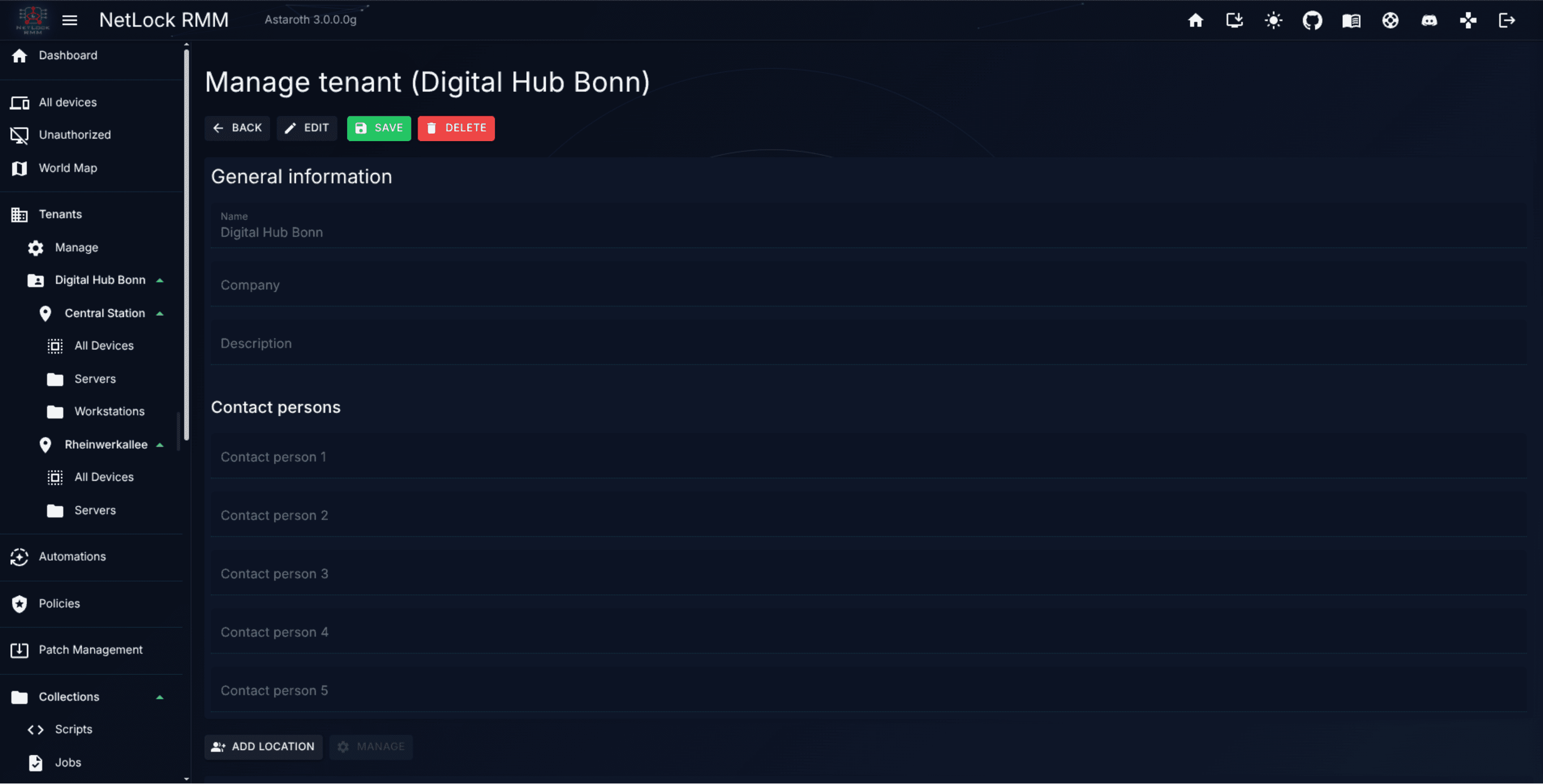
The page has a flat layout with four sections:
- General Information — editable fields for the tenant's
name,company, anddescription. This is the metadata the rest of the Console refers back to (the name shown in reports, in exports, in the navigation selector). - Contact Persons — five contact-person slots with editable details. These are used as recipients and fallback contacts for tenant-scoped notifications and reports.
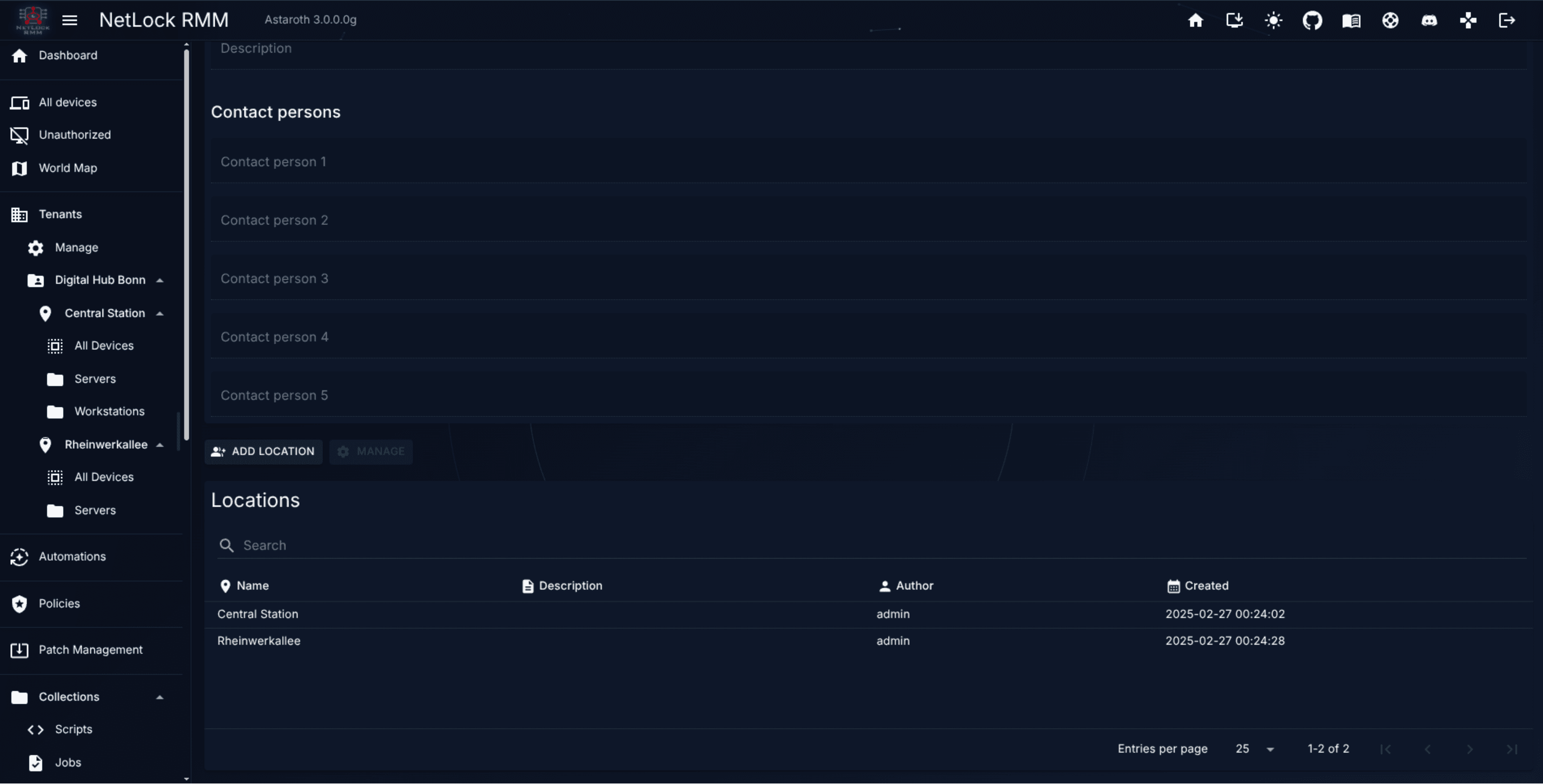
- Locations — a searchable table listing every location under this tenant, with a
Manageaffordance on each row that opens the location's detail view (see 4.4). You can add a new location directly from this table. - Custom Fields — the values this tenant holds for inheritable custom fields, with the effective value per field. Devices of the tenant without a value of their own inherit them. See Chapter 8.4 — Scope and inheritance.
There are no separate tabs for branding, notifications, integrations, or agent configuration on the Tenant Settings page. Those concerns live elsewhere:
- Branding and themes: deployment-wide in A.6 Whitelabeling & themes.
- Notification channels and recipients: deployment-wide in A.8 Notifications deep dive.
- Agent configuration: per-installer in the Agent Download wizard, not a global tenant setting.
Per-tenant isolation
Tenant metadata and contact persons are isolated per tenant: editing them in one tenant has no effect on another. For system-wide defaults that populate new tenant records, see A.12 Content defaults.
4.4 Locations and groups
With a tenant in place, add locations and groups beneath it.
Adding a location
- Open the tenant and navigate to
Location Settings(route/location_management/*/location_settings). - Use the add-location affordance.
- Enter a location name that reflects the site —
Berlin HQ,Remote Workers,Datacenter A. - Save.
Locations are freeform; use as many as the geography of your deployment warrants. An MSP managing a customer with three offices typically creates three locations.
Editing and deleting a location
Standard edit and delete affordances apply. Deleting a location removes its groups; any devices in those groups lose their group assignment and must be reassigned before configuration flows to them again.
Adding a group
- Open the parent location in
Location Settings. - Use the add-group affordance.
- Enter a group name aligned to the devices it will contain.
- Save.
Groups accept devices immediately. You can now:
- Configure agent installers to target this group (see First-Run Walkthrough step 4).
- Move existing devices into the group from the
Devicespage. - Route policies to the group by creating an Automation with a
Groupcondition that picks this group.
Moving devices between groups
Use the device-group assignment affordance on the device in the Devices page (see Chapter 3). The agent picks up the new assignment on its next poll and any policies attached to the new group take effect.
Note: Moving a device between groups does not trigger a device reboot or re-authorisation. The agent simply starts receiving a different policy set.
4.5 Exporting the tenant list
The Export Data dialog, opened from the Manage Tenants page, exports the list of tenants you are permitted to see. The scope and contents are narrow: it is not a full tenant archive.
What is exported. One row per tenant, with these fields: id, tenant_name, guid, date (creation date), author (who created the record), description, and company. Devices, policies, events, audit entries, custom-field values, and deployment histories are not part of this export — those live in their own chapters and are exported from there if needed.
Scope. Every tenant that matches your tenants permission list. If you are scoped to specific tenants, the export contains only those. There is no single-tenant-only mode; the dialog always exports the full visible list.
Formats. The dialog asks you to pick one output format:
JSONXLSX(spreadsheet)XMLHTML
Permissions. Any user with access to the Manage Tenants page can run the export. There is no separate export permission flag.
Steps:
- Open
Manage Tenants. - Click the export action to open the Export Data dialog.
- Pick the output format and confirm. The file downloads to your browser immediately — the export runs synchronously, not as a background job.
If you need to archive more than the tenant list — for example a customer's full device inventory or audit trail before offboarding — run the relevant exports from Reports, Events & Audit, or use the export affordances on the specific pages for that data.
Common tasks
Set up a new MSP customer from scratch
- Create a tenant for the customer on
Manage Tenants. - Add one location per physical site the customer operates.
- Add groups inside each location that reflect the device roles you will manage (
Workstations,Servers, etc.). - Open
Tenant Settingsand fill in contact information and any per-tenant defaults. - Generate an agent installer targeted at the intended starter group (see First-Run Walkthrough).
- Deploy the agent on the first device and approve it in
Unauthorized Devices. - Build and apply a baseline policy to the group (see Guide H.4).
Reorganise an existing tenant
- Plan the new structure on paper first — list the new locations and groups and the automations that will route policies to each group.
- Create the new locations and groups in
Location Settings. - Create or update Automations to match the new group names before moving devices, so devices do not sit unassigned after the move.
- Move devices in small batches, verifying policy assignment in the device detail view and policy deployment in
Eventsafter each batch. - Delete the old locations and groups once empty.
Archive and remove a departing customer
- Export device inventory, event history, and any scheduled reports from their respective pages — the tenant-list export only covers tenant metadata.
- Optionally export the tenant list via the Export Data dialog on
Manage Tenantsso you keep a record of the tenant row itself. - Uninstall agents on the customer's devices (outside the scope of this chapter).
- Delete the tenant from
Manage Tenants.
Permissions
Tenant, location, and group operations are gated by a tenant-management permission group. In addition, tenant-scoped user accounts (see Chapter 14 — Users & Roles) only see the tenants they are explicitly permitted to access, which has the side effect of restricting every other feature area to those tenants as well.
Related chapters
- Core Concepts — the tenant → location → group model in context.
- Chapter 3 — Devices — how devices are created, moved, and labelled.
- Chapter 6 — Policies — attaching policies to tenants, locations, and groups.
- Chapter 14 — Users & Roles — scoping user access to specific tenants.
- A.12 Content defaults — system-wide defaults that apply to new tenants.