 NetLock RMM Docs
AI / LLM configuration
Turn AI features on, choose between the managed NetLock AI and your own OpenAI-compatible provider, and control where AI shows up in the product.
AI / LLM configuration
The AI / LLM Settings page at /settings/ai is where a deployment operator turns AI on, decides where inference happens, and controls which parts of the product the AI surfaces in.
Two model sources are available, and the choice between them is made on this page: the NetLock RMM-managed AI, which is reached through the Members Portal, or an OpenAI-compatible provider you run or subscribe to yourself. The second option speaks the OpenAI chat-completions API shape, which means every provider that exposes that shape — OpenAI itself, Anthropic via its OpenAI-compatible endpoint, Ollama, LM Studio, LocalAI, and others — works from the same fields.
A.11.1 The master toggle
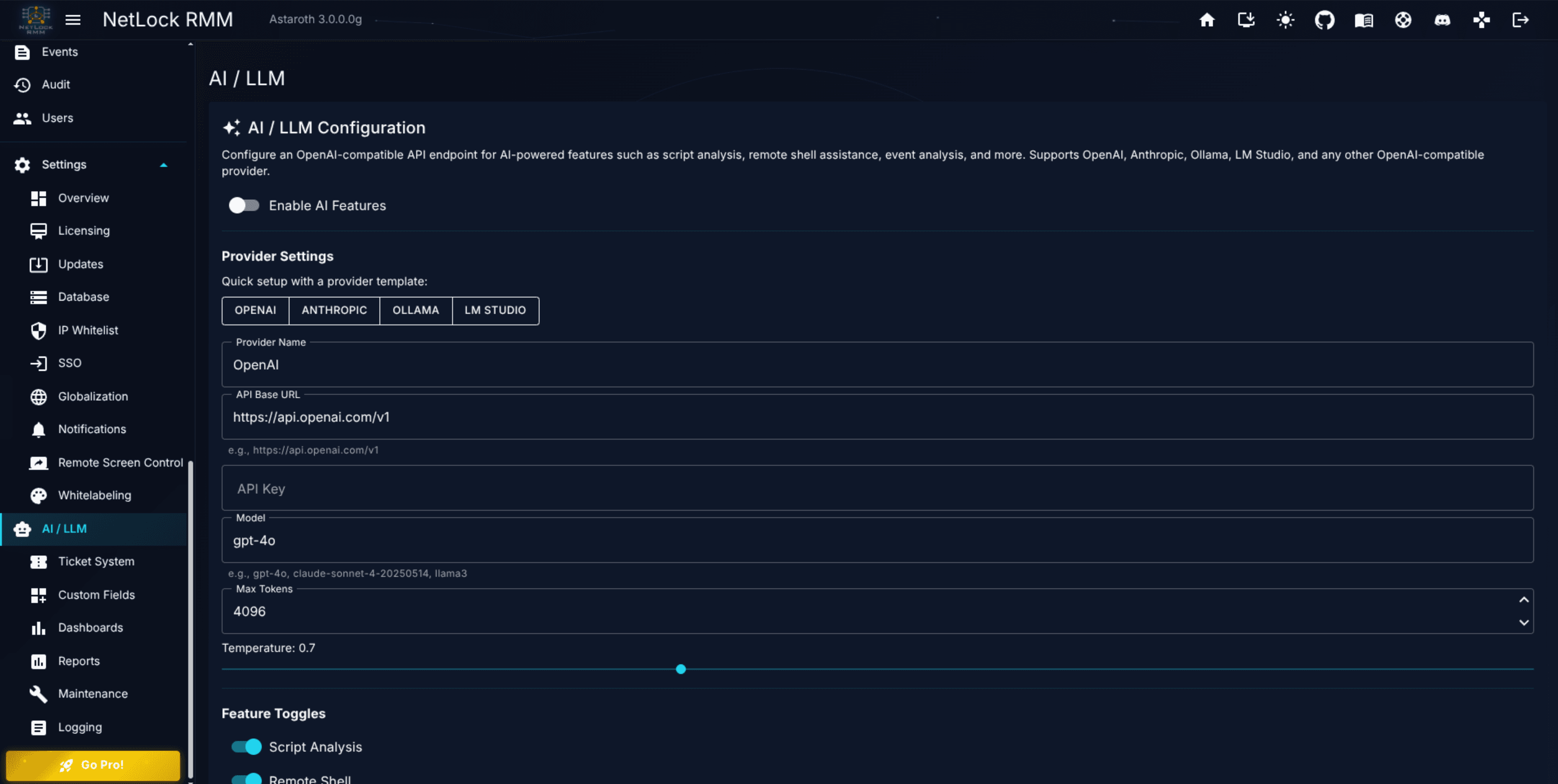
Enable AI Features sits at the top of the page. It is the single switch that decides whether any AI-driven surface in the product is active.
- When off, every AI affordance across NetLock RMM is disabled. The AI Chat page is unavailable, AI buttons inside Scripts and Remote Shell are hidden, the
Analyze with AIbutton on Event Details is gone, the AI Assistants inside the Add / Edit Sensor and Add / Edit Job dialogs are suppressed, and the end-user chat in the agent tray is refused by the server. Everything else in the product keeps working as normal. - When on, the specific AI surfaces that are active depend on the per-feature toggles below (see A.11.4).
Save persists the change. Toggling the master switch does not interrupt the model selection or provider configuration below; turning AI off and back on later restores whatever you saved last.
Tip: If you are not sure whether AI is the right fit for your deployment, turn the master toggle on, decide on a model source, and leave every per-feature toggle at its default. Individual operators can then explore AI Chat (Chapter 13) before you broaden the exposure to the in-line buttons.
A.11.2 Model selection
The Model Selection block is a two-option radio group directly below the master toggle. It decides where every AI request from this deployment is processed, so it is the setting a compliance review cares about most.
Use NetLock AI (managed)
The default for a new deployment. Requests do not go to a provider of yours: the Web Console — and, for the end-user tray chat, the server — sends them to the Members Portal API, which forwards them to NetLock's AI provider, the IONOS AI Hub, and streams the answer back along the same path. Authentication is the deployment's Members Portal API key (the same key the Licensing page holds); no provider credentials of your own are involved, and the provider fields described in A.11.3 are hidden because they do not apply.
In this mode the service fixes the request parameters. The model is the one the managed service runs and cannot be chosen here; the sampling temperature is always 0; and the completion length is capped at 4 096 tokens, clamped further to whatever is left of the deployment's token budget.
Consumption counts against the token budget included with your membership. The page shows it as NetLock AI Usage — a progress bar with <used> / <max> tokens (<remaining> remaining) — and the same figure appears on the NetLock AI card under Settings → Licensing (A.1). If the membership does not include managed AI, the block reads "NetLock AI is not enabled for your membership." and no request can be sent in this mode.
Use my own model
Every request goes directly from the Web Console — and, for the end-user tray chat, from the server — to the provider you configure in A.11.3. Nothing is sent to the Members Portal, and NetLock has no visibility of the content. Model, token ceiling, and temperature are taken from your fields and sent verbatim.
This is the only mode that keeps AI content inside your own infrastructure. If your compliance posture requires that prompts, script bodies, event data, shell output, or ticket content never leave your network, select Use my own model and point it at a model you host yourself.
Note: Switching between the two modes does not clear anything. The provider fields keep their saved values while the managed mode is selected, and the managed mode is available again after you switch away from your own model.
A.11.3 Provider configuration
These fields appear when Use my own model is selected, and every AI call the deployment makes in that mode uses them.
Provider Name— a free-text label for your own overview. It is not rendered on any other page and is not sent to the provider. To confirm which endpoint is actually in use, read the active-endpoint line on this page rather than this field.API Base URL— the root URL the request path is appended to. NetLock RMM appends/chat/completionsand sends the result exactly as it stands; it never adds, removes, or corrects a path segment. Enter the OpenAI-compatible root including the/v1segment where the provider uses one — for Ollama that ishttp://<host>:11434/v1, nothttp://<host>:11434/. The provider templates below fill this in correctly; a hand-typed URL is yours to get right. The helper text on the field readse.g., https://api.openai.com/v1.API Key— the secret sent in theAuthorization: Bearerheader. Password-masked input. Leave it empty for a local provider that does not require authentication: with an empty field noAuthorizationheader is sent at all, which is what Ollama, LM Studio, and comparable runtimes expect. On versions up to and including 3.2.0.2, an empty key was treated as an unconfigured provider and the request was sent to the managed AI instead — on those versions a placeholder value in this field was required to reach a local model.Model— the model identifier the provider expects in the chat-completions call. The helper text readse.g., gpt-4o, claude-sonnet-4-20250514, llama3. If you configure an identifier the provider does not recognise,Test Connectionsurfaces the provider's error directly.Max Tokens— the ceiling on the response length. Numeric input, range256to128000. The value should match what your chosen model and provider accept — a local model with a 4 000-token context window will not honour a128000setting. The default produced by the provider templates is4096.Send temperature— toggle. When on, aTemperatureslider appears with range0.0to2.0in steps of0.1and the value is sent with every request. Lower values produce more deterministic output (0.0is effectively greedy decoding); higher values produce more varied output.0.7is a reasonable default for script analysis and event commentary, which is what the provider templates set. Turn the toggle off for models that reject requests carrying a temperature — the parameter is then omitted entirely.
Provider templates
Four one-click templates populate the fields with sensible defaults. Clicking a template overwrites Provider Name, API Base URL, and Model, resets Max Tokens to 4096 and Temperature to 0.7 with Send temperature on, and leaves API Key untouched — deliberately, because a local runtime does not need one.
| Template | API Base URL | Model |
|---|---|---|
OpenAI | https://api.openai.com/v1 | gpt-4o |
Anthropic | https://api.anthropic.com/v1 | claude-sonnet-4-20250514 |
Ollama | http://localhost:11434/v1 | llama3 |
LM Studio | http://localhost:1234/v1 | local-model |
A provider that is not listed above — for example, LocalAI or a self-hosted vLLM — works by entering its API Base URL and Model manually. There is no separate "Custom" template because every configuration is custom at heart; the four named templates are just prefilled field sets.
Note: For Ollama and LM Studio, the template URL uses
localhost. That resolves to the host running the Console — not the host running your workstation, and not the host running the agent. If you run a local model on a different machine, replacelocalhostwith the reachable hostname or IP. If you run the Console in a container, make sure the container can reach the host's loopback if that is where the model lives.
Test Connection
The Test Connection button sends a minimal probe with the current field values. A spinner labelled Testing... displays during the call; the result is rendered inline below the button as either a success alert or an error alert with the provider's error text quoted.
Use Test Connection every time you change API Base URL, API Key, or Model. A saved configuration that has never tested successfully is a saved configuration that will silently fail every AI action in the product until you notice the first one fail.
A.11.4 Per-feature toggles
Ten toggles decide which AI surfaces are active in the rest of the product. Each defaults on, and each only ever narrows what the master toggle allows — a feature toggle set on has no effect while Enable AI Features is off.
| Toggle | Where the surface appears |
|---|---|
Script Analysis | The AI Assistant in the Add / Edit Script dialogs. See Chapter 8.1. |
Remote Shell | The AI actions inside the Remote Shell dialog and inside Bulk Remote Shell. See Chapter 3.5. |
Event Analysis | The Analyze with AI button on the Event Details dialog, both on the device Events tab and on the Events page. See Chapter 12.2. |
Sensor & Job Creation | The AI Assistants inside the Add / Edit Sensor dialog and the Add Job dialog. See Chapter 8.2 and Chapter 8.3. |
Event Log Analysis | The AI buttons in the Remote Event Log viewer and on an event-log entry's details. See Chapter 3.3. |
Ticket Analysis | The AI actions in the ticket detail dialog. See Chapter 10. |
Audit Analysis | The AI analyze action on the Audit page. See Chapter 12.3. |
Automations Assistant | The AI Assistant on the Automations page and in the Add / Edit Automation dialogs. See Chapter 5. |
AI Chat | The operator AI Chat page, the slide-in chat panel, and the chat button in the top bar. See Chapter 13. |
End-user Chat | The end-user AI chat in the agent's tray icon. This one is enforced on the server: with the toggle off the tray's requests are refused and the menu entry disappears on the tray's next sign-in. The tray entry additionally depends on the AI chat switch in the tray-icon policy, which stays an independent second switch. See Chapter 13.6. |
Turning a toggle off hides the surface wherever it appears; it does not break the feature the surface belongs to. Turning Script Analysis off still leaves the Scripts editor fully functional — you just do not see the AI Assistant affordance on it.
The toggles are deployment-wide, not per user, and they are the right lever for a data-governance decision: they answer "which of our data may reach the model at all", which the per-user permissions cannot, because those describe who a person is rather than what the model sees. A common rollout pattern is to leave AI Chat on for all operators (it is the cheapest surface to evaluate), enable Script Analysis and Event Analysis once the team is comfortable, and keep Ticket Analysis and End-user Chat off until the content those surfaces send has been reviewed.
A.11.5 Chat history cleanup
AI conversations started from the AI Chat page (see Chapter 13) are stored in the database. Two fields control how long they are retained.
Auto-cleanup chat history— toggle. When on, conversations older than the retention window are deleted on a rolling schedule. When off, conversations are kept until manually deleted from the AI Chat page.Keep chat history for X days— numeric, range1to9999. Disabled when the auto-cleanup toggle is off.
The auto-cleanup loop respects the toggle at runtime: turning the toggle off immediately stops the sweep; turning it on resumes on the next schedule tick. Clearing the retention window does not reset conversations that were already deleted — they are not recoverable.
Warning: Chat history can contain sensitive information operators pasted into the chat (credentials, internal hostnames, PII). If your compliance posture requires it, set a short retention window (7 or 14 days) from day one. Longer windows are defensible when there is a training or coaching use for older conversations.
A.11.6 What to verify after changes
A quick sanity loop after editing this page:
- Read the active-endpoint line on the page. It names the resolved mode and the target URL as saved, which is the authoritative answer to "where does this deployment send its prompts".
- On
Use my own model, runTest Connection. An inline success alert is the only confirmation the provider is actually reachable and the URL, key, and model all work together. OnUse NetLock AI (managed), check thatNetLock AI Usageshows a budget rather than the "not enabled for your membership" notice. - Open AI Chat (Chapter 13) and ask a one-line question. Confirm a reply arrives within a sensible time for the model source you chose.
- Visit one of the in-line surfaces whose toggle you enabled — the Scripts editor for
Script Analysis, Event Details forEvent Analysis— and confirm the AI button appears and produces output.
If step 2 passes but step 3 fails, the endpoint is reachable but the Chat-specific prompt is not being answered; on your own model, check Max Tokens against the model's context window. If step 2 passes but step 4 fails, the per-feature toggle is off or the operator's role lacks the relevant feature-area permission.
Permissions
settings_enabled— access to theSettingsgroup.settings_ai_llm_enabled— access to theAI / LLM Settingspage.
Related chapters
- Chapter 13 — AI Chat — the primary AI surface for operators, and the end-user tray chat.
- Chapter 8.1 — Scripts — AI Assistant in the Scripts editor.
- Chapter 8.2 — Jobs and 8.3 — Sensors — AI Assistant in Add / Edit dialogs.
- Chapter 3.3 — Device details view — AI buttons in the Remote Event Log viewer.
- Chapter 3.5 — Remote control — AI in remote shell.
- Chapter 12 — Events & Audit —
Analyze with AIon Event Details andAI analyzeon Audit. - A.1 — System overview and licensing — the Members Portal API key and the managed-AI token budget.
- X.5 — Integration endpoints — the full list of external endpoints NetLock RMM reaches out to, including both AI paths.