 NetLock RMM Docs
Updates & maintenance
Concurrent-install throttling for agent updates, and maintenance-window controls that suppress notifications.
Updates & maintenance
This chapter covers two small admin pages that often end up in the same maintenance-window conversation: the Updates page, which controls how aggressively the server rolls updates out to agents, and the Maintenance page, which lets you silence outbound notifications while you do planned work.
Be aware of the scope before you read on. The Updates page in the current release exposes one setting — concurrency. There is no product-update installer UI, no forced-update button, no update history, and no release-notes view inside the Console. Product updates of NetLock RMM itself are handled outside the Console. If you came to this chapter looking for a "check for updates" button, it does not exist in this release.
A.2.1 Updates — concurrent installation throttle
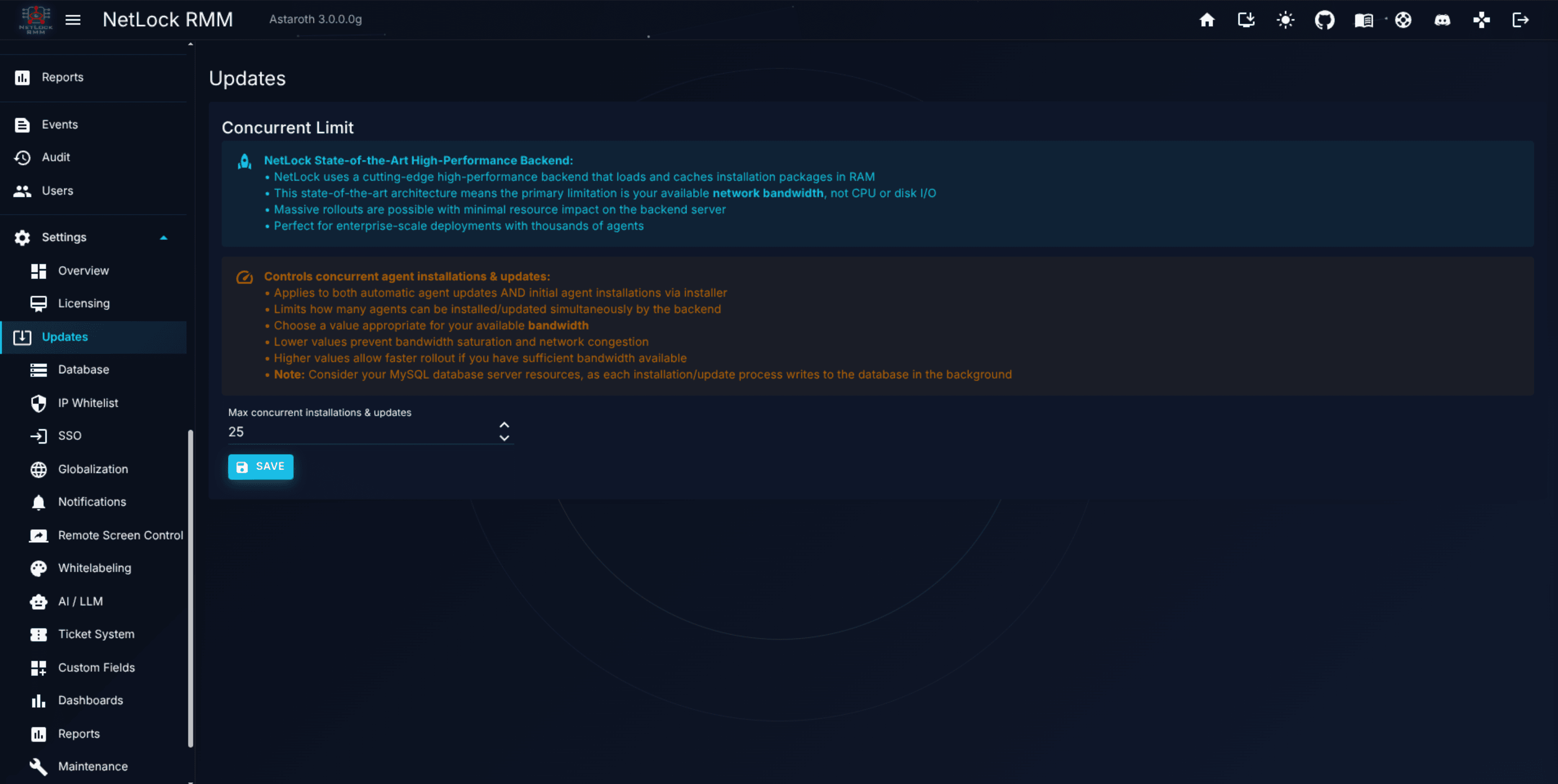
Settings → Updates at /settings/updates has exactly one configurable field plus a Save button.
The field
Max concurrent installations & updates is a numeric value that caps how many devices the server will process at the same time when installing new software packages or applying update approvals. Ranges differ by deployment:
| Deployment | Minimum | Maximum |
|---|---|---|
| Cloud | 1 | 50 |
| Self-hosted | 1 | 9999 |
The default is loaded from the database on page open.
Why the cap exists
Two information panels on the page spell out the rationale, and it is worth understanding so you pick a sensible value.
- In-memory package delivery. The server loads each installation package into memory once and serves every download from that single cached copy. Holding more downloads open at the same time does not multiply that memory — the cached packages are a fixed cost, independent of the concurrency number. Because delivery is from RAM, neither disk I/O nor CPU is the constraint; the limiting factor is network bandwidth.
- Bandwidth-limited rollout. Even on a fast network, the agents in any given location share egress. A concurrency ceiling keeps a mass rollout from saturating a branch uplink or degrading the Console for other users. Each in-progress update also writes to the MySQL database in the background, so the database host's capacity is a secondary consideration when setting a high value.
The cloud cap of 50 reflects the hosted platform's infrastructure envelope; on self-hosted deployments you can raise the number up to 9999, but the practical ceiling is almost always lower than the configured one and is determined by your available network bandwidth — and, to a lesser degree, by the MySQL database load that concurrent updates generate. Start conservative and measure before raising the number.
Applying the change
After editing the number, click Save. The new value takes effect on the next rollout cycle; no restart is required. The throttle affects the queues used for software deployment (Chapter 8.8) and patch approvals (Chapter 7), but does not affect one-off remote actions such as reboot, shutdown, or scripted jobs.
What is not on this page
- No product-update installer for NetLock RMM itself.
- No forced-update-now button for agents.
- No update history, logs, or per-device install status — those live in Events (Chapter 12) and in the Software Deployment detail pages (Chapter 8.8).
- No release-notes viewer. Release notes live on the NetLock RMM website.
A.2.2 Maintenance — silencing notifications on demand
Settings → Maintenance at /settings/maintenance exists so you can switch notifications off while you work. It does not stop agents from running, does not stop scripts from executing, and does not stop events from being recorded — it only prevents outbound notifications leaving the server. When a planned maintenance window lifts, events that accumulated during the window are automatically marked as read rather than surfacing as a backlog of alerts.
A live status banner at the top of the page reflects the current state. When any trigger is active, it reads:
Maintenance mode is currently ACTIVE. Notifications are being suppressed (manual toggle | window '<name>' | …).
When nothing is active, it reads:
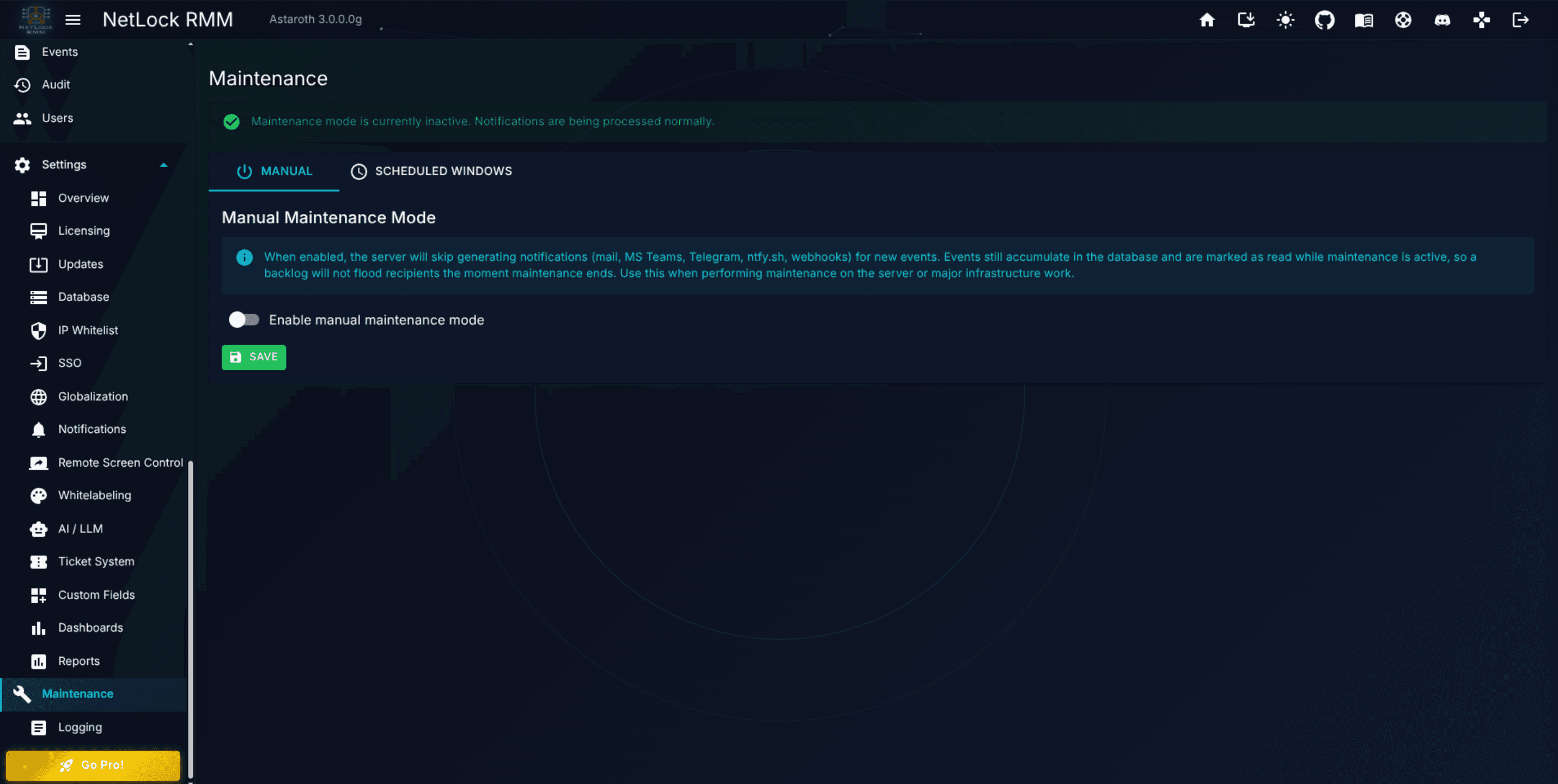
Maintenance mode is currently inactive. Notifications are being processed normally.
The banner lists which trigger is causing suppression, so if both a manual toggle and a scheduled window are active you will see both called out.
The page has two tabs: Manual and Scheduled Windows.
Manual maintenance mode
The Manual tab has a single toggle, Enable manual maintenance mode, and a Save button.
When the toggle is on, the server suppresses outbound notifications on every channel the deployment has configured:
- Microsoft Teams
- Telegram
- ntfy.sh
- Webhook
Events still accumulate in the Events log as they normally would, and during suppression they are automatically marked as read so you do not find yourself facing a wall of overnight alerts the moment you disable the toggle.
Use the manual toggle for unscheduled work — reboots you are doing now, network changes in progress, a firewall reconfiguration where the fleet will temporarily look offline. Turn it off when you are done; there is no auto-timeout.
Scheduled maintenance windows
The Scheduled Windows tab covers recurring windows — for example a weekly Sunday patching slot that you want to suppress every week without remembering to toggle anything. The tab's master toggle, Enable scheduled maintenance windows, switches evaluation on and off as a group; when it is off, none of the configured windows apply.
Underneath the master toggle is a table of windows with one row per window and the following columns: Name, Weekdays, From, To, Enabled, and Actions. Each row's Actions cell exposes Edit and Delete.
Click Add window to open the window editor. The editor fields are:
Name (optional)— a friendly label. The helper text suggests something likeWeekly Sunday Patch Window. The field is optional; when blank the table shows a record number instead.- Weekday checkboxes for Monday through Sunday. At least one weekday must be selected. Weekdays are stored internally as ISO day numbers (1 = Monday, 7 = Sunday).
From— the window start time in 24-hourHH:mmformat.To— the window end time in 24-hourHH:mmformat. WhenTois earlier thanFrom, the window wraps past midnight — for example,From 22:00andTo 02:00suppresses notifications from ten in the evening to two the next morning. The table row for such a window displays a+1dchip so there is no ambiguity.Window enabled— per-window toggle. Disable a single window without deleting it when you want to keep its definition but skip it this month.
All windows are evaluated in the server's local time — not UTC, not the authenticated user's browser time. If your team is distributed across time zones, decide a single zone for your maintenance rota and stick to it.
Editing and deleting windows
Edit in the table actions reopens the editor with the existing values. Delete opens a small confirmation dialog titled Delete maintenance window with a body message of Delete window '<name or #id>'?. Confirm to remove the window permanently; there is no undo.
Permission nuance
Viewing the page requires settings_maintenance_enabled. Making changes — toggling the manual switch, adding, editing, or deleting windows — requires settings_maintenance_manage. Without the manage flag, the page renders read-only: you can see the current state but none of the controls respond.
Permissions
| Action | Required flags |
|---|---|
View Settings → Updates | settings_enabled, settings_updates_enabled |
View Settings → Maintenance | settings_enabled, settings_maintenance_enabled |
| Change maintenance settings | settings_enabled, settings_maintenance_enabled, settings_maintenance_manage |
Related chapters
- Chapter 7 — Patch Management. The approval queue feeds the rollout throttle this chapter governs.
- Chapter 8.8 — Software Deployment. Deployments respect the concurrency cap.
- Chapter A.8 — Notifications deep dive. Maintenance mode suppresses the channels configured there.
- Chapter 12 — Events & Audit. Events continue to record during maintenance; they are auto-marked as read.