 NetLock RMM Docs
Notifications deep dive
Full reference for the five notification channels on the Notifications page: Email (SMTP), Microsoft Teams, Telegram, ntfy.sh, and Webhook.
Notifications deep dive
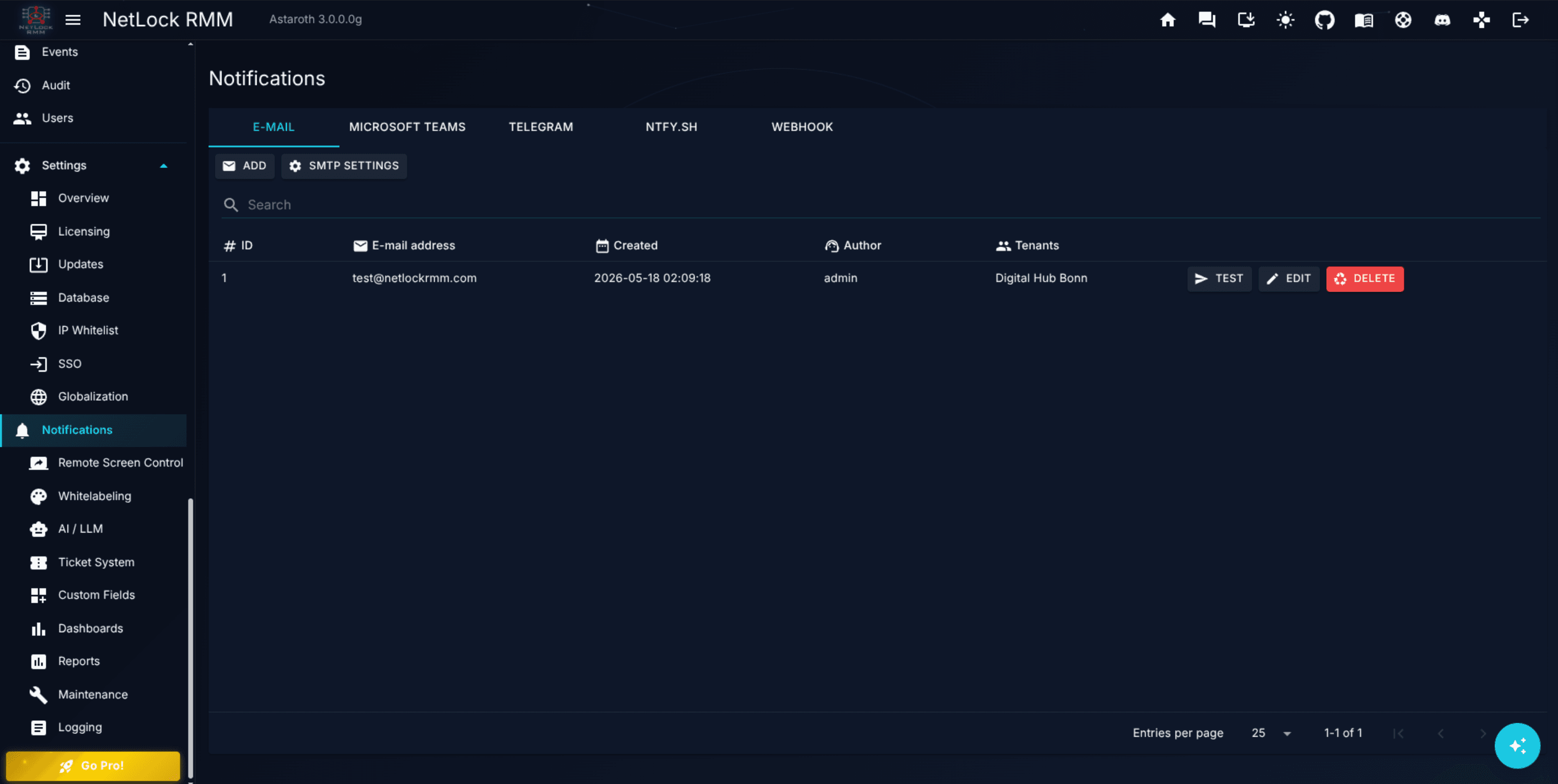
The Notifications page at /manage_notifications is where every outbound alert leaves NetLock RMM. Five channels share the page as tabs — E mail, Microsoft Teams, Telegram, Ntfy.sh, and Webhook — and they all draw from the same event stream on the backend. This chapter documents each channel in depth, including the fields that differ between them, the test action, and the permissions that gate add, edit, delete, and test per channel.
If you only want a quick setup for the two most common channels, follow the How-To guide at H.10 — Configure email and Microsoft Teams notifications first and return here for the channels it does not cover.
A.8.1 The shared model
Every tab on the page shares the same mental model. Understanding it once makes every channel below self-explanatory.
Recipients are per-channel
Each channel manages its own list of recipients. There is no global "recipients" list that a channel subscribes to — an email address you add on the Email tab does nothing on the Telegram tab, and vice versa. Add the same inbox to every channel you want it to receive alerts on.
Severity filters on the recipient, not on the event
Every recipient record on every channel carries a Severity dropdown with five options: Any, Critical, High, Moderate, and Low. The match is exact — it is not a threshold and does not escalate. A recipient set to High receives High events only; it does not also receive Critical. The one value that crosses severities is Any, which delivers events of every severity. To send two specific severities — but not all — to the same destination, add that recipient once per severity, or use Any. Filtering happens on send, so a setting change affects future events only — events already dispatched are not re-evaluated.
Tenant scope via drag-drop
Every recipient record has two side-by-side lists — Tenants on the left, Selected tenants on the right — and a drag-drop control between them. Drag a tenant into Selected tenants to scope the recipient to that tenant. Leave Selected tenants empty to receive events from every tenant.
An operator only ever works with tenants they can see. If your role is restricted to one tenant, the Tenants list shows that one tenant and that is the only scope you can assign; administrators with wider access see every tenant and can drag any combination across.
The Uptime Monitoring toggle
Every channel has a toggle labelled Uptime Monitoring on every recipient record. The tooltip reads "If 'Disconnection Alert' is enabled in the device overview, the event is forwarded." That is the full behaviour: if the per-device Disconnection Alert flag (see Chapter 3.3) is on, device-uptime events will reach this recipient when the toggle here is also on. With the toggle off, uptime events bypass this recipient even if disconnection alerts are enabled on the device.
What the page does not expose
- No "event → channel" routing matrix. Which event types a recipient receives is determined by the recipient's exact severity filter and its tenant scope, not by a per-event-type switch.
- No "all channels at once" bulk editor. Each channel is edited independently.
- No deduplication across channels. If the same person receives an event by email and by Teams, they get two notifications.
With the shared model clear, the five tabs follow.
A.8.2 Email (SMTP)
The E mail tab is the first tab on the page. Two things live here: a single global SMTP configuration for the entire deployment, and a list of per-recipient email records.
The global SMTP configuration
Click SMTP settings on the Email tab toolbar to open the SMTP settings dialog. Exactly one SMTP configuration exists per deployment; editing it replaces the previous configuration for every email recipient.
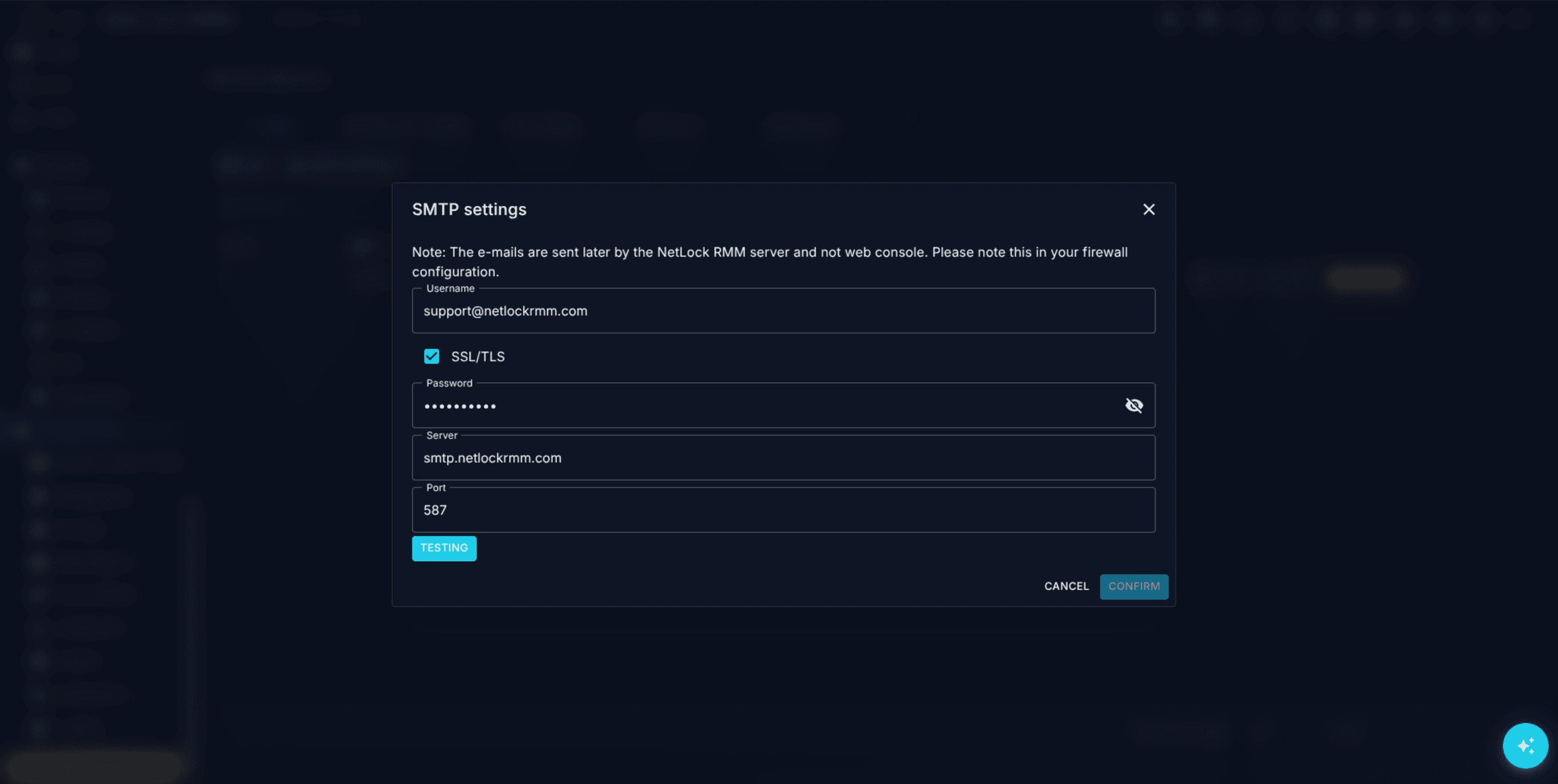
Fields in the dialog:
Server— SMTP hostname.Port— SMTP port.SSL/TLS— checkbox. Tick if the server requires TLS.Username— SMTP authentication username. Some providers accept an email address here; others accept a distinct mailbox name.Password— SMTP password, with a visibility toggle next to the input.From address— sender address. This field is shown only whenUsernameis not itself a valid email address — some providers require an explicitFrombecause the login name is not a mailbox.To address— test-recipient address. Shown alongsideFrom addressunder the same condition, and used only by theTestaction.Test— button that runs a live send. The Console sends a message with subjectNetLock - Test Alertand bodyTest successful.to theTo address(or to the first email recipient if the conditional fields are not shown). A snackbar reportsTest successful.on pass orTest failed: <error>on failure.
The dialog's Confirm action is gated behind a successful test: you cannot save a configuration until Test has passed at least once in this dialog session. This is intentional — an untested SMTP record silently breaks every email recipient on the deployment.
Tip: For providers that require app-specific passwords (Microsoft 365 with security defaults, Google Workspace with 2-Step Verification, some business ISPs), generate the app password first, paste it into
Password, and leaveUsernameas the full email address. TheFrom addressandTo addressextra fields should stay hidden for these providers.
Email recipients
The recipient table on the Email tab is where individuals and mailing lists get added. Add, Edit, and Delete row actions manage entries; the dialogs behind them all share the same fields:
E mail— recipient address.Description— free text. Useful for listing a role ("On-call NOC engineer") rather than a person, so the row survives personnel changes.Severity— one ofAny,Critical,High,Moderate,Low.Uptime Monitoring— toggle (see A.8.1).Tenants/Selected tenants— drag-drop scope.
Multiple recipients are supported. There is no cap in the UI; the practical limit is how many addresses your SMTP provider is willing to accept before rate-limiting you.
Test an email recipient
The per-recipient Test action is on the row itself. It reuses the global SMTP configuration to send the same NetLock - Test Alert message but to the recipient's address rather than to the To address field. Use this after adding a new recipient to confirm delivery reaches them specifically.
A.8.3 Microsoft Teams
The Microsoft Teams tab hosts a list of webhook connectors. Unlike SMTP, there is no global configuration dialog — each Teams channel you want to post to is its own connector row.
Microsoft retired the classic Office 365 connectors in May 2026. A Teams channel no longer offers a connector configuration, and the webhook.office.com URLs it used to issue are dead. A channel takes webhook posts through the Workflows app instead: a Power Automate flow that starts with a webhook trigger and posts what it receives into the channel. H.10 walks through creating one.

Fields per connector:
Connector Name— identifying name. Shown in test payloads and on notifications so recipients can tell which connector fired. Pick a name that describes the audience (NOC channel,Finance alerts) rather than the technology.Connector-Webhook-URL— the URL the webhook trigger issued. The value is masked in the table view once saved, and revealable only in the Edit dialog. The URL carries the binding to the flow along with its own signature, so regenerating it in Teams breaks the connector until the new URL is pasted over the old one.Payload format— the shape of the body that is POSTed to that URL. Three options, described below.Description— free text.Severity—Any,Critical,High,Moderate,Low.Uptime Monitoring— toggle (see A.8.1).Tenants/Selected tenants— drag-drop scope.
Payload format
A Workflows webhook and a classic connector do not read the same body, and two flows built on the same trigger can disagree about what they expect. Payload format decides which body NetLock RMM sends:
Plain text (legacy connector)—{"text": "…"}, the body the classic connector read. Teams no longer accepts it, but plenty of other services do: Mattermost, Rocket.Chat, Google Chat and receivers of your own take a webhook URL and read a single text field.Adaptive Card (Workflows webhook)— the message envelope a webhook trigger expects: an object of typemessagewhoseattachmentsarray holds one Adaptive Card. This is what a webhook created from the Workflows template needs, and the normal choice for a Teams channel.Adaptive Card without envelope— the card on its own, starting at"type": "AdaptiveCard". A flow that hands the request body straight to itsPost card in a chat or channelaction needs this one, because that action accepts a bare card only.
The enveloped body has this shape; the body array carries the lines of the alert, and Adaptive Card without envelope sends the content object alone:
{
  "type": "message",
  "attachments": [
    {
      "contentType": "application/vnd.microsoft.card.adaptive",
      "content": {
        "type": "AdaptiveCard",
        "$schema": "http://adaptivecards.io/schemas/adaptive-card.json",
        "version": "1.4",
        "body": []
      }
    }
  ]
}
A connector that predates the dropdown keeps Plain text (legacy connector), the body it was already sending. A new connector opens with Adaptive Card (Workflows webhook) preselected.
Which option a Teams connector needs follows from how the flow behind the URL is built:
| The flow behind the URL | Payload format |
|---|---|
The Workflows template unchanged: it posts the card it finds in the request's attachments. | Adaptive Card (Workflows webhook) |
A flow that passes the request body itself into Post card in a chat or channel. | Adaptive Card without envelope |
| No flow at all — the URL belongs to a service that reads a text field. | Plain text (legacy connector) |
Over the Public API the field is payloadFormat, with the values legacyText, adaptiveCard, and adaptiveCardBare.
Note: A Workflows webhook posts as
Flow bot. The display name and icon a classic connector could carry have no counterpart in Workflows, so every connector pointed at the same channel arrives under the same sender. That is Microsoft's design, not a limit of this channel — where it matters, let theConnector Nameinside the message carry the distinction, or give each connector its own channel.
Test a Teams connector
The row Test action sends a test message in the connector's Payload format and names the connector in it. A snackbar reports Successfully sent on pass or Failed sending: <error> on failure.
A pass means the webhook accepted the call, which is not the same as the message reaching the channel. The webhook answers before the flow runs, so a flow that is turned off, or one whose post action cannot read the body it was handed, still produces a successful test. Open the Teams channel and confirm the message is there; if it is not, the flow's run history in Teams names the step that failed.
A.8.4 Telegram
The Telegram tab configures one or more bot-to-chat pairings. Each row represents a single Telegram bot posting into a single chat or group.
Fields per bot:
Bot Name— display name for this bot configuration. Used in test messages and snackbar feedback; does not have to match the name you gave the bot in BotFather.Bot-Token— the Telegram Bot API token issued by BotFather. Password-masked in the table view; the dialog exposes a visibility toggle.Chat-ID— target chat or group ID. Private chats have a numeric positive ID; groups have a negative ID; channels have a-100…ID. Password-masked.Description— free text.Severity—Any,Critical,High,Moderate,Low.Uptime Monitoring— toggle.Tenants/Selected tenants— drag-drop scope.
Multiple bots are supported. It is common to run one bot per region or per severity tier and wire each to a different chat.
Test a Telegram bot
The row Test action sends the text NetLock RMM Alert: Test.\nBot Name: <bot_name> to the configured Chat-ID using the configured Bot-Token. A snackbar reports Successfully sent on pass or Failed sending: <error> on failure.
Tip: The most common cause of a failed Telegram test is that the bot has not been invited to the target group. Telegram bots cannot post into a group they are not a member of, even with a valid token and chat ID. Invite the bot first, then test.
A.8.5 ntfy.sh
The Ntfy.sh tab targets topics on ntfy.sh (or a self-hosted ntfy instance). Each row is one topic.
Fields per topic:
Topic Name— identifier / display name. Used in test messages and snackbar feedback.Topic URL— the full ntfy URL for the topic. The public default looks likehttps://ntfy.sh/<topic>, but any ntfy-compatible URL works, including self-hosted instances. Password-masked in the table view.Access Token— optional. When the topic requires authentication, paste a Bearer token here. The Console sends it asAuthorization: Bearer <token>on every outgoing request. Leave blank for public topics. Password-masked.Description— free text.Severity—Any,Critical,High,Moderate,Low.Uptime Monitoring— toggle.Tenants/Selected tenants— drag-drop scope.
Multiple topics are supported. The usual pattern is one topic per on-call team or one topic per severity tier.
Test a ntfy.sh topic
The row Test action POSTs the plain-text body NetLock RMM Alert: Test.\nTopic Name: <topic_name> to the Topic URL. A snackbar reports success or failure. Subscribers who have the ntfy app open with a subscription to the topic see the test notification arrive live.
Note: ntfy.sh is a push service, not a store. A notification sent before a subscriber opens the app on a fresh device is normally not replayed. For audit, rely on Events in the Console (see Chapter 12) rather than on ntfy history.
A.8.6 Webhook (notification channel)
The Webhook tab is the most flexible channel. Each row configures one outgoing HTTP call, with a freely-edited request body and header set.
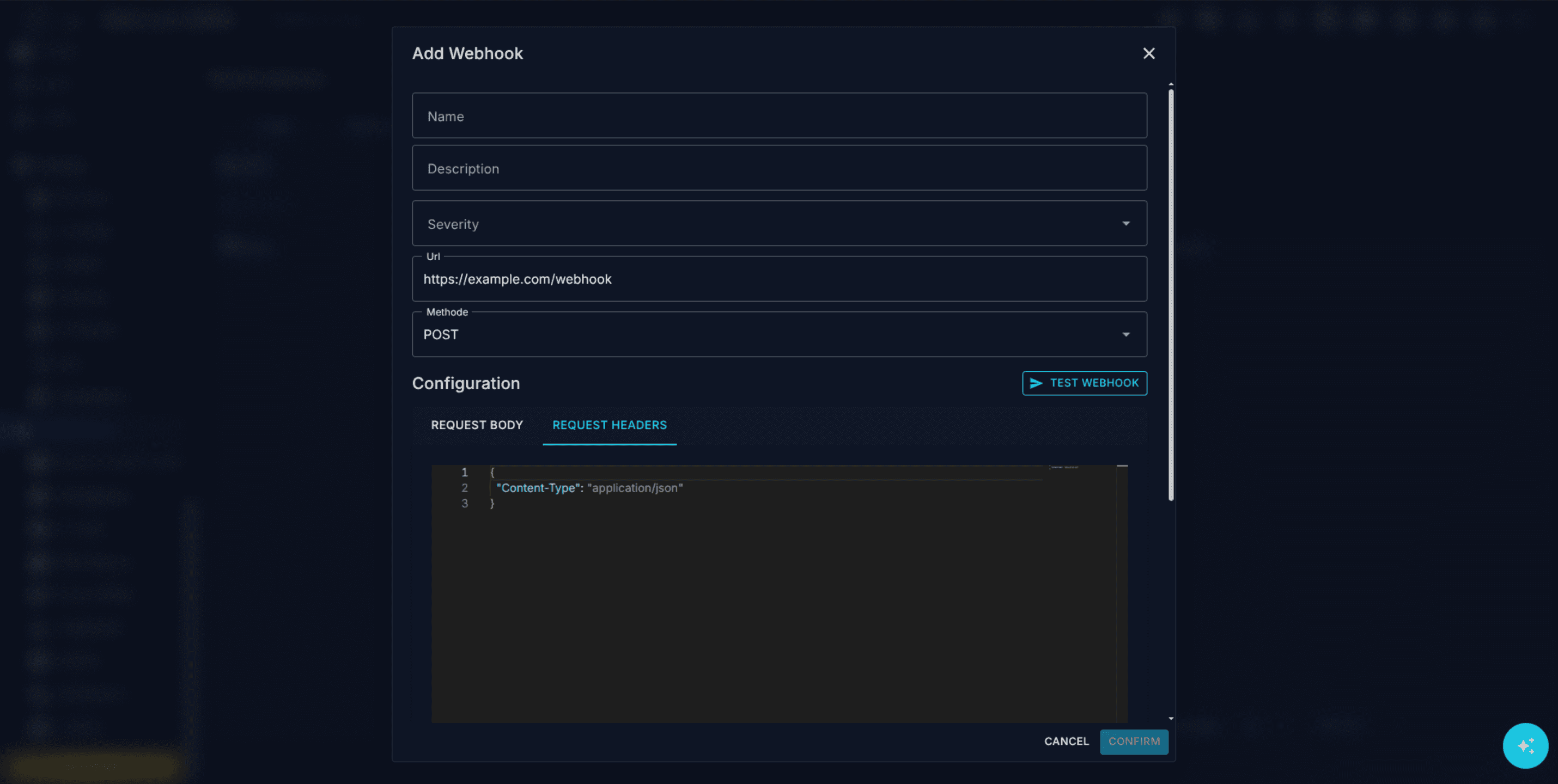
Fields per webhook:
Name— identifier. Shown in the recipients table and in snackbar feedback.Description— free text.Severity—Any,Critical,High,Moderate,Low.Url— the target URL. Unlike the other password-style fields on this page, the URL is shown in the dialog in clear text so it can be reviewed and corrected without toggling visibility.Methode— HTTP verb. Dropdown withGET,POST,PUT,DELETE,PATCH. The label uses German-style spelling (Methode); it is the HTTP method field.Request Body— JSON template. Edited in a Monaco editor with syntax highlighting. Runtime substitution replaces placeholder tokens with event data just before the call is sent.Request Headers— JSON object. Defaults to{"Content-Type": "application/json"}. Edited in a Monaco editor. Keys and values are sent as HTTP headers on every call.Uptime Monitoring— toggle.Tenants/Selected tenants— drag-drop scope.
Placeholder tokens
Seven tokens are substituted into Request Body at send time:
| Token | Replaced with |
|---|---|
$netlock_tenant_name | Name of the tenant the event belongs to. |
$netlock_location_name | Name of the location the event belongs to. |
$netlock_device_name | Name of the device that produced the event. |
$netlock_date | Timestamp of the event, formatted per the deployment's date/time format (see A.5). |
$netlock_reported_by | Identifier of the subsystem or user that raised the event. |
$netlock_event | Short event type label. |
$netlock_description | Human-readable description of what happened. |
Tokens are substituted literally. If your downstream system expects one of them to be wrapped in quotes for JSON validity, write the quotes into the template — "tenant": "$netlock_tenant_name" rather than "tenant": $netlock_tenant_name.
Test a webhook
The Add / Edit dialog has a Test Webhook button; the row in the table also has a Test action. Both actions parse the stored JSON, validate the URL, and — if both are well-formed — send the call with the configured method, headers, and body. Validation failures surface as Invalid webhook URL. or Invalid JSON in Request Body.. A successful HTTP call produces a snackbar Webhook test successful! Status: <code>; a failed call produces Webhook test failed. Status: <code>. "Successful" here means the HTTP call completed and the server responded — a 4xx response still counts as a failed test from NetLock RMM's point of view.
A.8.7 Maintenance mode suppresses every channel
When maintenance mode is active on a tenant (see A.2), none of the five channels fire for that tenant's events. The events still accumulate — they are written to the event stream and are automatically marked as read once maintenance mode ends — so nothing is lost from the Console's history. What is suppressed is the outbound delivery. This applies uniformly to Email, Teams, Telegram, ntfy.sh, and Webhook; there is no per-channel maintenance-mode bypass.
Use this deliberately. A scheduled patch window with maintenance mode turned on for the affected tenant is quiet for operators and does not drown on-call channels in expected reboots. The trade-off is that a genuine incident that happens to coincide with the maintenance window is also suppressed, so keep maintenance windows tight.
A.8.8 The webhook channel is not the ticket webhook
NetLock RMM ships two distinct webhook systems. They share only the low-level HTTP send helper; everything else is separate.
| Notification webhooks | Ticket webhooks | |
|---|---|---|
| Configured on | Settings → Notifications, Webhook tab (this chapter) | Tickets → Departments, per-department webhook editor (Chapter 10.16) |
| Fires on | Global events (device uptime, website uptime, port scanner, antivirus, job, sensor) | Ticket events (ticket_created, sla_breached, etc.) |
| Tenant scoping | Drag-drop on the recipient record | Per department |
| Placeholder format | $netlock_* | {{ticket_number}}-style |
Pick the one that matches the event source. A request for "send every ticket update to Slack" is a ticket webhook; a request for "alert us when a device has been offline for ten minutes" is a notification webhook on this page.
A.8.9 Permissions
Every channel carries its own block of flags. A user without settings_enabled sees nothing in Settings; a user without settings_notifications_enabled sees no Notifications page at all; beyond that, each channel has independent add / test / edit / delete flags.
| Flag | Gates |
|---|---|
settings_enabled | Access to the Settings group. |
settings_notifications_enabled | Access to /manage_notifications and its tabs. |
settings_notifications_mail_enabled | Visibility of the E mail tab. |
settings_notifications_mail_smtp | Access to the SMTP settings dialog (Email-only sub-flag). |
settings_notifications_mail_add | Add a mail recipient. |
settings_notifications_mail_test | Test a mail recipient. |
settings_notifications_mail_edit | Edit a mail recipient. |
settings_notifications_mail_delete | Delete a mail recipient. |
settings_notifications_microsoft_teams_enabled | Visibility of the Microsoft Teams tab. |
settings_notifications_microsoft_teams_add | Add a Teams connector. |
settings_notifications_microsoft_teams_test | Test a Teams connector. |
settings_notifications_microsoft_teams_edit | Edit a Teams connector. |
settings_notifications_microsoft_teams_delete | Delete a Teams connector. |
settings_notifications_telegram_enabled | Visibility of the Telegram tab. |
settings_notifications_telegram_add | Add a Telegram bot. |
settings_notifications_telegram_test | Test a Telegram bot. |
settings_notifications_telegram_edit | Edit a Telegram bot. |
settings_notifications_telegram_delete | Delete a Telegram bot. |
settings_notifications_ntfysh_enabled | Visibility of the Ntfy.sh tab. |
settings_notifications_ntfysh_add | Add a ntfy.sh topic. |
settings_notifications_ntfysh_test | Test a ntfy.sh topic. |
settings_notifications_ntfysh_edit | Edit a ntfy.sh topic. |
settings_notifications_ntfysh_delete | Delete a ntfy.sh topic. |
settings_notifications_webhook_enabled | Visibility of the Webhook tab. |
settings_notifications_webhook_add | Add a webhook. |
settings_notifications_webhook_test | Test a webhook. |
settings_notifications_webhook_edit | Edit a webhook. |
settings_notifications_webhook_delete | Delete a webhook. |
The _smtp sub-flag on Email has no counterpart on the other channels — it exists because Email is the only channel with a single shared global configuration separate from the per-recipient records.
Payload format has no flag of its own either. It is a field on the connector record and follows the channel's add and edit flags like every other field in the dialog.
Related chapters
- H.10 — Configure email and Microsoft Teams notifications — end-to-end setup walk-through for the two most common channels.
- Chapter 10.16 — Ticket webhooks — the other webhook system, scoped to ticket events.
- Chapter 12 — Events & Audit — the event sources these channels dispatch.
- A.2 — Updates & maintenance — how maintenance mode suppresses every channel.
- A.5 — Globalization — date/time format used in
$netlock_date. - A.12 — Content defaults — sibling Settings admin pages.
Remote screen control
Server-side session recording for remote control — force recording, retention, auto-purge, the recorded-session browser — the streaming modes and clipboard an operator sets inside a session, and the audio call to the signed-in user.
Logging & protocols
The Logging page: runtime log toggles, the Web Console log viewer, and the Remote Server log viewer — plus a note on the settings_protocols_enabled permission flag.