 NetLock RMM Docs
Whitelabeling & themes
Deployment-wide brand assets, a 40-field light-and-dark colour palette, theme import and export, and the Community Themes browser.
Whitelabeling & themes
Settings → Whitelabeling at /settings/whitelabeling is where you replace the NetLock RMM default look with your own brand. The page controls the Console's logo, the login-page background, a forty-field colour palette split across light and dark modes, the browser-tab title, a welcome string on the login page, custom footer links, and the import / export of the whole theme as JSON. A separate Community Themes browser lets you pull in a pre-built theme or publish yours back to the community.
A.6.1 Scope — deployment-wide, not per-tenant
Whitelabeling applies to the whole deployment. There is no per-tenant branding. All administrators and all tenants see the same logo, the same colours, the same login page, and the same footer links. If you run NetLock RMM as an MSP and your customers sign into the Console directly, they all sign into the same branded Console.
If you operate as an MSP and need per-tenant customer-facing branding (a customer seeing their own logo when they sign in), that is not supported by this page in the current release. PDF report branding is managed separately in the Reports module (Chapter 11), and email notification branding is managed in the Notifications configuration (Chapter A.8).
A.6.2 Brand assets
Two image slots sit at the top of the page.
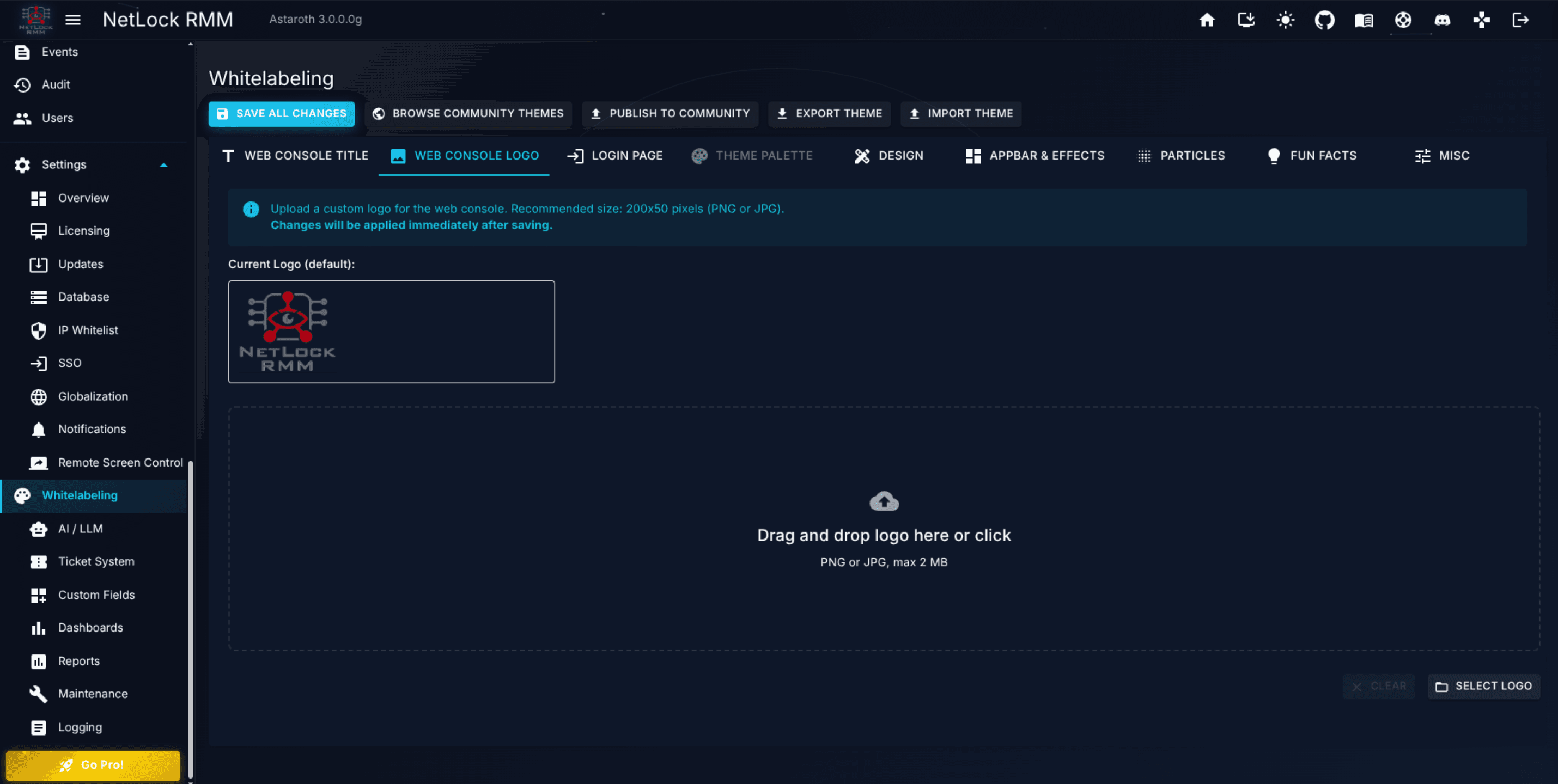
Web Console Logo
The Web Console Logo slot replaces the default NetLock RMM wordmark in the Console's top-left corner once you are signed in.
- Accepted formats: PNG or JPG.
- Maximum size: 2 MB.
- Recommended dimensions: 200 × 50 pixels.
- Upload: drag and drop onto the slot, or click to open a file picker.
A single logo is used across light and dark modes. There is no separate dark-mode logo upload. If your full-colour logo does not render well on a dark background, the practical workaround is to supply a version that works on both — for example, a white-on-transparent PNG with enough contrast in both modes — rather than maintaining two files. There is also no favicon upload on this page; the favicon is part of the build.
Login Page Background
The Login Page Background slot replaces the background imagery on the Console's unauthenticated sign-in page.
- Accepted formats: WEBP, PNG, JPEG, GIF, or MP4.
- Maximum size: 20 MB.
- Behaviour for video: an uploaded MP4 auto-plays, is muted by default, and loops continuously.
The background runs full-bleed behind the sign-in form, so pick imagery with enough contrast margin around the centre that the sign-in form remains legible. The larger size allowance reflects the fact that a good quality image or short loop can be several megabytes.
A.6.3 Colour palette — 40 fields across light and dark
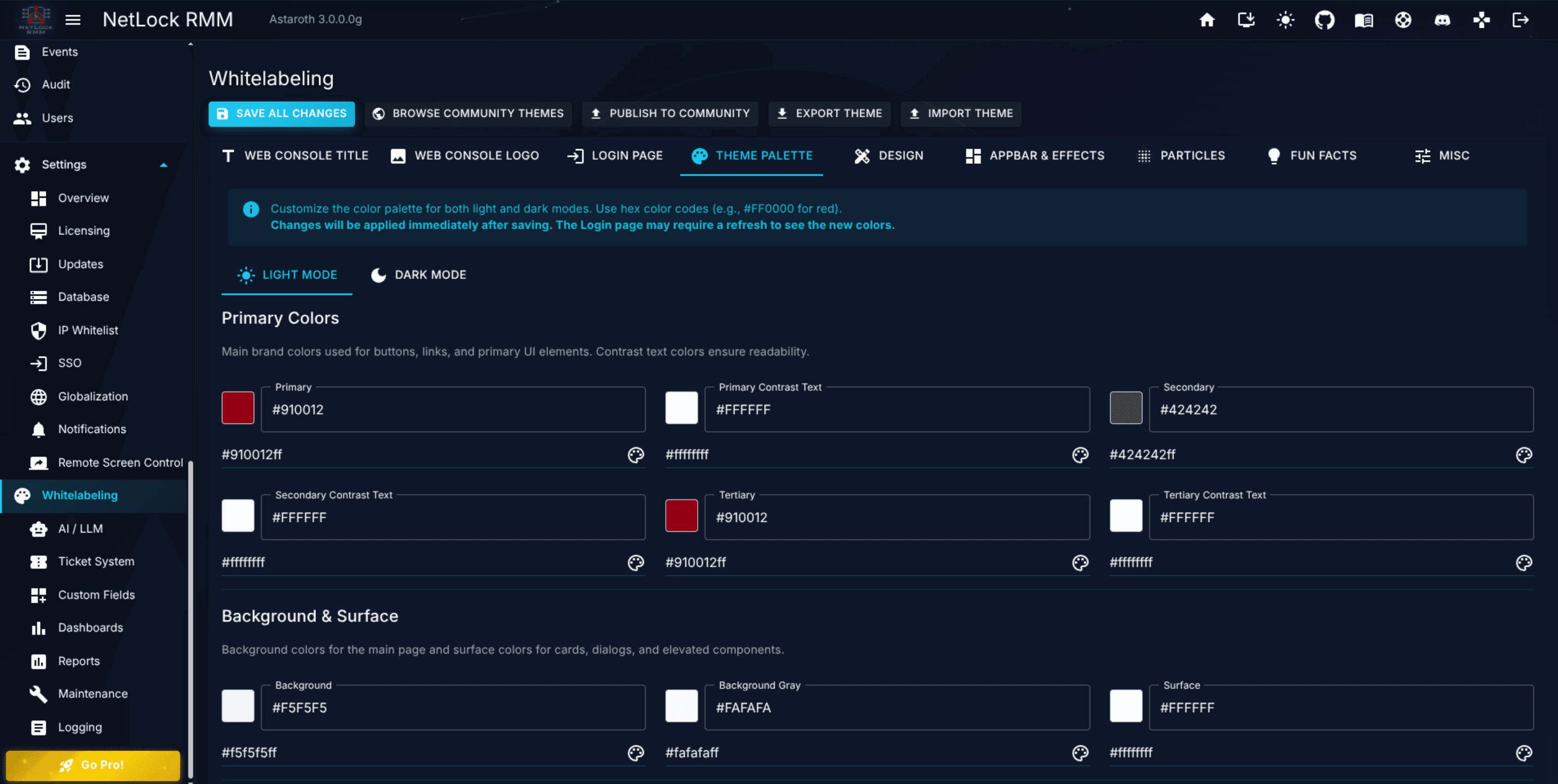
The central portion of the page is the colour palette. NetLock RMM exposes 40 colour fields — twenty for light mode and twenty for dark mode, as mirrored pairs. Each field is a text input for a hex value (such as #1976D2) paired with a spectrum colour-picker widget, so you can pick visually or paste a hex value from your brand guide.
A short instruction sits above the fields:
Customize the color palette for both light and dark modes. Use hex color codes (e.g., #FF0000 for red).
Field categories
The twenty fields per mode cover the following categories. Rather than listing every individual field, think of them as groups:
- Brand accent colours:
Primary,Secondary,Tertiaryand theirContrast Textcounterparts. Use these for calls to action, selected states, and interactive accents. - Surfaces:
Background,Background Gray,Surface. Base page, panel, and card surfaces. - Semantic colours:
Info,Success,Warning,Errorwith theirContrast Textpairs. These drive alert banners, confirmation snackbars, validation errors, and similar feedback surfaces. - Text colours:
Text Primary,Text Secondary,Text Disabled. - Action colours:
Action Default,Action Disabled. Default icon and control tint in the neutral state. - Chrome colours:
Drawer Background,Drawer Text,AppBar Background,AppBar Text. The navigation rail and top bar.
The same categories appear in the dark-mode section with different values. You cannot have one palette apply to both modes; every mode carries its own set of twenty. That is usually what you want — a brand colour that looks good on a white surface rarely looks good on a near-black surface.
Choosing good values
A few practical tips:
- Do not leave
Contrast Textfields at defaults unless the default genuinely reads cleanly on your chosen brand colour. Low-contrast text is the most common failure mode of a fresh whitelabel. - Keep
BackgroundandSurfacesubtly different rather than identical, so cards read as cards. - Semantic colours (
Success,Warning,Error) should remain recognisable as their semantics. A green brand colour re-used asWarningconfuses users.
A.6.4 Text, footer and app bar customisation
Three text-facing sections sit alongside the palette, and a fourth group decides which icons the app bar carries.
Console title
Web Console Title is a plain text field. Its value appears in the browser tab and in the authenticated header. The default is NetLock RMM; replace it with your service name (for example, Acme MSP Console) to brand the browser tab and screenshots.
Welcome text
Welcome Text is the greeting string on the login page. Use it for a short welcome or a compliance notice — for example, Welcome to the Acme MSP Console. Authorised use only. Keep it short; the login page is not the place for a wall of text.
Custom footer links
The login-page footer is a configurable list of name-and-URL pairs. Each entry has:
Label— the text the user sees.URL (optional)— where the link points. If you leave this empty, the label renders as plain text rather than as a link — useful for small disclaimer strings in the footer area.
Two built-in toggles control whether NetLock RMM's own footer links appear:
Show built-in 'Support' linkShow built-in 'Documentation' link
Turn these off if your whitelabel replaces them with your own support and documentation URLs, on if you want users to reach the default NetLock RMM destinations.
App bar icons
The AppBar & Effects tab holds one checkbox per icon in the top bar: logo, AI chat, global search, agent download, GitHub, documentation, support, Discord, Mini game, version number and install app. Clear a box and the icon disappears for every user of the deployment; the same entry disappears from the overflow menu of the phone layout. Clearing Global search hides the search box and the phone icon that opens it; the results page at /search remains reachable by its address. The settings are deployment-wide and take effect on the next page load.
Mini game controls the gamepad icon that opens the Arcade. Clearing it hides the Arcade and all three games it lists, Virus Defense, Kernel Panic and Overclock Rally. Clear it if a games icon does not belong in your branded console; see Chapter 15.4.
A.6.5 Theme import and export
Once you have dialled in a palette, assets, and text, you can move the whole configuration between deployments as a JSON file.
Export
Export Theme downloads the full whitelabeling configuration as a versioned JSON file (for example whitelabeling-theme.json). The file contains:
- Web Console Title
- Logo (if set)
- Login Page settings (including the background)
- Theme Palette
- AppBar settings
- Particles configuration
- Fun Facts content
- Footer links
- Miscellaneous toggles
Keep the exported file as your brand backup. If a later edit goes wrong, re-importing the file restores the entire configuration.
Import
Clicking Import Theme opens the Import Whitelabeling Theme dialog. Pick a previously exported .json file. The dialog shows a preview of what is about to be applied:
- The console title from the file.
- A checklist of included components (logo, background, palette, appbar, particles, fun facts, footer links).
- Palette swatches so you can see the colours before you commit.
The dialog automatically downloads a backup of your current theme before applying the imported one:
Your current theme will automatically be downloaded as a backup before the import.
If the imported file is missing a component your current theme has, the missing component is skipped gracefully rather than overwriting your current value with blank. This means you can safely import a palette-only theme without losing your logo.
A.6.6 Community Themes
The Community Themes button opens a browser for pre-built themes shared by other NetLock RMM administrators, and is also the entry point for publishing yours back to the community.
Browsing and importing
The browse dialog supports a free-text search across name, description, and category, and a category filter with seven values:
Light ThemeDark ThemeCorporateMSPSeasonalHolidayOther
Theme cards show a preview screenshot, the theme name, its category, its maintainer, and an Official badge when the theme has been curated by NetLock RMM. If a video preview is provided, the card exposes a link to it.
Clicking a card opens the theme detail view. The detail view includes the full description, the creator's contact and homepage URLs, the video preview, the screenshot gallery, palette swatches, and a checklist of which components are included. The detail view's Import button runs the same auto-backup flow as a local JSON import — your current theme is downloaded first, then the community theme is applied on top.
Publishing your theme
The Publish to Community button opens a dialog for submitting your current theme to the community catalogue. The submission fields are:
| Field | Limit / note |
|---|---|
Theme Name | Required, up to 255 characters. |
Description | Up to 8000 characters. |
Category | Required; dropdown of the seven categories listed above. |
Contact | Optional, up to 255 characters. |
Homepage URL | Optional, up to 512 characters. |
Video Preview URL | Optional, up to 512 characters. |
| Screenshots | Up to three, 2 MB each. |
Beneath the metadata you pick which components are included in the publication:
- Logo — defaulted on if you have one set.
- Login Background — defaulted on if you have one set.
- Particles configuration — defaulted off.
- Fun Facts — defaulted off for privacy.
- Footer Links — defaulted off for privacy.
A note inside the dialog sets the non-negotiables:
Color palette and AppBar settings are always included. Iframe-embedding is never shared.
The palette is the substance of any theme, so it always ships; iframe-embedding settings are never shared because they are deployment-specific security configuration that should never travel between environments.
Published themes can be reported by other community members for moderation, and the Community Themes section follows the same moderation model as Community Scripts (Chapter 8.1) and Community Reports (Chapter 11).
A.6.7 Light / dark mode behaviour
Two mode selectors sit separately from the palette fields, because the palette defines the colours for both modes regardless of which mode is currently rendered.
Login Page Theme—system,light, ordark. Controls the login page's colour mode.Global Theme Mode—system,light, ordark. Controls the authenticated Console's colour mode.
When either is set to system, NetLock RMM follows the operating system's light / dark preference on the viewer's device. Setting one or both to an explicit light or dark overrides the system preference.
Community themes always ship both palettes — light and dark — so importing one never leaves you with a half-configured theme.
A.6.8 How changes take effect
The page shows an informational alert at the top:
Changes will be applied immediately after saving.
For colour palette changes specifically, a slightly different message appears:
Changes will be applied immediately after saving. The Login page may require a refresh to see the new colors.
In practice, the authenticated UI updates immediately after save for every signed-in administrator — a dedicated theme-update service pushes the new colours and assets to every connected session. The login page is cached more aggressively and may need a hard refresh (Ctrl + Shift + R, or Cmd + Shift + R on macOS) to pick up palette changes.
No Console restart is needed for any whitelabeling change. This is a rare page in the admin area that can be iterated on safely in the middle of the day without disrupting anyone.
A.6.9 Suggested workflow for a first whitelabel
A predictable first-pass flow keeps the exercise short:
- Gather your brand inputs first. Have the logo file, the background image or video, the six or so brand hex values, and the footer-link URLs to hand before you open the page. Iterating between this page and your brand assets folder is where most time goes.
- Upload the logo and background first. Get the top-of-page sections done and saved, so you have a visual frame to judge colours against.
- Start with the light-mode palette. Set
PrimaryandSecondaryfrom your brand guide, then work through the remaining light-mode fields. Do not leave contrast-text fields on their defaults — pick them explicitly. - Mirror the dark-mode palette. Do not simply copy the light values across; dark backgrounds typically need slightly lighter, more desaturated brand colours to read cleanly. Use the mode toggle (see A.6.7) to flip the Console into dark mode while you tune.
- Set the text fields. Console title, welcome text, footer links. Decide whether the built-in Support and Documentation links stay on.
- Export the theme as JSON. Keep the file as your brand backup. When you later want to propagate the theme to a second deployment (staging to production, or one tenant-of-yours to another of your deployments), you import the file rather than re-entering every value by hand.
- Save. Confirm that every signed-in admin sees the new look within a few seconds. Hard-refresh the login page in a private-browsing window to confirm the login colours also landed.
A first whitelabel pass done this way typically takes an hour; subsequent adjustments are a few minutes at a time.
A.6.10 What this page does not do
A short list to cap expectations:
- No per-tenant branding. Addressed above but worth repeating — all tenants see the same branding.
- No separate dark-mode logo. The logo is a single file used in both modes.
- No favicon upload. The favicon is part of the build.
- No email branding. Configured per notification channel (Chapter A.8).
- No PDF report branding. Configured in the Reports module's brand templates (Chapter 11).
- No granular font choice. The Console ships with its own typography; typefaces are not customisable here.
- No preview / draft mode. Every change takes effect immediately on save. Iterate in a staging deployment if you need a review cycle.
Permissions
| Capability | Required flags |
|---|---|
View and change Settings → Whitelabeling | settings_enabled, settings_whitelabeling_enabled |
Related chapters
- How-to H.12 — Brand the console (logo, colours, theme). Step-by-step walkthrough for first-time setup.
- Chapter 11 — Reports. PDF report branding is managed separately through report templates.
- Chapter A.8 — Notifications deep dive. Email branding is configured per channel there.
- Chapter 15 — Community. Context on how the Community features (Scripts, Reports, Themes) share a moderation model.
Globalisation
Date and time format selection. The page is intentionally narrow — no language, timezone, or number-format controls in the current release.
Remote screen control
Server-side session recording for remote control — force recording, retention, auto-purge, the recorded-session browser — the streaming modes and clipboard an operator sets inside a session, and the audio call to the signed-in user.