 NetLock RMM Docs
III — How-To Guides
Restrict USB devices on a group
Approve a USB device from the Blocked Devices queue into the whitelist at group scope.
Restrict USB devices on a group
USB access in NetLock RMM is an allowlist: anything not on the whitelist is blocked. There is no create-from-scratch dialog for whitelist entries — the only way to add one is through the approval flow on the Blocked Devices tab. In practice that means plugging in an intended USB device once so the agent reports it as blocked, then approving it with the chosen scope. This guide walks through that flow at group scope.
Before you start
- USB Device Control is enabled on the policy assigned to the target device: the policy's
Windows → USB Device Controlsection has the whitelist enforcement on. - The policy routes to the target group via an automation (see Guide H.4).
- You have the USB device in question and physical access to an affected Windows device in the group, or you can wait for a user to plug theirs in.
- Required permission:
collections_enabled,collections_device_control_enabled.
Steps
- On an affected device, plug in the USB device. The agent detects the device, disables it and reports it to the Console.
- In the Console, open
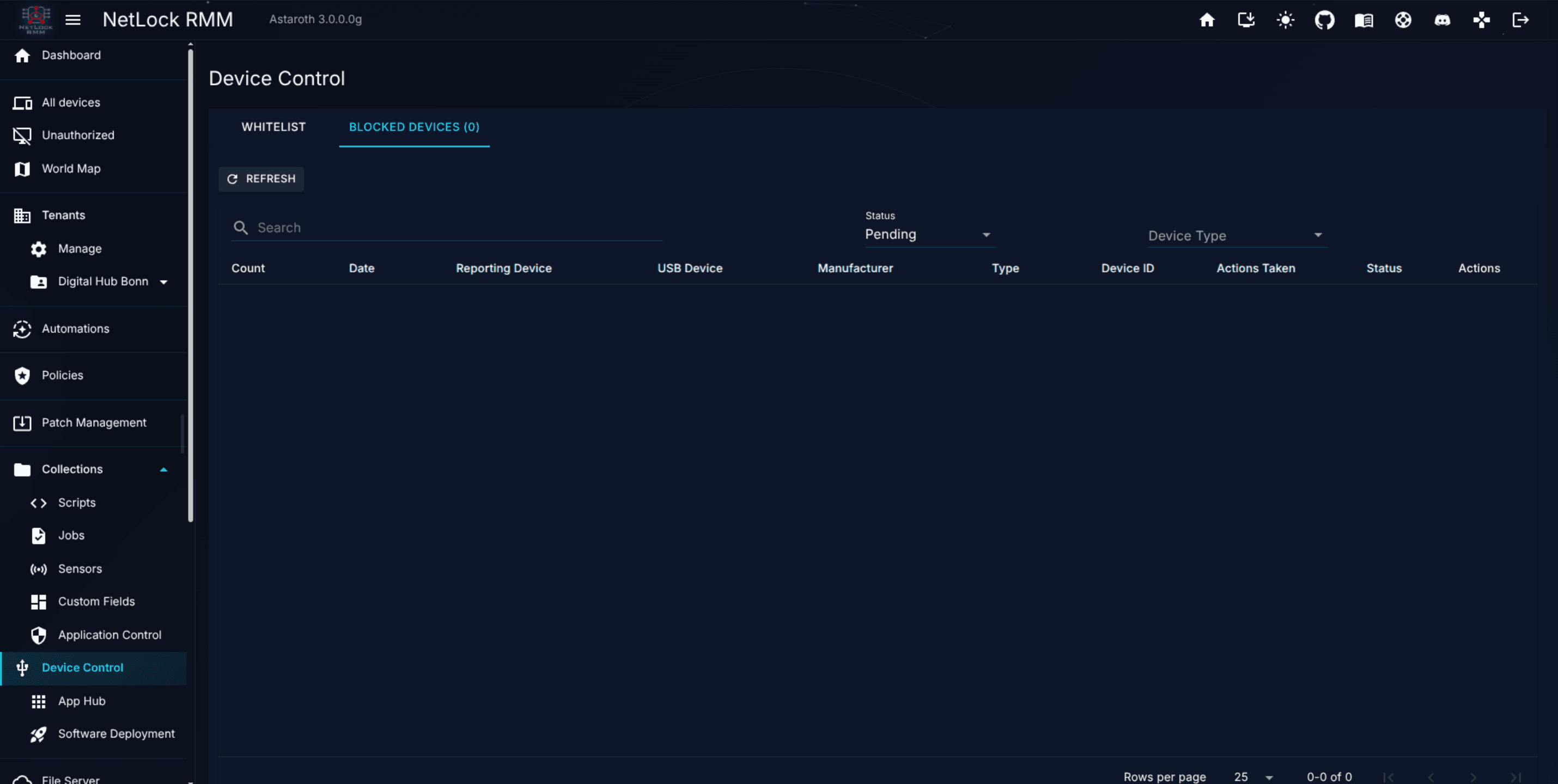
Collections → Device Controland switch to theBlocked Devicestab (route/device-control/blocked). - Find the row for the USB device. The Blocked Devices table shows
Count,Date,Reporting Device, the USB metadata (name and manufacturer), the deviceType(Mouse / Keyboard / HID / USB / DiskDrive / and so on), theDevice ID, theActions Taken, and a Pending status chip. - Confirm this is the intended device. If more than one pending row looks similar, select the row and open its details to verify the vendor-id, product-id, and serial encoded in the
Device ID. - Open the row's menu and pick one of the approval scopes:
Approve for this deviceApprove for tenantApprove for locationApprove for group— the choice for this guide.Approve globallyDismiss— if it was a mistake.
- When the scope dialog asks, pick the target group. The server inserts the device into the whitelist scoped to that group, flips the row's status chip to
Approved, and forces a resync so every device in the group picks up the updated whitelist.
Note: Scope is chosen once, at approval time. To widen or narrow a whitelist entry later, delete it from the Whitelist tab and re-approve the blocked-device entry with a different scope.
Verify it worked
- On the
Whitelisttab (route/device-control/whitelist) a new row appears with the USB device's metadata, thegroupscope chip, and the target group asScope Target. Status is on. - On any device in the approved group, the same USB device now connects successfully.
- On devices outside the group, the USB device continues to be blocked.
Troubleshooting
- USB device does not appear as blocked. Confirm the agent on the affected device enforces USB Device Control — the policy assigned to that device must have USB Device Control turned on in the
Windowstab. If it does not, edit the policy and save. Also make sure at least one whitelist entry applies to the device or an auto-whitelist period is active: with an empty rule set the agent keeps enforcement off for safety, because every device would otherwise be blocked, including keyboard and mouse. - Approved but still blocked. Allow a sync cycle to pass — the whitelist push is immediate but the device must pick it up. Once it has, the agent enables the device again by itself; re-plugging is not required. If the device was disabled while it was unplugged, it is enabled at the next periodic check after it is plugged in again (5 minutes by default).
- Multiple similar rows appear. Each failed enumeration is logged as a separate attempt; approve one and delete the others, or dismiss the stragglers.
Related
- Chapter 8.7 — Device Control — full whitelist reference, including scope levels and matching granularity.
- Chapter 6.8 — USB Device Control — how a policy attaches the whitelist to devices.
- Guide H.4 — Build and apply a policy — routing the enforcement policy.