 NetLock RMM Docs
Patch Management
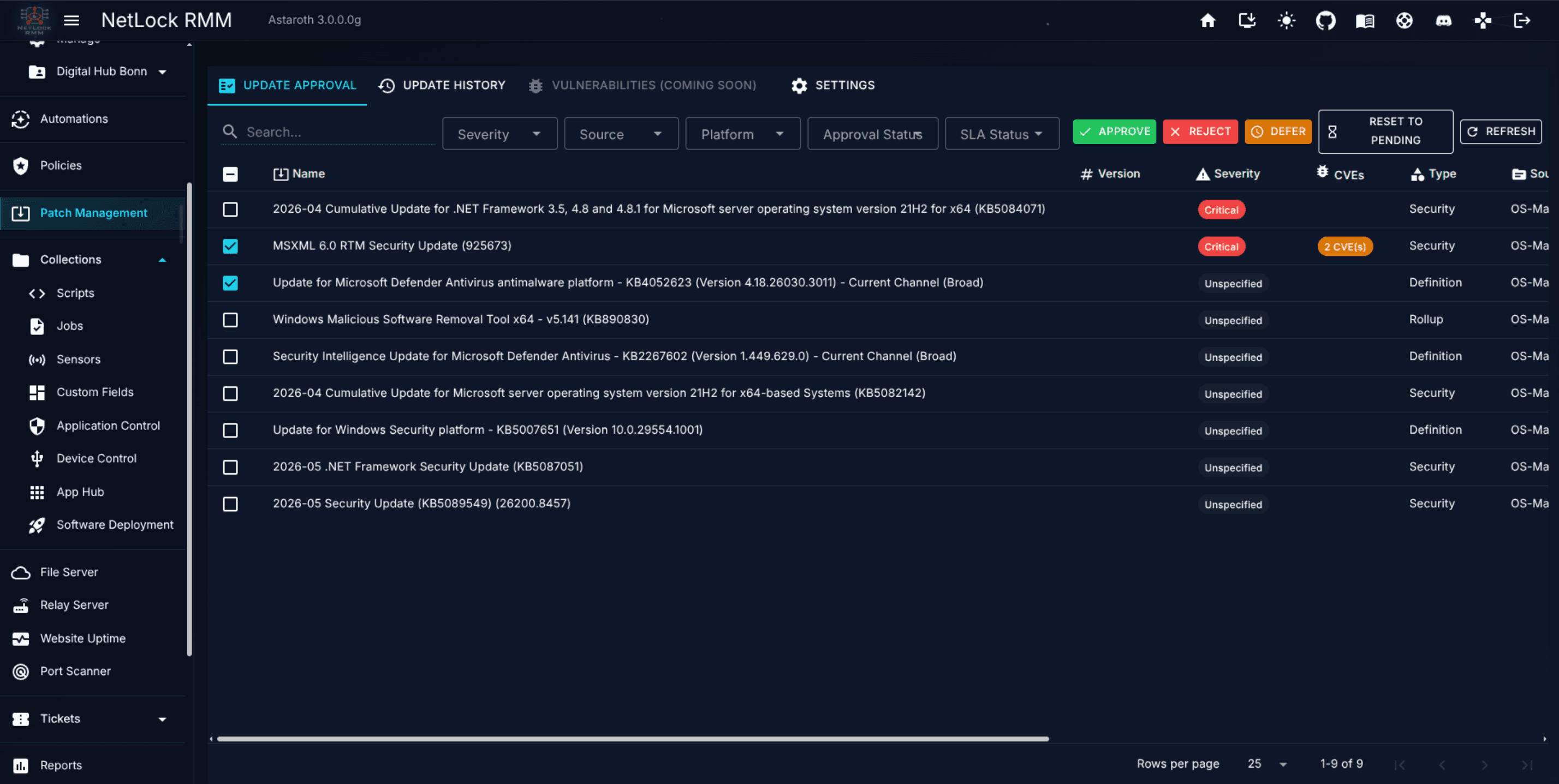
The global approval queue, vulnerability view, update history, and SLA settings.
Patch Management
The Patch Management page is the Console's view of the fleet-wide patching pipeline. It answers two questions: which patches are approved to install anywhere in the estate? and what is my compliance posture against the patches that exist?. It deliberately does not answer "when does a specific policy's devices actually reboot?" — that configuration lives inside a policy.
7.1 Scope — this page versus the policy editor
Patch Management in NetLock RMM is split across two places on purpose:
- The
Patch Managementpage at/patch-management— the subject of this chapter — is global. It shows every patch the system knows about, holds the approval state for each, tracks compliance against SLA thresholds, displays known vulnerabilities, and configures deployment-wide patch defaults. It is a queue and an observatory, not a scheduler. - The
Policy Settings → Patch Managementtab — documented in Chapter 6.12 — is per-policy. It decides when and how the devices assigned to a given policy actually install the patches that have been approved on this page. That is where the per-platform rollout rules, deployment rings, maintenance windows, reboot behaviour, notifications, and retry configuration live.
Both chapters cross-link. Do not expect to find rollout scheduling or reboot controls on the page covered here.
7.2 The tabs
Patch Management is a single page with these tabs across the top:
| Tab | Purpose |
|---|---|
Overview | Fleet-wide patch health, compliance and the most urgent work at a glance. |
Devices Not Up To Date | Every device with outstanding updates, with the Last scheduled run column. |
Update Approval | The main queue — every known patch with its approval state, compliance counts, and SLA status. |
Update History | A history view of update installs, successes, and failures per patch and device. |
Patch history | Patch Now and uninstall jobs together with the scheduled patch runs of the agents. See 7.6. |
Auto-Approval | Rules that approve patches automatically. Shown only to accounts with the permission patch_auto_approval_manage. |
Settings | SLA thresholds, compliance scope, vulnerability scanner, NVD download settings, history cleanup. |
The vulnerability view described in 7.5 is not a tab yet.

Most actions happen inline through row actions and toolbar buttons. The entries of the Patch history tab open in a details dialog.
7.3 The approval workflow
Every patch in the Update Approval tab is in one of four states:
Pending— newly discovered; no admin decision yet.Approved— eligible for installation anywhere the policy-level rules allow it.Rejected— explicitly blocked fleet-wide; no device will install it.Deferred— postponed. The default defer period is 7 days; after the timer expires the patch returns toPending.
From the table toolbar you can act on one or many selected rows. Available actions:
- Approve — set state to Approved.
- Reject — set state to Rejected. A confirmation is shown ("Are you sure?") because rejection is a fleet-wide block.
- Defer — postpone for N days (default 7).
- Reset to Pending — revert from any other state.
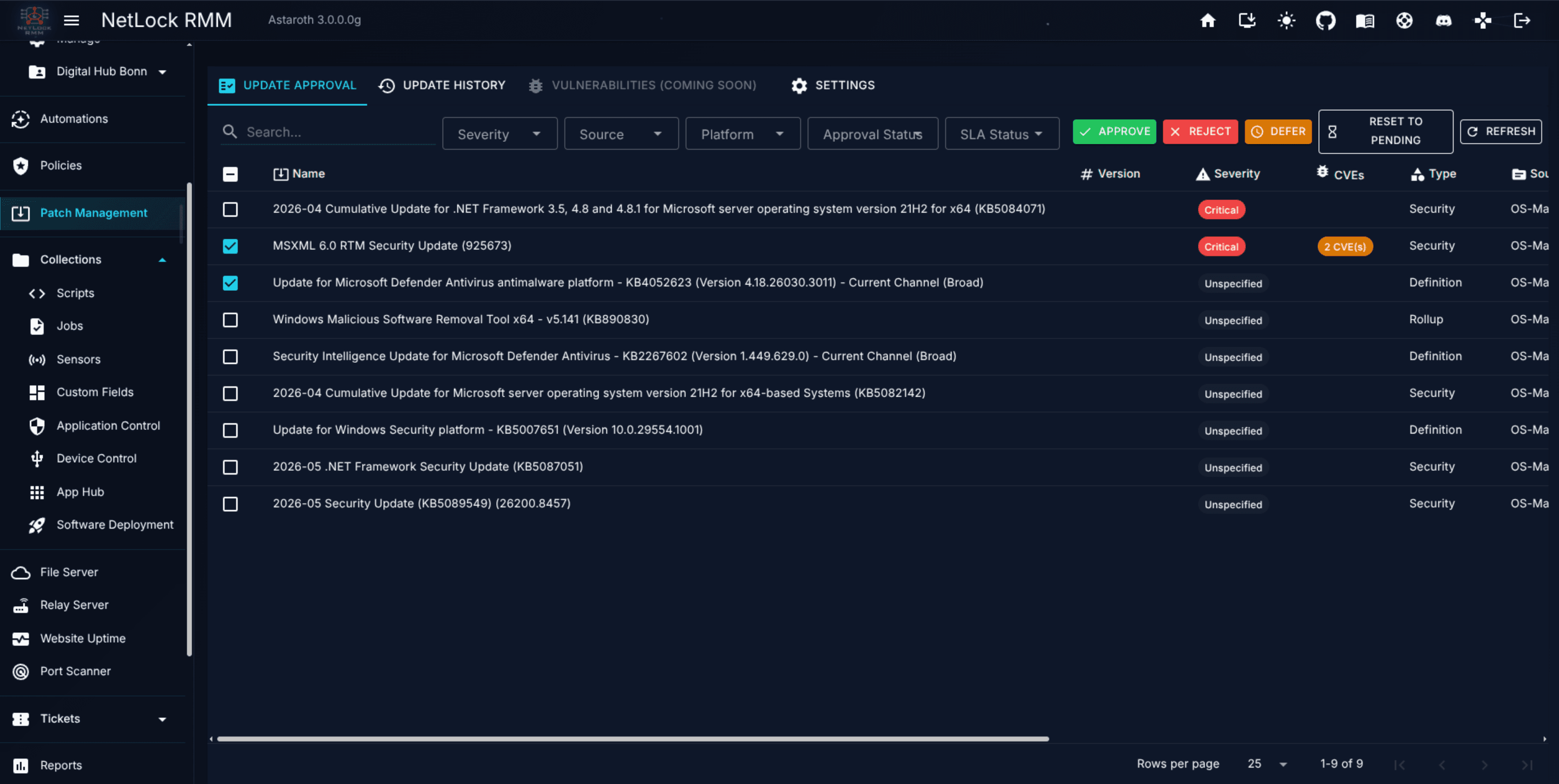
Every state change triggers an immediate re-sync of every device. Devices do not wait for their next scheduled poll — the updated approval set lands on every agent as soon as the server can deliver it.
Important: Approval on this page is global. There is no per-device, per-group, per-location, or per-tenant approval on the
Patch Managementpage. Narrowing a patch's rollout to a subset of the fleet is done with theApproval & FilteringandDeployment Ringssub-tabs inside a policy (see Chapter 6.12).
7.4 The compliance model
Each row in the Update Approval tab carries three compliance indicators in addition to its approval state:
Installed— count of devices that already have the patch installed.Pending— count of devices where the patch is available but not yet installed.SLA Status— one ofCompliant,At Risk,Overdue.
SLA status is computed per row based on the patch's severity and how long it has been known. The threshold for each severity is the number of days after first discovery within which a device is expected to have installed the patch:
| Severity | Default days | Setting key |
|---|---|---|
| Critical | 7 | patch_sla_critical_days |
| High | 15 | patch_sla_high_days |
| Moderate | 30 | patch_sla_moderate_days |
| Other / Low / Unspecified | 60 | patch_sla_other_days |
SLA state transitions:
Compliant— within SLA. The deadline has not passed.At Risk— three days or fewer to the deadline.Overdue— the deadline has passed on at least one device.
Change the thresholds on the Settings tab if your environment operates to a different cadence.
7.5 The Vulnerabilities tab (cooming soon)
The Vulnerabilities tab shows known CVEs that affect devices in your fleet. Data comes from two sources:
- The National Vulnerability Database (NVD) — the authoritative public feed of CVE records.
- The Console's own device inventory, which pairs each device's installed software with the CVE records that reference those products.
The tab is a cross-reference of the two: rows represent CVEs affecting devices you manage, with counts of how many devices are exposed and links through to those devices.
NVD data is refreshed on an interval controlled by the nvd_auto_download_enabled flag on the Settings tab. When the toggle is on, the server downloads NVD feeds automatically; when it is off, the existing data is still available but is not refreshed until you turn the toggle back on.
7.6 The Patch history tab
The Patch history tab lists what was installed or removed on the devices, and why a run installed nothing. It shows two kinds of entries in one list, newest first:
- Jobs.
Patch Nowand uninstall jobs that an operator started. TheActioncolumn readsInstallorUninstall, andTriggered bynames the operator. - Scheduled runs. The runs an agent started on its own from the patch schedule of its policy. The
Actioncolumn readsScheduled run, andTriggered byreadsSchedule. Scheduled runs are reported by agents 3.3.0.5 and newer. Runs of older agents appear only as theLast patch runline on the device.
The same list exists for a single device as the Patch history tab next to Updates in the device's detail view on /devices.
Columns and filters
The columns are Device, Tenant, Location, Action, Status, Triggered by, Created, Finished, Items and Actions. For a scheduled run, Created is the start of the run and Items shows how many updates were installed, failed and held back. A skipped run has no items.
The status of a scheduled run follows its result:
| Status | Meaning |
|---|---|
Completed | The run installed updates, or found updates and none of them failed. |
Partially completed | Some updates were installed and some failed. |
Failed | Updates failed and none was installed. |
Nothing pending | The run found nothing to install. |
Waiting for restart | An outstanding restart from an earlier run blocked the installation. |
Skipped | No run started. The reason stands next to the chip, for example Insufficient disk space or Patch management is disabled in the policy of this device. |
The toolbar filters the list:
Statusaccepts several statuses at once. With none selected every entry is listed, includingSkipped. Select every other status to leave the skipped entries out.Triggerswitches betweenAll entries,Patch Now & uninstallandScheduled runs.Actionnarrows the list toInstallorUninstall. Scheduled runs count as installations:Installlists them together with thePatch Nowjobs,Uninstallhides them.PeriodloadsLast 7 days,Last 30 days,Last 90 daysorAll time. The default isLast 30 days.- The search box also matches the note of a run and its outcome text.
Details of a scheduled run
Double-click an entry or use View full details in the Actions column to open its details. A job opens Patch Job Details as before. A scheduled run opens Scheduled patch run, which shows:
- The device, tenant and location.
Startedon the clock of the instance, and underneathDevice time: …on the device's own clock.Finishedcarries the duration of the run.Maintenance window:Inside the maintenance window (…)orCatch-up of a missed maintenance window (…), followed by the window of the policy, orno time restrictionwhenFromequalsTo.- The status, the agent version, the note of the run and the counts of installed, failed and held-back updates, with
Reboot requiredwhen the run left a restart outstanding. - A notice when Winget and Chocolatey updates were not checked because Windows updates wait for a restart, and when the agent reported only part of the updates of a very large run.
- One row per update with
Source,Name,Status,ReasonandDetails. The chips above the table filter the rows byAll,Failed,InstalledandHeld back.
The status of an update is Installed, Installed, restart pending, Failed, Held back (held back on purpose) or Skipped (nothing to do). Details carries the error text, for Windows updates the error code Windows Update returned, and for Linux the package manager's message. The reason is one of:
| Reason | Meaning |
|---|---|
Installed / Failed / Skipped | The result of the installation. |
Installed, waiting for restart | Windows installed the update; it takes effect after the next restart. |
Blocked by severity filter | The severity filter of the policy excludes the update. |
Blocked by update type filter | The update type filter of the policy excludes the update. |
Not approved | The update is not approved for this device. |
Deployment ring until … | The deployment ring of the device holds the update back until that time. |
Retry after … | The update failed before and waits for the retry delay of the policy. |
Needs user input | The update cannot install without someone at the device. |
Deferred to a later run | The policy installs one update per run; this one follows in a later run. |
Framework package, updated with its app | A Winget framework package that is updated together with the app that uses it. |
No upgrade available | Winget had nothing to install for the package. |
Already up to date | Chocolatey found the package current. |
Replaced by another package | Linux: the upgrade replaced the package with another one. |
Kept back by the package manager | Linux: apt keeps the package back, usually because the upgrade would remove another package. |
On hold in the package manager | Linux: the package is on hold (apt-mark hold). |
Dependencies cannot be resolved | Linux: the package manager cannot resolve the dependencies of the update. |
When a scheduled run creates an entry
The agent checks every five minutes whether a scheduled run may start. Not every check creates an entry:
- A run that reached the installation always creates one entry, including runs with the result
Nothing pendingorWaiting for restart. - Insufficient disk space and informational mode create a
Skippedentry at most once per day. Neither uses up the maintenance window. - Patch management disabled in the policy, no patch settings on the device yet and an incomplete maintenance window create a
Skippedentry when the state changes, not at every check. - Waiting for an allowed patch day, waiting for the maintenance window and already ran in the current window never create an entry. The device's
Scheduled patchingline in the detail view shows these states with the next possible run.
Links and retention
A link to /patch-management?run=<id> opens the details of a scheduled run, and /patch-management?job=<id> the details of a job; both open the Patch history tab. /patch-management?tab=jobs opens the tab, and &status=Skipped or another status preselects the status filter. An entry outside the selected period still opens; the tenant scope of the account applies.
Scheduled runs are deleted after 90 days by default. The retention is set under Scheduled Patch Run History Cleanup on the Settings tab, separately from the update history. Jobs are not affected by it.
7.7 The Settings tab
The Settings tab holds the page's configuration knobs. These are deployment-wide — they affect the whole Patch Management page, not a particular policy.
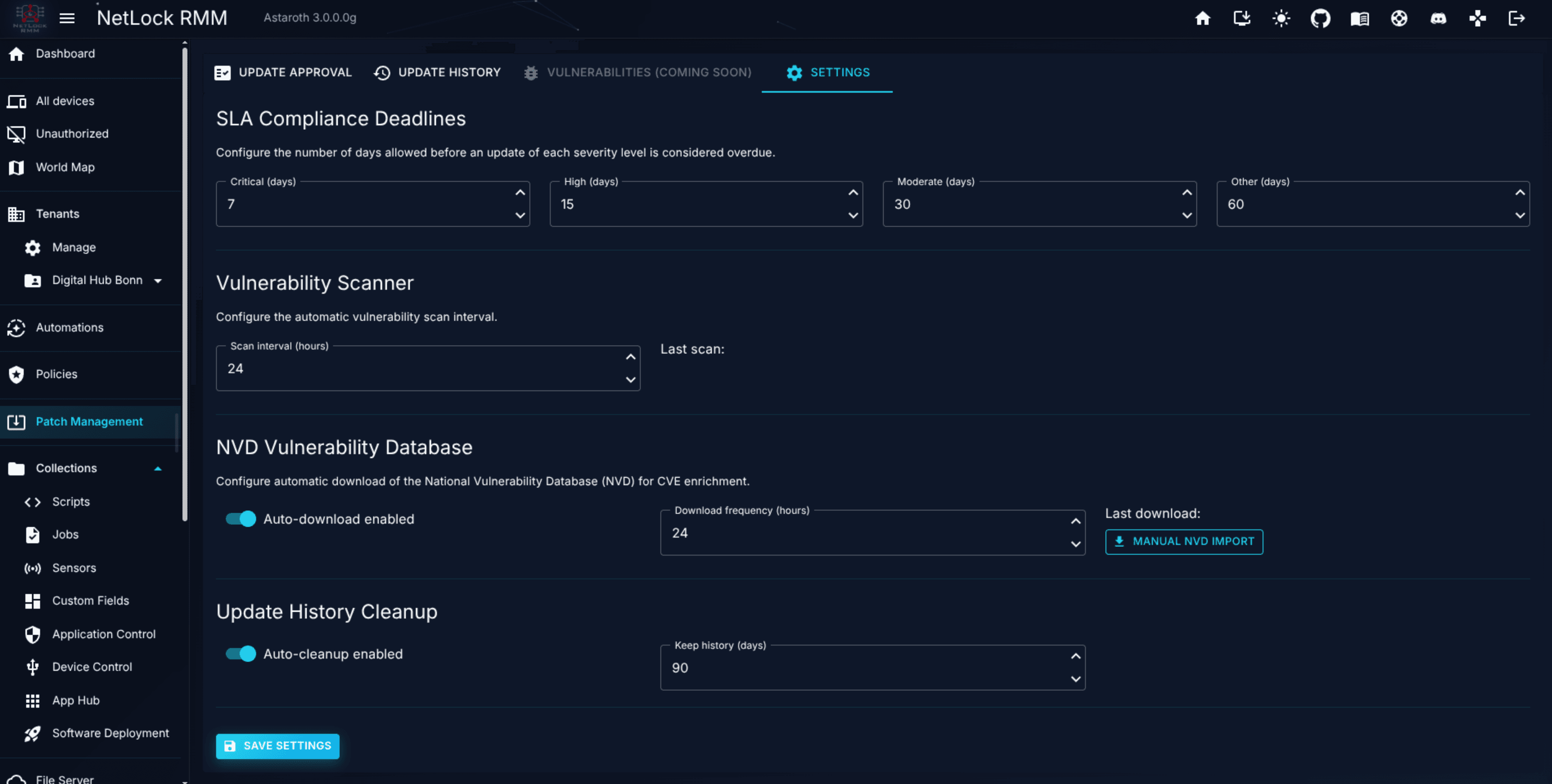
| Setting | Default | Meaning |
|---|---|---|
patch_sla_critical_days | 7 | SLA threshold for Critical-severity patches. |
patch_sla_high_days | 15 | SLA threshold for High-severity patches. |
patch_sla_moderate_days | 30 | SLA threshold for Moderate-severity patches. |
patch_sla_other_days | 60 | SLA threshold for remaining severities. |
Include software updates in patch compliance | off | When off, only operating system patches are scored: Winget and Chocolatey backlogs stay listed but no longer affect the health smileys, the fleet health rating or the compliance percentage. Failed Winget or Chocolatey items of a device's last Patch Now job then no longer affect its health rating either. |
vulnerability_scan_interval_hours | — | How often the server re-evaluates device inventory against the CVE set. |
nvd_auto_download_enabled | — | Whether NVD feeds are downloaded automatically. |
cleanup_update_history_enabled | — | Whether update history entries are periodically cleaned up. |
Scheduled Patch Run History Cleanup | on, 90 days | Deletes scheduled patch runs of the Patch history tab and their per-update results once they are older than the number of days set. Patch Now and uninstall jobs are not affected. |
Changes to SLA thresholds apply immediately; the next render of the Update Approval tab uses the new values to compute SLA status.
7.8 Platforms and sources
The Update Approval tab filters by platform and by source. The platform dropdown supports:
WindowsLinuxMacOSDocker
The source dropdown supports:
| Source | Platform | Notes |
|---|---|---|
OS-Mandatory | Windows, macOS | Native OS-provided updates. |
Winget | Windows | Windows Package Manager updates. |
Chocolatey | Windows | Chocolatey package updates. |
Apt | Linux | Debian / Ubuntu package updates, and derivatives such as Proxmox VE. |
Dnf | Linux | Fedora / modern RHEL package updates. |
Yum | Linux | Older RHEL / CentOS package updates. |
Docker | Docker | Container image updates on Linux hosts running Docker Engine. |
MacOS | macOS | Native macOS updates. |
Approval is per patch regardless of source. An Approved patch from Winget installs under the same rules as an Approved patch from OS-Mandatory — the per-policy Approval & Filtering sub-tab is where you gate which sources a particular policy's devices accept.
On Apt systems, a package update can ask what to do with a configuration file that was modified on the device. The agent answers this automatically according to the policy's Configuration file conflicts option (Linux tab, Approval & Filtering): by default the currently installed file is kept; alternatively the package maintainer's version is installed. Dnf and Yum never ask — rpm writes .rpmnew / .rpmsave files instead — so the option does not apply to them.
On Apt systems the agent also decides how the packages are handed to apt. When the run covers everything apt has pending - no severity, type, approval or deployment-ring filter drops a package - apt resolves the upgrade itself: apt-get upgrade --with-new-pkgs by default, which installs new dependencies but never removes a package, or apt-get dist-upgrade when the policy option Allow package removal (full upgrade) (Linux tab, Approval & Filtering, shown for apt) is on. With the option off, packages that apt can only upgrade by removing another one - a renamed library such as libzfs6linux to libzfs7linux on Proxmox VE - are kept back and listed in the job as Skipped, together with the packages a full upgrade would remove; Proxmox VE hosts need the option on. A filtered selection installs the named packages only (--no-remove unless removal is allowed) and, if apt rejects the set as a whole, is retried package by package. apt waits up to five minutes for a package lock held by another process. When apt fails, its E: lines are shown in the item details of the job, in the job note and in the agent's Error.txt. A kernel update marks the device as reboot-required as soon as a kernel newer than the running one is installed in /boot, so the reboot policy applies on Debian and Proxmox VE hosts as well.
On Dnf and Yum systems (Fedora, RHEL and its rebuilds such as Rocky Linux and AlmaLinux, CentOS) the agent refreshes the repository metadata with dnf makecache / yum makecache before it reads what is pending. Pending updates are listed once per package, with the exact version dnf offers, and once per advisory, with the advisory's type and severity and its packages in the description; a package an advisory covers appears in both. On Fedora 41 and later (dnf5) the advisories are read with dnf advisory list. When the run covers everything dnf has pending, dnf resolves the upgrade itself with dnf upgrade, which also handles obsoleted packages, kernels installed next to the running one and every advisory. A filtered selection installs exactly the approved package versions (name-version-release.arch) in one transaction and the approved advisories (--advisories= on dnf, --advisory on yum) in a second one. A package dnf cannot use - excluded by excludepkgs in dnf.conf, or a version the repository no longer offers - fails with dnf's own message (No match for argument, matches only excluded packages) and the other packages are installed in a second run; a transaction dnf rejects as a whole is retried update by update. After the run the agent asks rpm what is installed: a package item is Success only when the approved version is installed (in a full upgrade, also a newer one), an advisory item only when dnf no longer lists the advisory as pending. dnf's error lines are shown in the item details of the job, in the job note and in the agent's Error.txt.
7.9 What is not on this page
Several controls that admins from other RMMs look for on a "patch management" page live elsewhere in NetLock RMM. Knowing where to find them saves time.
- Per-device or per-group exclusion lists. Not here. A patch is Rejected fleet-wide or not at all. If you need to exclude a subset, use the
Approval & Filteringsub-tab inside the relevant policy (Chapter 6.12) — or split those devices into a different policy with stricter filters. - Rollout scheduling — maintenance windows, allowed days, time ranges. Not here. Configure them on the
Schedulesub-tab inside a policy's Patch Management tab. - Deployment rings. Not here. Configure them on the
Deployment Ringssub-tab inside a policy's Patch Management tab. - Reboot behaviour and user prompts. Not here. Configure them on the
Rebootsub-tab inside a policy's Patch Management tab. - Retry on failure. Not here. Configure it on the
Retrysub-tab inside a policy's Patch Management tab. - Notifications. Not configured here. Per-event patch notifications are toggled on the
Notificationssub-tab inside a policy's Patch Management tab; the channels and recipients those notifications are sent through live in A.8 Notifications deep dive.
The split is deliberate: one global decision ("may this patch install anywhere?") and many per-policy decisions ("how do these particular devices install the things that are allowed?").
Permissions
Patch Management is gated by a single permission flag in the current release:
patch_management_enabled— master flag. Users without this flag do not see thePatch Managementnavigation entry and cannot reach/patch-management.
There is no finer-grained approve / reject / defer / view-only permission. A user who has the flag can perform every action on the page.
Related chapters
- Chapter 6 — Policies — the per-policy Patch Management tab, where rollout rules live.
- Chapter 6.12 — direct link to the per-policy Patch Management sub-tab reference.
- Chapter 12 — Events & Audit — event records for patch installs and approval changes.
- A.8 Notifications deep dive — channels and recipients for patch notifications.
- A.2 Updates & maintenance — Console and server update cadence, distinct from endpoint patching.