 NetLock RMM Docs
File Server & Monitoring
The File Server distribution hub, the Relay Server for firewall traversal, Website Uptime Monitoring, and the Port Scanner.
File Server & Monitoring
This chapter covers four independent features that share a menu group in the navigation. They are not part of Collections, and they are not tied to Policies. Each feature stands alone and is documented in its own section.
- File Server is a centralised storage hub for binaries, scripts, packages, and any other file you want agents or technicians to pull from a single known location.
- Relay Server lets you reach a device's TCP service (Remote Desktop, SSH, a web admin UI, a database port) through a relay tunnel when a direct connection to the device is not possible.
- Website Uptime Monitoring checks external URLs from the server on a schedule and raises events when availability, performance, SSL certificates, or content falls outside thresholds.
- Port Scanner sweeps a manually-curated list of targets for open TCP ports and surfaces findings against an allowlist.
9.1 File Server
Manage Files at /manage_files is the product's file distribution hub. Use it to publish anything your agents, scripts, or technicians need to download from a predictable place — installers, configuration bundles, intermediate artefacts a script produces on one device and another consumes, or simple documentation you want a tray-icon-initiated URL to resolve to.
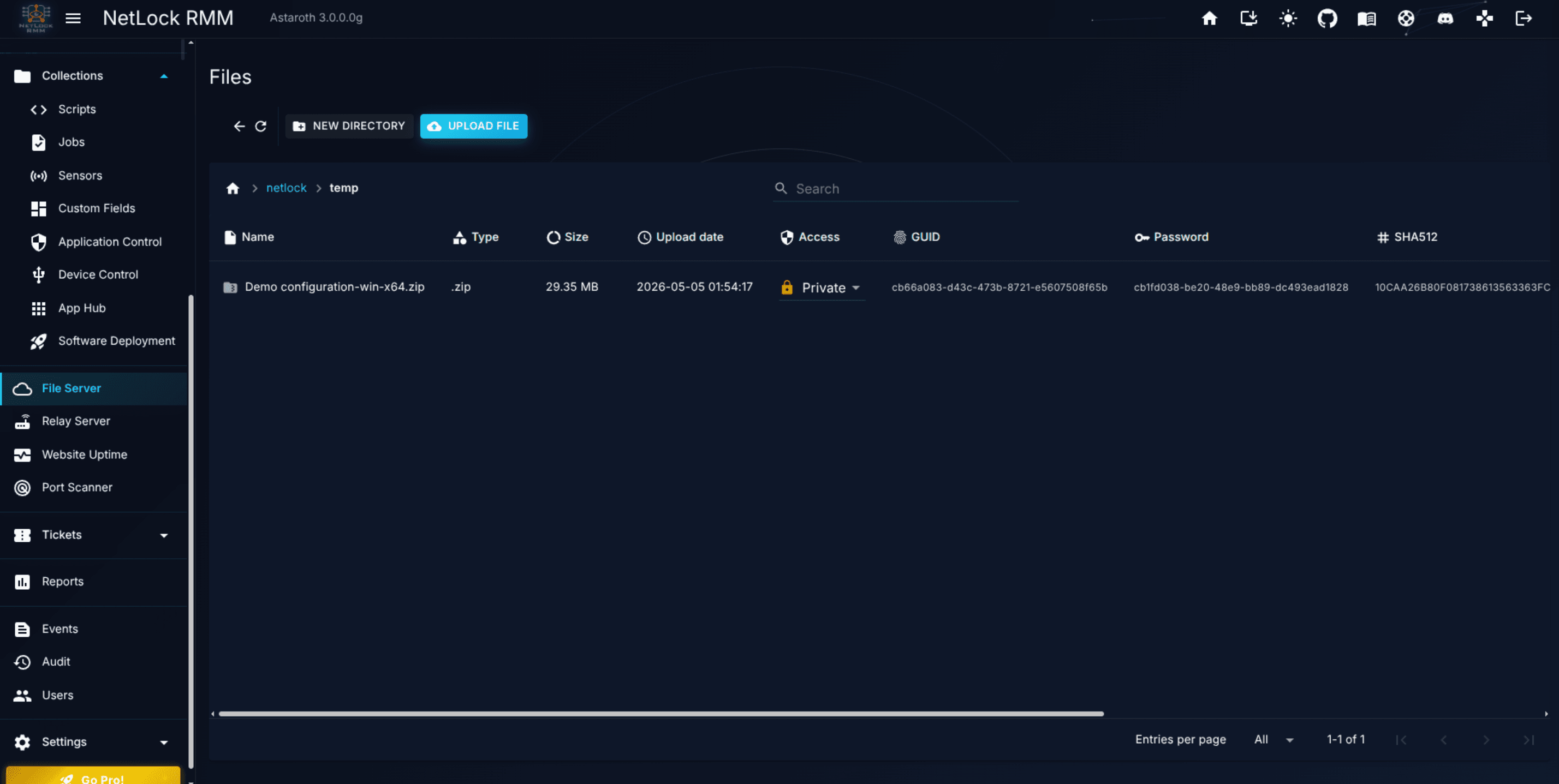
List columns
The file list shows eight columns:
| Column | Meaning |
|---|---|
Name | File or folder name, prefixed with a file or folder icon. |
Type | folder or file. |
Size | Byte size for files; blank for folders. |
Modification Date | Timestamp of the last content change. |
Access | Public or Private toggle, shown on files only. |
GUID | Server-assigned identifier used in download URLs. |
Password | Per-file password, used to gate Private downloads. |
SHA512 | Content hash, used to verify integrity on the receiving side. |
Upload, download, and delete
Uploads go through the Upload File action in the page toolbar. The action opens the native file picker, then streams the selected file to the File Server with a progress indicator. A single upload can carry up to 10 GB. Larger artefacts must be split before upload.
Downloads are initiated from a file's context menu. The resulting URL embeds the file's GUID, and, for private files, its Password. Public files do not require a password in the URL.
Delete is also on the context menu. Deleting a folder removes its contents; there is no separate recursive-delete confirmation beyond the standard delete prompt.
Public versus private access
Every file has one of two access levels, toggled inline in the Access column:
Public— any holder of the download URL can retrieve the file. No password in the URL.Private— the download URL must include the file'sPassword. Without it, the server rejects the request.
Access is file-by-file. There is no directory-level ACL and no per-user ACL — any user who can reach the page can change a file's access level.
The /netlock folder
A folder named /netlock at the root is gated by a dedicated permission, file_server_netlock. Users without that permission see an empty view when they open it and cannot upload into it. Treat /netlock as the place for files you want kept out of the hands of technicians who otherwise have File Server access.
SHA512 integrity
Every file shows its SHA512 hash in the list. When a script or an agent downloads the file, you can compare that value to the hash of the received bytes to confirm the content arrived intact and was not modified in transit. The hash is computed by the server on upload and does not change unless the file is replaced.
Typical uses
The File Server is built for two audiences.
- Agents and scripts. A PowerShell or Bash script on a device fetches a file by its download URL, checks the returned hash against the published
SHA512, then acts on the content. This is the standard way to distribute a large binary that would be awkward to embed in a script. - Technicians. A private URL with a password lets you hand a customer one link to an installer or log bundle without giving them access to the rest of the File Server.
Dialogs
- Create Directory — enter a folder name to create a subdirectory in the currently open path.
- Rename — rename the selected file or folder.
There is no dedicated "Add File" dialog; the native file picker handles uploads.
Permissions
| Flag | Gates |
|---|---|
file_server_enabled | Opening the File Server page. |
file_server_add | Upload and create-folder actions. |
file_server_edit | Edit affordances on file metadata. |
file_server_delete | Deleting files and folders. |
file_server_netlock | Access to the /netlock folder. |
9.2 Relay Server
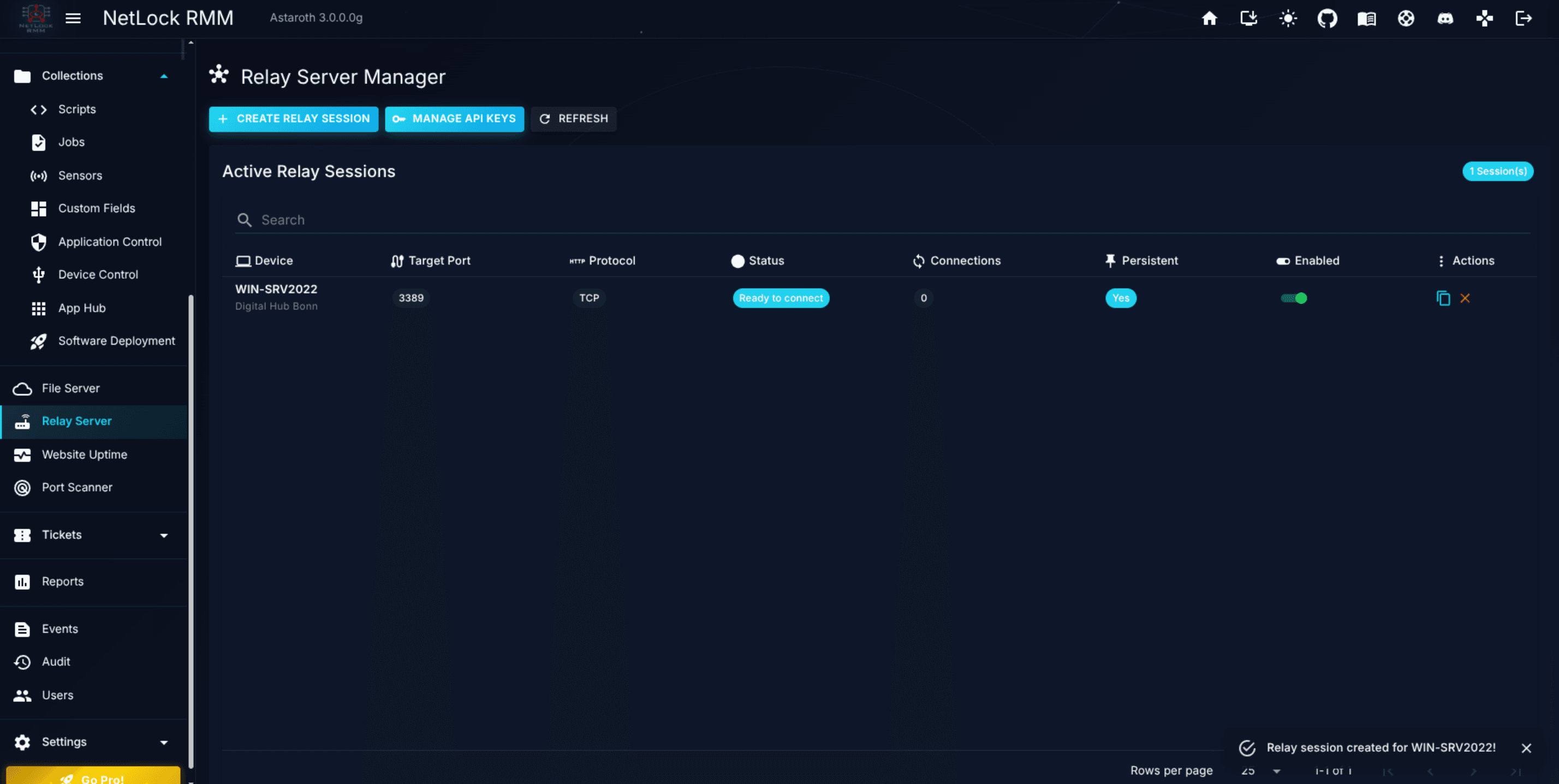
The Relay Server at /relay_server lists the relay sessions of the tenants you manage. A relay session forwards a single TCP port on a managed device, or on a host the device can reach, to a local port on your workstation, so you can open a Remote Desktop, SSH, web admin, or database connection to a machine that is not directly reachable from your network.
How a relay session works
A session has three parties. The NetLock RMM Relay App runs on your workstation, signs in with a relay API key and opens a local port for each session it connects. The server holds the session and carries the tunnel. The agent on the target device opens the connection to the configured port — on the device itself, or on a remote host reachable from the device when the device acts as a jump host.
Everything in the tunnel is TCP. There is no UDP relaying, no multi-port session, and no protocol interpretation — the relay does not care whether the bytes are SSH, RDP, HTTP, or something else.
Every session is stored in the database and keeps its session ID for as long as it exists. It survives a server restart, and the Enabled switch turns it off and on again.
Lifecycle states
A session's Status column shows one of:
Active— a Relay App is connected and the tunnel is up.Ready to connect— the session is enabled and the target device's agent is connected.Device offline— the target device's agent is not connected, so the session cannot be used right now.Disconnecting— the session was turned off and the tunnel is being closed.Disabled— the session is turned off.
A No administrators chip next to the status marks a session that no account may connect to yet (see Administrators allowed to connect).
List columns
The list shows:
Name— the session name, with its description beneath. A session created before sessions had names shows the device name in grey until it is edited.Device— device name, with the owning tenant name beneath.Target— the port on the device, orhost:portwith "via device" for a jump-host session.Protocol—TCP.Status— one of the lifecycle states above.Streams— connections currently carried through the tunnel, not the number of administrators. Click the count to see who is connected.Enabled— switch. Turning a session off closes the connections that are open through it at once.Actions— per-row controls.
The search above the table matches name, description, device, tenant, target host, port, protocol and status. Double-clicking a row opens the edit form.
Per-session actions
- Edit session — opens the same form as creating a session, filled with the session's values. Needs
relay_server_edit. - Close session — closes the session, disconnects everyone connected through it and removes it. Needs
relay_server_delete.
Create and edit a relay session
Create relay session in the toolbar and Edit session on a row open the same form.
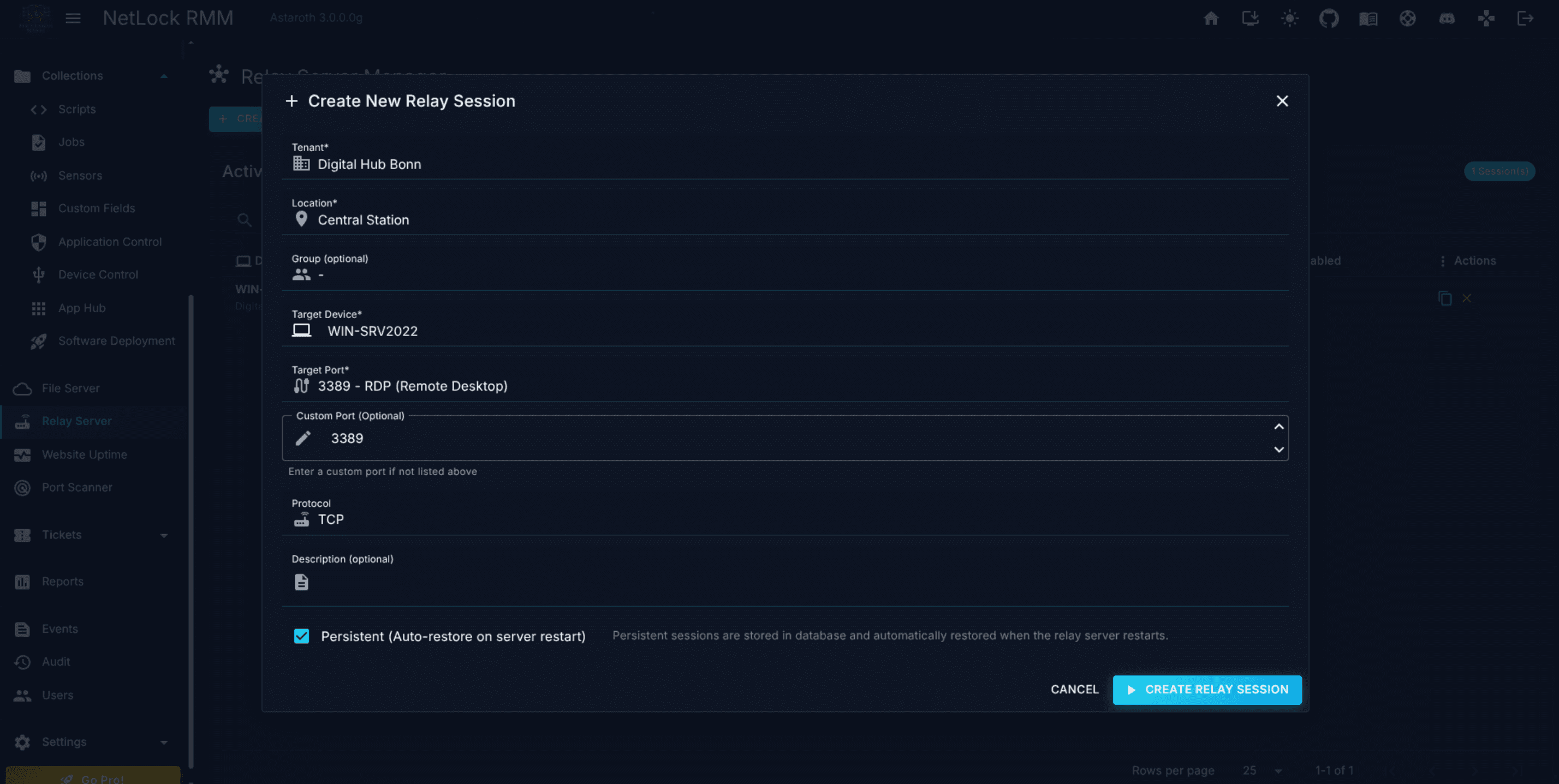
Fields, in order:
Target device— search by device name, tenant, location, group or internal IP. Only authorized Windows, Linux and macOS devices are offered.Name— required, at most 255 characters. It is how the session appears on this page, in the Relay App and in the public API.Description— optional, at most 500 characters.Local port on target deviceorRemote host via target device (jump host)— whether the agent connects to a port on the device itself or to a host on the device's network.Remote host— jump-host sessions only: a hostname or IP address reachable from the device, without scheme, path or port.Target port— a list of common services (RDP,SSH,HTTP,HTTPS,VNC,MySQL,PostgreSQL, and others), or any port from 1 to 65535 in the field below it.Protocol—TCP. No other protocol is supported.Administrators allowed to connect— see below.Enabled— edit only.
A new session is enabled. If the target device's agent is connected, it shows Ready to connect straight away; otherwise it shows Device offline until the agent connects.
Changing the route. Target device, local port or remote host, port and protocol make up the route of a session. When you save a change to any of them, every connection that is open through the session is closed, and the next connection goes to the new target. The session ID stays the same, so the Relay App keeps the local port and the auto-connect setting of the session. The connection tool it last opened the session with ("Open with") is kept too, so check it after moving a session to a different service, for example from RDP to SSH. Changing only the name, description or administrators leaves open connections running.
Changing the route needs relay_server_add in addition to relay_server_edit. Without it, the route fields are disabled and a note in the form says why; name, description, administrators and the enabled state can still be changed.
Tip: A jump-host session needs an agent that can forward to a remote host. With an older agent, the connection fails when you connect, not when you save.
Administrators allowed to connect
Every session carries a list of accounts that may open a tunnel through it. The list only decides who may connect; who may see and change the session follows the relay_server_* permissions and the tenant scope. The picker offers the accounts that hold relay_server_enabled and are assigned to the tenant of the target device. When a session is moved to a device in another tenant, accounts that are not assigned to that tenant are removed from the list. A session with nobody on the list exists, but nobody can connect to it.
The Relay App
The Relay App lists the sessions your account may connect to. Each session is one line: its name (or the device name while it has none), the device, target, protocol and tenant beneath, the status, and a Connect or Disconnect button. Click the arrow or the name to expand an entry. It then shows the description, session ID, local endpoint, organization, throughput, Copy and Open with, and the settings for the local port, auto-connect and tool commands. Entries start collapsed, and the app remembers which ones you expanded. The search matches name, description, device, session ID, organization and port.
When a session is changed, turned off or closed in the console while you are connected, the Relay App disconnects and shows the reason.
The Relay App signs in with a relay API key. Manage API Keys on the Relay Server page lists the keys of your account, and Connection tools holds the command templates behind "Open with"; both need relay_server_manage.
Web access sessions
A web access session is a temporary relay session the server opens when an operator uses Web interface on the devices page (see Chapter 3.7). Instead of a Relay App, the server itself is the client of the tunnel: it fetches the device's web pages through the agent and serves them to the operator's browser under https://<server>/relay/web/<session>/…. The session appears in the list with a Web chip next to its name, its target as https://host:port, and the account that opened it as its creator.
What is different from a regular session:
- It is not created here and cannot be edited. The devices page decides device, host, scheme and port when it is opened.
- The
Enabledswitch is off limits; the session ends by itself after 15 minutes without a request or WebSocket traffic, after 8 hours at the latest, or when it is closed here. Closing the browser tab does not end it. - Close session is offered to the account that opened it and to accounts with
relay_server_delete. Closing ends the tunnel and removes the session. - The
Streamscount and the connections dialog show the server as the connected party, named after the account that opened the session and markedWeb interface. - The Relay App never lists it, and it is not part of the public API's relay sessions.
- Sessions do not survive a server restart; the tab then shows that the session has ended.
The server passes the device pages on unchanged, except for the base address a page declares (<base href="/">, common in Blazor, Angular and many single-page interfaces), which is moved into the session address; such pages then load their relative addresses and client-side routes directly inside the session. The certificate of the device is not checked; redirects, cookies, absolute paths, Basic or Digest authentication and WebSockets of the device page are handled. A WebSocket the page opens on an absolute root path (wss://<server>/api/...) is forwarded to the session as well: with several device pages open in one browser it goes to the session whose page was shown last, and a socket whose handshake relies on a cookie the device set works only under the session address. Traffic through an open WebSocket counts as activity, so a page that only uses its socket is not ended as idle while it is in use. Downloads and uploads are streamed without a size limit of their own.
Reverse proxy in front of the server. A web access session runs through the same public address as agents and the Relay App, so nothing has to be opened. Check these points on a reverse proxy of your own:
- Requests to
/relay/web/and to any other path have to reach the server: device pages load their assets from absolute paths (/images/logo.gif), and the server redirects such requests into the session. A proxy that forwards only selected paths to the server breaks these pages. - Do not limit request bodies (nginx:
client_max_body_size 0; proxy_request_buffering off;), or firmware and configuration uploads fail. - Allow long read timeouts for uploads (nginx:
proxy_read_timeout 3600s;; Traefik:respondingTimeouts.readTimeout=24hon the entry points, as in the documented docker-compose). Traefik v3 stops reading a request after 60 seconds by default. - Pass
X-Forwarded-Protoso the session cookie is markedSecurebehind TLS termination. The documented Traefik setup does this already. - Allow WebSocket upgrades to the server. Traefik does this by default. nginx needs the
UpgradeandConnectionheaders passed on the location that reaches the server (proxy_http_version 1.1; proxy_set_header Upgrade $http_upgrade; proxy_set_header Connection $connection_upgrade;with the usualmap $http_upgrade $connection_upgradeblock), and itsproxy_read_timeoutapplies to a quiet socket as well.
Devices that only speak TLS 1.0 or 1.1, or old cipher suites, are accepted by the server; if the server image's OpenSSL policy refuses such a handshake, the tab shows "The device did not answer" with the TLS reason, and the OpenSSL security level of the server container has to be lowered for that device class.
Permissions
| Flag | Gates |
|---|---|
relay_server_enabled | Opening the Relay Server page. Together with relay_web_access, the Web interface action on the devices page. |
relay_server_manage | Managing API keys and connection tools used by the Relay App. |
relay_server_add | Creating a new relay session, and changing the target of an existing one. |
relay_server_edit | Editing a session and turning it on or off. Changing its target device, remote host, port or protocol also needs relay_server_add. |
relay_server_delete | Closing or deleting a session, web access sessions of other accounts included. |
relay_web_access | The Web interface action on the devices page. The account that opened a web access session can always close it. Accounts holding relay_server_add received it with the upgrade. |
9.3 Website Uptime Monitoring
Website Uptime Monitoring at /website-uptime-monitoring watches external URLs from the server side. The server fires HTTP requests at each configured target on an interval, evaluates the response against a set of rules, and raises events when thresholds are breached. This is the right feature for public-facing sites, customer portals, and any HTTP endpoint where you care about availability or performance as seen from outside the device fleet.
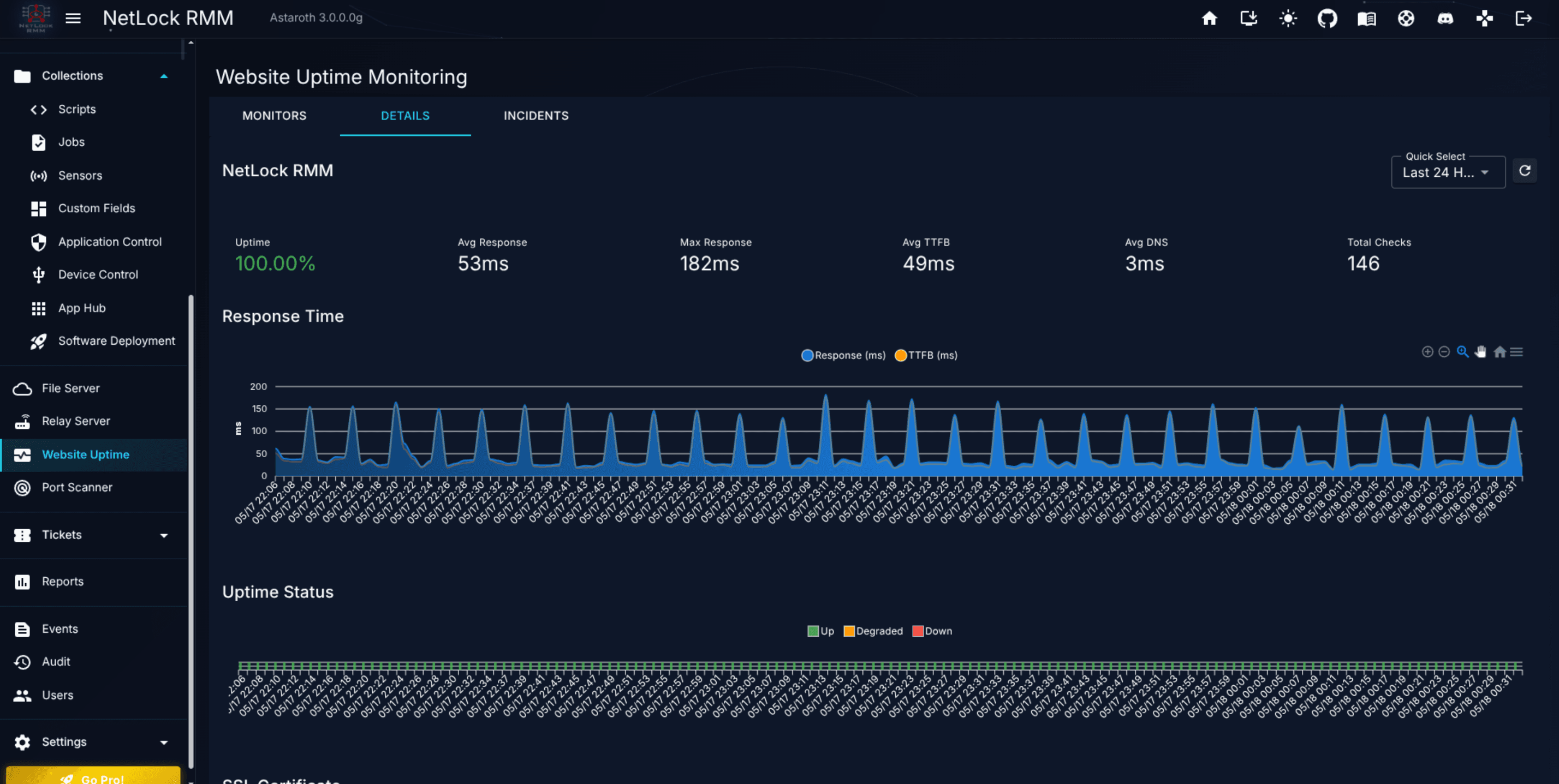
Architecture
Checks run on the server. No agent is involved, which means a monitor sees the target from the network the server sits on — not from inside any particular customer's LAN. This matches how an external customer would reach the site, which is usually what you want for public endpoints. For internal-only URLs, consider a device-side sensor instead (see Chapter 8.3).
The three tabs
The page has three tabs, selected across the top:
Monitors— the list of configured targets, their current status, and the affordances for add / edit / delete.Details— historical timeline for a selected monitor: response time, DNS lookup time, SSL certificate, and content-check results over the chosen window.Incidents— the chronological list of raised incidents across all monitors, with start time, duration, and the reason that triggered the incident.
What a monitor checks
Each monitor performs a single HTTP request per interval and evaluates the response on multiple axes:
- HTTP status. A target has an
Expected Status Code(default200). Anything else is a failure. - SSL certificate. If SSL monitoring is enabled, the monitor inspects the certificate chain for valid-from and valid-to dates, the issuer, subject, and thumbprint. Expiry raises a warning at the configurable warning-threshold days and critical at the critical-threshold days.
- Response time. The monitor records round-trip time, time-to-first-byte, and the DNS lookup time of the request in milliseconds. A configurable threshold raises a
Degradedstatus when exceeded. - Content presence. With content monitoring enabled, the monitor checks the response body for a configured
Keywordand for a configuredCSS Selector. Either missing raises a content error. - Defacement detection. When enabled, the monitor stores a SHA hash of the response content and alerts when the hash changes unexpectedly.
The outcome of each check is written to the monitor's history and, where thresholds are breached, produces an event under the Uptime Monitoring type (see Chapter 12.2).
List columns (Monitors tab)
Status— one ofUp,Down,Degraded,Timeout,SSL Error,DNS Error,Content Error,Pending.Name— the monitor's label.URL— the target, truncated to fit the column.Interval— the check cadence, formatted (for example5m).Last Check— timestamp of the most recent check.Failures— running count of consecutive failures.Tenant— the tenant the monitor belongs to.Actions— edit / delete controls.
Creating a monitor
The monitor dialog is organised into seven sections:
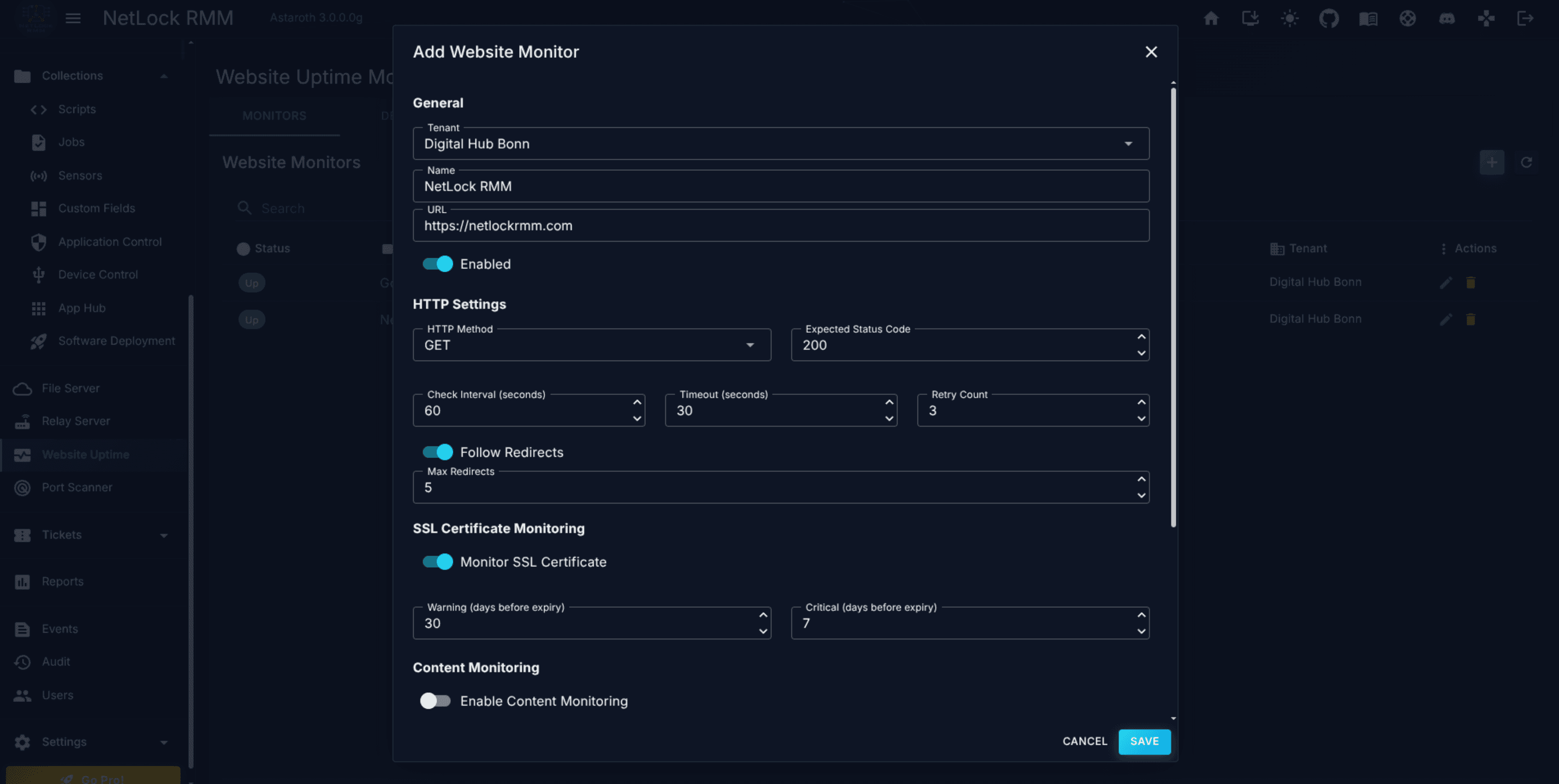
- General —
Tenant,Name,URL,Enabled. - HTTP Settings —
HTTP Method(GET,POST,HEAD,PUT) andExpected Status Code. - Intervals & Timeouts —
Check Interval(default 300 s, range 30 to 86400 s),Timeout(default 30 s, range 1 to 120 s), andRetry Count(default 3, range 1 to 10). - Redirects —
Follow RedirectsandMax Redirects(default 5). - SSL Monitoring — enable, warning threshold days (default 30), critical threshold days (default 7).
- Content Monitoring — enable,
Keyword,CSS Selector, and the Defacement Detection hash toggle. - Performance Thresholds —
Response Time Alert(default 2000 ms),Load Time Alert(default 5000 ms), andSLA Target(default 99.90%). - Notifications — per-channel checkboxes for
Email,Microsoft Teams,Telegram,ntfy.sh, andWebhook. Each channel must be configured inSettings → Notificationsfirst.
The same dialog covers add and edit; the title changes based on which action opened it.
Incidents
The Incidents tab collates the consolidated timeline of raised incidents. An incident starts when the first failing check crosses its threshold and closes when the target recovers. Each row shows the triggering reason (for example Down, SSL Error, Degraded), the monitor, the duration, and the recovery time.
Permissions
| Flag | Gates |
|---|---|
website_uptime_monitoring_enabled | Opening the Website Uptime Monitoring page. |
There are no granular add / edit / delete flags — access is all-or-nothing at the page level, with tenant scoping applied through the standard tenant-list permission.
9.4 Port Scanner
Port Scanner at /port-scanner sweeps a manually-configured list of targets for open TCP ports and tracks the findings against an allowlist. Use it to catch drift on internet-facing hosts — a newly opened port that shouldn't be open, a forgotten staging service exposed to the internet, or an unexpected change to a web server's Server banner.
Compliance scope — targets only
The Port Scanner scans only manually-configured custom targets. It does not enumerate the devices in your fleet and scan their external IPs. This behaviour is intentional and enforced: the Settings tab states that automatic scanning of device external IPs has been disabled for compliance reasons. If you want a host scanned, you must add it yourself as an explicit target.
The five tabs
The page has five tabs across the top:
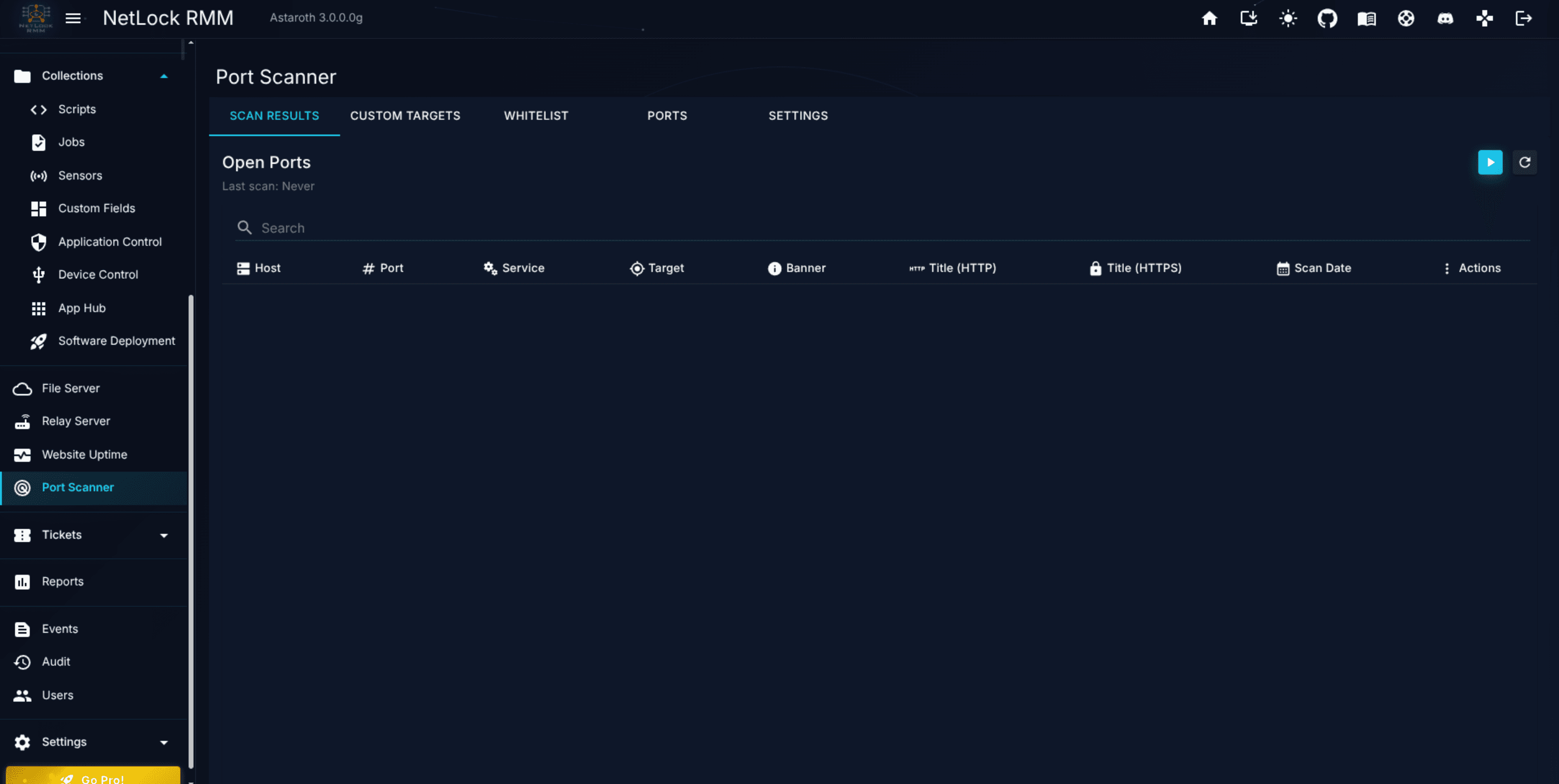
Scan Results— the findings table, one row per discovered open port per scan.Custom Targets— the targets the scanner sweeps, one host per row.Whitelist— the allowlist of host+port pairs that should be treated as expected rather than as a finding.Ports— the catalogue of port numbers the scanner will test on each target.Settings— global scanner configuration.
Custom Targets
Targets are added one at a time from the Custom Targets tab. Each target has a Tenant, Name, Host (hostname or IP address), and Description, plus an enabled/disabled toggle. The scanner only sweeps enabled targets.
Ports catalogue
The set of ports tested is global — not per-target. The Ports tab lets you add a port (1–65535), give it a Name (the service label shown against findings), and a Details field for notes. Each port can be enabled or disabled. A disabled port is skipped during scans but kept in the catalogue for later.
This design assumes you care about the same port numbers everywhere. If you need a different port set for a particular target, the current implementation is to maintain a single unified catalogue and filter findings by the target column of the results view.
Whitelist
The Whitelist tab is the allowlist. A whitelist entry has Tenant, Name, Host (or * for any host), Port (or 0 for any port), and Description. A finding that matches a whitelist entry is treated as expected and is not surfaced as a concern on the Scan Results tab.
Use * host plus a specific port for "this port is always OK to be open anywhere", and a specific host plus 0 for "any port being open on this host is OK".
Settings
Global scanner configuration:
- Protocols — TCP only. UDP scanning is not implemented.
- TCP timeout — milliseconds per port probe, default 3000, range 500 to 30000.
- Scan interval — hours between automatic scans, default 24, range 1 to 720.
- Max concurrent scans — maximum parallel port probes, default 50, range 1 to 500.
- Auto-cleanup — retention in days for old results, default 90.
A Trigger Scan Now button on the Settings tab runs an on-demand scan outside the interval.
Scan Results columns
Host— the target host.Port— the discovered open port.Service— the service label from the Ports catalogue entry for that port.Target— the device name if the host maps to a known device; otherwise blank.Banner— the first bytes returned by the service, where available.Title (HTTP)— the<title>element of the HTTP response, if served.Title (HTTPS)— the<title>element of the HTTPS response, if served.Scan Date— the timestamp of the scan that produced this row.Actions— per-row controls, including opening the result details dialog.
Dialogs
- Add / Edit Custom Target —
Tenant,Name,Host,Description. - Add Whitelist Entry —
Tenant,Name,Host,Port,Description. - Add / Edit Port —
Port Number,Name,Details. - Scan Result Details — read-only display of host, port, service, banner, titles, and scan date for a single finding.
Permissions
| Flag | Gates |
|---|---|
port_scanner_enabled | Opening the Port Scanner page. |
Tenant scoping on the Custom Targets, Whitelist, and Scan Results tabs is enforced through the standard tenant-list permission.
Permissions
The File Server, Relay Server, Website Uptime Monitoring, and Port Scanner each have their own flags. The complete list for this chapter:
| Flag | Gates |
|---|---|
file_server_enabled | File Server page. |
file_server_add | Upload and create folder. |
file_server_edit | Edit file metadata. |
file_server_delete | Delete files and folders. |
file_server_netlock | /netlock folder. |
relay_server_enabled | Relay Server page. |
relay_server_manage | Relay API keys. |
relay_server_add | Create relay session; change the target of an existing one. |
relay_server_edit | Edit a relay session and turn it on or off; changing its target also needs relay_server_add. |
relay_server_delete | Close or delete a session. |
relay_web_access | Web interface on the devices page (with relay_server_enabled). |
website_uptime_monitoring_enabled | Website Uptime Monitoring page. |
port_scanner_enabled | Port Scanner page. |
See Appendix X.2 for the full permission catalogue.
Related chapters
- Chapter 8 — Collections covers device-side sensors, which are the right choice for monitoring URLs or ports from inside a customer network.
- Chapter 12 — Events & Audit documents how Website Uptime and Port Scanner events appear in the Events view.
- Chapter 3 — Devices describes remote control, which complements the Relay Server for interactive sessions.
- Appendix X.5 — Integration endpoints lists the notification endpoints that uptime monitors and port scanner results can reach.
Collections
Scripts, Jobs, Sensors, Custom Fields, App Hub, Application Control, Device Control, and Software Deployment.
Tickets
The optional helpdesk module: ticket list and detail view, lifecycle, time tracking, statistics, and the admin areas for departments, customers, contacts, templates, labels, SLAs, and webhooks.