 NetLock RMM Docs
System overview & licensing
System health monitoring, the public backend URL, licence status and the Members Portal API key for self-hosted deployments.
System overview & licensing
Self-hosted only: This chapter is written for self-hosted deployments. On cloud, neither page is available: the hosted operations team runs the deployment and manages licensing, so both navigation entries are hidden and opening
/settings/overviewor/settings/licensingdirectly returns to the dashboard.
This chapter covers two administrative pages that share a common purpose — giving the deployment operator a view of how the system is performing and what the current licence allows. Both are predominantly observational: the System Overview page is read-only apart from two settings, the System Storage Limit and the public backend URL, and the Licensing page is read-only apart from replacing the Members Portal API key. Connection strings are never editable in the Console; they are changed outside it, in appsettings.json.
A.1.1 System Overview
Settings → Overview at /settings/overview is the first port of call when you want to answer "is everything healthy?" at a glance. It is almost entirely a monitoring page — it shows the live state of the four subsystems a self-hosted NetLock RMM deployment depends on, using the same data the agents and backend services use to do their work. The two exceptions are the System Storage Limit panel and the Public backend URL panel, each of which carries a single editable setting; everything else on the page is read-only.
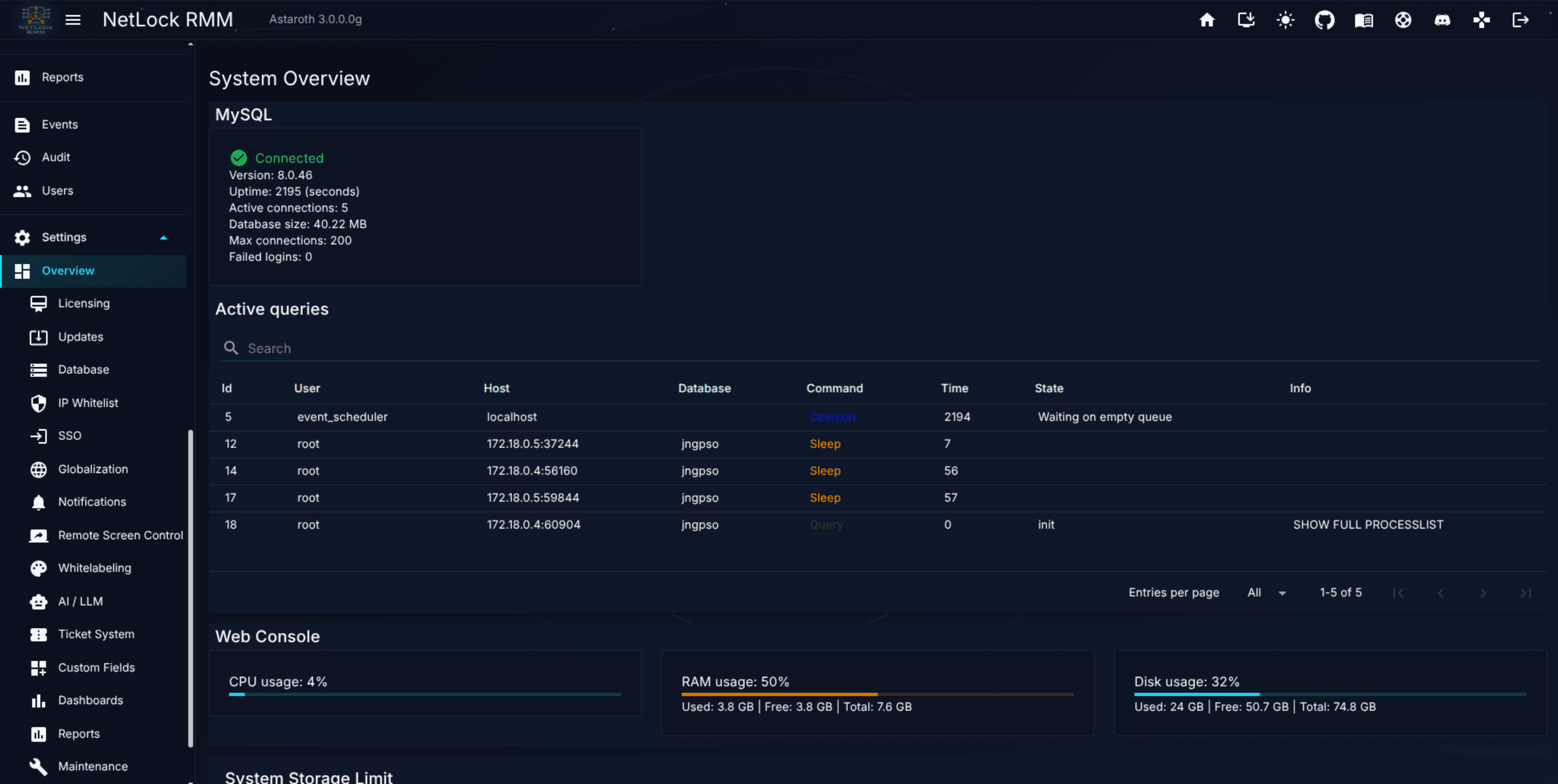
The MySQL section
The database section answers two questions: is the database reachable, and is it under load. A status icon at the top of the section turns green when the Console has an active connection to MySQL and red when it does not. The panel reports:
Version— the MySQL server version string.Uptime— elapsed seconds since the MySQL instance started.Active connections— the number of sessions currently open against the server.Database size— total size of the NetLock RMM database, in bytes.Max connections— the configured upper limit for concurrent sessions.Failed logins— a running count of authentication failures since the database started.
Below those counters, a searchable table lists every active query the database is currently executing. Columns are Id, User, Host, Database, Command, Time, State, and Info. This is the view to open first when the Console feels slow — a long-running query or a connection pile-up often shows up here before it shows up anywhere else.
The Web Console section
Three cards summarise how much resource the machine hosting the Web Console is using right now:
CPU usage— a percentage with a progress bar.RAM usage— a percentage with a progress bar, plus aUsed / Free / Totalbreakdown in GB.Disk usage— a percentage with a progress bar, plus aUsed / Free / Totalbreakdown in GB.
The values are sampled from the Web Console host, not from any individual managed device. Use the section as an early warning when the Console itself is about to run out of headroom — a sustained high CPU number on this panel is a cue to scale the host, not the fleet.
System Storage Limit
The System Storage Limit panel is one of the two places on the Overview page that accept input. It caps how much data the NetLock RMM system is allowed to store on disk — the on-screen description states this covers the devices/ and internal/ folders together with the MySQL database size.
A usage card shows current consumption as <current> GB / <limit> GB with a progress bar that shifts from green to amber at 90% and to red at 100%, plus a line reporting how many GB remain.
A second card carries the editable control: a Storage limit (GB) numeric field (1 to 999999) and a Save button. Set the value and save it to change the cap.
When consumption crosses a threshold the Console raises a dialog automatically — a warning at 90%, and a limit-reached dialog at 100% that cannot be dismissed by clicking away until you free space or raise the limit.
File Server and Remote Server status
Two smaller panels report the Console's ability to reach the other two backend services in a NetLock RMM deployment.
NetLock RMM File Server— showsConnectedwhen the Console can talk to the File Server,Not connectedotherwise. The File Server is responsible for agent downloads, script artefacts, and attachment storage.NetLock RMM Remote Server— showsConnectedwhen the Console can talk to the Remote Server, which handles remote control sessions and relay. A failed check here is accompanied by a PTR-mismatch warning when the probable cause is a reverse-DNS misconfiguration; the warning includes a link to the relevant documentation.
If either panel shows Not connected, use the Check again action at the top of the page to re-run the connectivity probe without reloading the entire page. The button is especially useful during an incident — rather than refreshing the entire Overview and losing any searches you have already typed into the MySQL active-queries table, Check again only retests the two service endpoints and updates their status chips.
A persistent Not connected state on either service is a signal to check the service's own host. For the File Server, confirm the service is running and that the Console host can reach it on its configured port; for the Remote Server, confirm the service is running and that the public DNS record resolves correctly — in particular, that the PTR record matches, because the warning message on the page exists precisely because PTR mismatches are the single most common cause of a failed Remote Server check.
Public backend URL
The Public backend URL panel holds the address under which agents and browsers reach the installation from outside, for example https://rmm.example.com. The Console uses it for agent installer and download links, remote screen control, web access sessions and the links in ticket notifications; the server uses its host part over HTTPS for the same purposes. When no URL is set, the configured File Server and Remote Server addresses are used instead. The value is the same one that Webinterface:PublicOverrideUrl in the Console's appsettings.json carries; because that file is encrypted after the first start, this panel is the place to change it.
The first card shows the URL the running Console uses (Active URL, or Not configured). The second card, shown only to accounts with settings_overview_manage, takes a new URL. Accepted is a scheme, a host and an optional port — https://rmm.example.com or https://rmm.example.com:8443 — with no path, query or fragment; trailing slashes are removed, and the value is stored as typed otherwise, so a port such as :443 is kept. Save asks for confirmation and stores the URL; Clear URL (offered while a URL is stored) removes it after confirmation. Both actions write an audit entry with the previous and the new value.
A saved change does not take effect immediately. The running Console keeps its URL and the panel shows a Restart required notice with the change until the web console and the server have been restarted:
docker compose down
docker compose up -d
Without Docker, restart the NetLock RMM Web Console service and every NetLock RMM Server service.
On start, the Console compares the stored URL with the one in its appsettings.json. A file value the Console wrote itself yields to the stored value, so a URL saved or cleared on this page becomes the active one and is written back into the file. A URL entered into appsettings.json by hand wins and is written to the database — an empty file value never removes a stored URL; use Clear URL for that. The server reads the stored URL when it starts. A value saved on this page is already in the database when the stack restarts, so the start order does not matter; after a change made by hand in the file, the server picks the old value up if it starts before the Console has written the database — restart the server once more in that case.
If appsettings.json cannot be written (for example a read-only bind mount), the panel shows a notice and the URL in the file wins on every start until the file is writable again.
What the page cannot do
Apart from the System Storage Limit and the Public backend URL, the Overview page is observational. Its interactive controls are the Save buttons for the storage limit and the public backend URL, Clear URL, and the Check again button for the service connectivity probes. To change any of the monitored values — MySQL connection string, File Server URL, Remote Server URL — you edit appsettings.json on the Console host and restart the Console. There is no in-Console editor for connection strings by design: those values are part of deployment, not runtime configuration.
A.1.2 Licensing
Settings → Licensing at /settings/licensing reports the status of your NetLock RMM licence against the Members Portal. Like Overview, this page is mostly read-only — besides refreshing the licence information, the one thing you can change here is the Members Portal API key.
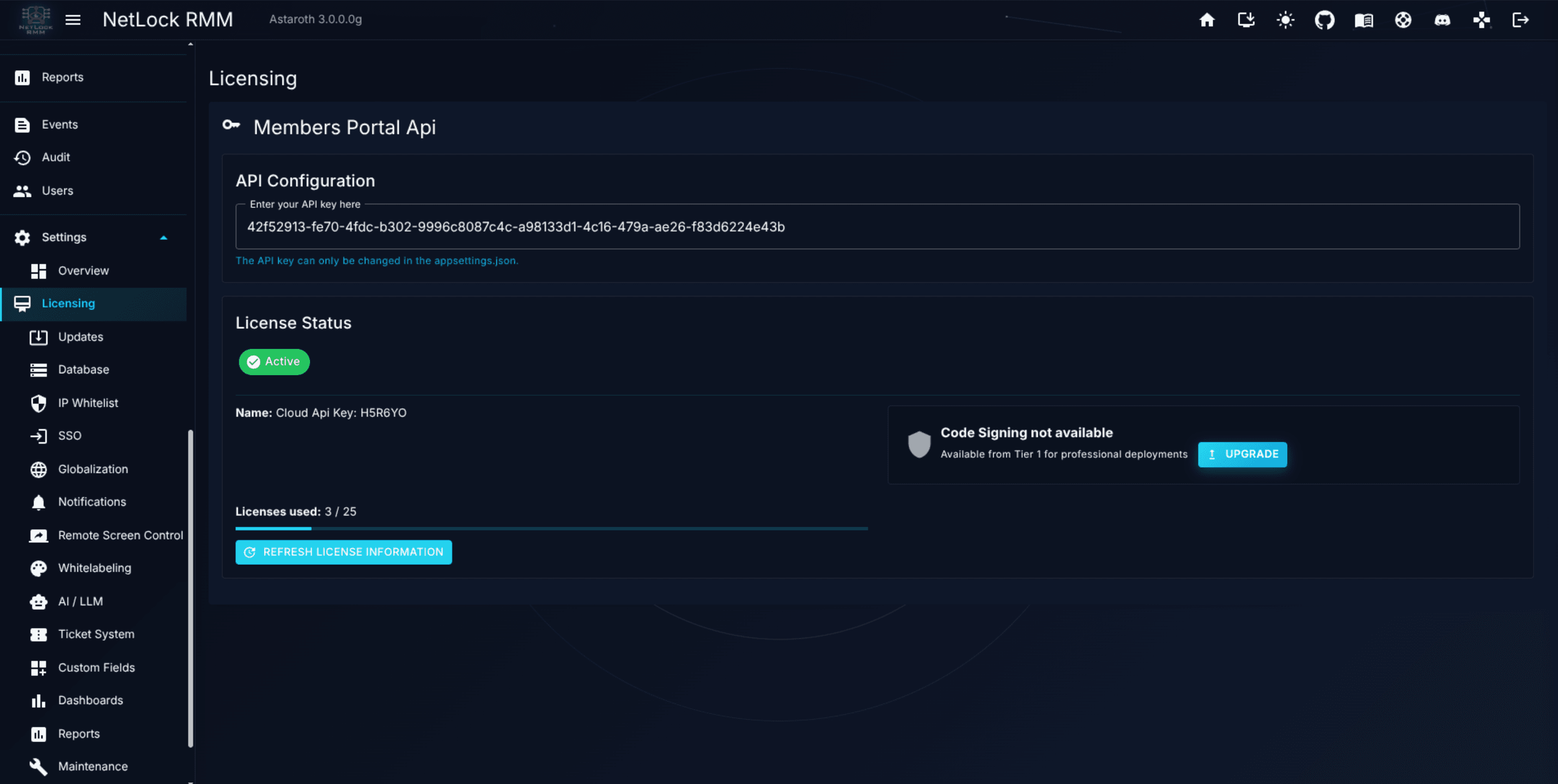
Members Portal API key
The API Configuration section at the top of the page shows the key the Console currently runs with as Active API key, masked down to its last four characters, or No API key configured. The full key is never shown.
Accounts with settings_licensing_manage also see a New API key field and a Replace API key button:
- The Console checks the new key against the Members Portal. A key the Members Portal does not accept — unknown, or belonging to a banned, expired or inactive membership — is not saved. If the Members Portal cannot be reached, the Console asks whether to save the key anyway.
- The key is stored encrypted in the database. The audit log records the change with the last four characters of the previous and the new key.
- The page shows
Restart requiredwith the masked new key, the Docker commands to restart the services, and a copy button. The web console and the server keep running with the current key until they are restarted; on start they adopt the new key and fetch the licence and the agent packages for it.
The full procedure, including the fallback through appsettings.json, is in Replace the Members Portal API key.
License status
The second section summarises the licence itself:
- A status badge —
Active(green) when the licence is in good standing,Expired(red) when it has lapsed. - The licence name, which reflects the tier you are subscribed to.
- A code-signing row. When code signing is included in your tier, the line reads
Code signing enabled. When it is not, the line readsCode Signing not availablewith the sub-textAvailable from Tier 1 for professional deployments. Code signing affects how agent installers are trusted on the managed devices; the absence of it is not a blocker for most deployments, but it is a meaningful signal for larger customers. - A licence-count row shown as
X / Ywith a progress bar, whereXis the number of seats you are currently consuming andYis the total you are licensed for. Seat consumption is driven by approved devices — unauthorised devices (see Chapter 3.2) do not count until they are approved.
Actions
Replace API key— in theAPI Configurationsection, shown only withsettings_licensing_manage. See Members Portal API key above.Refresh License Information— re-fetches the licence record from the Members Portal. The button is disabled when no API key is configured. Use this after renewing a licence, adding seats, or upgrading a tier — the Console caches the licence state and does not automatically re-query.Upgrade— shown only when code signing is not available for your current tier. The button openshttps://www.netlockrmm.com/pricingin a new tab so you can compare plans. There is no in-product checkout flow; upgrades are handled on the pricing page and through your account manager.
What the page does not do
There is no in-product billing view. If you need to change the plan you do so on the pricing page or through the Members Portal, then come back to the Licensing page and click Refresh License Information to pull the updated status. A replaced API key does not take effect before the web console and the server have been restarted.
Cross-reference
Licensing settings are not accessible on cloud deployments — the cloud team handles billing and licensing centrally. The navigation entry is hidden and a direct call of the page returns to the dashboard; that is by design.
Permissions
| Page | Required flags |
|---|---|
Settings → Overview | settings_enabled, settings_overview_enabled |
Change the storage limit or the public backend URL on Settings → Overview | settings_enabled, settings_overview_enabled, settings_overview_manage |
Settings → Licensing | settings_enabled, settings_licensing_enabled |
Replace the API key on Settings → Licensing | settings_enabled, settings_licensing_enabled, settings_licensing_manage |
The listed flags must be set on a user's permission matrix (see Chapter 14) for the corresponding page to appear in the navigation, or for the action to be offered.
Related chapters
- Chapter A.3 — Database management. The Overview page reports MySQL health; A.3 is where you configure retention and run optimisation.
- Chapter A.2 — Updates & maintenance. The concurrency cap that governs agent installers lives there.
- Chapter 14 — Users & Roles. Where you grant
settings_enabledand the per-page flags. - Chapter 9 — File Server & Monitoring. Covers the File Server and Relay Server services the Overview page probes.
Write custom field values from a script
Set custom field values on the device a script runs on with Set-NetLockField or nl_field_set, so inventory data such as LAPS, Entra join or BitLocker state is kept without a sensor.
Updates & maintenance
Concurrent-install throttling for agent updates, and maintenance-window controls that suppress notifications.