 NetLock RMM Docs
AI Chat
The console's general-purpose AI assistant page: conversations, attachments, and how it differs from the Scripts editor's AI Assistant.
AI Chat
The AI Chat page at /ai-chat is a general-purpose AI assistant embedded in the console. You open it, type a question, and get an answer — the same mental model as any chat-style assistant. It is useful for quick lookups, explaining log output, drafting wording for a customer email, or sanity-checking a configuration choice before making it.
The feature depends on three switches. Two are deployment-wide and live under Settings → AI/LLM, which also holds the model source and provider configuration: the Enable AI Features master toggle, and the AI Chat feature toggle that covers this page, the slide-in chat panel, and the chat button in the top bar. The third is ai_chat_page_enabled — a per-user permission for this page specifically. With AI switched off deployment-wide, the page shows the message "The AI provider has not been enabled. Ask your administrator to configure it under Settings → AI / LLM." and no conversation can be started. With ai_chat_page_enabled off, the page is not in the user's navigation menu.
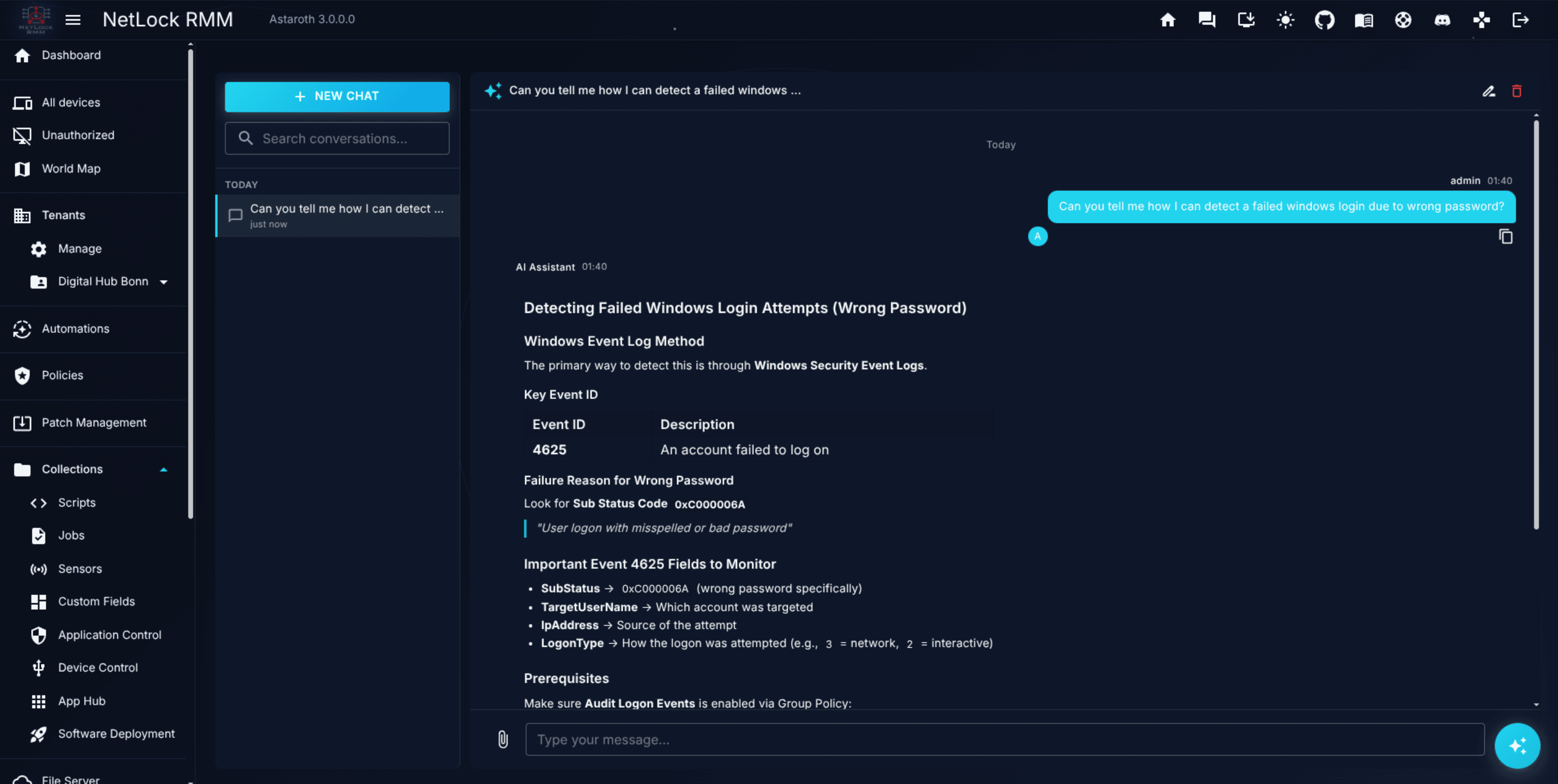
13.1 The chat UI
The page is a two-column layout: the conversation sidebar on the left, and the active chat on the right.
Sidebar
The sidebar lists your past conversations. At the top:
New chat— starts a fresh conversation.- A search field with placeholder text
Search conversations...that filters the list by title.
Below, conversations are grouped by recency:
TodayYesterdayLast 7 daysLast 30 daysOlder
Each conversation shows its title, the time of its last update, and an optional context badge when the conversation was started from another part of the console (for example, when you launched the chat from the Analyze with AI button on an event).
Chat pane
The chat pane is the right column. It shows:
- A header strip with the AI avatar, the conversation title, the optional context badge, and
RenameandDeletecontrols. - The message area, with date dividers between different days.
- Chat bubbles: your messages right-aligned, the AI's responses left-aligned with the AI avatar.
- Markdown rendering for AI responses — code blocks, numbered and bulleted lists, tables, links, and blockquotes render as you would expect.
- A typing indicator while a response is being generated.
- Streaming updates as each chunk of the response arrives, so the answer appears incrementally rather than all at once.
Composer
At the bottom of the chat pane:
- A file attachment control, labelled
Attach text-based files (max 10 MB each). - The message textfield, with placeholder
Type your message...normally andAI is responding...while a response is streaming. - A send button that swaps into a stop button while streaming. Pressing stop cancels the current response.
13.2 Conversations
Creating a conversation
Clicking New chat creates an empty conversation with an auto-generated title. The title is derived in this order:
- From the first message text, trimmed to a short string.
- From the first attachment name, if the first action is attaching a file.
- From the literal
New Conversation, if neither of the above applies.
You can rename a conversation at any time from the Rename button in the chat pane header.
Renaming a conversation
The Rename Conversation dialog accepts a new title in a single text field. Submit to save; the new title appears immediately in the sidebar list.
Deleting a conversation
The Delete Conversation dialog asks for confirmation. Deletion is permanent — the conversation and all its messages are removed. Titled Delete conversation, the dialog is a one-click confirmation.
Exporting a conversation
There is no export affordance on the AI Chat page. If you need a record of a conversation, copy the content out of the browser by hand.
13.3 Attachments
The composer accepts text-based files, prepended to the outgoing message so the AI receives both your prompt and the file contents in one pass.
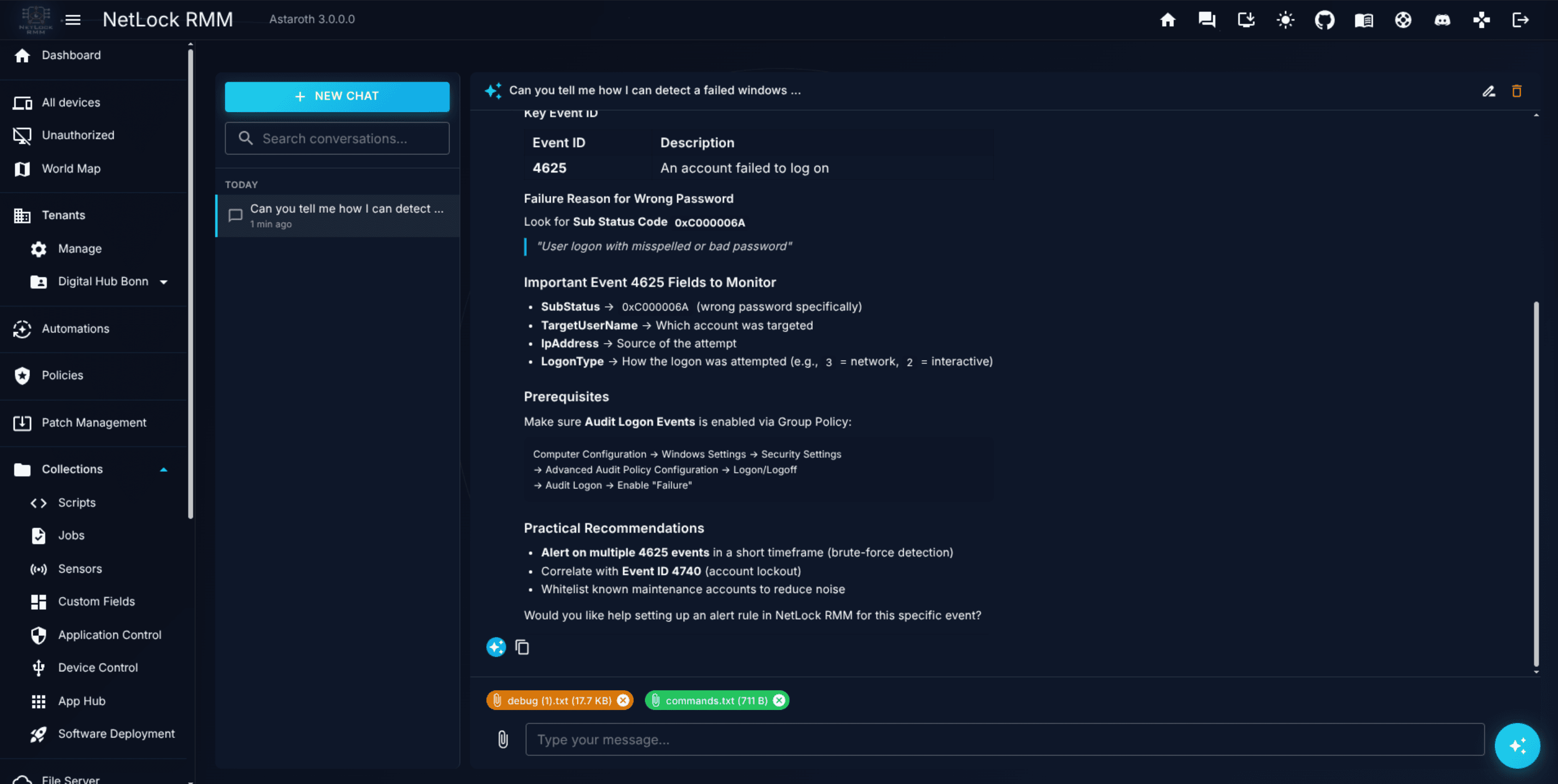
Allowed types and limits
- File types — text-based only. A whitelist of 40+ extensions covers the common cases: plain text, Markdown, source files across the major languages, YAML, JSON, XML, INI, CSV, logs, and configuration formats. Binary formats are not accepted.
- File size — 10 MB maximum per file.
- Files per message — up to 10 files can be attached to a single message.
How content is included
When you send, the content of each attached file is prepended to your message with markers so the AI can tell where each file starts and ends:
--- Attached file: {name} ({size}) ---
{file contents here}
--- End of {name} ---
The full content is sent — there is no truncation within the 10 MB per-file limit. Very large prompts may run into the provider's own token limit; the response will surface an error if that happens.
Attachment View dialog
Click an attachment chip in an existing message to open the Attachment View dialog, which shows the file name, a size label, and the full content as it was sent. Use this to verify exactly what was passed to the AI.
13.4 What AI Chat is not
A few points that come up often enough to call out explicitly, so readers coming from related parts of the product don't spend time looking for things that aren't there.
It is not the Scripts editor's AI Assistant
The AI Assistant button inside the Scripts editor (see Chapter 8.1 — Scripts) is a separate integration. It lives inside the Add Script and Edit Script dialogs, has its own inline panel, and is wired to write directly into the script editor. It is not the AI Chat page opened in a side panel.
The AI Chat page does not have a "Save as Script", "Save as Job", or "Save as Sensor" button. It cannot push a conversation into the Collections library. If you want to save a script the AI drafted, copy its code from the conversation, open the Scripts library, and paste it into a new script manually.
The same applies to the AI Assistant buttons on the Automations dialogs, the Widget Editor's AI SQL Assistant, and the Analyze with AI button on event and audit details — each of these is a targeted integration at its page, not the AI Chat page.
It does not show provider or model
The chat UI does not display the configured provider name, model name, or parameters to the end user. These live in Settings → AI/LLM (see Appendix A.11) and are only visible to users with access to that Settings page.
If you need to know which model is answering you, ask the administrator, or ask the model — it will usually tell you.
It does not integrate with Collections
The AI Chat page is general-purpose. It does not know about your Scripts, Jobs, Sensors, Custom Fields, App Hub entries, Application Control rulesets, or Device Control entries. It cannot look up a device, assign a policy, or trigger a deployment. For those interactions, use the relevant console page directly.
It does not export conversations
Already noted above — no export, no download, no shareable link. Treat conversations as transient.
13.5 Dialogs
| Dialog | Purpose |
|---|---|
| Rename Conversation | Change the title of the active conversation. |
| Delete Conversation | Confirm permanent deletion of the active conversation. |
| Attachment View | Inspect the full content of an attachment in an existing message. |
13.6 End-user AI Chat (tray)
Separate from the operator AI Chat page, NetLock RMM can give end users their own AI assistant directly from the agent's tray icon. It is opt-in per policy and is aimed at letting staff use AI sovereignly and under your control, rather than pasting company data into an external chatbot.
How it works:
- Opened from the tray. When enabled in the tray-icon policy, users open the chat from the agent's system-tray icon — no separate app, browser, or portal.
- End-to-end encrypted. Each user registers with a username (an email address by default) and a password. Conversations are encrypted on the device with a key derived from that password; the server stores only ciphertext it cannot read, and operators never see message content. A forgotten password makes that user's history permanently unrecoverable — by design (true zero-knowledge).
- Relayed through the deployment's model source. Requests travel tray → agent → server → either the managed NetLock AI (server → Members Portal API → IONOS AI Hub) or the provider configured for your own model, and are streamed back the same path. Which of the two applies is the deployment-wide
Settings → AI/LLMmodel selection; see A.11.2. - Account control. New accounts are created inactive and must be activated by an operator — or a tenant can be set to auto-activate new accounts. Password rules and a required terms/privacy-acceptance step are configured per policy.
- Token limits. Each account has an optional monthly token limit, and each tenant has an optional monthly cap that applies on top: when the tenant cap is reached, all of that tenant's users are blocked until the monthly reset, even if an individual user still has budget. Usage is shown as a percentage and can be reset per account.
Operators manage these accounts from the Customer AI dialog, reached from the Tenants list (all accounts the operator may see) and from a tenant's detail page (that tenant only, where the per-tenant cap and auto-activation are set). The dialog shows email, tenant, active state, token usage/limit, reset date, and per-period statistics — never conversation content, which the server cannot decrypt. Access is gated by the enduser_ai_accounts permission and scoped to the operator's tenants.
The tray chat's title, labels, buttons, and messages — and the username/email requirement — are fully configurable per policy. See Chapter 6 — Policies for the tray-icon AI Chat settings.
Permissions
| Flag | Gates |
|---|---|
ai_chat_page_enabled | Per-user access to the AI Chat page. Users without this flag do not see the page in their navigation. The deployment-wide Enable AI Features and AI Chat switches under Settings → AI/LLM apply on top of it; when either is off, the chat page shows the disabled message regardless of per-user flags. |
enduser_ai_accounts | The Customer AI dialog for managing end-user AI chat accounts — activation, per-user and per-tenant token limits, auto-activation, and statistics. Tenant-scoped. |
See Appendix X.2 for the full permission catalogue.
Related chapters
- Chapter 8.1 — Scripts covers the Scripts editor's
AI Assistant— the integration that does write into a Script. - Chapter 12.2 — Events covers the
Analyze with AIbutton on the Event Details dialog, which opens AI Chat with the event pre-filled. - Appendix A.11 — AI / LLM configuration covers the provider, key, and model settings that back the chat.