 NetLock RMM Docs
Handle a ticket from open to resolved
Create a ticket, triage and assign it, reply to the customer, log time, and close it out.
Handle a ticket from open to resolved
Optional module: This guide assumes the Ticket System is enabled. See Chapter 10 to enable it.
This guide walks through the full loop for a single ticket: create it, triage and assign it, post an internal note, reply to the customer, log time, and close it out. The same steps apply to tickets that arrived via inbound email — only the starting point differs.
Before you start
- The Ticket System is enabled in
Settings → Ticket System. - At least one support department exists, with outbound SMTP configured if you want to reply to the customer by email.
- Required permissions:
tickets_enabled,tickets_create,tickets_edit,tickets_assign. Time-tracking entries additionally requiretickets_view_time_trackingon the entry-creator.
Steps
1. Open the Tickets page
Navigate to Tickets (route /tickets). Use the status tabs at the top (All, Open, In Progress, Waiting, Resolved, Closed) to narrow the view.
2. Create the ticket
- Click
New Ticket. The New Ticket dialog opens. - Fill in
Title(required),Department,Priority(defaults toMedium),Contact Email(the autocomplete searches existing contacts; new addresses are accepted), and an optionalDescription. If entered, the description becomes the first outbound comment in the Conversation tab. - Save. The ticket appears in the list with a generated ticket number and
Status = Open.
3. Open the ticket detail view
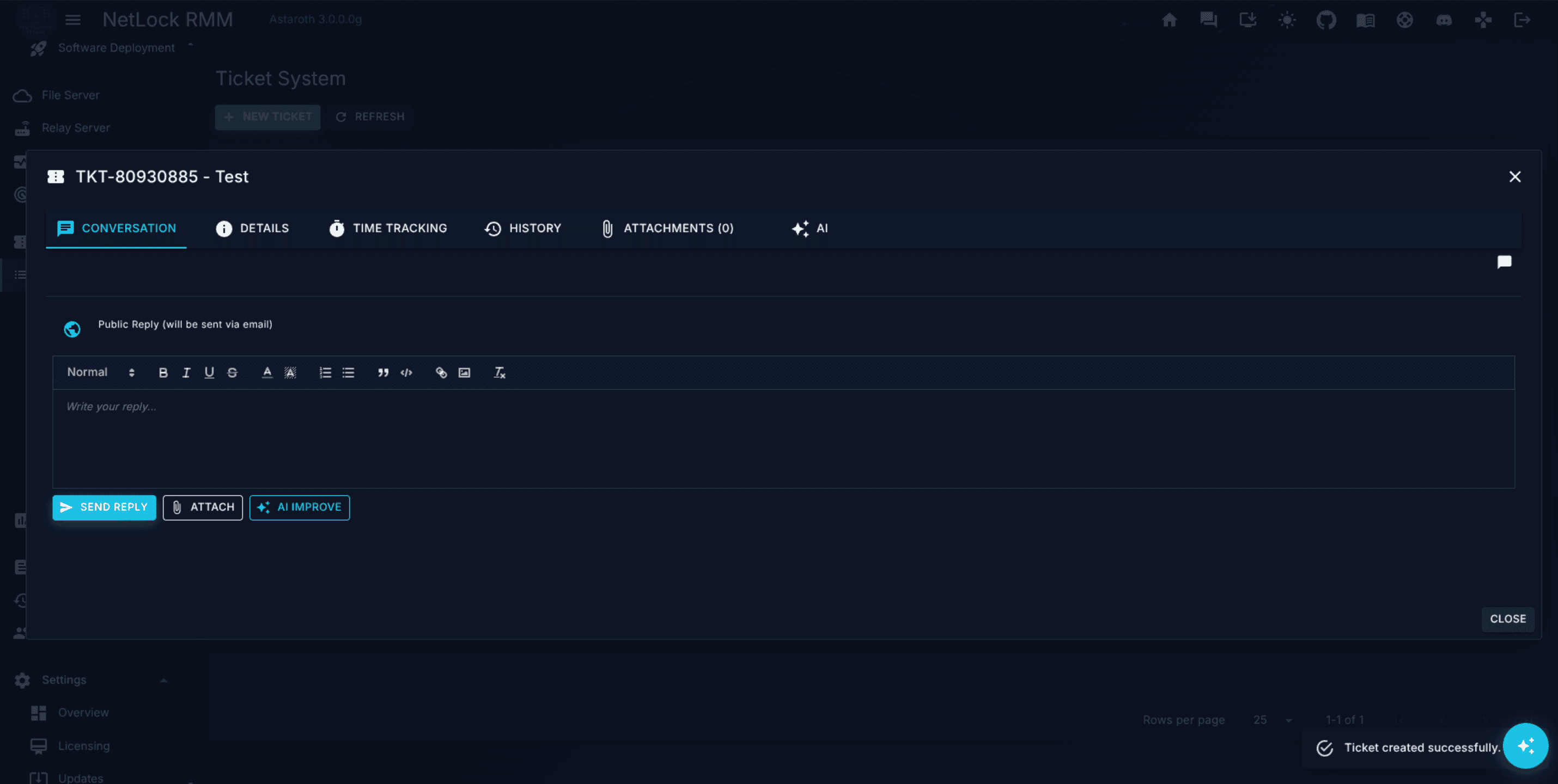
In the list, click the new row. The detail dialog opens with six tabs: Conversation, Details, Time Tracking, History, Attachments, and — when AI is configured — AI.
4. Triage on the Details tab
- Switch to the
Detailstab. - Set
Assigned To Operatorto yourself or the owning operator. This field is gated bytickets_assign. - Optionally set a
Type(for exampleIncident,Request) and add colour-codedLabelsfor reporting. Edits save in place and are logged in theHistorytab.
5. Post an internal triage note
- Switch back to the
Conversationtab. - On the composer at the bottom, toggle the direction to internal (the lock icon). Internal notes are never sent to the customer and render in orange.
- Write the note and send.
6. Reply to the customer
- Toggle the composer direction to outbound (the globe icon). Outbound messages are emailed to the contact using the department's SMTP settings.
- Optionally click the template-picker button to insert a saved response template.
- Pick
Rich Text,HTML, orPlain Textmode and send.
7. Log your time
- Switch to the
Time Trackingtab. - If the department has automatic time tracking enabled, the banner at the top shows the running timer — no action needed unless it has paused on idle.
- Otherwise, expand
Add Entryand fill inDate,Start Time,End Time, and optionalNotes.Durationis computed. Save.
8. Close the ticket
- Return to the
Detailstab. - Change
StatustoResolvedif you are waiting on customer confirmation, orClosedif no further reply is expected. - Setting
StatustoClosedopens the Close Ticket dialog; enter an optionalClosing Comment— it is stored as an internal note.
Verify it worked
- The
Historytab lists entries for the status change and the assignee change, each with old and new values. - The ticket now appears under the
Closedtab (orResolved). Closed rows render at reduced opacity. - The customer received the outbound reply at the
Contact Emailaddress. The internal note is not visible to them. - The
Time Trackingtab shows at least one entry and the summary footer reflects its duration.
Troubleshooting
- The customer never received the reply. Outbound replies use the department's SMTP settings, not the global notification SMTP. Verify the department's outbound SMTP configuration — see Chapter 10.
- The ticket is stuck in
Waiting. Any-to-any status transitions are allowed. Open theDetailstab and changeStatusdirectly.
Related
- Chapter 10 — Tickets — full reference for the ticket list, detail dialog, statistics, and departments.
- Chapter 14 — Users & Roles — managing the
tickets_*permission flags on operators. - How-to H.10 — Configure email and Microsoft Teams notifications — setting up outbound notification channels that complement ticket email.