 NetLock RMM Docs
Set up patch management for a group
Approve patches globally, then configure per-policy rollout rules for a Windows group.
Set up patch management for a group
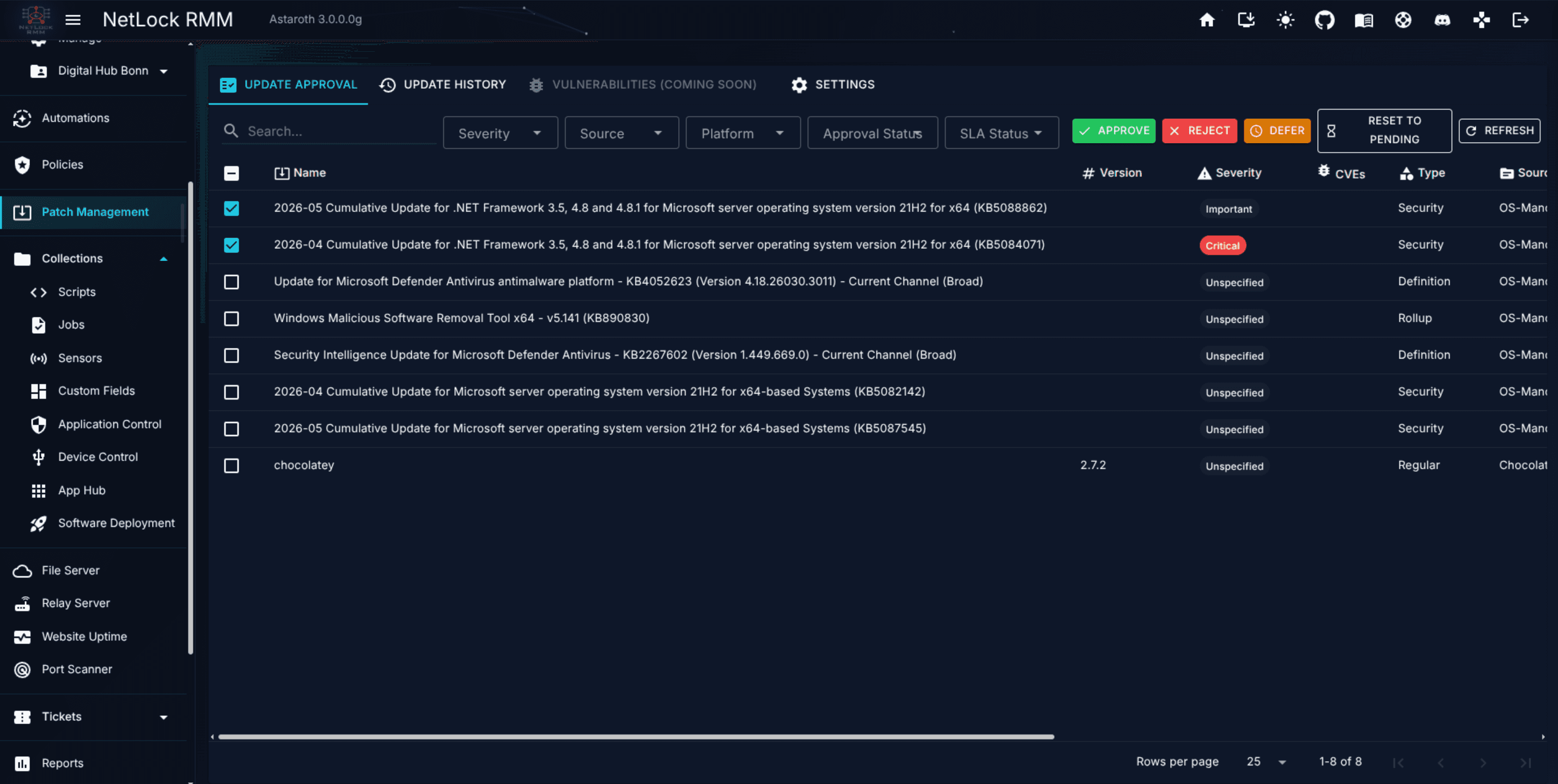
Patch management in NetLock RMM is split across two places that do different jobs, and getting both configured is what makes patching work. The /patch-management page is the global approval queue — "which patches are allowed on any device at all?" The Policy Settings editor's Patch Management tab is the per-policy rollout — "when and how do these particular devices install the approved patches?" This guide covers both, using a Windows group as the worked example.
Before you start
- A policy already exists and is routed to the target Windows group via an automation (see Guide H.4).
- At least one Windows device is online in that group.
- Patches have been detected and sit in the Pending state on the Patch Management page. If the list is empty, agents have not yet reported their update inventory — wait a sync cycle.
- Required permissions:
patch_management_enabledfor the approval page, pluspolicies_enabledand the policy edit flag for the rollout configuration.
Steps
Stage 1 — Approve patches globally
- Open
Patch Managementfrom the navigation. TheUpdate Approvaltab is the default. - Filter by
Windowsand browse the Pending patches. - Select a manageable first set — critical security updates from the previous month are a safe start. Avoid bulk-approving every pending patch on day one.
- Click
Approve. The selected patches move into the Approved state. The server flags every device for a resync so agents pick up the updated approval list on their next poll.
Use the other actions as needed:
Reject— explicitly block a patch; devices never install it.Defer— postpone a patch for a number of days (default 7).Reset to Pending— revert any state decision back to pending for later review.
Approvals are global. There is no per-device or per-group target selector on this page — scoping happens in stage 2.
Stage 2 — Configure the per-policy rollout
- Open
Policiesfrom the navigation and clickManageon the policy that routes to your Windows group. - Open the
Patch Managementtab in the Policy Settings editor. The tab is split intoGlobaland per-platform sub-tabs; pickWindows. - Under the Windows sub-tab, fill in at least these three sub-tabs for a minimal rollout:
General— enable patching for Windows and select which sources participate (at minimumOS-Mandatory, optionallyWingetandChocolatey).Schedule— pick the allowed patch days (default Monday to Friday) and a maintenance window. Outside the window the agent will not start an install; the one exception is the catch-up run described in Chapter 6.12, which runs the first check after the policy arrives, or after a missed window, right away.Reboot— decide whether the agent may reboot, whether it prompts the user, how long the prompt is visible, and what happens on a device where nobody is signed in. This is the only place in the product where reboot behaviour is configured.
- Optionally fill in
Approval & Filtering(narrow approved patches by severity or source),Deployment Rings(stage the rollout acrossPilot → Early → Broad),Notifications, andRetry. - Save the policy.
Verify it worked
- On the Patch Management page's
Update Approvaltab, the patches you approved show theApprovedstate and theInstalledandPendingcolumns begin moving as devices pick up the change. - On a target device's detail view in
Devices, the lineLast patch run: <time> – <outcome>appears after the first scheduled run that reached the install stage, and the device'sUpdatestab shows per update whether it was installed or why the last scheduled run held it back. Scheduled runs do not create entries inEvents; the only event a scheduled run writes is thePatch managementevent recorded once when an outstanding restart blocks the run. - The
Patch historytab on the Patch Management page and on the device lists each scheduled run of an agent 3.3.0.5 or later next to thePatch Nowjobs. Its details show per update whether it was installed, failed with the error Windows Update or the package manager reported, or was held back and why. - The
Update Historytab on the Patch Management page shows the install outcomes per patch per device.
Troubleshooting
-
Patches stay at 0 installed. Check that a policy with
Patch Management → Windows → Generalenabled is actually assigned to the device. If the device's detail view showsno_assigned_policy_found, the automation is missing. On Linux, open the job or the scheduled run inPatch Management → Patch history: the item details and the note carry apt'sE:lines or dnf's error lines (No match for argument,Error:,Problem:), as does the agent'sError.txt. A package that apt keeps back because the upgrade would remove another package is listed asSkippedwith the packages a full upgrade would remove; enableAllow package removal (full upgrade)in the policy's Linux tab to install it. On Fedora and RHEL-based systems a package excluded byexcludepkgsindnf.conf, or a version the repository no longer offers, fails with dnf's message while the other approved packages are installed. -
Patches approved but devices ignore them. Check the policy's
Approval & Filteringsub-tab — a filter there can veto a globally approved patch. -
My scheduled run never happens. First check where you are looking. With agent 3.3.0.5 or later, every scheduled run that reached the installation is an entry in the device's
Patch historytab and on thePatch historytab of the Patch Management page, with the result of each update and the reason an update was held back or failed (see Chapter 7.6). Runs skipped for disk space, informational mode, a disabled policy, missing patch settings or an incomplete maintenance window are listed there asSkipped. Waiting for an allowed day or for the maintenance window creates no entry; theScheduled patchingline in the device's detail view on/devicesshows it with the next possible run. Further traces are theLast patch runline, the chips on the device'sUpdatestab, and theLast scheduled runcolumn on theDevices Not Up To Datetab; with an older agent they are the only ones. The agent decides every five minutes whether a scheduled run may start and checks the following stages in this order. Go through them from the top; the first stage that fails is the reason.- Patch settings on the device. The device has received the policy's patch settings. The detail view names the assigned policy (not
no_assigned_policy_found) and, with a 3.3.0.5 agent, theScheduled patchingline does not sayThe device has not received its patch management settings yet. Until the agent has reported anything, the detail view shows the schedule facts of the device's policy — mode, allowed days, window, catch-up — so you can compare them with what you expect. If the policy is missing, fix the automation and wait for the next sync. - Platform mode is
Managed.Informationalonly reports:Last patch run: … – informational mode, nothing installed.Disabledskips without a run; a 3.3.0.5 agent reportsPatch management is disabled in the policy of this devicein theScheduled patchingline. CheckPatch Management → Windows → Generalin the policy. - Allowed patch day. The default is Monday to Friday. On an unticked day no scheduled run happens, not even as a catch-up run. A 3.3.0.5 agent reports
Waiting for an allowed patch daywith the next possible run; an older agent leaves no trace in the Console andLast patch runstays empty. CheckSchedule → Allowed patch days. A policy saved on Friday evening and a check on Saturday morning is the classic case. - Maintenance window or catch-up. Inside the window the run starts at the agent's next check. Outside the window a run starts only as a catch-up: the first check after the policy arrives on the device, or the first check after a missed window, runs right away even outside the window (
Catch up a missed maintenance windowon the platform'sSchedulesub-tab, on by default).Fromequal toTomeans no time restriction. A 3.3.0.5 agent reportsWaiting for the maintenance windowwith the next possible run, orThe maintenance window of the policy is incomplete, no run is scheduledwhen it cannot read theFrom/Topair — nothing runs until the window is corrected. - One run per window occurrence. After a run the agent installs nothing more until the next window opens — once per day for a 24/7 window — whatever the outcome of that run was. A 3.3.0.5 agent reports
Already ran in the current maintenance windowwith the next possible run. If that run installed nothing, the reason is in one of the following stages. - Free disk space. With
Check minimum free disk space before patchingon, a device below the threshold is skipped:Last patch run: … – skipped, insufficient disk space. This skip does not use up the window; the agent tries again at its next check. - Windows: no outstanding restart. While a restart from an earlier update run is outstanding, a scheduled run installs nothing:
Last patch run: … – nothing installed, restart pending. The device shows theRestart pending since …banner with the note that scheduled runs install nothing until the device has restarted, together with the restart behaviour of its policy, and the blocked run is recorded once as an event of typePatch managementon the device. WithAsk usera device where nobody is signed in asks nobody; theIf nobody is signed inoption on theRebootsub-tab decides whether such a device restarts in the maintenance window, immediately, or not at all (the default). With the default the restart has to happen another way — a user or the Console restarts the device, or you change the option — and scheduled runs keep installing nothing until then.Patch Nowstill installs. - Windows Update query. The agent asks Windows Update for the available updates. When the query times out, fails or returns no result, the run is recorded as
completedand its note — the tooltip of theLast patch runline — says that the query for available updates failed and no update was installed. Windows Update itself, not the policy, is the place to look then. - Per-update filters. The run happened (
completedornothing pending) but a specific update is still missing: open the device'sUpdatestab, where the chip on each update names the reason from the last scheduled run —Blocked by severity filter,Blocked by update type filter,Not approved,Deployment ring until …,Retry after …,Waiting for restart,Not offered in last run.nothing pendingmeans Windows Update offered nothing that the policy's sources cover. A deployment ring set toImmediateonly removes the waiting time after an update's release; the allowed days, the maintenance window and the one-run-per-window rule still apply. OnlyPatch Nowbypasses the schedule, the rings and the retry budget.
On the device itself, a 3.3.0.5 agent writes every change of its schedule decision and every run outcome to
Logs\Patch_Management.txtin the Comm Agent folder (C:\ProgramData\0x101 Cyber Security\NetLock RMM\Comm Agent\) without debug mode; state changes and outcomes only, so the file stays small. The full detail of every five-minute check needs debug mode: create an emptydebug.txtin the Comm Agent folder and restart the service, as described in Guide — Debug an agent. The agent's run bookkeeping lives inpatch_cycle_state.jsonunderC:\ProgramData\NetLock RMM\Agent\(Linux:/var/lib/netlock-rmm/); a missing or empty file means that no scheduled run has reached the install stage yet. - Patch settings on the device. The device has received the policy's patch settings. The detail view names the assigned policy (not
-
Reboots happen at unexpected times. Review
Patch Management → Windows → RebootandSchedulein the policy. Reboot prompts follow the schedule's maintenance window. -
SLA chips show
Overdue. Adjust the SLA thresholds on the Patch ManagementSettingstab if the defaults (7 / 15 / 30 / 60 days by severity) do not fit your environment.
Related
- Chapter 7 — Patch Management — the global approval queue, vulnerabilities tab, update history, and SLA settings.
- Chapter 6.12 — Patch Management tab — the complete per-policy rollout reference.
- Guide H.4 — Build and apply a policy — the prerequisite routing setup.