 NetLock RMM Docs
Create your first tenant, location, and group
Build the three-level organisational hierarchy every device lives in.
Create your first tenant, location, and group
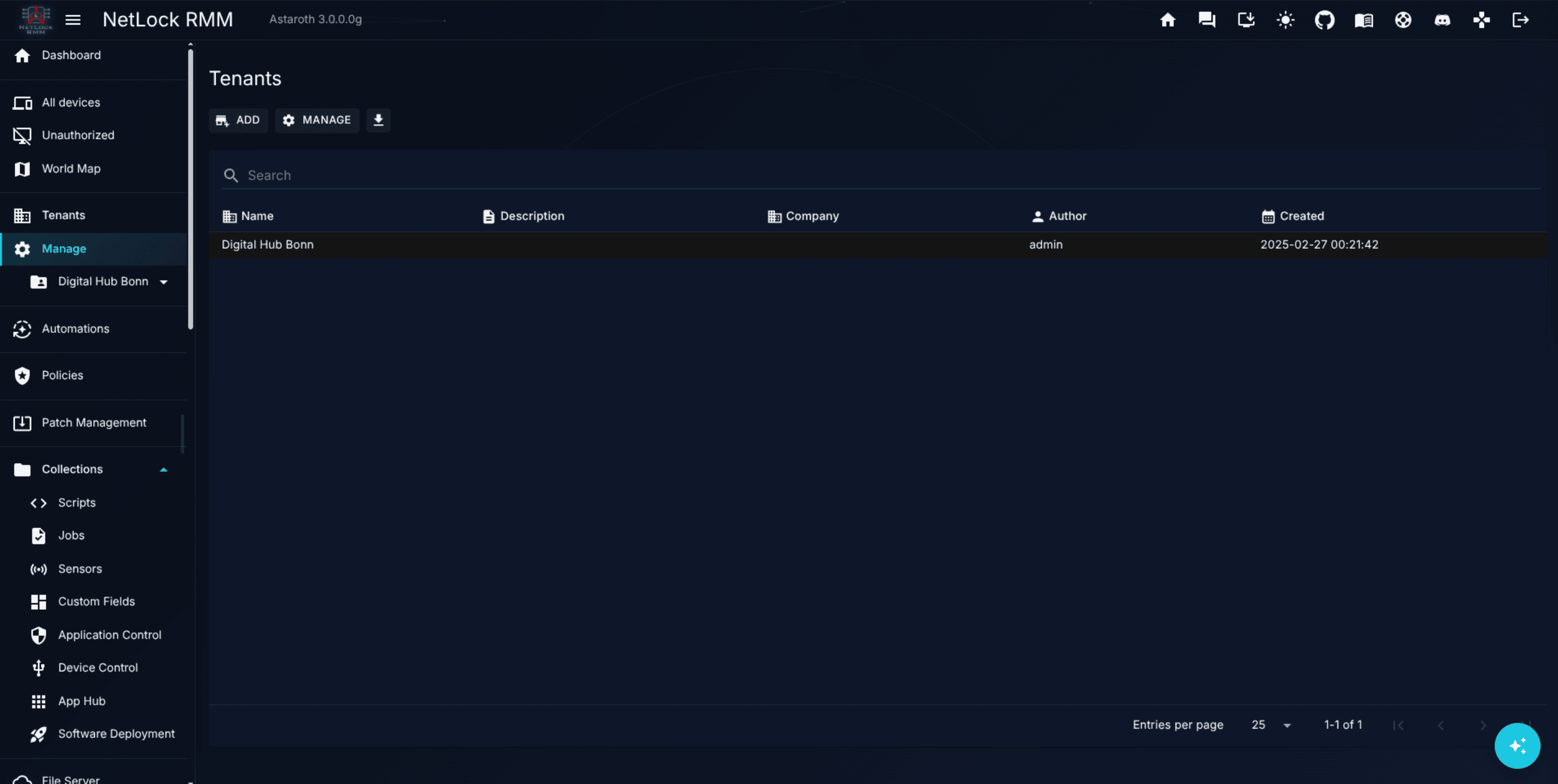
NetLock RMM organises every device into a three-level hierarchy: tenant → location → group. A device cannot be approved into the console without one of each. This guide walks through creating the hierarchy from scratch, either manually or through the first-run Setup Wizard. Once finished you will have an empty tree ready to receive an agent.
Before you start
- You are signed in to the Console as a user with permission to manage tenants.
- Required permissions:
tenants_enabledfor the Manage Tenants page, plus the role flags that gate add-tenant, add-location, and add-group actions in your deployment.
Steps
Create the tenant
- In the navigation, open
Tenants. - On the
Manage Tenantspage, click the add affordance. - Fill in the tenant name and any required metadata. For an in-house IT team the tenant usually maps to the company; for an MSP it maps to one customer.
- Save. The new tenant appears in the list and is empty — no locations, no groups, no devices yet.
Create the location
- Select the new tenant in the list to enter its detail view.
- Open
Location Settingsfor the tenant. - Use the add-location affordance and enter a location name. Locations typically reflect a physical site —
Berlin HQ,Remote Workers,Datacenter A. - Save.
Create the group
- Inside
Location Settings, open the newly created location. - Use the add-group affordance.
- Enter a group name aligned to how the devices inside it will be configured —
Workstations,Laptops,Servers,POS Terminals. A good rule of thumb is "one group per intended policy". - Save.
Tip: If a single policy applies to every device at a location regardless of role, one group per location is plenty. Only split groups when different policies will apply. It is easier to add groups later than to consolidate them.
Alternative — the Setup Wizard
On a fresh deployment, the Setup Wizard dialog opens the first time an administrator visits the Dashboard and runs through the same three steps as a single flow. If the wizard is still on screen, follow its prompts instead of navigating manually; the result is identical.
Verify it worked
Manage Tenantslists the new tenant.Location Settingsfor that tenant lists the new location.- Opening the location shows the new group in its group list.
Troubleshooting
- Add affordances are disabled. Your user account is missing one of the management permissions. Ask an administrator to grant
tenants_enabledand the relevant add flags. - The location or group fields reject a name. Names are typically unique per parent — a second
Workstationsgroup inside the same location is rejected. Rename or pick a different parent.
Related
- Chapter 4 — Tenants, Locations & Groups — full reference, including tenant settings, per-tenant exports, and hierarchy reorganisation.
- Guide H.1 — Deploy your first agent — installs an agent into the new hierarchy.
- Guide H.4 — Build and apply a policy — routes a policy to the new group.