 NetLock RMM Docs
Enable SSO with Azure AD / Google
Configure OpenID Connect sign-in with either Azure AD or Google, including the provisioning rules and why there is no SAML metadata file.
Enable SSO with Azure AD / Google
NetLock RMM supports single sign-on via OpenID Connect. This guide covers the two most common providers — Azure AD (Microsoft Entra ID) and Google — as two short sub-flows on the same configuration page. Before you start, read the notes below: SSO is the only area in the product where saving a settings change restarts the Console, and there are a few product rules that differ from what other RMMs do.
There is no SAML metadata file
NetLock RMM signs users in with OpenID Connect (OAuth 2.0) only. SAML 2.0 is not supported, so there is no SAML metadata file to download from the Console and none to upload to it.
This matters most on the Azure side, because Microsoft Entra ID presents SAML as the default path. Register NetLock RMM under Microsoft Entra ID → App registrations. Do not use Enterprise applications → Single sign-on → SAML — that is where the metadata file you are looking for lives, and an application configured there cannot be used for OpenID Connect sign-in.
The same applies to the other providers: create an OIDC — Web Application in Okta and a Regular Web Application in Auth0, not their SAML equivalents.
If your identity provider speaks SAML only, you need a federation layer that translates SAML to OIDC between it and NetLock RMM.
Before you start
- One provider at a time. Only one SSO provider can be enabled. Turning one on automatically turns the others off.
- Users must be pre-provisioned. SSO login does not auto-create accounts. Every SSO user must already exist in
UserswithAuth Modeset toSSOorPassword & SSO. The NetLock username must match the email claim the provider returns. - Saving restarts the Console. Confirming the save triggers an application restart and all active user sessions are terminated.
- No paid plan required. SSO is available on every NetLock RMM deployment and is not reserved for a paid tier. Signing in via SSO does require the deployment's licence to be in a valid state — the same condition that applies to the Console as a whole — so a banned, expired or deactivated licence blocks SSO sign-in along with everything else.
Required permissions for this guide: settings_enabled, settings_sso_enabled.
Pre-provision users first
- Open
Usersin the navigation. - For every user who should sign in via SSO, open or add their account.
- In the Add / Edit User dialog, set
Auth ModetoSSO(SSO only) orPassword & SSO(either method). Make sure the username matches the email address the identity provider will return as the email claim. For testing you might want to set it toPassword & SSOin case you have to troubleshoot the SSO login to prevent locking yourself out. - Save.
If you skip this step, every SSO sign-in attempt is rejected with User is not authorized for SSO login. Please contact your administrator..
Azure AD — Steps
1. Register an application in Microsoft Entra ID
- Open the Microsoft Entra admin center and go to Microsoft Entra ID → App registrations → New registration. Do not use Enterprise applications → Single sign-on; see the SAML note above.
- Give the registration a name, for example
NetLock RMM. - Under Redirect URI, select the platform Web and enter
https://<your-console-host>/signin-oidc. Replace<your-console-host>with the exact address your users open the Console at, including the port if you run on a non-standard one./signin-oidcis the defaultCallback Pathon the Azure AD tab — if you change it there, change it here too. The Azure AD tab shows this URI with a copy button. - Register the application, then open Authentication and add
https://<your-console-host>/signout-callback-oidcas the Front-channel logout URL. This matches the defaultSigned Out Callback Path. - On the Overview page, record the Directory (tenant) ID and the Application (client) ID.
- Go to Certificates & secrets → New client secret, create a secret and copy its Value. Copy the Value, not the Secret ID — the Value is shown only once and cannot be retrieved afterwards.
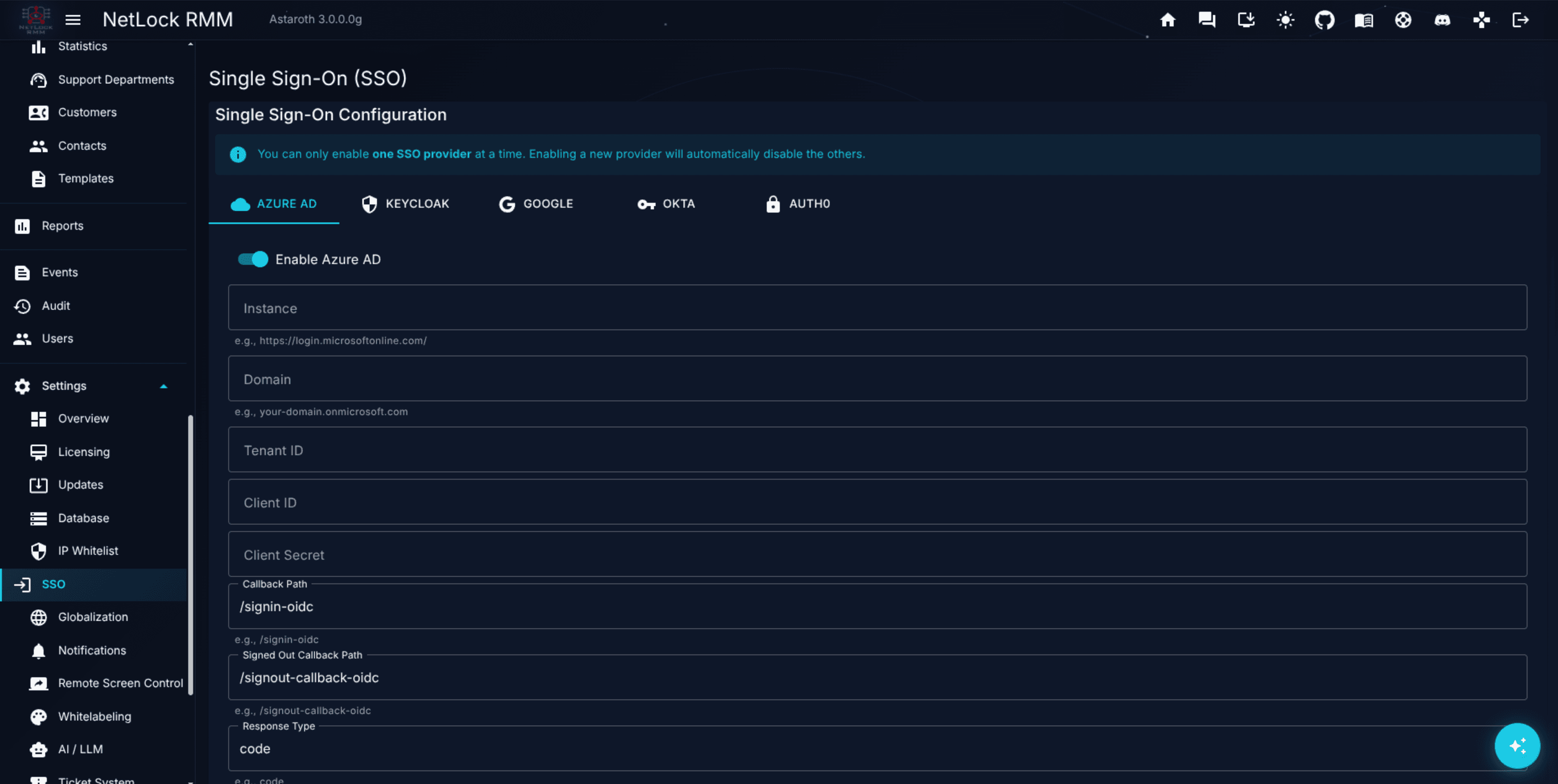
2. Configure the Azure AD tab in NetLock
- Open
Settings → SSO(route/settings/sso). - Switch to the
Azure ADtab. - Toggle
Enable Azure ADon. The info alert on the page reminds you that enabling one provider disables the others. - Fill in the required fields:
Instance— for examplehttps://login.microsoftonline.com/.Domain— for exampleyour-domain.onmicrosoft.com.Tenant ID— from the Azure portal.Client ID— from the Azure portal.Client Secret— from the Azure portal.Callback Path— typically/signin-oidc.Signed Out Callback Path— typically/signout-callback-oidc.Response Type— typicallycode.Save Tokens— optional, enable if downstream flows need the provider tokens.
- Click
Save. - A confirmation dialog warns:
The web console will automatically restart after saving the SSO configuration. All active user sessions will be terminated. Do you want to continue?. Confirm. - The Console restarts. Wait a moment and sign back in — the SSO option should appear on the login page.
If the Console runs behind a reverse proxy that terminates HTTPS but does not forward the X-Forwarded-Proto header, also enable Force https in redirect URLs at the top of the SSO page before saving. Without it the redirect URL is built from the internal http scheme and Azure rejects it as a redirect URI mismatch.
Google — Steps
1. Configure an OAuth 2.0 Client in Google Cloud
In Google Cloud Console, create an OAuth 2.0 Client ID of type Web application. Add an authorised redirect URI constructed as https://<your-console-host>/<callback-path> — for Google the default Callback Path is /signin-google, giving https://<your-console-host>/signin-google.
Record:
- Client ID.
- Client Secret.
If you want to restrict sign-in to a Google Workspace domain, note the domain name too.
2. Configure the Google tab in NetLock
- Open
Settings → SSO. - Switch to the
Googletab. - Toggle
Enable Googleon. - Fill in:
Client ID— for exampleyour-client-id.apps.googleusercontent.com.Client Secret— from Google Cloud.Callback Path— typically/signin-google.Signed Out Callback Path— typically/signout-callback-google.Hosted Domain (Optional)— the Workspace domain if you want to restrict sign-in, otherwise leave blank.Save Tokens— optional.
- Click
Save, confirm the restart warning, and wait for the Console to come back up.
Verify it worked
- The Console's login page shows the SSO option for the provider you enabled.
- Signing in as a pre-provisioned user with the correct email claim succeeds and lands them on the Console.
- A user whose
Auth ModeisPasswordonly is rejected with the authorisation error above — this confirms the provisioning rule is active.
Troubleshooting
- You cannot find a SAML metadata file. There is none. NetLock RMM uses OpenID Connect, not SAML. Register the application under Microsoft Entra ID → App registrations, not under Enterprise applications → Single sign-on → SAML.
- The provider reports a redirect URI mismatch and the URI it received starts with
http://. The Console sits behind a reverse proxy that terminates HTTPS without forwardingX-Forwarded-Proto. EnableForce https in redirect URLsat the top of the SSO page and save. The log lineSSO | <Provider> challengenames the URI that was sent. - SSO sign-in is refused with a licence dialog. SSO itself needs no paid plan, but the deployment's licence has to be in a valid state. Check
Settings → Licensingfor a banned, expired or deactivated licence. - Red alert
SSO Configuration Error!on the page. The configuration failed to load on startup and SSO is disabled. Re-check all required fields on the active provider tab and re-save. - User sees
User is not authorized for SSO login.The account is missing, or itsAuth ModeisPasswordonly, or its username does not match the email claim. Fix inUsersand have them try again. - Redirect URI mismatch at the provider. The callback path you entered in NetLock must match the redirect URI you registered at the provider — path for path, including the leading
/. - SSO works at one Console address but not at the other. A cloud instance reached through a custom domain has two addresses, and the redirect URI is built from the one the user opened. Register the redirect URI of both addresses at the provider; the SSO page lists them per tab.
Related
- Appendix A.4 — Security: IP whitelist, rate limiting & SSO — the full reference for all five supported OIDC providers, IP-whitelist interaction, and per-user
Auth Mode. - Chapter 14 — Users & Roles — pre-provisioning accounts and setting
Auth Mode. - Use your own domain for the cloud Web Console — a second Console address needs its own redirect URI at the provider.
Configure email and Microsoft Teams notifications
Set up SMTP delivery and a Teams webhook, add one recipient each, and test both.
Use your own domain for the cloud Web Console
Point a subdomain of your own at the Web Console of your NetLock RMM cloud instance with a CNAME record, and understand what changes once a second address exists.